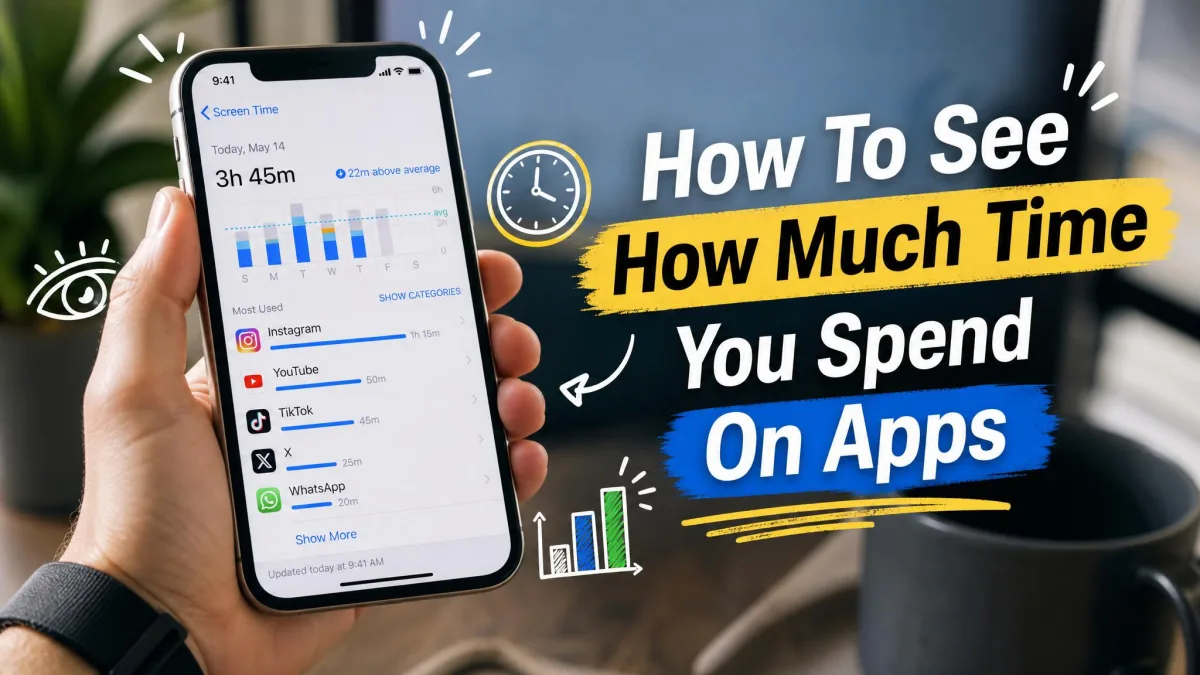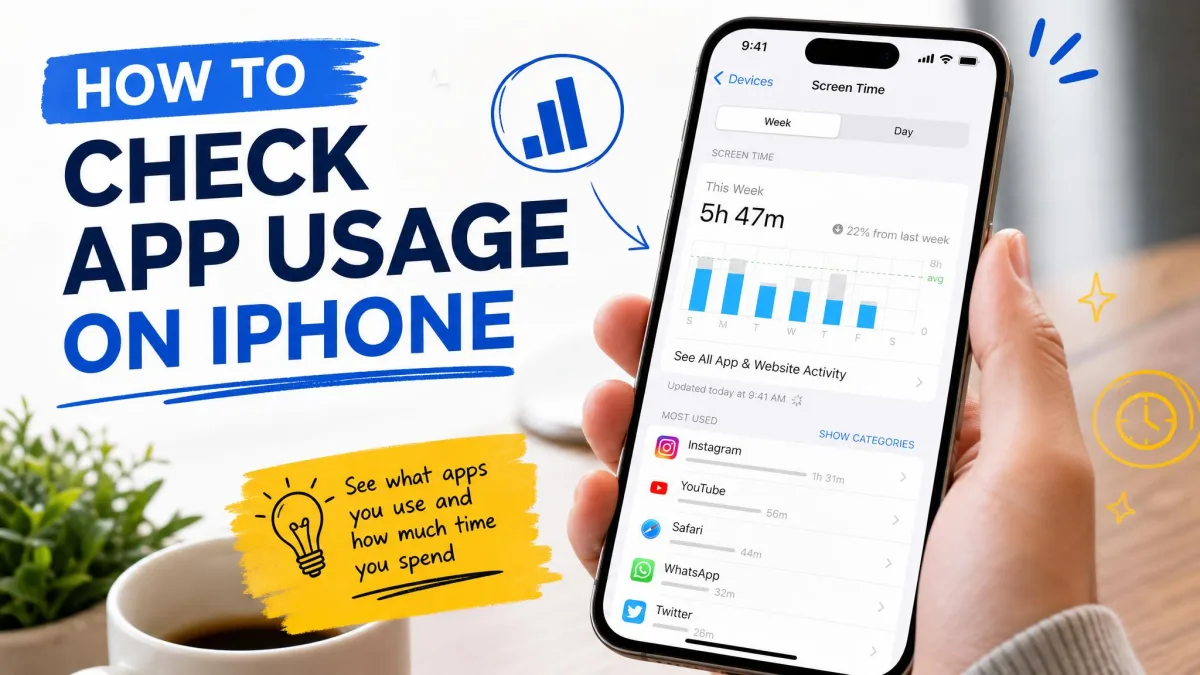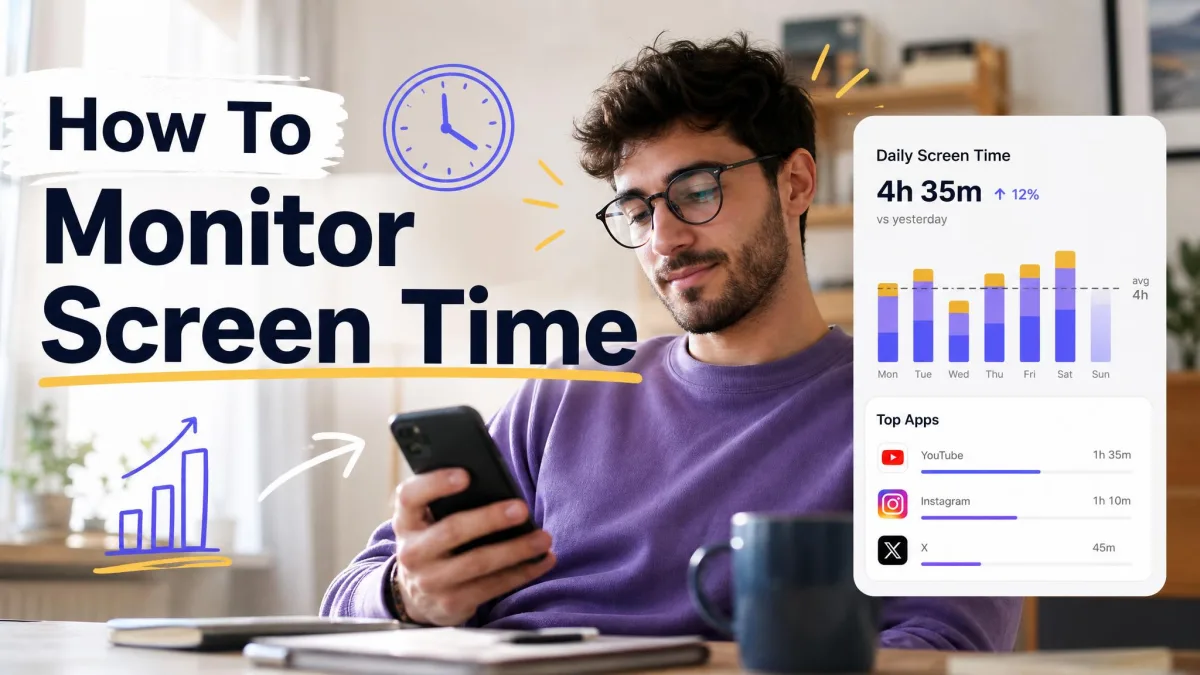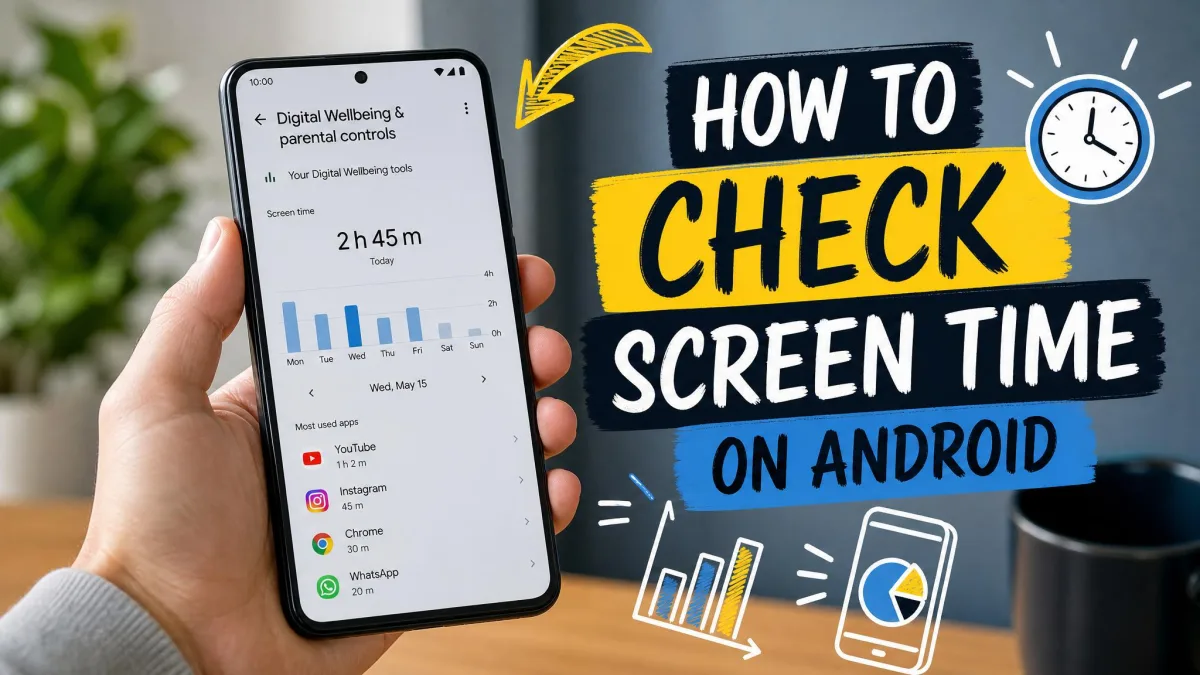
It's easy to lose track of how much time you spend on your phone. A quick email check turns into twenty minutes of scrolling, and before long the whole day is gone. Here's how to see exactly where that time goes and what the numbers actually mean. Once you see the total, you can decide whether it's worth changing.
Your Android phone already records all of this. Digital Wellbeing is built into Settings on most devices, and it tracks screen time, app usage, unlocks, and notifications with no extra setup. You don't need to install anything or pay for a subscription. The tool ships with the operating system on Android 9 and later, so most phones have it ready to use.
The steps below cover the fastest way to check your screen time, how to read the dashboard, and how to set limits that hold. You'll also find the specific screens on Samsung and Google Pixel phones, since the two menu names differ. If your goal is to keep tabs on a child's device, the parental-control section covers that route too.
The easiest way to check screen time on Android is to open Settings → Digital Wellbeing & parental controls → Dashboard.
We verified these steps on a Google Pixel and a Samsung Galaxy phone. The menu wording differs between them and trips people up: Samsung calls it Digital Wellbeing and Parental Controls, while Pixel uses Digital Wellbeing & Parental Controls. Keep that in mind, and you won't hunt for a menu that's right in front of you.
How to Check Your Screen Time on Android (Step-by-Step)
Open Settings and find Digital Wellbeing & parental controls
Open Settings by swiping down from the top of the screen and tapping the gear icon. Scroll to Digital Wellbeing & parental controls and tap it. Samsung phones label the section Digital Wellbeing and Parental Controls instead, but both entries lead to the same tool.
View your screen-time dashboard
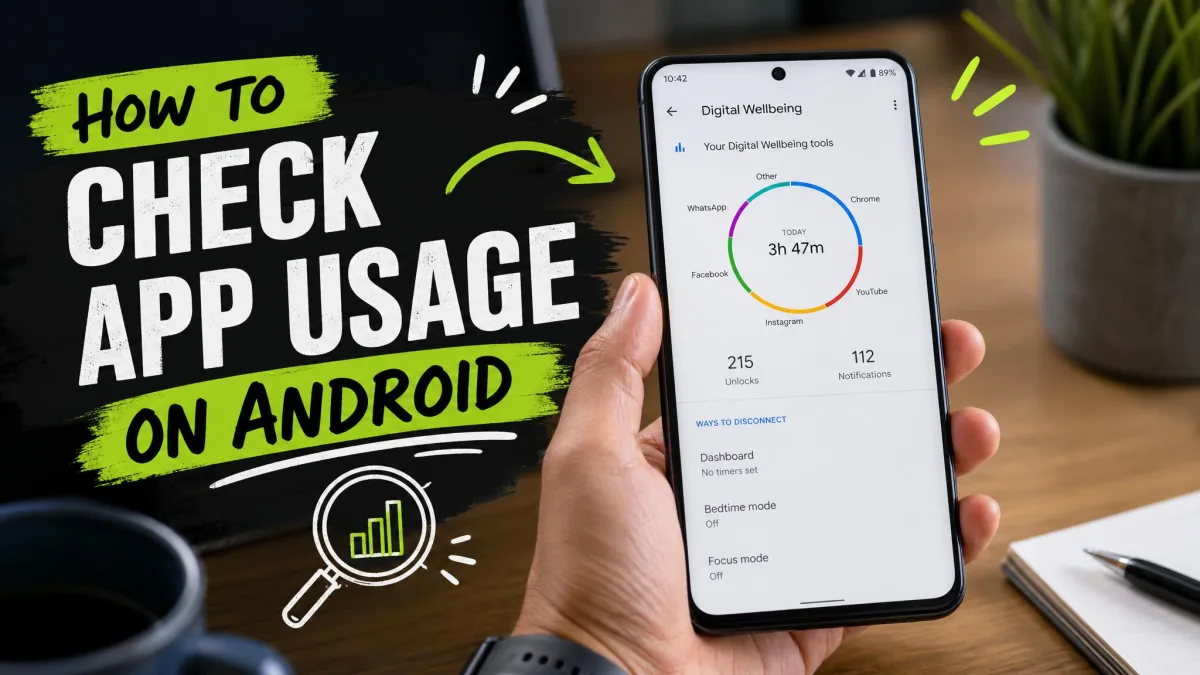
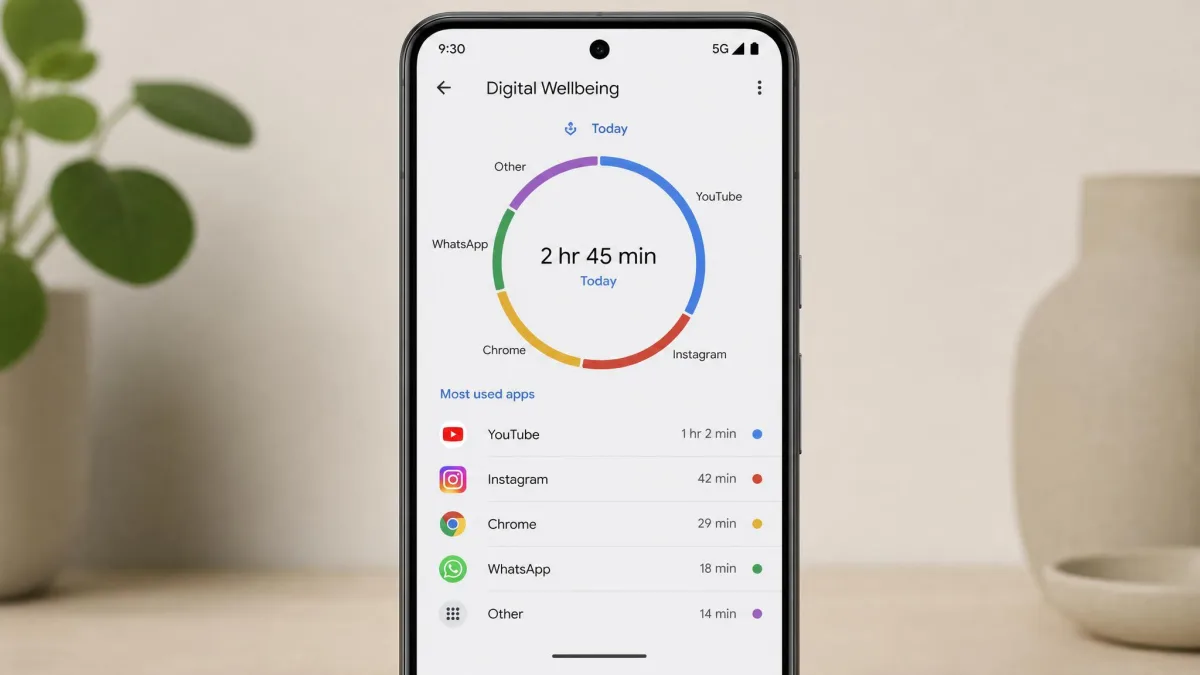
Tap Dashboard at the top. Today's screen time sits in the center, with a color-coded ring and your most-used apps below. First-time users may need to tap More → Manage your data once before the chart fills in.
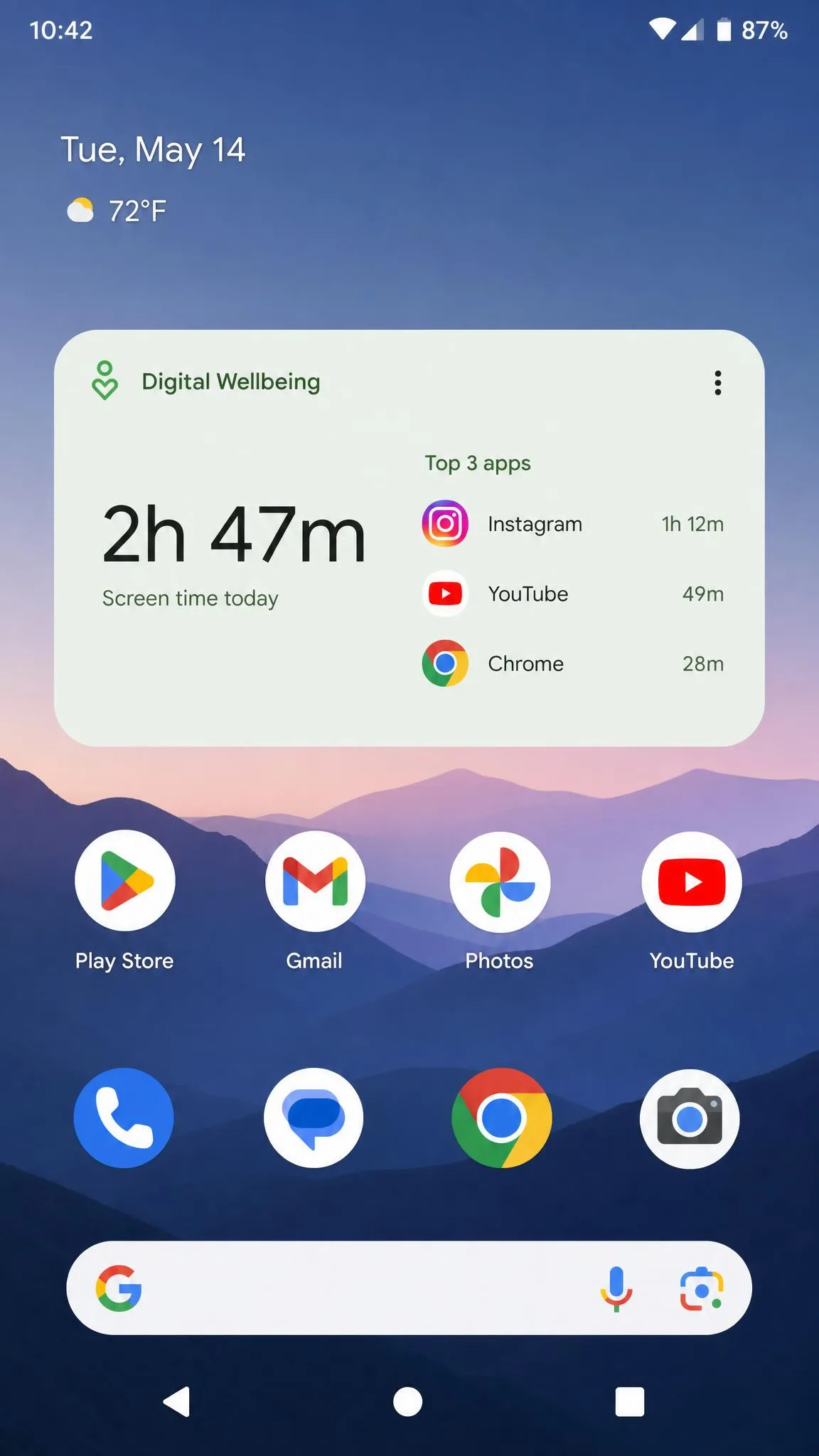
Add a screen-time widget or quick access to your home screen
Long-press an empty spot on your home screen and choose Widgets. Drag the screen time widget into place to see your top three apps each day. For the app drawer, open Digital Wellbeing, tap the three-dot menu, and turn on Show icon in the app list.
What Is Digital Wellbeing (and How It Tracks Usage)
Digital Wellbeing is Google's built-in screen-time tracker, part of Android since version 9. It records how long each app stays on screen, how often you unlock the phone and open apps, and how many notifications arrive from each app. Everything stays on your device, so there's no account to create and no data to sync.
The number is a starting point, not a judgment. The dashboard lumps very different activity together, so a video call with family and two hours of scrolling both count as screen time.
How to Read Your Screen-Time Dashboard
See time per app
The list under the ring shows each app and how long you used it today. Tap any app for its daily history, including your timer setting and notification count.
Switch to weekly or average view
Switch to a broader view to see the pattern. The dashboard holds roughly the last month of usage on most devices, while detailed per-day events go back only about a week.
Unlocks and notifications
Open the Times opened tab to see how often you unlock the phone and launch apps. The Notifications tab lists how many notifications each app sends. Every glance at your lock screen is still time on the phone.
A National Institutes of Health resource notes that screen time that isn't work or homework can push out physical activity, and health experts suggest keeping children's recreational screen time at home to two hours or less a day. That context helps when you decide whether your own numbers are worth changing.
How to Check Screen Time on Google Pixel and Stock Android
Pixel phones and stock Android follow the same path as the steps above, with one menu-name difference. Swipe down twice to open Quick Settings, tap the gear icon, and choose Digital Wellbeing & Parental Controls. The dashboard opens as a circle chart with each app in its own color, and first-time users tap Show Info before data appears.
How to Check Screen Time on a Samsung Galaxy Phone
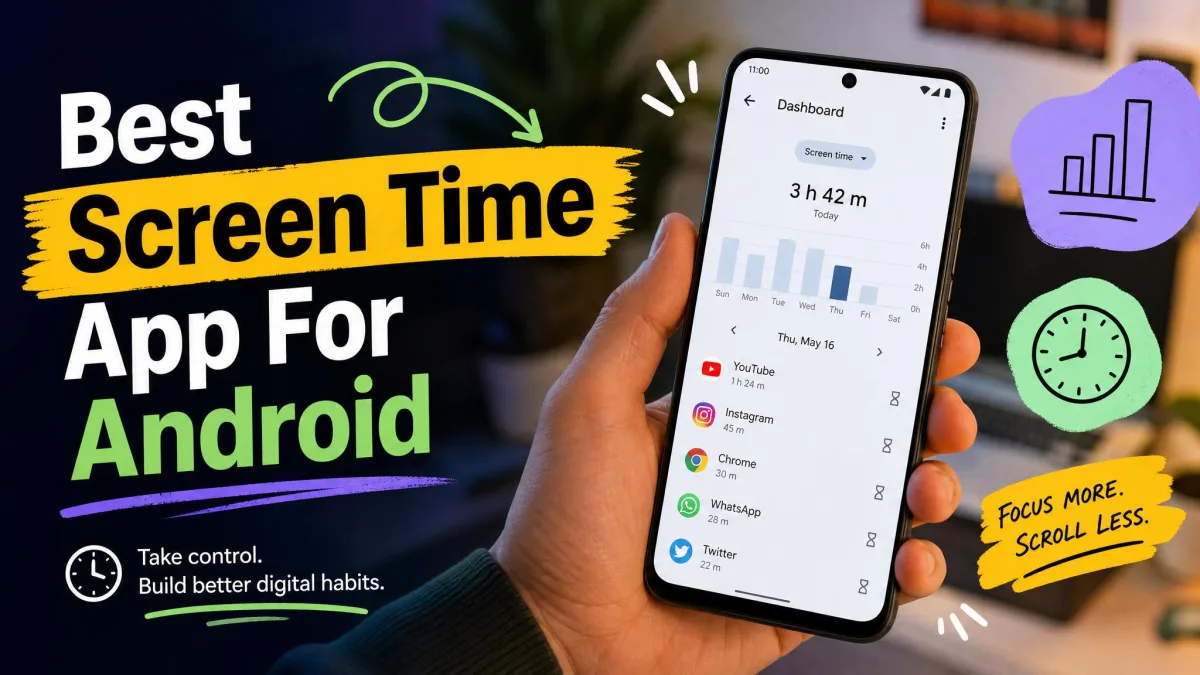
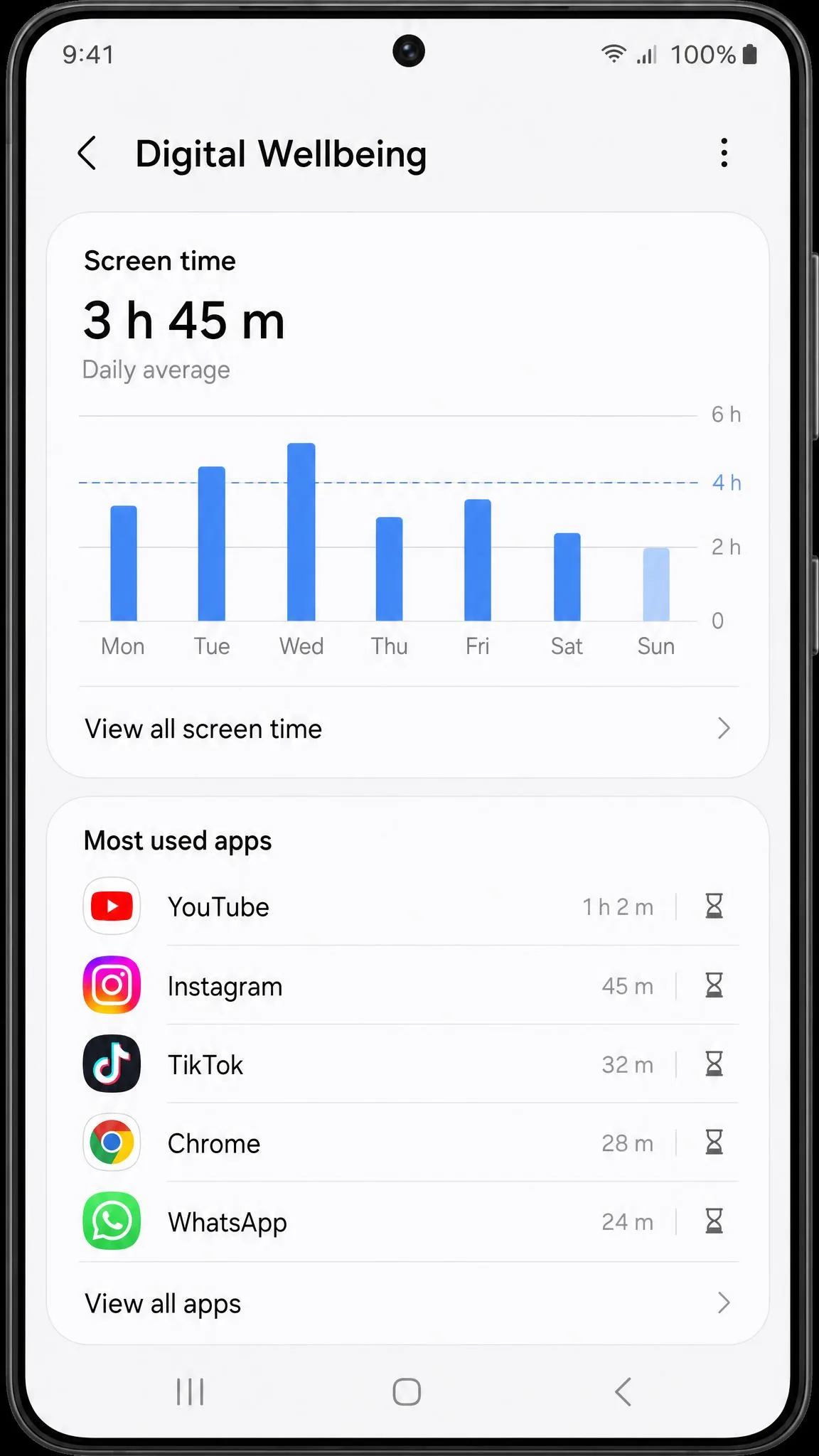
Samsung calls the tool Digital Wellbeing and Parental Controls, and the wording catches people out. Swipe down once, tap the gear icon, and scroll to the entry. The dashboard opens to a bar graph of screen time per day, with your most-used apps underneath. Tap Dashboard to switch between Screen time, Notifications received, and Times opened.
Samsung also adds extras Pixel lacks. A weekly-report icon shows your weekly average, and you can set a screen time goal from the dashboard. Some options shift under Modes and Routines on newer One UI versions. If a setting isn't where you expect it, Samsung's support page walks through the current layout.
How to Set App Timers and Screen-Time Limits
Once you know your numbers, the next step is to change them.
Set app timers
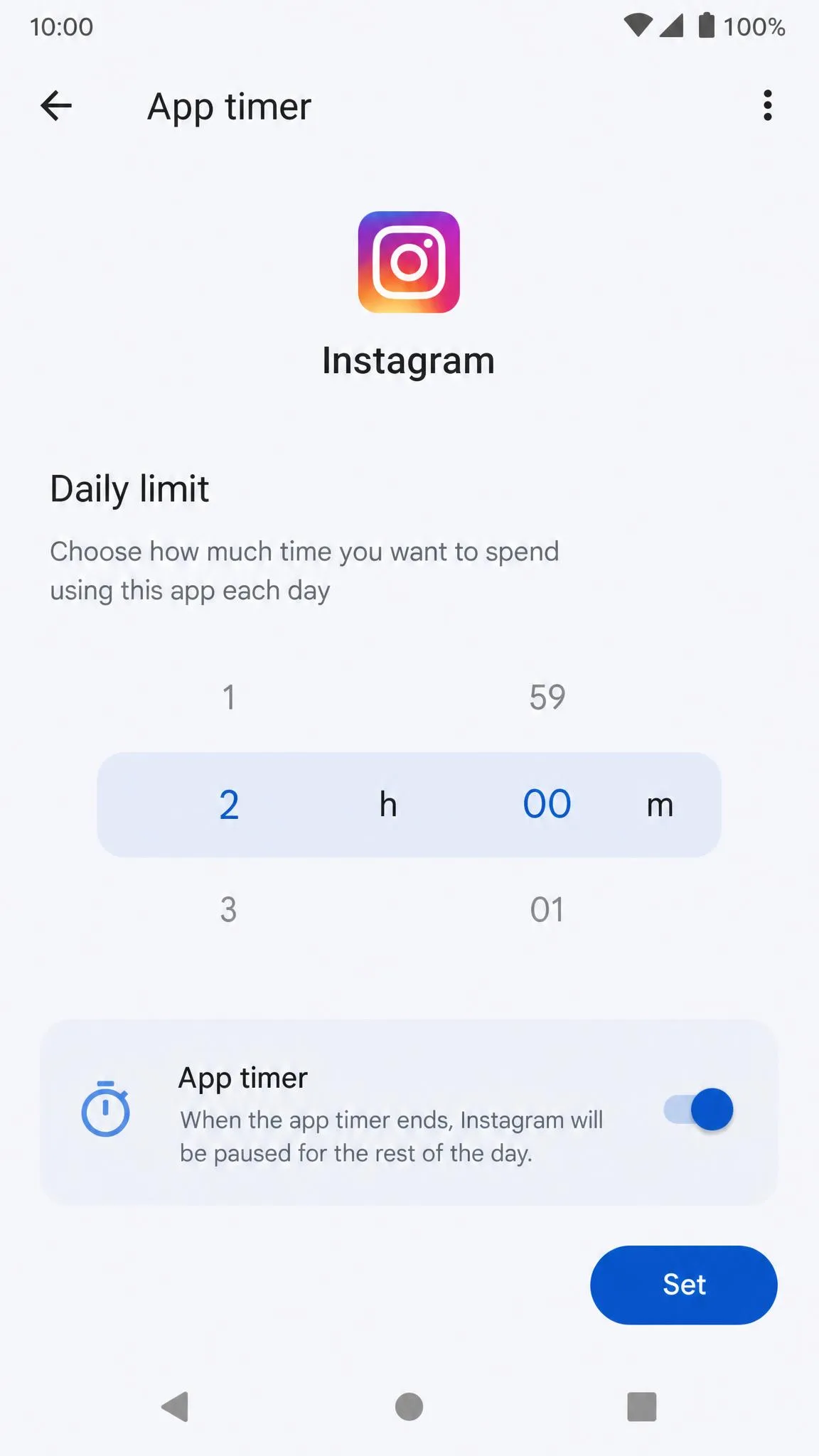
Open an app in your dashboard and tap Set timer, then pick a daily limit. When the time runs out, the app closes and its icon dims until the next day. Timers reset at midnight, and each limit applies to that single app.
A timer is only as strong as its PIN. Without the App limits PIN, it can be deleted in about three taps, so the limit reads as a suggestion. Open Digital Wellbeing → App limits and set the 4-digit PIN to make it hold.
Use Focus mode to cut distractions
Focus mode pauses the apps you choose and blocks their notifications. Turn it on from the dashboard, schedule it, or add it to Quick Settings on some phones. It stops the alerts, though it won't stop you from opening an app manually. Focus mode switches off and on freely, so it works best alongside your own resolve.
Use Bedtime mode for better sleep
Bedtime mode dims the screen, switches it to grayscale, and quiets notifications while you sleep. Run it on a schedule or set it to turn on while charging, and it can switch off automatically at your next alarm.
How to Check Your Child's Screen Time (Parental Controls & Family Link)
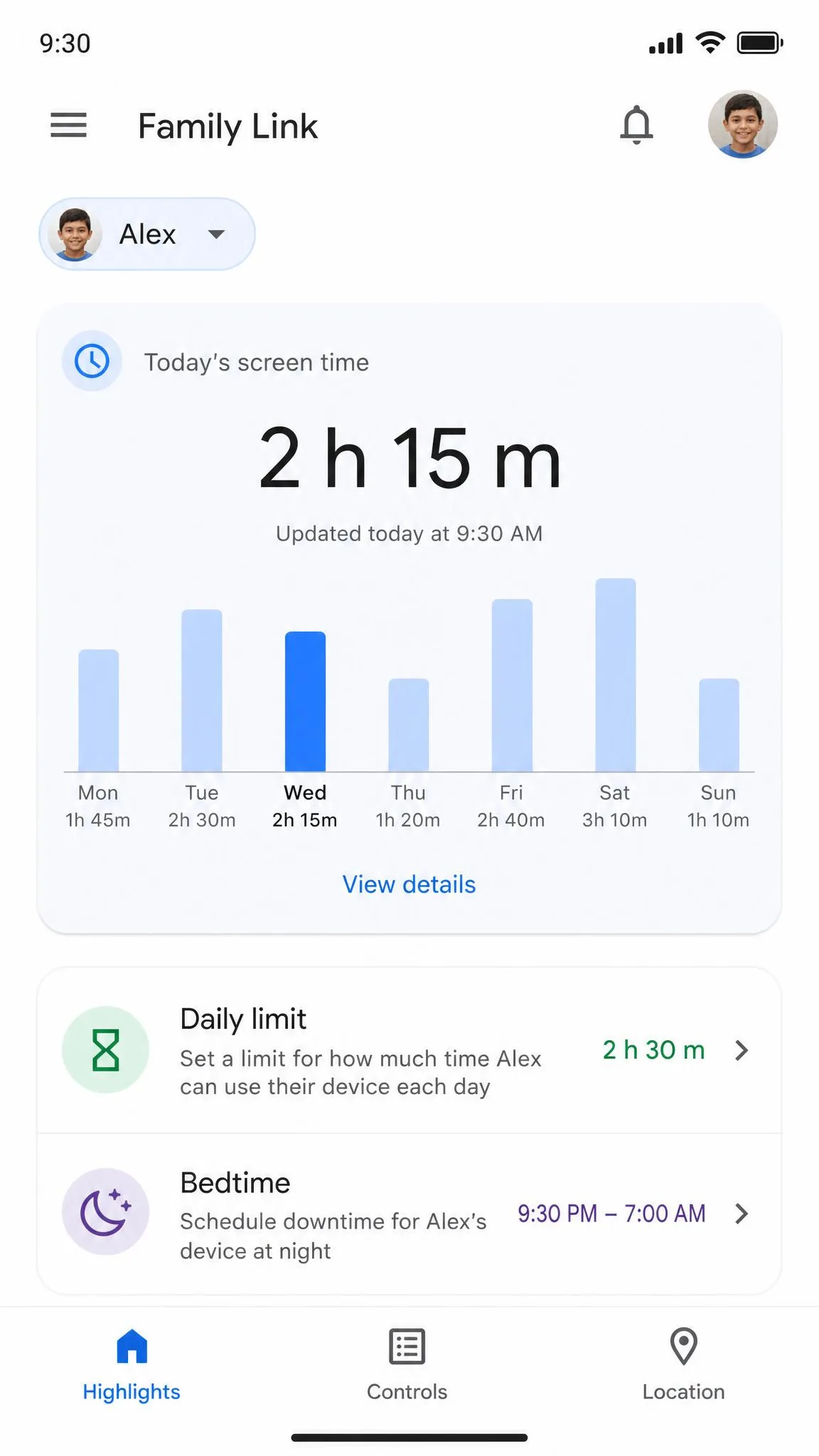
Digital Wellbeing only reports the phone in your hand. To see a child's screen time, you need Family Link, Google's free parental-control app. You set it up on your own phone, then link the child's device to a supervised Google Account.
Open the Family Link app and tap your child's name. Under Screen time, you can set a daily limit and a bedtime schedule. When the child hits the daily limit, the device locks until the next day. The limit applies per device, so a two-hour cap means two hours on the phone and two more on the tablet.
Family Link is enforcement, not self-monitoring. It works only with supervised child accounts, and a determined kid can still find workarounds. For the full setup, see our guide to set up parental controls on Android.
What If You Can't Find Digital Wellbeing (Alternatives)
Older phones and third-party screen-time apps
Digital Wellbeing requires Android 9 or later. On older phones, or on a few budget models that skip it, third-party trackers fill the gap. ActionDash and StayFree both record screen time, app launches, notifications, and unlocks. StayFree holds a 4.6 out of 5 rating on Google Play and adds cross-platform syncing, while ActionDash's premium tier is a one-time purchase, currently around $7.
Third-party screen-time apps see your app activity in real time and collect a lot of data to do it. Read the privacy policy and review the permissions before installing, and favor on-device tracking like Digital Wellbeing when you can.
One more catch: trackers need Usage Access permission, and some undercount on Samsung and Xiaomi phones where aggressive battery optimization stops background monitoring.
Take Control of Your Screen Time
Seeing your number is the easy part. Changing it takes more intent. Set a timer on the app that shows up most on your dashboard, pair that with Focus mode during deep-work hours and Bedtime mode at night, and check the dashboard each evening to see what moves your total.
Digital Wellbeing works best when you genuinely want to change. It is a self-discipline tool, not enforcement, and our testing made that clear. Set limits because you want them, and use the numbers to keep track of progress.