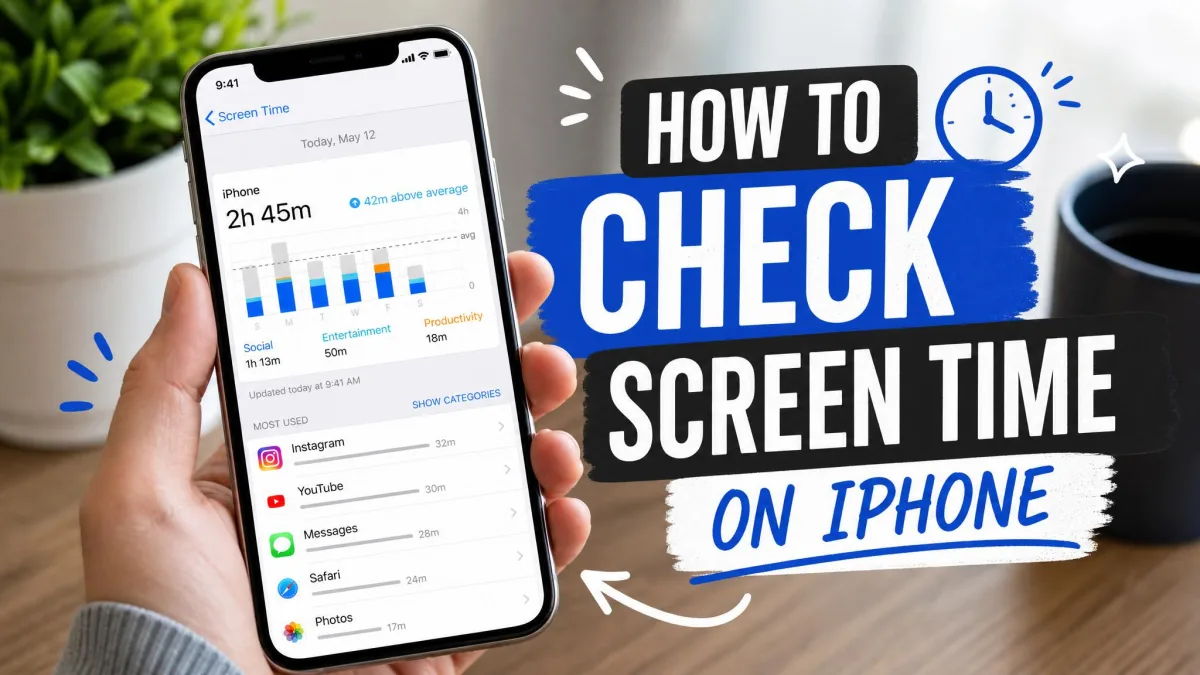
Wondering how much time you really spend on your iPhone? Screen Time has the answer built in. It tracks the apps you open, how long you use them, and how often you pick up your phone, and turns it into a simple report. In this guide, we'll show you how to check your Screen Time, read the numbers, and set limits for healthier digital habits.
How to Check Screen Time on iPhone (Step-by-Step)
Checking your report is quick once you know where to look.
Step 1: Open Settings
Tap the Settings app on your Home Screen, the grey icon with the gears.
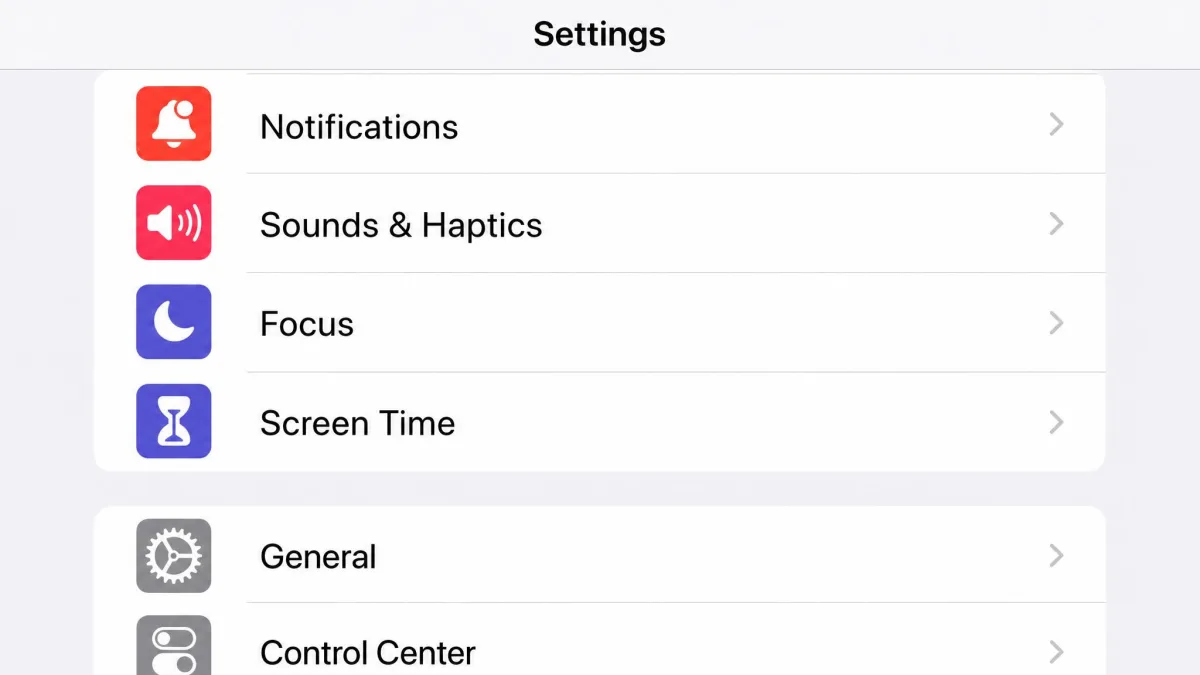
Step 2: Tap Screen Time
Scroll down and tap Screen Time, about halfway down the page.
Step 3: View Your Screen Time Summary (Day and Week Tabs)
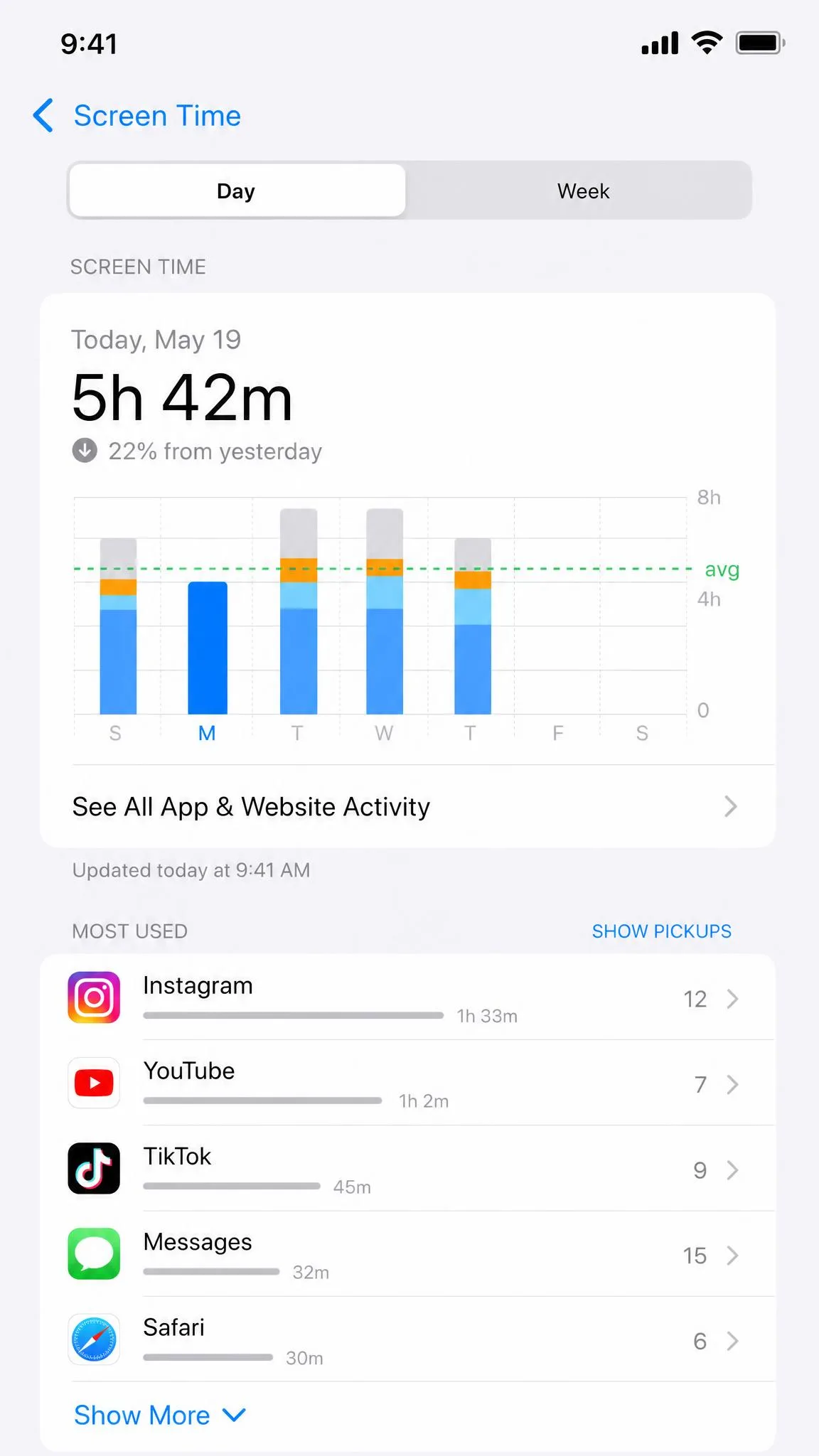
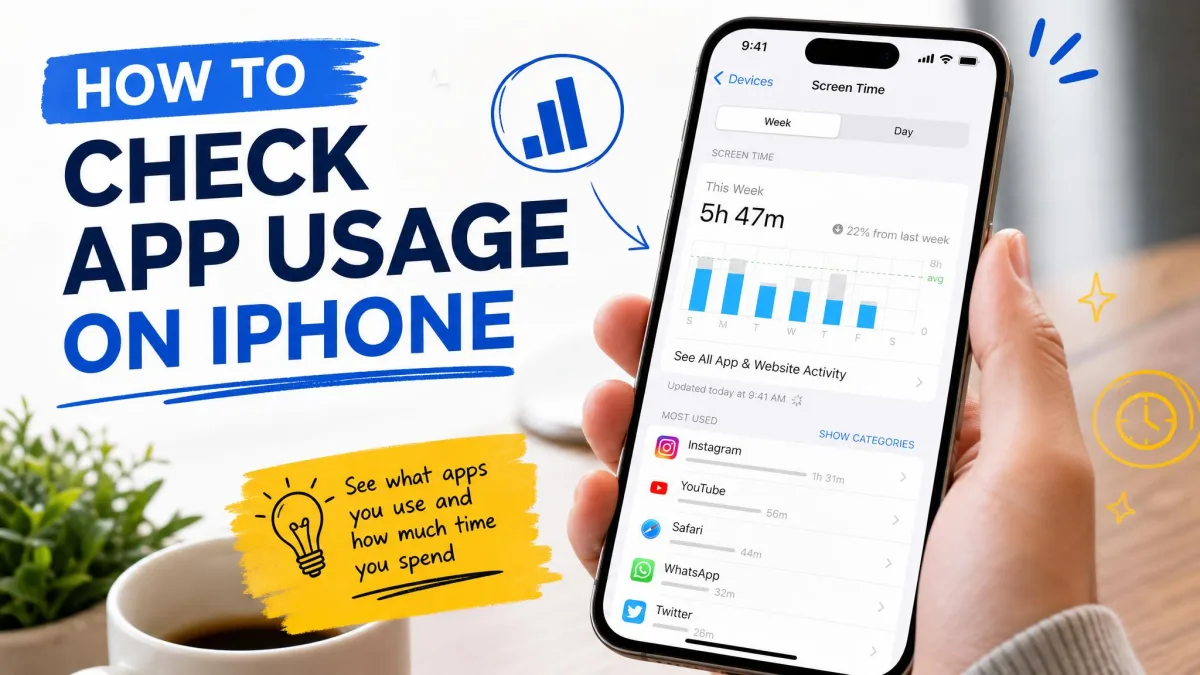
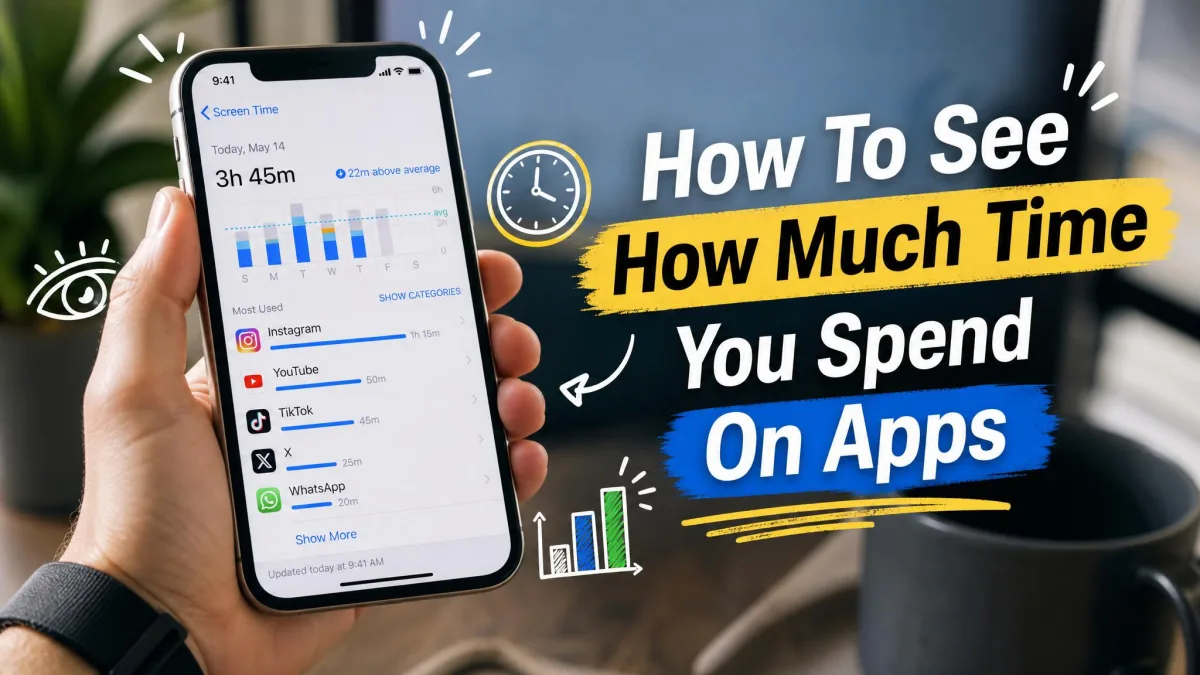
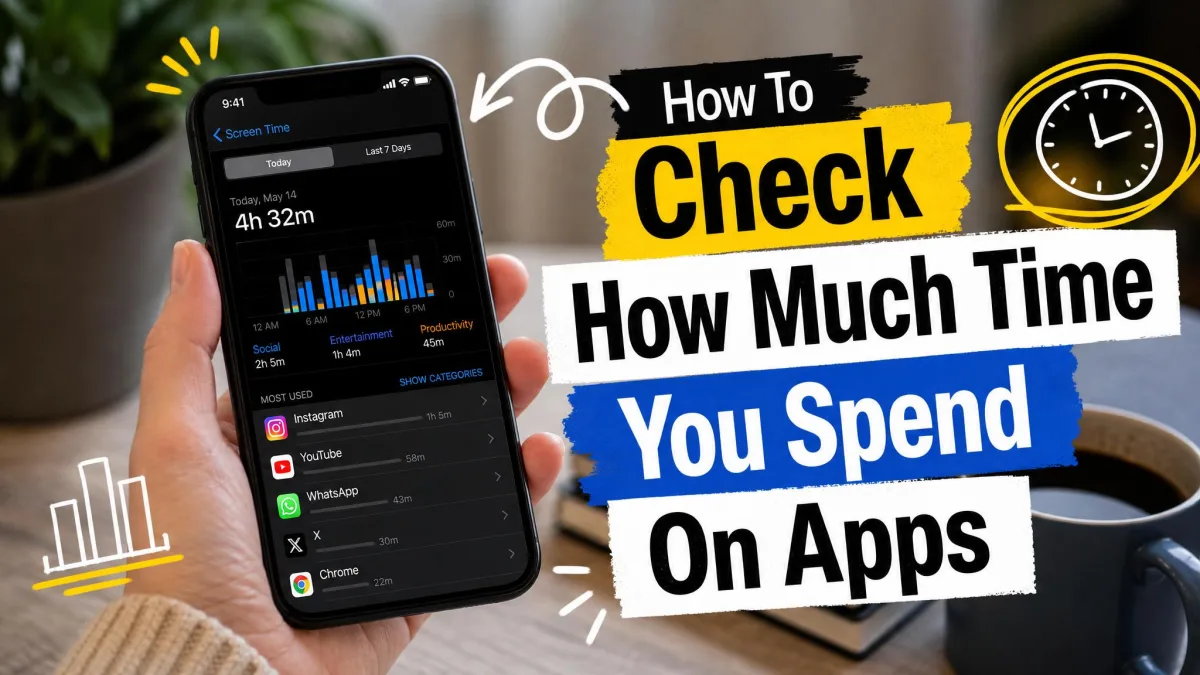
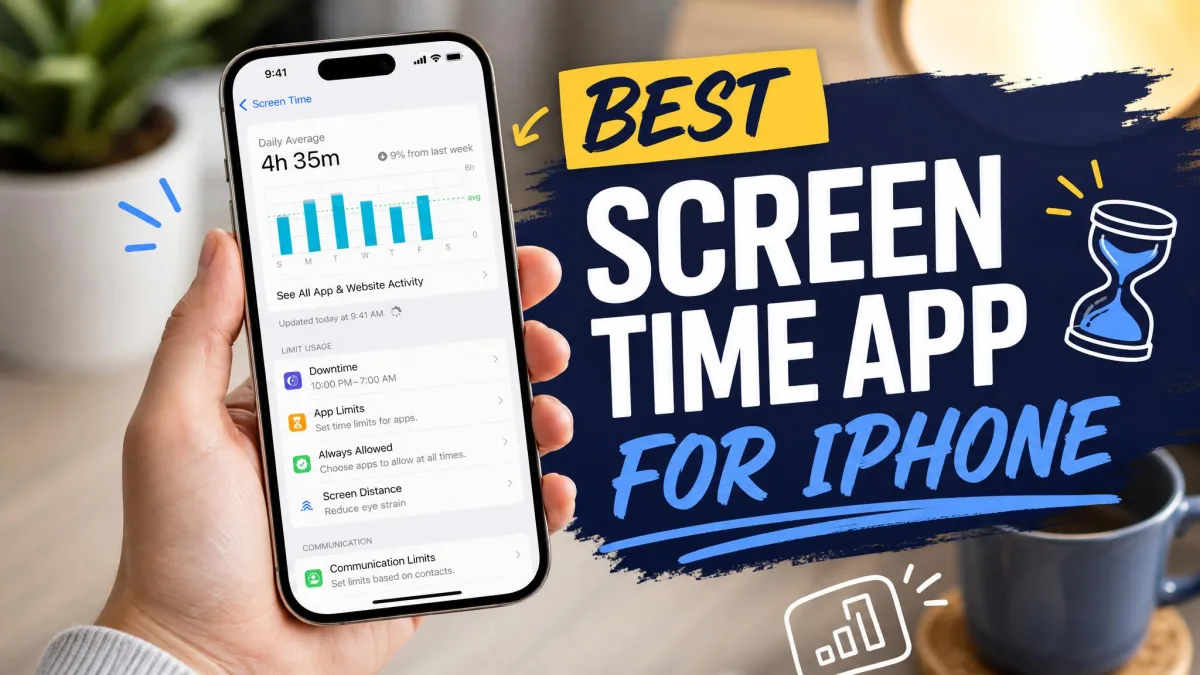
Your summary loads on the Screen Time page, where the Day tab shows today's usage. Tap Week for the last seven days and your daily average, then swipe to earlier days.
Step 4: Tap "See All Activity" for Per-App Usage
Tap See All App & Website Activity to open the full report, where you'll see usage by app and category plus pickup and notification counts. Newer iOS uses the first label; older versions call it See All Activity, but both open the same view. Apple's official Screen Time guide covers this flow on every iOS version.
What Is Screen Time on iPhone?
Screen Time is a built-in feature that shows how you use your iPhone. It arrived with iOS 12 on September 17, 2018 and runs on every iPhone with iOS 12 or later. It records time in apps and websites, groups results into categories, counts pickups and notifications, and powers App Limits and Downtime tools.
How to See Screen Time Per App and Website
Open Settings → Screen Time → See All App & Website Activity and scroll past the chart to the app list. Each row shows the app, your time in it, and your pickup count, and tapping a category expands it into individual apps. Website usage sits at the bottom, grouped by domain. Apple's Screen Time documentation covers the remaining settings.
The Week tab is where patterns become obvious. Check it weekly to spot which apps eat the most of your time.
How to Turn On Screen Time (If It's Not Already On)
If your report looks empty, Screen Time isn't recording yet. Go to Settings → Screen Time, tap Turn On Screen Time, then Continue and This Is My iPhone. You'll set a 4-digit passcode so limits can't change without permission, and tracking starts the moment you switch it on.
Screen Time only records usage after you turn it on. There's no retroactive data for the days before, and toggling it off and on won't bring history back.
How to Check Screen Time Across Your Apple Devices
Screen Time isn't limited to your iPhone. Open Settings → Screen Time and turn on Share Across Devices, and usage from your iPad and Mac merges into one report when they share your Apple Account. Tap Devices to pick one device or the combined view, since an iPad or Mac session may be included if your totals look inflated.
How to Check Your Child's Screen Time
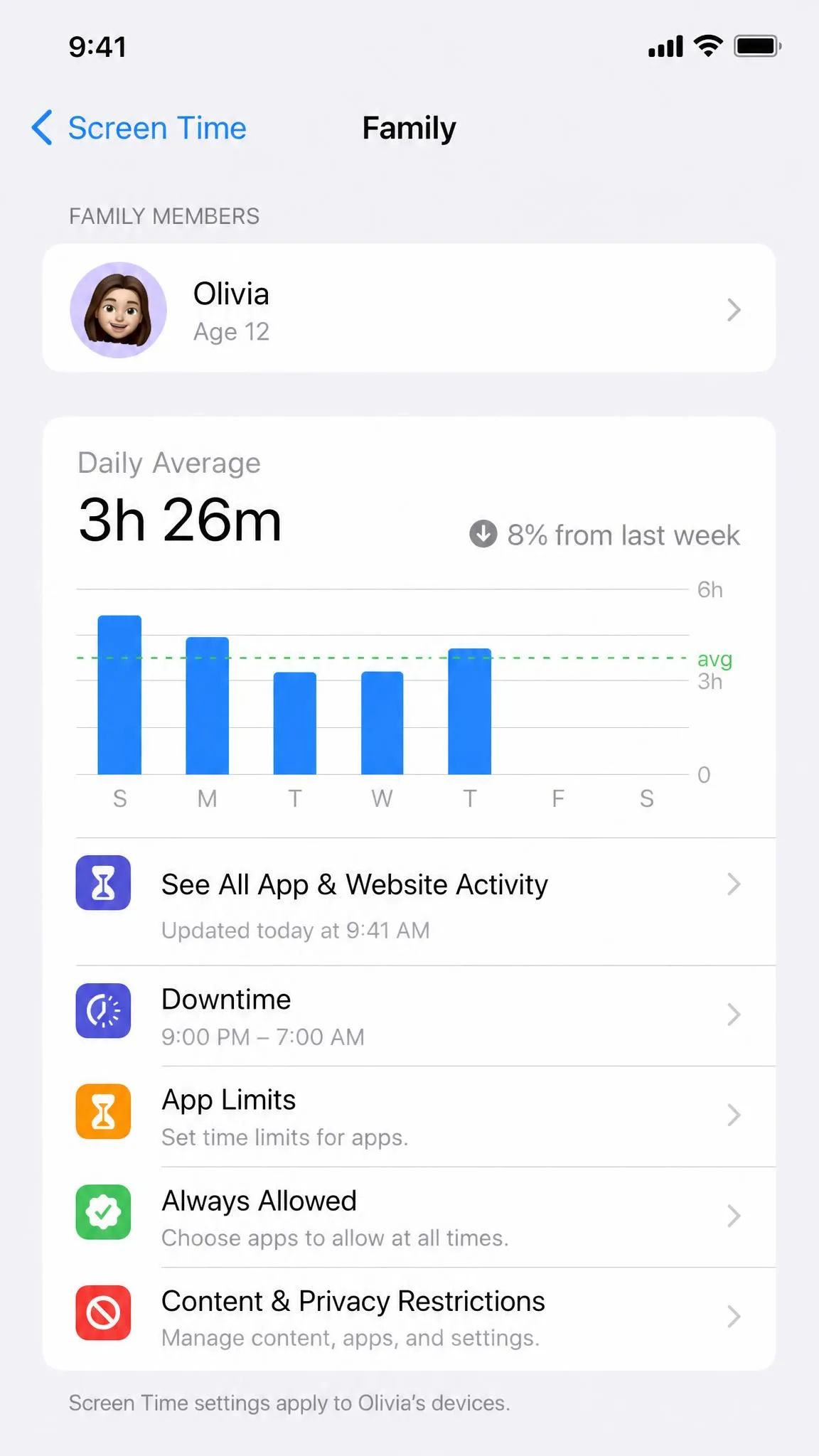
Screen Time doubles as a parental control hub. Set it up through Family Sharing, then open Settings → Screen Time and tap Family to see your child's report. Tap their name to review usage and approve extra-time requests. Only the family organizer can reset a child's passcode, so kids can't switch limits off. Apple's guide to managing your child's Screen Time covers the full setup, and our guide to set up parental controls on iPhone goes deeper into the family side.
How to Set App Limits and Downtime
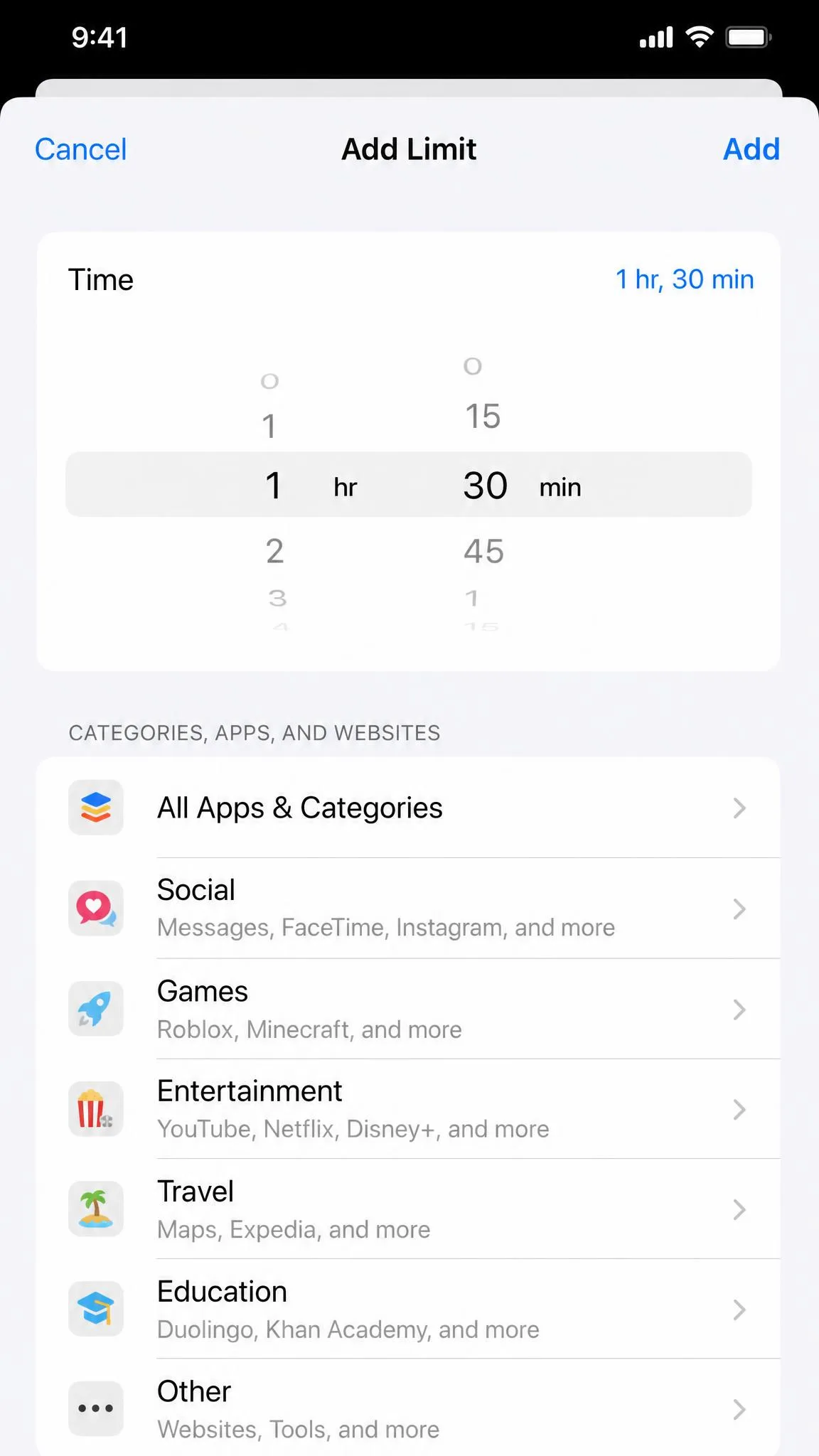
The useful follow-up is setting limits: to cap an app or whole category, go to Settings → Screen Time → App Limits and tap Add Limit. Pick the apps, set the daily amount and days, and leave Block at End of Limit on. When the limit is reached, the app locks and shows You've reached your limit. You can extend by 15 minutes, 1 hour, or the rest of the day, and on a child's device that becomes an Ask For More Time request.
Downtime works on a schedule, so open Settings → Screen Time → Downtime, pick a time window, and only your allowed apps stay available until it ends. App Limits renew at midnight every day.
Frequently Asked Questions
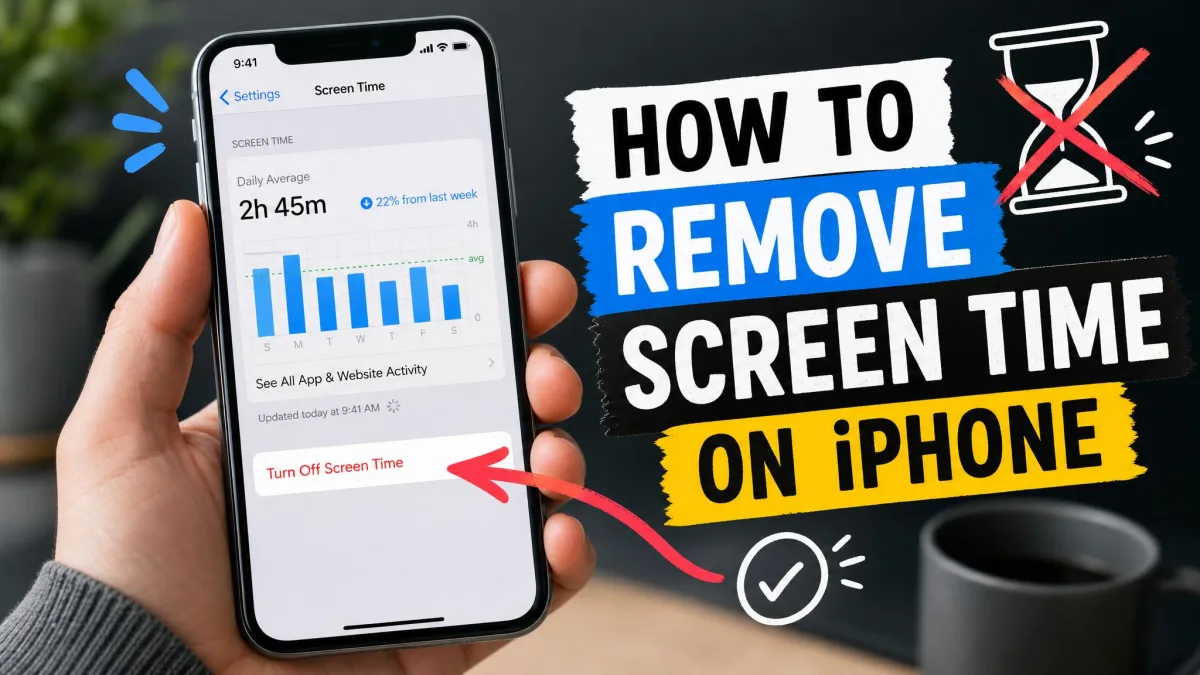
How do I turn off Screen Time?
Can I check Screen Time for previous days?
What if I forgot my Screen Time passcode?
Does Screen Time count background apps?
Can I set limits for specific apps?
What happens when I reach an App Limit?
Conclusion
Checking Screen Time is a two-tap habit once you know where to look, and the report turns a vague worry into numbers you can act on. Start with the Week tab and use App Limits and Downtime to set boundaries that stick.