Knowing where your hours go each day is harder than it should be. This guide walks you through the built-in screen-time tools on Windows, iPhone, Android, and Mac, plus third-party apps for when the defaults fall short. Most devices already track the data, just a couple of menus deep. You will see what each number measures, why some limits hold and others fail, and how to set caps that survive a busy week.
How to Check Screen Time on Windows 11 and Windows 10
Windows has no single dashboard that totals your time across every app.
Use Battery Usage in Settings (per-app screen time)
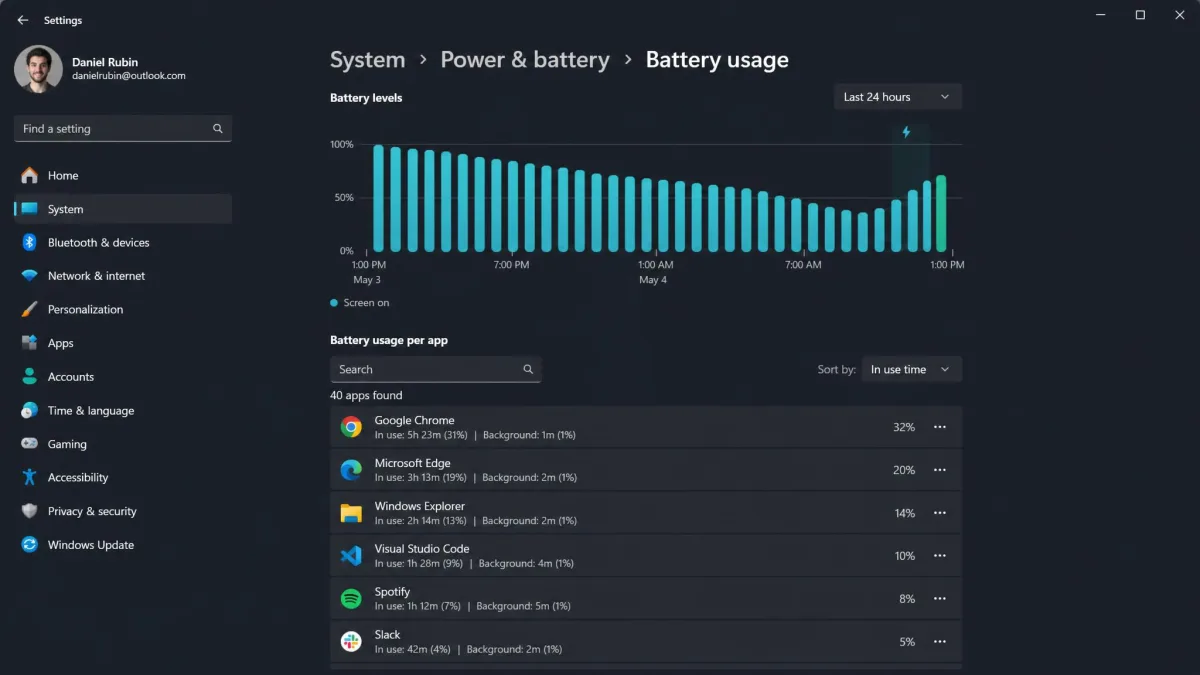
Open Settings → System → Power & battery and click Battery usage; the screen-on graph covers the last 24 hours or 7 days, and sorting by In use reveals each app's figure in brackets. On Windows 10, open Settings → System → Battery and choose Battery usage by app.
Two caveats apply. Screen on counts display-on time, not attention, so the tally climbs while you walk away. Per-app figures only populate while the laptop runs on battery.
Check system uptime in Task Manager
Open Task Manager with Ctrl+Shift+Esc and click Performance; Up time shows time since boot, a rough proxy for session length, not true screen time.
Generate a battery report with powercfg /batteryreport
Run powercfg /batteryreport in a Command Prompt or PowerShell window to generate an HTML report in your profile. It is the fullest built-in option, gathering screen-on time, active hours, and battery-life estimates into one HTML file. Its Recent Usage section logs screen-on time against suspended time.
Use Microsoft Family Safety for kids' devices
Microsoft Family Safety is a free app for Windows, Android, and iOS that sets per-device screen-time limits and per-app or per-game caps across Windows, Xbox, and Android, with weekly activity reports.
Web and search activity only tracks in Microsoft Edge while your child is signed in to their Microsoft account. If they rarely open Edge, the report will look emptier than their actual browsing.
How to Check Screen Time on iPhone and iPad
Open Screen Time in Settings
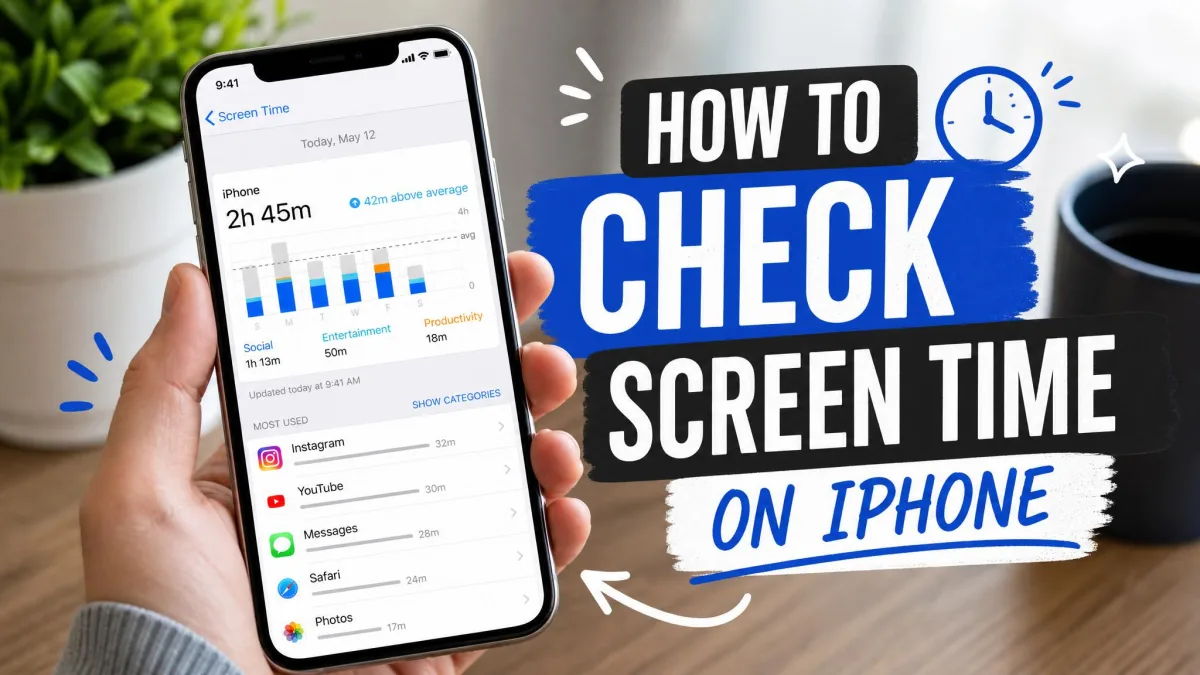
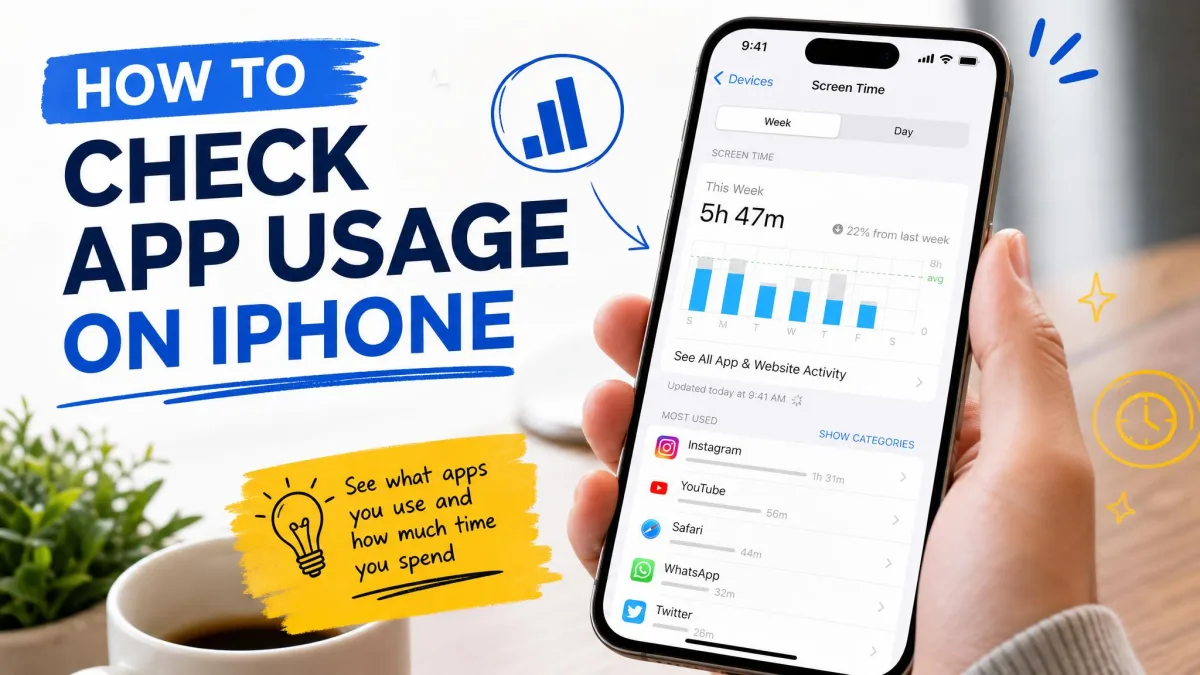
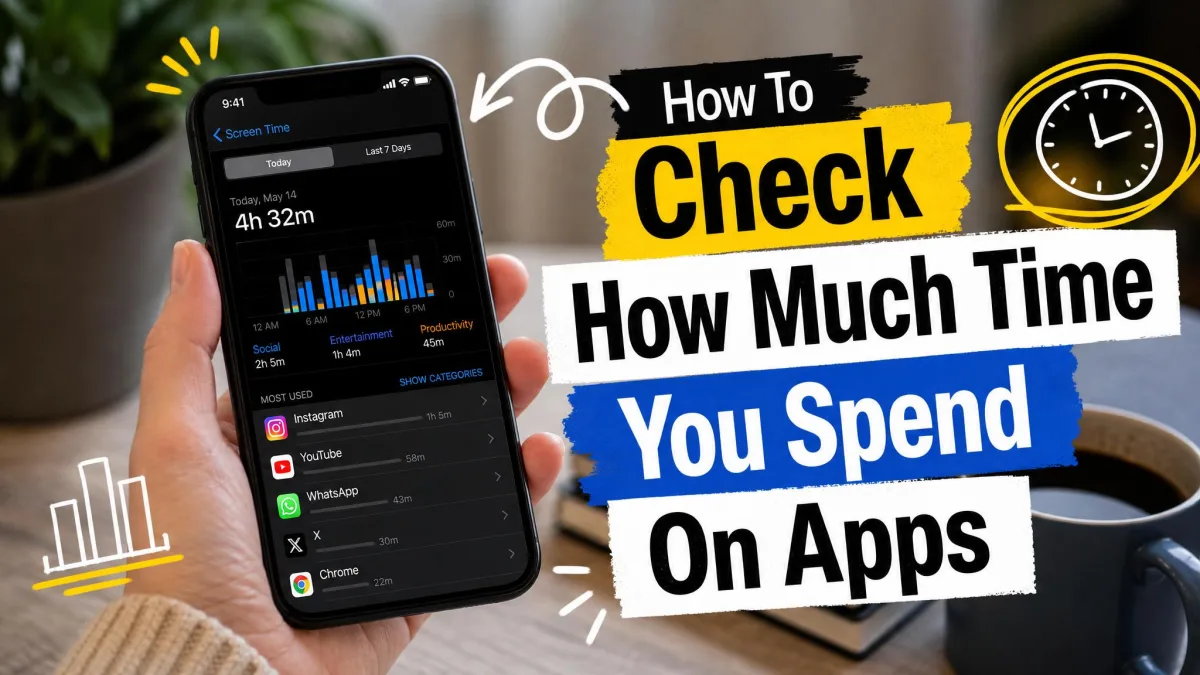
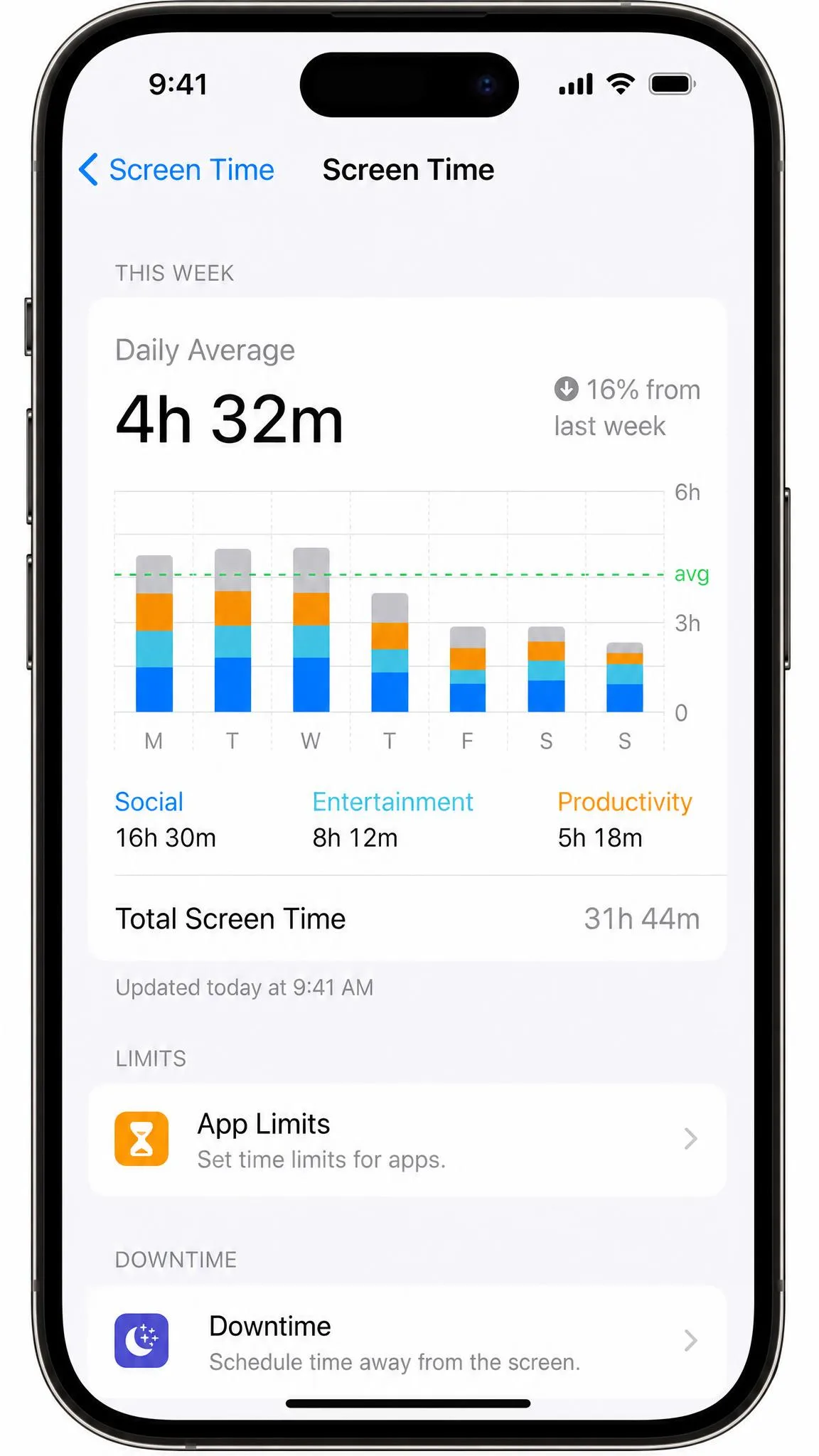
Screen Time arrived with iOS 12 in 2018. Open Settings → Screen Time, tap Turn On Screen Time, and set a passcode when prompted; App & Website Activity then shows daily and weekly usage reports.
View the weekly report and set App Limits / Downtime
To set an App Limit:
- Open Settings → Screen Time and open App Limits.
- Choose the apps or a category and set a daily cap.
- Pick Every Day or customize by day, then save.
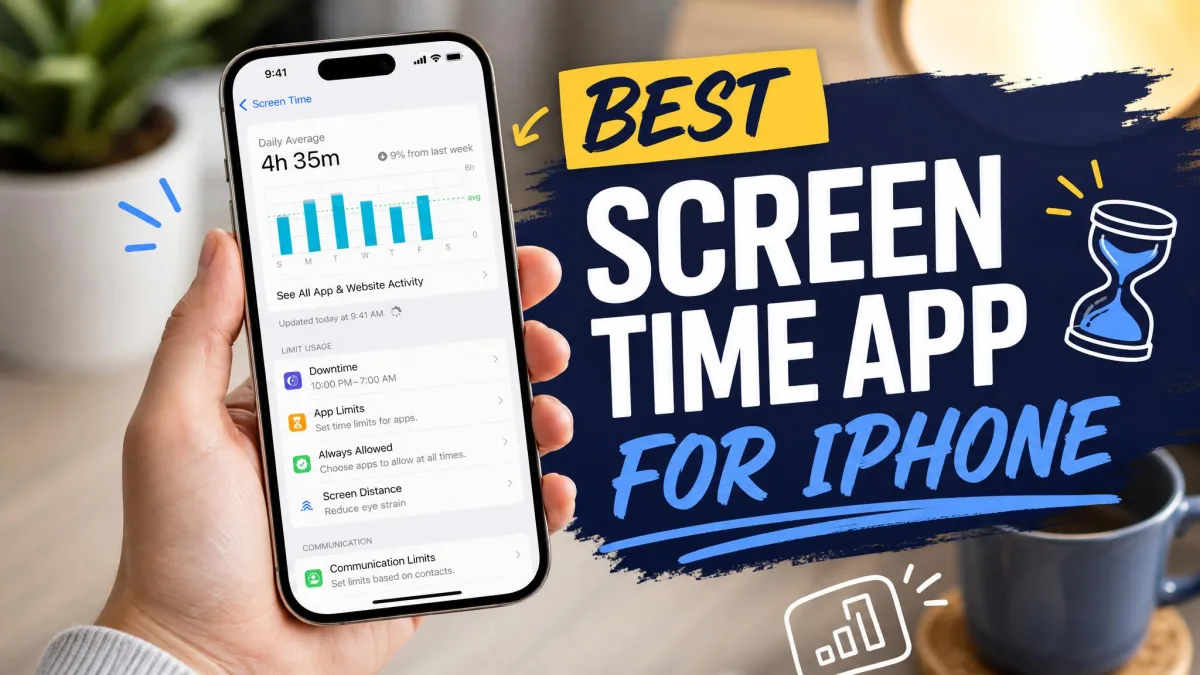
Downtime blocks apps and notifications in a scheduled window, with a 5-minute warning before it starts, and Share Across Devices syncs usage, limits, and Downtime across iPhone, iPad, and Mac.
How to Check Screen Time on Android
Use Digital Wellbeing
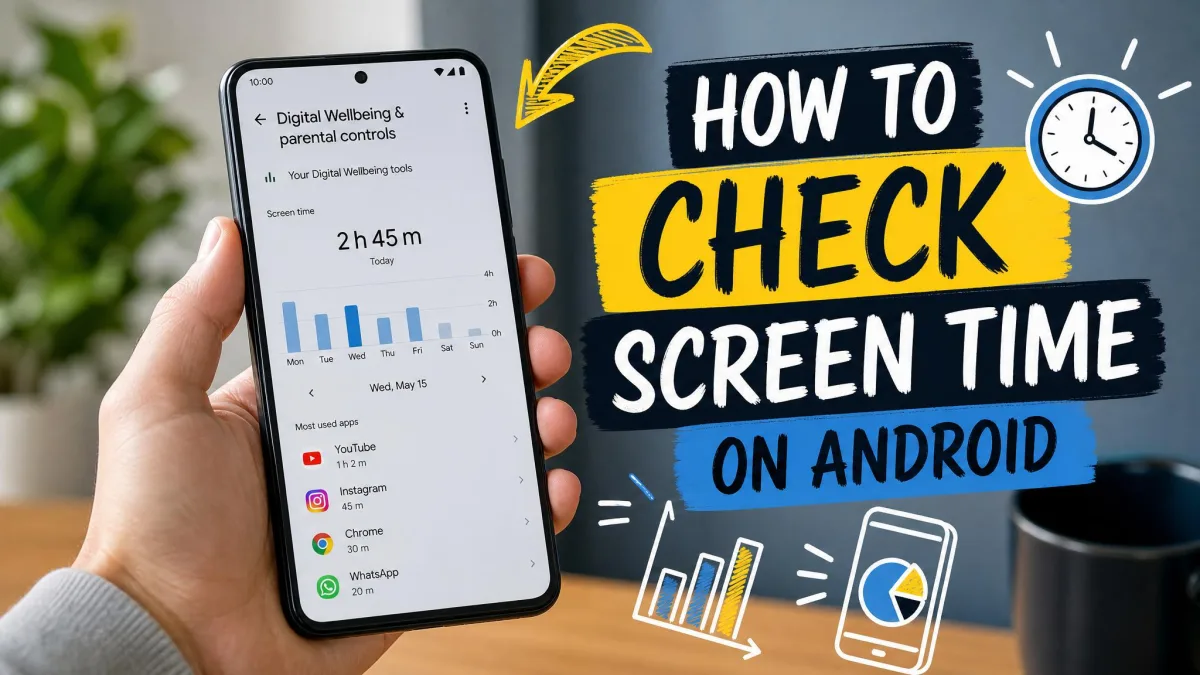
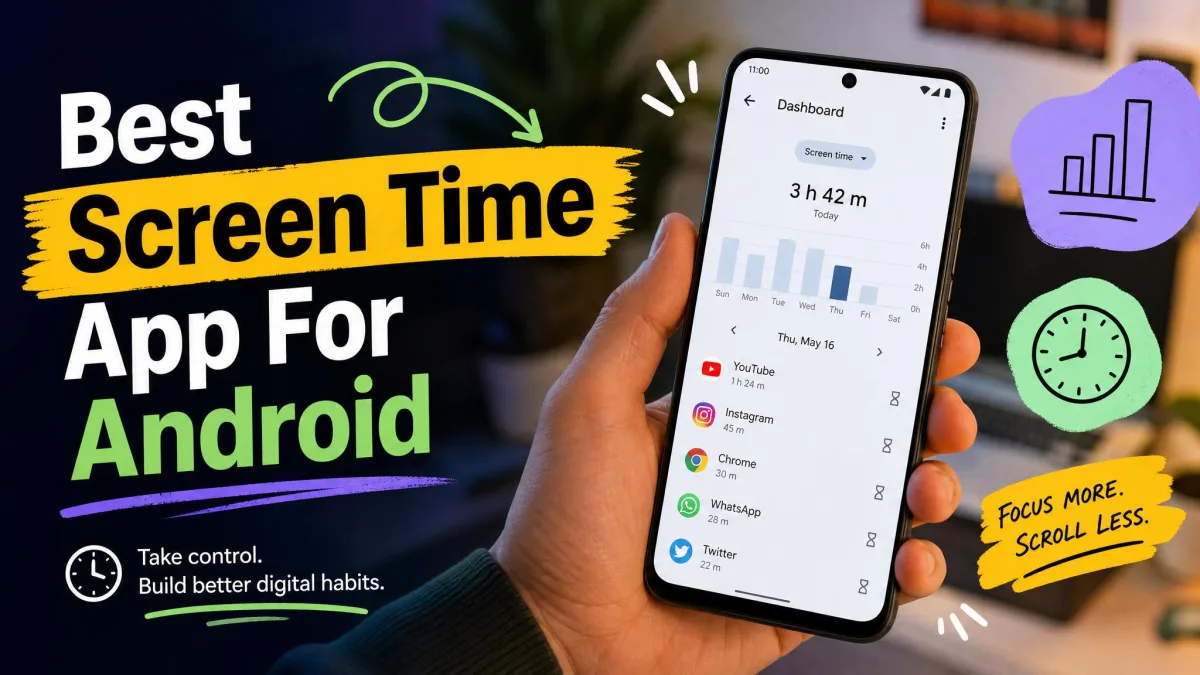
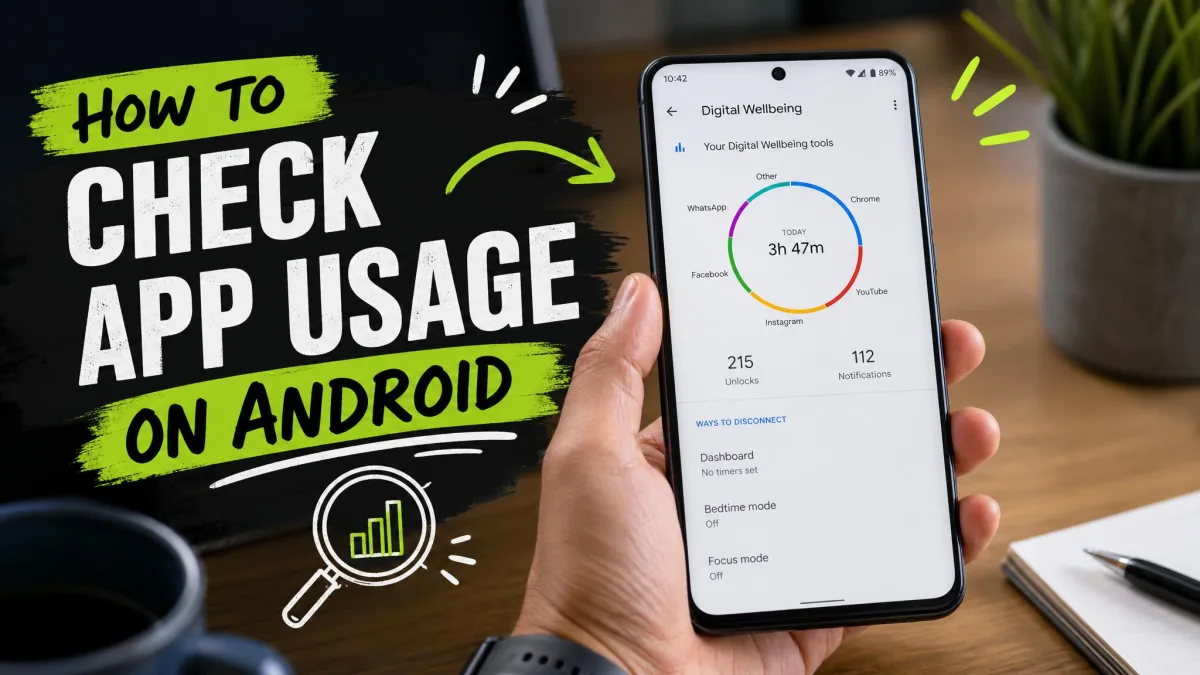
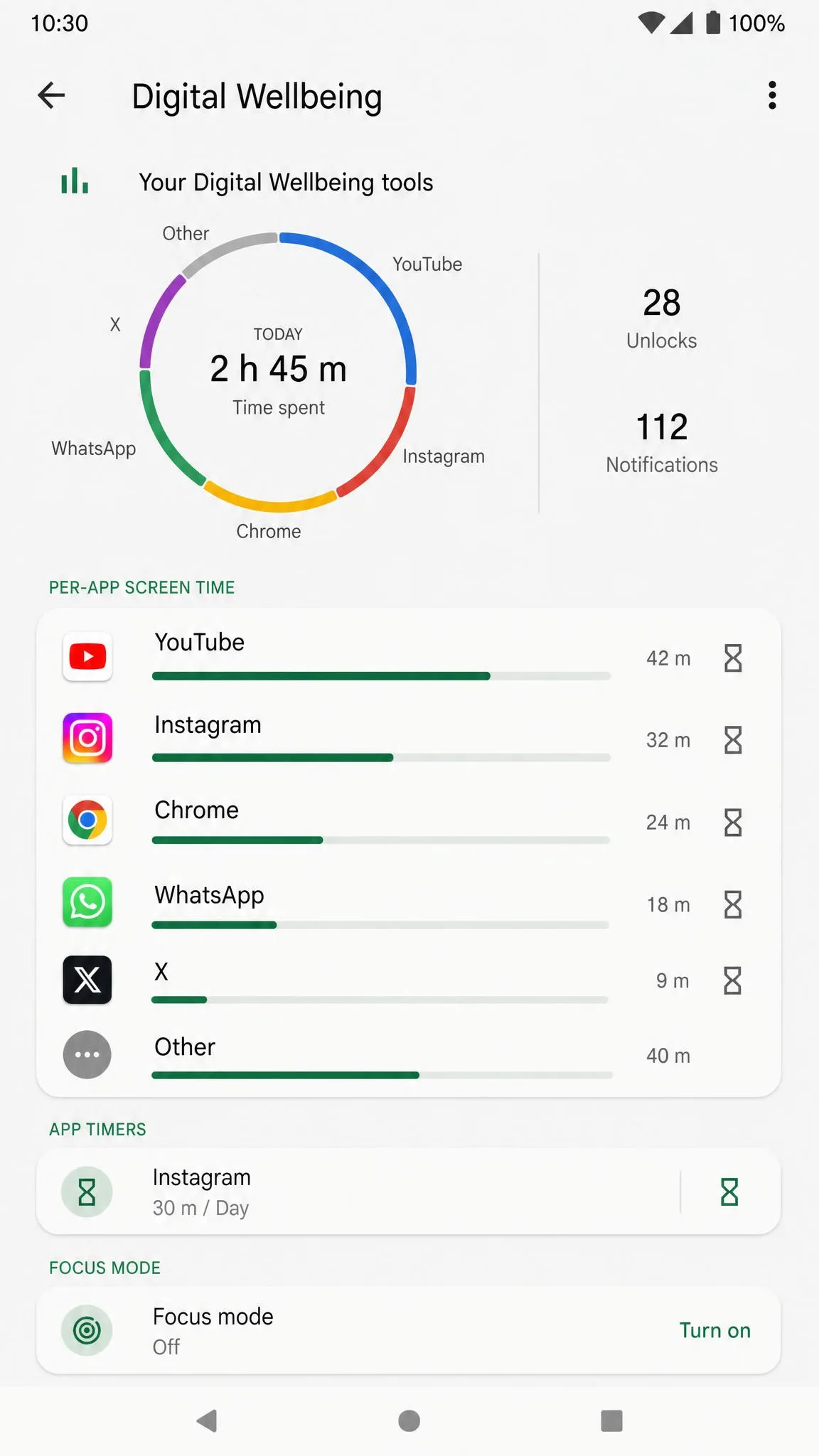
Digital Wellbeing ships with Android 9 and later. Open Settings → Digital Wellbeing & parental controls; the dashboard charts screen time per app, plus unlocks and notifications. Google's Digital Wellbeing covers the basics on nearly any device.
Set app timers and Focus mode
To set a timer:
- Open Settings → Digital Wellbeing & parental controls.
- Tap the app you want to cap and choose a length.
- Set a 4-digit PIN so no one can change your timers.
When time runs out, the app closes and its icon dims, and timers reset at midnight. Focus mode pauses chosen apps and notifications, manually or on a schedule. Expect friction. Reopening a blocked app and tapping past the warning quickly becomes muscle memory, and there is no hard lock-out. On some Samsung models, timers occasionally fail to reset at midnight.
How to Check Screen Time on macOS
Screen Time in System Settings
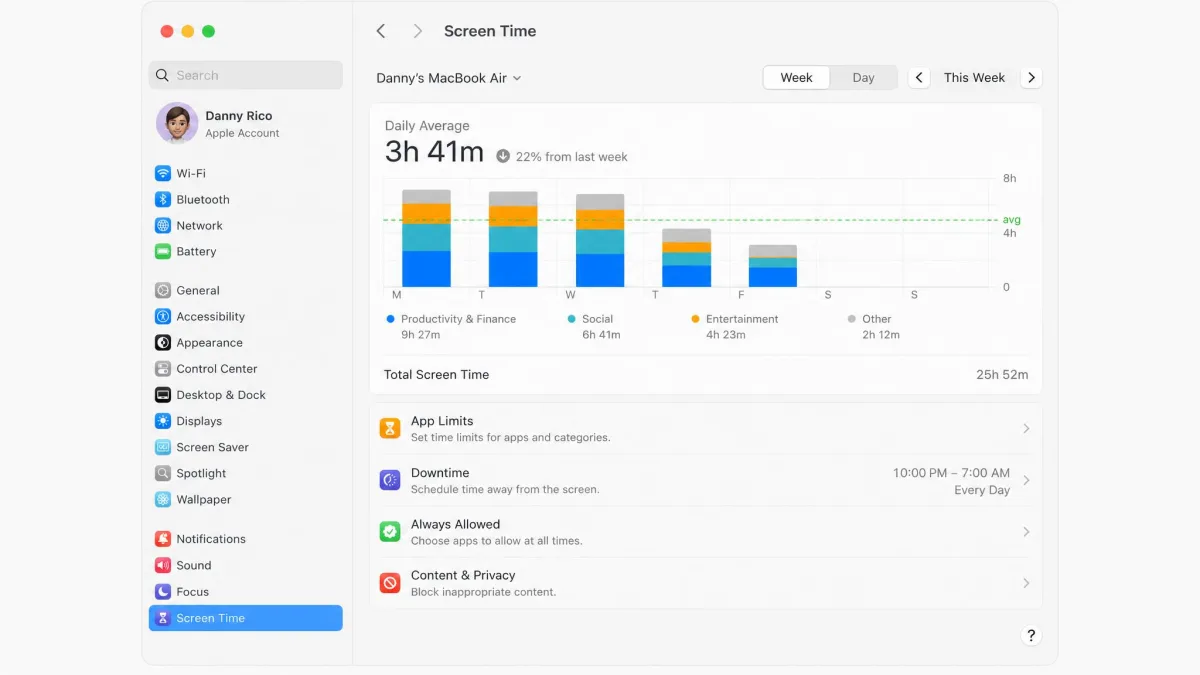
Screen Time came to the Mac with Catalina (10.15) in 2019. On macOS Ventura or later, open System Settings → Screen Time for usage charts, the same App Limits and Downtime controls from iOS, and syncing through iCloud.
Best Third-Party Apps to Monitor Screen Time
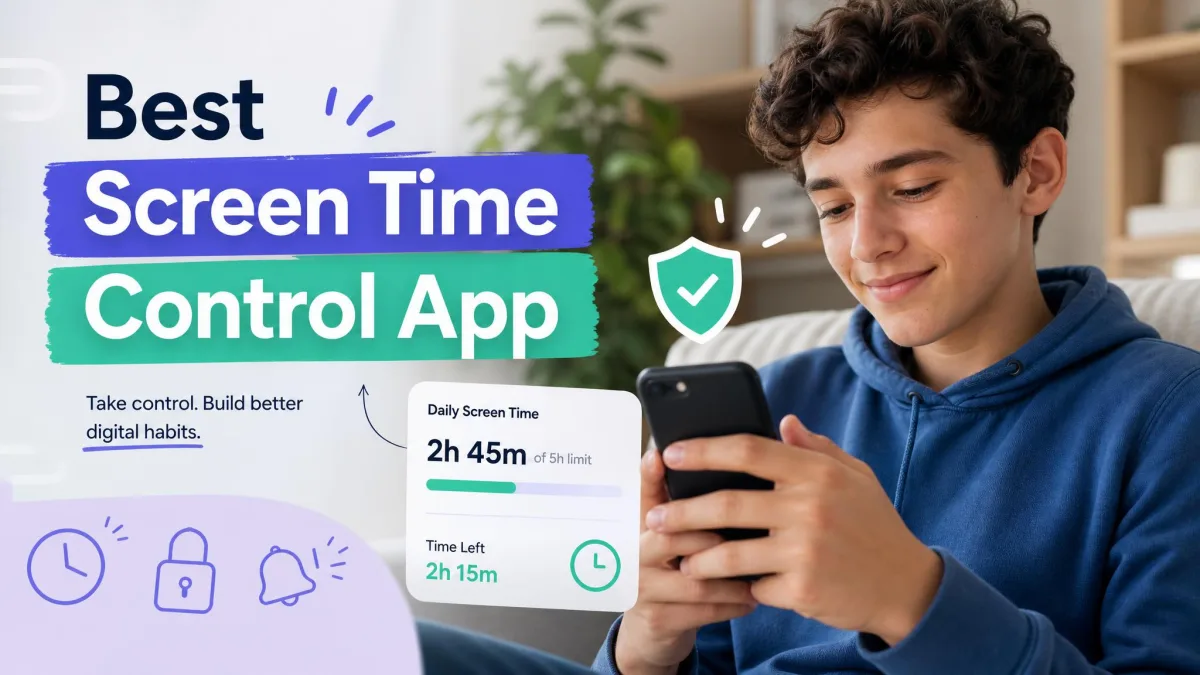
The built-ins cover most people; these four screen time apps add cross-device blocking, deeper stats, or a stronger nudge:
- ActionDash runs on Android 5.0 and later with per-app usage, unlock history, and notification history. In our testing, its totals ran high for apps we left open but unused, and stats occasionally failed to save.
- StayFree blocks sessions by the minute or day, adds scheduled blocks and focus mode, and syncs across Android, iOS, Windows, Mac, and Linux. Its standout trick is blocking one sub-feature inside an app, like Instagram Reels.
- Forest is the focus-timer pick. You plant a seed, pick a focus length, and the tree dies if you leave, which keeps sessions honest. It costs $3.99 once on iOS, free with ads on Android.
- One Sec adds friction before a flagged app opens. Open it for a deep-breath pause, then a count of today's attempts, then a check-in asking whether you really want to continue. One Sec cites an average 57% reduction in app usage from a Max Planck Institute study, though results vary; it is free for one app, with Pro from €14.99 a year.
ActionDash and StayFree were acquired by analytics firm Sensor Tower in 2020 and feed anonymized usage data back to it, so know where your data goes.
Why Monitoring Screen Time Matters
What screen time really measures
"Screen time" is not one number; each platform counts something different:
- Windows Screen on counts display-on time, the least precise of the three.
- iPhone, Android, and Mac count foreground time per app.
- Task Manager uptime counts session length since boot.
None measure attention or productivity, so pick the figure that matches your question.
How to Set Screen Time Limits That Actually Stick
Limits stick when the operating system does the enforcing. iOS App Limits and Downtime, Android app timers and Focus mode, and Screen Time on the Mac all block at the system level, which beats willpower.
Start small. Cap the one app at the top of the weekly report, then add a second after a week. Use scheduled Downtime or Focus mode windows during the hours you drift.
For kids, keep the controls on an account you administer. A child who knows the family's Apple ID can reset the Screen Time passcode by tapping Forgot Passcode, and Apple has acknowledged a bug where parental settings reset or fail to sync, so check limits periodically.
Tips to Reduce Screen Time Without Losing Productivity
Monitoring is only half the job. These changes cost nothing and compound:
- Turn off notifications for anything that is not a person.
- Move the phone to another room during deep work, or set Do Not Disturb schedules.
- Give the weekly report a weekly look; one habit changed per week beats a full reset.
The goal is not a lower number; it is to stop letting your device decide your evenings for you.