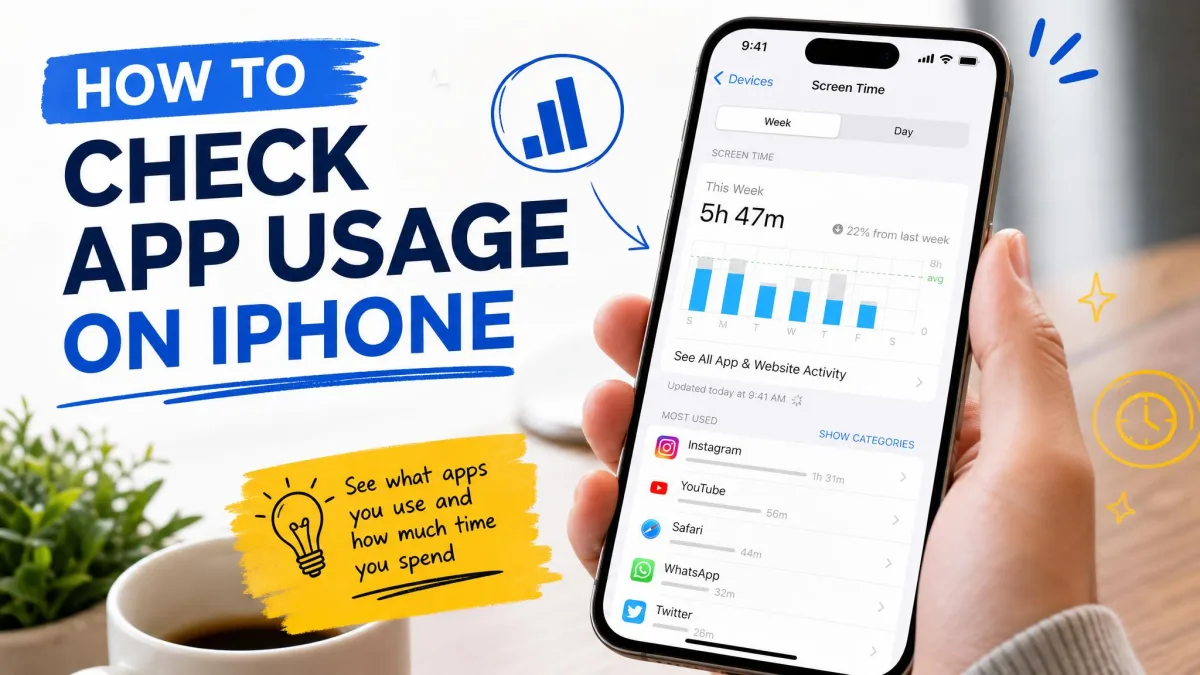
If your iPhone battery seems to drain before dinner, or your data plan keeps running out early, the fastest way to find the culprit is to check which apps use the most. Apple built the tools you need straight into iOS, so you do not need a paid app. Screen Time shows how long you spend in every app, while the Battery, Cellular, and Storage reports each track a different kind of usage. In this guide we walk you through all four methods step by step. You will also learn how to set app limits, check your child's usage with Family Sharing, and fix Screen Time when it stops updating. These steps match the Settings app on any iPhone running iOS 12 or later.
Quick Answer: How to Check App Usage on iPhone
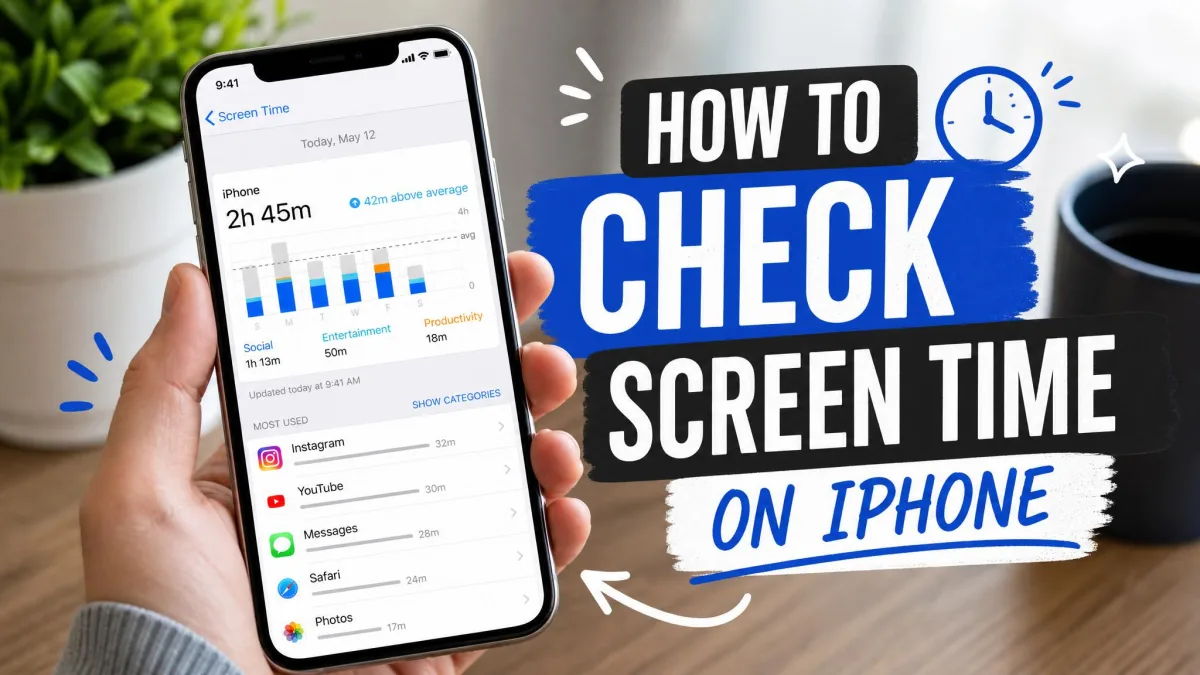
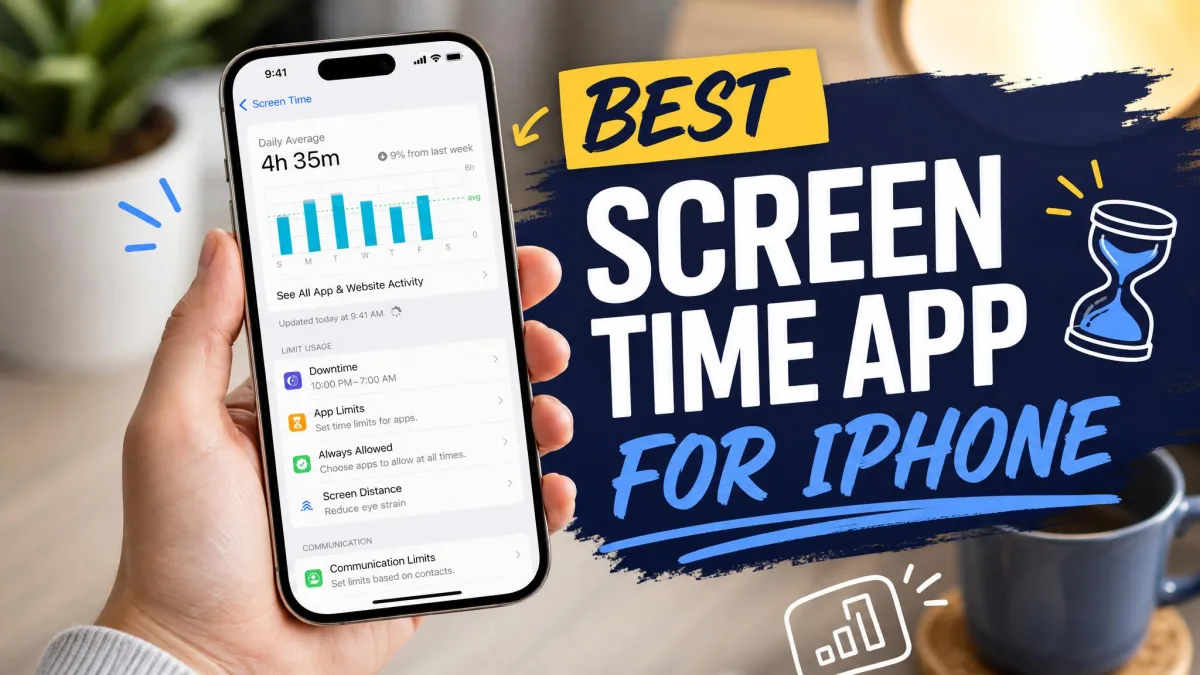
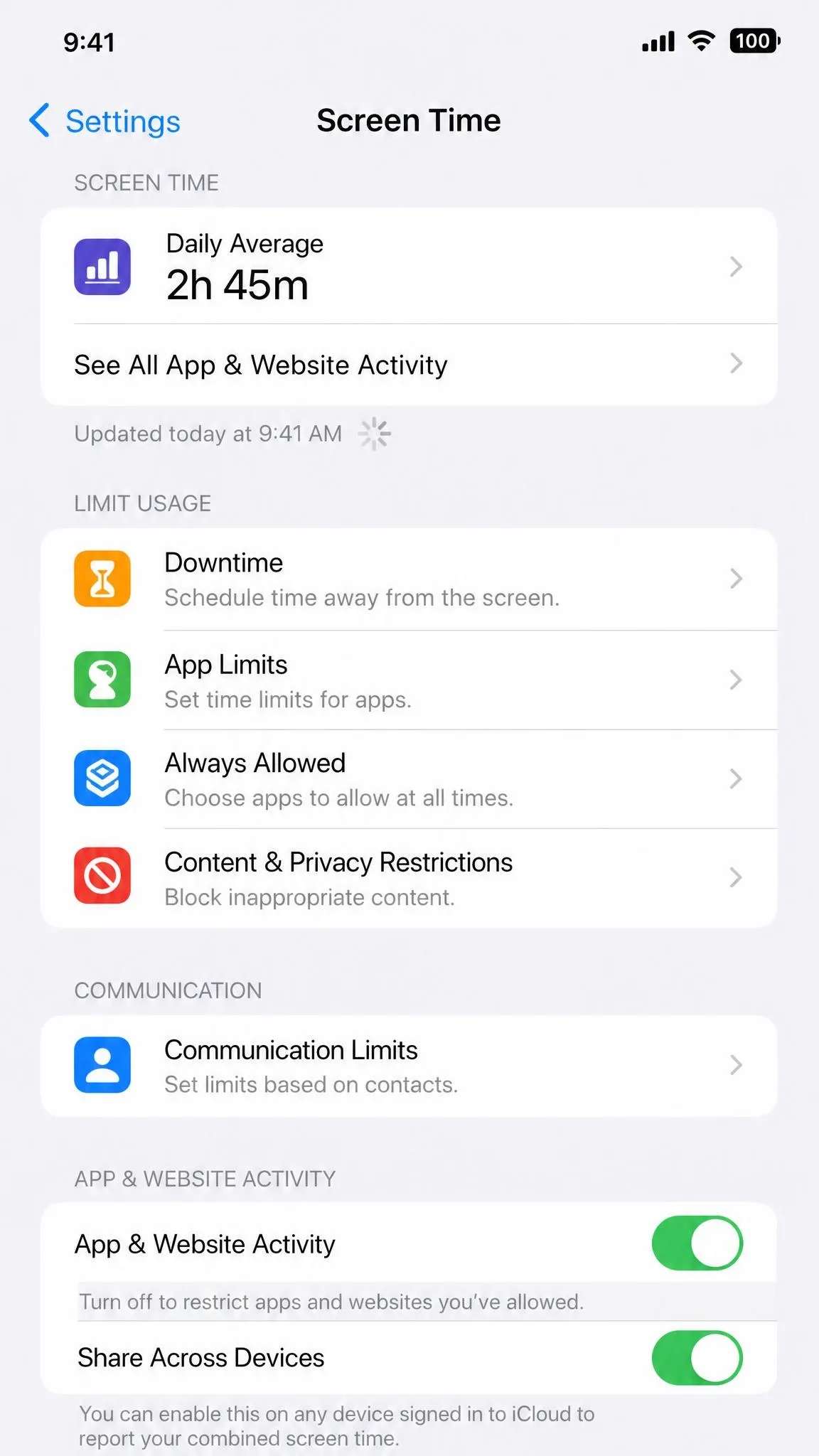
Open Settings, tap Screen Time, then open See All App & Website Activity (labeled See All Activity on some iOS versions). The report lists every app you have used, ranked from most to least time spent. Here is the quick version:
- Open Settings and tap Screen Time.
- Tap See All App & Website Activity (or See All Activity).
- Tap Day or Week at the top to switch between the daily and weekly report.
- Scroll through the Most Used list and tap any app for its time, daily average, pickups, and notifications.
Apple also sends a weekly Screen Time summary every Sunday morning that compares your usage with the prior week, so you get a regular read on whether the numbers are moving.
How to Check App Usage on iPhone with Screen Time
Screen Time is the built-in feature Apple made for tracking how you use your iPhone. It has shipped on every iPhone since iOS 12 and records time spent per app, pickups, and notifications while it is switched on. Everything below lives inside Settings.
Turn On Screen Time First (if It Isn't Already)
Screen Time only records usage from the moment you enable it, so there is no history to look at until you switch it on. Turn it on first.
- Open Settings and tap Screen Time.
- Tap App & Website Activity, then tap Turn On App & Website Activity.
- Choose This is My iPhone, or This is My Child's iPhone if you are setting it up for someone in your Family Sharing group.
- Set a Screen Time passcode when asked. It stops other people on the device from approving their own limits later.
View Your Daily and Weekly App Usage Summary
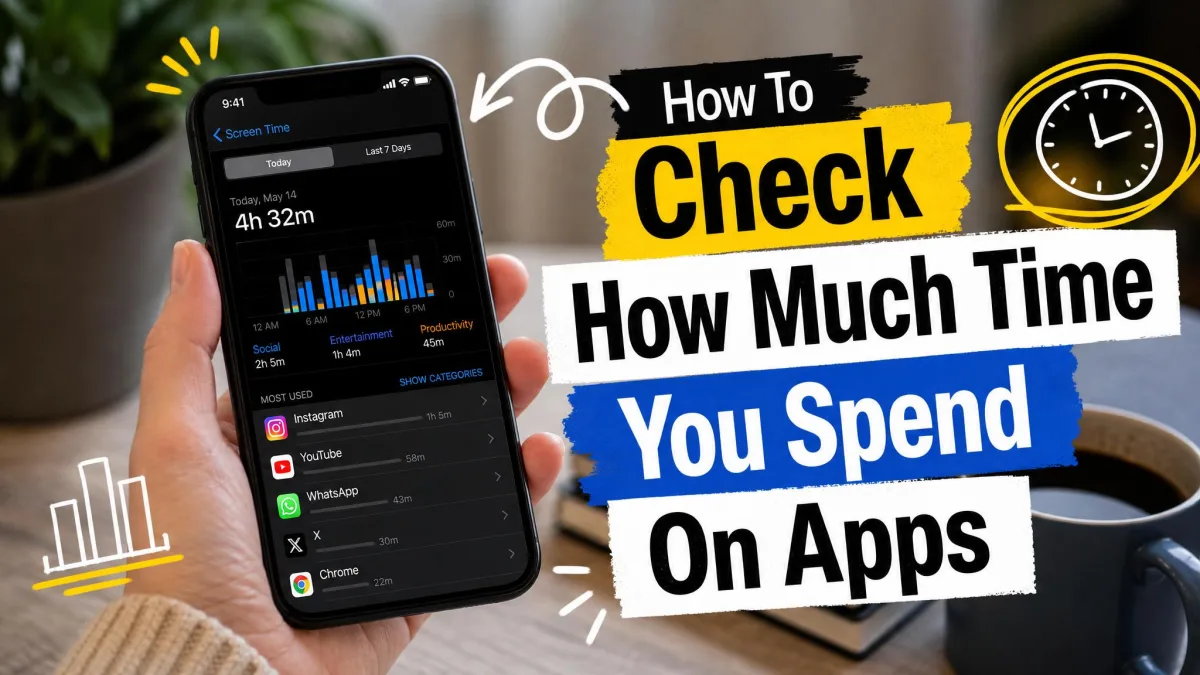
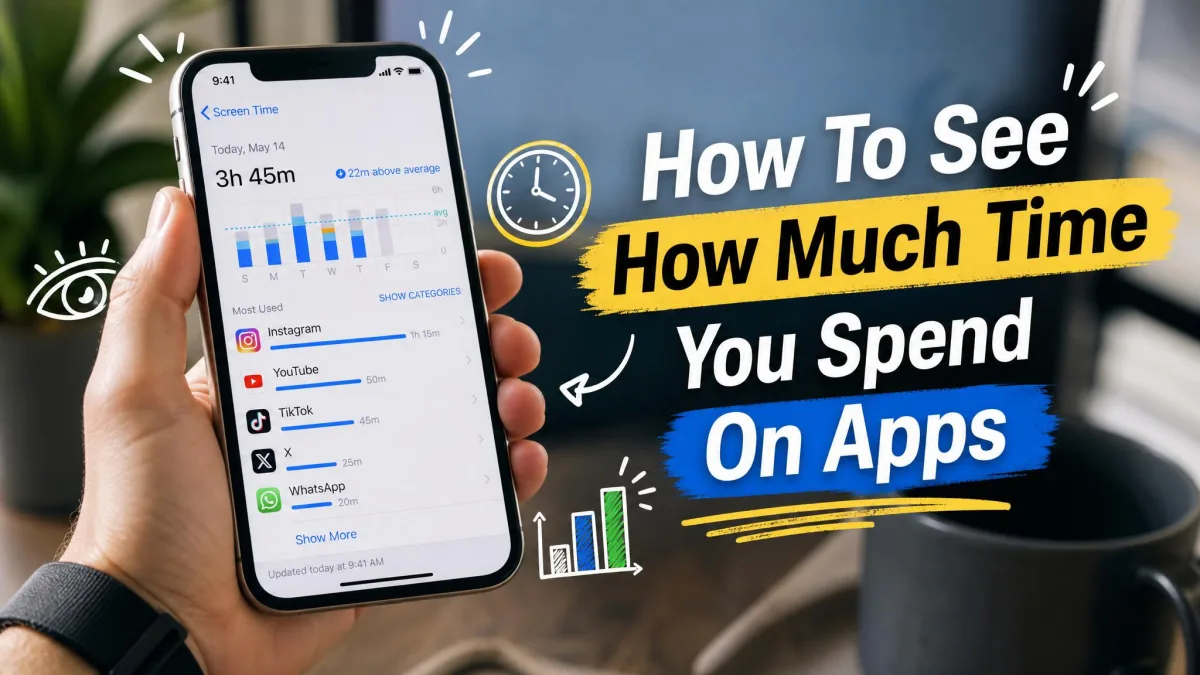
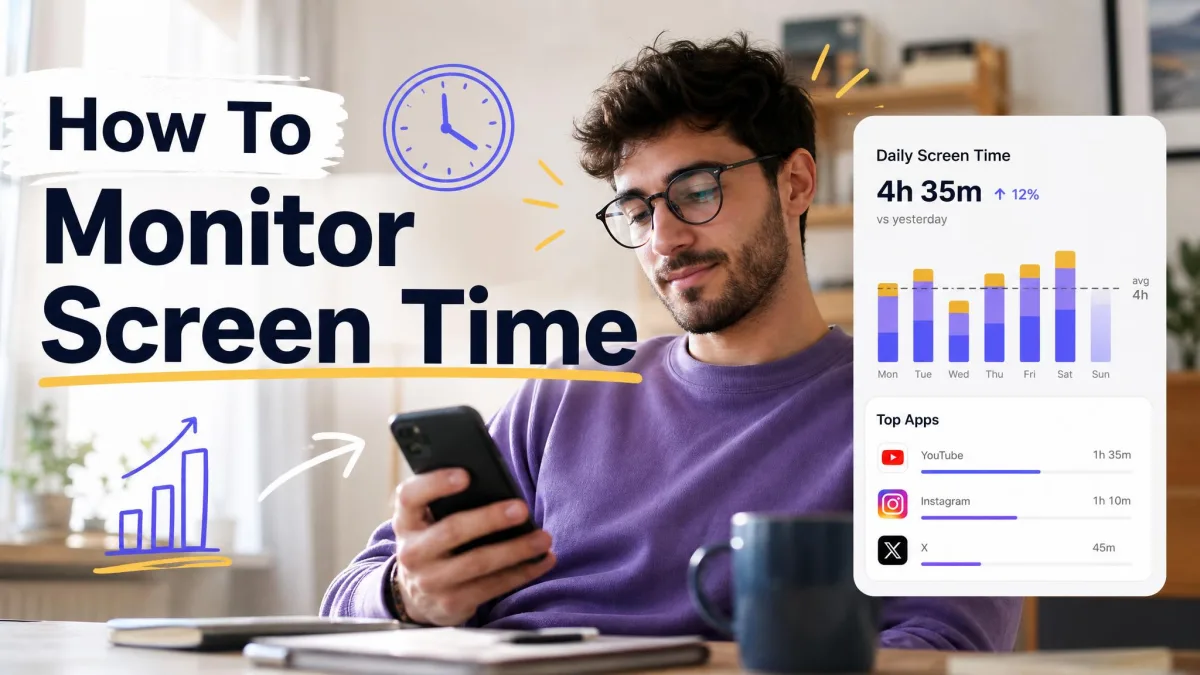
Once Screen Time is on, your totals start building from that point forward. Open Settings, tap Screen Time, then tap See All App & Website Activity to open the full report. Tap Day at the top for today's numbers, or Week for the past seven days. The chart shows your screen-on time, and you can swipe or use the arrows to page back through recent weeks. Reports sync across your iPhone, iPad, and Mac when they share one Apple Account.
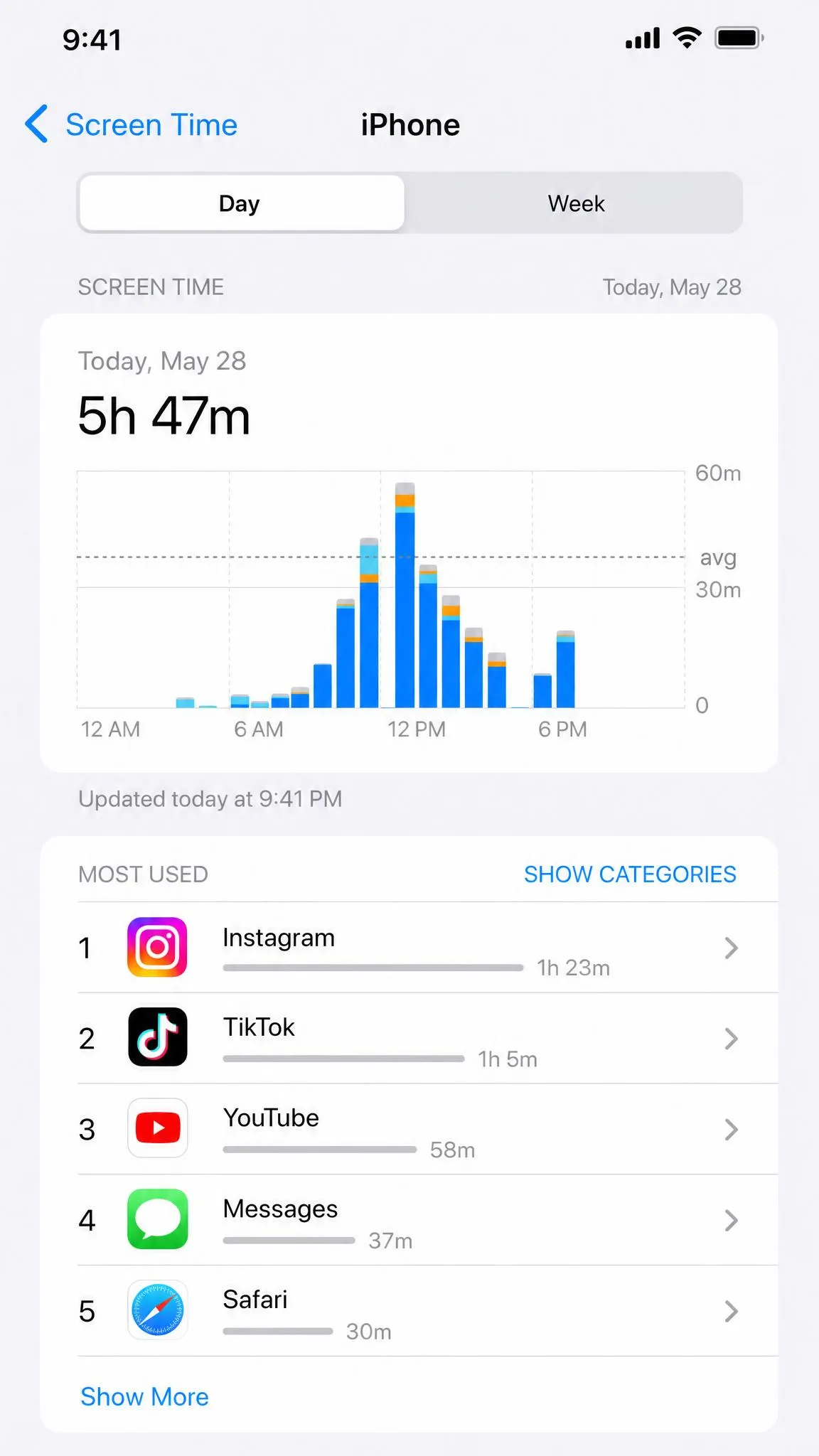
See Time Spent Per App in the "Most Used" List
Below the chart, the Most Used list ranks every app you have opened by time spent, grouped into categories such as Social Networking, Entertainment, and Productivity. Tap any app for a per-day chart and an Add Limit button to set a cap on the spot.
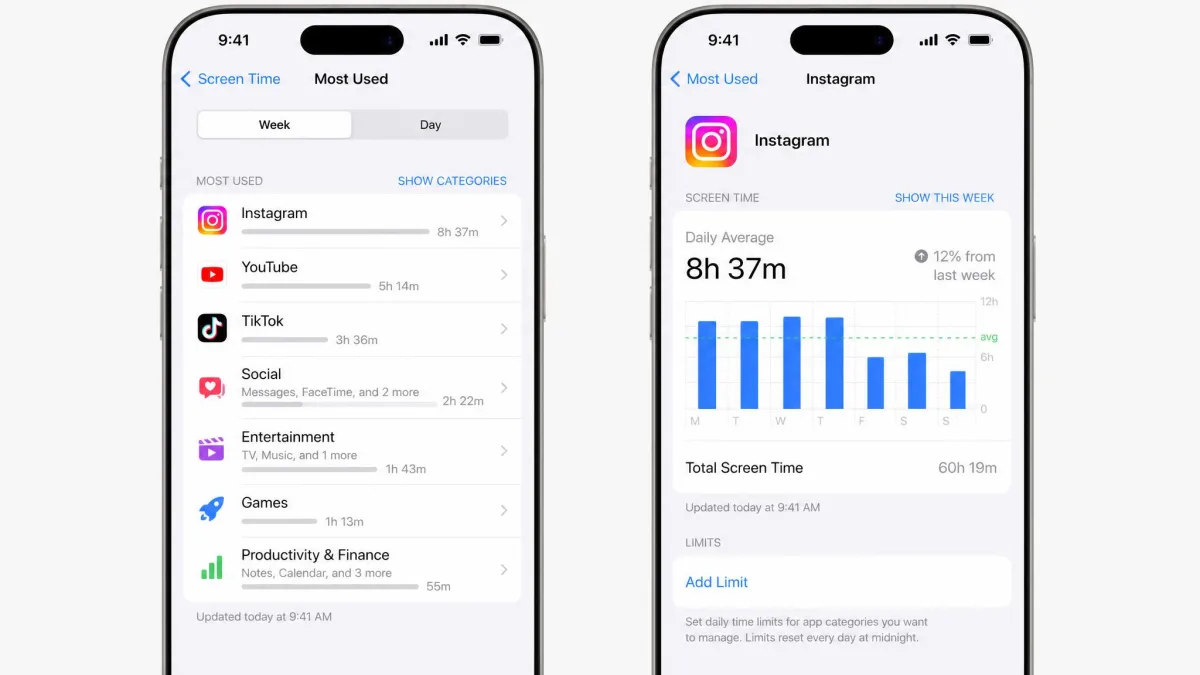
Screen Time counts time only when the screen is on and you are actively using an app. Screen-off audio from music, podcasts, and audiobooks does not count, so heavy listeners see totals well below their real listening time. Time on the Home screen and in Search may also count, which can push the total above time actually spent inside apps.
What App Usage Data Can You See on iPhone?
Screen Time answers the time question. Your iPhone keeps three more usage reports that answer different ones: battery, cellular data, and storage. The table below maps what each report measures, where to find it, and how far back it looks.
| Report | What it measures | Where to find it | Lookback | Best for |
|---|---|---|---|---|
| Screen Time | Time spent per app, pickups, notifications | Settings → Screen Time → See All App & Website Activity | About 4 weeks on device | Finding which apps eat your day |
| Battery | Battery percent per app, on-screen vs background time | Settings → Battery → View All Battery Usage | Last 24 hours plus roughly 7 to 10 days | Catching background power drains |
| Cellular | Cellular data used per app | Settings → Cellular (or Mobile Data) | Since your last manual reset | Avoiding data overage charges |
| Storage | Storage used per app | Settings → General → iPhone Storage | Live snapshot | Freeing up space |
How to Check Battery Usage by App
If an app is draining your battery, the Battery report will show it.
- Open Settings and tap Battery.
- Tap View All Battery Usage.
- Tap any app for a per-day chart plus its on-screen and background activity time.
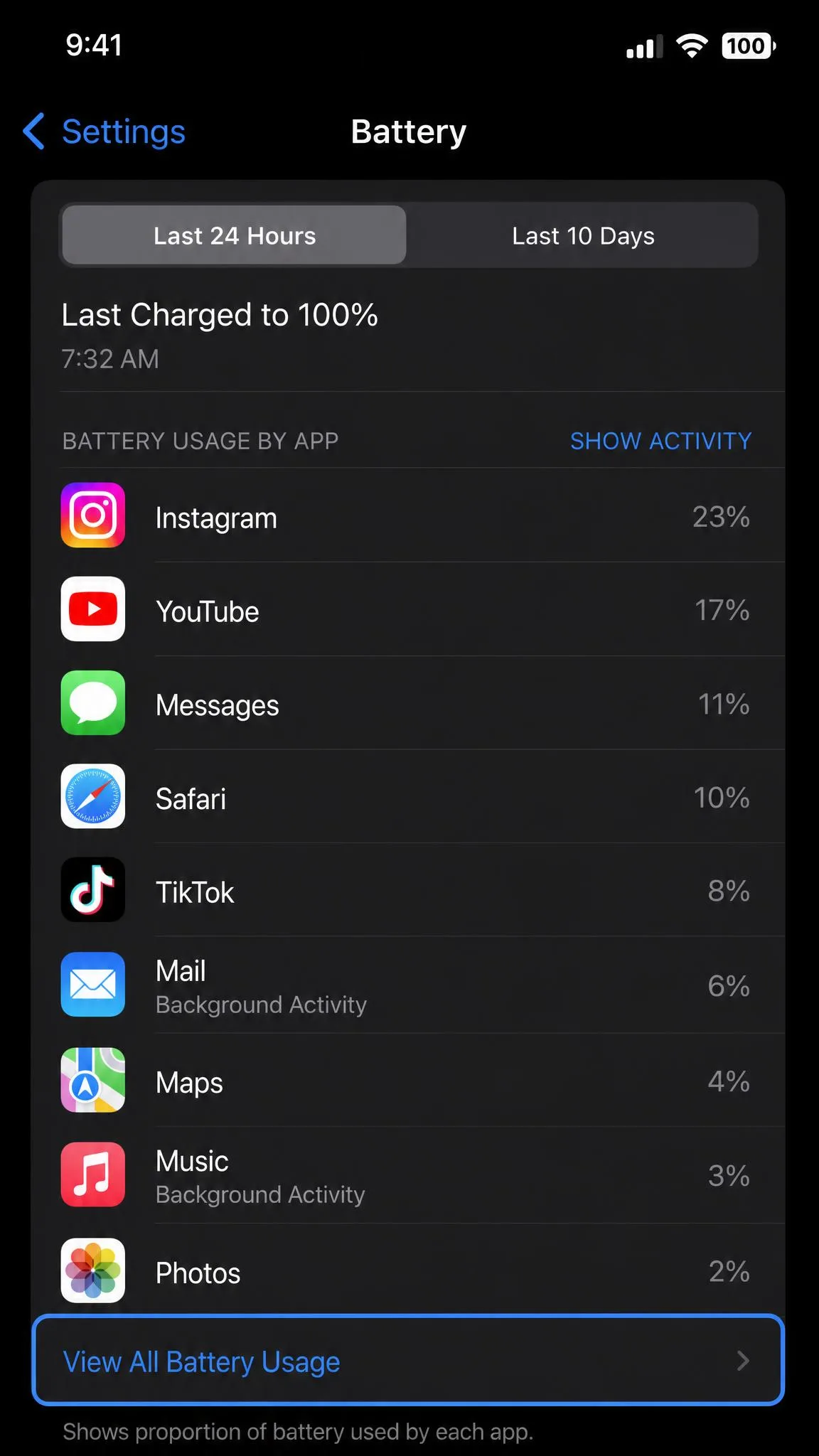
The report surfaces background drains that Screen Time misses, which is how we caught a music app that kept streaming while the phone was locked. The lookback window shifts between iOS versions, so expect roughly the last week to ten days of history.
How to Check Cellular Data Usage Per App
To see which apps are draining your data, open Settings and tap Cellular. On iPhones set to regions outside the US, the label reads Mobile Data. The list shows every installed app with the cellular data it has used, sorted from largest to smallest. Apple's official guide to checking per-app data usage walks through the same steps.
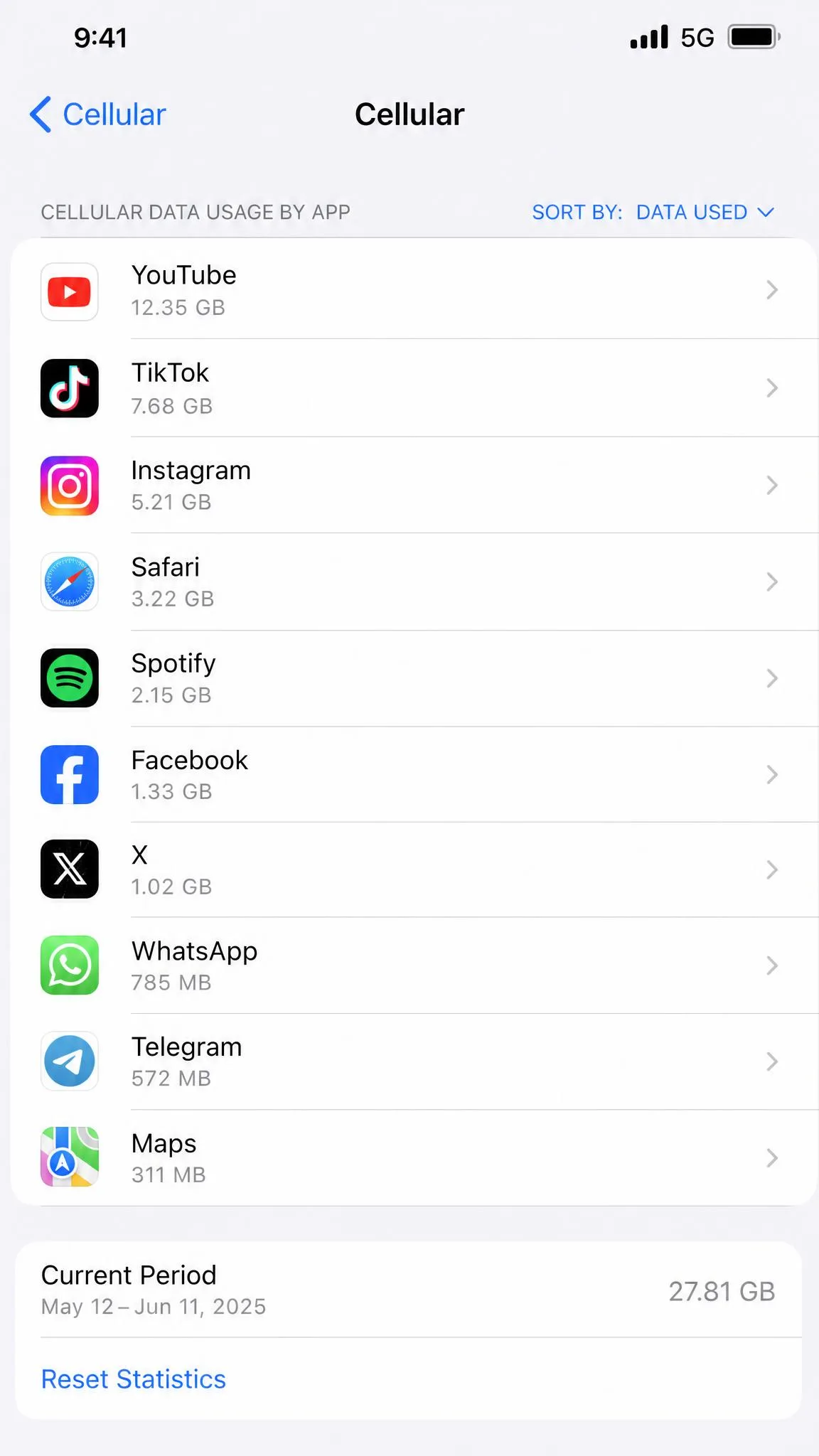
One catch matters for anyone on a monthly plan. The Current Period figure counts data since your last manual reset, and on most carriers it only changes when you tap Reset Statistics, so the total can be months old. Reset it on billing day so the number matches your plan. Apple's official iPhone guide to cellular data settings covers the related toggles.
How to Check App Storage Usage on iPhone
To see which apps take up the most room, open Settings, tap General, then tap iPhone Storage. Every app appears with the storage it uses, along with recommendations.
- Open Settings and tap General.
- Tap iPhone Storage.
- Tap any app for Offload App, which frees its space while keeping documents and data, or Delete App, which removes both.
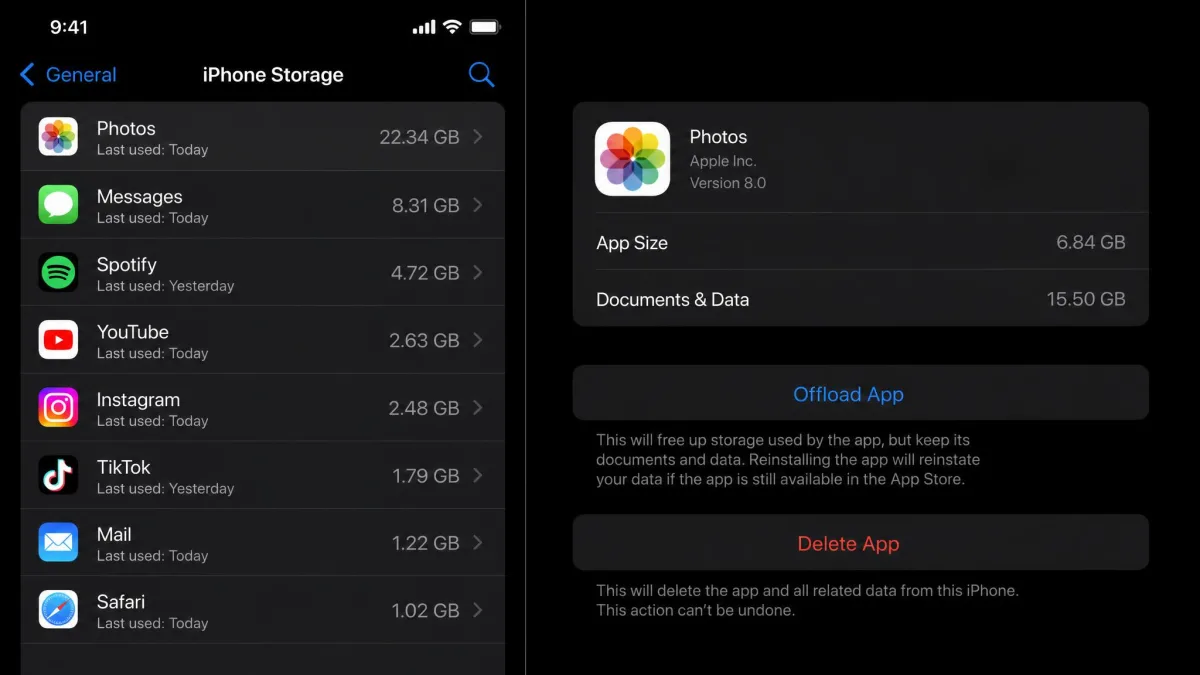
Storage is a live snapshot rather than a usage history, so it updates as you install and remove apps. If you rarely open an app but want to keep its data, Offload Unused Apps automates the cleanup. For a closer look at what sits in an app's cache, our guide to clearing app cache on iPhone walks through the options.
How Far Back Does iPhone Store App Usage History?
Screen Time keeps roughly 4 weeks of app-usage history on your device. The on-screen report lets you page back through those prior weeks, and anything older is archived away from the normal view. Daily totals reset at local midnight.
Turning off App & Website Activity clears your entire Screen Time history, including all charts, app durations, notification counts, and any configured limits. The cleared data cannot be recovered.
How to Set App Limits and Downtime
Once you can see where the time goes, the natural next step is to change it. Screen Time's App Limits and Downtime work together to help you cap how much time you spend in apps.
- Open Settings and tap Screen Time.
- Tap App Limits, then choose Add Limit.
- Pick a category or a single app and set the daily cap.
- Tap Add.
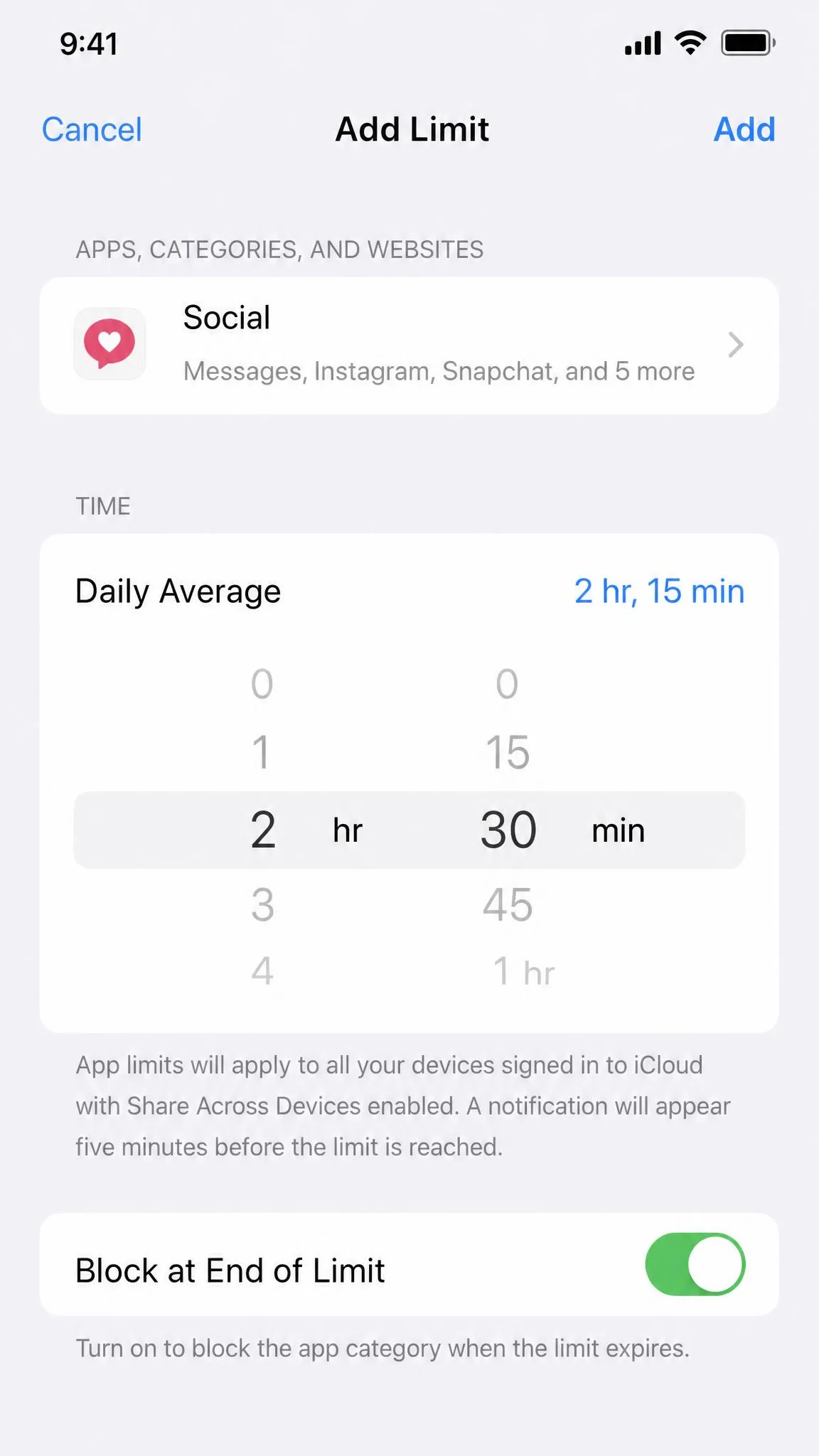
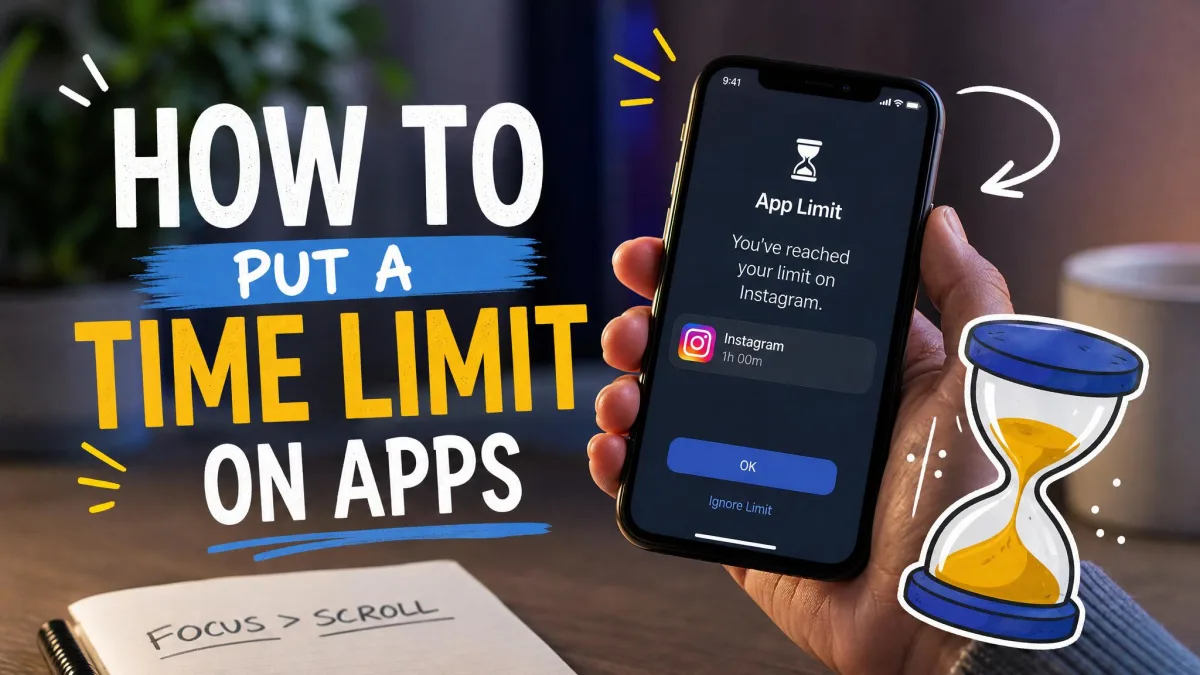
When the limit runs out, the app icon dims and iOS shows a time's-up screen with Ignore Limit options offering 15 more minutes or the rest of the day. That Ignore Limit button is the main escape hatch; Block at End of Limit closes it. Turn that on inside App Limits and set a Screen Time passcode, and the bypass disappears for anyone without it. Because screen-off audio is not counted against Screen Time totals, a limit can also be exceeded silently while music keeps playing with the screen locked.
Downtime is the broader version. Open Settings, tap Screen Time, then tap Downtime and set a schedule. Only Phone calls and apps on the Always Allowed list work during that window, and everything else dims until it ends. Communication Limits can restrict who a child contacts during Downtime.
How to Check Your Child's App Usage with Family Sharing and Parental Controls
If your child uses an iPhone inside a Family Sharing group, you can check their usage from your own phone. Open Settings, tap Screen Time, then tap your child's name under Family to see per-app time, pickups, and notifications, and set or adjust limits remotely. Time-extension requests arrive on your phone for approval.
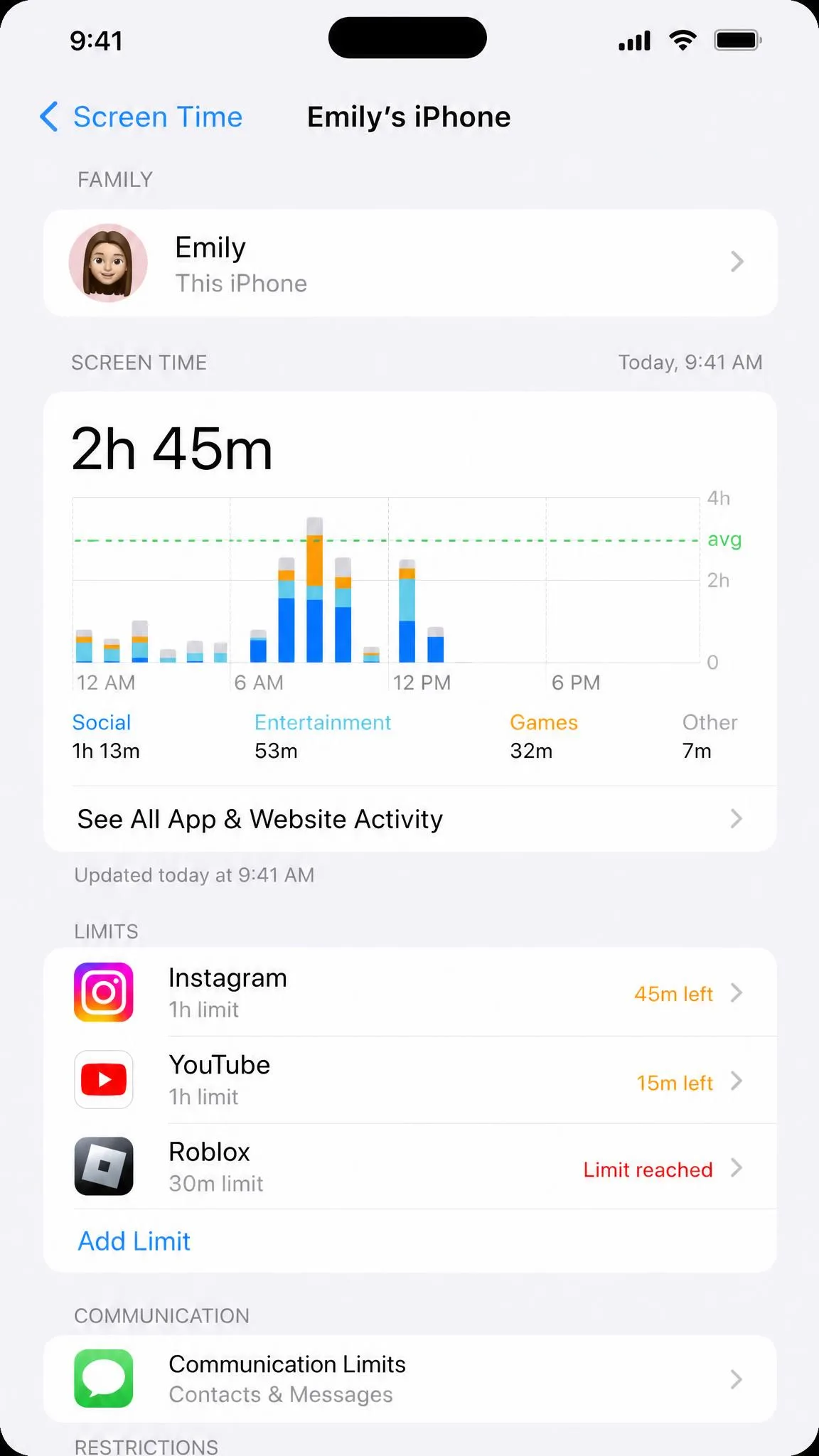
Reports for family members can lag behind real usage by a few minutes to hours, so a morning check gives the most complete picture. One rule to remember: a child who reaches the age of majority in their region can turn off monitoring themselves, so these controls work best alongside an ongoing conversation about screen habits.
Troubleshooting Screen Time Problems
Screen Time usually just works, but when the report shows nothing or stalls on yesterday's totals, the fixes in this section handle most cases.
- If the report is empty or missing an app, toggle App & Website Activity off and on to force a refresh.
- If the numbers look stale, sign out of your Apple Account and sign back in.
- If Screen Time is not syncing across devices, turn Share Across Devices off for about 30 seconds, then switch it back on.
- If you forgot the Screen Time passcode, reset it with the Apple Account email and password used when it was set.
Major iOS updates have occasionally inflated Screen Time totals, with some people seeing overnight music listening appear in their reported time. If a big update lands and the numbers look off, give the charts a day to settle.
Third-Party App Usage Trackers: Are They Worth It?
Third-party trackers such as Opal, Jomo, One Sec, and ScreenBuddy all build on Apple's Screen Time API, so they ask for the same Screen Time permissions before they can read anything. There is no other way to access app-usage data on an iPhone. Apple's API allows blocking at most 49 apps and 49 websites at once, which matters if you stack multiple blocking rules.
These apps also conflict with Apple's own App Limits and Downtime when both are configured at once, so run one screen time tool at a time. Friction apps add a 10 to 30 second pause before an app opens, which helps when the Ignore Limit button keeps tripping you up. For most people the built-in tools are enough; a third-party app earns its place for harder blocking or cross-platform checks of a child's device.
Frequently Asked Questions
How do I see how much time I spend on each app?
Can I check app usage history older than a week?
Why isn't my Screen Time showing data?
Can I check my child's iPhone app usage remotely?
How do I set a time limit on an app?
Does deleting an app remove its Screen Time data?
Final Thoughts
App usage on your iPhone is not hidden. Every report lives a few taps deep in Settings, and none of them require a paid app. Start with Screen Time for time spent, then add Battery for power drains, Cellular for data, and iPhone Storage for space. Set limits once you know where the hours go, and check in on family members if you manage a child's device. We check our own weekly summary on Sunday morning, and it takes about a minute to keep the numbers honest.
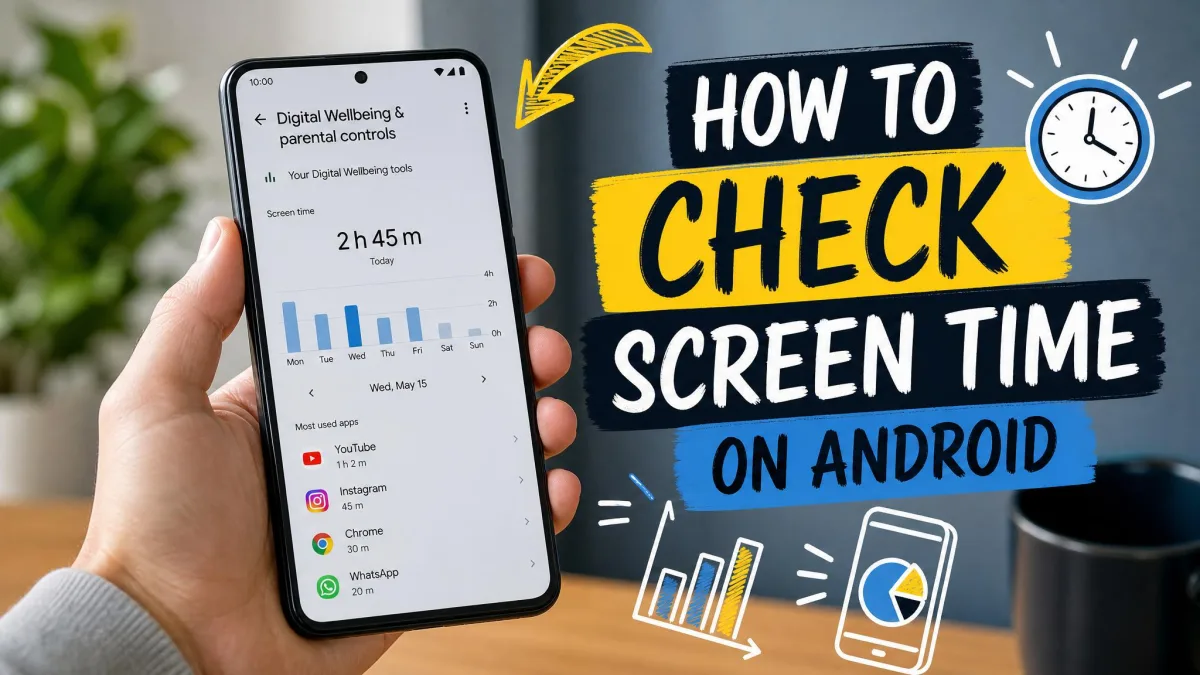
If you also use an Android phone, checking app usage on Android follows a different path, but the habit is the same: look once a week, set a limit if you need to, and move on.