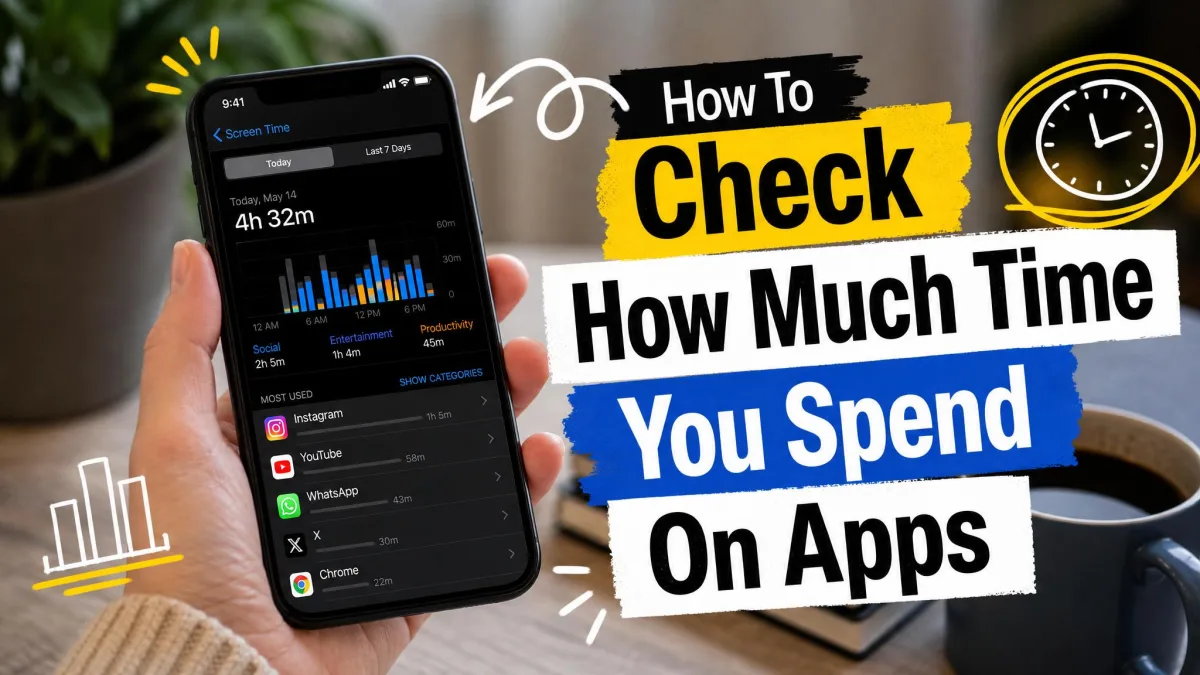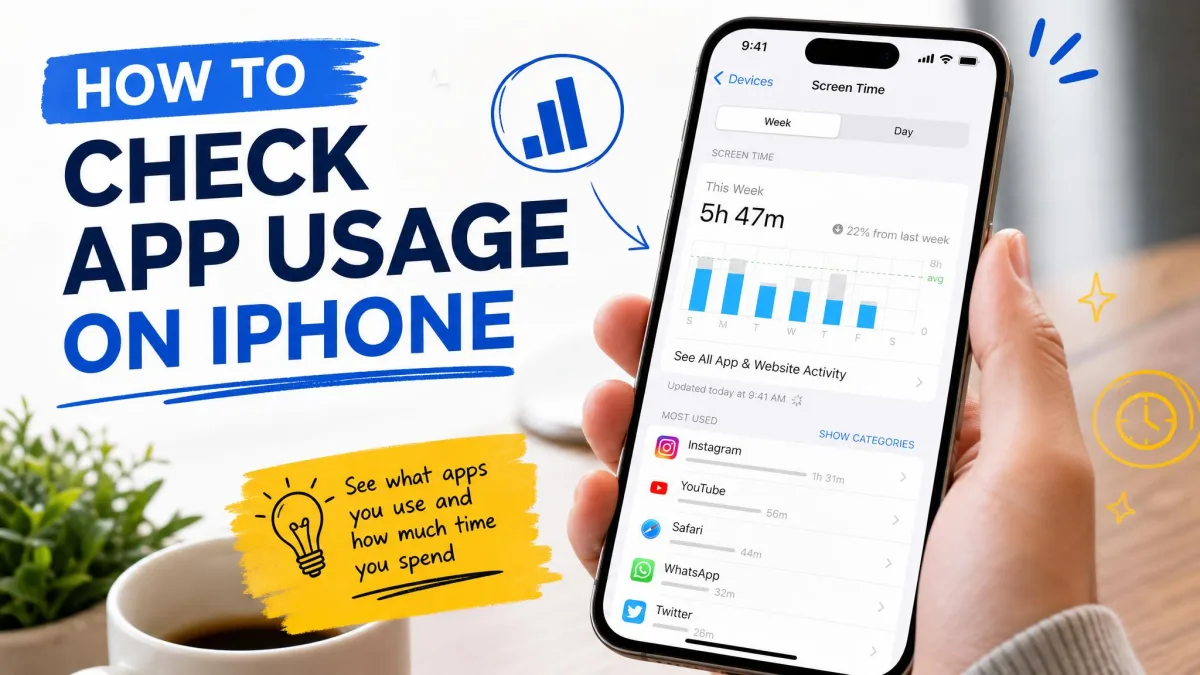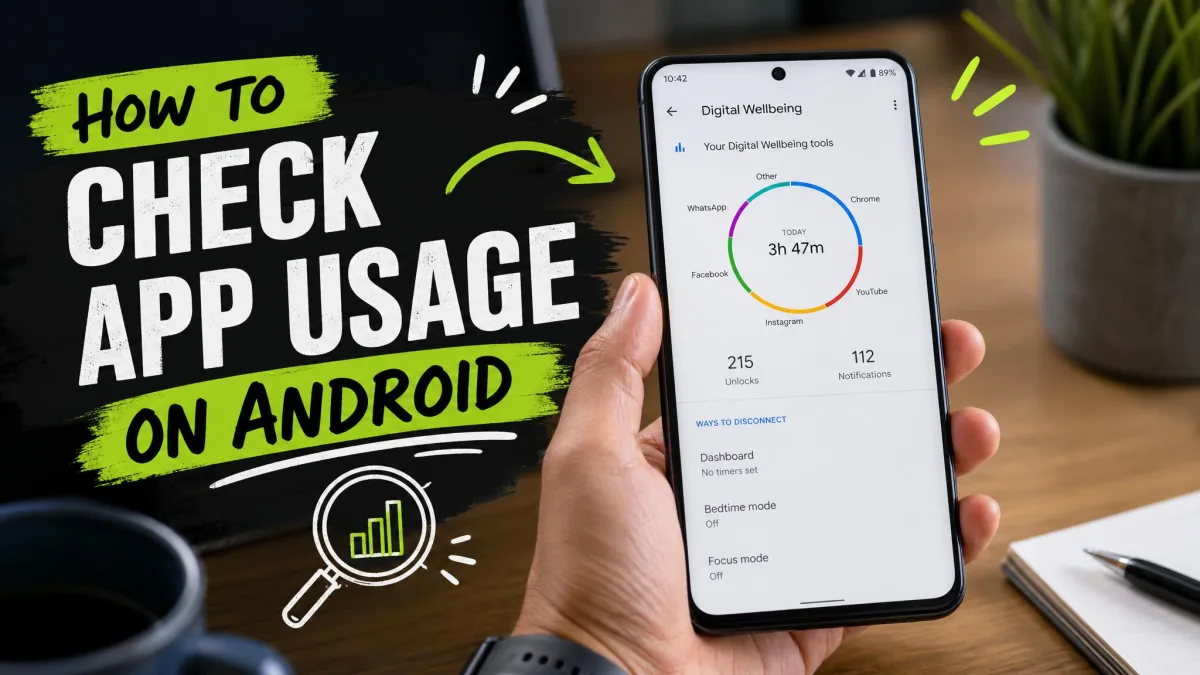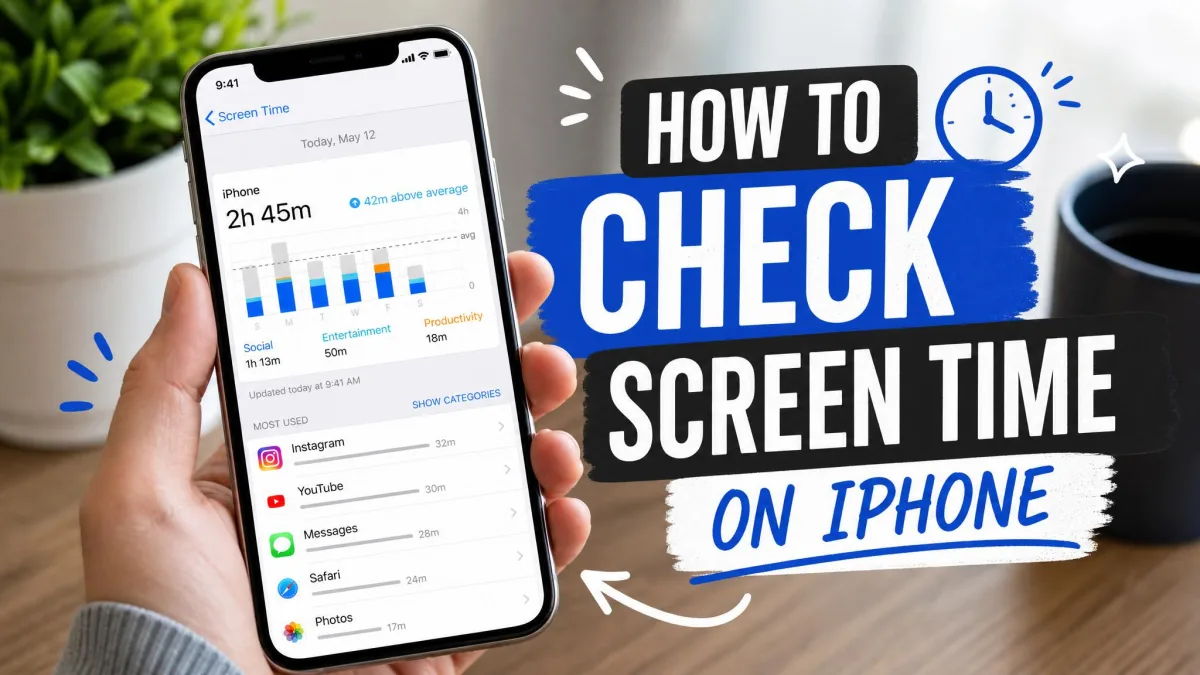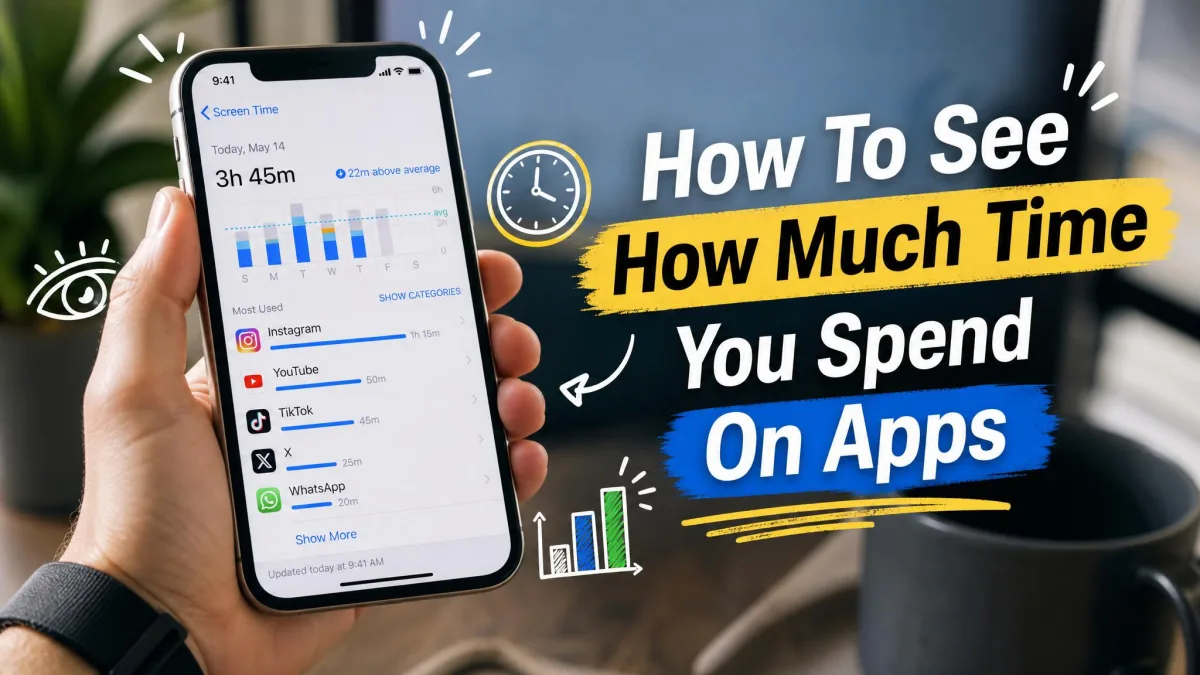
Ever wondered how much time you actually spend in apps each day? Your phone already knows the answer. Both iPhone and Android track every app you open, and the breakdown is only a few taps away in the settings.
We'll walk you through each platform's built-in tools, from Apple's Screen Time to Google's Digital Wellbeing. You'll learn how to read the daily and weekly reports, set limits and timers when the numbers run too high, and use parental controls for a child's usage.
Open Settings → Screen Time on iPhone to see per-app usage and set limits.
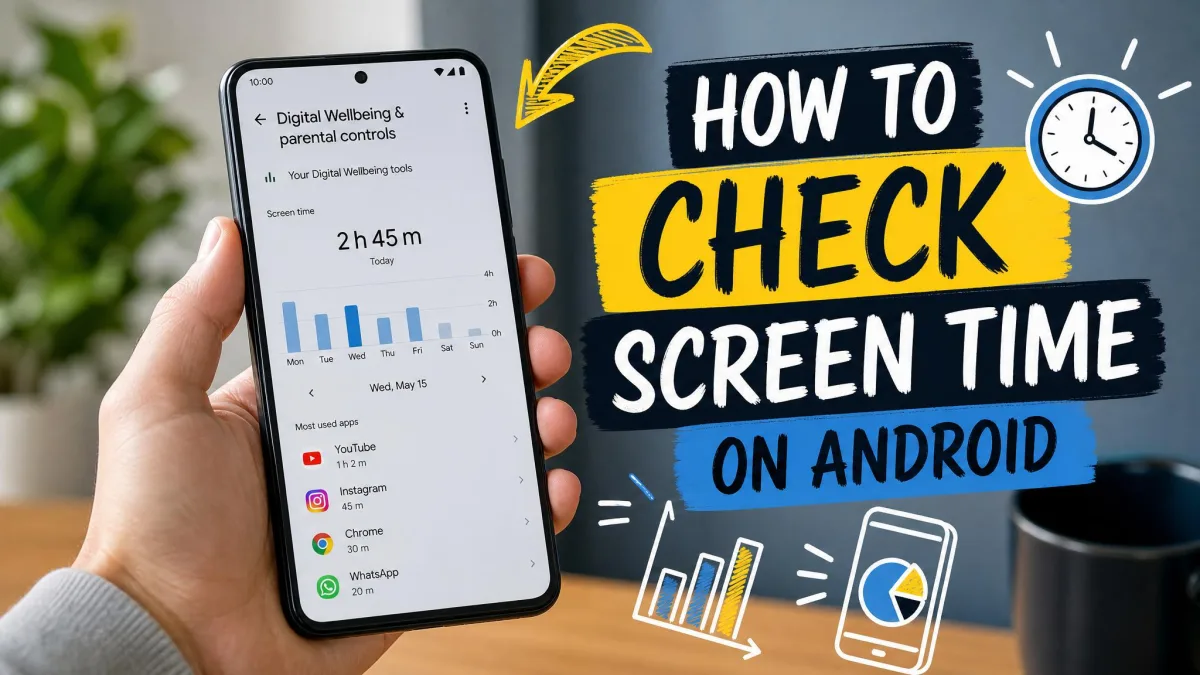
Open Settings → Digital Wellbeing & parental controls on Android to see your dashboard and app timers.
Both platforms include parental controls for managing a child's usage.
Screen Time counts on-screen use only, so background audio is not included.
How to Check App Usage on iPhone (Screen Time)
Screen Time has been built into the iPhone since iOS 12 and reached the Mac with macOS Catalina (10.15). It records usage automatically, so the reports are already waiting.
See All Activity: Daily and Weekly App Reports
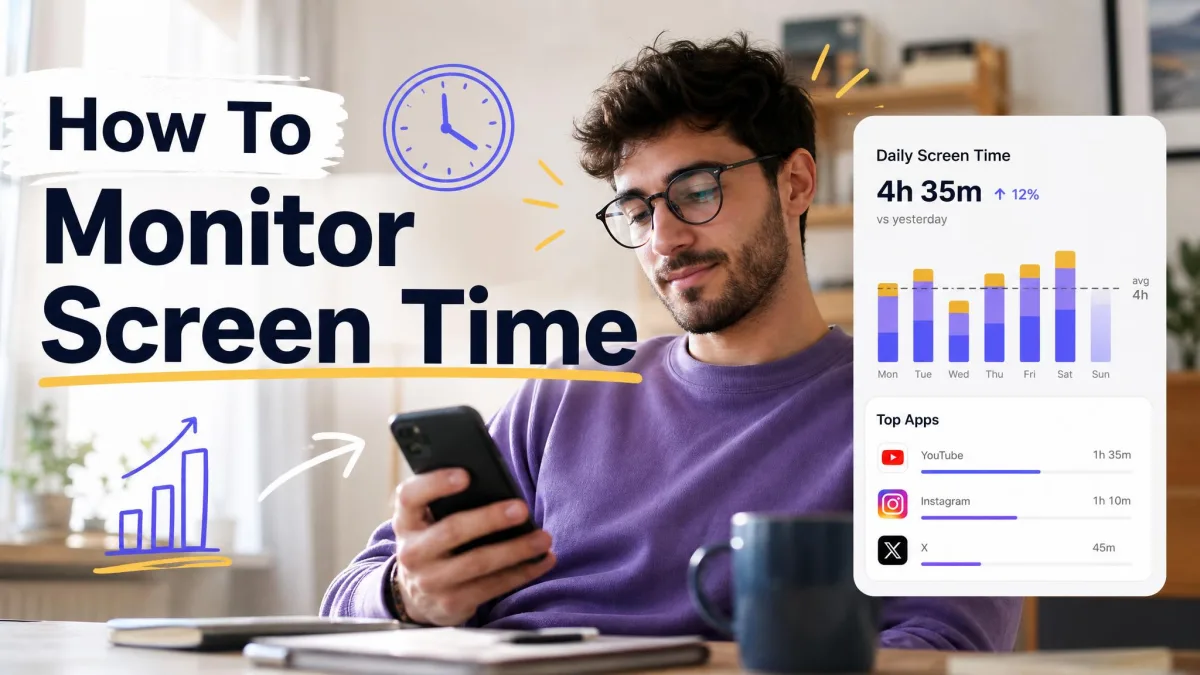
Open Settings → Screen Time, then tap See All Activity. You'll see Today and Last 7 Days reports, each listing time per app, app categories, pickups, and notifications.
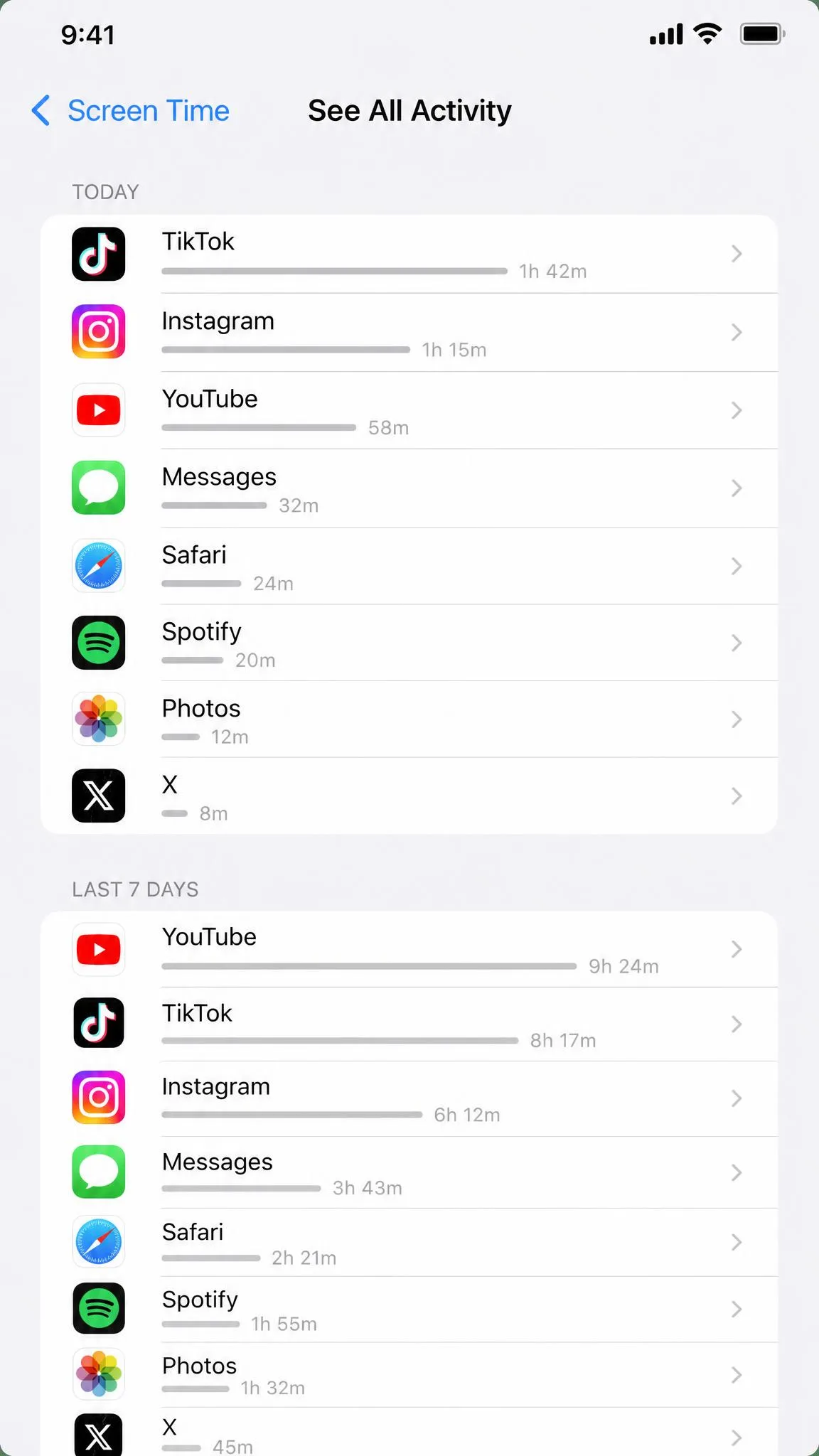
One quirk to keep in mind: Screen Time measures on-screen use only, so music or podcasts with the screen locked never add to your totals. The charts can also lump a large share of the day into a grey Other category that does not match the apps you opened.
Find Your Most-Used Apps
Your most-used apps sit at the top, ranked by total time. Tap any app for its own breakdown, or tap a category like Social Networking to see every app inside it.
Screen Time on iPad and Mac
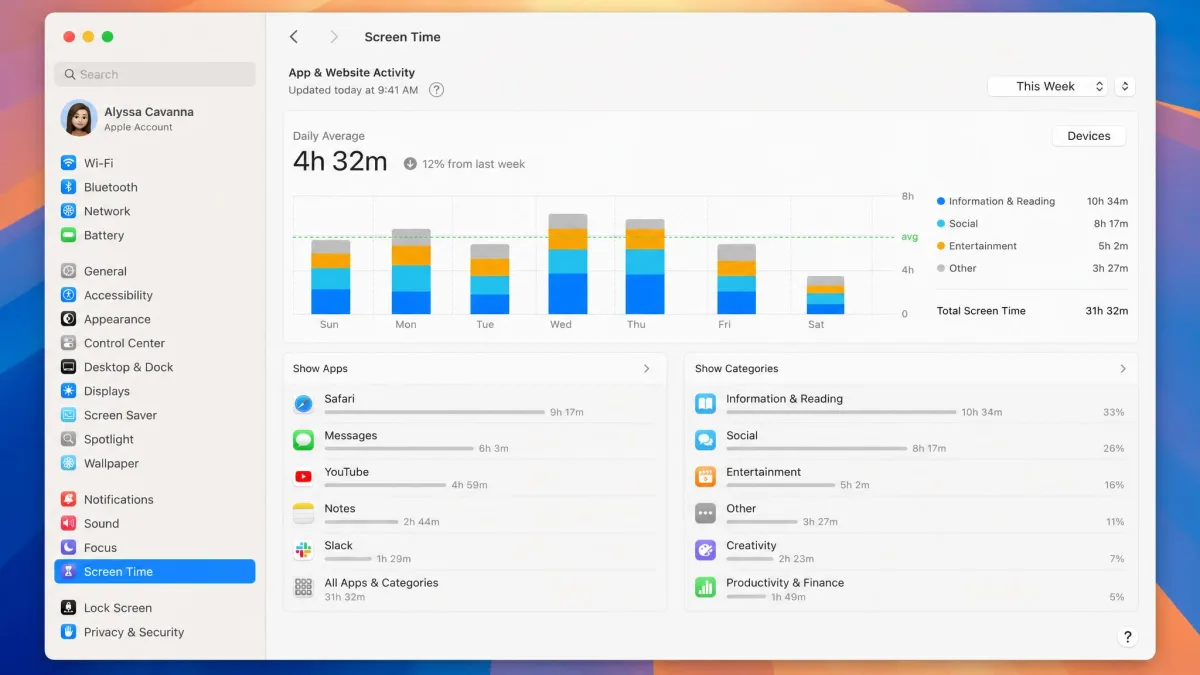
Screen Time follows you beyond the phone. Turn on Share Across Devices in Settings → Screen Time, and usage from your iPhone, iPad, and Mac syncs through iCloud into one report. On the Mac, the same data lives under System Settings → Screen Time → App & Website Activity. Everything else lives on that one settings screen.
How to Check App Usage on Android (Digital Wellbeing)
Android's built-in answer is Digital Wellbeing. The exact steps depend on your phone, since manufacturers ship their own versions. Google's Digital Wellbeing covers the full tool list. We'll start with stock Android, then the Samsung version.
Stock Android: View Your Digital Wellbeing Dashboard
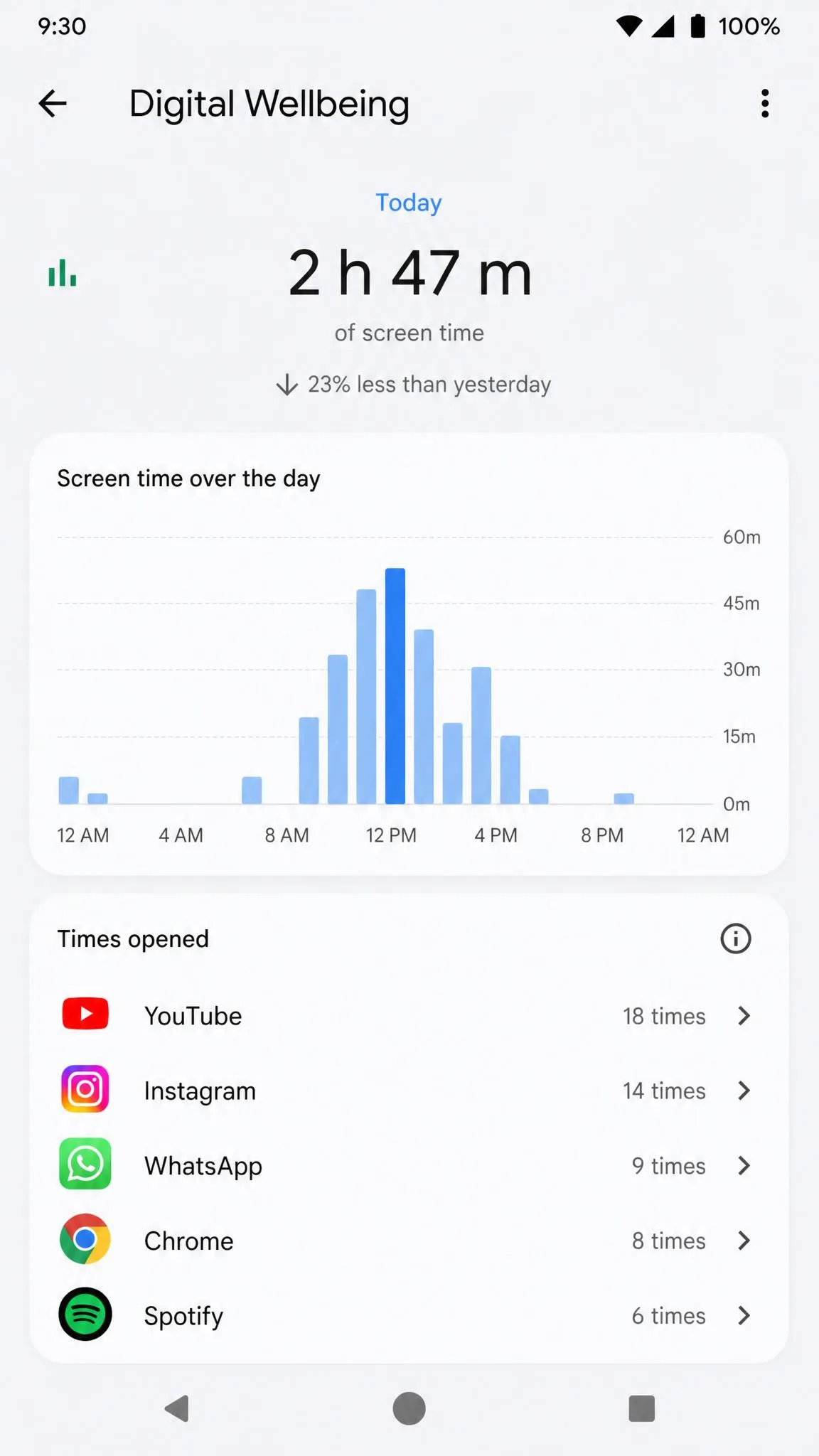
Open Settings → Digital Wellbeing & parental controls and open the Dashboard. You'll see today's screen time, times opened, and notifications per app. If the app is missing, install it from the Play Store. The dashboard needs Android 9 or later, and availability varies by device.
Samsung and Other Android Skins
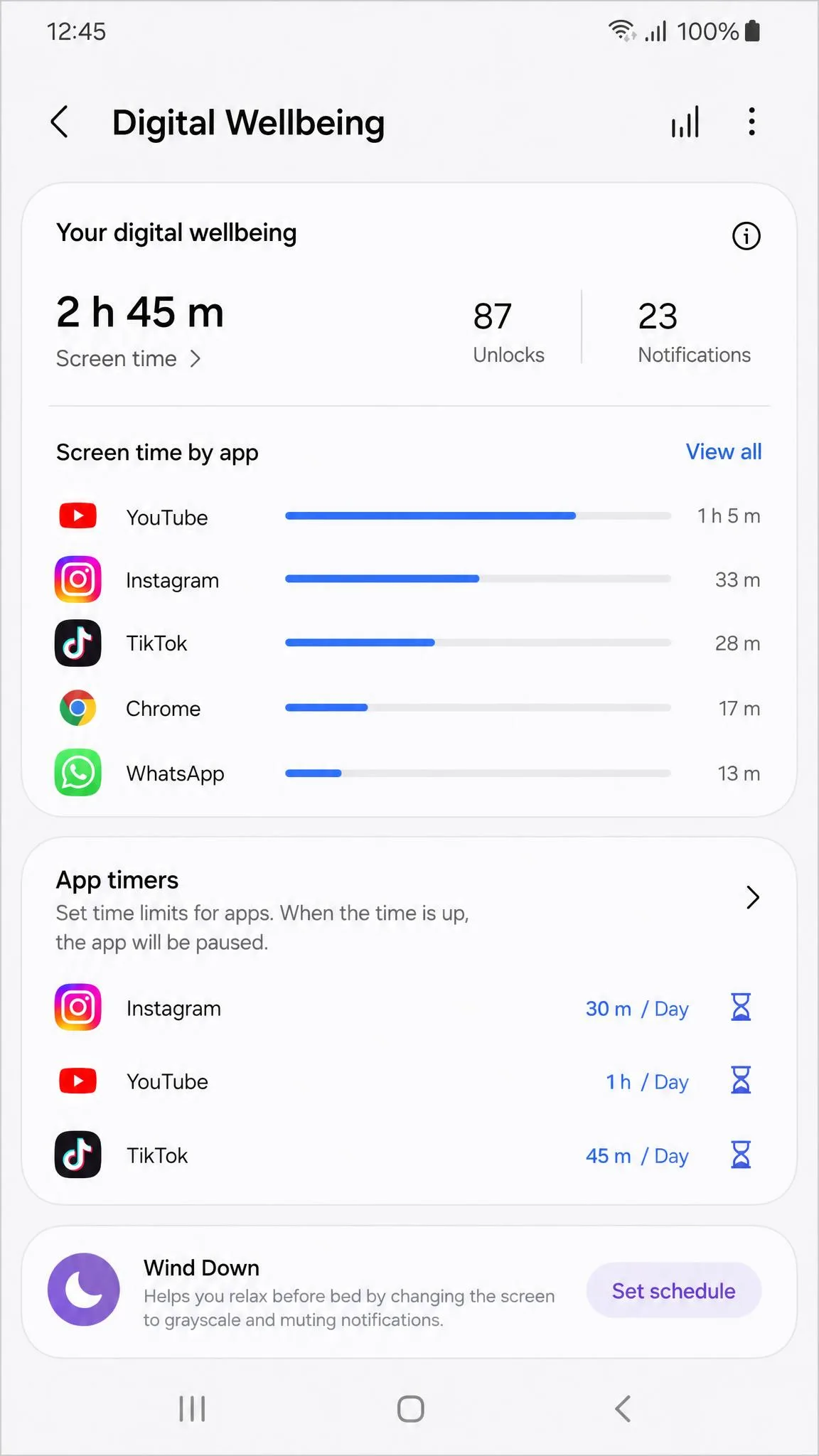
Samsung Galaxy phones ship their own Digital Wellbeing inside One UI, which requires Android 10 or later and cannot be removed. It offers the same dashboard, app timers, and Wind Down mode, plus Modes and Routines for silencing distractions. You'll find it under Settings → Digital Wellbeing and parental controls. Two quirks are worth knowing: phone calls have been logged at a fraction of their real length on some Galaxy models, and the alarm and clock app counts as screen time, so mornings spent snoozing can inflate your totals.
Android App Usage Data Limitations (10-Day History)
Digital Wellbeing keeps about 10 days of app-usage history on the device. Re-enabling usage access restores the last 10 days, and turning daily usage off can clear the store within 24 hours. Compare that with Apple's roughly 30 days, and you can see why Android's dashboard is a snapshot rather than a diary.
How to Check App Usage on Windows and Mac
Windows has no built-in per-app screen time dashboard for personal accounts. The only first-party reporting is Microsoft Family Safety, which requires a managed family account. On a Mac, open System Settings → Screen Time → App & Website Activity for per-app time by day or week and an All Devices view when Share Across Devices is on.
Why Tracking Your App Usage Matters
Seeing the numbers is the first step to changing them. Most of us assume we are on our phones a lot, but the actual totals usually come as a surprise. A five-minute check gives you a baseline, and a weekly look shows whether your limits are working.
The Real Numbers Behind Your Phone Habit
Recent phone usage statistics put the habit in context. Apptopia's tracking panel puts average US phone time at 6.3 hours a day, up from about 5.5 hours in January 2023. Reviews.org's self-reported survey, which uses a different method, comes in lower at 5 hours 1 minute a day. The average American checks their phone about 205 times a day, roughly once every five minutes while awake. Across every device, total screen time for American adults averages about 12.6 hours a day. Gen Z averages the most smartphone time of any generation at 6 hours 18 minutes a day.
How to Set App Limits and Timers
Once you know where the time goes, the built-in tools let you cap it. Both platforms include per-app limits, scheduled quiet hours, and ways to pause distracting apps.
Set App Limits on iPhone (Screen Time)
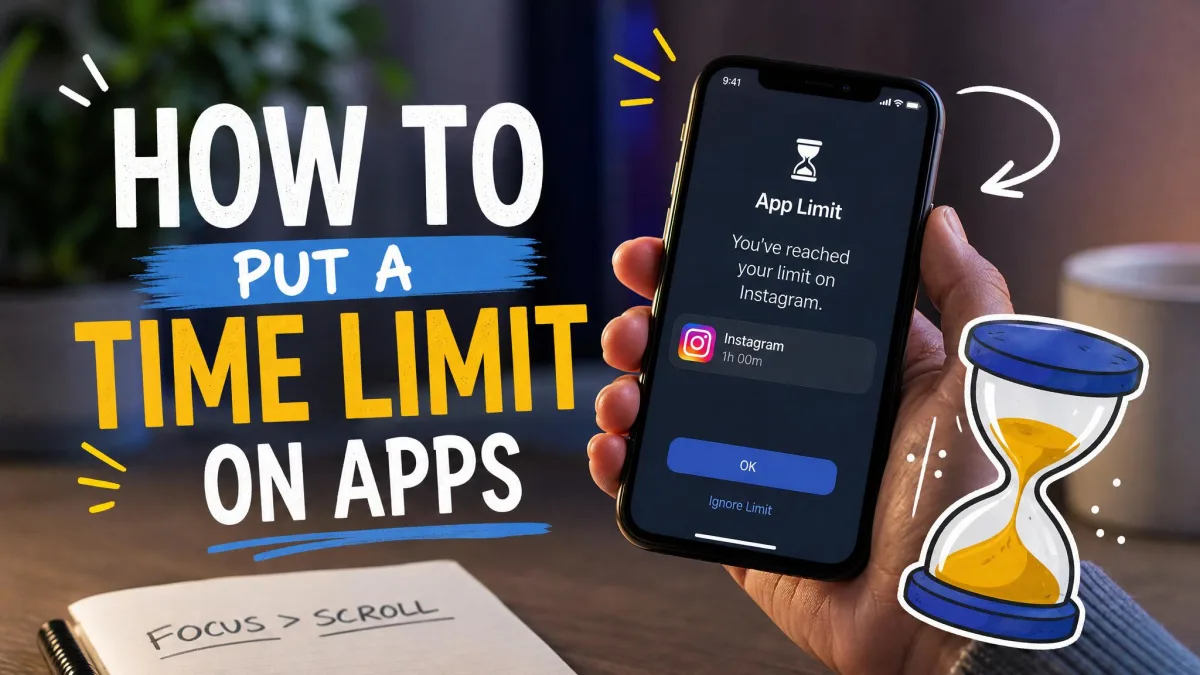
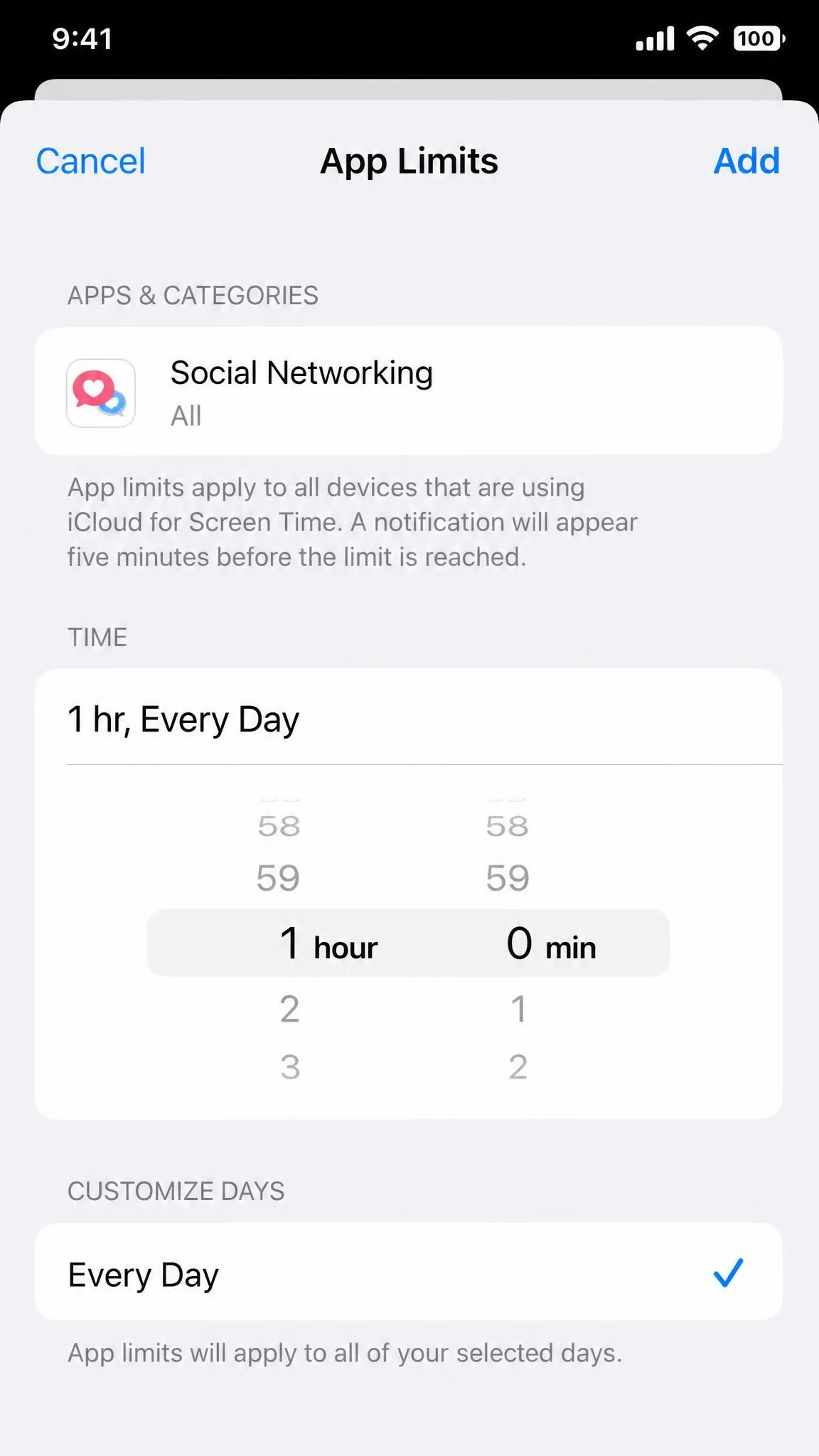
Open Settings → Screen Time → App Limits, choose an app or a category like Social Networking, set a daily amount, and confirm with your passcode. When the limit runs out, the app closes and you get a reminder.
One thing to know: App Limits have a history of not sticking. Apple confirmed a bug in July 2023 that could reset Screen Time settings, and shipped fixes in iOS 16.5 and iOS 17.5. Keep your iPhone updated.
Set App Timers on Android (Digital Wellbeing)
On Android, open Settings → Digital Wellbeing & parental controls, open the Dashboard, and tap an app's timer option. Timers reset at midnight, and when one runs out the app closes and its icon dims. You can protect them with a four-digit PIN.
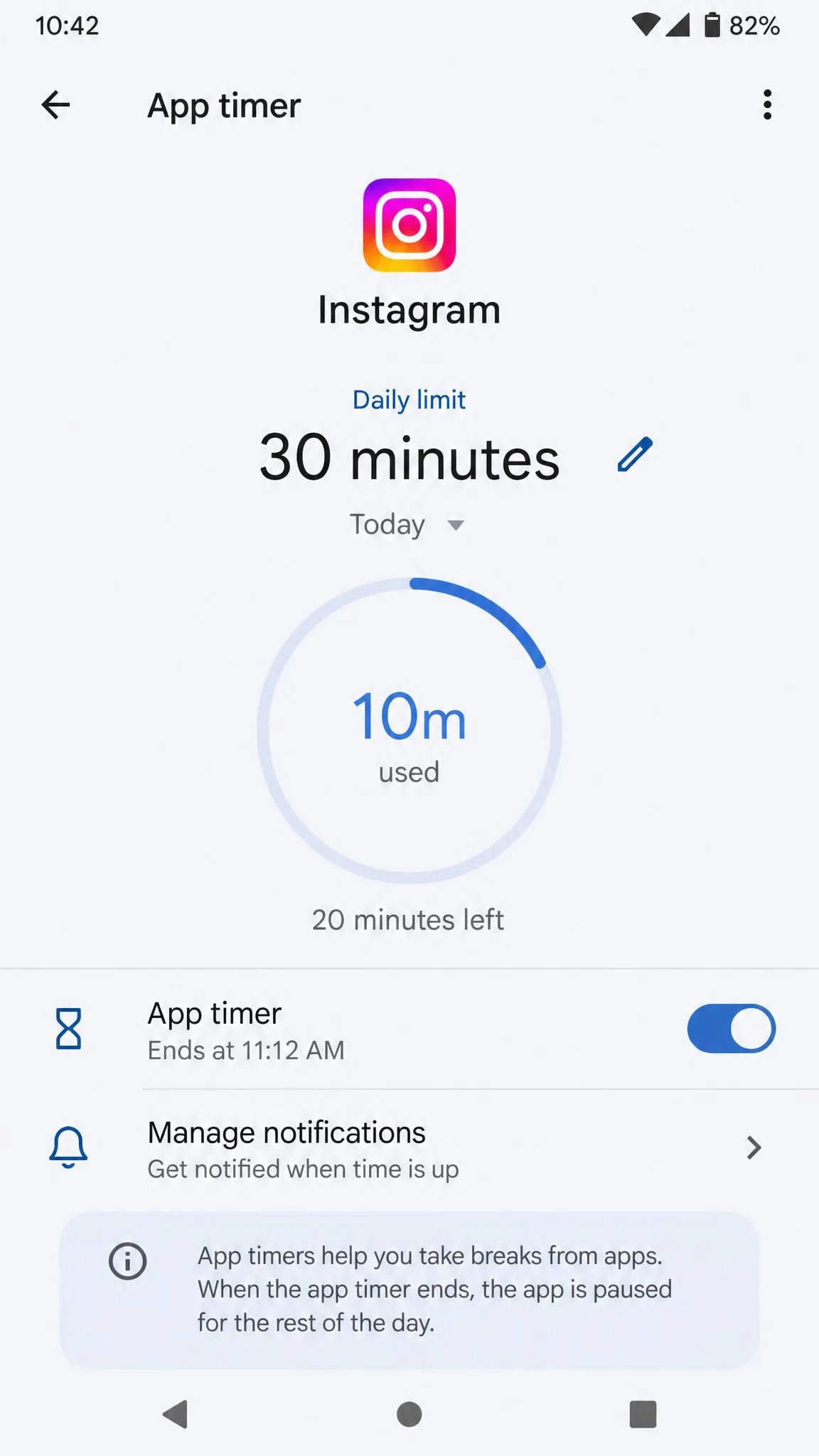
On some Galaxy phones, app timers can fail to reset at midnight, leaving an app blocked the next day even when you never opened it. Samsung's timers also skip apps inside Secure Folder and Dual Messenger clones. On newer One UI builds, setting a timer to zero locks the app out completely, so delete a limit rather than zeroing it.
Start with a single limit on your most-used app instead of capping everything at once.
Review the weekly report on Sunday and adjust one limit for the week ahead.
Set the passcode or PIN first so the limits cannot be switched off on impulse.
Downtime and Bedtime Mode
For scheduled quiet hours, iPhone uses Downtime. Open Settings → Screen Time → Downtime, choose your times, and only apps you allow will work during that window. Android has two matching tools: Bedtime or Wind Down mode turns the screen grayscale and dark, and Focus Mode pauses the apps you select.
Schedule Downtime for the last hour before bed so late-night scrolling slows down.
Turn on grayscale in Bedtime mode, since a black and white screen makes apps less tempting.
Use Focus Mode for work blocks, because it pauses apps without a hard timer.
Check Your Child's Screen Time (Parental Controls)
Both platforms include parental controls. On iPhone, Family Sharing lets you set up Screen Time for your child's device. On Android, Digital Wellbeing connects to Family Link, where you can set app limits and see how long your child spends in each app.
One honest warning: Screen Time is easy for a determined child to bypass. The Ignore Limit option only asks for the passcode, and kids have reset limits from their own accounts. For older kids, a family agreement holds up better than a passcode alone.
Best Third-Party Screen Time Apps
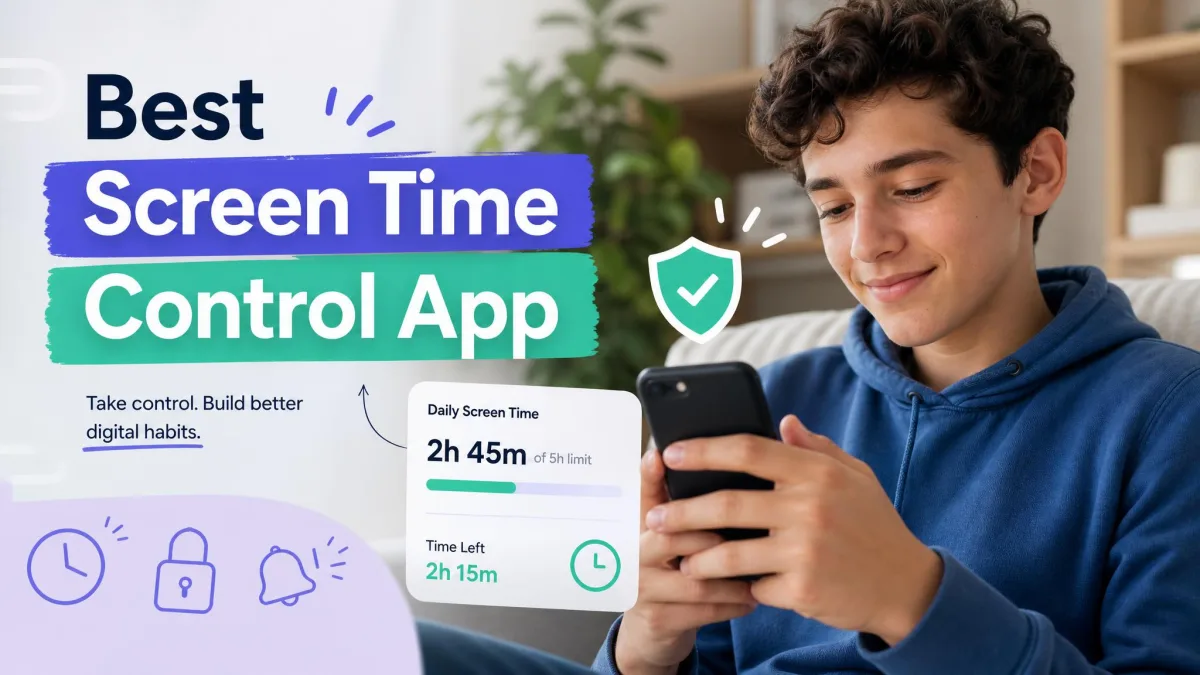
Built-in tools cover most people, but third-party apps go further when you want harder structure. Opal blocks apps on a schedule through Apple's Screen Time API for about $99.99 a year. Forest grows a digital tree while you stay off your phone, for a one-time $3.99. Jomo adds intent-based blocking and screen-time journaling for about $34.99 a year. one sec inserts a breathing pause before a chosen app opens, for $19.99 a year. Freedom blocks apps across iOS, Mac, and Windows for $39.99 a year. On Android, ActionDash is a free Digital Wellbeing-style tracker, and AppBlock is a freemium blocker at about $30 a year. Opal's Android build runs heavy on battery and background data, so keep an eye on it.
Tips to Reduce Your Screen Time
Limits only work if the habit behind them changes. Turn off notifications for the apps you reach for most, since every alert invites an open. Move your most-used apps off the home screen so opening them takes a deliberate swipe. Charge your phone outside the bedroom and let Downtime or Bedtime handle the overnight window.
Frequently Asked Questions
How do I see how much time I spend on each app on my iPhone?
How do I check app usage on Android?
How much app-usage history do Screen Time and Digital Wellbeing keep?
How do I set a time limit on an app?
Does Screen Time count background apps?
Can I track app usage across devices?
Final Thoughts
Seeing how much time you spend on apps takes about a minute and gives you a starting point for every change after it. Check the dashboard this week, set one app limit, and revisit the weekly report to see what moved. Small, consistent limits add up faster than sweeping changes you cannot keep up.