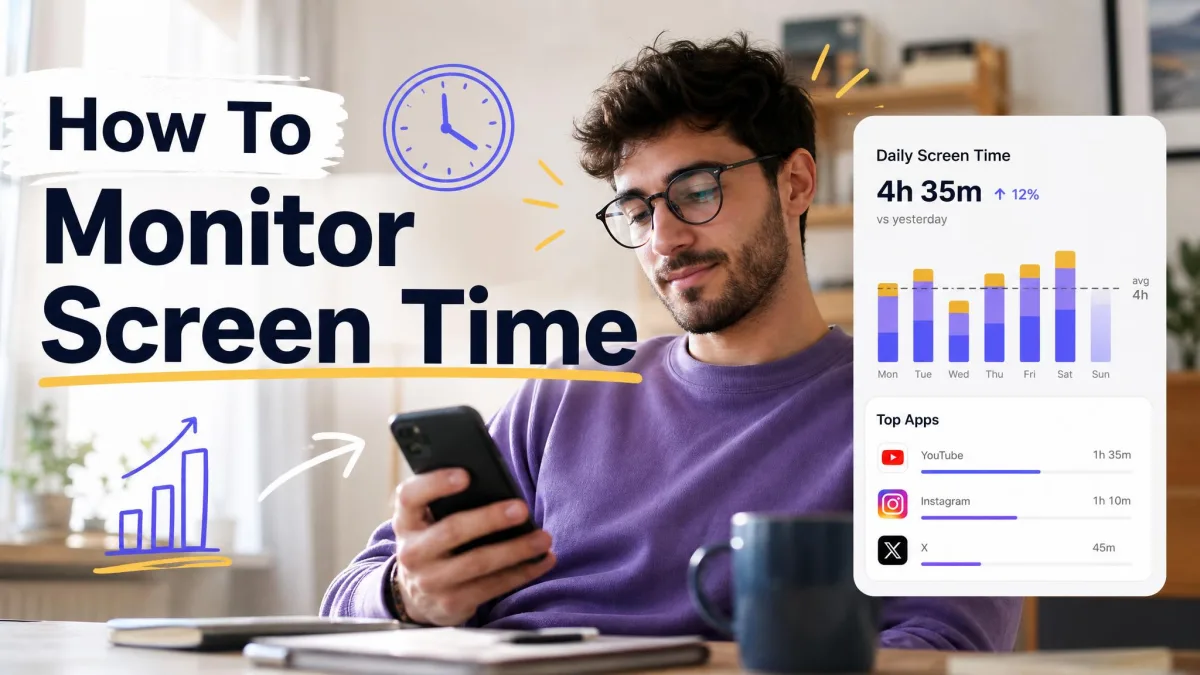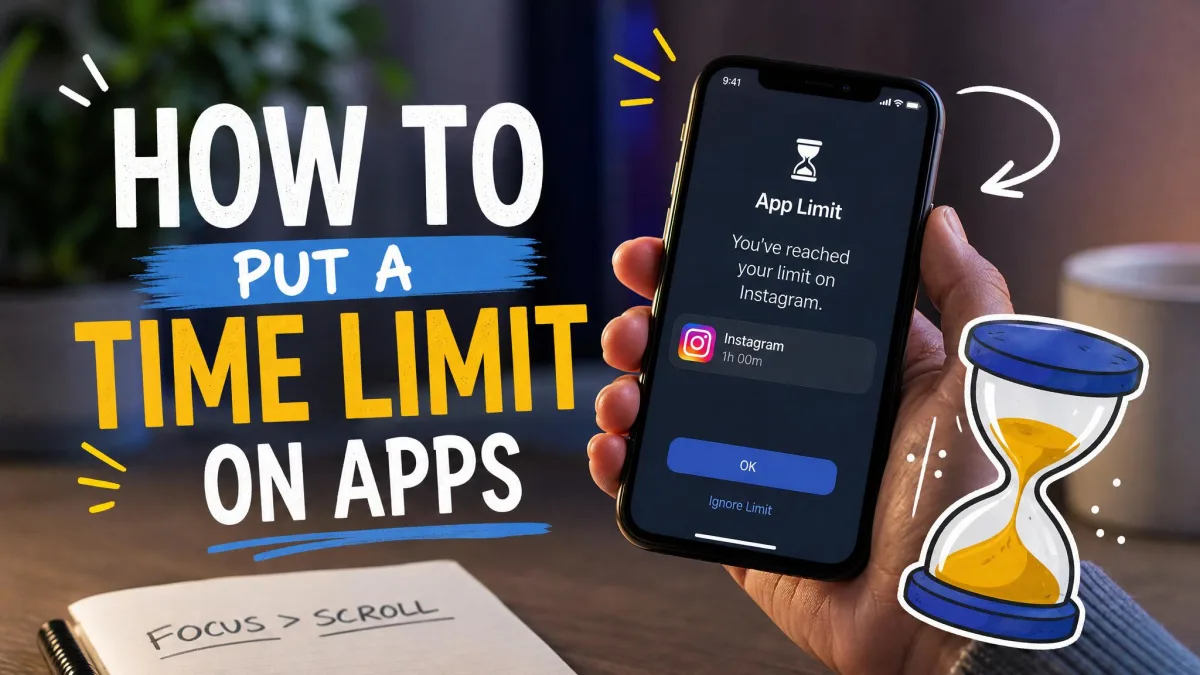
If your screen time has crept past what feels manageable, you have probably caught yourself in a doomscrolling loop with no real memory of how it started. The eight apps below are built to interrupt that autopilot. Some hard-block the app you reach for, some slip a pause in front of it, and some just show you the numbers until the pattern gets hard to ignore.
Every app below was bought or downloaded by us at retail and run through real daily use on our own devices, never on vendor-supplied test machines — the same installs you would get from the App Store or Google Play. Only a few genuinely changed our behavior. The difference came down to one thing: whether the app added friction or just reported on it. Freedom took the top spot, and the full rankings are below.
The Best Screen Time Control Apps at a Glance
Here is how all eight apps compare on platforms, free tier, and starting price. The built-in platform tools are covered in their own section after the reviews.
| App | Buy | Best For | Platforms | Free tier | Starting price |
|---|---|---|---|---|---|
 |
Check price → | Cross-device blocking of apps + websites | Mac, Windows, iOS, Android, Chromebook | Yes (Free plan) | $8.99/moor $3.33/mo billed annually |
 |
Check price | Free blocking of mindless scrolling | iOS, Android, macOS | Yes (fully free, donations) | $0 |
 |
Check price | Focus and productivity on iOS | iOS, Android, Mac | Yes (1 Rule) | $19.99/moor $8.29/mo billed annually |
 |
Check price | Breaking impulsive app opens | iOS, Android, browser extensions | Yes (1 app) | $2.99/moor $19.99/yr |
 |
Check price | Gamified focus | iOS, iPad, Android, Chrome, Firefox | Yes (Android free with ads) | $3.99one-time iOS / $1.99 Android |
 |
Check price | Usage tracking and analytics | Web, Windows, Mac, iOS, Android | Yes (Lite) | $7/mobilled annually |
 |
Check price | Habit building on Apple devices | iPhone, iPad, Mac | Yes (1 budget) | $5.99/moor $2.49/mo billed annually |
 |
Check price | Structured study/focus blocks | iOS, Android | Yes (Basic) | $5.99/mo |
1. Freedom – Best Overall Screen Time Control App
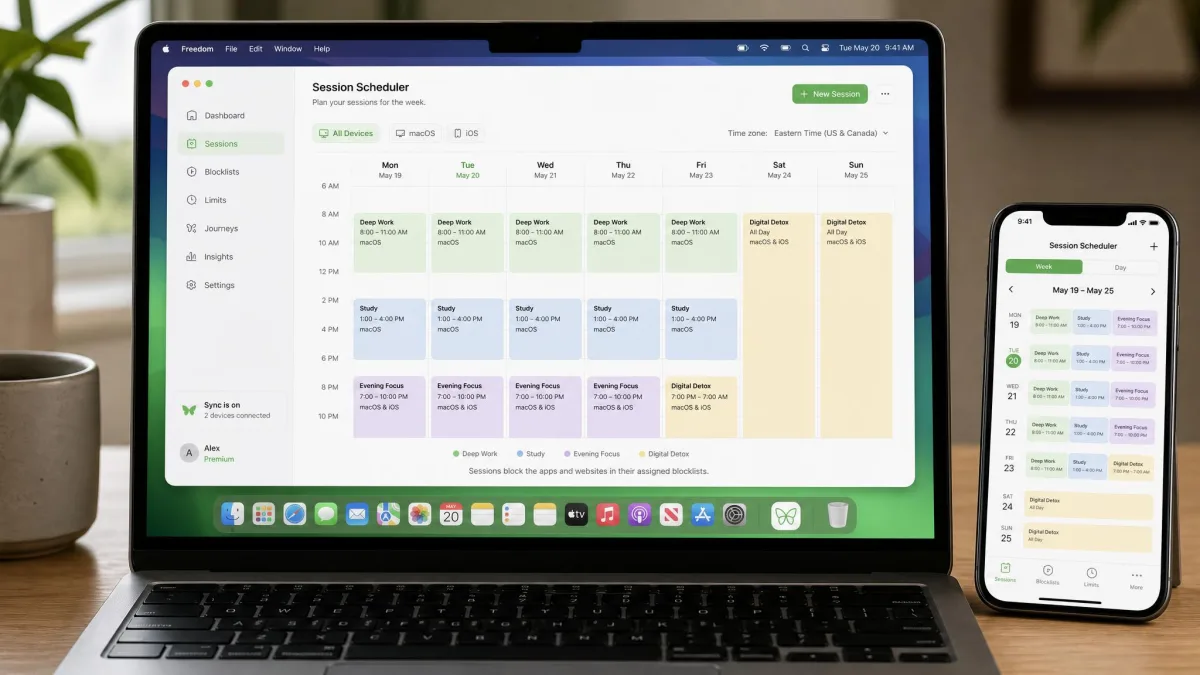
Freedom is the only blocker in our lineup that covers every device from one dashboard, with a single synced session blocking apps, websites, or the whole internet at once. It only blocks while a session is running, and we forgot to start one more than once, which left everything wide open. On mobile the block routes through a local VPN, and we watched it drain the battery faster on an older phone, and twice it stopped mid-session without warning. Locked Mode closes that early exit, but you have to turn it on before the session starts.
Key Features
- Block apps, websites, or the entire internet in one session
- Sessions sync across devices, with scheduling and recurring sessions
- Locked Mode and advance sessions for a real barrier
- Custom blocklists, website exceptions, and focus sounds
- Free plan covers unlimited devices with no data tracking
Pros & Cons
Pros
- Blocks apps, sites, and the whole internet from one dashboard
- One session covers every device at once
- Free plan with unlimited devices
Cons
- Mobile block can stop mid-session without warning
- Only blocks while a session runs, so it rewards discipline
- VPN-based mobile blocking drains battery on older phones
Pricing
Freedom’s free plan covers app, website, or whole-internet blocking across unlimited devices, with custom blocklists, focus music, and no data tracking. Premium runs $8.99 per month, or $3.33 per month billed annually with a 7-day trial, and Premium Forever is $99.50 one-time.
Verdict
Freedom is the pick for anyone who wants one tool that blocks every device at once. It rewards the user who starts sessions deliberately, so pair it with a friction app like ScreenZen for impulse moments.
2. ScreenZen – Best Free Option for Blocking Mindless Scrolling
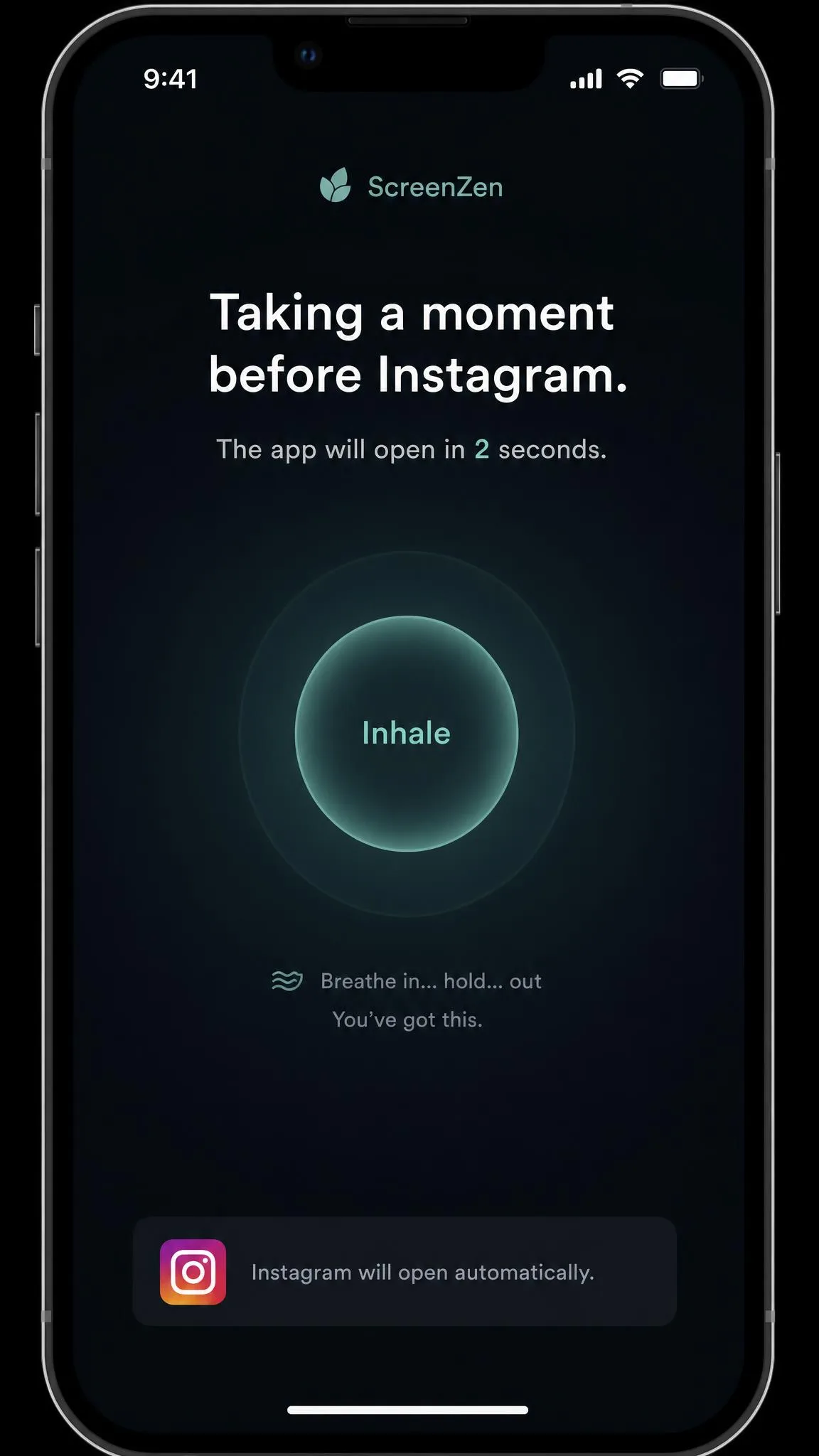
ScreenZen takes the opposite approach from Freedom. Instead of blocking, it makes you wait: every open of a problem app brings a pause screen, and the wait grows with each open in a row. On our phones, that delay did its job in the first days. We would reach for Instagram, hit the countdown, and often put the phone down before the timer finished. After a couple of weeks the pause lost its sting, and we caught ourselves drifting back to the same feeds once the delays no longer surprised us.
Key Features
- Pause or delay screen before an app or website opens, with escalating waits
- Mindful prompts and mid-scroll time checks
- Daily usage goals and limits with scheduling
- Strict Block blackout windows, gesture unlock, and streaks, all free
Pros & Cons
Pros
- Genuinely free, donation-supported, no ads
- Gentle escalating pause teaches self-regulation
- Runs on iOS, iPadOS, macOS, visionOS, and Android
Cons
- Nothing hard-blocks the app, so the pause is easy to wait out
- Android setup requires several permissions up front
- iPhone lacks some system-level blocking features
Pricing
ScreenZen is one of the few genuinely free options left in this category. It is donation-supported, with no subscription, no paywall, and no ads, and it holds about a 4.9-star App Store rating across more than 47,000 ratings. The ScreenZen website covers the platform list and free model.
Verdict
If you want to try a screen time app without spending anything, ScreenZen is the free pick we recommend. It works best as a first step that builds awareness, not as a hard barrier.
3. Opal – Best for Focus and Productivity on iOS
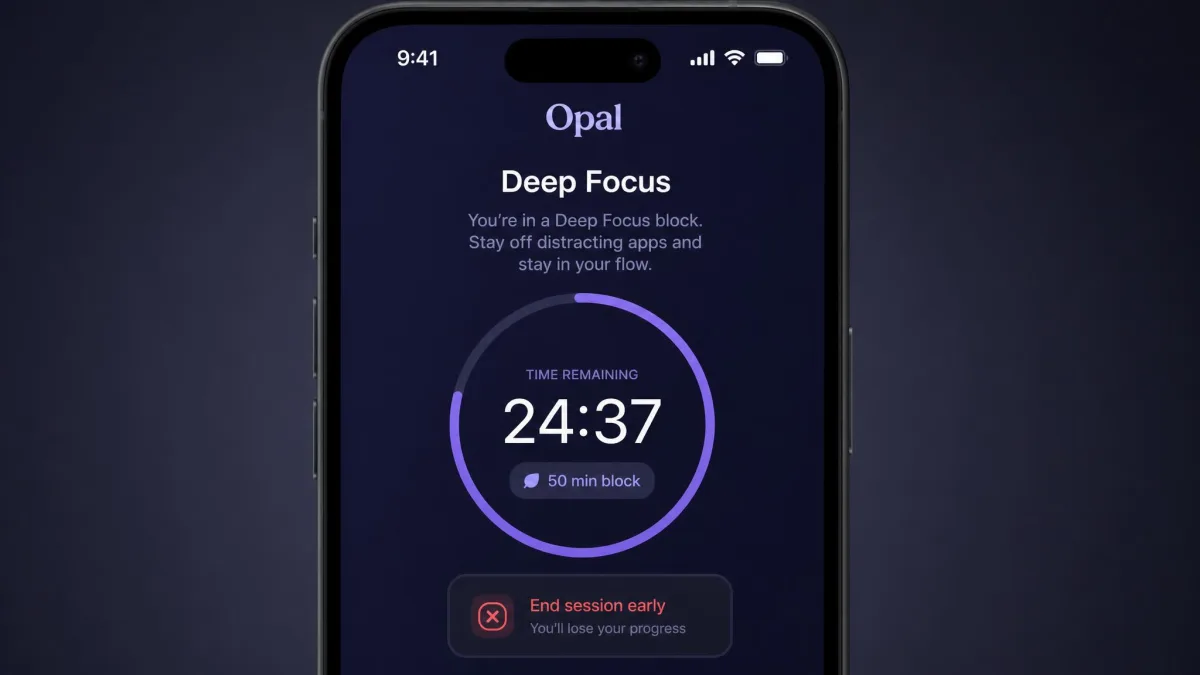
Opal polices a single phone where Freedom covers every device, and in our testing the blocks were the easiest part to talk your way around. We set a hard block on our most-opened social app, then tried to get back in the way a determined user would: through iOS settings and by deleting the app. Every difficulty level let us back in within seconds. The one mode that actually held was Deep Focus, which locks the phone with no early exit, and it sits behind the paid Pro plan.
Pricing
Opal is free for one rule, which is enough to feel the app out. Pro runs $19.99 per month or $99.99 per year, billed annually at about $8.29 per month, with a free-week trial and a lifetime option at $399. Verified students get up to 50% off, and website purchases come with a 30-day money-back guarantee.
Key Features
- App and website blocking with three difficulty levels, including Deep Focus
- Focus sessions and Allow Only whitelist mode
- Opal Score with a full usage history
- Mindful block screens, emergency breaks, and Focus Gems
Pros & Cons
Pros
- Deep Focus is a genuine lock with no early exit
- Detailed analytics, the best we tested for building awareness
- Free-forever tier, student discount up to 50%, and a 30-day money-back guarantee
Cons
- Apple caps blocking at 49 apps at once
- The Android build is watered down compared with iOS
- Some paid subscribers have hit time-limit issues that persist through updates
Verdict
Opal is our pick for iPhone users who want hard focus sessions plus the best usage analytics we tested. Treat the blocking as a nudge and the awareness as the real payoff.
4. one sec – Best for Breaking Impulse App Use
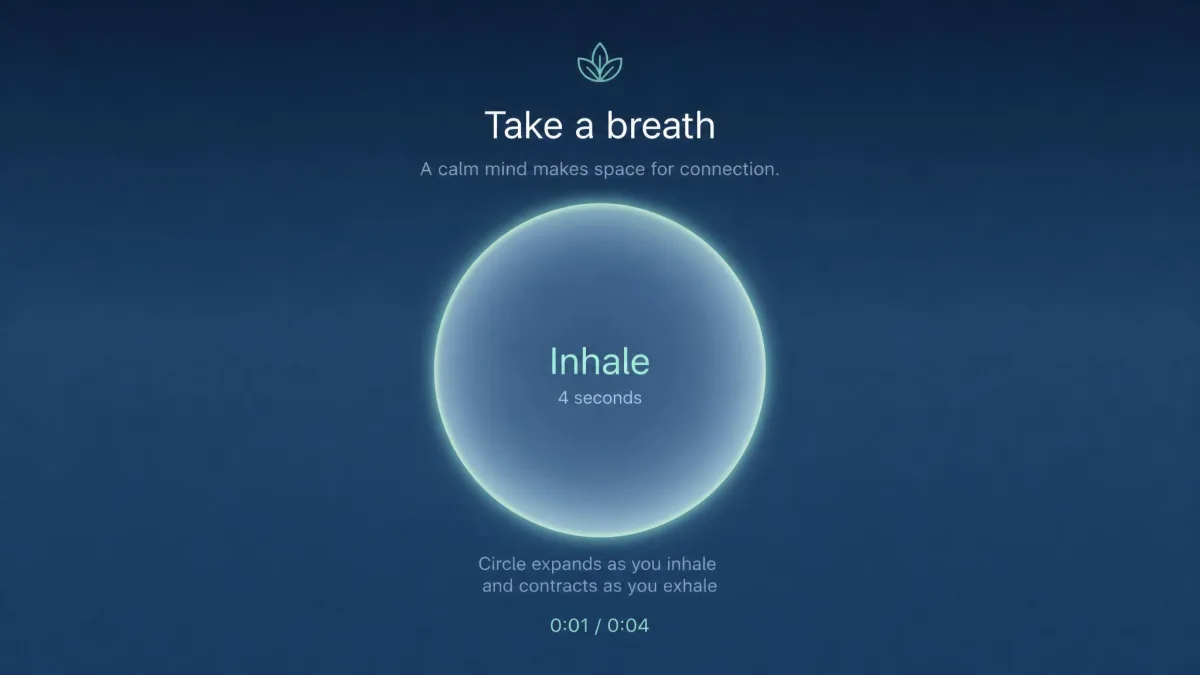
one sec is the scalpel of the group. Instead of blocking, it puts a small intervention between you and the app: a breathing exercise, a mirror, a random string to type, or a request to rotate your phone. We set it up on our most-opened social app and then just lived with it. About half the time, the ten-second pause broke the autopilot open, and we realized we were reaching for the phone out of habit and put it down. The other half, we sat through the pause and went in anyway. The developer’s peer-reviewed research with the Max-Planck Institute and Heidelberg University reports an average 57% drop in app openings, and our experience tracked with that number.
Key Features
- Intervention screens before apps open, with breathing, mirror, typing, or rotation
- Block mode for scheduled full blocks and a doomscroll emergency brake
- Website blocking and an adult-content filter
- No data collection, with intervention logic running on-device
Pros & Cons
Pros
- The pause breaks autopilot opens more often than you would expect
- Interventions are highly configurable
- Peer-reviewed research backs a 57% average drop in opens
Cons
- Never hard-blocks anything, so a determined user just sits through the pause
- Free plan covers a single app
Pricing
one sec is free for a single app with the breathing interruption. Pro adds unlimited apps, block mode, and the full intervention toolkit at $2.99 per month or $19.99 per year in the US, with a lifetime option around $99.99 and a 50% student discount. New users get a one-week free trial. The one sec website shows current plans and the browser extensions, and you can get one sec on the App Store.
Verdict
one sec is the best tool we found for breaking the habit of mindless opens. It is not a hard block, so buy it for the pause, not the lock.
5. Forest – Best Gamified Focus
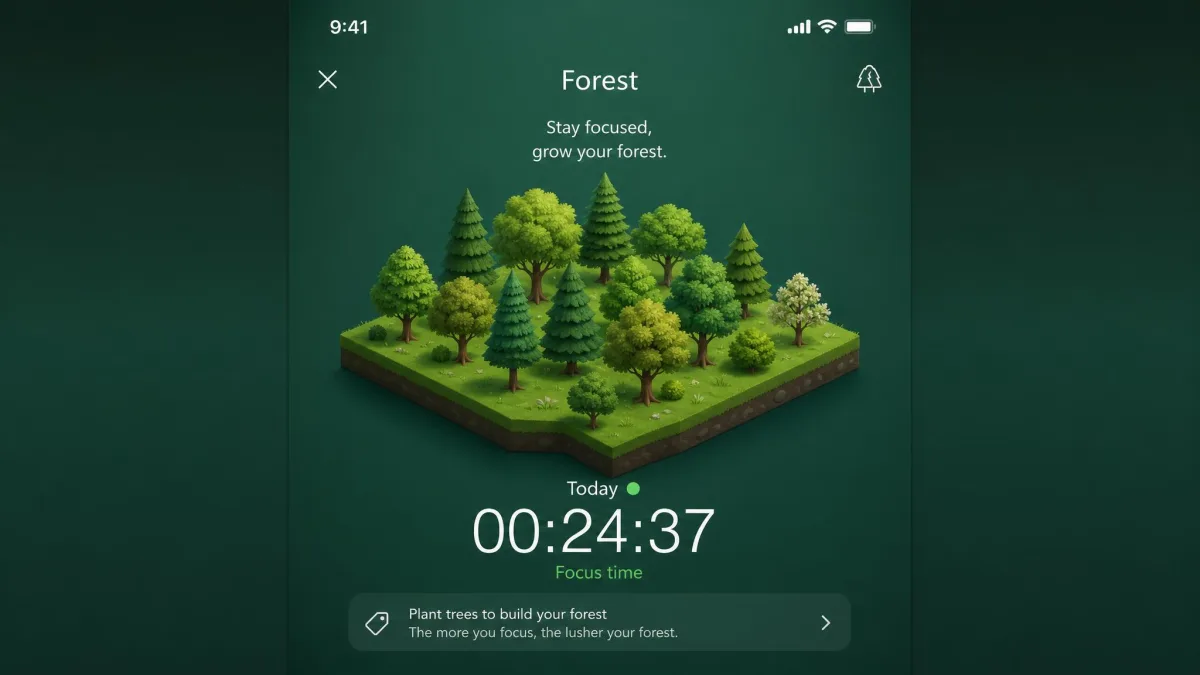
Forest gamifies focus better than any app we tested. You plant a virtual tree, it grows while you work, and opening the wrong app or tapping Give Up kills it. The loss-aversion worked on us in practice. We started a study session, felt the usual urge to reach for the phone, and stayed off it largely to keep the tree alive. By the end of the week, the small forest that had grown felt like a real record of the hours we had put in.
Key Features
- Focus timer that grows a virtual tree while you work
- Deep Focus mode that blocks other apps during a session
- Co-planting with friends, leaderboards, and achievements
- Coins unlock real trees, with over 2 million planted since 2014
Pricing
Forest costs $3.99 as a one-time purchase on iOS, and it is free on Android with ads, with a $1.99 one-time payment to remove them. A Forest Plus subscription adds extras like three-times coin rewards and multi-app Time Guard, with pricing that varies by region. See Forest’s official site.
Pros & Cons
Pros
- Loss-aversion genuinely keeps you off the phone
- Fun and motivating, especially for students
- Real-tree planting adds purpose beyond focus
Cons
- Too simple for granular control or family management
- Watching the timer can become its own distraction
- Some of the best features now sit behind the Forest Plus subscription
Verdict
Forest is our pick for students and anyone who responds to gentle gamified pressure. If you need hard enforcement or per-app limits, look at Freedom or Flipd instead.
6. RescueTime – Best for Usage Tracking and Analytics
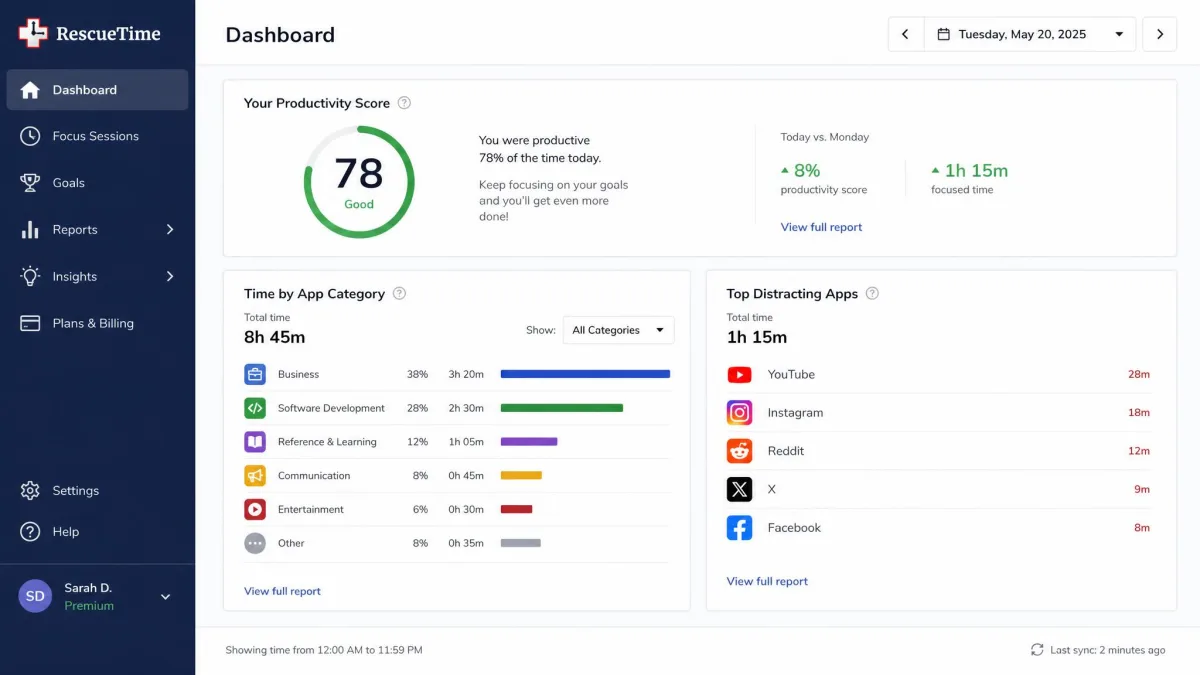
RescueTime answers a different question: where does your time actually go? It tracks apps, websites, files, and video in the background, automatically, and scores your day by productivity. In our testing the desktop tracking was genuinely hands-off, and the dashboard filled in without us touching a thing. One April morning in 2026 the same dashboard collapsed nearly everything we had done into a single Firefox entry, and our activity history stayed quiet until the sync workaround shipped. Goal-setting and the real-time Assistant alerts were the features we valued most.
Key Features
- Fully automatic activity tracking with productivity scores
- Focus Sessions with distraction blocking
- Goals, alerts, and real-time Assistant notifications
- Detailed reports and integrations with Gmail, Asana, Slack, GitHub, and more
Pros & Cons
Pros
- Desktop tracking is automatic and reliable
- Reports and productivity scoring are excellent
- Free Lite plan, and goals genuinely change behavior
Cons
- Mobile tracking is weak and stays separate from desktop
- Some apps log as Uncategorized or not at all
- It is an awareness tool, not a blocker
Pricing
RescueTime has a free Lite plan, and paid plans start with Solo at $7 per month billed annually, or $9 per month monthly, with a 14-day free trial on every paid plan. Solo+ adds Timesheets for $12 per month billed annually, and Team tiers run $10 per user per month.
Verdict
RescueTime is our pick for measurement. It will not stop you from opening an app, but it will show you exactly where the hours go, and that awareness is the necessary first step.
7. Jomo – Best for Building Healthier Habits on Apple Devices
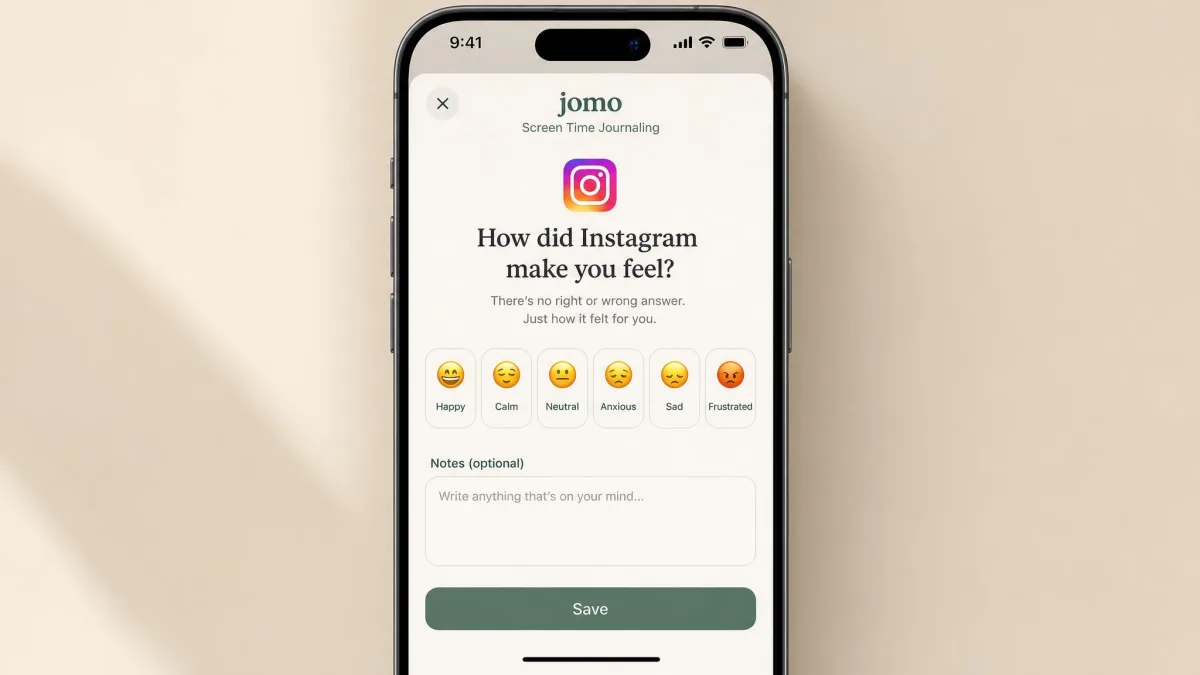
Jomo is the most capable habit system of the apps we tested, and it lives entirely inside the Apple ecosystem, on iPhone, iPad, and Mac. The feature that surprised us most was Screen Time Journaling. After we closed a social app, Jomo asked how the time had made us feel, and answering honestly made us notice the pull before the next open. That simple check-in built more awareness than any dashboard in this guide.
Key Features
- App and website blocking with usage limits
- Strict mode, focus timer, and focus schedules
- Screen Time Journaling with mood ratings per app
- Smart Healthy Alternatives and Shortcuts integration
Pros & Cons
Pros
- Most capable rule system of the apps we tested
- Screen Time Journaling builds real awareness
- Family plans and a 50% student discount
Cons
- Setup is confusing and depends on fragile iOS frameworks
- Limits can silently stop counting until a phone restart
- Apple devices only, with no Android version
Pricing
Jomo is free for one session, one action or limit, and one screen time budget. Plus costs $5.99 per month or $29.99 per year, about $2.49 per month, with a 3-day trial on the annual plan and a lifetime option at $99.99. The Family plan runs $11.99 per month or $59.99 per year, and verified students get 50% off the annual plan.
Verdict
Jomo is our pick for Apple users who want the deepest habit system and do not mind a fiddly setup. Give the journaling a real chance, because that is where the value lives.
8. Flipd – Best for Structured Focus Blocks and Study Sessions
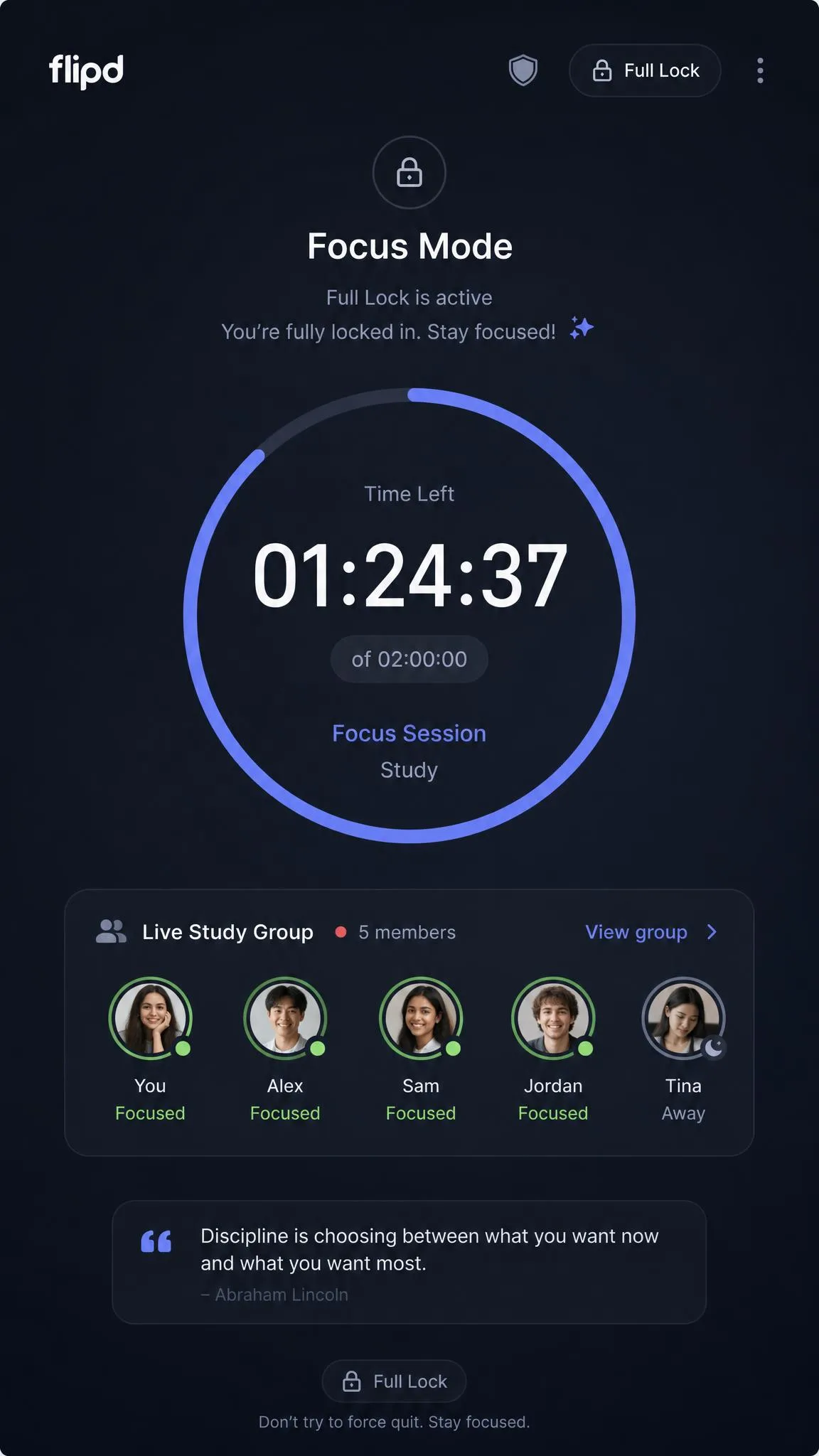
Flipd is built for students who need a hard lock during a study block. Full Lock mode physically blocks other apps until the timer ends. We ran a Full Lock session on an iPhone, reached for a blocked app out of habit, and nothing opened, which genuinely broke the autopilot grab for the phone. The lock works by uninstalling and reinstalling apps, though, so our notification settings reset when the session ended.
Key Features
- Focus sessions with Full Lock and Partial Lock whitelist modes
- Custom timers and reminders
- Live study groups, leaderboards, and challenges
- Focus tracking, stats, and curated music tracks
Pricing
Flipd’s Basic plan is free and includes the focus timer. Premium runs $5.99 per month, and the annual price is about $42.99 on the vendor’s pricing page, while the US App Store lists $44.99 for the year.
Pros & Cons
Pros
- Full Lock truly blocks other apps until the timer ends
- Live study groups make focus feel communal
- Simple, student-friendly design
Cons
- Sessions over 40 minutes require Premium
- Invasive permissions on both platforms
- Timer bugs can leave you locked out for the rest of a session
Verdict
Flipd is our pick for students who want a timed, hard lock with a communal study feel. If you only ever do short focus sprints, the free Basic plan may be enough.
Best Built-In Screen Time Tools: iOS Screen Time & Android Digital Wellbeing
Before you spend anything, check what your phone already includes. iOS Screen Time and Android Digital Wellbeing are free, built in, and zero-setup, and for many people they are enough to expose the problem.
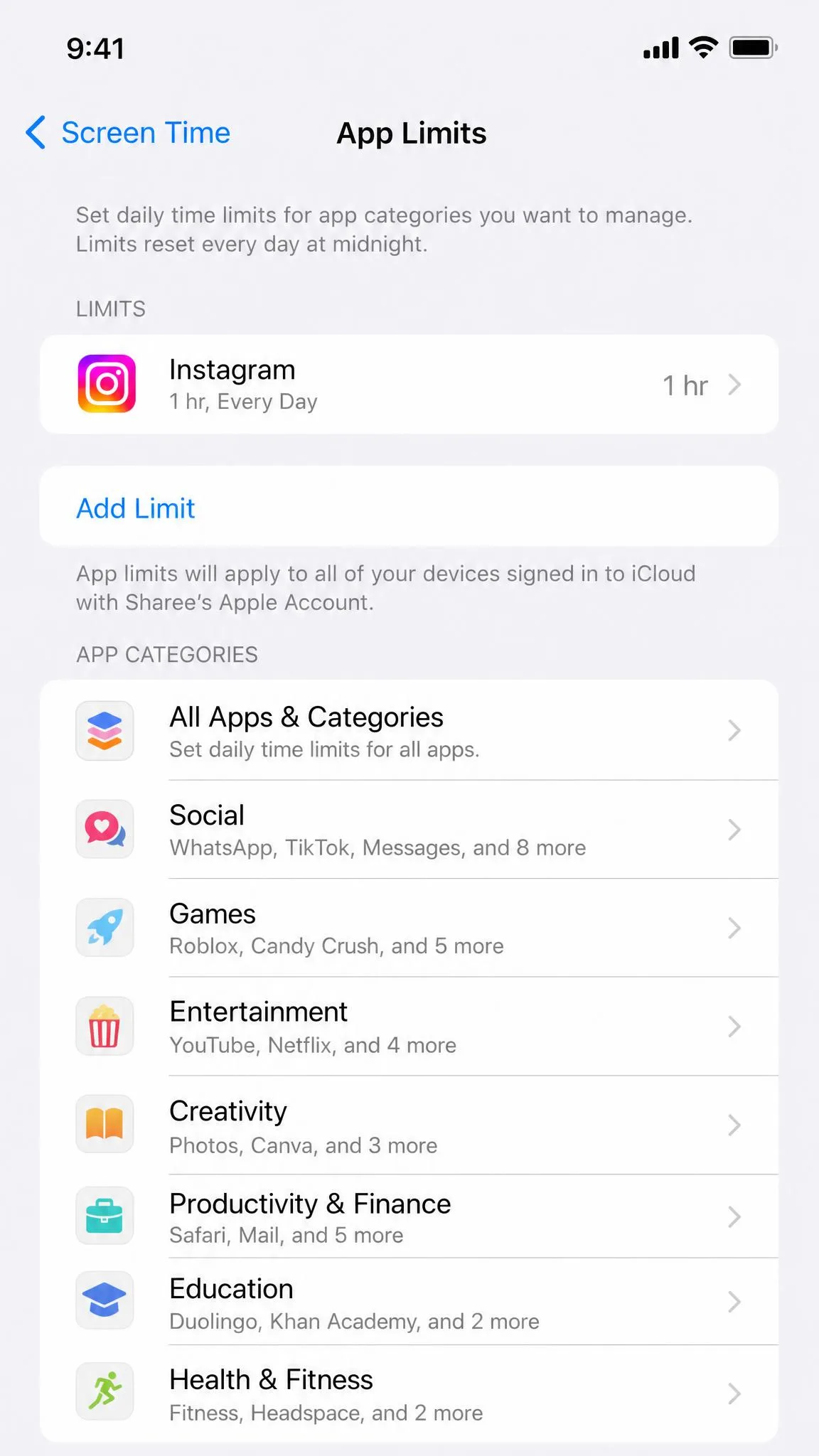
On iPhone, Screen Time tracks app usage, sends weekly reports, and sets per-app daily limits, Downtime windows, and Always Allowed apps, with content and privacy restrictions plus Family Sharing for kids’ devices. In our testing the limits were trivially bypassed: tap Ignore Limit for Today and the limit is gone, no passcode, no delay. Block at End of Limit is off by default and only appears after you set a Screen Time passcode, which is why limits silently stop enforcing. The one configuration that holds is a parent holding the passcode on a child’s device. See how to check screen time on iPhone.
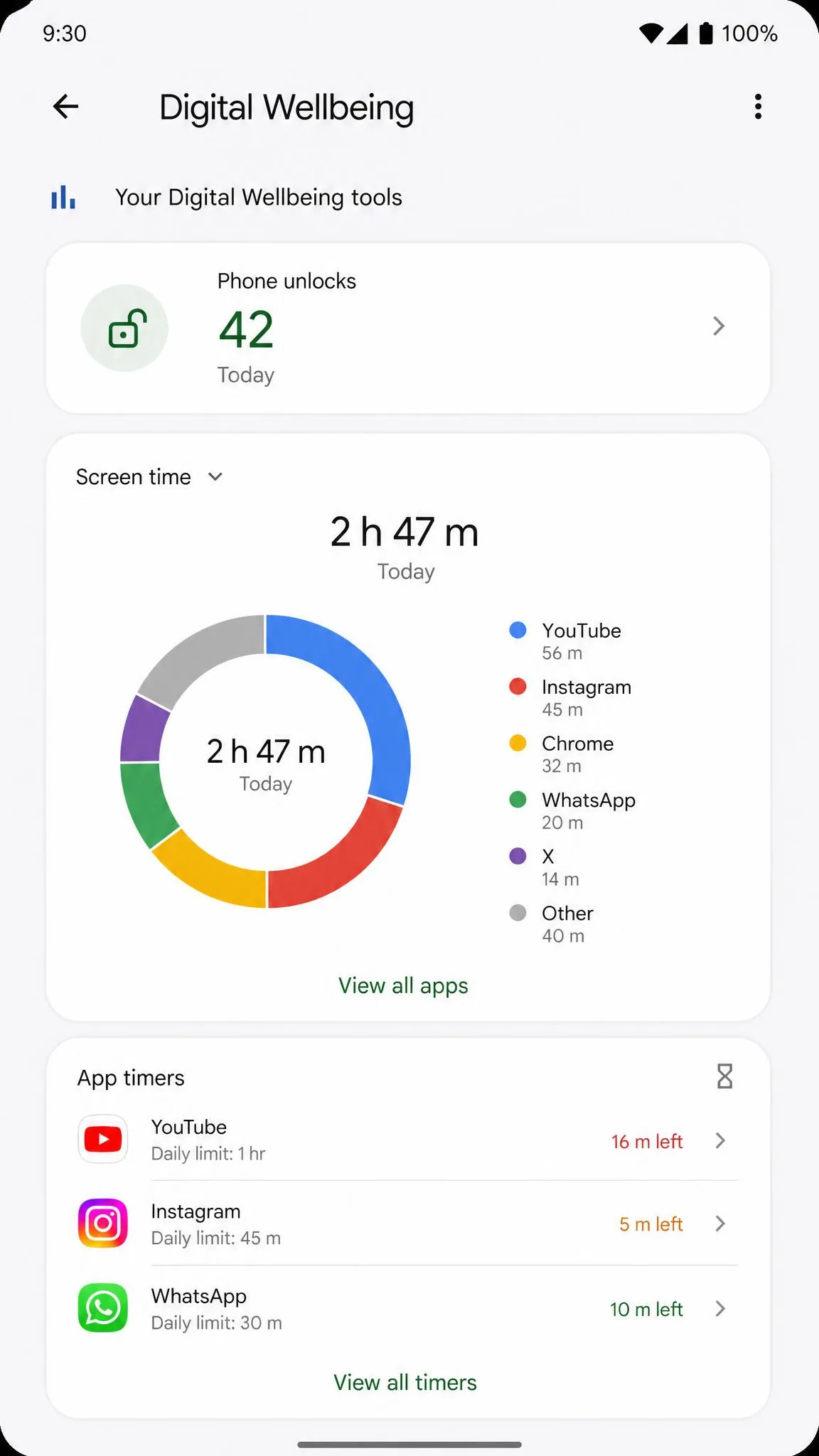
On Android, Digital Wellbeing offers a usage dashboard, per-app timers with daily caps, Focus Mode with a five-minute exception, and Wind Down grayscale at night. App timers behave like a speed bump more than a solution, since one tap on Ignore for Today resets them. A coming rework in Android 17 called Pause Point will add a ten-second pause before opening a designated app, with an exit that requires restarting the phone, and it is rolling out through 2026. See how to check screen time on Android.
Treat both tools as awareness tools rather than enforcement tools, and remember the exception that holds: a parent with the passcode.
Free vs Paid Screen Time Apps: What Actually Works
Every app in this guide has a free option, but the tiers are not equal. ScreenZen is completely free, and the built-in tools cost nothing. Freedom has a real free plan covering unlimited devices. Opal’s free tier gives one rule, one sec covers one app, Jomo allows one budget, and RescueTime has a Lite plan. Forest is free on Android with ads.
Paid tiers mostly unlock more rules, harder blocks, and longer sessions. Opal’s Deep Focus, the only mode that truly locks you out, is paid-only. Flipd locks sessions over 40 minutes behind Premium. Freedom’s paid plan unlocks unlimited long sessions, and one sec’s Pro covers more than one app.
Start with the free tier for a week before you buy anything. The question is not whether you like the app. It is whether your usage actually drops.
The pattern in testing was consistent: a free tracking tool rarely cut usage on its own, while even a weak free block changed behavior at first.
When You Need a Parental Control App Instead
Everything above assumes you are setting limits for yourself. The rules change when you need to enforce limits on someone else’s device, especially a child’s or teenager’s. Screen time apps are self-control tools: the settings live on the phone they are meant to police, so a determined teen can usually uninstall the app, revoke its permissions, or change the date. If that sounds like your situation, you need a parental control app instead.
An app that relies on the device owner’s willpower will not hold a teenager’s phone. If you need limits that survive an override, you need the passcode or admin rights on the device, which is what parental control apps provide.
Parental control apps add what screen time tools lack: remote management, web filtering, location tracking, app approval, and schedules you control. The iOS Screen Time passcode is the single exception that held in our testing, which is why it anchors most iPhone parental setups. For the fuller picture, read our Eyezy parental control app review, compare the best parental monitoring apps for iPhone, check the best spy apps for Android, and browse the best parental control apps for teenagers, the iPhone parental control apps, and the best parental control apps for Android.
How We Tested and Chose the Best Screen Time Apps
We scored every app on the things that determine whether a screen time tool actually works. Blocking reliability came first: did the block hold, or were we past it within a day? Bypass resistance mattered, because an app that can be undone in seconds is a nudge, not a control. Setup friction mattered too, since a tool that demands several permissions is one we are less likely to keep. We also weighed free-tier value, cross-platform support, and whether usage actually dropped rather than just being reported.
We tracked each app the way it reports on itself. We logged setup friction as it happened, watched each app’s dashboard fill in over days of ordinary use, and checked the weekly usage reports against what actually opened on our phones.
The findings behind our picks run through every review above: the VPN blocks that stopped mid-session, the pauses that broke autopilot, and the locks that held until the timer ended. Apps that added friction before an open changed behavior more than apps that only tracked it, and that is why the rankings look the way they do.
How to Choose the Right Screen Time Control App for You
Start by deciding what you are actually trying to fix. If you lose an hour to a specific app without noticing, a friction tool like one sec or ScreenZen is the cheapest, most effective fix. If you need whole days of deep work with the internet blocked, Freedom’s cross-device sessions are hard to beat. If you want to understand the problem before you solve it, RescueTime’s reports are the best starting point.
Platform coverage matters next. Jomo is Apple-only, Opal is strongest on iOS, and Freedom, ScreenZen, and Flipd cover both major phone platforms.
In our testing, the apps that added friction before an app opened changed behavior more reliably than the ones that only reported on it.
Finally, set a weekly review. The apps that worked for us stopped working once the novelty wore off, which is normal. The answer is not a better app but a scheduled check of your usage report.
Frequently Asked Questions
Which screen time app actually reduces usage?
What is the best free screen time control app?
What is the best screen time app for kids or families?
Are screen time apps the same as parental control apps?
Can screen time apps be bypassed?
Are there data security concerns with screen time apps?
The Bottom Line
Screen time control is about matching a tool to your weakest moment. If you need hard, cross-device blocking and will start sessions deliberately, Freedom is the pick we would pay for. If you want to spend nothing, ScreenZen and the built-in tools are a strong free start. If you are on iOS and want deep focus plus the best analytics, Opal earns its price. Students who want a hard timed lock should look at Flipd, and anyone who needs the numbers before changing them should start with RescueTime. Set a weekly check of your usage report and treat the app as one part of the habit, not the whole answer.