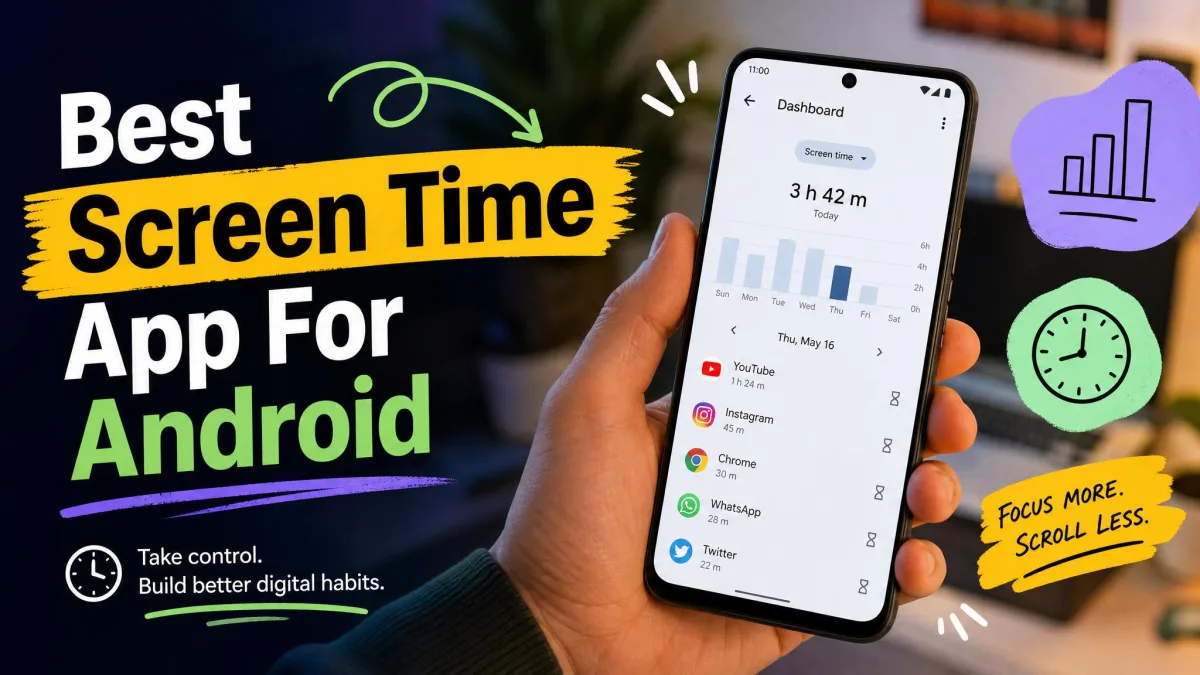
Android has decent built-in screen time tools, but the limits only hold as long as you let them. Most of us hit the same wall: the timer fires, and a single tap lets us keep scrolling anyway. That gap is where the best screen time apps earn their keep.
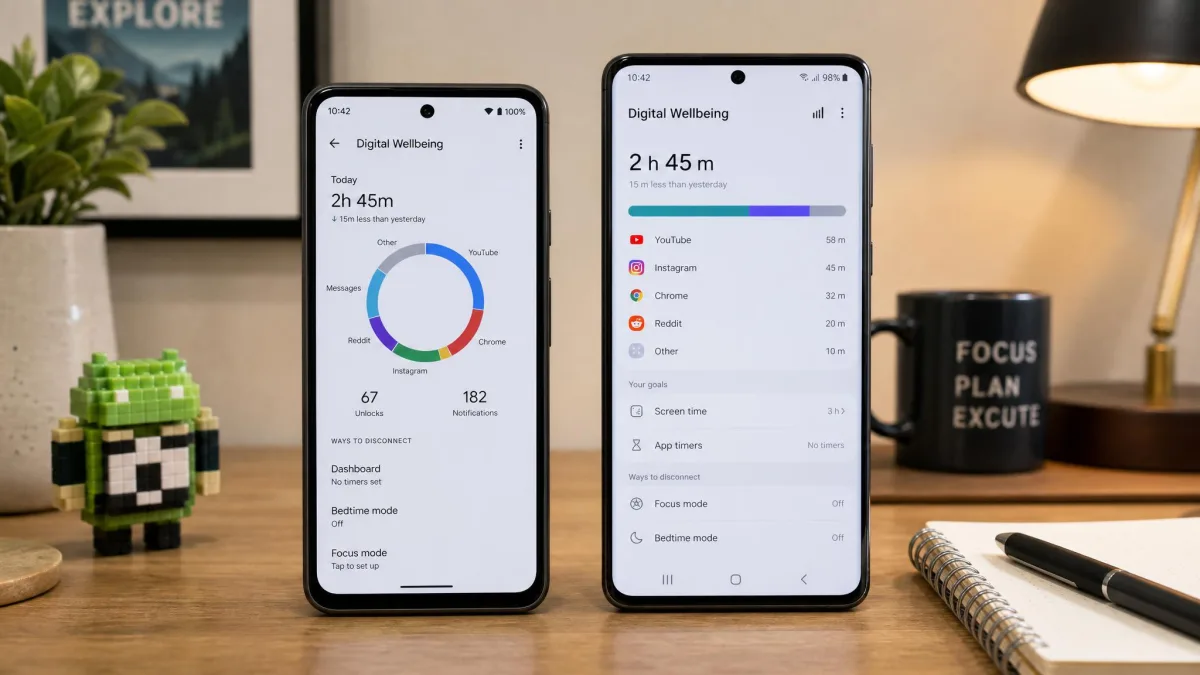
We installed all seven top options on our own phones and used them as daily drivers, so the verdicts below come from real usage. All seven ran side by side on two Android handsets: a Pixel 8 Pro on stock Android as the daily driver and a Samsung Galaxy S24 running Samsung’s heavier One UI skin, and each app held the primary screen-time slot on both phones for at least two weeks of ordinary daily use.
What to Look for in an Android Screen Time App
Before you pick an app, decide which problem you are solving. A tracker tells you where your hours go; a blocker actually stops you. Most people who say the apps don’t work are using a tracker when they need a blocker, or a friction app that pauses before a distracting app opens.
Look for blocking depth beyond a daily timer, and check cross-platform reach; a phone-only blocker leaves a hole if you work on a laptop. Weigh privacy too, since these apps lean on Accessibility permissions that grant broad access.
The apps that actually cut usage were not the best trackers; they added friction at the exact moment we reached for the phone.
Check how each app enforces its limits before you pay. The difference between “this reminded me” and “this stopped me” is usually a set of Accessibility permissions, the biggest privacy surface here.
How We Tested and Compared the Best Screen Time Apps
We tested all seven apps over a window of real daily use on our own Android phones, scoring each on tracking accuracy, enforcement strength, ease of setup, privacy, and value. Every app came from Google Play. Each one held the primary screen-time slot on both phones for at least two weeks of ordinary daily use, long enough to capture a full weekday-and-weekend cycle of dashboard data and to see whether a new blocker’s novelty wore off. Where the free version was too limited to judge fairly, we bought the paid tier: YourHour Pro, one sec pro, Forest Plus, and Freedom Premium all came from retail purchases with our own accounts, not vendor review copies.
A high score means the app did what it promised in daily use, not that it is a magic bullet; every app here can be bypassed by a determined user.
Here are the seven apps that made the cut, ordered by how they held up.
1. Google Digital Wellbeing - Best Built-In Option (with Google Family Link)
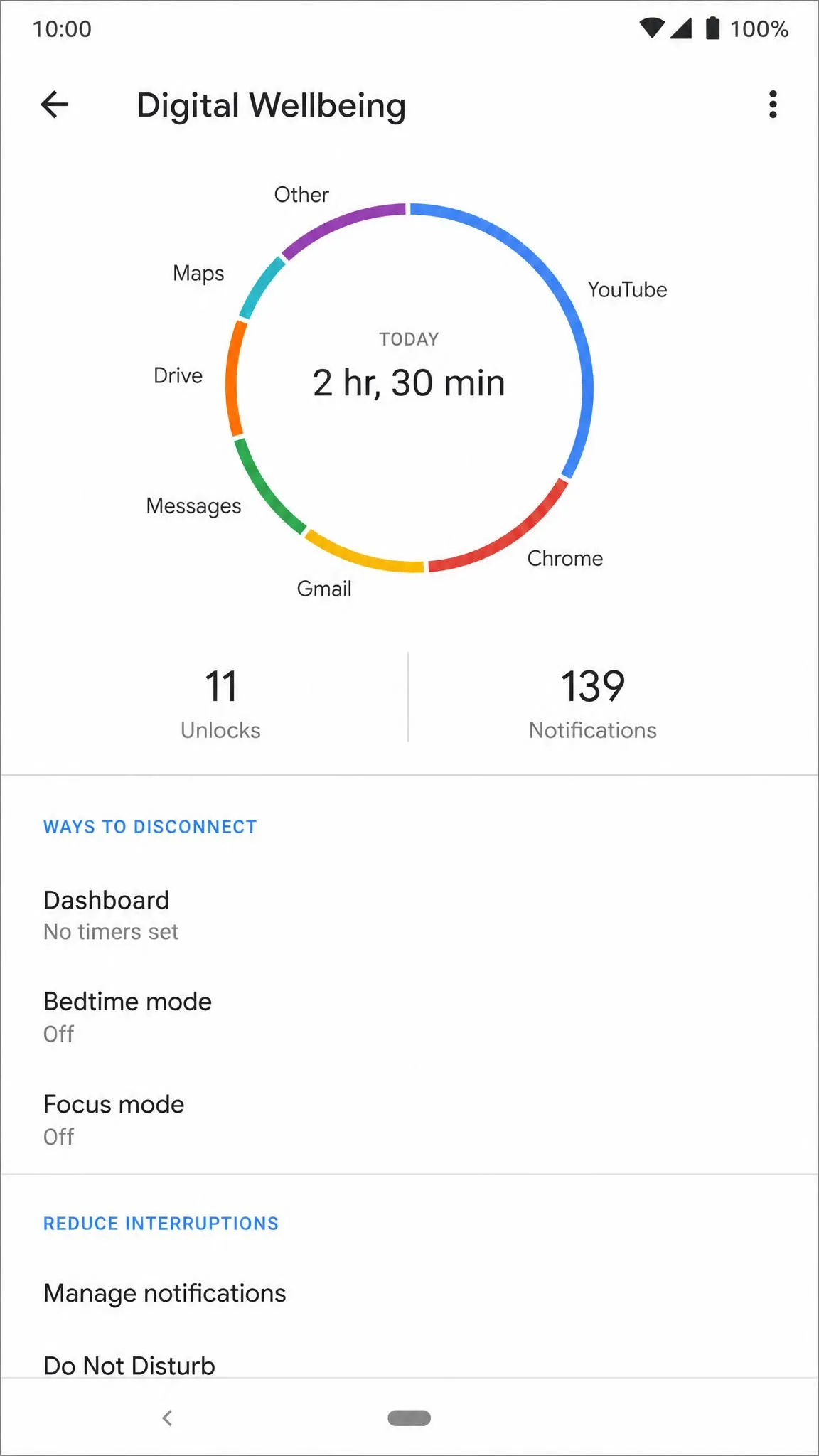
Google’s Digital Wellbeing is already on most Android phones, free in Settings since 2018, and Google’s own Digital Wellbeing tools remain the closest thing to a free baseline.
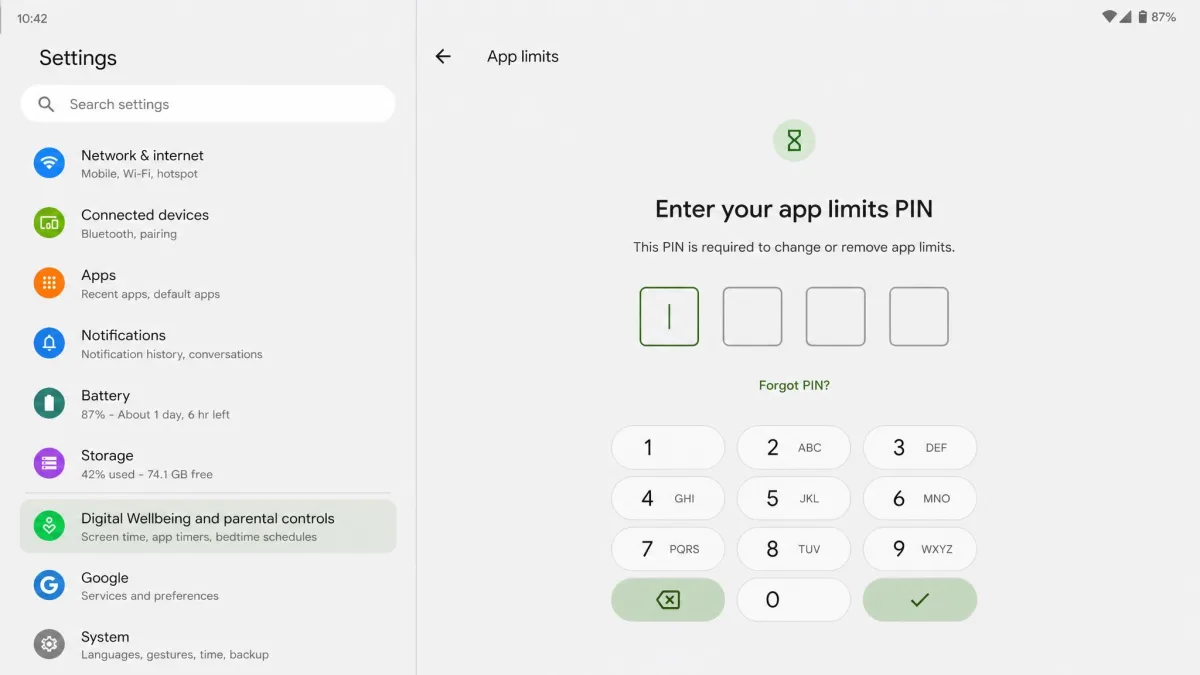
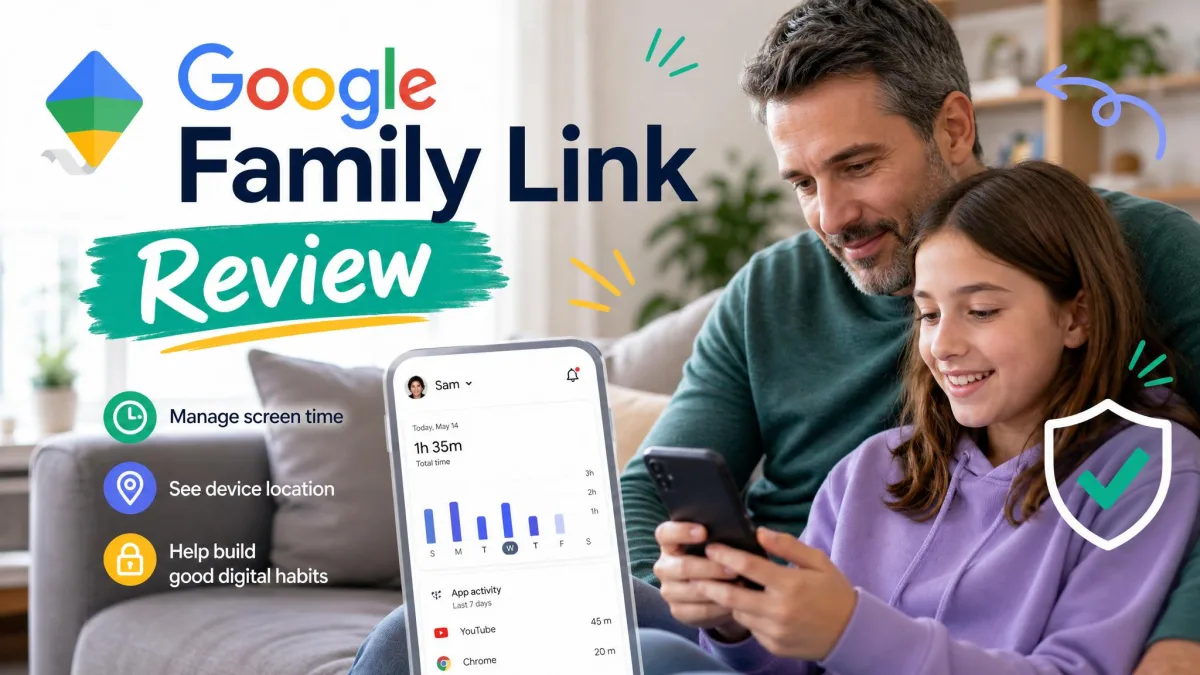
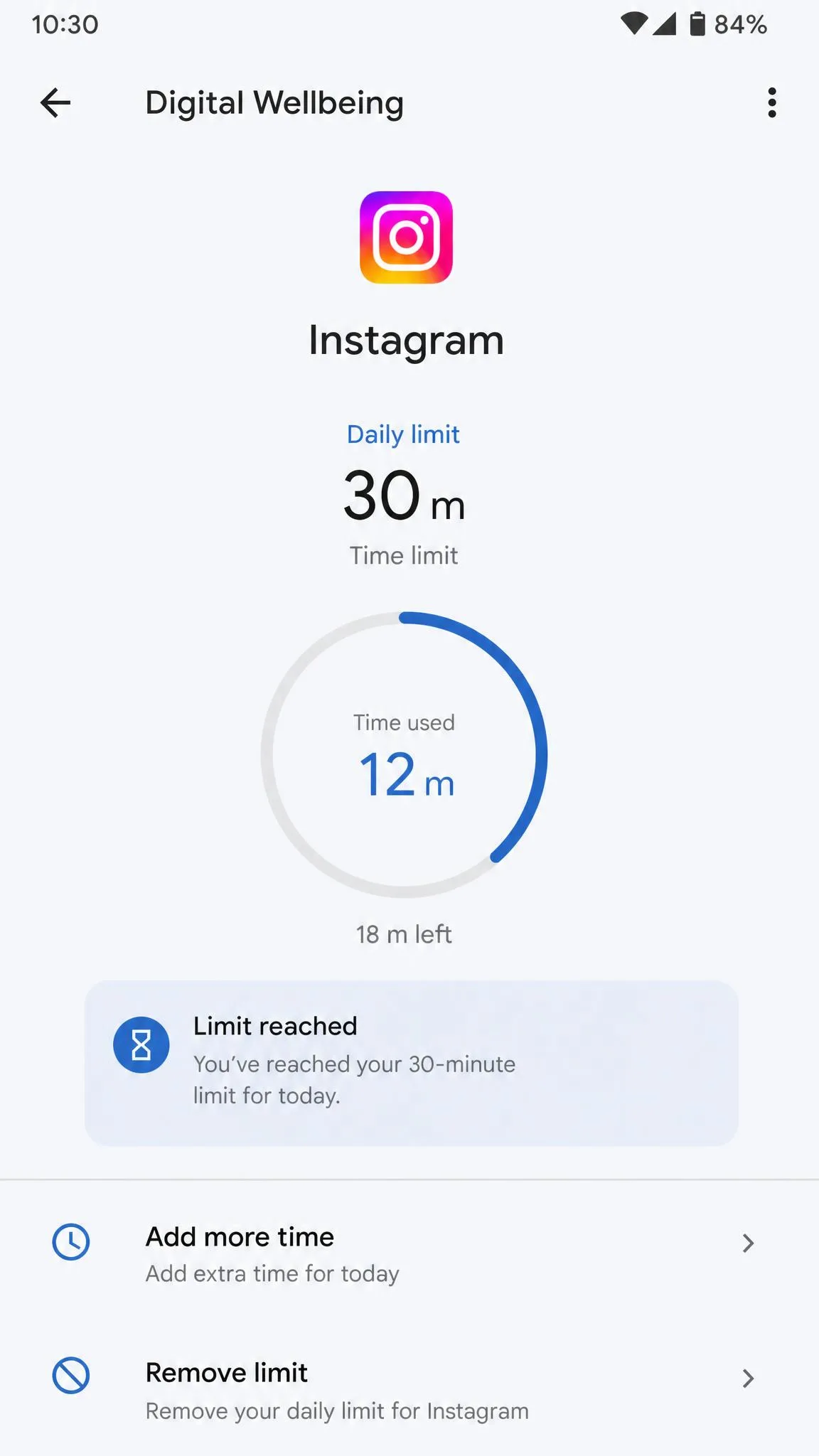
On our Pixel 8 Pro we set a 30-minute Instagram limit before an evening scroll. The feed cut off on schedule and the icon dimmed, yet one tap on the dimmed icon let us keep scrolling. Setting the 4-digit app-limits PIN is what turns that tap-through into a real block. The tool is still labeled Beta, and Google hasn’t updated its digital wellbeing tools meaningfully in years. Paired with Family Link, which runs on Android 6.0 and up, it adds supervised accounts that are far harder to bypass.
Pros
- Free and built into Android
- Family Link adds real parental control
- Focus and Bedtime modes cover the basics
Cons
- App timers bypassed with a single tap
- Still labeled Beta since 2018
Pricing
Free, built into Android. Family Link is free too.
Best For
Anyone who wants a solid free baseline, and families.

2. StayFree - Best All-in-One Toolkit
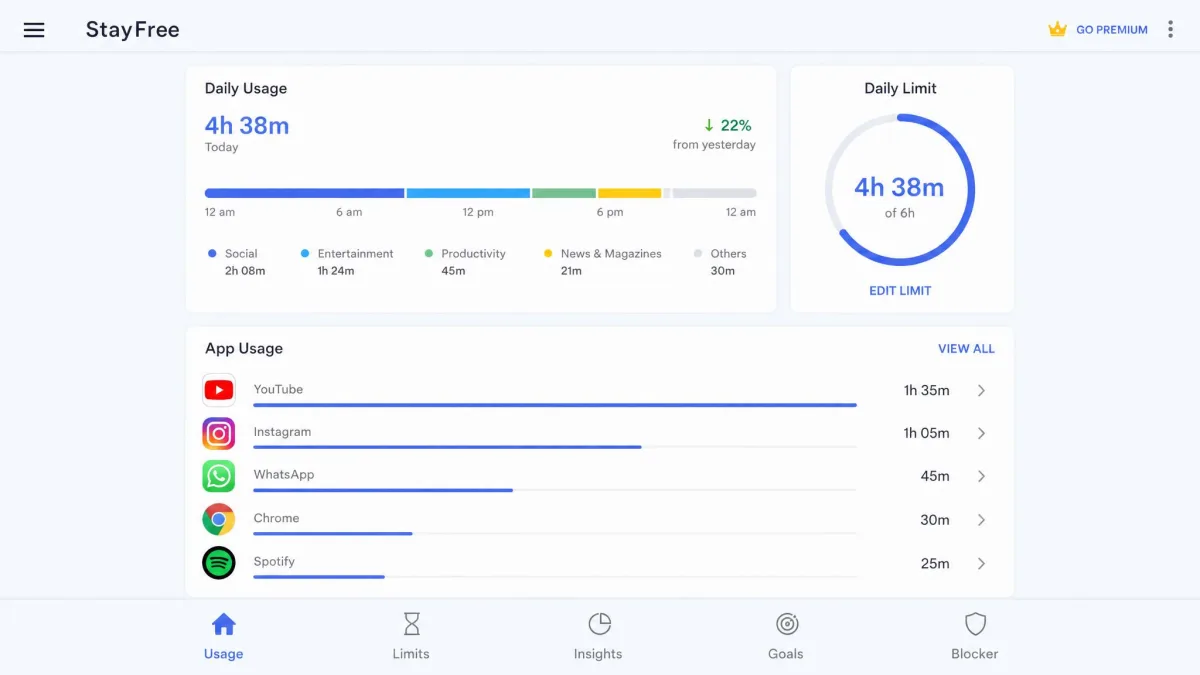
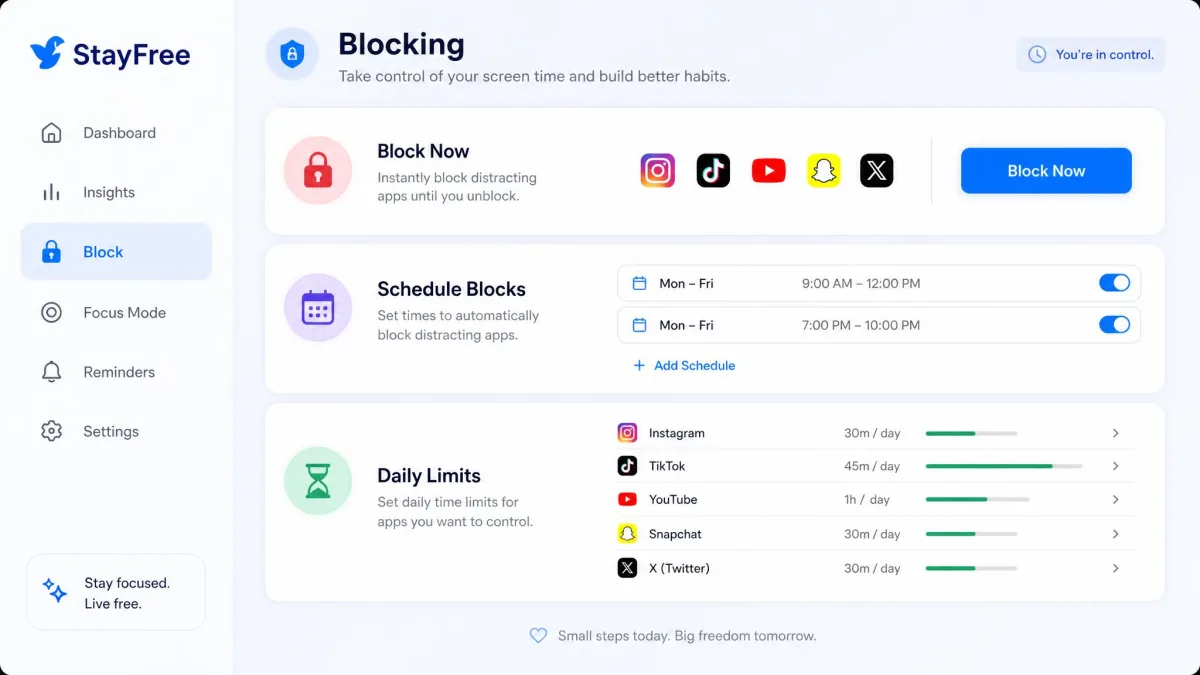
StayFree is the most complete toolkit we tested. Released in 2017, it rates 4.6 out of 5 on Google Play with more than 10 million downloads and spans Android, iOS, Windows, macOS, and Linux.
Beyond a daily timer, StayFree adds scheduled blocks, daily and session limits, and a feed-hiding trick. On our Galaxy S24 we set a daily Instagram limit and hit Block Now; Instagram closed on the spot, and a separate Reels block hid the feed while our messages still worked. The usage counter drifted low on the Samsung after a day of normal use, and the free tier stays ad-supported.
Pros
- Cross-platform blocking plus browser extensions
- Feed hiding blocks Reels without killing the app
- Deep analytics with CSV export
Cons
- Free tier is ad-supported
- Usage counts can drift on Samsung and Xiaomi
Pricing
Free tier with ads. Premium is a subscription that varies by region and source, with figures around $20 per year reported.
Best For
People who want one toolkit across every device they own.
3. ActionDash - Best for Data Lovers
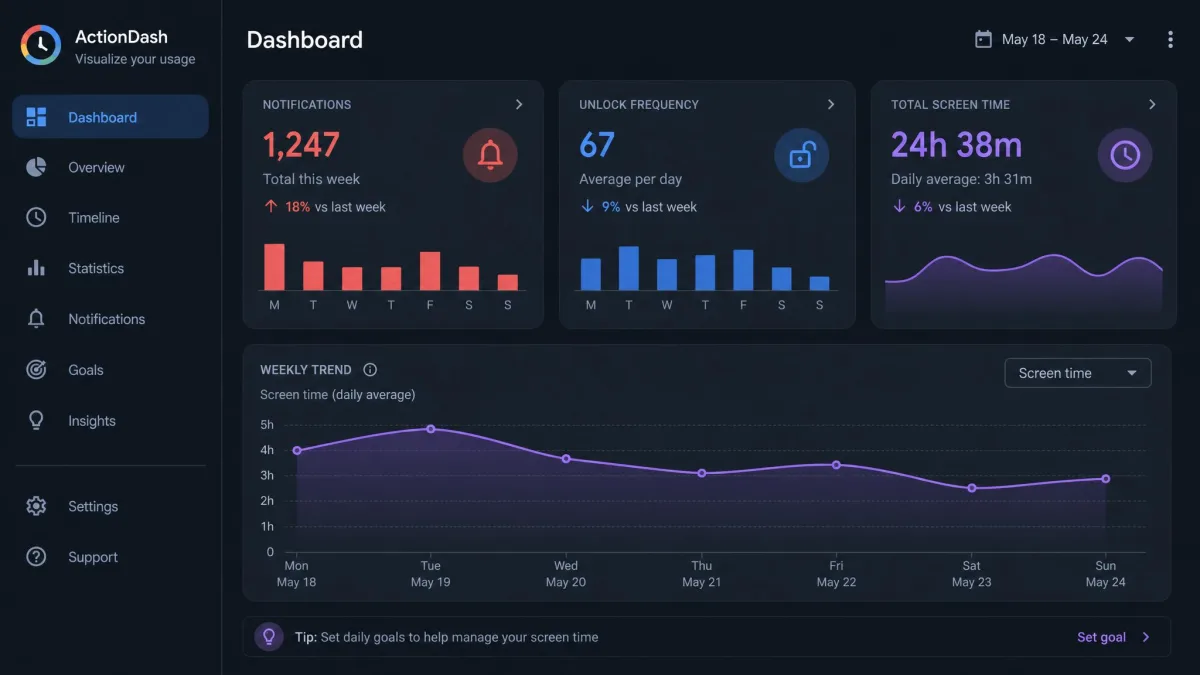
ActionDash is the deep dive for data lovers. It runs on any Android 5.0 device and was acquired by Sensor Tower in 2020, when most premium features became free.
On our Pixel we left the dashboard open one afternoon just to watch the numbers climb, checking notification counts and unlock frequency as they updated. When we set a per-app usage limit, a near-limit warning popped up before the timer ran out. Blocking stays basic, and the optional Gmail tool asks for email access we would skip. The official ActionDash site lists the $0.99 Plus unlock, and ActionDash is free to start.
Pros
- Cleanest dashboard of the trackers
- Deep stats on notifications and unlocks
- Runs on old Android 5.0 devices
Cons
- Blocking and enforcement are basic
- Optional Gmail tool asks for email access
Pricing
Free, with a $0.99 one-time Plus purchase for biometric lock and history beyond seven days. That makes it the pick for data lovers who want the deepest picture of their habits.

4. YourHour - Best for Simple Awareness
YourHour keeps things simple and local: launched in 2018 by Mindefy Labs, it is Android-only, but everything it tracks stays on your phone and works offline.
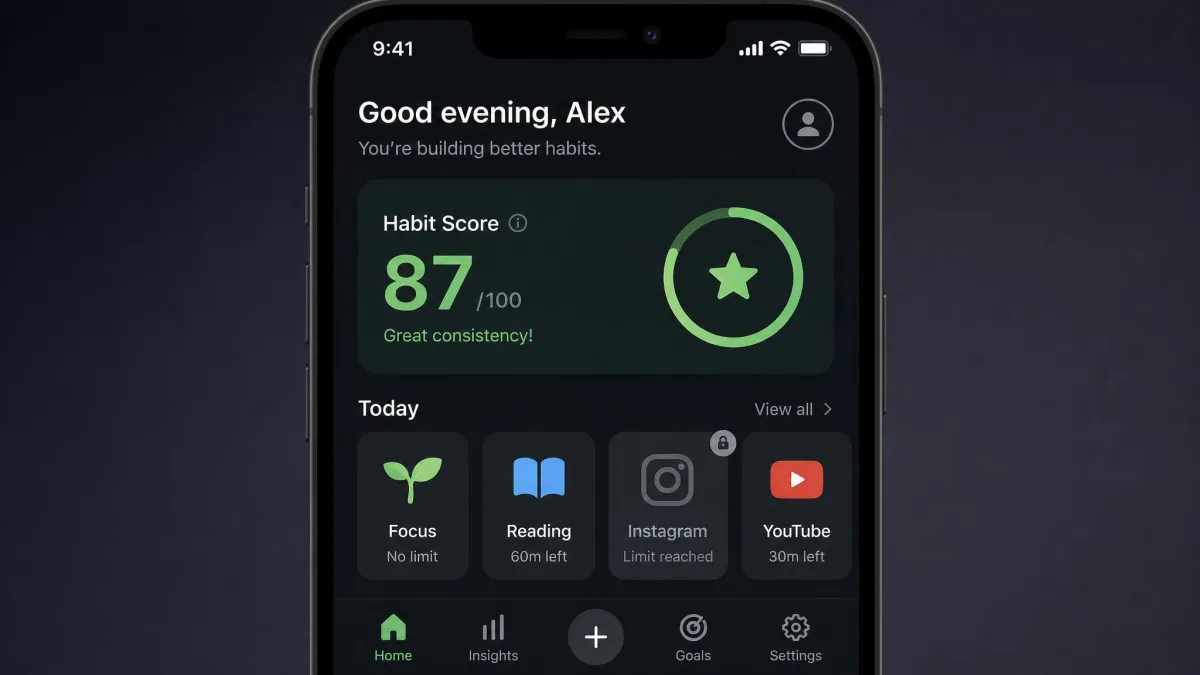
The Reel Blocker targets Instagram Reels, YouTube Shorts, and TikTok, and at a daily limit Strict Mode greys out the app’s icon with a visible countdown. In our testing that grey icon was an effective barrier; we simply stopped opening Instagram when it looked dead. After one phone restart the timer failed to sync, but support replied with a real fix within 24 hours. Setup asks for Accessibility permissions that feel intrusive for the first few days.
Pros
- Reel Blocker and Strict Mode are simple
- All data stays on-device and works offline
- Real human support when something breaks
Cons
- Setup permissions feel intrusive
Pricing
Free tier, with a Pro upgrade around $4 as a one-time charge for advanced blocking. That makes it the right fit for anyone who wants clear daily awareness without feature overload.

5. One Sec - Best for Breaking the Open-App Reflex
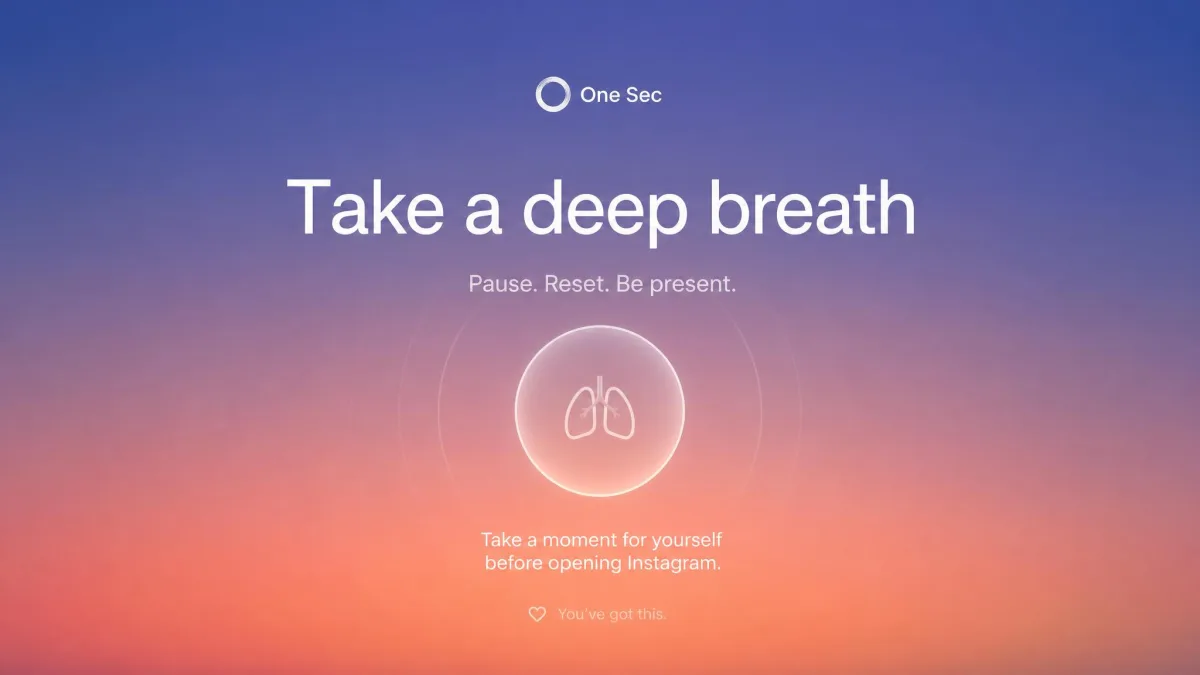
One Sec makes you wait. Before a target app opens, a full-screen prompt asks you to take a deep breath, rotate your phone, or solve a small math problem; a peer-reviewed study with the University of Heidelberg and the Max Planck Institute reported a 57% average reduction in social media use.
On our Pixel we set One Sec to intercept Instagram opens and ran it for a week of normal use. The pause worked when it fired at the right moment, but it also interrupted us mid-article and twice while typing. On our Samsung, the battery optimizer stopped the service in the background. It rates 4.7 out of 5 on Google Play, and the free tier covering one app was enough to judge the concept.
Pros
- Genuinely reduces opens, backed by a 57% study
- On-device privacy, no data sold
- Free tier covers one app for a fair test
Cons
- Android version is less complete than iOS
- Interventions can fire at the wrong moment
Pricing
Free for one app. Pro is a subscription at roughly EUR 3.99 per month or EUR 14.99 per year.
Best For
Anyone whose problem is the reflex, the instant grab for Instagram or TikTok.

6. Forest - Best Focus Timer for Study Sessions
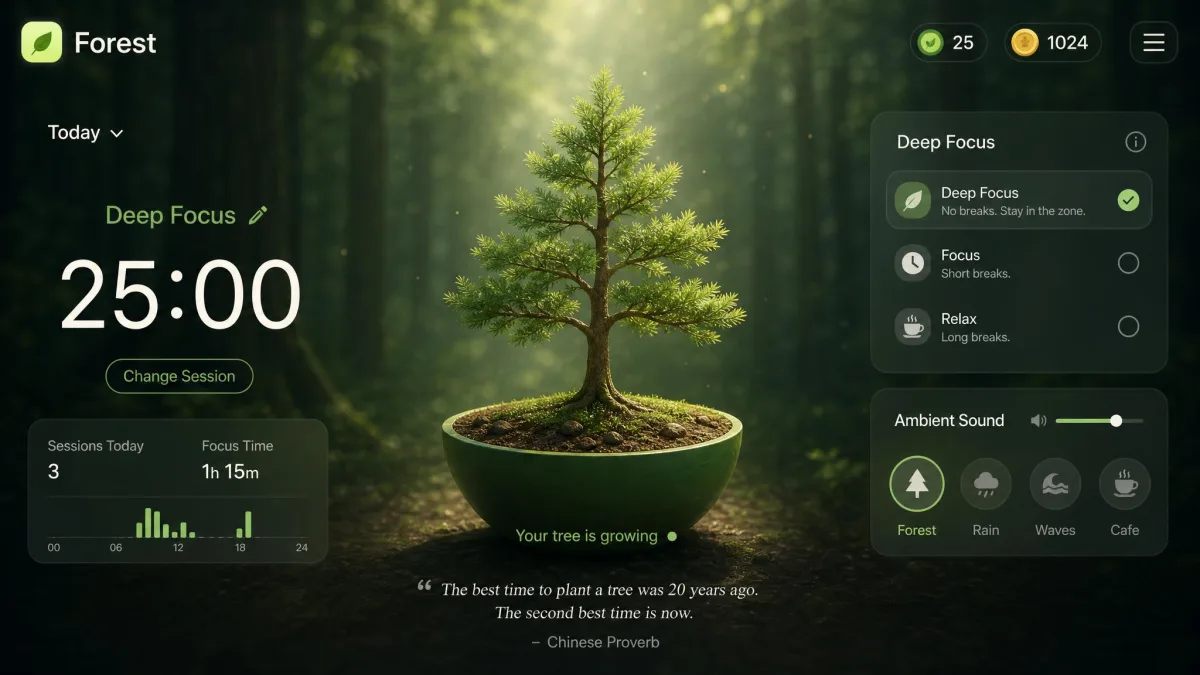
Forest makes focus the game. Start a timer and a virtual tree grows; leave the app and the tree dies. Over one 12-week stretch, our usage tracked with a 12% session kill rate using Forest against 31% without it, so the dead-tree guilt was doing real work.
The catch is that the novelty wore off after about a week. The timer that felt like a game at first began to feel like a chore, and our own sessions followed the ‘worked for a week, then stopped’ pattern. And because the tree only blocks the phone, a laptop session sailed right past it.
Forest adds Deep Focus blocking mid-session and Time Guard scheduled blocking, and Plus subscribers trigger real trees through Trees for the Future, with the counter past 2,102,946 trees. The free tier covers the core timer and one Time Guard app, while Plus pricing varies by region, with US figures around $5.99 per month or up to $35.99 per year. The app has passed 60M downloads since 2014.
Pros
- Dead-tree guilt reduces session abandonment
- Deep Focus and Time Guard add real blocking
- Real trees planted via Trees for the Future
Cons
- Novelty wears off for many users
- Only blocks the phone, not other devices
Best For
Students and deadline workers protecting a focused block of time.

7. Freedom - Best Cross-Platform Blocker
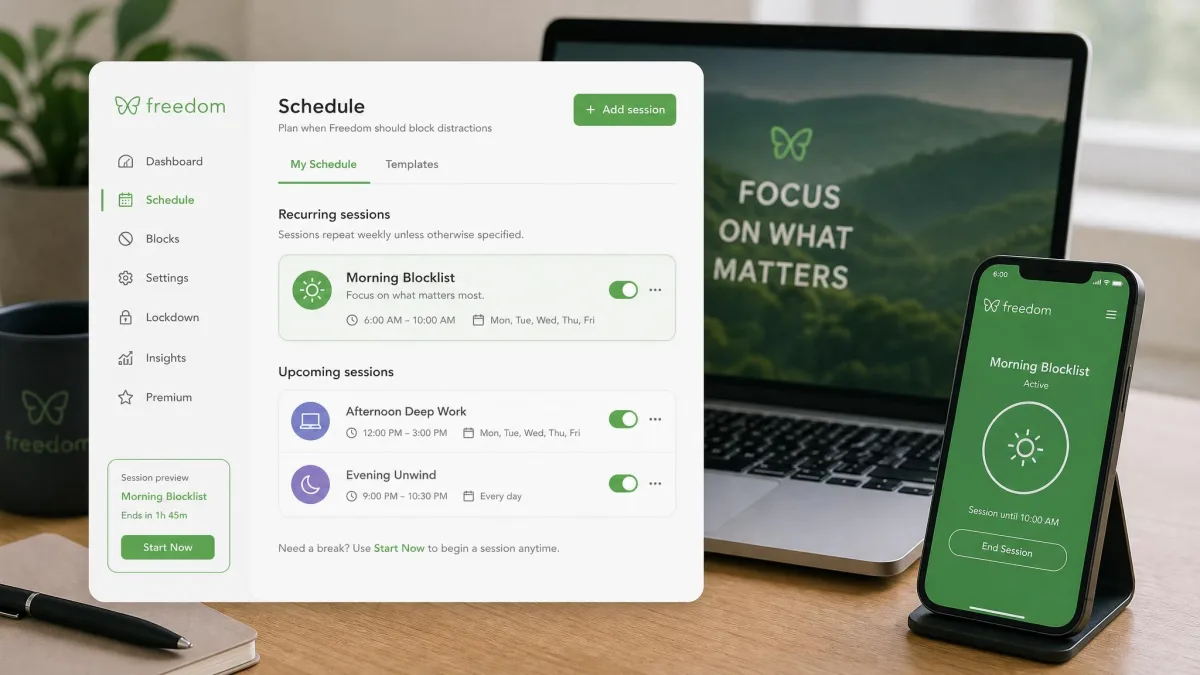
Freedom is the serious blocker for people who want one tool across everything they own. It blocks apps, websites, or the entire internet on Android, iOS, macOS, Windows, Chromebook, and Linux, with schedules and a Locked Mode, and the Freedom iOS app shares sessions across devices.
We ran a morning blocklist over Instagram and Chrome on our Pixel for a week of normal use. Locked Mode fell when we disabled the app’s permissions in Settings, and one session failed silently after the app had sat closed for a few days. On our older phone, the VPN-based blocking drained noticeable battery, and a blocked app sometimes just showed a ‘blocked’ message. Freedom rates 4.4 out of 5 on Google Play, yet its Trustpilot score sits near 2.9.
Pros
- Blocks apps, sites, or the entire internet
- Cross-platform sync across six platforms
- Clean privacy posture, no data collected
Cons
- Locked Mode bypassable by disabling permissions
- Mobile blocking can fail silently or drain battery
Pricing
Free tier with basic blocking. Premium is $39.99 per year after a 7-day free trial, or $199 for a lifetime license.
Best For
People who need one blocker across phone, laptop, and desktop.

Quick Comparison: Best Screen Time Apps for Android at a Glance
Here is how all seven stack up. Prices come from the vendor’s official pages, and the free tiers are genuinely free, not trials.
| App | Buy | Best For | App Blocking | Price | Platforms |
|---|---|---|---|---|---|
|
Check price → | Built-in awareness, Family Link for kids | App timers, icon dims at limit | Free (built-in) | Android (built-in) |
|
Check price | All-in-one toolkit | App and site blocking, schedules, daily and session limits | Free tier with ads; Premium around $20/yr | Android, iOS, Windows, macOS, Linux, browser extensions |
|
Check price | Data lovers | Focus Mode plus per-app usage limits | Free; Plus $0.99 one-time | Android 5.0+ |
|
Check price | Simple awareness | App blocking with Strict Mode, icon greys out | Free tier; Pro around $5/mo | Android only |
|
Check price | Breaking the open-app reflex | Friction interventions, not hard blocking | Free for 1 app; pro around EUR 3.99/mo | Android, iOS, desktop extension |
|
Check price | Focus timer for study sessions | Deep Focus app blocking during sessions | Free tier; Plus subscription | Android, iOS, Chrome, Firefox |
|
Check price | Cross-platform blocker | App and site blocking, schedules, Locked Mode | Free tier; $39.99/yr or $199 lifetime | Android, iOS, Mac, Windows, Chromebook, Linux |
How to Make Screen Time Limits Actually Stick on Android
Every app in this roundup can be bypassed, and knowing that keeps your expectations honest. Google hasn’t updated its digital wellbeing tools meaningfully in years, so the enforcement burden falls on how you set things up.
Set limits you can defend, not ones you regret; a cap you smash every afternoon teaches you to ignore the tool. Use the app timer PIN, which stops the reflexive tap-through. Pick friction over tracking for habit change. For kids, use Family Link’s supervised account, which is far harder to bypass.
No Android tool is truly unbypassable. A determined kid can factory-reset a phone or fall back to a browser, and an adult can disable permissions in Settings. Treat these apps as guardrails, not locks.
Review the data weekly and adjust; limits drift out of sync with real life within a week.