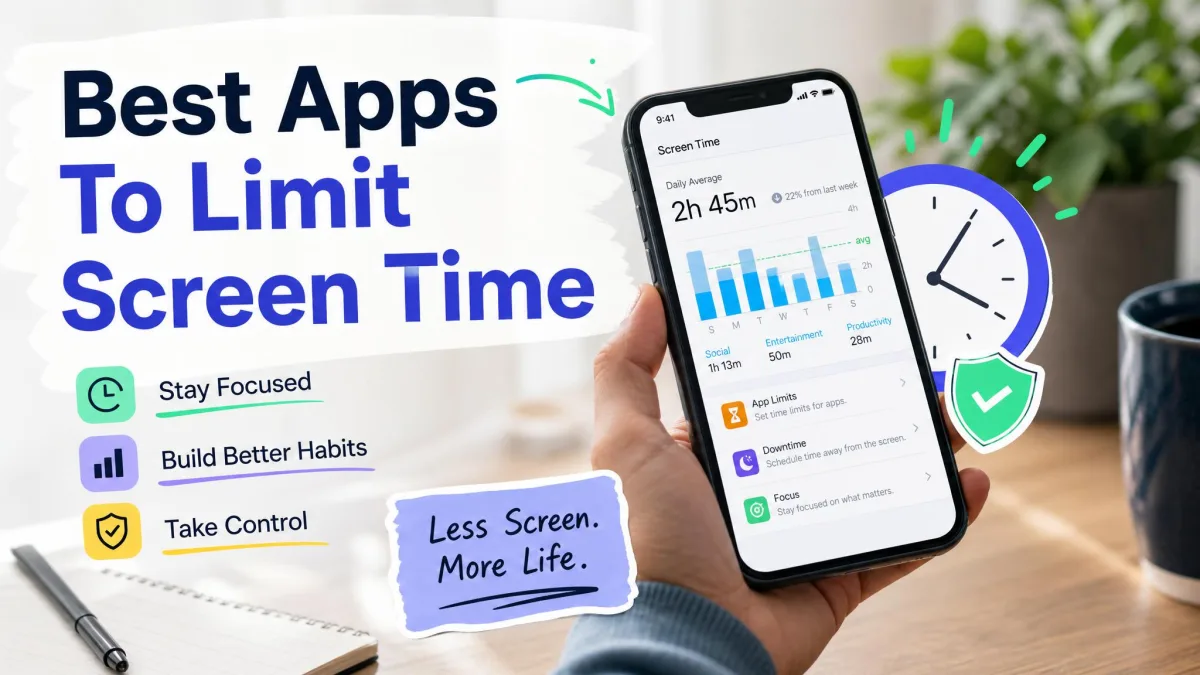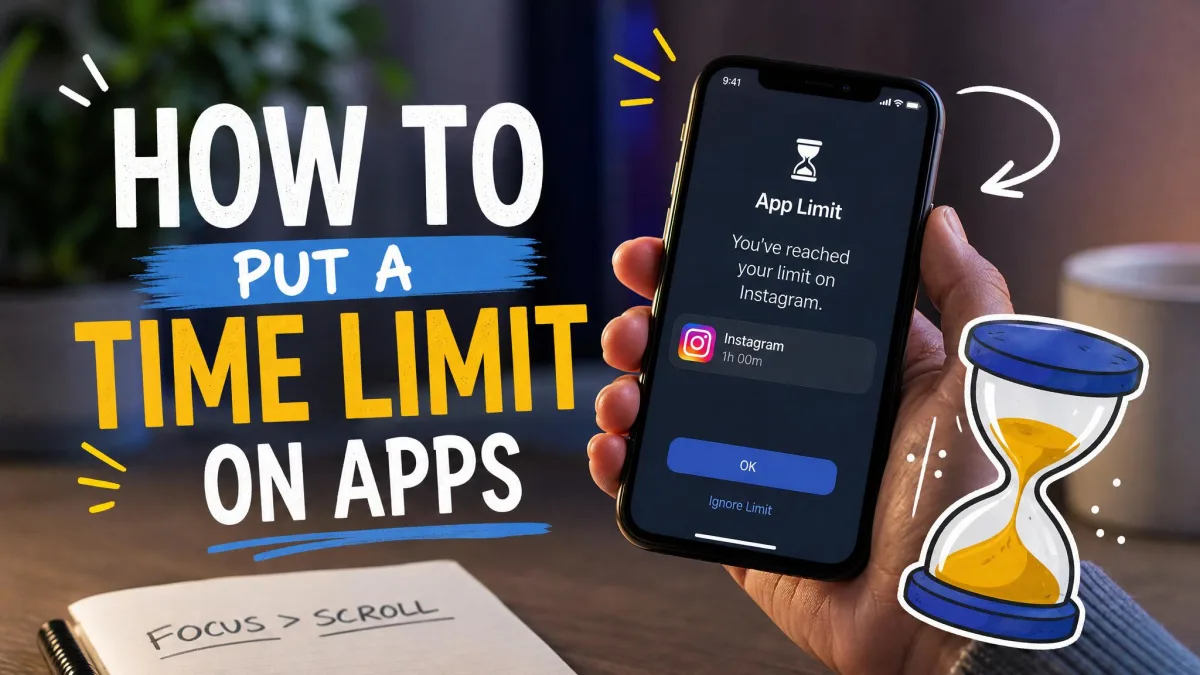
App time limits let you cap how long an app can be used each day. On both iPhone and Android, the tools are built in, and setup takes minutes with nothing to install.
This guide covers Apple's Screen Time on iPhone and iPad, plus Android's Digital Wellbeing, App Timers, Focus Mode, and Google Family Link, and how overrides work.
Quick Answer: How to Set Time Limits on Apps
Both platforms can cap a single app in a few taps. On iPhone, go to Settings → Screen Time → App Limits → Add Limit, pick apps or categories, and set a daily amount. On Android, open Settings → Digital Wellbeing & parental controls → App timers and set a time per app.
The lowest App Limit on iPhone is 1 minute, and timers on both platforms reset at midnight. Give each app its own amount, so messaging apps can get an hour while your games get 15 minutes.
Why Should You Set Time Limits on Apps?
The first benefit is attention. An app with a daily cap makes you think twice about how you spend the time you have left, and the tools also show you where the time goes.
For kids, limits are about structure more than self-control. A daily cap on games and social apps, plus a scheduled quiet window, gives a child a predictable boundary without you hovering over the screen.
How to Set Time Limits on iPhone & iPad
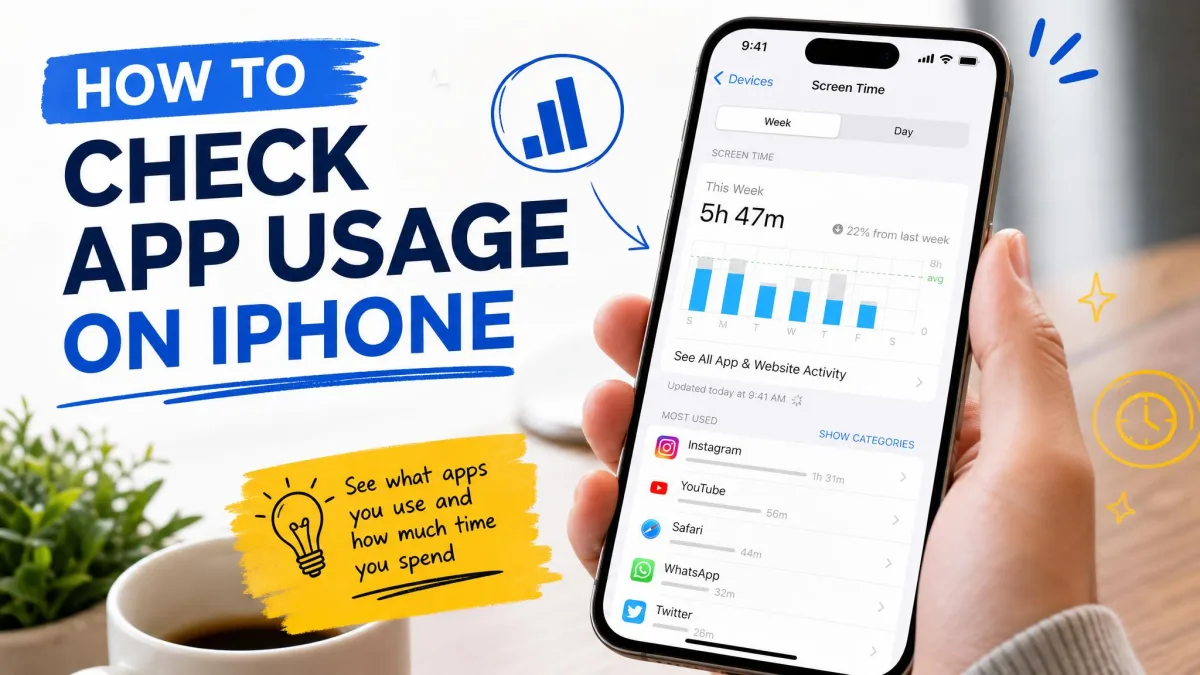
Screen Time has been built into iOS since iOS 12, so any reasonably current iPhone or iPad has it ready to go. It handles three jobs: limits for individual apps, limits for whole categories, and scheduled Downtime.
Set Up Screen Time for Your Child
Set a child's device up through Family Sharing first so their limits live under your account. Apple's guide to using Screen Time with your child walks through the full setup. Once the child is linked, a tap on "Ask for More Time" sends a request to your device for approval.
Limits set directly on the child's device tend to stick far better than ones managed from the Family section of a parent's phone, which can quietly stop applying when "Share Across All Devices" is on.
Add App Limits for Specific Apps or Categories
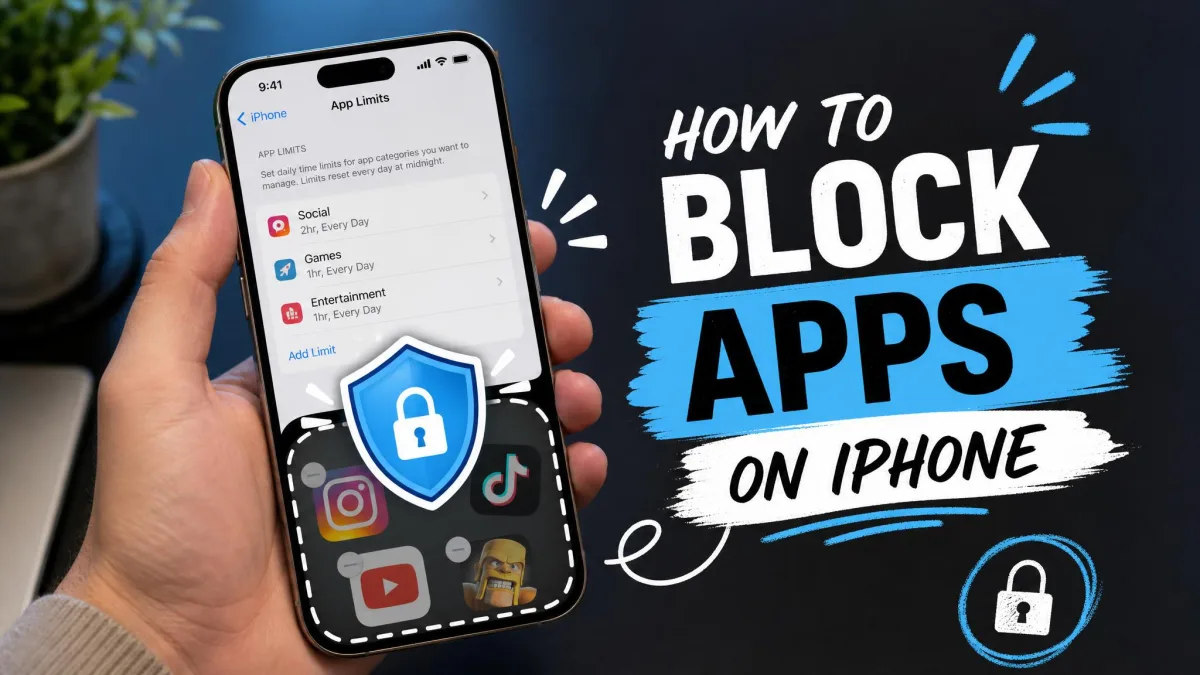
To limit a specific app, go to Settings → Screen Time → App Limits → Add Limit. Choose a category such as Social Networking or Games, or pick individual apps, set a daily amount, and tap Add. App Limits reset at midnight, and the lowest amount you can set is 1 minute.
Category limits cover every new app in that family automatically, which helps when your child has several social apps.
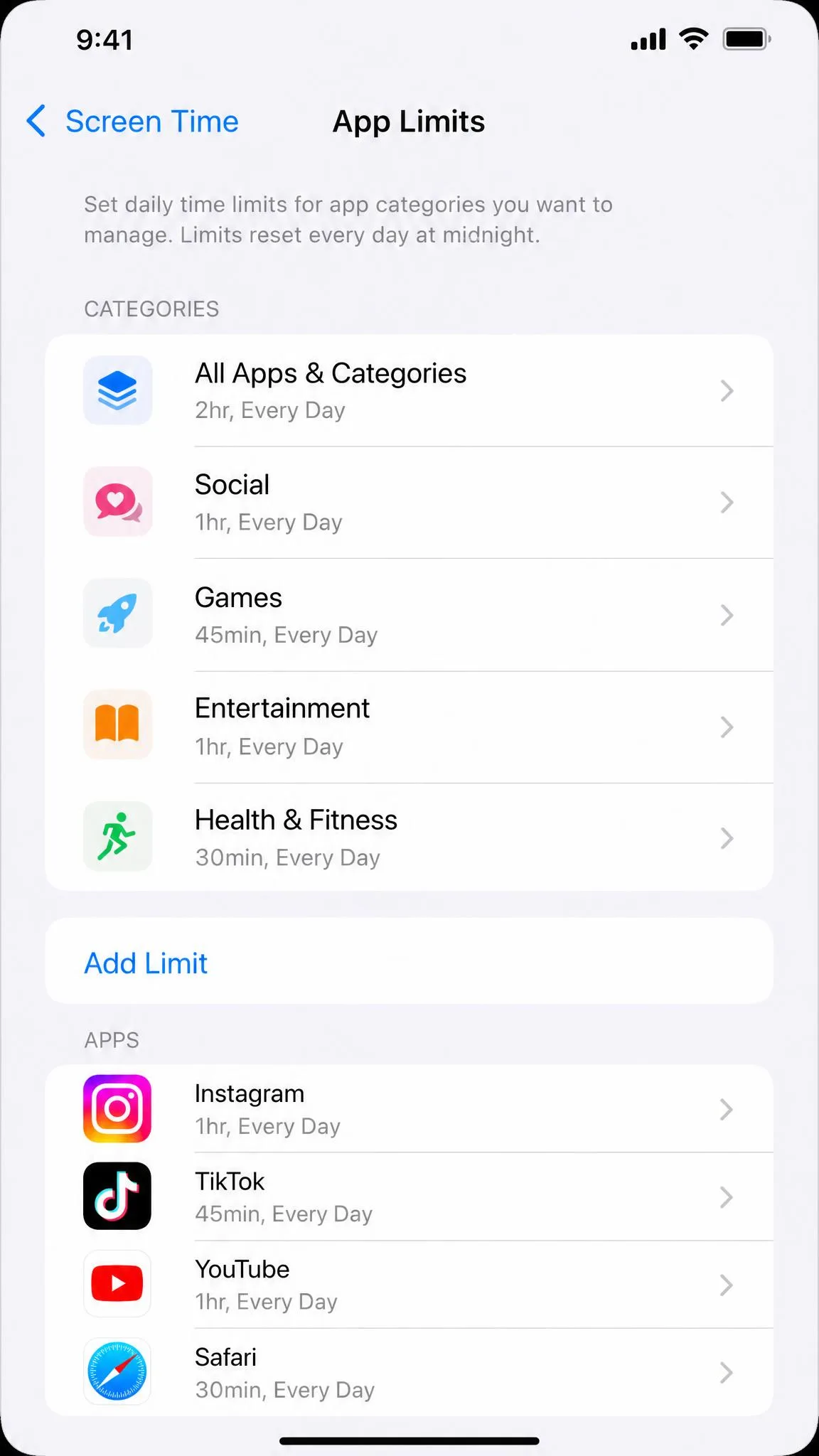
Set a Screen Time passcode before you finish. It unlocks "Block at end of limit," without which anyone can tap "Ignore Limit" and keep using the app.
Use Downtime to Block Apps at Certain Times
Downtime blocks apps during a scheduled window instead of after a usage budget. It defaults to 10:00 PM to 7:00 AM, with per-day schedules and Always Allowed apps and contacts so calls keep working. Apple's Screen Time scheduling documentation details the options, including the 5-minute warning before Downtime begins.
How to Set Time Limits on Android
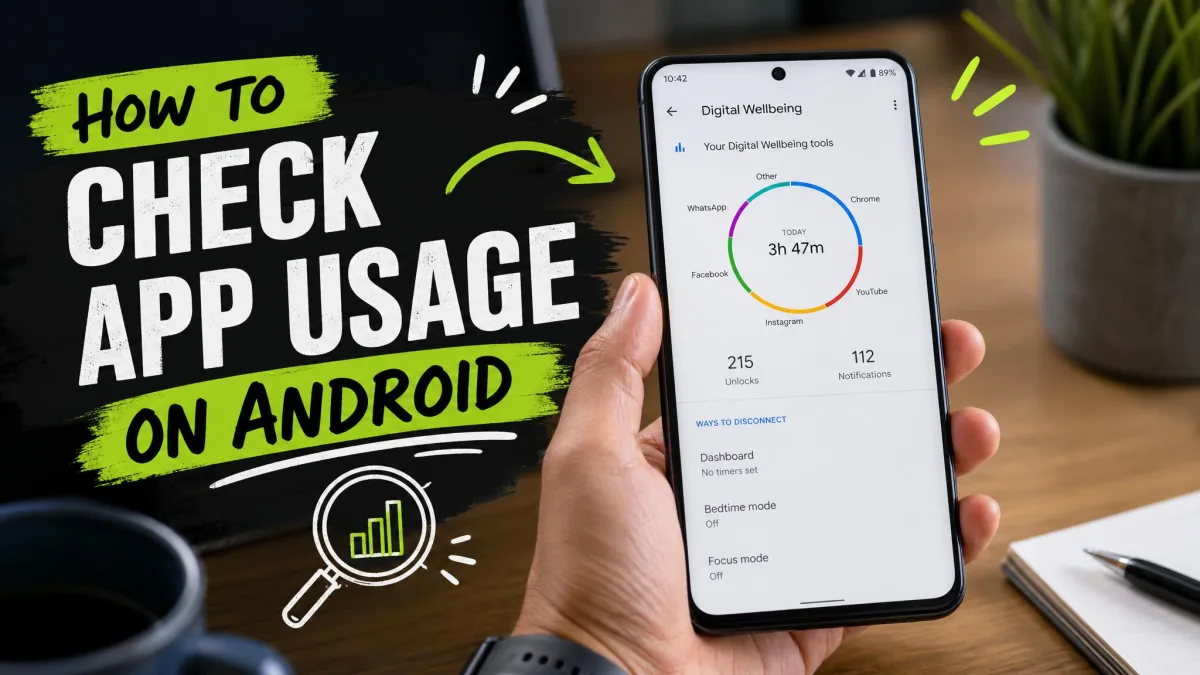
Android handles limits through Digital Wellbeing, which has shipped since Android 9 and is built into most Android phones. Open Settings → Digital Wellbeing & parental controls, and you'll find the usage dashboard, App Timers, and Focus Mode in one place; Samsung Galaxy devices use Modes and Routines with a "Restrict App Usage" option instead.
Method 1: Use Digital Wellbeing App Timers
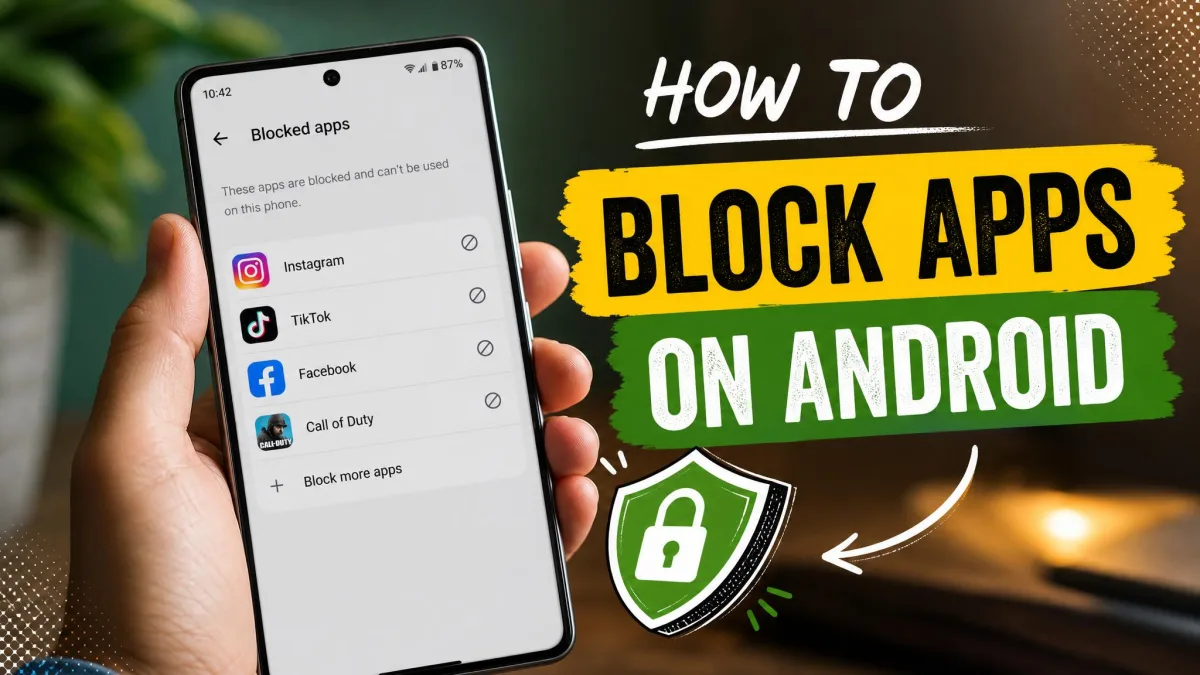
App Timers are the closest Android equivalent to Apple's App Limits. Go to Settings → Digital Wellbeing & parental controls → App timers, tap an app, and set a daily amount. Google's Digital Wellbeing documentation walks through the feature set.
When an app timer runs out, the app closes and its icon dims until midnight, when the allowance resets. To open it again before then, you have to delete its timer.
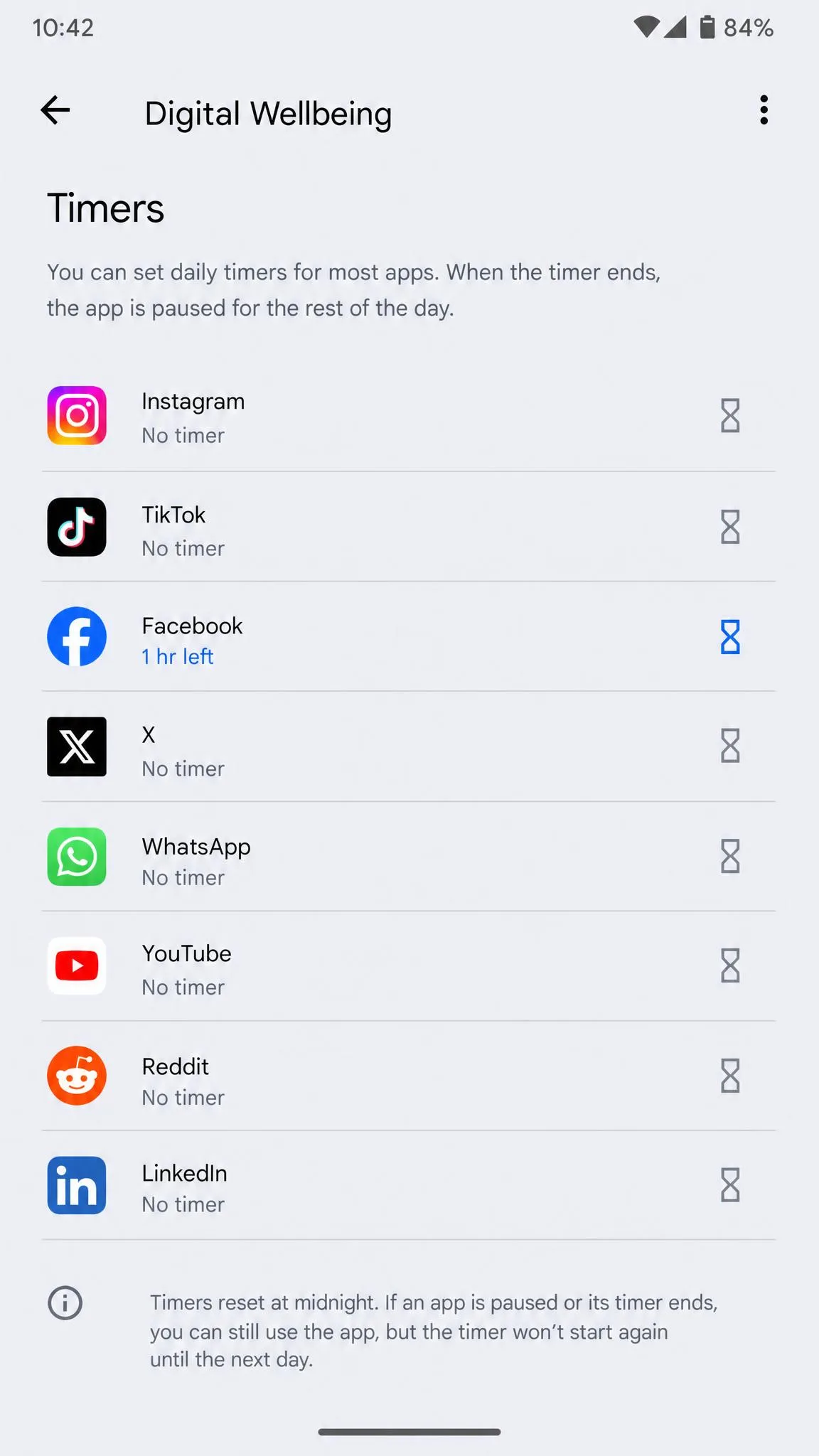
Two limits are worth knowing. "Ignore for today" is a one-tap override, and notifications from a timed-out app still arrive after its limit is gone, so the temptation loop keeps running.
Method 2: Use Focus Mode to Block Apps at Certain Times
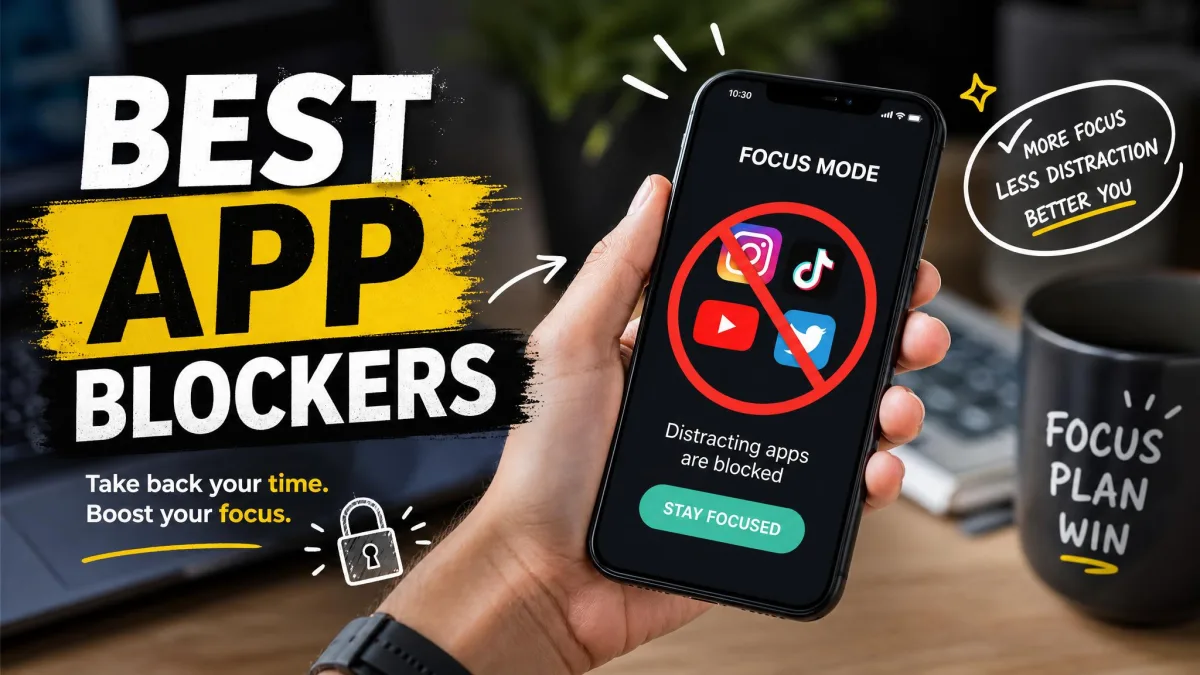
Focus Mode pauses the apps you choose for a set window and blocks their notifications while it is active. Go to Settings → Digital Wellbeing & parental controls → Focus Mode, pick the distracting apps, then start it, schedule it, or flip it on from a Quick Settings tile.
Focus Mode only blocks during the window you schedule, so it is not a daily cap. An app limited to 30 minutes a day still needs an App Timer instead.
Method 3: Use Google Family Link for Kids
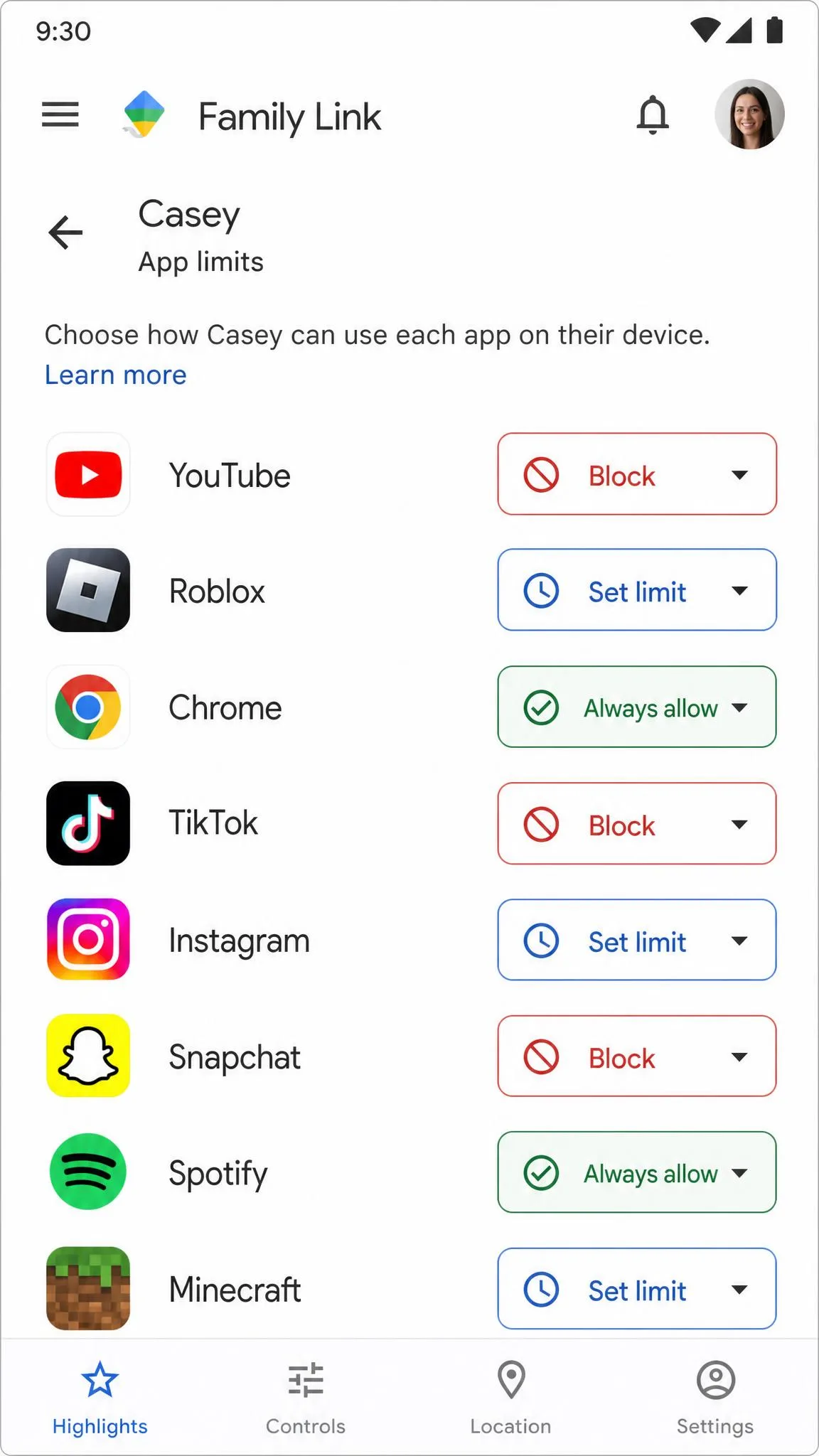
For a child's phone, Google Family Link is the free parent companion. Add the child's supervised Google Account, then manage Block, Set limit, or Always allow choices per app, plus a bedtime window that locks the device overnight.
Children under 13 need a supervised Google Account, and supervision ends at that age. Family Link only supervises Android and Chromebook devices, and airplane mode dodges every limit until the phone is back online.
What Happens When an App Limit Is Reached (and How to Override It)
On iPhone, an app that hits its limit locks until midnight. On Android, the app closes and its icon dims, with the same midnight reset. The overrides are where the platforms differ.
On iPhone, tapping the locked app offers "Ask for More Time": 15 minutes, 1 hour, or all day. A Screen Time passcode blocks that prompt and unlocks "Block at end of limit." On Android, you can ignore a timer for 15 minutes or for the rest of the day, and an App limits PIN protects the settings.
We set a 30-minute limit on a video app on our test iPhone and let the timer run down. The app locked on the spot, and one tap offered 15 more minutes, an hour, or all day. On Android, the same test surfaced an "Ignore for today" button. Both can be overridden in seconds, which is why the passcode matters more than the limit.
A Screen Time passcode is the whole game on iPhone. Without it, "Block at end of limit" stays hidden and anyone can tap "Ignore Limit" to keep using an app. If you forget it, go to Settings → Screen Time → Change Screen Time Passcode → Forgot Passcode and reset it with your Apple ID.
Built-in Controls vs Third-Party Parental Control Apps
The built-in tools cover the essentials: per-app limits, scheduled blocks, and usage reports, all free. They share two gaps: they work inside their own platform, so a mixed household juggles two tools, and they are easy to override when a child is motivated.
Third-party screen time apps close those gaps with cross-platform limits and stronger enforcement. The table below lines up the options.
| Method/Tool | Best For | Limitations |
|---|---|---|
 |
Personal self-control on one phone | Resets at midnight; one-tap ignore |
 |
Blocking apps in a set window | Only blocks during that window |
 |
Kids on Android or Chromebooks | Android-only child support; ends at 13 |
 |
Apple-family devices | Overridable with the passcode |
 |
An app-free window | Blocks all but allowed apps |
 |
Cross-platform monitoring | Paid subscription from $9.99 a month |
Microsoft Family Safety covers Windows, Xbox, and Android for free, and Qustodio has a free single-device plan.
Set Time Limits on Windows & Mac
Screen Time on the Mac, around since macOS Catalina 10.15, mirrors the iPhone version with App Limits, Downtime, and passcode protection. On Windows, Microsoft's Family Safety app and game limits page shows how to set app and game limits across Windows, Xbox, and Android devices in the family group.
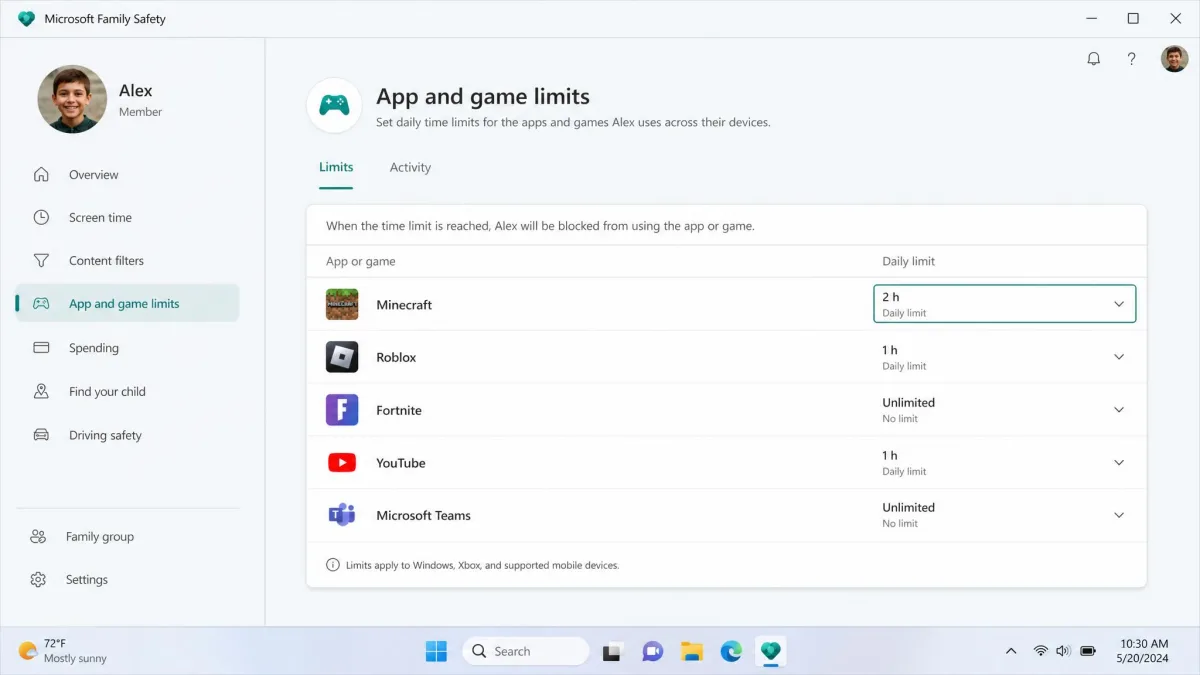
App and game limits target apps, not browsers. Microsoft Family Safety's time limits do not cover websites at all, and on Android you set Chrome site timers separately. If the web is where the time goes, treat the browser as its own app and limit it accordingly.
Tips for Managing Screen Time Effectively
Start with a few limits instead of a full lockdown. A child who trips three app limits in the first hour will fight the whole system, while a gradual rollout tends to hold.
Limit categories, not just apps. A cap on iPhone's Social Networking category covers a brand-new app the day it is installed, and Family Link's per-category controls work the same way.
Pair a daily cap with a scheduled window. Downtime and bedtime give a child a predictable stopping point at night instead of a surprise lock mid-afternoon.
Check the usage report weekly and adjust. A limit that never trips is a sign to tighten it. Match the tool to the job: App Timers for one phone, Focus Mode for a work block, Family Link for a child.
FAQs About App Time Limits
How do I set time limits on apps on Android?
How do I set time limits on apps on iPhone?
What happens when an app limit is reached?
How do I block apps at certain times on my iPhone?
Is there an app that locks apps until a certain time?
Final Thoughts
Both platforms give you the tools for free, and the setup takes minutes. The difference between a limit that works and one that gets ignored comes down to the passcode, the categories, and the schedule you agree on.
Start with one app that eats too much of your day, set a limit that feels slightly too tight, and adjust from there.