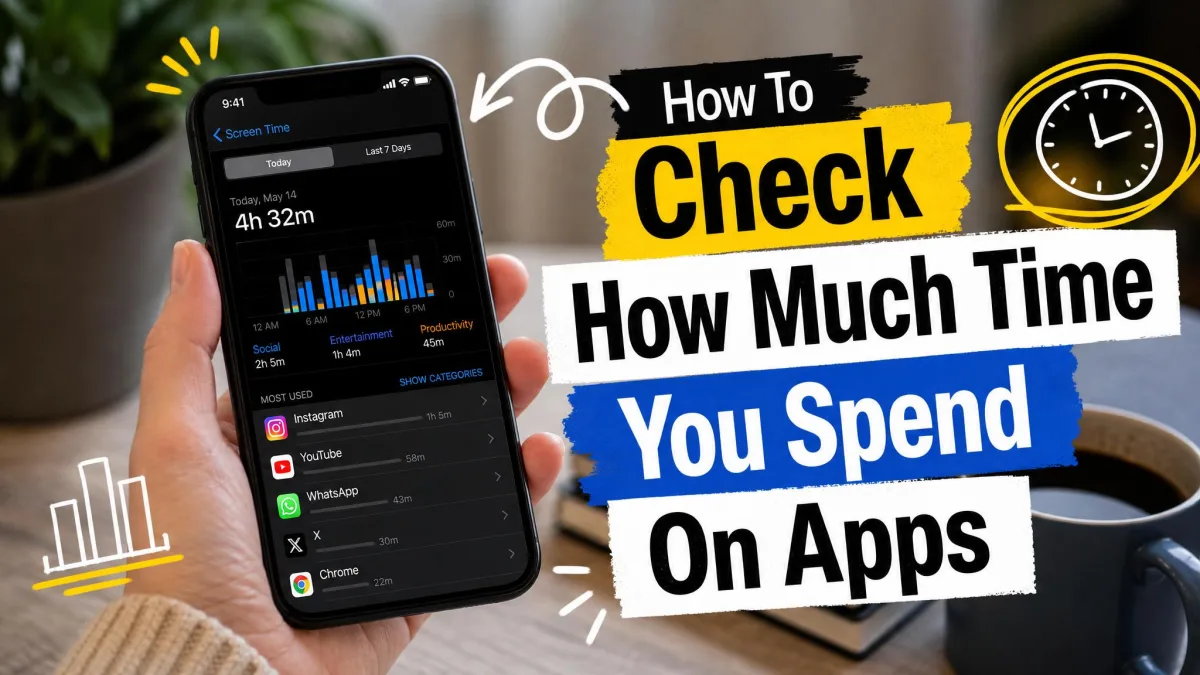
Ever wondered how much time you actually spend in your apps each day? You are not alone, and the exact numbers stay hidden until you go looking for them.
The good news is that you do not need a fancy app to find out. Every iPhone, Android phone, and Mac ships with a built-in screen time tracker, and Windows has a few workable options too. We have watched Screen Time log hours of usage for apps that were barely opened, and count background activity that never reached the screen. They are not perfect, but accurate enough to reveal your real habits.
How to Check App Usage on iPhone and iPad with Screen Time
Screen Time is built into iPhone and iPad and has been part of iOS since 2018, so any device running iOS 12 or later already has it in Settings. The essentials take about thirty seconds.
View Your Screen Time Summary
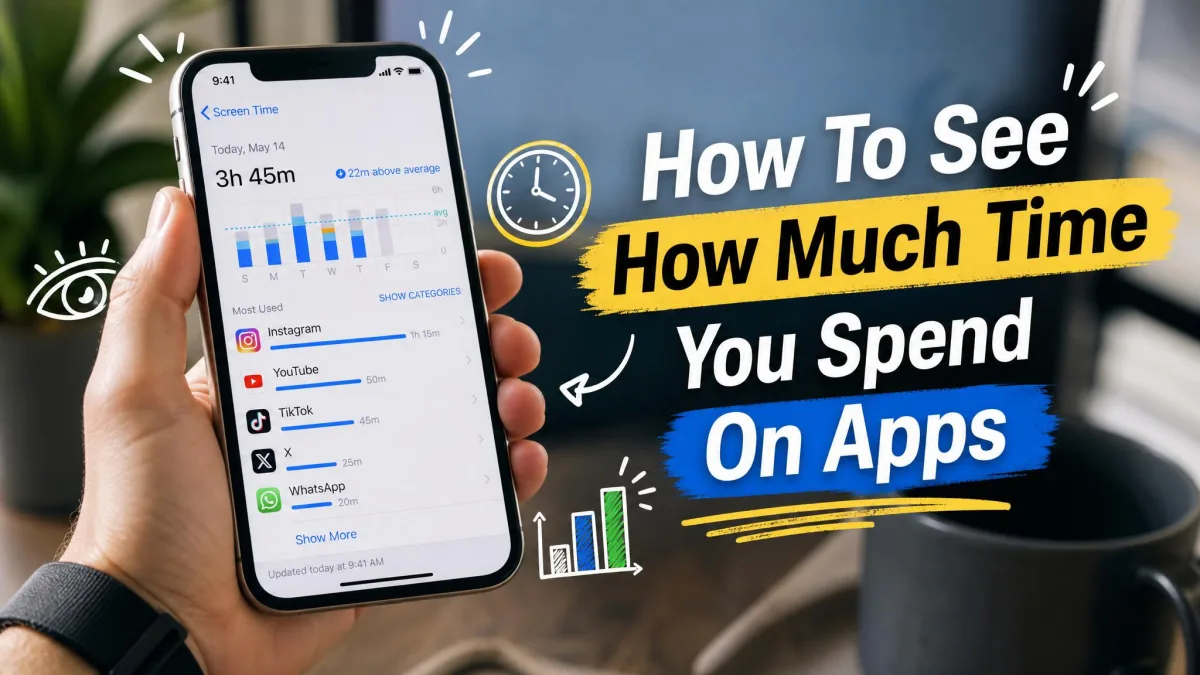
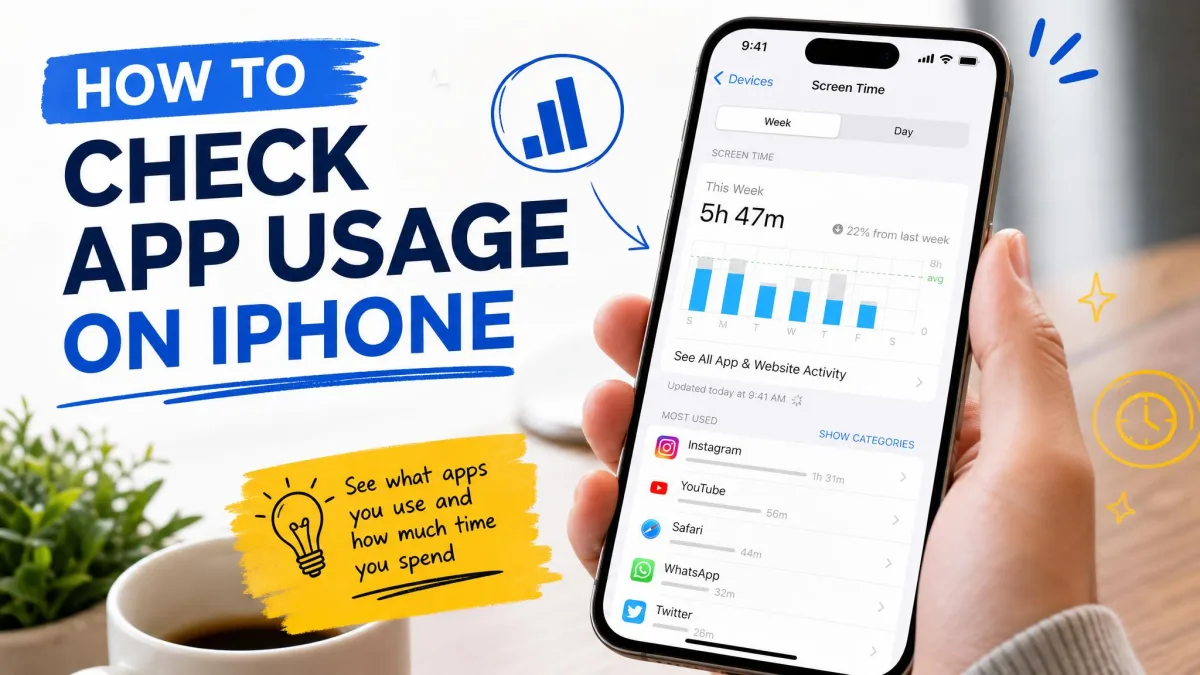
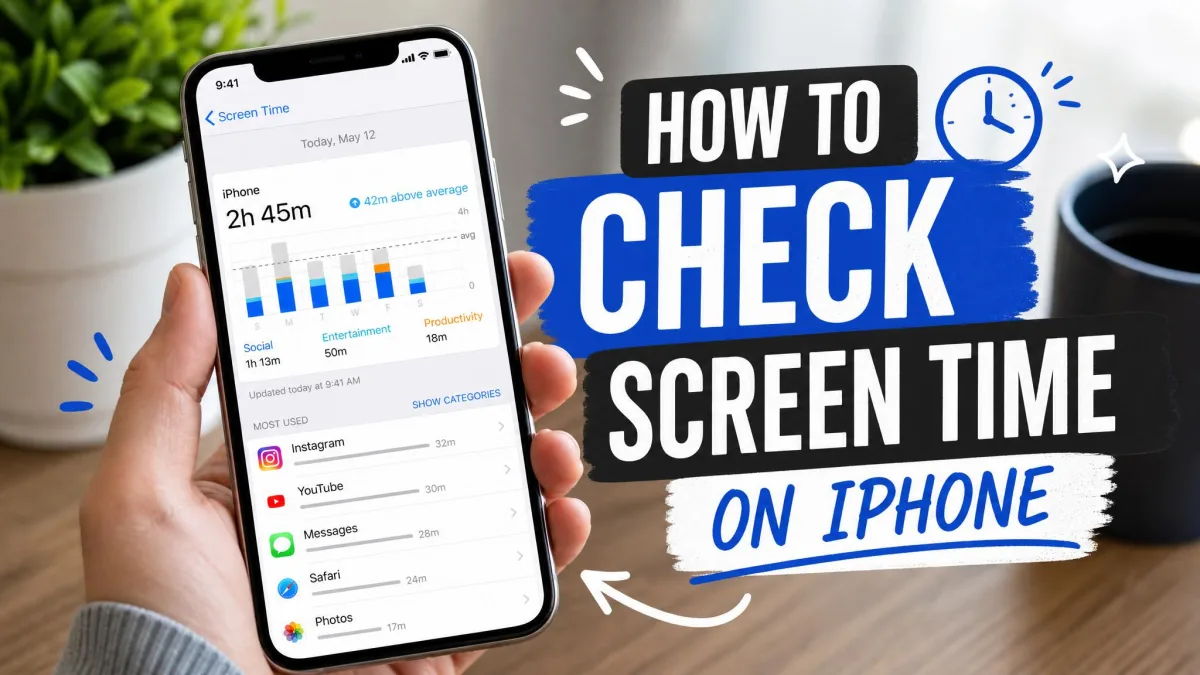
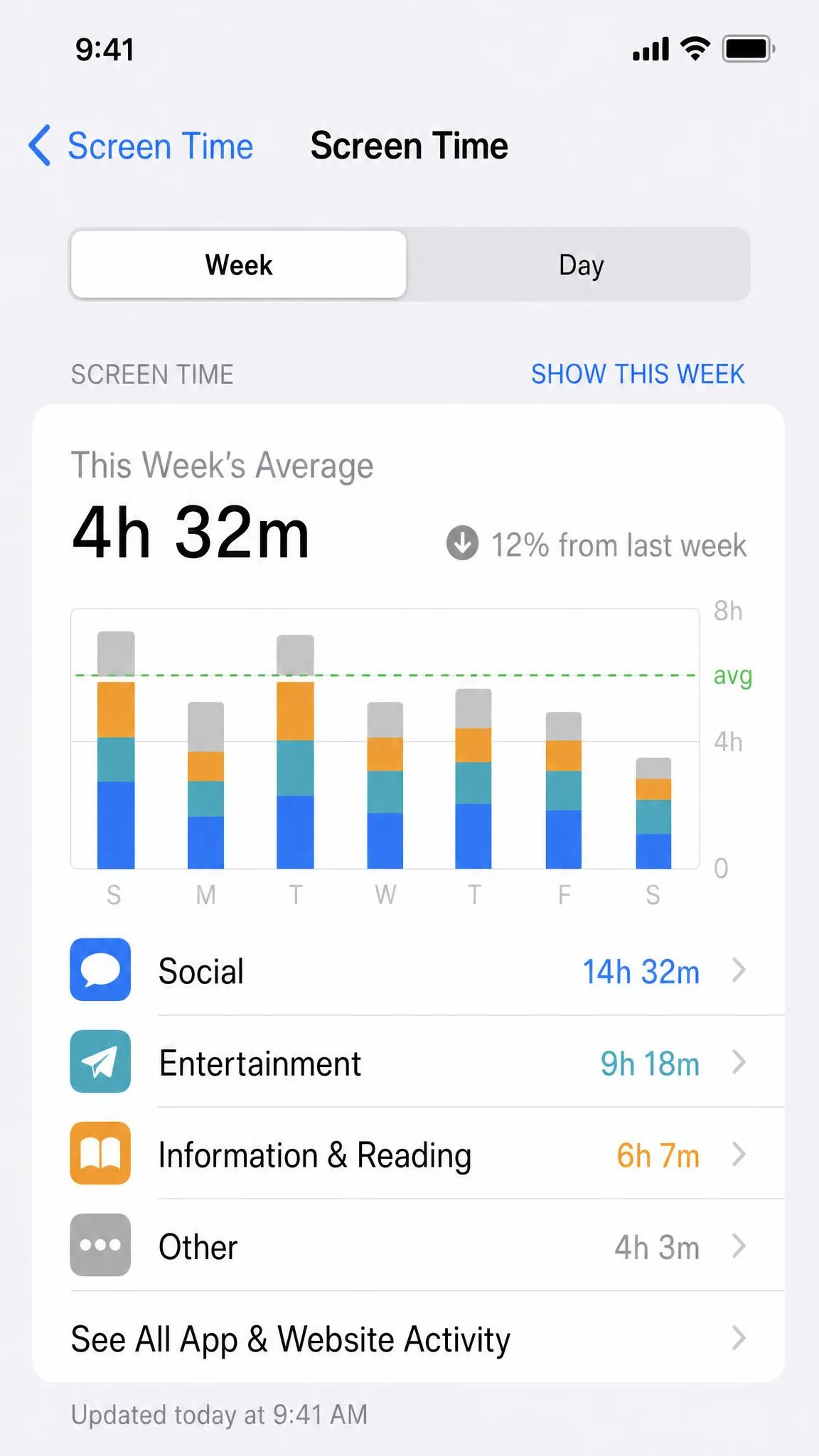
Open Settings and tap Screen Time, then tap See All App & Website Activity. The summary groups your day into categories like Social Networking and Entertainment, each with its own total. Switch between Day and Week views to compare today against a normal day.
See How Much Time You Spend Per App
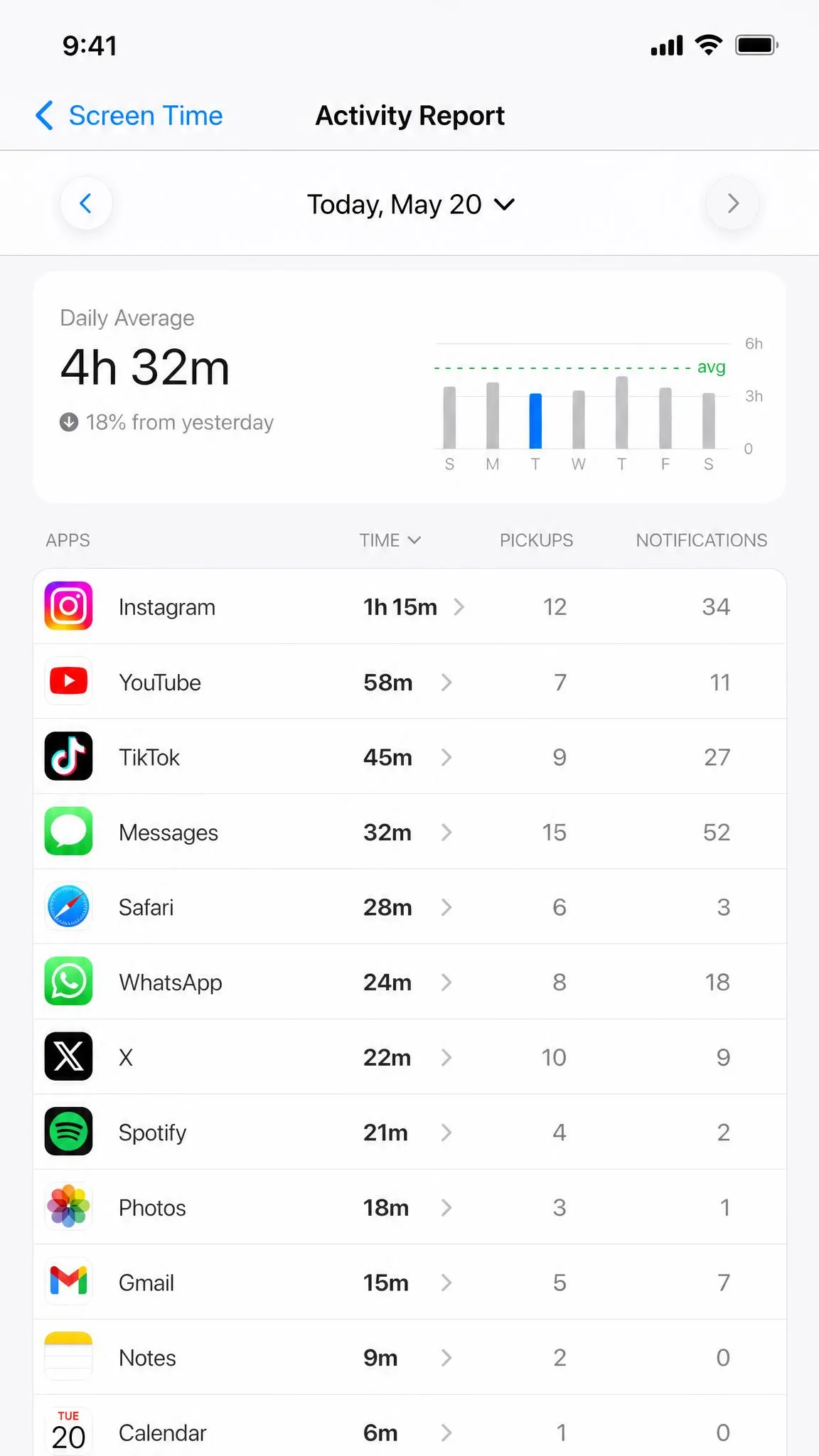
The per-app breakdown sits in the same screen. Under the category totals you will find each app's daily time alongside a pickups and notifications count. That pair matters, because the apps that steal your attention are not always the ones you use the longest. Add the Screen Time widget to your Home Screen for a live summary.
How to Check App Usage on Android with Digital Wellbeing
Digital Wellbeing is Google's built-in answer to Screen Time, and it works on devices running Android 9 and later, which covers most modern Pixel and Samsung phones. Google's Digital Wellbeing help page walks through the whole system, and the dashboard is the place to start.
View Your Digital Wellbeing Dashboard
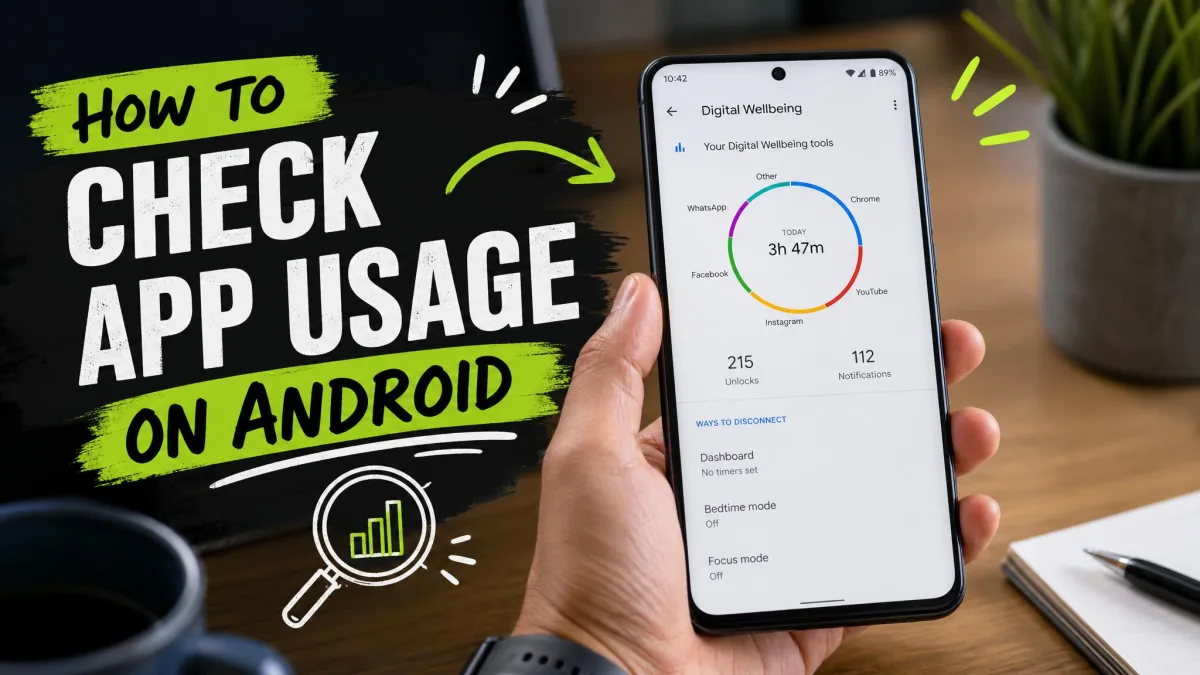
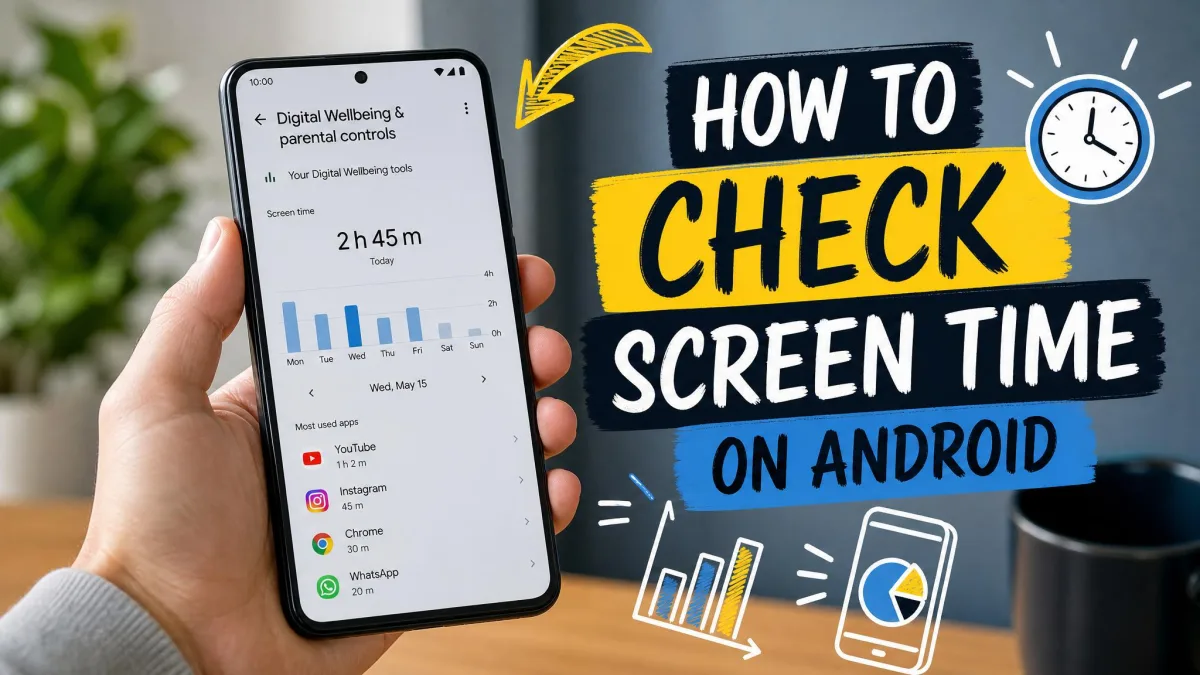
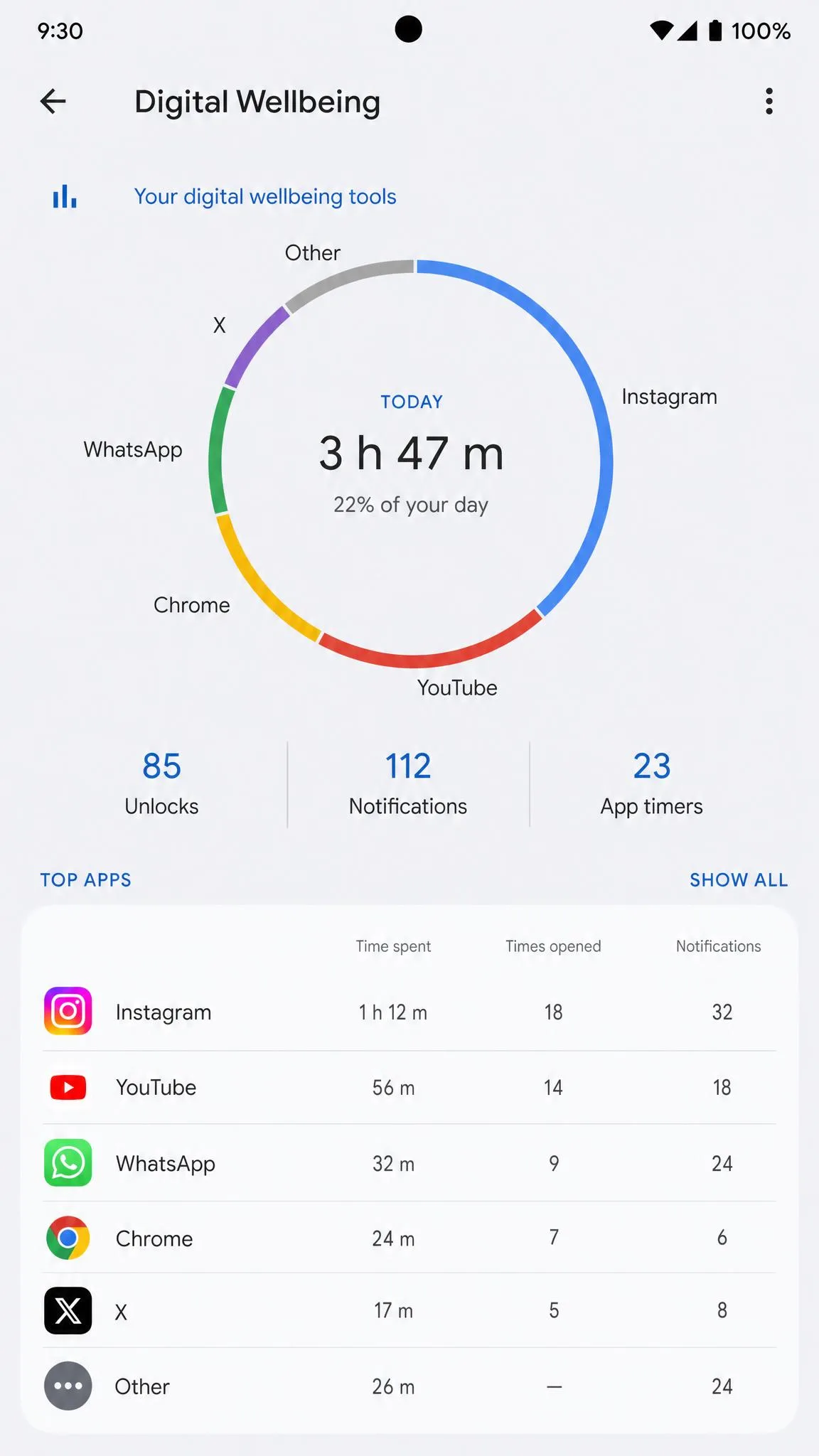
Open Settings and tap Digital Wellbeing & parental controls. The dashboard shows your total screen time for the day, with times opened and notifications for your most-used apps.
See Time Spent Per App
Tap any app in the dashboard to see its time per day and its own settings. The Home Screen widget lists your top three apps each day, and Chrome browsing time shows up here too, with per-site timers.
How to Check App Usage on Mac
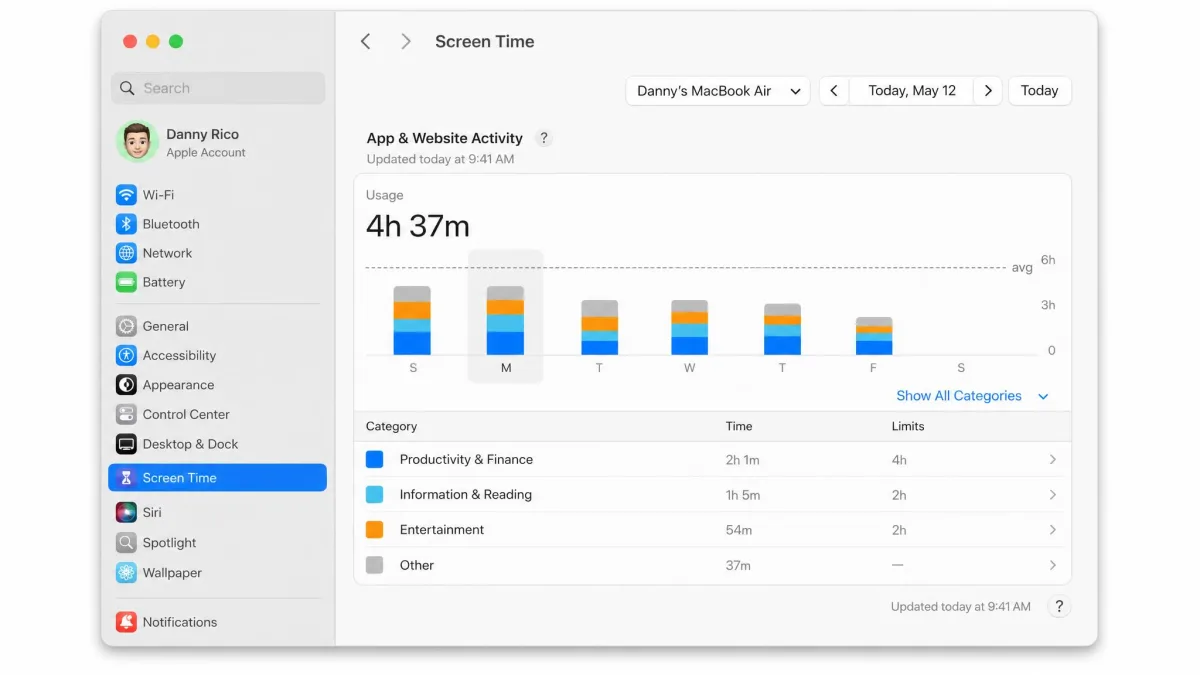
Screen Time on the Mac works the same way as on iPhone and needs macOS 10.15 Catalina or later. Open System Settings, click Screen Time, then App & Website Activity for usage bars by category plus per-app stats, notifications, and pickups. Filter by device and by day or week, and turn on Share Across Devices so your iPhone usage syncs over.
How to Check App Usage on Windows
Windows is the odd one out. Windows 11 has no built-in per-app screen time report for personal accounts, so no settings panel shows your totals the way Apple and Android devices do.
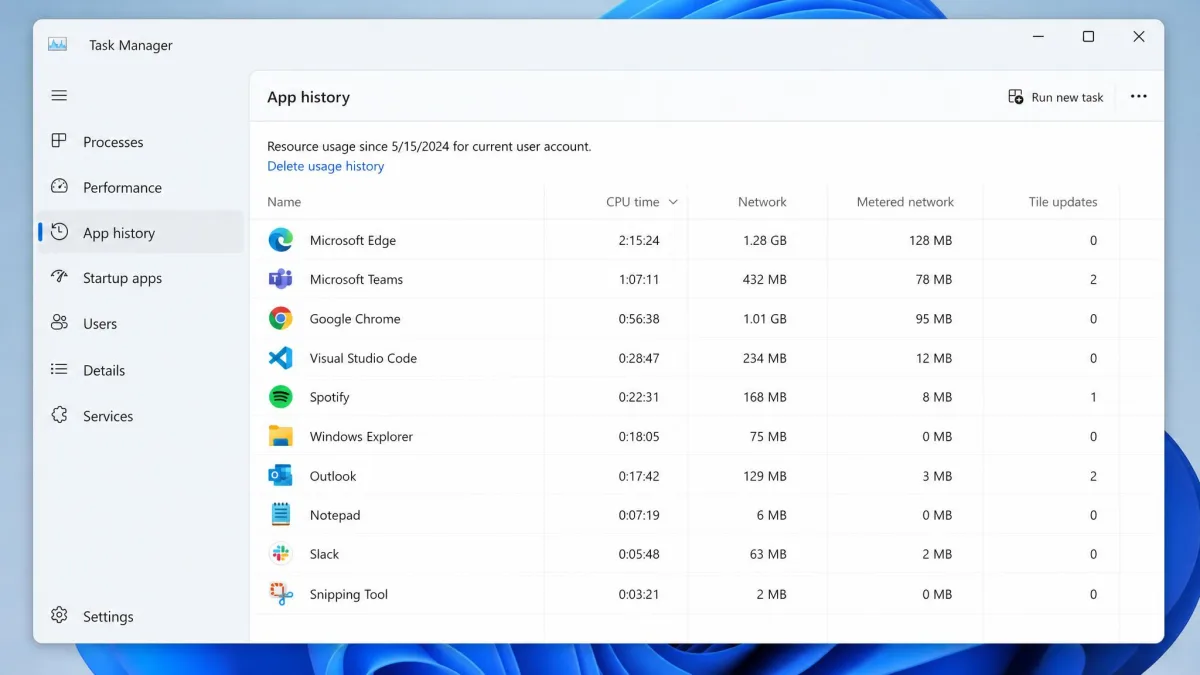
The Task Manager App History tab looks like a screen time tool at first glance, but it records CPU time, not time in each app. It is useful for diagnosing performance, not tracking habits.
Microsoft Family Safety fills the gap if you are a parent; it reports daily and weekly screen time and per-app usage for family member accounts with activity reporting turned on. For your own usage, a tool like RescueTime, covered next, logs your active windows automatically.
How to Set App Time Limits
Checking your usage is only half the job. Once the numbers are on the table, both platforms let you cap the apps that eat the most time, with a passcode option so the limits actually hold.
Set App Limits on iPhone
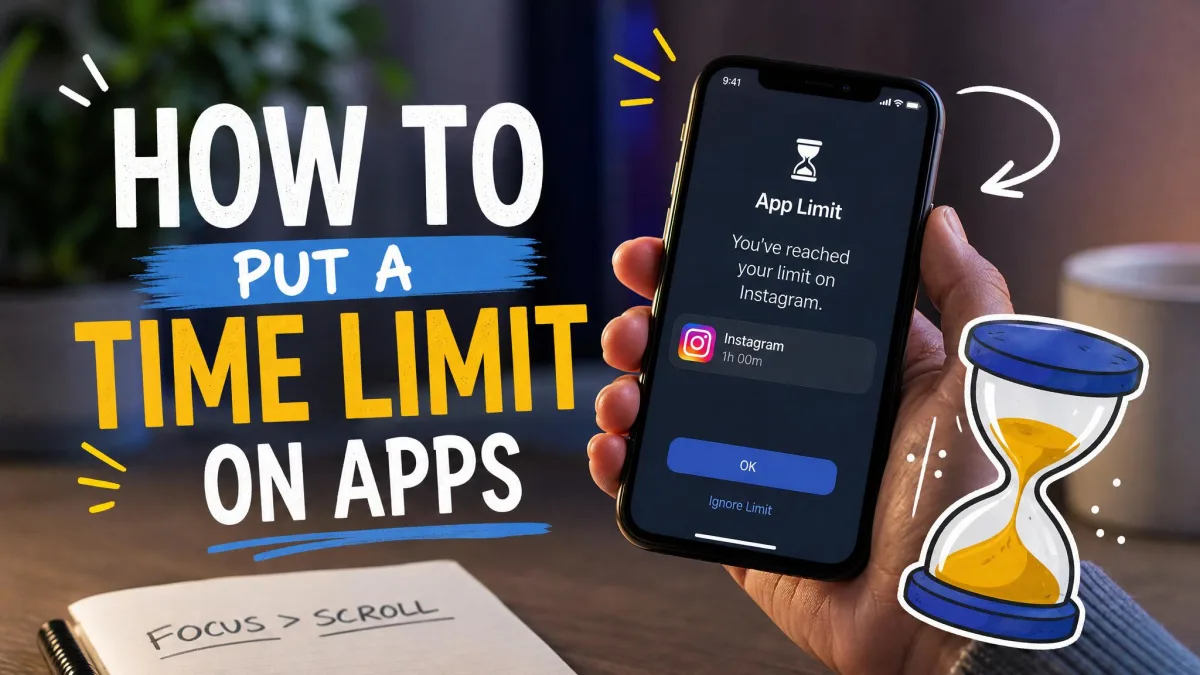
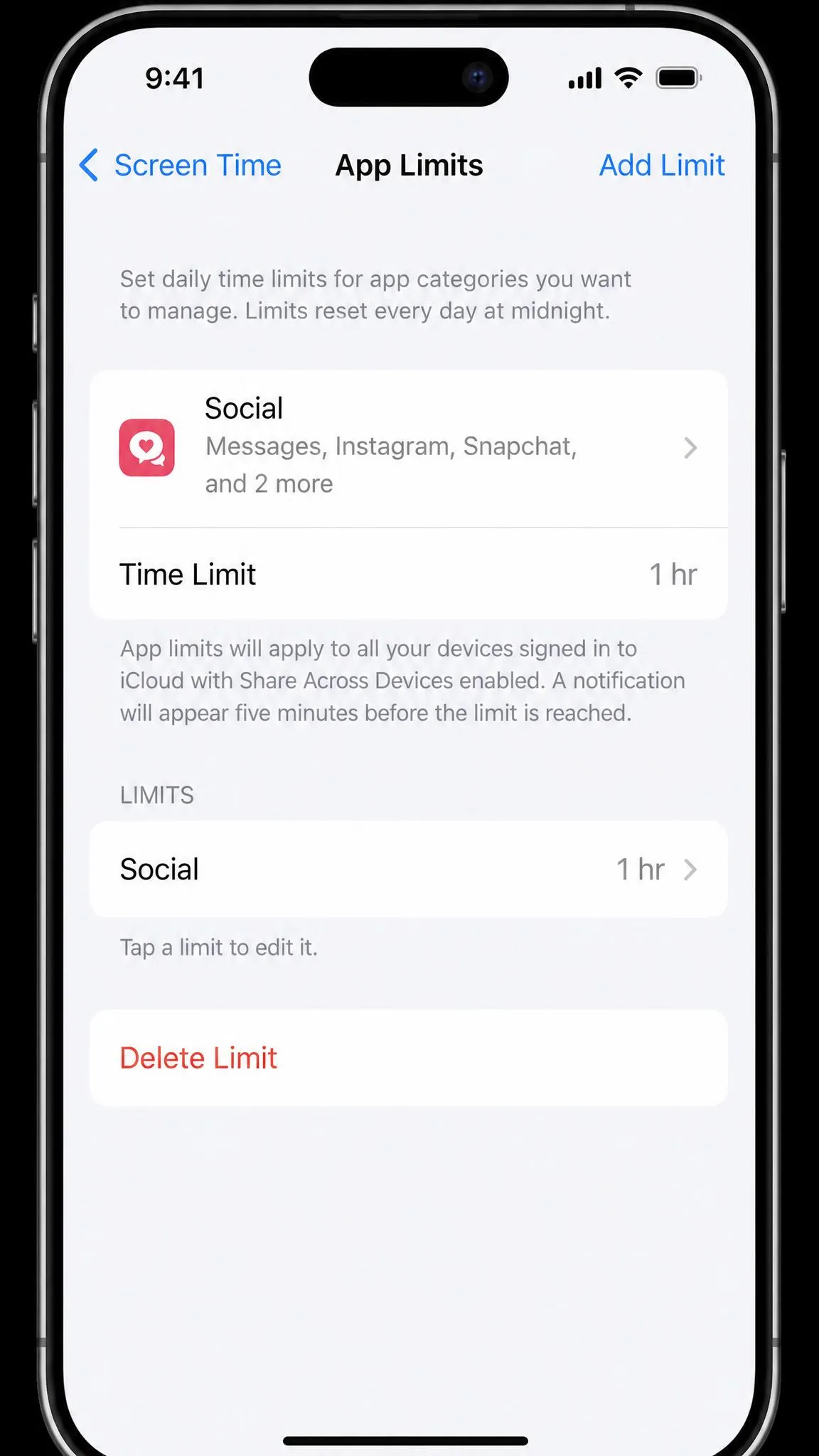
Open Settings, tap Screen Time, then App Limits, and add a limit for a single app or category. The cap resets at midnight every day. Set a Screen Time passcode while you are there, because without one you can tap Ignore Limit and wave any limit through. Downtime is the heavier option; it blocks everything except your Always Allowed list. If a limit fails to stick, restart the phone or delete and re-add the limit, and turn on Block at End of Limit.
Set App Timers on Android
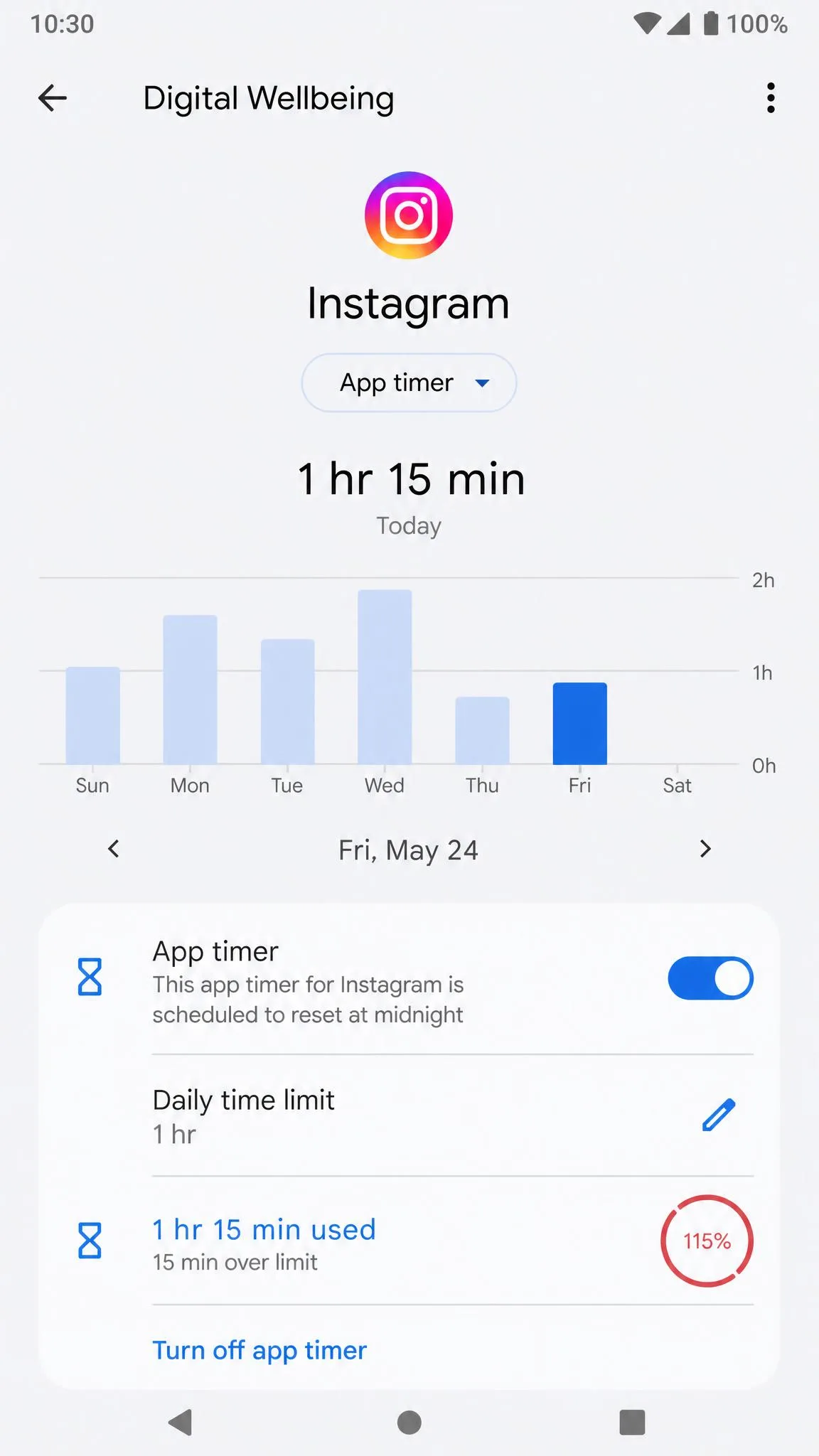
Digital Wellbeing handles limits with app timers. Open the dashboard, tap the app you want to cap, choose App timer, and pick a daily limit. When the time runs out, the app closes and its icon dims. Timers reset at midnight, and an App limits PIN stops someone from simply changing the limit back. One honest warning: these timers read as a gentle speed bump rather than a hard lockout, since you can step over them in a couple of taps. Pair them with Focus mode or bedtime mode for a stricter break.
Third-Party Apps for Tracking Screen Time
The built-in tools cover most people, but a few situations call for something extra, like automatic productivity scoring or cross-platform totals.
RescueTime is the best-known option. It runs in the background on desktop and mobile, logs the window you are using, and scores apps by productivity. The free tier includes basic tracking with about two weeks of history, and Focus Sessions add a distraction-blocking timer.

Among screen time apps for Android, ActionDash offers real-time app usage, unlock and notification counts, daily limits, and focus-mode scheduling, with a one-time premium unlock of roughly seven dollars, though the price is set in-app. StayFree covers Android, iOS, Windows, Mac, and browsers with daily and session limits plus schedule-based blocking. Moment has tracked iOS usage with daily totals and pickups, but its App Store availability has been inconsistent.
Tips to Spend Less Time in Apps
Knowing your numbers only helps if you act on them, and the tactics below use tools you already have.
Start with one or two limits instead of a full lockdown; a single App Limit on your most-used social app is easier to keep than ten rules. Set the passcode or PIN so the limit is not a suggestion. If an Android timer fails to reset, restart the phone or clear the app's data, because remaining time sometimes does not update until then. Use Focus mode on Android or Downtime on iPhone to quiet the apps that pull you in, and keep the widget on your Home Screen, because a visible daily total beats a number buried in Settings.
Why You Should Track Your App Usage
Most people guess badly about their own screen time. A recent report by Statista found that Americans averaged about 4 hours of smartphone use per day in 2023, and seeing your own total is usually a surprise.
The value is not the number itself. Once you see how often you open a feed, you can set a targeted limit instead of a vague intention. Research by the American Psychological Association shows that constant task-switching carries real cognitive costs, so trimming the apps that fragment your attention protects your focus as well as your time.
Tracking also makes limits and family rules easier to enforce fairly; you can point at the data instead of arguing about it. On iPhone the usage data stays on your device, so you do not trade privacy for awareness.
Frequently Asked Questions
How do I see how much time I spend on apps on iPhone?
How do I check app usage on Android?
Can I see app usage history from previous months?
Does Screen Time count background app usage?
How accurate is phone usage tracking?
How do I set time limits on apps?
Final Thoughts
Checking your app usage takes about thirty seconds on any modern phone, and the numbers are worth seeing at least once. Start with the built-in tool on whatever device you carry, find the apps that dominate, and set a single limit with a passcode.
In our testing, the biggest weakness was not the tracking but the enforcement. Limits without a passcode can be waved through, and app timers are a speed bump you can step over. Set the passcode or PIN from day one and the built-in tools do most of the work.