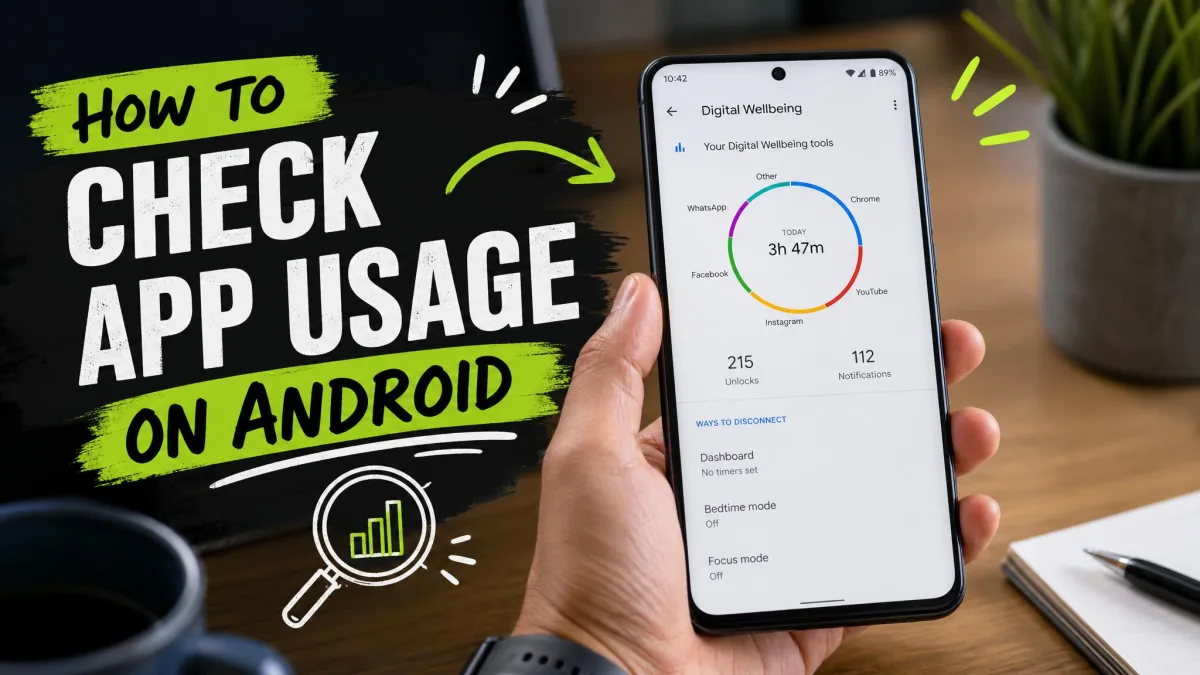
Most Android users have no idea how much time they actually spend in each app, and the battery screen only tells part of it. Android has had a built-in answer since Android 9: Digital Wellbeing. Here's how to check your app usage with it.
We tested the dashboard on a Google Pixel and a Samsung Galaxy, and ran third-party monitors like ActionDash, AirDroid, and MoniMaster on family devices. This guide walks you through the built-in tools first, then per-brand steps and parental-control apps.
How to Check App Usage on Android with Digital Wellbeing
Digital Wellbeing is Android's built-in screen-time tracker.
Open Digital Wellbeing & Parental Controls in Settings
Open Settings → Digital Wellbeing & parental controls.
Read Your Screen-Time Dashboard and Top Apps
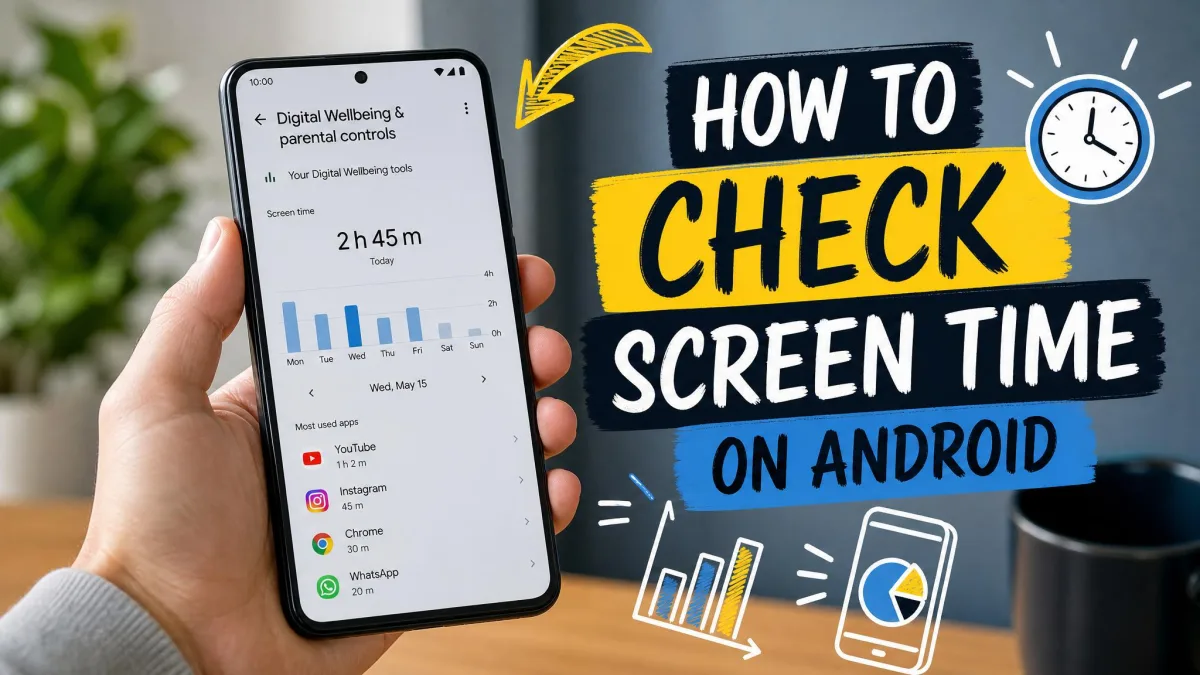
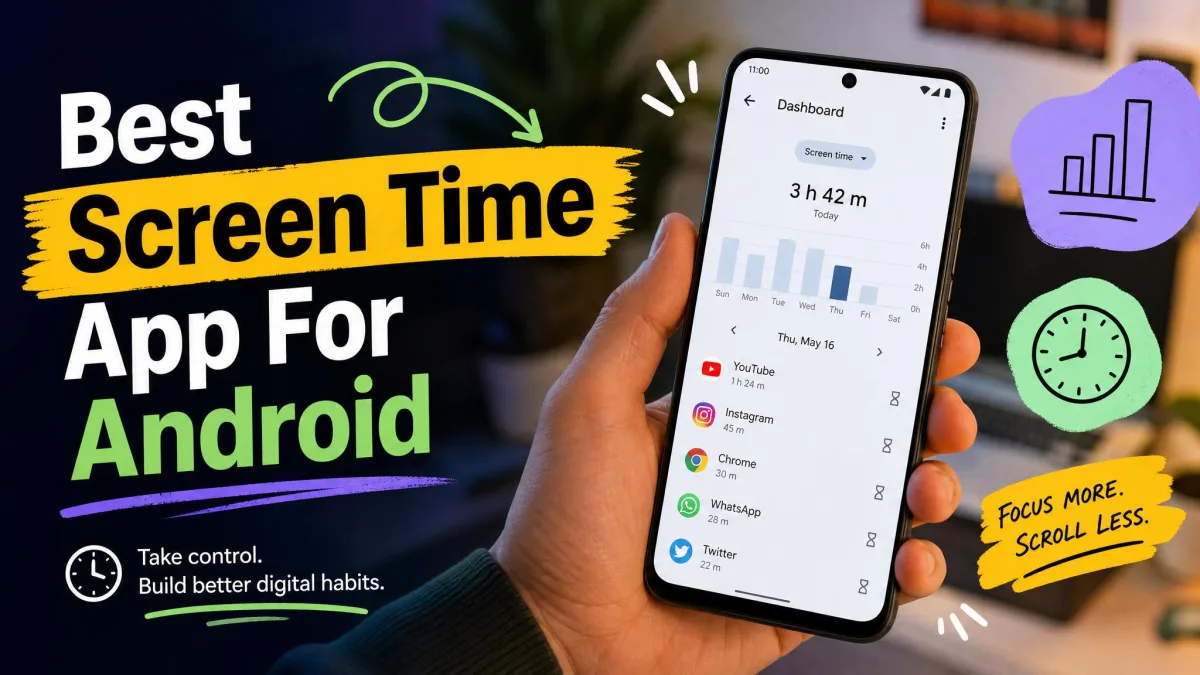
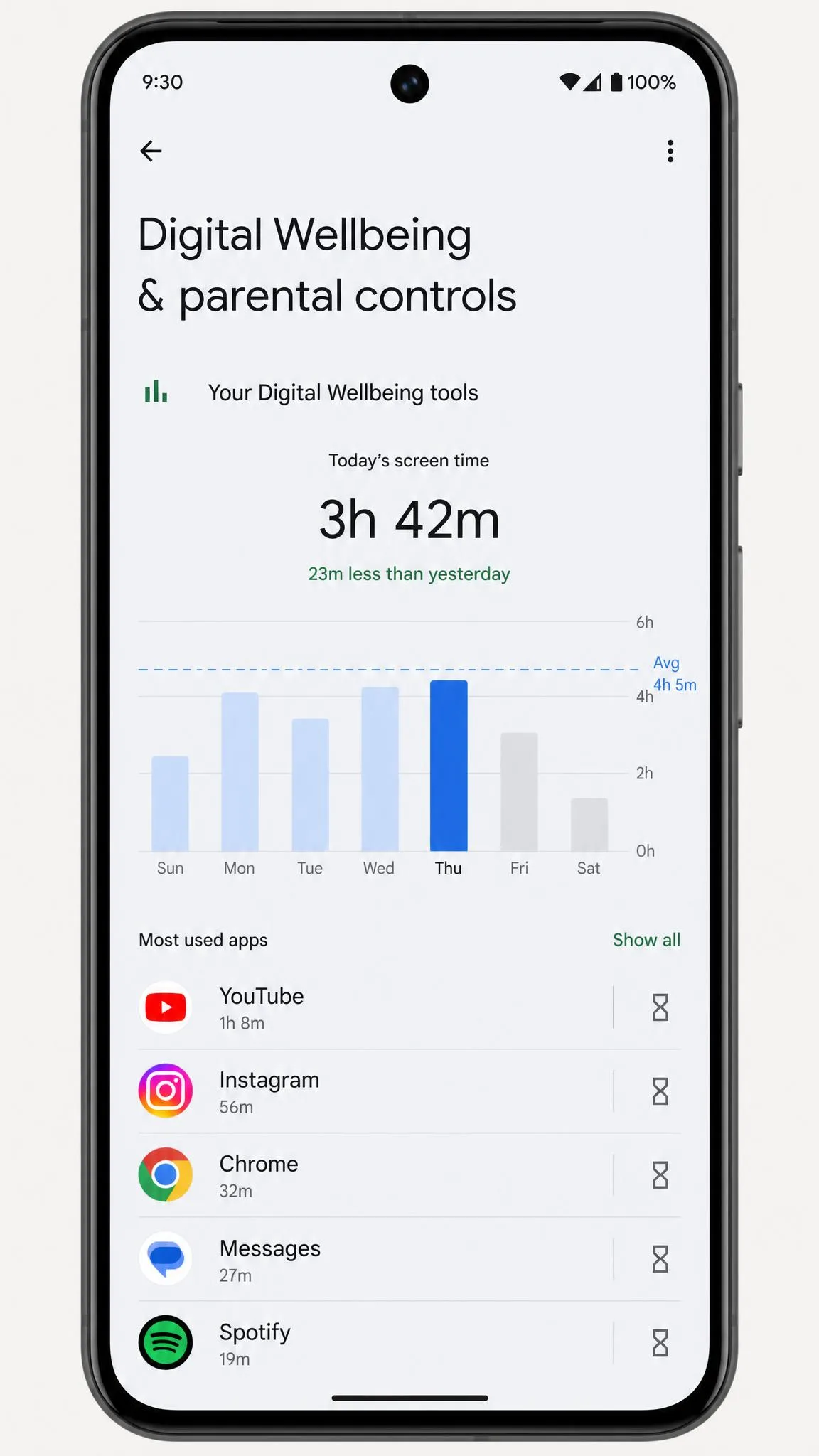
The dashboard shows today's device use and, below a bar graph, your most-used apps with screen time and notification counts.
How far back you can scroll depends on the phone. Stock Android and Pixel keep roughly two weeks of usage history, while Samsung retains exactly one week.
Check Usage for an Individual App
Tap any app for a detail view with screen time, times opened, and notifications per day.
View App Usage History (Daily and Weekly Views)
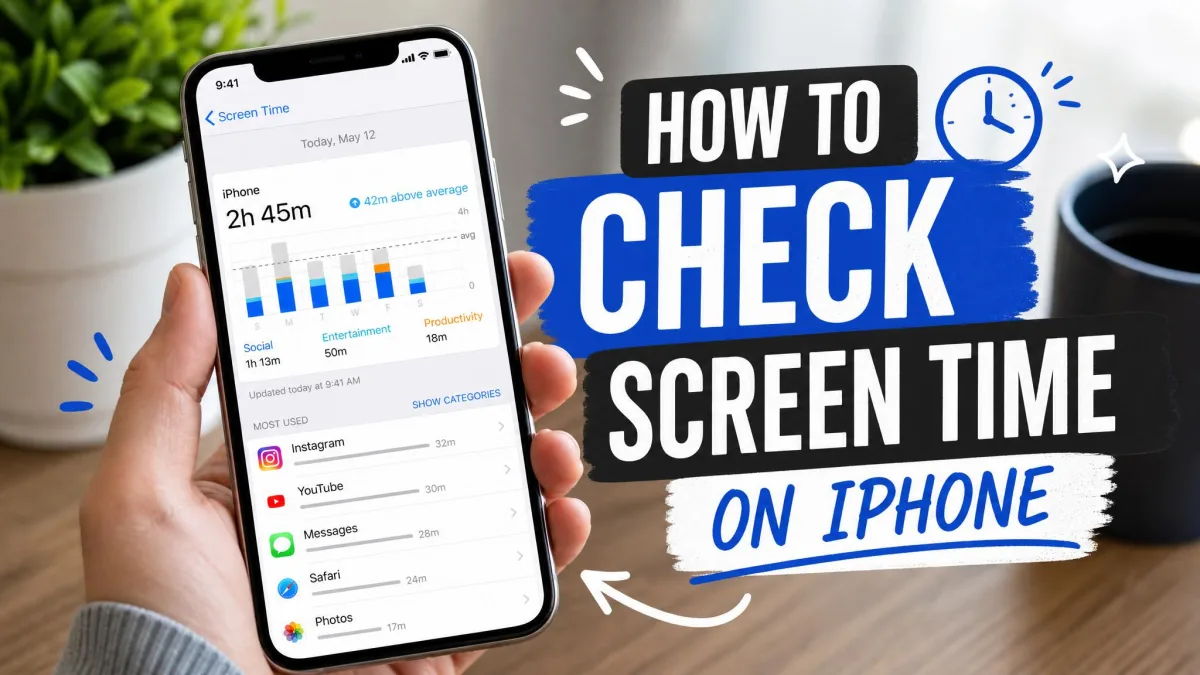
Android doesn't offer a Today, Yesterday, 7-day, or 14-day switcher like iPhone's Screen Time. The dashboard shows today's usage plus a weekly bar view with a daily average, and you can swipe back through earlier weeks.
Turn Digital Wellbeing off and it flushes its usage database within about 24 hours. Re-enabling restores only the last ten days, so keep it on if you want the record to survive.
How to Check App Usage on Specific Android Phones
Samsung Galaxy Phones
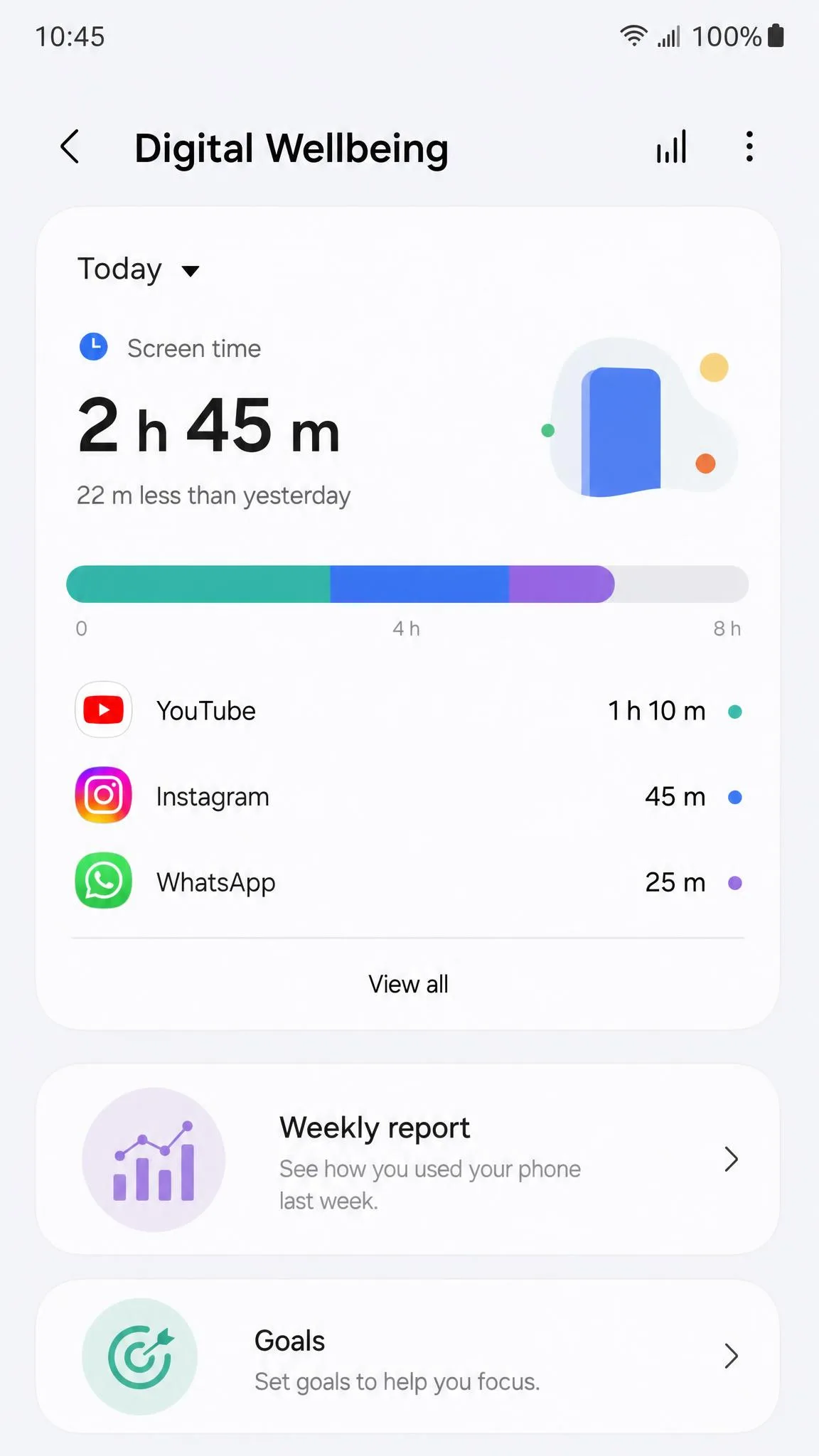
Samsung phones list this under Settings → Digital Wellbeing and parental controls, and it needs Android 10 or later. A Weekly report icon (four vertical lines) opens a summary with a daily average, and you can set a screen-time goal from the same screen.
Google Pixel Phones
On a Pixel, open Settings → Digital Wellbeing & parental controls and you'll land on a circle showing today's screen time, with your apps around it. Tap the center for the bar graph, and tap Show Info the first time so the labels make sense.
Xiaomi, OPPO, Realme, and OnePlus Phones
Xiaomi phones on MIUI keep the same path: open Settings → Digital Wellbeing & parental controls → Dashboard. On newer HyperOS builds, it's called Healthy device usage and adds per-app daily timers and weekly trend charts.
OPPO's ColorOS calls it Digital Wellbeing & parental controls (or Digital Wellbeing & Family Care). Open the Dashboard, tap Show all apps, then choose Timer on an app to lock it until midnight.
Realme and OnePlus use the same dashboard on Android 10 and newer. On OnePlus, if Digital Wellbeing isn't listed, you can gauge usage under Settings → Battery → App/Battery Usage.
How to Check App Battery Usage on Android
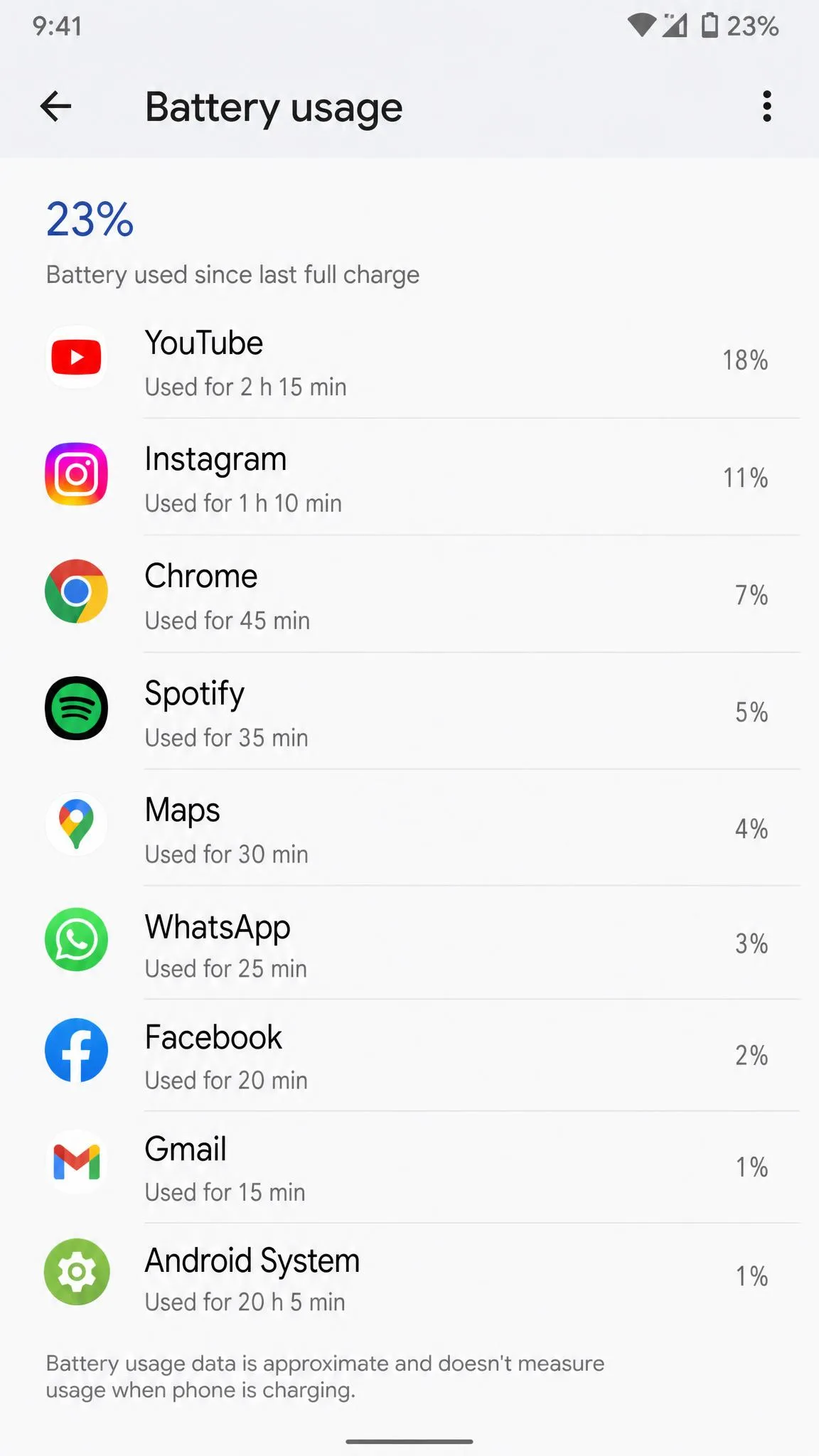
Battery usage is a different number from screen time. On most phones, open Settings → Battery, tap Battery usage, then View by apps. The percentage next to each app is its share of battery used since your last charge. Tap any app for screen time and background minutes. Samsung puts this under Settings → Battery and device care → Battery; Pixel uses Settings → Battery → Battery usage.
How to Check App Data Usage on Android
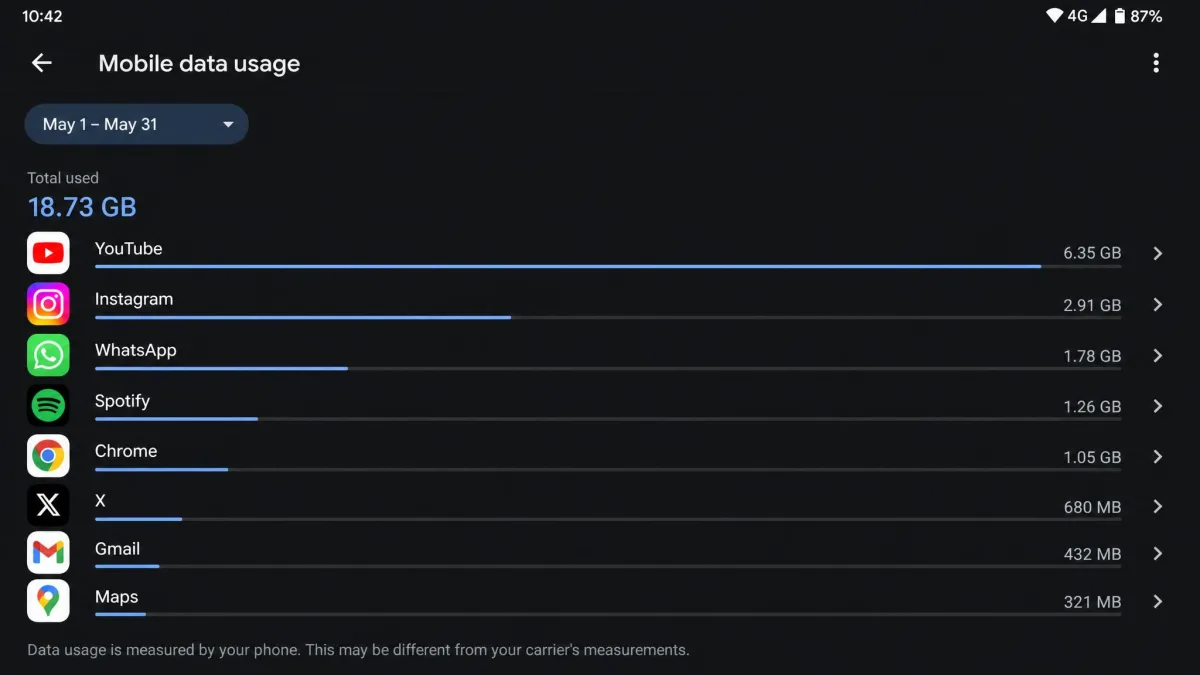
On most phones, open Settings → Network & Internet → Data usage → App data usage. On a Pixel, tap Settings → Network & Internet → SIMs → App data usage, with a dropdown to change the period. Samsung lists mobile data per app under Settings → Connections → Data usage → Mobile data usage. Tap any app to restrict background data.
How to View Your Full App Usage History (Google Play & Google My Activity)
The dashboard only goes as deep as its retention window, so two Google surfaces help for a longer view.
The Play Store adds a usage signal too. Tap your profile icon, then Manage apps & device → Manage → Installed, and sort by Most used or Least used. Apps you haven't touched in weeks drop to the bottom, a quick way to spot stale apps to uninstall. Some newer versions hide this sort.
For a record that reaches further back, Google My Activity shows Web & App Activity for apps that run Google services, like Search, Maps, and YouTube. It's not a complete log, but it covers far more than the dashboard's window.
How to Monitor App Usage with Third-Party Apps and Parental Controls
The built-in dashboard requires sitting down with the phone in hand, so parents often use a monitoring app instead.
ActionDash runs on Android 5.0 or newer, covering older phones where Digital Wellbeing isn't available. It tracks system app usage Digital Wellbeing can't see and adds a persistent notification with a countdown to your daily limit. Its early daily-comparison alerts were unreliable, so treat them as a rough guide.
AirDroid Parental Control runs on the parent phone while a companion app, AirDroid Kids, sits on the child's phone. It needs Accessibility and Device Administrator access, is free for a 3-day trial, then requires a subscription. Its Today's Event dashboard shows per-app time, notifications, and cellular data. After app updates, monitoring can stop until you re-grant the accessibility permission.
MoniMaster needs one-time physical access to the target phone, and setup runs 10 to 20 minutes. The monitoring is fragile: a skipped permission leaves parts of the dashboard stale, and phone updates can quietly stop data collection.
How to Set App Timers and Usage Limits to Curb Screen Time
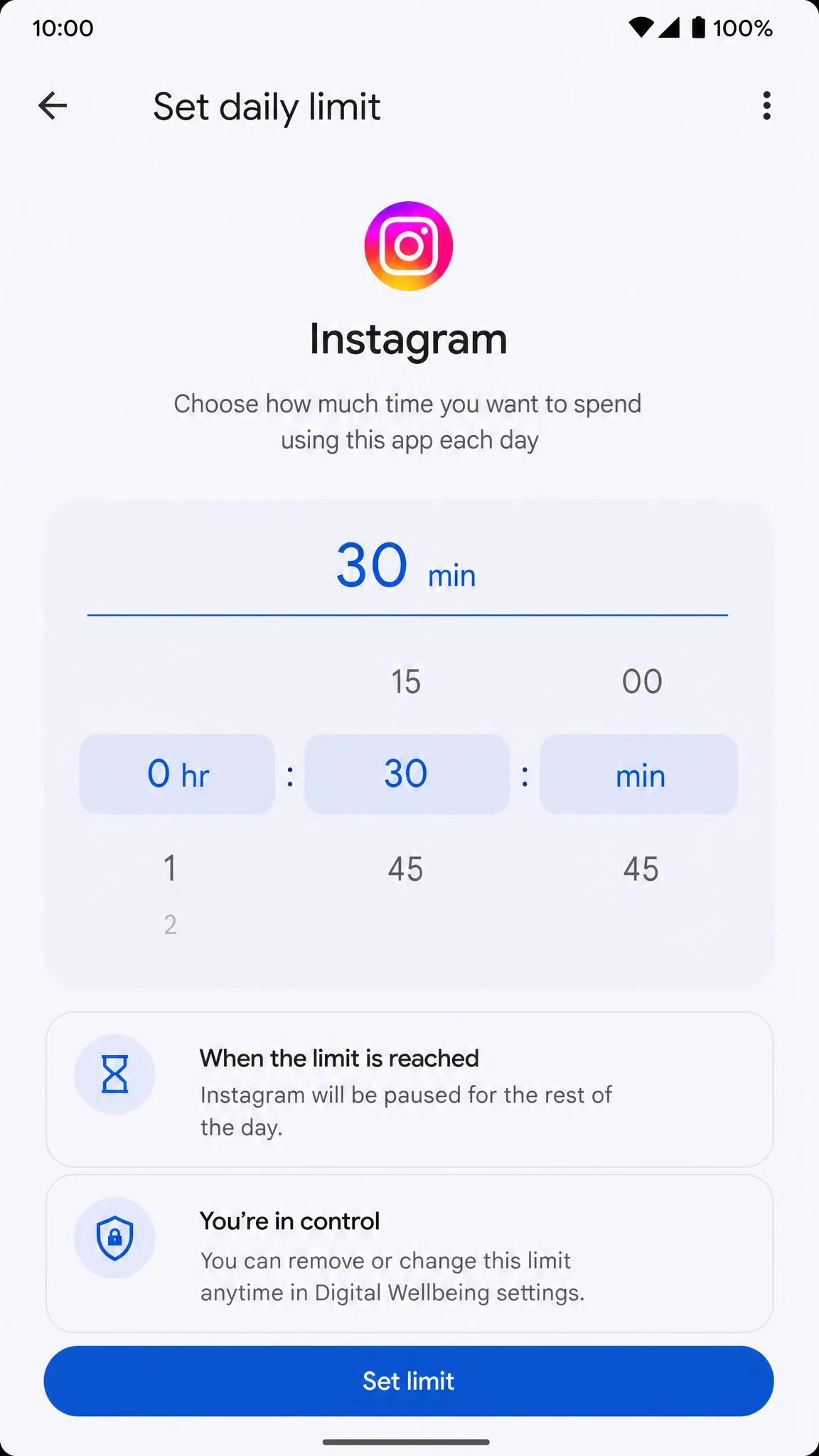
- Open Settings → Digital Wellbeing & parental controls → App timers.
- Tap Set timer.
- Pick a duration.
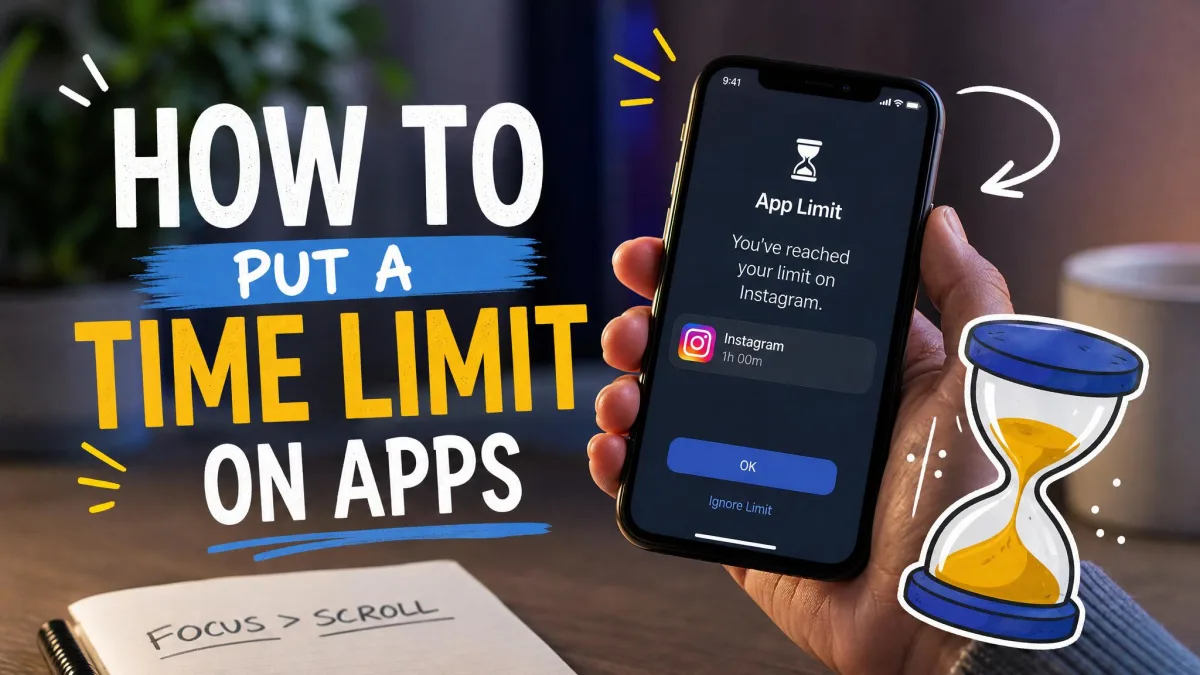
When the timer runs out, the app closes and its icon dims. Timers reset at midnight, and deleting the timer restores access before then. Add a 4-digit PIN so nobody changes your settings.
Set an app's limit to zero and Digital Wellbeing blocks it entirely, a simple way to park a distracting app.
On Samsung, the same controls sit under the same menu, alongside a screen-time goal.
Two quirks came up in our testing. There's no way to whitelist apps, so alarms, navigation, and music count toward your screen time. The limits are also easy to outsmart, since they count time but don't stop you from reopening an app. On Samsung, timers sometimes fail to reset, leaving an app blocked until you restart the phone.
Frequently Asked Questions
How far back does Android track app usage?
Does checking app usage drain battery?
Can I export app usage data?
Does uninstalling an app delete its usage history?
How accurate is Digital Wellbeing's tracking?
The Bottom Line
Digital Wellbeing is the answer for most people. It's free and built into Android since version 9, showing screen time, top apps, and history without installing anything. If you need to monitor a child's phone remotely, a parental-control app like AirDroid is worth the subscription, and app timers put a hard stop on the apps that eat your evenings.