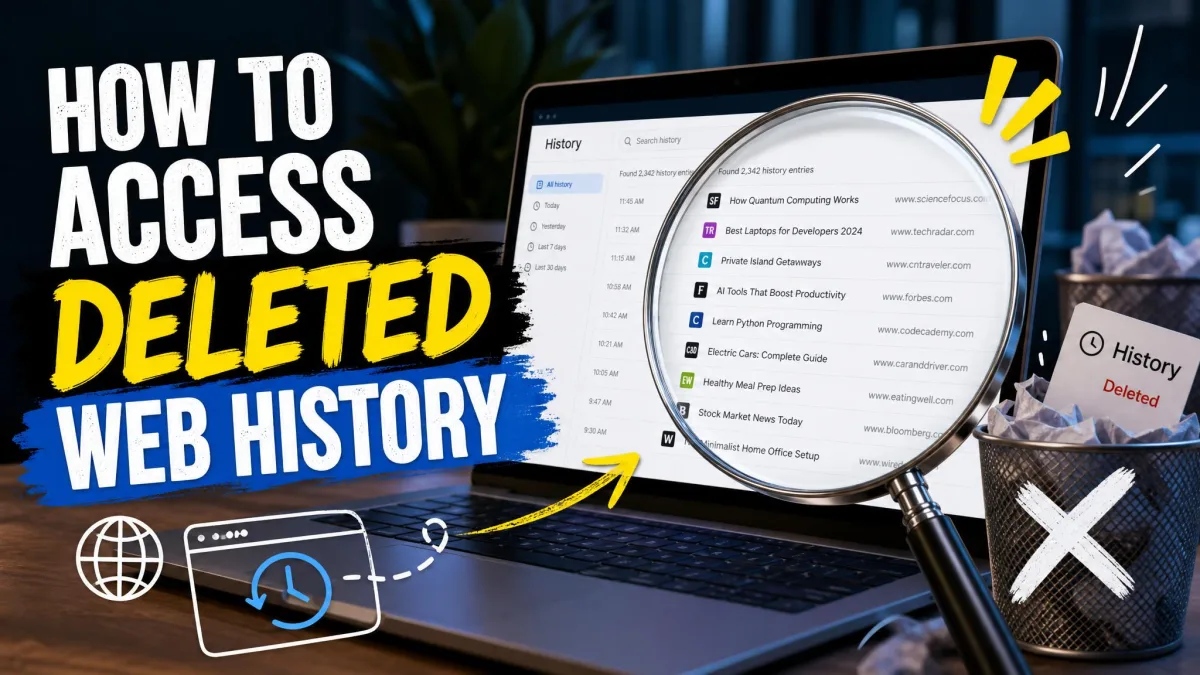
Browsing history is the running list your browser keeps of every page you open, stored on your computer as a small database file alongside your cookies, cache, and bookmarks. Clearing that list removes the entries you can see in the browser, but it rarely removes every trace of the browsing itself. Copies often survive in your Google or Microsoft account, on a second device that was syncing, in the Windows DNS cache, and in the deleted file still sitting on the disk.
So deleted web history is often recoverable, and sometimes it is genuinely gone. Which one you are dealing with depends on how you deleted it, whether you were signed in, and what you have done with the computer since.
Can you really recover deleted browsing history?
Usually, yes, at least in part. When you clear history, the browser removes rows from a local database. It does not scrub your Google account, your Microsoft account, the copy sitting on your phone, or the operating system's own network records.
Even the local file is not immediately destroyed. Windows marks the disk space as free and moves on, which is why data recovery software can often pull the old database back if you act quickly.
What you cannot recover is anything that was never written down. That is the whole point of private browsing, and the one case where the answer really is no.
Incognito and private windows do not write to the history database at all, so none of the file-level methods below will return anything. If the browsing you are looking for happened in a private window, skip to the incognito section rather than spending an hour on a deep scan.
Which recovery method should you try first?
Work from the easiest and highest-yield method down. Account-based recovery is the best first move, because if sync was switched on before the deletion, your history is still sitting in your account even though the browser's own history page looks empty. Note the "works after a reboot" column, because one method disappears the moment you restart.
| Method | Works after a reboot? | Needs a signed-in account or sync? | Difficulty | What it actually recovers |
|---|---|---|---|---|
| 1. Google My Activity or Microsoft privacy dashboard | Yes | Yes | Easy | Full URLs and search queries, back to the auto-delete window |
| 2. Browser sync on another device | Yes | Yes | Easy | Full history entries, subject to Chrome's 90 days display window |
| 3. DNS cache (ipconfig /displaydns) | No | No | Easy | Domain names only, no URLs or page titles |
| 4. System Restore or File History | Yes | No | Medium | The whole browser profile as of the restore point |
| 5. Data recovery software | Yes | No | Medium | The deleted History or places.sqlite database file |
| 6. Cookies and cached files | Yes | No | Easy | Domains and timestamps, not specific pages |
| 7. Router, network, or Registry logs | Yes | No | Hard | Domain-level records, including some private-session traffic |
We ran methods 1 through 6 ourselves on Windows 11 with Chrome, Edge, and Firefox profiles, plus an iPhone for the Safari steps. Method 7 we checked on a home router's log page only, since employer and ISP logs are not something a reader can query.
How browsers store history, and why recovery is often possible
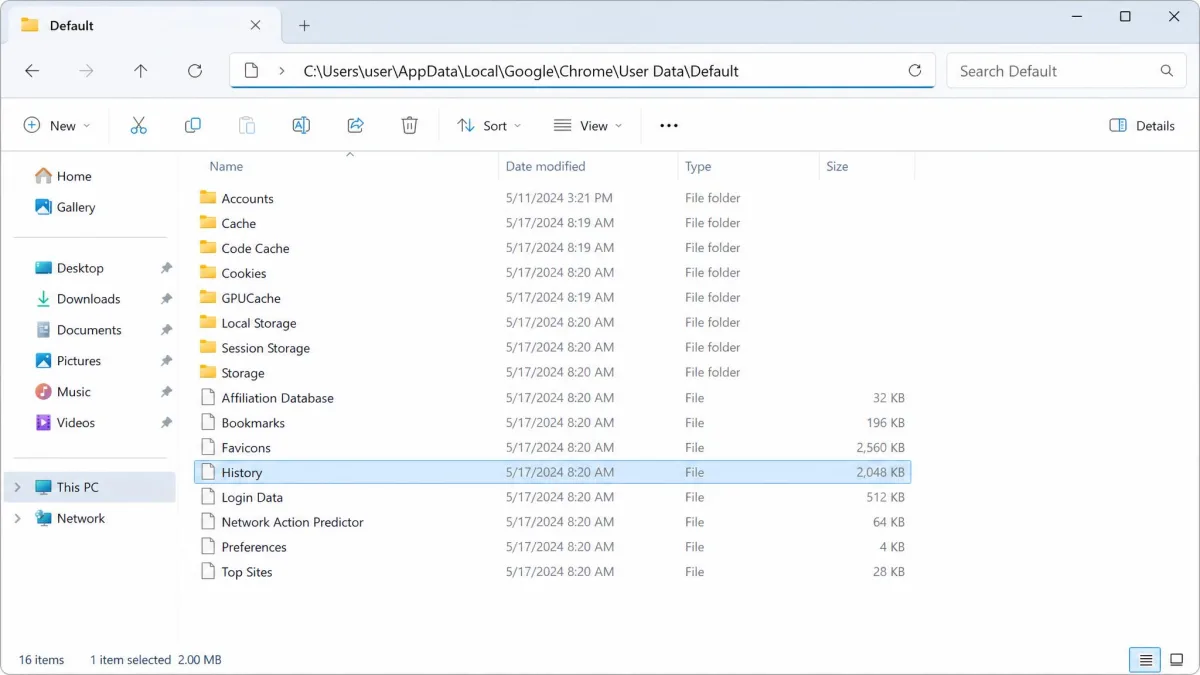
Chrome, Edge, and Firefox all store history in a SQLite database inside your user profile folder, identifiable by the "SQLite format 3" header. Chrome and Edge call the file History with no extension; Firefox calls it places.sqlite.
A single file is an easy thing for recovery software to find, and an easy thing to overwrite. That is why speed matters.
Method 1: Check your Google Account activity (My Activity)
If you browse Chrome while signed in with Web and App Activity turned on, your activity is recorded on Google's servers as well as locally. Clearing browsing data in Chrome does not necessarily remove the matching account entries, though that depends on whether the Chrome setting that also clears Google-side data was ticked when you deleted.
Chrome and Android: My Activity
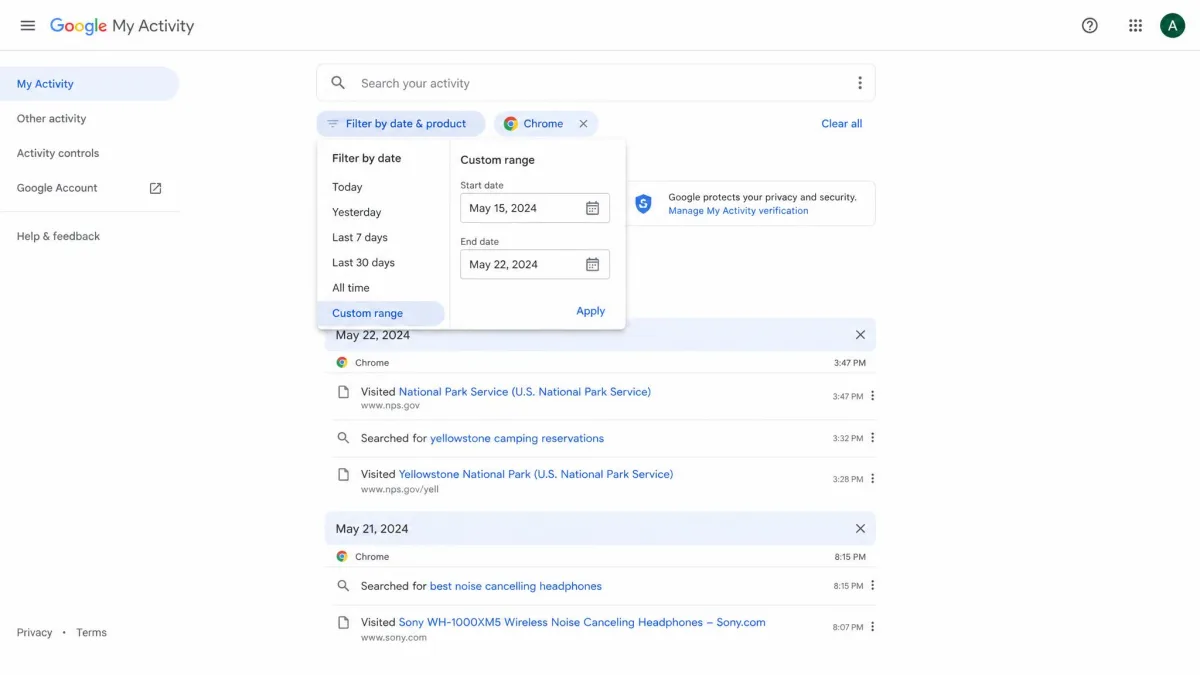
Open Google My Activity and sign in with the same account you browse under. Use the search box at the top to find a domain or a phrase you remember, or choose "Filter by date and product" and select Chrome to browse the timeline directly.
This is the only method that returns full URLs and your actual search queries, which is why we check it first. The limit is retention: auto-delete choices are 3, 18, or 36 months, and new accounts default to 18 months, so anything older is gone from the account side too.
Microsoft Edge: the Microsoft privacy dashboard
Edge users get the same thing in a different place. Open the Microsoft privacy dashboard, sign in, and open Browsing history to see what Edge uploaded.
Data deleted on the dashboard is not deleted from the device, and the reverse holds too. That split only covers data Edge actually uploaded, so what survives depends on which sync toggles were on. Microsoft's guide to viewing and deleting Edge browsing history explains which toggles do what.
Method 2: Restore history from browser sync on another device
If Chrome sync was on, a second signed-in device may still hold a copy that has not caught up with the deletion.
Disconnect that computer or phone from the internet before you open the browser, then open the history page and copy out what you need. Once it reconnects, sync propagates the deletion and the entries disappear.
Chrome's history page shows pages visited in the last 90 days, so treat that as your window. Chrome's official history and sync documentation explains how the sync store and the local list relate.
Method 3: Use the DNS cache (Command Prompt)
Every time you visit a site, Windows caches the domain lookup. That cache is separate from your browser, so clearing history leaves it untouched.
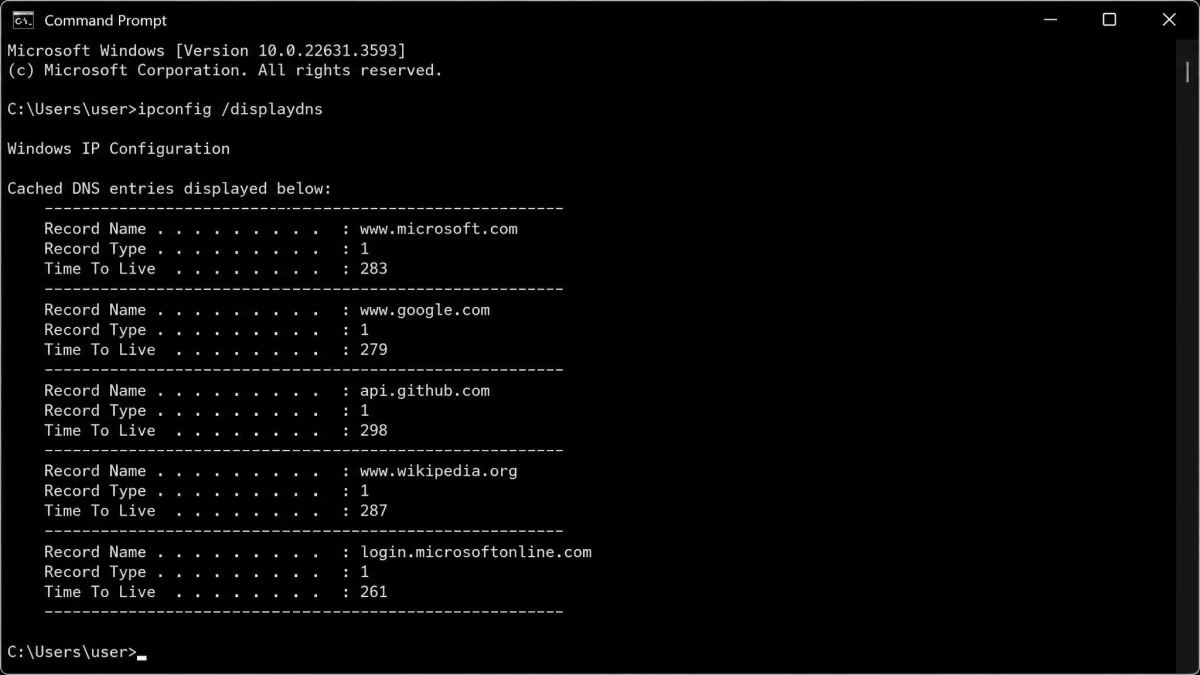
Press the Windows key, type cmd, open Command Prompt, and enter:
ipconfig /displaydnsYou get a long list of records, each with a record type, a TTL, and a resolved address. To make it readable, send it to a file with ipconfig /displaydns > %USERPROFILE%\Desktop\dns.txt and open that in Notepad.
Two honest limits. The cache stores domain names only, never full URLs or page titles, so you learn that you visited a site but not which page. And much of the list is background traffic from apps and updaters rather than pages anyone opened, so expect to filter.
Run this check before you restart the computer. Restarting Windows empties the resolver cache, and it also flushes periodically on its own, so a reboot is the difference between having this evidence and not having it. For the same reason, do not run flushdns while you are still looking.
Method 4: Roll back with Windows System Restore or File History
A restore point created before the deletion can bring the browser profile back with it. Open the Start menu, type "Create a restore point", click System Restore, and choose a point dated earlier than the clear.
This is the bluntest option in the set. It can return the profile, but it also reverses unrelated app installs and driver changes from the same period, and what a restore point contains varies by how the machine is configured, so the profile is not guaranteed to be inside it.
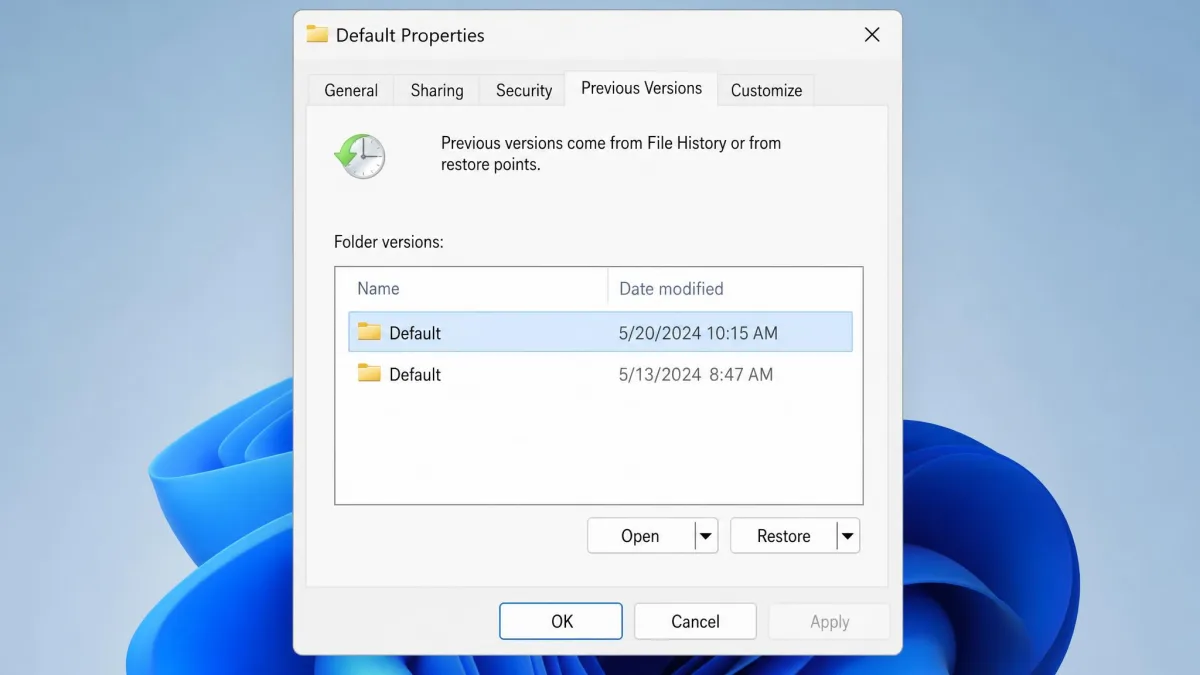
File History is gentler. Right-click the browser's Default folder and choose "Restore previous versions" to see snapshots of the History file. It only helps on computers where backup was already switched on, which is the usual reason this method comes up empty.
Method 5: Recover the browser History file with data recovery software
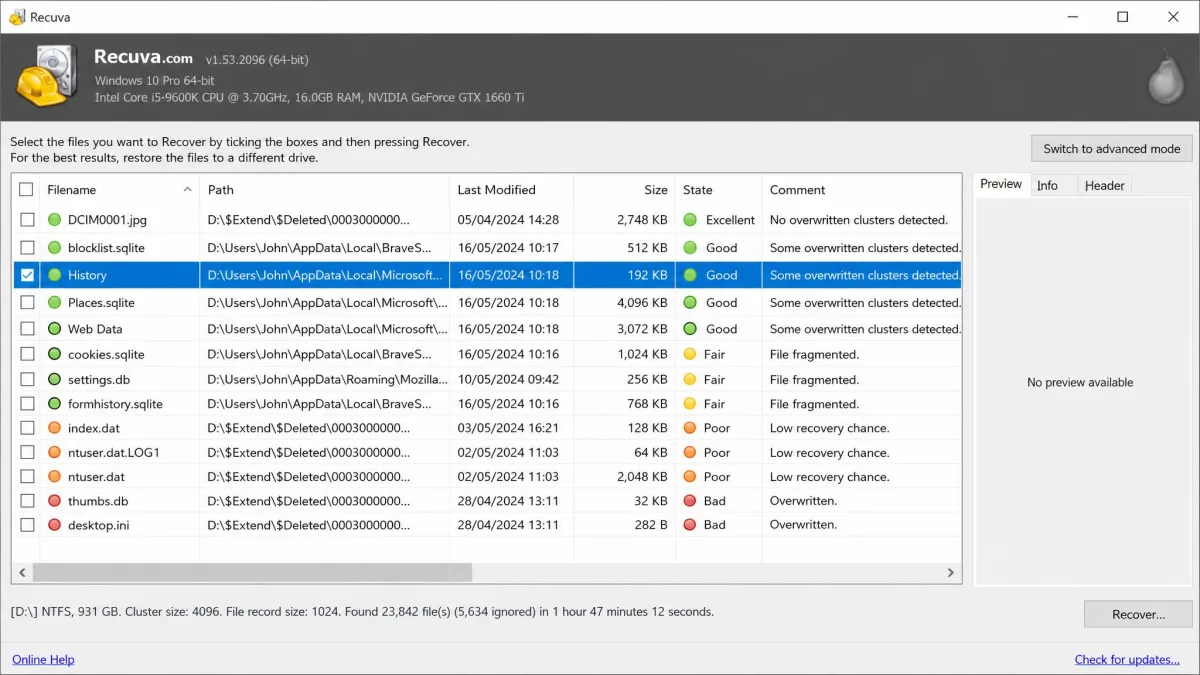
If the profile folder itself was deleted, a recovery tool can often find the database file and restore it. Recuva is the usual starting point: a 25MB download that installs in under a minute, with no recovery cap on the free build. Recuva Professional costs $24.95 per year, and that buys support and automatic updates, not better results.
Point the scan at the drive holding your profile, choose a deep scan, and search the results for .sqlite, .db, and .json files, plus the extensionless History file by name.
Stop writing to the drive before you scan. Continuing to use the computer after the deletion is the single biggest cause of failed recovery, because normal disk activity overwrites the freed blocks. Never install the recovery tool onto the drive you are recovering from, since the installer alone can destroy the file you are trying to get back.
Deep scans are slow enough to plan around, at over an hour for a 1TB drive and roughly half an hour for a 16GB USB stick, and Recuva cannot preview files until the scan finishes, so a wrong target costs the whole run. Its health rating is unreliable too: files flagged green sometimes open corrupted, and files flagged poor sometimes open fine, so recover the low-rated candidates anyway. It also cannot see drives that Disk Management reports as RAW or unallocated, which rules it out for a failing disk.
Where Chrome, Edge, and Firefox store their history files
Enter these into the File Explorer address bar, replacing <you> with your Windows username:
- Chrome:
AppData\Local\Google\Chrome\User Data\Default, file namedHistory - Edge:
AppData\Local\Microsoft\Edge\User Data\Default, file namedHistory - Firefox:
AppData\Roaming\Mozilla\Firefox\Profiles\<profile>, file namedplaces.sqlite
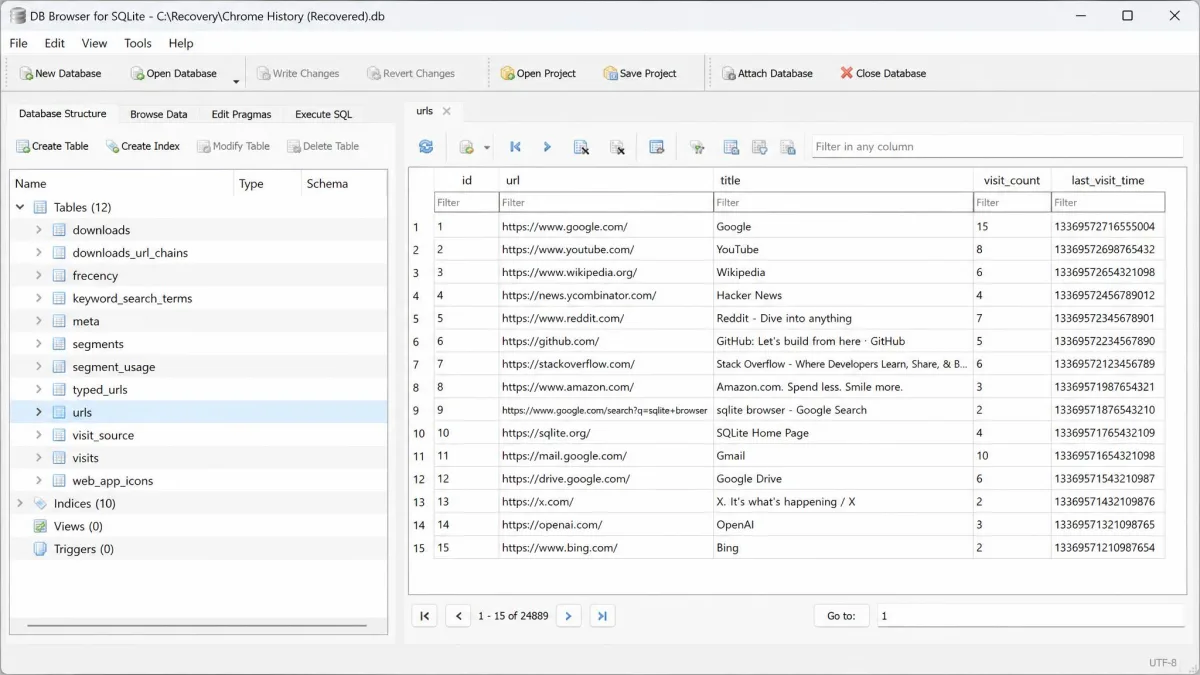
A recovered History file is unreadable on its own, and double-clicking it in Windows does nothing useful. Open it in DB Browser for SQLite instead and read the urls and visits tables. Firefox uses moz_places and moz_historyvisits for the same job.
Method 6: Read cookies and cached files for leftover traces
If you cleared history but left cookies and cache alone, the leftovers can still name the sites you visited. In Chrome, go to Settings, then Privacy and security, then Third-party cookies, and open "See all site data and permissions". Firefox keeps the same list under Settings, then Privacy and Security, then Manage Data, and Edge follows Chrome's layout closely.
What you get is domains and timestamps, not the specific page you want back. It narrows the search rather than ending it. Before any of this, check your bookmarks: they survive a history clear and are the fastest place to find a lost URL.
Method 7: Check router, network, or Windows Registry logs
Many home routers log the domains devices on the network requested. Sign in to the router's admin page, usually at 192.168.1.1, and look for System Log, Traffic Log, or Parental Controls. Coverage varies by model and most keep only a short window.
The Windows Registry method you will see elsewhere deserves a caveat. Registry keys such as TypedURLs reflect legacy Internet Explorer behavior, and we could not confirm that modern Chrome or Edge still populate them, so do not count on it.
Network-level records are also the reason "deleted" is relative. Your ISP, your employer's DNS resolver, and your school network can retain domain-level logs regardless of what you clear on the device, and those are not yours to query or erase.
How to access deleted history on a phone (iPhone and Android)
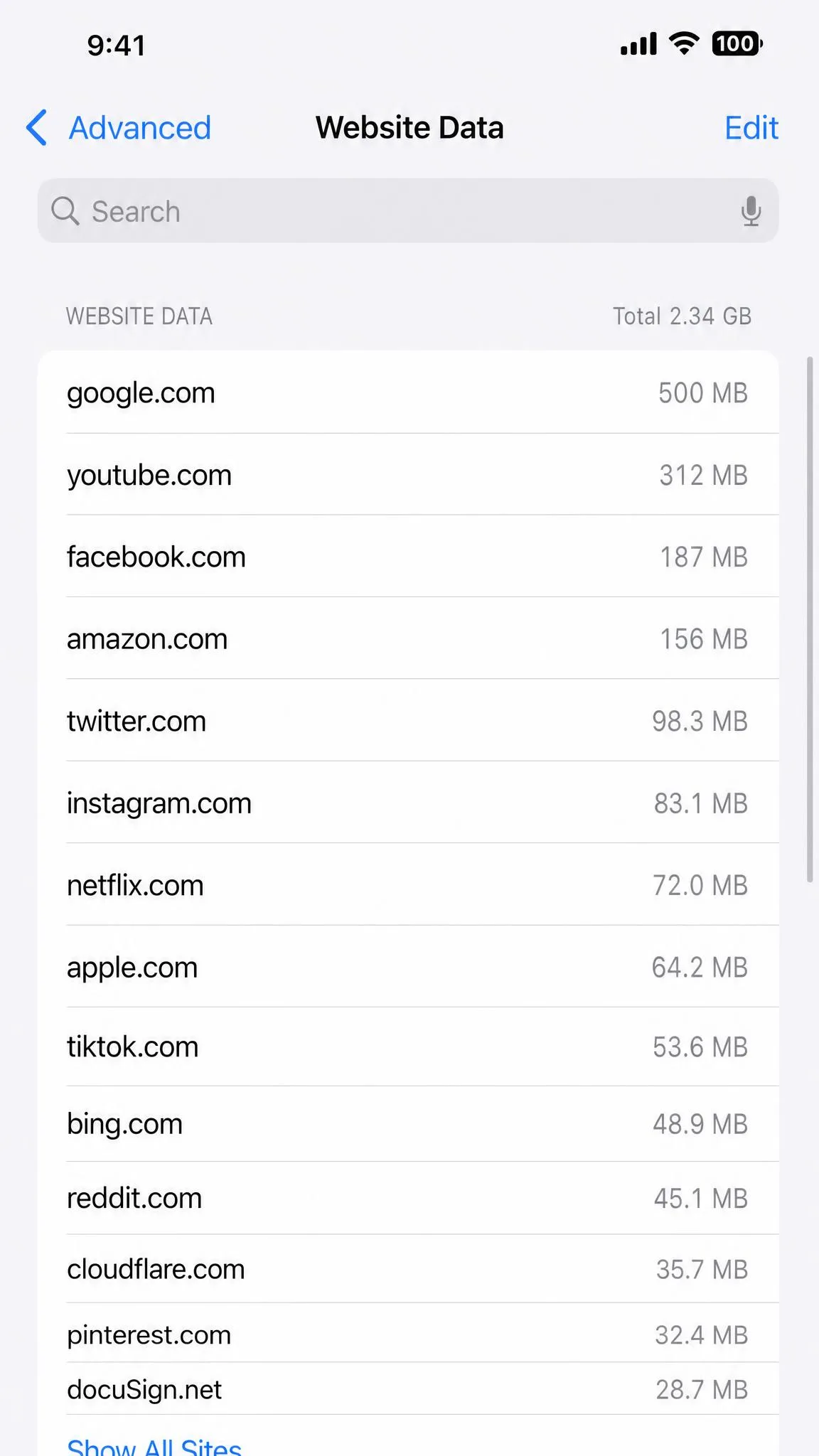
On iPhone, open Settings, tap Safari, tap Advanced, then Website Data. That list often still holds domains after a history clear, but only if cookies and cache were not cleared in the same pass.
You can also try re-enabling sync: go to Settings, tap your name, tap iCloud, and switch Safari back on. If a sync has already propagated the deletion this returns nothing, so the outcome depends on when the device last synced. Apple's Safari browsing-history documentation covers how the list behaves across devices.
The only reliable route is restoring an iCloud backup made before the deletion, and that requires erasing the phone first. On Android, use Google My Activity from Method 1, because we found no credible non-root way to recover deleted Chrome history from the phone's own storage.
What about incognito and private browsing?
Private sessions are never written to the history database, so every file-level method above returns nothing. There is no hidden local cache to restore and no deleted file to undelete.
Network records are the exception. Router logs, ISP logs, and workplace DNS resolvers can still show the domains visited during a private session, because the lookups happened regardless of what the browser saved.
If that is what you are after, our guide on how to check incognito history walks through what those records can and cannot show.
How to avoid losing your browsing history again
Turn on browser sync and keep a second device signed in. That single change moves you from hoping the file survived to simply opening the account page, and it is why Method 1 works so often. Check your Google auto-delete setting while you are there, since 18 months passes faster than you think and 36 months is available.
Turn on File History and point it at an external drive, so your browser profile is covered by an ordinary backup rather than by luck.
Then build the habit of bookmarking anything you might need again, because bookmarks are the one thing a history clear never touches.
Frequently asked questions
Can deleted history be recovered after a reboot?
Does incognito history exist anywhere?
Can my ISP or employer see deleted history?
Is deleted history recoverable on iPhone?
Is recovery software safe, and is any of it free?
Bottom line
Start with your account. Google My Activity and the Microsoft privacy dashboard recover more, faster, than anything you can do at the file level, and they are the only methods that give you full URLs back.
If the account route is empty, check the DNS cache before you restart, then work down through System Restore, File History, and recovery software. Each recovers a little less than the one before it.
And if the browsing happened in a private window, nothing was written down, so nothing can be read back.