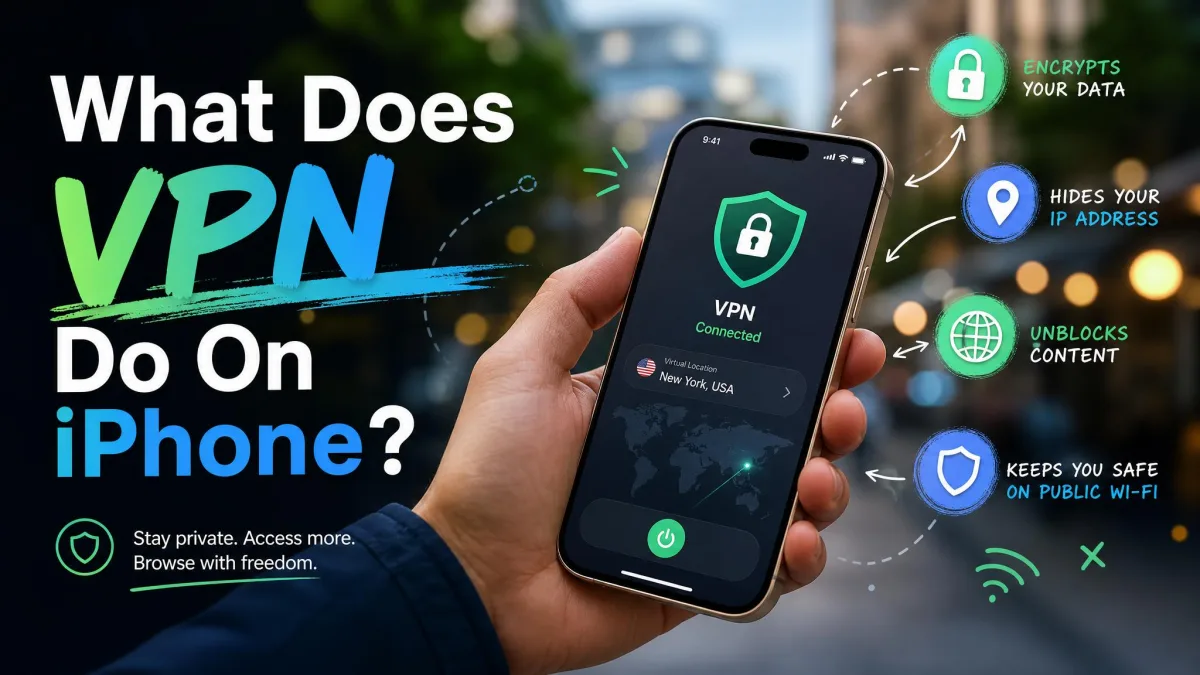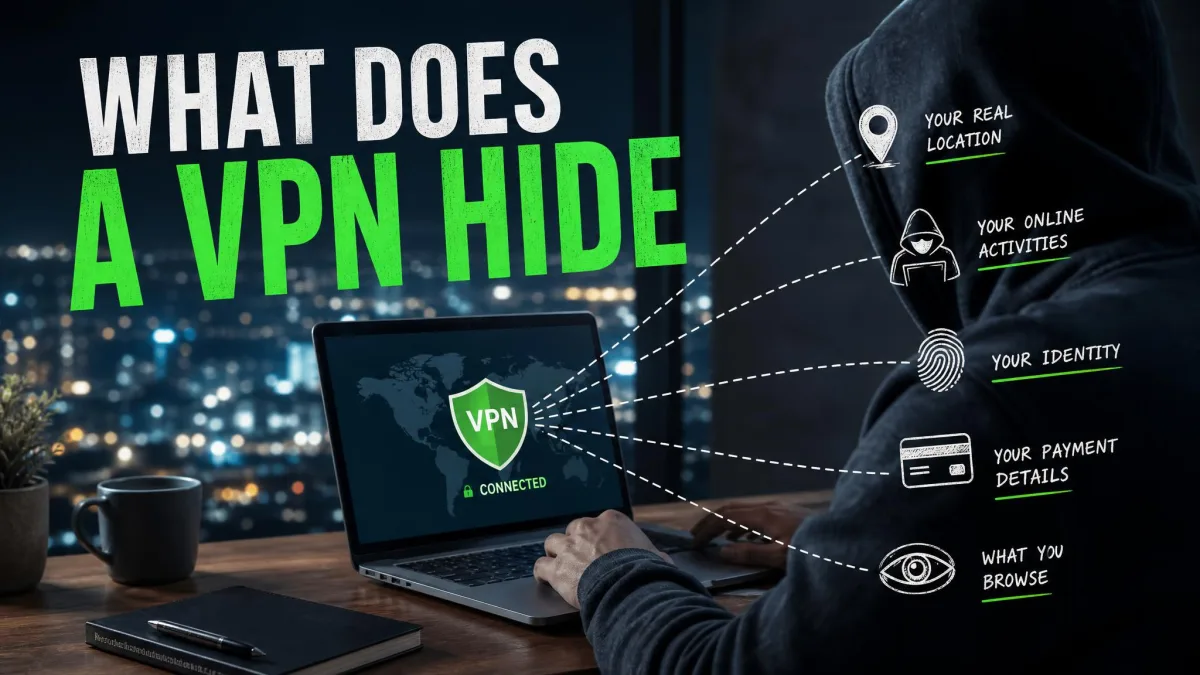
If you switch on a VPN expecting it to hide everything you do online, you're giving it more credit than it deserves. A VPN hides your real IP address, your IP-based location, and your browsing activity from your internet provider and whoever runs the Wi-Fi you're on. That's a genuine layer of privacy, but it isn't magic.
It doesn't hide what you do while logged in to an account, it doesn't stop cookies or browser fingerprinting, and it doesn't touch your phone's GPS. Without extra tools, it doesn't even hide the fact that you're using a VPN. Below, we break down what a VPN hides, who it hides it from and where the gaps are.
What a VPN hides:
- Your real IP address and IP-based location, from websites and apps
- The sites you visit, from your ISP, employer network or Wi-Fi owner
- Your downloads and torrent traffic, from your ISP
- The fact you use a VPN, but only with obfuscation
What a VPN doesn't hide:
- What you do while signed in to Google, Facebook or other accounts
- Cookies, trackers, your browser fingerprint and your GPS location
- Your VPN connection and how much data you use
- Your activity from a VPN provider that chooses to log it
What a VPN Hides
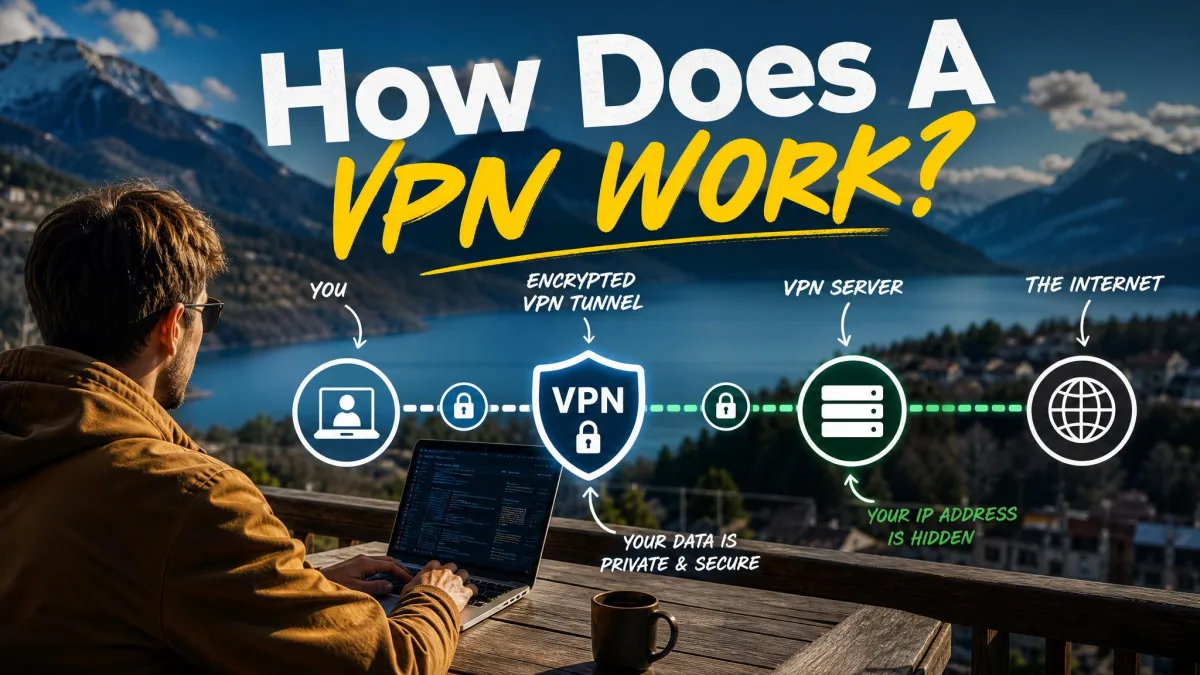
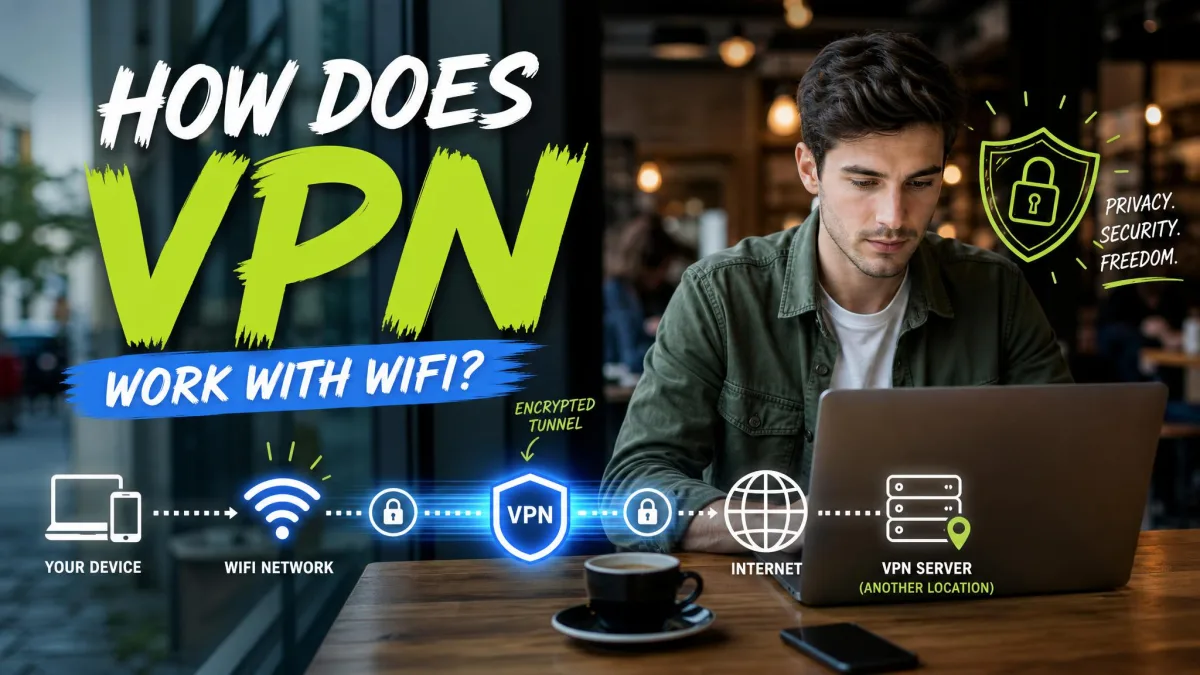
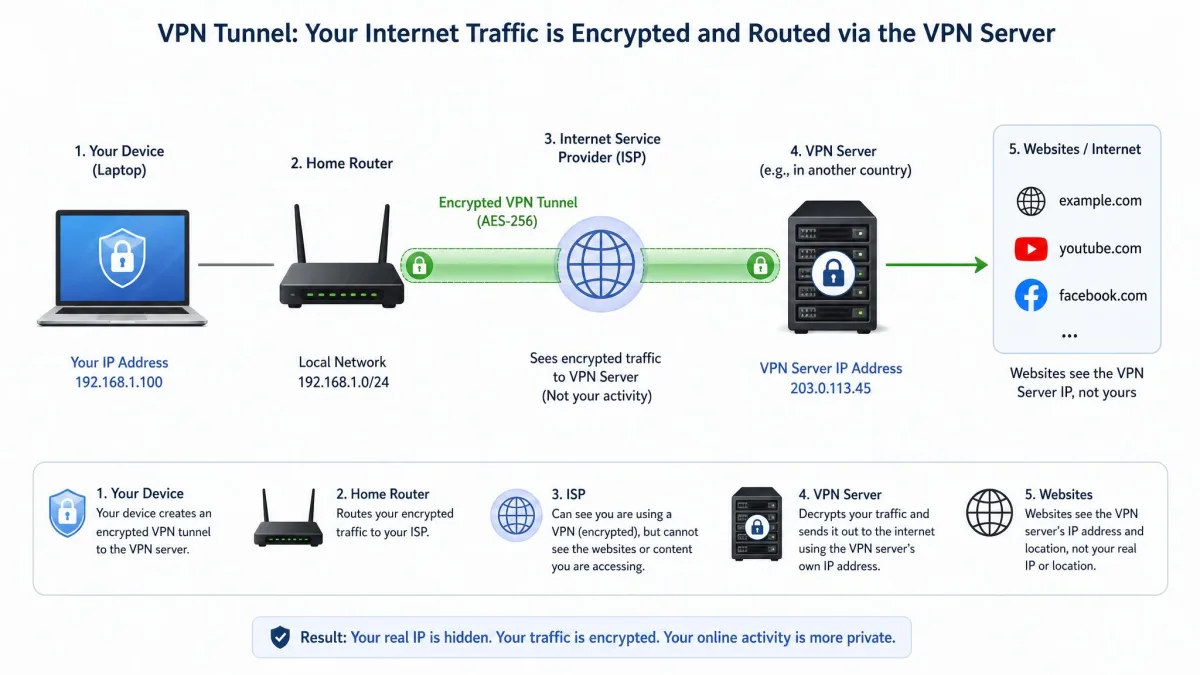
A VPN hides the contents and destinations of your traffic from everyone between your device and the VPN server. It wraps your connection in an encrypted tunnel, so your ISP, your router and anyone sniffing a café network see scrambled data headed to one address. Our explainer on how VPN encryption keeps your traffic unreadable covers the mechanics.
Your IP Address
A VPN swaps your real IP address for the server's, so websites and apps see the VPN's address instead of yours. Your IP address is the number your ISP assigns to your connection, and websites use it to tie visits to a household.
There's one catch. Your ISP still knows your real IP, because it assigned it, and the VPN provider sees it when you connect. The sites on the other end can't see it, but not every party in the chain is shut out.
Your Location (IP-Based)
Websites that guess your location from your IP see the VPN server's city instead of yours. Connect to a server in Amsterdam, and a streaming service treats you as a visitor from the Netherlands. This only covers location worked out from your IP. GPS is a separate system, and we cover that gap below.
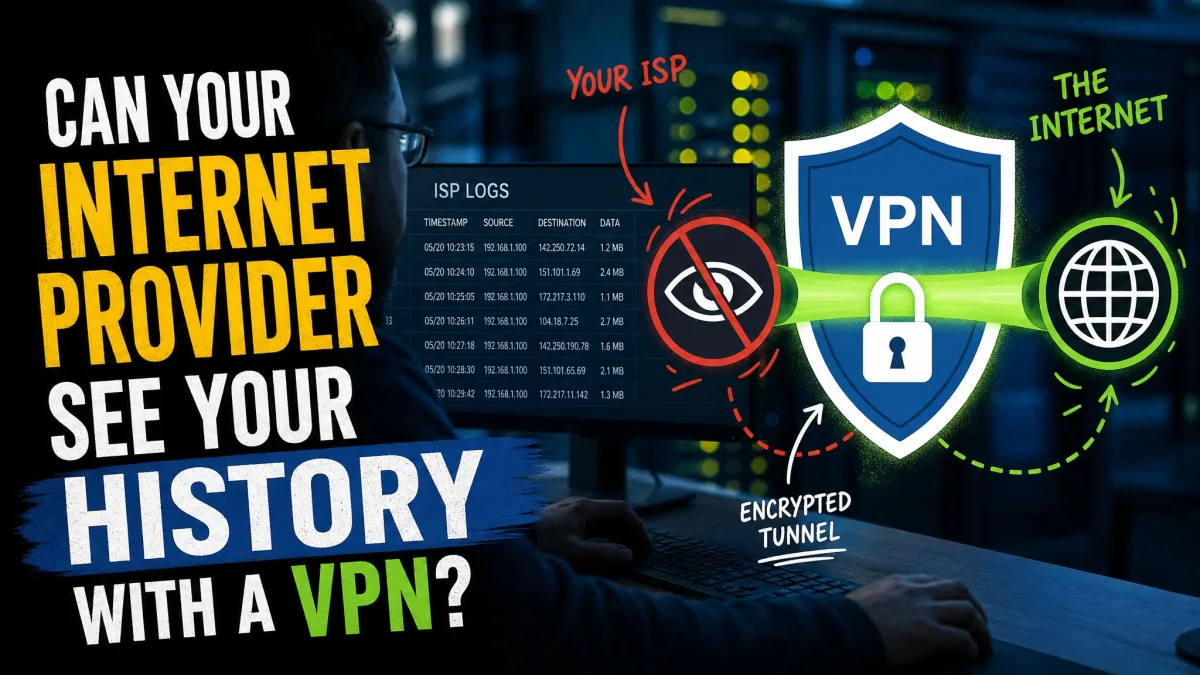
Your Browsing Activity From Your ISP
With a VPN on, your ISP can't see which sites you visit or what you search for. That matters, because an FTC staff report found many ISPs collect troves of personal data and combine browsing and app usage to target ads. The six providers it studied in 2021 covered about 98% of the US mobile internet market.
HTTPS already hides page content from your ISP: about 95% of Chrome page loads on Windows use it, and Chrome 154 turns on "Always Use Secure Connections" by default in October 2026. What HTTPS doesn't hide is the domain name and your DNS lookups (the requests that turn a site name into an address). A VPN hides those too. Our guide on whether your internet provider can see your history with a VPN goes deeper.
Your Traffic on Public Wi-Fi
On public Wi-Fi, a VPN hides your DNS requests, session cookies and data in transit from other people on the network and from whoever runs the hotspot. Whether you open your bank, your inbox or your social feeds, the router sees one encrypted stream headed to the VPN server. The router has no way to tell those sites apart.
Your Downloads and Torrenting
A VPN hides what you download, and the fact that you're using BitTorrent, from your ISP. Other peers in a swarm see the VPN's IP rather than yours. If you use qBittorrent, our walkthrough on binding your VPN to qBittorrent stops downloads from running outside the tunnel.
The Fact You're Using a VPN (With Obfuscation)
A standard VPN hides what you're doing, but not that you're using a VPN. Your ISP can tell a tunnel is in use even though it can't see inside it. Obfuscation, sometimes called stealth mode, makes the tunnel look like ordinary HTTPS traffic, which can help on networks that block VPNs. Our guide on how to make a VPN undetectable explains the options.
What a VPN Doesn't Hide
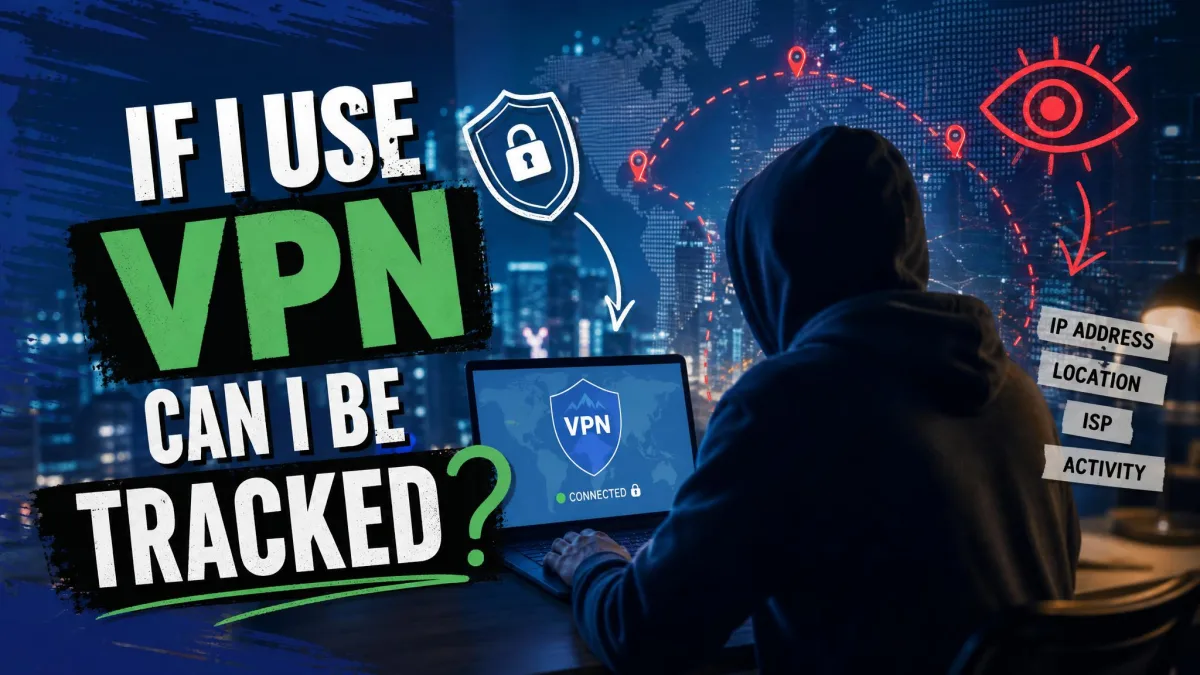
A VPN doesn't make you completely anonymous or invisible online. It changes your IP address and encrypts your connection, but much of your digital footprint travels through other channels. We look at those in our piece on whether you can be tracked when you use a VPN.
Your Activity When You're Logged In
Once you're signed in to Google, Facebook or Netflix, those services recognize you by your account, not your IP. The VPN changes nothing about what that account records. Your Google searches, your YouTube watch history and your Facebook likes attach to your profile regardless of which server you use.
Cookies, Trackers, and Browser Fingerprinting
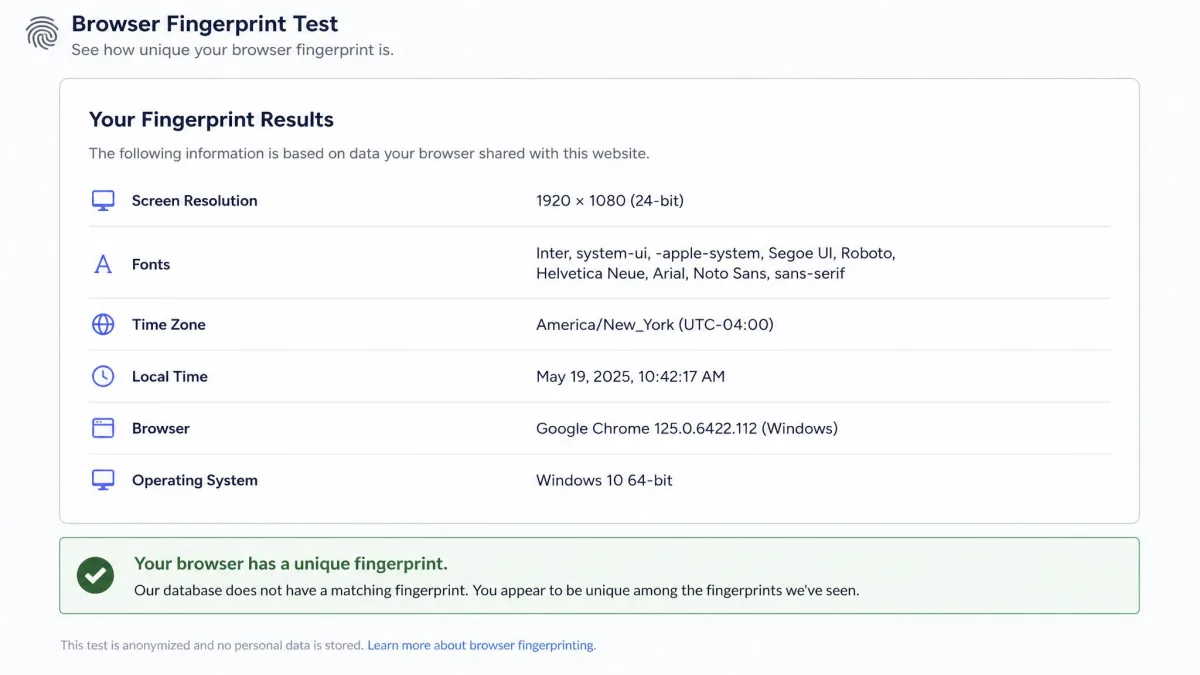
Advertisers keep recognizing a browser behind a VPN through stored cookies and fingerprint details. Cookies are small files sites save on your device. Fingerprinting is different: a site reads details like your screen size, fonts and browser version, and combines them into an identifier without any cookies.
That identifier is surprisingly unique. EFF's 2010 Panopticlick study of around half a million browsers found 84% had unique configurations, rising to 94% among browsers with Flash or Java. EFF relaunched the tool in 2020, and the EFF's Cover Your Tracks test shows how unique your browser fingerprint is. Clearing cookies or using a tracker blocker matters as much as the IP swap.
Your GPS Location
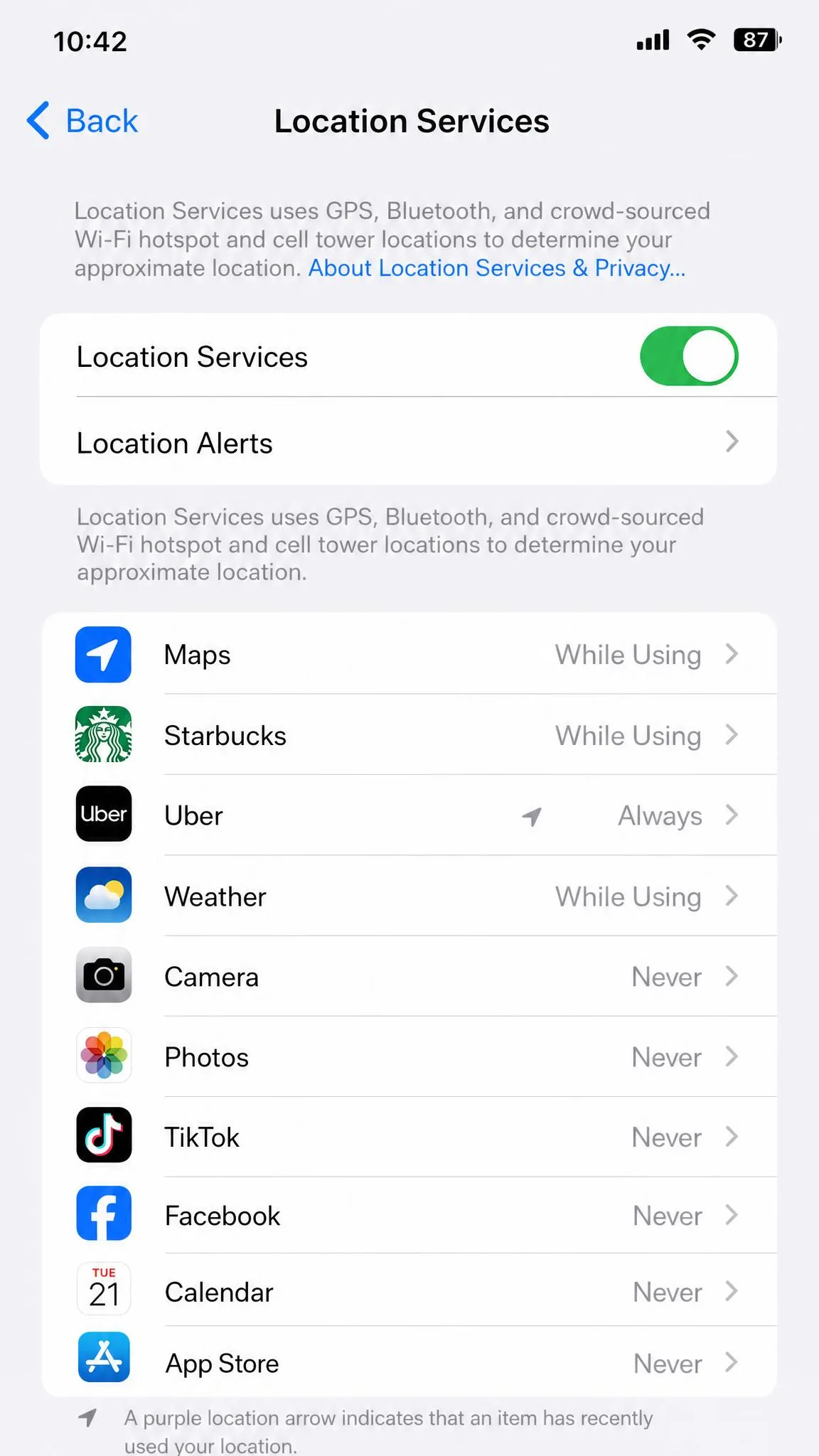
A VPN doesn't hide your GPS location. If you accept a browser's location prompt, you hand over your real position even with the VPN on, because HTML5 geolocation uses GPS and Wi-Fi rather than your IP. Apps with location permission read GPS directly.
Most VPNs don't try to spoof GPS. A few have added a location override on some platforms, but these add-ons come and go. The reliable fix is to deny location access to anything that doesn't need it.
Your VPN Connection and Data Usage
Your ISP and router can still see that you're connected to a VPN server, how much data you use, and when each session starts and ends. The home router sees one steady encrypted connection to a single server IP, just not the sites inside it. Carriers also count every megabyte, and the tunnel's overhead adds roughly 5 to 15% on top, depending on the protocol and what you're doing.
Data You Share With Sites and Apps
Anything you type into a form, post publicly or grant an app permission to read is outside the VPN's reach. Whatever you share, such as your name, email and payment details, goes to the service directly. A VPN can protect data on the way there, not after it arrives.
Your Activity From the VPN Provider
A VPN shifts trust from your ISP to the VPN provider, which sees your real IP and, if it chooses to log, where your traffic goes. That's why the no-logs policy matters more than any feature list.
Real-world cases show which policies hold. When Swedish police raided Mullvad in 2023, they left with no customer data, because none existed. Windscribe faced a Greek court case in 2025 where authorities found only billing data, and an ExpressVPN server seized in Turkey in 2017 produced nothing usable. Others failed: PureVPN handed connection timestamps and IP addresses to the FBI in 2017, and IPVanish produced user-specific logs in a 2016 case. Connection logs alone can identify you as well as browsing history can, so a "no activity logs" claim that still keeps them falls short.
Leaks That Can Expose You Anyway
A leak lets part of your traffic slip outside the tunnel, exposing your real IP or browsing even while the VPN shows as connected. Badly built apps leak most: a 2016 CSIRO Data61, UNSW and UC Berkeley study of 283 Android VPN apps found 18% didn't encrypt traffic at all and 38% contained some kind of malware.
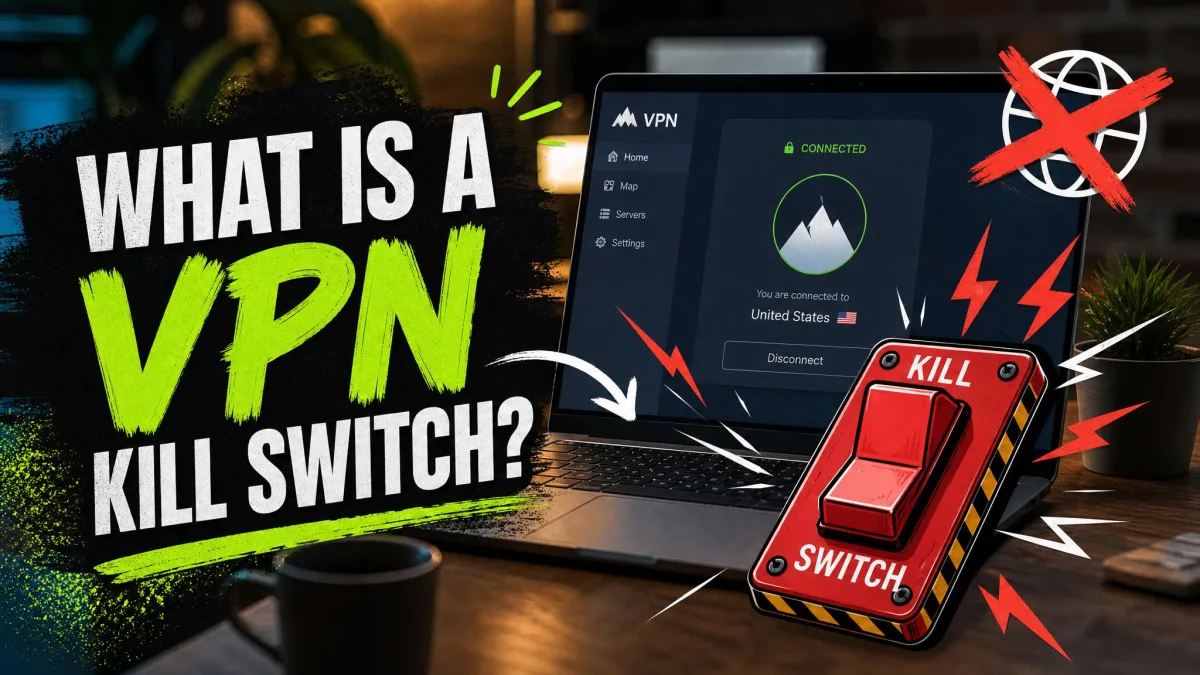
A VPN is not anonymity. If the connection drops without a kill switch, your traffic falls back to your normal connection and your real IP is exposed until you notice. Our explainer on what a VPN kill switch does shows why it should always be on.
DNS Leaks
A DNS leak sends your site lookups to your ISP's servers instead of the VPN's, so your ISP sees every domain you visit. In the same study, 66% of the apps leaked DNS queries. Windows is a common culprit: starting with Windows 8, Smart Multi-Homed Name Resolution sends DNS requests over all available adapters. See our explainer on what a DNS leak is for the background.
WebRTC Leaks
A WebRTC leak exposes your real IP through your browser rather than the VPN app. WebRTC is the browser feature behind video calls, and it can discover your ISP-assigned address, which any script on the page can read. Firefox, Chrome, Opera and Edge enable it by default. Our guide on what a WebRTC leak is covers each browser.
IPv6 Leaks
An IPv6 leak happens when your VPN tunnels older IPv4 traffic but lets IPv6 requests go out directly. The CSIRO researchers found 84% of those 283 apps leaked IPv6 traffic. Some providers route IPv6 through the tunnel or block it, while others ignore it.
Who Can See What With a VPN On
Here's how visibility breaks down across the parties who might be watching, assuming your VPN isn't leaking.
| Data | ISP | Websites | Network admin or employer | Hackers on public Wi-Fi | VPN provider |
|---|---|---|---|---|---|
| IP address | Visible (it assigned it) | Hidden, sees VPN IP | Visible on local network | Hidden | Visible |
| Sites visited | Hidden | Only its own site | Hidden | Hidden | Visible unless no-logs |
| Page content | Hidden | Its own pages | Hidden | Hidden | Hidden on HTTPS sites |
| DNS lookups | Hidden unless leaking | Not applicable | Hidden unless leaking | Hidden | Visible if it runs DNS |
| Logged-in activity | Hidden | Visible | Hidden | Hidden | Hidden on HTTPS sites |
| GPS location | Not via VPN traffic | Visible if you allow it | Hidden | Hidden | Hidden |
| VPN use | Visible, hidden with obfuscation | Often detectable | Visible, hidden with obfuscation | Visible | Visible |
| Data usage | Visible | Only its own traffic | Visible | Visible | Visible |
One caution on the employer column: it covers the network only. On a company-managed laptop or phone, monitoring software can end up seeing your activity before it ever enters the tunnel.
How to Check Your VPN Is Hiding What It Should
You can check your VPN in a few minutes with free tools, and it's the first check we run on any VPN before we trust it. Our full guide on how to test for DNS leaks walks through each site in detail.
Start with your IP. Run a what's-my-IP check with the VPN connected, and the page should show the VPN server's address. If it shows the same address as with the VPN off, the tunnel isn't working.
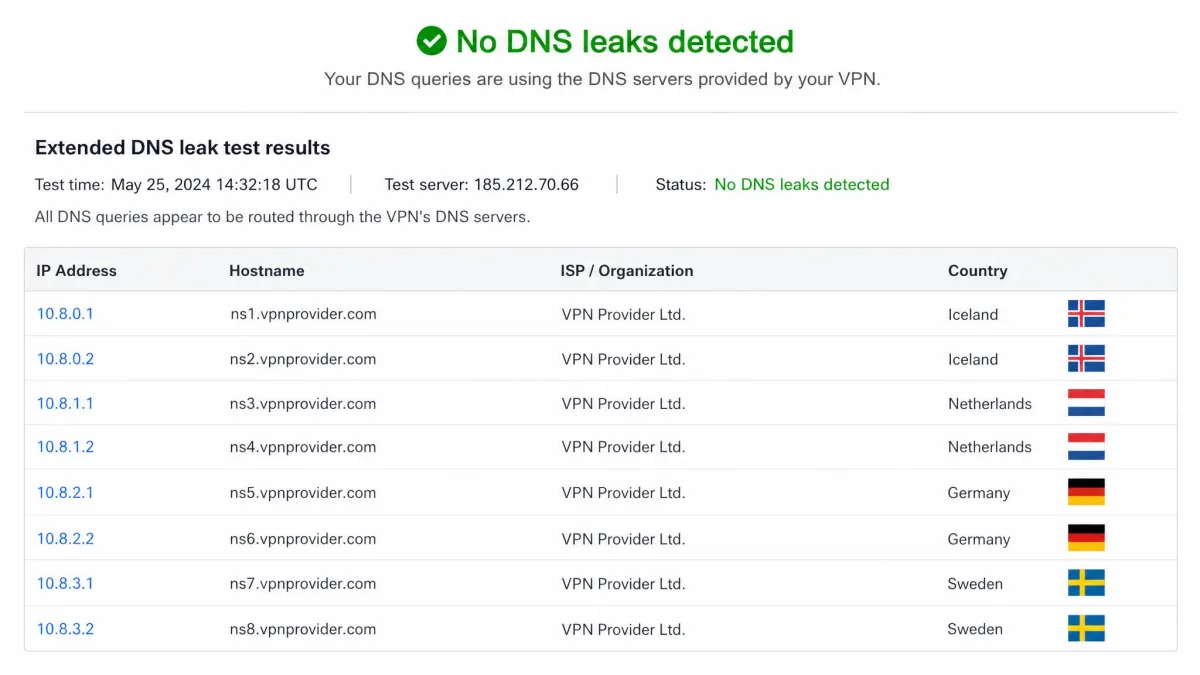
DNS is where most problems surface. Our quickest tell is to run a DNS leak test with the VPN off and then on: if the same ISP DNS servers appear both times, your lookups are leaking. We always follow up with the extended test on dnsleaktest.com, because it catches resolvers the standard test can miss. A clean result lists only servers owned by the VPN provider, and in our experience leaks show up more often on Windows PCs.
Then check WebRTC. A WebRTC leak test can show your real ISP-assigned IP even while a normal IP check shows the VPN's, so one IP check isn't enough. Most VPN browser extensions don't stop WebRTC leaks on their own; the full desktop app or a browser setting does. Reputable paid VPNs generally pass, while failures cluster in free and poorly built apps.
Finally, look for IPv6. On ipleak.net, a leak shows up as your real IPv6 address while the IPv4 line shows the VPN server. Disabling IPv6 in your network adapter settings makes that leak impossible.
If a leak test fails, turn on the app's DNS leak protection and kill switch, switch protocol, or do a clean reinstall. For WebRTC, open uBlock Origin's settings and tick "Prevent WebRTC from leaking local IP addresses", which is off in most default installs.
Switching WebRTC off entirely also stops the leak, but it breaks browser video calls and screen sharing in Google Meet, Teams, Discord and Zoom's web client. If you don't need browser calls, open about:config in Firefox and set media.peerconnection.enabled to false.
How to Choose a VPN That Keeps Things Private
The right VPN for privacy has an audited no-logs policy, a privacy-friendly jurisdiction, a kill switch, built-in leak protection and obfuscation.
- Independently audited no-logs policy. Look for recent third-party audits and, ideally, a raid or court order that tested it.
- Jurisdiction. A provider based somewhere without mandatory logging, such as Switzerland, faces less legal pressure to keep records.
- Kill switch. It blocks all traffic if the tunnel drops, so your real IP never slips out.
- Leak protection. The app should use its own DNS servers and route or block IPv6.
- Obfuscation and anonymous sign-up. Stealth mode helps on restrictive networks, and the less you hand over at checkout, the less links back to you.
Our roundup of the best VPNs for privacy ranks the options. If you want one name, Mullvad ticks every box above. You sign up with an account number and no email, it accepts cash and Monero, and it's based in Sweden. Cure53 gave its 2024 infrastructure audit a "very positive" verdict, and a 2025 pen test by Assured Security Consultants found no critical, high or medium issues. It costs €5 per month at a flat rate, with a 14-day refund window (except cash payments) and a 10% discount for cryptocurrency. Proton VPN is a strong alternative, with Swiss jurisdiction and a fifth consecutive Securitum no-logs audit in 2026.

Other Ways to Close the Privacy Gaps
A VPN handles your network traffic, so the remaining gaps need other tools:
- Use a tracker-blocking browser or extension to cut cookies and third-party trackers.
- Clear cookies regularly, or keep separate browser profiles for work, shopping and personal accounts.
- Stay logged out of Google and social accounts when you browse.
- Deny location permission to sites and apps that don't need it.
- Keep antivirus running, since a VPN doesn't scan files.
Bottom Line
A VPN hides your IP address, your IP-based location and your browsing from your ISP, your network admin and anyone snooping on public Wi-Fi. It won't hide what your accounts record, what cookies and fingerprinting reveal, or where your GPS says you are. Treat it as one strong layer of security, run a leak test after setup, and close the remaining gaps with a tracker blocker and tighter app permissions.