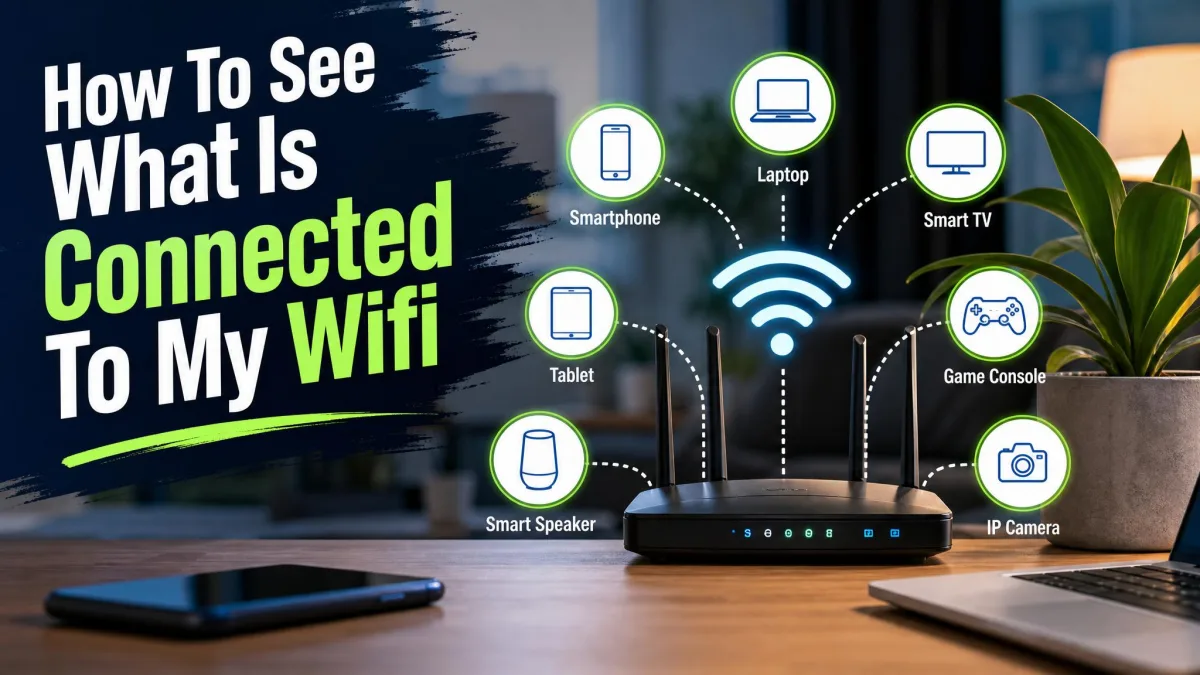
Do you know who's connected to your router's Wi-Fi network? Most people don't, and it's worth a look. Every device on your network uses your bandwidth, and one you don't recognize could be a neighbor's phone or something more concerning.
Your router keeps a live list of every device connected to it, and that list is the fastest way to see what's on your network. We've found most routers label it "Attached Devices," though the name varies by brand. Below we cover every method, plus how to block anything unknown.
The Quickest Way: Check Your Router's Admin Panel
Your router sees everything on your network, so its admin panel is the most reliable place to look.
Find Your Router's IP Address
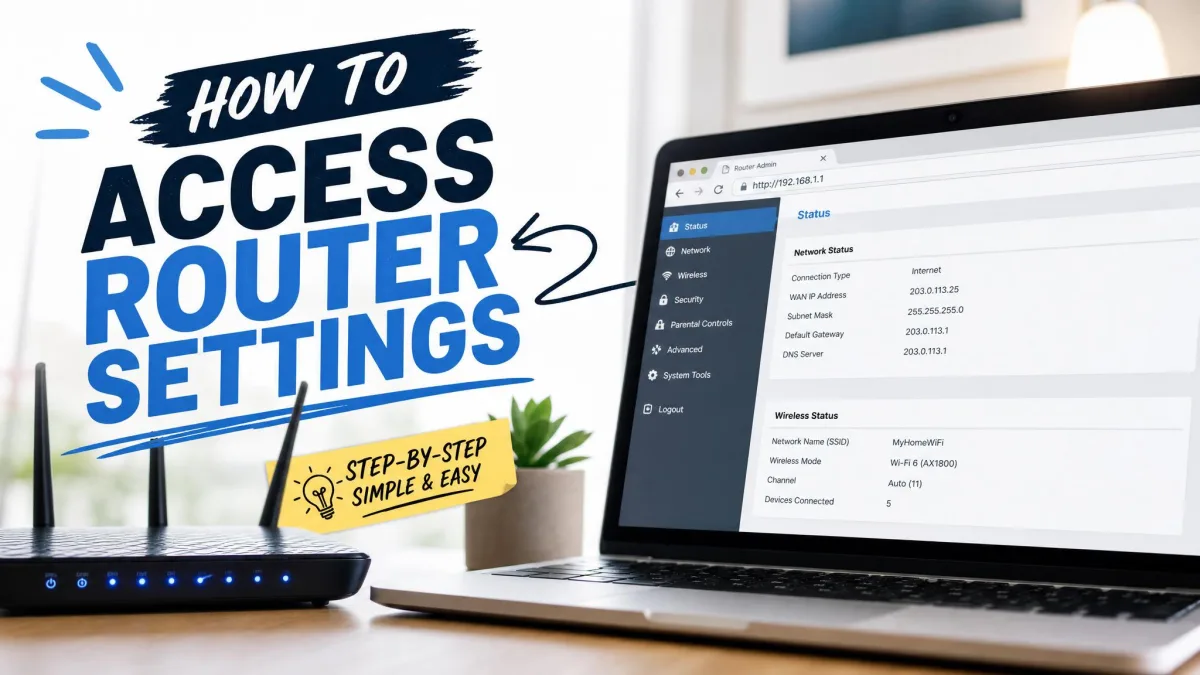
Open a browser and type your router's IP address. Most home routers use a default like 192.168.1.1 or 192.168.0.1, while AT&T and BT routers use 192.168.1.254. If none work, the IP changed during setup. Some routers also answer at a friendly address like routerlogin.net or tplinkwifi.net.
Open Command Prompt and type ipconfig. The Default Gateway line always shows your router's current IP, even if it was changed.
Log In and Open the Connected Devices List
Enter the admin username and password. Many routers have no universal default password; only 88 of 312 models surveyed still ship one, and the rest set it during setup or print it on a sticker.
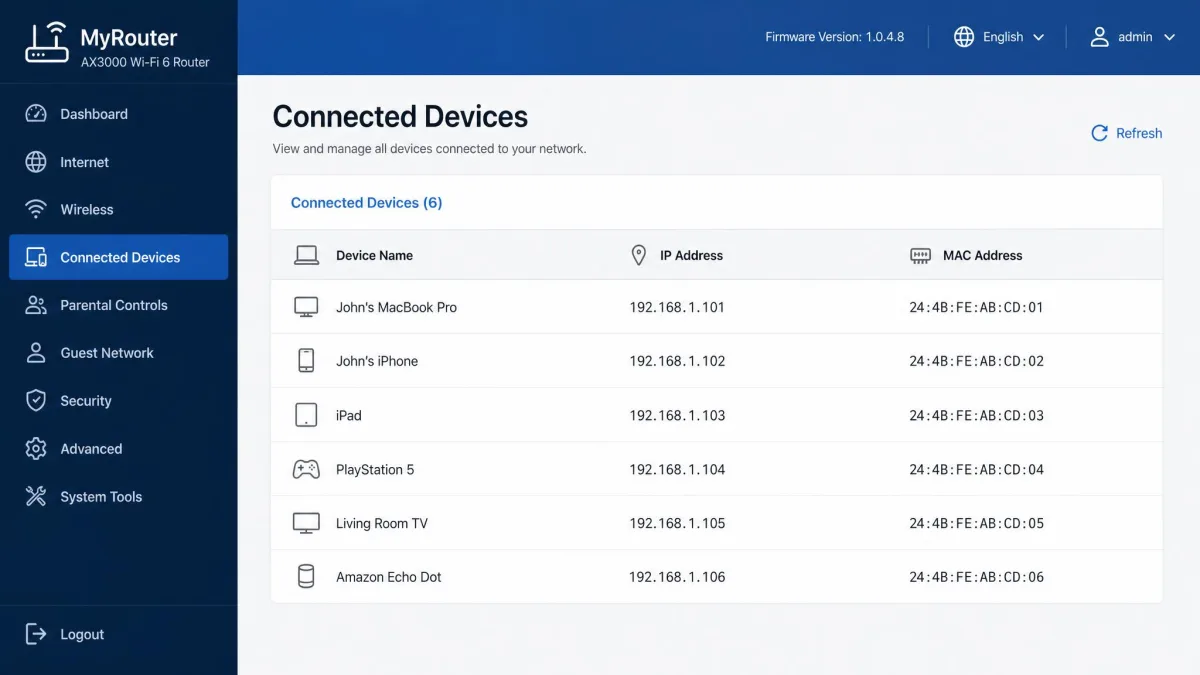
Then find the device list. Netgear calls it Attached Devices, TP-Link uses Network Map, ASUS shows Client List, and mesh owners look for a Devices tab.
Understand What the Device List Shows (names, IPs, MAC addresses)
Each entry shows a device name, an IP address, and a MAC address. The name is the friendliest clue, since it often matches the maker. The MAC address is a unique hardware identifier burned into the adapter, and it stays the same even if the name changes.
Smart-home devices often show up with generic names or no manufacturer. In a scan of one 22-device network, four devices were unidentifiable. A generic entry isn't automatically an intruder.
Try Your Router Manufacturer's App (Or ISP App)
Every major router brand offers a companion app that mirrors the admin panel and makes checking easy from your phone.
Popular Router Apps
Eero has a Devices tab, Google Nest works through the Google Home app, Xfinity's xFi app shows See My Network, and Fios users open My Network and tap Devices.
How to Use the App
Sign in with the same admin credentials as the web panel. The list sits under the same names, like Attached Devices or Network Map, and renaming and blocking work there too.
How to Check with a Wi-Fi Scanner App (Fing, GlassWire)
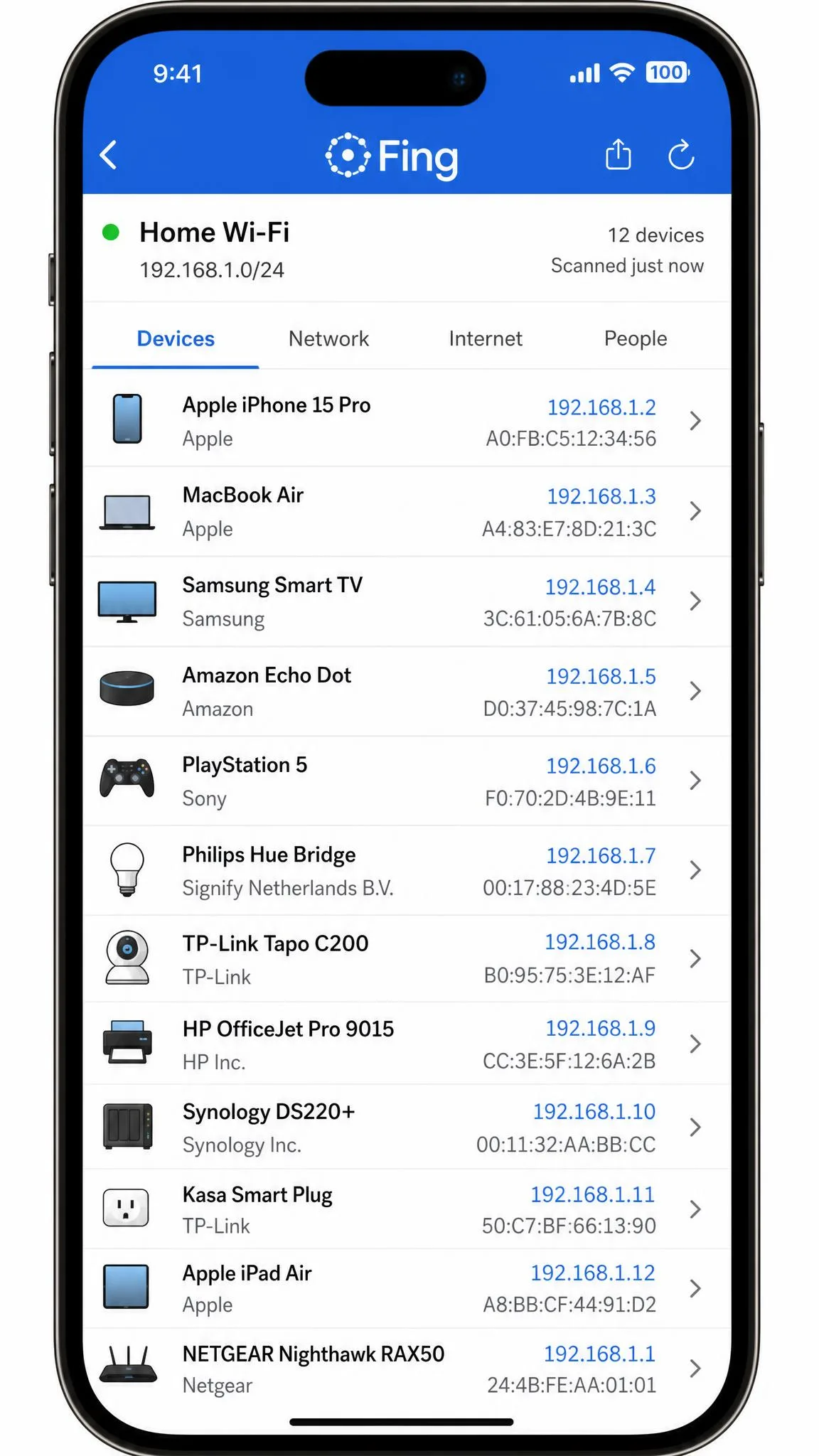
If you can't reach the router, or you want more detail, a scanner app is the next best option. These tools list every device with its IP, MAC, and brand. The best-known free option is the free Fing app.
Best Free Wi-Fi Scanner Apps
Fing is the scanner most people start with and the one we'd recommend first. It shows the brand, type, IP, MAC, and even model of each device, but the free tier allows only three scans per day. Here's how the main options compare:
| Tool | Platforms | Free tier | Real-time new-device alerts | Best for |
|---|---|---|---|---|
| Fing | Android, iOS, Windows, macOS | Free, 3 scans/day; premium from $7.99/mo | Premium (via Fing Desktop or Agent) | On-the-go phone scans |
| GlassWire | Windows, Android (no Mac/iOS) | Free, 1-day history; premium from $2.99/mo | Premium per vendor pricing | Traffic and firewall monitoring |
| Wireless Network Watcher | Windows only | Free, no scan cap | Yes, free | Free Windows scanner with alerts |
| Advanced IP Scanner | Windows only | Free, no scan cap | No | Quick free Windows scans (see warning) |
GlassWire adds a firewall and alerts when unknown devices join, but it runs on Windows and Android only, and most features are premium at about $2.99 per month. Advanced IP Scanner is another free Windows option, though unpatched flaws make it a last choice.
How to Use Fing (Step-by-Step)
Install the app, connect to your home Wi-Fi, and tap Scan for Devices. A typical scan finishes in under 30 seconds and lists every device with its brand, IP, MAC, and type.
The free tier allows only three scans per day and pushes a roughly $7.99-per-month subscription, and free users see banner ads. Blocking a device needs Fing Desktop or Fing Agent on an always-on computer.
How to Check on Windows (No Router Login Needed)
On a Windows PC, you can see a version of the device list without logging into the router.
Using Command Prompt (arp -a)
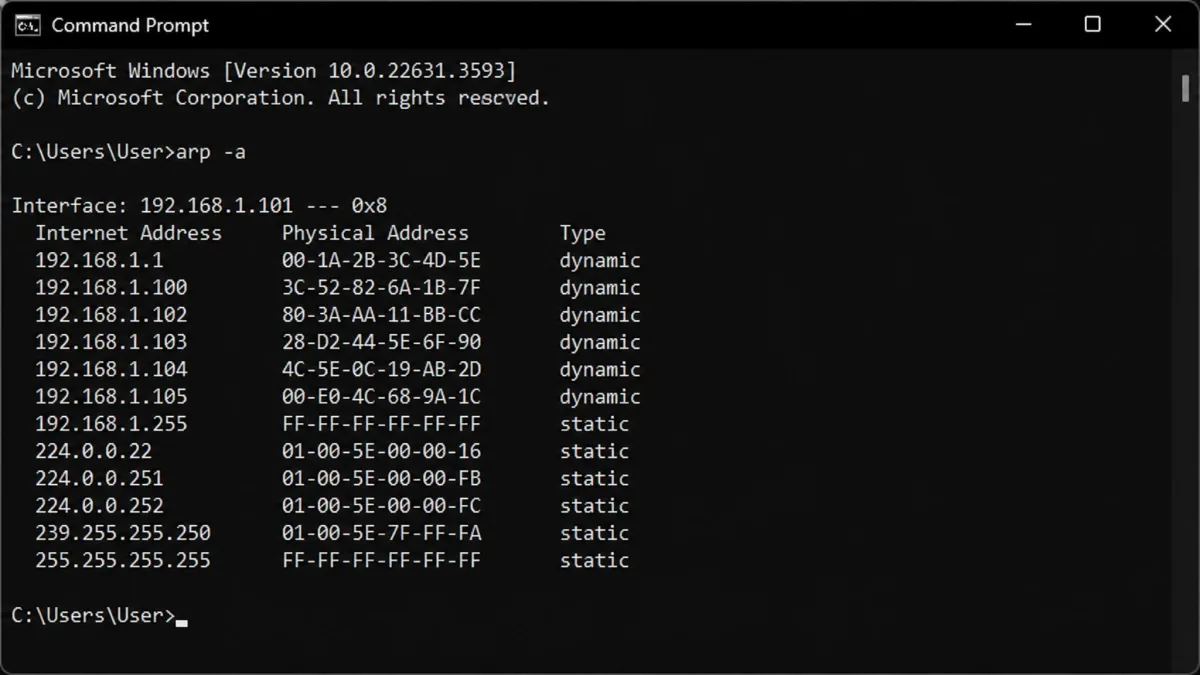
Open Command Prompt and type arp -a, then press Enter. Windows prints the ARP cache, listing the IP and MAC of devices your PC recently talked to. The cache keeps entries after a device disconnects, so you may see ghosts, and sleeping devices don't show until they wake. For a fuller list, NirSoft's Wireless Network Watcher scans the network and alerts you to new devices. Your antivirus may flag the download; it's a known false positive.
Using PowerShell
PowerShell gives the same data in a cleaner format. Run Get-NetNeighbor -AddressFamily IPv4, piped to Select-Object for IPAddress, LinkLayerAddress, and State.
How to Check on Mac
Using Terminal
The same arp -a command works on a Mac. Open Terminal, type arp -a, and press Enter to see the IP and MAC addresses of devices your Mac recently talked to.
Using the Network Utility
Older guides point to a built-in app called Network Utility, but Apple deprecated it in macOS Big Sur. Use Terminal or a scanner app instead.
How to Check on iPhone or iPad
On an iPhone or iPad, the router app method is easiest, since iOS doesn't expose the network details Windows and Mac do. A scanner like Fing, the free network scanner still works, but Apple restricts MAC access, so it can't report MAC addresses there. Names and IPs are usually enough to spot unknowns.
How to Check on Android
Android works the same way, with one advantage. Fing shows full MAC addresses there. Since Android 10, phones randomize their MAC address by default, which is why many show up as android-dhcp-13. Turn off randomized MAC for your home network to see the real name.
How to Identify Unknown Devices on Your Network
Once you have the list, here's how to sort the normal from the suspicious.
Look Up the MAC Address Manufacturer
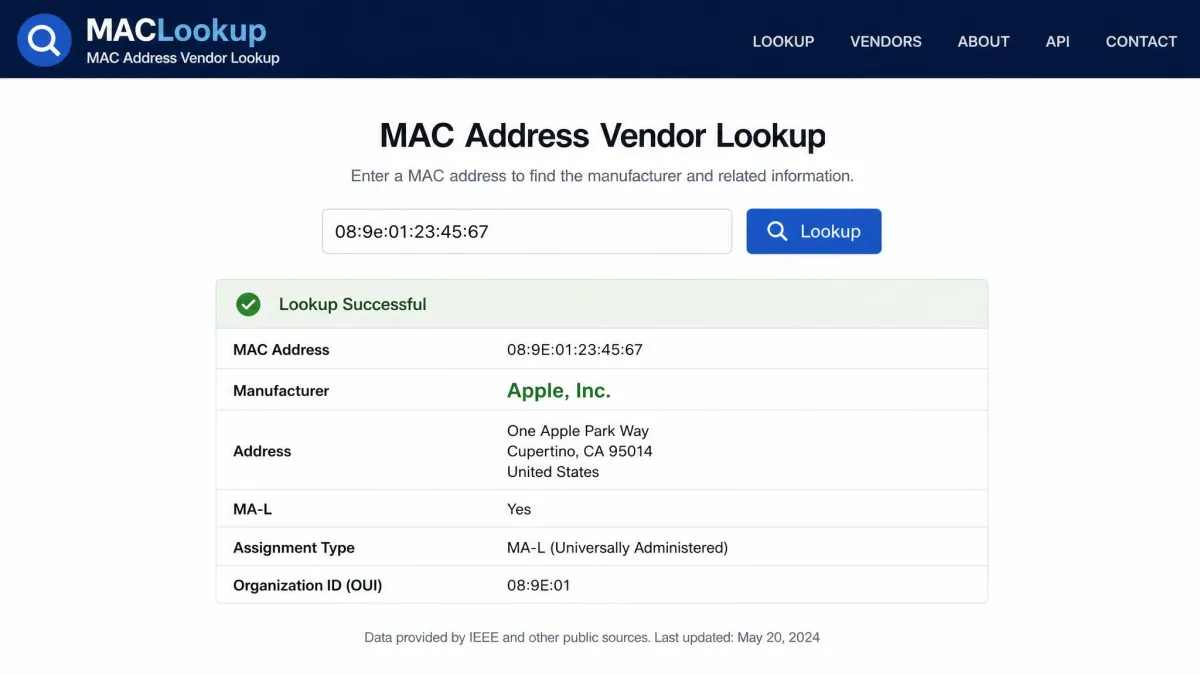
The MAC address is your best tool. The first six characters of a MAC identify who made the adapter. Copy the MAC from your router or scanner, then run a MAC address lookup, which pulls from the IEEE registry covering more than 16,500 vendors. A match for Apple or Samsung means a phone or computer from that brand.
Common Device Names Explained
An iPhone often shows up as just "iPhone," and Android phones appear as android-dhcp-13, because phones use private or randomized MAC addresses that look generic. Smart TVs, consoles, and printers usually report model names, so they're easier to recognize.
Rename Devices in Your Router to Keep Track
Most routers let you rename each device, so label your phone, TV, and tablets clearly. Anything left unnamed is worth a closer look.
How to Block or Remove Unauthorized Devices
If you find a device that shouldn't be on your network, you have three ways to deal with it.
Block a Device by MAC Address
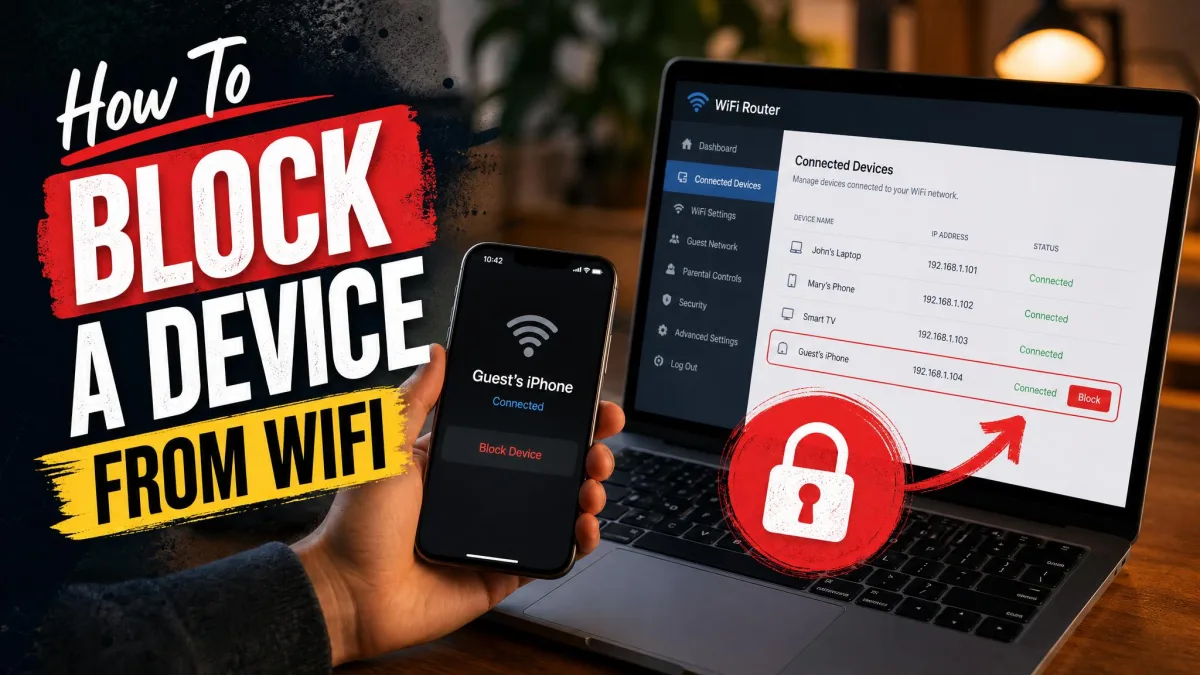
Most routers include a MAC filter. Copy the intruder's MAC address, add it to the blocked list, and the router will refuse that device. It works fast, but MAC addresses can be spoofed.
Change Your Wi-Fi Password (Most Effective)
Changing the Wi-Fi password is the most effective fix, since every device must rejoin with a credential only you know.
Changing your Wi-Fi password kicks every device off the network, including your own. Reconnect each phone, laptop, smart TV, and smart plug with the new password.
Disconnect a Device via the Router App
If you'd rather not reset the whole network, many router apps can disconnect a single device. Fing can too, but only with a Premium plan and Fing Desktop or Agent on an always-on computer.
How to Prevent Unauthorized Access
A few habits keep unwanted devices off. Use WPA2 or WPA3 encryption with a strong password, turn off WPS, update the firmware, and check the device list regularly. If you're worried someone could reach your phone over the network, see how to stop someone from accessing your phone remotely.
Troubleshooting Common Issues
Can't Access the Router Admin Panel
The common culprit is HTTPS. Modern browsers force HTTPS, but many routers only serve plain HTTP, so the browser throws a connection error. Type http:// before the IP, or click through the warning. Newer Netgear and Orbi routers also show a self-signed certificate warning.
Devices Not Showing Up
Missing devices are usually asleep. Phones, laptops, and smart TVs in standby don't respond to scans, so they drop off until they wake. The ARP cache can also keep ghost entries for devices that already left.
Forgotten Router Password
A factory reset is the way back in. Hold a paperclip in the reset pinhole for roughly 10 to 15 seconds. That erases every custom setting, including your Wi-Fi name and password.
Frequently Asked Questions
Why does my device show a different name than I expect?
Can someone use my WiFi without me knowing?
How do I identify an unknown device on my Wi-Fi?
How often should I check who is on my Wi-Fi?
Why are there more devices connected than expected?
How do I remove or block an unknown device?
Conclusion
Knowing what's connected to your Wi-Fi is a small habit with real payoff. Start with the router's device list, use a scanner app for detail, and block anything you don't recognize. If a device keeps appearing, change the password and start fresh.
Worried about your phone rather than your network? We've also covered how to tell if someone is accessing your iPhone remotely, how to know if someone is tracking your phone, and how to detect spyware on Android.