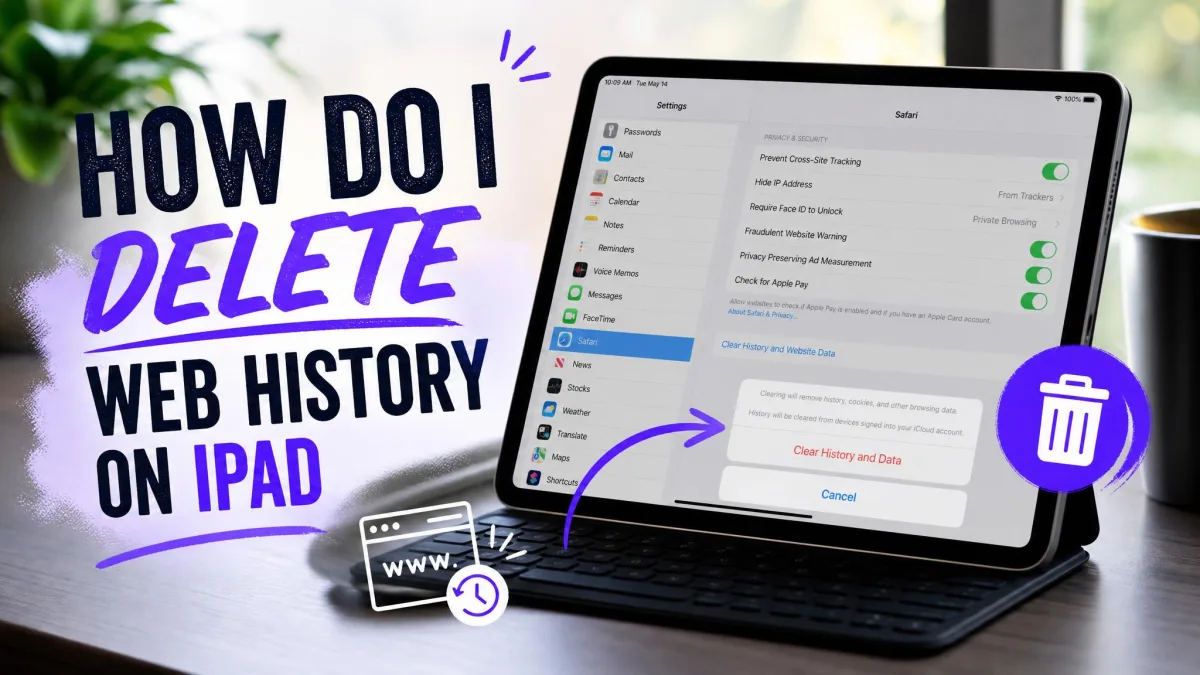
Deleting your web history on an iPad removes the list of sites you have visited, along with your recent searches. The fastest route is Settings: go to Settings, tap Apps, then select Safari, scroll down and tap Clear History and Website Data, pick a timeframe, and confirm. You can do the same job inside Safari by opening the History sidebar and tapping Clear. Both routes appear in Apple's guide to deleting Safari history, cache, and cookies, and both do more than tidy a list. Here is what each one touches, and how to stop the history coming back.
How to Delete Safari History on iPad from Settings
This is the thorough option. It clears history, recent searches, cookies, and stored website data in one action, for the timeframe you pick.
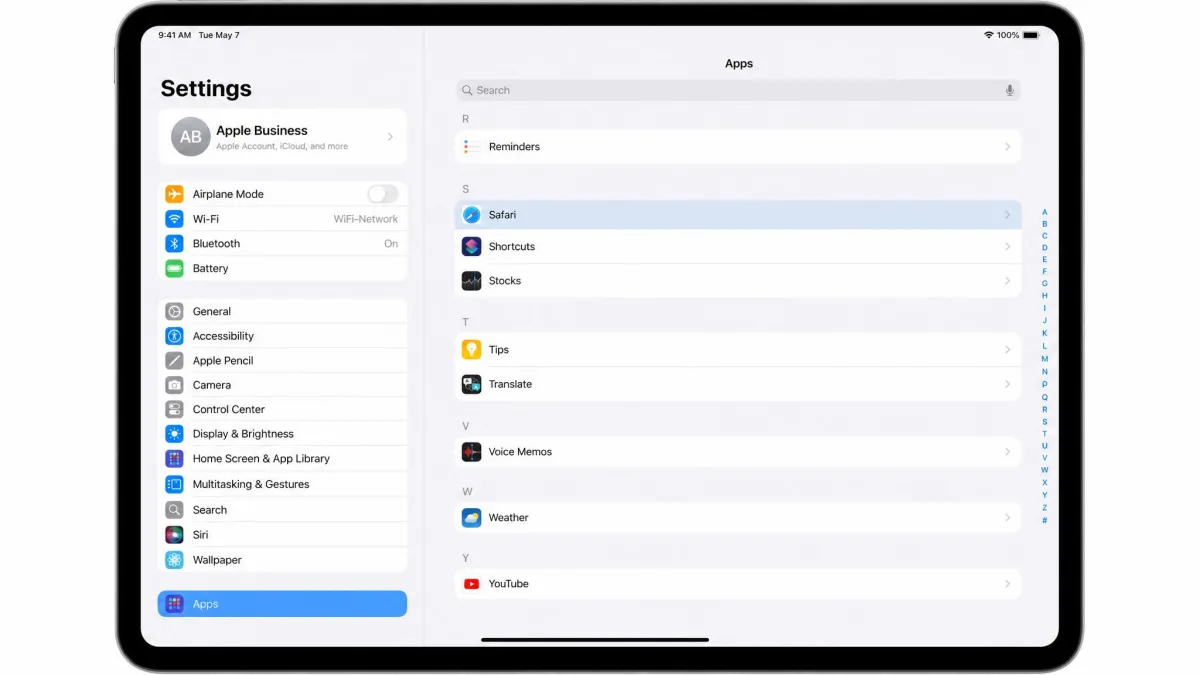
Step 1: Open Settings and Tap Apps, Then Safari
Open the Settings app, scroll to Apps, tap it, then find Safari in the alphabetical list. On older iPadOS versions Safari sits directly in the main Settings list, so check both places if you cannot find it.
On iPadOS 18 and later Safari moved into the Apps list, while iPadOS 17 and earlier put it in the main Settings list. The exact release that moved it varies by device and update path, so look in both spots. We checked both locations on a current iPad while writing this, and the Apps route matches Apple's current instructions.
Step 2: Tap Clear History and Website Data
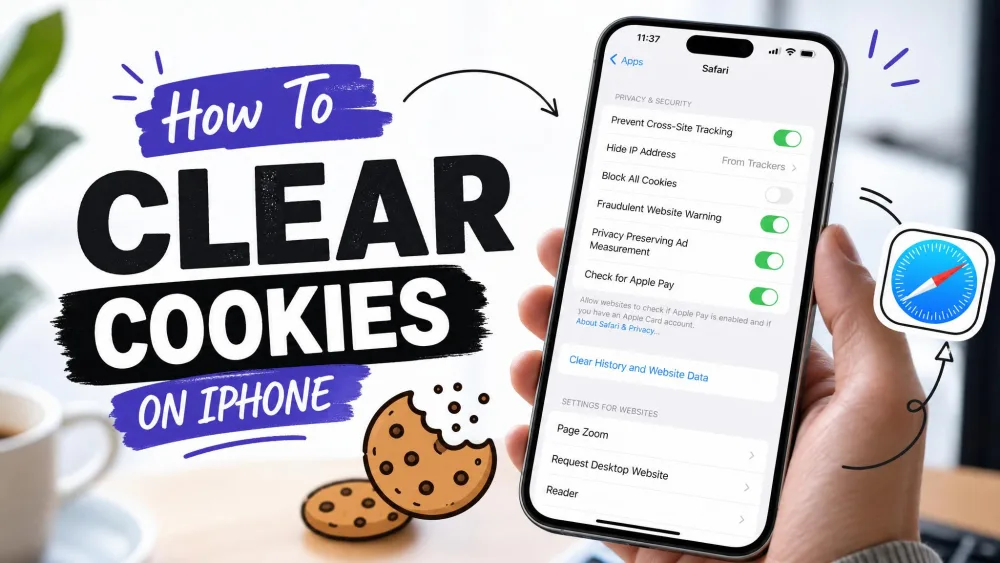
Scroll to the bottom of the Safari settings screen and tap Clear History and Website Data. The button sits below the Advanced row, in red text.
If it is greyed out, Screen Time is the usual reason, and nothing in Safari's settings explains that. Go to Settings, tap Screen Time, then Content and Privacy Restrictions, then Content Restrictions, and set Web Content to Unrestricted. On a work or school iPad, a management profile can block the setting outright.
Step 3: Choose a Time Range
iPadOS offers 4 timeframes: the last hour, today, today and yesterday, or all history. A narrow range is useful when you only want the last few sites gone. If you use more than one profile or tab group, you will be asked which the clear applies to.
Step 4: Confirm and Verify
Tap Clear History to confirm. The list empties straight away.
To check, open Safari, tap the sidebar button, and select History. If entries survive, look at your Reading List, because saved items there keep resurfacing in the history view until you empty it separately.
Clearing history and website data cannot be undone. The only way back is restoring an iCloud or computer backup made before the deletion, which also wipes everything added since that backup.
How to Clear History Inside the Safari App
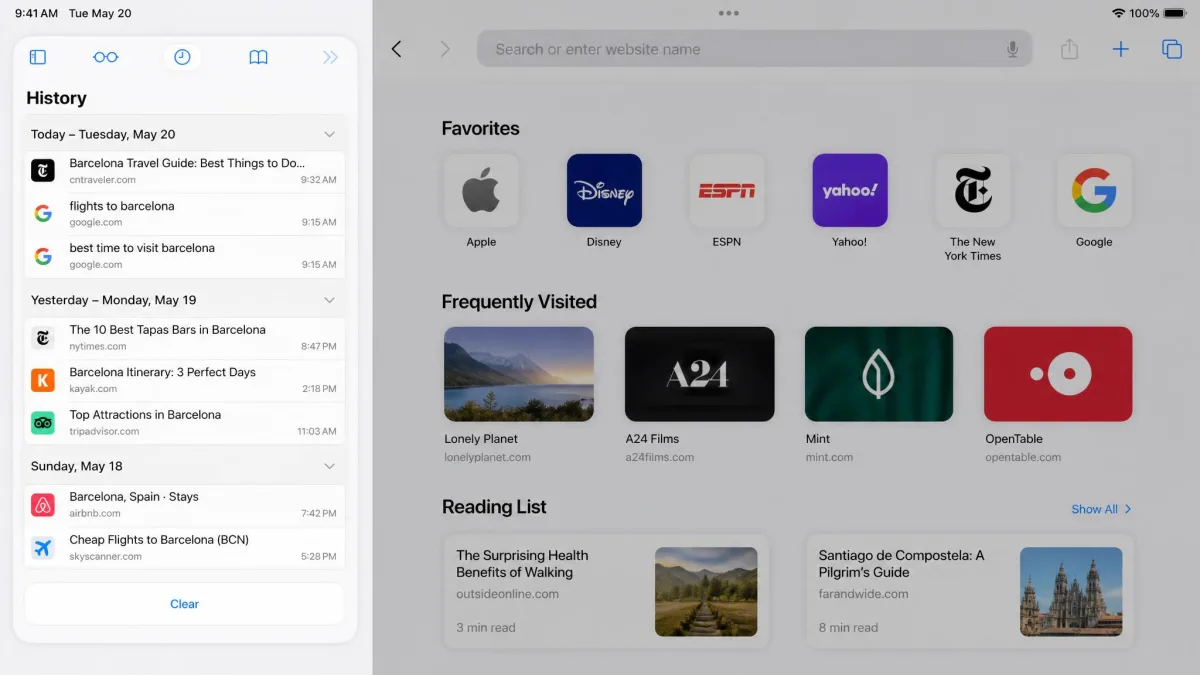
You do not have to leave the browser. Open Safari, tap the sidebar button in the top left, then tap History. At the bottom of that sidebar sits a Clear button with the same time-range picker. This route is quicker when you are already browsing, and Apple documents it in Apple's iPadOS User Guide alongside the Settings path. The result is identical, so make sure you have picked the timeframe you actually want before confirming.
How to Delete a Single Website from Your History
To remove one visit rather than everything, open the History sidebar, find the entry, and swipe left across it. Tap Delete. Pressing and holding an entry gives the same option in a menu. This is faster than the Settings route, and it leaves your cookies and logins alone.
| What happens | Delete one entry (Safari) | Clear all history (Safari) | Chrome for iPad |
|---|---|---|---|
| What is removed | The single selected site visit | All history plus recent searches | Selected data types in the chosen range |
| Time range choice | Not applicable | Last hour, today, today and yesterday, all history | Last hour, Last 24 hours, Last 7 days, Last 4 weeks, All time |
| Cookies | Kept | Removed | Removed if Cookies and Site Data is ticked |
| Site logins | Kept | Lost, you are signed out | Lost if cookies are included |
| Reversibility | Not reversible | Not reversible without a prior backup | Not reversible |
| Syncs to other devices | Yes, via iCloud | Yes, via iCloud | Yes, via Google Account sync |
What Gets Deleted, and What Stays
Clearing history and website data removes your visited-site list and recent searches, plus cookies and the permissions you have granted sites for location or notifications. Because the cookies go, you get signed out of sites you were logged in to. That is the most common surprise afterwards.
Your bookmarks stay. Saved passwords in the Passwords app stay. Your AutoFill information is not changed either, so stored names, addresses, and card details remain available.
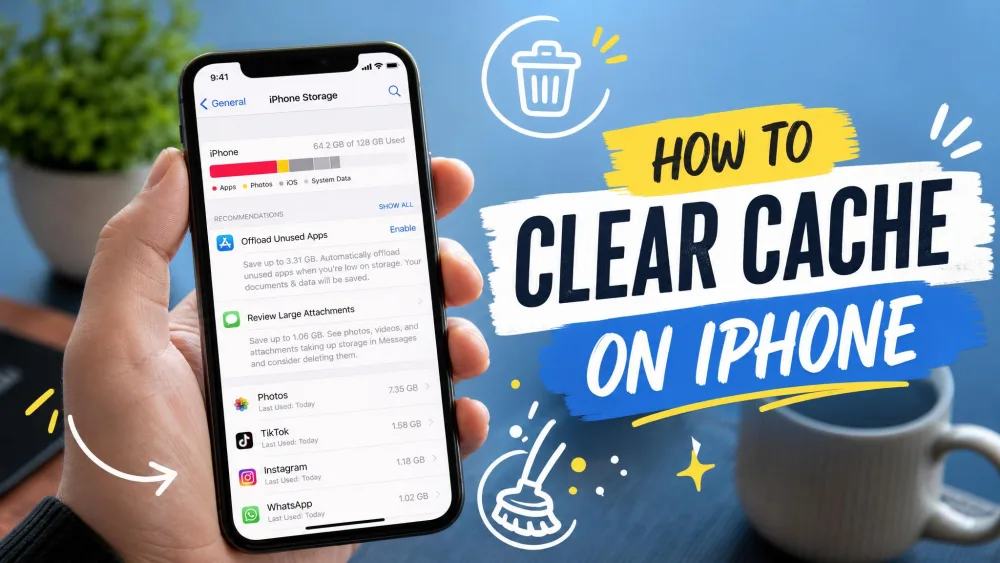
"Website data" means the files a site leaves on your iPad so it loads faster or remembers you: cached images and scripts, cookies, and local storage. That is not the same as your history list, which is only a record of the addresses you visited.
How to Clear Cookies and Cache Without Deleting Your History
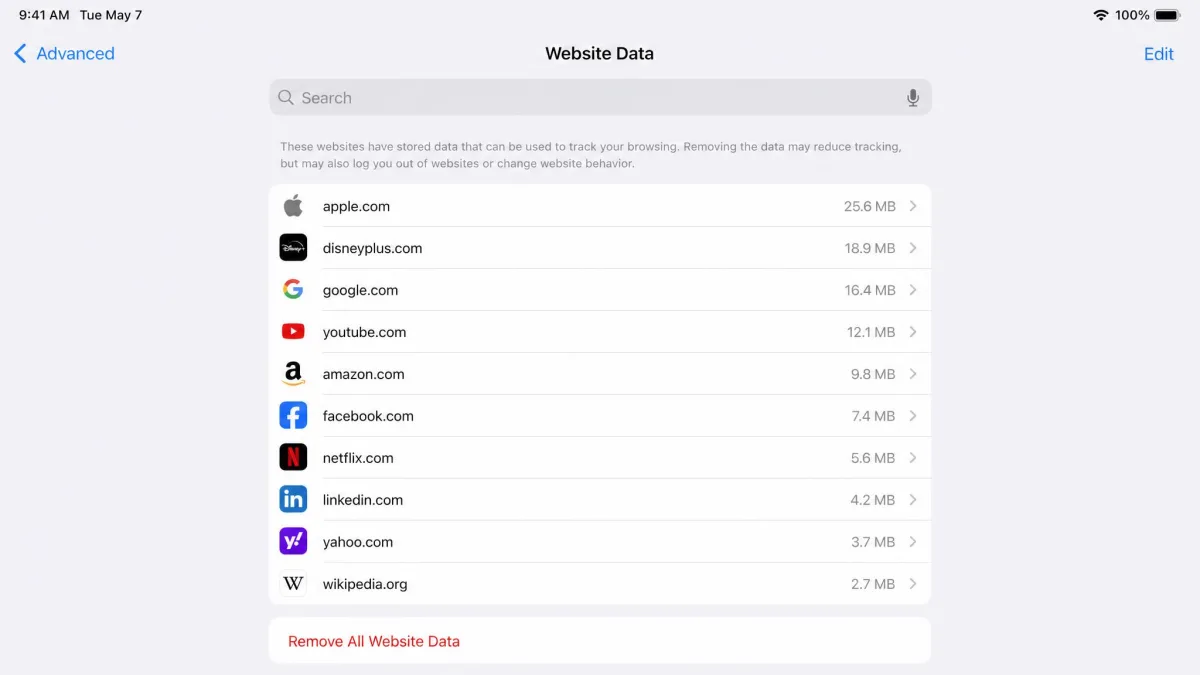
To fix a misbehaving site without losing your history, clear the stored data on its own. Go to Settings, tap Apps, select Safari, tap Advanced, then tap Website Data. Tap Remove All Website Data, or swipe left on a single site to remove only that one.
Individual sites can still appear on this screen after a full history clear, which is a common reason people think the deletion failed. Our guide to how to clear cache on iPad covers the same screen in more detail.
How to Delete Chrome History on iPad
Clearing Safari leaves Chrome completely untouched on the same iPad. If you use both, you need a second pass inside Chrome.
Open Chrome, tap the three-dot More menu, tap History, then tap Delete Browsing Data. Choose your Time Range and confirm. Chrome offers Last hour, Last 24 hours, Last 7 days, Last 4 weeks, and All time.
Browsing History, Cookies and Site Data, and Cached Images and Files are ticked by default. Untick cookies if you would rather stay signed in. Chrome's Quick Delete shortcut defaults to a short 15 minute window and behaves differently from the full dialog. With Google sync on, deleting here removes the history from your other Chrome devices too. Firefox works much the same way: tap the menu, open Settings, then Delete browsing data.
How to Delete Your Google Search History (It Is Separate)
Searches you ran while signed in to Google are saved to your Google Account, not to your iPad. Clearing Safari or Chrome does nothing to them.
To remove those, open your Google My Activity page, sign in, and delete by date range or by individual item. While you are there, set Web and App Activity to auto-delete after 3, 18, or 36 months. Newer accounts default to 18 months, but that depends on when the account was created, so an older one may still be holding everything.
Worth remembering: deleting local history does not hide browsing from a network operator. An FTC staff report on what internet providers know about you sets out how much an ISP can see, and the same applies to an employer or school network.
Why Your History Comes Back: iCloud Sync Explained
iCloud keeps Safari history in step across every Apple device signed in to your account, and that cuts both ways. Clearing on your iPad clears on your iPhone and Mac, and a device still holding the old list can push it back within minutes of the next sync.
So break the loop first. Go to Settings, tap your name, tap iCloud, and turn Safari off. Clear each device separately, then turn Safari back on.
Because the sync runs both ways, clearing history on your iPad also removes it from every other Apple device on the same account. If someone else in the household shares that Apple Account, they lose their history too.
Private Browsing vs. Deleting History
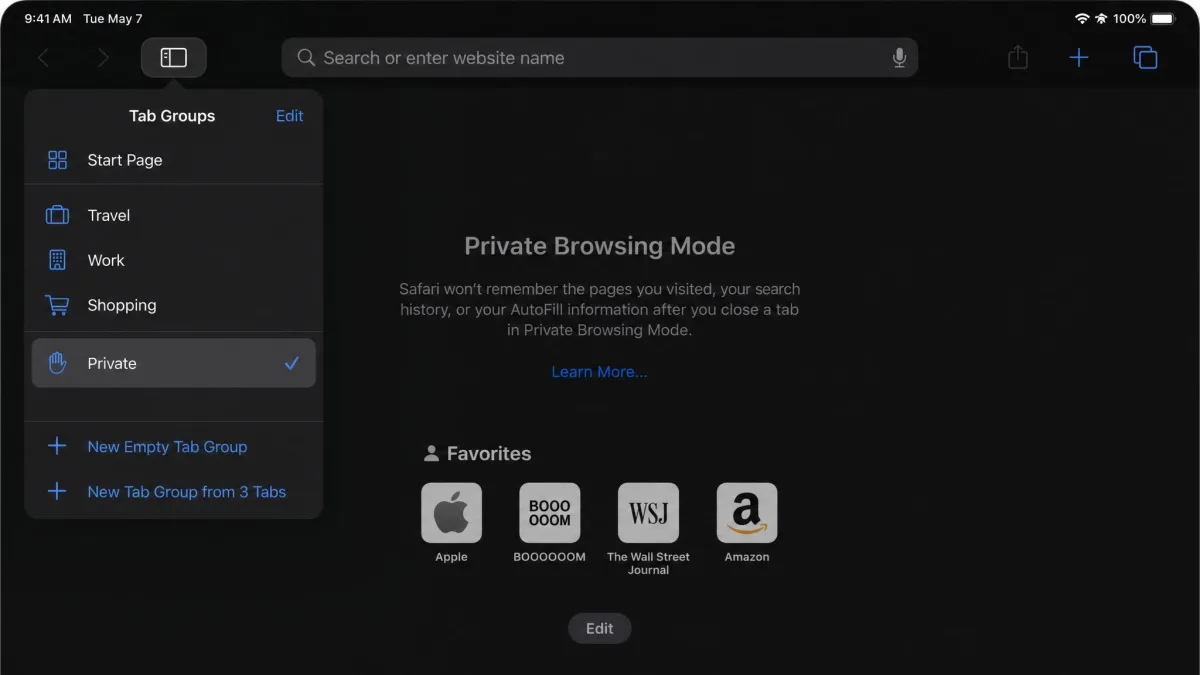
Private Browsing stops the problem at the source. Tabs opened in a Private tab group save no history, no cookies, and no website data, and they do not sync to iCloud. Tap the tab group button in Safari and choose Private.
It is not invisibility, though. Private Browsing hides local traces only, so your ISP, employer, or school network can still see the sites you visit.
Quick Checklist
- Go to Settings, tap Apps, then select Safari.
- Tap Clear History and Website Data, choose a timeframe, and confirm.
- If the button is greyed out, set Screen Time web content to Unrestricted first.
- To remove one site only, swipe left on its entry in the Safari History sidebar.
- To clear cache but keep history, use Safari, Advanced, Website Data, Remove All Website Data.
- In Chrome, tap More, then History, then Delete Browsing Data, and pick a time range.
- Delete Google searches separately at myactivity.google.com.
- If history keeps returning, turn Safari off in iCloud, clear each device, then turn it back on.