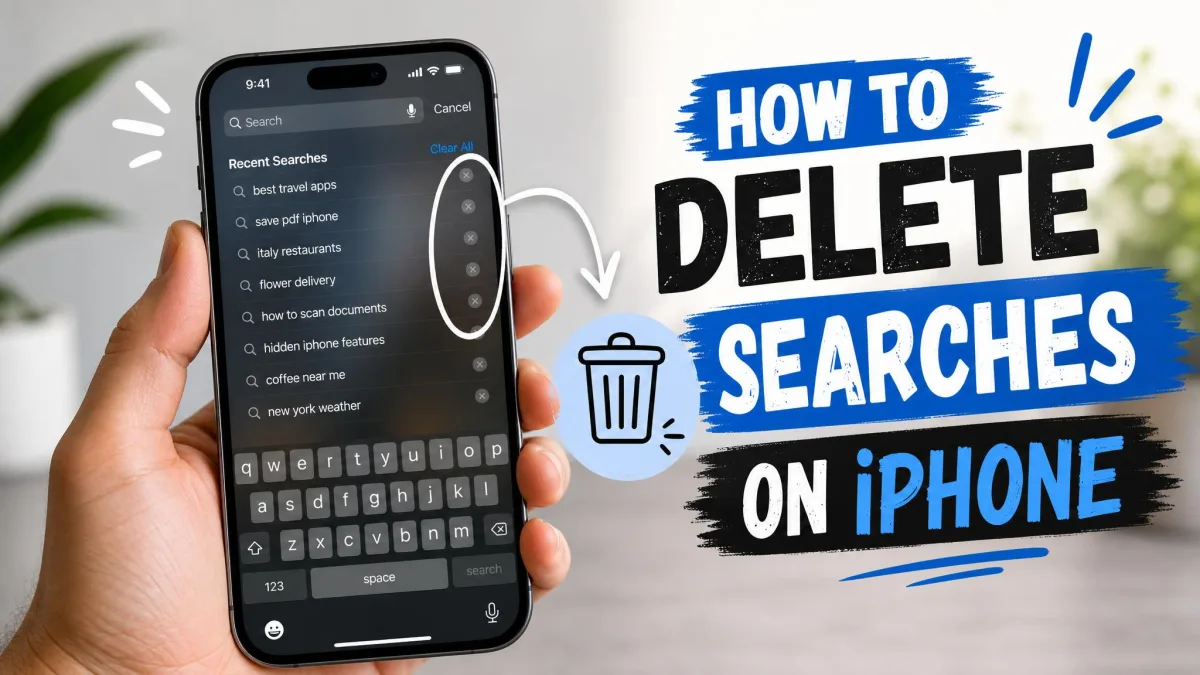
Your iPhone keeps a record of nearly everything you type into a search box, and it keeps that record in more than one place. The short answer is that you clear each one separately: Safari, Chrome, the Google app and your Google account, Siri and Dictation, and Spotlight suggestions. Wiping Safari alone leaves the other four untouched, which is why old searches keep resurfacing even after you thought you had deleted them. This guide covers every method in order, how to delete a single entry instead of the lot, what to do when the Clear History button is grayed out, and the settings that stop your iPhone saving searches at all.
What Counts as "Search History" on Your iPhone
"Search history" is a loose phrase covering several stores of data, saved by different apps in different places. Some lives only on your phone. Some lives in your iCloud or Google account, which is why deleting it on one device is not always the end of the story.
The five places your iPhone stores searches
There are 5 distinct surfaces to deal with, and each one has its own clearing path:
- Safari, which saves both visited pages and the terms you typed into the address bar
- Chrome, which keeps its own separate browsing data and syncs it to your Google account when you are signed in
- The Google app and your Google account activity, which stores searches server-side, not on the phone
- Siri and Dictation, which keeps a transcript history of your requests
- Spotlight, which builds suggestions from what you search for across the system
What clearing history does and doesn't erase
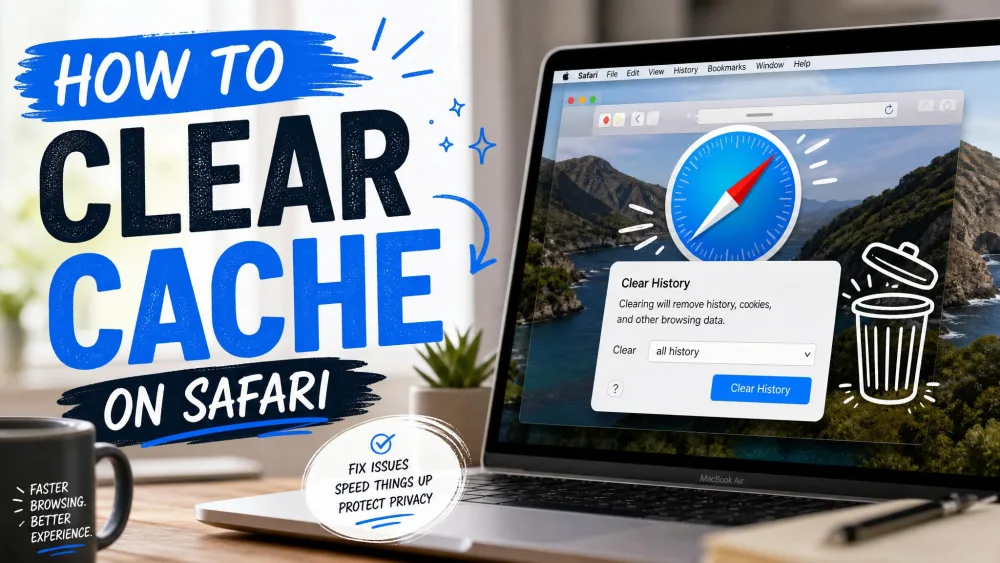
Clearing Safari history is not a history-only wipe. It also removes cookies and cache, so you get signed out of sites you were logged into and pages reload slowly for a while as the cache rebuilds.
Clearing on-device history also does nothing to the copies held in your accounts. A Chrome clear leaves searches saved to your Google Account exactly where they were, along with your content settings and passwords in Google Password Manager. That gap is the most common reason people think a clear "did not work."
How to Delete Safari Search History on iPhone
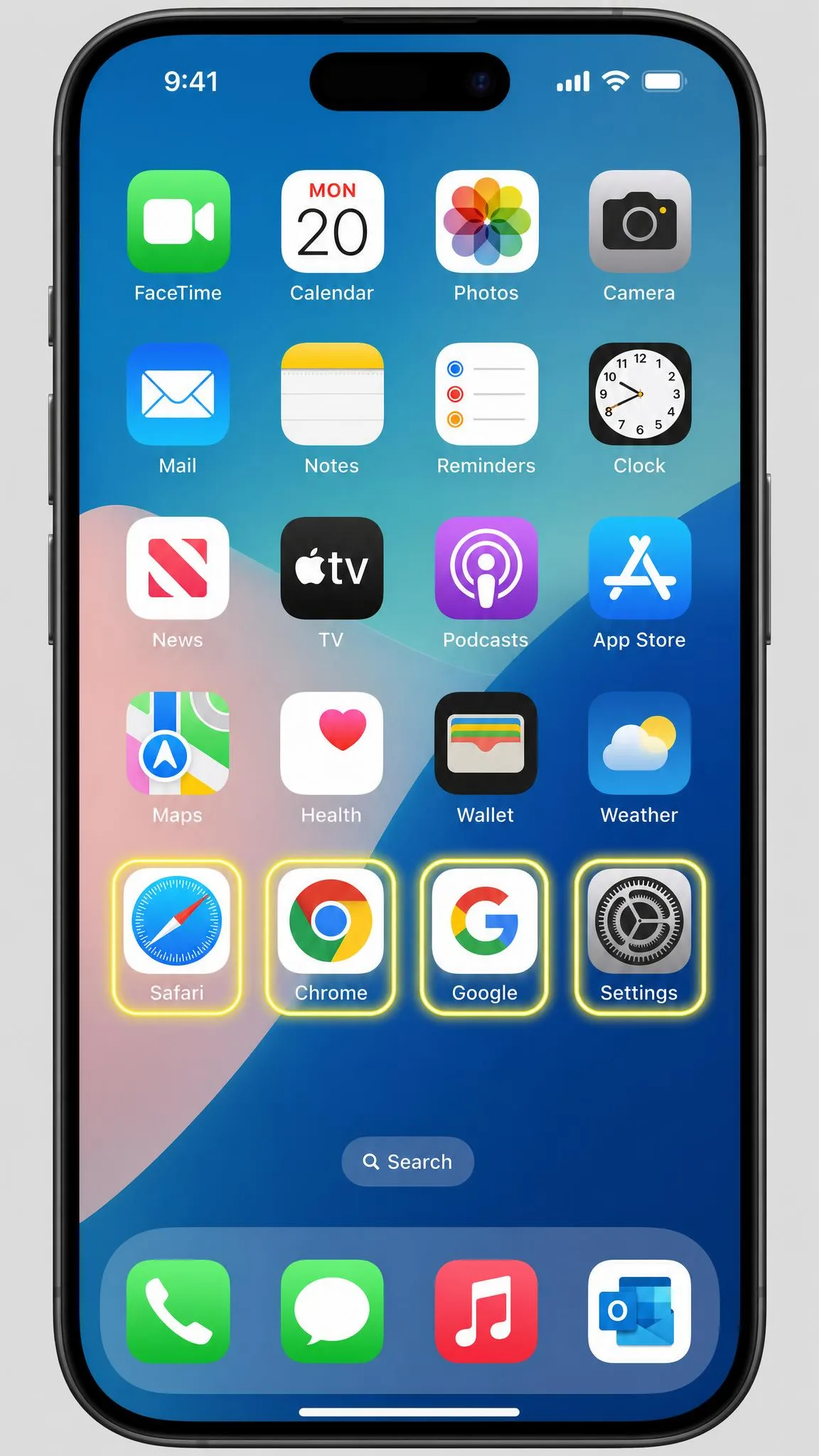
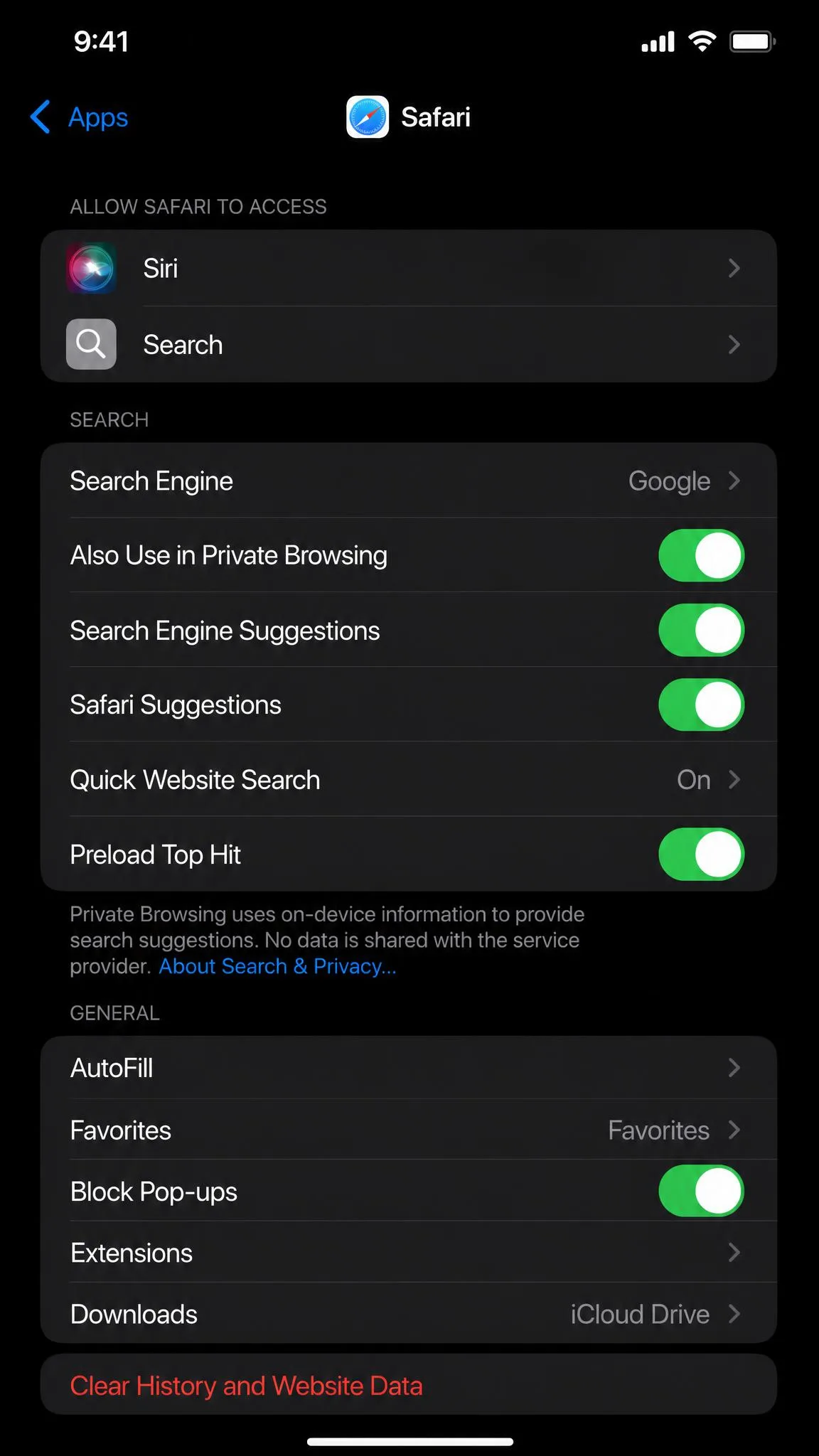
Safari is where most iPhone searches start, so it is the right place to begin. One thing has changed and it catches almost everyone: on iOS 26, Safari's settings moved into Settings, then Apps, then Safari, where Clear History and Website Data now lives. Older guides still point at Settings, then Safari directly, and on some devices that older path is still what you will see.
We worked through the Safari, Chrome, Google account and Siri steps on an iPhone running iOS 26, and noted where the Settings paths differ from earlier versions.
Delete all Safari history, cookies and cache
To wipe everything at once:
- Open Settings.
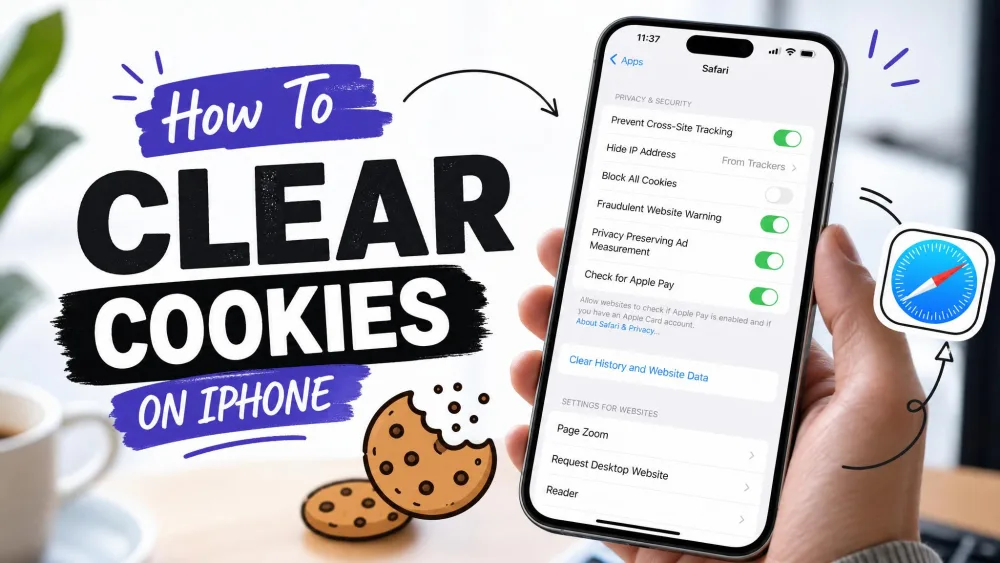
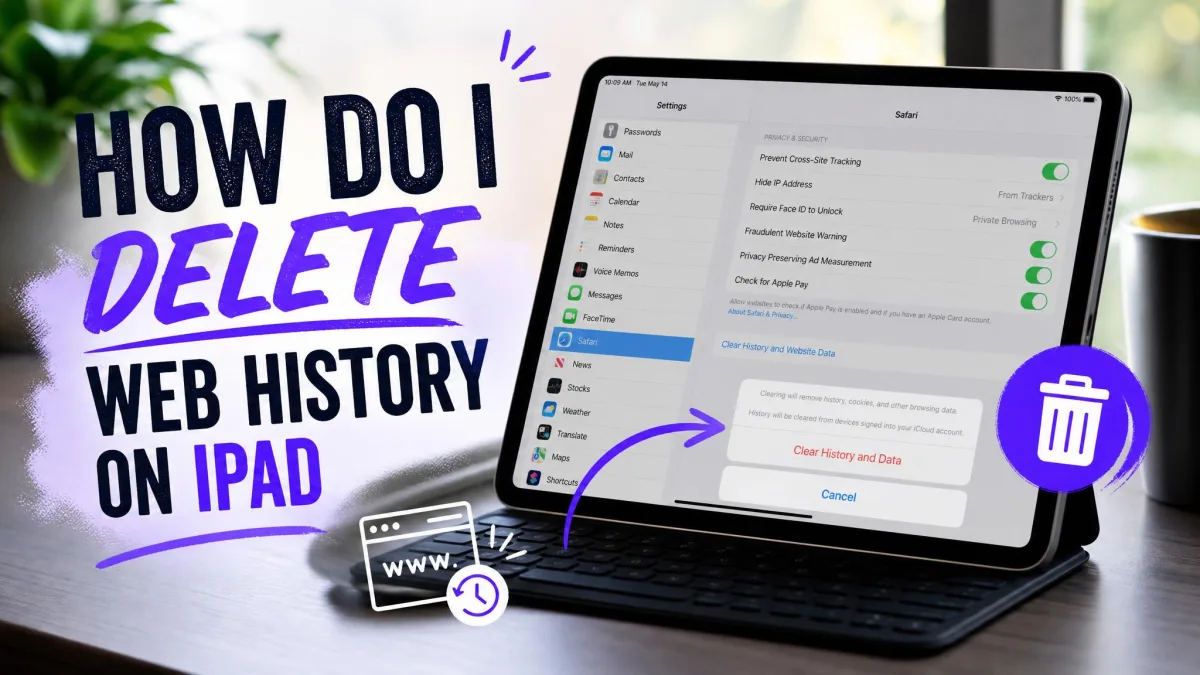
- Scroll down and tap Apps, then tap Safari. On earlier versions of iOS, tap Safari directly in the main Settings list.
- Scroll to Clear History and Website Data.
- Tap it, choose All history, then confirm.
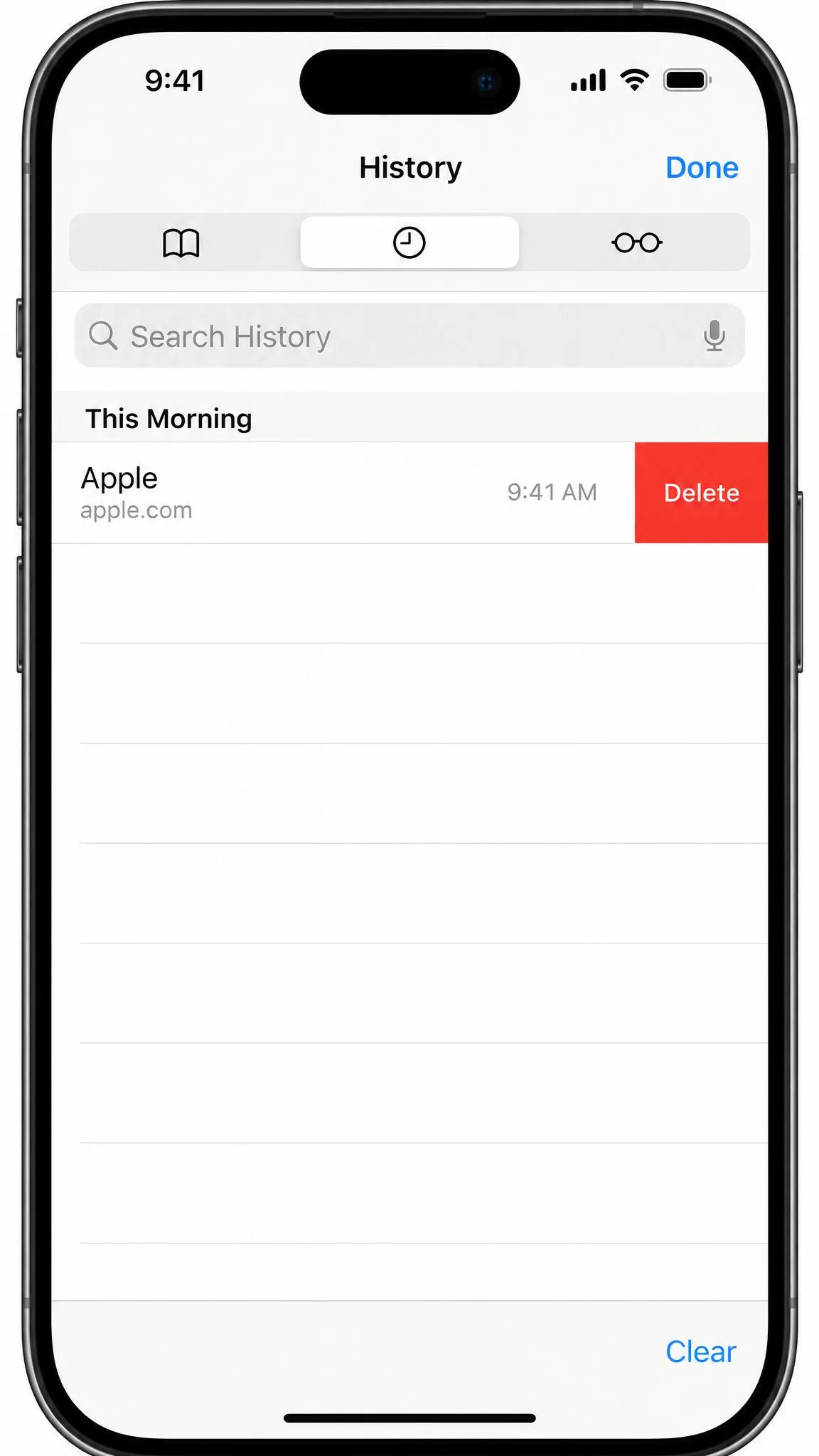
To do it from inside the browser instead, open Safari, tap the bookmarks icon, tap the clock tab, then tap Clear. The in-browser route clears exactly what the Settings route does, so pick whichever is fewer taps from where you are.
Clearing Safari history is irreversible. There is no undo, no trash folder, and no way to bring back a single entry you did not mean to remove. It also does not delete searches saved to your Google account, and it does nothing to hide the same activity from your employer's network or your internet provider.
Clear history for a specific time range (last hour, today, all time)
You do not have to delete everything. When you tap Clear History and Website Data, Safari offers Last hour, Today, Today and yesterday, and All history. Pick the narrowest range that covers what you want gone, and everything older stays intact along with the logins attached to it.
Use Last hour for the everyday case. It removes the session you actually want gone while leaving months of useful history, saved logins and autofill behaviour alone, so you avoid the sign-out cleanup that a full wipe forces on you.
Delete a single website from your Safari history
Deleting one entry is quicker and far less disruptive. Open Safari, tap the bookmarks icon, then tap the clock icon to open History. Swipe left on the entry you want gone and tap Delete, or tap Edit to select several at once. Apple's iPhone User Guide covers the same screen.
Clear cookies and cache but keep your history
If your goal is a misbehaving website rather than privacy, you can empty the cache without touching your history. Go to Settings, tap Apps, tap Safari, then tap Advanced, tap Website Data, and tap Remove All Website Data. Your visited-pages list survives, but stored site data and logins do not.
One quiet exception is worth knowing about. Saved Reading List pages survive a history clear and keep showing old URLs until you delete them separately, so check that list if you are clearing for privacy reasons.
How to Delete Chrome Search History on iPhone
Chrome keeps its own store, entirely separate from Safari's, so clearing one does nothing to the other.
Clear all Chrome browsing data
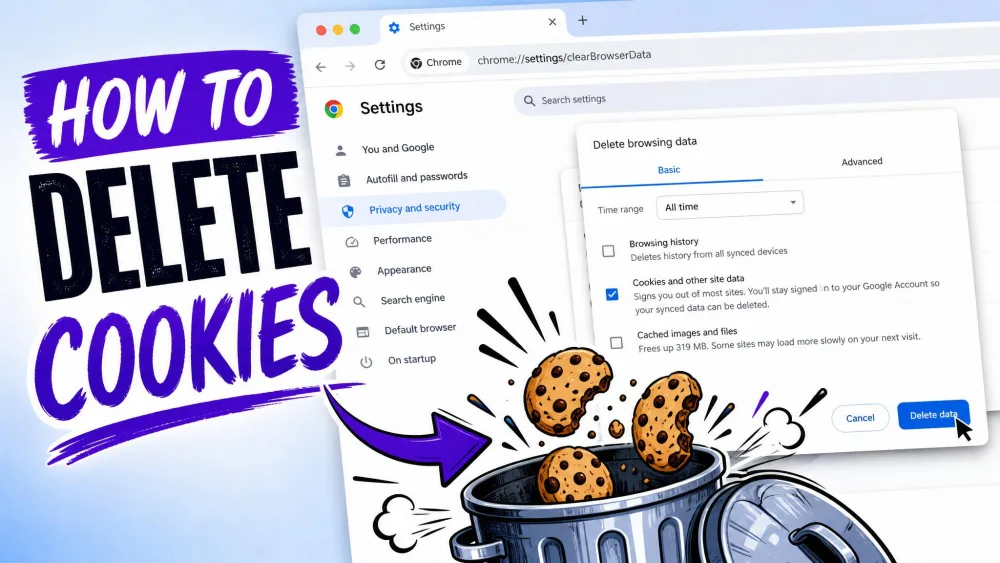
- Open Chrome and tap the three-dot More menu.
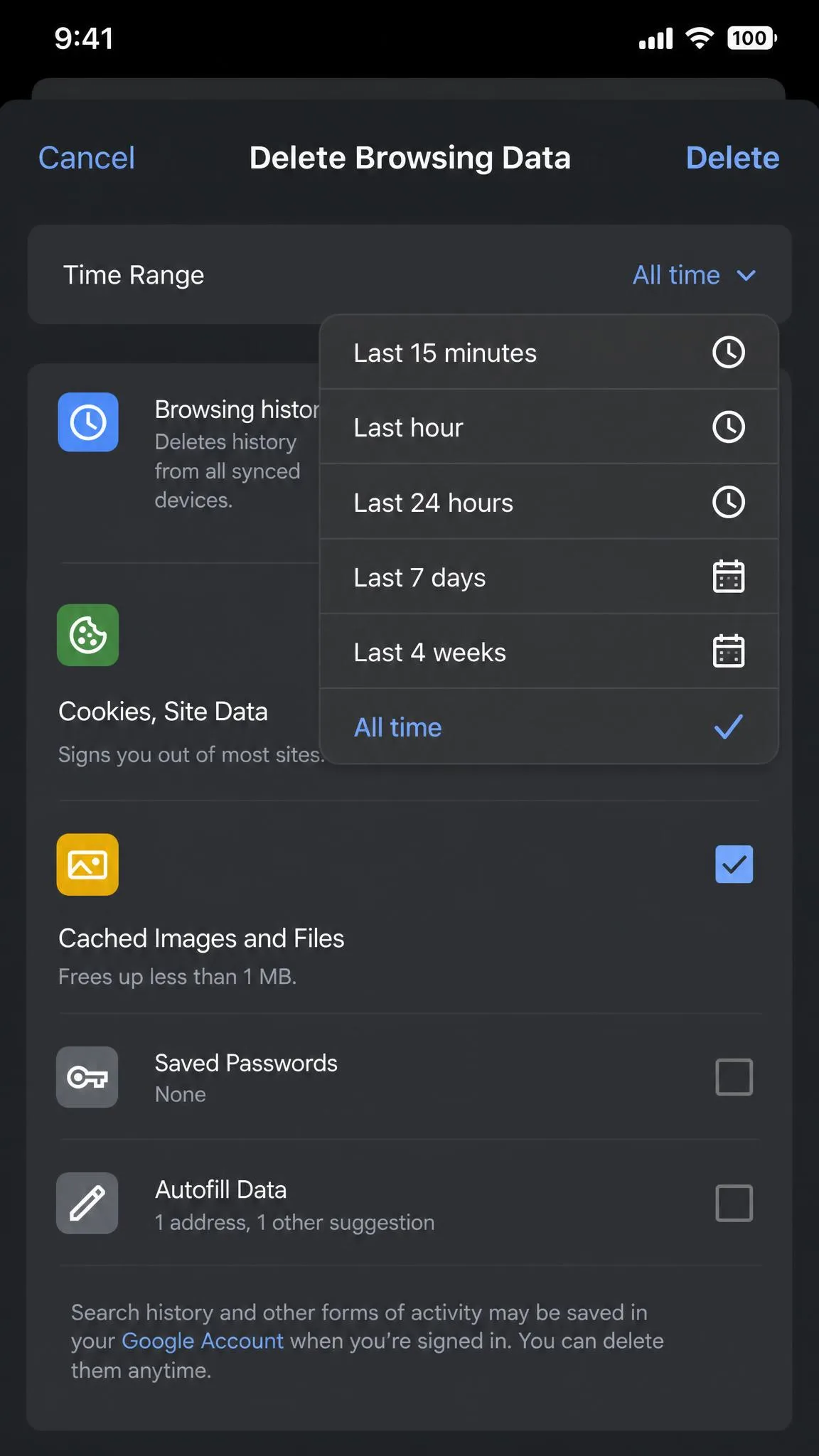
- Tap Delete Browsing Data.
- Set the Time Range to All time.
- Choose what to remove: Browsing History, Cookies and Site Data, Cached Images and Files, and Autofill Data.
- Tap Delete Browsing Data to confirm.
Step 3 is the one that trips people up. Chrome on iOS defaults the range to the last 15 minutes, so tapping straight through deletes far less than you expected. Change it before you confirm. Google's instructions to clear Chrome browsing data on iOS list the same data types.
There is a shortcut too: type "Delete browsing data" into the address bar and Chrome opens the dialog directly.
Delete individual Chrome history entries
For a single page, tap the three-dot menu, tap History, then swipe left on any entry and tap Delete. Tap Edit to select several at once. This leaves cookies and logins untouched, so nothing signs you out.
How to Delete Google App Search History on iPhone
Everything so far has been stored on the phone. This section is different, because the Google app is a window onto data held in your account.
Clear recent searches in the Google app
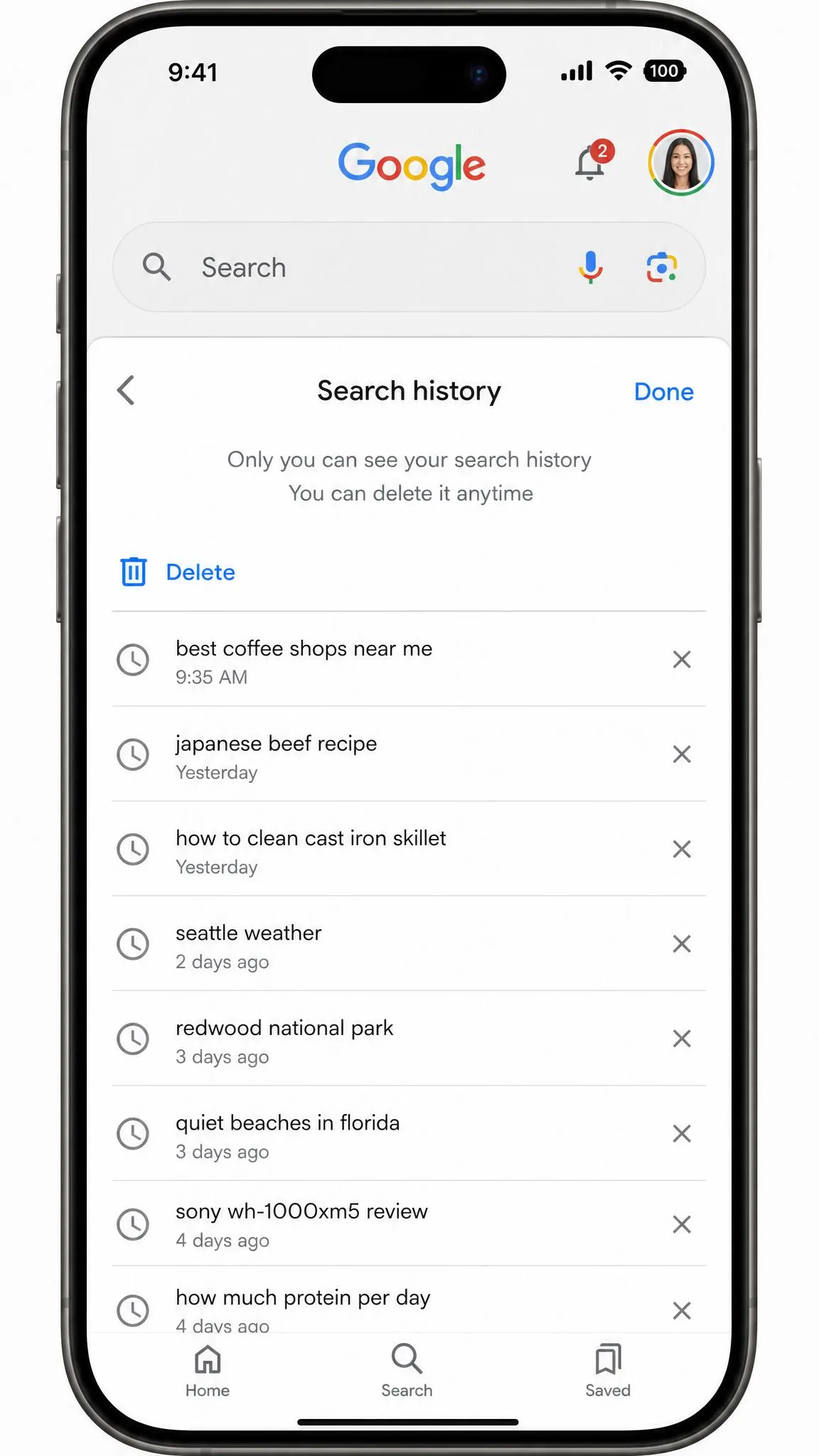
Open the Google app, tap your profile picture in the top right, then tap Search history. From there tap Delete, and choose what to remove. You can delete All time, a custom date range, a single day, or one individual search.
If you only want one embarrassing query gone, do not wipe everything. Find that single search in the list and delete just that entry. Your other results stay personalised, and nothing else in your account changes.
Delete saved Google account activity (the step most guides miss)
Clearing in Chrome on your iPhone leaves the Google account copy of the same searches completely untouched. That copy is what feeds the suggestions that keep reappearing under the search bar, which is why so many people clear their browser twice and conclude nothing happened. To deal with it properly, follow Google's instructions for deleting your search activity, or open your Google My Activity dashboard, where you can delete a custom range and pick which content types it applies to.
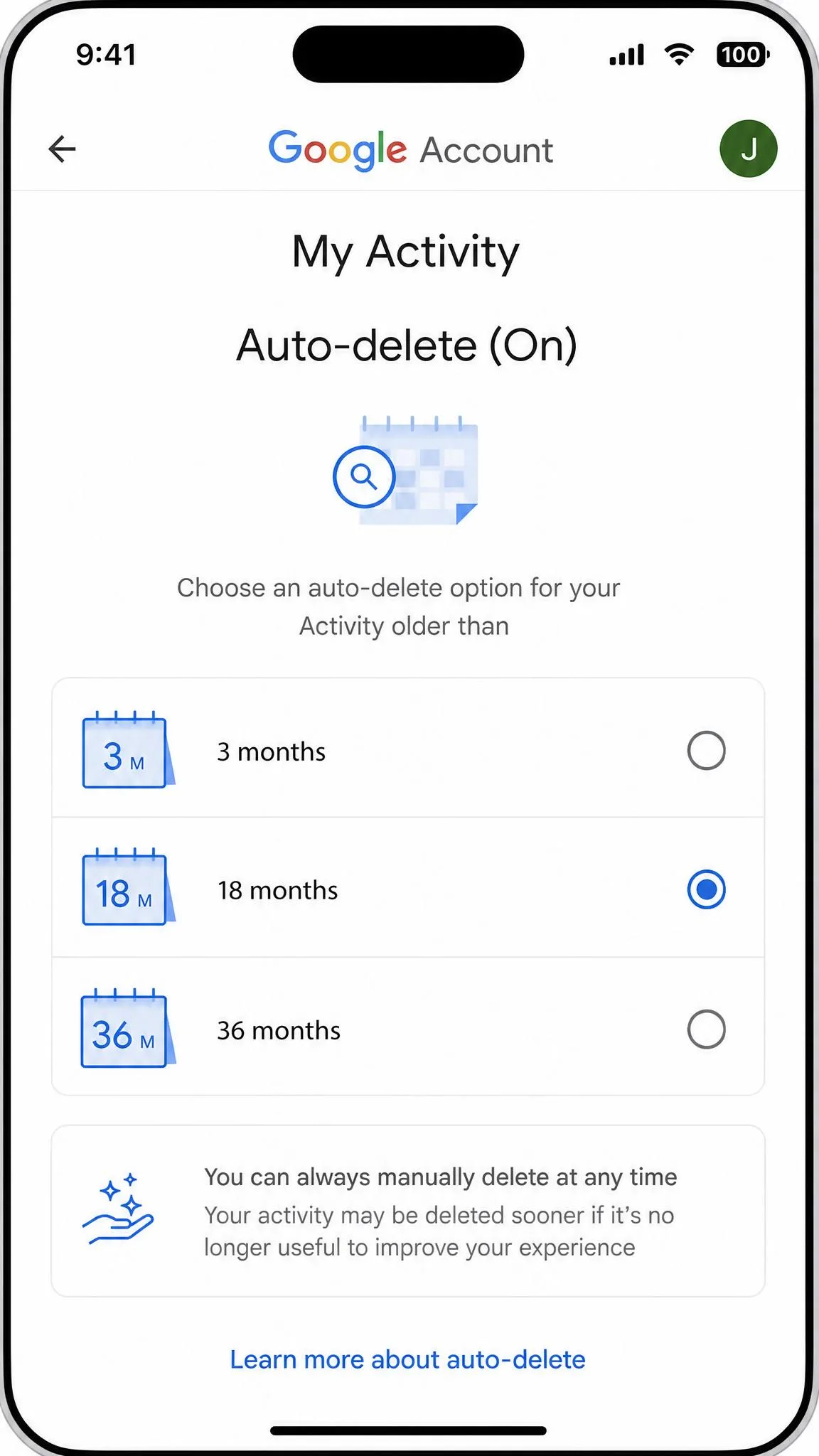
While you are there, set auto-delete so this stops being a chore. The choices are 3 months, 18 months, 36 months, or don't auto-delete. Anything older than the window you pick is removed for you.
How to Delete Siri and Spotlight Search History on iPhone
Siri stores a transcript history of your requests, and Spotlight quietly learns from what you search for across the system. Both are cleared from Settings rather than from an app.
Reset Siri and Dictation history
Go to Settings, tap Siri, tap Siri & Dictation History, then tap Delete Siri & Dictation History. That removes the transcripts associated with your device.
Apple does not store your Siri audio unless you opt in to Improve Siri and Dictation, and your request history is tied to a device-generated random identifier that rotates several times an hour rather than to your Apple Account. Related request data can be kept for up to two years, although that is an upper bound and differs by data type. Apple's Siri and Dictation privacy policy sets out what is kept. Turning both Siri and Dictation off deletes the on-device transcripts too.
Clear Spotlight search suggestions
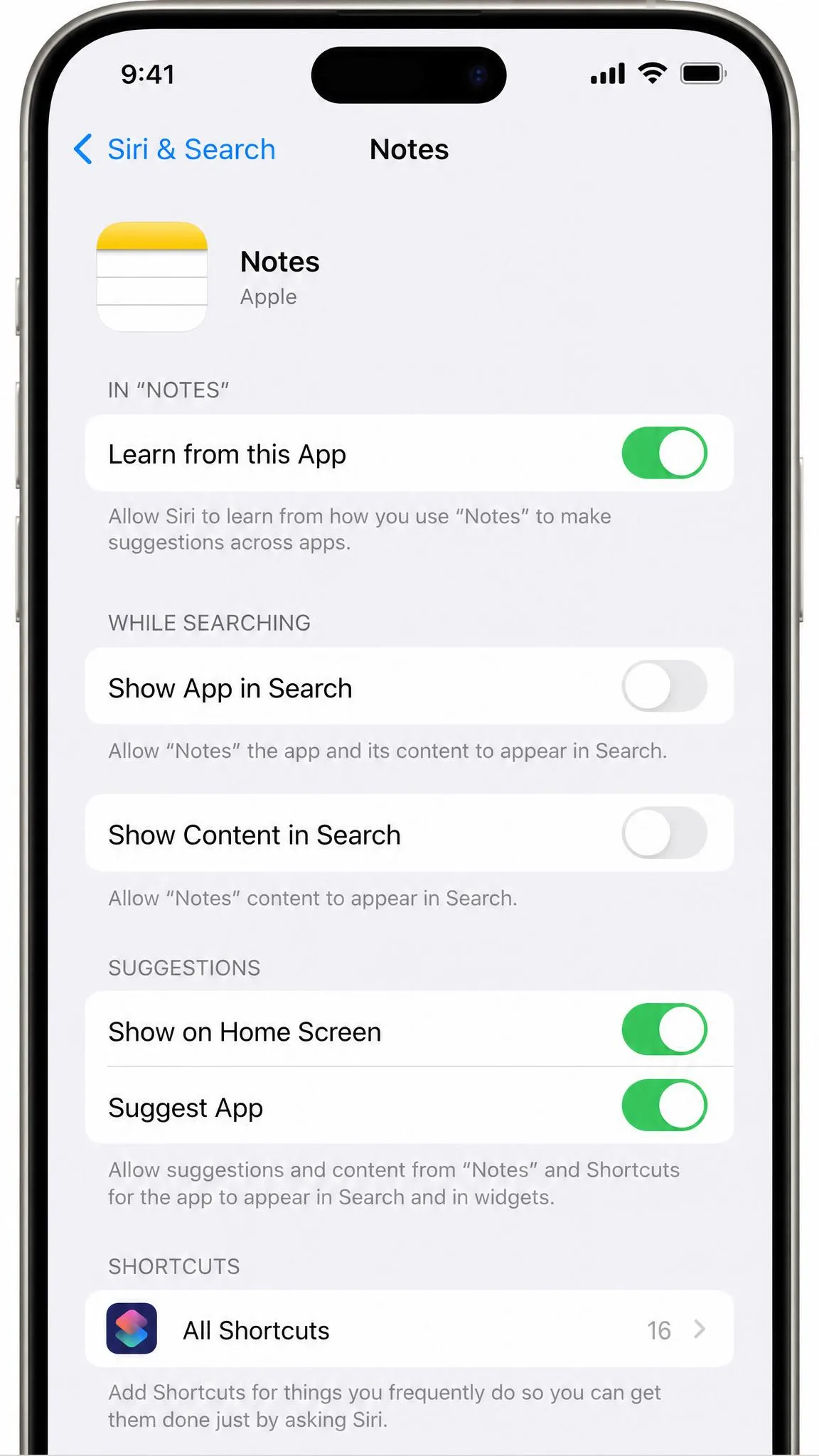
Spotlight has no delete button of its own, so you remove its suggestions by switching off what feeds them. In Settings, tap Siri, then tap an individual app and turn off Show App in Search and Show Content in Search. Apple's page on how to manage your Siri and Search settings walks through the per-app toggles. Turning these off for your messaging and browser apps makes the biggest difference.
How to Delete Other Searches Your iPhone Keeps
Five surfaces cover most of it, but a handful of apps keep their own separate lists.
YouTube, Maps and App Store search history
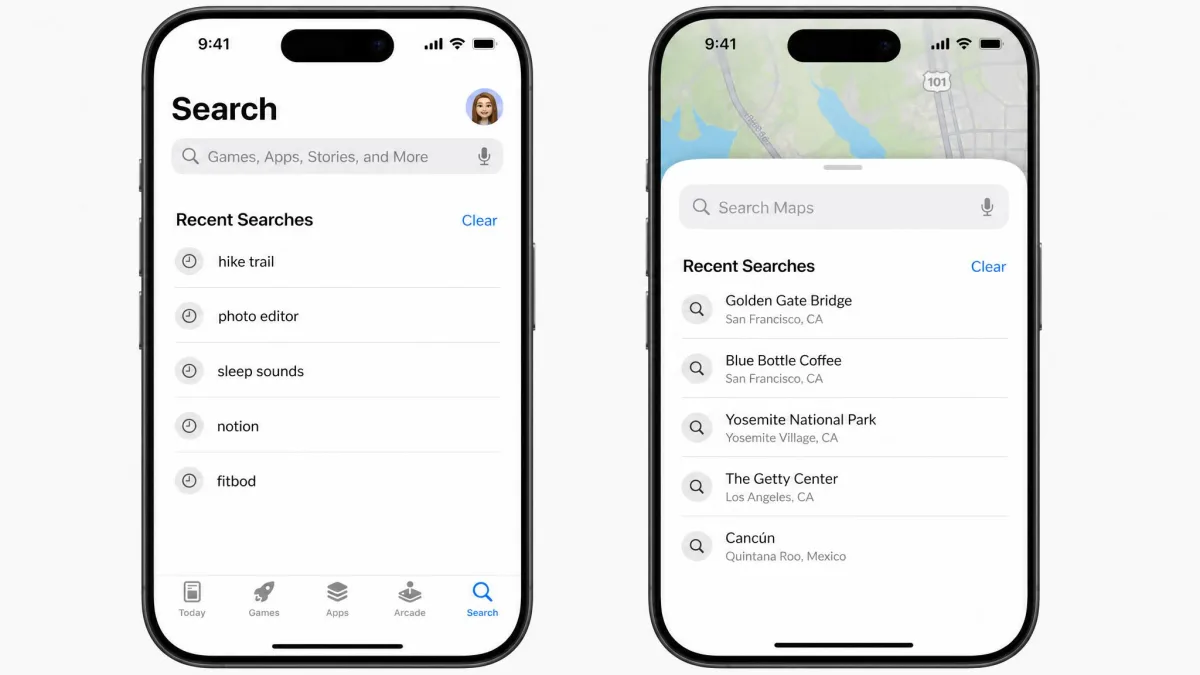
Each clears from inside the app rather than from Settings. In YouTube, open your profile, tap Settings, tap History and privacy, then clear your search history. In Maps, swipe up on the search card and tap Clear under Recents. In the App Store, tap Search and clear the Recent list. Account-linked apps sync to your other devices too.
Firefox browsing history
Firefox for iOS keeps its own store, exactly like Chrome does. Open the menu, tap Settings, then look for the data-management screen and clear your browsing history from there. Mozilla's Firefox for iOS support page has the current steps.
Keyboard and autofill suggestions
The iOS keyboard learns words as you type, and those learned words are not part of any browser's history. To reset them, go to Settings, tap General, tap Transfer or Reset iPhone, tap Reset, then tap Reset Keyboard Dictionary and confirm with your passcode. That wipes learned words, typing patterns and autocorrect suggestions across every installed keyboard and language, not just the one you are using, and the keyboard feels noticeably worse for a few days afterwards while it relearns names and slang from scratch. iOS 26.4 fixed the bug that saved typos as intentional words, but the dictionary still has to be reset by hand to clear the bad entries already in there.
Autofill is a separate job with its own paths. Safari's saved contact details and credit cards are cleared under Safari's AutoFill settings, while password and passkey autofill is turned off under Settings, General, AutoFill & Passwords. To drop a single suggestion, touch and hold it in the form field and tap Remove. Text Replacement shortcuts and saved AutoFill contact and card details survive both a Safari history clear and a keyboard dictionary reset, so old entries keep resurfacing until you edit each list directly.
At a Glance: Where Each Type of Search History Lives
| History type | Where it's stored | How to clear it | Syncs to other devices? |
|---|---|---|---|
| Safari | On device plus iCloud | Settings, Apps, Safari, Clear History and Website Data | Yes, via iCloud |
| Chrome | On device plus Google Account | Chrome More menu, Delete Browsing Data, set range to All time | Yes, if signed in |
| Google app | Google Account | Profile picture, Search history, Delete | Yes, account-wide |
| Siri / Spotlight | On device plus Apple servers | Settings, Siri, Siri & Dictation History, Delete | No |
| YouTube / Maps / App Store | Per-app, account-linked | Clear inside each app's own history screen | Yes for account-linked apps |
Settings paths shifted between iOS 18 and iOS 26. Safari's settings used to sit in the main Settings list and now live under Apps. The clearing steps themselves are unchanged, so if a guide tells you to tap Settings then Safari and you cannot find it, look under Apps first before assuming the option was removed.
How to Stop Your iPhone Saving Searches in the First Place
Deleting after the fact is tidy-up work. These settings prevent the record from being written at all.
Private Browsing in Safari
Open Safari, tap the tabs button, then swipe to the Private tab group and tap it. Pages you visit in private browsing are not added to your history, and Apple's guide to how to browse privately in Safari covers locking those tabs behind Face ID.
You can tell a private tab at a glance by its darker toolbar. That matters more than it sounds, because history that looks mysteriously missing is quite often just a private tab you forgot you had open.
Incognito mode in Chrome
In Chrome, tap the three-dot menu and tap New Incognito Tab. Nothing you browse there is written to Chrome's local history or to your Google account.
Turn off Search Suggestions and Siri Suggestions
To stop suggestions building up in the first place, go to Settings, tap Apps, tap Safari, and turn off Search Engine Suggestions and Safari Suggestions. In Settings under Siri, turn off Show Suggestions in Search for the apps you care about.
Private browsing and Incognito stop history being saved on the device, and that is all they do. They do not hide your activity from your internet provider, from an employer or school network, or from the sites you visit. If that is the concern, this is not the tool for the job.
Why "Clear History" Is Grayed Out (and How to Fix It)
If the Clear History and Website Data row is gray and will not respond to a tap, nothing is broken. Something is blocking it, and there are four likely candidates.
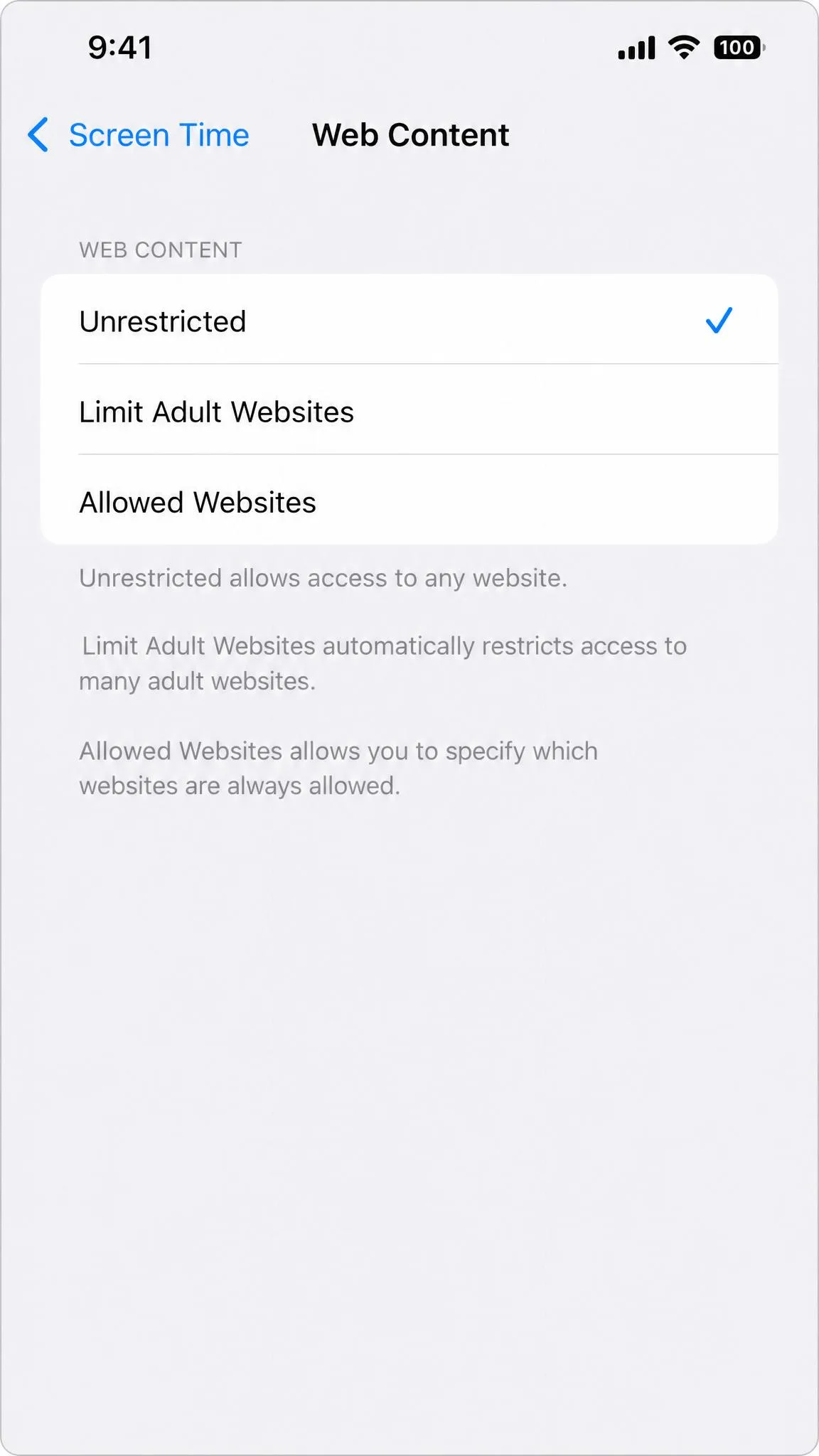
Screen Time content restrictions are on
This is almost always the answer. When Screen Time's Content & Privacy Restrictions limit Web Content, iOS grays out the clear option, and the button becomes tappable again the moment you set Web Content back to Unrestricted. Go to Settings, tap Screen Time, tap Content & Privacy Restrictions, tap Content Restrictions, tap Web Content, and choose Unrestricted. Then go back to Safari's settings and try again.
A device management profile is installed
On a work or school iPhone, a mobile device management profile can override the setting and block history deletion outright. In that case the button stays gray no matter what Screen Time says, and there is no setting on your end that changes it. Check Settings, then General, then VPN & Device Management to see whether a profile is installed.
There's no data left to clear
If your history is already empty, iOS grays the option out because there is nothing to remove. Make sure you are not looking at an already-cleared device before you go hunting for a fault.
iCloud is syncing history back from another device
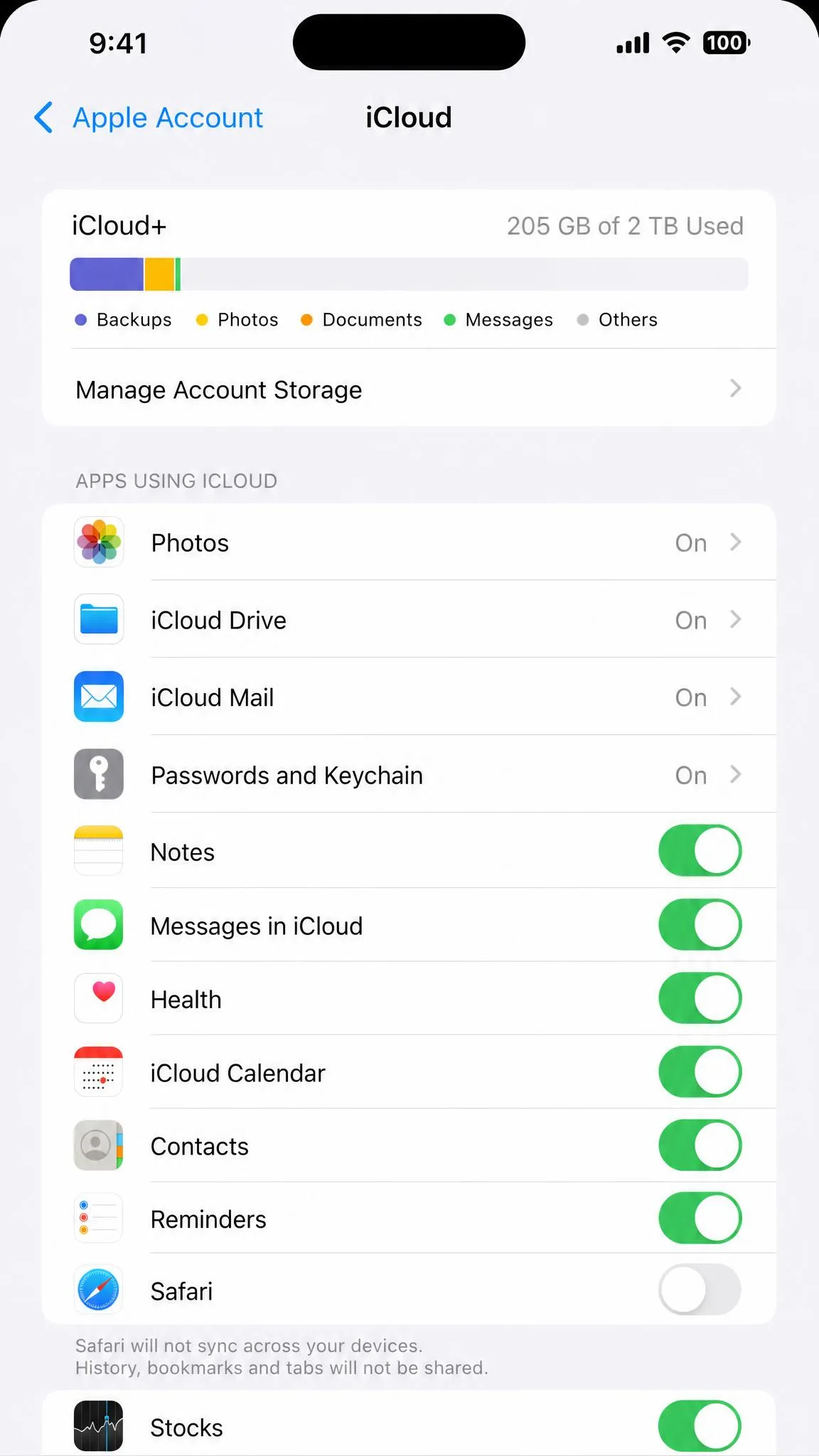
Because iCloud syncs Safari history across your Apple devices, a cleared iPhone can be repopulated from an iPad or Mac that was not cleared. In practice the history reappears within minutes, as soon as another signed-in device pushes its own copy back. To prevent it, go to Settings, tap your name, tap iCloud, and turn Safari off on every device before you clear, then clear each device in turn.
Can Deleted iPhone Search History Be Recovered?
Not by normal means. Once Safari history is cleared, there is no recycle bin and no recently-deleted folder to fall back on.
Two indirect routes exist. You can restore the whole device from an iCloud backup made before the deletion, or scan a local iTunes or Finder backup with third-party iPhone data recovery software. Both are blunt instruments: a full restore trades your history back for everything else created since that backup, which is rarely a fair swap for a browsing list.
If you cleared something by accident, assume it is gone. If you cleared it deliberately, you can be confident that it is.
Frequently Asked Questions
Does clearing search history delete my bookmarks?
Can search history be recovered after I clear it?
Does clearing history log me out of websites?
Will deleting my Google account activity sign me out or reset my results?
What about a Mac or iPad signed in to a different Apple Account?
How far back does iPhone keep search history?
The Bottom Line
Deleting searches on an iPhone is straightforward once you accept that there is no single button for it. Safari, Chrome, your Google account, Siri and Spotlight each hold their own copy, and each needs its own clear.
If you only do two things, do these. Clear Safari from Settings, Apps, Safari, then delete your Google account activity and set an auto-delete window so the account side keeps itself tidy. That covers most of what your iPhone remembers about you.
Then switch on private browsing for anything you would rather not clean up later. It is less work than deleting after the fact, and it is the only step here that stops the record being written at all.