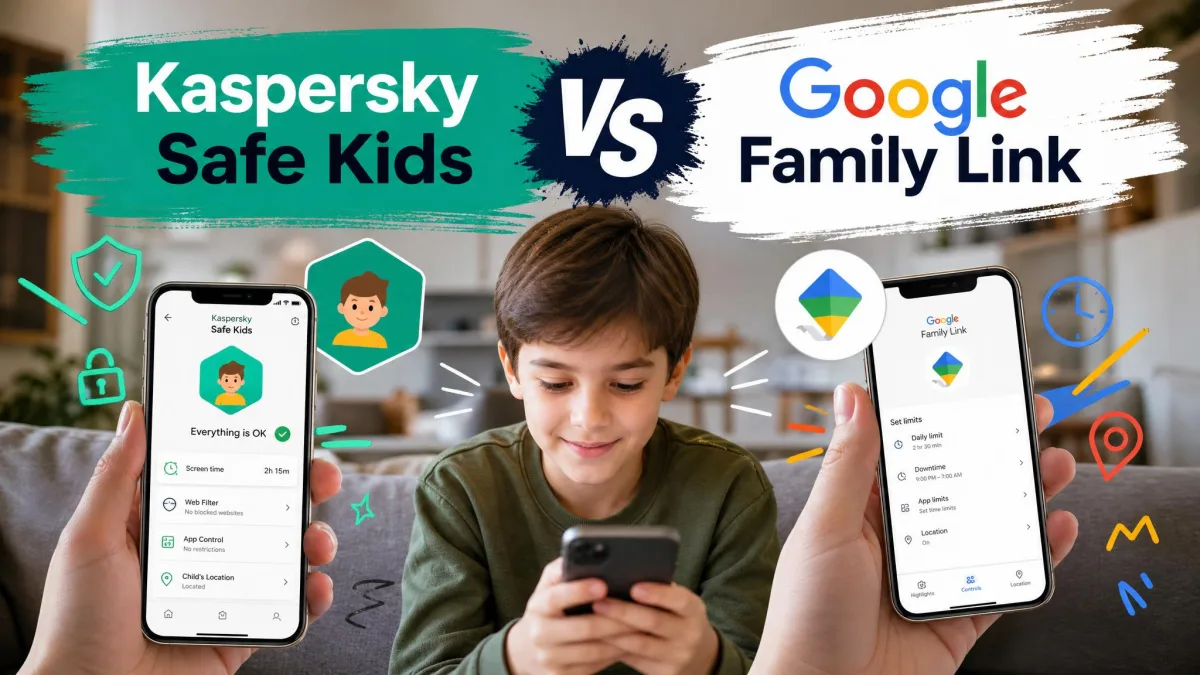
Kaspersky Safe Kids is a cross-platform parental control app that filters web content, caps screen time, blocks apps, and reports a child's location back to a parent dashboard called My Kaspersky. It runs on Windows, macOS, Android, and iOS, and it splits its features across a free tier and a paid premium tier. For most families running Android phones and Windows laptops, it is worth the money, because the filtering is genuinely accurate and the free tier alone does more than most rivals give away.
That said, this is not a tool we would put on an iPhone-only household, and the location features are the weakest part of the package. We spent time with the parent console and the child app across both platforms, and the gap between what the marketing promises and what the app reliably delivers is widest exactly where parents feel it most.
Verdict: Kaspersky Safe Kids at a Glance
How We Tested Kaspersky Safe Kids
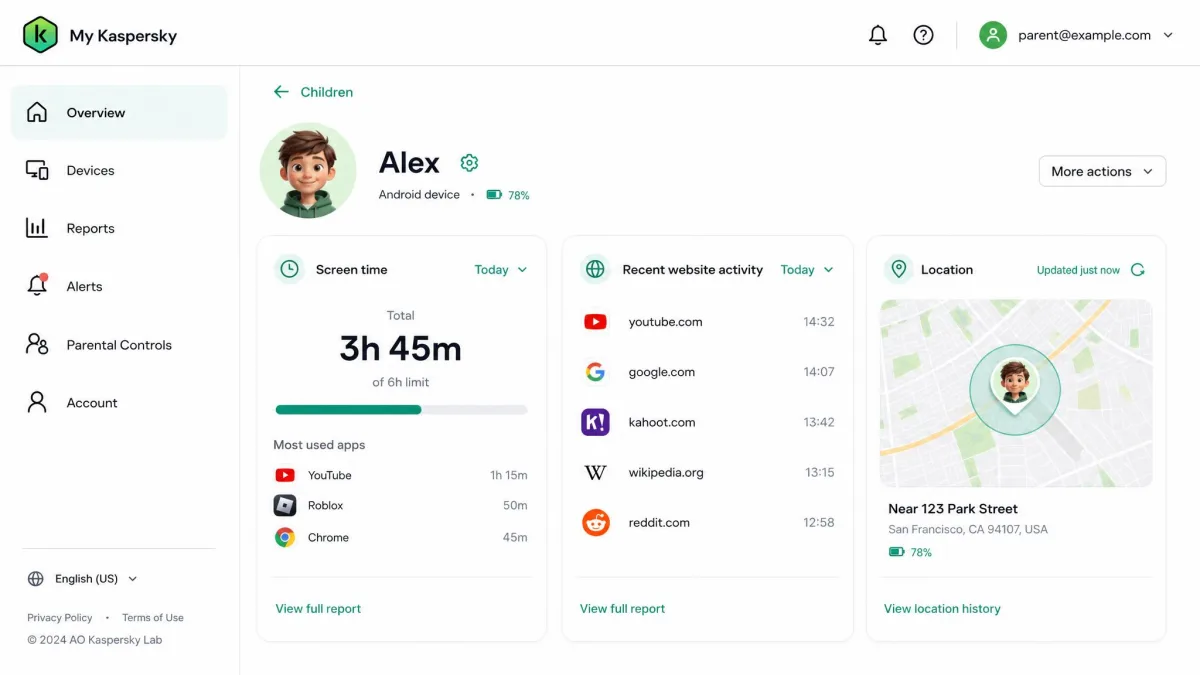
Our habit with any parental control app is to configure it fully rather than sample it, so we built child profiles in My Kaspersky, enrolled both an Android handset and an iPhone, and set web filtering categories, a daily screen time cap, app blocking rules, and an allowed area on the map before handing either device back. We then lived with the result for a week of ordinary use, checking the parent console in short visits rather than long audits. Everything below comes out of that week, and the two verdicts that matter most have held steady across separate rounds with the app months apart.
Pros and Cons
The short version of what we liked and what frustrated us.
Pros
- Filtering accuracy is among the best independently measured for a consumer parental control app
- Unlimited child profiles and devices on one subscription in most listings
- Policy changes in the parent console reach the child device instantly
- Child-friendly sites pass through untouched, so over-blocking is rare
- 30-day money-back guarantee, plus a 7 days trial with the full premium feature set
Cons
- Saved geofenced areas can vanish from the dashboard, which stops arrival alerts firing
- iOS loses app control, YouTube search history, and reliable screen time enforcement
- Calls and SMS monitoring has been removed entirely
- Social network monitoring covers VK only, and never message contents
- The parent dashboard is slow when you switch between tabs
- Support leans on self-help articles, and the contact form will not accept general inquiries
Pricing and Plans: Free vs Premium
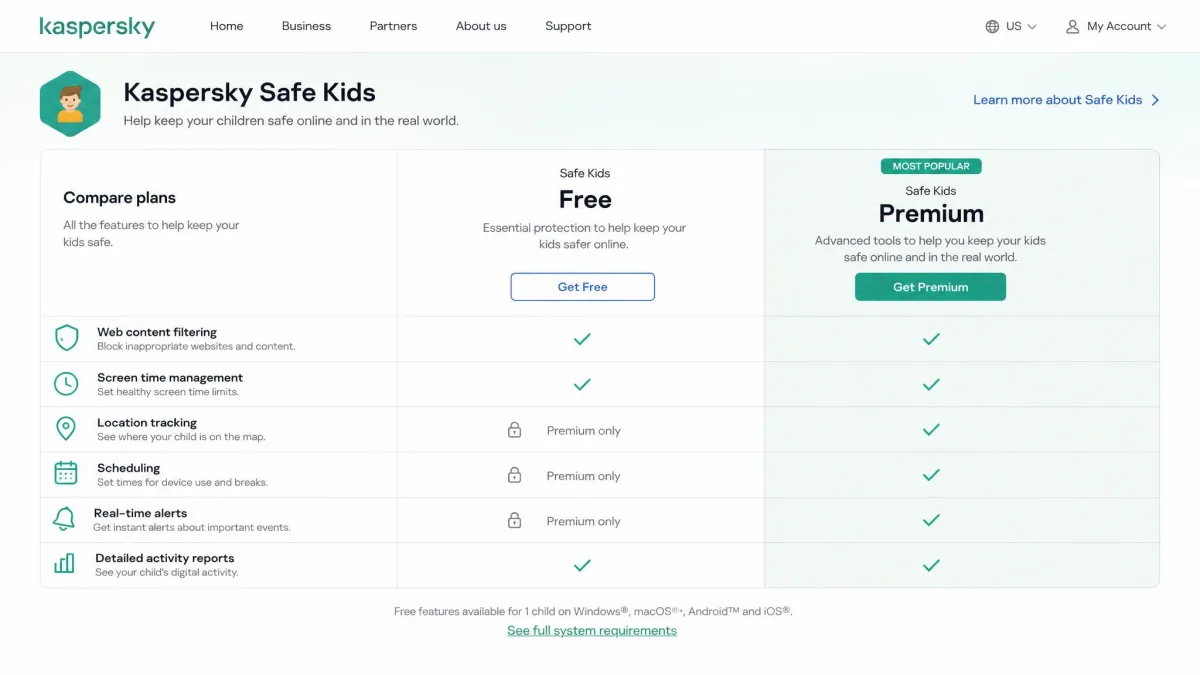
Kaspersky splits Safe Kids into two tiers, and the split is unusually generous at the free end. There is also a trial route if you want the full feature set before committing: the trial version is valid for 7 days and carries every premium feature, and all paid plans carry a 30-day money-back guarantee.
The free and premium boundary is drawn around time and place. Content controls are free. Anything involving scheduling, location, or proactive alerts sits behind the paywall.
What the Free Version Actually Includes
The free plan gives you online content monitoring, YouTube safe search, application usage control, and screen time management. In practice that means you can filter categories of websites, see which apps your child opens and for how long, block the ones you object to, and set a daily cap on device use. That is the core of what most parents ask a parental control app to do, and Kaspersky hands it over without a card.
That is a genuinely usable plan rather than a stripped demo, which is not the norm here: Norton Family and Net Nanny have no free plan at all, and Qustodio's is tightly limited. If your worry is what your child sees rather than where they are, you may never need to pay.
Kaspersky Premium and Bundle Pricing
Premium adds screen time scheduling, the child's location on a map, safe area geofence notifications, battery tracker alerts, YouTube search history, and real-time alerts for suspicious activity.
Pricing is the messiest part of this review. Listings range from around $14.99 per year to $35.99 per year, with regional storefronts showing first-year rates such as CA$24.99 or GBP20.99 renewing near CA$2.08 or GBP1.75 per month. The premium price moves with region, promotion, and renewal term rather than sitting at one global figure. Third-party listings describe unlimited child profiles and devices on a single subscription, though current Kaspersky plan pages no longer state a cap either way, so confirm device coverage at checkout for your region.
Even at the top of that range, Safe Kids undercuts every direct rival: Norton Family runs $49.99 per year, Qustodio spans $59.95 to $109.95 depending on tier, and Net Nanny starts from $39.99.

Setup and Installation on Parent and Child Devices
Once you have settled which tier you are paying for, the next question is how much work enrolment costs you, and on Android the answer is almost none. Setup there is close to effortless. You create the child profile in My Kaspersky, scan a QR code, install the child app, and grant permissions along a prompt sequence that explains what each one is for. The whole process takes a few minutes per device, and nothing about it requires a support article.
One quirk catches families out. The Android child and parent apps are absent from the Google Play Store, so installation runs through the Galaxy Store, Huawei AppGallery, or a sideloaded APK from Kaspersky. That is a policy consequence rather than a security problem, but the usual search-and-install route does not work, and a parent who does not expect it will assume the app has been discontinued.
iOS setup is noticeably more involved. It can require creating a separate Apple ID for the child before the configuration profile will install, and profile-based controls always feel more fragile than a native app. Budget more patience for an iPhone than for an Android handset.
Set every policy on the parent console before you hand the device back. Changes apply to the child's device instantly, so you can tighten a rule from your own phone later without touching theirs.
Features: What Kaspersky Safe Kids Actually Does
The feature set covers web filtering, YouTube safe search and search history, app blocking and usage control, screen time limits and scheduling, GPS location with geofenced areas, battery and real-time alerts, VK social network monitoring, and the My Kaspersky parent dashboard.
Web Filtering and Safe Search
Filtering is the reason to buy this app. In AV-Comparatives' parental control round for Windows, Safe Kids blocked 96.8% of pornographic websites with zero false positives, tested against 1,000 inappropriate websites and 200 legitimate children's sites. Certification there requires at least 95% blocking with no false alarms, and only 2 of 5 submitted products cleared that bar. Kaspersky also cites 7 AV-TEST awards in a row for parental control, and the methodology behind that programme is set out in AV-TEST's Parental Control certification report.
What that accuracy feels like day to day is an absence of arguments, because you are not fielding complaints every afternoon about blocked homework sites. Windows filtering hooks Chrome, Firefox, Edge, and other mainstream browsers, which covers what a child will actually open.
The caveat is that filtering is browser-dependent. A child who installs a browser Kaspersky does not hook into can sidestep the content filter, and accuracy has drifted downward over time, from a near-perfect 2020 result to 96.8% in the May 2025 round. The full scoring appears in AV-Comparatives' parental control review of Safe Kids.
Only 2 of 5 products submitted to AV-Comparatives cleared the 95% blocking bar with zero false alarms. Kaspersky was one of them.
— From AV-Comparatives' May 2025 parental control round
Screen Time Limits and Scheduling
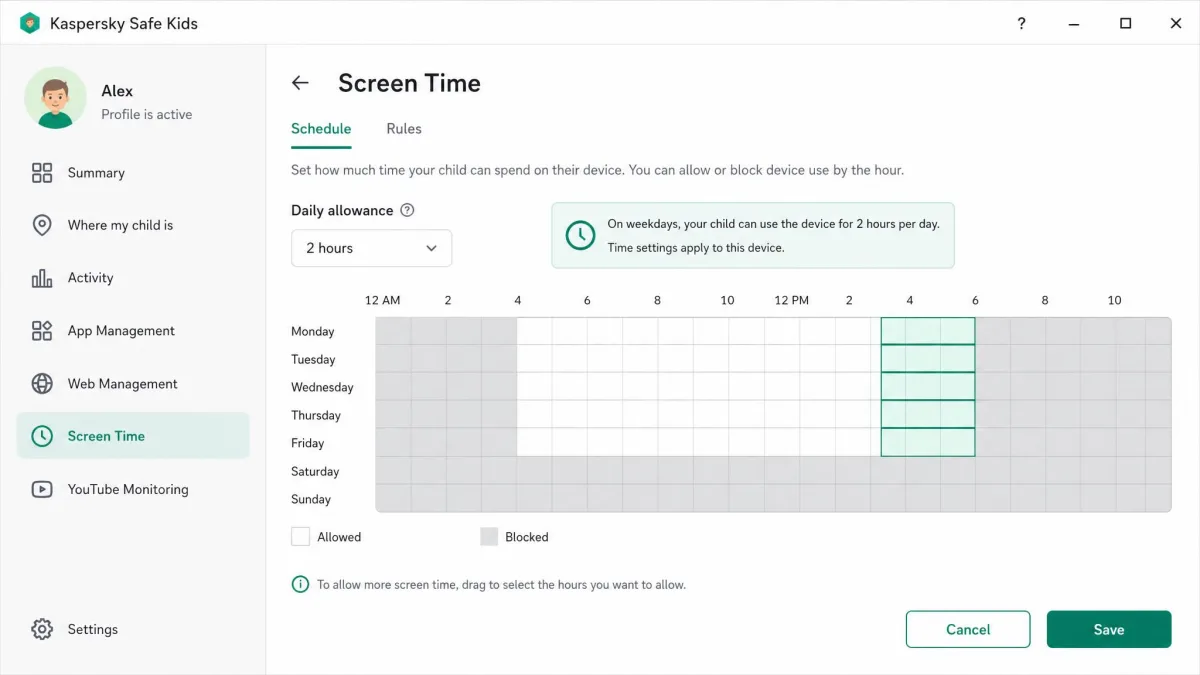
Screen time splits across the paywall. A daily cap is free, and it works the way you expect: set the allowance, and the child's device locks the managed apps when the budget runs out. Scheduling, which lets you carve the day into allowed and blocked windows for homework or bedtime, is premium only.
Enforcement on Android and Windows was consistent for us. On iOS it is the single weakest area of the app, and we would not rely on it as the primary limit for an iPhone.
App Management and App Blocking
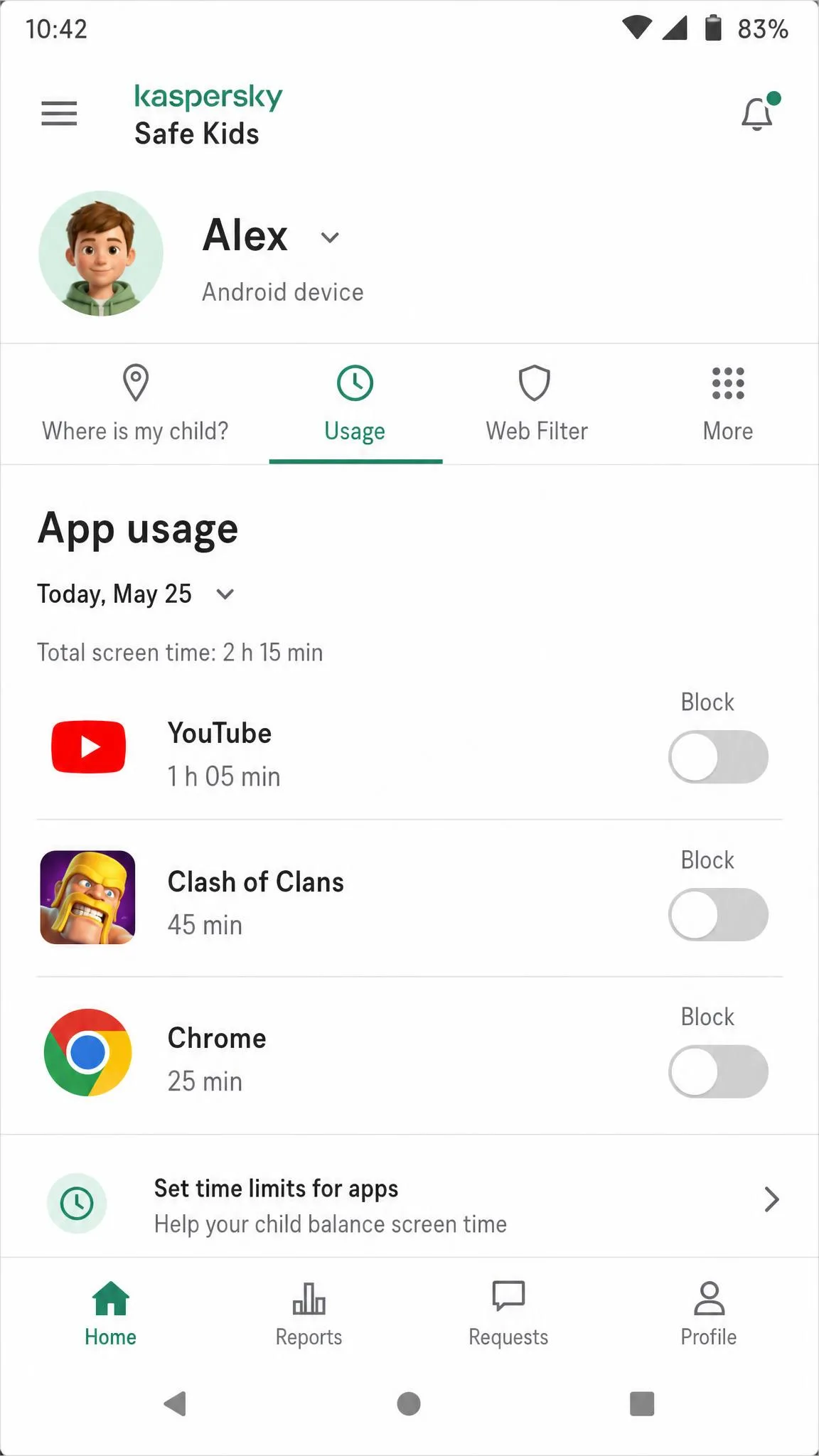
App management covers both halves of the job: reporting which applications a child uses and for how long, and blocking the ones you do not want opened. Usage control is free, which is unusual, and the age-rating filter gives you a fast way to set a sensible baseline without auditing every app by hand.
This is an Android and Windows feature. There is no application control on iOS at all, and app filtering there is weaker across the board.
GPS Location Tracking and Geofencing
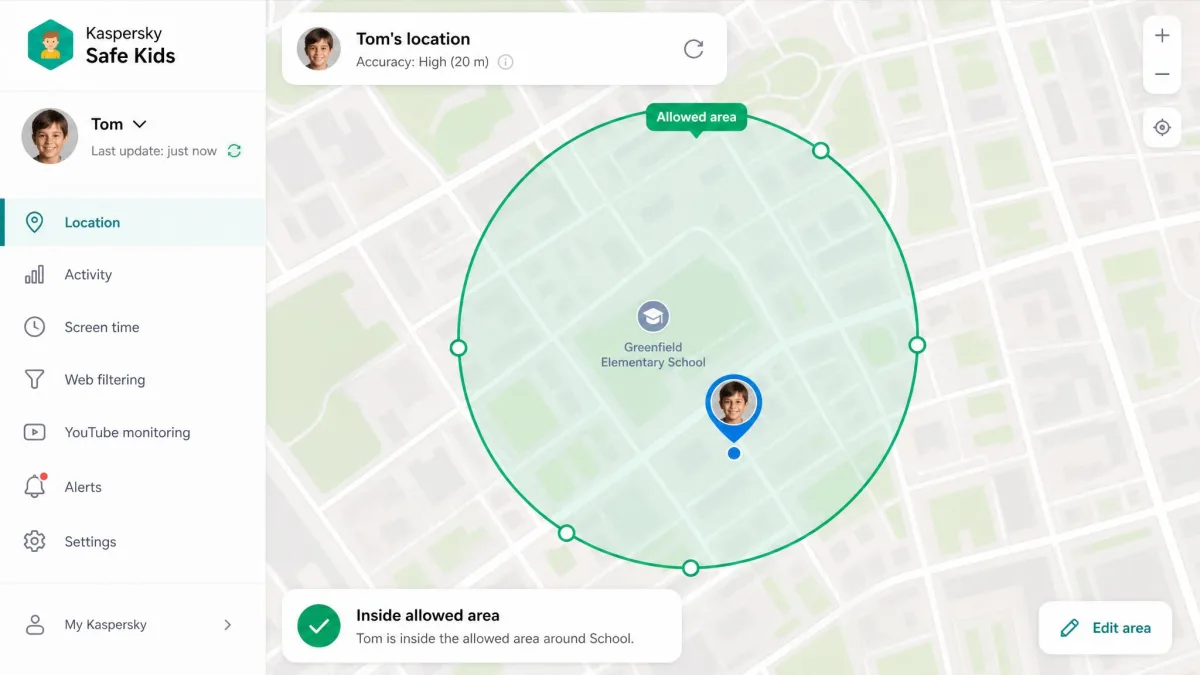
Live location is dependable. The child's position updates consistently on the parent dashboard, and the map view is clear enough to read at a glance.
Geofencing is not. On the second day of testing we drew an allowed area around a school on the map, and the arrival alert fired that afternoon exactly as advertised. When we opened the dashboard later in the week, the area was simply gone: no notification told us it had been removed, nothing in the activity feed marked the change, and no alert had fired for the arrival that morning. Drawing it again brought the alerts back for a while, and then the same thing happened.
That is not a one-off glitch. Saved allowed areas can disappear from the dashboard, and when they vanish the arrival and departure alerts stop firing without telling you. The problem has recurred across testing cycles months apart. If the reason you are buying premium is a notification when your child reaches school, treat that feature as unproven and verify it yourself during the money-back window.
Battery Tracker rounds out the location group. It shows your child's remaining battery and pings you when it drops to 15%, which is a small feature that quietly prevents a lot of unnecessary worry.
YouTube Search and Activity Monitoring
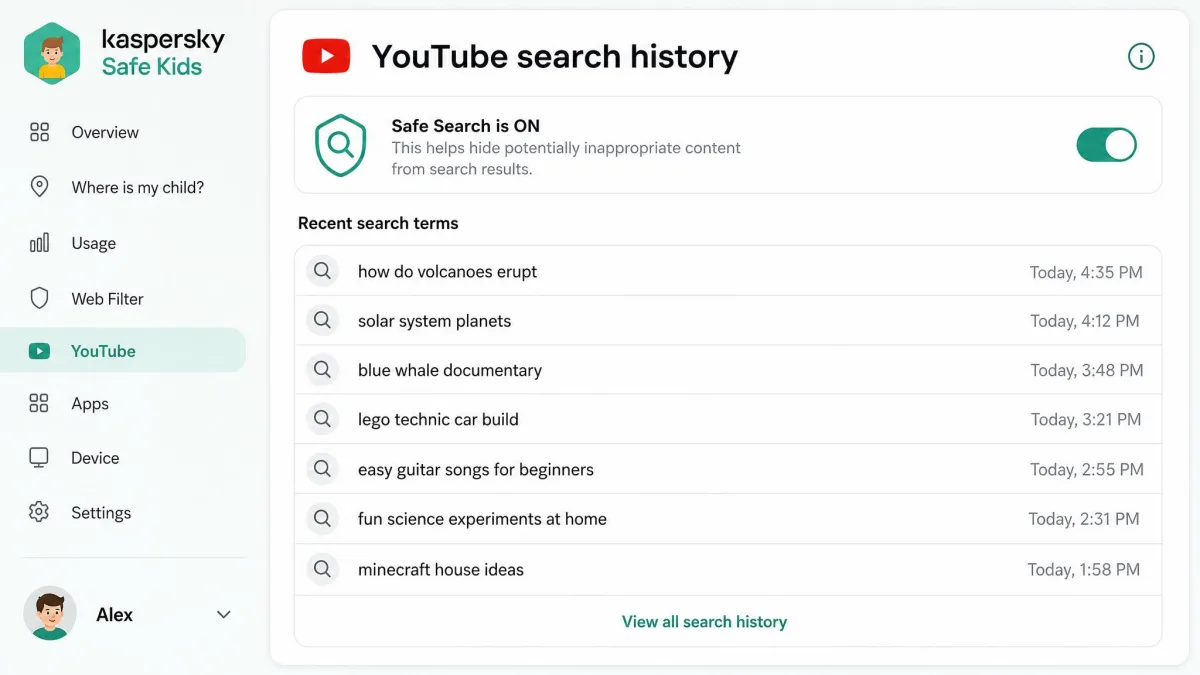
YouTube coverage is split into safe search, which is free, and search history, which is premium. Safe search forces the platform's restricted mode so YouTube itself filters results. Search history shows you what your child typed into the box, which is often more revealing than the videos they finished watching.
The limit is that individual YouTube channels cannot be blocked. Coverage stops at safe search and search history, so a specific creator you object to stays reachable. Competing apps handle this better.
Social Network Monitoring
Social network monitoring covers VK only, showing timeline posts and friend counts but never chat contents. For families outside Russia and neighbouring markets, that means this feature does nothing at all.
Text message monitoring is gone as well. Calls and SMS monitoring was removed from Android child devices after Google Play policy changes restricted SMS and call log access, and Kaspersky Safe Kids no longer monitors calls and SMS on any platform. There is no way to read messages inside social apps either, which leaves an obvious gap next to competitors that still offer some visibility there.
Battery Level and Real-Time Alerts
Real-time alerts for suspicious activity are premium, and they turn the dashboard from something you check into something that reaches you, firing for blocked site attempts and geofence events.
Device and Platform Support: Android vs iOS
Safe Kids supports Windows 7 SP1 through Windows 11, macOS 11 to 14, Android 11 to 16, and iOS 18 and iOS 26. On the desktop side you need 200 MB free disk space on Windows and 550 MB on macOS. Check Kaspersky's supported platform requirements before you buy if any device in the house is running an older release.
The platform story is really an Android story. Every headline feature works properly there. On iOS, screen time scheduling, YouTube search history, and per-app limits are either missing or unreliable, and there is no application control whatsoever. Apple's restrictions on what a third-party app may do are the cause, but the practical result for a parent buying the product is the same: an iPhone gets a partial version. If your children are on iPhones and iPads, buy on the strength of web filtering alone, because app control, scheduling, and YouTube history are not features you will get.
Uninstall behaviour differs too. Removing the app on iOS requires deleting the Kaspersky configuration profile using the parent PIN code, which is a reasonable barrier, while on Android the app itself is what protects removal.
Performance and Limitations
Filtering Accuracy in Our Testing
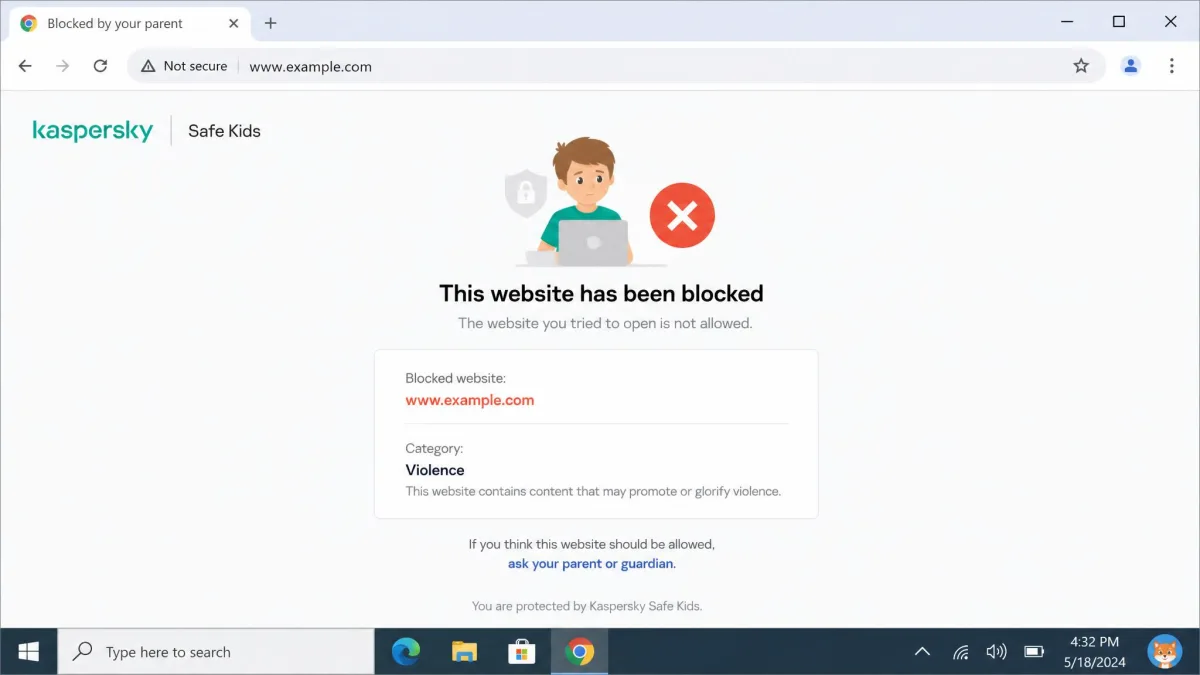
One afternoon during the test week we tightened the social networking category from the parent app while the child device sat on the kitchen table with a browser already open. By the time we had put our own phone down and picked the other one up, the new rule was live, and the next page load returned the block notice rather than the site. Lego.com, loaded a minute later on the same machine, came through untouched. That pair of results is the app at its best: fast to enforce and quiet where it should be.
Being quiet is the highest compliment a content filter can earn, and over a week of ordinary browsing the family stopped noticing it was there.
The trend line is worth naming honestly: accuracy has drifted downward across test rounds rather than holding steady, and the browser dependency is a structural weakness rather than a bug. A child who installs an unusual browser gets an unfiltered internet.
Can Kids Bypass or Uninstall It?
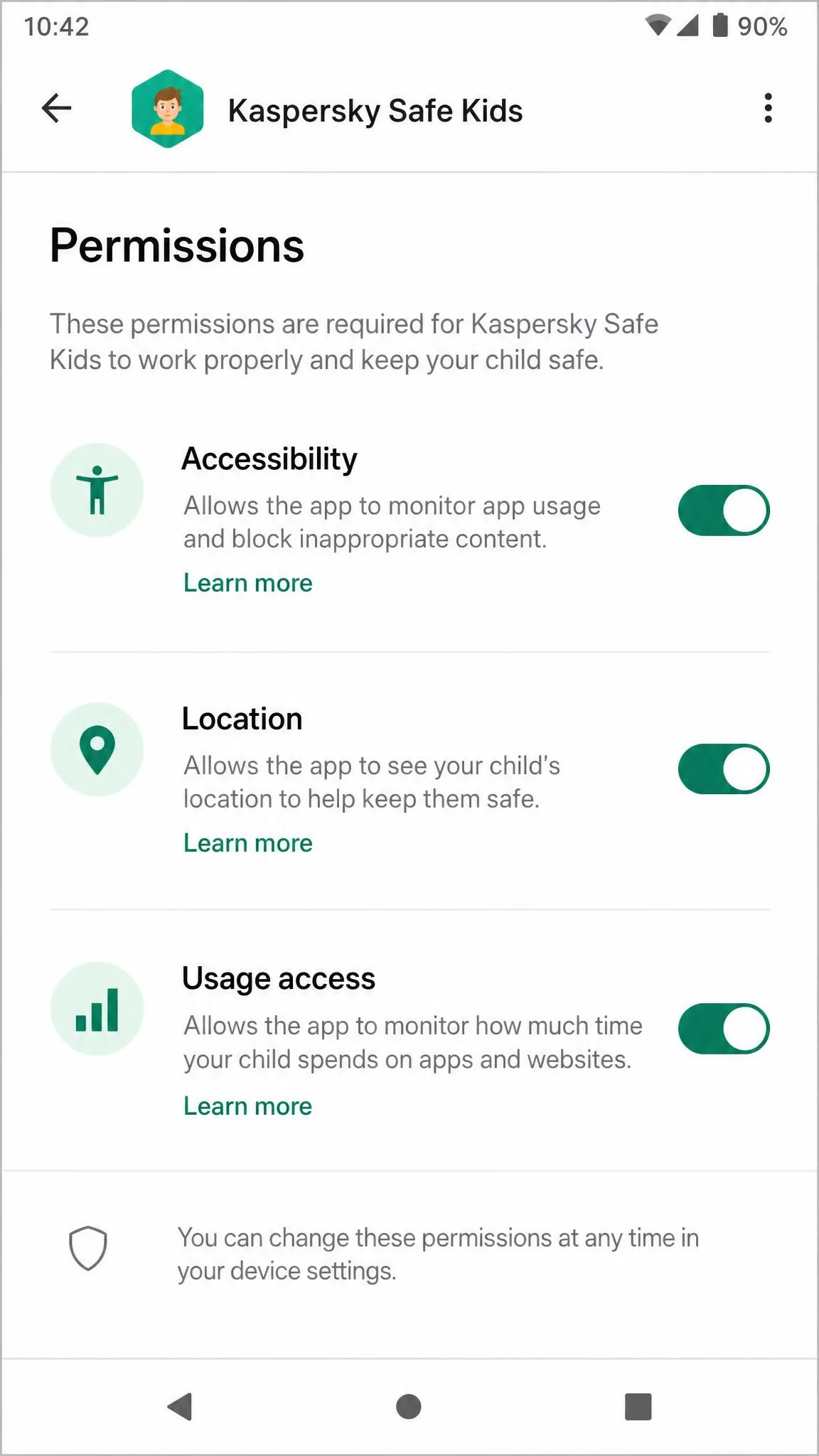
Uninstall protection is genuine but shallow. Removal needs the parent PIN, yet nothing is enforced at the device level that a tech-savvy teenager cannot route around. On Android in particular, a determined child can weaken the app by revoking its permissions rather than uninstalling it outright, which leaves the icon in place and the reporting hollowed out.
Treat this app as a guardrail for a co-operative child, not a lock on an adversarial one, and check the dashboard for reporting gaps every week or so. A profile that suddenly stops generating activity data is telling you something.
Privacy, Data Handling and the Jurisdiction Question
None of those feature strengths settles the question parents ask us most often about this app, which is who is holding the data. Kaspersky is a Russian-founded company, and that has stopped being an abstract concern. The US Commerce Department prohibition made selling Kaspersky software and shipping updates to US customers unlawful from September 29, 2024, following a ban announced June 20, 2024 by Commerce Secretary Gina Raimondo. American readers should treat Safe Kids as unavailable rather than merely controversial, whatever the vendor's global marketing pages still show.
Outside the US the calculation is yours to make. Kaspersky has moved significant data processing to Switzerland and submits to independent audits, and no evidence has surfaced of Safe Kids data being misused. Against that, this is an app that knows where your child is, what they search for, and which apps they open, and some parents will find that combination uncomfortable regardless of the technical safeguards.
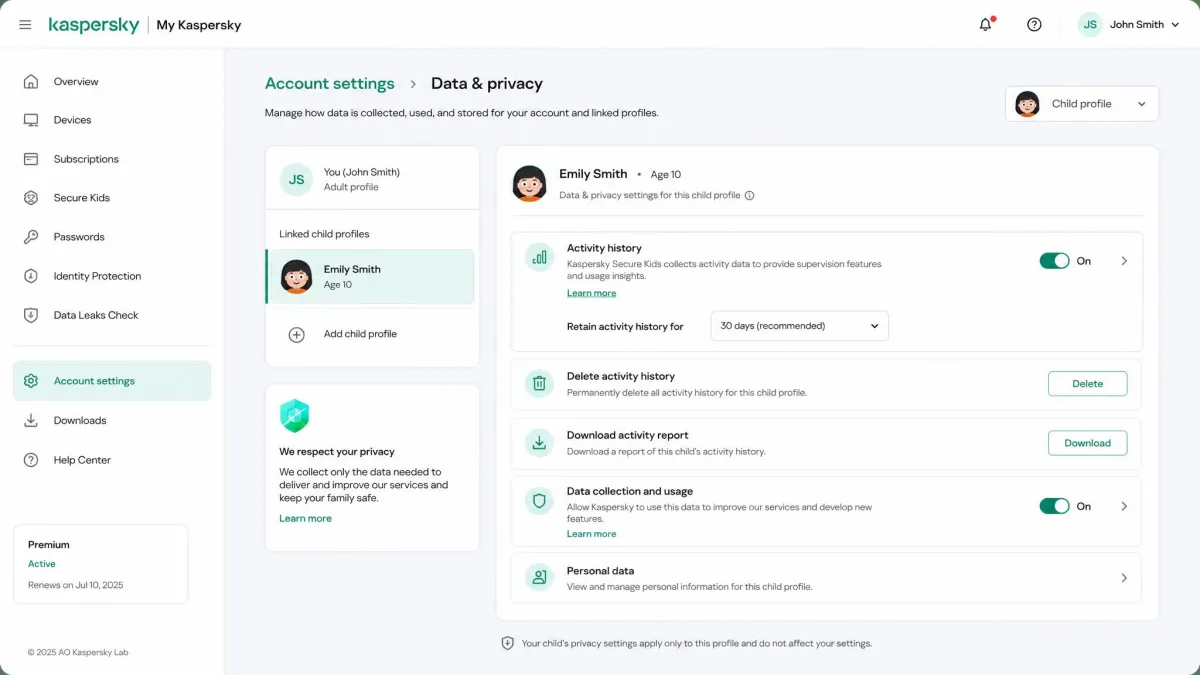
Retention is the part we could not pin down, and that is worth knowing before you enrol a child. Kaspersky publishes no product-specific window for how long Safe Kids keeps child activity or location data; the general products and services privacy policy says only that personal data is kept as long as necessary for the stated purpose, which in practice means the license period of roughly a year plus any renewal. Nothing in the documentation or the in-product reports view tells a parent how long a location history or activity log stays on Kaspersky's servers. You do have a deletion route: contacting Customer Service with the device and installation IDs will have the personal data submitted by an installation removed, and we would use it the day you stop monitoring a child.
Ease of Use and Customer Support
Set against those platform gaps, day-to-day operation is the part of Safe Kids that gives you least trouble. The parent console is well organised. Profiles, rules, and reports sit where you expect them, and the mobile parent app mirrors the web dashboard closely enough that you do not have to relearn anything. Configuration is genuinely quick once the child device is enrolled.
The dashboard is slow to load when you switch between tabs, though. It is not broken, just consistently sluggish, and it makes routine weekly checks feel like more of a chore than they should. The Safe Kids online help portal is thorough and well indexed, which matters more than usual here, because support leans heavily on self-help guides and community forums. The contact form is awkward to use and will not accept general inquiries, so plan on solving problems from the documentation rather than from a support agent.
Who Kaspersky Safe Kids Is Best For
Buy it if your household runs Android phones and Windows laptops, your primary concern is what your children see online, and you want to spend as little as possible. That is a large share of families, and for them this app is an easy recommendation. The free tier alone will satisfy many of them, and premium is cheap enough that the upgrade is not a real decision.
Look elsewhere if you are in the US, if your children are on iPhones, if you need message visibility, or if arrival alerts are the whole point of the purchase.
Kaspersky Safe Kids vs the Alternatives
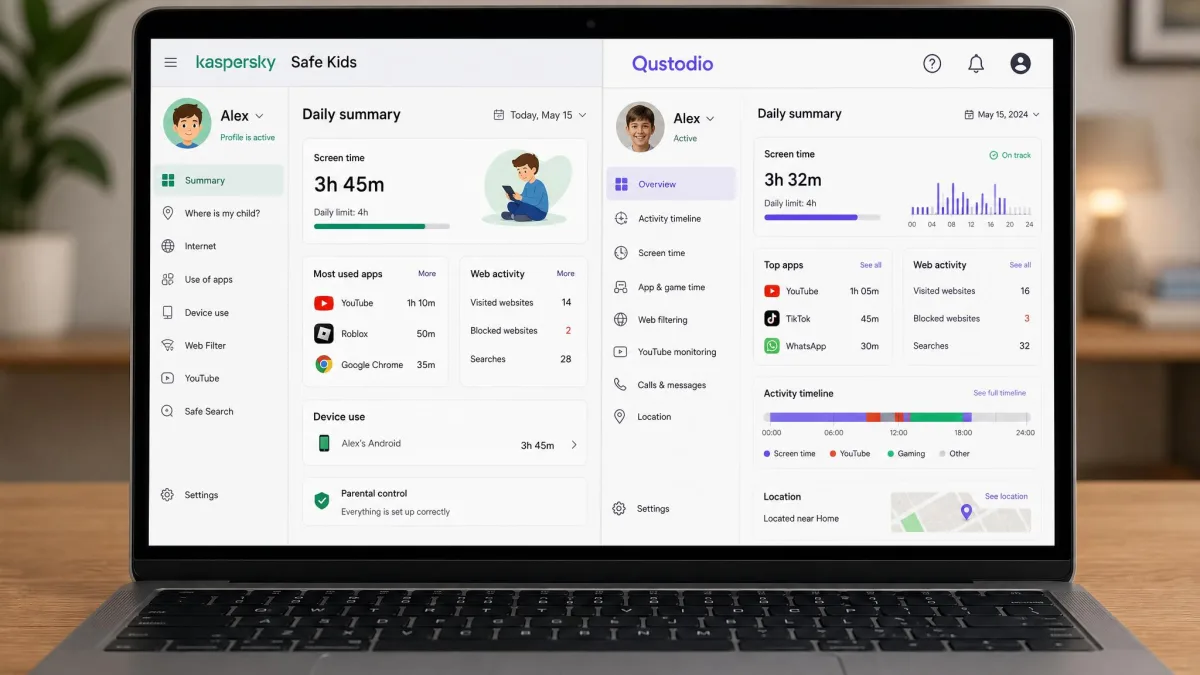
Kaspersky's rivals cost more and cover more. The question is whether the extra features are ones your family will use.
| Product | Buy | Web filtering | Screen time | App blocking | Location | YouTube | iOS support | Price per year |
|---|---|---|---|---|---|---|---|---|
|
Check price → | 96.8% block rate, 0 false positives | Limits free, scheduling premium | Android and Windows only | Premium only, geofencing unreliable | Safe search plus history, no channel blocking | Limited | Varies by region, free tier available |
 |
Yes | Yes | Yes | Yes, with places alerts | Yes | Partial | $59.95 to $109.95 | |
 |
Yes | Yes, plus School Time | Yes | Yes, 30-day history | Yes, video supervision | Partial | $49.99 | |
 |
Real-time AI filtering | Yes | Yes | Yes | Alerts only | Partial | From $39.99 |
Qustodio is the pick if you need calls and SMS monitoring on Android or a panic button, and its Complete tier covers unlimited devices for $109.95 per year. Norton Family at $49.99 covers unlimited devices too, keeps 30 days of location history, and its School Time feature is the best homework-hours control in this group. Net Nanny's real-time AI filtering analyses pages as they load rather than checking a category list, which handles brand-new sites faster than Kaspersky's approach. None of them gives away as much for free, though, and none matched Kaspersky's measured blocking accuracy with zero false alarms.

Frequently Asked Questions
What happens to my child's profile and data if the subscription lapses?
Does it work on iPhone and iPad?
My reports have gone blank. What should I do first?
Can I layer YouTube Kids or a supervised Google account on top of it?
Does one subscription cover children living in two different households?
Can a VPN defeat its web filtering?
What breaks when my child's phone gets a major OS upgrade?
Common Mistakes Parents Make With Safe Kids
Even families the app suits well tend to trip over the same three things. The most frequent error is buying premium for geofencing and never testing it inside the refund window. Set an allowed area on day one, walk into it, and confirm the alert fires. If the area has vanished from your dashboard a week later, you still have time to get your money back.
The second is leaving the child device's other browsers installed. Content filtering is only as good as its coverage, so use app control to block anything that is not the browser you have chosen for the household.
The third is treating the free tier as a trial. It is not. If content filtering is all you need, staying free forever is a legitimate outcome, and Kaspersky's own numbers show the scale behind it, with over 1 million users and 106 million harmful websites blocked.
The Bottom Line
Kaspersky's own reviews page shows 4.7 out of 5 from 1,358 customer reviews, and hands-on scoring lands lower at 4.1 out of 5, which is roughly where our own 7.8 out of 10 sits. That gap between the customer average and the tester average is the honest shape of this product: parents who bought it for filtering are delighted, and anyone who bought it expecting a full monitoring suite is not.
So judge it as a web filter with useful extras rather than as a complete suite, and it is very good value. If you fall outside that description, the runners-up are easy to name. Families who need message visibility or a panic button should pay the premium for Qustodio. Households on iPhones should look at Norton Family, whose School Time feature and 30-day location history survive Apple's restrictions better than Kaspersky's premium extras do.
Knowing what we know now, we would buy the same app again and spend the money differently: start free, stay there a fortnight to confirm the filter suits your household, then upgrade and prove the location features inside the 30-day guarantee window rather than after it.