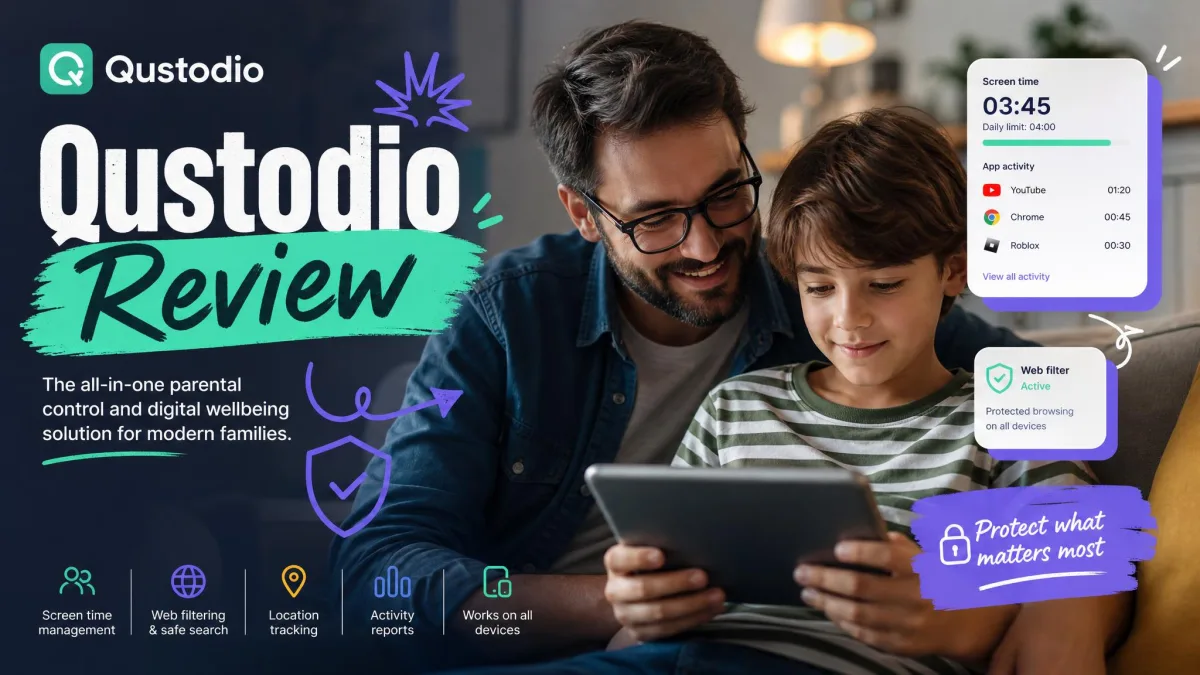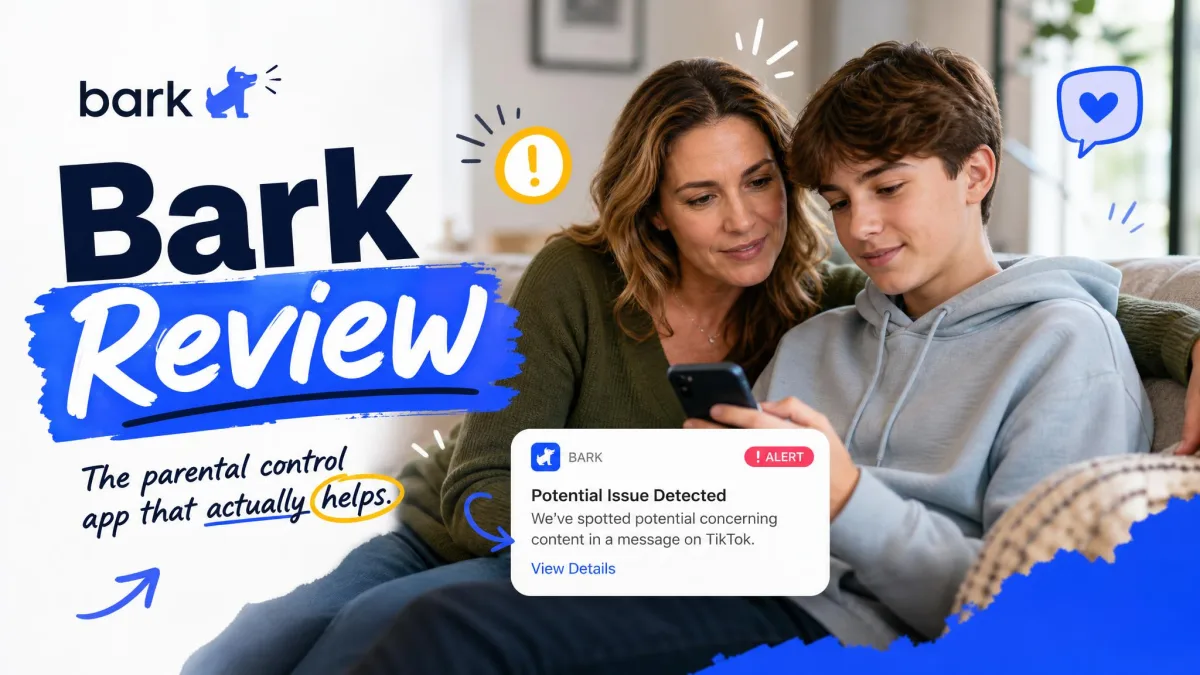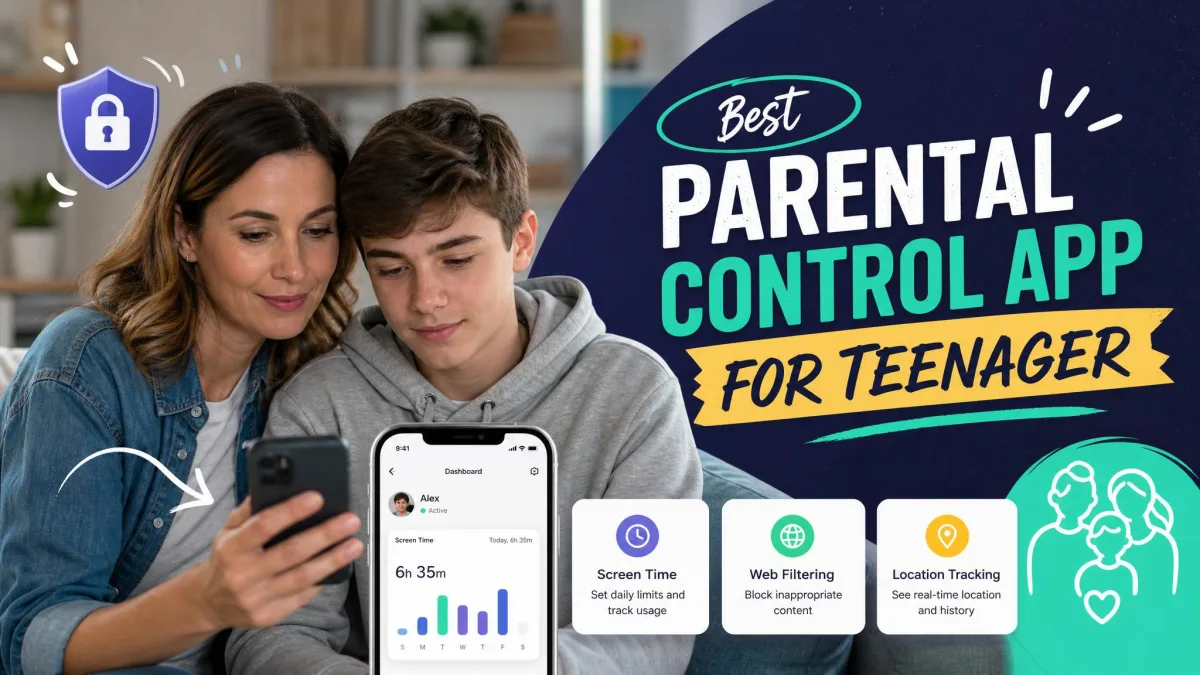
Qustodio is the best parental control app for teenagers in 2026. We compared seven parental control apps across Android and iPhone devices to find the ones that actually block apps, cap screen time, filter the mobile web, and track location. We also wanted apps a determined teenager could not easily bypass. Qustodio took the top spot because it handles all of those jobs on every major platform a family owns.
We test parental-control apps on real family devices, balancing oversight with the privacy a teenager still deserves. Each app earned points for blocking apps, managing screen time, filtering the mobile web, alerting on dangerous messages, and reporting what happened. We also tried to remove the protection on apps that claim tamper resistance.
The supervised devices were a current Android phone and an iPhone, with the parent dashboard on our own handsets. Setup times varied. Qustodio took about ten minutes per device, and Bark roughly thirty. Canopy’s filter ran for a full month so its detection numbers reflect daily use.
Quick Summary: The Best Parental Control Apps for Teenagers
Best Parental Control Apps for Teenagers at a Glance
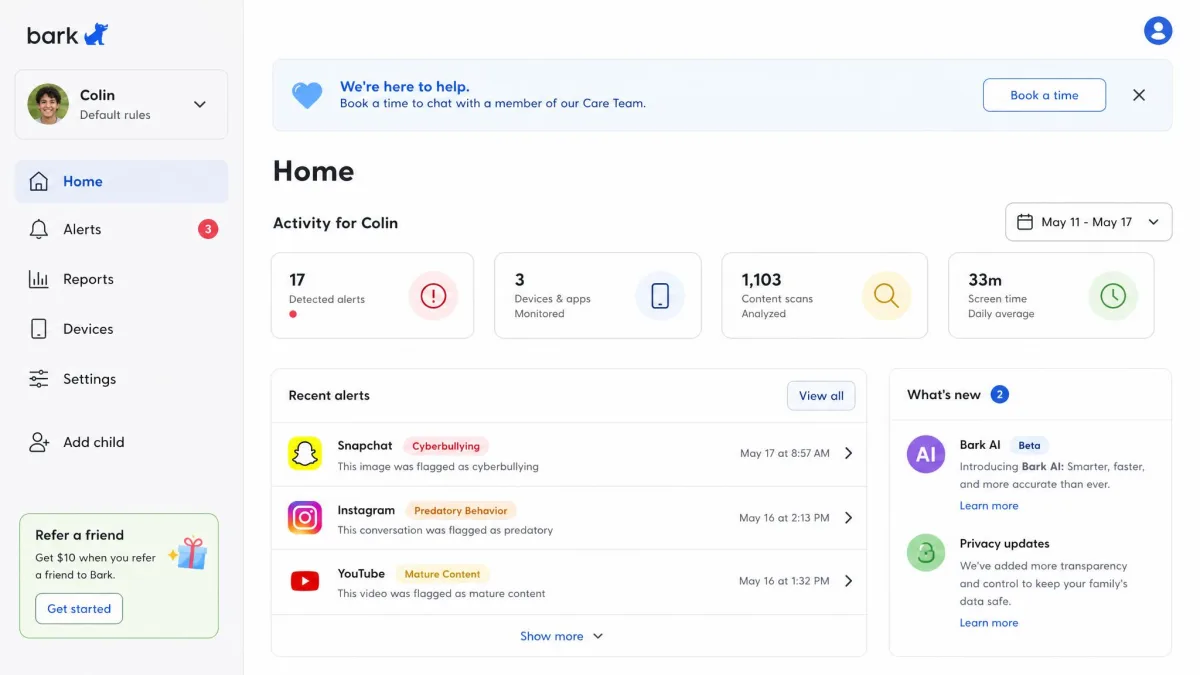
Qustodio wins on balance, doing every essential job well across more platforms than any rival. Bark is the social-media specialist, with the most accurate alerts we saw, at the cost of a painful iPhone setup. Mobicip covers up to twenty devices across nearly every platform, but its web filter is patchy. Norton Family nails time management and web filtering with accurate geofenced alerts. Canopy targets explicit content specifically, and its detection is uneven in practice. FamiSafe is the location and driving-safety pick, and OurPact blocks apps on demand faster than anything else.
Side-by-Side Comparison: Top Parental Control Apps for Teenagers
These prices and device limits come from the vendors’ official pricing pages, and the ratings reflect our hands-on testing.
| Product | Buy | Pricing | Free trial / plan | Devices | Best for | Key limitation |
|---|---|---|---|---|---|---|
 |
Check price → | $104.95/yr Complete; $59.95/yr Basic | Free plan (1 device); 30-day money-back | Complete unlimited; Basic 5 | Overall control for most families | Social monitoring shallower than Bark; panic button Android-only |
 |
Check price | $14/mo or $99/yr (Android); $20/mo or $148/yr (iOS) | 7-day free trial | Unlimited devices and kids | Social media monitoring and safety alerts | Painful iOS setup; weaker screen-time tools |
 |
Check price | $7.99/mo billed annually (Premium) | Free plan (2 devices); 7-day trial; 30-day money-back | Up to 20 | Mixed-device families | No per-app time limits; reports run slow |
 |
Check price | $49.99/yr first year | No free tier; included with Norton 360 | No stated limit; 15 child profiles | Time management and web filtering | No per-app limits or conversation monitoring; no Mac |
 |
Check price | $12.50/mo (~$150/yr) Premium | 1-week trial; 30-day money-back | Up to 10 | Blocking explicit content | Image detection inconsistent; misses text-only sexting |
 |
Check price | $4.99/mo ($59.99/yr) yearly | Free tier (1 device); 3-day trial; 7-day money-back | Up to 10 | Location tracking and driving safety | Battery drain from location history; web filter manual |
 |
Check price | $9.99/mo or $99.99/yr (Premium+) | 14-day free trial; free tier with limited blocks | 20 child devices | App blocking and schedules | Scheduled blocks unreliable; iOS setup high-friction |
Top 7 Parental Control Apps for Teenagers
We ranked the seven apps below by how they hold up in real daily use with a teenager. Scores put reliability first, then depth of features, then value.
1. Qustodio — Best Overall Parental Control App for Teenagers
Qustodio
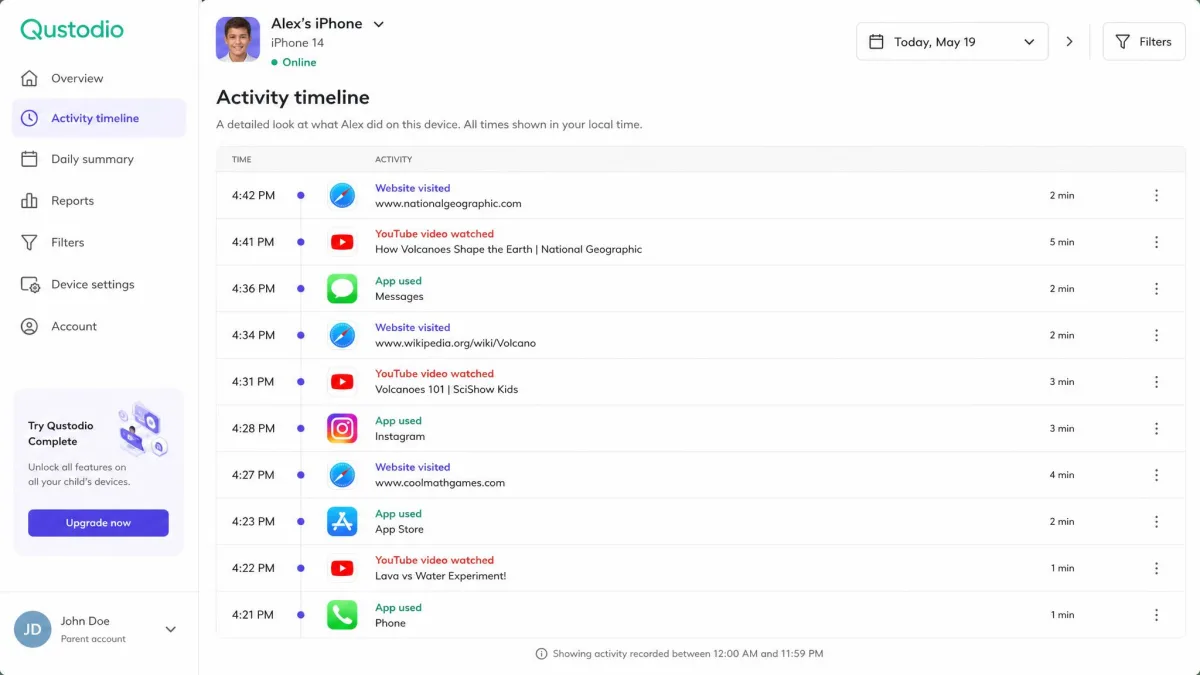
The moment that sold us on Qustodio came during bypass testing. We tried to remove the app from the supervised phone and to disable the VPN profile its filtering runs through. Neither worked.
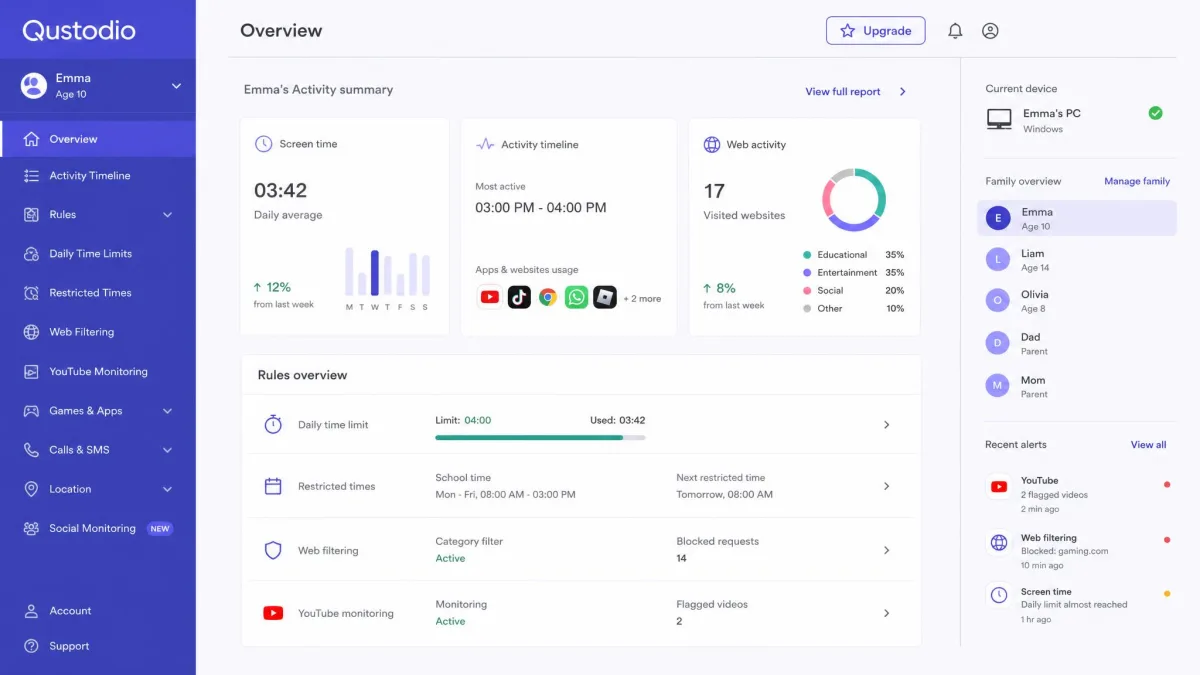
Setup took about ten minutes per device, including the VPN profile iOS needs to route traffic through the filter. The parent dashboard is not the prettiest we used, but the minute-by-minute reports underneath are the real story. Location-change notifications arrive promptly, and the Android panic button reports the teen’s position every ninety seconds.
The panic button and call blocking are Android-only, and monitoring calls and messages on iOS requires a computer.
Pros
- Reliable coverage on Windows, Mac, Chromebook, Android, iOS, and Kindle
- Tamper protection that held up when we tried to remove the app
- Minute-by-minute activity reports
Cons
- Social media monitoring is shallower than Bark’s
- Panic button and call blocking are Android-only
- Interface feels dated
Best for: Families who want dependable all-round control on every device their teenager touches. Skip if: Social media safety is your main worry, or you want the deepest iOS extras.
2. Bark — Best for Social Media Monitoring and Safety Alerts
Bark
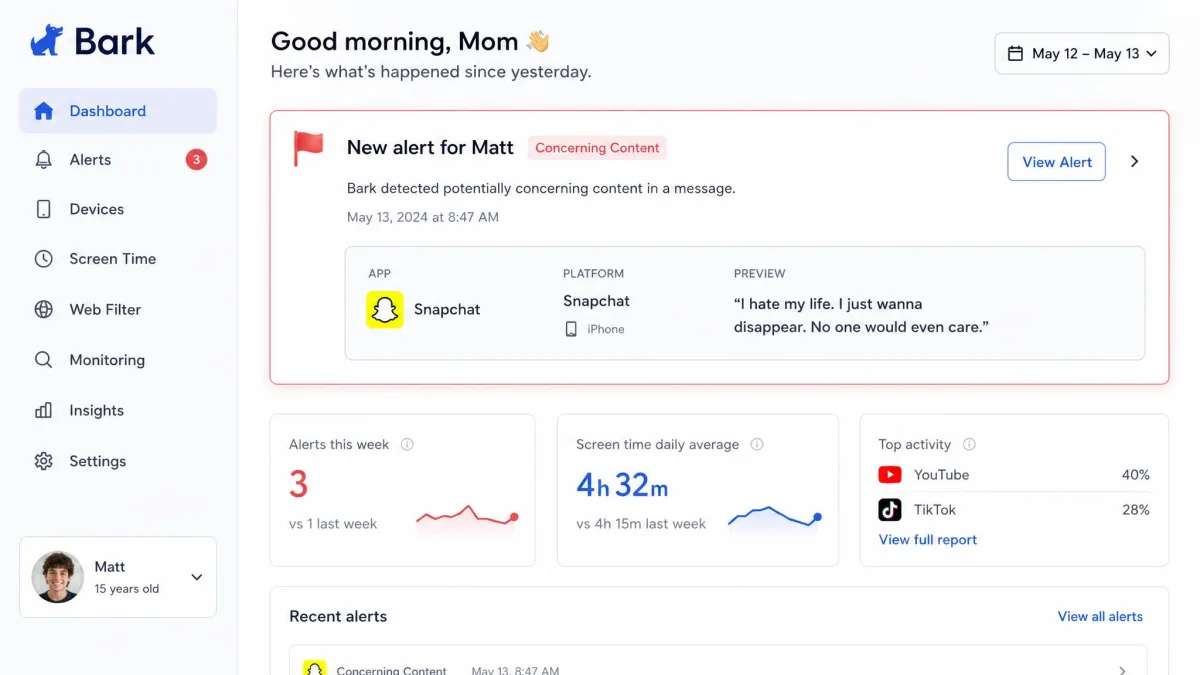
Bark won us over in the message-alert test and then annoyed us in setup. Connecting five social media platforms to the child’s profile took about thirty minutes, with some apps needing the child’s login. That friction is the price of the deepest social monitoring of anything we tested.
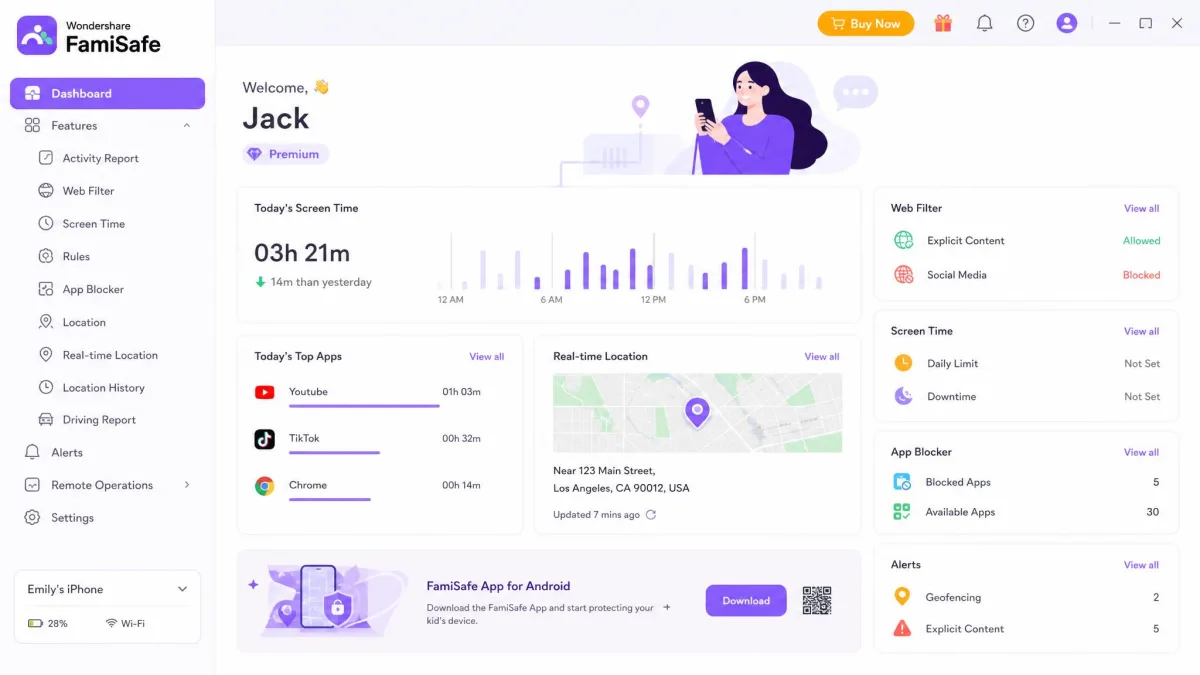
The alerts are the reason families pick Bark. During a quiet stretch of ordinary teen chatter the dashboard stayed silent, then a test message about self-harm triggered an alert instantly. Bark understood context well enough to leave jokes between friends alone while flagging what mattered, across more than thirty apps.
The downsides show up on Apple hardware. Activating Bark on an iPhone demands a desktop connection and several passcode entries. The Android app crashed during our activation and needed an APK sideload the phone flagged as dangerous. The dashboard spreads screen time, web monitoring, and location across separate tabs.
Pros
- The best social media and text monitoring we tested, across 30+ apps
- Alerts were accurate and context-aware in our tests
- One subscription covers unlimited devices and kids
Cons
- iPhone activation needs a desktop and is prone to setup friction
- Dashboard is confusing and reports lack usage trends
- Screen-time tools are weaker than dedicated competitors
Best for: Families whose main concern is what teenagers say and share on social media. Skip if: You need polished screen-time controls or a painless iPhone setup.
3. Mobicip — Best for Mixed-Device Families
Mobicip
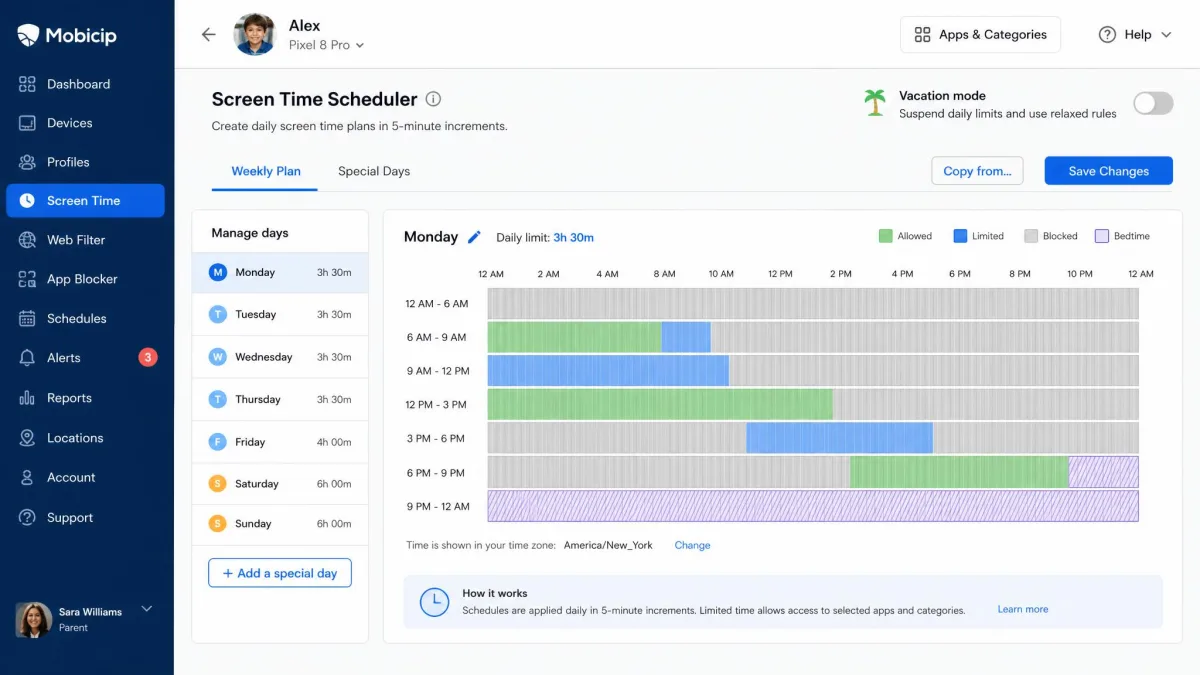
Mobicip covers more device types than most rivals, including iOS, Android, Windows, Mac, Chromebooks, and Kindle Fire. That breadth makes it a natural fit when a household mixes Apple and everything else, and the Premium plan stretches to twenty devices.
Screen-time scheduling is where Mobicip feels polished. We built a weekday plan in five-minute increments and tested the Lock All Devices pause button from the parent dashboard. It worked on the first tap.
Setup on Android is the stumble. You must disable Google Family Link first, and our install dragged past ten minutes with an MDM-profile error on one device. The web blacklist let us down more than once. In one test, YouTube opened even though we had blocked both the app and the URL. Content categories are broad enough that it is unclear what a category like Utilities covers, and activity reports run slow without per-app usage over time.
Best for: Mixed-device families that need one app across Android, Apple, Windows, and Chromebooks. Skip if: Reliable web filtering or per-app time limits matter more than device coverage.
4. Norton Family — Best for Time Management and Web Filtering
Norton Family
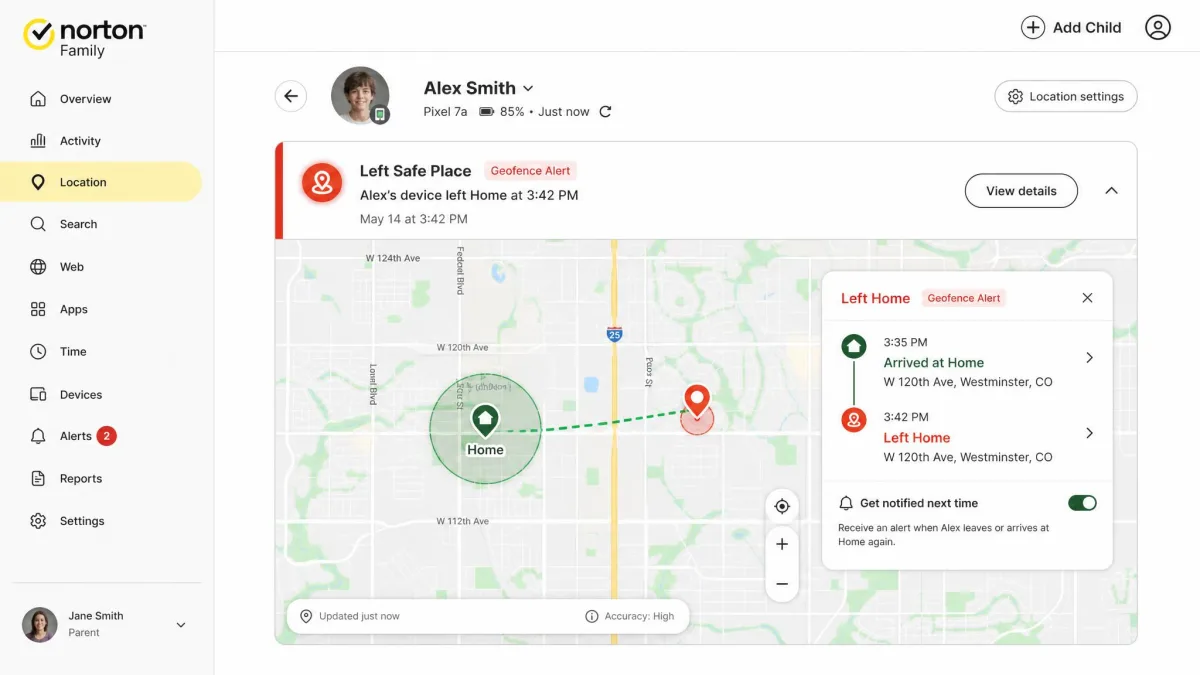
Norton Family proved the most reliable at the routine jobs, and it is an easy pick for households that already trust the Norton brand.
Where Norton holds up
The web filter spans more than forty categories with age-based templates. Geofenced location alerts fired promptly in our testing when the supervised device left a saved place. Instant Lock froze the phone remotely, and the screen stayed locked with no uninstall path without a parent login. Families paying for Norton 360 get Norton Family included at no extra cost.
Where Norton falls short
Time limits apply to the whole device rather than individual apps, so a teen who spends every spare minute in one game cannot be capped there alone. There is no macOS client, the iOS app is lighter than the Android version, and there is no conversation monitoring for texts or social media.
Best for: Families focused on time management and web filtering, especially current Norton users. Skip if: Your teen lives on an iPhone or a Mac, or you need text and social monitoring.
5. Canopy — Best for Blocking Explicit Content
Canopy
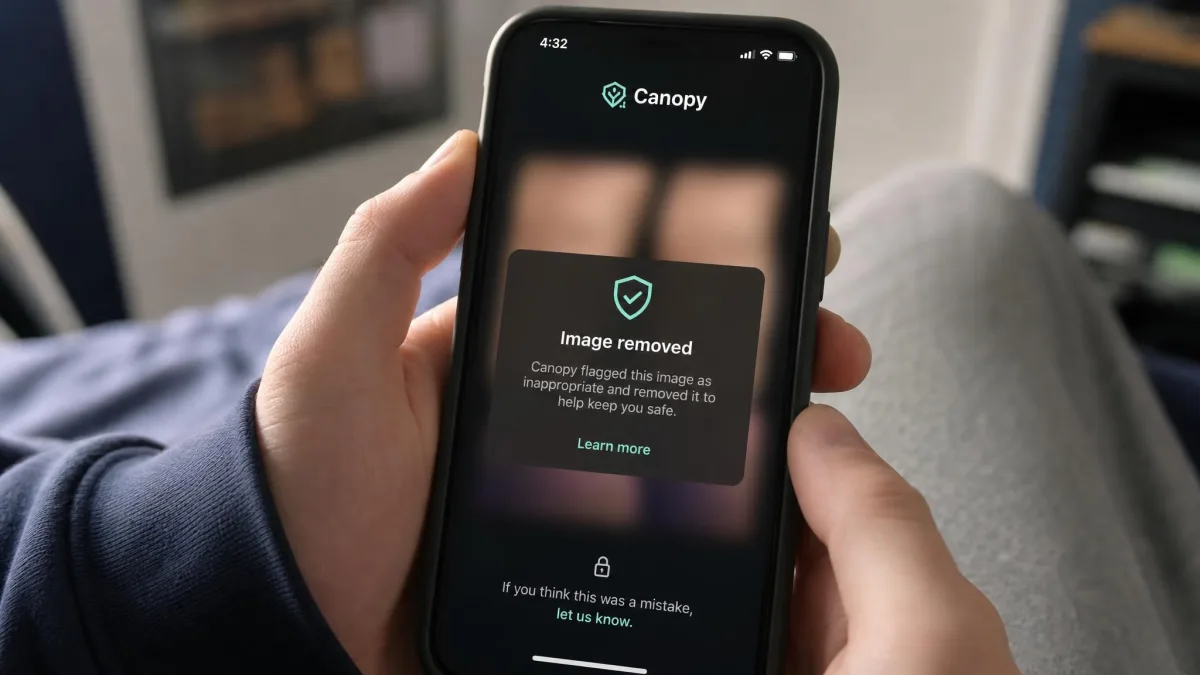
Canopy is built for one specific job: stopping explicit content and sexting before they reach a teenager. The ambition is right, and the execution in our month-long test was uneven. We fed a series of test images through the filter, and it caught only two of the nine inappropriate attempts. Sexting alerts flagged three of eight and took about ninety seconds to blur the image.
The gaps are structural. Canopy’s sexting detection only catches photos once they land in the phone’s gallery, so it misses Snapchat images entirely and cannot detect text-only sexting at all. The AI web filter does not work inside non-browser apps like TikTok or Instagram, and turning off Wi-Fi disabled filtering completely in our test.
When it does catch something, the filtering itself is solid, and Canopy covers Android, iOS, macOS, Windows, and Chromebooks. That includes an iPhone parent paired with an Android child. The enhanced filter can slow devices, so the deepest explicit-content defense still needs a second layer.
Best for: Families whose top concern is blocking adult content and sexting. Skip if: You need dependable all-round parental control, not just content filtering.
6. Wondershare FamiSafe — Best for Location Tracking and Driving Safety
Wondershare FamiSafe
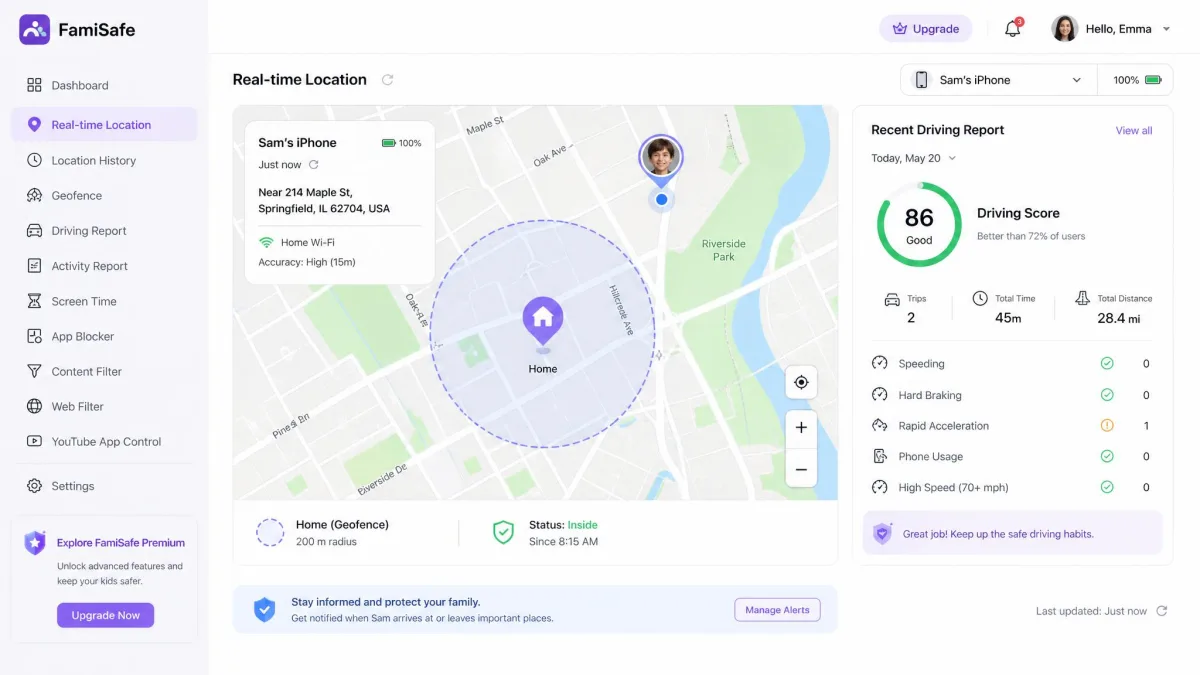
The battery tradeoff comes first with FamiSafe, because it is the price of the most accurate location tracking we tested. Enabling location history drained the monitored device by an estimated ten to fifteen percent of daily battery, and the app itself warns to use location tracking only for short periods.
The location engine is the reason to look past that. Live location updated every one to three minutes in our testing. A geofence we set at the hundred-meter range triggered a notification within seconds when the device crossed it. The driving report covers speeding, hard braking, and phone use behind the wheel.
The rest is more mixed. The web filter needs heavy manual configuration and sometimes fails. FamiSafe also sits with a Chinese-owned vendor in Wondershare, which raises data-privacy questions for some families, and we saw forty-to-sixty-second delays loading sites while the filter was active.
Best for: Families who want precise location tracking and driving reports for a new driver. Skip if: Web filtering or social monitoring matters more to you than location.
7. OurPact — Best for App Blocking and Schedules
OurPact
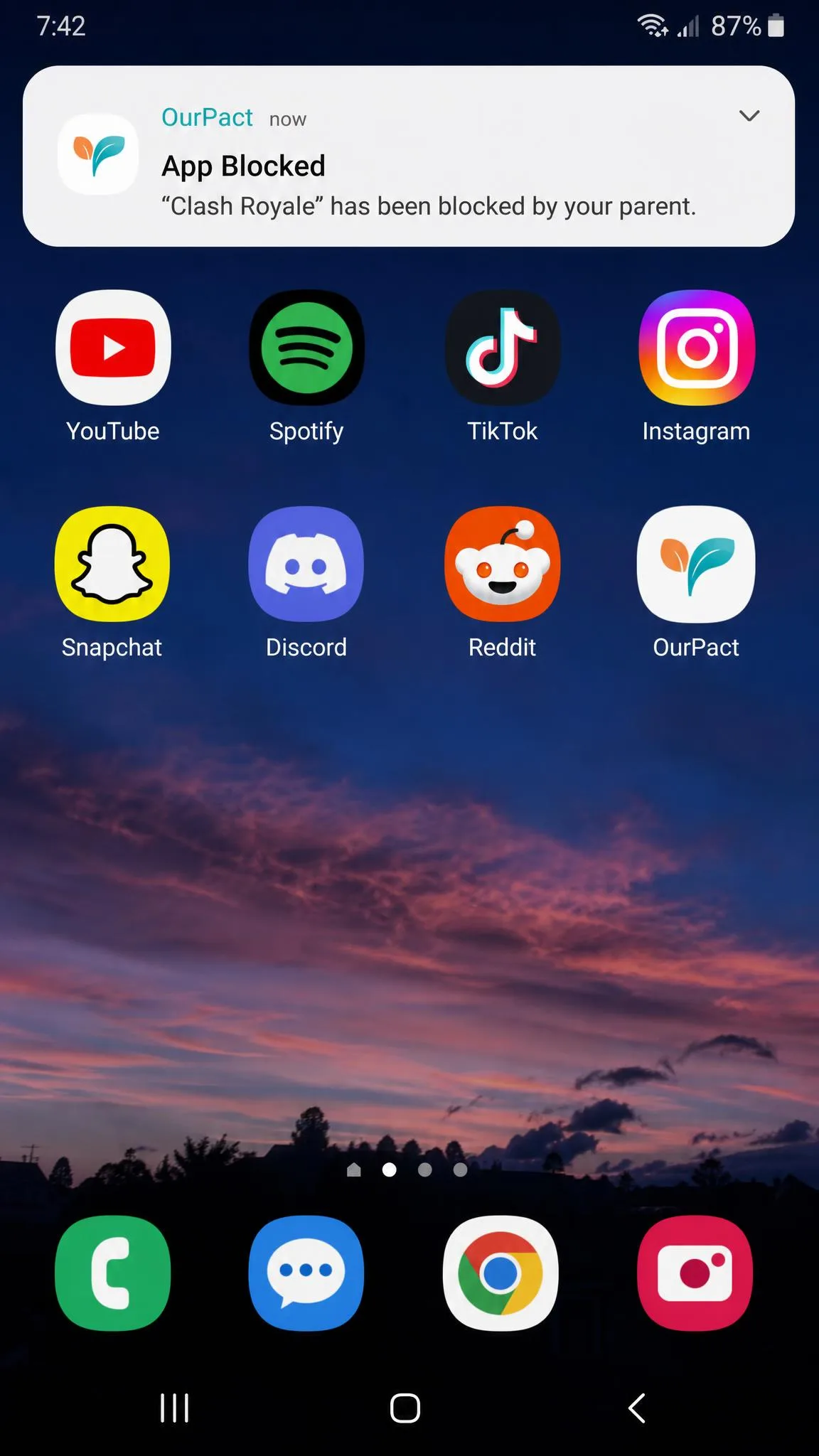
OurPact does the one thing parents ask for most: it blocks apps on demand, and it does it fast. We tapped Block on a game in the parent app and watched its icon disappear from the Android home screen within about five seconds. For quick interruptions at dinner or homework time, that immediacy is hard to beat.
The scheduled side is the letdown. In our testing, recurring and scheduled blocks sometimes failed to trigger at all, so we could not trust a weekly plan without checking it. iOS families face a bigger hurdle in setup: pairing the supervised iPhone requires a USB cable and a computer, and it took us five or six attempts before the profile stuck.
There are no real-time keyword alerts, only reviews of screenshots afterward, and a savvy teenager who knows the passcode can remove the iOS profile through Settings. OurPact is best treated as a manual switch for app access rather than an always-on safety net.
Pros
- On-demand app blocking that removes an app’s icon within seconds
- Instant lock and block schedules from the parent dashboard
- Up to 20 child devices on one account
Cons
- Scheduled and recurring blocks were unreliable in our testing
- iOS setup needs a USB cable and computer pairing
- No real-time keyword alerts
Best for: Families that want a fast, manual app-blocking switch for mealtimes and homework. Skip if: You need dependable scheduled automation or a painless iPhone setup.
Other Parental Control Apps We Considered
Four apps we tested or researched did not make the top seven, but each has a reason some families choose it.
Net Nanny
Net Nanny still filters the web well on Windows, macOS, and iOS, with per-minute screen-time scheduling, at $54.99 a year for five devices. The platform story has shrunk, though. Android, Kindle Fire, and Chromebook support was dropped in 2024, and the macOS client is five major versions behind current. In our checks, content filtering failed to block vulgar song lyrics and explicit search phrases even when configured to block them, and tamper protection is weak: the app can be disabled with the account email and password, and the parent gets no notification. For an iPhone household that trusts the brand, Net Nanny may still be adequate, but our hands-on results sit at the skeptical end.
Pros
- Web filtering and content blocking on Windows, macOS, and iOS
- Per-minute screen-time scheduling
- $54.99/year for five devices
Cons
- Android, Kindle, and Chromebook support dropped in 2024
- Weak tamper protection with no parent notification
- Filtering missed explicit lyrics and search phrases in our checks
Aura
Aura bundles parental controls into a broader security and identity suite, which is compelling if you want one subscription for the whole household. Aura’s parental controls block adult content, gambling, and violent material, track search history, and flag concerning search terms with AI. It also adds persona-level activity insights with tips from child psychologists. Setup takes about fifteen minutes per device. What Aura lacks is location tracking, and on Android a determined teen can delete the app without an immediate parent alert. It also does not scan texts or social DMs as deeply as Bark. As a standalone parental control, it is a half measure.
Pros
- Combines parental controls with identity and fraud protection
- AI flagging of concerning search terms with psychologist-backed tips
- Unlimited kids and devices on one subscription
Cons
- No location tracking
- Does not scan texts or social DMs deeply
- A teen can delete the Android app without an instant alert
FamilyTime, MMGuardian, Kidslox, Screen Time, Boomerang, Circle, Google Family Link, mSpy
The rest of the field we considered but did not rank includes FamilyTime, MMGuardian, Kidslox, Screen Time, Boomerang, Circle, and mSpy, along with Google Family Link, which gets its own section below. Kidslox and Screen Time offer straightforward time-limit controls, while Boomerang and FamilyTime bundle the usual filters with location features at budget prices. Circle filters the home network from the router, and MMGuardian and mSpy sit at the more invasive end, which sits uneasily with the consent-first approach we recommend.
Which Parental Control Features Matter Most for Teenagers?
The seven apps above earn their rankings on six feature areas that matter most when the child in question is a teenager.
The best parental control app for a teenager is the one that runs quietly in the background, because an app your teenager fights every day is an app they will find a way around.
— From our hands-on testing
Screen Time, Bedtime and Instant Pauses
The controls that matter most are separate budgets for school days and weekends, a pause button for instant breaks, and limits that can be set per app rather than for the whole device. A device-wide budget is a blunt instrument when one game is the problem. Look for a way to relax limits as trust grows, and check whether bedtime rules actually block the screen or just dim it. The apps that schedule by day and by app give you the most control with the least daily fiddling.
App Blocking, Limits and Download Approval
The key questions are whether you can block a single app rather than a whole category, whether you can approve downloads before they install, and whether the app can hide app stores entirely. On-demand blocking matters too. A one-tap pause from the parent dashboard beats a rule you have to rebuild. Check how new apps are handled. Some apps only filter known categories, while others alert you the moment a new app installs, and a few let you approve every download first.
Web Filtering on Mobile Browsers
Web filtering is where iOS and Android diverge the most. Android gives third-party apps deeper system access, so filtering works across browsers and apps, which is why the Android parental control apps generally offer stronger web controls. On iOS, filtering runs through a VPN profile or is capped to specific browsers, which is one reason the best parental control apps for iPhone are thinner. A filter that only works inside one browser is not really filtering the device, because links opened inside WhatsApp, Instagram, or a downloaded browser slip past it. Check the filter’s coverage before you pay, since browser-only filters are the most common gap.
Social Media and Messaging Monitoring
Check which platforms are covered, whether the app reads messages or only public posts, and how alerts reach you. Push notifications, email, and dashboard reviews all work, but they feel different in daily use. Alert sensitivity matters most. The best tools flag genuine concerns and leave jokes between friends alone, and the worst ping you about everything. Set the sensitivity with your teen in the room, because an app that cries wolf will be deleted. Confirm whether monitoring extends to deleted messages and disappearing apps.
Location Tracking and Place Alerts
Location features vary in how often the position updates, how large the geofence can be, and whether a driving report is included. Ask how long location history is stored and whether you can delete it, because that data is sensitive. Battery drain is the tradeoff to weigh. The apps that track most precisely are the ones that cost the most battery, so check whether the app warns about heavy location use and whether you can limit history to short periods.
Usage Reports and Safety Alerts
The reporting layer turns a set of rules into something you can manage. Look for reports that show actual trends, such as minutes per app over time, rather than a bare list of recently used apps. Alert quality matters more than volume, because a tool that flags every message trains you to ignore it. Decide how you want to hear about concerns, and check whether the report tells you when a warning is serious and when it is routine activity.
How to Choose the Best Parental Control App for Your Teen
The rankings above are a starting point. Work through these five checks and the right app will pick itself.
1. Check Every Device Your Teen Uses
List every screen your teenager touches, from a phone to a school Chromebook to a gaming console. Then check the app’s platform support against that list. Qustodio covers Windows, Mac, Chromebook, Android, iOS, and Kindle, while Mobicip stretches to twenty devices across similar platforms. Bark reaches TVs and consoles only through its Home router product, and Norton Family has no macOS client.
2. Decide the Main Safety or Routine Function
Name the single problem you are trying to solve. If it is a teenager glued to social media after midnight, Bark or Qustodio. If it is explicit content finding its way to a phone, Canopy, with the understanding that its detection is imperfect. If it is a new driver, FamiSafe. If it is simply too much screen time, Norton Family or OurPact.
3. Match the Settings to Your Teen’s Age and Maturity
A 13-year-old and a 17-year-old need different rules, and the right app lets you tune the difference. Look for adjustable alert sensitivity, separate school-day and weekend schedules, and a way to relax limits as trust grows. Bark’s alert sensitivity and Qustodio’s custom routines handle this well. Canopy’s accountability-partner feature frames limits as a shared agreement rather than a punishment.
4. Verify the Feature by Plan and Platform
Every app in this roundup has a feature table that is true and misleading at the same time. The features change by plan and by platform. The panic button and call blocking on Qustodio are Android-only. Bark’s full iOS monitoring needs the paid Sync charger, and OurPact’s content monitor with screenshots sits only in the Premium+ plan. Confirm that the exact features you need exist on the exact device your teen uses at the plan you will pay for.
5. Compare Cost, Battery Use and Account Security
Pricing ranges from free to roughly $150 a year, and the expensive option is not always the better one. Qustodio’s Complete plan at $104.95 a year covers unlimited devices, while FamiSafe covers up to ten devices for $59.99. Battery use matters most with location-heavy apps like FamiSafe, whose history can cost ten to fifteen percent of daily battery. Account security is the quietly important piece, because the app is only as strong as the parent account protecting it.
Set the app up on your own phone first and live with it for a week before you turn the rules on. You will find the blind spots your teenager will find, and you can fix them before they matter.
Are Built-In Parental Controls Enough for a Teen?
Google Family Link is the default answer for millions of Android families, and it is genuinely good at the basics. You get Play Store app approval, daily and per-app time limits, Downtime, School Time, location with geofencing, and YouTube tiers, all free. Google Family Link also shares a multi-device screen-time budget, so a one-hour daily limit applies across every supervised device. Subscription apps rarely match that.
The gaps appear where a teenager’s life gets interesting. Family Link filters only inside Chrome, so Firefox, Brave, Safari, and links opened inside WhatsApp or Instagram pass through untouched. On iOS, coverage shrinks to SafeSearch and YouTube tiers, with no time limits, app blocking, web filtering, or location. Apple’s Screen Time covers the iOS basics, but neither built-in layer sends the safety alerts that Bark or Qustodio deliver. Built-in controls are a strong foundation and a thin roof.
Pair built-in controls with a third-party app when you need location tracking, social-media alerts, or filtering that works across every browser. Most families end up using both layers.
Best Free Parental Control Options for Teenagers
Free parental controls exist, and a few are worth installing. Google Family Link is the strongest free option on Android. Qustodio’s free plan protects a single device with basic web filtering, daily time limits, and seven-day reports. Mobicip’s free BASIC plan manages two devices with no credit card required, and its seven-day premium trial unlocks everything for a week. FamiSafe’s free tier covers one device, and OurPact has a free tier with limited blocks plus a fourteen-day trial. No free tier matches the depth of the paid apps. A paid plan is usually the difference between supervision that holds up and supervision that quietly stops working.
Privacy, Transparency and Responsible Supervision
The most important decision in this article is not which app you install. It is how you talk about it. Research keeps arriving at the same finding. Monitoring works best when it is transparent, and teenagers who feel watched without explanation respond by hiding more of their lives. The research supports that. Harvard’s research on digital well-being argues for scaffolding rather than surveillance.
The apps themselves vary in how much data they collect and where it lives. FamiSafe is owned by Wondershare, a Chinese company, which is a dealbreaker for some families and a non-issue for others. Whatever you choose, read the privacy policy for the location and message data each app stores.
Location and message monitoring produce sensitive data. Tell your teenager exactly what the app records, and delete location history regularly. An app that runs in secret will usually be discovered, and the lost trust is harder to repair than any rule.
Can a Teen Bypass Parental Control Apps?
Every app in this roundup can be bypassed. The realistic question is how much effort a bypass takes and whether the app notices. In our testing, we could not remove Qustodio’s protection at all, and Norton Family’s Instant Lock had no uninstall path without a parent login. Google Family Link is surprisingly easy to defeat. In one published test across fifty families, 78% of teenagers bypassed it within two hours, and 91% did so on iPhones.
The practical bypasses are rarely clever. Deleting the app, switching on airplane mode, using a different browser, or installing a VPN all get past most controls. No software can replace an honest conversation, so treat the app as one layer and keep the parent dashboard password private.
A teenager who sees the rules as a game will treat the app as a puzzle. Put the app on the device openly, explain why it is there, and involve your teen in setting the limits. The motivation to break the rules mostly disappears when the rules make sense.
How We Tested and Chose the Best Parental Control Apps
We set up all seven apps on real family hardware. A current Android phone and an iPhone were the supervised devices, with the parent dashboard on our own handsets and a laptop. We scored each app on six criteria: app blocking, screen-time management, web filtering on mobile browsers, social media monitoring, location tracking, and usage reports. Reliability in daily use outranked raw features throughout.
We bought or subscribed to every app with our own money rather than accepting free vendor copies, so no score here came from a subscription a company supplied. The full seven-app set ran on the supervised Android phone and iPhone over several weeks of daily use. Canopy’s content filter stayed under scrutiny for a full month, because its detection numbers needed that long to mean anything.
Every app ran through the same battery of checks. We sent test messages to verify alerts fired only on real concerns. We fed test images through Canopy’s filter for a full month to measure its detection rate. We set geofences, watched them trigger, and rechecked settings after OS updates.
We ran all seven apps on real family hardware, kept Canopy’s content filter under daily scrutiny for a month, and spent part of every session trying to defeat the protections before we trusted a single score. Our full testing notes live on our author page.
Final Verdict: Which Parental Control App Should You Choose?
The bottom line is that the best parental control app for teenagers depends on the specific worry you are trying to solve. If your concern has a clear shape, pick the specialist that matches it. If you want one subscription that simply works across the whole household, the answer is Qustodio.