Most people assume incognito mode keeps them anonymous online. It does not. Incognito hides your browsing history from other people who share the device, but it does nothing to your connection. Your public IP address stays visible to every site you open, your internet provider can still see the domains you reach, and your traffic travels unencrypted across the network. That gap is the whole reason a VPN belongs in the picture.
A VPN closes the part incognito leaves open. It encrypts your traffic and swaps your real IP for a server address, so the two tools cover different jobs. When you run them together, you get local privacy on the device and network privacy on the wire.
We are a hands-on review team that tests VPNs against real speed, leak, and reliability benchmarks before we recommend anything. For this guide we set up the major browsers on Windows and macOS, connected VPN apps and extensions, and checked what actually happened to our IP and DNS in a private window. Below is what we found and the exact steps that work.
Quick answer: Yes, a VPN works in incognito mode, but the two do not connect on their own. You have to start the VPN yourself, then open the private window. Incognito will not route through a VPN automatically.
Quick Answer: Does a VPN Work in Incognito Mode?
Yes. A VPN works normally in an incognito or private window, and the combination is a genuinely useful privacy setup. The catch is that each tool runs at a different layer and neither one triggers the other.
Incognito is a browser feature. It stops that browser from saving your history, cookies, and typed form data on the device once you close the window. A VPN is a network tool. It encrypts everything your device sends and routes it through a remote server, which replaces your real IP with the server's address.
Because they operate independently, the order matters. If your VPN is connected, every private window you open is already protected. If the VPN is off, incognito does nothing to shield your connection, and your IP and traffic stay exposed. So the honest answer is yes, with one condition: you have to switch the VPN on yourself.
VPN vs Incognito Mode: What's the Difference?
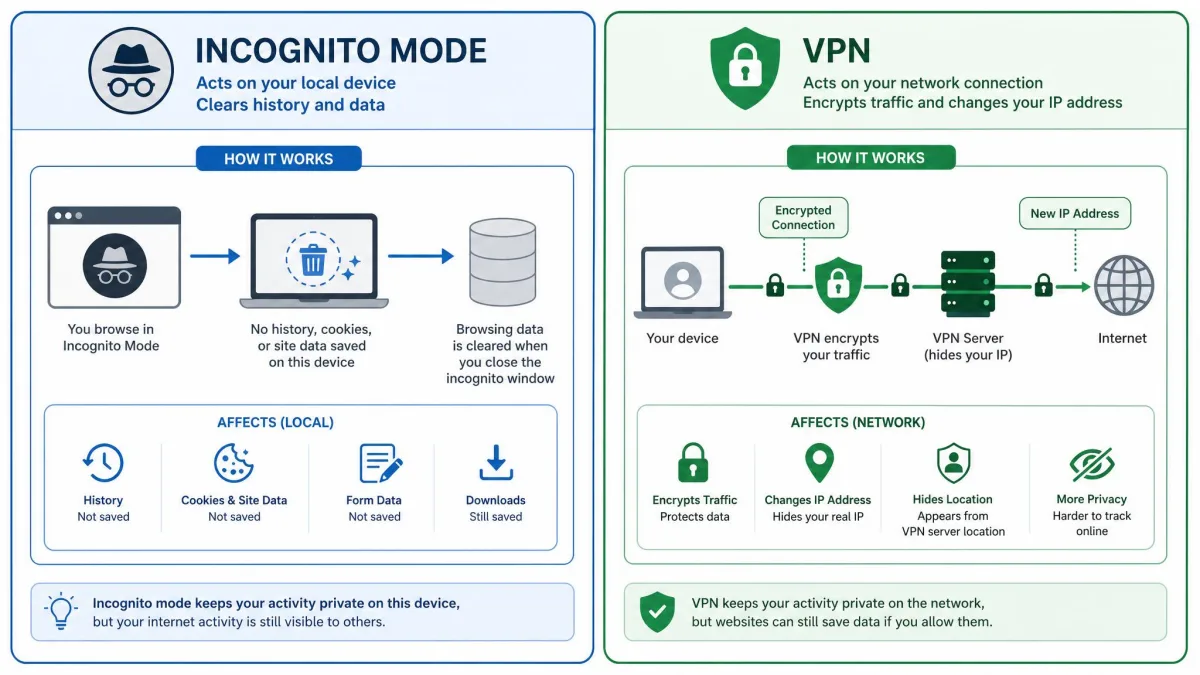
The clearest way to see the difference is side by side. A virtual private network works on your connection, while incognito works on your device. One hides where your traffic goes; the other hides what your browser remembers.
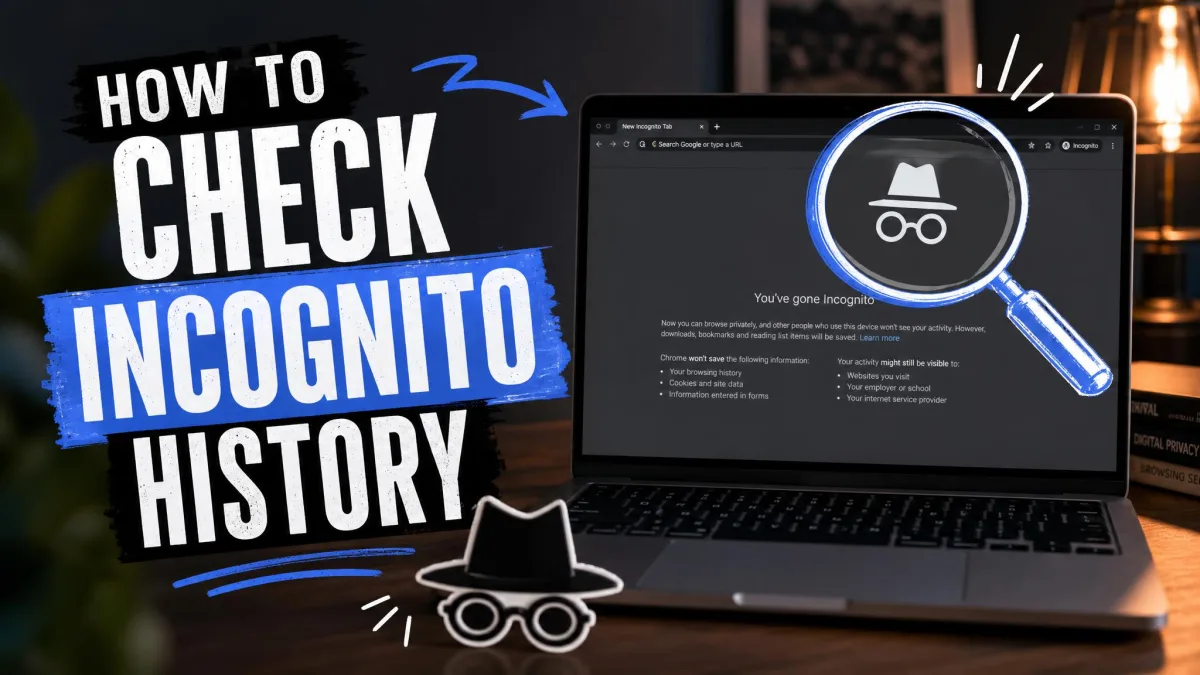
Incognito is the lighter of the two. When you open Chrome's Incognito mode or a private window in any other browser, the browser simply stops writing history and cookies to disk. It does not touch your IP address, your DNS requests, or the encryption of your traffic. Your ISP, your employer, and the websites you visit can all still see your activity.
A VPN is the heavier lift and does the network job that incognito cannot. Here is how the two line up on the points that matter.
| Feature | VPN | Incognito Mode |
|---|---|---|
| What it hides | Encrypts traffic, hides your public IP at the network level | Only local browser history, cookies, and form data |
| IP address | Hidden and replaced by the server's IP | Not hidden |
| ISP visibility | ISP cannot see the domains you visit (with leak protection on) | ISP can still see everything |
| Browser history / cookies | Not cleared by the VPN itself | Not saved locally |
| Cost | Usually a paid subscription for a reliable service | Free and built into the browser |
| Scope | All apps (app) or one browser (extension) | Current browser's private window only |
How to Use a VPN in Incognito Mode (Step by Step)
Setup takes about a minute once you know the order. The single most important habit is to connect the VPN before you open the private window, not after. We will walk through each step.
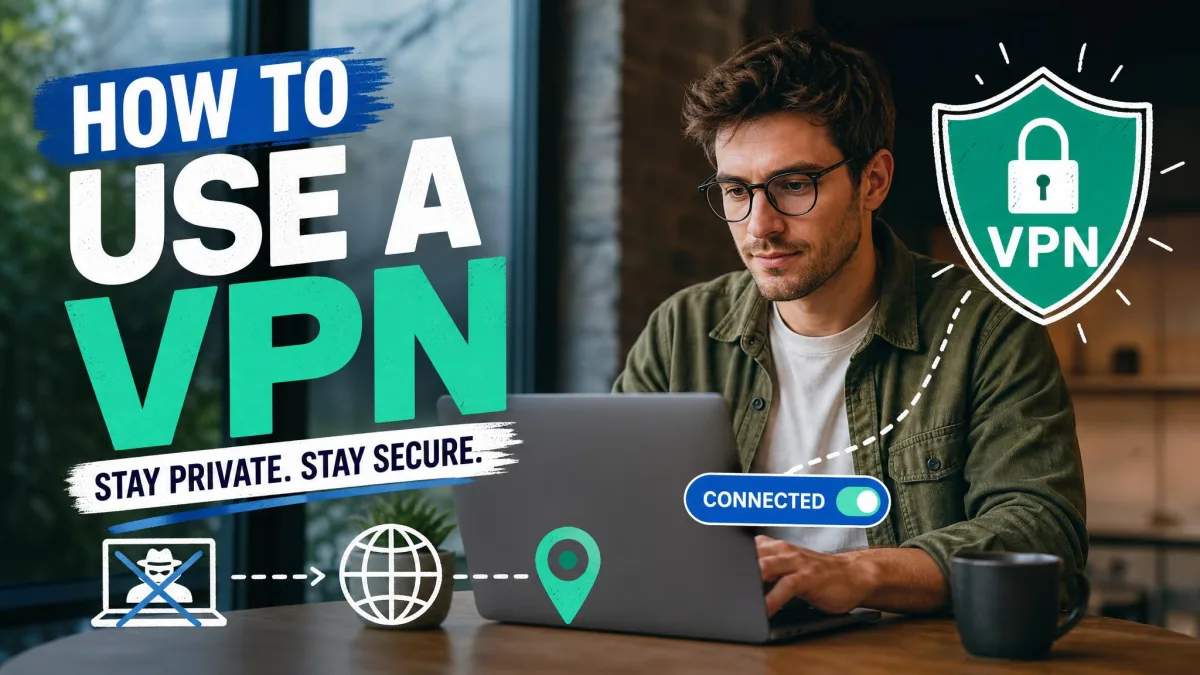
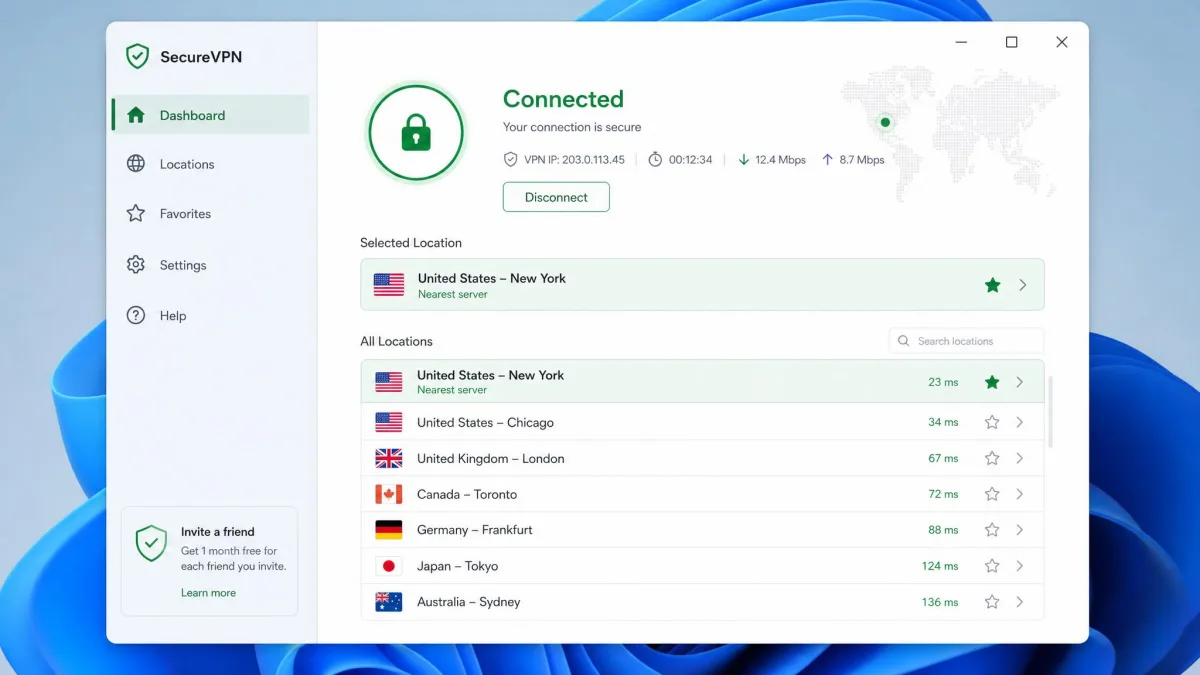
Step 1: Open and connect your VPN app first
Launch your VPN app and connect before you touch the browser. In our testing this order matters more than people expect. If you open the incognito window first and connect afterward, the browser can reach out to sites over your real connection in that brief gap, which exposes your true IP before the tunnel is up.
Wait for the app to confirm an active connection. Most apps show a clear "Connected" state and the server you are on. Only then move to the browser.
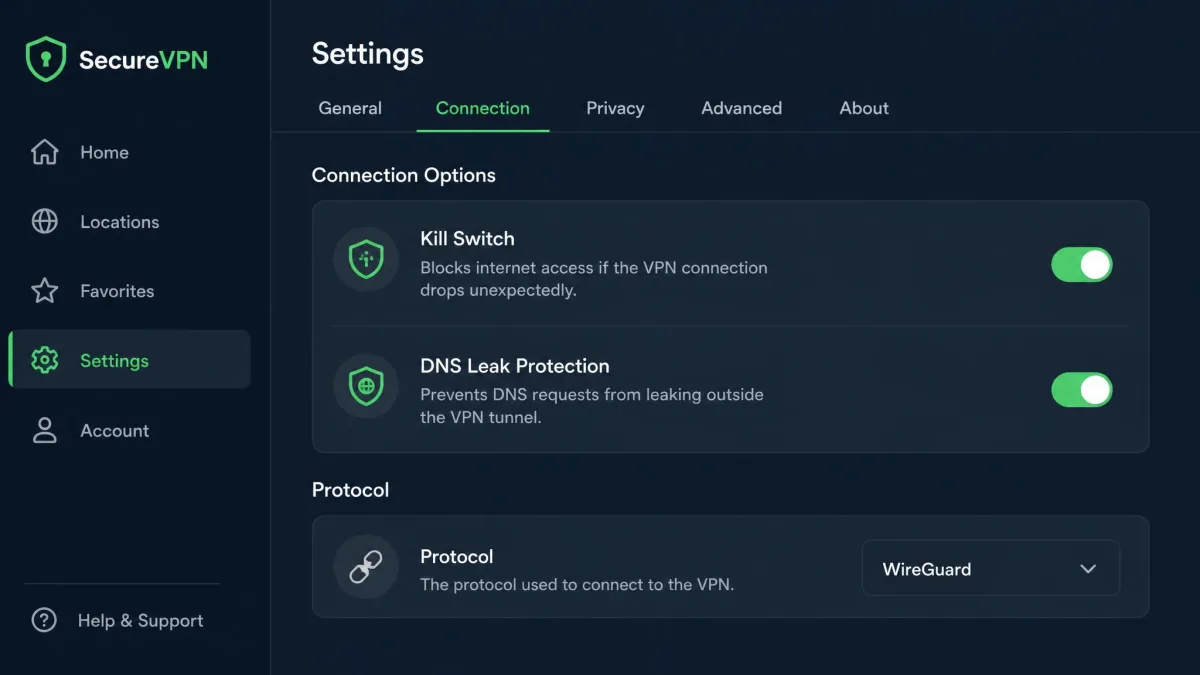
Turn on your VPN's kill switch before anything else. It blocks all traffic if the tunnel ever drops, so your real IP cannot leak during a reconnect.
Step 2: Choose a VPN server
Pick a server that fits your goal. For general privacy, a nearby server usually gives the best speed while still hiding your IP. If you want to appear in another country, choose a server there instead.
Server choice changes your apparent location, so it is worth being deliberate. A closer server keeps latency low, which we always test for, and that keeps browsing responsive even with encryption running.
Step 3: Open an incognito / private window
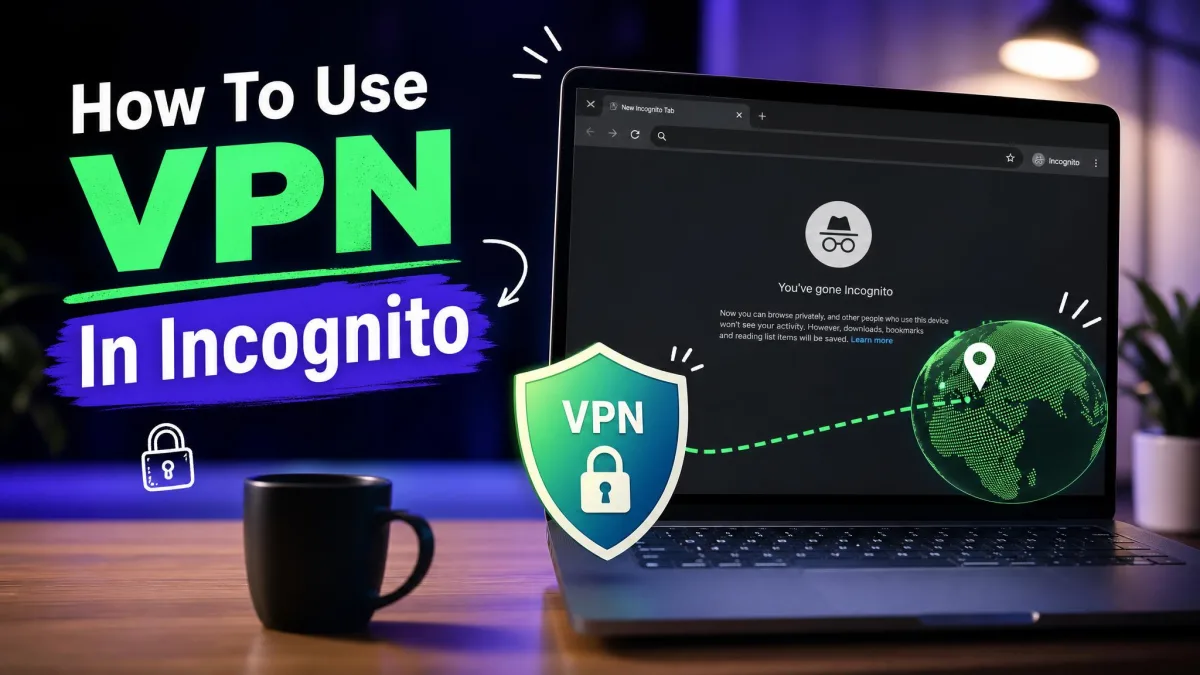
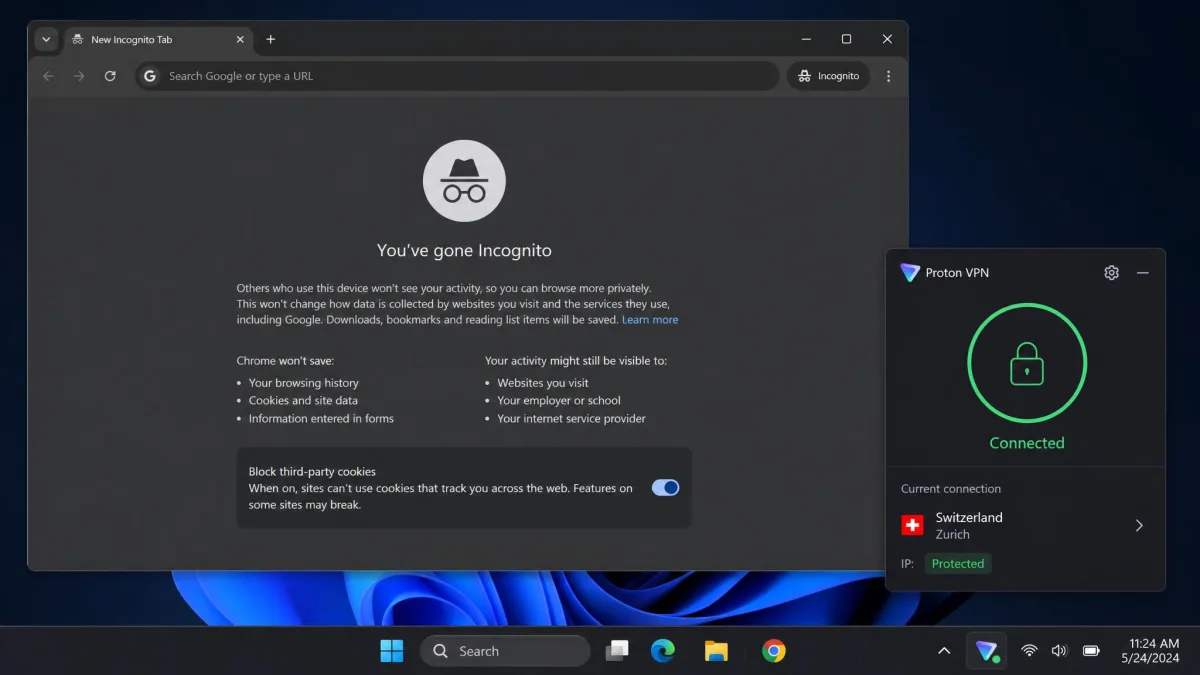
With the VPN connected, open a private window. In Chrome and Edge use Ctrl+Shift+N; in Firefox and Safari use Ctrl+Shift+P (Command+Shift+N on a Mac). The window opens with a dark theme and a note that your local history will not be saved.
At this point both layers are active. The VPN is handling your connection, and incognito is keeping this session out of your local history. Nothing else needs to happen for a full VPN app, since it already covers the whole device.
Step 4: Confirm your IP address changed
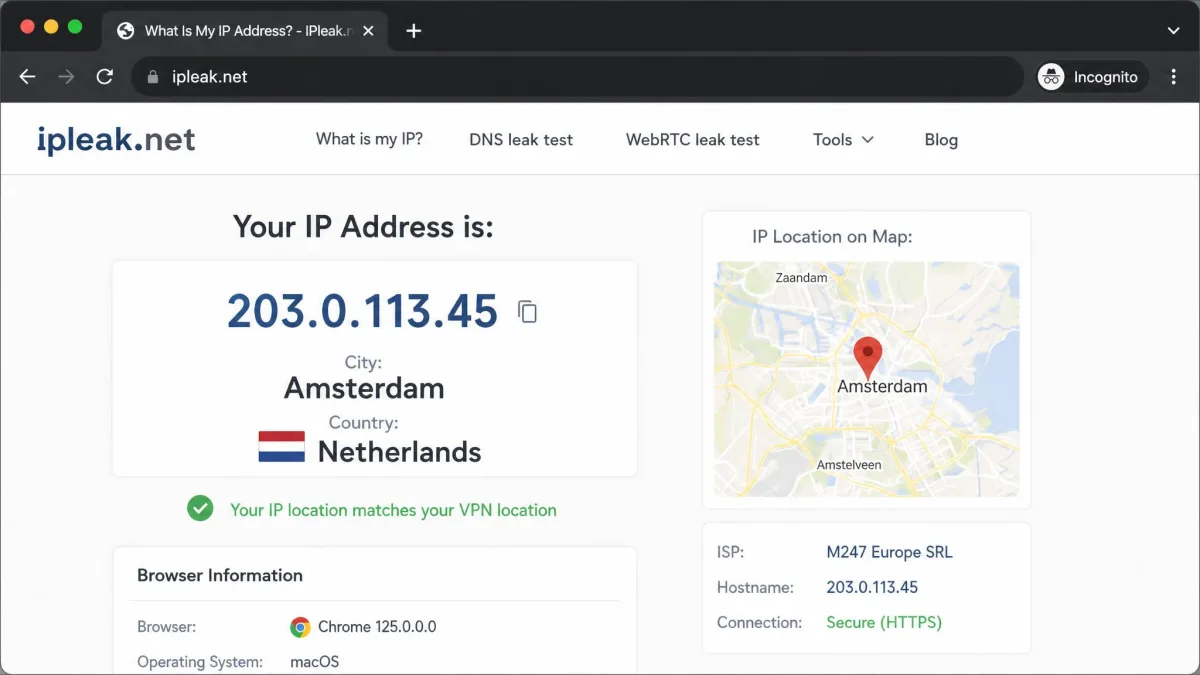
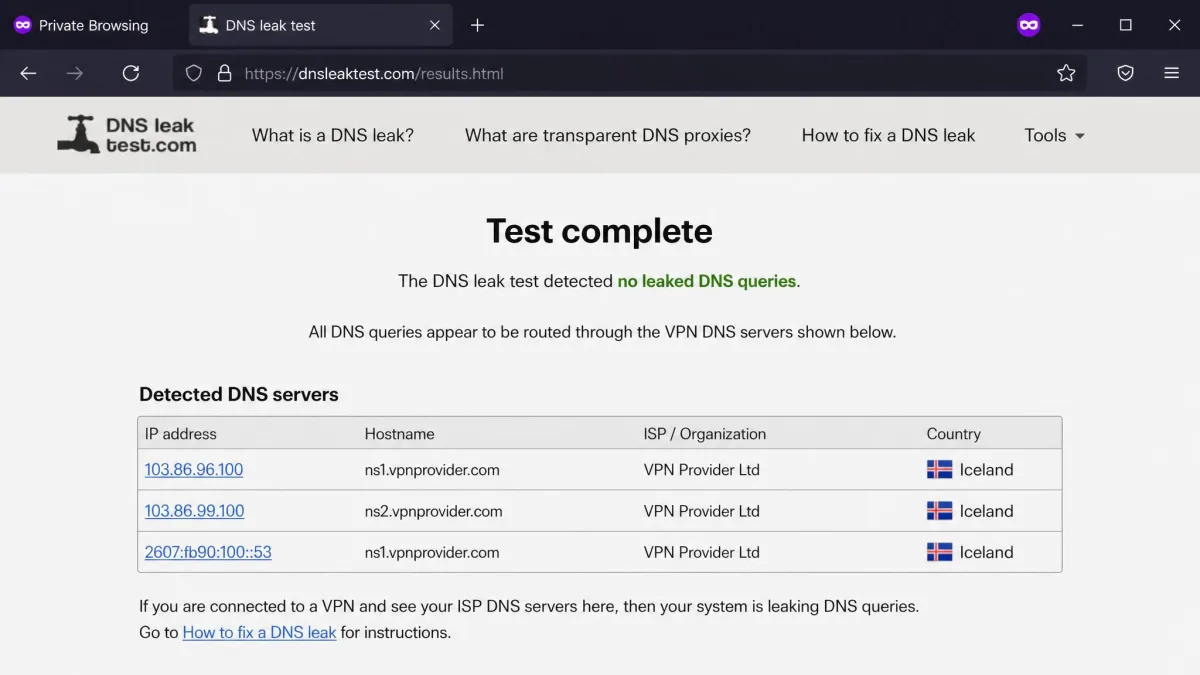
Never assume the tunnel is working. Open any "what is my IP" page in the private window and check that the address and location match your VPN server, not your home city. Then run a quick DNS leak test to confirm your provider is not still resolving your requests.
If the page still shows your real location or your ISP's name, the fix is usually simple. Disconnect the VPN and reconnect, then reload the check. In our testing that clears most leaks on the first retry.
Step 5: Browse without logging into personal accounts
Keep the session anonymous by staying signed out. The moment you log into Google, a social account, or email, you hand the site your identity directly, and no amount of IP masking undoes that. If your goal is private browsing, browse as a guest.
This is where many people quietly break their own setup. A VPN and incognito can hide your network and your local history, yet a single sign-in re-attaches your name to the whole session.
What a VPN + Incognito Mode Hides
Run together, the two tools cover a useful range. Here is what the combination genuinely protects.
- Your public IP address. The VPN replaces it with the server's IP, so websites see the server, not you.
- The sites you visit, from your ISP. With DNS leak protection on, your provider can see that you are connected to a VPN but not which domains you reach.
- Your traffic on public Wi-Fi. Encryption keeps others on the same network, and the network operator, from reading what you send.
- Your local browsing trail. When you close the incognito window, that session's history, cookies, and form data are gone from the device.
That is a strong baseline for everyday privacy on a shared or public connection. It is the setup we reach for on hotel and cafe networks.
Incognito hides your tracks on the device. A VPN hides your traffic on the network. You need both to close the gap either one leaves open.
— From our hands-on testing
What VPN + Incognito Mode Does NOT Hide
Being honest about the limits matters as much as the benefits. The combination is not a cloak of full anonymity, and treating it that way is where the risk creeps in.
A VPN and incognito together do not make you anonymous. They raise your privacy, but several things still identify you, and knowing them keeps you from a false sense of security.
- Browser fingerprinting. Sites can profile your device from its screen size, fonts, and settings, which the VPN and incognito do nothing to change.
- Anything you log into. Sign into an account and you have identified yourself, regardless of your IP.
- Downloaded files and saved bookmarks. These survive an incognito session, so private browsing does not clean up everything you might expect.
- Full anonymity. No consumer setup guarantees it. This is better privacy, not invisibility.
The takeaway is that incognito on its own gives many people a false sense of security. It only clears local data; it never changes how your traffic moves across the network.
VPN App vs Browser Extension: Which Should You Use?
This is the choice that trips up the most people, so it is worth being precise. A full VPN app and a browser VPN extension are not the same tool, and they protect different amounts of your device.
A VPN app protects everything. It encrypts all traffic from the device, covers system DNS, and shields every app, not just the browser. Because it works at the system level, it needs no special setup for incognito. Open any private window and it is already covered.
A browser extension is narrower. It only protects traffic inside that one browser, so anything outside the browser stays on your real connection. It is lighter and quicker to toggle, but it leaves the rest of your device exposed. For most people who want real privacy, the app is the better default.
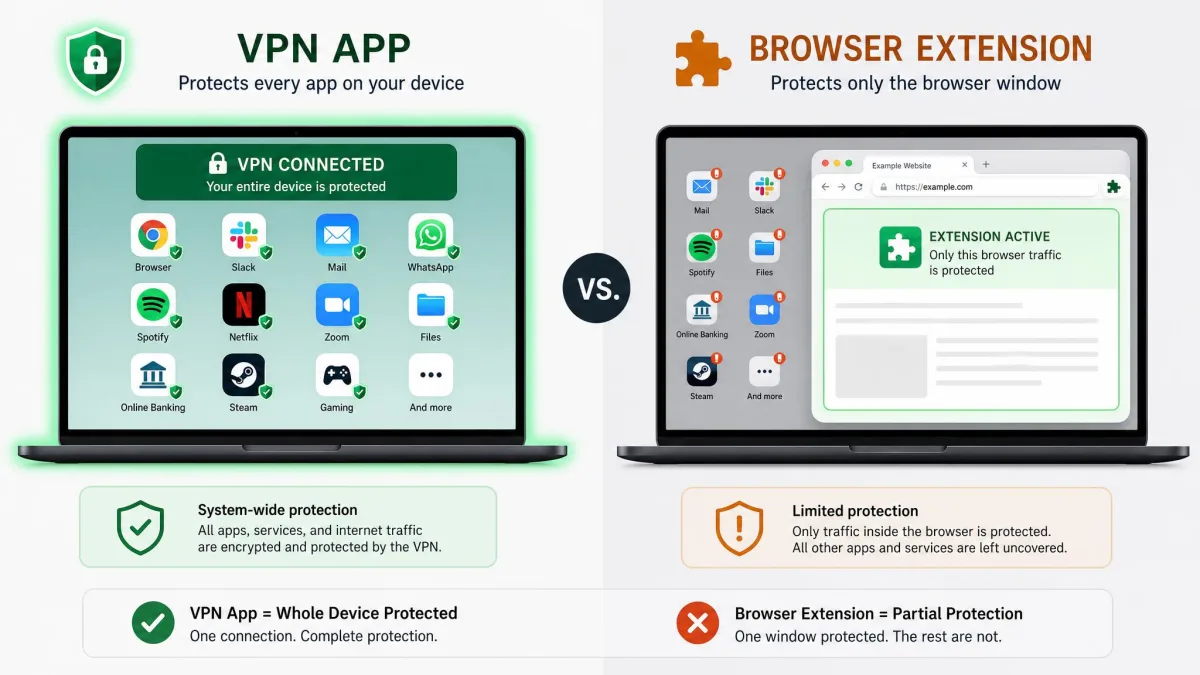
Use the full VPN app when you want every app on the device protected. Reach for an extension only when you specifically want to route a single browser and leave the rest alone.
How to Allow a VPN Browser Extension in Incognito
If you do choose an extension, there is a step people miss: extensions are usually disabled in private windows by default. You have to grant each one permission to run there. The exact path differs by browser, so here is each one.
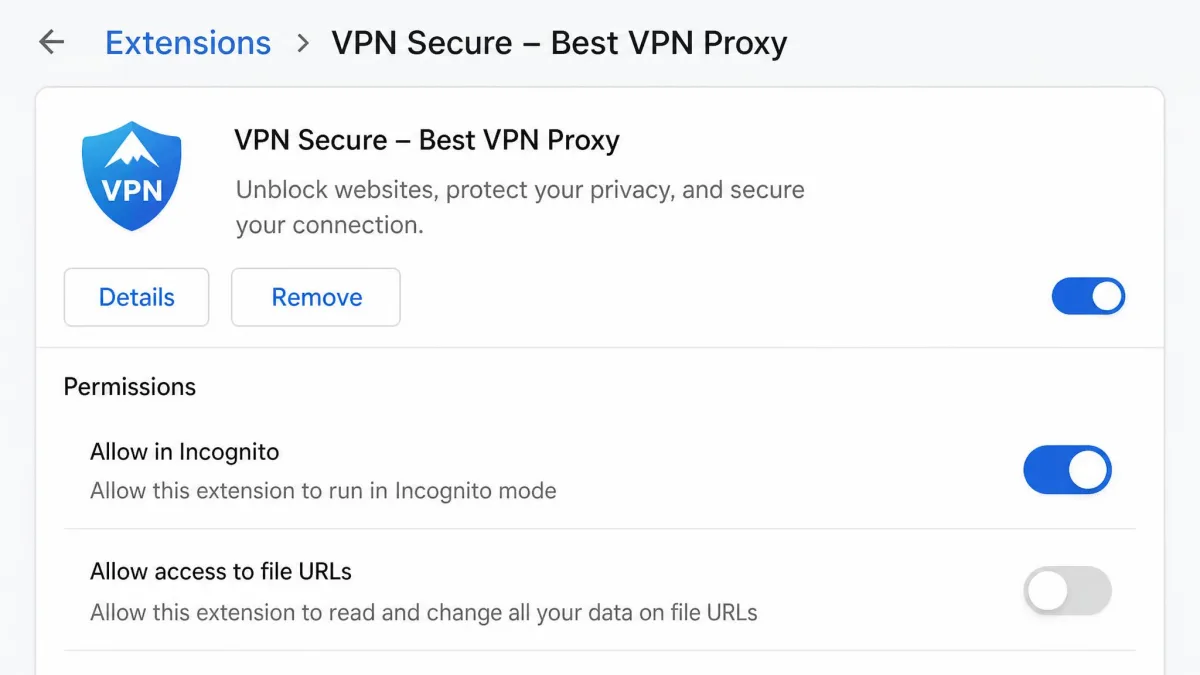
Google Chrome
Go to chrome://extensions, find your VPN extension, and click Details. Scroll down and turn on the Allow in Incognito toggle. Once it is on, the extension will run the next time you open an incognito window.
One quirk we have run into: an extension that worked in incognito can stop running there after a Chrome update, and the permission has to be enabled again. If your extension goes quiet, check this toggle first.
Microsoft Edge
Go to edge://extensions, open the extension's Details, and select the Allow in InPrivate checkbox. Edge calls private browsing "InPrivate," but the idea is identical to Chrome. The extension stays off in InPrivate windows until you tick that box.
Firefox
Go to about:addons, select the extension, and open its Details or permissions. Set Run in Private Windows to Allow. This mirrors the steps Mozilla documents for Firefox Private Browsing, and the add-on will not work in a private window until you allow it.
Safari
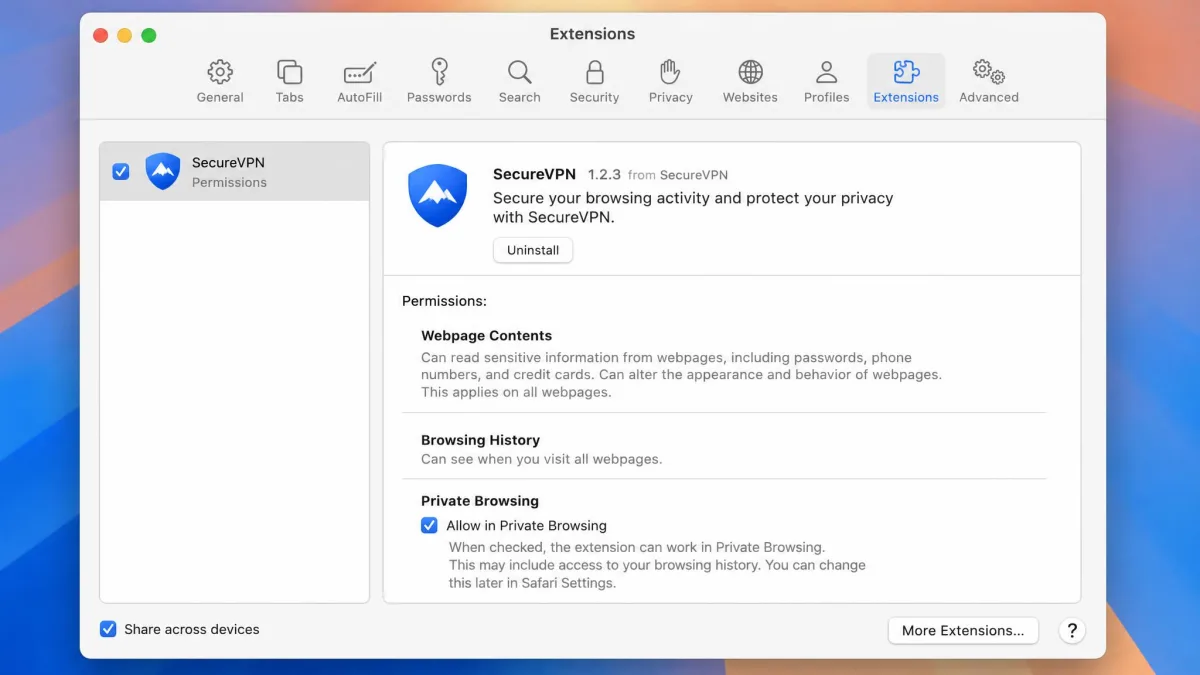
Open the Safari menu, choose Settings, then Extensions. Under Private Browsing for the extension, check Allow in Private Browsing. On macOS Sonoma 14 or later this matters more than ever: extensions that need website access are turned off in private windows by default, so a VPN or privacy extension can silently do nothing until you enable it individually.
Best Settings for Maximum Privacy (Kill Switch, DNS Leak Protection)
A VPN is only as private as its settings. Two toggles do most of the work, and a few more choices keep things fast and secure.
Enable the kill switch first. If the VPN connection drops for any reason, the kill switch blocks all traffic until the tunnel is back, so your real IP never slips out during a reconnect. Without it, a brief drop can expose you without any warning on screen.
Turn on DNS leak protection next. This forces your DNS lookups through the encrypted tunnel instead of your ISP's servers. It is the setting that stops your provider from quietly seeing which sites you reach even while the VPN is on.
Check for IPv6 leak protection as well. Many home connections now carry both IPv4 and IPv6 traffic, and a VPN that only tunnels IPv4 can let IPv6 requests slip out on your real address. If your app offers the option, enable it, or set the client to disable IPv6 while connected.
Think carefully about split tunneling too. It lets you route some apps through the VPN and send the rest over your normal connection, which is handy for a local device or a banking app. For a private incognito session, though, keep your browser inside the tunnel so no part of the search or page load leaks out around it.
Finally, choose a modern protocol. WireGuard or OpenVPN give you a strong balance of speed and security, and they are the protocols we benchmark against on every service we test.
Common Mistakes to Avoid
We see the same handful of errors again and again. Each one is easy to fix once you know it.
- Opening incognito before connecting the VPN. This is the big one. Connect first, or your real IP can leak in the gap before the tunnel is up.
- Assuming incognito hides your IP. It never has. On its own, incognito leaves your address exposed to every site you visit.
- Logging into personal accounts. A single sign-in undoes the anonymity you just set up.
- Piling on extra browser extensions. More add-ons can make your fingerprint more unique, which works against the privacy goal.
- Forgetting to re-enable an extension after a browser update. If a VPN extension stops working in private mode, the permission has likely reset.
- Never verifying the connection. Trusting the "Connected" label without a quick IP and DNS check is how a silent leak goes unnoticed for a whole session. Run the two checks each time before you rely on the setup.
Build one habit and most of these disappear: connect the VPN, confirm your IP changed, then open the private window. In that order, every time.
Does Incognito Use the VPN Automatically?
No. This is the single most common misunderstanding, so it is worth stating plainly. Opening an incognito window does not start a VPN, and it does not route your traffic through one.
The two run at different layers and stay completely separate until you connect the VPN yourself. Incognito manages what your browser saves locally; the VPN manages how your traffic travels across the network. Neither one is aware of the other.
There is one nuance worth knowing. A full VPN app, once connected, already covers every window including incognito, so it feels automatic even though you started it manually. A browser extension is the opposite: it needs the "Allow in Incognito" permission before it does anything in a private window at all.
How to Test If Your VPN Works in Incognito
Testing takes under a minute and is the only way to be sure. Open a private window with the VPN connected, then run two quick checks.
First, visit any IP-check page and confirm the address and location match your VPN server, not your real location. If they match the server, your IP is masked. A leaked result is easy to spot: the page shows your home city or your internet provider's name instead of the server's, which means your traffic is skipping the tunnel. Second, run a DNS leak test on a site built for it, and confirm the results show the VPN's DNS rather than your internet provider's. If the test lists your ISP's DNS servers, or servers in your own region that you did not choose, your lookups are leaking even though the connection looks active.
If either check shows your real details, disconnect and reconnect the VPN, then test again. That clears most leaks on the first retry. Running these two checks whenever you switch servers is a good habit and the best way to catch a silent failure before it matters.
Final Thoughts
A VPN and incognito mode are a strong pair because they cover different weaknesses. Incognito keeps your browsing off the device; the VPN keeps it off the network. Neither is enough alone, and neither turns on the other, so the routine is simple: connect the VPN, confirm your IP changed, then open the private window and stay signed out.
Keep your expectations honest. This setup gives you meaningfully better privacy on any connection, especially public Wi-Fi, but it is not full anonymity. Log in to an account or ignore fingerprinting and the protection thins out. Used with those limits in mind, it is one of the most practical privacy habits you can build, and it takes barely a minute once it is second nature.