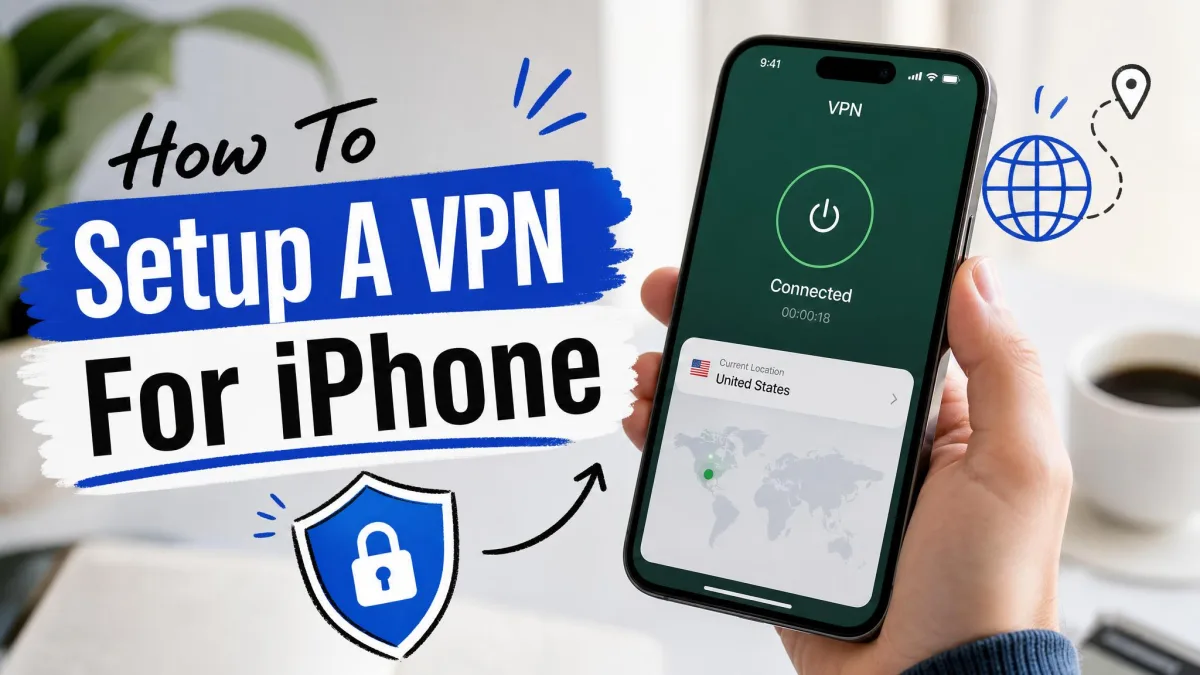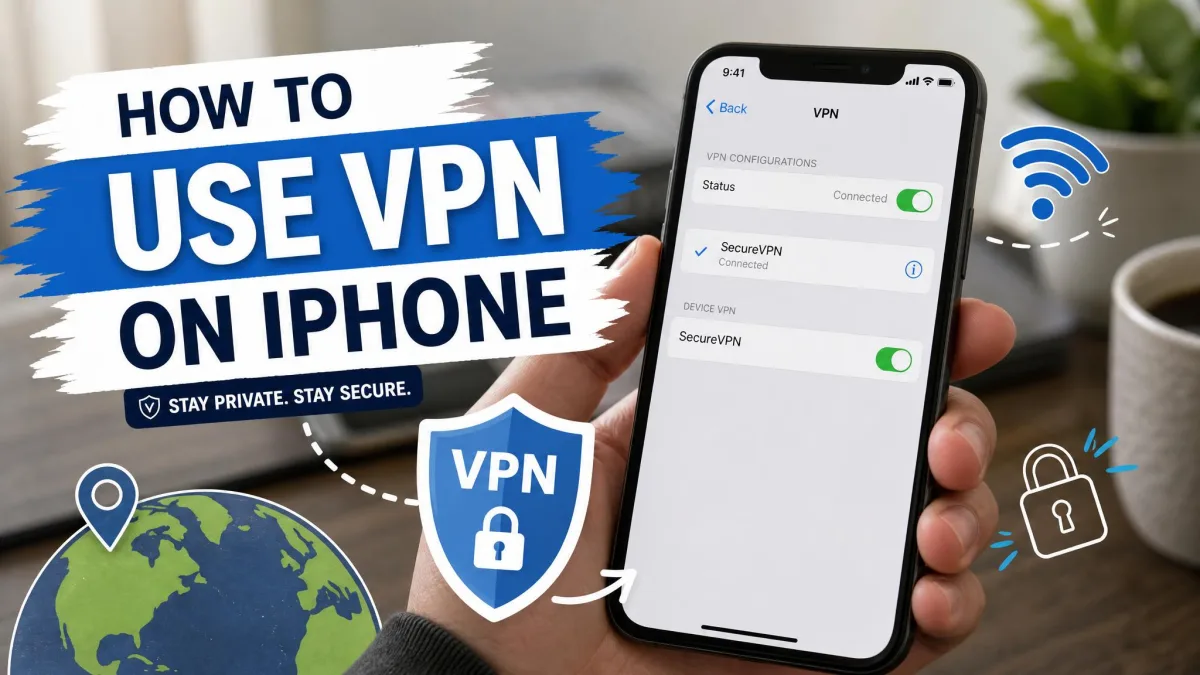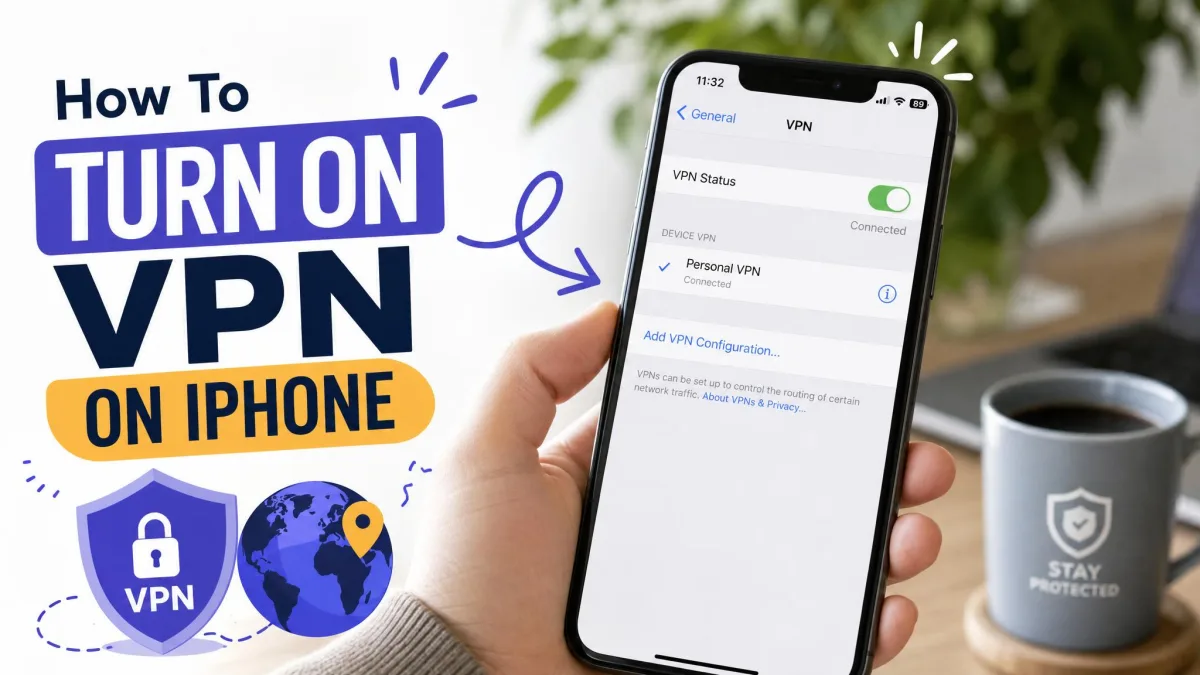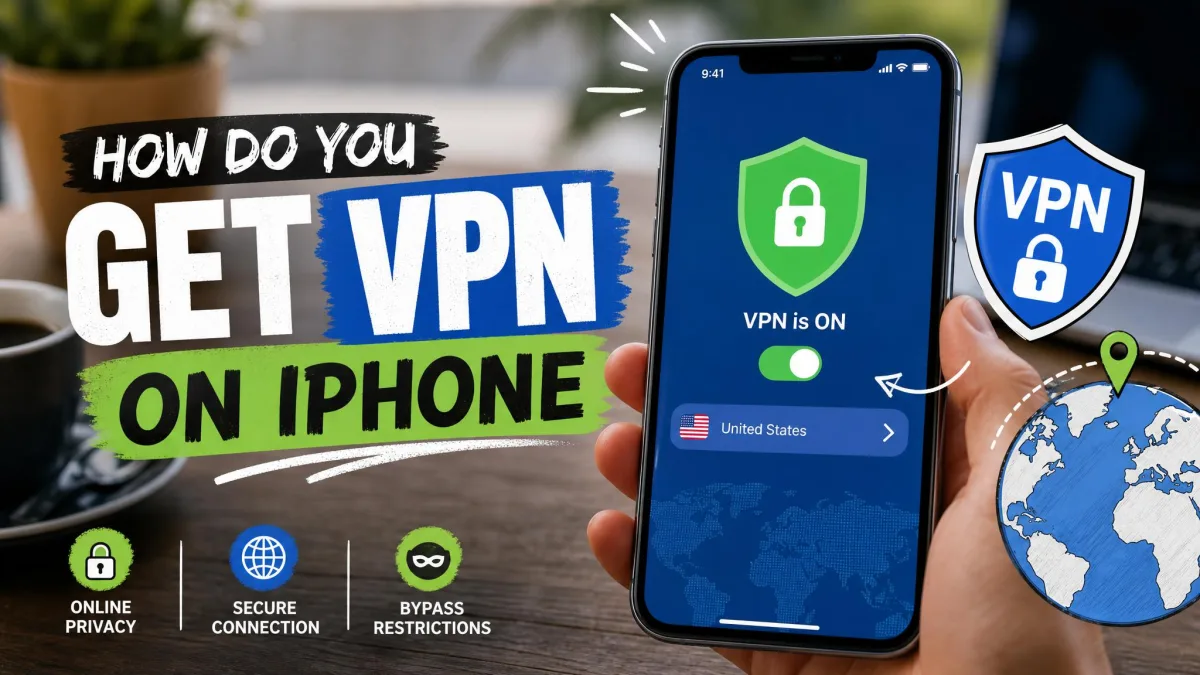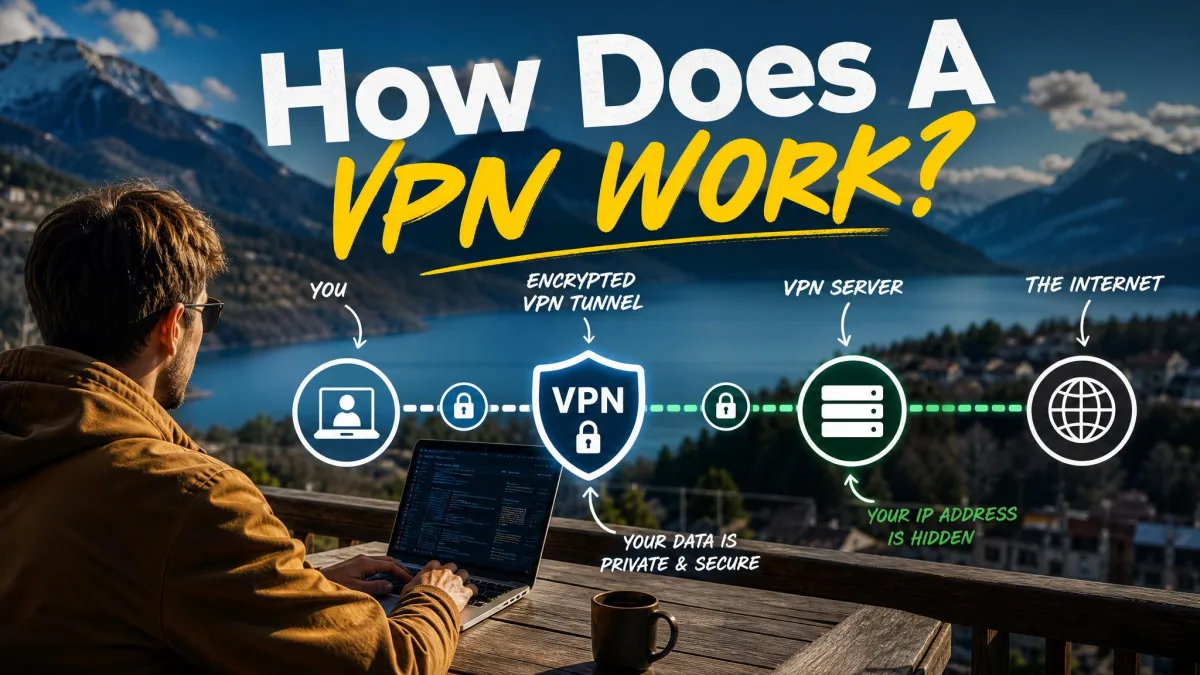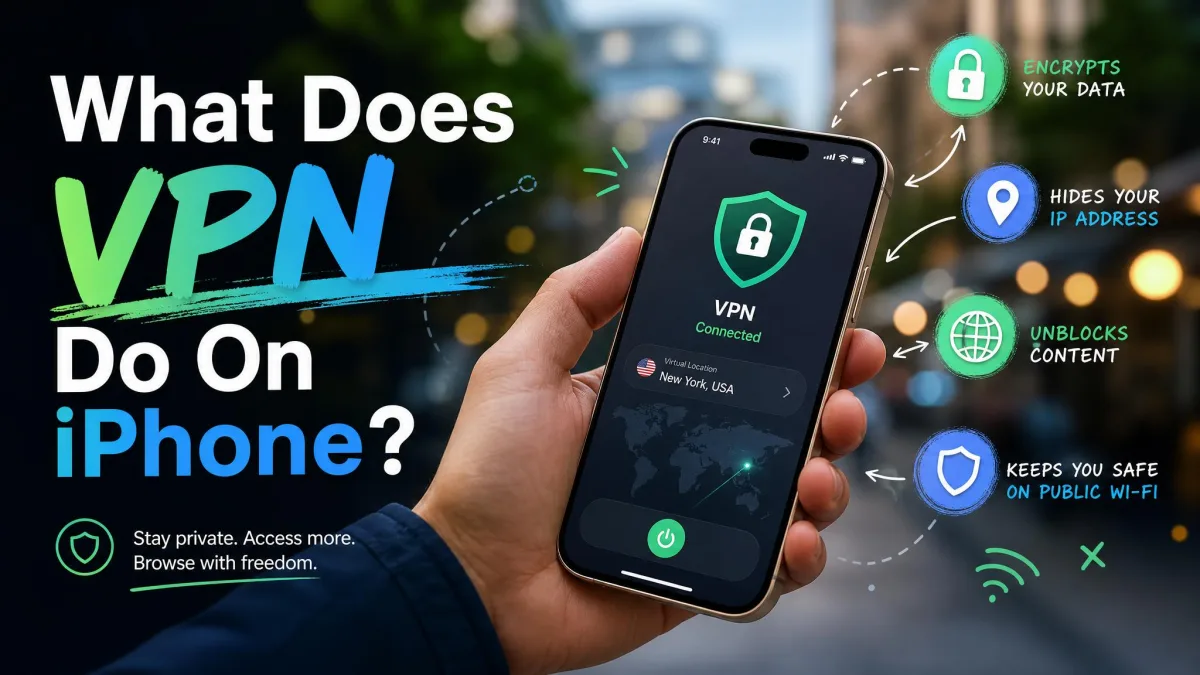
Your iPhone locks down a lot on its own, but the connection between your phone and the internet is not one of those things. The moment you join a network, especially open coffee shop Wi-Fi, your traffic and your real IP address are visible to more parties than you might expect: the network owner, your internet provider, and anyone snooping on the same signal. A VPN is the fix for that gap. It wraps your connection in encryption and hides where you are actually located.
We test VPNs the way you would use them, on real iPhones across cellular and public Wi-Fi, so this guide sticks to what a VPN genuinely does on iOS. You will see what it protects, what it cannot do, how Apple's own iCloud Private Relay compares, and how to set one up in a couple of minutes.
What Is a VPN on an iPhone?
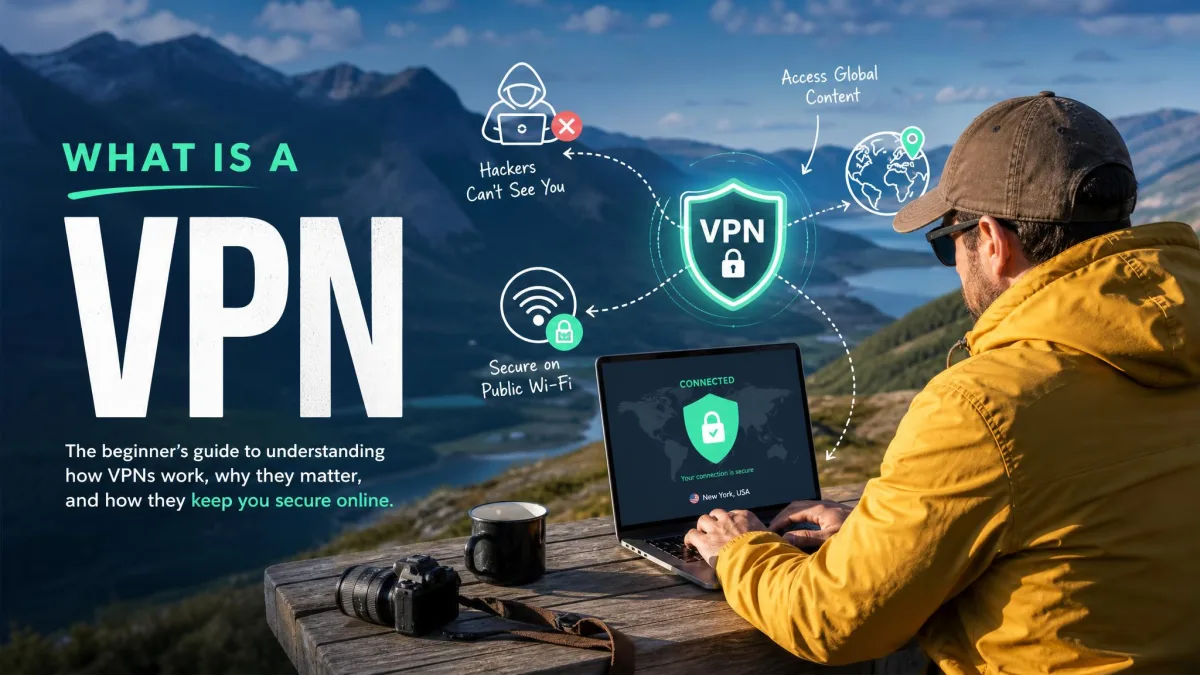
A VPN, short for virtual private network, is an app or setting that creates a secure tunnel between your iPhone and a server run by the VPN service. Everything you send and receive travels through that tunnel in encrypted form, so the network you are connected to sees scrambled data instead of your actual activity.
On iOS the VPN sits at the system level. Once it connects, it protects traffic from Safari, your email, and most other apps, not just one browser. That system-wide reach is the main thing that separates a real VPN from a browser privacy toggle.
How a VPN Works (encryption, tunnel, IP masking)
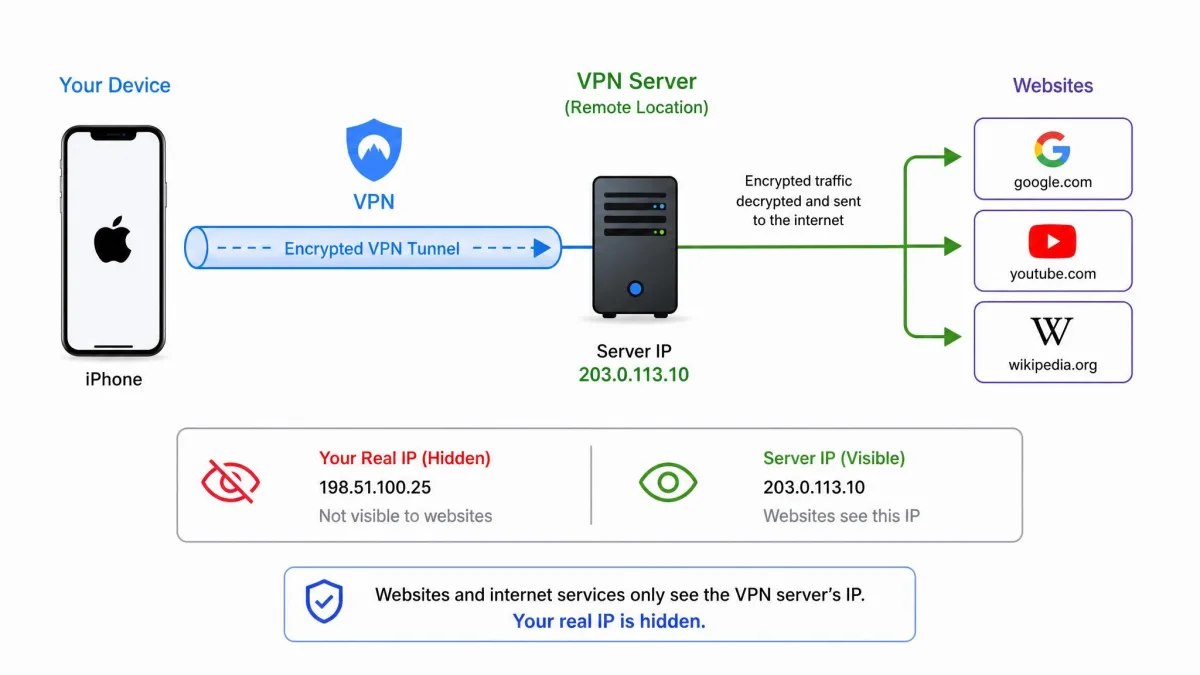
Three things happen when you connect. First, your iPhone encrypts your data before it leaves the device, turning readable traffic into unreadable code. Second, that encrypted traffic flows through the VPN server, which becomes the middle point between you and the wider internet. Third, the websites and services you reach see the server's IP address and location instead of yours.
That combination is why a VPN both protects and disguises. The encryption keeps prying eyes from reading your data in transit, and the server swap hides your identity and whereabouts. On iPhone, the protocol doing the encryption is usually IKEv2, IPSec, or an app's own option like WireGuard. IKEv2 has a handy trait we lean on in daily use: it automatically reconnects the VPN when the connection drops, which keeps things stable when you switch between cellular and Wi-Fi.
What Does a VPN Actually Do on an iPhone? (Core Functions)
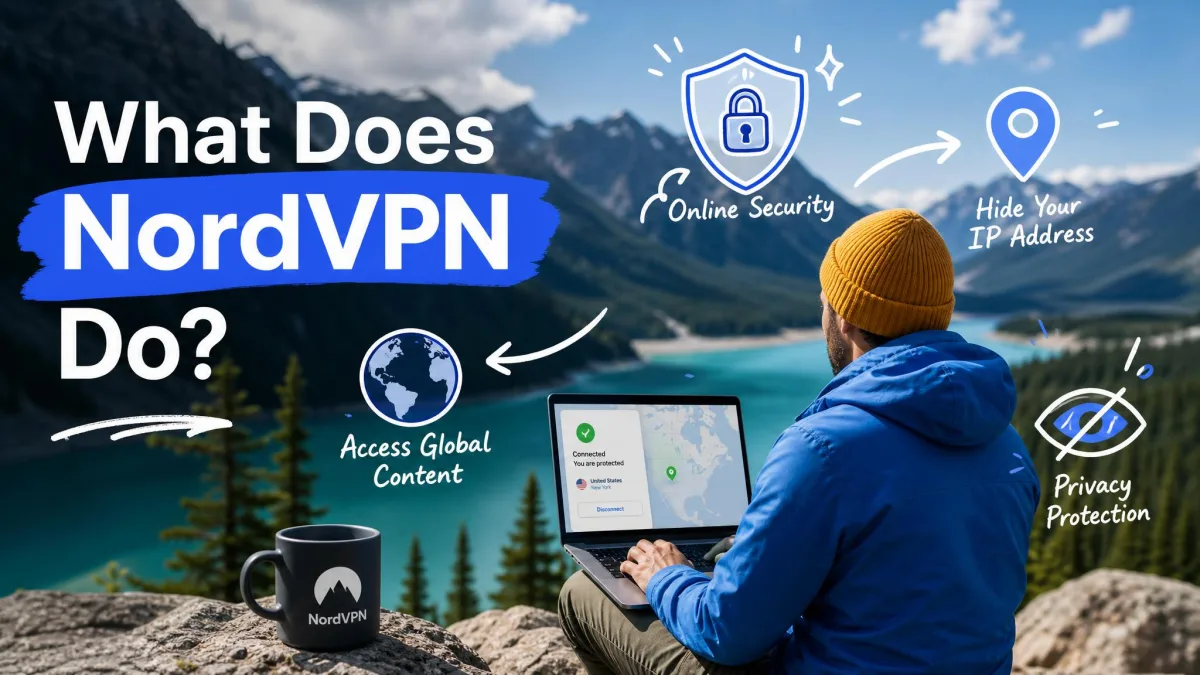
Strip away the jargon and a VPN does four practical jobs on your iPhone. Here is what each one looks like in real use.
Hides your IP address and location
Your IP address is a rough marker of who and where you are online. When you connect to a VPN server, websites see that server's address instead, so your real location stays private. Pick a server in another city or country and, as far as the internet can tell, that is where you are browsing from. This is the feature people notice first, and it underpins most of the privacy benefits below.
Encrypts traffic on public Wi-Fi
Open networks are where a VPN earns its keep. Airport, hotel, and coffee shop Wi-Fi rarely encrypt traffic between your phone and the router. The FTC's guidance on public Wi-Fi explains how open networks can expose the sensitive information you send. A VPN closes that hole by encrypting everything before it hits the network, so a snoop on the same signal sees noise instead of your logins.
Public Wi-Fi that asks for no password is the riskiest kind. Connect your VPN before you open your banking app or type a password, not after, so nothing slips out in the clear.
Unblocks geo-restricted content and streaming
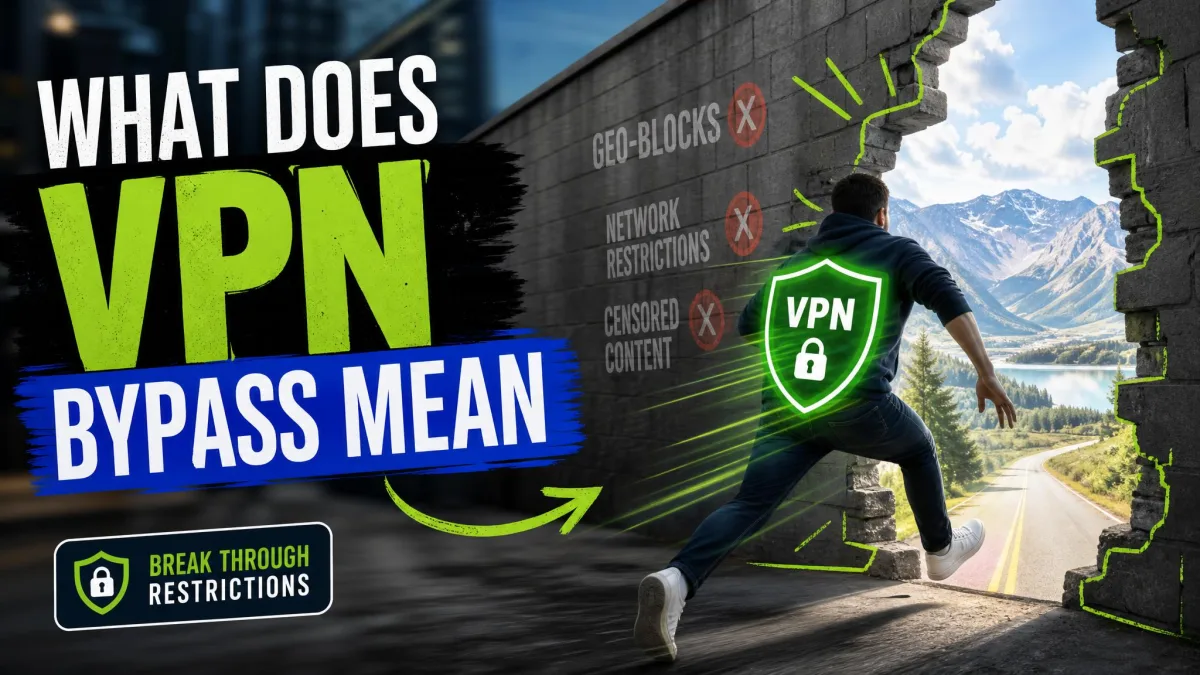
Because a VPN can place you in another country, it also opens access to content that is limited by region. A streaming catalog, a news site, or an app that behaves differently abroad will treat you as though you are wherever your chosen server sits. Handy when you travel and want your usual library to work the way it does at home.
Streaming services actively try to detect and block VPN servers, so not every server will unlock every catalog. A quality paid service refreshes its servers to keep up, which is one reason free options struggle here.
Stops ISP tracking and throttling
Your internet provider can see and log the sites you visit, and some providers slow down, or throttle, specific kinds of traffic like video or torrents. Because a VPN encrypts your activity, your ISP can no longer read which sites you reach, only that you are connected to a VPN. That also makes it harder for them to single out and throttle particular services.
On an iPhone, a VPN is less about hiding wrongdoing and more about closing the everyday gaps: the open network, the nosy provider, the app that leaks your location.
— From our hands-on testing notes
What a VPN Can't Do on an iPhone
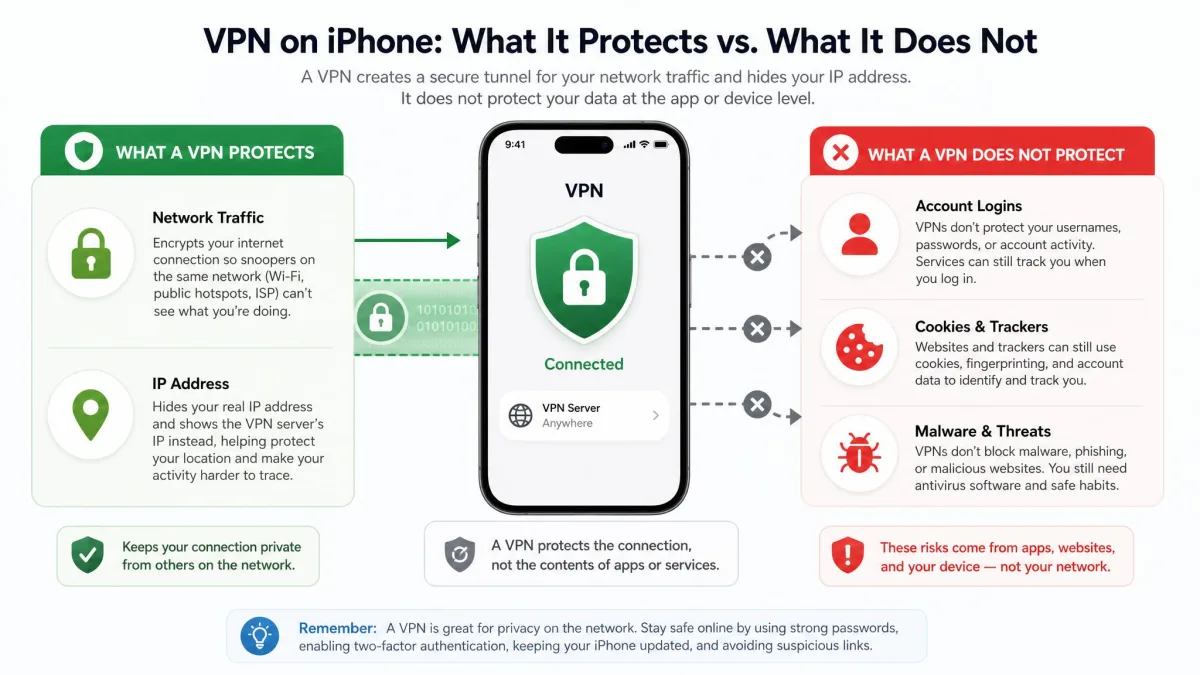
A VPN is a strong privacy tool, not a cloak of invisibility. It does not make you fully anonymous. Websites can still track you through your account logins, browser cookies, and fingerprinting, none of which a VPN touches. If you sign into your accounts, you are identifiable to those services regardless of your IP.
It also will not stop malware or phishing on its own. A VPN encrypts your connection, but it will not catch a malicious download or a fake login page, so you still want good habits and, ideally, security software.
Do iPhones Have a Built-In VPN? (iCloud Private Relay Explained)
This trips up a lot of people, so the short answer is no. iPhones do not ship with a full built-in VPN. To get one you either install a third-party VPN app or configure a connection manually in Settings. Apple's nearest built-in equivalent is iCloud Private Relay, and it is worth understanding because it is easy to mistake for a VPN.
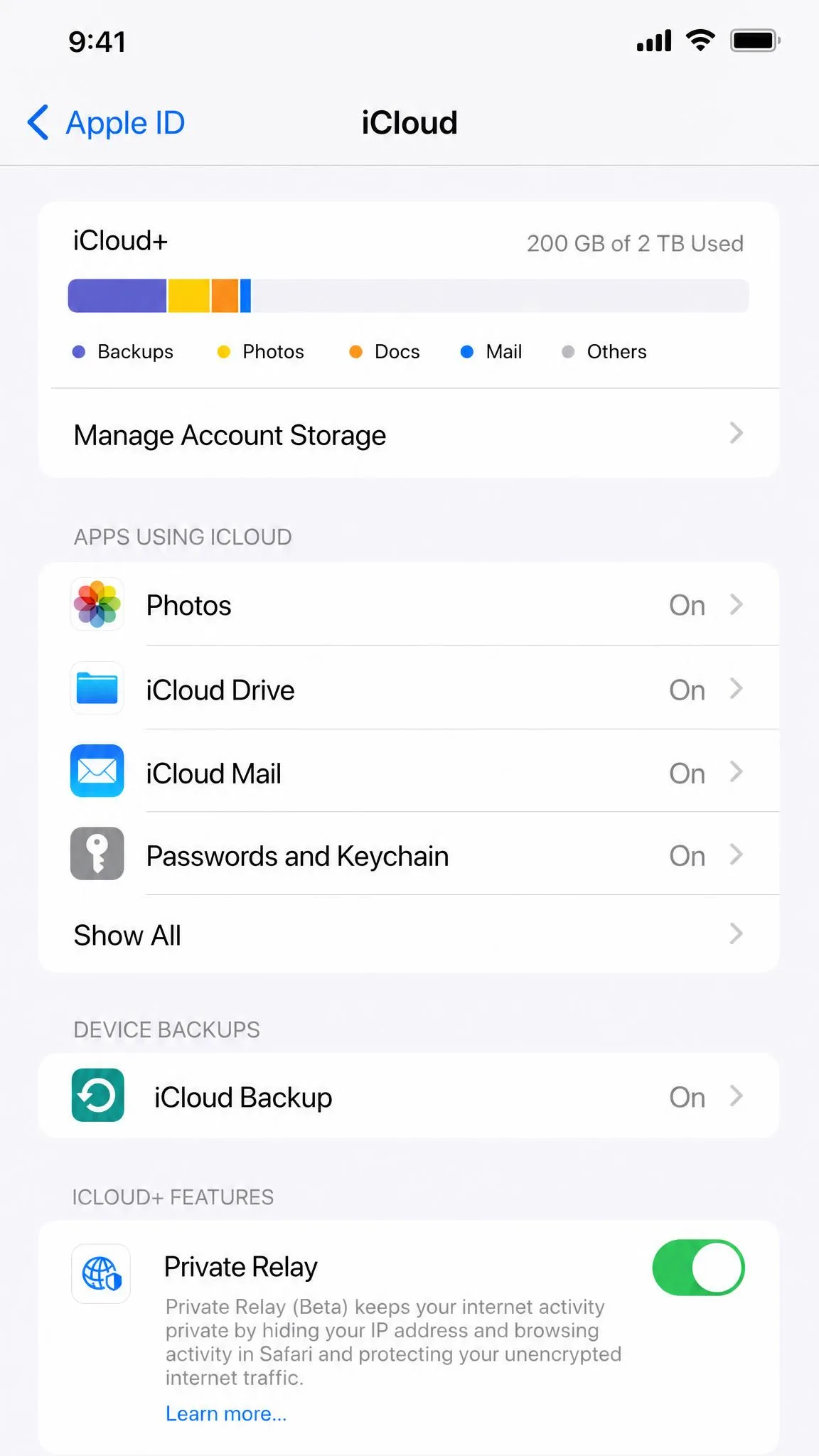
Private Relay came in with Apple's iCloud Private Relay alongside iOS 15, and it is part of the paid iCloud+ subscription, which starts at $0.99 a month on the 50GB tier. It uses a two-hop design: your traffic passes through an Apple-run relay that sees your IP but not the site you want, then a second relay run by another company generates a temporary IP and reads the site name but not who you are. Because the hops are split between different operators, neither one sees both halves of the picture.
The catch is scope. Private Relay only protects your Safari browsing, not your other apps, and it is not available in every country. It also does not let you choose a country, so it will not unblock geo-restricted content. In our own use, turning it on occasionally makes some websites ask for extra sign-in steps, and Safari speed tests can read a little lower because the traffic is being relayed.
| Feature | Full third-party VPN | iCloud Private Relay |
|---|---|---|
| Cost | Paid subscription (varies) | Included with iCloud+ from $0.99/mo |
| Traffic covered | All apps and system traffic | Safari browsing only |
| IP masking | Yes, choose server or country | Temporary IP, no country choice |
| Geo-unblocking | Yes, pick a server location | No, not designed for it |
| iOS requirement | iOS app or manual config | iOS 15+ with iCloud+ |
| Setup | Install app or configure manually | Toggle on in iCloud settings |
Private Relay is a fine privacy boost for casual Safari browsing, but if you want protection across every app, the ability to pick a country, or streaming access, you need a full VPN.
Do You Need a VPN on Your iPhone?
Not everyone needs one running every hour of the day. If you only ever use your home Wi-Fi and never touch public networks, the day-to-day risk is lower. But most of us leave the house, hop onto open networks, and want our providers out of our browsing history. For those situations, a VPN is genuinely useful rather than optional.
When it's worth keeping on vs off
Keep it on when the exposure is higher: on any public or unfamiliar Wi-Fi, when you are logging into sensitive accounts, when you are traveling, or when you want to keep your ISP out of your activity. You can switch it off for trusted home use where speed matters most, such as a long 4K streaming session or a large download on your own network.
Battery and speed trade-offs
There is no free lunch here. A VPN adds encryption work and an extra network hop, so it will slow your connection somewhat. How much varies widely with the provider, the protocol, and how far away the server sits, so treat any single percentage as a rough guide rather than a fixed number. On a good provider connected to a nearby server, the download hit can be small, often only single digits or so, and everyday browsing feels unaffected. On a slower service or a distant server it can climb toward 20 to 30 percent or more, and upload speeds sometimes take a bigger hit than downloads.
In practice, everyday browsing usually feels unaffected, but 4K streaming and large downloads can take a hit, and a distant server slows things more than a nearby one. A VPN always makes traffic slower, never faster, so anyone promising a speed boost is overselling. Battery is the other cost: leaving a VPN connected all day drains the iPhone faster than usual, which is a fair reason to toggle it off when you do not need it.
To cut both the speed and battery cost, connect to the nearest server that meets your needs. Distance is the biggest single factor in how much a VPN slows you down.
How to Set Up and Use a VPN on Your iPhone
You have two routes. Almost everyone should use the App Store app; the manual route exists for people connecting to a specific network, like a workplace or a self-hosted server.
Method 1: Install a VPN app from the App Store
This is the fast path, and in our testing it takes only a couple of minutes end to end.
- Open the App Store and search for your chosen VPN, then download and install the app.
- Open the app and create an account or log into an existing one.
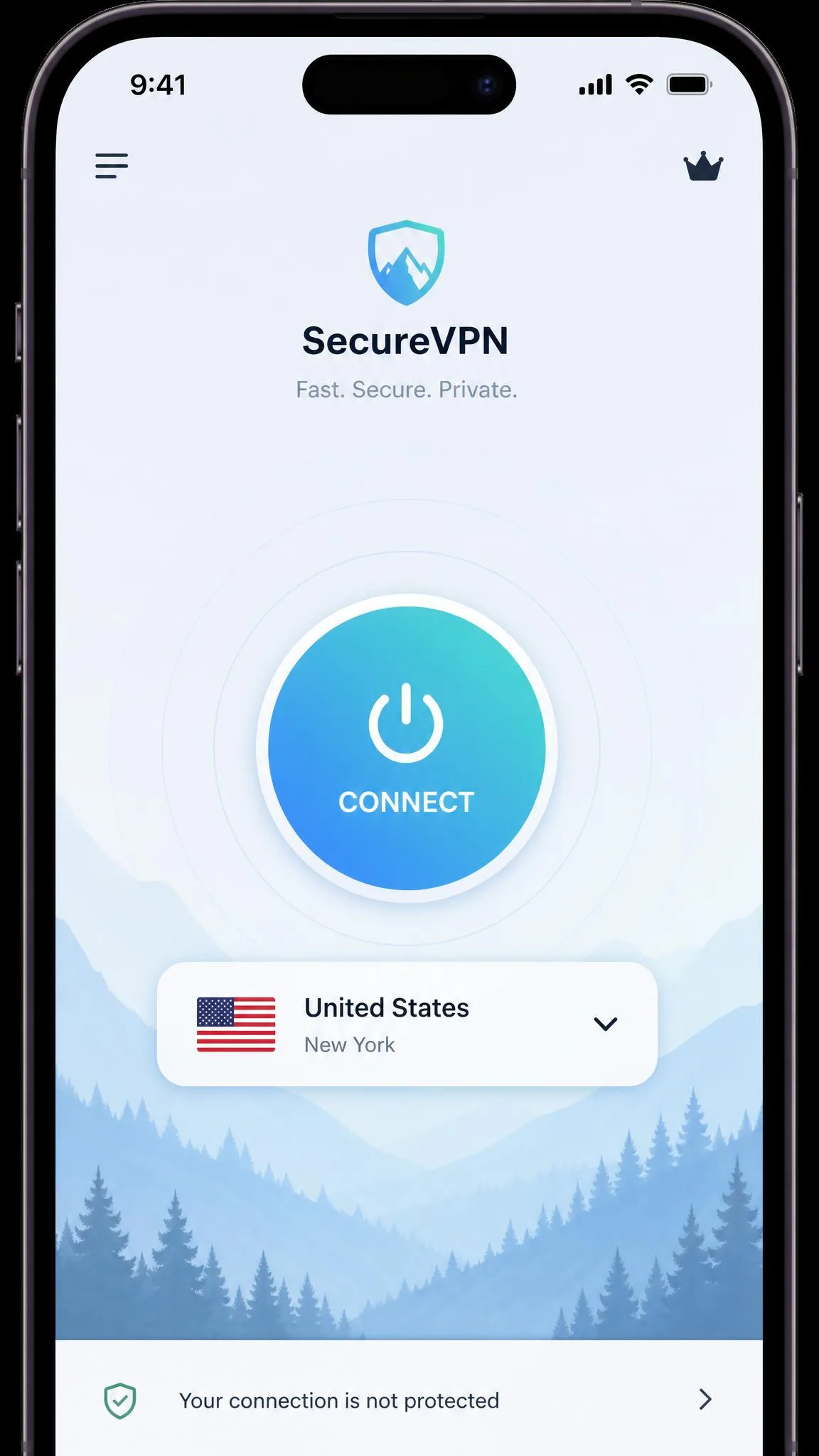
- Approve the VPN configuration prompt when iOS asks. Tap Allow, then confirm with Face ID or your passcode.
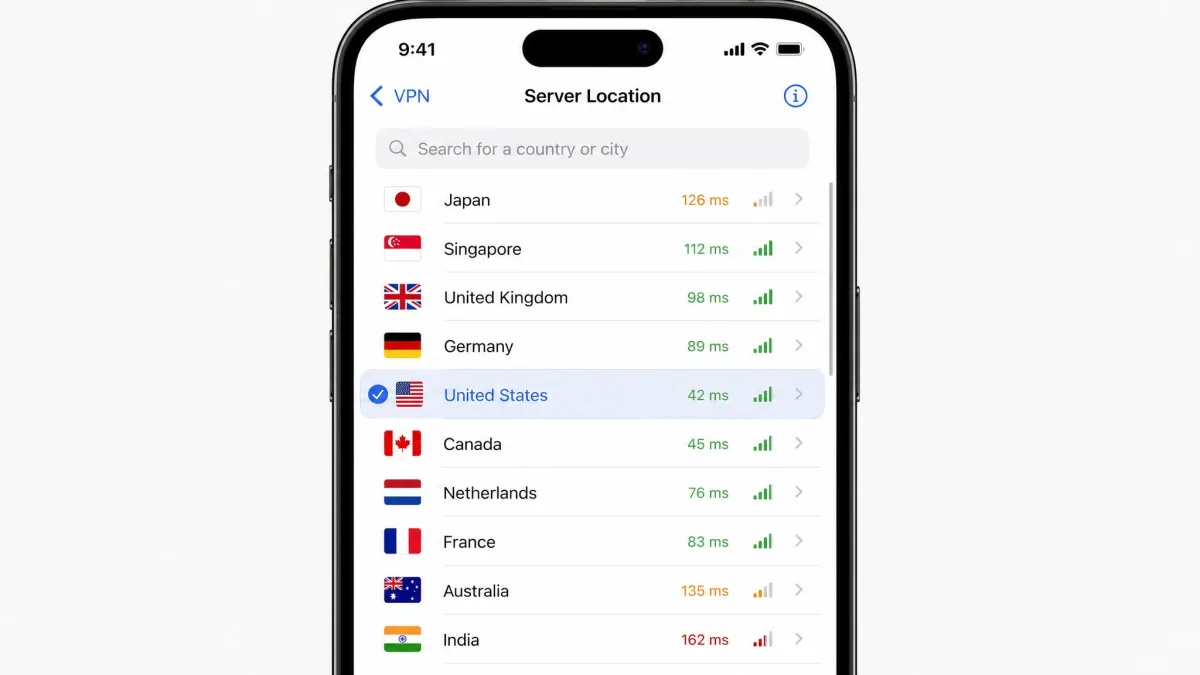
- Choose a server or country from the list, then tap the single connect button.
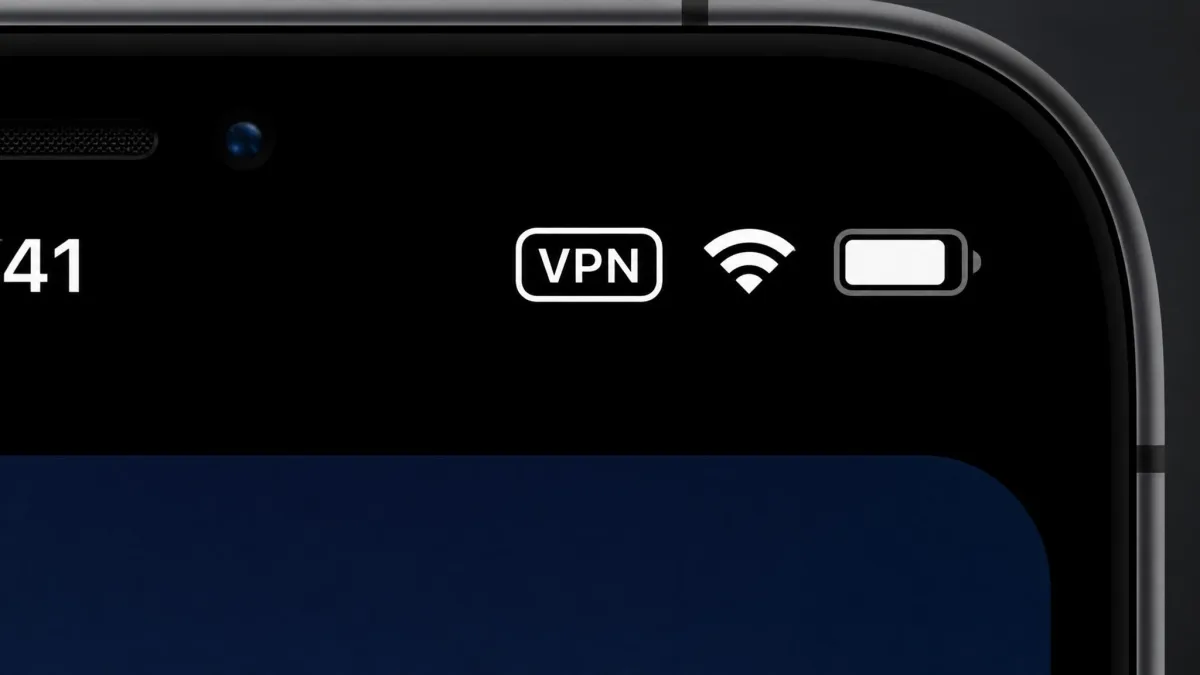
That is it. When we set up a mainstream app this way, the connect button and the server picker sit right next to each other on the main screen, so switching locations later is one tap. A small VPN icon appears in your status bar whenever the tunnel is active.
Method 2: Configure a VPN manually in Settings
If you have connection details from an IT department or a self-hosted service, you can add them by hand.
- Open Settings > General > VPN & Device Management, then tap VPN.
- Tap Add VPN Configuration.
- Choose the type. iOS natively supports IKEv2, IPSec, and L2TP. Note that OpenVPN or WireGuard connections require the vendor's own app rather than this screen.
- Enter the server address, account name, and authentication details your provider gave you, then tap Done.
- Back on the VPN screen, flip the Status toggle to connect.
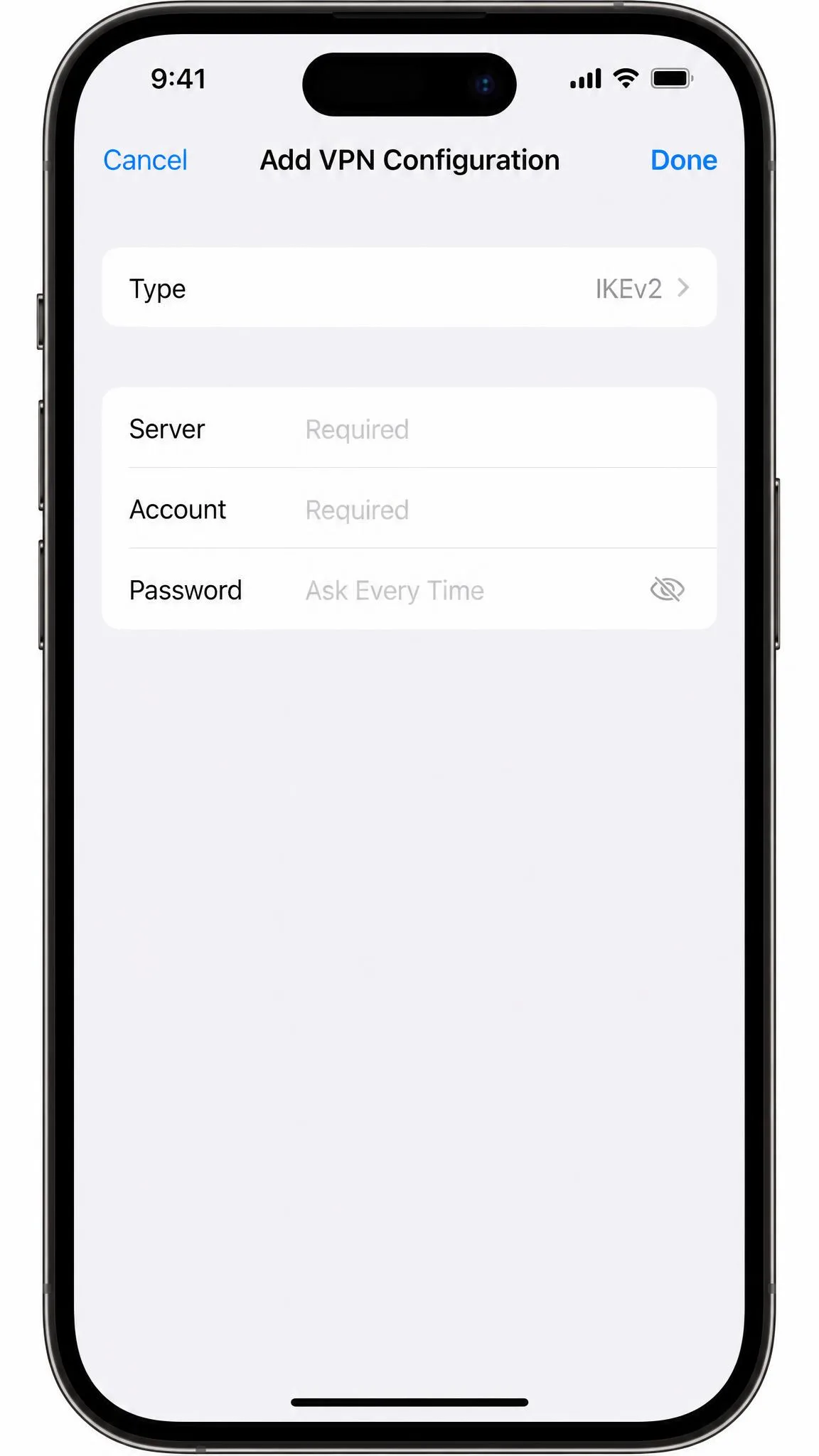
For the manual route, IKEv2 is usually the best pick where you have a choice. It reconnects on its own when you move between Wi-Fi and cellular, so the tunnel does not silently drop while you walk out the door.
What to Look For in an iPhone VPN
Once you decide to use one, a few features separate a service worth trusting from one that is not. These are the things we weigh before we recommend anything.
A kill switch is near the top of the list. If the VPN connection drops without one, your real IP address can leak for a moment before you notice, which defeats the purpose. A kill switch blocks all traffic until the tunnel is back. Look also for a no-logs policy, ideally one that has been independently audited, so the service is not quietly keeping the records your ISP could not.
Beyond that, weigh the server network, since more locations mean better speed options and more content access, and the protocol support, since modern options like WireGuard and IKEv2 balance speed and security well. A clean, native iOS app matters too. One rough edge we have run into is that a VPN can occasionally interfere with certain network functions; in one case a service blocked incoming and outgoing calls while connected over home Wi-Fi, so easy on-off control and reliable support are worth having.
Pros
- Encrypts all app traffic on public Wi-Fi, not just your browser
- Hides your real IP and lets you appear in another country
- Keeps your ISP from logging or throttling your activity
- Sets up in a couple of minutes from the App Store
Cons
- Slows your connection, most noticeably on 4K streaming and big downloads
- Drains battery faster when left on all day
- Cannot make you fully anonymous or block malware on its own
- The best options require a paid subscription
Should You Use a Free VPN on iPhone?
We understand the appeal, but free VPNs come with strings that are easy to miss. Running a server network costs money, so a service giving it away has to earn revenue somewhere, and too often that means logging and selling the very browsing data you installed a VPN to protect. Others cap your data, cram in ads, or run so slowly that streaming is painful.
There are a small number of reputable free tiers from established paid providers, usually with tight data limits, that are fine for occasional use. But if privacy is the whole point, a modest paid subscription buys a no-logs policy, faster servers, and a kill switch that free apps frequently lack.
Be especially wary of free VPN apps you have never heard of. A VPN sees all your traffic, so an untrustworthy provider is arguably worse than no VPN at all.
Is It Safe and Legal to Use a VPN on an iPhone?
Using a reputable VPN on your iPhone is safe. A trustworthy service with strong encryption and a no-logs policy protects your data without putting your device at risk, and iOS treats the VPN as a system-level connection with your explicit permission. The safety question really comes down to which provider you choose, which is why the features above matter.
On legality, VPNs are legal to use in most countries around the world, including the US, the UK, the EU, Canada, and Australia, and everyday privacy is a lawful reason to run one. A short list of countries restrict or ban them, and some allow only government-approved services. Places reported to ban or heavily restrict VPN use include Belarus, China, Iran, Iraq, Oman, Russia, Turkey, Uganda, the UAE, and Venezuela, though this list is representative rather than exhaustive and the rules shift from year to year, so if you travel widely it is worth checking local law before you go. Using a VPN never makes an otherwise illegal activity legal, but for protecting your own browsing there is nothing shady about it.
Final Thoughts
On an iPhone, a VPN does a focused, useful job: it encrypts your traffic, hides your IP and location, and shields you on the public networks where your data is most exposed. It will not make you invisible, and it costs you a little speed and battery, but for anyone who uses open Wi-Fi or wants their provider out of their browsing, that trade is easy to accept.
If you only browse in Safari at home, iCloud Private Relay may be enough. For protection across every app, the freedom to choose a country, and reliable streaming access, install a well-reviewed paid VPN from the App Store, turn on the kill switch, and connect before you join that next unfamiliar network.