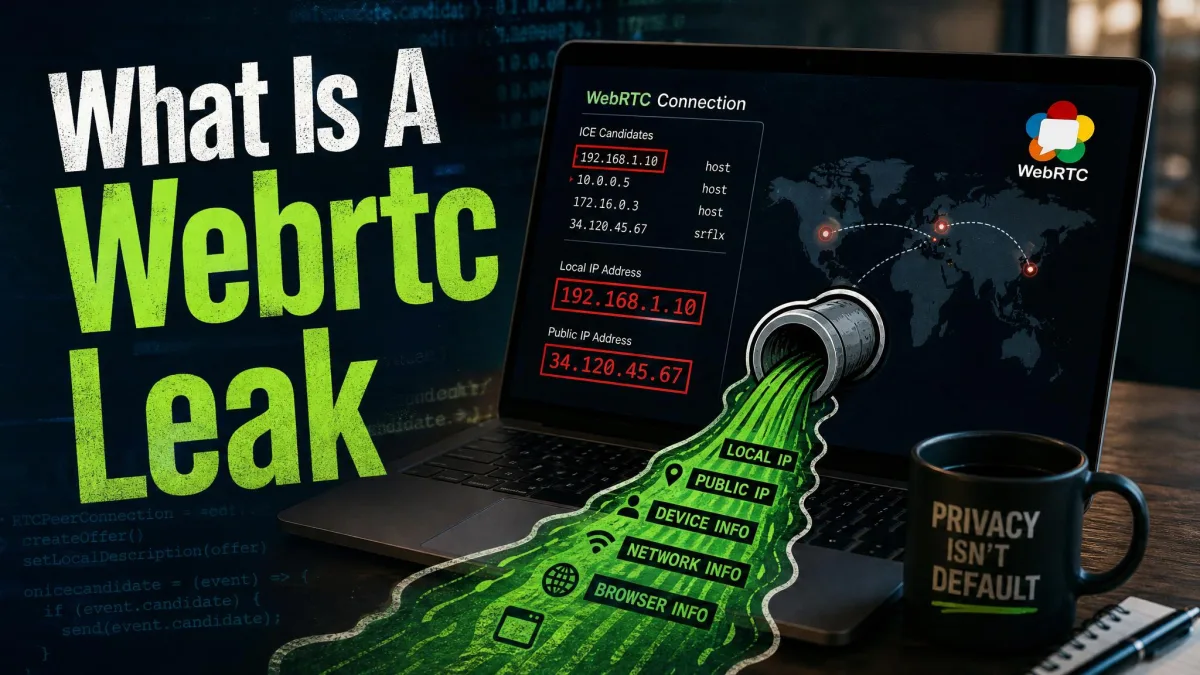
A WebRTC leak is a browser flaw that reveals your real IP address even when you're using a VPN. The leak happens quietly, in the background, without any prompt or warning. You can be connected to a VPN, see the server's location in the app, and still be handing your true public IP to any website that asks.
That is the part that catches people off guard. A VPN is supposed to hide where you are, yet a WebRTC leak can undo that protection in a browser you trust. The good news is that it is easy to test for and, in most browsers, straightforward to fix.
We ran leak tests across Chrome, Firefox, Safari, Edge, and Brave on Windows, macOS, and mobile to see how each one behaves by default and what actually stops the leak. This guide walks through what WebRTC is, how the leak works, and the exact settings we used to close it.
What is WebRTC?
WebRTC, short for Web Real-Time Communication, is a free, open-source project that gives browsers and mobile apps real-time audio, video, and data communication through a set of built-in APIs. It is the technology behind in-browser video calls, voice chat, and peer-to-peer file transfers, with no plugin required.
It was first released by Google in May 2011 and became a W3C Recommendation in January 2021. It is standardized jointly by the W3C and the IETF, and it is supported almost everywhere: Chrome 28 and later, Firefox 22+, Safari 11+, Edge 12+, and Opera 18+, on both desktop and mobile.
In other words, WebRTC is not a niche feature. It ships enabled in every major browser, which is exactly why the leak matters to almost everyone.
What is a WebRTC leak?
A WebRTC leak is a browser vulnerability that exposes your real public IP address through WebRTC's connection requests, even when your traffic is routed through a VPN or proxy. The browser reaches out to discover your address so it can set up a direct connection, and that discovery can slip past the VPN.
The exposure is silent. The requests that reveal your IP are not visible in the developer console, and they are not blocked by most ad blockers or privacy add-ons. Nothing on the page tells you it happened.
This is what makes a WebRTC leak different from an obvious privacy problem. Your VPN app still shows "connected," your traffic still looks routed, and yet a site can read the address you thought you had hidden.
How a WebRTC leak happens (STUN, ICE, and candidate gathering)
To connect two peers directly, WebRTC has to figure out how each one can be reached across the internet. It does this through three NAT-traversal techniques: ICE, STUN, and TURN. ICE is the framework that coordinates the process, defined in the ICE specification (RFC 8445).
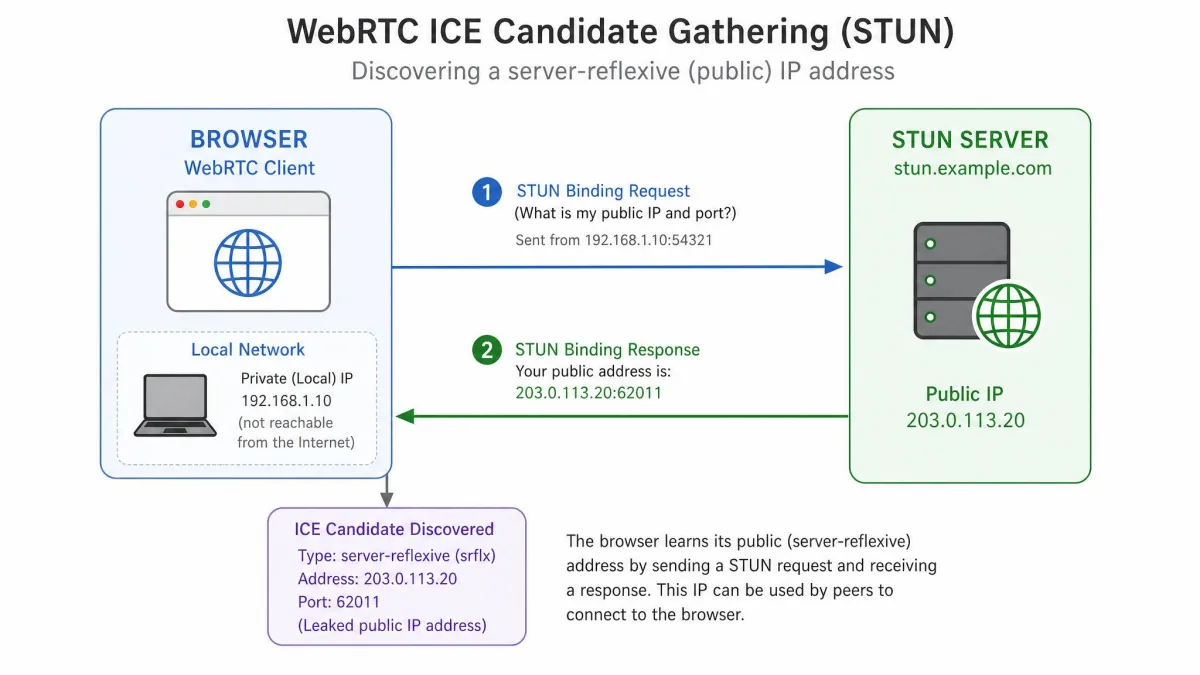
The work happens through the RTCPeerConnection API. It manages ICE candidate gathering and fires events that carry each discovered address back to the page. To learn your public address, the browser sends a query to a STUN server, which replies with the IP it sees you coming from. That reply is the address a leak exposes.
Local, server-reflexive, and relay candidates
ICE gathers three kinds of "candidates," which are just possible ways to reach you:
- Local (host) candidates are addresses on your own device or network, such as a private LAN address.
- Server-reflexive candidates are your public address as discovered through a STUN server. This is the one that reveals your real IP.
- Relay candidates are routed through a TURN server when a direct connection is not possible.
The server-reflexive candidate is the heart of the problem. It is the browser asking the wider internet, "how do you see me?", and then broadcasting the answer to the web page.
Why it bypasses your VPN
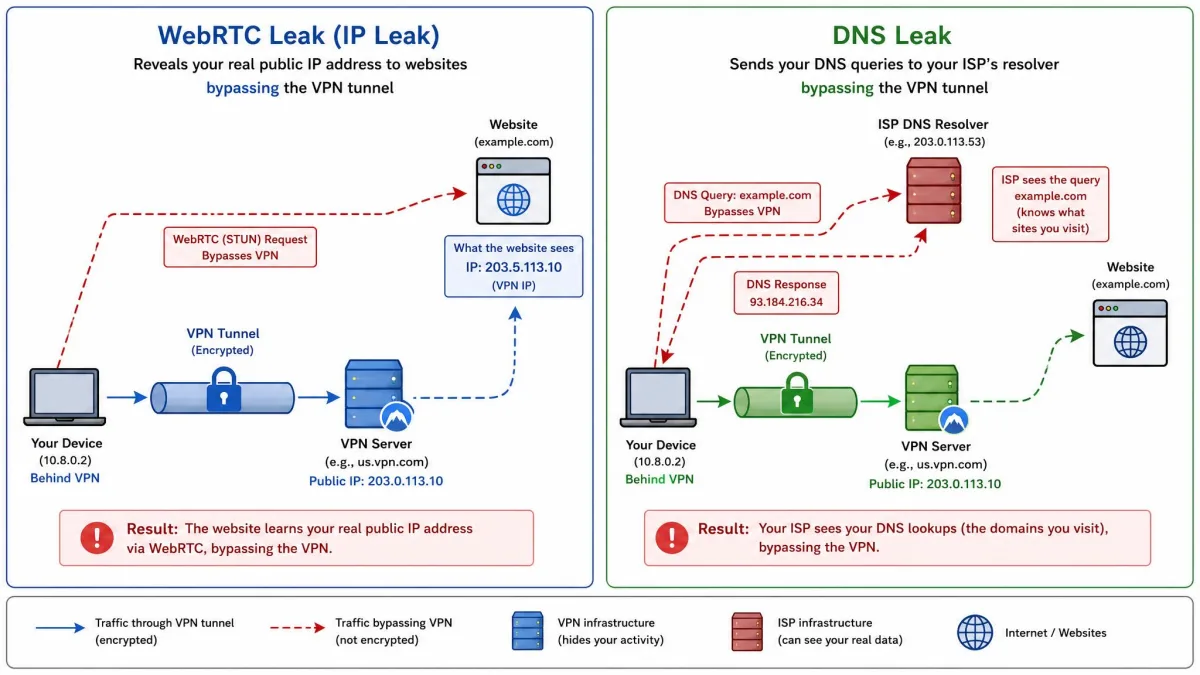
STUN discovery runs over UDP. Depending on how a VPN client is built, it may only reroute certain traffic, leaving some UDP flows to exit over your normal network interface. When that happens, the STUN query reaches the internet outside the tunnel and comes back with your real ISP address instead of the VPN's.
So the leak is not the VPN failing to connect. It is a specific type of request escaping through a gap the VPN never covered. A tunnel that handles your browsing perfectly can still let this one UDP flow slip out the side door.
Seeing a local address is not the leak. Since around 2020, Chromium browsers hide the local candidate behind a randomized hostname ending in .local instead of a raw private IP. That was never the real danger anyway, because a private address like 192.168.1.x is useless to a remote website. The address that matters is your public IP.
What a WebRTC leak actually exposes
The main thing a WebRTC leak exposes is your real public IP address. That is enough to reveal your approximate location and to link your browsing to you across sites, which defeats the core reason most people run a VPN in the first place.
WebRTC can also enumerate your media devices, such as webcams, microphones, and speakers. Modern browsers now use temporary device hashes that reset when you clear your browsing data, so this is less of a fingerprinting risk than it once was, but it is still information the page can read.
The IP-exposure flaw was publicly surfaced in January 2015, and it has been a known privacy gap ever since. What has changed is the framing: the old worry about a visible private IP is largely obsolete, and the public IP is now the exposure that counts.
Who is at risk
Anyone using a VPN or proxy in a desktop or mobile browser to hide their IP is potentially at risk. If your goal is to keep your real address private, a WebRTC leak is the exact thing that can betray it, and you would never know from the browser itself.
That includes privacy-conscious users, people bypassing regional restrictions, journalists and researchers, and anyone on a VPN for work. If you only ever use a VPN for encrypted transport on an untrusted network and do not care about hiding your IP, the leak matters less. For everyone else, it is worth a two-minute check.
How to test for a WebRTC leak
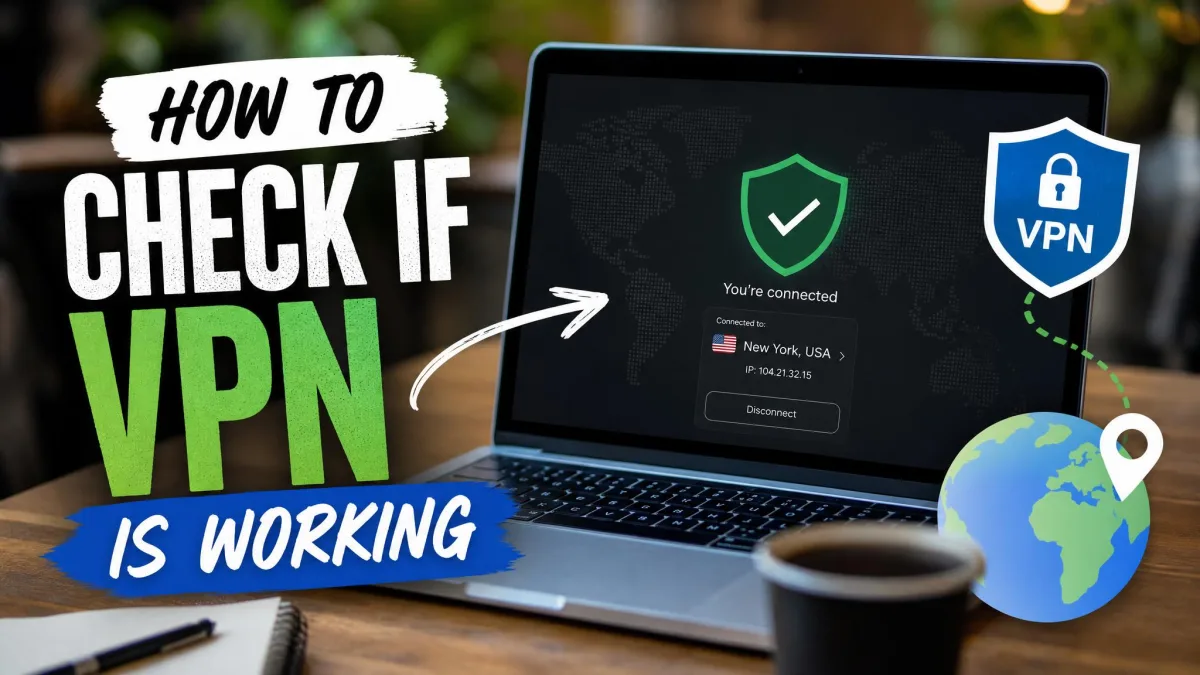
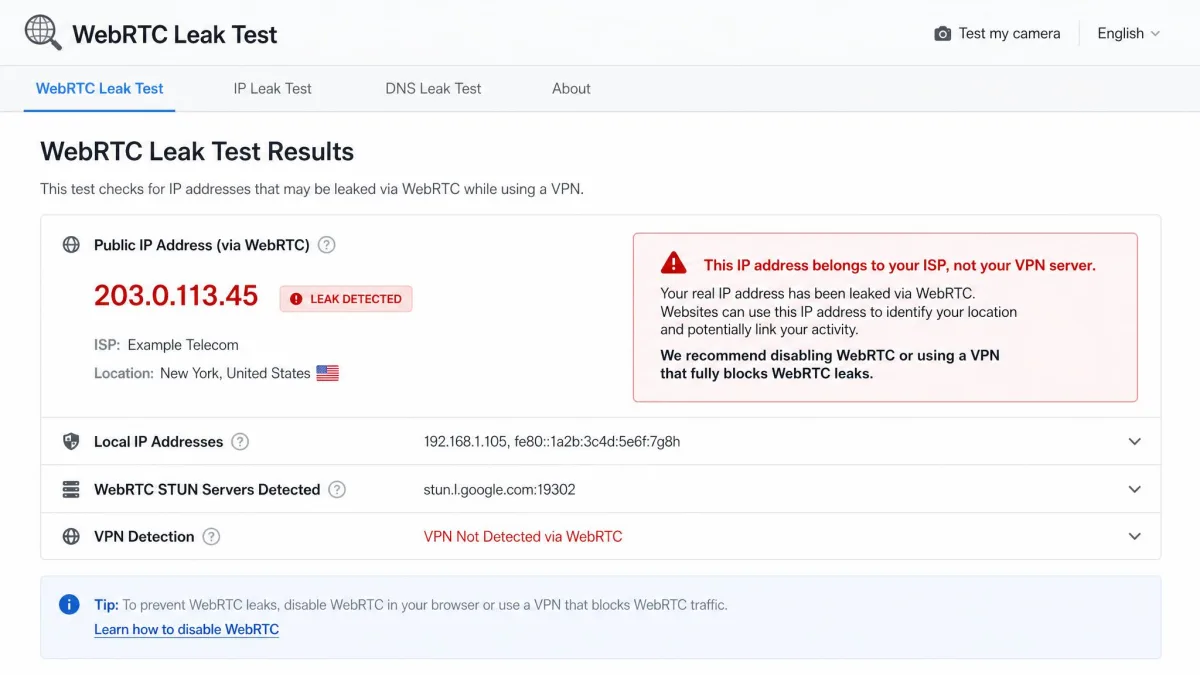
Testing is quick, and it is the only way to know for sure. Connect to your VPN first, then visit a leak-test page and compare the public IP it reports against the address your VPN app is using.
The tool we reach for most is the BrowserLeaks WebRTC Test, which lays out every candidate WebRTC discovers. A good second opinion is ipleak.net, which shows your detected addresses on one screen. If the public IP shown matches your VPN's exit server, you are clean. If it shows your real ISP address, you have a leak.
Two things trip people up here. First, WebRTC is a per-browser feature, so a leak must be tested separately in each browser you use. A VPN that looks clean in one browser can still leak in another, so test every browser you rely on. Second, do not go hunting for a private IP.
Checking for a private IP that starts with 192.168 is outdated advice on a modern browser. You will not see one, and its absence does not mean you are safe. A common mistake is treating a missing private IP, or a harmless .local hostname, as an all-clear. Compare the leaked public IP against your VPN's exit IP instead. That comparison is the whole test.
How to fix and prevent WebRTC leaks
Once you know a browser leaks, the fix depends on which browser it is. Some let you disable WebRTC natively, some need a flag or a policy change, and one needs an extension. Here is how each behaves and what we changed to close the gap.
| Browser | Native disable? | Setting or method | Extension needed? |
|---|---|---|---|
| Firefox | Yes (about:config) | media.peerconnection.enabled = false | No |
| Chrome | No native toggle | Extension (WebRTC Leak Prevent) | Yes |
| Safari | Develop-menu option | Develop > WebRTC, uncheck ICE Candidate Restrictions | No |
| Edge | Flag | edge://flags "Anonymize local IPs exposed by WebRTC" | No |
Google Chrome and Chromium browsers (Edge, Brave, Opera)
Chrome has no simple native toggle to turn WebRTC off, which is not surprising given Google helped create and still maintains it. The reliable route is a browser extension such as WebRTC Leak Prevent, WebRTC Network Limiter, or WebRTC Control. Install one, set it to prevent your IP from leaking, then re-run the test.
Be aware that extension-based blocking gives weaker, less complete protection than a native browser control. It works, but it is a patch rather than a switch, so verify it with a leak test rather than trusting the install alone.
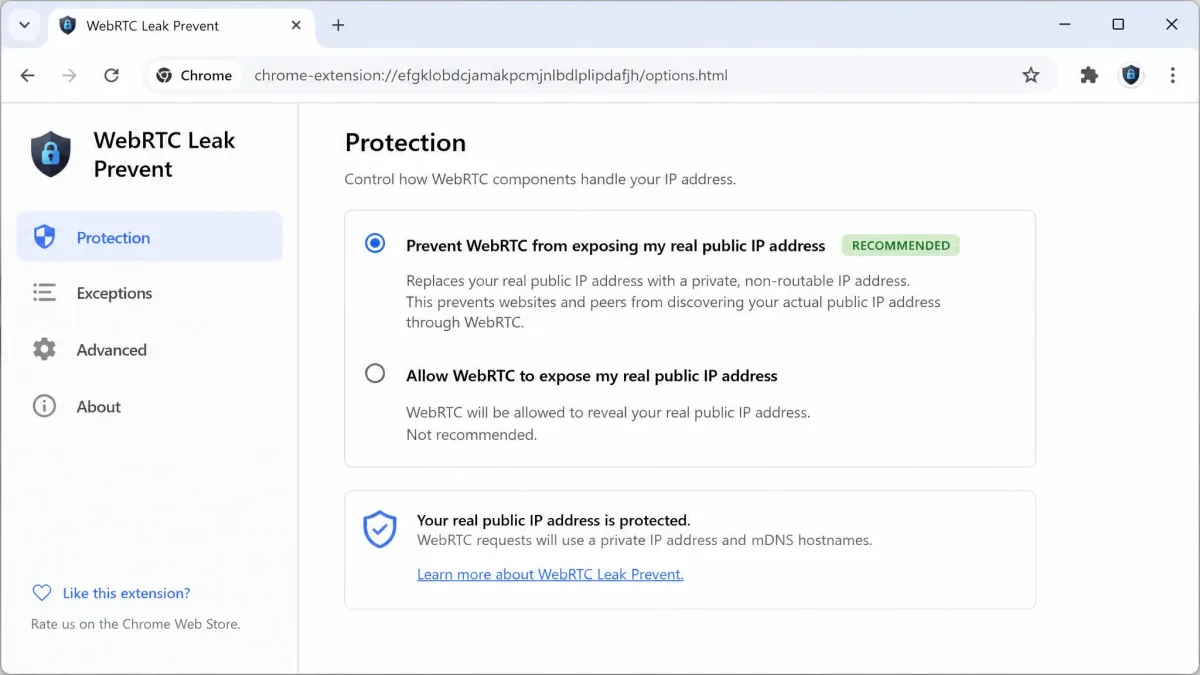
The Chromium cousins handle this better through their own settings:
- Brave: open
brave://settings, go to Shields under Privacy and security, and set WebRTC IP Handling Policy to "Disable Non-Proxied UDP." - Opera: open
opera://settings, go to Advanced > Privacy & Security, and choose "Disable non-proxied UDP" under WebRTC. - Edge: enable the "Anonymize local IPs exposed by WebRTC" flag in
edge://flagsto mitigate exposure.
Mozilla Firefox (media.peerconnection.enabled)
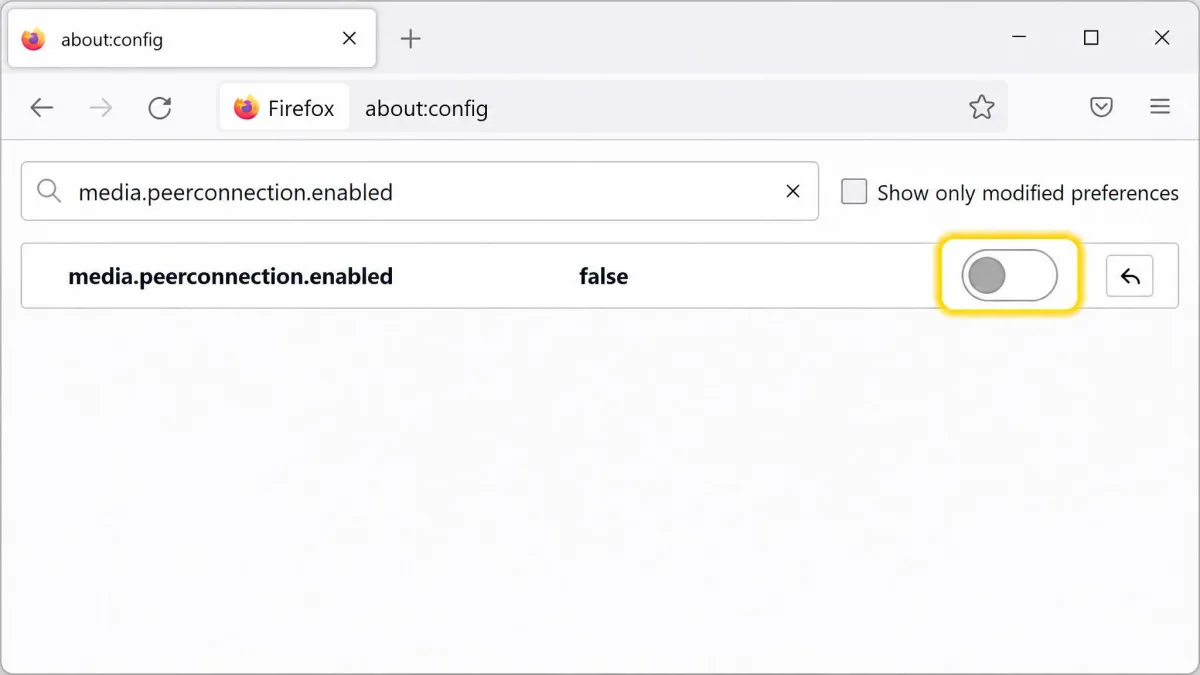
Firefox is the easiest browser to lock down, and it is the one we point people to first. It disables WebRTC natively with no add-on at all. Open about:config, accept the warning, search for media.peerconnection.enabled, and toggle it to false. That is the whole fix, and in our testing it shut the leak completely.
Apple Safari
Safari on macOS keeps its control behind the developer menu. Open Settings > Advanced and enable "Show features for web developers," then use the Develop menu > WebRTC and uncheck ICE Candidate Restrictions. Safari's exposure is already more limited than Chrome's, so this is more of a tightening step than an emergency fix.
On mobile (iOS and Android)
Mobile is where options narrow. On iOS Safari, open the Settings app, go to Safari > Advanced > Feature Flags, and toggle off "WebRTC mDNS ICE candidates." Exact labels can shift between iOS versions, so look for the nearest WebRTC entry if the wording differs.
On Android Chrome, the old manual WebRTC toggle is gone; Google removed the chrome://flags option in modern versions. That leaves a VPN with built-in WebRTC blocking as the only practical fix on the platform. If mobile privacy matters to you, choose your VPN with that in mind.
Using a VPN with built-in WebRTC leak protection
A VPN is still the right foundation, but you cannot assume it handles WebRTC on its own. Many mainstream VPNs do not actually block WebRTC leaks, so protection cannot be taken for granted from the VPN alone. Only a handful of providers advertise built-in WebRTC leak protection, so it is worth confirming by name rather than assuming coverage.
The strongest setup combines both layers: a VPN that explicitly blocks WebRTC leaks, plus the browser-level fix above. That way, if one layer has a gap, the other still holds. After changing either, re-run a leak test to confirm the public IP now matches your VPN and nothing else.
Test after every change, and test in each browser separately. A single clean result in one browser does not prove the others are safe, and a VPN update or browser update can reopen a gap you already closed.
WebRTC leak vs DNS leak: what's the difference?
Both leaks undermine a VPN, but they expose different things through different channels. A WebRTC leak reveals your real public IP address through your browser's real-time communication features. A DNS leak reveals the websites you look up, because your DNS queries travel to your ISP's resolver instead of through the VPN's.
Put simply: a WebRTC leak tells a site who and where you are, while a DNS leak tells your ISP where you have been. They are separate problems with separate fixes, so a clean WebRTC test does not rule out a DNS leak, and the reverse is true too. A thorough check covers both.