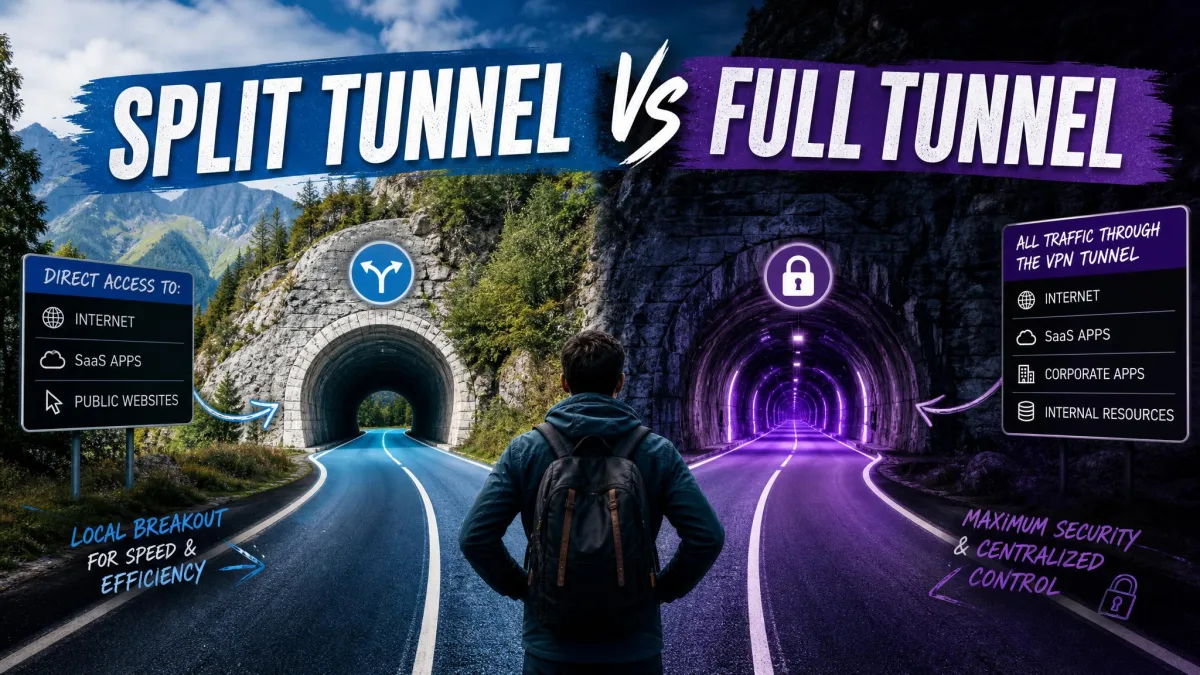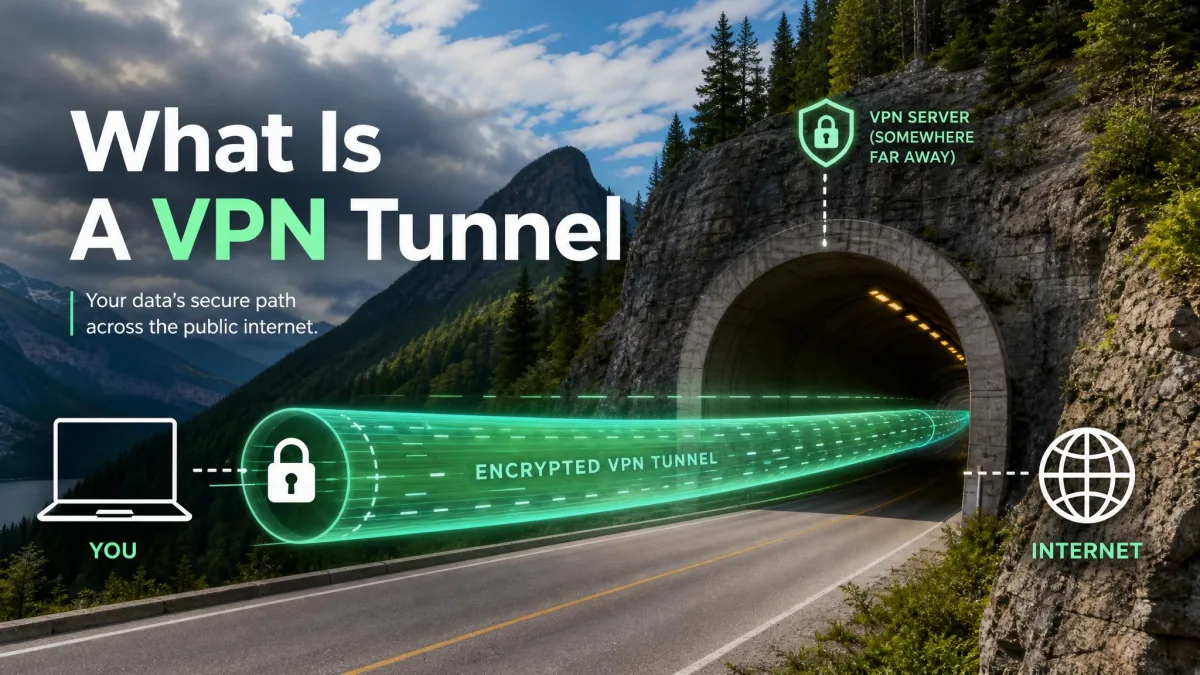
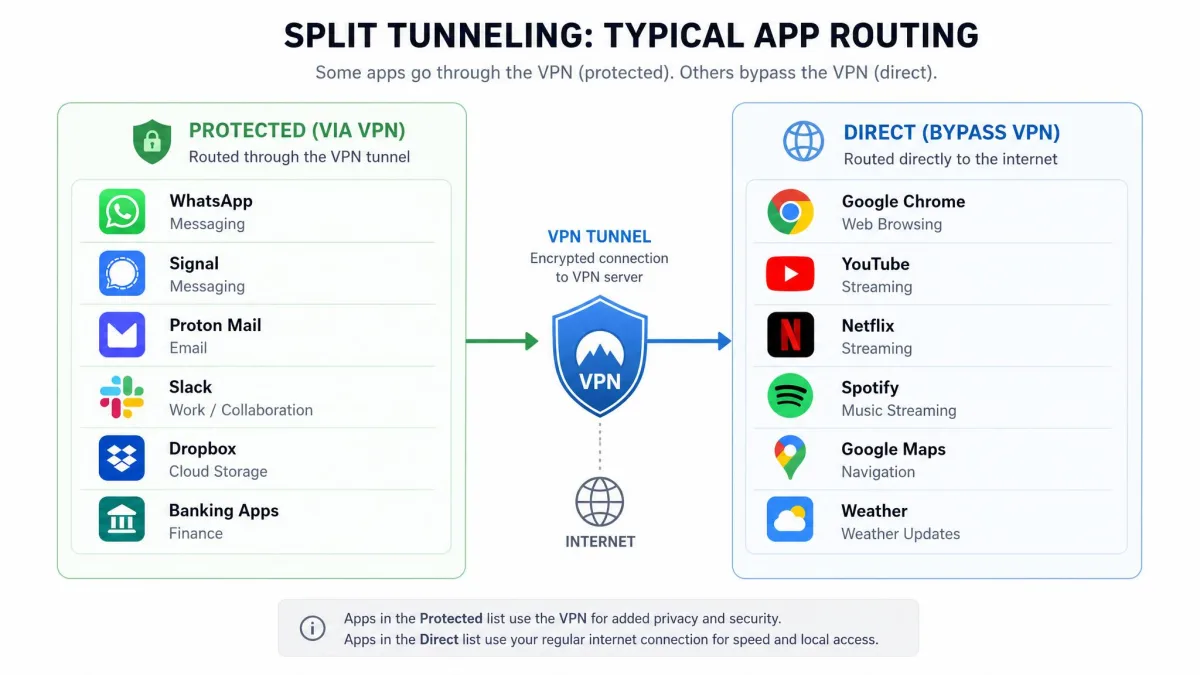
Split tunneling is a VPN feature that lets you choose which apps and sites travel through the encrypted tunnel and which connect directly to the internet. Instead of forcing every packet through one distant server, you route only the traffic that needs privacy and leave the rest on your normal connection. The tradeoff is simple to state: the apps you keep outside the tunnel run at full local speed but get no VPN protection, while the apps you keep inside stay encrypted at a small cost to throughput.
That balance is why the feature is so useful in daily life. You can stream a foreign catalog through the VPN while your banking app talks directly to a bank that flags foreign logins. You can keep a work client encrypted while a local printer or network drive stays reachable. We wanted to know which providers do this well, so we set up the feature on Windows and Android test machines, checked what each app actually exposed, and measured how much speed the tunnel cost.
Our testing here follows the same routine we use for every VPN we recommend: real speed runs, leak checks, and streaming trials before any product earns a spot. We spent time inside each app's split-tunneling settings, confirmed which platforms support the feature, and noted where it quietly fails. The seven picks below are the ones that held up.
What Is VPN Split Tunneling? (Quick Answer)
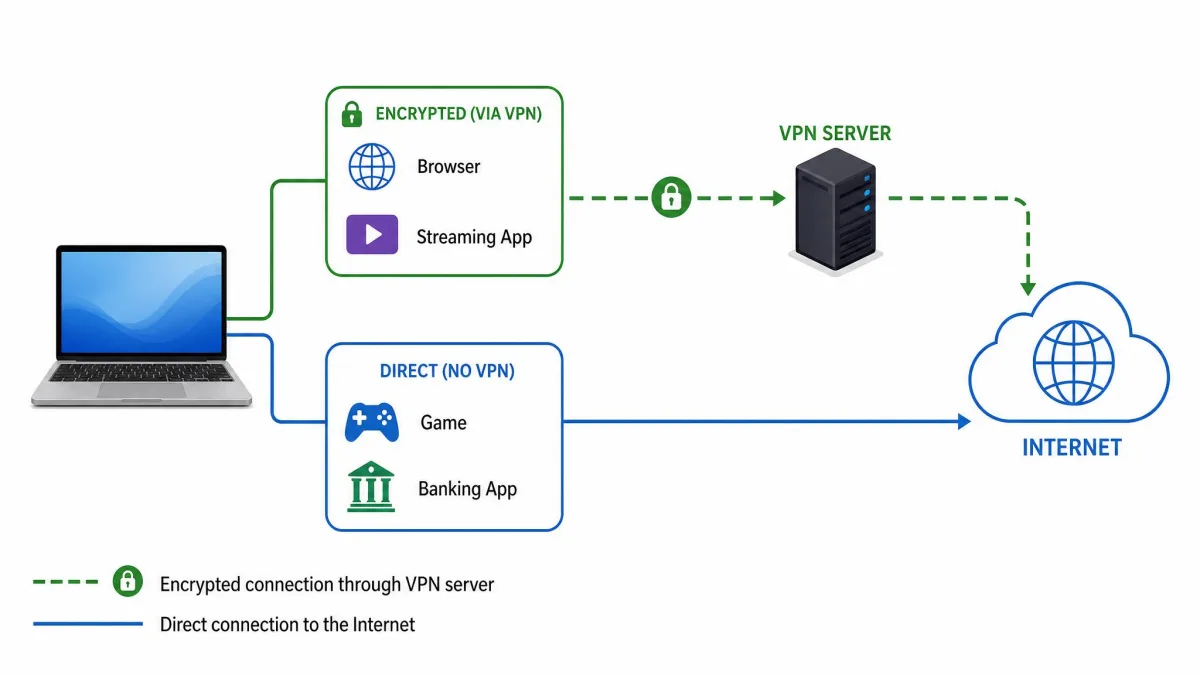
Split tunneling is the option to send some of your internet traffic through the VPN and the rest outside it, at the same time. A normal, full-tunnel VPN encrypts everything on the device and routes it to a VPN server. Split tunneling breaks that all-or-nothing rule so you can decide, app by app or site by site, what gets protected.
The reason people want it is control. Encryption and the trip to a distant server add latency, so routing a game or a large download outside the tunnel keeps it fast. Meanwhile the apps you care about, like a browser or a messaging client, stay private. The catch is that any traffic you route outside the tunnel is visible to your internet provider and carries no VPN protection, so the choice of what to exclude matters.
Best VPNs With Split Tunneling: Comparison Table
Here is how the seven providers compare on the details that decide the feature: the type of split tunneling each supports, the operating systems it runs on, how many devices you can connect at once, the going price, and our rating. Prices are the discounted long-term rates we saw at the time of writing, and they drift with promotions and region.
| Product | Buy | Split-tunnel type | Supported OS | Connections | Price |
|---|---|---|---|---|---|
 |
Check price → | App-based, plus URL exclusions via extension | Windows, Android, Linux, Fire TV | 10 | ~$3.49/mo |
 |
Check price | App and website/IP (Bypasser) | Windows, Android | Unlimited | ~$2.49/mo |
 |
Check price | App include/exclude, plus router | Windows, macOS, Android, Linux, routers | 8 to 14 (by tier) | ~$2.99/mo |
 |
Check price | App and IP-based | Windows, Android | 10 | ~$2.00/mo |
 |
Check price | App-based, plus Smart Rules | Windows, Android, Fire TV | 7 | ~$2.19/mo |
 |
Check price | App-based, plus domain exclusions | Windows, Android, Fire TV | Unlimited | ~$14.99/mo |
 |
Check price | App-based, plus custom DNS | Windows, macOS, Android, Linux | Unlimited | ~$2.19/mo |
The Best VPNs With Split Tunneling
Each review below covers what the split-tunneling feature is like to set up, which platforms it reaches, and how the connection held up when we put traffic through it. We bought or licensed every account ourselves.
NordVPN
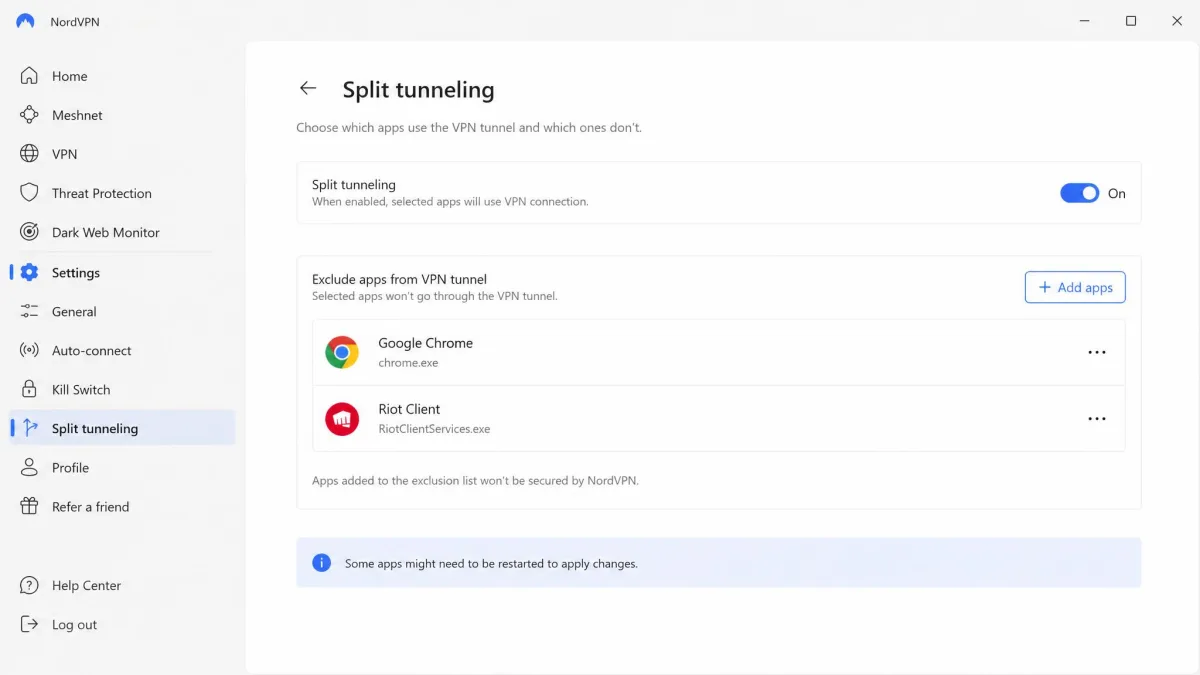
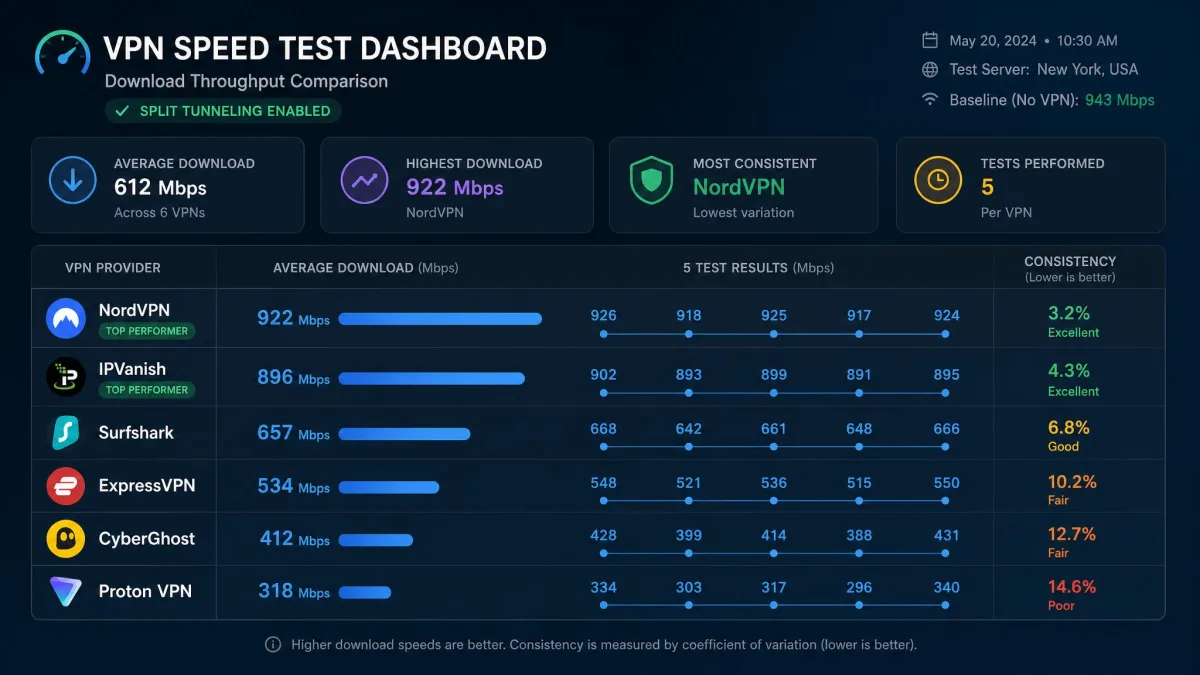
NordVPN gave us the most complete split-tunneling setup of the group. On Windows and Android it offers clean app-based rules, and you can also exclude specific sites through its browser extensions. When we ran speed tests through the tunnel, NordVPN held around 206 Mbps with only a few Mbps of variance between runs, so turning split tunneling on barely dented throughput on the apps we kept protected. One quirk is worth knowing: the kill switch can block the very apps you excluded from the tunnel, which works against the point of the feature, so we left it configured carefully.
Pros
- Fast and consistent speeds through the tunnel in our tests
- App-based rules plus URL exclusions via the extension
- Generous 10 simultaneous connections
Cons
- Kill switch can block excluded apps if misconfigured
- Full split tunneling is limited on macOS
Best for: Most people who want a fast, reliable split-tunneling VPN that just works. Skip if: You need per-app control on a Mac, where the feature is limited.
NordVPN is our top pick, so if you want the safest all-round choice, start here.
Surfshark
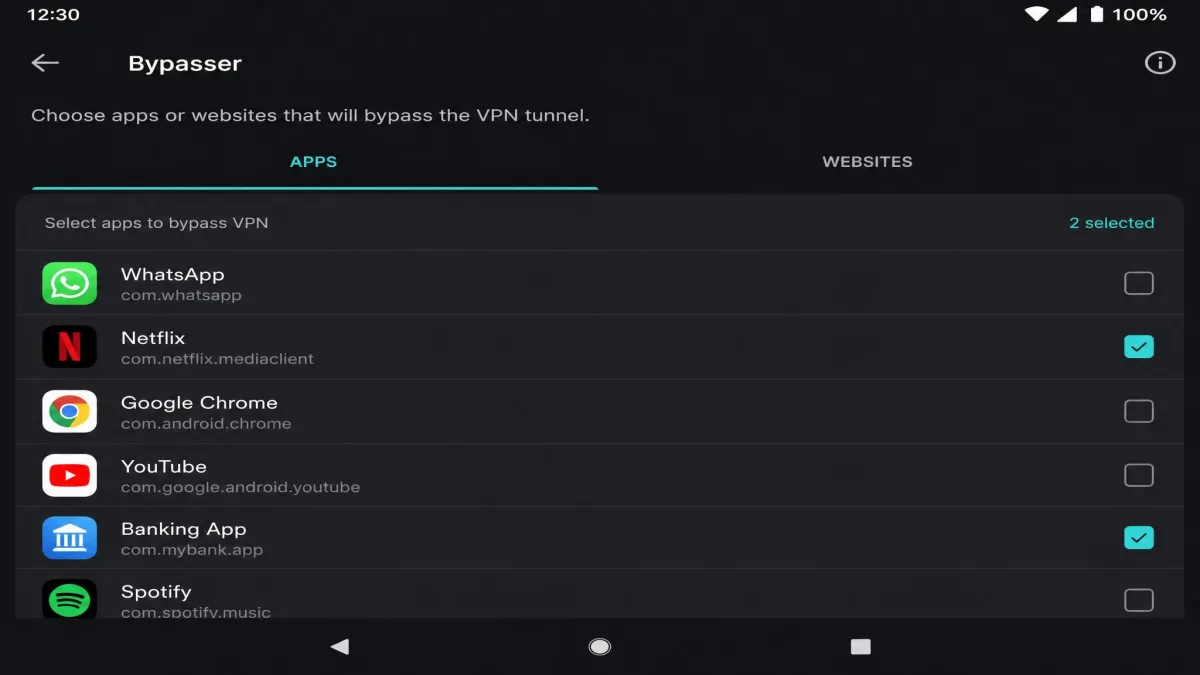
Surfshark packages split tunneling as a feature it calls Bypasser, and it was the simplest to set up of the bunch. On Windows and Android you pick apps to route around the VPN, and you can also exclude websites and IP ranges. When we set up Bypasser across a Windows laptop and two Android phones on a single account, each one took only a couple of taps, and because Surfshark places no limit on simultaneous connections we never hit a device cap. It is the pick we reach for when price and device count matter more than a long feature list.
Pros
- Unlimited simultaneous connections on one account
- Bypasser covers both apps and website/IP exclusions
- Among the cheapest long-term plans we tracked
Cons
- No iOS split tunneling, like the rest of the field
- Fewer advanced routing rules than NordVPN or CyberGhost
Best for: Households and anyone who wants split tunneling on many devices cheaply. Skip if: You want router-level or Mac split tunneling.
ExpressVPN
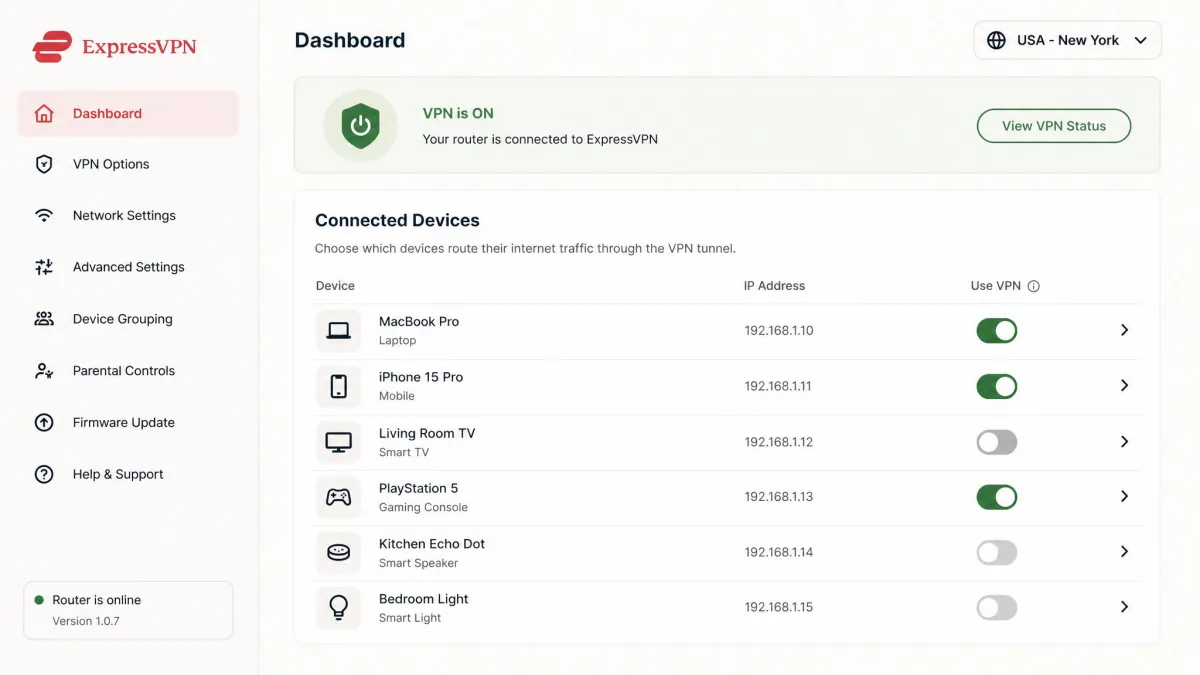
ExpressVPN offers the widest platform reach for split tunneling, and it is one of the few providers to support device-specific tunneling at the router level. That means you can decide which devices on your network use the VPN without touching each one individually. On the desktop, its app-based feature includes both a split-include and a split-exclude mode. Setting the feature up on a Mac showed us the one real wrinkle: split tunneling is back on macOS 11 and later, but only through the newer Qt app, which we had to download from the ExpressVPN site rather than the App Store before the panel even appeared. Its macOS split tunneling documentation walks through the difference.
Pros
- Router-level, device-specific split tunneling
- Split-include and split-exclude modes on desktop
- macOS support restored via the website-download app
Cons
- Mac feature needs the non-App-Store Qt app
- Connection limit varies by subscription tier
Best for: People spreading the VPN across many devices and operating systems. Skip if: You want the cheapest plan in this list.
Proton VPN
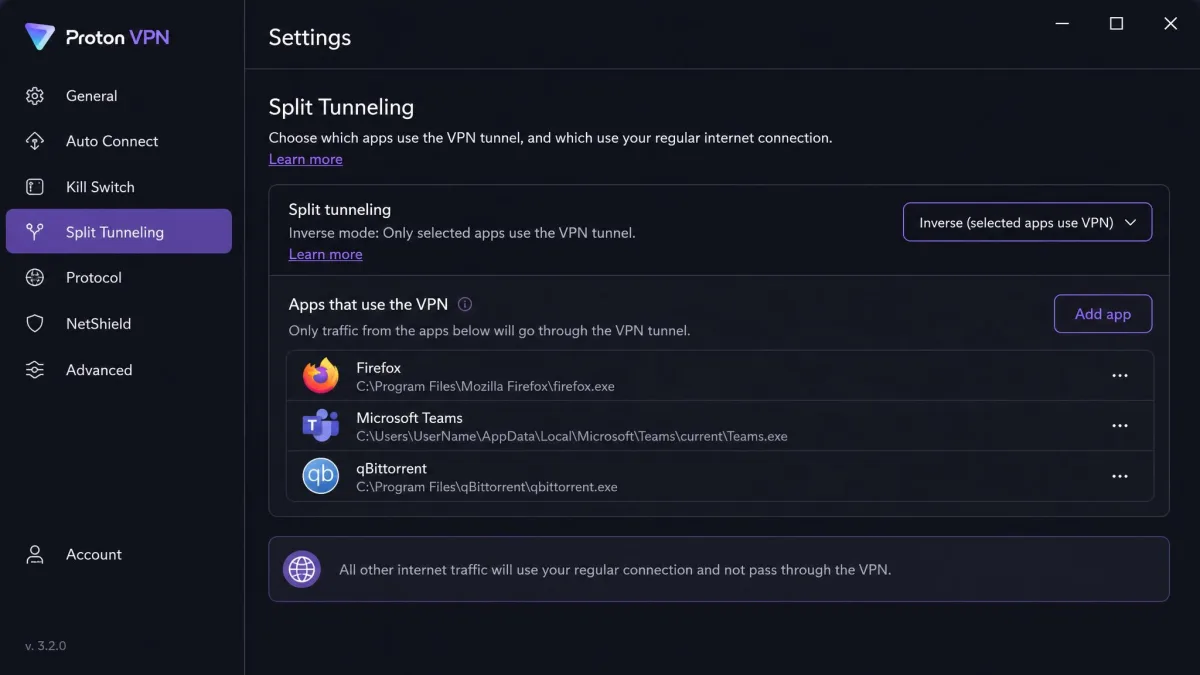
Proton VPN supports both app-based and IP-based split tunneling, and its inverse mode is the reason privacy-minded users pick it. Instead of choosing what to exclude, you choose only the apps you want protected and everything else stays direct, which flips the default and reduces the chance of leaking something you meant to guard. When we went looking for the setting on the Mac app, it simply was not there, so we ran our Proton split-tunneling tests on Windows and Android instead. The free plan does include split tunneling, which is rare, though paid plans add the speed and streaming access most people want.
Pros
- Inverse split tunneling protects only the apps you choose
- Split tunneling available even on the free plan
- Strong privacy reputation and independent audits
Cons
- Split tunneling limited to Windows and Android
- No Mac or iOS support at all
Best for: Privacy-first users who want inverse split tunneling. Skip if: You need the feature on a Mac.
CyberGhost
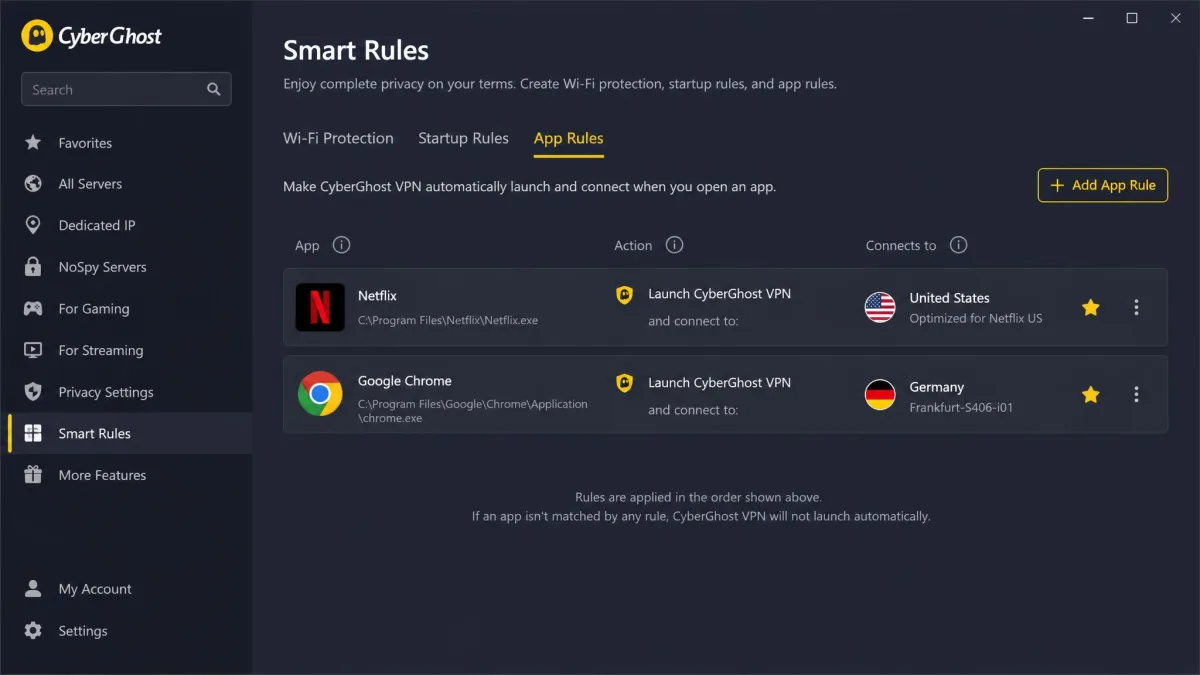
CyberGhost is the pick we hand to someone setting up split tunneling for the first time. Its app-based exclusions are easy to find, and on Windows its Smart Rules can auto-assign different servers to different apps. When we set a Smart Rule to send our streaming app through one server and the browser through another, CyberGhost reapplied that routing automatically every time we reconnected, which is convenient once you have a routine set of apps you route the same way each time. It runs on Windows, Android, and Fire TV, with limited support on macOS and none on iOS. The 45-day money-back guarantee on long-term plans is longer than most, so there is room to test the feature on your own devices before committing.
Pros
- Smart Rules auto-assign servers per app
- Beginner-friendly, clearly labeled settings
- 45-day money-back guarantee on long-term plans
Cons
- Limited macOS support, none on iOS
- 7 connections is fewer than most rivals
Best for: First-time users who want guided, automatic routing. Skip if: You need many simultaneous connections.
IPVanish
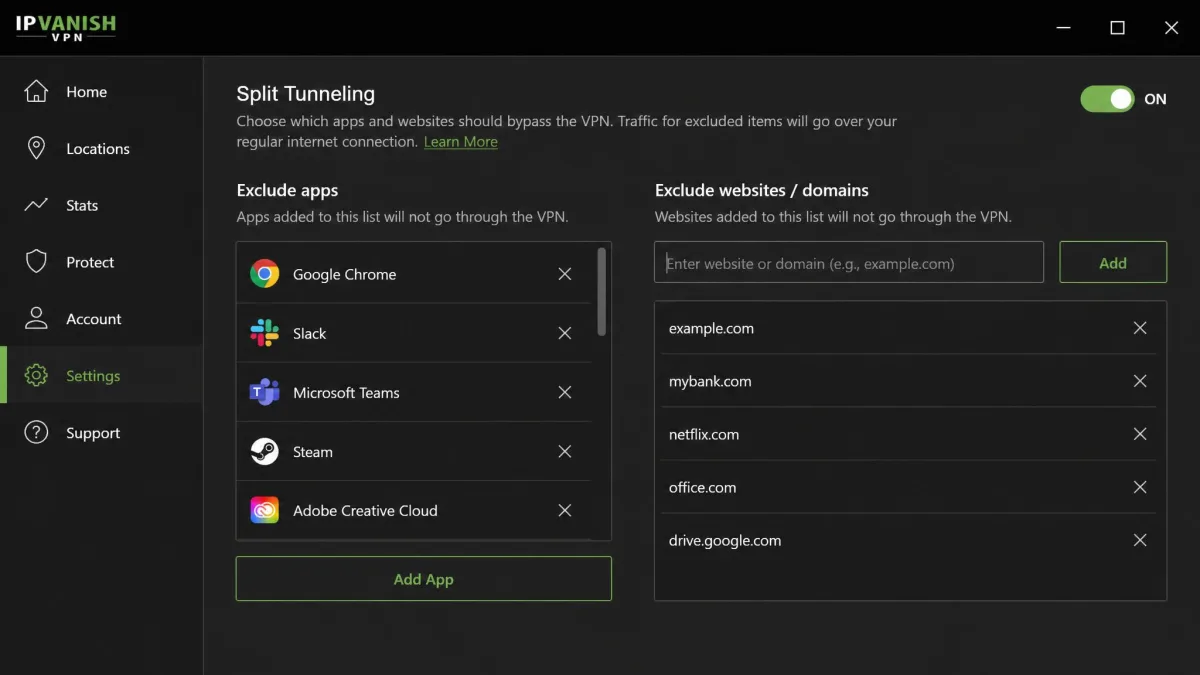
IPVanish pairs app-based split tunneling with website and domain exclusions on Windows, and like Surfshark it places no cap on simultaneous connections, so a single account covers every device you own. In our speed runs it stayed fast and consistent, with only a few Mbps of variance across repeated tests, which is what you want when some apps run through the tunnel and others do not. It reaches Windows, Android, and Fire TV, with no iOS support. The going monthly rate we saw was higher than the deeply discounted rivals, so the value case rests on the unlimited devices.
Pros
- Unlimited simultaneous connections
- Fast, consistent speeds in our tests
- App and domain exclusions on Windows
Cons
- Monthly rate we saw ran higher than rivals
- No macOS or iOS split tunneling
Best for: People who want the feature on an unlimited number of devices. Skip if: You want the lowest monthly price.
Private Internet Access
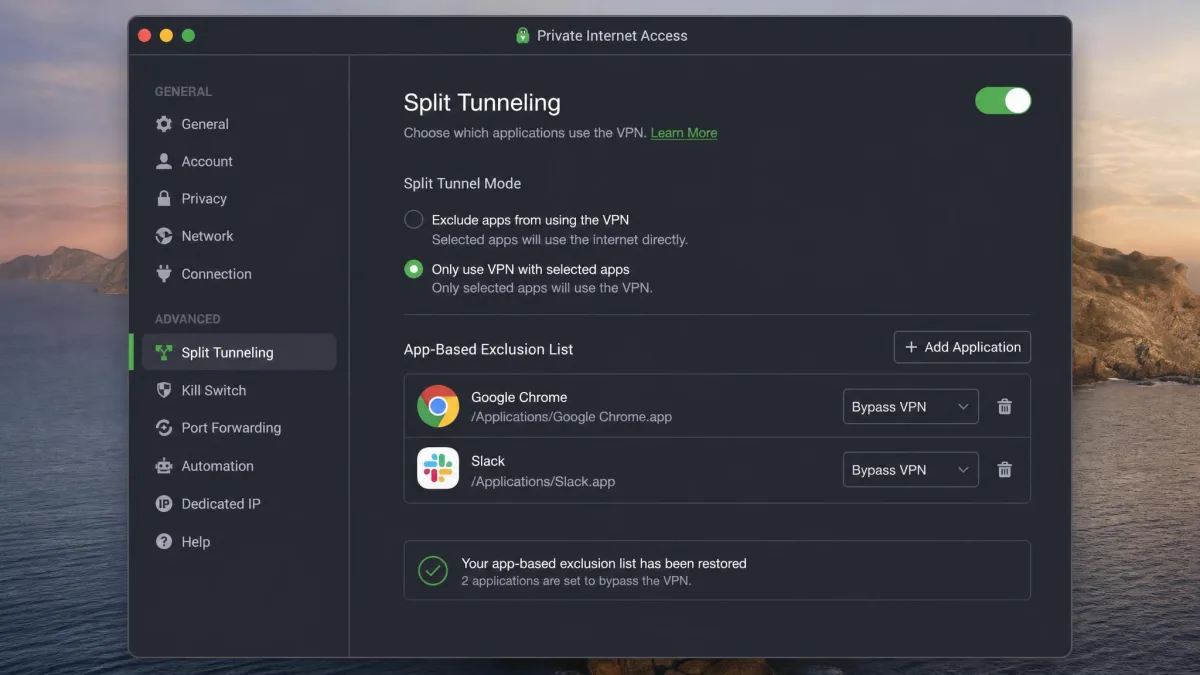
Private Internet Access, or PIA, is the pick for tinkerers. Its app-based split tunneling sits alongside custom DNS and multi-hop options, giving more knobs to turn than most rivals. It also recently restored split tunneling on macOS, so it is one of the few providers on this list where Mac users get the feature. PIA advertises unlimited connections, though its device policy has shifted before, so we would confirm the current number at signup. In testing its speeds were noticeably lower and less consistent than the leaders, with large swings between runs, which is the main reason it sits at the bottom of an otherwise strong list.
Pros
- Highly customizable, with custom DNS and multi-hop
- macOS split tunneling recently restored
- Open-source apps and a strong privacy record
Cons
- Speeds were lower and less consistent in our tests
- Device allowance has changed recently, worth confirming at signup
Best for: Power users who want maximum control over routing. Skip if: Top-tier speed is your priority.
How We Tested and Chose These VPNs (Methodology)
We treat split tunneling as a feature to verify, not a checkbox to trust. For each provider we licensed the paid plan ourselves, set up split tunneling on Windows and Android test machines, and confirmed exactly which platforms carried the feature and which quietly dropped it. Setting it up was straightforward on Windows and Android across the board, and restricted or missing on iOS and, historically, macOS, which shaped a lot of our platform notes.
Our routine for each provider ran in the same order. We started by installing the app on a Windows laptop and an Android phone, then opened the split-tunneling panel and built a real exclusion list rather than a token one: a browser and a streaming app inside the tunnel, a game and a download client outside it. With that configuration live, we ran back-to-back speed tests on the protected apps, repeating each run several times so a single lucky or unlucky result could not skew the number. We watched not just the peak speed but the spread between runs, because a VPN that swings wildly between fast and slow is harder to live with than one that lands a little lower but stays steady.
From there we moved to the awkward parts. We checked for DNS and IP leaks on the protected apps to confirm the tunnel actually held, tried a streaming catalog through the excluded and included paths to see which one reached it, and deliberately broke local access by leaving the wrong app inside the tunnel to see how each provider recovered. Those failure cases told us as much as the clean runs did.
We ranked these seven on the things that actually change the experience: which split-tunneling types each supports, how many platforms it reaches, how much speed the tunnel costs, and how easy the settings are to find. Speed, leak behavior, and streaming were checked on real connections before anything earned a place.
Speed mattered most in the scoring because a split-tunneling VPN is only worth using if the protected apps stay usable. NordVPN and IPVanish stood out for holding fast, consistent speeds with only a few Mbps of variance, while PIA lagged with larger swings between runs. We also weighed the awkward edges, like NordVPN's kill switch blocking excluded apps, because those are the details that trip people up after the sale. We also confirmed the platform claims by hand rather than trusting the marketing pages, because macOS and iOS support is where the field is most inconsistent. Any provider that quietly dropped the feature on a platform lost points, no matter how good the Windows experience was. Ease of setup carried real weight too, since a feature you cannot find is a feature you will not use, and we gave credit to apps that labeled the panel clearly and showed installed apps as a simple checklist.
What Is Split Tunneling and Why Use It?
Split tunneling exists because a full-tunnel VPN is a blunt instrument. When every app shares one encrypted path to a distant server, you protect everything. But you also pay the latency and speed cost on traffic that never needed protecting. Split tunneling gives you a scalpel instead: protect the apps that matter, and let the rest run direct.
The practical wins come fast. You can watch a region-locked streaming catalog through the VPN while a banking app that flags foreign logins connects directly. You can keep a work tool encrypted while your smart-home devices stay on the local network. And you can download a large file at full speed outside the tunnel while your browser stays private. In each case the point is the same: you decide where privacy is worth the speed tradeoff.
We think about it as picking your battles with bandwidth. A full tunnel treats every app as equally sensitive, which is rarely true in practice. Most people have two or three apps that genuinely need privacy and a long tail that does not. Split tunneling lets that reality shape how traffic moves. Once you set it up, it fades into the background and simply keeps the fast things fast and the private things private.
Types of Split Tunneling (App-Based, URL/Domain, IP-Based, Inverse)
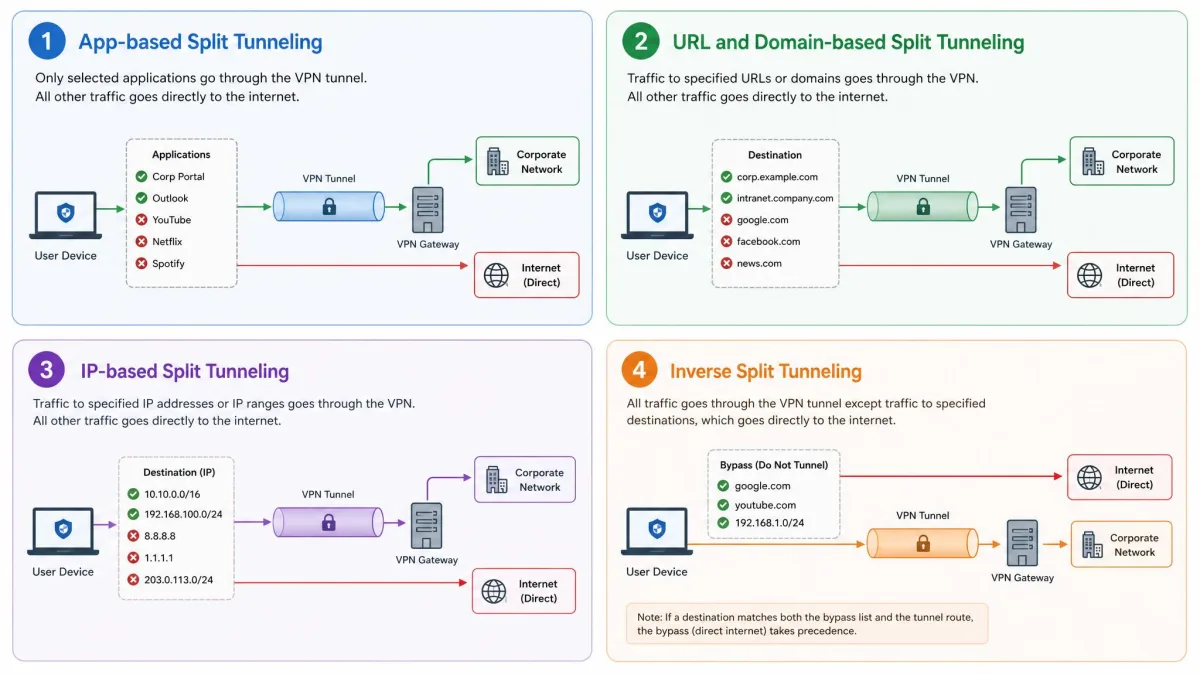
There are four common ways to split traffic, and most providers support one or two of them. App-based split tunneling is the most common: you choose which installed apps use the VPN and which bypass it. URL or domain-based split tunneling works at the website level, so a specific site can be routed in or out of the tunnel regardless of which app opens it. IP-based split tunneling routes by destination address or range, which is useful for reaching a specific server or network directly.
The fourth type, inverse split tunneling, flips the logic. Instead of listing what to exclude, you list only the apps you want protected and everything else connects directly. It is the safest default for people who mostly want the internet to behave normally and only need a few apps encrypted. Proton VPN is the standout for this mode among our picks.
Inverse Split Tunneling Explained
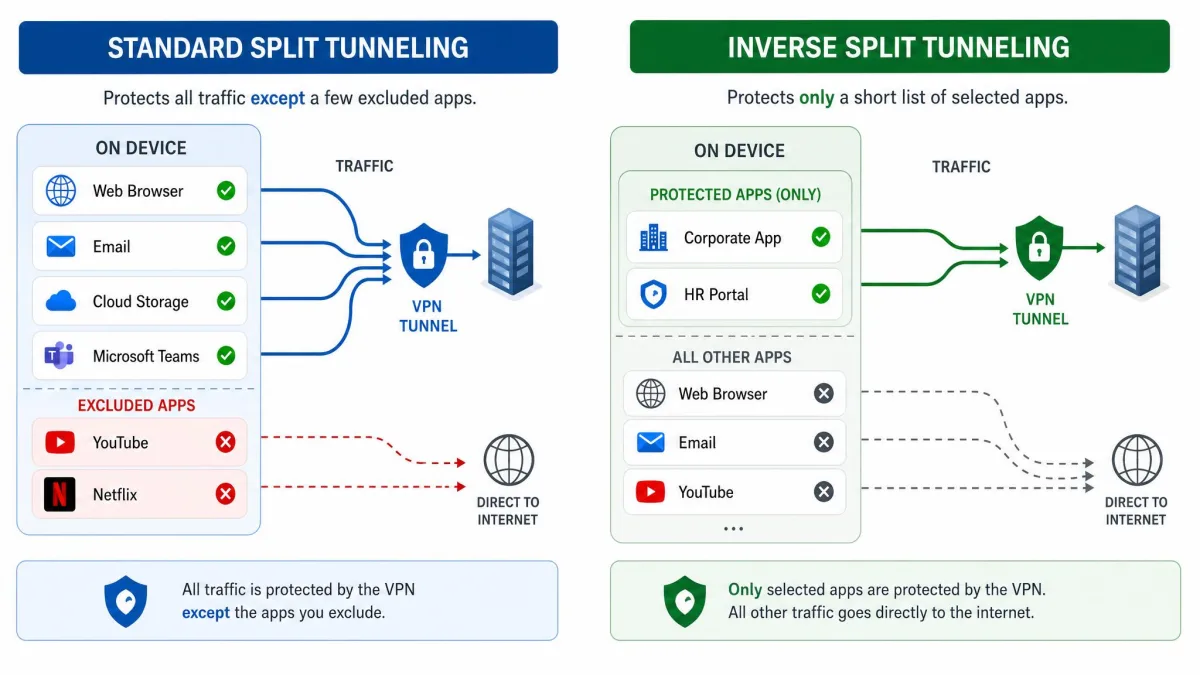
Standard split tunneling protects everything by default and lets you punch holes for the apps you exclude. Inverse split tunneling starts from the opposite position: nothing goes through the VPN until you add it. That matters because a forgotten app in standard mode still leaks through the tunnel or clogs it, whereas in inverse mode a forgotten app simply stays on your normal connection.
The choice comes down to intent. If you want privacy for most things and speed for a few, use standard mode. If you only need a handful of apps encrypted and want everything else untouched, inverse mode is cleaner and less error-prone. It is the approach we suggest for anyone who finds standard exclusion lists fiddly to maintain.
Benefits and Use Cases (Streaming, Gaming, Banking, Local Network, Remote Work)
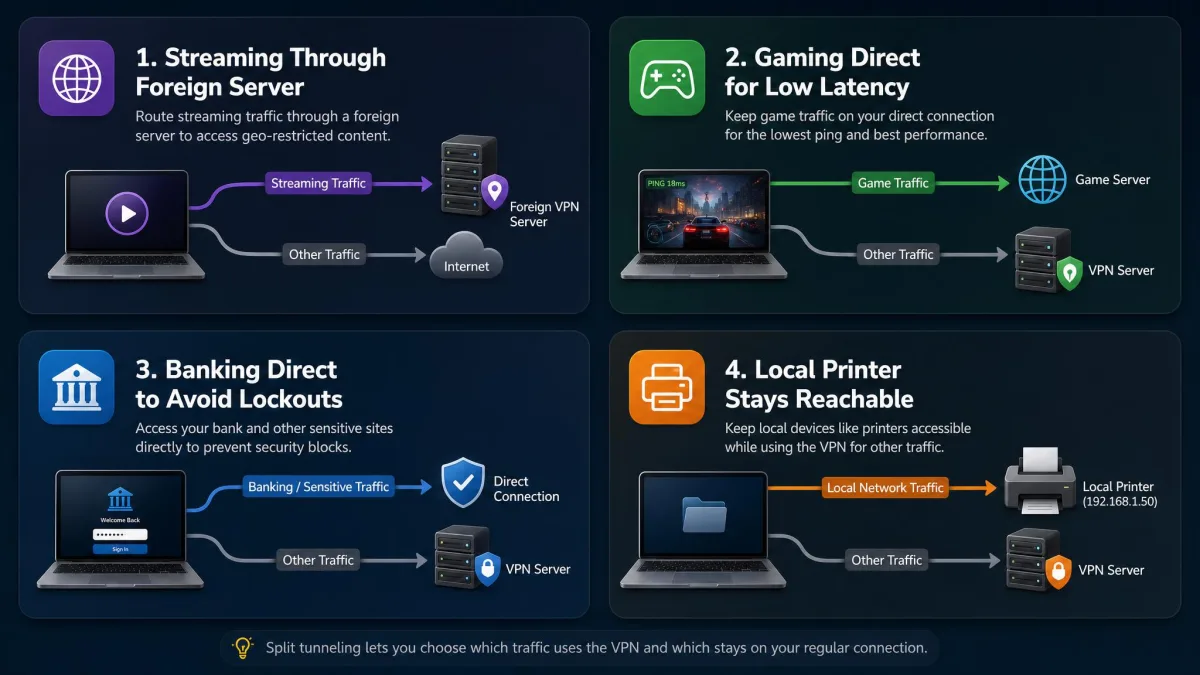
The reason split tunneling has become a headline feature is that it solves several everyday annoyances at once. Streaming is the classic case. You route a streaming app through a VPN server in another region to reach its catalog, while everything else stays on your fast local connection. Because only the streaming traffic takes the longer path, buffering stays low. In practice your smart-TV app or download manager keeps humming along at full speed, while the one app you care about reaches the library you wanted.
Gaming benefits from the reverse move. Keep the game outside the tunnel so latency stays as low as your connection allows. Meanwhile a browser or voice app you want private stays encrypted. A few extra milliseconds of ping is the difference between a shot landing and missing, so serious players almost always want the game itself running direct. Banking is another common split. Many banks flag or block logins that appear to come from a foreign VPN server, so routing the banking app directly avoids the lockouts while your other traffic stays protected. It saves the tedious dance of disabling the VPN, logging in, and turning it back on.
Two more cases round it out. On a local network, split tunneling keeps a printer, a network drive, or a smart-home hub reachable. Those devices live on your LAN, and a full tunnel can cut them off. If you have ever watched a print job vanish or a NAS drop off the map the moment the VPN connects, adding those devices to your exclusions is the fix. For remote work, you can route a company client through the VPN while personal browsing runs direct. That keeps work traffic protected without funneling your whole day through a corporate server. Your personal streaming, shopping, and video calls stay off the work network, while the tools that need the corporate tunnel still get it.
If a device on your home network suddenly stops responding while the VPN is on, add its app or local IP range to your split-tunneling exclusions. That usually restores access to printers and network drives without turning the VPN off.
Is Split Tunneling Safe? Security Risks and Considerations
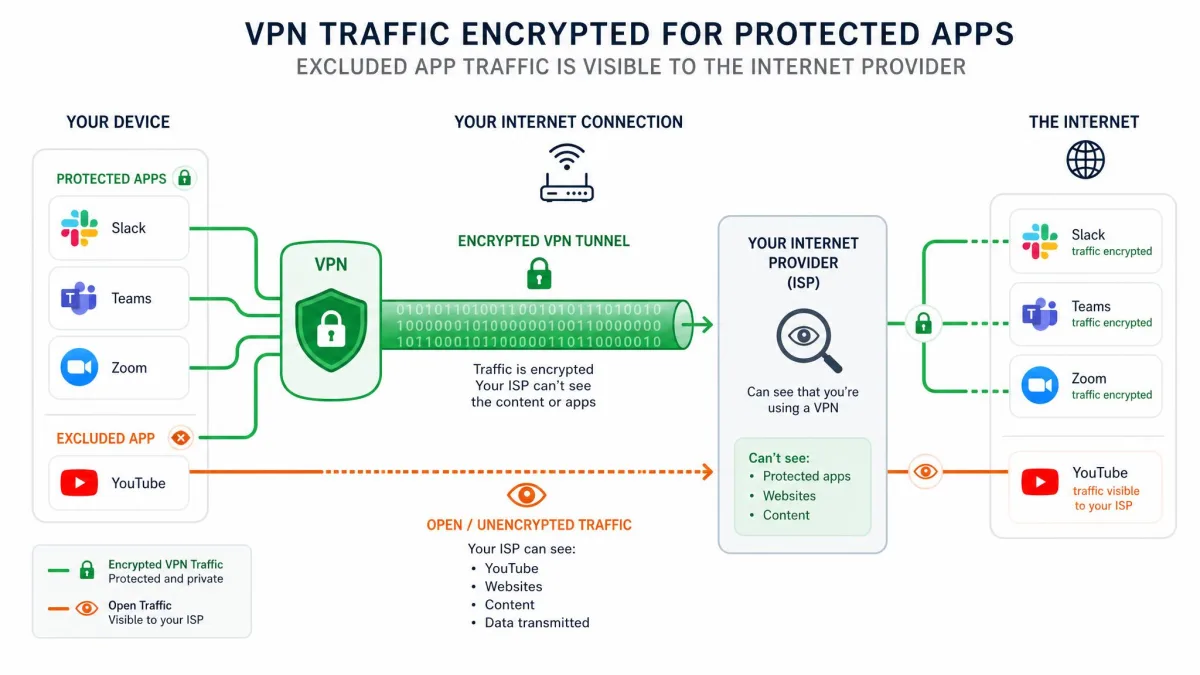
Split tunneling is safe when you understand one rule. Any traffic you route outside the tunnel is visible to your internet provider and carries no VPN protection at all. The feature does not weaken the encryption on the apps you keep inside the tunnel. But it does mean the apps you exclude are exactly as exposed as they would be with no VPN running.
That is why the choice of what to exclude is the whole game. Routing a game or a large download outside the tunnel is low risk. Routing anything that carries passwords, financial details, or private messages outside the tunnel undoes the reason you installed a VPN. A related trap we hit repeatedly is local access. Split tunneling can break connections to a printer or network drive when the wrong apps stay inside the tunnel, so test those after you change any rules.
Never route sensitive traffic, such as banking, email, or work logins, outside the VPN tunnel unless you fully trust the network you are on. Excluded apps get no encryption, and on public Wi-Fi that means anyone on the same network can potentially see that traffic.
There is also a research angle worth knowing. Independent work, including a 2018 study of VPN data handling, has shown that not every VPN protects data the way its marketing implies, which is another reason to stick with audited, reputable providers when you are deciding what to leave inside the tunnel.
How to Set Up Split Tunneling
The setup differs by platform, but the pattern is consistent. Open the app's settings, find the split-tunneling or bypass section, and add the apps or sites you want to route around the VPN. The steps below cover the platforms where the feature is available.
On Windows
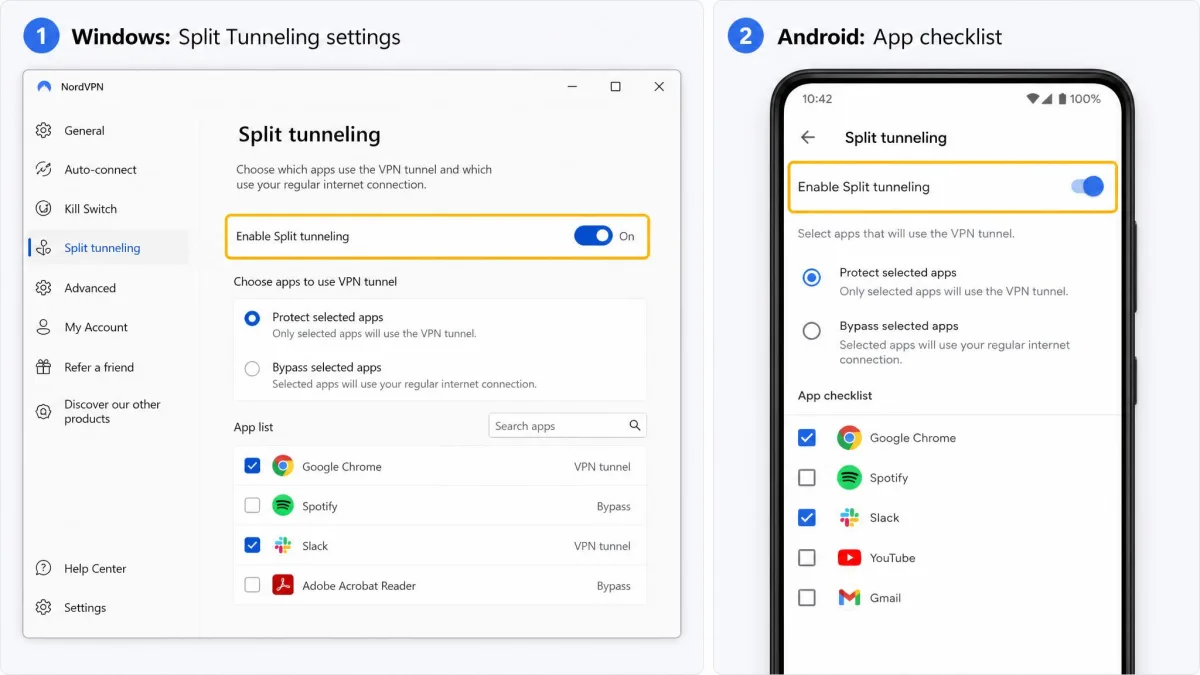
Windows has the broadest support, and every provider on this list offers the feature here. Open your VPN app, go to Settings, and find the split-tunneling or Bypasser section. Choose whether you want to exclude selected apps or, if the provider supports it, protect only selected apps in inverse mode. Add the apps or website addresses, then save and reconnect.
On macOS
Mac support is the messy part, and it is worth understanding why. For years split tunneling was unavailable on macOS after Big Sur removed the kernel-extension APIs that VPN apps relied on to steer traffic per app. Providers had to rebuild the feature on Apple's newer network-extension framework, and not all of them have. It is back on some providers now. ExpressVPN restored it through its newer Qt app, which you download from the ExpressVPN site rather than the App Store, and PIA has restored it as well. On those apps the steps mirror Windows, so you open settings, find the split-tunneling panel, and build your exclusion or inclusion list. Proton, NordVPN, and several others still offer limited or no split tunneling on current macOS. So if you are a Mac user, confirm the feature is present on your specific provider before you subscribe rather than assuming parity with the Windows app.
On Android
Android setup is quick. Open the VPN app, go to Settings, and find split tunneling or Bypasser. Android exposes your installed apps as a checklist, so you tick the apps to route through the VPN or to bypass it, depending on the mode. Save, and the change takes effect immediately.
On iOS (and Its Limitations)
This one is short. Split tunneling is generally unavailable on iOS, on every provider we tested. Apple's sandboxing and network-extension rules restrict the app-level routing that split tunneling depends on, so no amount of shopping around will find you an iPhone app that offers it. If iOS split tunneling is a hard requirement, the honest answer is that it does not exist yet.
On a Router
Router setup works differently because you are routing whole devices rather than apps. ExpressVPN is the standout here, with device-specific tunneling that lets you pick which devices on your network use the VPN from a single dashboard. On a router, you assign devices rather than apps. This is the only practical way to split-tunnel gadgets like a smart TV or console that have no VPN app of their own. The workflow is straightforward once the VPN is loaded onto compatible router firmware. You open the router dashboard in a browser, see a list of every connected device, and flip a toggle beside each one to send it through the tunnel or leave it direct. That lets you put the game console on your normal connection for low latency while a smart TV streams through a server in another region, all without installing a single app on either device. The catch is that router support is the exception rather than the rule among these seven, so if whole-device tunneling matters to you, it narrows the field considerably.
Split Tunneling vs. Full Tunnel VPN
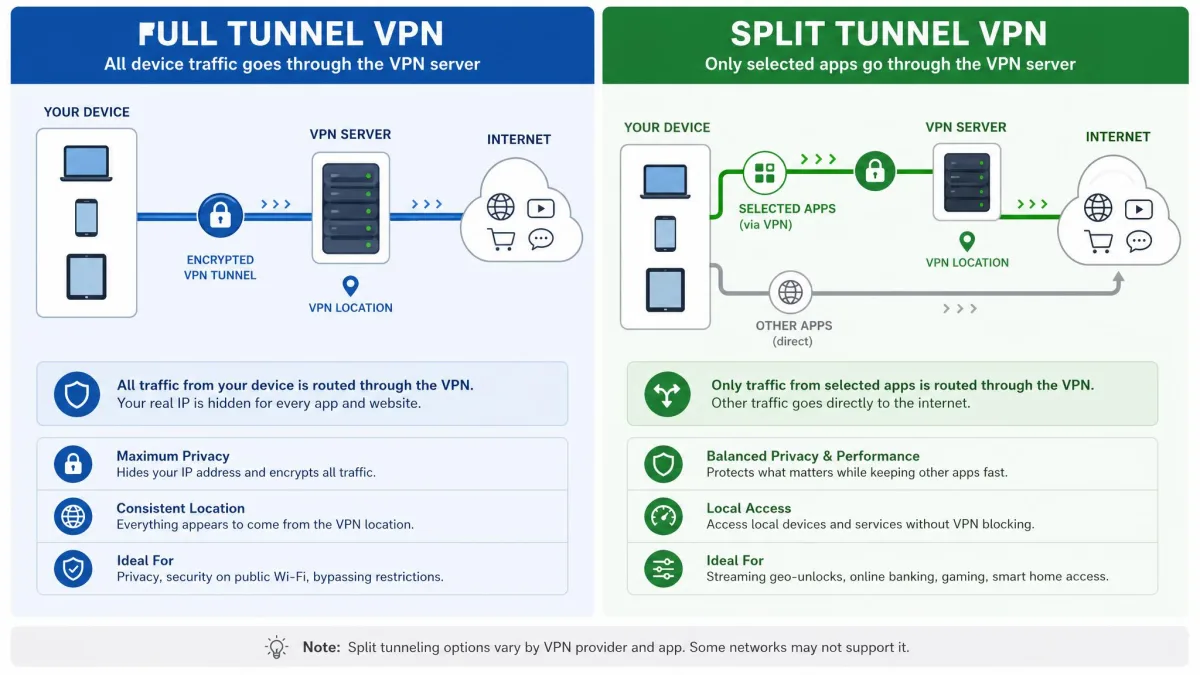
A full-tunnel VPN sends every packet on the device through the encrypted tunnel. It is the safest default, because nothing is exposed, and it is the right choice on untrusted networks like public Wi-Fi where you want blanket protection. The cost is speed and the occasional broken connection, since local devices and region-sensitive services all get routed through the VPN server too.
Split tunneling trades some of that blanket coverage for control and speed. The apps inside the tunnel are just as protected as they would be under a full tunnel, but the excluded apps run direct and unprotected. The right pick depends on the moment: use a full tunnel when you want everything covered, and use split tunneling when you need a few things fast or reachable while keeping the rest private. Most of the providers here let you flip between the two in a couple of taps.
If you are unsure which to default to, start with a full tunnel and add exclusions only when something breaks or drags. That way you never accidentally expose an app you meant to protect, and you build your exclusion list from real needs rather than guesses. It is the same order we followed when setting up each provider for this test.
Frequently Asked Questions
Can I use a free VPN for split tunneling?
What is inverse split tunneling?
Does split tunneling slow down or add latency to my connection?
Is split tunneling safe for banking?
Which VPN protocols support split tunneling?
Can a VPN be restricted to a single app or website?
Does split tunneling work on Linux?
Conclusion: Choosing the Right Split Tunneling VPN
The right split-tunneling VPN comes down to platform and priorities. If you want the most complete, fastest setup with the fewest surprises, NordVPN is the pick. If you are covering a houseful of devices on a budget, Surfshark's unlimited connections and low price are hard to beat. Need the feature across many operating systems or on a router? ExpressVPN reaches the furthest. Want inverse mode for privacy, or the feature for free? Proton VPN. And if you like to tinker, PIA gives you the most knobs, with the caveat that its speeds trailed the field.
Whichever you choose, remember the one rule that governs the whole feature: whatever you leave outside the tunnel is unprotected. Set your exclusions deliberately, test your local devices afterward, and keep sensitive traffic inside the tunnel.