VPN split tunneling is a feature that lets you send some of your traffic through the encrypted VPN tunnel while the rest connects straight to the internet through your regular connection. Instead of routing everything through one server, you choose which apps or sites use the VPN and which do not.
That single choice solves a surprising number of everyday problems. You can stream a foreign catalog on one app while your banking site still sees your real local address, or keep a fast game connection while a download runs privately in the background. In this guide we explain how split tunneling works, the main types you will meet, when it actually helps, and how to turn it on across Windows, macOS, iOS, and Android.
We have tested split tunneling across the major VPN clients, and most of what trips people up is not the concept but where the setting hides and which platform they are on. We will flag those snags as we go.
What Is VPN Split Tunneling? (short definition)
Split tunneling lets you route some app or device traffic through the encrypted VPN tunnel while other traffic connects directly to the internet through your ISP. It is a routing rule, nothing more, but it changes how your data leaves your device.
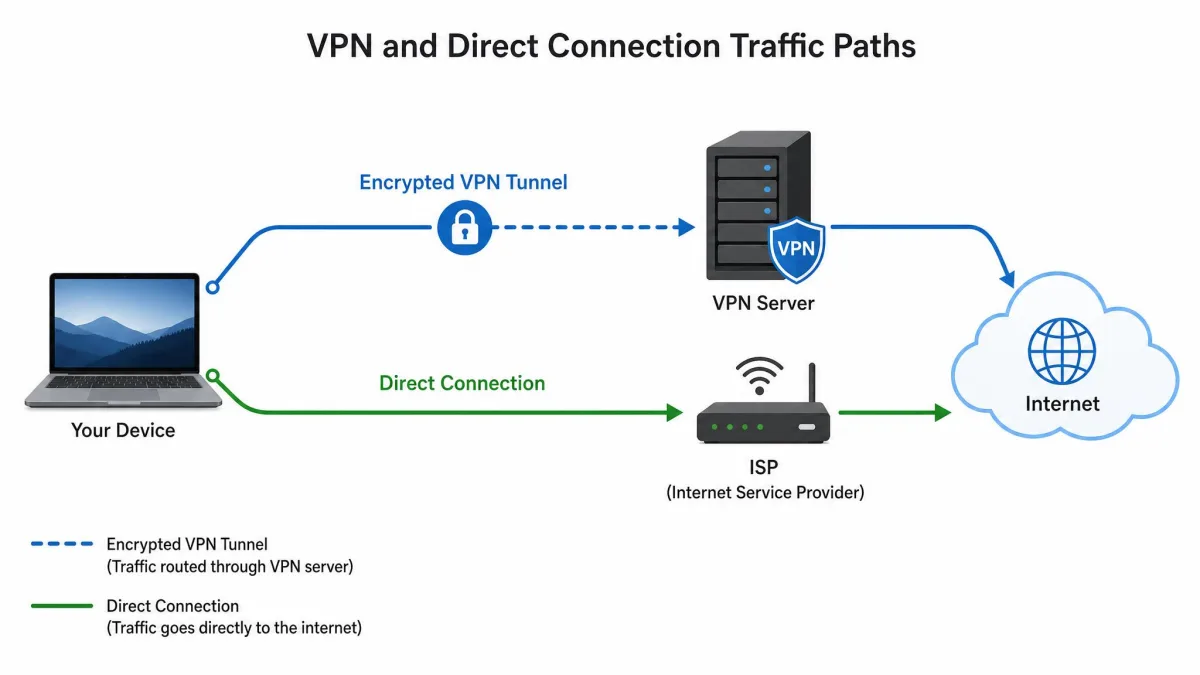
In a standard VPN setup, known as a full tunnel, 100% of your internet traffic passes through the encrypted tunnel. Every site, every app, and every background service connects through the VPN server. Split tunneling changes that default so selected traffic bypasses the tunnel and takes the direct route instead.
The value is control. You decide which traffic needs the protection and privacy of the tunnel and which traffic is fine going out in the open. That control is what makes the feature worth learning.
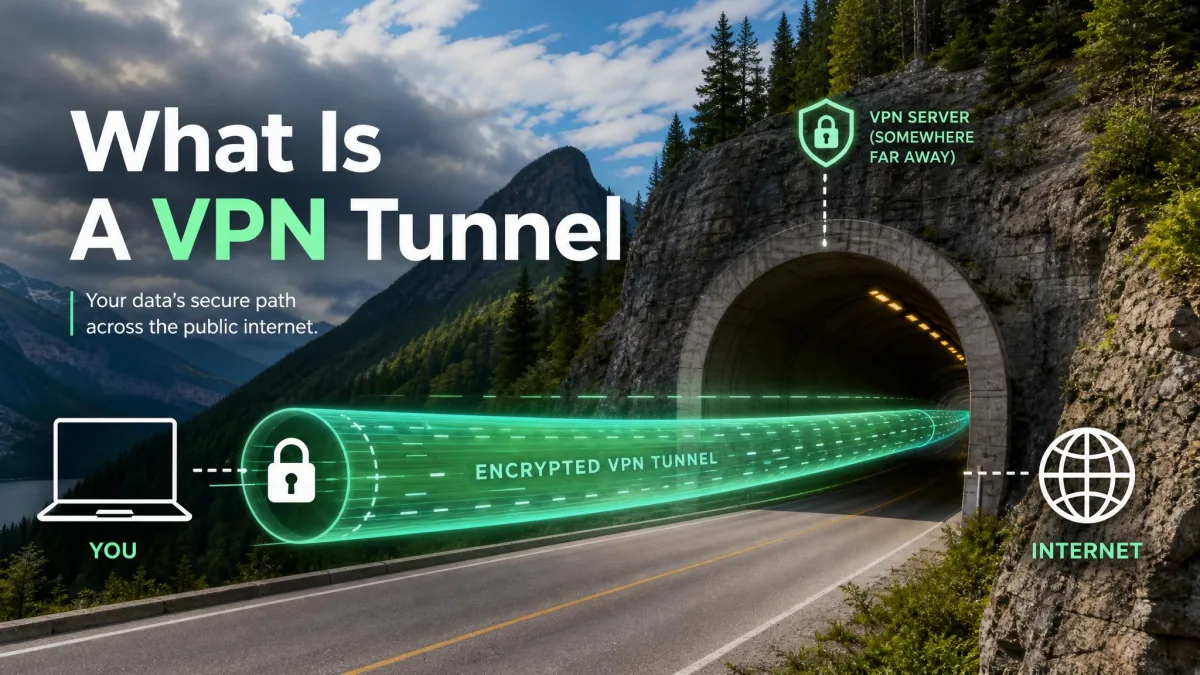
Think of a normal VPN as one pipe carrying all your traffic. Split tunneling adds a second pipe: sensitive traffic goes through the encrypted one, and everything else goes through the open one. You choose what goes where.
How Does VPN Split Tunneling Work?
When you connect a VPN normally, your device builds an encrypted tunnel to a VPN server and rewrites its routing table so all outbound traffic follows that tunnel. Split tunneling edits those routing rules. You give the VPN client a list of apps, sites, or IP addresses, and it decides, connection by connection, whether each one enters the tunnel or skips it.
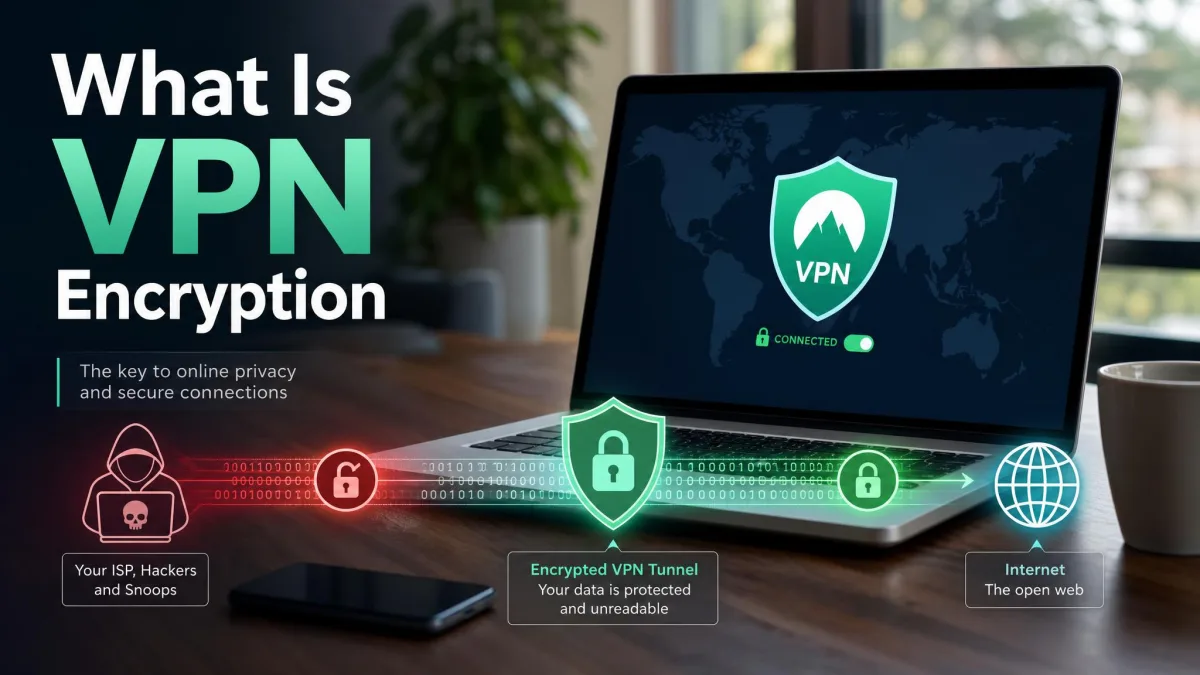
The client enforces this at the operating system level. When an app you excluded opens a connection, its packets are marked to use your normal network adapter and your real IP address. When a protected app connects, its packets go through the virtual VPN adapter, get encrypted, and exit from the VPN server's address.
The result is two simultaneous states on one device. Protected traffic shows the VPN server's location and stays encrypted, while excluded traffic shows your true location and runs at your connection's native speed. Both happen at the same time, with no need to disconnect and reconnect.
One detail matters for reliability. Protocol choice affects how cleanly split tunneling behaves, and WireGuard generally handles it well. Some OpenVPN implementations manage it less reliably, and in our testing switching a stubborn setup from OpenVPN to WireGuard is a common fix when excluded apps keep leaking into the tunnel.
Types of VPN Split Tunneling
Sources group split tunneling in slightly different ways, so treat the categories below as overlapping rather than a single fixed count. In practice you will run into four common forms: app-based, URL or domain-based, inverse, and dynamic. Each one controls traffic at a different level.
App-Based (Per-App) Split Tunneling
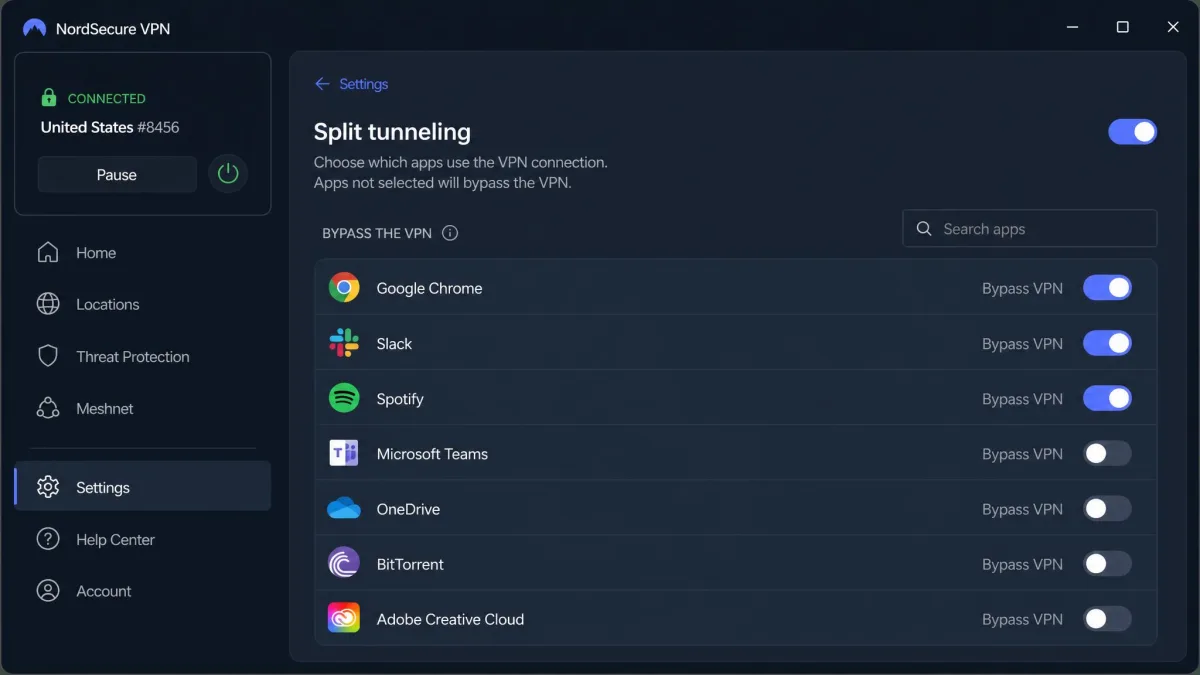
App-based split tunneling, also called per-app, works at the level of whole applications. You pick which installed apps use the VPN and which connect directly, and the rule applies device-wide to everything that app does.
This is the most common form on desktop and Android clients. It is ideal when you want, say, your browser protected but your online game connecting directly. Because it operates at the app level, it catches all of an app's traffic, not just what happens in one window.
URL / Domain-Based Split Tunneling
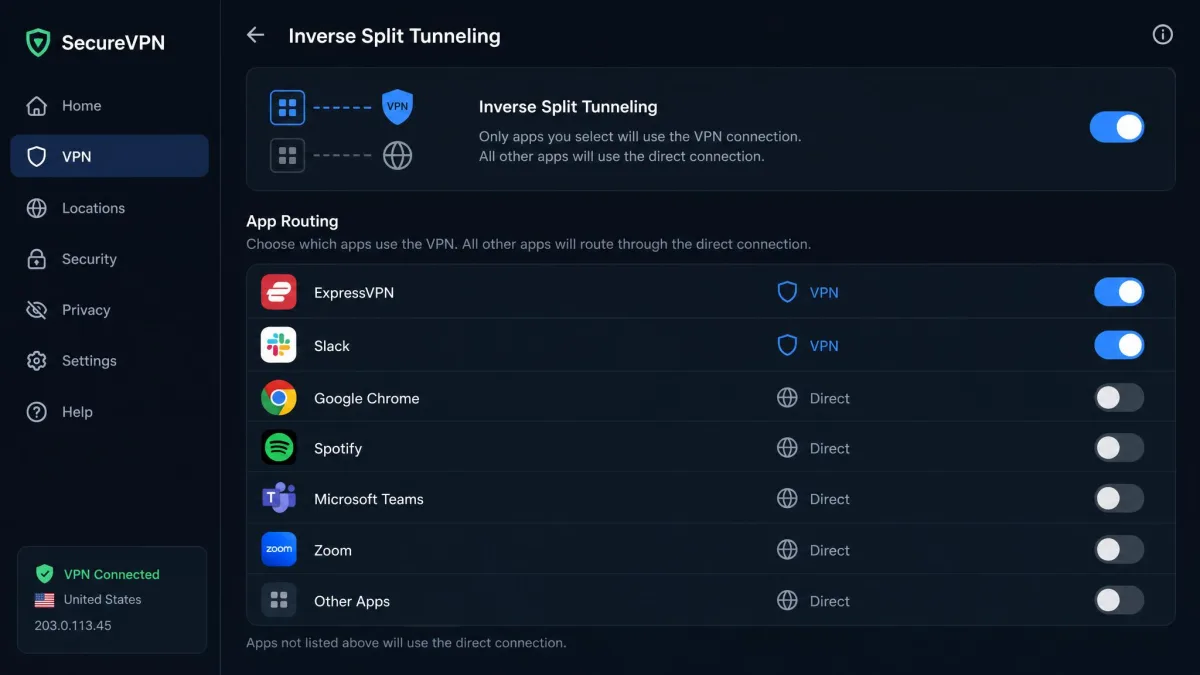
URL or domain-based split tunneling works at the level of individual sites. You list specific websites that should either use or skip the VPN, which is why it is common in browser extensions.
The important limit is scope. App-level split tunneling applies across the whole device, while browser-extension split tunneling only affects traffic inside that browser. If you set a rule in a browser extension and expect it to redirect a separate desktop app's traffic, it will not, and that mismatch trips up a lot of people.
Inverse Split Tunneling
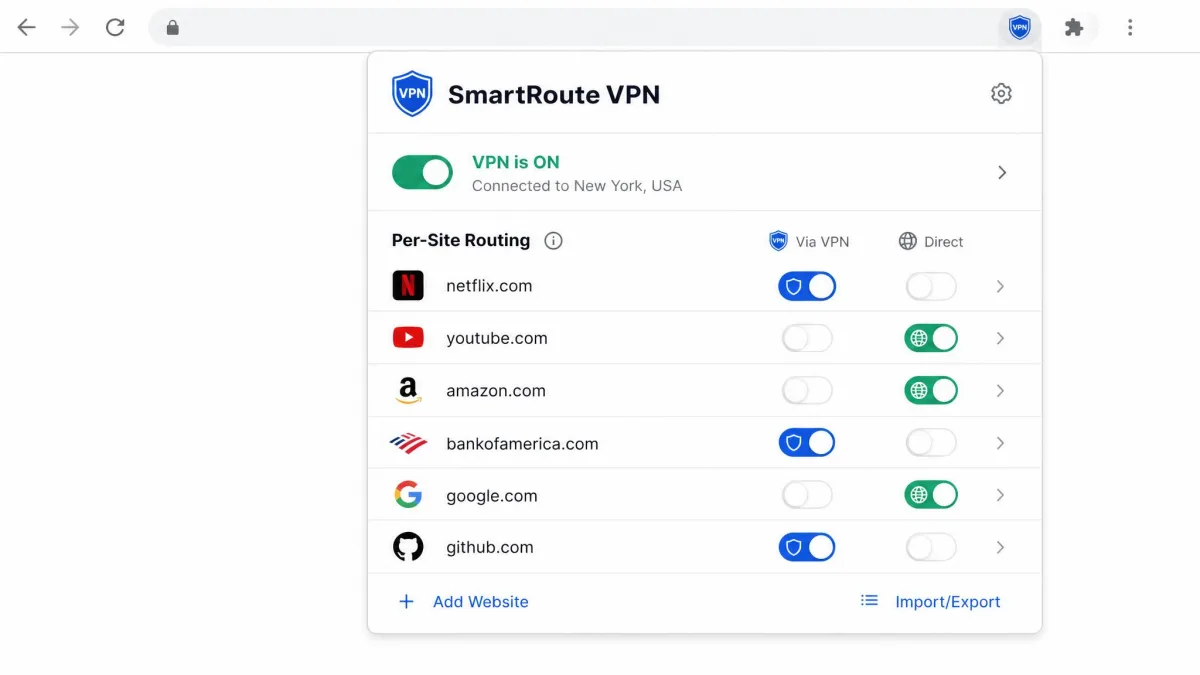
Inverse split tunneling, sometimes called reverse split tunneling, flips the default model. Instead of choosing what to exclude from the VPN, you route only the apps or sites you specifically choose through the VPN, and everything else bypasses it.
This is the safer mindset for privacy-first users. With the standard exclude model, anything you forget to handle still goes through the tunnel; with inverse, anything you forget stays outside it, so you protect exactly what you meant to and nothing rides along by accident. Vendors expose this under different names, which we cover in the section on which VPNs offer it.
Standard split tunneling asks "what should skip the VPN?" Inverse split tunneling asks "what should use the VPN?" The second question is often the one you actually want to answer.
Dynamic Split Tunneling
Dynamic split tunneling resolves its rules on the fly rather than from a fixed app list. Instead of naming an app in advance, the client evaluates destinations as connections happen, which is useful when a service uses many changing domains or IP addresses behind one name.
This variant is best documented in the enterprise world, such as dynamic split tunneling on Cisco AnyConnect, where administrators exclude cloud services by domain. On the consumer side a true dynamic mode is far less common, so do not assume your VPN has it just because it offers the other types.
As of 2026, we have not found a mainstream consumer VPN that offers a true dynamic mode in this runtime sense, where routing rules are resolved on the fly by domain the way an enterprise client like AnyConnect handles it. Consumer split tunneling is still configured statically before you connect. What apps such as NordVPN, Surfshark's Bypasser, ExpressVPN, and IPVanish market as domain or URL-based split tunneling is really a static include or exclude list you set up in advance, not runtime resolution. It is useful, but it is not the same thing, so read the feature description closely before you assume your VPN evaluates destinations as connections happen.
When Should You Use Split Tunneling? (Use Cases)
Split tunneling earns its place when routing everything through one server gets in your way. These are the situations where we reach for it most.
Access Local Devices and Networks
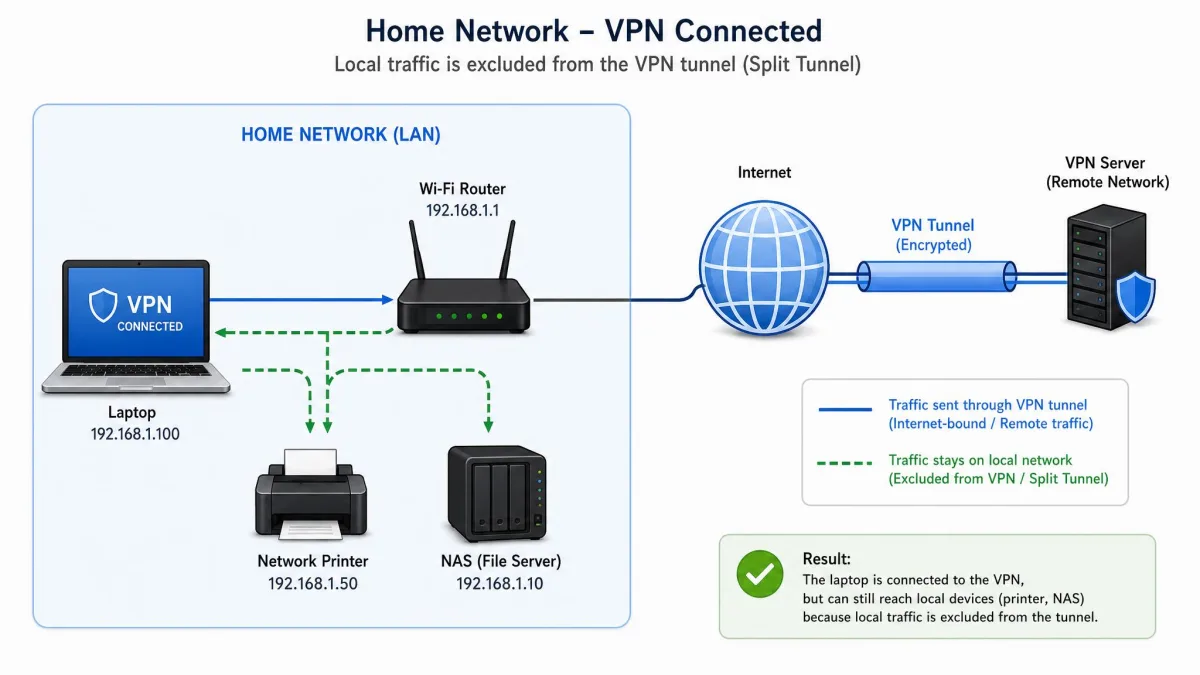
A full VPN connection can hide your local network from you. Because all traffic heads to the VPN server, your device may lose sight of the printer, NAS drive, or smart devices sitting on the same home network.
Split tunneling fixes this by keeping local traffic off the tunnel. One caveat from our testing: local network access is inconsistent across VPNs. Some let you reach LAN devices without touching split tunneling at all, while others require you to explicitly exclude that traffic before printers or NAS drives become reachable again.
Improve Speed for Data-Heavy Apps (Gaming, Downloads, Streaming)
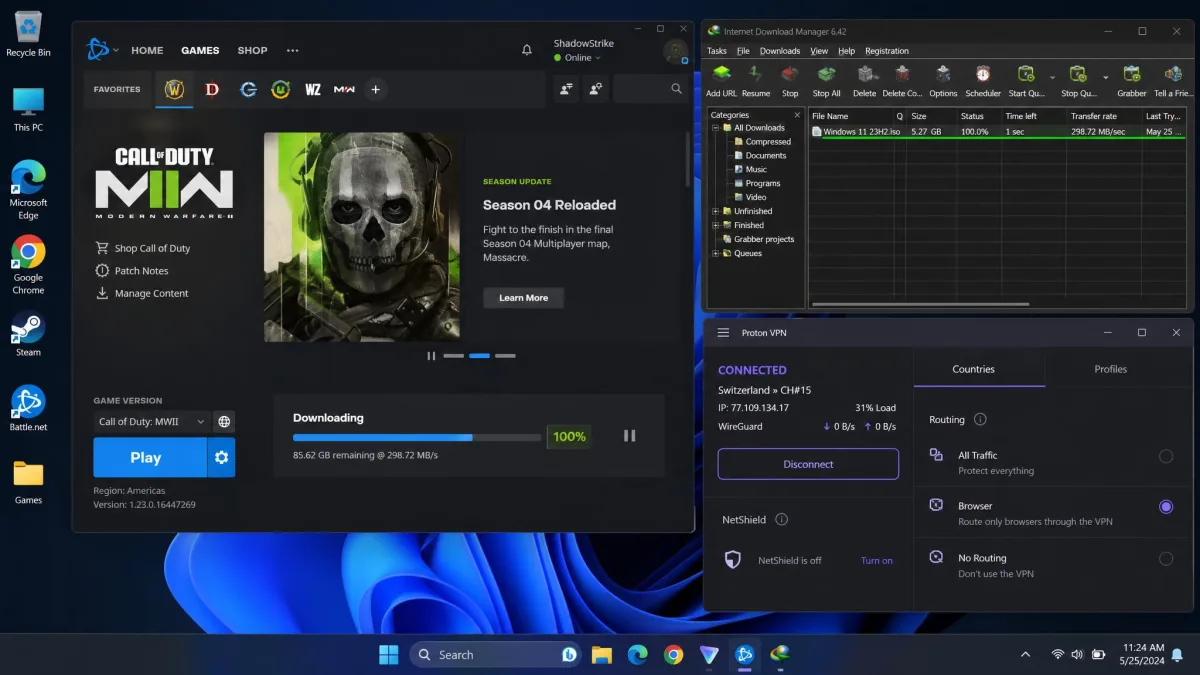
Encryption and the detour to a VPN server add overhead, and on data-heavy tasks you feel it. Games gain latency, large downloads slow down, and some streaming sites throttle unfamiliar server addresses.
By excluding these apps from the tunnel, you let them run at your connection's native speed while the VPN still protects everything else. It is the simplest way to keep privacy where you need it without paying a speed tax on the traffic that does not need it.
Use Local and Foreign Services at the Same Time
Some services misbehave when they see a foreign address. A banking site may block a login from another country, and a local news or payment site may refuse to load, all while you want a foreign streaming catalog open too.
Split tunneling lets you use local and foreign services at the same time. You route the app that needs a foreign location through the VPN and let the local sites connect directly, so both work without constant toggling.
Save Bandwidth and Cellular Data
On a metered or mobile connection, sending everything through the VPN can add overhead you would rather avoid. Routing only sensitive traffic through the tunnel and letting the rest connect directly trims that overhead.
This is handy on phones and tablets where cellular data is limited. You keep the apps that matter protected and stop low-risk background traffic from spending extra data on encryption it does not need.
Remote Work Alongside a Corporate VPN
Remote workers often need a corporate VPN for internal tools but not for everything else. Sending personal browsing, video calls, and cloud apps through the company tunnel is slow and needlessly exposes that traffic to the corporate network.
Split tunneling lets the corporate VPN carry only work traffic to internal resources while your other apps use your normal connection. That keeps internal tools reachable and secure without dragging your entire day through the company's servers.
Is VPN Split Tunneling Safe? Risks and Trade-offs
Split tunneling is safe when you understand the trade-off, and risky when you forget it. The core issue is simple: any traffic routed outside the VPN tunnel is unencrypted and visible to your ISP, and it can potentially be exposed to interception on untrusted networks.
That means split tunneling narrows the protection a VPN gives you. Whatever you exclude no longer benefits from the tunnel's encryption or its hidden IP address. On a home network that is often an acceptable trade; on public Wi-Fi, excluding the wrong app can leave sensitive traffic in the clear.
There is a corporate dimension too. In a business setting, split tunneling can bypass proxy and DNS filtering and reduce IT visibility into a compromised endpoint, which is why some organizations disable it entirely. The feature that helps a remote worker can also blind the security team.
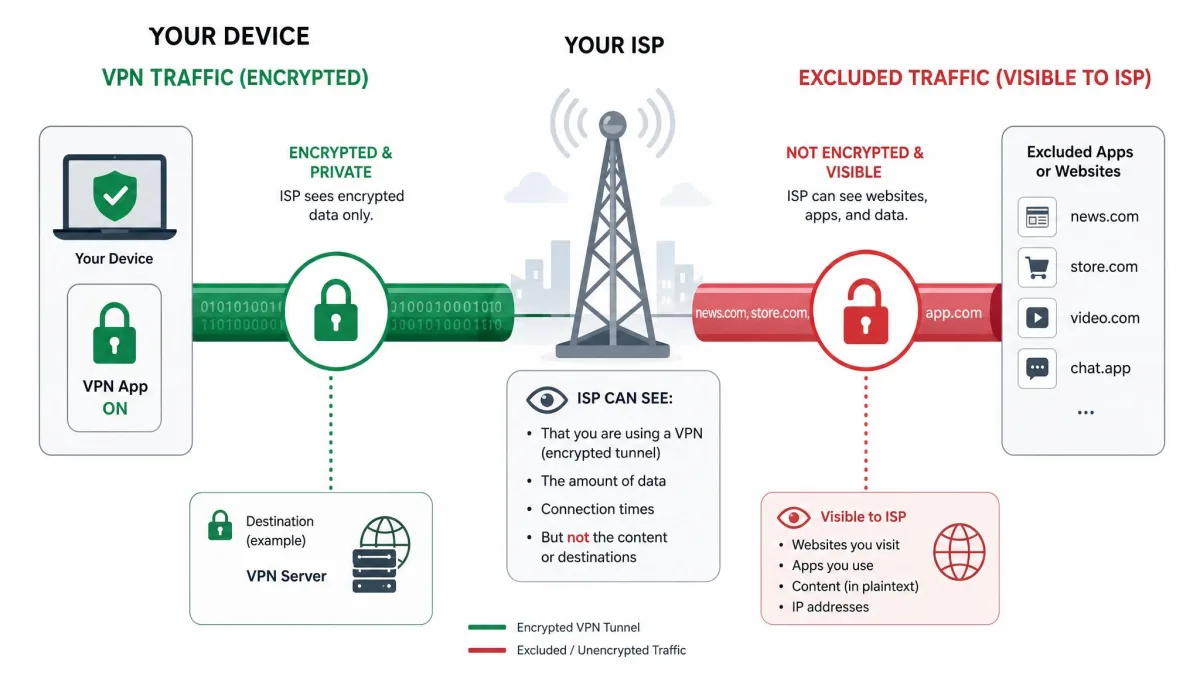
Anything you exclude from the tunnel travels unencrypted over your normal connection. Never route sensitive traffic such as banking, work logins, or private accounts outside the VPN on a public or untrusted network.
Two habits keep it safe. First, exclude as little as possible and lean toward the inverse model so protection is the default. Second, remember that most excluded traffic still uses HTTPS, which encrypts the content of a connection even outside the tunnel, though it does not hide your IP address or which sites you visit from your ISP.
How to Set Up Split Tunneling (by Device: Windows, macOS, iOS, Android)
Setup follows the same shape on every platform: open your VPN app, find the split tunneling section, choose a mode, and add the apps or sites you want to route. The details differ by operating system, and so does how well the feature works at all.
One thing holds true everywhere. Split tunneling settings are usually buried under an Advanced or Connection menu rather than shown on the main screen, so expect to hunt for them a little.
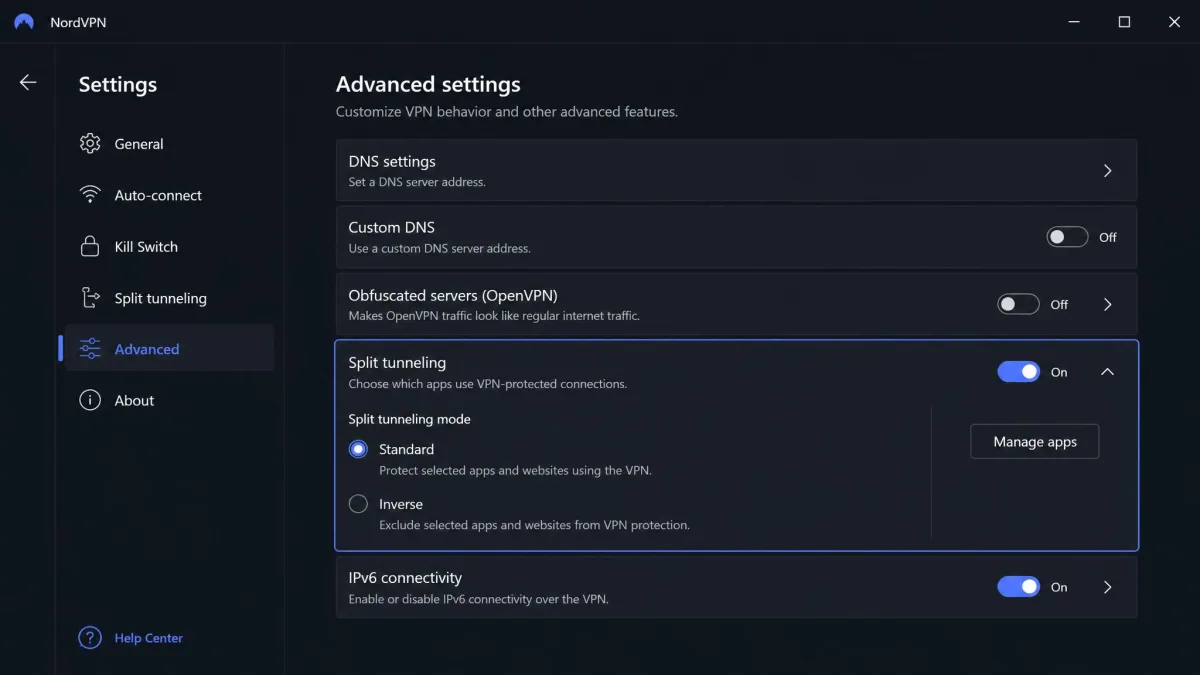
Windows. This is the strongest platform. Windows and Android have the broadest, most comprehensive split tunneling support across VPNs. Open your VPN's settings, find the split tunneling or per-app section, pick standard or inverse mode, and add your apps. Most Windows clients also let you exclude by IP address or subnet.
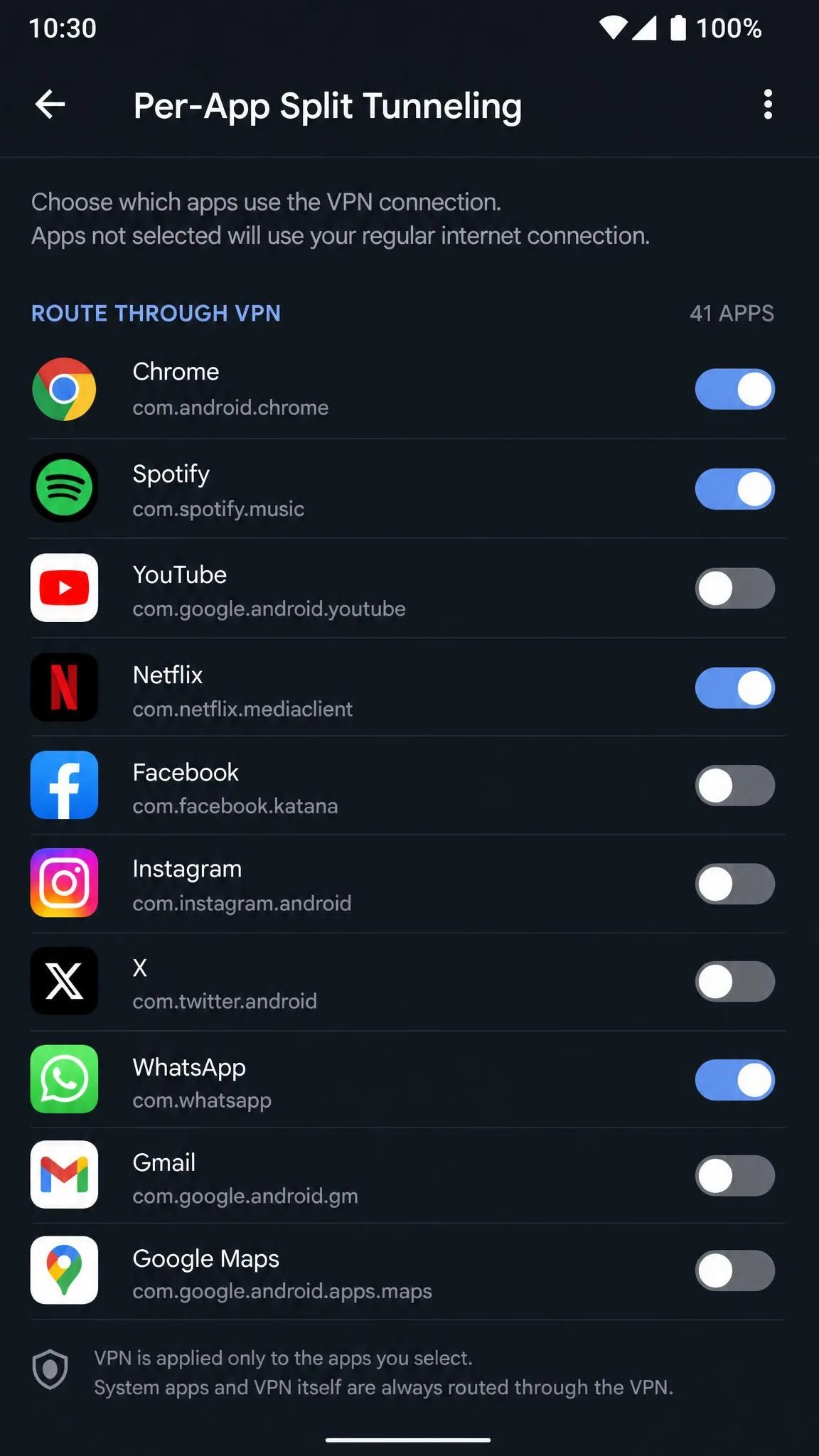
Android. Android support is nearly as strong, and it is almost always app-based. In the VPN app you will find a per-app list where you toggle which installed apps use the tunnel. Rules apply device-wide per app, so the setup is quick and reliable.
macOS. Mac is the fiddly one. Apple removed the APIs VPNs relied on for split tunneling when it released macOS Big Sur (version 11) in late 2020, which is why the feature disappeared from most Mac apps for several years. It has returned in some clients, but with conditions. In our experience the Mac App Store build of a VPN often blocks split tunneling, so installing the direct .dmg download from the vendor's site is frequently required to get the feature at all. You may also need to manually enable the VPN's system extension in macOS settings before it will work.
iOS. This is where most people hit a wall. iOS restricts per-app traffic routing to managed enterprise (MDM) devices, so consumer VPNs generally cannot offer split tunneling on iPhone and iPad. If your VPN advertises it on iOS, treat that as version-and-vendor specific and verify it works before you rely on it.
If split tunneling stops working after an update, reinstalling the latest app version often clears it up. In our testing these failures usually point to version-specific bugs rather than anything you configured wrong.
Which VPNs Offer Split Tunneling?
Split tunneling is increasingly common but still not universal, and support varies a lot by platform. There is no reliable published count of how many consumer VPNs include it, so the useful question is which ones do it well on your device. The table below summarizes where the major providers stand.
| VPN | Windows | macOS | iOS | Inverse mode |
|---|---|---|---|---|
 |
Yes | No (browser extension only) | No | Yes (Windows) |
 |
Yes | Yes | Claimed, disputed | Yes (Reverse Bypasser) |
 |
Yes | Yes (macOS 11+, reintroduced) | Disputed | Via route list |
 |
Yes | Yes (most robust) | No | Yes |
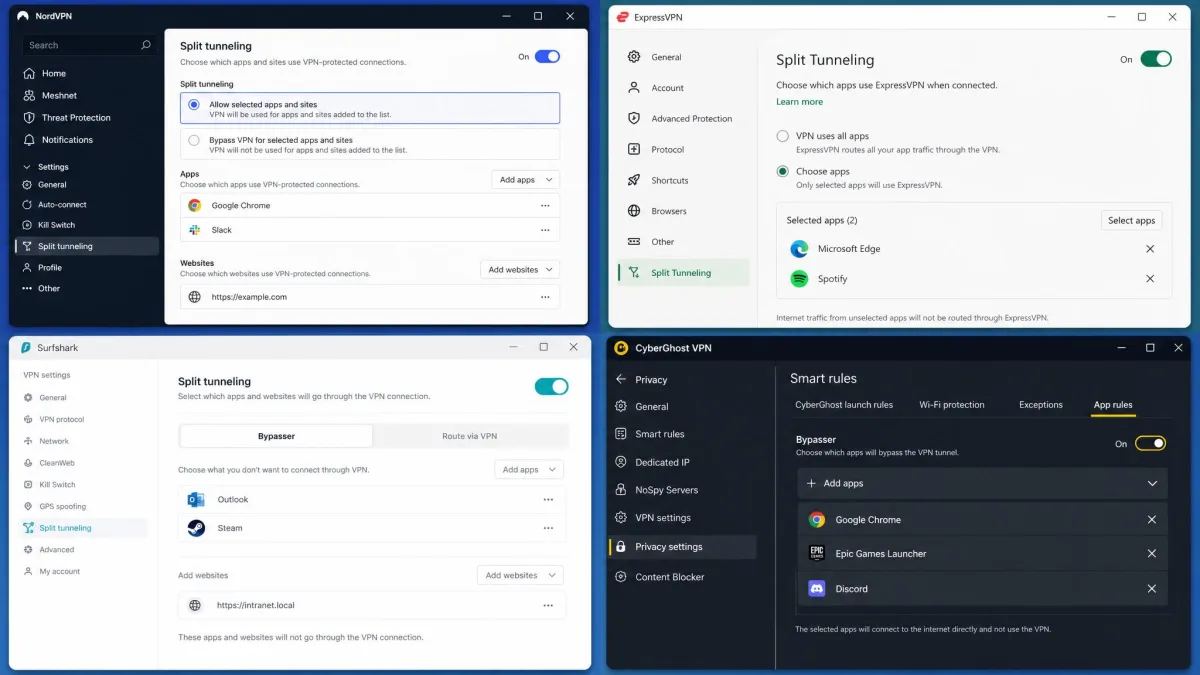
NordVPN offers app-based split tunneling on Windows, Android, and Android TV, with both a Standard mode that bypasses the VPN for selected apps and an Inverse mode that uses the VPN only for selected apps. It is not available natively on macOS or iOS, though Mac users can get domain-level control through the browser extension.
Surfshark calls its feature Bypasser. It offers a Standard Bypasser that excludes selected apps and websites from the VPN and a Reverse Bypasser that routes only selected apps and websites through it. Surfshark lists Windows, macOS, Android, and browser extensions, and also claims iOS support, but that iOS availability is inconsistent across sources and varies by app version, so confirm it on your own device.
ExpressVPN provides split tunneling through a route list on Windows, per-app control on Android, and app and IP control on macOS 11 and later after Mac support was reintroduced following Apple's Big Sur changes. That macOS availability has shifted repeatedly with app versions and OS updates, so check the current state before you count on it.
Private Internet Access is one of the few VPNs offering inverse split tunneling, and it is noted for having the most robust macOS implementation, including a workaround for excluding Safari. If Mac split tunneling is your priority, it is the strongest option of the four.
The pattern we see across every client is the same: read the platform support before you read the marketing. A VPN can have excellent split tunneling on Windows and none at all on your iPhone, and the feature name on the box tells you nothing about which case applies to you.