
You turned on split tunneling, and it just will not behave. Maybe your excluded apps lost internet. Maybe apps you never listed keep routing through the VPN anyway. You are not alone. This is one of the most common NordVPN complaints we hear.
The good news: most cases trace back to a handful of fixable causes. We have worked through this problem on our own test machines. Below we walk through what split tunneling does, why it breaks, and how to fix it step by step.
What Is NordVPN Split Tunneling (and How It Should Work)
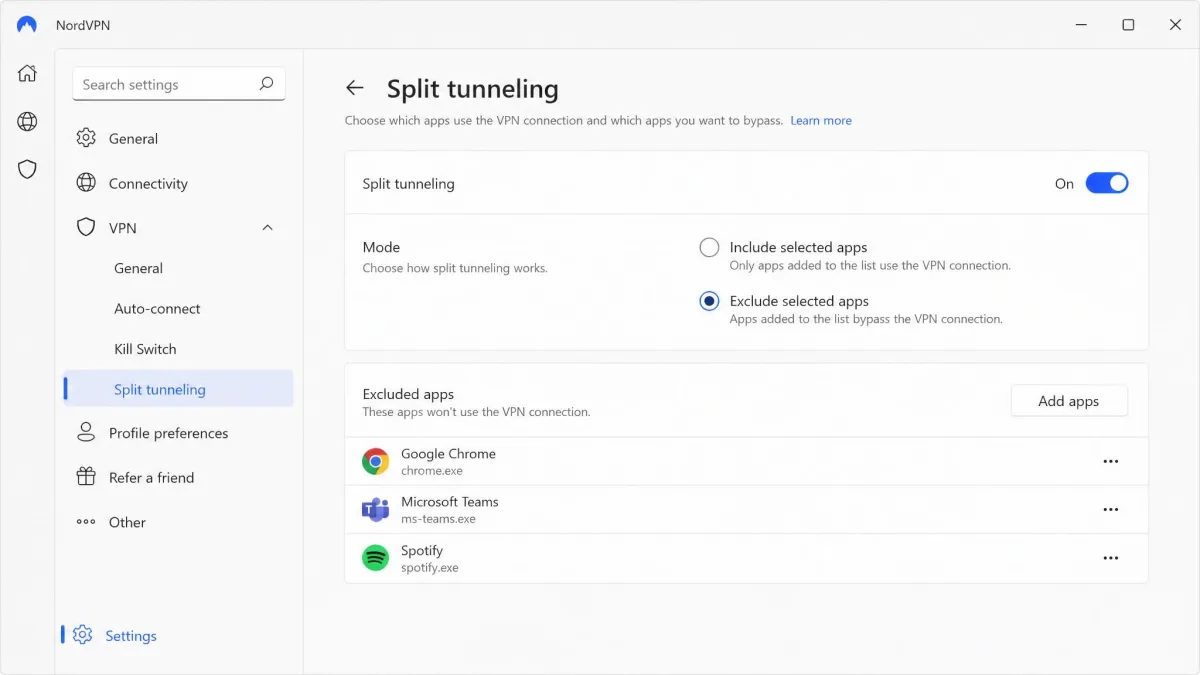
Split tunneling lets you choose which apps use the VPN and which skip it. It is a routing switch, one app at a time.
NordVPN offers two modes. Exclusion mode sends chosen apps outside the tunnel, so they use your normal connection. Inclusion mode does the reverse: only the apps you pick route through the VPN.
There is also a Chrome extension that works at the URL level. It disables the VPN for specific websites rather than whole apps.
When it works, an excluded app sees your real IP, and everything else stays protected. That balance is the whole point.
Why NordVPN Split Tunneling Stops Working (Common Causes)
Before you start fixing, it helps to know the usual suspects. Here are the causes we see most often.
Unsupported Platform (Windows and Android Only)
This is the big one. Split tunneling is available on Windows and Android, including Android TV. It is not available on macOS or iOS.
If you are on a Mac or an iPhone, the feature simply is not there. No amount of tweaking will bring it back.
Split tunneling only exists on the Windows and Android apps. On macOS and iOS, the option is absent by design, not broken.
Outdated or Wrong NordVPN App Version
An old app version can break routing in quiet ways. Features shift between releases, and split tunneling is sensitive to that.
Running the current build clears up a surprising number of cases. We always check the version first.
Split Tunneling Settings Misconfigured
The feature relies on exact app rules. A mistyped package name or the wrong executable will quietly fail.
We have seen a single bad entry break the whole list. Rebuilding your app rules one at a time helps isolate which one is at fault.
Missing Administrator Permissions
On Windows, NordVPN needs admin rights to rewrite routing rules. Without them, split tunneling can fail silently. Nothing errors out, it just does not apply.
This is one of the most frequent Windows causes we run into.
Firewall, Antivirus, or Conflicting App Interference
Third-party firewalls and antivirus suites can block the VPN's routing rules. When that happens, excluded apps behave unexpectedly until those rules clear.
Another VPN running at the same time causes the same mess. Split tunneling can also conflict with a corporate work VPN. In that case you may need to disconnect NordVPN entirely before the work VPN's locked-down sites load.
Known Bugs After App Updates
Sometimes the app itself is the problem. After a Windows update, split tunneling can stop routing correctly until you update again or roll back.
Our first move here is always to update to the latest Windows app version, since most of the routing bugs we have chased down were already fixed in a newer build. There is an old, release-specific report tying split tunneling trouble to a much earlier Windows build, around version 6.33.10, but the Windows app has since moved to the 8.x series, many releases past that report. We would not treat that historical bug as a live defect on current versions. Updating first rules it out cleanly. Even so, the feature has earned a reputation for the occasional routing hiccup across releases, so a clean reinstall is worth trying before you assume the setting itself is broken.
How to Fix NordVPN Split Tunneling: Step-by-Step
Work through these in order. Most people are sorted within the first three steps.
Step 1: Confirm You're on a Supported Platform
Check your device first. If you are on Windows or Android, you are good to continue. If you are on macOS or iOS, split tunneling is not available, and that is the whole answer.
Do not waste time troubleshooting a feature your platform does not have.
Step 2: Update the NordVPN App
Open your app store or the NordVPN site and update the NordVPN app. A current build fixes many routing quirks on its own.
Restart the app after updating. Then check whether split tunneling behaves.
After any update, reopen the split tunneling settings and confirm your app list survived. Updates sometimes reset the rules.
Step 3: Re-enable and Reconfigure Split Tunneling
Turn split tunneling off, then back on. This forces the app to rebuild its rules.
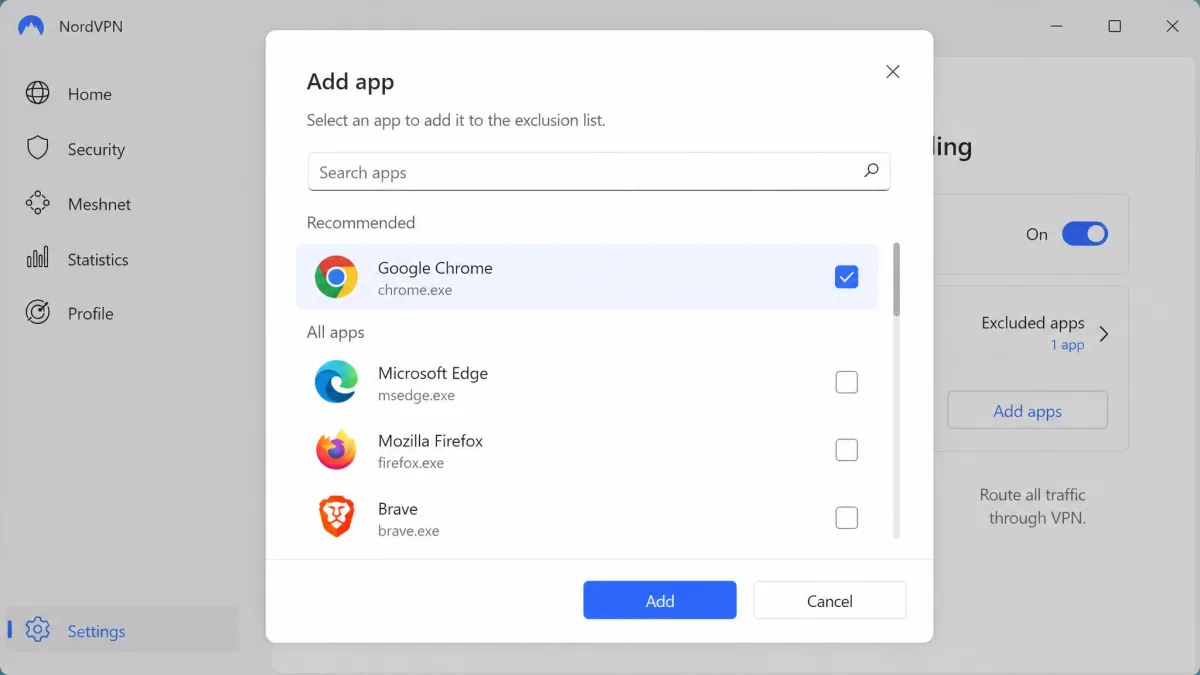
Now add your apps again, one at a time. Confirm each app name is correct before you add the next. Rebuilding slowly is the fastest way to catch a mistyped entry.
Step 4: Run NordVPN as Administrator
On Windows, close NordVPN completely. Right-click the app icon and choose Run as administrator.
Admin rights let the app apply routing changes properly. If missing permissions were the cause, split tunneling should work now.
Step 5: Change the VPN Protocol
NordVPN uses NordLynx by default, which is WireGuard-based. Open the app, go to Settings, then Connection, and switch to OpenVPN.
Protocol conflicts can break routing. Swapping protocols is a quick test that often reveals the culprit. You can switch back afterward if it does not help.
Step 6: Reinstall the NordVPN App
If nothing above worked, uninstall NordVPN, restart your device, then reinstall the app. A clean install clears corrupted settings and stale routing rules.
Sign in and set up split tunneling again from scratch. This resolves stubborn cases that survive an update.
If a recent update broke things, downgrading to a previous app version restores split tunneling for some people. Reinstall the older build, then pause automatic updates.
Step 7: Contact NordVPN Support
Still stuck? Reach out through the official split tunneling troubleshooting guide. Live chat is available, and email support usually replies within about 24 hours.
Tell them your platform, app version, and the exact symptom. That detail speeds up the fix.
How to Check If Split Tunneling Is Actually Working
A fix is only real if you can prove it. Here is how we verify.
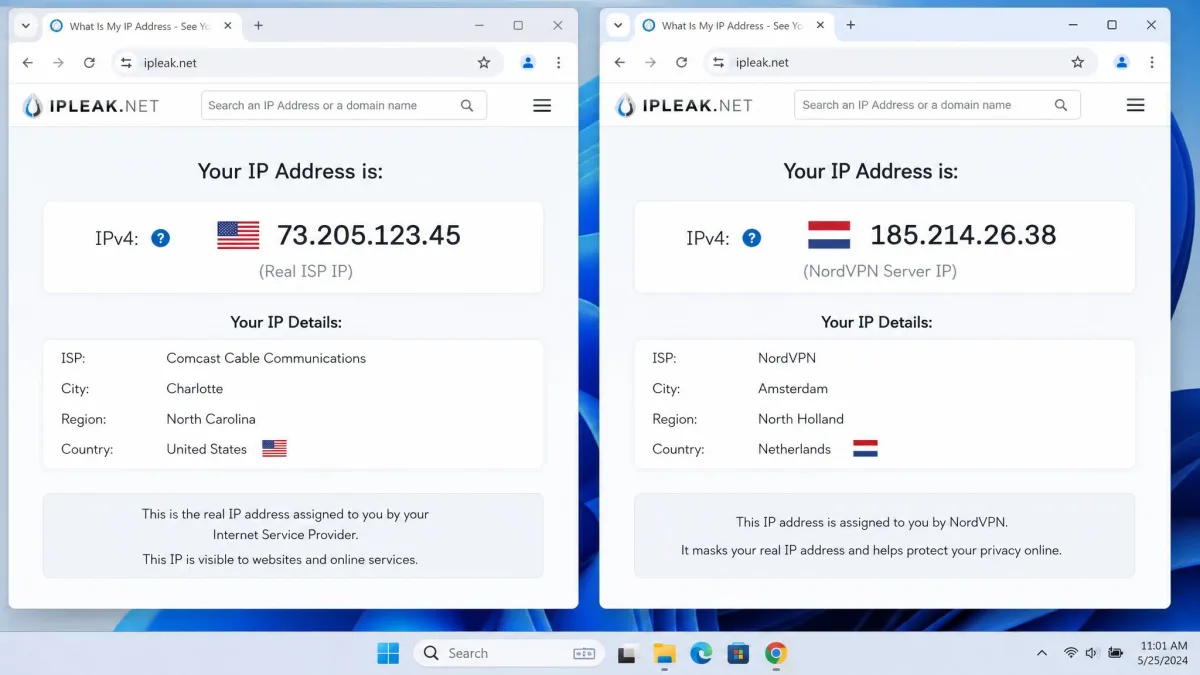
Set an app to exclusion mode, then check its visible IP address. An excluded app should show your real IP, not the VPN server's.
The reverse test works too. For inclusion mode, confirm the listed app uses the VPN IP while everything else uses your real one.
Then run a DNS leak test to make sure your excluded traffic is not leaking through the tunnel. If the results match your intended setup, split tunneling is working.
Extra Tips to Keep Split Tunneling Reliable
A few habits keep the feature stable over time.
Keep the app updated, but check your app list after every update. Updates can quietly reset your rules.
Watch out for IPv6. A device defaulting to IPv6 can misroute traffic so split tunneling looks broken. Temporarily disabling IPv6 restores the expected behavior.
Avoid running two VPNs at once. Only one should manage your routing at a time.
Finally, keep your app rules tidy. Remove apps you no longer exclude, so the list stays easy to audit.
Frequently Asked Questions
Why isn't split tunneling working on Windows?
How do I know which apps are actually being excluded?
Is split tunneling safe to use?
Can I mix protocols within split tunneling?
Does the mobile app offer the same options?
Why does my connection drop when split tunneling is on?
Final Thoughts
Split tunneling is genuinely useful when it behaves, and most breakage is fixable. Start with your platform, then update, reconfigure, and run the app as administrator.
If those steps fall short, a clean reinstall or a protocol switch usually finishes the job. Verify every fix with an IP and DNS check, and you will know it is working rather than just hoping it is.