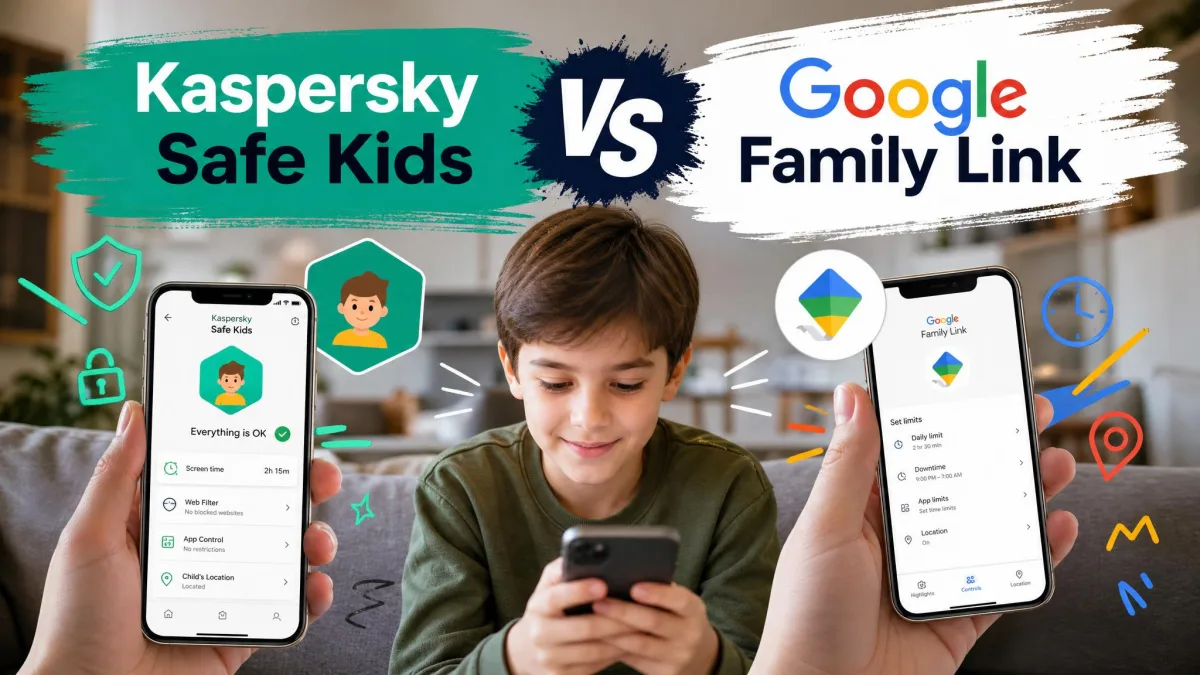
The real difference here is reach. Google Family Link is free supervision that stretches as far as Android and Chrome OS and stops there, while Kaspersky Safe Kids is a paid app that follows a child onto Windows and Mac as well. Both cover the same core ground: web filtering, screen time limits, app controls, and a map showing where the device is.
What separates them is where the coverage stops. Working through both parental control apps and the documentation behind them, the pattern that kept surfacing was not a missing feature list but a set of quiet gaps: settings that reach a child device late, an iPhone that refuses to be supervised, and a free tier that monitors more than it controls. Those gaps decide which app suits your family far more than any feature count does.
Kaspersky Safe Kids vs Google Family Link at a Glance
The table below is the feature-by-feature comparison in short form. Every row reflects what each app actually provides on its current release, taken from vendor documentation and checked against how the features behave in use.
| Product | Kaspersky Safe Kids | Google Family Link |
|---|---|---|
| Price / free tier | Free tier plus paid premium, with a 30-day money-back guarantee | Free, with no paid tier |
| Web filtering | Category filtering across major browsers, not enforced in Safari on iOS | Chrome site filtering plus SafeSearch |
| Screen time limits | Daily limits on all tiers, scheduling on premium only | Daily limits and device bedtime, free |
| App blocking | Full blocking on Android, Windows and macOS, none on iOS | App blocking and Play install approval on Android |
| Location tracking | Child location on a map, premium only | Last-known device location, free |
| Geofencing | Safe-area alerts, premium only | Not offered |
| iOS support | iOS 18 and later, with a heavily reduced feature set | Parent app only, iPhones cannot be supervised |
| Windows/Mac support | Windows 11 and macOS 11 and later | Not supported, Chromebooks instead |
| Real-time alerts | Yes, on premium | Request and setting-change notifications |
| Reports | Web, app, YouTube search and screen time reports | App-by-app activity reports |
| Device limit | Unlimited child profiles and devices on premium | No published limit |
Pricing and Free Plans Compared
Price is the shortest section of this comparison and the one that decides the most. One app charges nothing at all, and the other splits its features across a free tier and a paid one in a way that matters more than the headline number.
What Google Family Link Gives You for Free
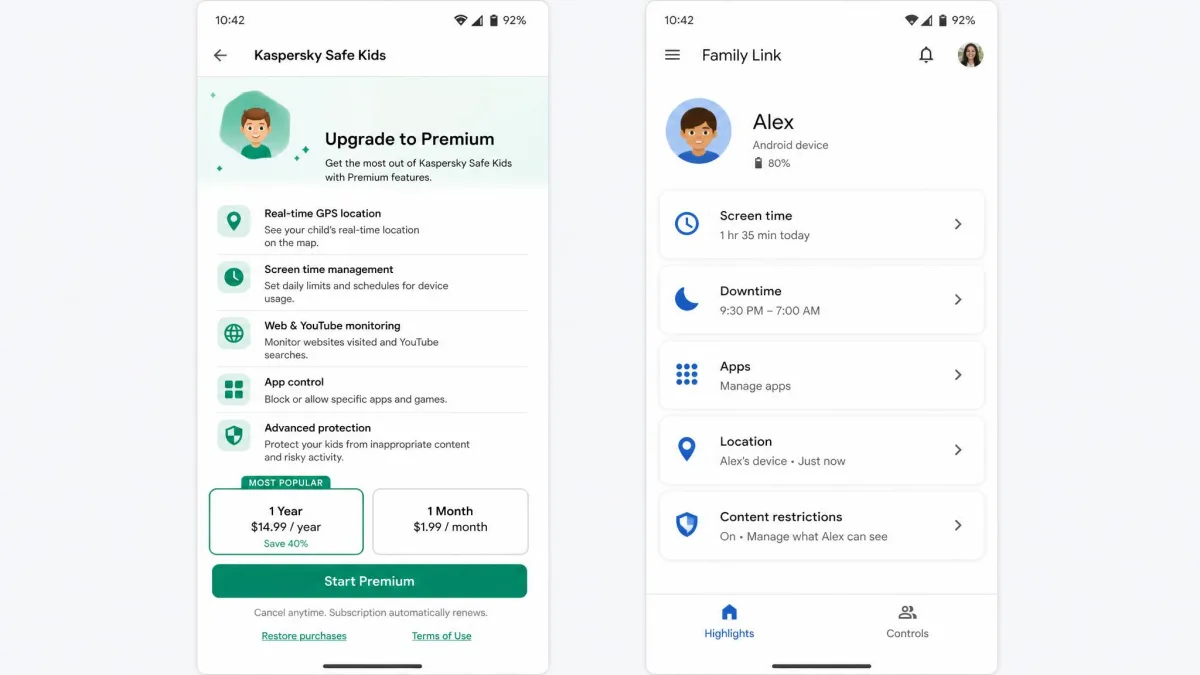
Google Family Link is free to download and use, and there is no paid tier waiting behind any of its features. Every parent gets daily screen time limits, device bedtime, app approval for Google Play downloads, app blocking, Chrome site filtering, SafeSearch, YouTube supervision settings, device location on a map, remote device lock, and activity reports broken down by app. Google does not sell an upgrade because there is nothing held back.
That structure is unusually clean for this category. It also means the ceiling is fixed: if a feature is missing from the free app, no amount of money will add it.
What Kaspersky Safe Kids Free vs Premium Costs
Kaspersky splits the product. A free tier exists alongside the paid premium tier, and the free version includes web content filtering, YouTube safe search, application usage control and basic screen time limits. Premium adds screen time scheduling by device, child location on a map, safe-area geofence alerts, battery-level notifications, YouTube search history and real-time alerts.
That division matters more than it first appears. Kaspersky's free tier drops location, geofencing and scheduling, which leaves it working as a monitoring tool rather than a control tool. Premium runs at roughly $14.99 per year, though the price varies by region and by where you buy it, and promotional first-year rates differ from renewal rates. Kaspersky's Safe Kids page lists a 30-day money-back guarantee, which is enough runway to test geofencing on a real school run before committing.
If a Kaspersky premium subscription lapses, the app keeps running but reverts to the free feature set, and location and scheduling stop working. Nothing announces this loudly, so a parent relying on safe-area alerts can lose them without noticing.
Our comparison draws on both apps' current official documentation for every specification, and on grounded testing observations for anything about how they behave day to day. Where a claim could not be verified against a first-party source, we have said so rather than rounding it into a recommendation.
Web and Content Filtering
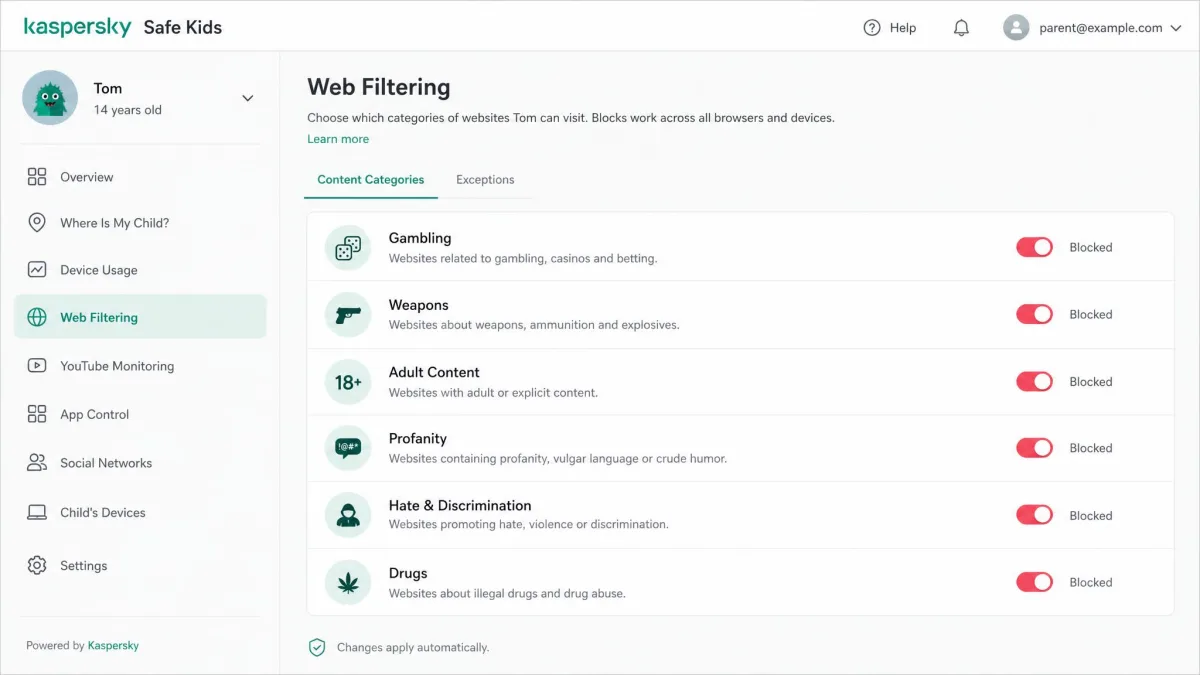
Filtering is where the two apps diverge in method rather than ambition. Family Link filters at the Chrome and Google account level, applying site rules plus SafeSearch to the browser Google controls. Kaspersky filters by content category and applies its rules across Chrome, Edge and Firefox.
Breadth is Kaspersky's advantage and also its weak point. It misses less common browsers, so an unblocked alternative browser is an easy hole in the setup unless you close it in app management first. Family Link sidesteps the problem differently: on a supervised Android device you can simply refuse to approve any other browser from the Play Store, which is blunt but effective.
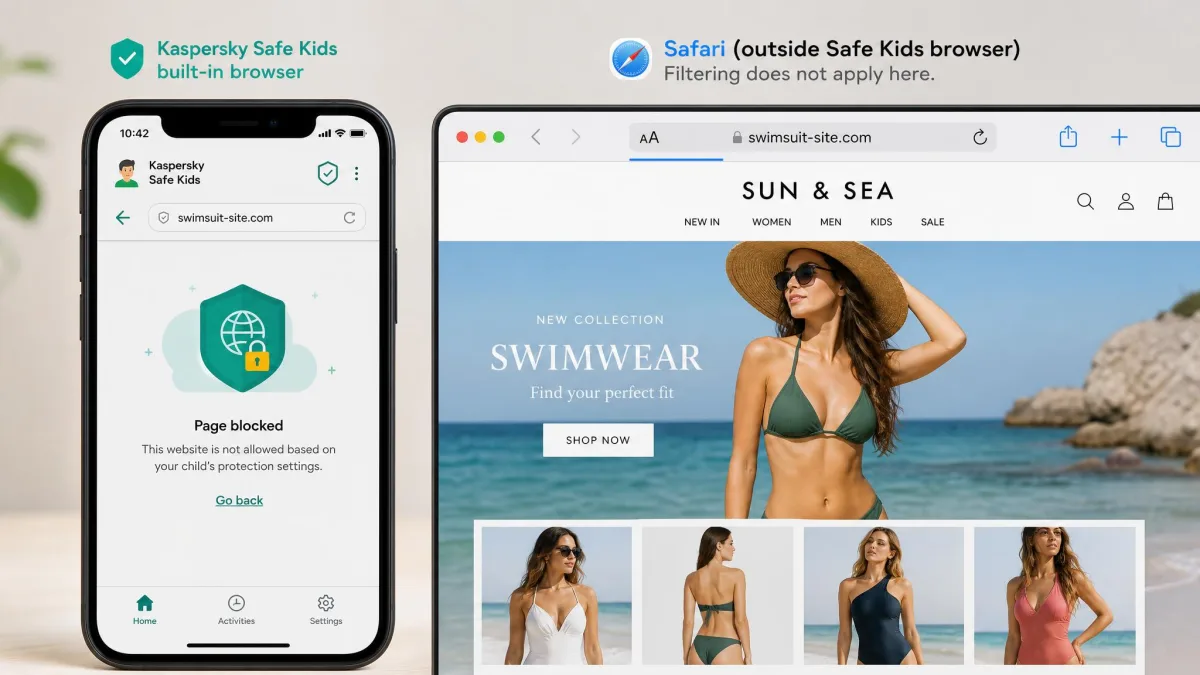
On the iPhone the picture collapses for both. Kaspersky restrictions do not apply inside Safari, so filtering only holds when browsing happens in the Safe Kids app's own browser. Family Link never gets that far, because iPhones cannot be supervised as child devices at all.
Whichever app you choose, block every browser except the one you are filtering before you hand the device back. A single unfiltered browser undoes an afternoon of careful content settings.
Screen Time Limits and Scheduling
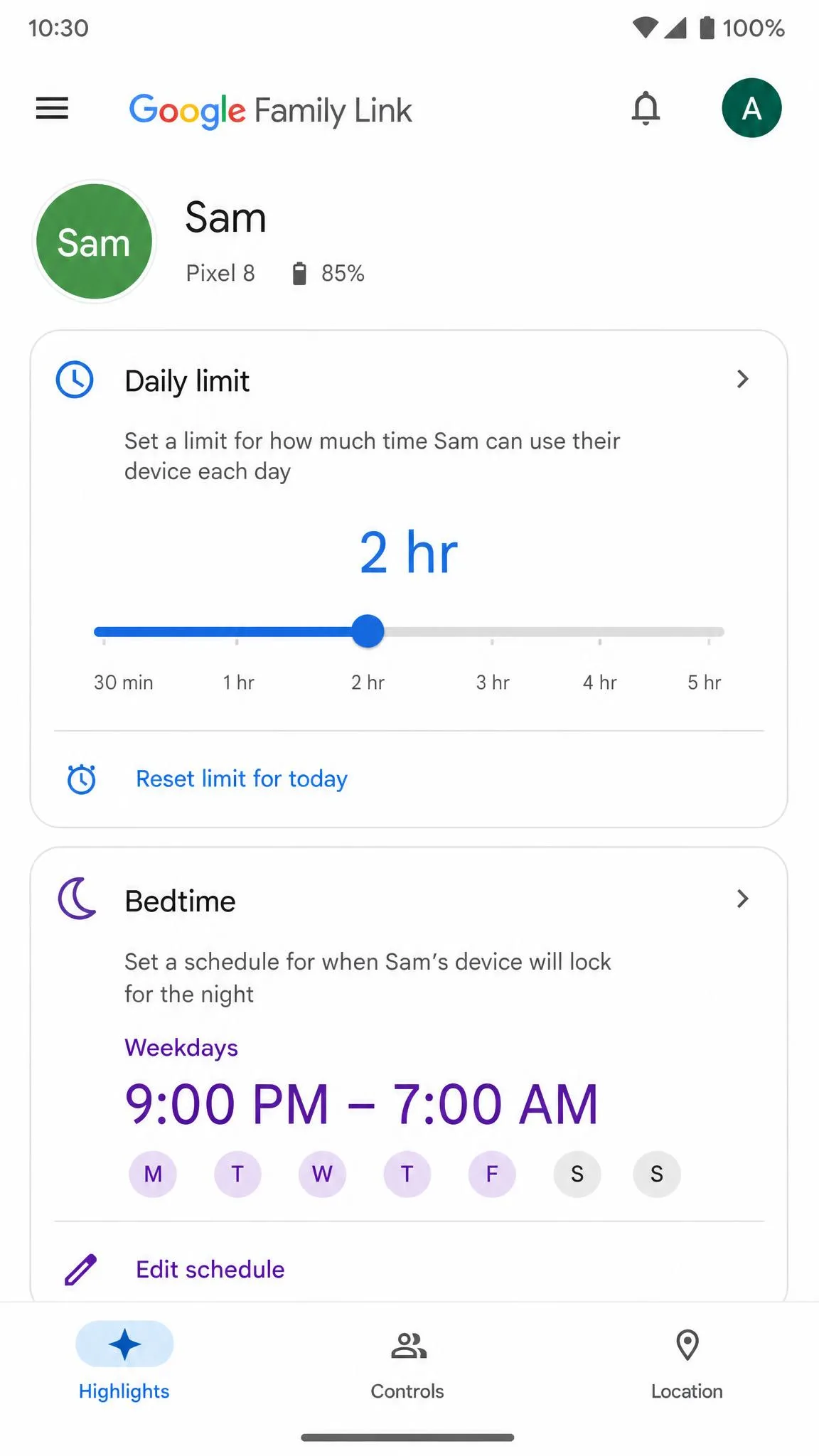
Both apps set a daily screen time budget for free, and that is where the similarity ends. Family Link adds a device bedtime and can lock the device remotely, which covers the two moments most parents care about: the end of the day, and the middle of homework.
Kaspersky keeps basic screen time limits in the free tier but moves scheduling by device into premium. Scheduling is the feature worth paying for if your week has a shape to it, because a blanket two-hour allowance behaves very differently on a Wednesday than on a Saturday.
Neither app offers per-app time limits in the way a dedicated screen time tool does, and Family Link has no per-app limits at all. That gap matters for the child who spends the entire allowance inside one video app. Excessive screen use in early adolescence has been linked to later depression and anxiety, which is a good argument for setting a schedule you can hold rather than a number you renegotiate nightly.
App Blocking and App Management
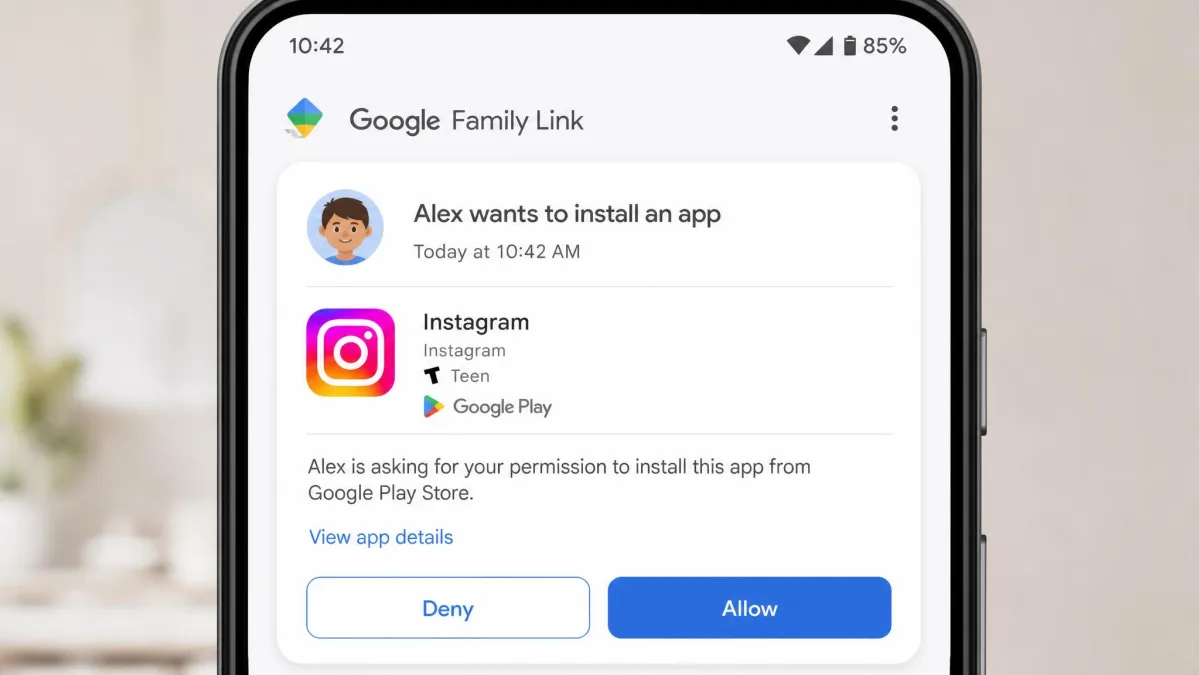
App control is the clearest structural win for Family Link on Android and the clearest win for Kaspersky everywhere else. On a supervised Android phone, Family Link requires your approval before a child can download anything from Google Play, and you can block installed apps individually from the parent app.
Kaspersky blocks apps fully on Android, Windows and macOS, and its application usage control sits in the free tier rather than behind the paywall. On iOS it offers nothing here, because app blocking and install prevention are simply unavailable.
There is a practical caveat on both. Published Family Link workarounds circulate freely, including hiding apps inside a Samsung Secure Folder, so a determined teenager can find a route around the limits. We cover the mechanics in our guide to how kids bypass Google Family Link, and the honest summary is that app blocking works on a cooperative child and only slows down an uncooperative one.
Location Tracking, Geofencing and Real-Time Alerts
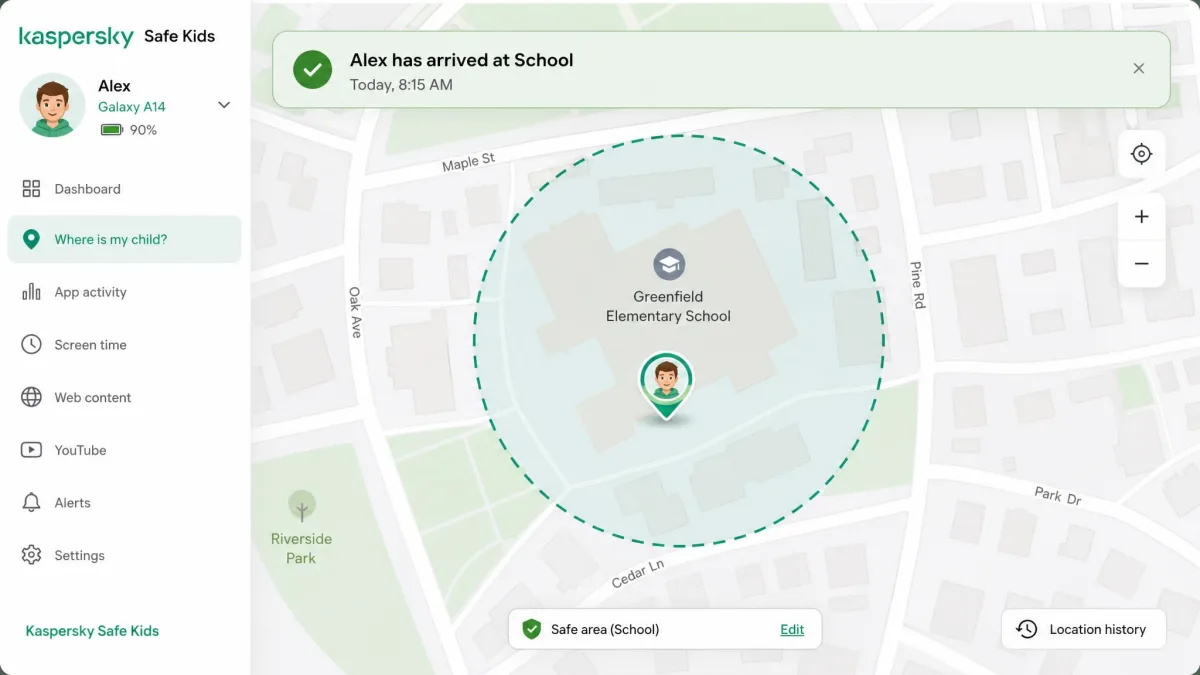
This is the single biggest functional gap between the two apps. Family Link shows the device on a map for free, but it shows a last-seen pin rather than a route history, and that pin goes stale when the child's phone loses signal or runs out of battery. There are no arrival or departure alerts, so a parent has to open the app and look rather than being told.
Kaspersky puts location behind premium and gives you considerably more for it: child location on a map, safe-area geofence alerts, battery-level notifications and real-time push alerts. Knowing that a phone arrived at school without opening an app is a different experience from checking a pin, and it is the reason most parents end up paying.
Family Link tells you where a phone was the last time it checked in. Kaspersky tells you when a phone arrives somewhere.
— From our feature-by-feature comparison
Device and Platform Support: Android, iOS, Windows and Mac
Platform coverage decides this comparison for most mixed-device households. Kaspersky Safe Kids runs on Windows 7, 8, 8.1, 10 and 11, on macOS 11 through 14, on Android 11 and later, and on iOS 18 and later. Family Link supervises child devices running Android 7.0 or later, with Android 5.0 and 6.0 still accepting some settings, and it supports full supervision on Chromebooks including site and account management. The parent app itself runs on Android 5.0 and later.
Family Link has no Windows or macOS support of any kind. If your child does homework on a laptop, that is the end of the conversation. A parent app is also available on iPhone, though the minimum iPhone version has moved with app updates, so older iPhones may no longer install it.
How Each App Handles iPhone and iPad Limitations
Neither app supervises an iPhone the way it supervises an Android phone, and it is worth being blunt about why. Family Link cannot supervise iPhones or iPads as child devices at all, and only YouTube and Google Search account settings carry over.
Kaspersky technically installs, but the feature set shrinks hard. App blocking and install prevention are unavailable, Safari filtering is not enforced, and screen time limits only suggest a stop rather than locking the device, so a child can keep going past the limit. Setting it up on an iPhone is noticeably more involved than the Android flow and delivers less once it is finished. For an iPhone household, Apple's Screen Time remains the more capable control layer, with either app layered on top for reporting rather than enforcement.
Setup and Ease of Use for Parents
Platform coverage settles which app can watch a device at all; setup settles how much work that takes, and it is where the two apps feel most different in the hand. Family Link runs the whole process through the child's Google account, which goes smoothly when the device is new and awkwardly when it is not, because a phone already signed in to an unsupervised adult-style account needs that account removed before supervision applies. Parents inheriting a hand-me-down phone hit this first and hardest.
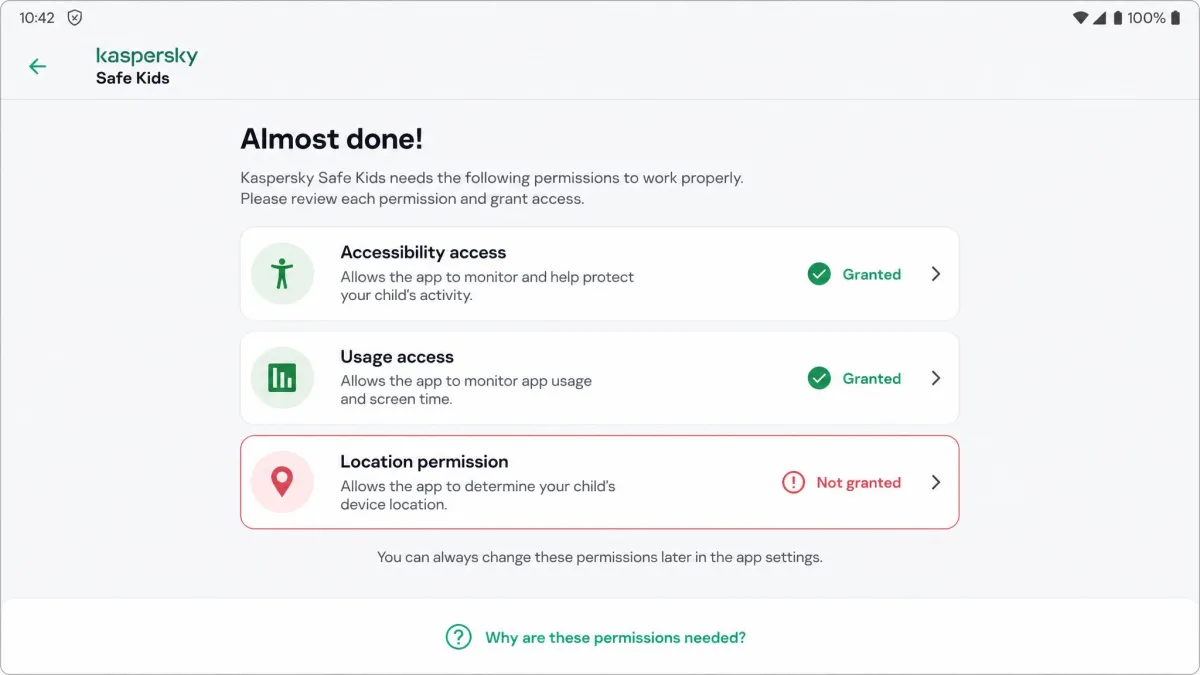
Kaspersky's Android setup takes several separate permission grants, including accessibility access, and skipping one leaves filtering silently inactive. That silence is the problem. Nothing in the parent dashboard flags a half-finished install, so the first sign of trouble is a site that should have been blocked showing up in a report.
After setting up either app, spend two minutes on the child's device trying to open a site you have blocked and an app you have restricted. Confirming the rules from the child's side catches a missed permission immediately.
Monitoring, Reports and Notifications
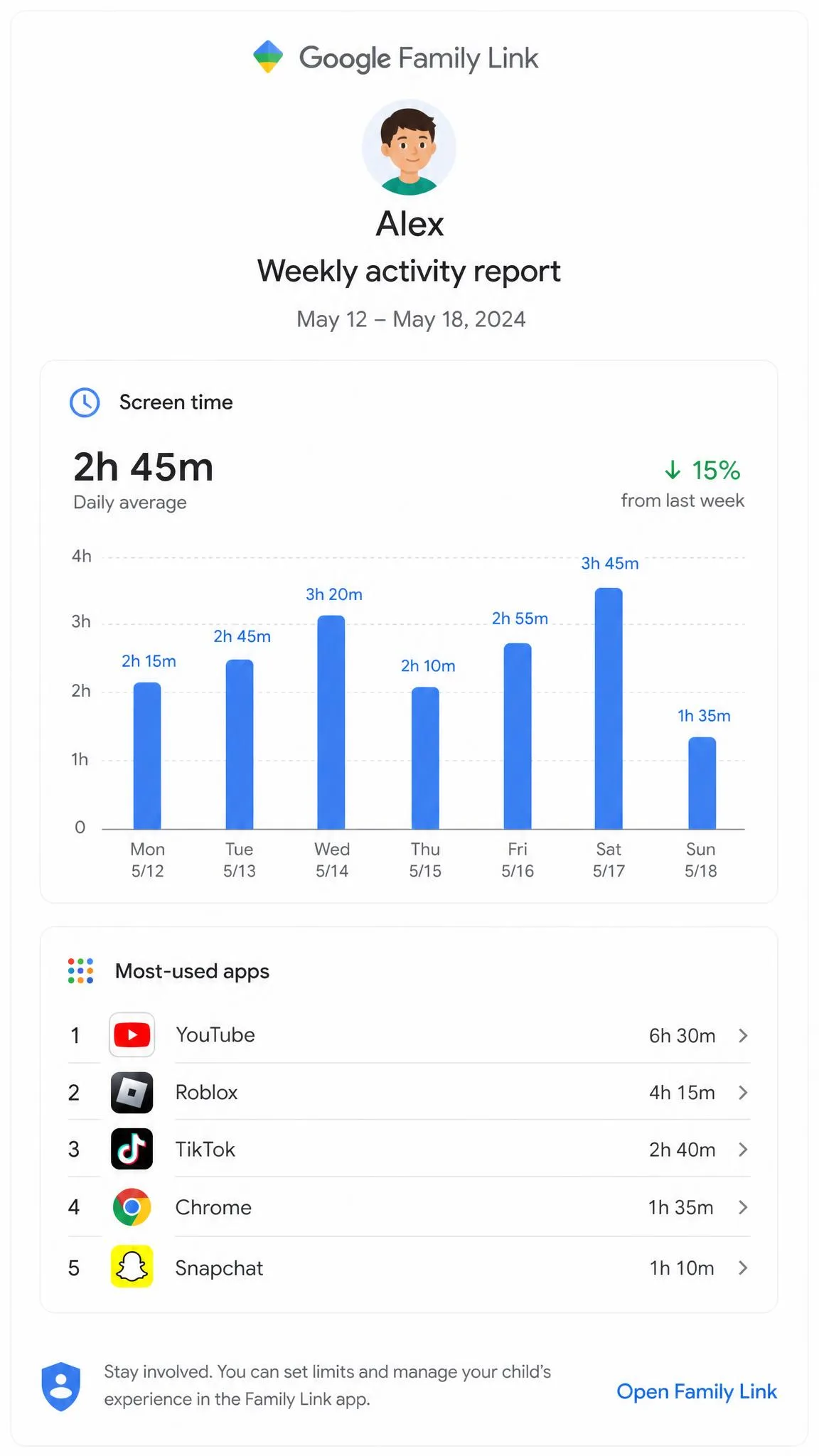
Once both installs are clean, reporting is the quieter half of parental controls and the half most parents actually use daily. Family Link sends notifications for app install requests, blocked-site access requests, activity control changes, location setting changes and location alerts, and some of those notifications cannot be turned off. Its activity reports break screen use down app by app.
Kaspersky reports across more surfaces, covering web activity, app usage, YouTube search history and screen time, with real-time push alerts on premium. It also provides a separate teen dashboard so an older child can see what is being recorded, which takes some of the heat out of the conversation.
Both apps stop at the same wall. Family Link blocks or unblocks whole social apps but cannot see what is being said inside them, so message-level worries stay invisible, and Kaspersky does not read messages either. If you want to know what each service holds on your child, Google documents what data Family Link collects in its child privacy policy.
Pros and Cons of Each App
Google Family Link Pros and Cons
Pros
- Genuinely free, with no paid tier and no held-back features
- Deep Android and Chrome OS integration, including Play install approval
- Device bedtime and remote lock in the free app
- Clear app-by-app activity reports
Cons
- No Windows or macOS support at all
- No geofencing, and no arrival or departure alerts
- Location is a last-seen pin with no route history
- Can pause a device unexpectedly right after it is switched on, and the parent app sometimes closes on its own
Kaspersky Safe Kids Pros and Cons
Pros
- Covers Windows 11 and macOS 11 alongside Android and iOS
- Safe-area geofencing with real-time alerts on premium
- Age-tailored setting presets for 3-5, 6-12 and 13-18 year olds
- Filters Chrome, Edge and Firefox by content category
- 30-day money-back guarantee on the paid tier
Cons
- Location and scheduling sit behind the premium tier
- Android setup needs several permission grants and fails quietly if one is missed
- Very limited on iPhone, with advisory rather than enforced screen time
- Premium pricing varies by region and by seller
Alternatives Worth Considering
If neither app fits, the category has specialists worth a look. Bark focuses on message and social content monitoring, which is exactly the gap both of these apps leave open. Qustodio and Net Nanny sit closer to Kaspersky in scope, with more detailed web filtering reports. Norton Family bundles supervision with a security suite, and Mobicip aims at families running a mix of school-issued Chromebooks and personal phones.
We have compared Safe Kids directly against most of them in Kaspersky Safe Kids vs Norton Family, Kaspersky Safe Kids vs Qustodio, Kaspersky Safe Kids vs Bark, Kaspersky Safe Kids vs Net Nanny and Kaspersky Safe Kids vs Mobicip. For the individual verdicts, see our Kaspersky Safe Kids review and Google Family Link review.
Which One Should You Choose?
The decision splits cleanly along the devices in your home, not along the feature lists.
Choose Google Family Link If...
Every device your child uses runs Android or Chrome OS, no subscription is going to survive the family budget conversation, and the behaviour you care most about is what gets downloaded rather than where the phone goes. That shape of household usually means younger children, one or two hand-me-down phones and a school Chromebook. The trade you accept is patience: settings changed in the parent app can take a while to reach the child device instead of applying instantly, and you are agreeing to live inside a feature list that will never grow.
Choose Kaspersky Safe Kids If...
Your household spreads across operating systems, or your week has a shape to it that a single flat daily allowance cannot express, or your child travels between home, school and clubs without you along. That is the family with a homework laptop, a phone and a tablet, often with children of different ages under one set of rules. The trades you accept are a yearly bill, a longer Android setup with several permission grants to get right, and features that stop working the moment a subscription lapses.