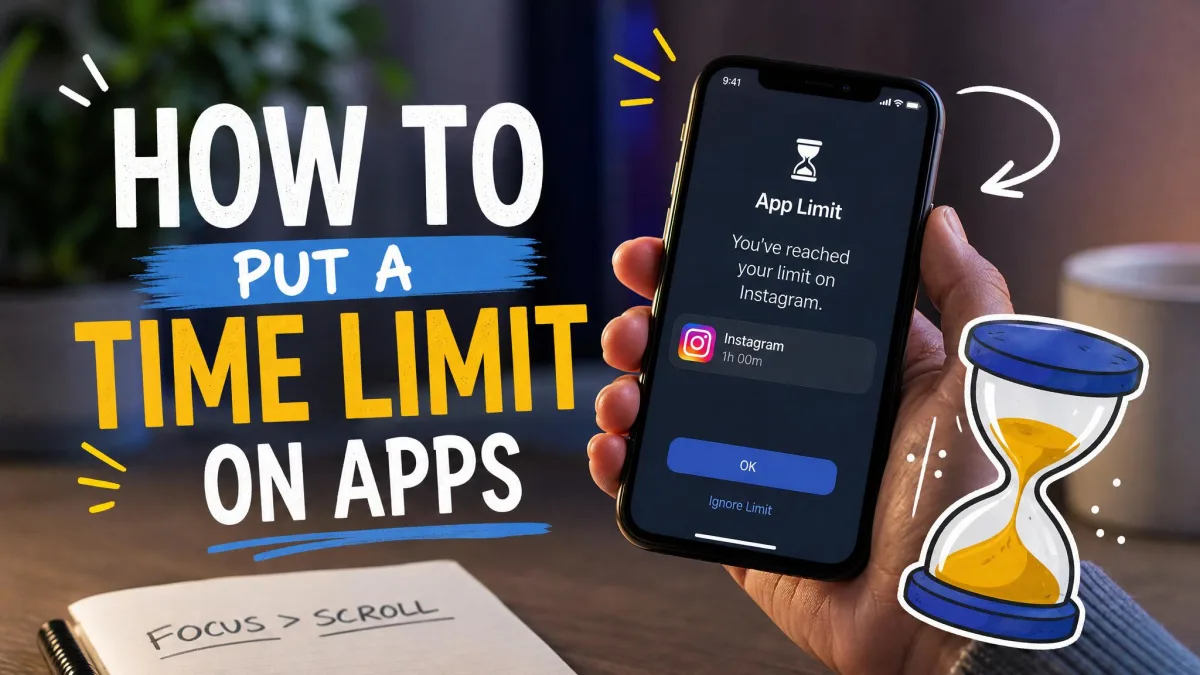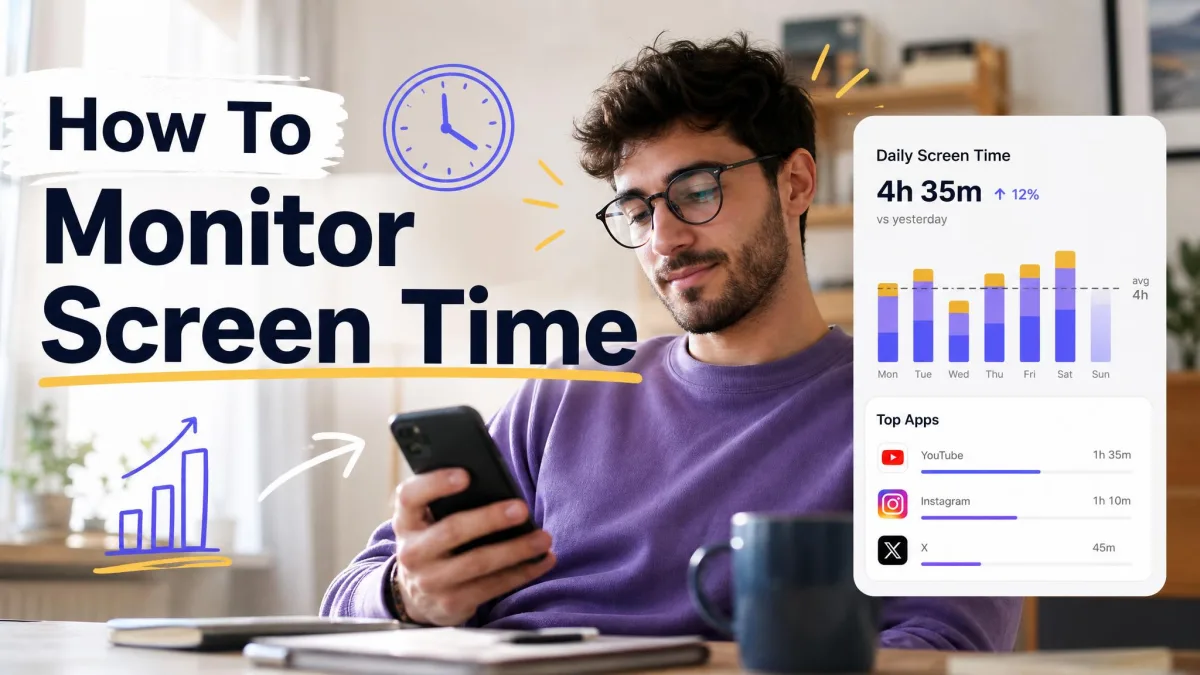
Setting a screen time limit is easy. Making it stick is the hard part, and that is where most families and most adults quietly give up. A daily limit gets tapped away in a second, a bedtime schedule stops applying after a phone update, and within a fortnight everyone is back where they started. We spent our testing time on exactly that gap, installing each app on real family devices and then trying to break the limits the way a motivated eleven year old would.
This guide covers eight apps, from the free tools already sitting on your phone to paid parental control suites and focus apps built for adults who want to limit their own use. For each one you get the features that matter, honest pros and cons, current pricing, and a plain answer on who should skip it. If you want the reasoning behind the ranking first, our testing method is set out further down.
Quick Picks: Best Screen Time Apps at a Glance
If you want a decision rather than a comparison, start here. Families running a mix of iPhones and Android phones should look first at Qustodio, because it is the only pick that enforces daily limits and web filtering across every major platform under one account. Households entirely on iPhone and iPad rarely need to pay anything, since Apple's built in controls already handle limits, downtime and content restrictions, and parents of Android kids get the same deal free from Google Family Link.
Bark is the pick when what worries you is not the number of hours but what your child is reading and sending. If the person you are trying to manage is you, Freedom is the one we reach for on a laptop and phone together, with Opal, ScreenZen and Forest each solving a narrower slice of the same problem.
Quick Comparison Table
| App | Platforms | Free tier | Time limits/schedules | App and web blocking | Best for | Price |
|---|---|---|---|---|---|---|
 |
iOS, Android, Windows, Mac, Chromebook, Kindle | Yes, 1 device | Daily and per-app limits, restricted times | Yes, both | Families overall | $59.95/yrBasic (5 devices) |
 |
iOS, iPadOS, macOS | Yes, fully free | Downtime, App Limits | App limits plus content restrictions | iPhone and iPad households | $0 |
 |
Android, Chromebook (parent app on iOS) | Yes, fully free | Daily limits, bedtime, per-app limits | App blocking plus Search and YouTube filters | Android kids | $0 |
 |
iOS, Android, Windows, Mac, Chromebook | No, 7-day trial | Schedules and device pause, no per-app minutes | Website and app category filtering | Monitoring plus limits | $49/yr Jr, $99/yr Premium |
 |
macOS, Windows, iOS, Android, Chromebook | Yes, limited | Scheduled and recurring sessions | Yes, both | Adults across devices | $3.33/moyearly, $99.50 forever |
 |
iOS, Android, Mac | Yes, 1 Rule | Scheduled sessions and rules | App blocking, Allow Only | iPhone focus sessions | $99.99/yr,$399 lifetime |
 |
iOS, Android | Yes, fully free | Daily limits and open-count caps | App interception | Curbing social scrolling | $0 |
 |
iOS, Android, Chrome | Android free with ads | Focus timer sessions | Whitelist during sessions | Building habits | $3.99one-time on iOS |
1. Qustodio - Best Overall for Families
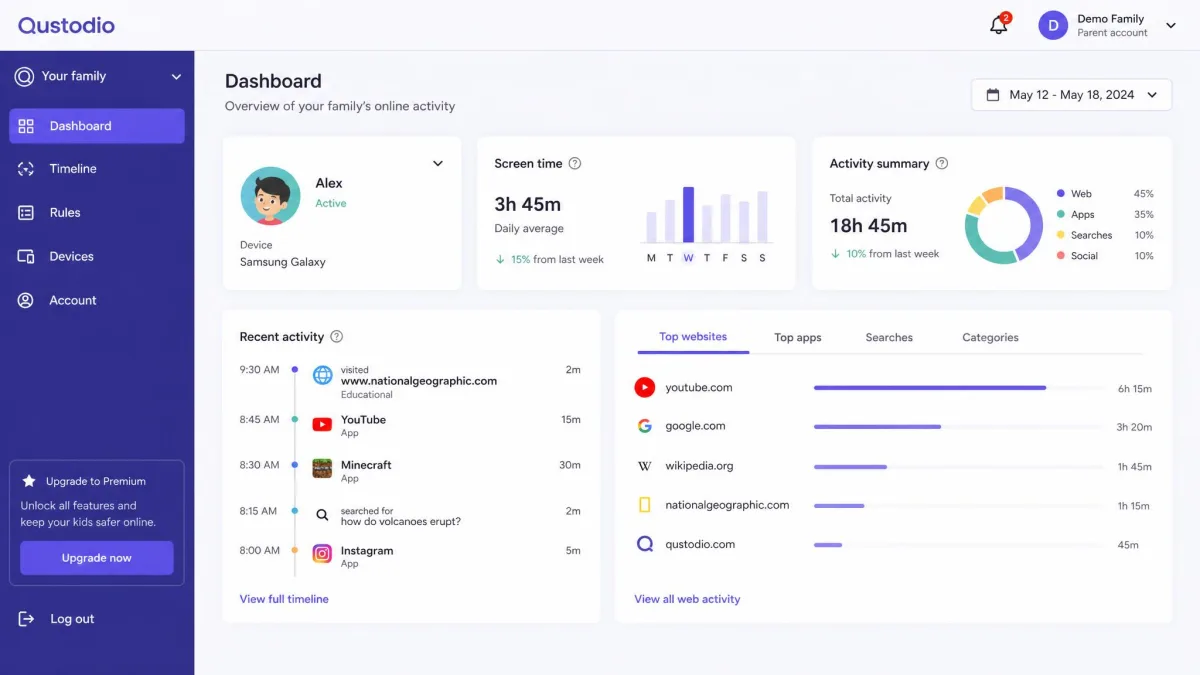
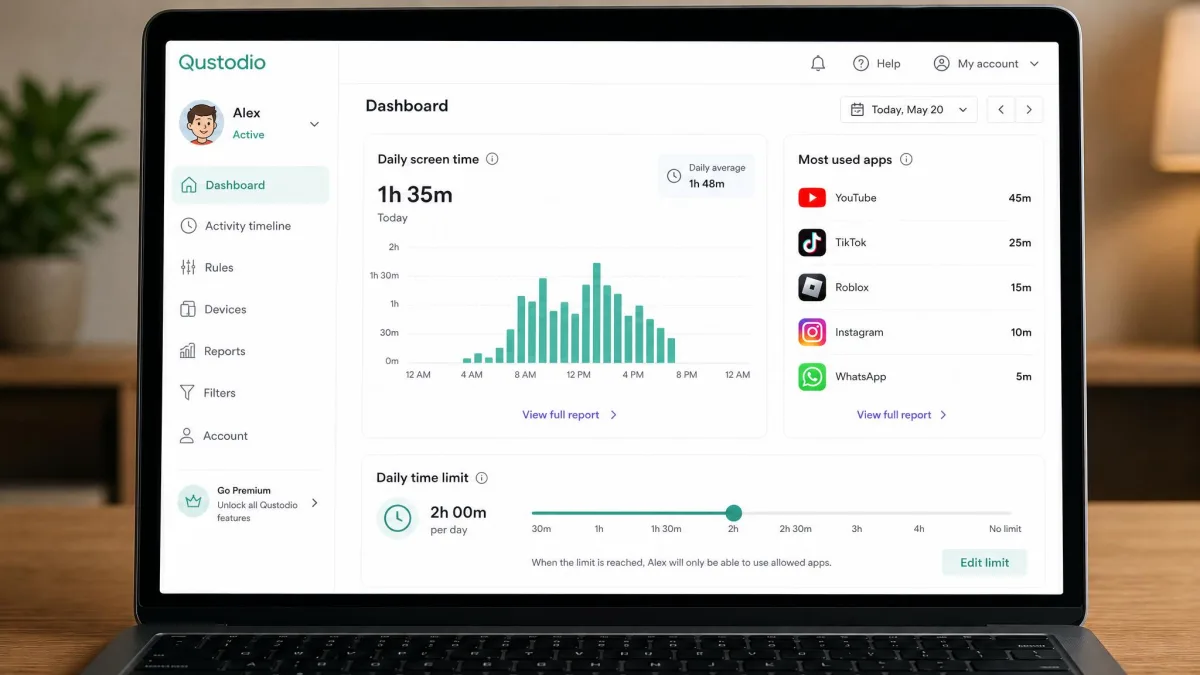
Qustodio is the app we would set up first in a household with more than one child and more than one kind of device. It runs on iOS, Android, Windows, Mac, Chromebook and Kindle, and the same rules follow a child from a phone to a school laptop without you rebuilding them twice. The parent dashboard is calm and readable, which matters more than it sounds when you are adjusting a bedtime lock at ten at night.
Enforcement quality depends heavily on the platform. Web and app filtering is far more complete on Android, Windows and Chromebook than on iOS, where Apple's platform rules cut the feature set back, so an all-iPhone family gets less out of a paid plan than a mixed household does. Battery is the other trade-off: the VPN profile Qustodio installs and its continuous location tracking noticeably shorten battery life on older phones, while newer hardware absorbs the load with little visible difference.
Key Features
- Daily screen time limits and per-app time limits, set separately for each child
- Restricted time schedules for school hours and bedtime
- App blocking and web filtering by category
- Activity reports covering apps, sites and YouTube viewing
- Location tracking and a panic button on supported devices
- One account covering iOS, Android, Windows, Mac, Chromebook and Kindle
Pros and Cons
Pros
- The widest device coverage of any app here, including Chromebooks and Kindles
- Daily limits and per-app limits both work, not just one or the other
- Clear activity reports that show where the time actually went
- 30-day money-back guarantee on premium plans
Cons
- Filtering is noticeably weaker on iOS than on Android or Windows
- The VPN profile and GPS tracking cost battery life on older phones
- Billing and cancellation friction, plus slow support replies, come up repeatedly in its public review pages
Pricing
The free plan protects 1 device with basic safety features, enough to try the dashboard but not to run a household. Basic is $59.95 per year and covers up to 5 devices, and that is the tier most families should buy. Complete adds unlimited devices and is listed at $104.95 per year on Qustodio's own page, though the Complete tier's list price moves with regional and promotional pricing, so check the current figure at checkout. Care Plus priority support is a $12.99 add-on on Basic and is included with Complete. Premium plans carry a 30-day money-back guarantee.
2. Apple Screen Time - Best Free Option for iPhone and iPad
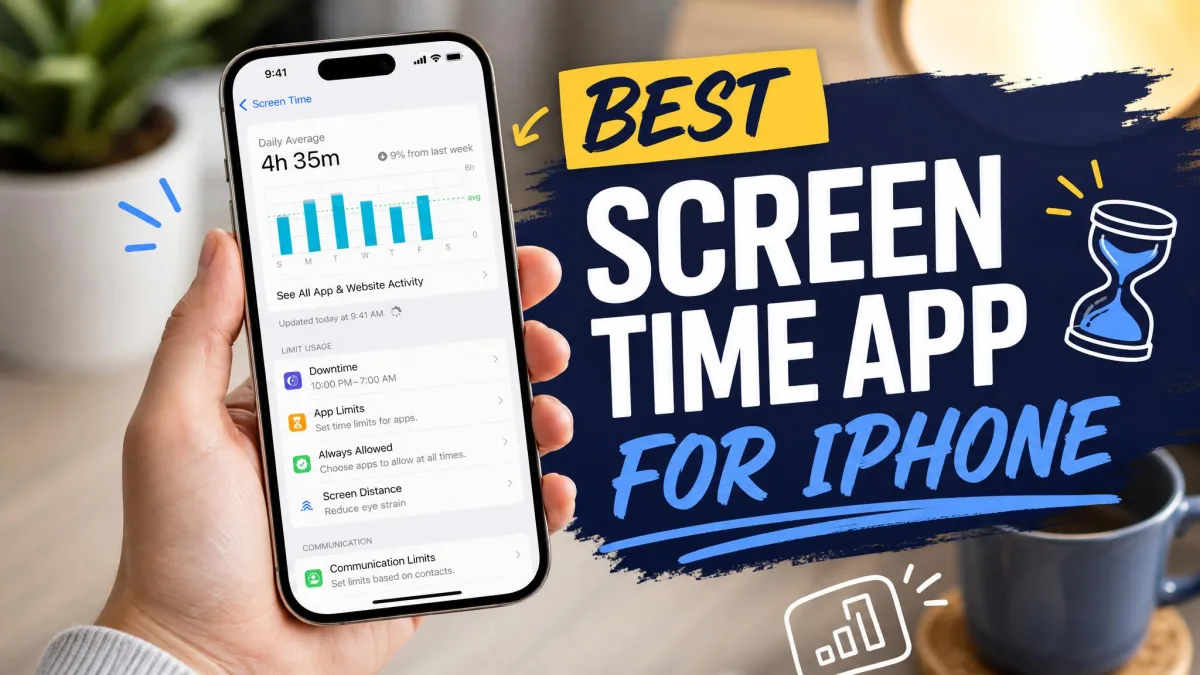
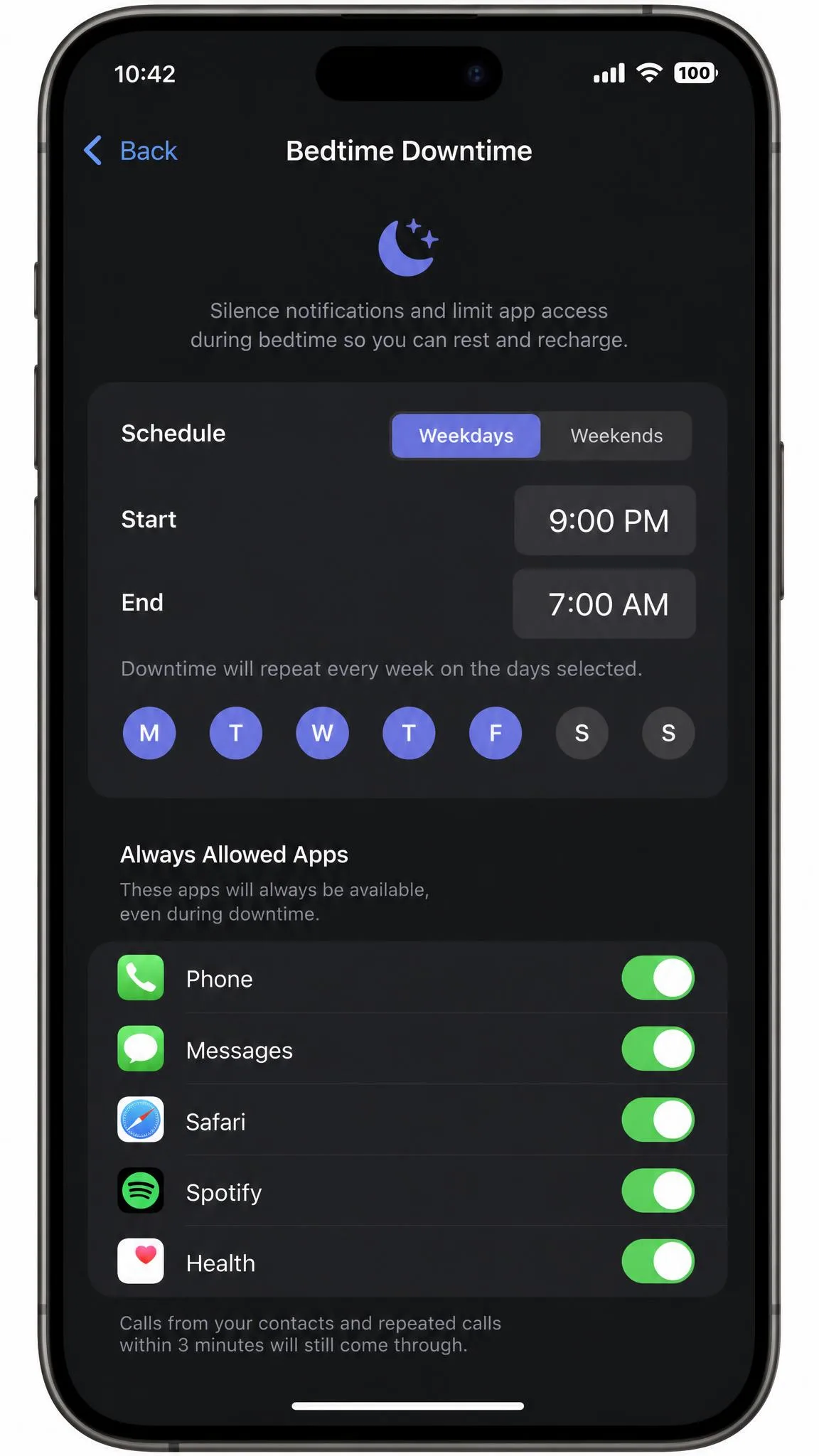
If everyone in your family is on Apple hardware, start with what you already own. Apple Screen Time is built into iOS, iPadOS and macOS at no cost, and it covers Downtime schedules, App Limits by category or by individual app, an Always Allowed list, Communication Limits, and Content and Privacy Restrictions. Through Family Sharing a parent can set and change all of it remotely from their own iPhone.
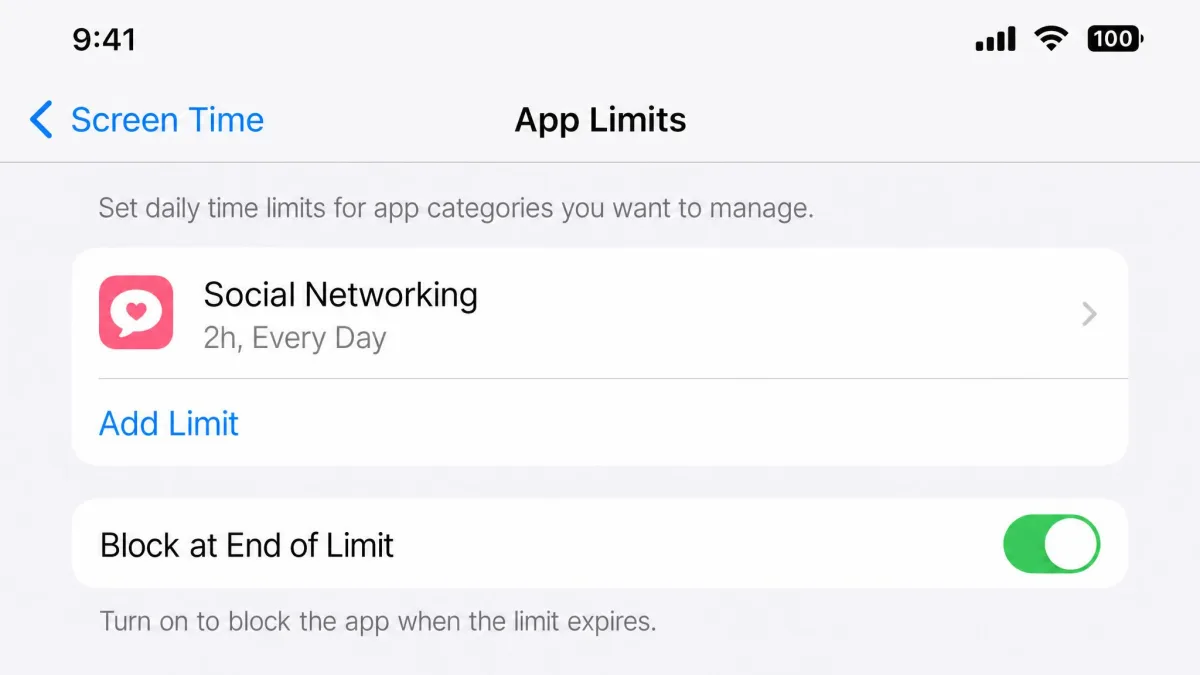
The catch is the default configuration, and it is a big one. The App Limit screen offers a one-tap Ignore Limit option, and a child can take 15 more minutes or waive the limit for the rest of the day without ever being asked for a passcode. Turning on Block at End of Limit inside App Limits closes that escape hatch, but it is off by default, so most parents never find it and quietly conclude the limits do not work.
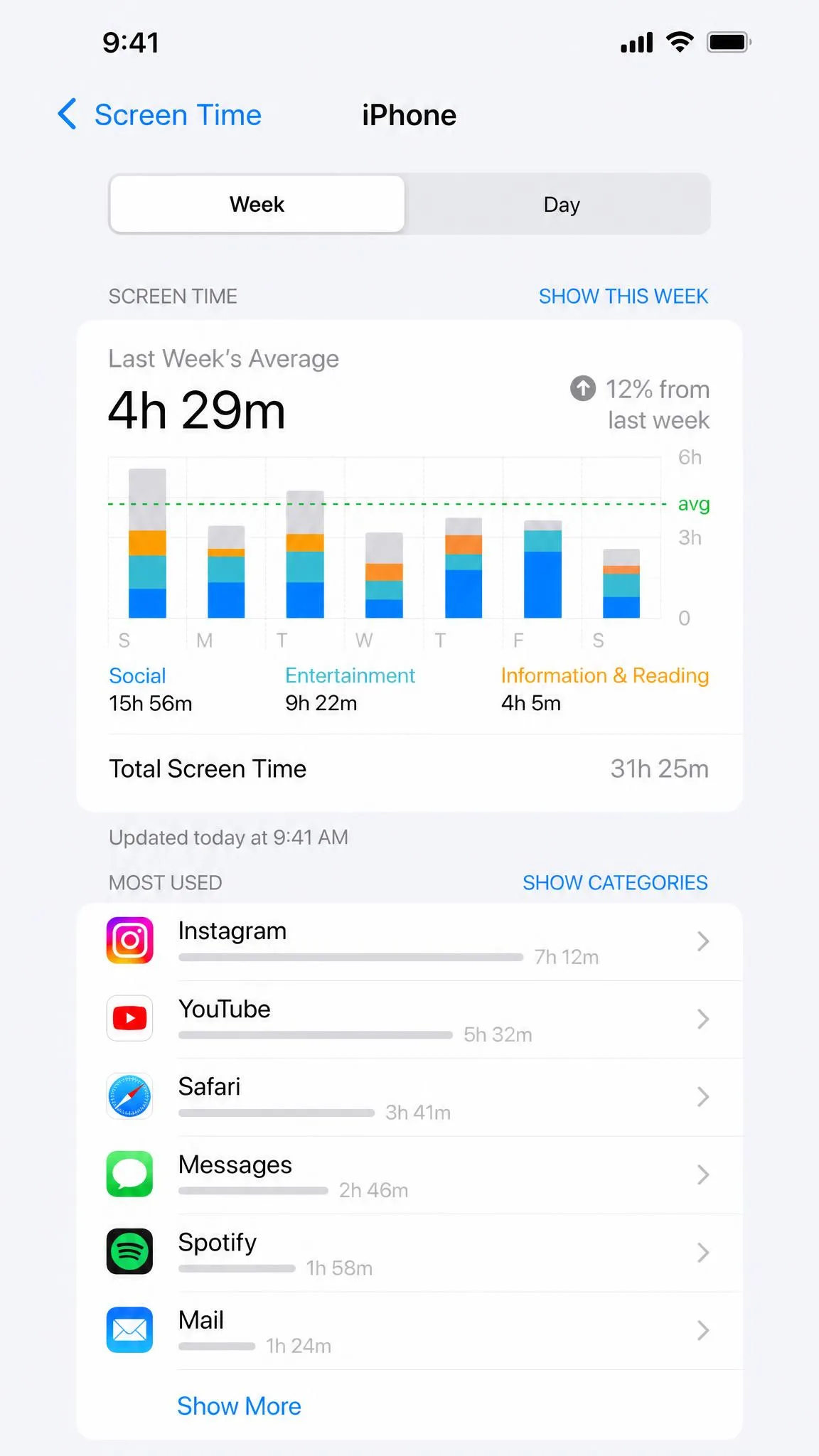
Reporting is the other honest limitation. Screen Time tells you how long an app was open, never what was viewed inside it. Limits also stop applying now and then after an iOS update or a Family Sharing sync hiccup, and switching Screen Time off and back on is usually the only fix.
Before you trust an App Limit, open Settings, tap Screen Time, choose App Limits, and turn on Block at End of Limit. Leave it off and any limit you set is a suggestion your child can wave away in one tap.
Key Features
- Downtime schedules that grey out apps outside allowed hours
- App Limits by category or for one specific app
- Always Allowed list so calls and messages survive downtime
- Communication Limits controlling who a child can contact and when
- Content and Privacy Restrictions for age ratings, purchases and web content
- Weekly activity reports and a separate Screen Time passcode
Pros and Cons
Pros
- Completely free and already on every iPhone, iPad and Mac you own
- Deeply integrated, so nothing extra to install on the child's device
- Remote management from a parent's phone through Family Sharing
- Content and Privacy Restrictions go well beyond time limits
Cons
- The Ignore Limit escape is on by default and hands control back to the child
- Reports show time in an app, never what happened inside it
- Limits can stop applying after an iOS update until you toggle Screen Time off and on
- Nothing here helps with an Android phone or a Windows PC
Pricing
Free. Screen Time is part of iOS, iPadOS and macOS, so the cost is $0 with nothing to subscribe to. For an all-Apple family that only needs daily limits, bedtime downtime and content filtering, it is the whole answer.
3. Google Family Link - Best Free Option for Android Kids
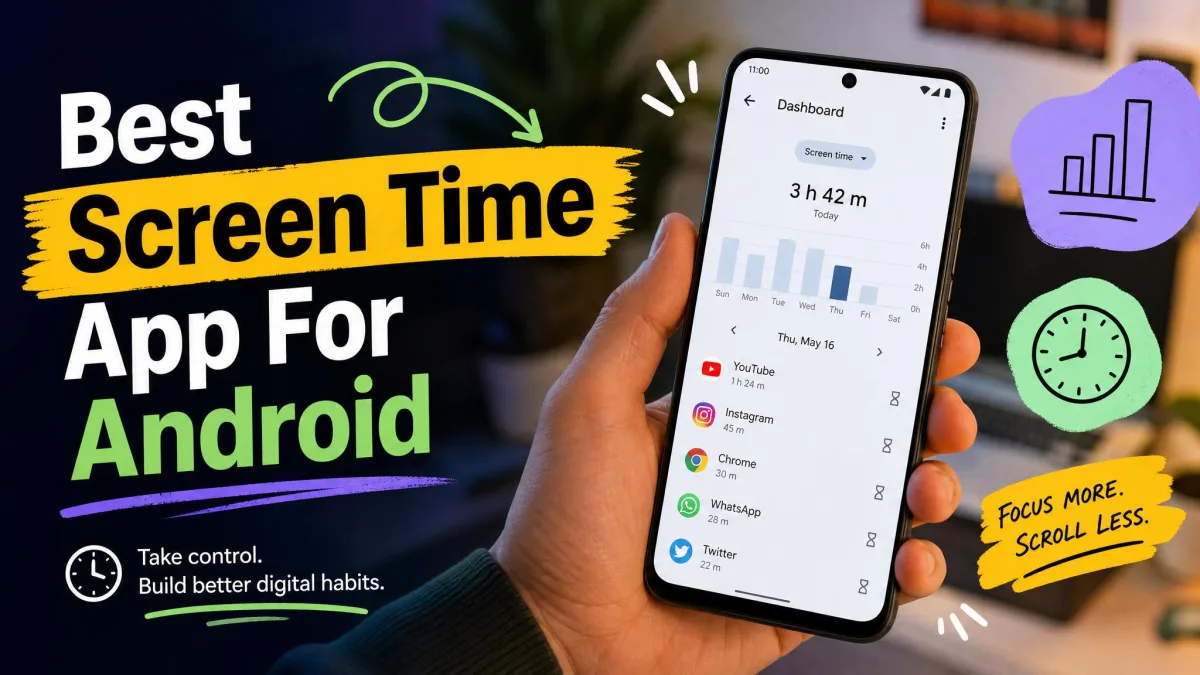
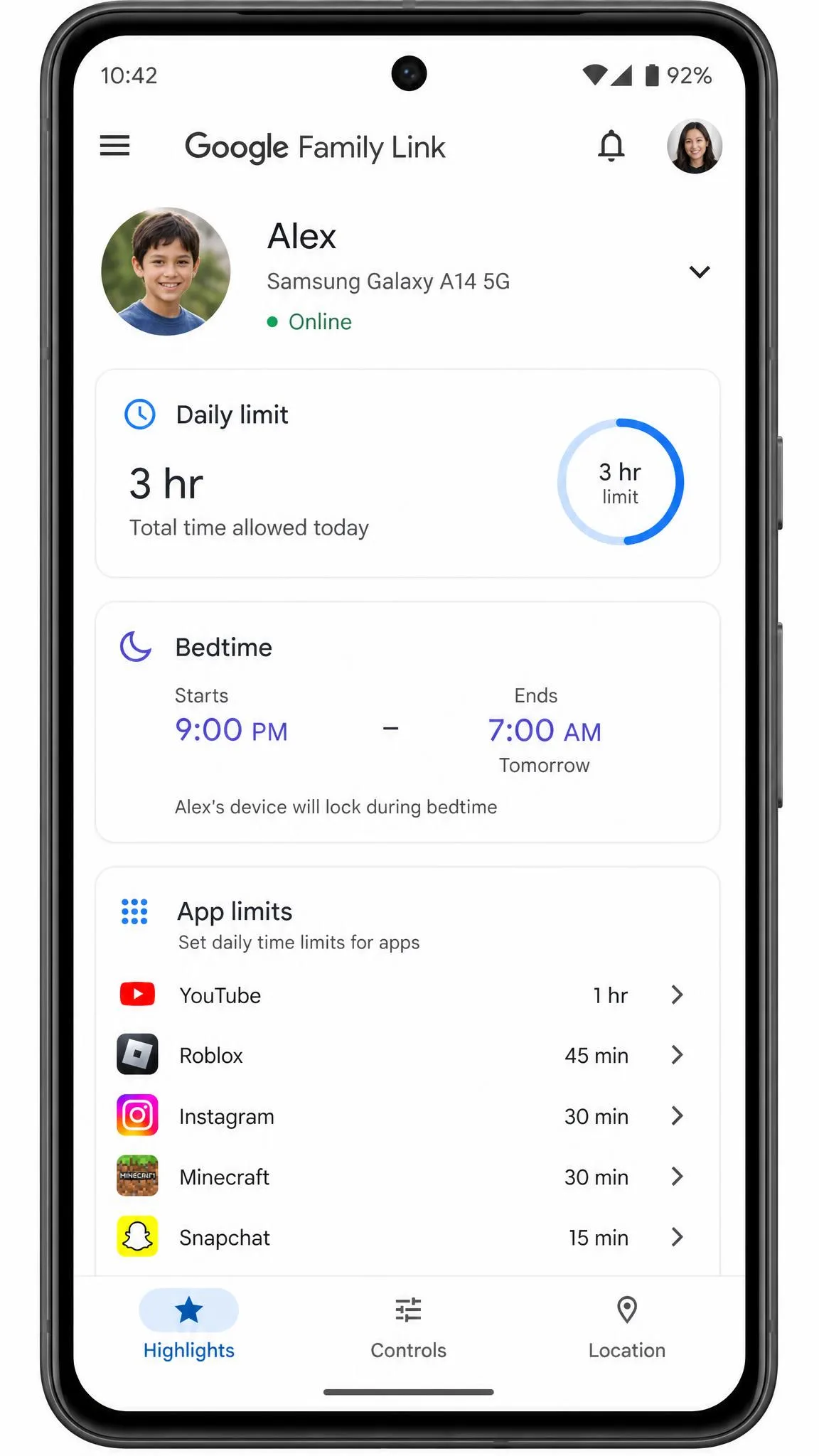
Google Family Link is Android's equivalent and it is more capable than most parents realise. You get daily screen time limits that can differ by day of the week, per-app time limits, a bedtime lock that puts the device to sleep, bonus time when homework runs long, remote lock and unlock, app install approvals, and content filters for Search, YouTube and the Play Store. It is free to download from Google Play and time limits work on child devices running Android 7 and up.
Enforcement is solid but not instant. Changes such as removing a limit or granting bonus time can take a few minutes to reach the child's device, which is worth knowing before you promise a teenager an extra half hour, and we hit occasional oddities such as a device pausing itself shortly after being powered on.
The bigger limit is platform reach. On a child's iPhone or iPad, Family Link cannot set screen time limits or block apps at all, so a mixed-device household needs a second tool. Approval requests also do not reliably reach parents who run the family from an iPhone.
Key Features
- Daily screen time limits that vary by day of the week
- Per-app time limits and app blocking
- Bedtime downtime that locks the device on a schedule
- Bonus time granted remotely from the parent app
- App install approvals and content filters for Search, YouTube and Play
- Location and activity reports
Pros and Cons
Pros
- Free, with no paid tier and no upsell
- Per-app limits and bedtime locks that hold on Android
- Bonus time makes exceptions easy without dismantling the rules
- Deep control over what a child can install and search for
Cons
- Cannot set limits or block apps on a child's iPhone or iPad
- Changes can take several minutes to reach the child's device
- Approval requests are unreliable when the parent manages from an iPhone
- Occasional glitches, such as a device pausing right after startup
Pricing
Free. There is no premium tier, no trial to expire and no per-device charge, so three Android kids cost exactly what one does.
4. Bark - Best for Monitoring Plus Time Limits
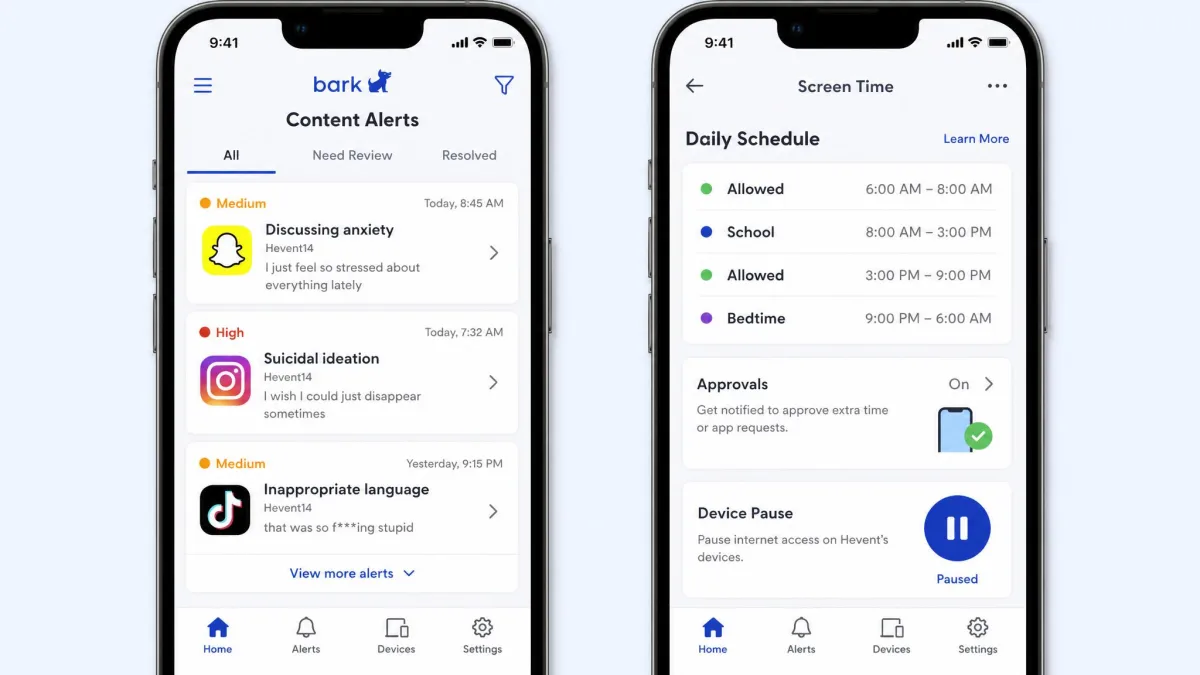
Bark answers a different question from the rest of this list. Instead of asking how many hours your child spent on a device, it watches what they are actually saying and seeing, scanning texts, email and a long list of social platforms and alerting you when something looks like bullying, self-harm, predation or explicit content. Screen time management comes bundled in the form of schedules, website and app category filtering, and a device pause.
Understand what that pause does before you buy. Bark cannot cap an individual app at a set number of minutes per day; its screen time control is a schedule plus a device-wide pause that cuts internet access while leaving calls working. For a parent who mainly wants dinner and bedtime protected, that is fine. For a parent trying to hold one specific game to forty minutes, it is not.
Setup asks the most of you on iPhone, where you plug the phone into a computer and run a scan from Bark's desktop app, and iOS monitoring only continues while the child's device is on Wi-Fi and that companion is running. Content alerts also throw a steady stream of false positives, so budget time each week to triage them until the categories are tuned.
Monitoring a child's messages is a privacy decision, not just a technical one. We would tell an older child what is being monitored and why, both because it works better and because the trust cost of being found out later is far higher than the argument you avoid today.
Key Features
- Content monitoring across texts, email and 30 or more social platforms with alerts
- Screen time schedules for school hours and bedtime
- Website and app category filtering
- Device pause that blocks internet while leaving calls available
- Location check-ins and arrival alerts
- Optional Bark Phone and Bark Watch hardware
Pros and Cons
Pros
- The best content monitoring of anything on this list
- One subscription covers unlimited children and unlimited devices
- Alerts flag genuine safety risks that a time limit would never catch
- 7-day free trial on both plans
Cons
- No per-app minute limits, only schedules and a device-wide pause
- iPhone setup requires a computer and a desktop companion app
- iOS monitoring only runs on Wi-Fi with that companion active
- A steady stream of false positive alerts to triage
Pricing
Bark Jr is $5 per month or $49 per year and covers screen time management, filtering and location. Bark Premium is $14 per month or $99 per year and adds the content monitoring that is the real reason to choose Bark. Both include a 7-day free trial, and one subscription covers every child and device in the family, so the per-child cost falls sharply in larger households.
5. Freedom - Best for Adults Across Devices
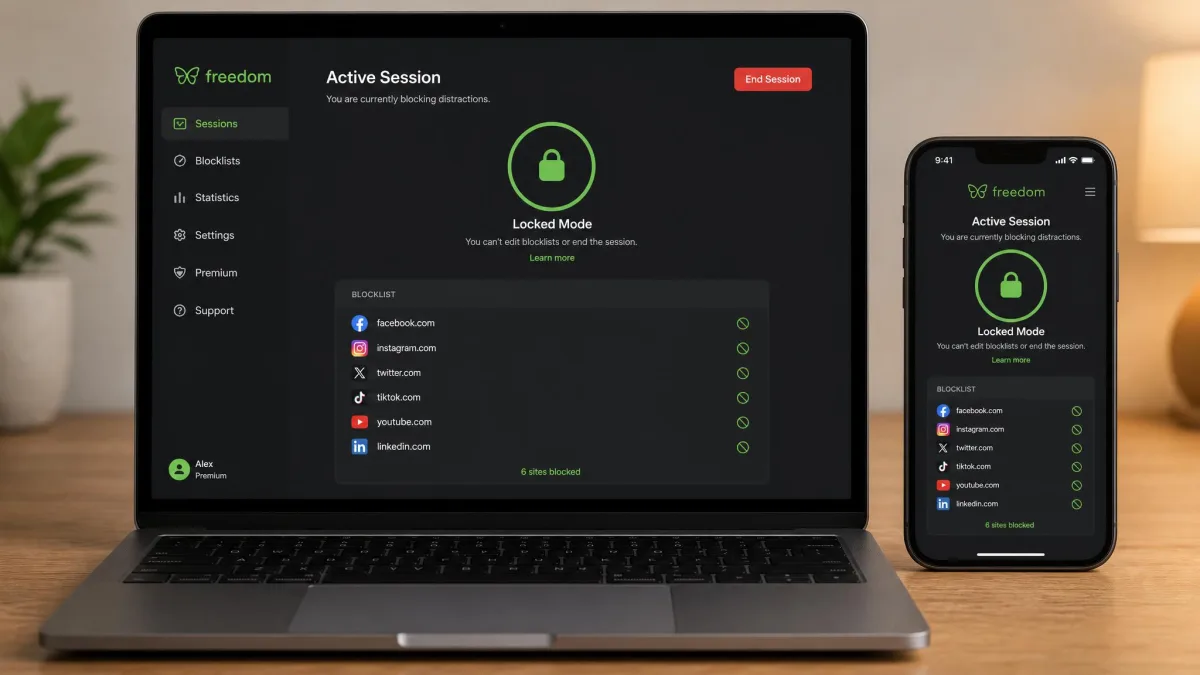
Here the guide turns from managing someone else to managing yourself, and Freedom is the tool we recommend most often for adults. It runs on macOS, Windows, iOS, Android and Chromebook, and one account syncs blocklists and sessions across all of them. That cross-device sync is the whole point: when a session starts on your laptop it starts on your phone at the same moment, so the usual trick of picking up the handset instead simply stops working.
Locked Mode is what separates Freedom from a browser extension. With it on you cannot end a session early or edit your blocklists mid-session, which removes the thirty second negotiation with yourself that kills most focus tools. Sessions can be one-off, recurring or scheduled, and the preset blocklists get you running in a couple of minutes.
Enforcement is softer on iOS. Freedom blocks only during an active session, and it can be defeated by disabling its VPN profile in Settings, flipping Airplane Mode, or deleting the app. Reporting is thin too, since it covers sessions rather than which apps ate the most time.
Key Features
- Website and app blocking across desktop and mobile
- Sessions that start simultaneously on every linked device
- Locked Mode preventing early exit or mid-session edits
- Recurring and scheduled sessions
- Preset blocklists plus custom lists
- Ambient focus sounds, a browser extension and session history
Pros and Cons
Pros
- True cross-device sync, so your phone is not an escape route
- Locked Mode removes the option to argue your way out
- Scheduled recurring sessions build a routine without daily effort
- A lifetime purchase option for people who hate subscriptions
Cons
- iOS blocking can be defeated by removing the VPN profile or deleting the app
- Reports cover sessions, not which apps consumed your time
- Blocking only applies during an active session, so nothing is enforced by default
- Free use is limited enough that most people will need Premium
Pricing
Premium is $8.99 per month, or $3.33 per month billed annually, which is the tier most people should take. Freedom Forever is a one-time payment of $99.50 and pays for itself in about two and a half years against the annual plan. A 7-day free trial covers Premium, which is long enough to see whether Locked Mode changes your working day.
6. Opal - Best for iPhone Focus Sessions
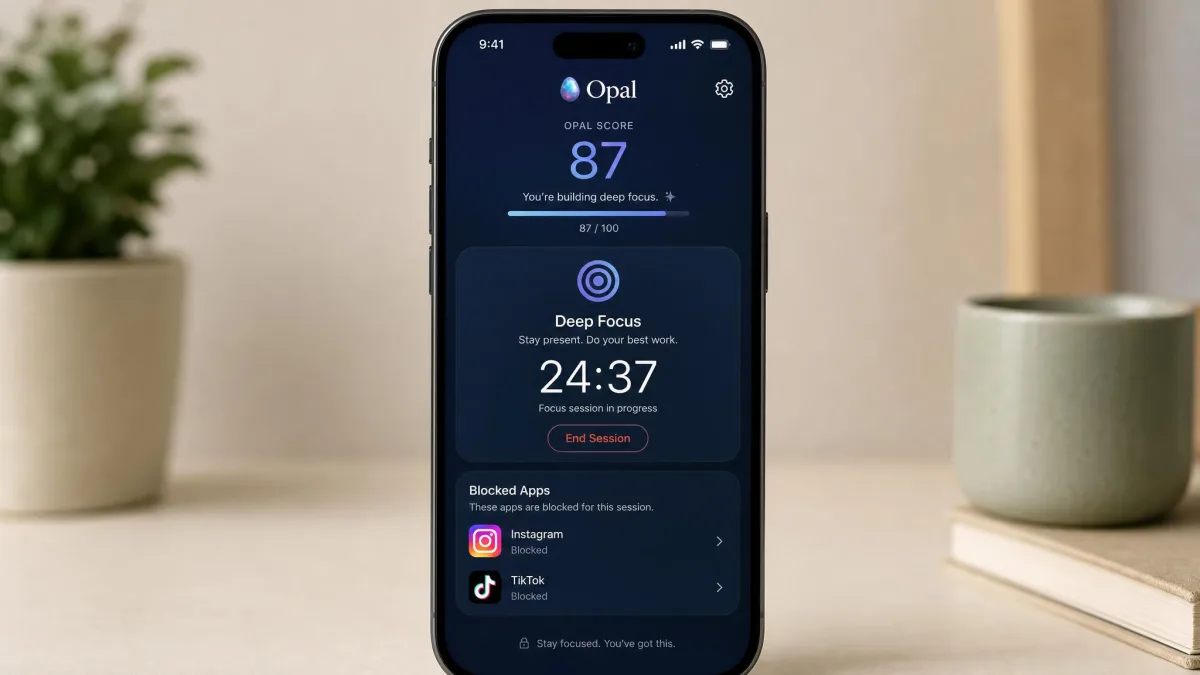
Opal is the most polished focus app on iPhone, and it is priced accordingly. It runs on iOS, Android and Mac, and paid Deep Focus applies harder blocking than the free tier, alongside unlimited rules, scheduled sessions, an Allow Only whitelist, an Opal Score with history, and soundscapes.
Enforcement has a known ceiling. Opal can be bypassed by opening Settings, going to Screen Time and revoking Opal's access, and that works even mid-session. It is an iOS design constraint rather than a bug, but it means Opal nudges hard rather than locking you out. Mac blocking is weaker than the iPhone version, so treat the desktop app as a companion.
Price is the fair objection. The features that make Opal effective sit behind Pro, so the free tier functions as a demonstration, and whether $99.99 a year is sensible depends on what an hour of your attention is worth.
Key Features
- Deep Focus mode with harder blocking than the free tier
- Unlimited rules and scheduled sessions
- Allow Only whitelist mode
- Opal Score with historical trends
- Soundscapes for focus sessions
- Student discount of up to 50 percent off
Pros and Cons
Pros
- The best designed focus app on iPhone by a clear margin
- Deep Focus makes bypassing deliberately awkward
- Opal Score turns progress into something you can actually see
- Generous student discount
Cons
- Expensive next to every other self-control app here
- Can be bypassed by revoking its access in Screen Time settings
- Mac blocking is weaker than the iPhone version
- The free tier allows only 1 Rule, so it is a demo rather than a plan
Pricing
Opal Pro is $19.99 per month or $99.99 billed annually, with a lifetime purchase at $399 one time. The free tier gives you 1 Rule, basic timers and app blocking, plus a today-only Opal Score. Trials differ by plan: the yearly plan comes with a free week, while the monthly plan gives you a 3-day trial. Take the yearly trial, because three days is not long enough to judge a habit tool.
7. ScreenZen - Best Free App to Curb Social Media Scrolling
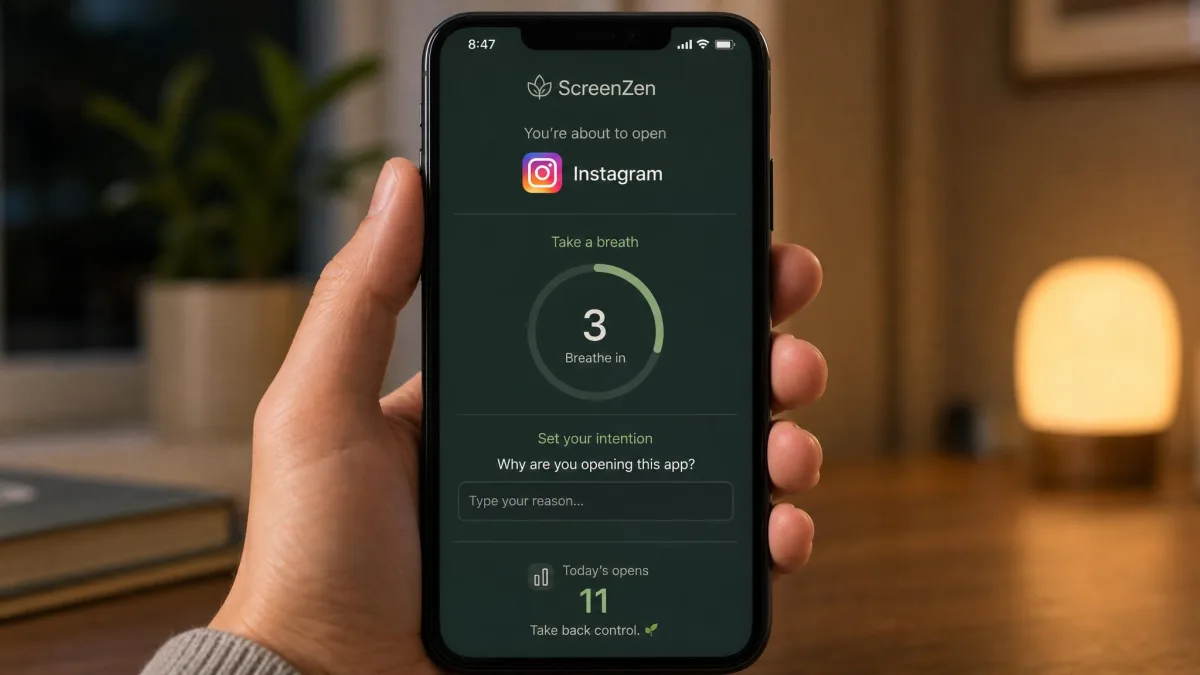
ScreenZen takes the opposite approach to Opal and charges nothing for it. Instead of blocking an app outright, it slides an interception screen in front of it with a short breathing delay, asks what you intend to do, and then lets you through. That pause is enough to convert a large share of reflex opens into a decision, and the per-app open-count caps attack the specific behaviour that daily limits miss: opening Instagram forty times for ninety seconds each.
It is also the fastest app here to get running, installing and working with no account and no paywall prompt. Daily time limits, blocked keywords, shorts blocking, custom intention prompts and usage stats are all included at no cost.
Two honest weaknesses. The friction screen can be undone by editing the session end time inside ScreenZen itself to a moment in the past, which unlocks everything immediately. And the pause-and-breathe delay loses its bite after a few months, once tapping through becomes as automatic as the scroll it was meant to interrupt.
Key Features
- Interception screens with a breathing delay before an app opens
- Per-app open-count caps as well as daily time limits
- Blocked keywords and shorts blocking
- Custom intention prompts you write yourself
- Usage statistics per app
- No account required and no paywalled features
Pros and Cons
Pros
- Completely free on iOS and Android with nothing held back
- Open-count caps target compulsive checking, not just total hours
- Works within minutes, with no sign-up
- Intention prompts make the habit visible rather than punished
Cons
- The end time can be edited inside the app to unlock everything at once
- The breathing delay fades in effect after a few months
- No parental oversight features, so it is a self-control tool only
- Statistics are basic next to a paid focus app
Pricing
Free on iOS and Android, with no subscription and no paywalled features. The developer accepts optional tips, which is the only money that ever changes hands.
8. Forest - Best Gamified App for Building Habits
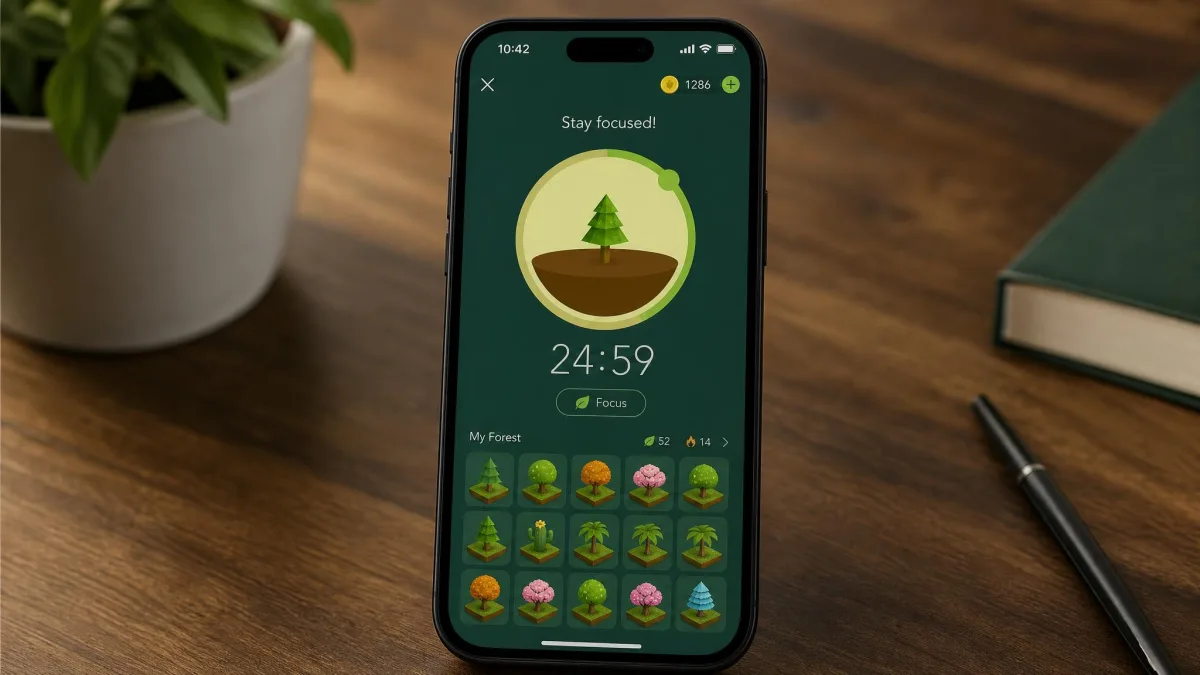
Forest turns a focus timer into a small game. You plant a virtual tree, it grows while you stay out of your phone, and it dies if you leave the app. Coins earned from completed sessions unlock new species, sessions can be shared in Plant Together rooms, and the developer funds real tree planting through a partner charity. It holds a 4.8 star average across more than 602,000 App Store ratings, although the star average and rating count keep moving as new reviews land.
Gamified timers usually lose their pull after two or three weeks once the novelty fades. Forest offsets that better than most by tying the timer to loss aversion, a forest you can watch growing, and rooms where other people are counting on you not to quit.
It is a nudge, not a wall. Forest only kills the tree if you leave the app, so a determined user accepts the dead tree and carries on scrolling. Use it when your problem is starting focused work, not when you genuinely cannot stop.
Key Features
- Plant-a-tree focus timer with a growing session visual
- Whitelist of apps allowed during a session
- Tags and focus statistics across days and weeks
- Shared Plant Together rooms for group sessions
- Virtual coin store and a real tree planting partnership
- Deep focus mode for stricter sessions
Pros and Cons
Pros
- The most enjoyable way to build a focus habit on this list
- Cheap one-time purchase on iOS rather than a subscription
- Shared rooms add social accountability that solo timers lack
- Real tree planting gives completed sessions a point beyond the streak
Cons
- Nudges rather than blocks, so you can simply accept the dead tree
- No parental controls and no cross-device enforcement
- Novelty fades for some people after a few weeks
- Android pricing is inconsistent between free, ads and the Pro unlock
Pricing
The iOS app is a $3.99 one-time purchase with no subscription. The Android version is free with ads and the Pro unlock is around $1.99, though the Android Pro unlock price shifts with regional Play Store pricing and periodic sales.
What Free Screen Time Tools Actually Cover (iOS Screen Time and Android Digital Wellbeing)
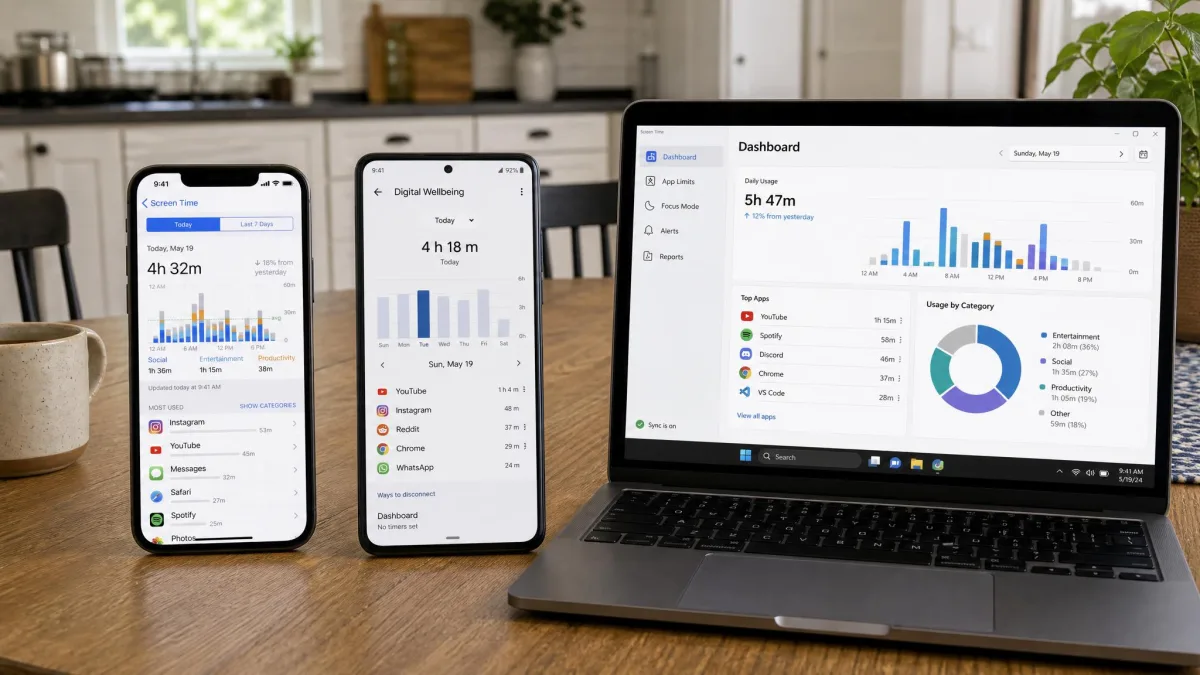
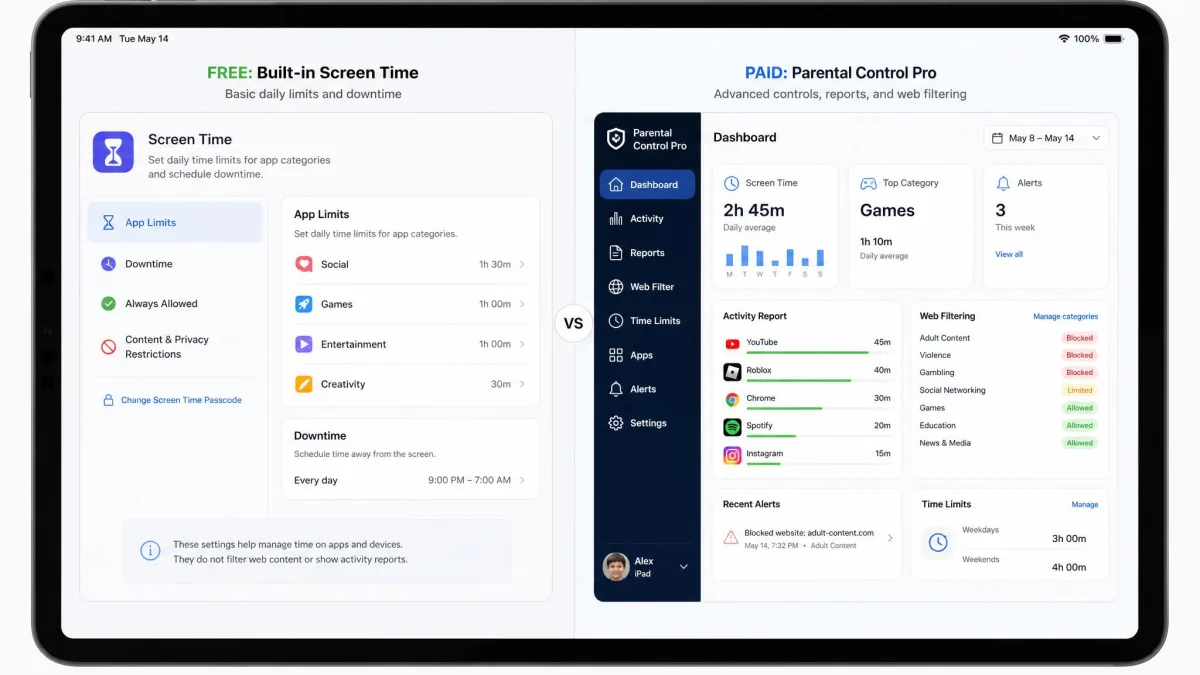
With the picks covered, it is worth being clear about how far the free tools go before you spend anything, because for a lot of households they go far enough. On iPhone and iPad, Screen Time handles daily app limits, category limits, bedtime downtime, an always-allowed list, communication limits and content restrictions, all managed remotely through Family Sharing. On Android, Digital Wellbeing gives an adult app timers, a bedtime mode that greys the screen, and focus mode for muting distracting apps, while Family Link adds the parental layer with per-app limits, bedtime device locks and install approvals.
What free covers well is time. Setting a two hour daily limit, locking a device at nine, and blocking a specific app are solved problems at $0 on both platforms. What free does not cover is visibility, since neither tool reports what your child read, sent or watched, and neither crosses the platform line.
For an adult limiting their own use, the built-in tools are usually the right first move. Turn on app timers and bedtime mode for a fortnight, look at where the hours actually went, and only then decide whether a paid focus app is solving a problem you have measured.
Free vs Paid: What You Only Get When You Pay
Paying buys three things, and it is worth knowing which of them you need. The first is cross-platform coverage. If your family runs an iPhone, an Android tablet and a Windows laptop, only a paid suite like Qustodio applies one set of rules to all three, and that alone justifies the cost in mixed households.
The second is visibility. Free tools report duration; paid tools report content. Bark's alerts on messages and social platforms, and Qustodio's activity reports covering sites and YouTube viewing, answer questions the built-in tools structurally cannot. If your worry is what your child is encountering rather than how many hours they spend, no amount of free configuration will get you there.
The third is tamper resistance and support. Paid apps make limits harder to remove and give you someone to email when enforcement breaks. That is not the same as unbreakable, but it beats debugging a free feature alone.
How We Tested and Ranked These Apps
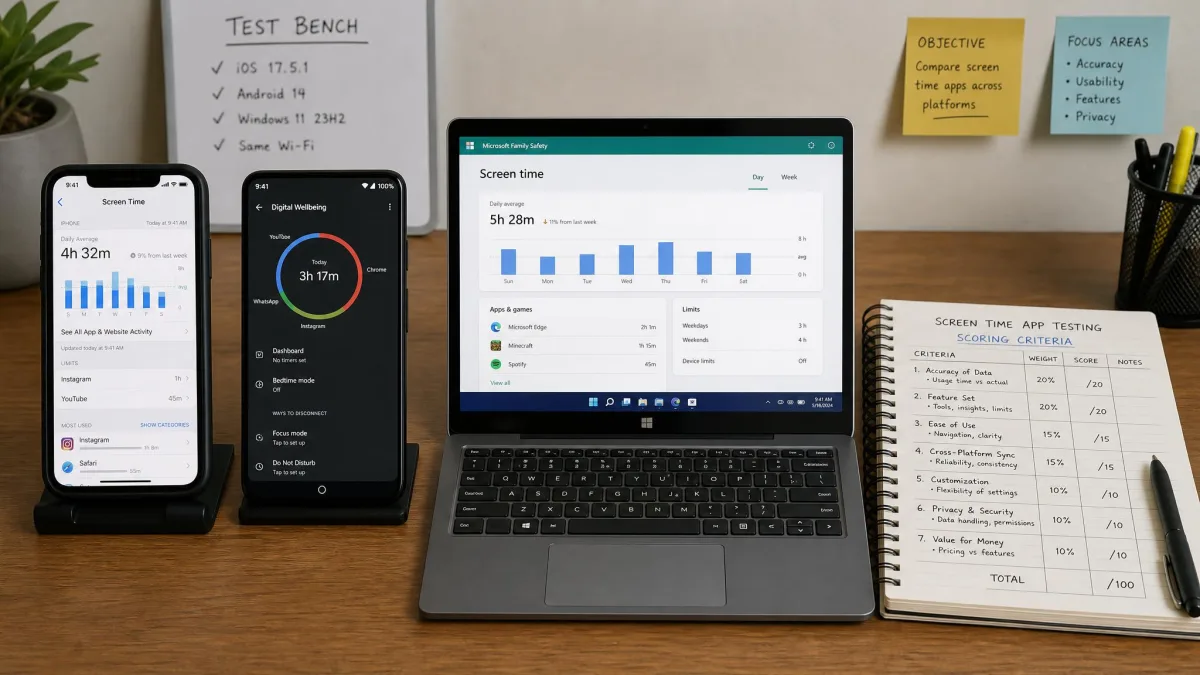
We installed every app on real family devices rather than judging from feature lists, then ran each one through the same set of tasks: set a daily limit, build a bedtime schedule, block one specific app, and check whether the parent dashboard reflected reality afterwards. Where an app claimed cross-platform support, we set it up on more than one operating system to see whether the rules survived the crossing.
Testing spanned iPhone, Android and Windows, because a rule that holds on one platform and quietly lapses on another is the failure families actually run into. Each app was assessed on a current release of the operating systems it claims to support, with both the child-side and parent-side experience set up, rather than the parent dashboard alone. Where a paid tier gated the feature that mattered, we worked from the vendor's published plan details for that tier alongside what the trial versions allowed us to configure directly.
Scoring weighted enforcement quality most heavily, because an app that cannot make a limit stick fails at its only job. After that came setup friction, dashboard clarity, reporting depth, cross-platform coverage, and value against the free alternatives. We also tried to break each limit using the routes a motivated child would find first, and every weakness we hit that way is written into the cons above rather than buried.
We do not rank an app highly for having the longest feature list. Every pick here was set up the way a parent would set it up on a normal evening, with the default settings left alone at first, because a control that only works after you find a buried toggle is a control most families will never actually get.
How to Choose the Right Screen Time App
The right choice depends less on which app has the most features and more on three questions: what devices you are managing, how old the person using them is, and what behaviour you are trying to change.
By Device and Mixed-Device Households
If every device in the house is Apple, use Screen Time and stop there unless you need content monitoring. If every child device is Android, Family Link covers the same ground for free. The moment you cross platforms the free tools break down, because Family Link cannot set limits on a child's iPhone and Screen Time has no reach onto Android, and that is why Qustodio sits at the top of this list rather than either free tool.
Adults managing their own devices face a mirror image of the problem. A laptop blocker your phone ignores is a speed bump rather than a limit, so look for genuine multi-device sync.

By Child Age (and for Adults Limiting Their Own Use)
Younger children need blunt tools and few exceptions. Whitelisting a handful of approved apps, locking the device at bedtime and requiring approval for every install covers almost everything, and both free tools do it well.
For tweens, per-app limits start to matter more than a device-wide cap, because the argument is rarely about the phone in general and almost always about one game or one social app. This is also the age at which a child starts hunting for loopholes, so the tamper settings you have skipped become the ones that decide whether your rules survive.
With teenagers, the calculus changes again. Heavy surveillance tends to cost more in trust than it recovers in safety, and a family media plan agreed out loud usually outperforms a rule imposed silently. The American Academy of Pediatrics recommends building shared household rules rather than fixed hour counts for older children, and its family media plan is a good structure for that conversation. If you are an adult limiting your own use, skip the parental control apps entirely and pick a focus tool: they are built for consent rather than oversight, and nothing in them assumes an authority figure holding the passcode.
By the Behavior You Want to Change
Name the behaviour first and the app choice usually falls out of it. If the problem is total hours, a daily limit in a free tool is enough. If the problem is compulsive checking, dozens of short opens a day, an interception app like ScreenZen fits far better than any time cap. If the problem is starting work at all, a focus timer such as Forest is the right size of intervention. If the problem is what a child is seeing and sending, only content monitoring answers it, and time limits are beside the point.
How to Set Daily Limits, Schedules, and Bedtime Downtime
The mechanics are similar everywhere. On an iPhone, open Settings, tap Screen Time, choose App Limits and add a limit for a category or an individual app, then set Downtime for the hours the device should be quiet and use Always Allowed to keep calls and messages available. Set a Screen Time passcode that your child does not know, and turn on Block at End of Limit before you consider the job done.
On Android with Family Link, open the parent app, pick the child, then set a daily limit that can differ by day of the week and a bedtime that locks the device overnight. Per-app limits sit under the app list for the same child, and bonus time is granted from the same screen when an exception is genuinely warranted. Allow a few minutes for changes to reach the device rather than expecting them to land instantly.
For adults, the pattern is scheduled sessions rather than caps. Build one recurring block covering your deep work hours and a second covering the last hour before bed, turn on Locked Mode so you cannot renegotiate mid-session, and leave the rest of the day unmanaged so the tool stays credible.
Set limits slightly higher than you think you need for the first week, then tighten them. A limit that triggers constantly on day one gets switched off by day three, while one that bites twice a week survives long enough to become normal.
Why Kids Bypass Screen Time Limits and How to Stop It
Every app here can be worked around, and knowing the routes is what lets you close them. The most common bypass is the one the software hands over willingly: Apple's Ignore Limit button lets a child take another 15 minutes or waive the limit entirely for the day without a passcode, so Block at End of Limit is the single most valuable toggle in this whole guide. Deleting and reinstalling an app resets its internal counters, which is why install approvals matter as much as time limits do.
Self-control apps are easier still, by design rather than negligence. Opal can be switched off by revoking its access under Screen Time, Freedom's iOS blocking falls to removing its VPN profile, and ScreenZen unlocks the moment you edit its session end time to a point in the past. None of that matters when the user wants the limit to hold, and all of it matters when they do not.
The practical fixes are unglamorous. Set a device passcode your child does not have, protect the settings that control the controls, turn on the tamper-resistant option that ships switched off, and check the reports weekly so a limit that quietly stopped working does not go unnoticed for a month. Beyond the software, plenty of families get further with a charging station outside the bedroom or a basic phone for school hours than with any additional app.

Frequently Asked Questions
What is the best free app to limit screen time?
Can I set limits for individual apps?
Can kids bypass screen time limits?
Is Apple Screen Time enough on its own?
What is the best app for Android?
Should adults use parental control apps on themselves?
Do these apps work if the child has a school laptop?
The Bottom Line
Most families need less software than they expect. If everyone is on the same platform, the free tool already on the device will do the job, provided you turn on the tamper setting that ships switched off. If you are limiting your own use, pick the tool that matches the behaviour you want to change and resist paying for oversight features you have no use for.
The mixed-device household is the real case for paying, and Qustodio is where we would spend the money. It applies one set of daily limits, per-app limits and web filtering across every platform a family is likely to own, its reports actually explain where the time went, and a 30-day money-back guarantee means a full month of honest testing in your own home costs nothing.