Every parent eventually hits the same wall: the kids have their own devices, screen time is creeping up, and the free tools built into the phone only get you so far. Picking a parental control app becomes less about spying and more about setting sane limits without turning every evening into a fight.
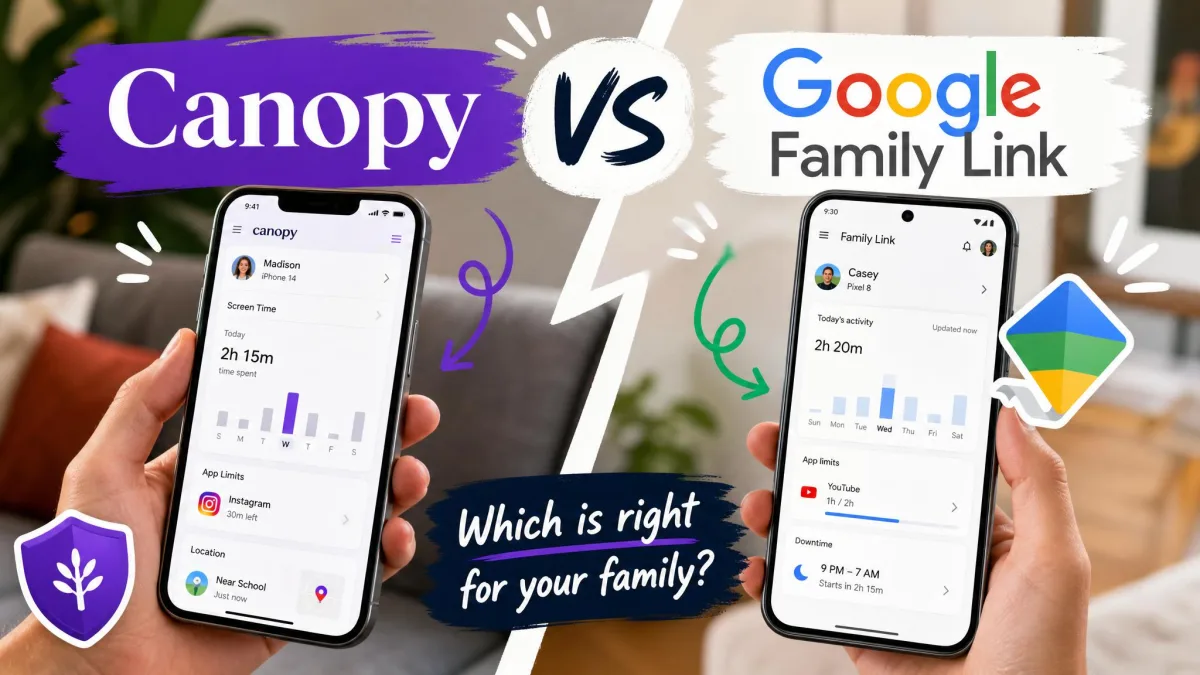
The two names that come up most are Qustodio and Google Family Link. One is a paid, cross-platform suite built specifically for this job. The other is Google's free, Android-first service that many families already have installed without realizing it. They solve the same problem in very different ways, and the right pick depends heavily on which devices your kids carry and how much monitoring you actually want.
We spent time with both across Windows, Android, and iOS to see where each one earns its place. Below we break down the features, the pricing, the setup, and the day-to-day experience so you can match the tool to your family instead of the other way around.
Bottom Line Up Front (quick verdict)
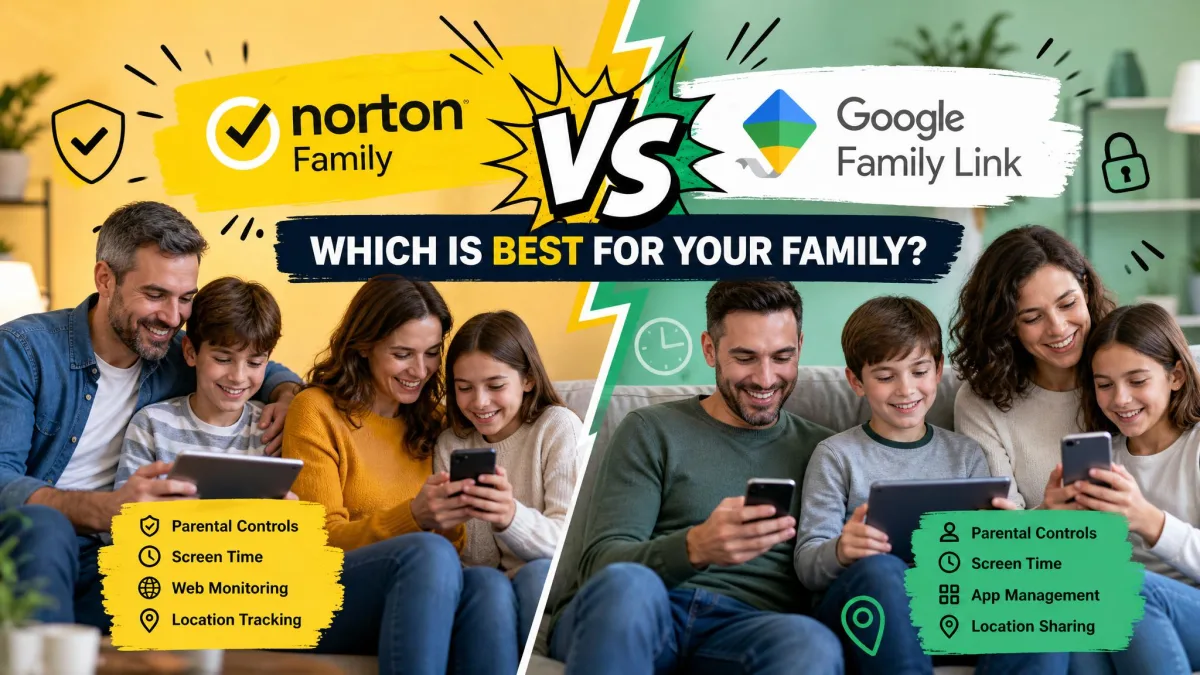
Qustodio vs Google Family Link at a Glance
| Feature | Qustodio | Google Family Link |
|---|---|---|
| Price | Free for 1 device, or roughly $54.95 to $104.95/yr premium | Completely free |
| Platforms | Windows, Mac, Chromebook, Android, iOS, Kindle | Android 6.0+, Chromebook, Fitbit; no iOS child devices |
| Screen-time limits | Daily and per-app limits, custom routines, internet pause | Daily limits, bedtime schedules, per-app limits, remote lock |
| Web filtering | 19 normal and 10 harmful categories, works across browsers | Google Search and Play only; no third-party browser filtering |
| Location tracking | Real-time tracking with geofencing | Device location, updates on sync |
| App management | Block or allow apps and games, per-app time limits | Approve or block installs, per-app limits |
| Monitoring/reporting | Calls, SMS, social, YouTube; 10 to 15 min dashboard delay | App activity dashboard; no calls, SMS, or alerts |
| Best-for age | Kids and teens across mixed devices | Younger children on Android under 13 |
Qustodio Overview
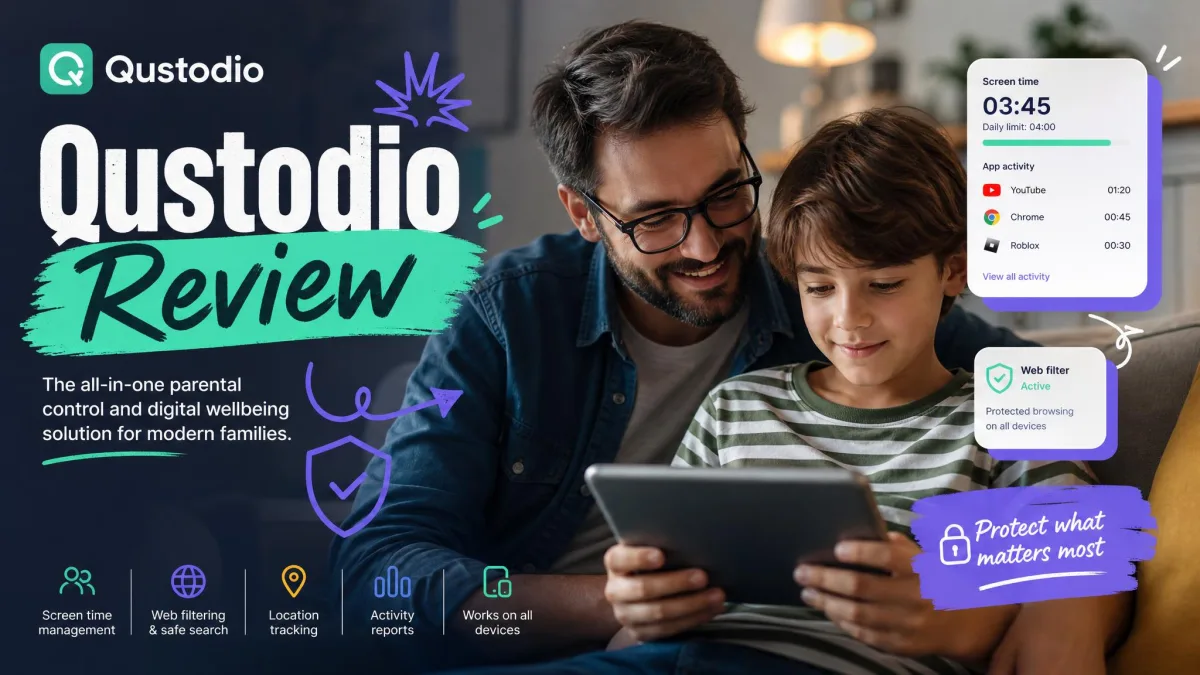
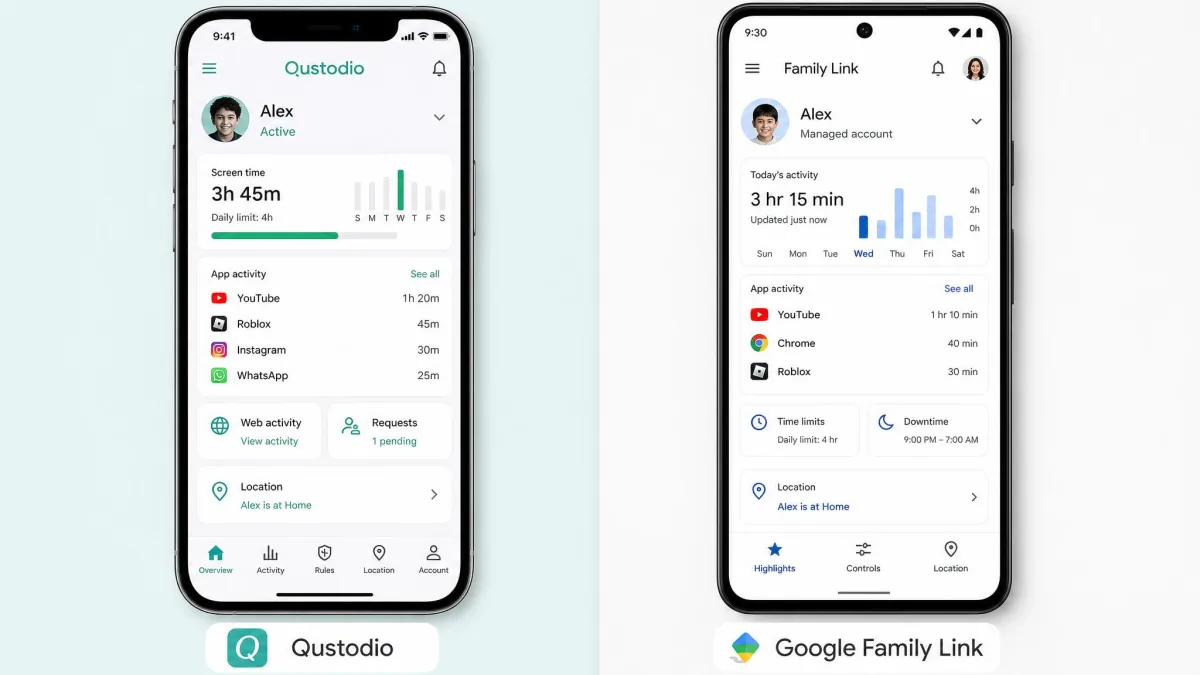
Qustodio is a dedicated parental control suite that runs on nearly every platform a family owns. Where Family Link is essentially an Android feature, Qustodio is a standalone product with its own filtering engine, its own monitoring tools, and a single dashboard that ties Windows, Mac, Chromebook, Android, iOS, and even Kindle together.
In our testing, the standout was consistency. Qustodio's web filtering holds up across browsers like Chrome and Edge, and it blocks the usual VPN and proxy tricks kids use to slip past a filter. That is the piece most free tools get wrong, and it is a big part of what you are paying for here.
Key Features
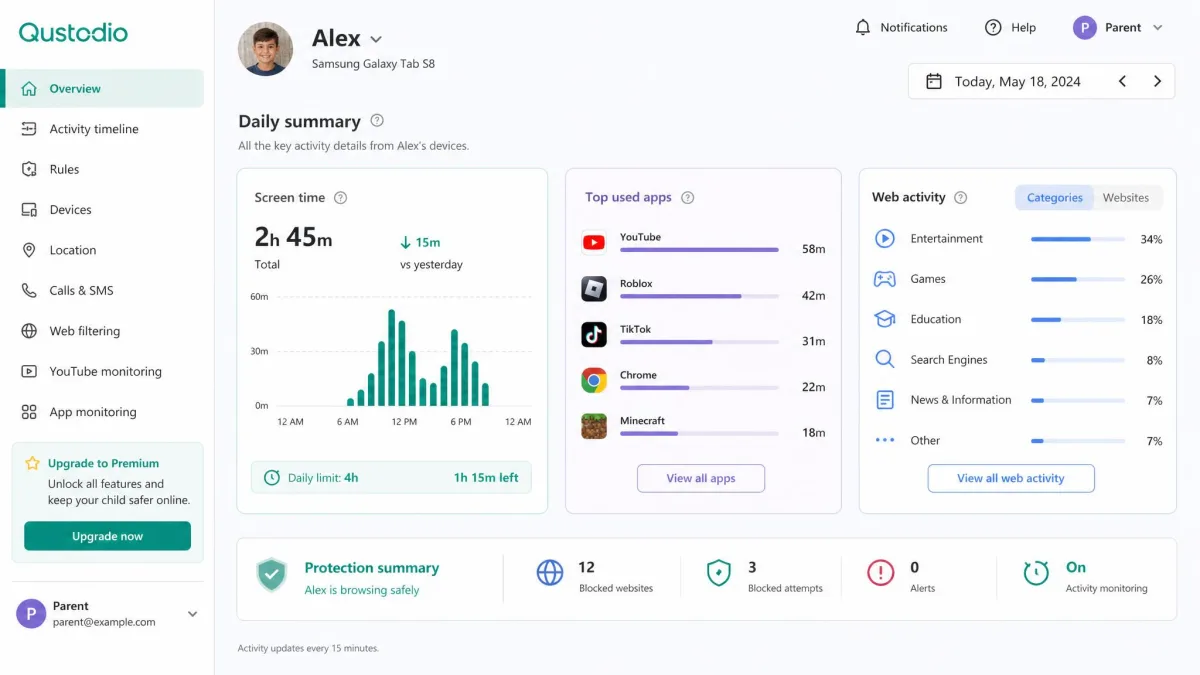
Qustodio's feature list is broad. It includes web content filtering across 19 normal and 10 harmful categories, daily and per-app screen-time limits, app and game blocking, and custom routines that change the rules by time of day. On the monitoring side, it tracks calls and SMS or iMessage, social and YouTube activity, and sends AI-powered alerts when something looks off. Location tracking is real-time and supports geofencing, and there is an internet pause button plus a panic or SOS feature on Android.
One caveat matters for iPhone families: on iOS, Qustodio loses SMS monitoring, granular app blocking, and detailed usage insights, and its filtering leans on a VPN or MDM profile. That is an Apple restriction, not a Qustodio flaw, but it changes what you get.
Pros
Pros
- Web filtering works across browsers and resists VPN and proxy bypass
- Genuine cross-platform coverage, including iOS and Kindle
- Call, SMS, and social monitoring on Android that Family Link lacks
- Real-time location tracking with geofencing alerts
Cons
- Premium subscription required for most of the value
- Dashboard activity can lag 10 to 15 minutes behind real time
- Windows app feels less polished and buggier than the mobile apps
- Can add roughly 10 to 15 percent battery drain on older devices
Google Family Link Overview
Google Family Link takes the opposite approach. It is completely free, it is built into the Android ecosystem, and for many families it is already sitting on the child's phone. There is no subscription and no upsell, which makes it the natural starting point for anyone whose kids are on Android.
The trade-off is scope. Family Link is excellent at the fundamentals and deliberately narrow beyond them. It manages screen time, app installs, and device location well, but it does not try to be a full monitoring suite, and it leans entirely on Google's own services for content filtering.
Key Features
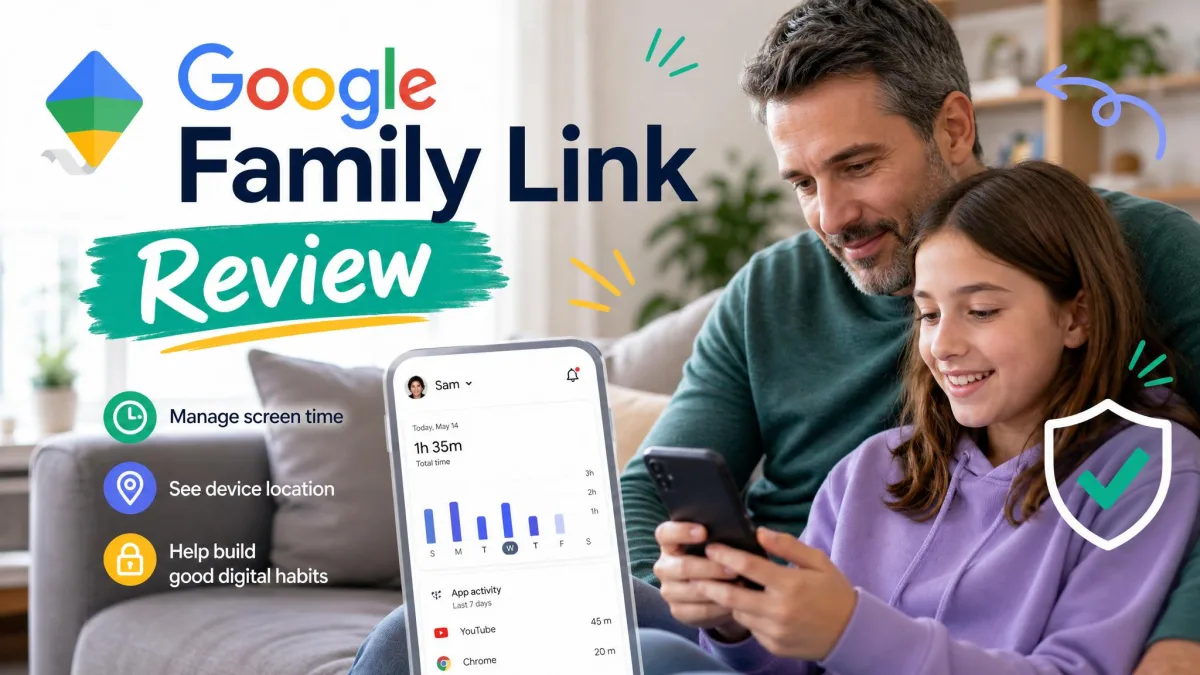
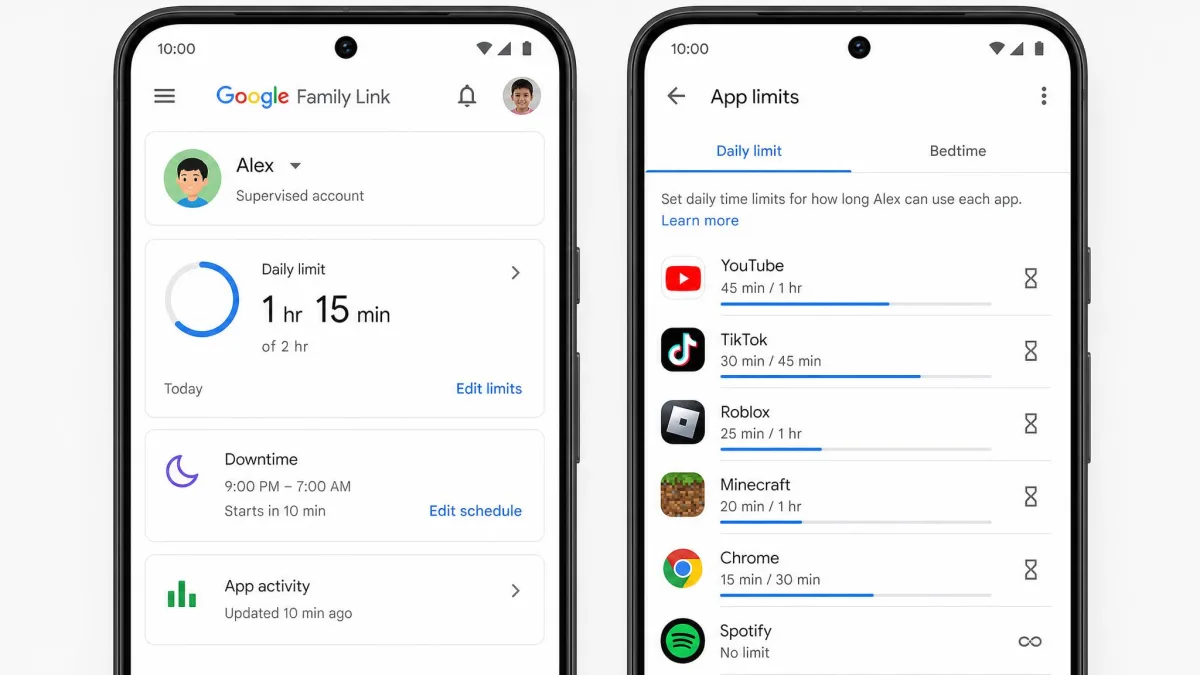
Family Link covers daily screen-time limits, bedtime and downtime schedules, remote device lock, and per-app time limits. Parents can approve or block app installs, track the child's device location, and restrict mature content on Google Play and Google Search. It also supports Fitbit devices, which is a nice touch for families already in that ecosystem.
What it does not do is just as important. There is no SMS or call monitoring, no social media content monitoring, no keyword or cyberbullying alerts, and no general web filtering in third-party browsers. Family Link only filters within Google Search and Play, so a child using another browser can slip past the restrictions.
Pros
Pros
- Completely free with no subscription or upsell
- Solid screen-time limits, bedtime schedules, and remote lock
- App install approval and per-app limits work reliably on Android
- Deeply integrated with Android and Chromebook
Cons
- Filtering only covers Google Search and Play, not other browsers
- No call, SMS, or social monitoring and no activity alerts
- Cannot supervise iPhones or iPads as child devices
- Controls effectively end once the child turns 13
Family Link's controls are designed to hand the account back to the child at 13, or the applicable local age. If you are supervising a teen, plan for the day those controls switch off.
Feature-by-Feature Comparison
Both apps hit the core parental control checklist, but the details separate them. Here is how they compare on the features parents ask about most.
Web & Content Filtering
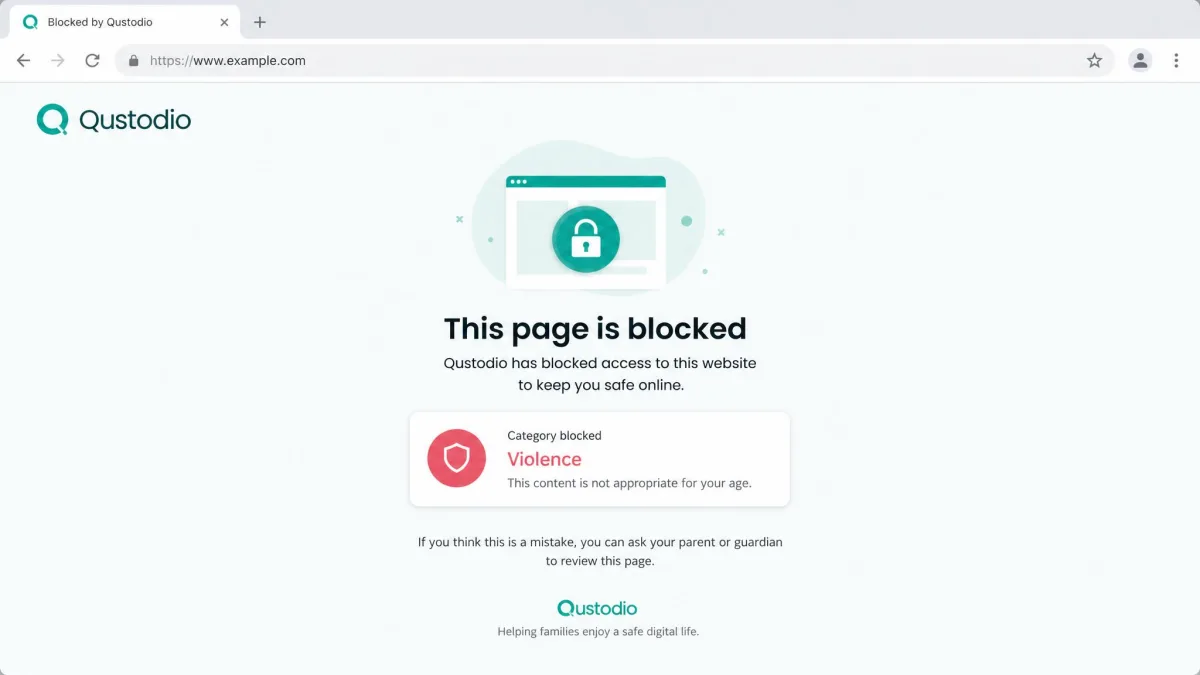
This is the clearest gap between the two. Qustodio filters across categories and enforces it at the system level, so it holds up whether the child opens Chrome, Edge, or another browser, and it resists VPN and proxy workarounds. Family Link only filters content within Google Search and Play, which means a third-party browser is an open door.
Family Link only filters content within Google Search and Play, so a child using a different browser can walk straight past the restrictions.
— From our hands-on testing
If web filtering is your main reason for installing a parental control app, Qustodio is the stronger tool by a wide margin.
Screen Time Management & Limits
Screen time is where the two are closest. Both offer daily limits and per-app time limits, and both let you shut things down on a schedule. Family Link adds clean bedtime and downtime scheduling plus a remote device lock, which is genuinely useful for younger kids. Qustodio counters with custom routines that shift the rules by time of day and an internet pause button for the moment dinner is ready. For most families, either one handles daily limits well.
Activity Monitoring & Reporting
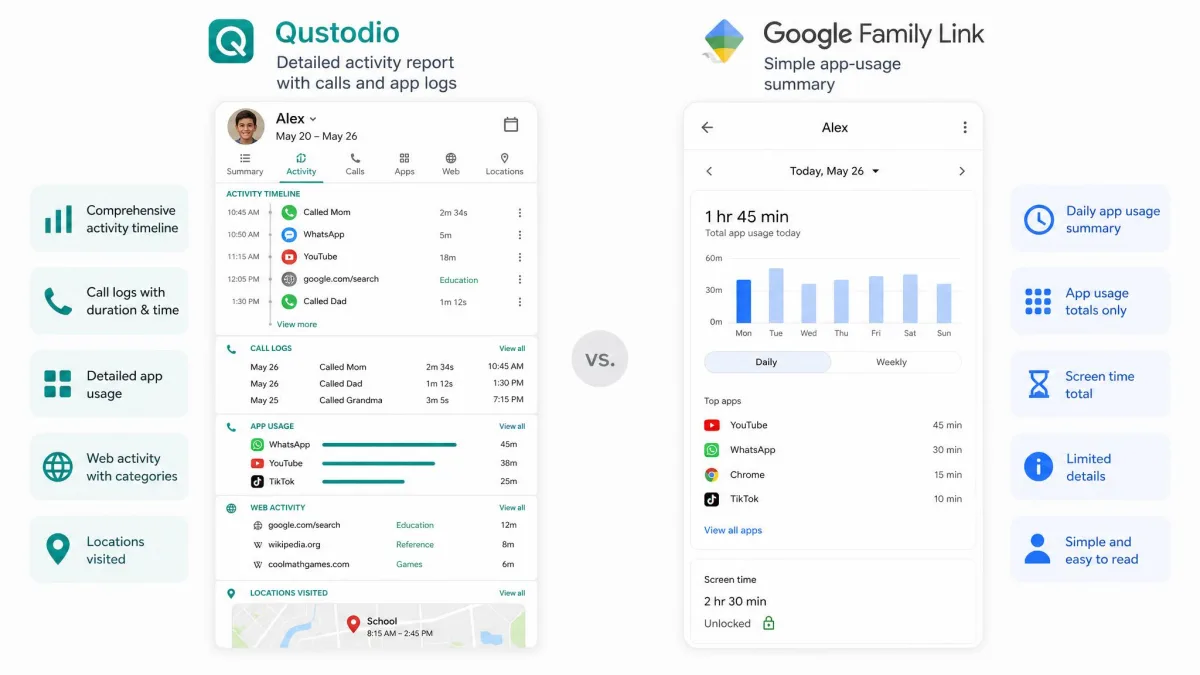
Qustodio reports far more. It logs app usage, web activity, calls, texts, and social activity, and it pushes alerts when something warrants attention. The catch we noticed is timing: activity can take 10 to 15 minutes to appear in the parent dashboard rather than updating instantly. Family Link keeps a simple app-activity dashboard but sends no alerts at all, so you have to open it yourself to see what is happening. For hands-off oversight, Qustodio's alerts are the difference maker.
Location Tracking & Safety Tools
Both track a child's device location. Qustodio does it in real time and adds geofencing, so you get an alert when your child arrives at or leaves a set place, plus a panic button on Android. Family Link shows device location too, but it updates whenever the device syncs, usually within a few minutes, and only when the phone is on and connected. For everyday "are they home yet" checks, both work. For active safety features, Qustodio does more.
App Management
Family Link is strong here for a free tool. Parents approve or block every install and set per-app time limits, which is exactly what younger kids need. Qustodio blocks apps and games and sets per-app limits as well, though we should flag one quirk: its app detection is not perfect. In one test it detected only one of two games that had been downloaded and played. Family Link, tied directly into the Play Store, is more reliable at catching new installs on Android.
Calls & SMS / Social Media Monitoring
This category is a shutout. Qustodio monitors calls and SMS or iMessage and tracks social and YouTube activity, though call and text monitoring needs a separate setup step and works on Android while failing on iOS. Family Link does none of this. It has no call, SMS, or social monitoring of any kind. If this is on your list, Qustodio is the only real option of the two.
Other Comparable Factors
Device & Platform Compatibility
Qustodio runs on Windows, Mac, Chromebook, Android, iOS, and Kindle, which makes it the obvious choice for a mixed-device household. Family Link supervises Android devices on version 6.0 or higher and Chromebooks on Chrome OS 71 or higher, and it supports Fitbit. Crucially, it cannot supervise iPhones or iPads as child devices; the parent app runs on iOS 16 or later, but the kids have to be on Android. If anyone in the house has an iPhone, that single fact often settles the decision.
Setup & Ease of Use
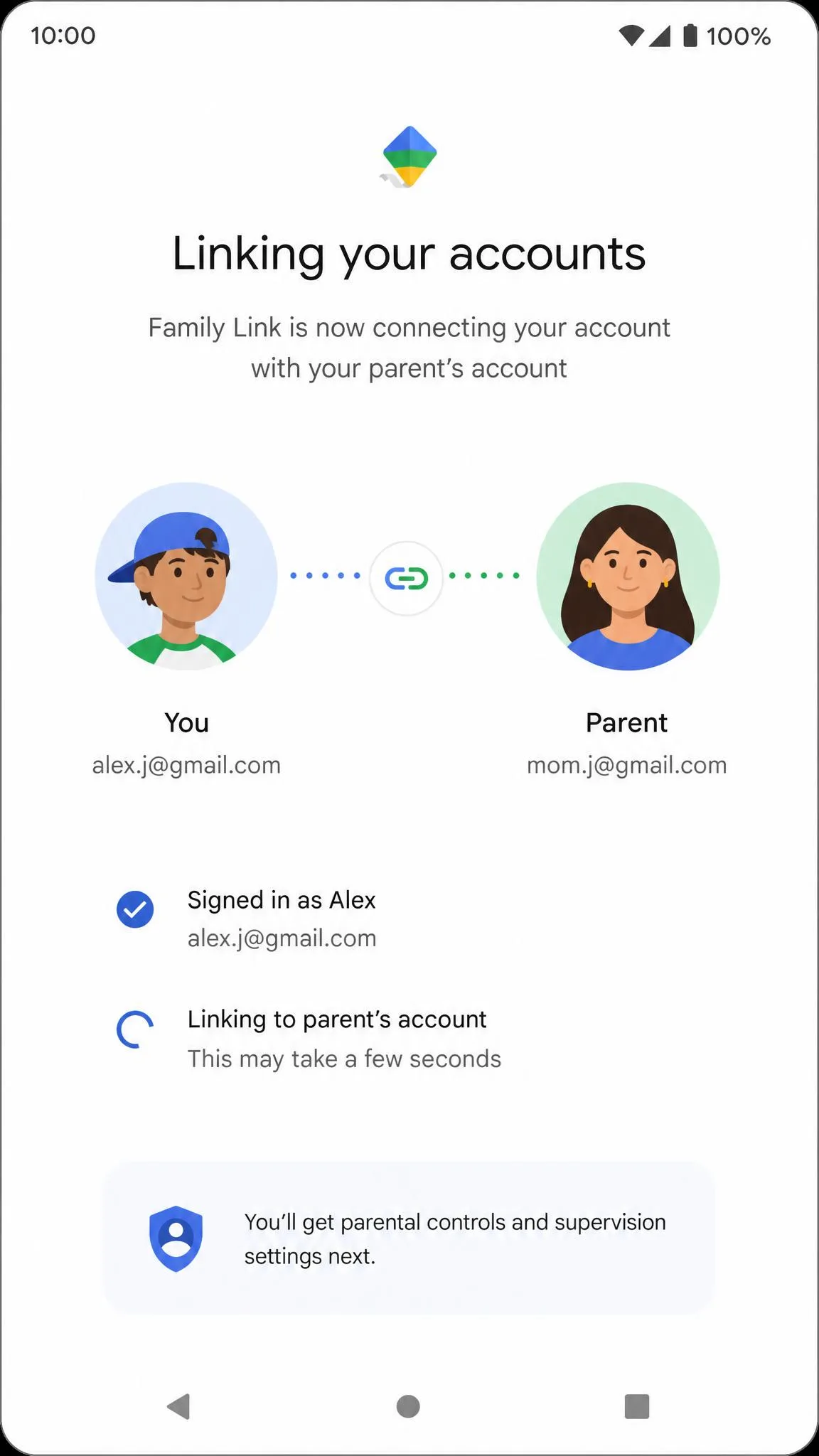
Neither is hard to install, but the experience differs by platform. Qustodio setup is smoothest on Windows, around 10 minutes, and more involved on iOS, where you have to disable Apple Screen Time to avoid conflicts, and on Mac, which needs system permissions and a restart or two. We also found the Qustodio Windows app less polished and a little buggier than its mobile versions. Family Link setup takes roughly 15 minutes: you create a supervised account, install the app on the child's device, and link the accounts.
Whichever you pick, set it up on the child's device with them in the room. It is faster than doing it remotely, and it turns the install into a conversation about the rules rather than a surprise.
Pricing & Subscription Plans
This is Family Link's home turf. It is completely free with no subscription. Qustodio offers a free plan that covers 1 device with basic features, then charges for the rest. Pricing varies by region and promotion, but the Basic plan lands around $54.95 to $59.95 a year for up to five devices, and the Complete plan runs about $99.95 to $104.95 a year with unlimited devices. There is a 3-day free premium trial and a 30-day money-back guarantee, so you can test the paid features before committing.

Customer Support
Both offer self-service help centers backed by documentation and guides. You can reach Qustodio support through its help center and ticketing, while Google Family Link help leans on Google's extensive support library and community forums. As a paid product, Qustodio has more incentive to answer individual account questions directly; Family Link's support is broad but more DIY.

Which Parental Control App Is Right for You?
The choice really comes down to devices, budget, and how much oversight you want.
Choose Google Family Link if your kids are on Android, they are on the younger side, and you mainly need screen-time limits, bedtime schedules, and app approval. It is free, it is reliable at the basics, and there is no reason to pay for features you will not use.
Choose Qustodio if you have a mix of devices, especially any iPhones, if you want web filtering that actually holds across browsers, or if you need call, text, and social monitoring. It costs money, but it delivers a level of coverage Family Link simply does not attempt.
One more consideration for parents of teens: Family Link's controls end once the child turns 13 and can manage their own account, so a paid tool like Qustodio may be the only way to keep any oversight past that point.
No parental control app is bypass-proof. Family Link relies on standard Android permissions with no hardware-level enforcement, so a tech-savvy kid can get around it through safe mode, settings changes, or a factory reset. Treat any app as a guardrail, not a lock.
Frequently Asked Questions
Is Qustodio worth paying for over free Family Link?
Does Family Link work on iPhone?
Which is better for teens over 13?
Is Qustodio safe and private to use?
Can either app monitor social media?
Conclusion
Qustodio and Google Family Link are both solid, but they aim at different families. Family Link is the smarter pick when the kids are young, on Android, and you want dependable, free controls for screen time and apps. It does the basics well and asks nothing in return. Its limits, no cross-browser filtering, no monitoring, no iPhone support, and no controls past 13, are real constraints rather than deal-breakers for the right household.
Qustodio is the more capable app overall. For mixed devices, older kids, or genuine monitoring needs, its browser-wide filtering, real-time location, and call and text tracking earn the subscription. Balanced across everything we looked at, Qustodio is our recommendation for families who need coverage that Family Link cannot match, and the free trial plus money-back guarantee make it low-risk to try.