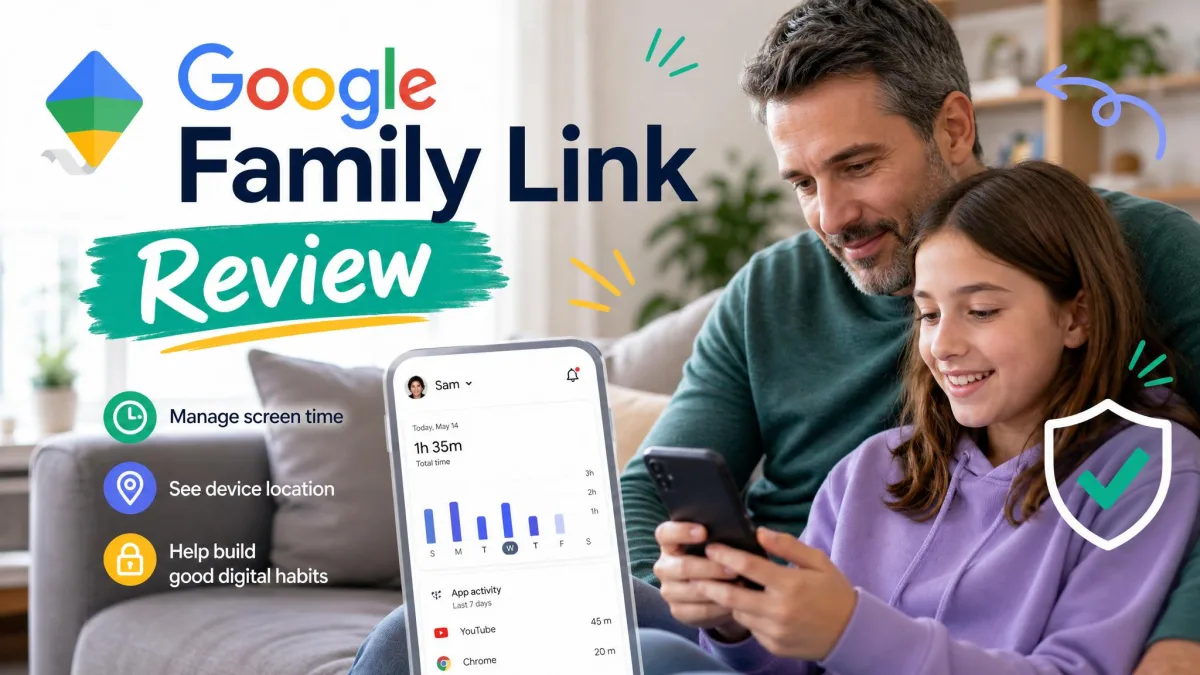
We set up both apps on the same family Android phones, an iPad, and a Windows laptop, then spent a fortnight watching how each one behaved with a real child account. The short version is that these two tools are aimed at different jobs. Net Nanny is a paid content-filtering specialist that watches what your child sees, while Google Family Link is a free access-and-time manager that decides when and for how long the device works at all.
That difference runs through every feature below, so the right pick depends far more on what you actually want to control than on which app scores higher overall. If your worry is web content and explicit material, one app pulls ahead. If your worry is screen time, bedtime, and app access on Android, the other does the job for nothing.
Net Nanny vs Google Family Link at a Glance
Before the feature-by-feature breakdown, here is how the two apps line up on the things parents ask about most. We scored each one on real family devices, weighing filtering accuracy, screen-time control, platform coverage, and how much setup patience each demanded. The table below is the quick reference; the sections after it explain why each verdict landed where it did.
| Product | Buy | Price | Web filtering | Screen time | App blocking | Location | Text/social | iOS | Android | Ease of use |
|---|---|---|---|---|---|---|---|---|---|---|
 |
Check price → | From $54.99/yr | AI real-time, category + custom | Limits & scheduling | Blocks apps on mobile | Location tracking | No monitoring | Yes, stronger | Yes, weaker | Multi-platform, some gaps |
 |
Get App | Free | Chrome/YouTube/Search/Play, access only | Daily limits, School Time, Downtime | Per-app limits and full blocking | Location with place alerts | No monitoring | Parent app only | Full, best supported | Free, setup friction |
Pricing and Plans: Free vs Paid
Price is the starkest split between these two apps, and for many families it settles the question on its own. One app is free forever, and the other asks for an annual subscription that scales with how many devices you need to cover.
Google Family Link pricing
Google Family Link is free to download and use, with no premium tier hiding the useful features behind a paywall. Everything it does, from screen-time limits to location alerts, is included at no cost, which is rare in this category. You can add it from Family Link on Google Play and set up a supervised child account in one sitting.
The catch is not money but scope. Family Link manages access and time rather than content, so "free" buys you a capable scheduler and app manager, not a filtering suite. For a lot of younger families on Android, that trade is exactly right.
Net Nanny pricing and tiers
Net Nanny is subscription-only, and the price depends on how many devices you protect. The entry Net Nanny option is a Single Desktop plan at $39.99 a year, but most households will want a family plan. The 5 Device Family Protection Pass runs $54.99 a year, and the 20 Device pass is $89.99 a year, each covering a mix of computers and phones across the home.
Every paid plan carries a 14-day money-back guarantee, so you can trial the filtering on your own child's device and refund it if the coverage falls short. In testing, that window was enough to see how the category filters held up against real browsing.
Content and Web Filtering
Where Family Link keeps the web coarse and simple, Net Nanny is built to read the page. This is the area where the paid app earns its keep, and where the free one is deliberately basic.
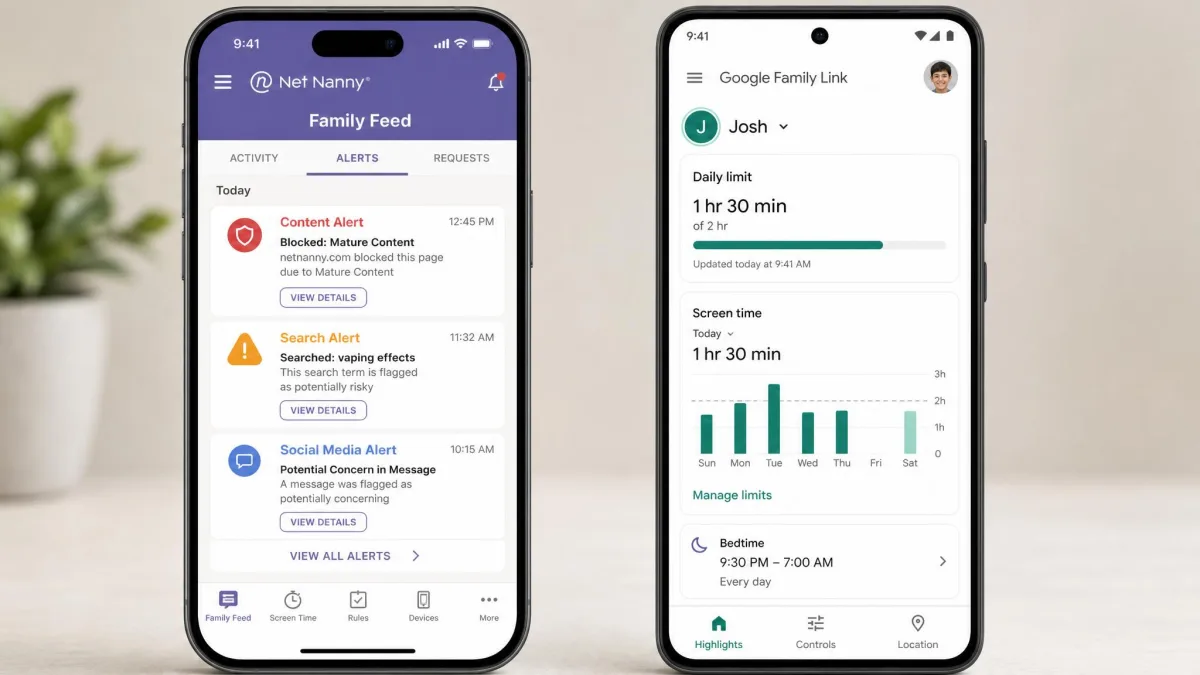
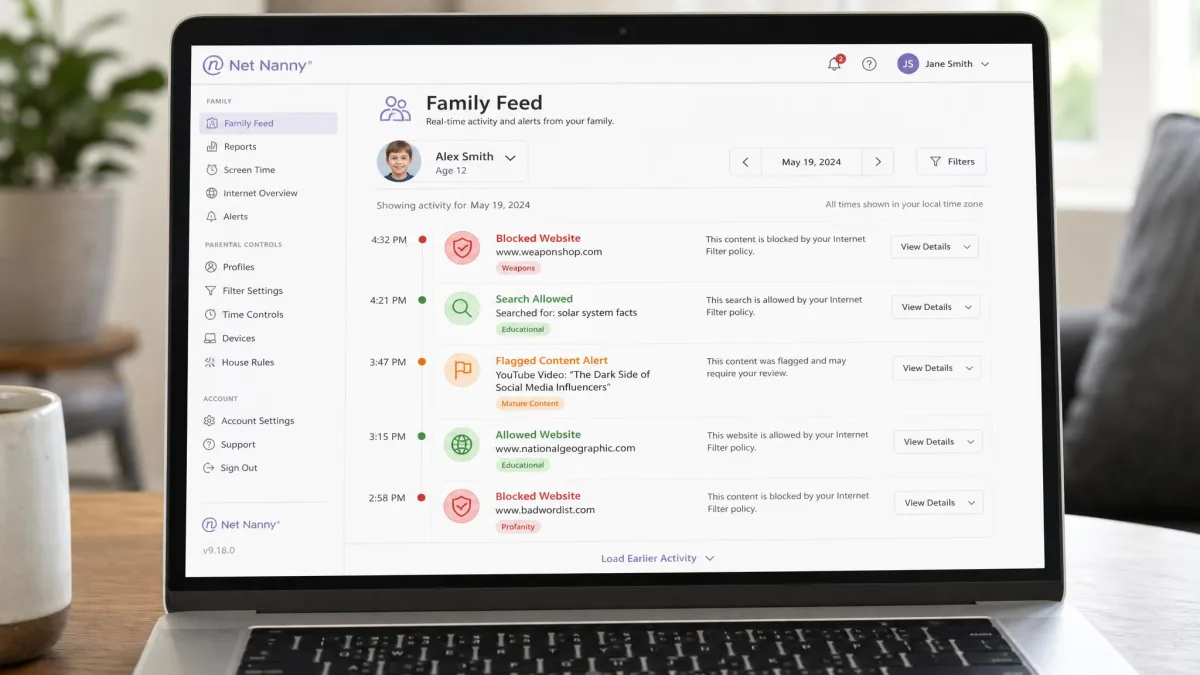
Net Nanny's AI-driven filter scores pages in real time, and its category-based blocking for pornography, violence, and hate content held up consistently on our test devices, triggering alerts each time a child account tried to reach flagged material. The instant alerting for adult, self-harm, weapons, and drug-related searches is the feature we would keep it for. Its custom filters are shakier: keyword and custom-site blocks for terms like "casinos" and "bulimia" still let related content slip through, so we would not rely on custom rules alone. Restricted pages could also sometimes be reached through a different browser or search engine, and alerts did not always populate the instant they should.
Family Link takes a lighter approach. It applies content controls across Chrome, Search, YouTube, and Google Play, but these are access-level switches rather than a page-reading filter. You decide roughly what maturity of content is allowed, and Google enforces it inside its own apps.
If web filtering is your main reason for installing anything, test the custom-block rules against the exact sites you care about during the refund window rather than trusting the category defaults.
Screen Time Limits and Scheduling
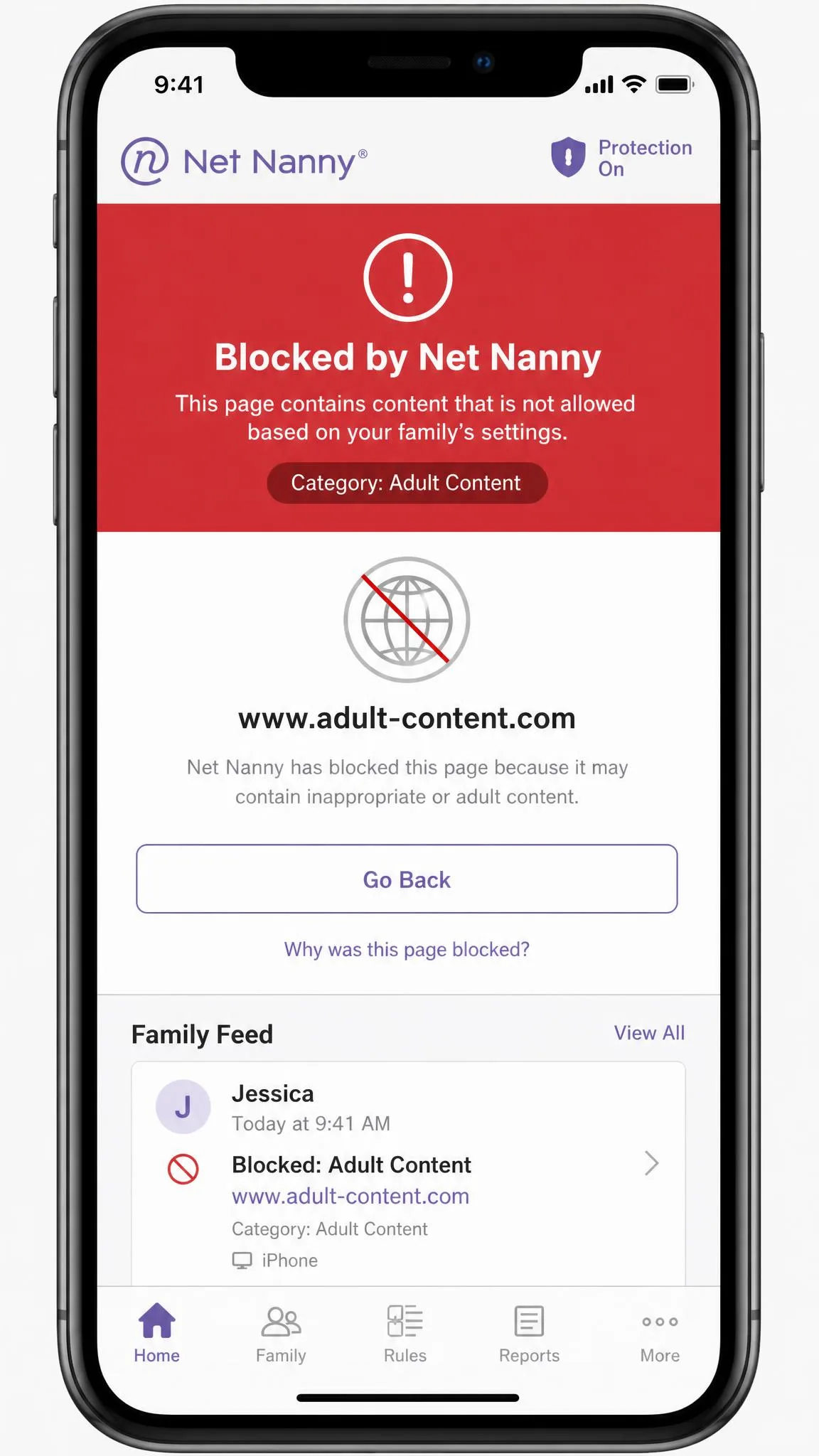
Screen time is Family Link's home turf, and it is the reason so many parents install it first. It offers daily screen-time limits, plus School Time and Downtime schedules that let you carve out focused hours and a hard bedtime cutoff. Weekday and weekend allowances are set per child, so you can give a school-night cap and a looser Saturday in the same profile.
Net Nanny also handles screen-time management and scheduling, with customizable limits you can shape per device. It covers the essentials well, though its scheduling feels like a companion to the filtering rather than the headline act. For pure time control on Android, Family Link is the more polished of the two.
App Blocking and App Management
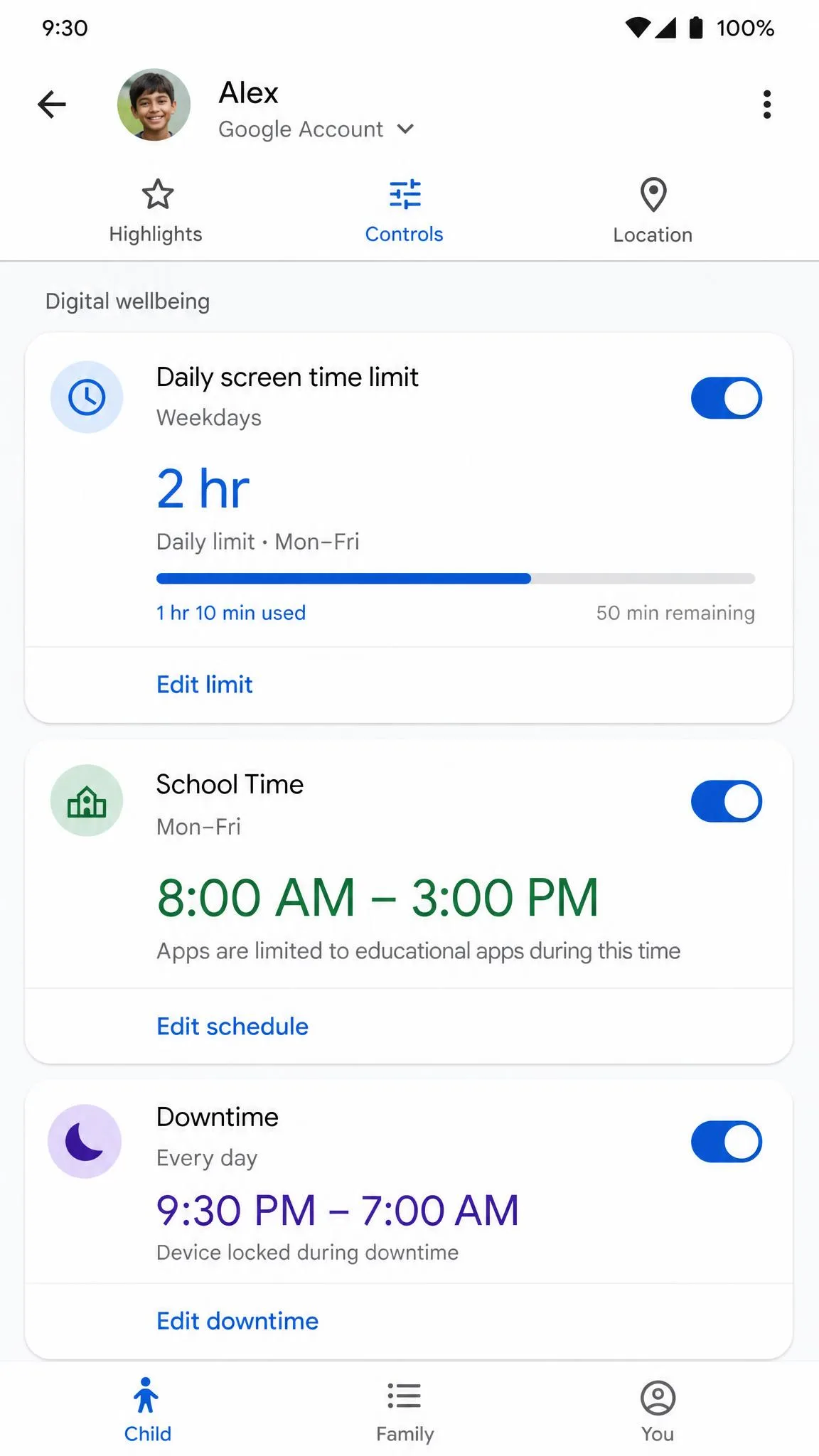
App control is another area where the free tool is surprisingly strong. Family Link gives you per-app time limits and full app blocking, and it can gate new installs from Google Play so a child cannot quietly add an app you have not seen. Between per-app limits, full blocking, and that Play install approval, it is a genuinely thorough app manager for an Android child device.
Net Nanny blocks apps on mobile too, which covers the common case of shutting off a specific game or social app. It does the job, but Family Link's per-app granularity and install controls give it the edge here for Android households that want tight app management without paying.
Location Tracking and Geofencing
Both apps can tell you where the device is, and this is one of the closer contests. Net Nanny includes location tracking so you can check a child's current position from the parent dashboard. It is reliable for a simple "where are they now" check.
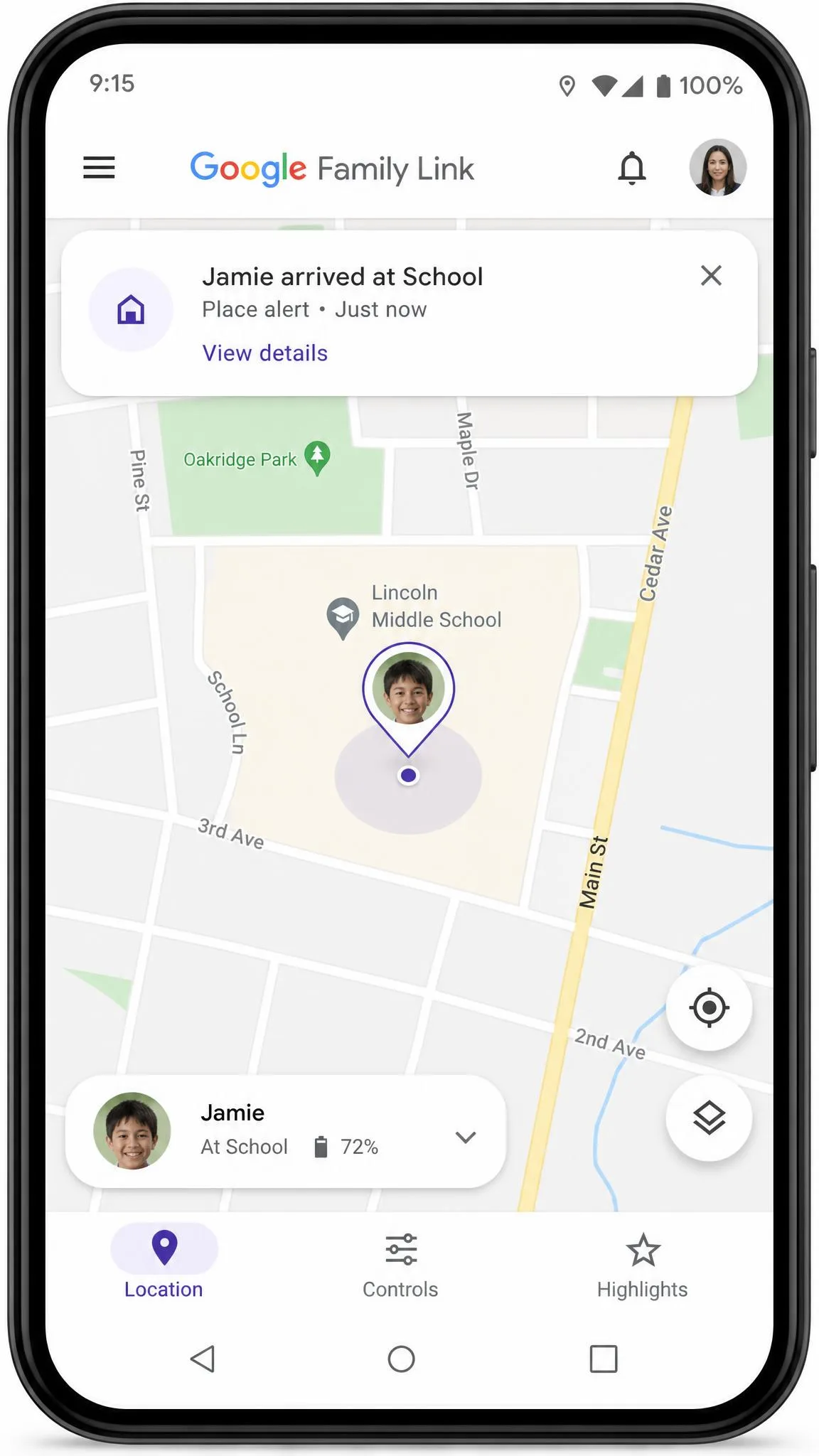
Family Link goes a step further with location tracking plus place alerts, so you can be notified when the device arrives at or leaves a set location. That geofencing-style notification is genuinely useful for school runs and after-school pickups, and it costs nothing. For location alone, Family Link offers a little more for a lot less.
Text, Social Media, and YouTube Monitoring
This is the section that surprises parents, and it is worth being blunt about. Neither app reads messages. Net Nanny does not monitor text messages, social media conversations, or email content, and on Android its web filtering does not even reach inside the standalone YouTube app. Family Link is the same in spirit: it cannot read texts, chats, or direct messages, and it cannot see activity inside apps like YouTube or social media.
Both tools manage access and time, not conversations. If your goal is to read your child's messages or watch their social feeds, neither of these is the tool, and you would need a dedicated monitoring app built for that job.
Do not buy either app expecting to see your child's texts or DMs. Both control what apps run and what the browser loads; neither exposes the contents of private messages.
Both tools manage access and time, not conversations, so the real question is whether you want to filter content or govern the clock.
— From our hands-on testing
Platform Support: iOS vs Android
Platform coverage can quietly decide this matchup, because an app that is weak on your child's device is the wrong app whatever its feature list says. Net Nanny works across Windows, macOS, Android, iOS, and Kindle Fire, and its monitoring is noticeably stronger on iOS and desktop than on Android, where app monitoring is weaker and YouTube-app filtering drops out.
Family Link runs the other way. It is at its best when the child's device is Android, which is the fullest, best-supported platform. The parent app is available on iOS, but child supervision is limited when the kid's own device is an iPhone, because iOS blocks third-party apps from managing core device functions. For iPhone-owning kids, Apple's own Apple Screen Time often fills gaps Family Link cannot reach on that hardware.
Ease of Use and Setup
Neither app is hard to run day to day, but both have a rough edge at the start. Family Link is free and quick once it is going, yet its initial setup can be fiddly for non-technical parents, and a child's existing school Google account is the single most common reason parents say Family Link "stopped working." Detaching an email from a family group can also be frustrating. It is also worth knowing that Family Link does not stop a determined child from uninstalling the companion app the way a Samsung Knox-integrated solution can.
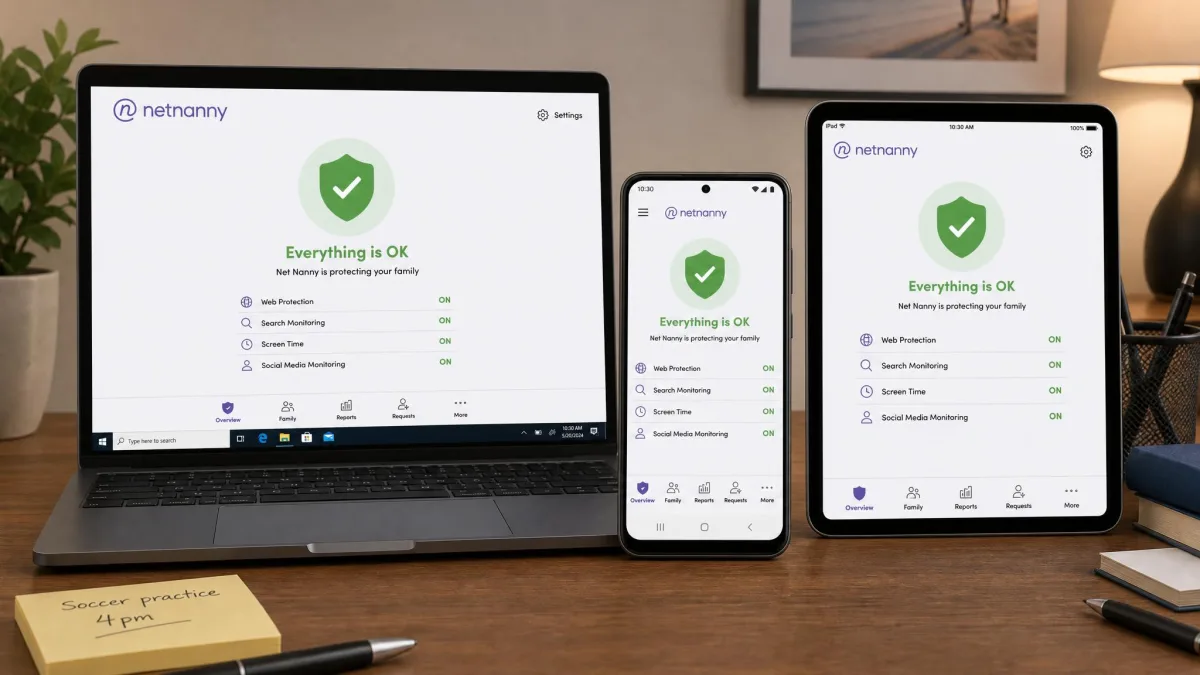
Net Nanny spreads across more platforms, which makes its setup a little more involved, and its real-time behaviour has occasional gaps where alerts lag or a workaround browser slips through. Once configured, though, its dashboard and Family Feed give a clear, readable picture of what a child has been doing.
Family Link's biggest long-term limitation is the age-13 transition: once a child reaches 13, or the local age of digital consent, the account moves toward a standard account and your controls loosen sharply unless supervision is deliberately continued.
Pros and Cons
Here is the balance sheet on each app after two weeks of side-by-side use, distilled to what actually mattered on our family devices.
Net Nanny pros and cons
Pros
- Reliable category filtering for pornography, violence, and hate content
- Instant alerts for adult, self-harm, weapons, and drug-related searches
- Broad platform support across Windows, macOS, iOS, Android, and Kindle Fire
- 14-day money-back guarantee to trial the filtering
Cons
- Subscription pricing, from $54.99 a year for a family plan
- Custom keyword and site blocks work inconsistently
- Weaker monitoring on Android, with no filtering inside the YouTube app
- No text, social, or email monitoring
Google Family Link pros and cons
Pros
- Completely free with no premium tier
- Excellent daily screen-time limits, School Time, and Downtime schedules
- Strong per-app limits, app blocking, and install control
- Location tracking with place alerts on Android child devices
Cons
- Limited controls when the child's device is an iPhone
- Controls loosen sharply at the age-13 transition
- Setup friction, especially with school Google accounts
- No content-reading filter and no message monitoring
Which Should You Choose?
The honest answer is that these apps solve different problems, so the winner is the one that matches your worry. Choose Net Nanny if content is the point: if you want a real web filter that blocks explicit material and alerts you to searches about self-harm, drugs, or violence, and you are willing to pay for it. It is also the better fit for iPhone-owning kids and mixed-device households, where its iOS and desktop coverage outclasses the free option.
Choose Google Family Link if your child is on Android and your goal is time, access, and location rather than content. It handles screen-time limits, app blocking, and place alerts as well as anything, and it does it for free. Many families run both: Family Link to govern the clock and app list, and Net Nanny layered on top when web filtering is the priority.