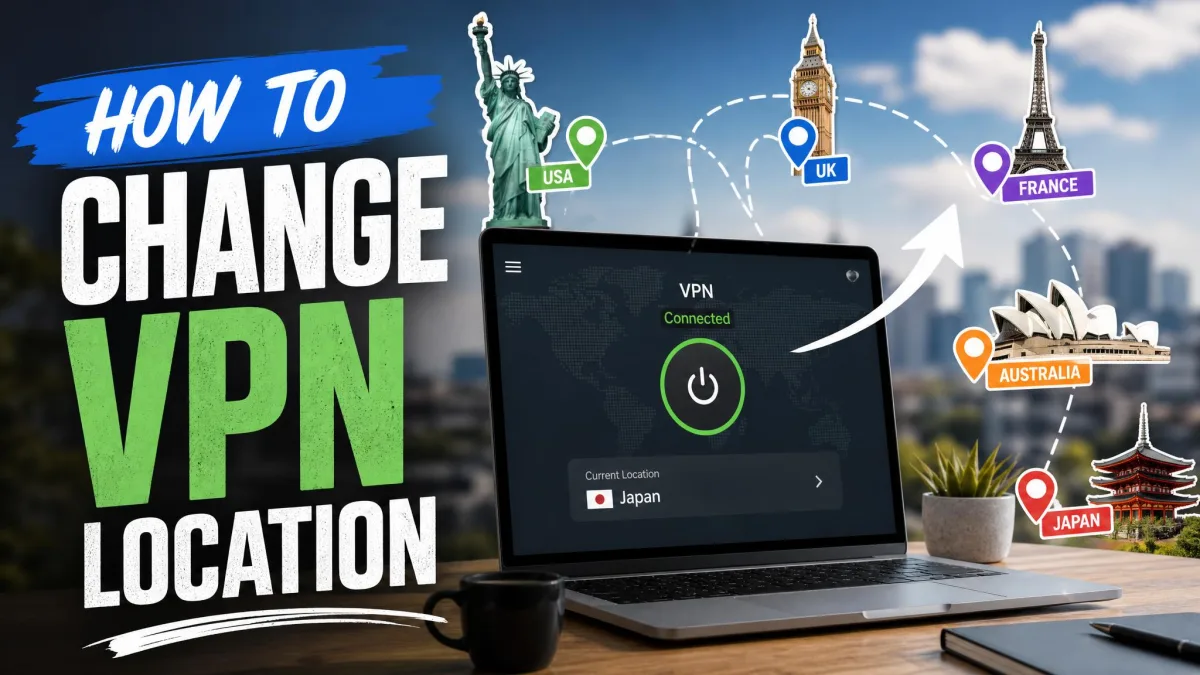
Changing your VPN location means telling your VPN app to route your traffic through a server in a different country. Once you connect, websites and services see the IP address of that server instead of your own, so you appear to browse from that location. It is one of the simplest, most useful things a VPN does, and it takes about a minute once you know where to click.
We change VPN locations constantly on our test machines, because that is how we check whether a service can reach content in one region and stay fast while doing it. In this guide, we walk through the exact steps that work on every major platform, show you how to confirm the switch actually took, and cover the fixes for the times a location stubbornly refuses to change.
The process is nearly identical whether you use Windows, Mac, iPhone, Android, or a browser extension. Pick a server, connect, verify, and you are done. Below we break each part down so nothing catches you out.
How to Change Your VPN Location (Quick Steps)
The fastest way to change your location is to work through five short steps. Each one takes seconds, and the same sequence applies no matter which device you are on. Here is the whole process before we get into the platform-specific details.
Step 1: Choose a VPN with servers in many countries
Your choice of location is only as good as the server list behind it. A VPN with servers in 100 or more countries gives you real flexibility, while a thin network limits you to a handful of popular hubs. When we shortlist services for this, we look at how many countries are covered and whether the network reaches the specific place you need.
Surfshark, for example, runs servers in 100 countries, ExpressVPN covers 105 countries and offers a server in all 50 US states, and NordVPN spans roughly 118 to 149 countries depending on how territories are counted. Any of the three gives you plenty of locations to switch between.
If you need a very specific location, such as a particular US state or a smaller country, check the provider's server list before you subscribe. Coverage of major cities is common, but not every service reaches every region.
Step 2: Download and install the VPN app
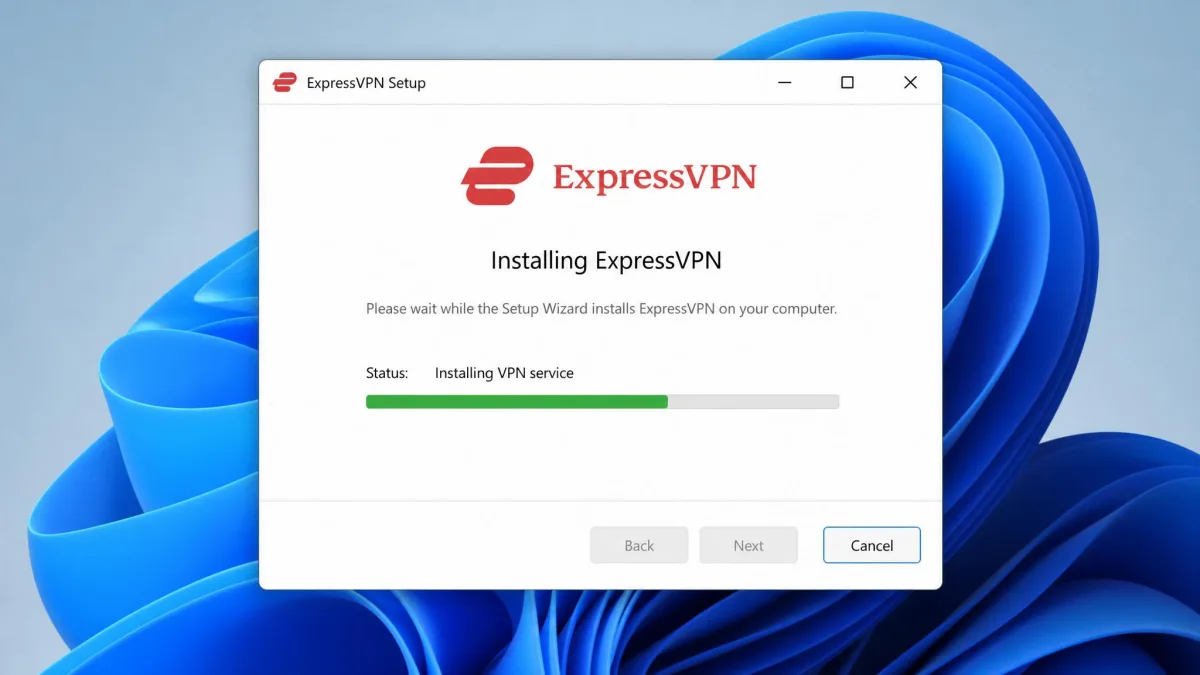
Once you have chosen a service, download its app from the provider's website or your device's app store. Every major VPN offers native apps for Windows, Mac, iPhone, and Android, so grab the one that matches your device. Installation is quick and works like any other app: run the installer on a computer, or tap Install on mobile.
Step 3: Sign in or create an account
Open the app and sign in with your account. If you are new, you will create an account and choose a plan first, then log in. Most services let you use one subscription across several devices at once, so a single account covers your laptop, phone, and tablet.
Step 4: Connect to a server in your chosen country
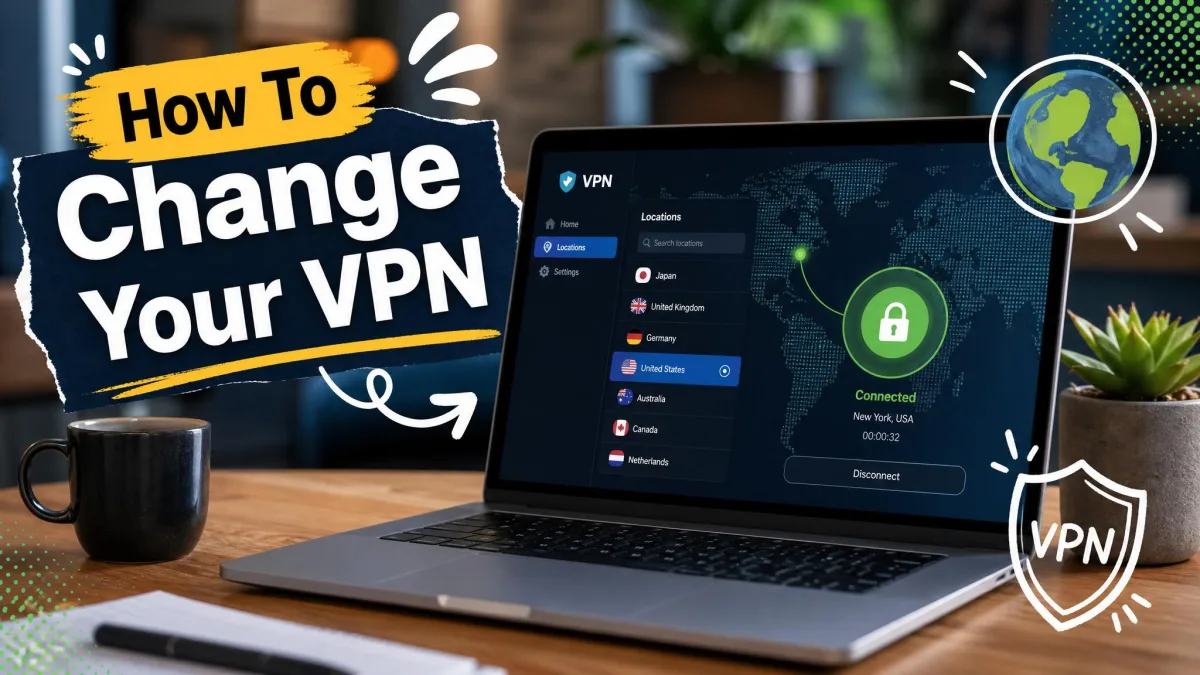
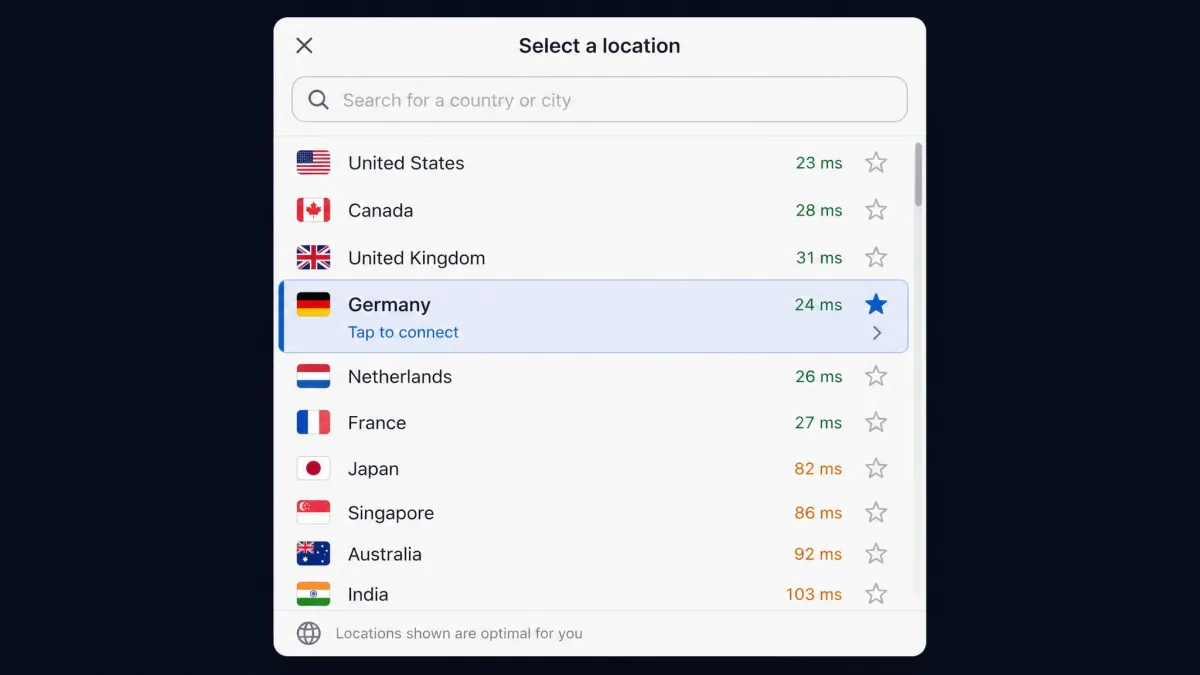
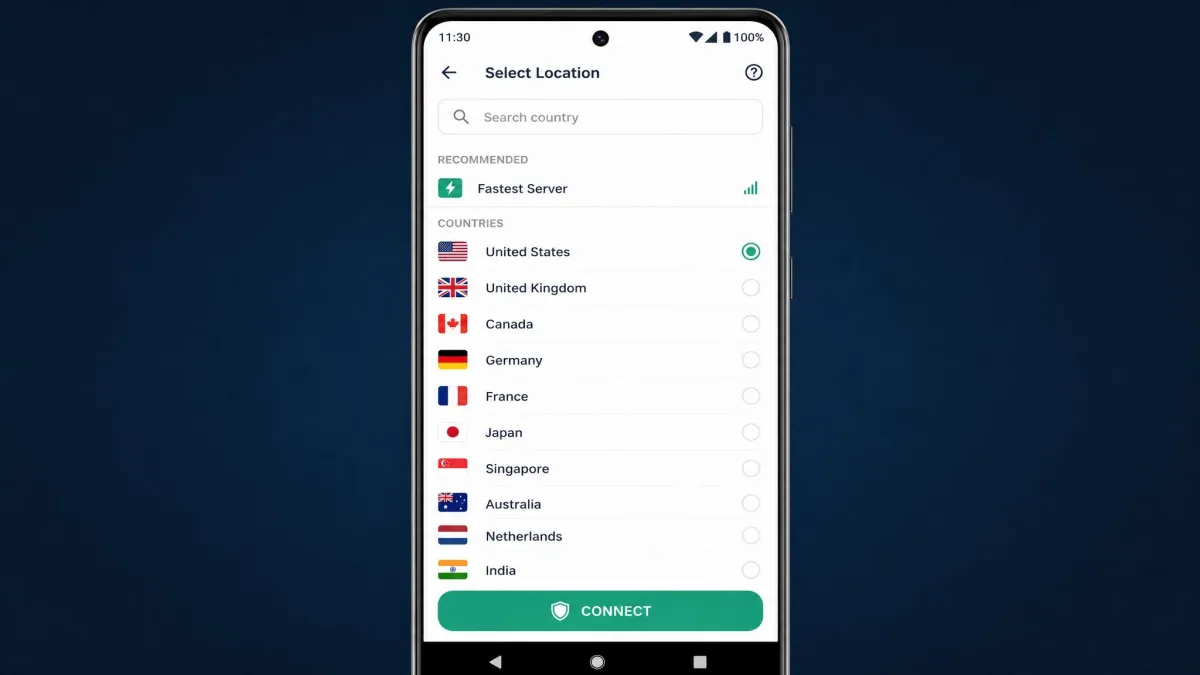
This is the step that actually changes your location. Open the app's location list, pick the country you want, and tap or click to connect. The app builds a secure, encrypted tunnel to that server, and within a few seconds your connection is routed through it. A status indicator turns green or shows "Connected" once the tunnel is live.
Step 5: Confirm your new location
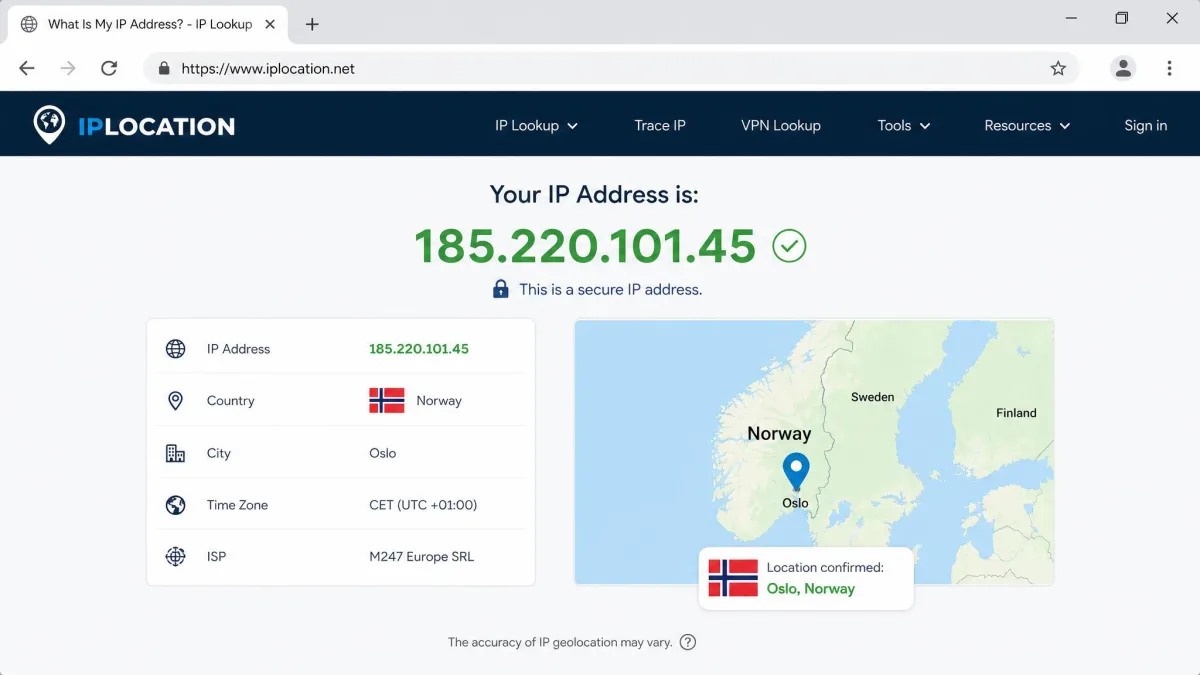
Never assume the switch worked. After connecting, open a browser and check your new IP address with WhatIsMyIPAddress, which shows the IP and country the internet now sees for you. If the country matches the server you chose, your location has changed. If it still shows your real region, refresh the page or move on to our troubleshooting section below.
How to Change Your VPN Location on Each Device
The five steps above hold everywhere, but the buttons and menus differ a little from one platform to the next. Here is how the process looks on each device you are likely to use.
On Windows
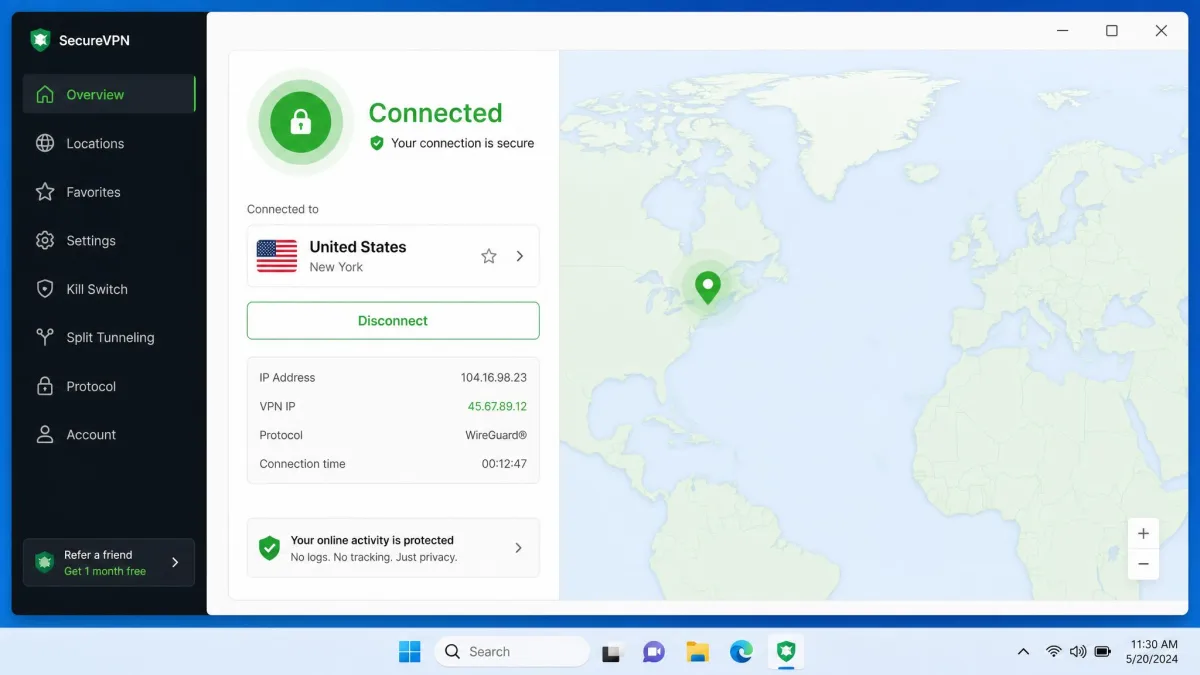
On Windows, open your VPN app, sign in, then use the search box or country list to find your destination. Click the country or a specific city, and the app connects automatically. Most Windows apps also let you pin favourite locations for one-click switching later.
You can also set up a VPN connection manually through Windows settings, and Microsoft's Windows VPN setup guide walks through that route. For changing location on the fly, though, the provider's own app is faster and gives you the full server list.
On Mac
The Mac process mirrors Windows. Launch the app, log in, open the location list, and click the country you want. The connection switches within seconds, and a menu-bar icon shows your current status so you can confirm the tunnel is active without opening the full window.
On iPhone and iPad
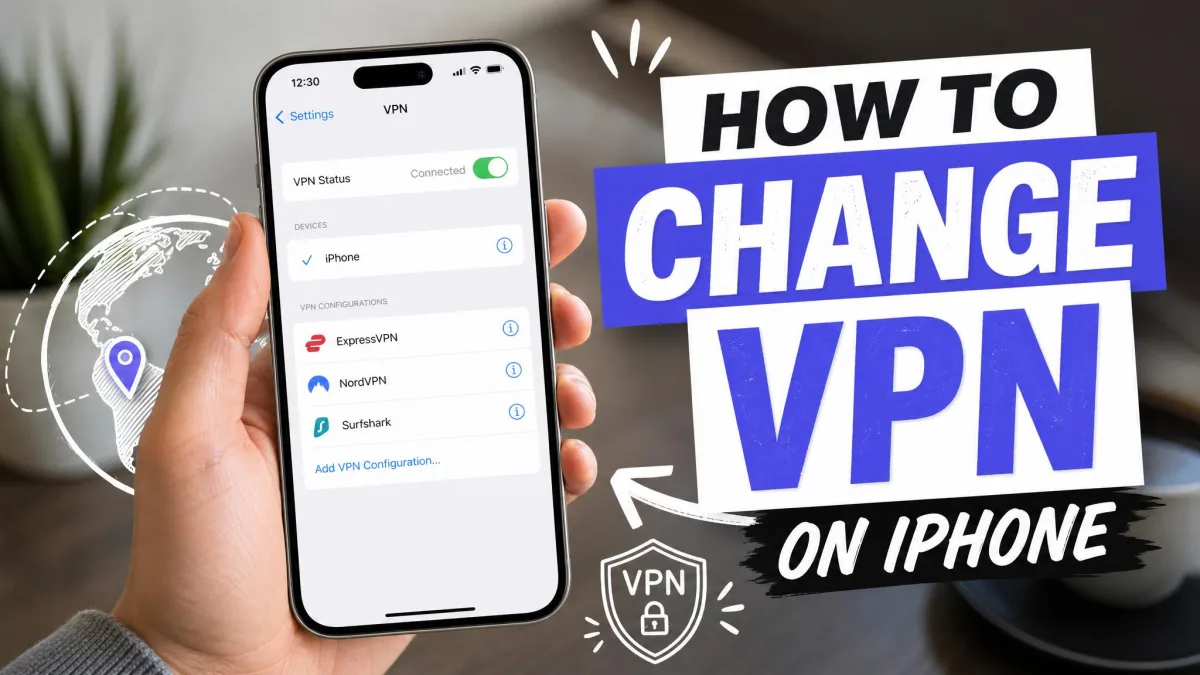
On iPhone and iPad, open the VPN app, tap the locations button, and select a country from the list. The first time you connect, iOS asks permission to add a VPN configuration; approve it once and future connections are instant. A small VPN badge appears in the status bar whenever the tunnel is active.
On Android
Android works much the same way. Open the app, tap Locations or the server list, choose your country, and connect. Android also shows a key icon in the status bar to confirm the VPN is running. If you switch locations often, most Android apps let you save favourites for quicker access.
On Chrome and other browsers
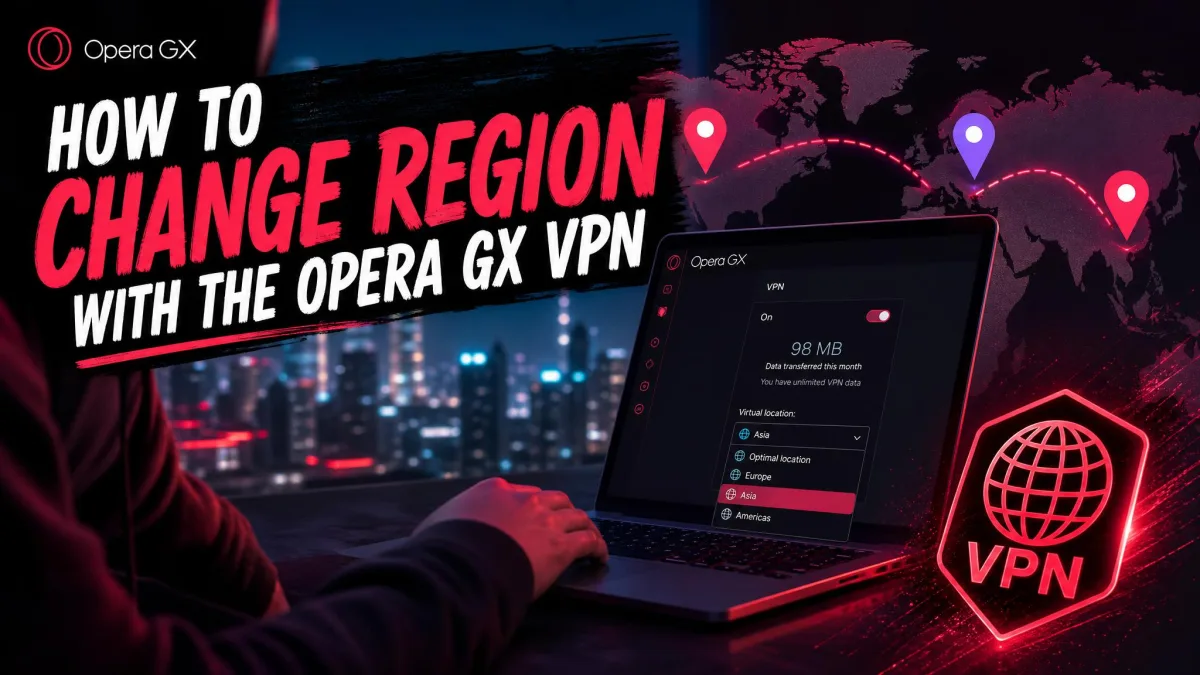
Browser extensions change your location for browser traffic only, not for other apps on your device. Install the VPN's Chrome, Edge, or Firefox extension, sign in, then pick a country from the extension's popup. This is handy when you only need to change region for browsing and want to leave the rest of your traffic untouched. Keep in mind the extension protects the browser alone, so anything outside it still uses your real connection.
What Does Changing Your VPN Location Do?
When you change your VPN location, you change the IP address that websites, apps, and services see. Your traffic leaves your device, travels through the encrypted VPN tunnel, and exits from the server you picked, so the wider internet reads that server's country as yours. Your browsing data stays private inside the tunnel along the way.
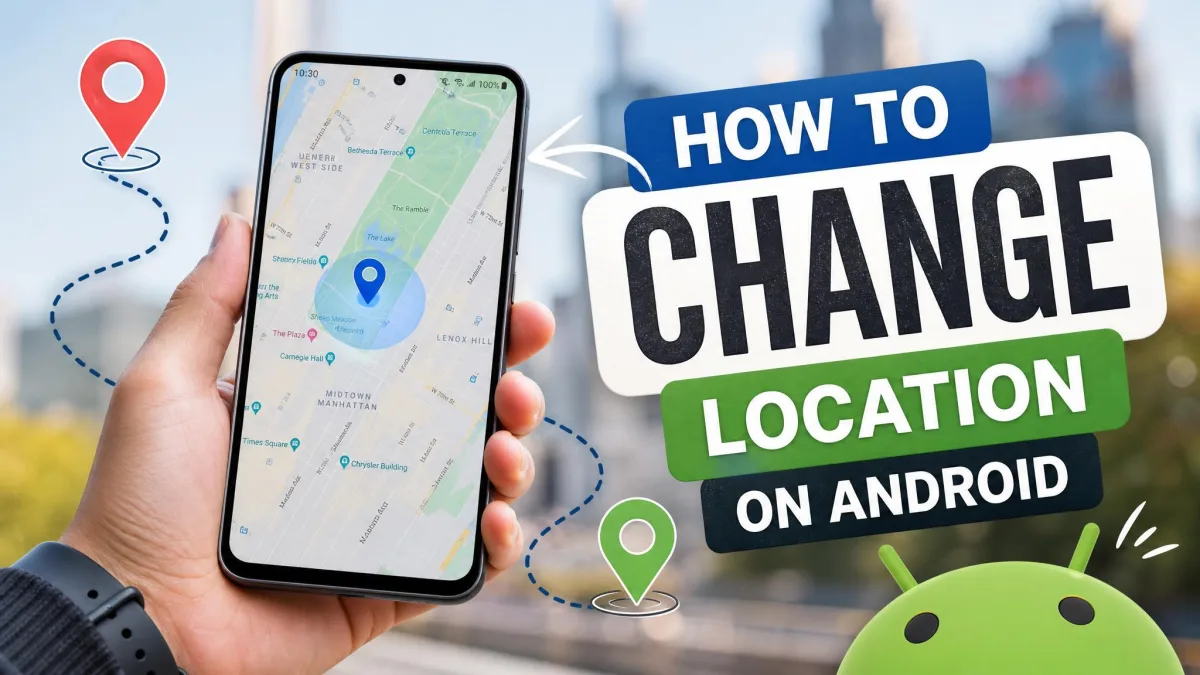
There is one important limit. A VPN changes your IP-based location only. It does not touch your device's GPS. Apps that read GPS directly, such as maps or some store and dating apps, can still see where you physically are unless you also use GPS spoofing. This trips up a lot of people who assume the VPN hides everything.
Surfshark's Android app includes a GPS-spoofing feature that overrides the device's GPS to match your VPN server, not just the IP address. It is a rare extra, and useful if you need both your IP and your GPS location to line up.
Why Change Your VPN Location?
There are plenty of good, everyday reasons to switch your virtual location, and none of them require any technical skill.
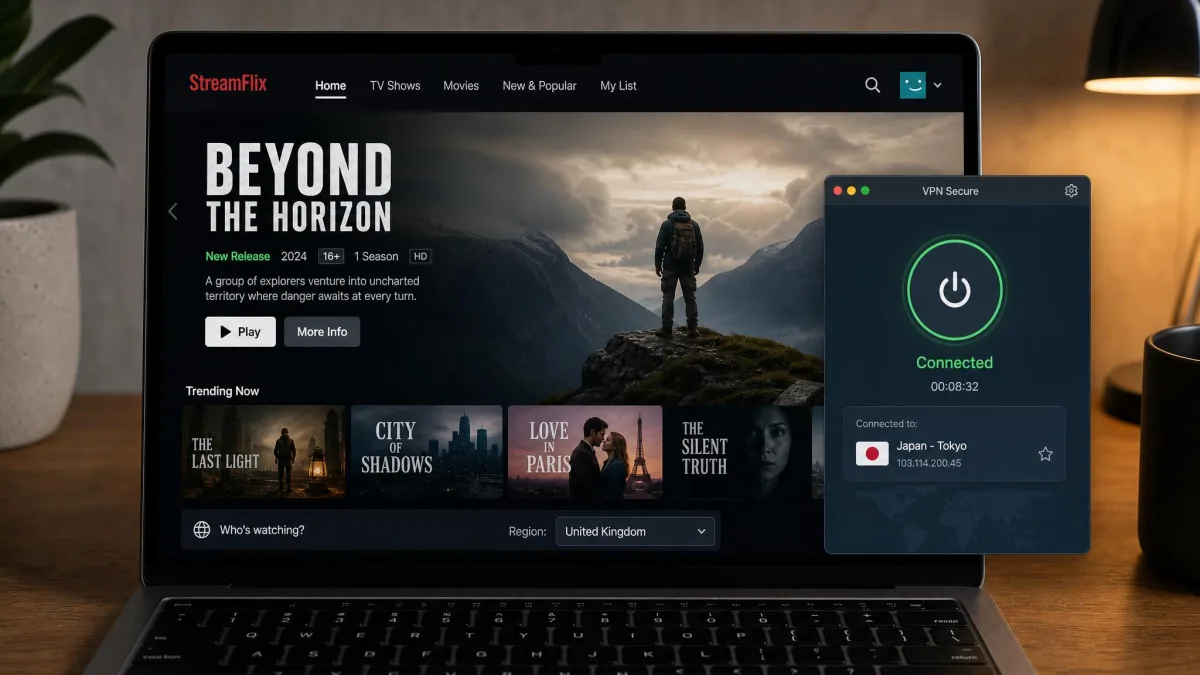
The most common is access. Streaming catalogues, news sites, and certain services vary by country, so connecting to a server elsewhere lets you unlock content that is otherwise unavailable to you. Travellers use this to reach services from home while abroad.
Privacy is the next big reason. Changing location masks your real IP address from the sites you visit, which makes it harder to tie your browsing back to you or your network. Shoppers also use it to compare prices across regions, since some fares and subscriptions differ by country. Whatever the goal, the mechanism is the same: pick a server, connect, and you are browsing from somewhere new.
How to Choose the Right Server Location
Picking the right server is about more than the flag next to it. The location you choose affects both speed and whether a service actually lets you through.
Distance is the first thing to weigh. In our testing, switching to a server physically far from you noticeably slows the connection, because your traffic has to travel a long way before reaching its destination and back. When speed matters and the exact country does not, choose the nearest server that still meets your need.
For streaming, the type of server matters too. We have found that streaming-optimized or dedicated servers hold up far better for unblocking than a random server in the same country, which often gets flagged and blocked. If your provider labels certain servers for streaming, start there.
The nearest server that still meets your need almost always beats the far-flung one. Distance is the single biggest lever on VPN speed.
— From our hands-on testing
Is It Legal to Change Your VPN Location?
For most readers, yes. Using a VPN to change your location is legal across the US, Canada, and most of Europe. Changing your apparent location is not itself a crime, and it is a normal part of how millions of people use VPNs every day.
The important caveat is that a VPN does not make otherwise-illegal activity legal. Local laws still apply to whatever you do online, wherever you appear to be. A handful of countries also ban or heavily restrict VPNs themselves, so the tool can be the problem rather than the location switch.
VPNs are banned or illegal in a small number of countries, including North Korea and Belarus, and heavily restricted in others such as China and Russia. These lists change as governments update their laws, so check the current rules for your specific country before you rely on a VPN there.
Troubleshooting: VPN Location Won't Change
Sometimes you connect to a new server and a site still shows your old region. This is common and usually quick to fix. Here is what we work through, in order, when a location refuses to switch on our machines.
First, reconnect or pick a different server. Disconnecting and reconnecting to another server in the same country usually assigns a fresh IP, and that alone clears most problems. Streaming services in particular sometimes throw a proxy error even after you connect, and a fresh server almost always resolves it.
Second, clear your browser cache and cookies. A page can keep showing the old region right after you connect, and refreshing or clearing cached data is often what actually updates it. Cookies can store your previous location and quietly override the new one.
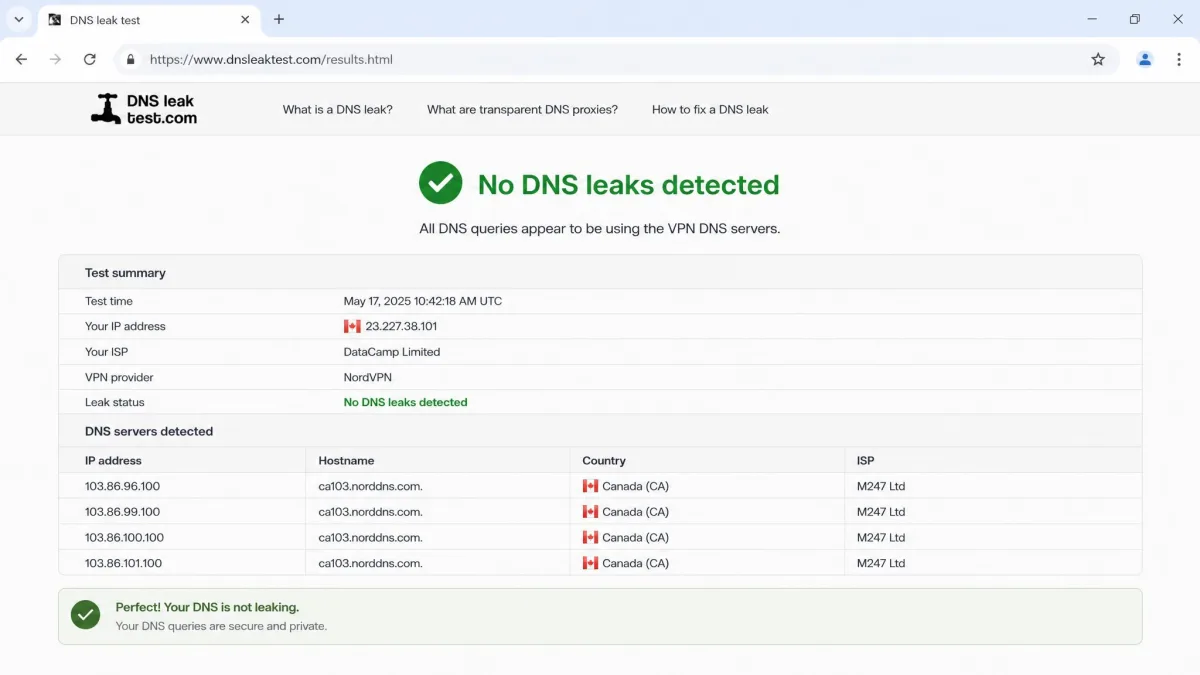
Third, check for leaks. If your IP looks changed but sites still guess your real country, DNS requests may be leaking outside the tunnel. A quick DNS leak test surfaces the problem, and turning on your VPN's DNS leak protection closes it. On mobile, remember that apps reading GPS can still show your real location even with the VPN on, so disable device location services or the app's GPS permission if that is the issue.
Other Ways to Change Your Location (Proxy, Smart DNS, Tor)
A VPN is the most practical tool for this, but it is not the only one. Each alternative trades something away.
A web or SOCKS proxy reroutes a single app or browser through another server, which changes your apparent location without protecting the rest of your device. Smart DNS is popular for streaming because it is fast, but it only redirects the parts of your traffic that reveal location and adds no encryption, so it does nothing for privacy. The Tor network routes your traffic through several volunteer relays for strong anonymity, at the cost of noticeably slower speeds. Finally, GPS-spoofing apps change your device's GPS location on mobile, which a VPN alone cannot do.
| Provider | Countries covered | US coverage | GPS spoofing (mobile) |
|---|---|---|---|
 |
~118 to 149 (varies) | Multiple US locations | Not offered |
 |
105 (some cite 113) | All 50 US states | Not offered |
 |
100 | Multiple US locations | Yes (Android) |
Which one you reach for depends on the goal. For everyday location changes with privacy, a VPN wins. For pure streaming speed, Smart DNS has a place. For fooling a GPS-based app, only spoofing does the job.
Frequently Asked Questions
Can my VPN location be tracked?
How do I confirm my location actually changed?
Can I change my location without a VPN?
Does changing my location slow my connection?
Is it legal to use a VPN to change location for streaming?
Conclusion
Changing your VPN location comes down to five repeatable steps: choose a service with wide server coverage, install the app, sign in, connect to a server in your target country, and confirm the switch with an IP check. The routine is the same on Windows, Mac, iPhone, Android, and in the browser, so once you have done it once you can do it anywhere.
Keep the limits in mind. A VPN changes your IP-based location, not your device's GPS, and when a location will not switch the fix is almost always a fresh server, a cleared cache, or a quick leak check. Get those habits down and you can move between countries in seconds, whenever you need to.