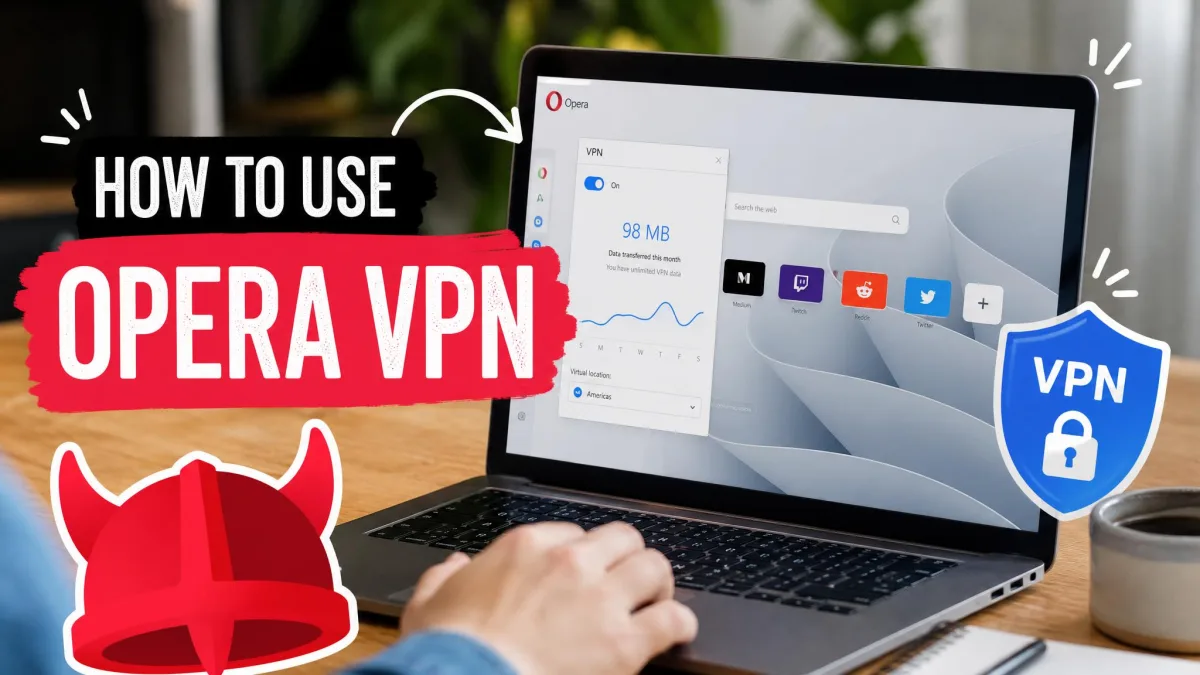
You want a quick, free way to hide your browsing, and Opera has one built right in. There is no extra app to install and no account to create. This guide walks you through turning it on, switching your server location, and confirming it actually works.
We tested Opera's VPN across Windows, Mac, Android, and iOS to see how the setup really goes. We also checked what it protects, where it falls short, and when you might want something stronger. Everything below reflects what we saw firsthand.
What Is Opera's Built-in VPN (and How It Works)
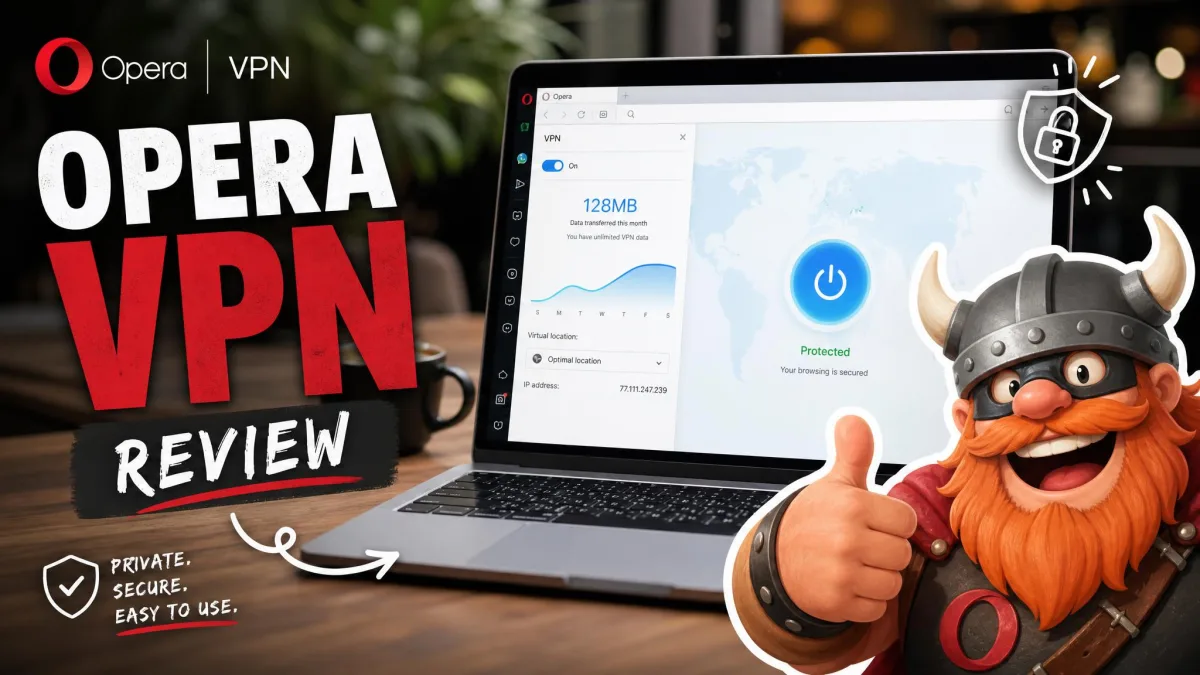
Opera's built-in free VPN is a privacy feature baked into the browser itself. When you switch it on, Opera routes your browser traffic through one of its own servers and gives you a new IP address. Sites you visit see that server's location instead of your real one.
It is genuinely free. There is no subscription, no login, and no payment step. Bandwidth is unlimited too, so you will not hit a monthly data cap.
Is Opera VPN a real VPN or a browser proxy?
This is the key thing to understand. Opera's free VPN protects traffic inside the Opera browser only. Anything running outside the browser, like your email client, a game, or another browser, stays on your normal connection.
Opera states the free VPN uses AES-256 encryption. Independent reviewers describe the free tier as more of a browser proxy than a fully encrypting tunnel, and the true protection level is disputed. If you want to understand what a VPN does at the system level, treat Opera's free feature as lighter than a standalone app.
Opera's free VPN covers only your Opera browser tabs. Other apps, background services, and system traffic are not protected while it is on. For whole-device privacy, you need a full-device VPN.
Is Opera VPN free, unlimited, and no-log?
Yes on all three. The free VPN costs nothing, carries no data caps, and follows a no-log policy. That policy is not just a marketing line either. Opera commissioned an independent no-log audit by Deloitte in 2024, which found no data-logging functionality and no browsing data being collected.
How to Enable Opera VPN on Desktop (Windows & Mac)
Setup on desktop takes only a moment. You have two ways to turn it on, and both end at the same VPN badge near your address bar.
Turn on the VPN in Opera settings
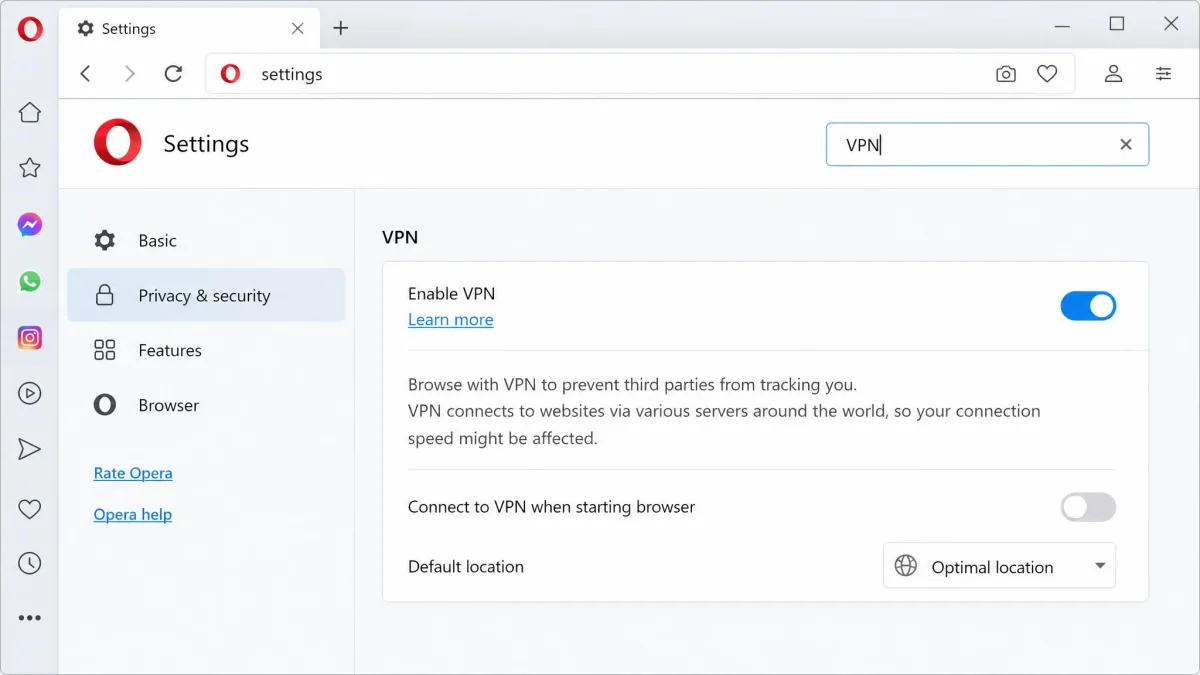
Open the Opera menu and click Settings. From there you are looking for the "Enable VPN" toggle. The exact menu location has shifted between Opera versions, so if you do not see it right away, type "VPN" into the settings search box and it will jump you straight to the toggle. Switch it on and a blue VPN badge appears to the left of your address bar, with the feature active right away.
Toggle the VPN from the address bar badge
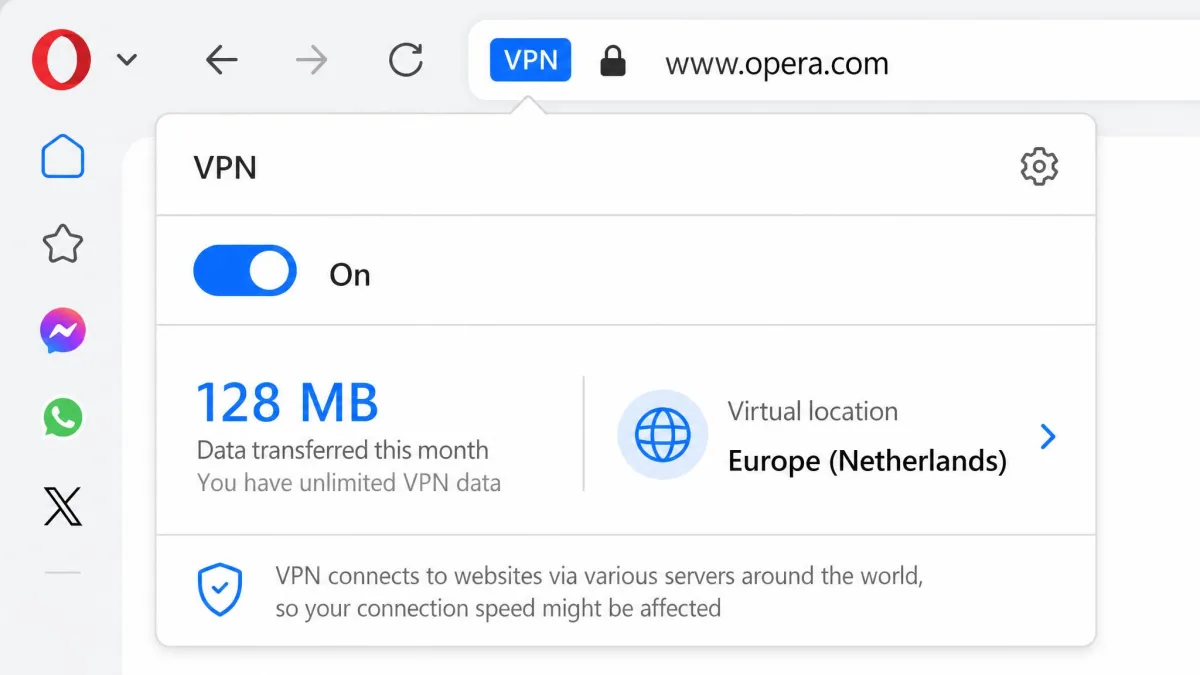
Once the badge is showing, you rarely need the settings menu again. Click the VPN badge to open a small panel, then flip the switch at the top. Blue means connected, and gray means off. The same panel shows your current region and how much data you have used.
Keep the VPN badge visible so you can confirm your status at a glance. A blue badge means your browser traffic is being routed; a gray one means you are on your normal connection.
How to Enable Opera VPN on Mobile (Android & iOS)
Opera added the VPN to its mobile browsers so you can protect your phone browsing too. Opera has offered it on iOS since 2023, alongside Android.
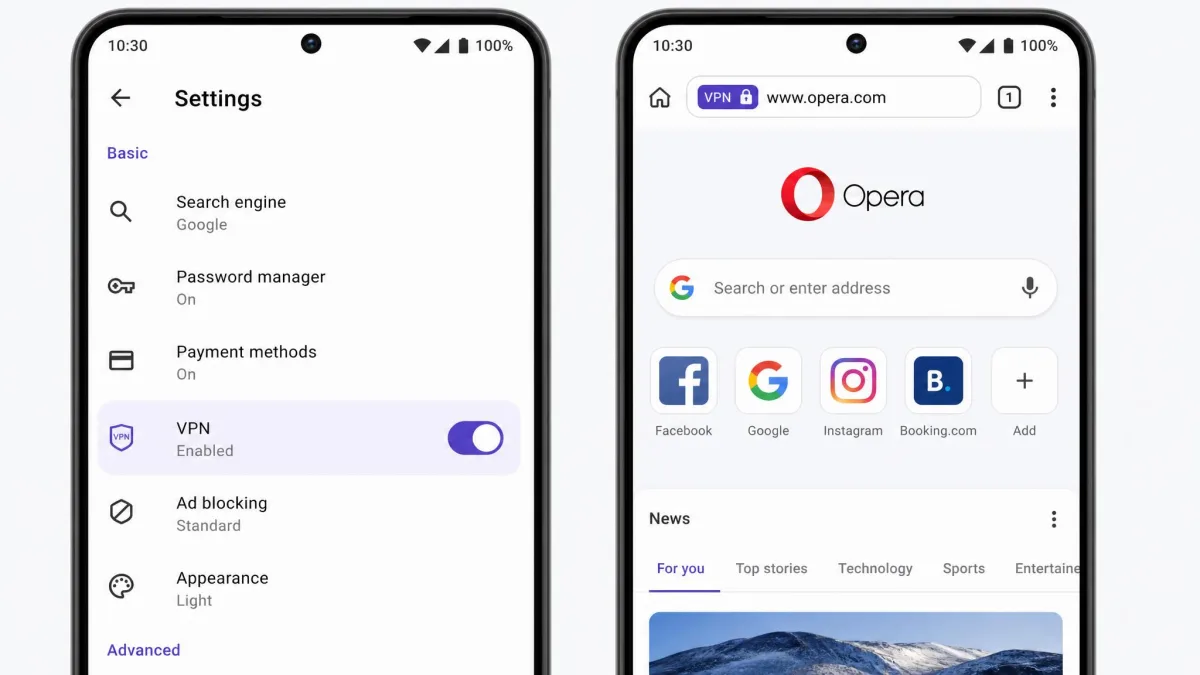
On Android, open the Opera menu, tap Settings, then find and enable VPN. Once it is on, a VPN badge appears in the address bar just like on desktop, and you tap it to connect or disconnect.
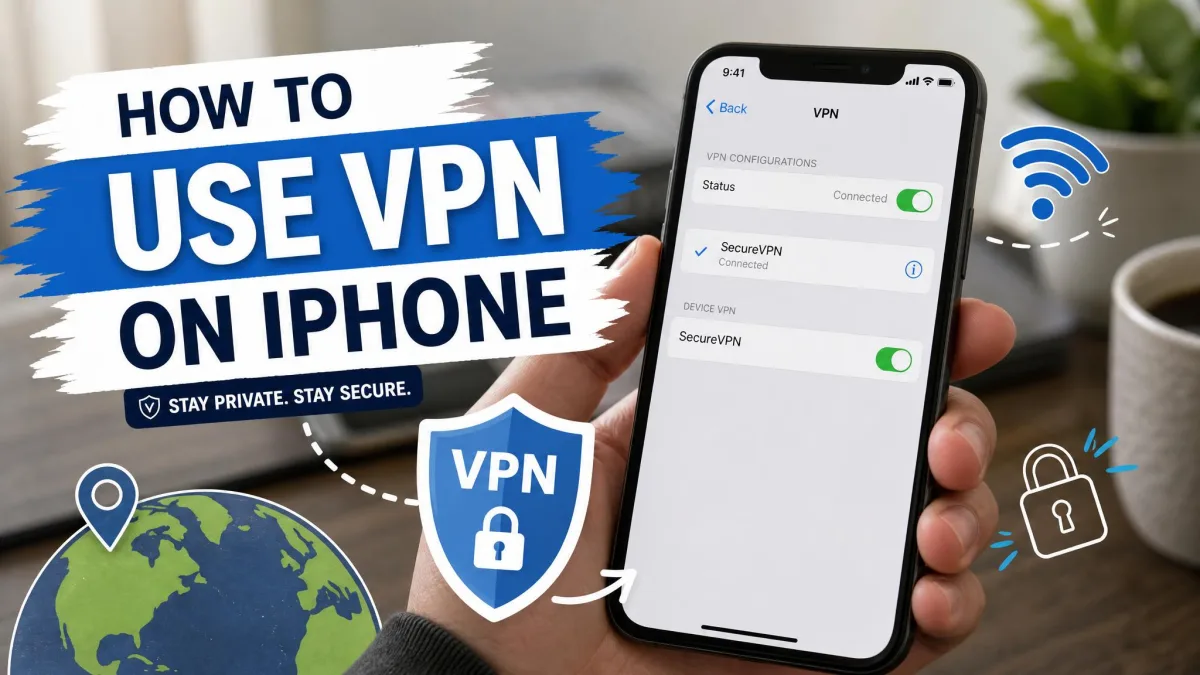
On iOS, tap the hamburger menu at the bottom right, choose Settings, then enable VPN near the top. Confirm any system prompt iOS shows for adding a VPN configuration. After that, the badge controls it the same way.
How to Choose or Switch Your VPN Server Location
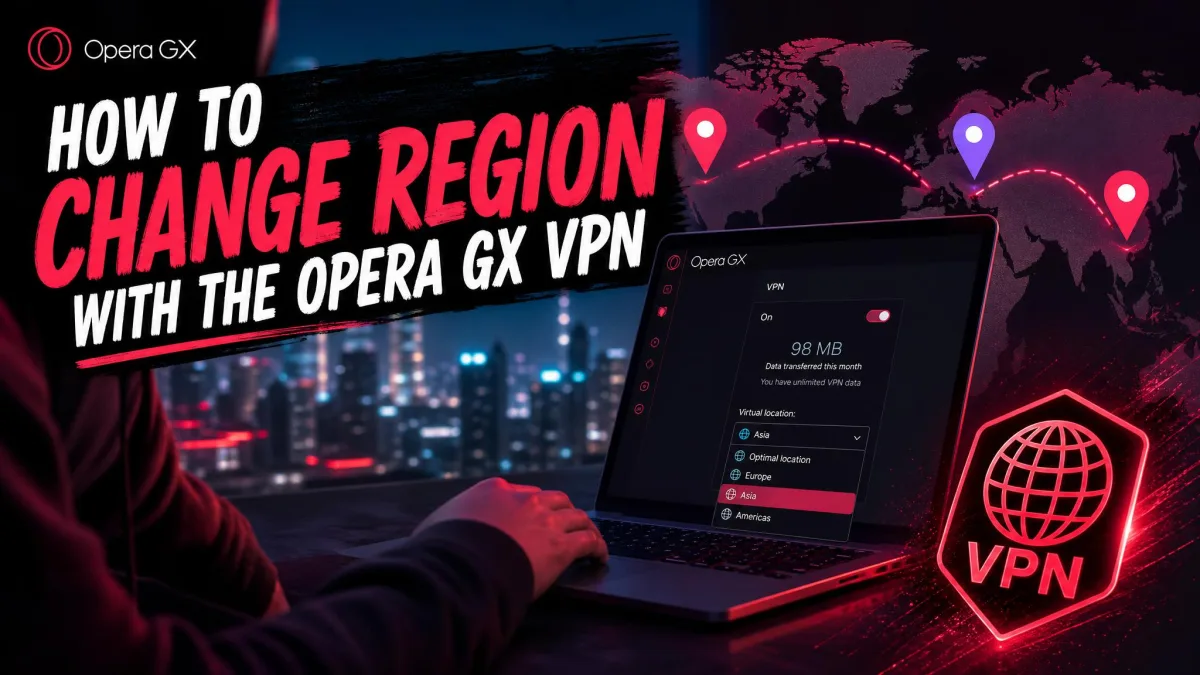
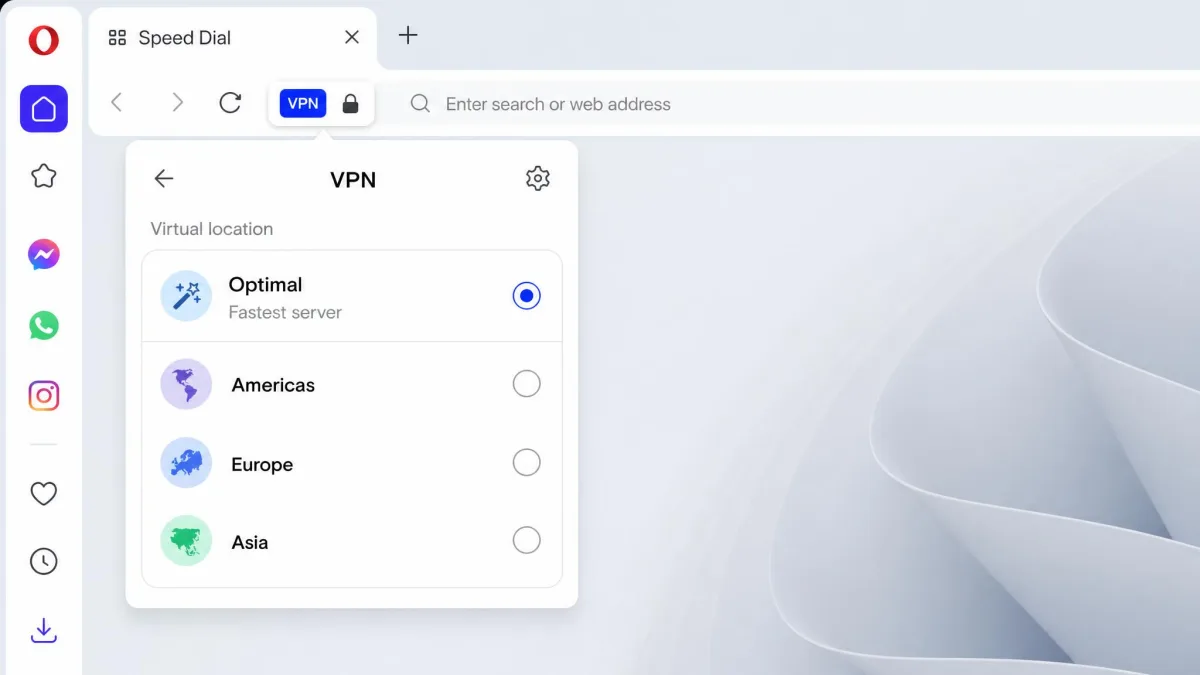
Tap or click the VPN badge to open the location panel. From there you pick where your traffic exits. The free tier keeps this simple, maybe too simple for some users.
You choose from three broad regions, Americas, Europe, and Asia, plus an Optimal option that auto-selects the fastest server for you. There is no way to pick a specific country or city on the free tier, so your control over the exact exit location is limited. If Optimal feels slow, try switching to a nearer region by hand.
How to Test That Your Opera VPN Is Working
Never assume a VPN is on just because you flipped a switch. A quick check takes under a minute and saves you from a false sense of privacy.
First, note your real IP before connecting. Turn the VPN off, visit a site that will check your IP address, and write down the number and location it shows. Then turn the VPN on, pick a region, and reload the same page. If the IP and country have changed to match your chosen region, your browser traffic is being routed correctly.
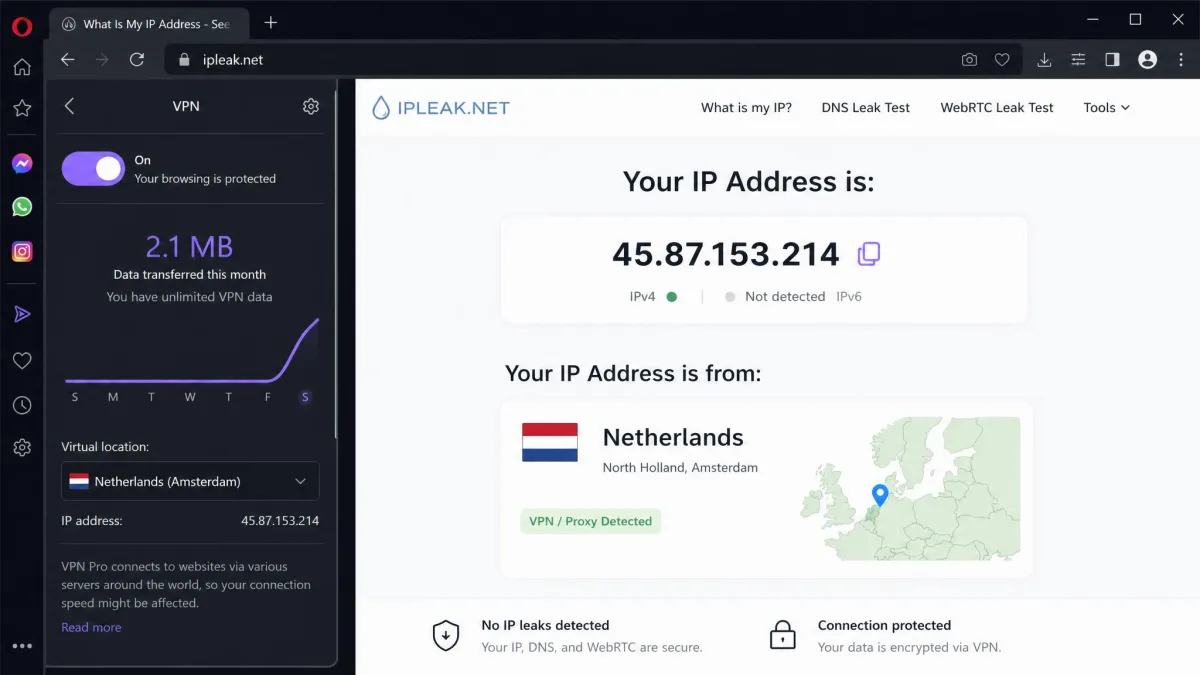
Remember to run this test inside Opera. If you check your IP in a different browser while Opera's VPN is on, it will still show your real address, because the free VPN does not cover other apps.
Opera VPN Limitations and Alternatives
The free VPN is convenient, but it is not a full privacy solution. Knowing its limits helps you decide whether it is enough or whether you should reach for something bigger.
In our testing, turning the VPN on noticeably slowed browsing, with the biggest drops when connecting to distant regions. Streaming was the other weak spot. Netflix and similar services often refused to unblock on the free tier, so it is unreliable for getting around geo-restrictions.
Browser-only coverage vs. a full-device VPN
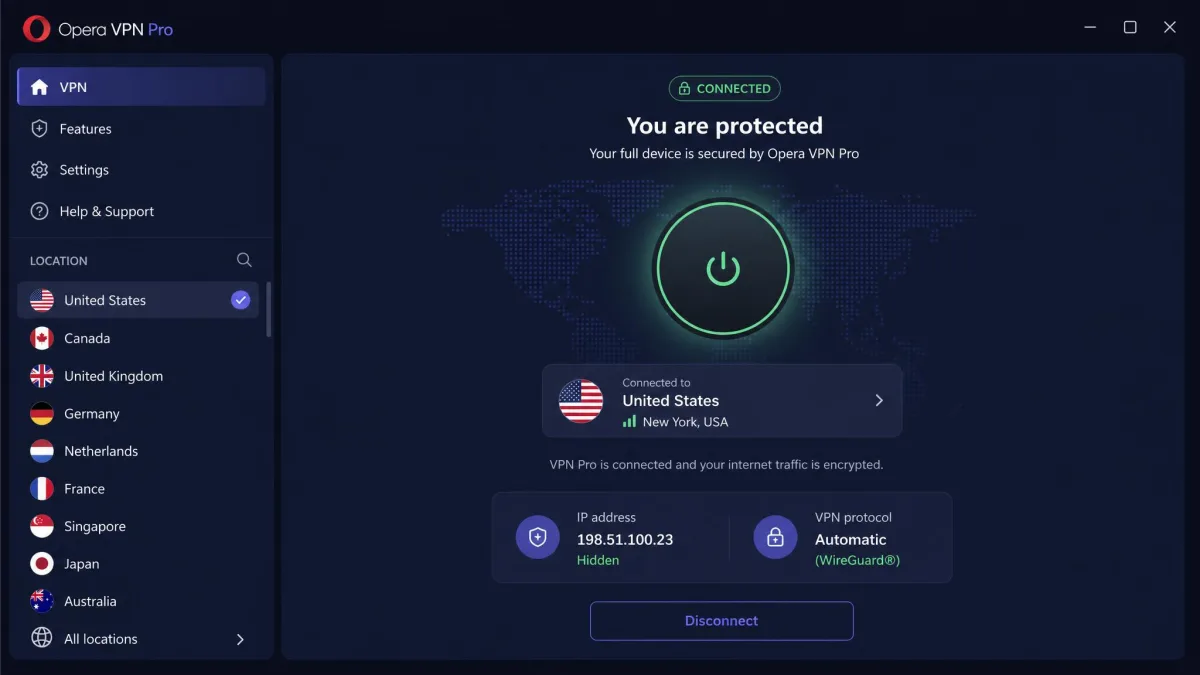
The single most important limit is scope. The free VPN protects your Opera tabs and nothing else. Your other apps, downloads outside the browser, and system traffic all stay on your regular connection, fully exposed. A standalone, full-device VPN encrypts everything leaving your machine instead.
| Feature | Opera free VPN | Opera VPN Pro |
|---|---|---|
| Price | Free | $4 to $8/month |
| Coverage | Browser only | Entire device |
| Locations | 3 regions | 48 locations |
| Servers | Limited | 3,000+ |
| Devices | Current browser | Up to 6 |
| No-log | Yes (Deloitte audited) | Yes |
Third-party VPN extensions and Opera VPN Pro
If you want more control, you have two upgrade paths inside Opera. You can install a third-party VPN extension from the add-ons store, though quality varies and many still only cover the browser. Or you can move up to Opera VPN Pro, Opera's paid, full-device service.
VPN Pro runs about $8 per month, or $4 per month billed annually. It covers your entire device, spans 48 locations and 3,000-plus servers, protects up to six devices, and comes with a 30-day money-back guarantee. If you outgrow the free feature, that is the natural next step, and you can read an independent Opera VPN review before deciding.
Frequently Asked Questions
Is Opera VPN a real VPN or a proxy?
Is Opera's free VPN really free and unlimited?
Does Opera VPN keep logs of what I do?
Can Opera VPN unblock Netflix or other streaming sites?
Does Opera VPN work on my phone?
What is the difference between the free VPN and VPN Pro?
Final Thoughts
Opera's free VPN is one of the easiest privacy tools to switch on. In seconds, with no account, you get a fresh IP and unlimited, no-log browsing inside Opera. For casual privacy on public Wi-Fi or a quick region change, that is a real convenience.
Just remember what it does not do. It leaves everything outside your Opera tabs exposed, it slows browsing, and it will not reliably unblock streaming. Use it for what it is, a light browser shield, and step up to a full-device VPN when you need real, whole-machine protection.