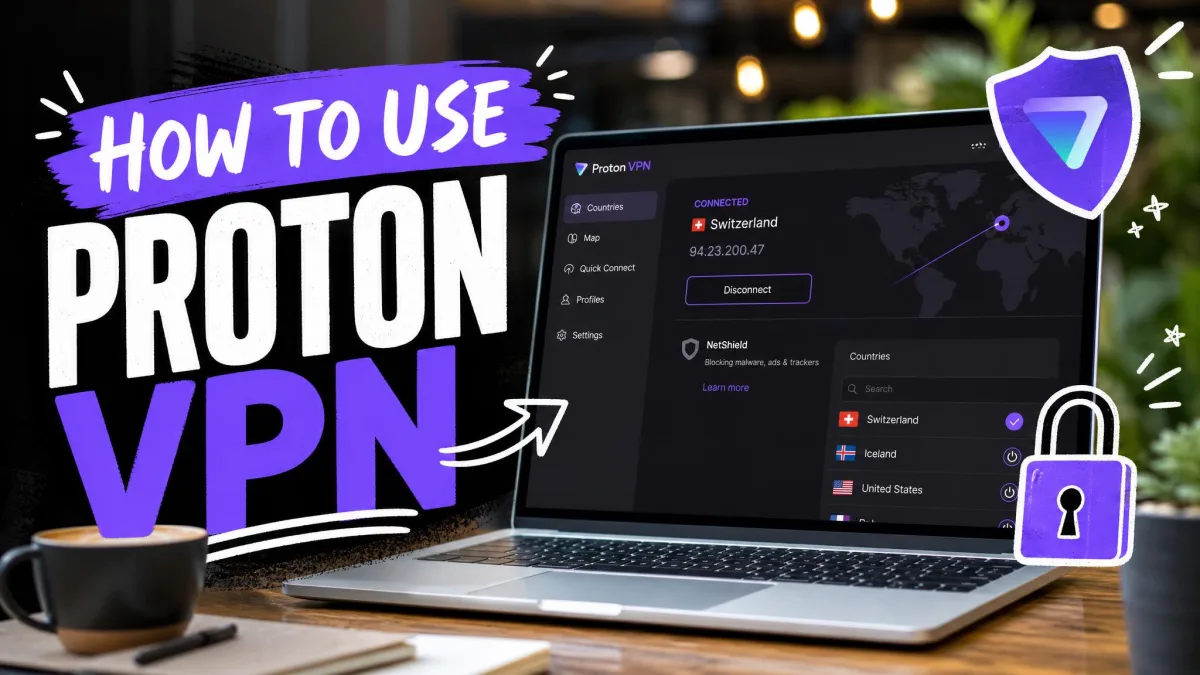
Proton VPN is a privacy-focused VPN built by the Swiss team behind Proton Mail, with open-source apps and an independently audited no-logs policy. This guide covers everything you need to go from a blank slate to a fully protected connection: picking the right plan, downloading and installing the app on your device, connecting to a server, and switching on the features that make Proton worth using.
We run every VPN we cover through real setup, speed, and leak checks before we write about it, and Proton VPN is no exception. Our testers installed the current apps on Windows, macOS, Android, and iOS, connected across free and paid servers, and stepped through each setting so we could tell you what actually matters and what you can leave alone. Everything below reflects how the apps behaved for us in day-to-day use.
If you have never touched a VPN before, do not worry. The whole process takes about five minutes, and Proton keeps the defaults sensible enough that you can be protected before you understand every toggle.
Choosing Your Plan: Proton VPN Free vs Plus vs Unlimited
Before you download anything, decide which plan fits you, because it changes what you can do inside the app. Proton VPN sells three tiers, and the good news is that you can start on the free one and upgrade later without reinstalling.
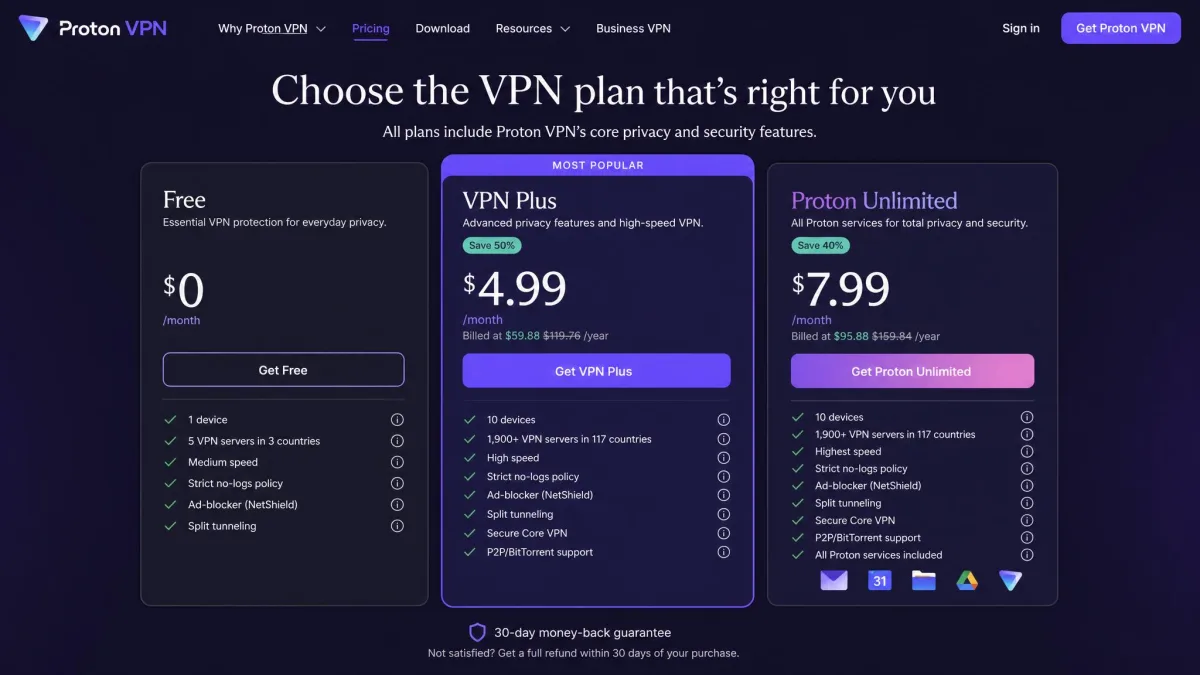
Proton VPN Free is $0 and free forever, with no data limits and no artificial speed caps. That is rare. Most free VPNs throttle you or sell your data, and in our testing Proton did neither. The catch is scope: the free plan covers a small set of auto-selected countries, allows one device, and skips the advanced features like Secure Core and NetShield.
VPN Plus is the paid tier most people want. It runs $9.99 per month billed monthly, drops to $3.99 per month on the one-year plan, and $2.99 per month on the two-year plan. It unlocks the full server network, 10 simultaneous devices, streaming support, and every advanced feature.
Proton Unlimited is $12.99 per month monthly, $9.99 on the one-year plan, and $7.99 per month on the two-year plan. It includes everything in Plus and bundles the rest of Proton's ecosystem: Proton Mail, Calendar, Drive, and Pass. If you already pay for those, or want them, Unlimited is the better value.
Every paid plan carries a 30-day money-back guarantee, prorated for unused time, so you can test the paid features risk-free.
| Plan | Price (2-yr / mo) | Countries | Devices | Streaming | Secure Core |
|---|---|---|---|---|---|
| Free | $0 | ~10 (auto) | 1 | Limited | No |
| Plus | $2.99 | 100+ | 10 | Yes | Yes |
| Unlimited | $7.99 | 100+ | 10 | Yes | Yes |
If you only want a VPN for occasional privacy on your laptop, start with Free. If you stream, torrent, or protect a whole household of devices, the two-year Plus plan is the sweet spot on price.
How to Download and Install Proton VPN
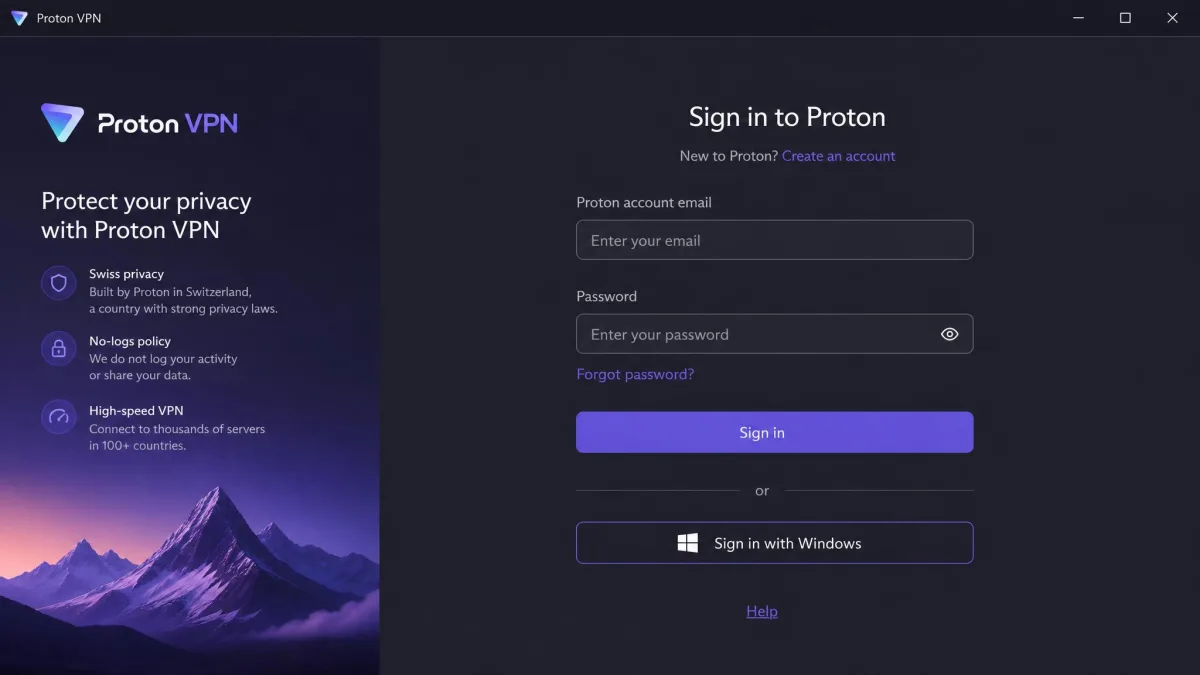
Installation is straightforward on every platform we tried, and account registration takes under a minute. You will need a free Proton account first. Head to your Proton VPN account to sign up with an email address, then grab the app for your device from the official download Proton VPN page. Never install a Proton VPN app from a third-party download site.
Windows
On Windows, you download the installer from Proton's website rather than the Microsoft Store, which adds one small extra step compared with a Store install. Run the downloaded file, follow the prompts, and launch the app. Sign in with your Proton account and you are ready to connect. Proton's own Proton VPN Windows app documentation walks through the same flow if you get stuck.
macOS
On macOS, open the downloaded .dmg, drag Proton VPN into your Applications folder, and launch it. macOS will ask you to approve a VPN configuration the first time you connect. Click Allow, enter your password, and the connection completes. Setup here was smooth in our testing with no surprises.
Android and iOS
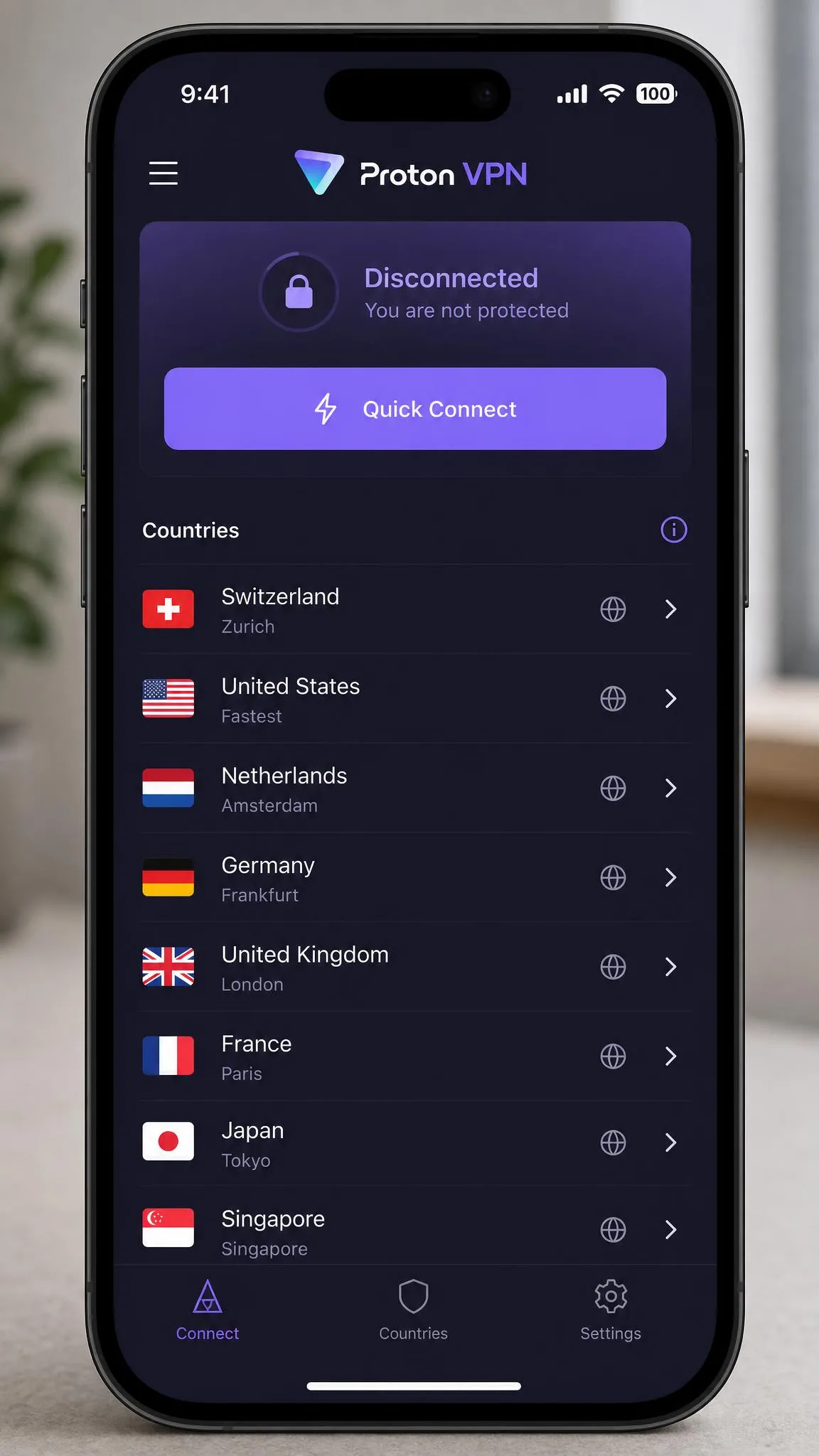
On phones and tablets, install Proton VPN from the Google Play Store or Apple App Store, open it, and sign in. Both mobile apps ask permission to add a VPN configuration on first connect, which is normal. On Android and iOS the whole process took us a couple of minutes from download to connected.
Browser Extensions and TV / Router
Proton VPN also offers Chrome and Firefox extensions, apps for Android TV, Fire TV, and Apple TV, and support for router-level setup. The browser extensions are handy if you only want to protect browser traffic, but note that they are a paid feature and not available to Free-plan users. For a TV or router, follow the platform-specific instructions in the Proton VPN setup guide.
How to Connect to a Proton VPN Server
Once you are signed in, connecting is the easy part. Proton gives you two ways to do it, and which one you use depends on whether you care about the specific location.
Quick Connect vs Choosing a Location
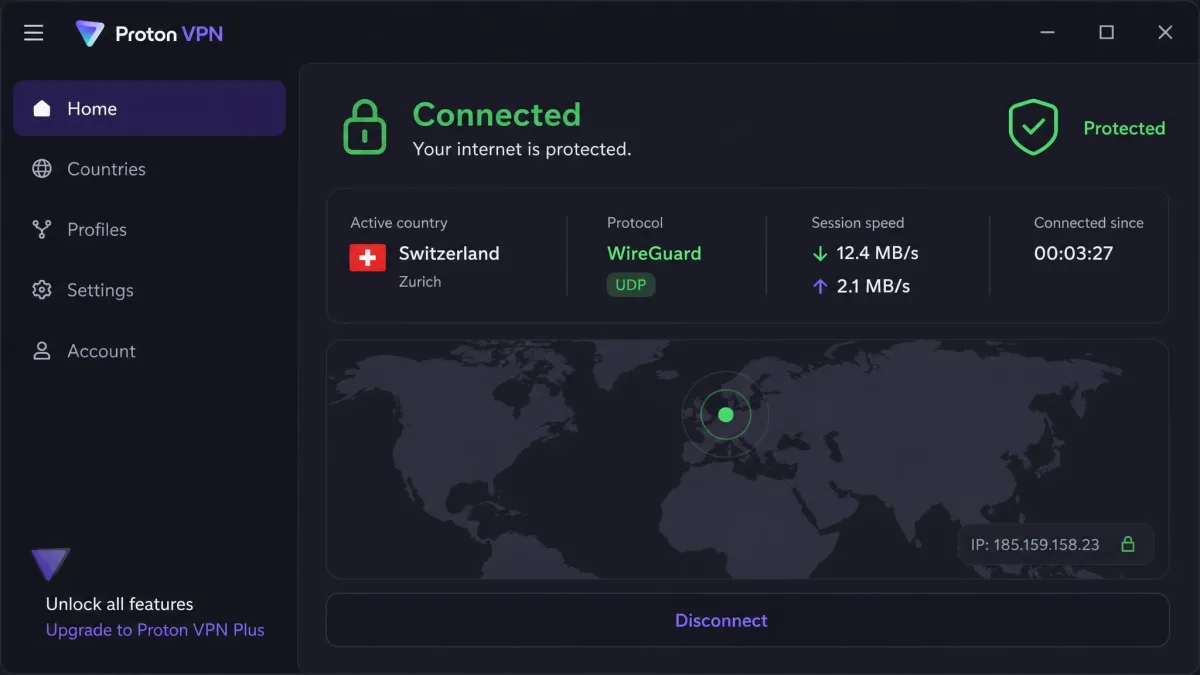
Quick Connect is the big button, and it is what we reach for most. Press it and Proton drops you onto the fastest available server automatically, with no manual picking. It weighs server load and distance for you, so it is the right choice when you just want protection without thinking about it.
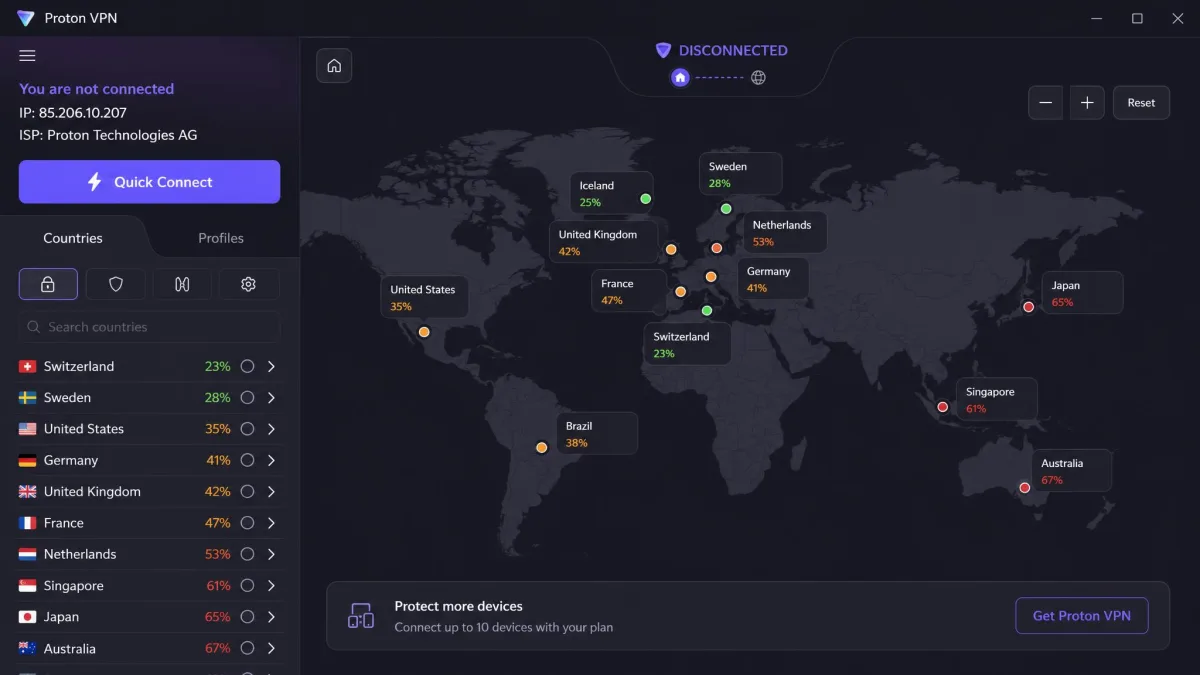
Choosing a location matters when you need a specific country, say to access content from home while traveling or to test how a site looks elsewhere. Open the country list, pick a nation, and optionally expand it to select an individual city or server. Click to connect.
The map and server list show a load percentage for each server. Lower is faster. If a server feels sluggish, disconnect and pick one with a lighter load, or just hit Quick Connect again.
Connecting on a Free Plan vs Paid Plan
On a paid plan you get the full network of well over 100 countries, and you can switch between them freely. On the Free plan, Proton connects you to a small set of auto-selected countries, and you do not choose the country directly.
One free-plan quirk worth knowing: there is a cooldown between server switches, around 90 seconds and growing if you switch often. It is Proton's nudge toward upgrading, and it can feel limiting if you like hopping locations. That said, the free servers delivered decent speeds for us despite the smaller footprint, and Proton even unblocked Netflix on free servers during our testing, which is unusual for a free tier.
How to Configure the Key Settings That Matter
The defaults are safe, but a few settings are worth changing to get the most out of Proton. Here are the ones that actually move the needle.
Choosing a Protocol (Smart / WireGuard / OpenVPN)
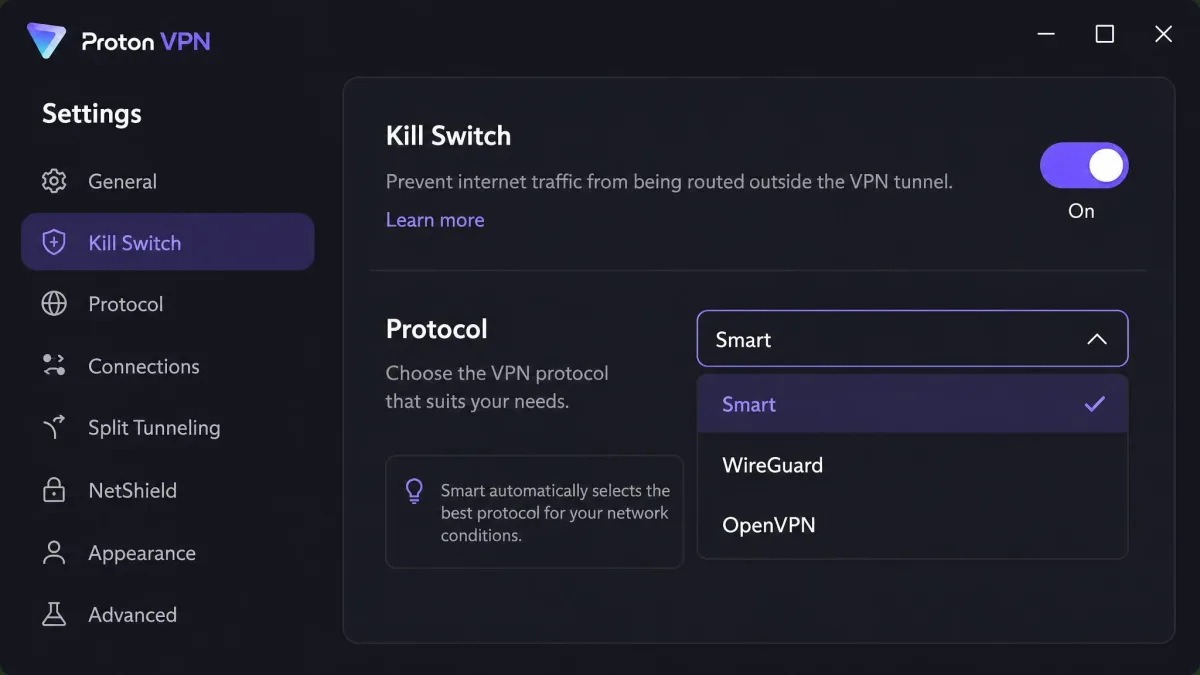
Proton offers several protocols: Smart, WireGuard (UDP and TCP), Stealth, and OpenVPN (UDP and TCP). Leave it on Smart unless you have a reason not to. Smart automatically picks the best protocol for your network and routes around blocks. If you want to force the fastest option, choose WireGuard. If you are on a restrictive network that blocks VPNs, Stealth is designed to slip through.
Enabling the Kill Switch
The Kill Switch is the one setting we tell everyone to turn on. It blocks all internet traffic if the VPN connection ever drops, so your real IP address is never exposed during a reconnect. Find it in Settings, flip it on, and forget about it. This is what makes it safe to leave Proton connected all day.
Without the Kill Switch, a dropped connection can briefly leak your real IP and location before the VPN reconnects. On public Wi-Fi especially, turn it on before you do anything sensitive.
Setting Up Auto-Connect
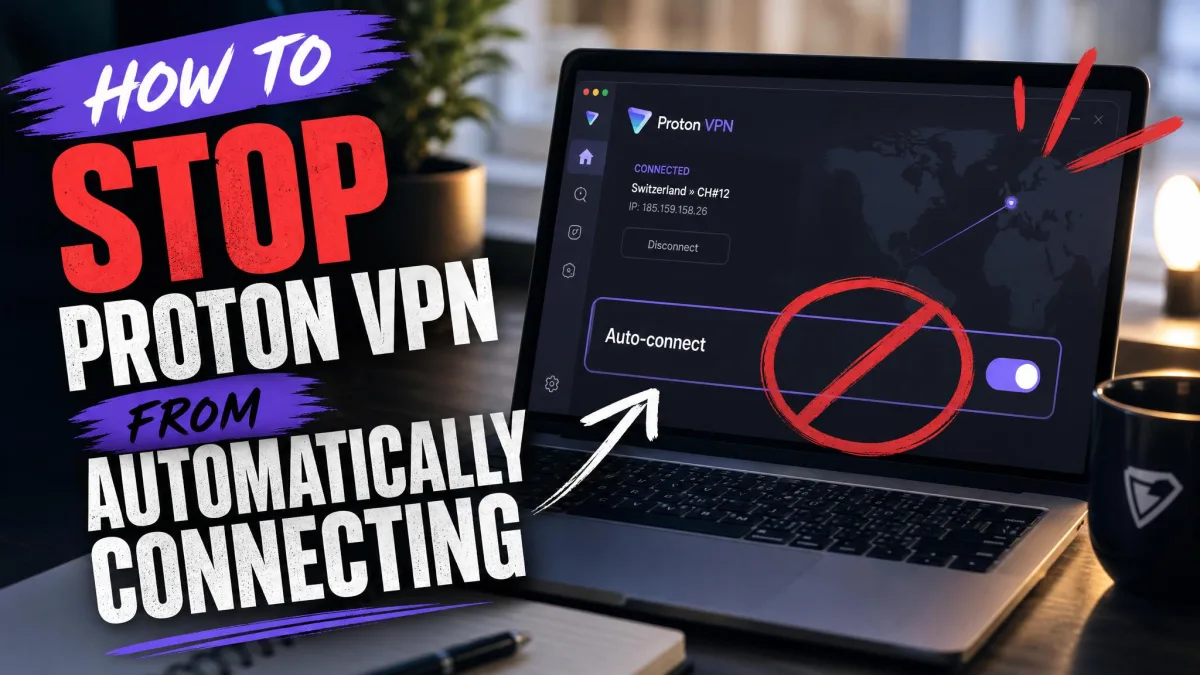
Auto-Connect tells Proton to connect the moment the app launches or your device starts, so you are never online unprotected by accident. Enable it and choose whether it connects to the fastest server or a specific country. Pair it with the Kill Switch and your protection becomes fully hands-off.
Using Split Tunneling
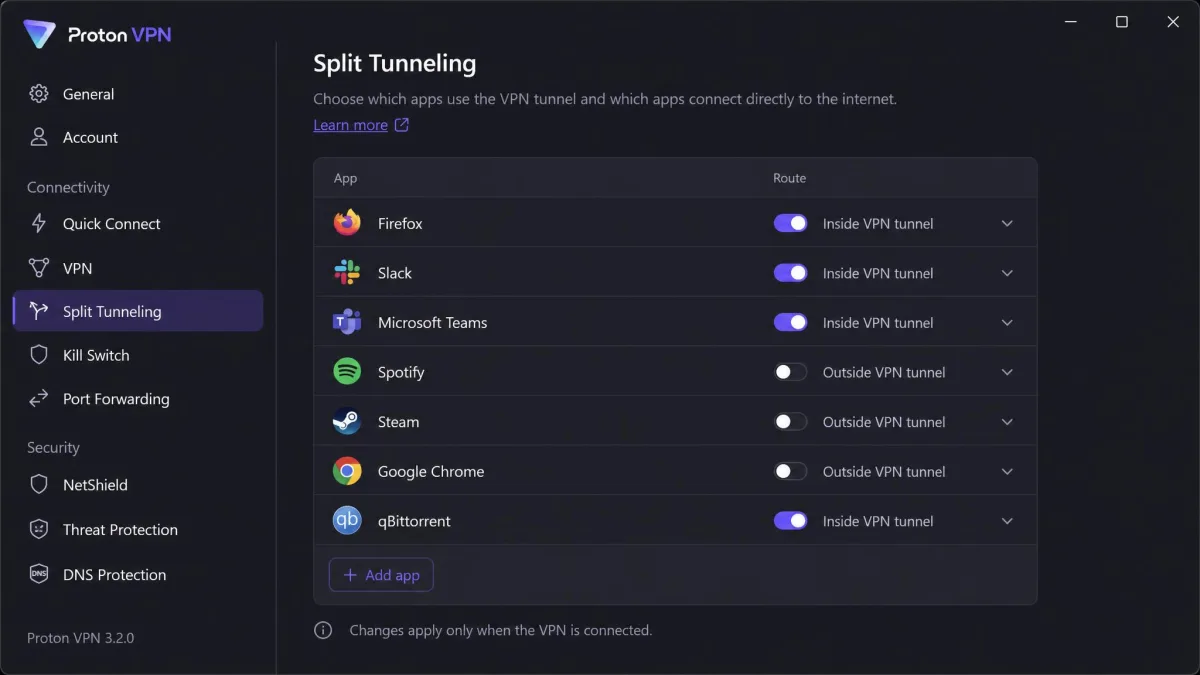
Split Tunneling lets you decide which apps or websites use the VPN and which go straight to your normal connection. It is useful when a banking app blocks VPN traffic, or when you want your local streaming service unaffected while everything else stays protected. Add the apps you want to exclude (or include) and Proton handles the routing. Our full explainer on what is VPN split tunneling? goes deeper if you want it.
Proton VPN's Standout Features Explained
Beyond the basics, Proton includes a set of features that push it ahead of most rivals. You do not need all of them, but they are worth understanding.
Secure Core
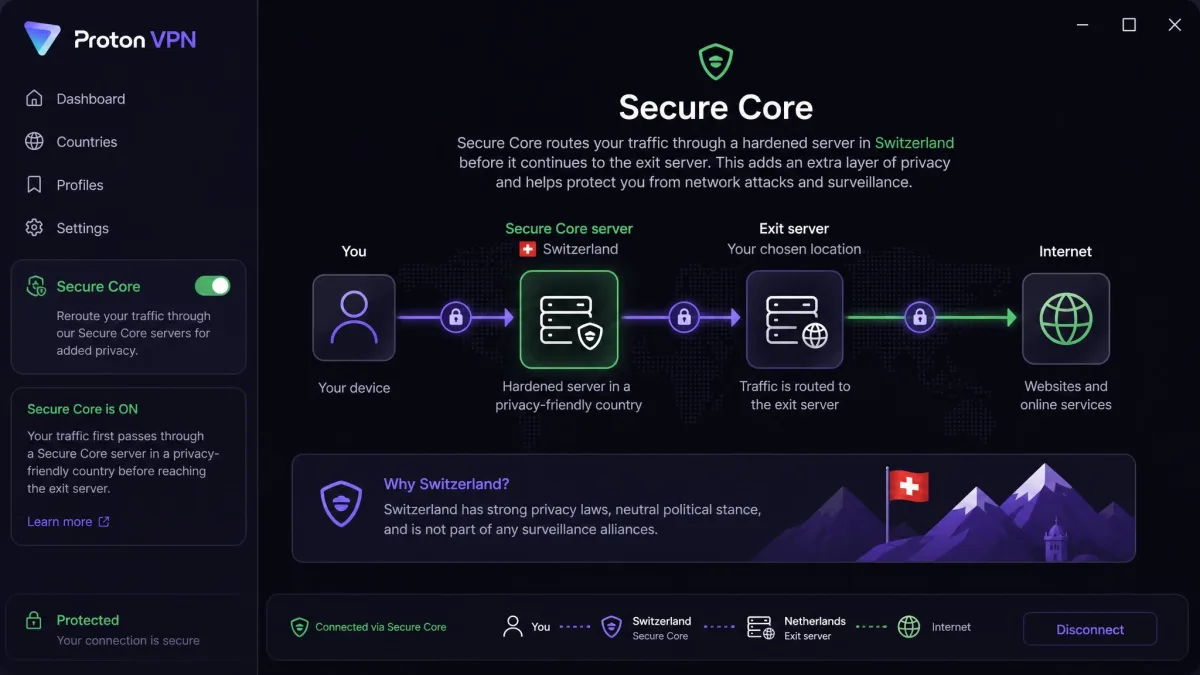
Secure Core routes your traffic through a second, hardened server in a privacy-friendly country (Switzerland, Iceland, or Sweden) before it reaches its destination. That means even if an exit server were compromised, your real IP stays hidden behind the core server. It costs some speed, so save it for when privacy genuinely matters, but it is a real defense against network-based attacks.
NetShield Ad-Blocker
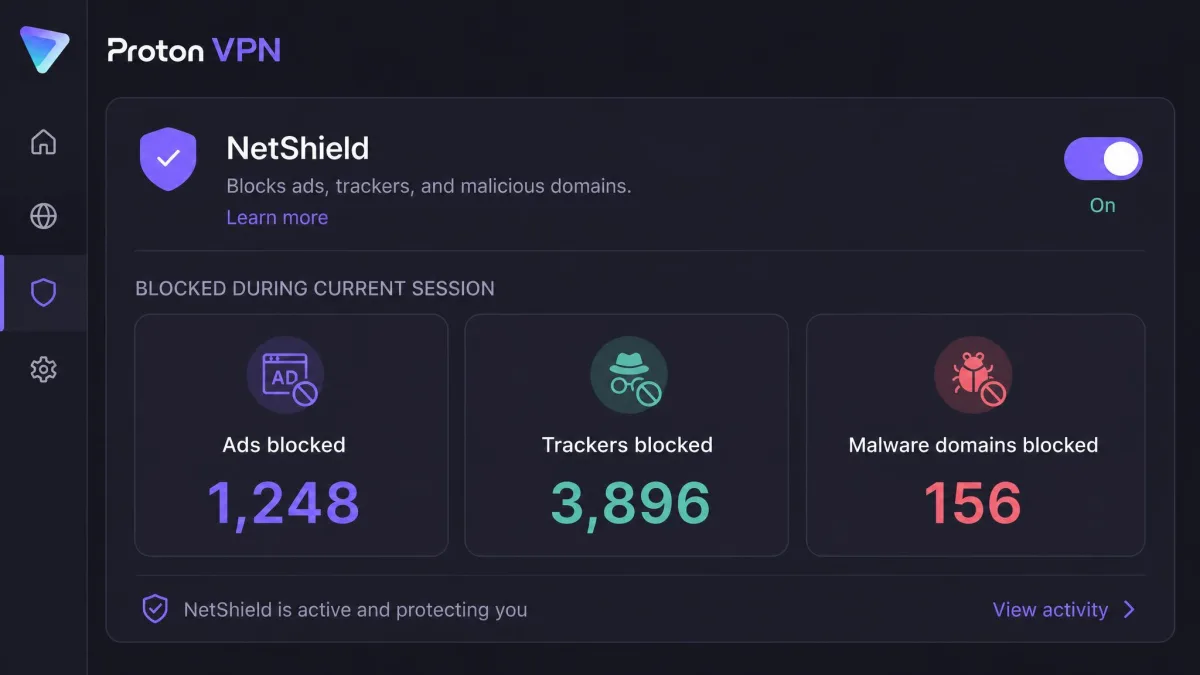
NetShield blocks ads, trackers, and malware domains at the DNS level, before they ever load. In practice, pages feel lighter and you see fewer trackers following you around. You can set it to block malware only, or malware plus ads and trackers.
VPN Accelerator
VPN Accelerator is Proton's set of speed optimizations that reduce the performance hit a VPN normally adds, especially on distant servers. It is on by default, and there is no reason to turn it off.
The reason security-minded users keep choosing Proton is not any single feature. It is that the apps are open source and the no-logs policy has been independently audited, so you can verify the privacy claims instead of trusting them.
— From our hands-on testing notes
No-Logs Policy and DNS Leak Protection
Proton's no-logs policy is independently audited and confirmed to not log your activity, IP address, or connection timestamps, and the apps are open source on GitHub for anyone to inspect. DNS leak protection is built in and on by default, routing your DNS requests through the encrypted tunnel so your ISP cannot see the sites you visit.
Troubleshooting Common Proton VPN Problems
Most problems have quick fixes. If Proton will not connect, first try a different server or press Quick Connect, since the specific server may be down or overloaded. If that fails, switch your protocol to Smart or Stealth, which get around networks that block standard VPN traffic.
If your connection is slow, pick a server closer to you or one with a lower load percentage, and make sure VPN Accelerator is on. If a specific app or website misbehaves, Split Tunneling lets you route it outside the VPN.
If the app itself acts up, sign out and back in, or reinstall the current version from the official download page. One honest note from our experience: Proton's customer support can be slow to respond when you do need help, so the self-service fixes above are usually your fastest route.
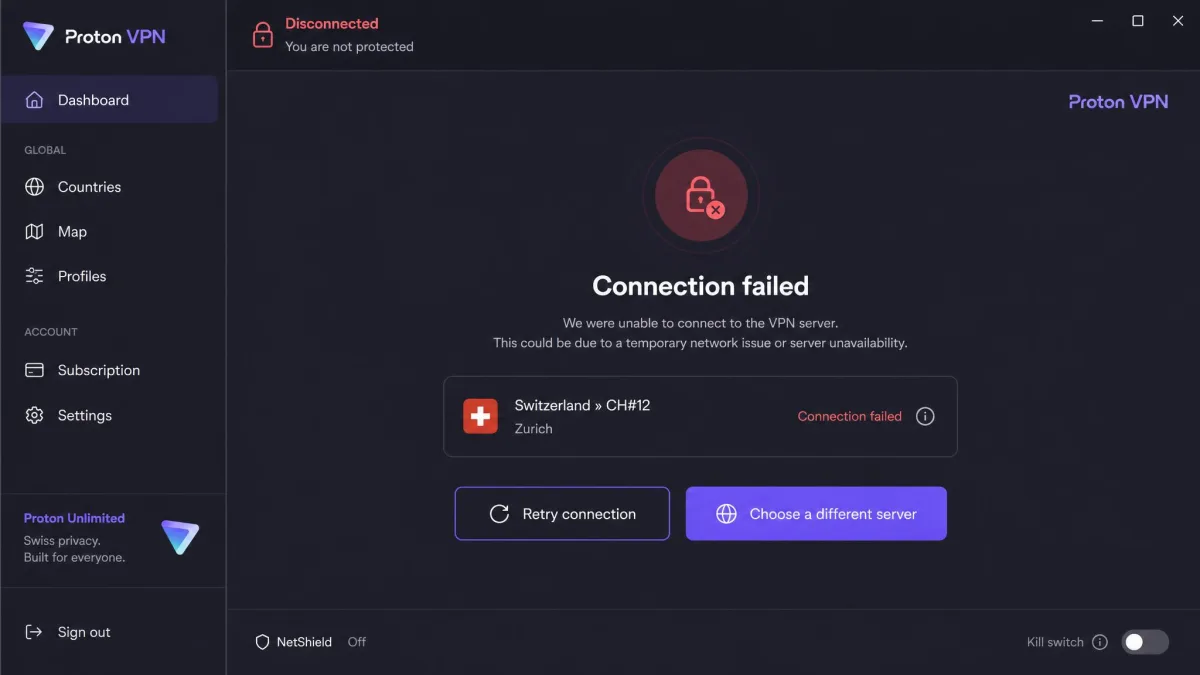
Still stuck? Check your device clock is correct. A wrong system time is a surprisingly common cause of VPN handshake failures across every provider we have tested.
What Is Proton VPN? (Quick Overview)
Proton VPN is a virtual private network run by Proton, the Swiss company behind Proton Mail. It encrypts your internet traffic and hides your IP address, so your ISP, network operators, and the sites you visit cannot easily see what you are doing or where you are. Because it is based in Switzerland, it operates under strong privacy laws, and its apps are open source and independently audited. That combination of free-forever access and verifiable privacy is what sets it apart from the crowd. If you are still weighing it against other providers, our full Proton VPN review has the complete verdict, and our how to use a VPN: setup guide covers the concepts that apply to any provider.
Frequently Asked Questions
Is Proton VPN really free and unlimited?
How many devices can I use on one Proton VPN account?
How many countries and servers does the Free plan include?
Which operating systems and platforms does Proton VPN support?
Is Proton VPN good for streaming Netflix?
Can I leave Proton VPN connected all the time?
What should I do if Proton VPN won't connect?
Final Thoughts
Proton VPN is one of the few VPNs we happily recommend to complete beginners and privacy obsessives alike. The setup is quick, the defaults are safe, and the free plan is honest in a market full of dishonest ones. Download the app, sign in, press Quick Connect, and turn on the Kill Switch, and you are protected in minutes. When you are ready for more, Secure Core, NetShield, and Split Tunneling are there to grow into. For most people, the two-year Plus plan is the best balance of price and capability, but there is no risk in starting free and deciding for yourself.