Turning on a VPN routes your internet traffic through an encrypted server, which hides your IP address and keeps your activity private from others on the same network. On public Wi-Fi in a cafe or airport, that one toggle is the difference between an open connection and a private one. The good news: on almost every device, switching it on takes a single tap once the app is installed.
We test VPNs against real speed, leak, and streaming benchmarks, so we spend a lot of time flipping these toggles on and off. Below we walk through turning a VPN on for Windows, Mac, iPhone, iPad, Android, and a router, then how to confirm it is actually working. Every path uses either the provider app or the device's built-in settings.
What Turning On a VPN Actually Does
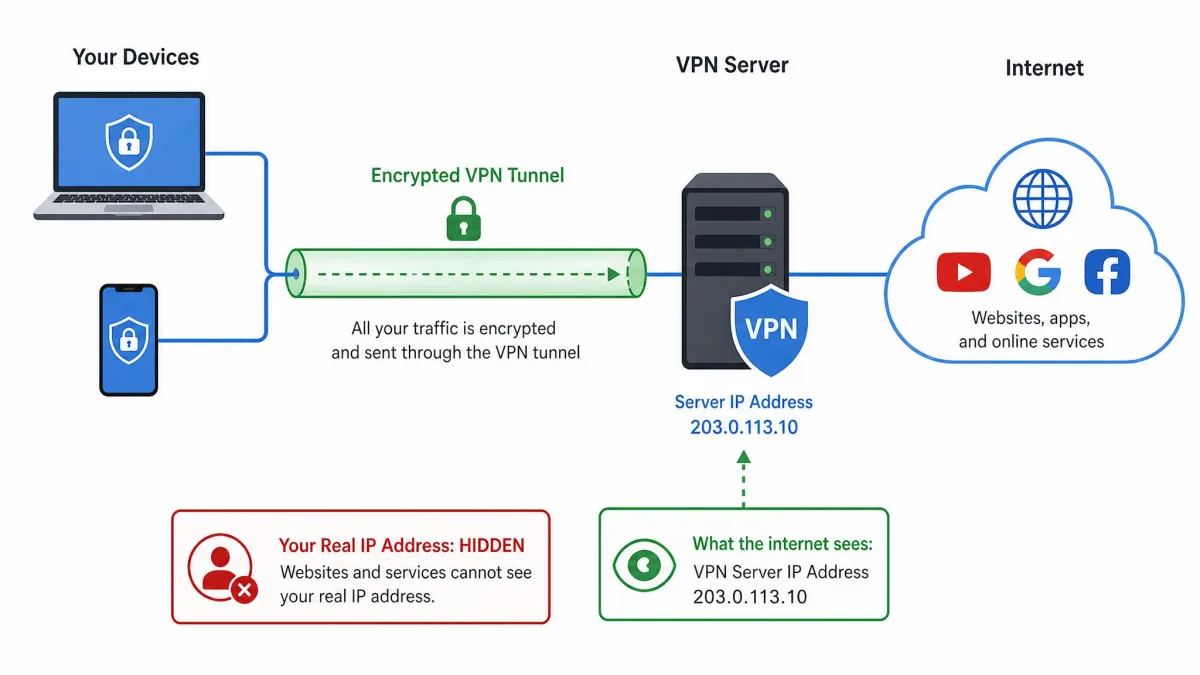
When you connect, your device builds an encrypted tunnel to a server run by your VPN provider. Your real IP address stays hidden, websites see the server's address instead of yours, and anyone else on the network cannot read what you send. That protection matters most on shared and public networks. On your own secure home network the risk is lower, but many people leave the VPN on everywhere for consistent privacy and to access their usual sites from any location, trading a small speed cost we cover further down.
Before You Turn On Your VPN
You need two things first: a VPN account and a way to connect. For most people that means downloading the provider's app, since it does all the setup for you. To use your device's built-in client instead, get the server address and login details from your provider.
Choose a reputable paid provider over a random free one. Free VPNs often log or sell the data they are supposed to protect. If you are unsure which app to trust, our own guide to getting a VPN walks through the choice.
On public Wi-Fi, turn the VPN on before you open your email, bank, or any account with a password. Connecting after you have already logged in leaves that first exchange exposed on the open network.
How to Turn On a VPN on Windows
Windows gives you two routes: the provider app, which is the easiest, or the built-in Windows VPN client for a profile you set up manually.
Turn on your VPN app on Windows
- Open your VPN app from the Start menu or system tray.
- Sign in if you are not already.
- Click Connect to use the fastest server, or choose a country from the list first.
In our testing the app connects in a second or two once a profile exists, showing a green "Connected" status with your new virtual location.
Turn on the built-in Windows VPN (manual setup)
If your provider gave you server details, you can use the client built into Windows:
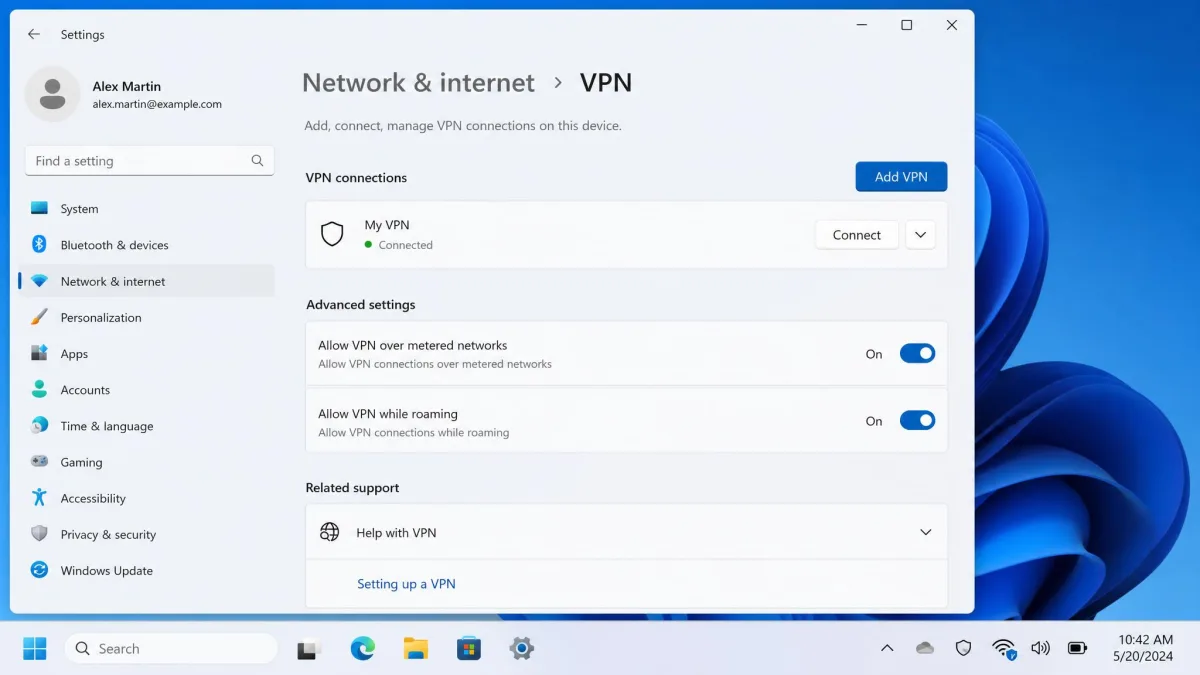
- Open Settings > Network & internet > VPN.
- Select Connect next to your VPN profile and enter credentials if prompted.
You can also turn it on faster from the taskbar: select the Network, Volume, Battery icon, then select VPN, then toggle the connection on. For several profiles, use Manage VPN connections instead. Microsoft's own steps to connect to a VPN in Windows match this path if you get stuck.
How to Turn On a VPN on Mac
On a Mac, the provider app is again simplest: open it, sign in, and click Connect. For the built-in client, open System Settings > Network, add a VPN configuration, and choose the type such as IKEv2 or L2TP over IPsec. Fill in the server address, account name, password, and shared secret, create the profile, press Apply, then Connect to turn it on.
Manual macOS setup is the fussiest path we deal with, because Connect does nothing until every field is exact, and the provider app avoids all of that. One quirk: after the Mac sleeps and wakes, network-extension permissions can produce odd reconnect behavior, so the VPN sometimes needs a manual toggle once the machine wakes.
How to Turn On a VPN on iPhone and iPad
Most people turn a VPN on inside the provider app with a single Connect tap, and iOS and iPadOS work the same way. Install the app, sign in, tap Connect, and approve the one-time permission prompt that lets it add a VPN configuration.
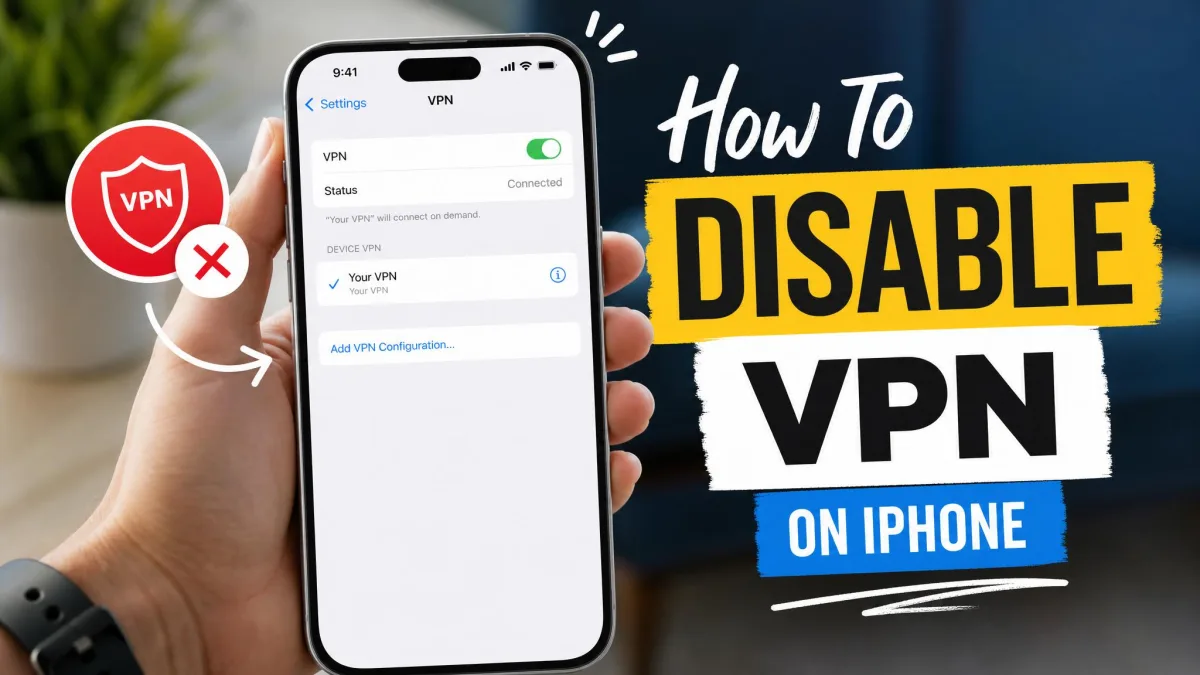
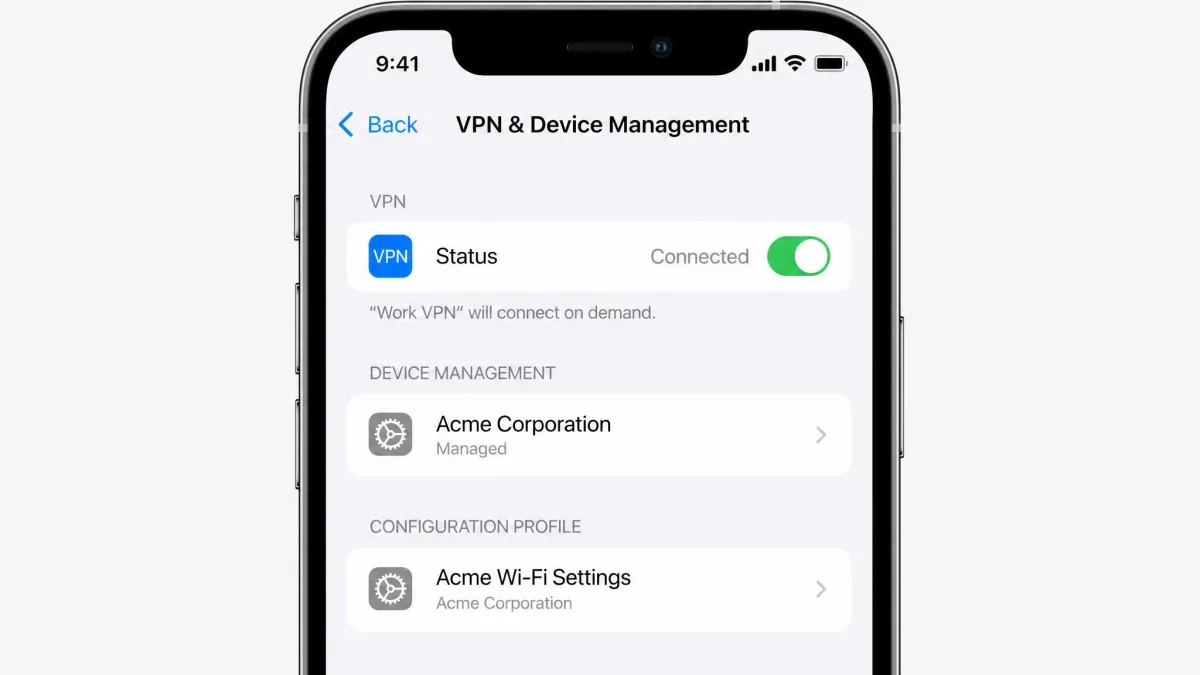
To use the built-in toggle instead, open Settings > General > VPN & Device Management > VPN, then switch Status to On. A small VPN label appears in the status bar to confirm the tunnel is active. On both iPhone and Android that confirmation is unmistakable, so you rarely have to guess. To switch it off later, our guide to disabling a VPN on iPhone covers it.
How to Turn On a VPN on Android
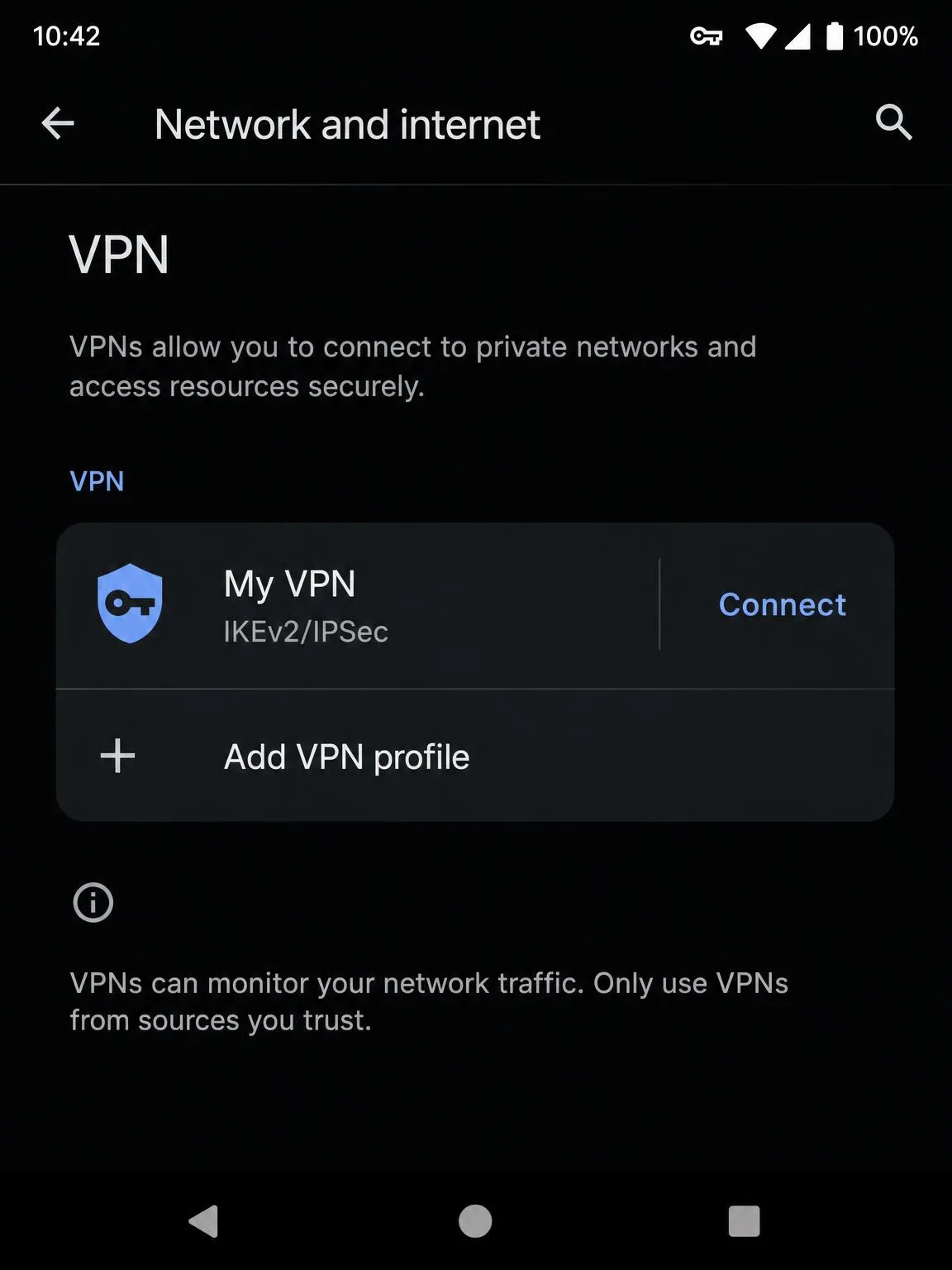
Android follows the same pattern. Open your provider app, sign in, and tap Connect. To use the built-in path instead:
- Open Settings > Network & internet > VPN.
- Tap the VPN you want.
- Enter your username and password, then tap Connect.
When it connects you see "VPN on" with a key icon in the status bar. If the VPN option is missing from your settings, search Settings for "VPN" to find it. Google's own Android VPN help page mirrors these steps across most phone brands.
One Android gotcha: aggressive battery optimization silently kills the VPN in the background, so the tunnel drops until you exempt the app from battery saver. We hit this on test phones often enough that it is the first thing we check when an Android VPN keeps dropping.
How to Turn On a VPN on a Router or Smart TV
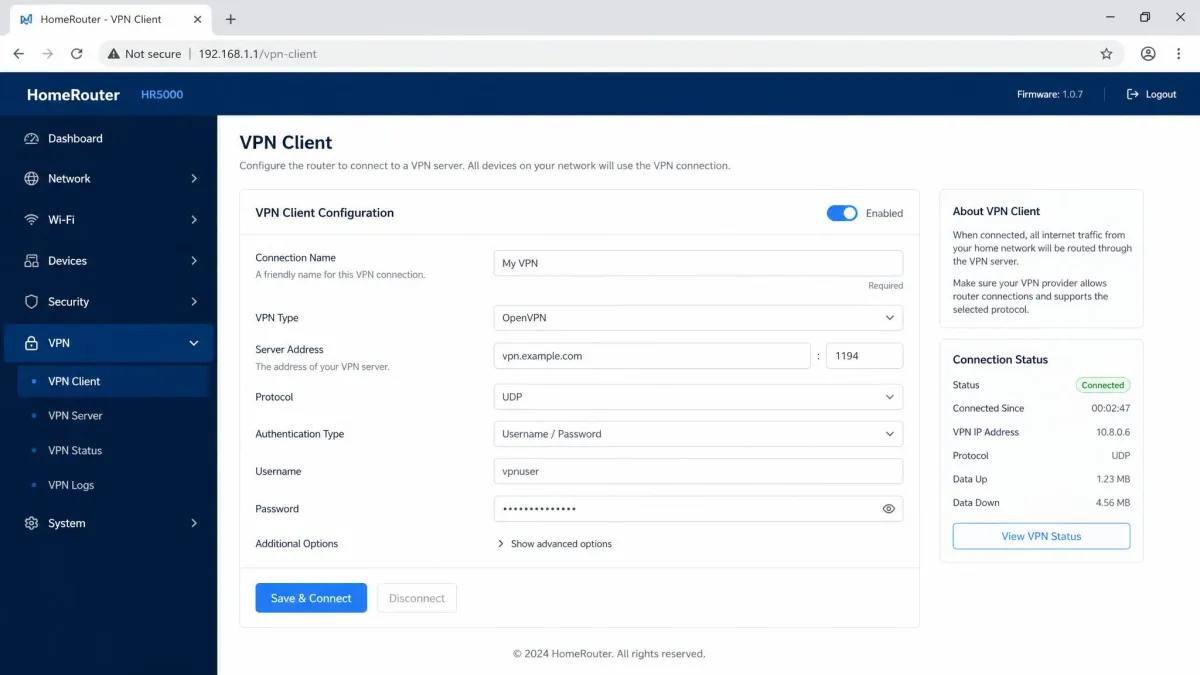
A router has no app to open. Instead you flash compatible firmware, or buy a pre-flashed VPN router, and enter the provider's server config once. After that every device on the network is covered automatically, which is the whole appeal. Smart TVs that lack a native VPN app get protection this way too, by running the VPN on the router rather than the TV. The tradeoff is speed: router setups run noticeably slower than app setups, because consumer router processors are underpowered for the real-time encryption a VPN needs. If you only want to protect one laptop or phone, the app is faster.
| Device | How to turn on | App vs manual | Notes |
|---|---|---|---|
| Windows | Taskbar network icon, then VPN, then toggle on | App one-click; manual via Settings profile | Built-in client supports IKEv2 and L2TP |
| macOS | System Settings > VPN, then Connect | App one-click; manual needs server and shared secret | Types include IKEv2 and L2TP over IPsec |
| iPhone / Android | Provider app Connect, or Settings VPN toggle | App one-click; manual profile in Settings | Battery saver can drop the tunnel |
| Router / TV | Firmware config, always on for the network | Manual firmware setup, or buy pre-flashed | Slower due to router CPU encryption |
How to Check Your VPN Is On and Working
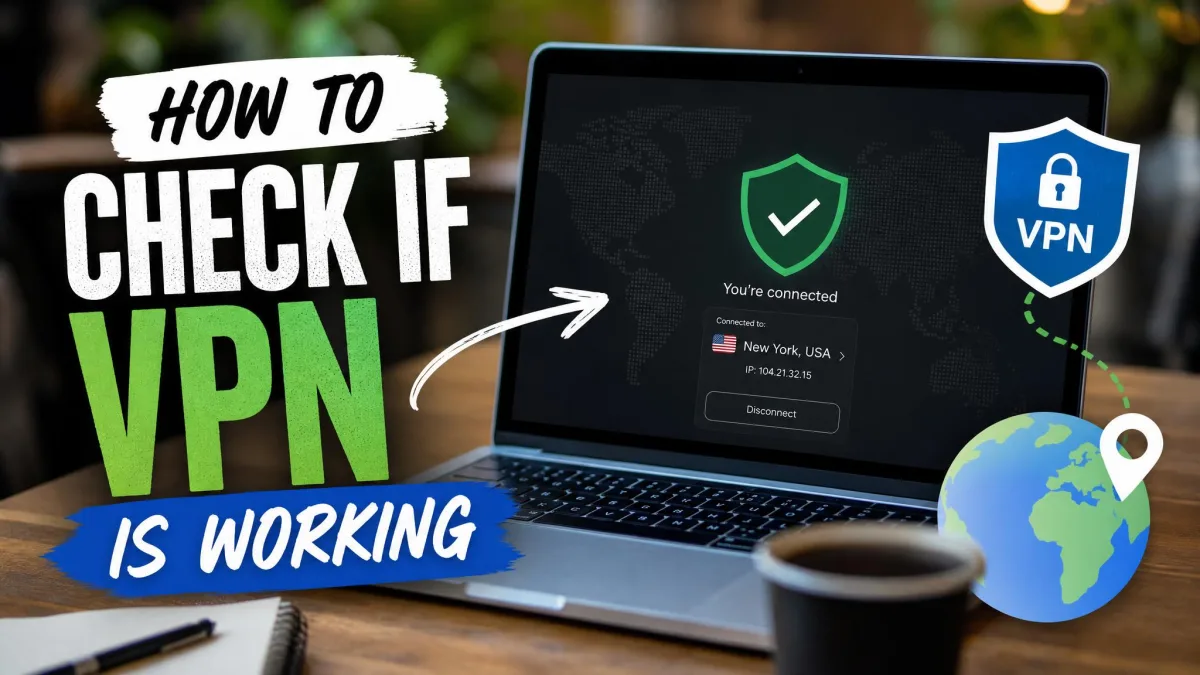
Each platform gives you a clear signal. On Windows the profile reads Connected and a blue shield appears on the taskbar network icon, which is the quickest confirmation. On a Mac the toggle sits on next to the VPN name. On iPhone and Android a VPN or key icon shows in the status bar.
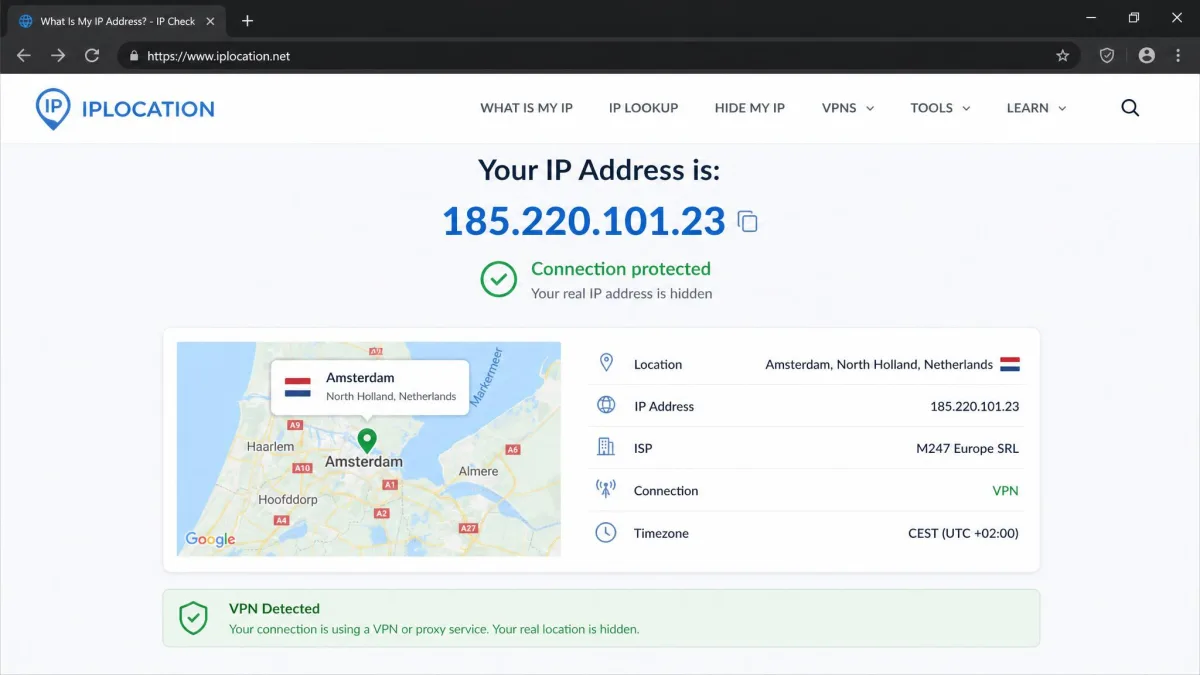
For proof beyond the icon, open a browser and search for "what is my IP address." If the VPN is on, the address shown should match your chosen server, not your real one. Our walkthrough for checking that your VPN is working adds a quick DNS leak test.
Turn on auto-connect in your app's settings so the VPN starts with your device and reconnects on its own. Pair it with a kill switch, which blocks traffic during a brief drop so your real IP address never leaks. This is the closest thing to a set-and-forget setup.
Troubleshooting: VPN Won't Turn On or Keeps Disconnecting
If the connection will not start or keeps dropping, work through these in order:
- Switch protocol. Moving to a WireGuard-based option like NordLynx or Lightway is one of the most reliable fixes and often steadies a flaky connection.
- Change servers. Distant servers drop more often, so choose one in or near your own country to cut latency and disconnects.
- On phones, turn off battery optimization for the VPN app. If that does not help, a corrupted install usually needs a remove and reinstall.
- On hotel Wi-Fi or office networks, the firewall often blocks UDP first, which can stop a VPN connecting until you switch to a TCP or alternate protocol.
Switching servers or confirming a WireGuard-based protocol clears up most trouble in under a minute for us. If none of it works, contact your provider's support, since the issue may be your account or a server outage.
Frequently Asked Questions
Should I leave my VPN on all the time?
Why won't my VPN turn on?
Does turning on a VPN slow down my internet?
How do I know my VPN is on?
Is a free VPN safe to turn on?
Conclusion
Turning on a VPN comes down to the same move on nearly every device: install the app, sign in, and tap Connect, or flip the toggle in your settings. Then confirm the shield or status-bar icon so you know the tunnel is live before you do anything private. Once auto-connect is set, protection is something you no longer have to remember. When you need to switch it back off, our guide to turning a VPN back off covers every device too.