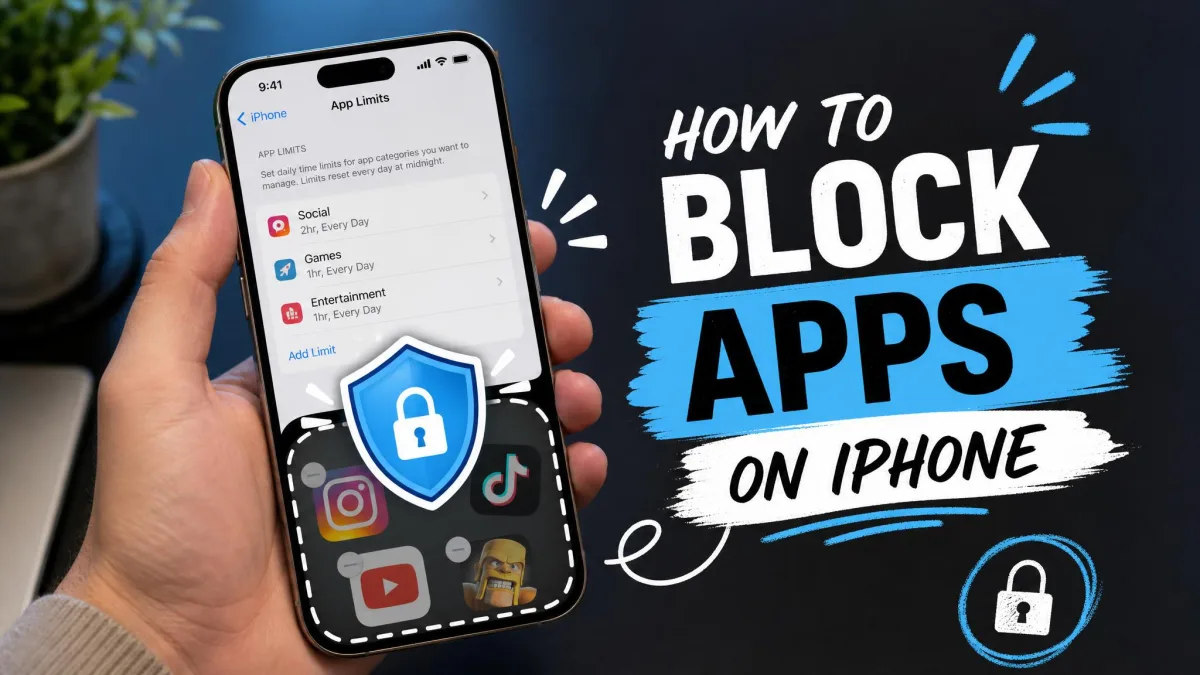
If you want to stop opening Instagram at 11 pm, or keep a child out of a specific app, the iPhone has a few built-in ways to block it. The main one is Screen Time, Apple's controls that cap time in an app, schedule quiet hours, and stop new downloads. Apple's guide to blocking apps, app downloads, websites, and purchases with Screen Time covers the same settings below.
Five of the six methods below are built into iOS, and only Method 5 requires installing a third-party app. The Screen Time passcode in Method 6 is the piece that holds the rest together.
Methods 1 and 2 cover the most common cases, Method 5 is for stricter blocks, and the Family Sharing section at the end is for parents.
Why Block Apps on Your iPhone?
There are two reasons to block an app, and they call for different methods. On your own phone, a block is a nudge against mindless scrolling during work or before sleep, while on a child's phone it is a boundary you set once and adjust from your own device.
The six methods split the same way. Screen Time powers three of the first four, and the passcode in Method 6 locks down those controls, which have all been part of iOS since iOS 12. Guided Access in Method 4 and the third-party apps in Method 5 stand apart.
Hard-blocking one app can push the habit sideways, and the scrolling often moves to a substitute like LinkedIn after Instagram is limited until the replacement is blocked too. Watch what takes the blocked app's place.
Method 1: Block Specific Apps with Screen Time App Limits
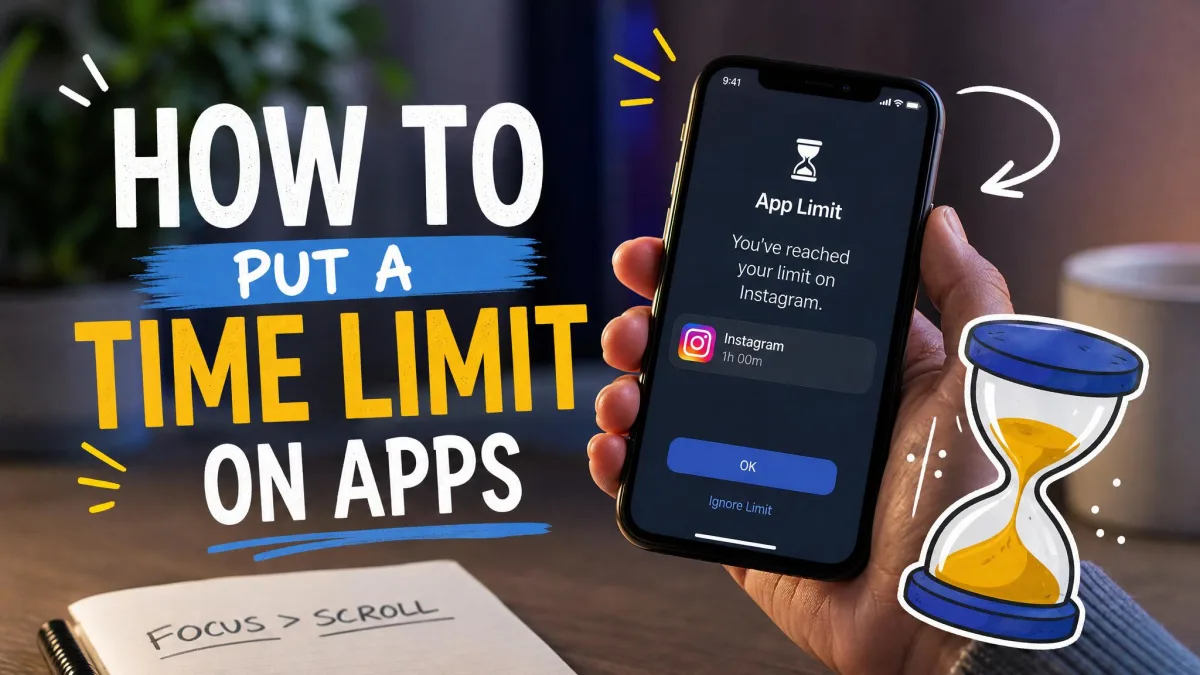
App Limits give you a daily cap for one app or a whole category, and when the cap is used up the app stops opening until the next day. It is the most precise method here, because one app can be blocked while everything else stays open.
How to Set an App Limit
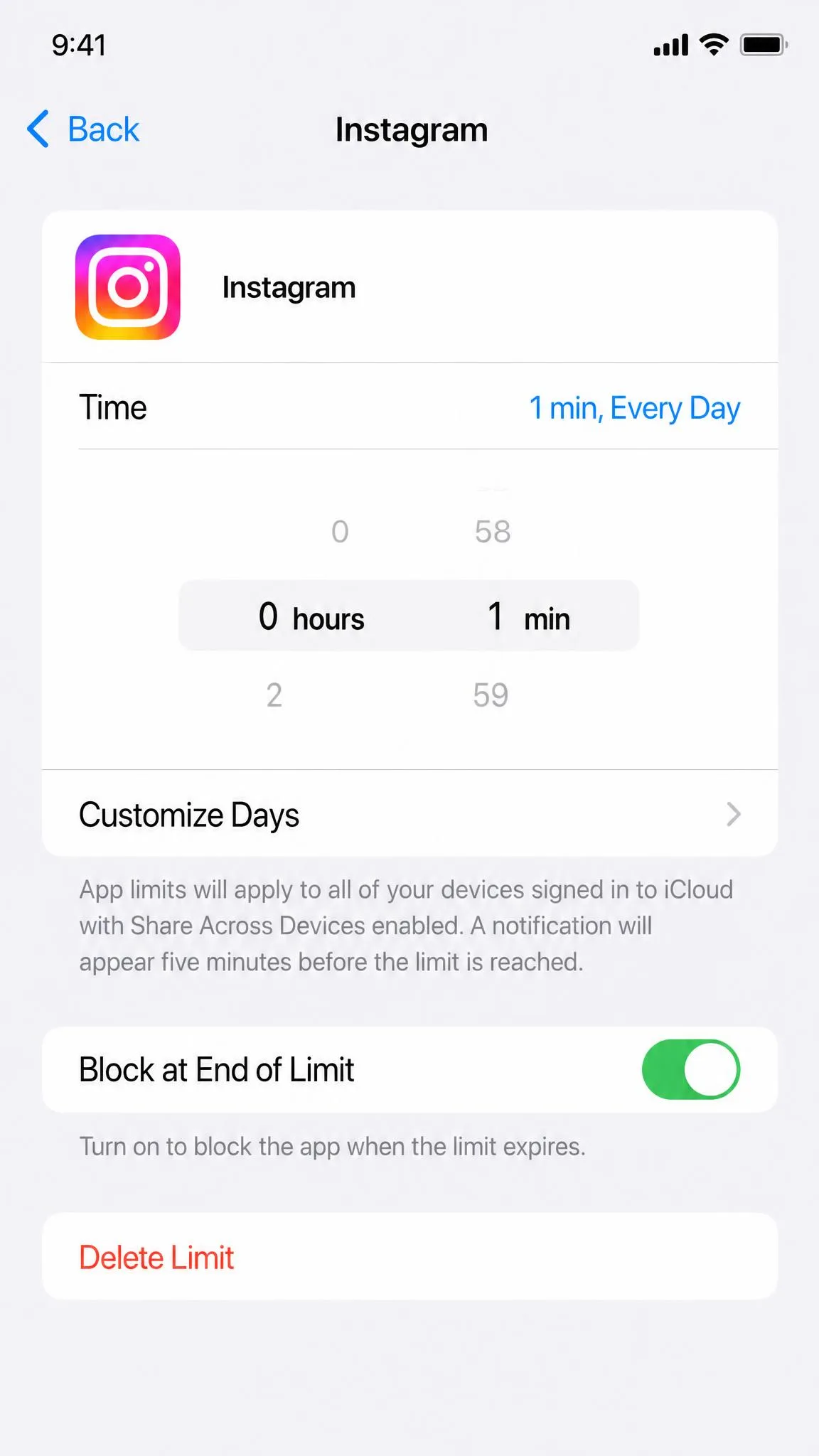
Go to Settings → Screen Time → App Limits, tap Add Limit, and pick a category like Social Networking or scroll to the exact app, then set the time and tap Add. Turn on Block at End of Limit, because without it the app stays usable and you only get a notification.
Block the most-used app first, and it is the fastest win in this guide. In Settings → Screen Time, open the Activity Report, find the app with the highest daily average, and set it to a 1-minute limit with Block at End of Limit on (the toggle from the steps above).
How to Change or Delete an App Limit
Go to Settings → Screen Time → App Limits and tap the limit you want to adjust, then drag the time up or down or tap Delete Limit to remove it. If a Screen Time passcode is set, you will enter it here, which is what Method 6 covers.
When a limit is reached, the Ignore Limit button appears, and on your own phone it is one tap to add 15 minutes or let the app through for the rest of the day. That is fine for self-control, and it is why the passcode matters elsewhere. For a limit that repeats on the same hours daily, Apple's page on Screen Time app time limits shows how.
Method 2: Block All Apps During Downtime
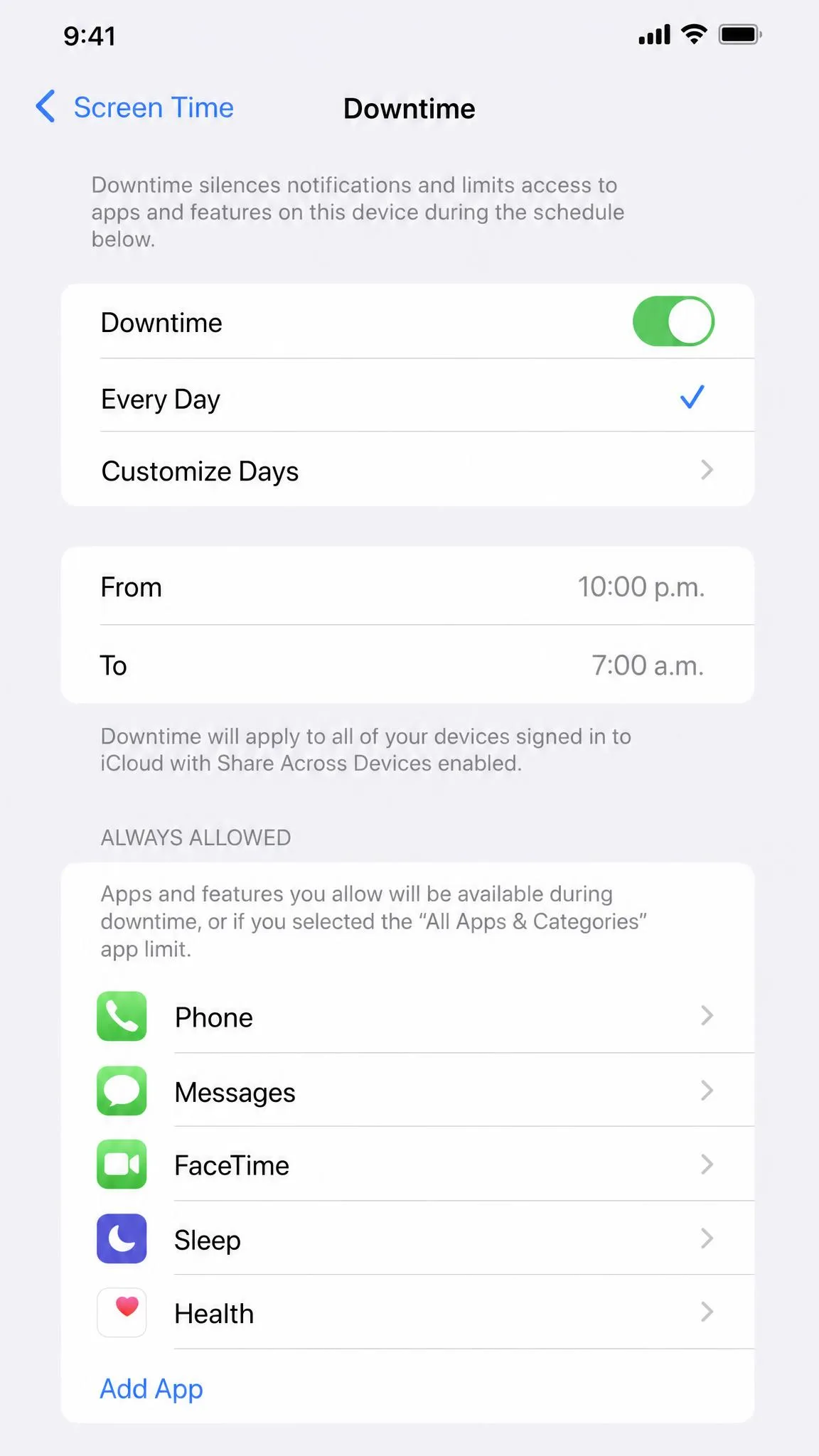
Where App Limits target one app, Downtime blocks everything at once. During the hours you choose, only Phone and whatever sits on your Always Allowed list stay available, and blocked apps refuse to open until Downtime ends. It is the method for a whole-phone rule like no apps after bedtime.
Go to Settings → Screen Time → Downtime, switch it on, and set a start and end time or leave it off and turn it on manually, then tap Always Allowed to choose the apps that stay available, like Messages or Maps.
When Downtime begins, a blocked app shows the Ask for More Time button, and you can approve the app for 15 minutes, an hour, or all day, though the exact menu can vary by iOS version. Apple's guide to Screen Time settings and limits explains the schedule settings.
Method 3: Block Apps with Content & Privacy Restrictions
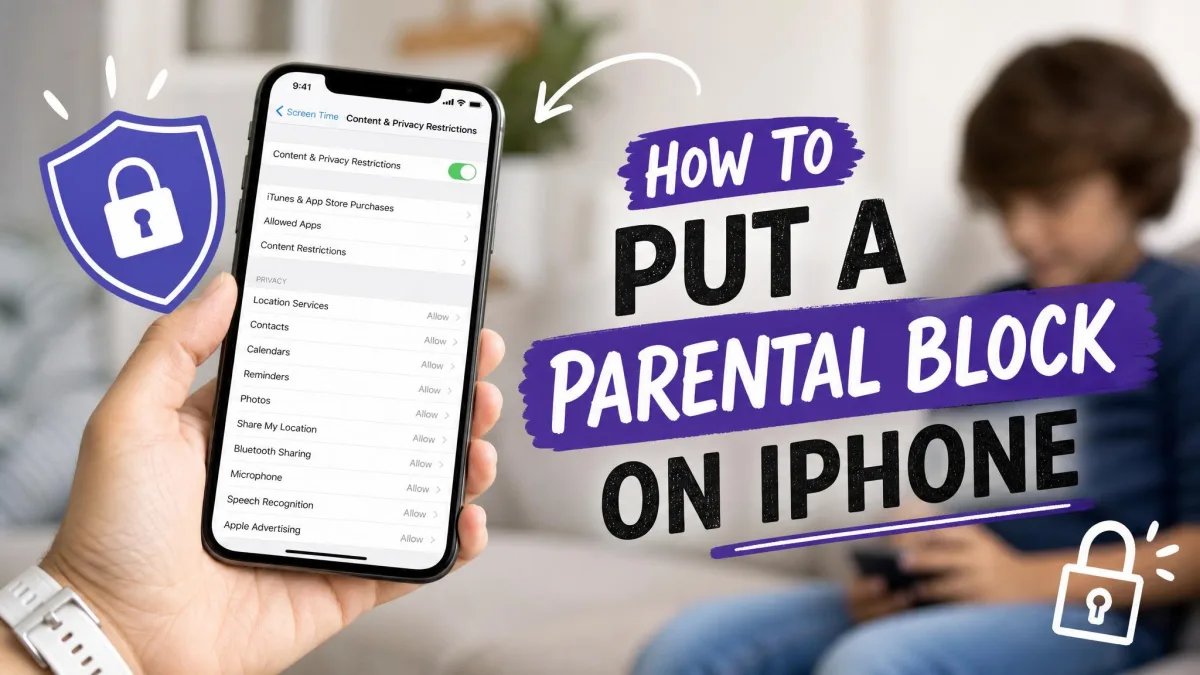
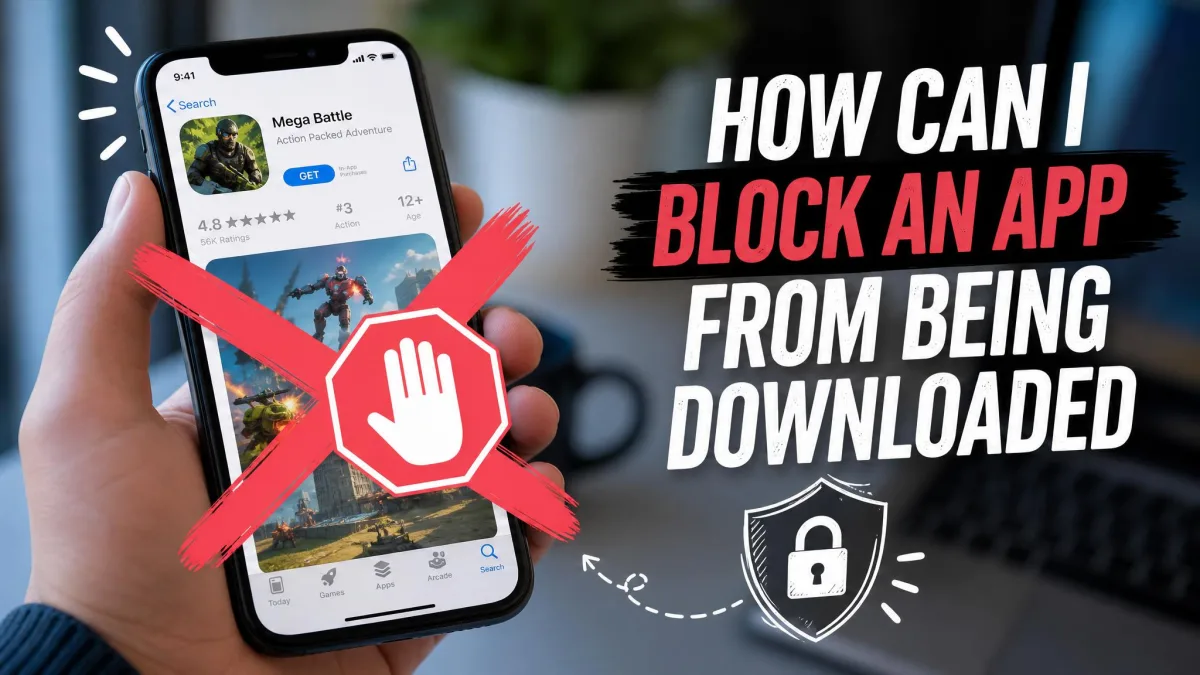
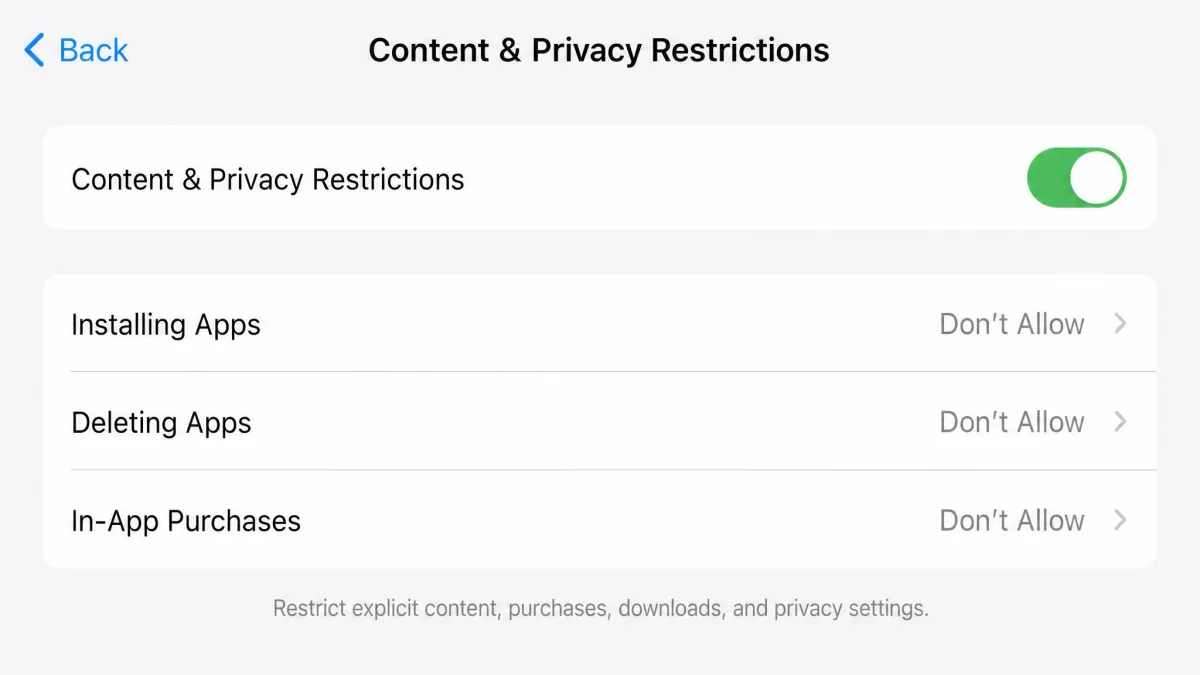
Content & Privacy Restrictions work differently from limits, because instead of timing an app out they block whole actions such as installing apps, making purchases, or deleting what is already there. This is the method for stopping new apps from ever appearing on the phone, and Apple's guide to blocking app downloads and purchases with Screen Time lists every option on this screen.
Block App Store Purchases, Downloads, and Installations
Go to Settings → Screen Time → Content & Privacy Restrictions and turn it on, then tap iTunes & App Store Purchases and set Installing Apps, Deleting Apps, and In-App Purchases to Don't Allow. With Installing Apps blocked, the App Store icon disappears from the Home Screen, and the trade-off is that the same setting stops app updates, so an allowed app can eventually stop working until you re-enable it. If a game your child plays updates often, leave App Store access on and rely on App Limits.
Turn Off Built-in Apps and Features
The same screen holds an Allowed Apps list, where turning an app off hides its icon without touching the app or its data, so this is a reversible hide rather than a delete and you can remove Safari, Camera, or FaceTime this way. The age-rating filters are blunt, since restricting to 12+ hides every 17+ app, whether it is a game, a social app, or something you need. Use the Allowed Apps list for fine control and age filters for a quick blanket lock.
Method 4: Use Guided Access to Lock a Single App
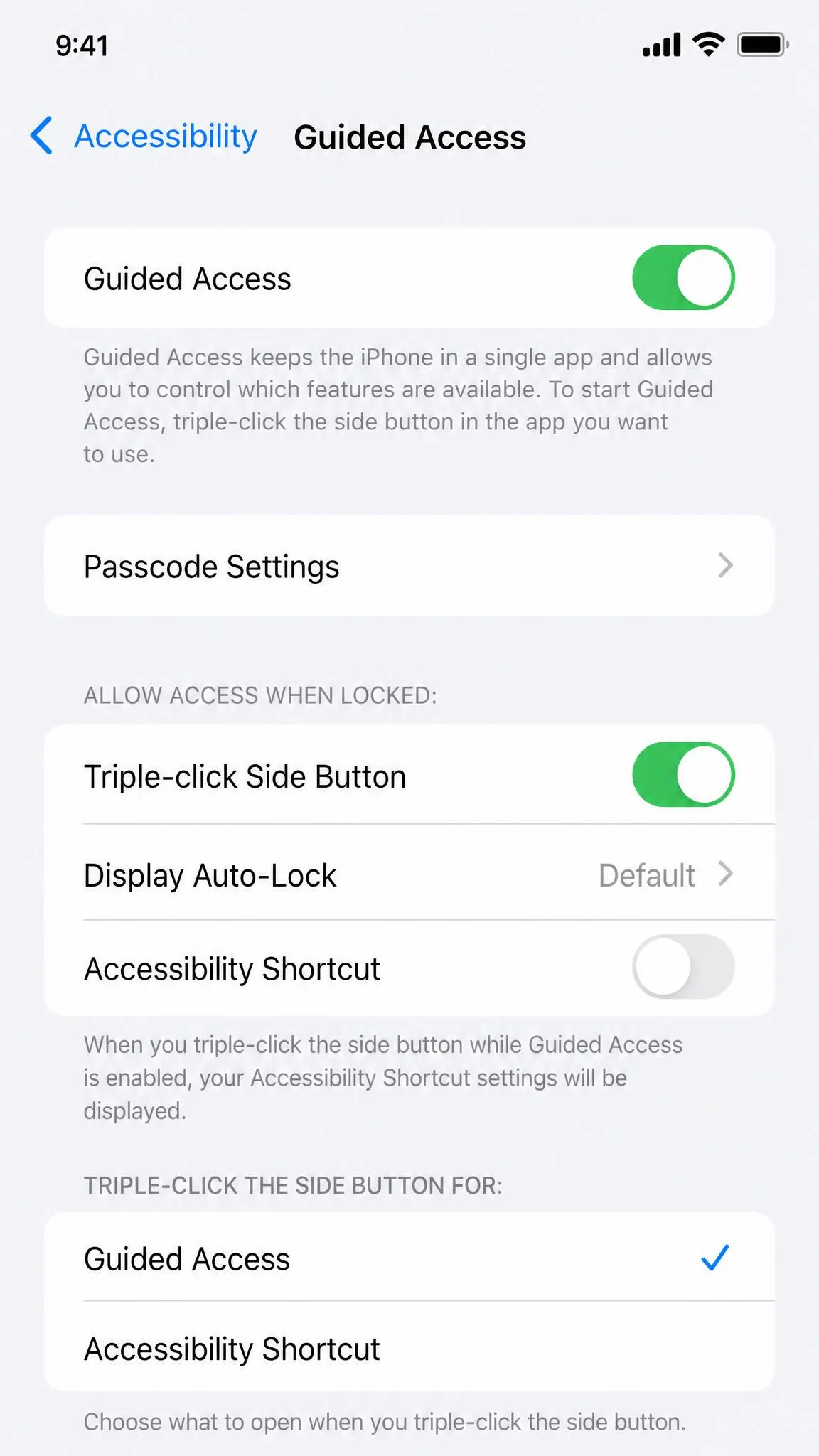
Where the first three methods work through Screen Time, Guided Access pins the iPhone to a single app. It hides notifications and disables Control Center, so whoever holds the phone cannot wander anywhere else. It is ideal for short moments such as handing your phone to a child for a game, but not for long-term parental limits.
Go to Settings → Accessibility → Guided Access and switch it on, then set a passcode under Passcode Settings or choose Face ID or Touch ID. Open the app you want to lock, then triple-click the side button to start and triple-click again with the passcode to end it.
Method 5: Use a Third-Party App Blocker
Apple's built-in methods cover most people, but they all share one limit: on your own phone, an adult can tap past any of them. When the block has to outlast your willpower, a third-party blocker is worth a look, and the main apps are Freedom, Opal, and ScreenBuddy.
One trade-off before you subscribe: blockers that hook into Screen Time can be turned off from the Screen Time settings page, and Apple does not let them restrict certain apps such as Settings. In the end, third-party blocking sits on top of Apple's own controls, so it only reaches as deep as Apple allows.
What to Look for in an App Blocker
Check three things before you pay. A VPN-based app like Freedom blocks across all your devices, while an app built on Apple's Screen Time API like Opal blocks on-device and keeps your browsing data on the phone. A Locked Mode or a friction countdown matters more than the feature list when it comes to undoing a block, and price matters since the apps below run from about $4 to $20 a month with yearly and lifetime options that change the math.
Comparing App Blockers
Here is how the built-in option and the three main self-blockers stack up.
| Product | Monthly price | Yearly price | Lifetime | Platforms | Best fit |
|---|---|---|---|---|---|
 |
$8.99 | $39.99 | $199 | iOS, Android, macOS, Windows, Chromebook | Cross-device self-blocking |
 |
$19.99 | $99.99 | $399 | iOS 18+, Android, Mac | Hard-to-bypass self-blocking |
 |
$3.99 | $39.99 | $99.99 | iPhone + Mac | Friction-based self-blocking |
 |
Free | Free | n/a | iOS | Apple-family parental controls |
Freedom runs on iOS, Android, macOS, Windows, and Chromebook, and it blocks by routing your device through a VPN connection. Locked Mode stops you ending a session early, and you can use its named blocklists or build your own.
Opal is the hardest to bypass, because it is built on Apple's Screen Time API so blocking happens on-device and your browsing data never leaves the phone, but it needs iOS 18 or later.
ScreenBuddy adds a 25-second countdown before a blocked app opens, caps daily use at 2 hours, and only lets you remove apps from a limit list between midnight and 6:30 a.m., and a 3-day trial gets you started.
If you are blocking a child's phone rather than your own, Findmykids and AirDroid Parental Control are the better fit. Findmykids blocks all apps at once during device-free times, while AirDroid adds app limits and scheduled downtime on top of location tracking, from $9.99 a month.
Method 6: Set a Screen Time Passcode (So Nobody Can Bypass Your Limits)
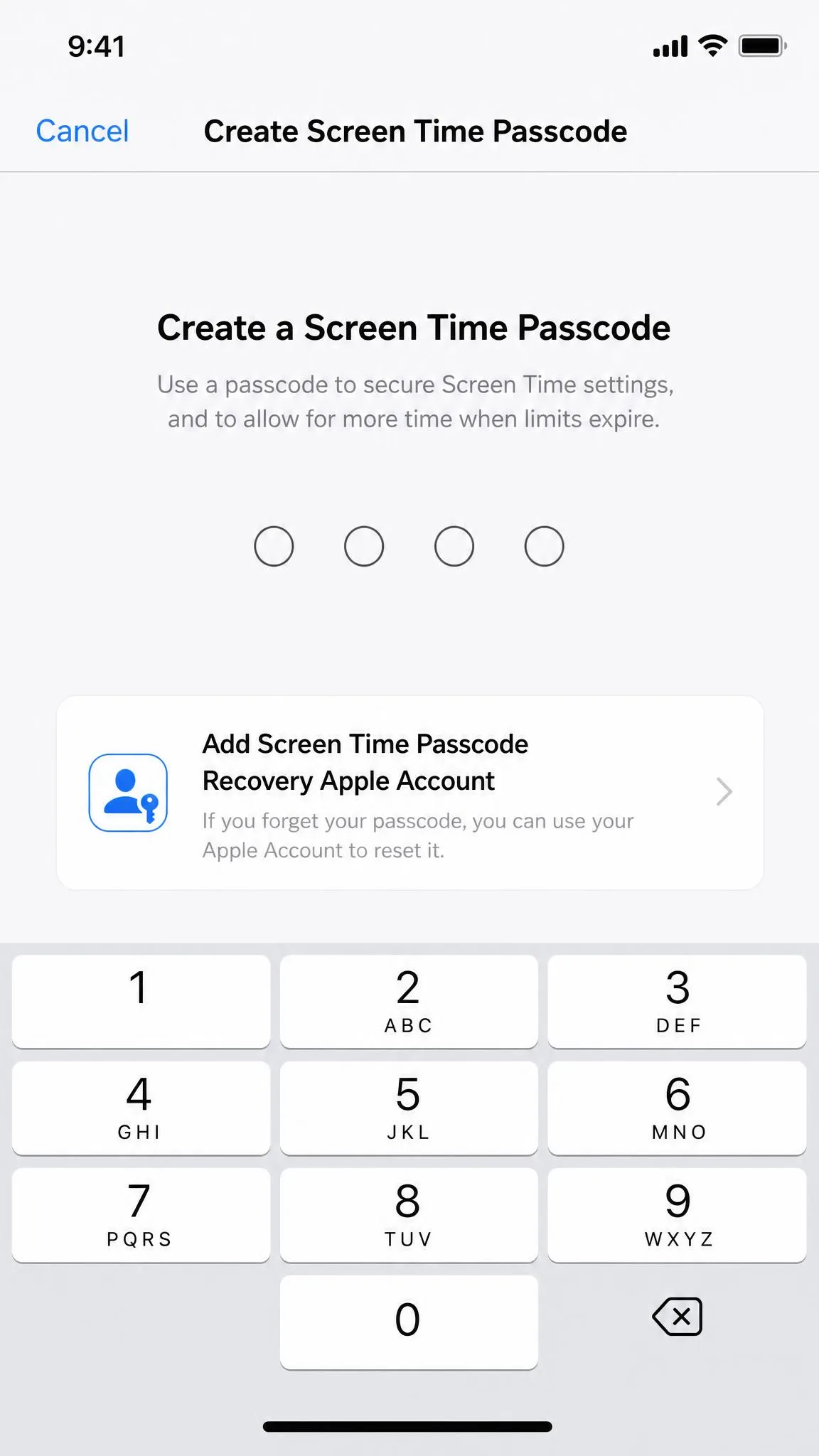
The Screen Time passcode is the lock on everything above, and it is a separate 4-digit code, not your iPhone unlock passcode. Screen Time asks for it before anyone can change App Limits, Downtime, or Content & Privacy Restrictions, and without it every restriction on this page can be lifted as quickly as it was placed.
Go to Settings → Screen Time → Use Screen Time Passcode → Create a Passcode, and enter a 4-digit code. On a child's iPhone you are asked to add a Screen Time Passcode Recovery Apple Account, and you should, because a forgotten code is painful to fix.
If you forget the passcode and no recovery account was set, the only fix is erasing the iPhone and setting it up as new; restoring from a backup brings the passcode back. On your own phone, be honest: a passcode you created stops a moment of weakness, not you at your most determined.
Guard the Screen Time passcode carefully, because anyone who knows it can open Settings → Screen Time and remove every limit in about 30 seconds, and on a child's iPhone there is no one-tap override to stop them. Keep the code private.
How to Block Apps on Your Child's iPhone with Family Sharing
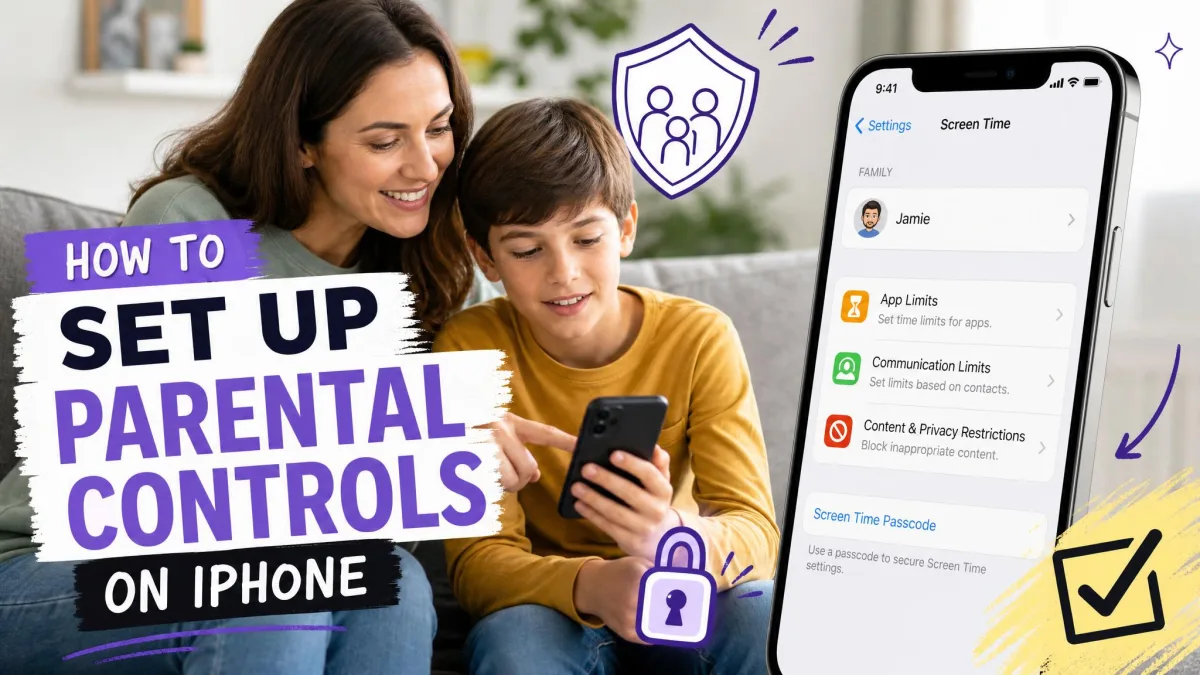
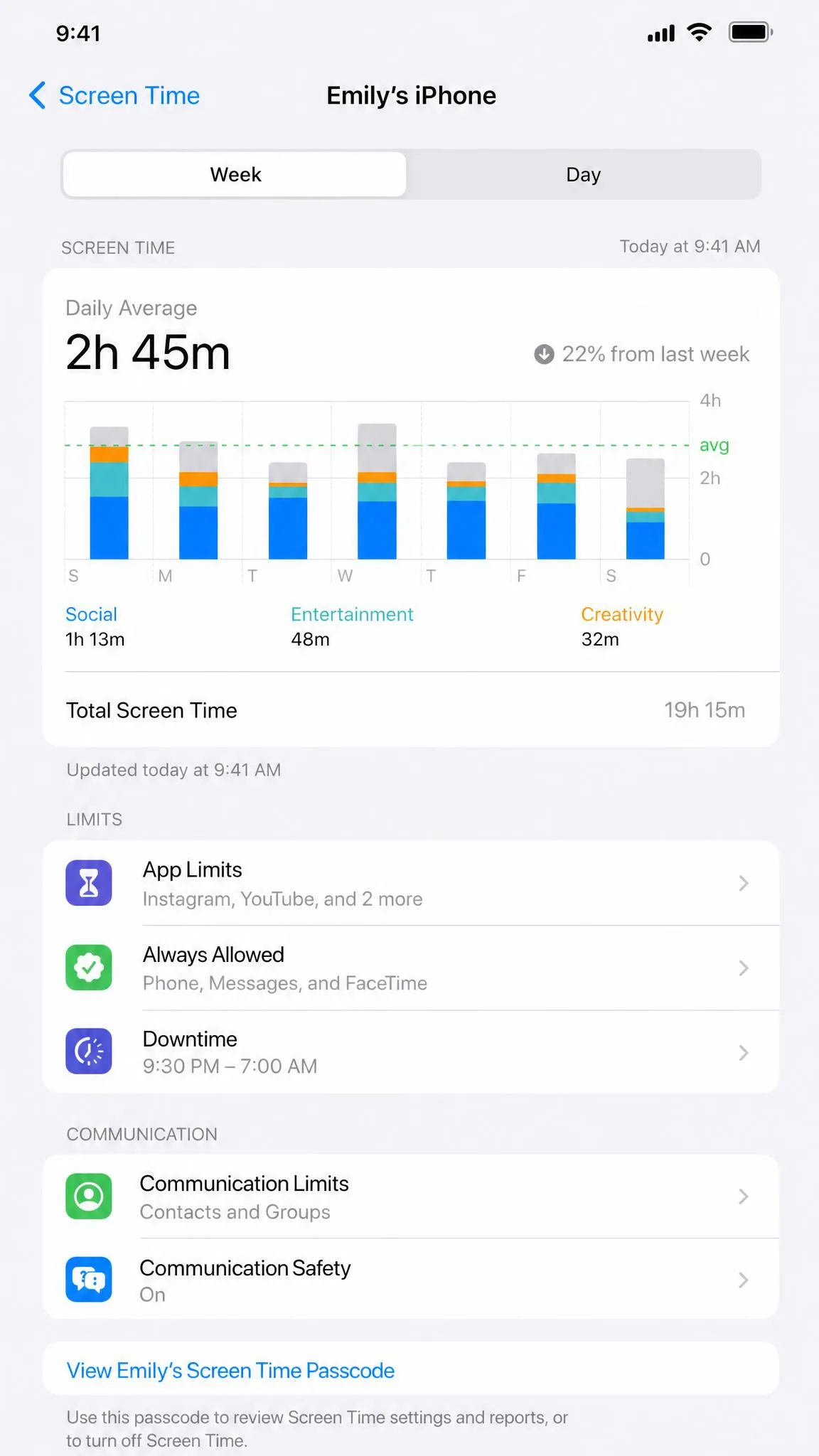
Everything so far works on any iPhone, but Family Sharing is what makes the same settings enforceable on a child's phone. Add your child as a family member under your Apple ID, and their Screen Time shows up inside your own Screen Time settings, so you can adjust limits from your phone without touching theirs. Apple's Screen Time parental controls guide walks through the account setup.
Two things change on a child account. First, the child cannot tap Ignore Limit, so when a limit is reached a request is sent and the approval alert appears on your device. Second, the Screen Time passcode you set for the child stays in your control, which finishes the job Method 6 started.
The catch is the account password, because a child who knows the family Apple Account email and password can walk into Settings and remove the restrictions without the passcode, so keep that account private.
Frequently Asked Questions
Can I block apps on iPhone without Screen Time?
Does blocking an app delete its data?
How do I block apps at certain times?
Can I block social media apps like Instagram and TikTok?
Can I block Safari or other built-in apps?
Can I lock an app behind Face ID?
Can I block apps on my child's iPhone?
Does Focus Mode block apps?
The Bottom Line
Apple gives you six ways to block apps, and five of the six cost nothing beyond the iPhone you already own. Start with an App Limit on the app you open most, add Downtime for off-hours, and use Content & Privacy Restrictions if new downloads are the problem. Guided Access handles short-term locks, and a third-party blocker is worth the money when you need cross-device coverage or a block that outlasts your willpower.
Finish with a Screen Time passcode so none of it can be undone, and on a child's iPhone run the same settings through Family Sharing with the passcode kept to yourself. The right method is the one you keep using, and that usually starts with the single app that costs you the most time.