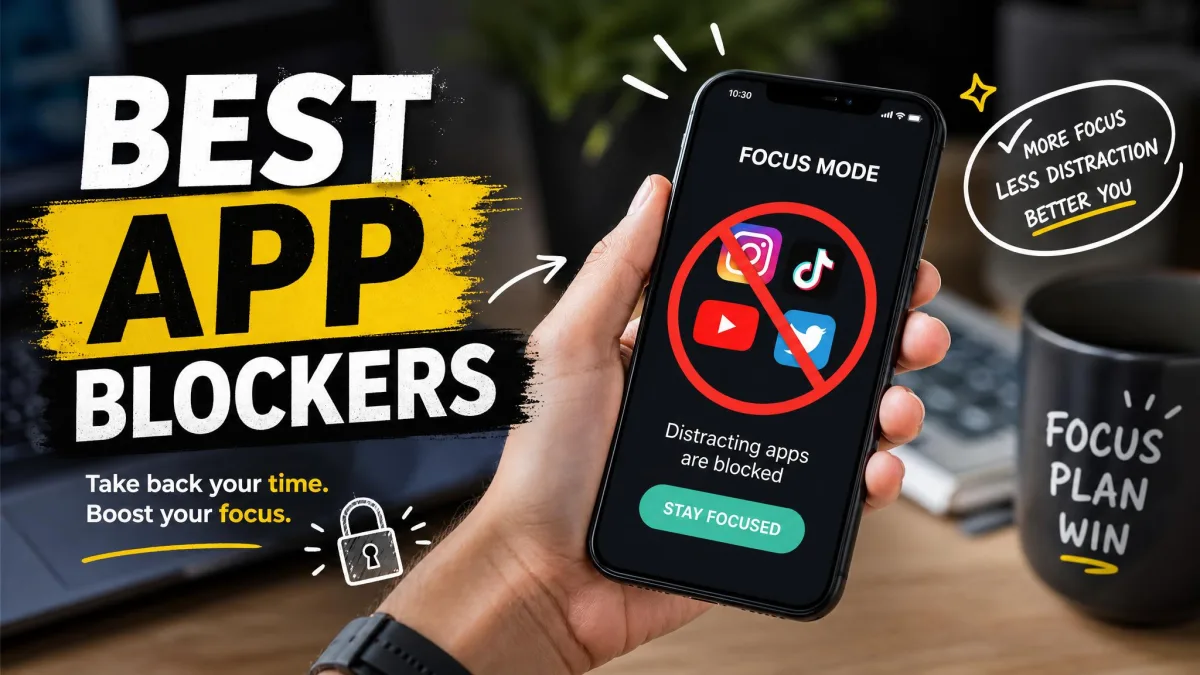
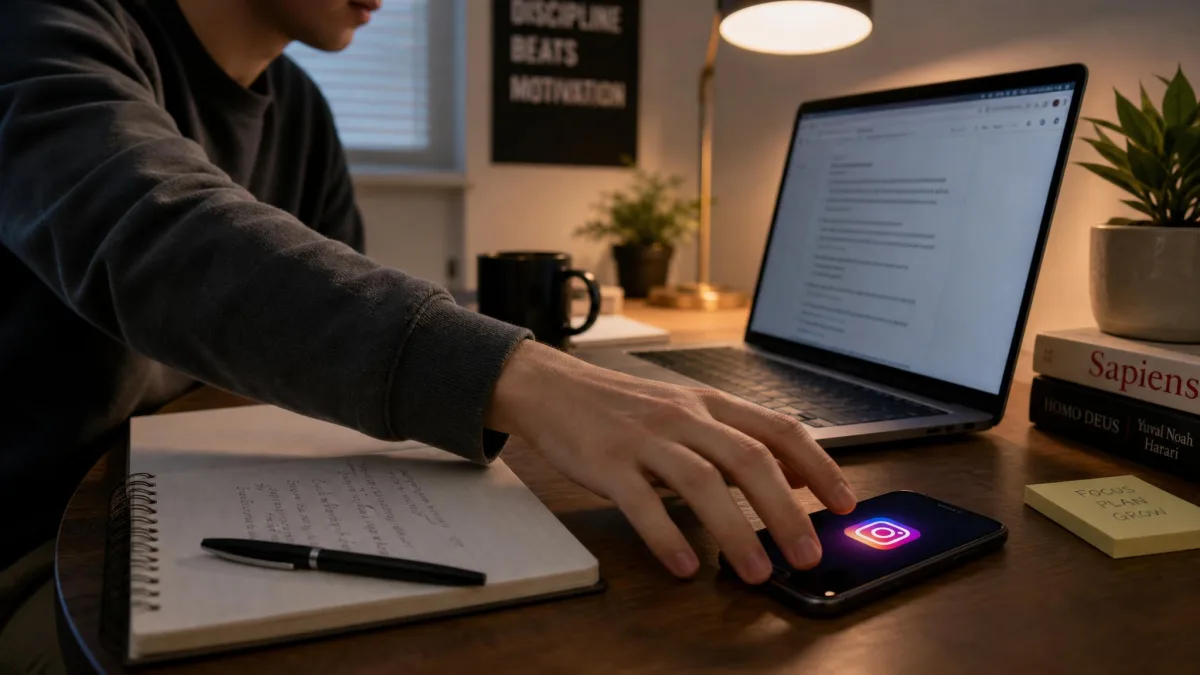
You've told yourself you'll put the phone down and get the work done. Then it buzzes, the thumb taps, and twenty minutes vanish into a feed you can barely recall. The open is so automatic that willpower alone rarely survives the first tap.
We tested seven app blockers across iOS, Android, and desktop to find the ones that actually hold up when the urge to check wins. This guide covers how each handled real distraction loops, which blocks you can talk your way around, and the pick we would put on our own phones.
Why You Need an App Blocker (the attention problem)
Your phone is engineered to be the last thing you think about and the first thing you reach for. Every notification is a small interruption, and each open steals focus that takes time to win back.
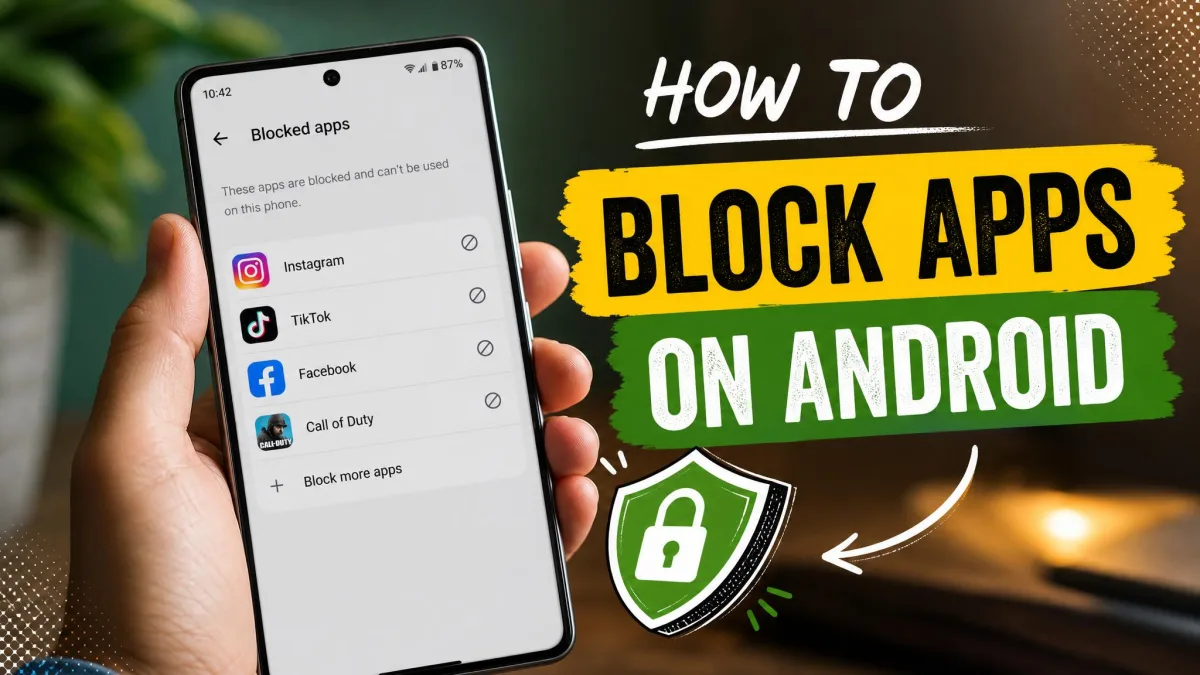
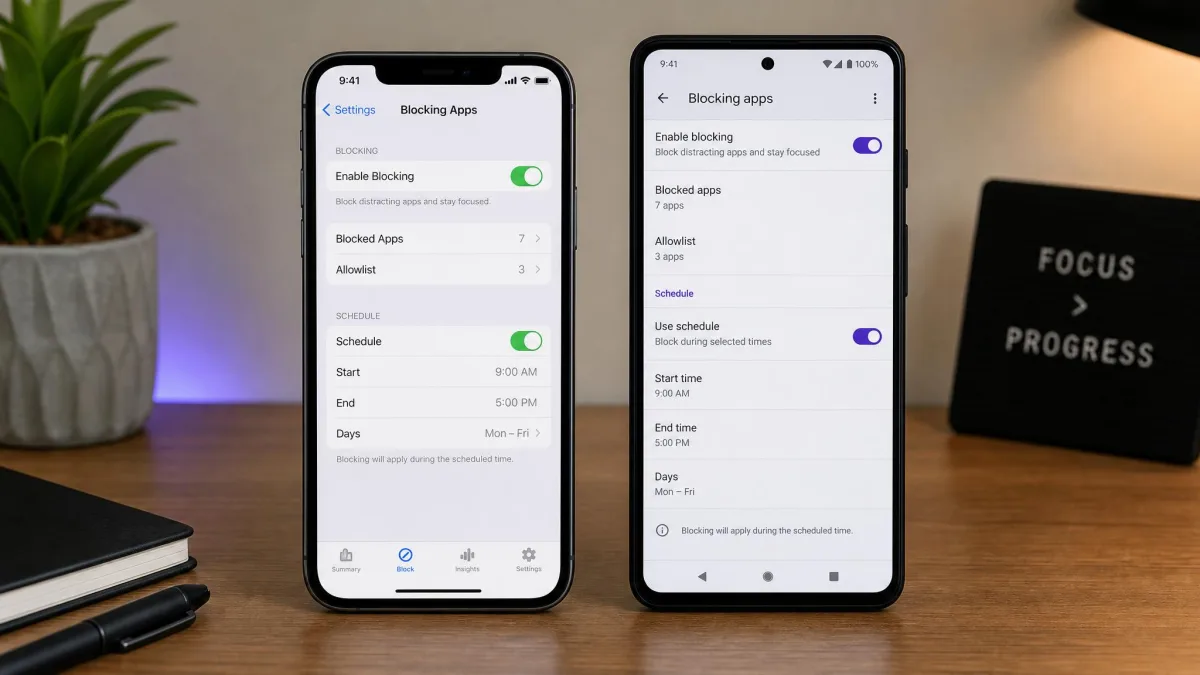
The fix is not more discipline. It is adding friction where the habit lives, so the automatic open becomes a decision. App blockers do this in two ways. Some, like One Sec and ScreenZen, add a nudge with a pause or a growing delay. Others, like Brick and Cold Turkey, build a wall you cannot willpower your way through. Knowing which kind you need is the difference between a tool you use and one you uninstall.
The Best App Blockers at a Glance (Quick Comparison)
Here is how the seven apps compare at a glance.
| App | Buy | Best for | Platforms | Price | Strictness / bypass resistance |
|---|---|---|---|---|---|
 |
Check price → | Cross-platform blocking | iOS, Android, Mac, Windows, Chromebook | Freetier; $39.99/yr | Medium-High (Locked Mode; VPN toggle bypass) |
 |
Check price | Scheduled focus sessions | iOS, Android, Mac | Freetier; $99.99/yr | High (Deep Focus, Screen Time passcode) |
 |
Check price | Building awareness | iOS, Android, browsers | Free(1 app); $19.99/yr | Low (friction only, wait it out) |
 |
Check price | Physical, bypass-proof blocking | iOS 17+, Android 12+ | $59one-time | Very High (physical separation) |
 |
Check price | Free option | iOS, Android, Mac, Windows | Free | Low-Med (wait out the delay) |
 |
Check price | Gamified focus timer | iOS, Android, browsers | Freetier + optional Plus | Low (guilt-based, easy to bypass) |
 |
Check price | Desktop deep work | Windows, macOS | Freeversion; $39 one-time | Very High (near-impossible to cancel) |
Best app blocker for cross-platform blocking
Freedom is the pick for multi-device distractions.
Best free app blocker
ScreenZen is the best free option, with no premium tier and no paywall.
Best app blocker for building awareness
One Sec makes you notice the open before a blocked app launches.
Best gamified app blocker
Forest turns focus into a game.
Best app blocker for strict/bypass-proof blocking
Brick is the nuclear option.
What Makes a Good App Blocker? (How We Tested)
We ran all seven apps on our iPhone and Android phones plus our Windows and Mac laptops. Where an app asked for Screen Time API access, we granted it; where it wanted a VPN profile, we installed that too. Then we tried to break out of our own blocks the way a distracted user would. That surfaced the holes in the friendlier options.
We scored each app on strictness and bypass resistance, platform coverage, ease of setup, and value.
Read what each app asks for before you tap Allow. The VPN-profile blockers, Freedom and Opal, route traffic through a local VPN, and Screen Time API access lets a third-party app control your app limits.
1. Freedom — Best for Cross-Platform Blocking
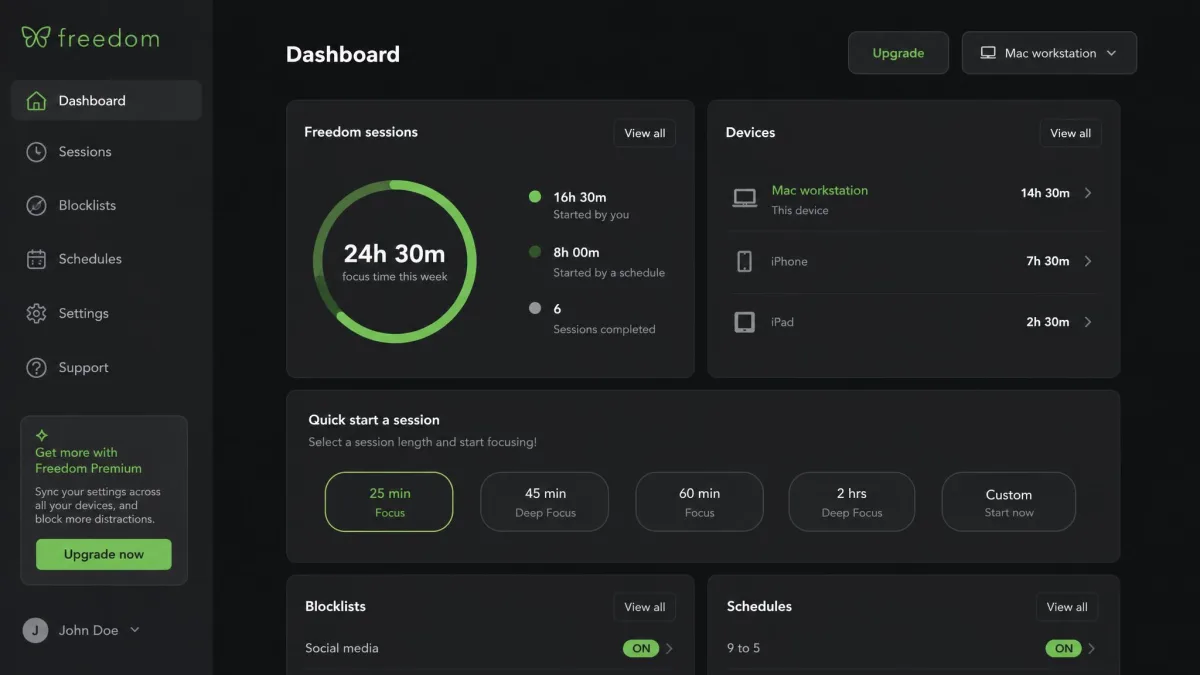
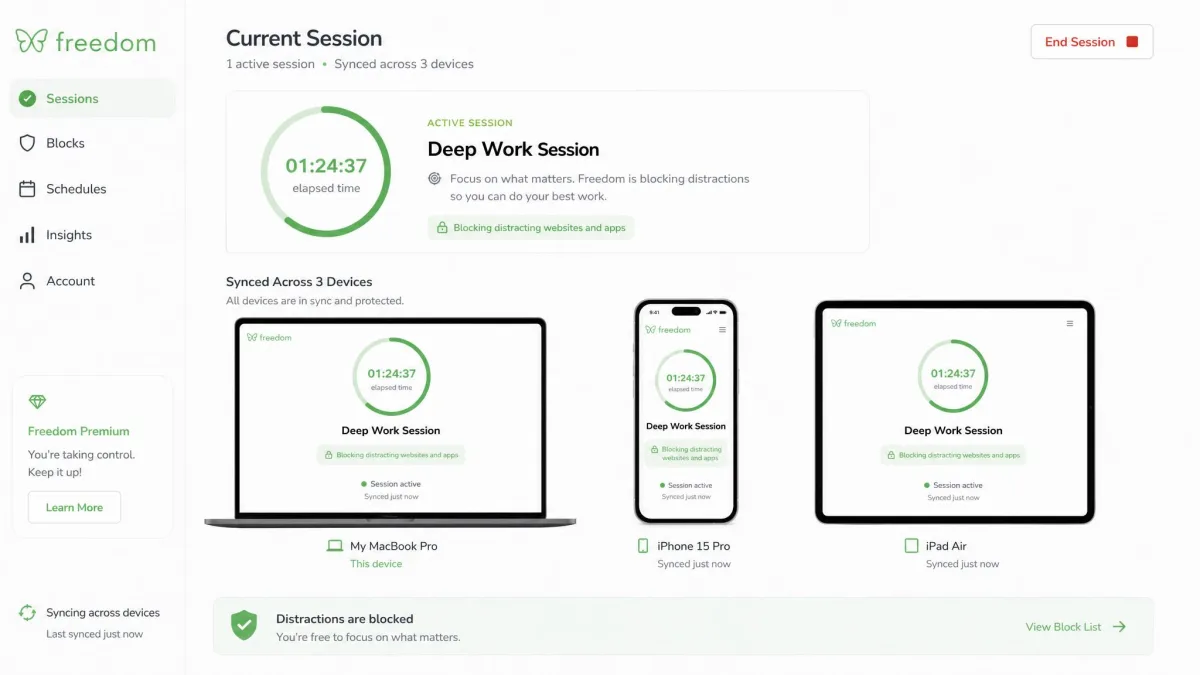
Freedom is the widest-net blocker we tested. We started a blocking session on our Mac, and the same lock landed on our iPhone and Android tablet without us touching either one. Setup took a little patience, and the interface looks dated next to the newer apps here.
The tradeoff shows up on mobile. Freedom blocks through a local VPN profile, so it will not run alongside a privacy VPN. Toggling that profile off in iOS Settings quietly ends the session. It also drained more battery on our test phone than the Screen Time-based tools.
Platforms and pricing
Freedom runs on macOS, Windows, iOS, Android, Chromebook, and Linux, plus a Chrome extension. There is a limited free tier, Premium at $8.99 a month or $39.99 a year, and a 7-day trial. A lifetime option lists at $199 but is often promoted near $99.50. Grab it from Freedom, with the iOS build on the Freedom on the App Store and Android on Google Play.
What we liked
- True cross-platform blocking from one session across phone, tablet, laptop, and Chromebook
- Locked Mode, the strictest setting, which keeps a session running when you want out
- Scheduled and recurring blocks, custom blocklists, and focus sounds
What to watch out for
- Mobile blocking rides on a VPN profile, so it conflicts with a privacy VPN and drains battery
- The Windows and Android builds feel clunkier, and the Chrome extension can silently stop blocking
- Regular sessions can be ended early, and Locked Mode is Premium-only
2. Opal — Best for Scheduled Focus Sessions
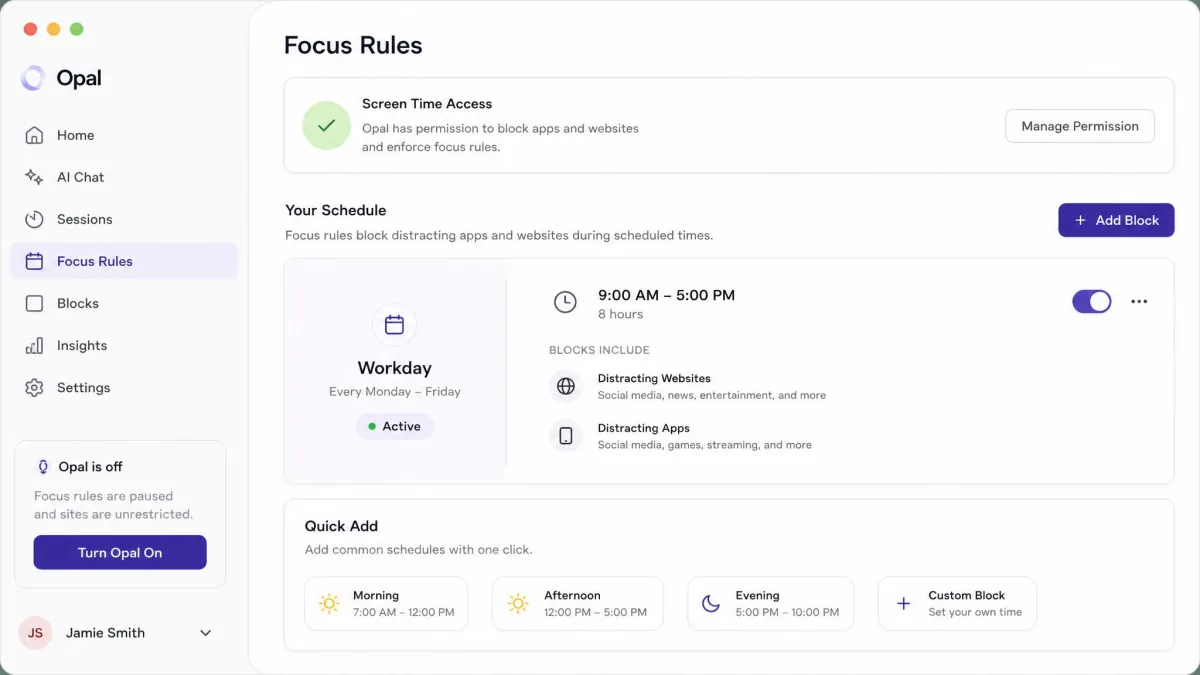
Where Freedom casts the widest net, Opal plays favorites with the iPhone crowd. It had the smoothest setup of the seven, walking us through Screen Time access and the VPN profile in about five minutes. Once running, the schedule system felt like the point: set Focus Rules for the hours you actually work, and the app applies the blocks for you.
Strictness is Opal's other strength. Deep Focus mode makes blocks much harder to override. A Screen Time passcode held by a trusted person stops Opal from being turned off or deleted entirely. The free tier is the weak spot, closer to a tracking demo than a working blocker, and Android support still feels barebones.
Platforms and pricing
Opal runs on iOS 18.0 and later, Android, and macOS, built on Apple's Screen Time API with a VPN profile for website blocking. The free tier includes one blocking rule; Pro is $19.99 a month or $99.99 a year, and lifetime is $399. There is a 7-day free week on the yearly plan, and the 30-day guarantee only covers website purchases. Learn more on Opal and see the Opal on the App Store listing.
What we liked
- Smooth guided setup, with Screen Time access and the VPN profile handled in about five minutes
- Deep Focus mode, plus a passcode held by someone else, makes blocks genuinely hard to defeat
- Schedules, Focus Rules, and calendar-based blocking fit a workday routine
What to watch out for
- The free tier is barely a working blocker and reads more like a usage tracker
- The website-blocking VPN profile can be disabled in iOS Settings in about ten seconds
- The $399 lifetime price and the App Store refund limits take some thought
3. One Sec — Best for Building Awareness
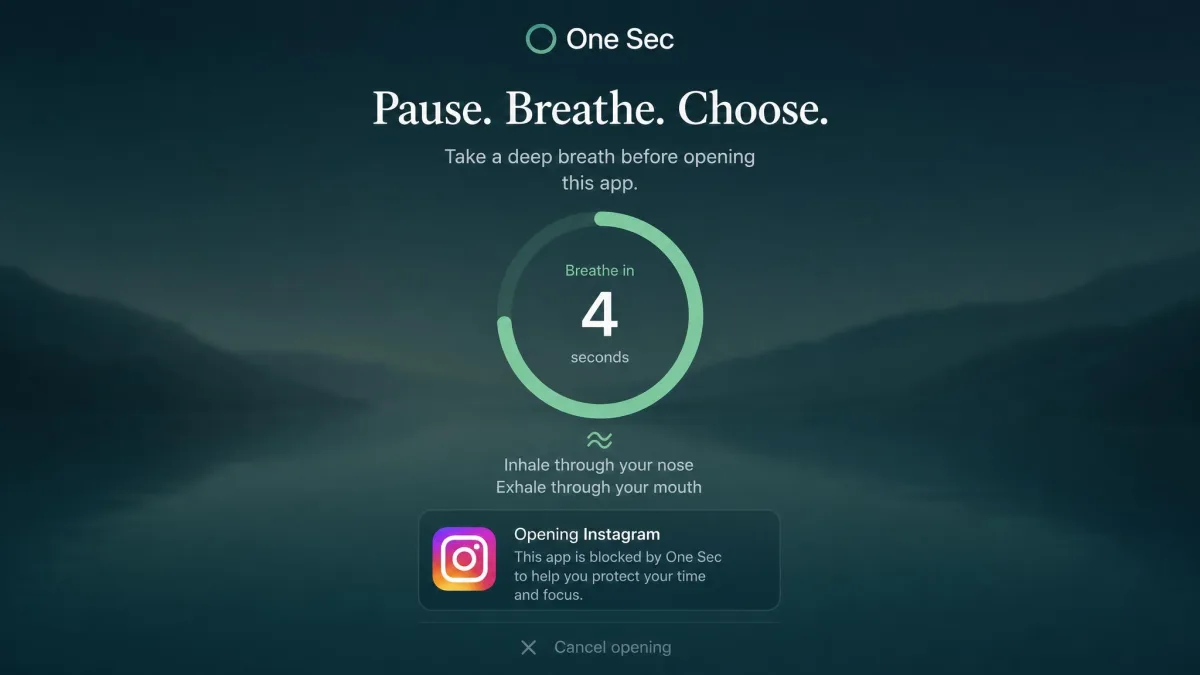
If Opal is a lock, One Sec is a speed bump with benefits. It does not actually block anything, and it is upfront about that. We met it the way most people do: thumb on the test phone, reaching for Instagram in the middle of a work block. The app cut in with a deep-breath pause before the feed could load, forcing a decision the autopilot open had never asked us to make. The effect is measurable: the tool's own peer-reviewed study, run with the Max Planck Institute and Heidelberg University, recorded 57% fewer app openings on average.
The honest limit showed up in the same session. One Sec is friction, not enforcement, so you can wait out the breathing exercise and open the app anyway, and there are no daily time limits. A deliberate binge still lands at your usual screen time total, which is why it works best as an awareness tool, paired with a stricter blocker for the apps you cannot trust yourself with.
What it does
One Sec runs on iOS 15.0 and later, Android, and as a browser extension for Windows, macOS, and Linux, with cross-device sync. The free tier covers one app of your choice; Pro is $2.99 a month or $19.99 a year, and lifetime is $99.99.
- Gentle friction that genuinely breaks the autopilot habit-open
- Peer-reviewed backing from a study run with the Max Planck Institute and Heidelberg University
- A free tier that covers one full app, plus journaling
The honest limits
- Nothing is enforced, so a patient user can wait out the pause and open the app anyway
- No daily time limits, so heavy users can still hit their usual screen time totals
- The paid tiers feel steep for what is essentially a breathing timer
4. Brick — Best Physical, Bypass-Proof Blocker
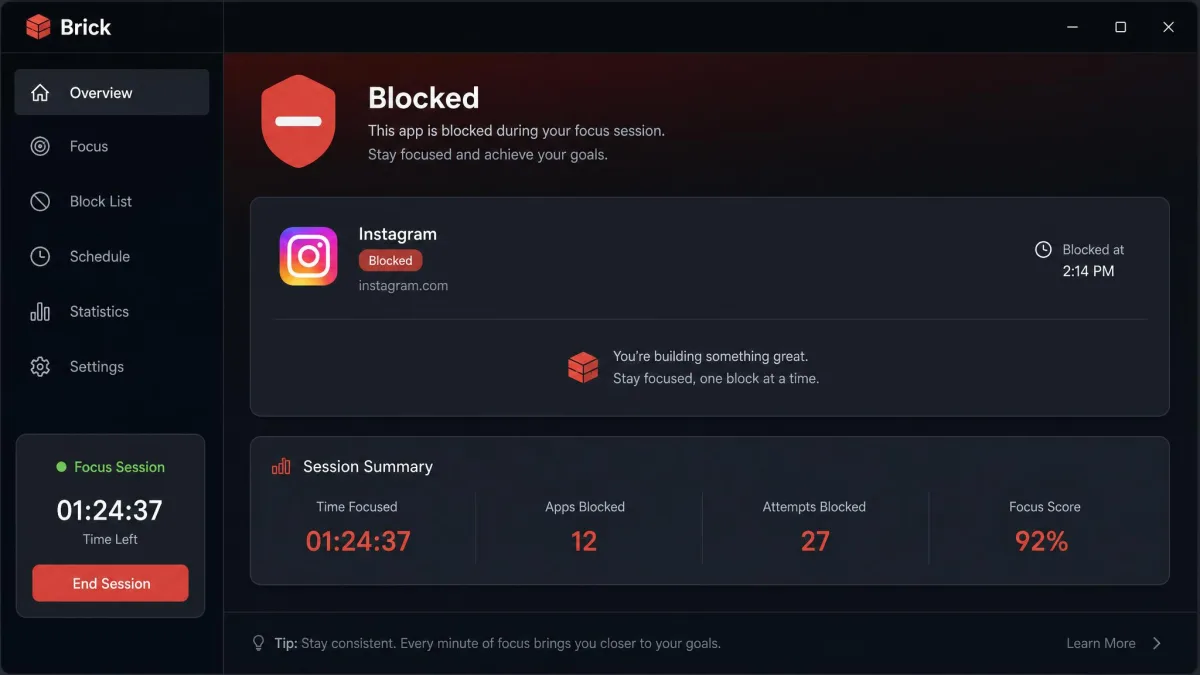
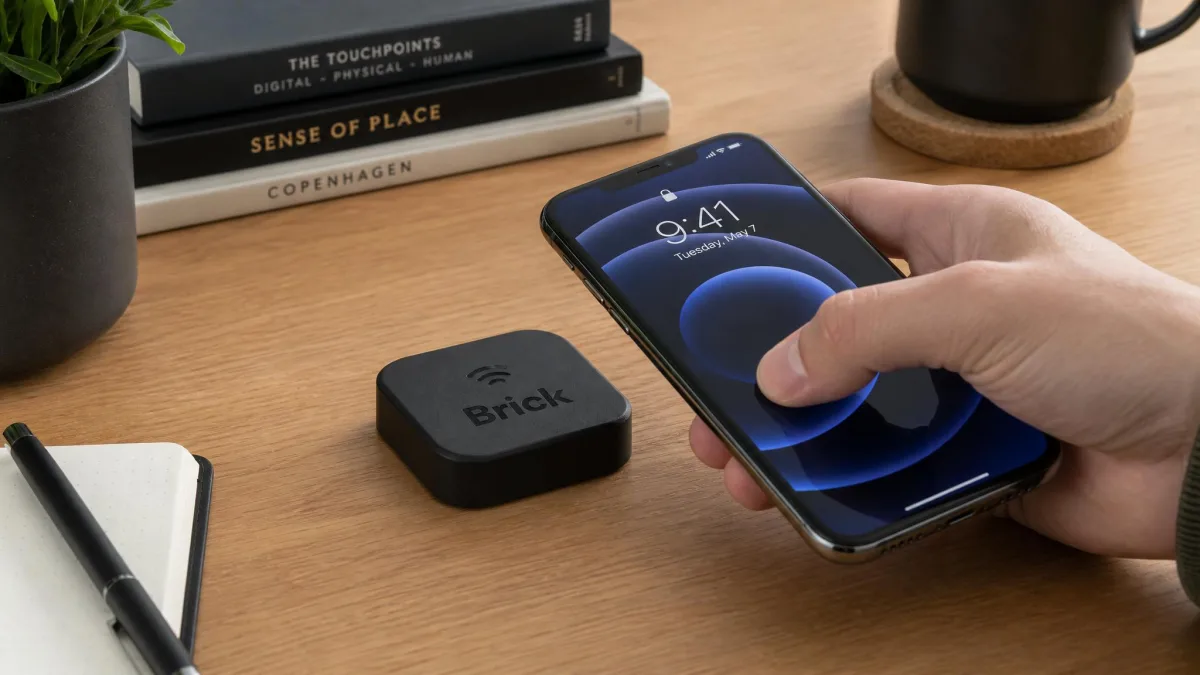
Brick is the nuclear option of the bunch, and the only app blocker that asks you to touch hardware. Tap your phone against the battery-free puck to block or unblock a set of apps, and setup took us about three minutes out of the box. On our test phone, screen time dropped from a five-to-seven-hour average to two to three and a half hours a day, the biggest measured change in this test.
There is no passcode to guess and no VPN profile to toggle, which makes Brick the closest thing to a hard block you can get on an iPhone. But effectiveness depends entirely on where you leave the Brick. Carry it with you and you can unbrick at the first sign of temptation; lose it and you cannot unbrick at all. It only blocks the phone, so the same apps on your laptop are one click away.
How the physical block works
Brick requires an iPhone on iOS 17.0 or later or an Android phone on version 12.0 or later. It is a $59 one-time purchase with no subscription, and the 30-day money-back guarantee covers the return period. The puck ships with custom modes that block three to twelve apps each, and five emergency unbricks cover the moments you genuinely need in.
Where Brick falls short
- It only blocks your phone, not your laptop or tablet
- Effectiveness depends on where you leave the Brick, and losing it locks you out entirely
- Forgetting to allow an essential app means unbricking to re-edit your blocklist
5. ScreenZen — Best Free Option
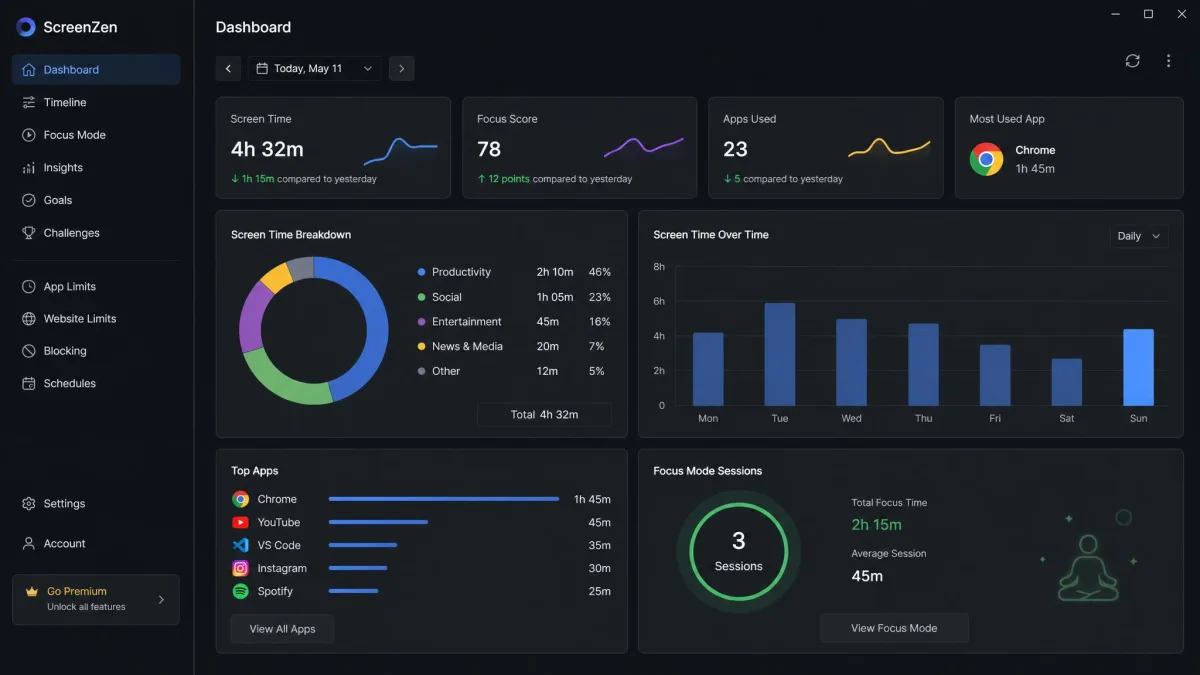
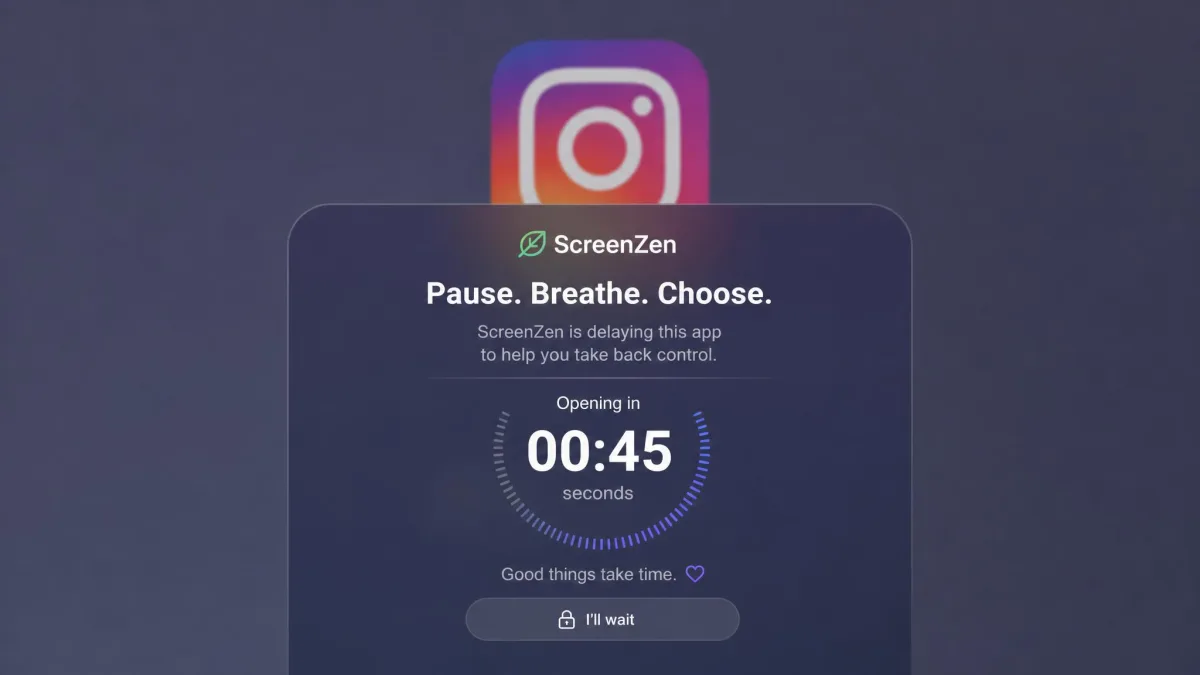
Where Brick makes you touch hardware, ScreenZen asks nothing but a wait. On the test phone we set it in front of the app we reach for most, a social feed that sits a thumb away during the workday. The first open met a pause-and-delay screen; we waited out the short countdown and got in. Tapping the app again right after pulled up a longer wait, and the escalation is the point: the more you try to open it, the longer the delay grows. Across our testing, a large share of intercepted opens never made it through that pause.
The honest caveat is that the friction is easier to wait out than a system-level block. But for autopilot opens, it is one of the most effective free tools we have used.
Platforms and pricing
ScreenZen runs on iPhone and iPad with iOS 16.4 or later, Mac with macOS 13 or later, Windows, and Android. It is completely free and donation-supported, with optional tips from $5 to $40.
What we liked
- Completely free, with no premium tier and no paywall
- Increasing delay and per-day open limits that deter habit-opens
- Optional streaks, breathing interventions, and a lock mode
What to watch out for
- The pause is easier to wait out than a hard block
- No physical or system-level enforcement if you are determined
- Limits are set per app, so you configure each app you cover
6. Forest — Best Gamified Focus Timer
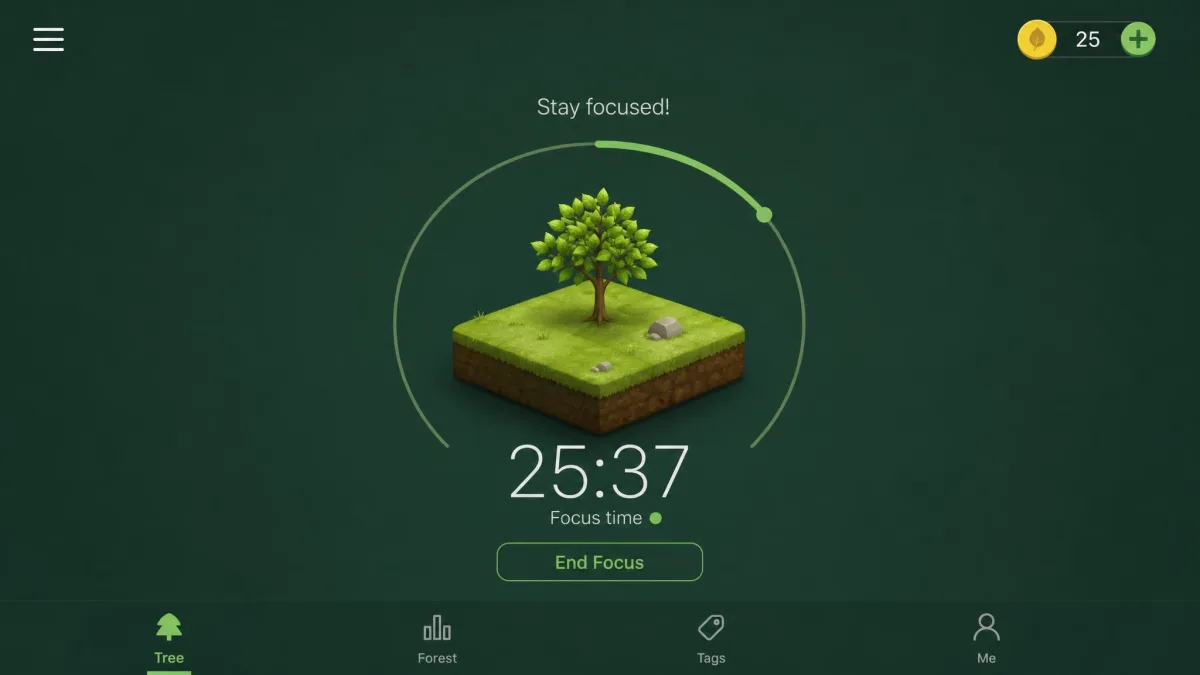
Forest takes the opposite route and turns focus into a game. It builds a virtual tree that grows while you stay in the app and dies if you leave. On the test phone we planted a virtual tree and started a focus session with it growing on screen. Halfway through, a call came in, and answering it meant leaving the app. The tree died and the session with it, and the stakes scale with time: a 40-day forest can disappear over a single phone call.
The deeper draw is the real-world angle: the app plants actual trees through Trees for the Future, more than 2.1 million to date across 60 million downloads since 2014. The game has escape hatches, though. The allowlist that keeps maps and music alive cannot always tell work from distraction, and the guilt cuts both ways: a dead tree causes genuine stress.
Forest runs on iOS, Android, Chrome, and Firefox, with cross-platform sync and offline focus sessions. Pricing varies by platform and has changed over time. It historically sold as a one-time iOS purchase around $1.99 to $3.99, while the current model is a free core tier plus an optional Plus subscription.
What we liked
- Genuinely motivating gamification, with a tree that grows with every completed session
- A real-world payoff, with 2.1 million trees planted through Trees for the Future
- An allowlist for maps, music, and calls
Where the game is weakest
- Switching to another device bypasses the mechanic entirely, leaving the tree to grow while you scroll elsewhere
- The guilt from a dead tree can backfire for some people
- It only works during sessions you start manually, and novelty fades for some users
7. Cold Turkey — Best for Desktop/Deep Work
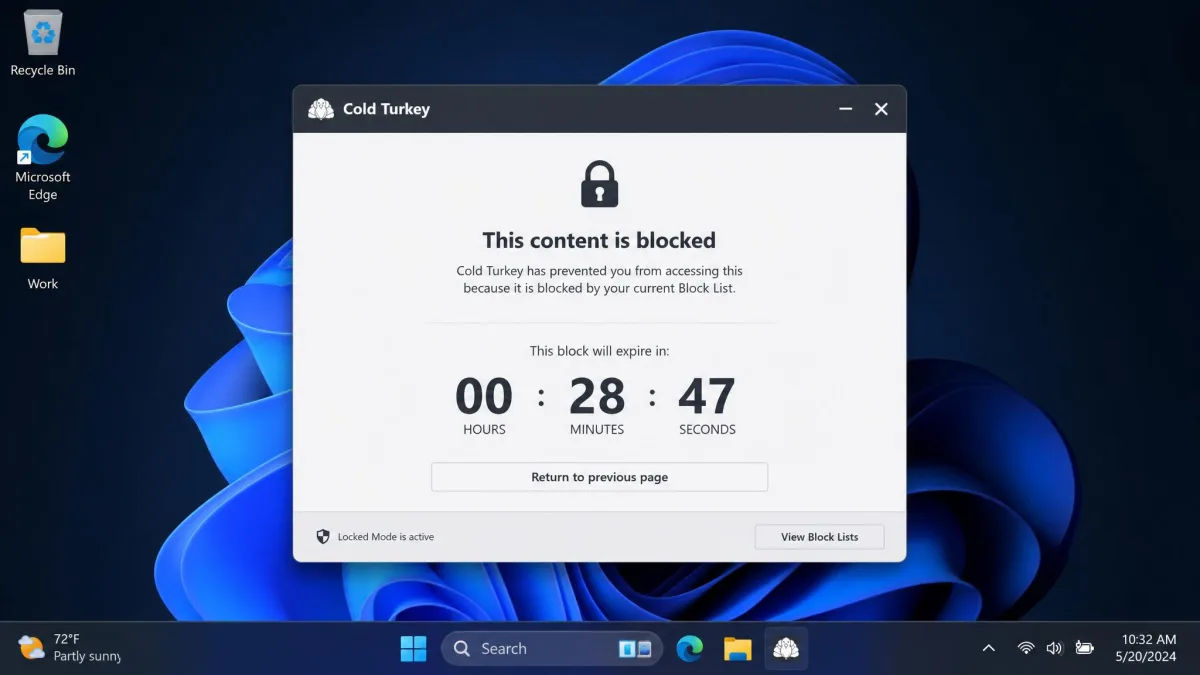
Where Forest gamifies, Cold Turkey locks down the desktop. Once a locked block starts, it is nearly impossible to cancel, not even by uninstalling. It blocks enough system loopholes that you cannot talk your way out. We set a locked block on our distraction sites, tried to cancel it mid-session, and every avenue came back to the same wall. On our test machines, computer-based distractions dropped by about 45%.
The power cuts both ways. The same locks can lock the whole system, auto-close apps, or interfere with boot, and the uninstall process has forced system restores for some people. Trustpilot reviews are polarized, and the interface looks dated and intimidating to non-technical users. This is a tool for people who genuinely want the most severe option, not a first app blocker.
Platforms and pricing
Cold Turkey is Windows and macOS only, with no mobile apps, so it is strictly a desktop and deep-work tool. The free version covers basic website blocking, timed blocks, and statistics, and includes a 7-day trial of Pro features. Pro is a $39 one-time purchase covering every computer you personally use, with free lifetime updates, a 30-day full refund guarantee, and a 20% student discount.
What we liked
- The strictest blocks we tested, with locked sessions that even uninstalling cannot cancel
- Deep options like blocking YouTube channels, keyword searches, the entire internet, or the whole computer
- A genuinely useful free version and a fair one-time price
What to watch out for
- Windows and macOS only, so your phone is not covered
- System locks, boot interference, and painful uninstalls are real risks
- The interface is dated and intimidating for non-technical users, and setup can be tricky
Built-In Options: Apple Screen Time & Android Digital Wellbeing
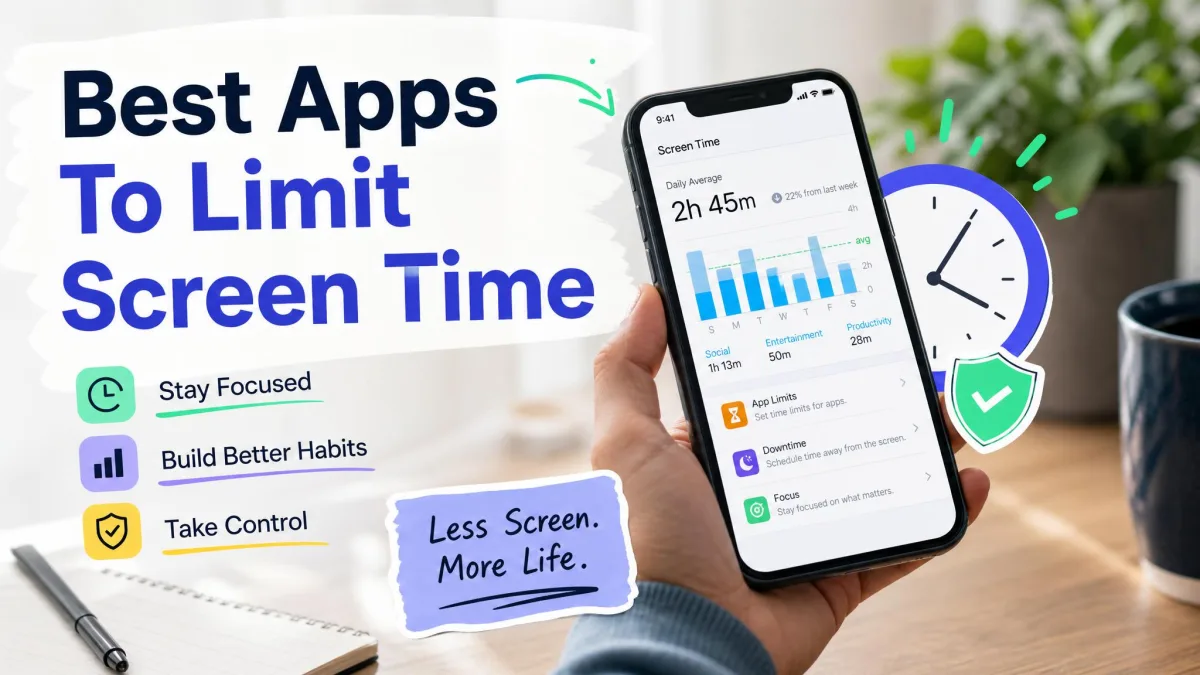
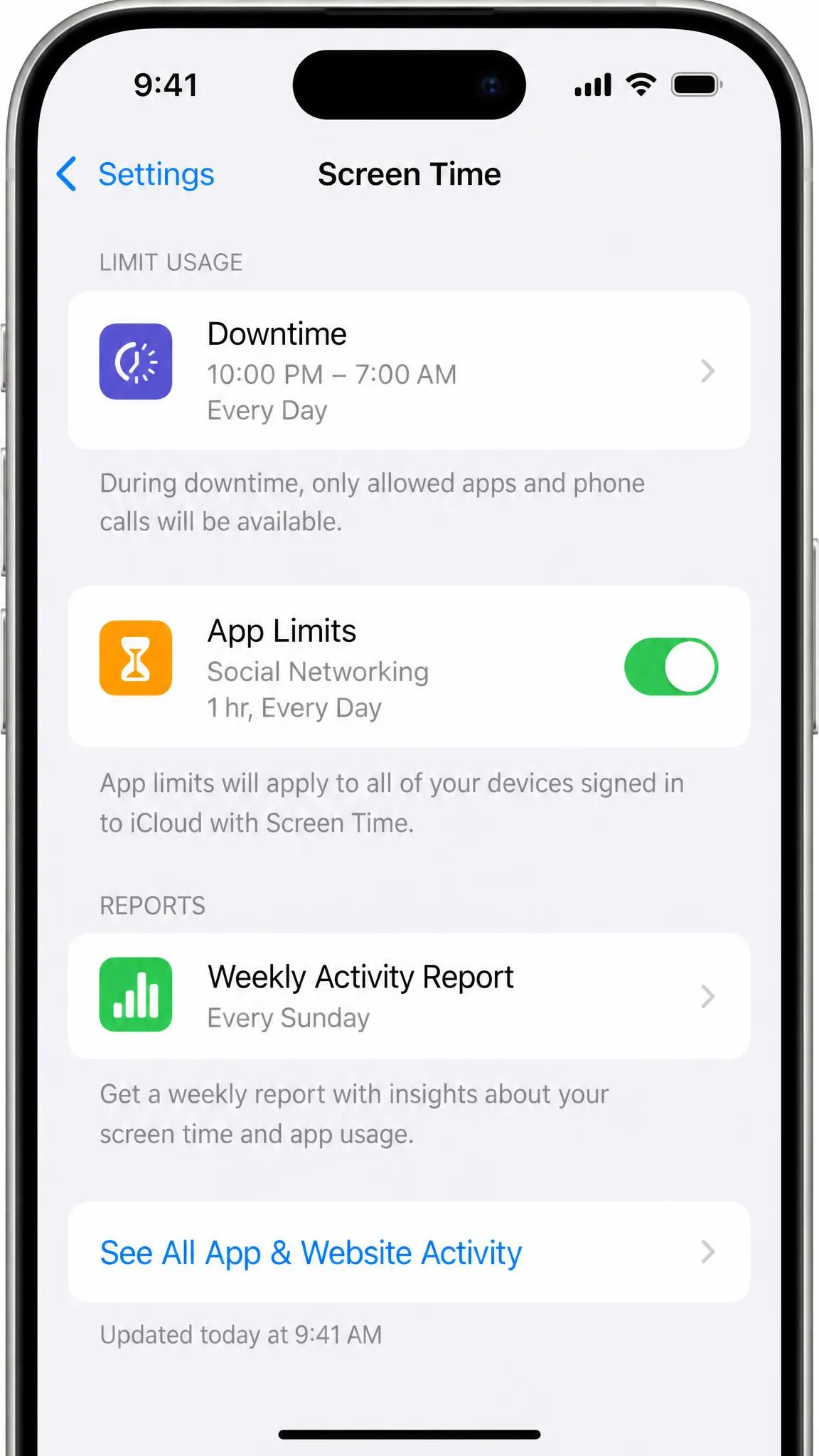
Before you pay for a blocker, both major platforms ship a free one. Apple Screen Time arrived with iOS 12 in 2018 and brings app limits, downtime schedules, and weekly activity reports. Android's Digital Wellbeing shipped with Android 9 the same year and brings a usage dashboard, app timers that gray out icons, Focus mode, and Wind Down.
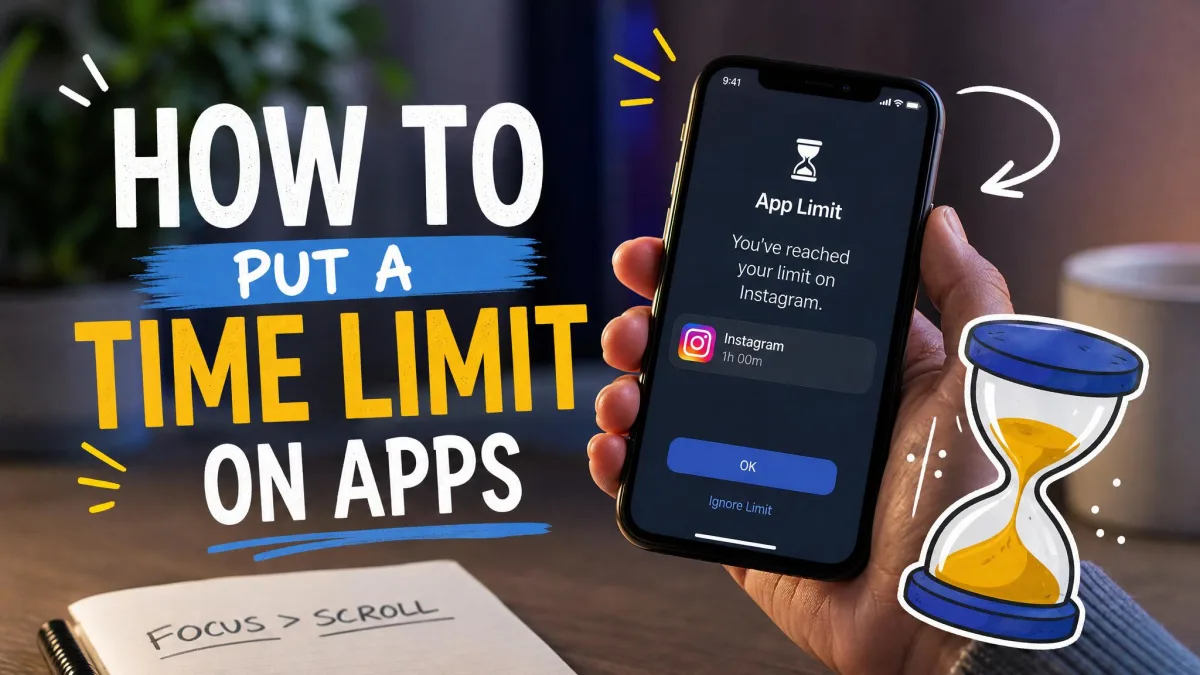
The honest catch is enforcement. On your own phone, Screen Time's one-tap Ignore Limit makes it trivially easy to bypass for self-regulation. For most adults it becomes wallpaper within a few weeks. It works far better for kids, where a parent-held passcode via Family Sharing turns the same limits into real boundaries.
How to Choose the Right App Blocker
If the built-in tools are the free starter kit, the dedicated blockers here are where the real choices begin. Start with the honest question: what kind of distraction are you fighting? If you open Instagram on autopilot, a gentle nudge like One Sec or ScreenZen can break the loop. If you will wait out any delay or hunt down the settings to turn a block off, you need physical or system-level enforcement like Brick or Cold Turkey.
In our testing, the best blocker was the one that matched the temptation: friction for the habit-opens, enforcement for the compulsive opens.
Match the platform first. If you live across phone and laptop, start with Freedom, while Cold Turkey is desktop only. Then decide how strict you need to be, because strictness and comfort trade off.
Start small. Block your top three time-wasters rather than everything at once, and you will learn how much friction you actually need before you lock down more.
Weigh the pricing model too. Freedom, Opal, and One Sec are subscriptions, while Brick and Cold Turkey are one-time purchases and ScreenZen is free. A subscription is easier to justify when the app does the heavy lifting every day. A one-time price is a better bet when you are still testing the tool. If you want a pure productivity tracker, RescueTime is a solid companion, and AppBlock and Stay Focused offer more basic Android blocking.
If you are setting this up for a teenager rather than yourself, the parental-control route changes the calculus. A parent-held passcode is the most reliable enforcement mechanism in the category. Our guides to the best parental control software for PC and the best parental monitoring app for iPhone cover the dedicated tools for that job.
Frequently Asked Questions
Are app blockers actually effective?
Can app blockers be bypassed?
What is the best free app blocker?
Does Apple Screen Time actually block apps or just warn you?
Do app blockers work on both iPhone and Android?
Will an app blocker affect battery life?
Our Verdict: Which App Blocker Should You Pick?
There is no single right answer, because the right blocker depends on the temptation. Here is where our testing landed.