You hand over the phone for one video, and eight seconds later your child is somewhere else entirely. A stray swipe closes the app, and a second tap opens the dialer, the camera, or a game with an ad banner sitting under a small thumb.
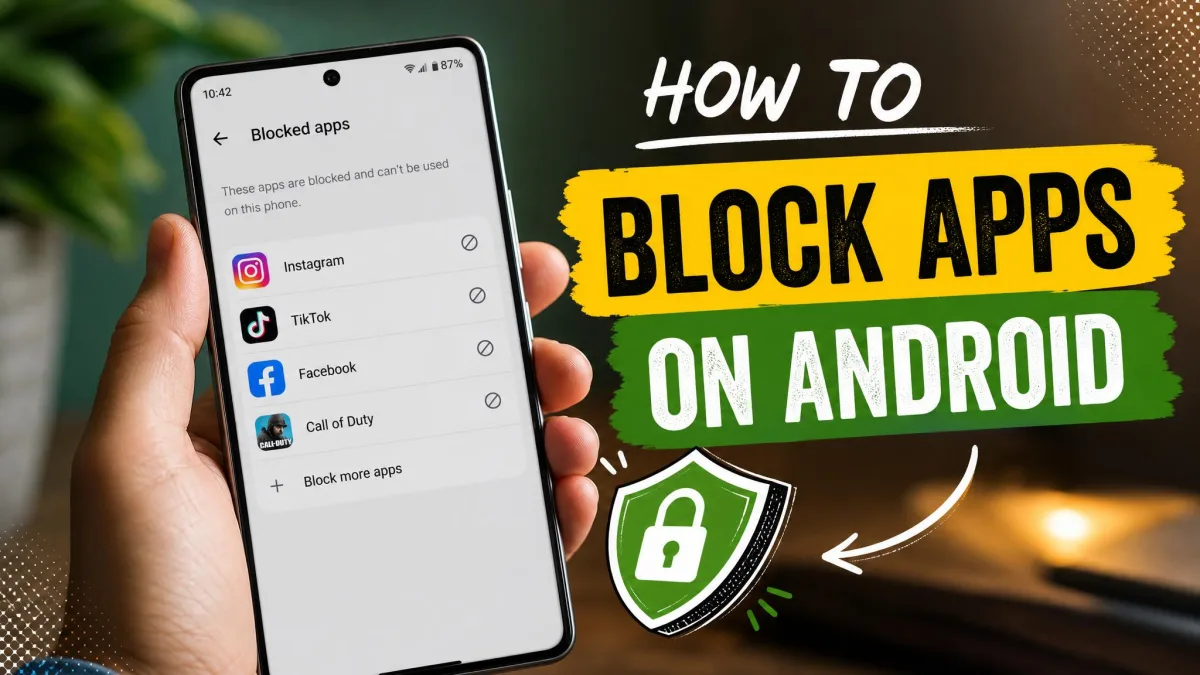
Android has a built-in answer that takes about a minute to set up. App pinning locks the device onto one app, so your child stays put instead of wandering into settings, contacts, or the Play Store. If you want ongoing rules rather than a one-off lock, the same phone can run daily limits, app blocking, and content filters.
This guide covers every method in order, starting with the free features already on your phone. Each one explains what it blocks, what it does not, and how to turn it off again.
Why lock your child's Android screen
A phone handed to a child is a phone with every app one tap away. Locking the screen narrows that to the single thing you meant to hand over.
Accidental taps, exits, and in-app purchases
The complaints are always the same short list. A child closes the app halfway through a video, the dialer calls someone in your recent contacts, a half-written message gets sent, and in a free game a small hand finds the ad before the play button.
In-app purchases are the expensive one. Purchase prompts stay reachable even when the screen is locked to that app, so pinning alone is not a purchase-proof setup. Blocking Play Store spending is a separate job, covered in Method 5.
An unlocked phone also puts search, YouTube, and the browser within reach, and none of those were built with a six-year-old in mind. Pairing a locked session with sensible daily limits follows the same principle most pediatric screen-time advice lands on: planned use beats open-ended access.
Locking the screen vs. full parental controls
Locking the screen is a moment: you are handing the device over right now, for one app, for one video or one car journey. Screen pinning and touch lock apps do that job.
Parental controls are a policy. They run whether you are in the room or not, and they cover how long the device gets used, which apps open, and what appears in search results. Most families end up using both.
Quick answer: the fastest way to lock an Android screen for kids
- Open the Settings app on your Android phone or tablet.
- Tap Security, or Security and privacy on newer builds.
- Open Advanced or Other security settings, then find App pinning.
- Turn App pinning on.
- Turn on the option to ask for your PIN before unpinning.
- Open the app you want your child to use.
- Swipe up to the middle of the screen and hold to open Overview.
- Tap the app's icon at the top of its card, then tap Pin.
The phone is now locked to that app. Everything below explains the steps, the differences between phone brands, and what to do when pinning is not enough.
Method 1: Use Android screen pinning to lock one app
Screen pinning, which Google now calls app pinning, is free, needs no install, and works on the phone in your pocket.
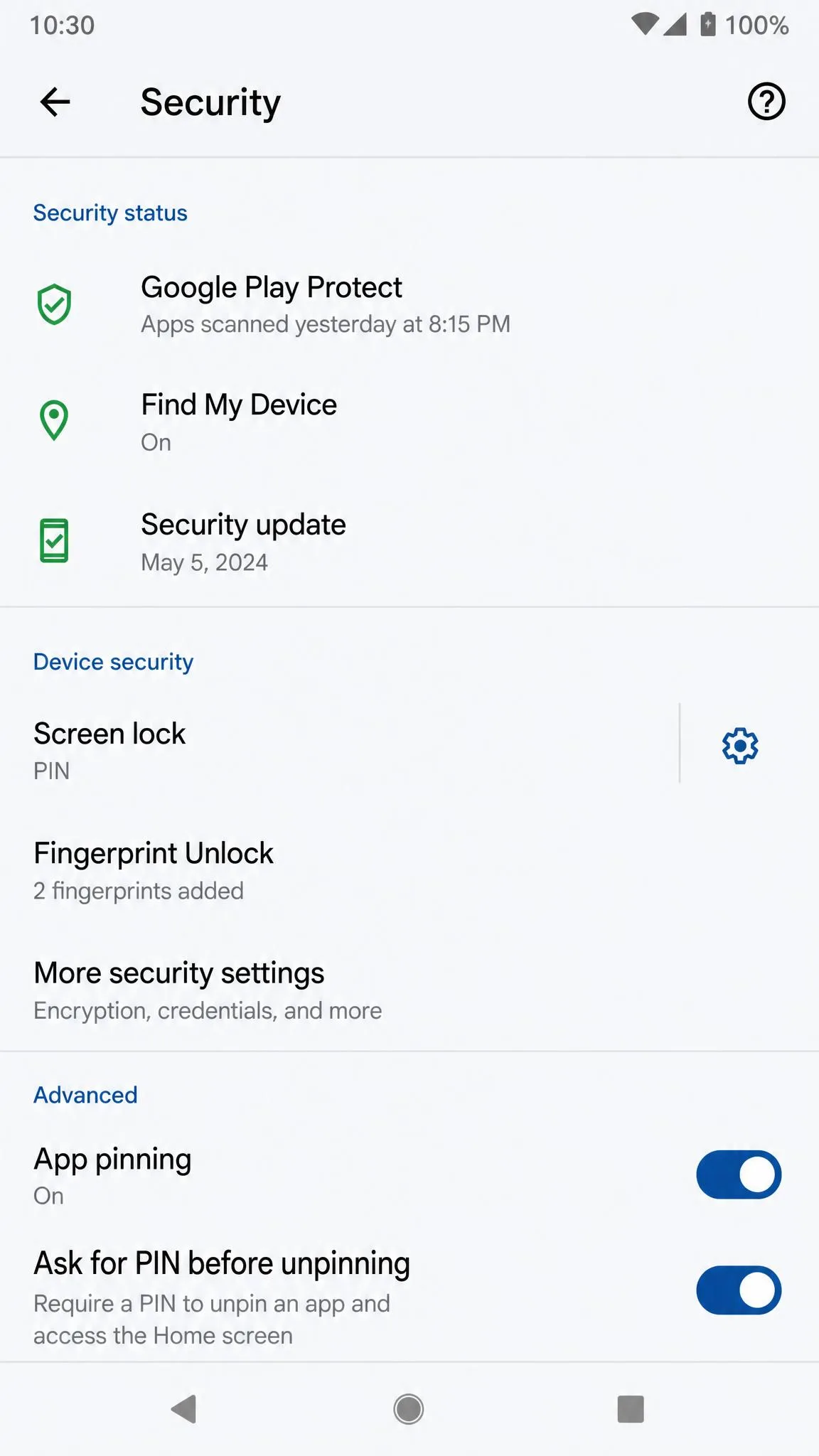
Turn on screen pinning in Settings
- Open the Settings app.
- Tap Security, or Security & Location depending on your Android version.
- Tap Advanced to expand the extra options.
- Tap App pinning.
- Switch it on.
- Turn on the option that asks for your PIN, pattern, or password before unpinning.
- Back out of Settings. The setting stays on until you change it.
Google's documentation for app pinning notes that on Pixel phones some of these steps work only on Android 11 and up. Phones on Android 8.1 and below enable pinning a different way, so if the menu names do not match, that is the likely reason.
Pin an app your child is using
- Open the app you want to lock the screen onto, such as YouTube Kids or a drawing app.
- Swipe up from the bottom of the screen to the middle and hold, which opens Overview.
- Find the card for your app.
- Tap the app's icon at the top of that card.
- Tap Pin, and confirm the prompt if your phone shows one.
The app now fills the screen, and the home and back gestures stop taking your child anywhere else.
The step that trips people up is the pin action, not the settings toggle. On a Pixel running Android 11 or later you must tap the small app icon at the top of the Overview card, not the card itself. Tapping the card just reopens the app, which is why the Pin option seems to be missing on the first try.
Unpin and require a PIN to exit
Getting out again depends on your navigation style, and all three differ.
- With gesture navigation, swipe up from the bottom and hold.
- With 2-button navigation, touch and hold Back and Home together.
- With 3-button navigation, touch and hold Back and Overview together.
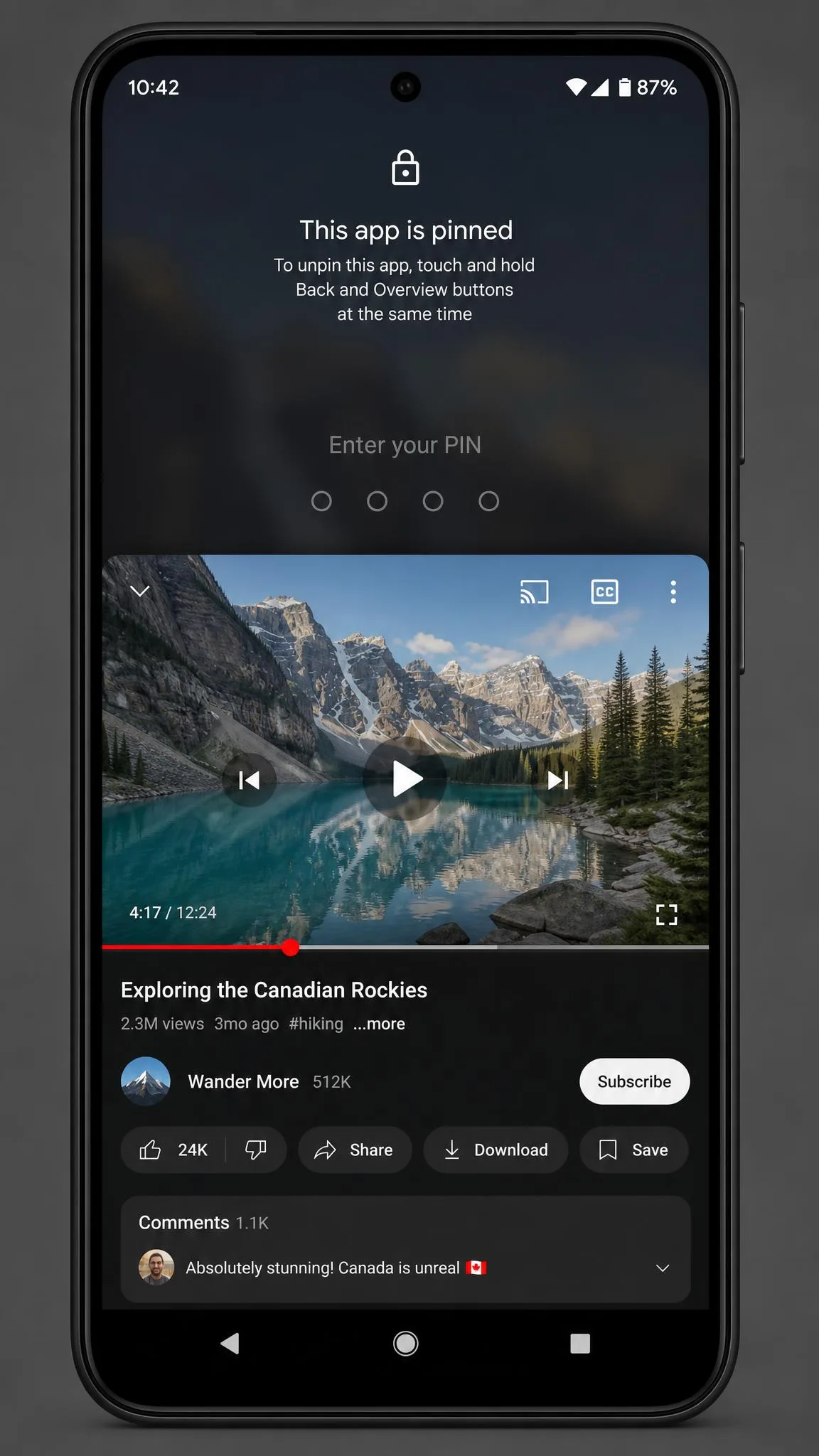
If you turned on the ask-for-PIN option, the phone then asks for your PIN, pattern, or password before it releases the app. That toggle is what turns pinning from a speed bump into a lock. Leave it off and the gesture alone drops your child on the home screen, which is the most common setup mistake. Expect to fumble the gesture the first time, especially if you recently switched from buttons to gestures.
Set pinning up in a quiet moment and practise the unpin gesture twice before you need it. After that, pinning an app as you hand the phone over takes about five seconds.
What screen pinning does and doesn't block
Pinning stops your child leaving the app, and it does nothing inside the app. Taps still work, so a child can pause the video, hit an ad, or skip to something you did not intend. The notification shade is inconsistent: on most devices pinning blocks the pull-down shade, but on some builds it can still be dragged open and settings changed from there. Test yours by pinning an app and trying to swipe down from the top.
Method 2: Lock the screen while your child watches videos
Video is why most parents search for this, and it has its own options.
YouTube Kids lock and the YouTube pause-lock
YouTube Kids has a built-in timer. Set it in the parent area, and when the limit is reached your child sees a Time's up notification and the app locks itself. The slider range has moved between app versions, so treat what you see as version specific: guides commonly describe it running up to around 60 minutes, while Google's own timer page publishes no range at all.
Two limits matter. The timer locks the app, not the phone, so a child who hits Time's up can back out to the home screen unless the app is also pinned. And the default parent gate is a multiplication problem, which any child who can multiply will walk straight through. Replace it with a custom 4-digit passcode.
Netflix and other streaming apps
Streaming apps vary, and Android gives them no shared lock control. We could not confirm a Netflix-specific on-screen touch lock on Android, so do not go hunting for one. The reliable approach is the same for any streaming app: pin it, then add a touch lock app if taps are the problem.
Locking the touchscreen during full-screen playback
Some phones from Samsung, Xiaomi, and other manufacturers include a touch-block control in the video player or quick settings during full-screen playback. Where it exists it is the cleanest option, because playback continues and nothing else responds. Swipe down your quick settings and look for touch lock, child lock, or screen lock before installing anything.
Method 3: Samsung and other OEM options (Kids Mode, Secure Folder)
Samsung phones do everything above, but the menu names and gestures differ enough to matter. To pin an app on a Samsung phone:
- Open Settings and tap Security and privacy.
- Scroll down and tap Other security settings.
- Turn on Pin app, and turn on the ask-for-PIN option while you are there.
- Open the app you want to lock the screen onto.
- Tap Recents, or swipe up from the bottom and hold if you use gestures.
- Tap the app icon and select Pin this app.
To unpin on a Samsung, press and hold Recents and Back at the same time. That is a different move from the Pixel gesture, which is why borrowed instructions so often fail.
Samsung Kids is the other route on Galaxy devices, and it gives your child a separate home screen holding only the apps you allow. It opens from the Quick settings panel rather than the Settings app: swipe down with two fingers, tap the Samsung Kids icon, then tap Continue twice. If the icon is not there, tap the pencil to edit the panel, tap Edit under Full, and drag Kids in. It runs on Android 9.0 (Pie) and above, though availability varies by carrier, and you can create up to 6 child profiles.
Inside, tap More options (the three dots) and then Parental controls to set daily playtime limits per day of the week, a bedtime, app and contact restrictions, and to see usage history by day and by app. The PIN you create at setup is separate from your phone's unlock PIN, and it gates both leaving Samsung Kids and changing its settings. After five wrong entries you have to email kidshome.pin@samsung.com from your registered address for a temporary password, so write that PIN down somewhere safe.
Account-level rules live elsewhere. A Samsung child account, created under Settings, Samsung account, Family, Add family member, lets you allow apps and games by age-rating category and control web content, downloads, and purchases. Setting one up means agreeing to a Child Privacy Disclosure and verifying your identity with a credit card security code and an emailed code. Samsung's regional pages give different One UI minimums for those child-account controls, so the cutoff depends on which Galaxy for Families build your phone has.
Method 4: Third-party touch lock and screen lock apps
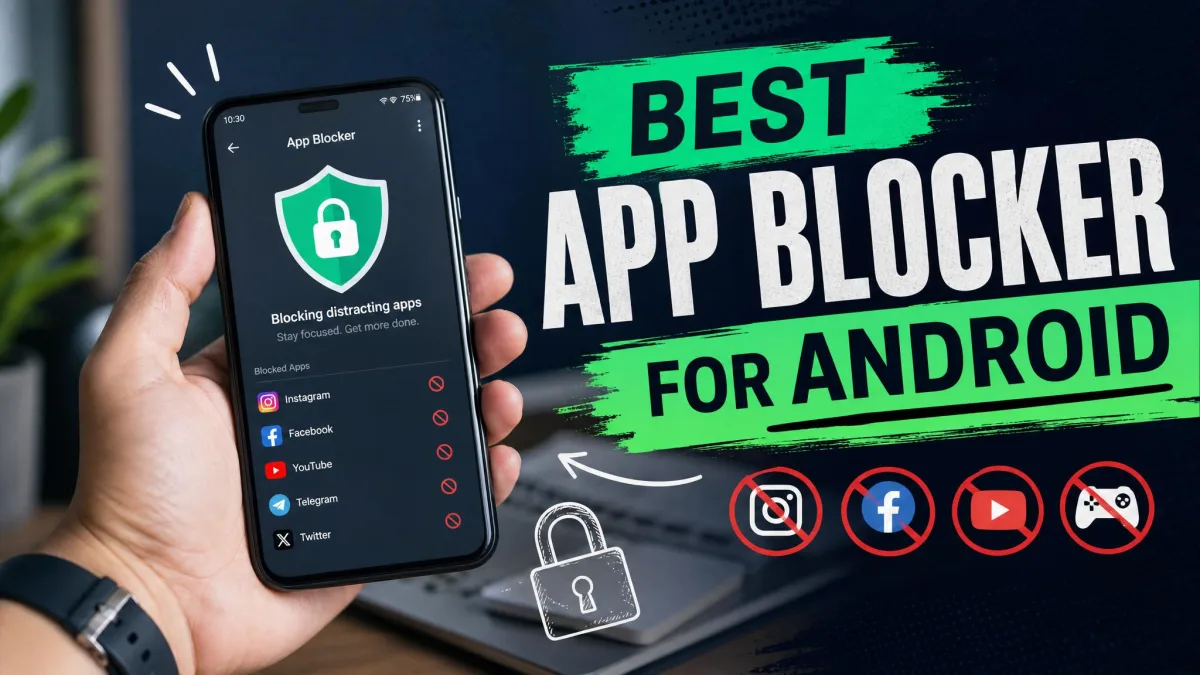
Touch lock apps place an invisible overlay across the whole screen, so video keeps playing while taps, swipes, hardware buttons, and the notification shade stop doing anything. That is the one thing Android's built-in pinning cannot do.
What to look for in a touch lock app
- It blocks the full screen, not just a region.
- It keeps video playing underneath the overlay.
- It blocks hardware buttons, especially volume and power.
- It blocks the notification shade.
- It uses an unlock method a child cannot repeat by accident.
- It survives a screen rotation without dropping the lock.
- It shows a clear on-screen hint for how the parent unlocks it.
- It does not bury the unlock behind an ad.
One trade-off is worth knowing: a third-party lock app adds its own unlock method on top of the system one, which is one more thing to remember when a child is crying and you need the phone back now.
Permissions and safety caveats before you install
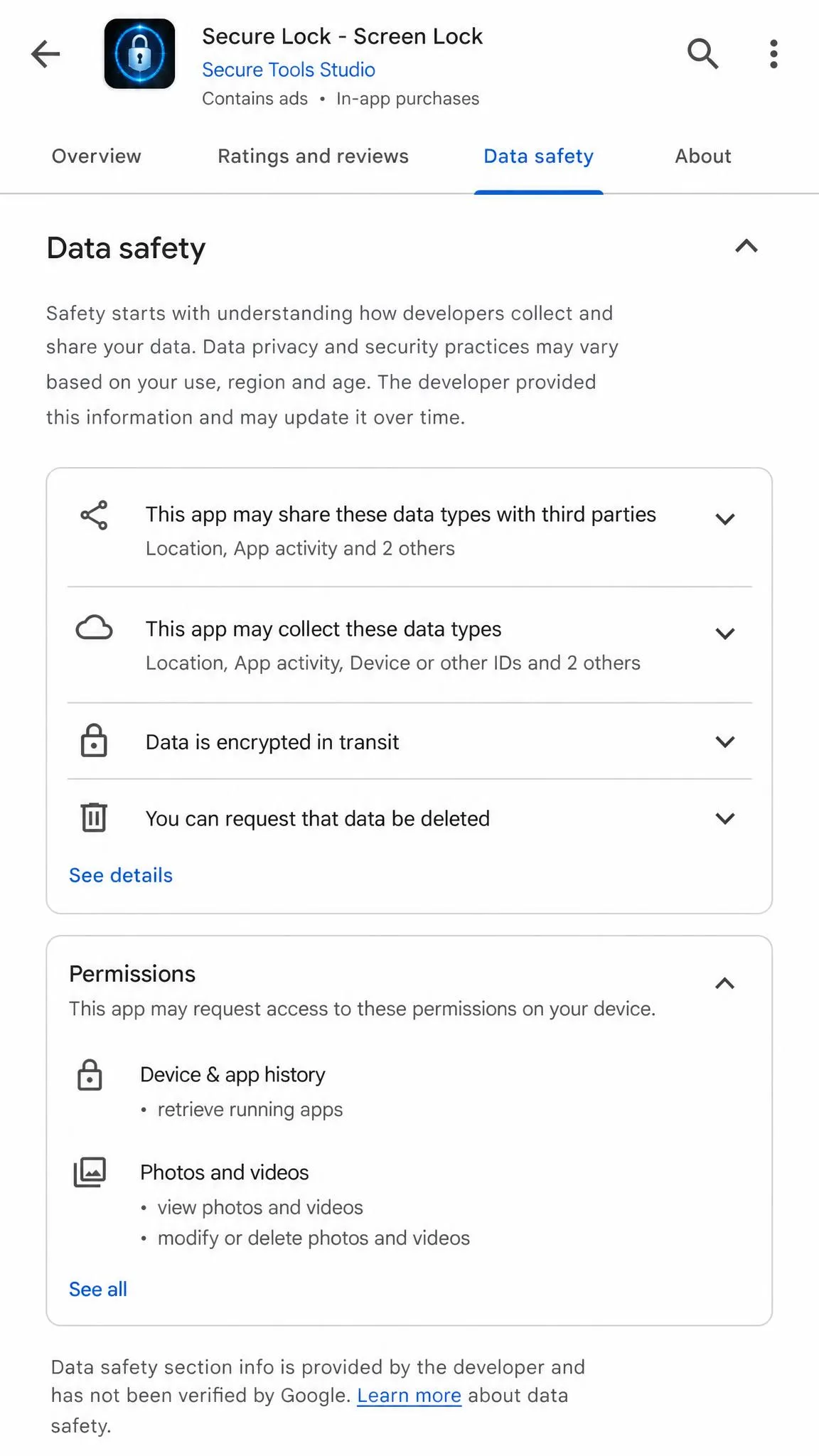
Blocking every tap means drawing over other apps, and many of these tools also request accessibility access. Both are powerful permissions. Some apps in this category collect data, and the disclosure sits in the app store listing where most people never read it.
Before installing any touch lock or parental control app, open its Play Store data safety section and read what it collects. Skip anything that wants accessibility access without explaining why, and skip anything with no named developer.
Method 5: Set app limits and screen time with on-device controls or Family Link
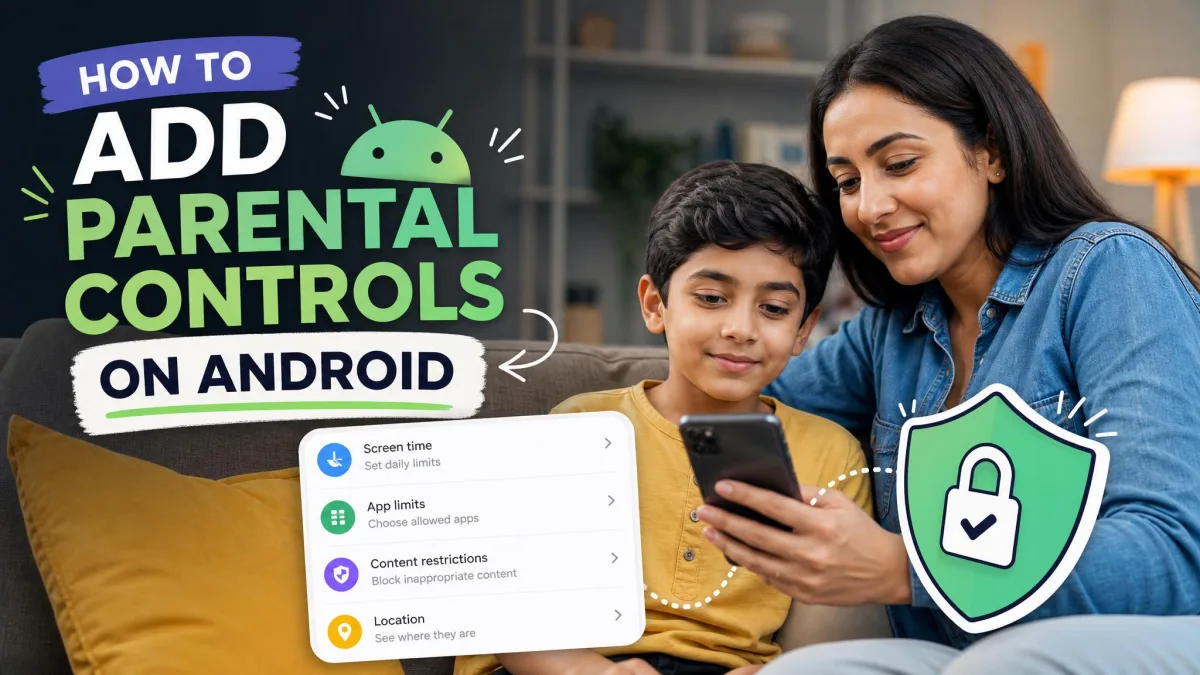
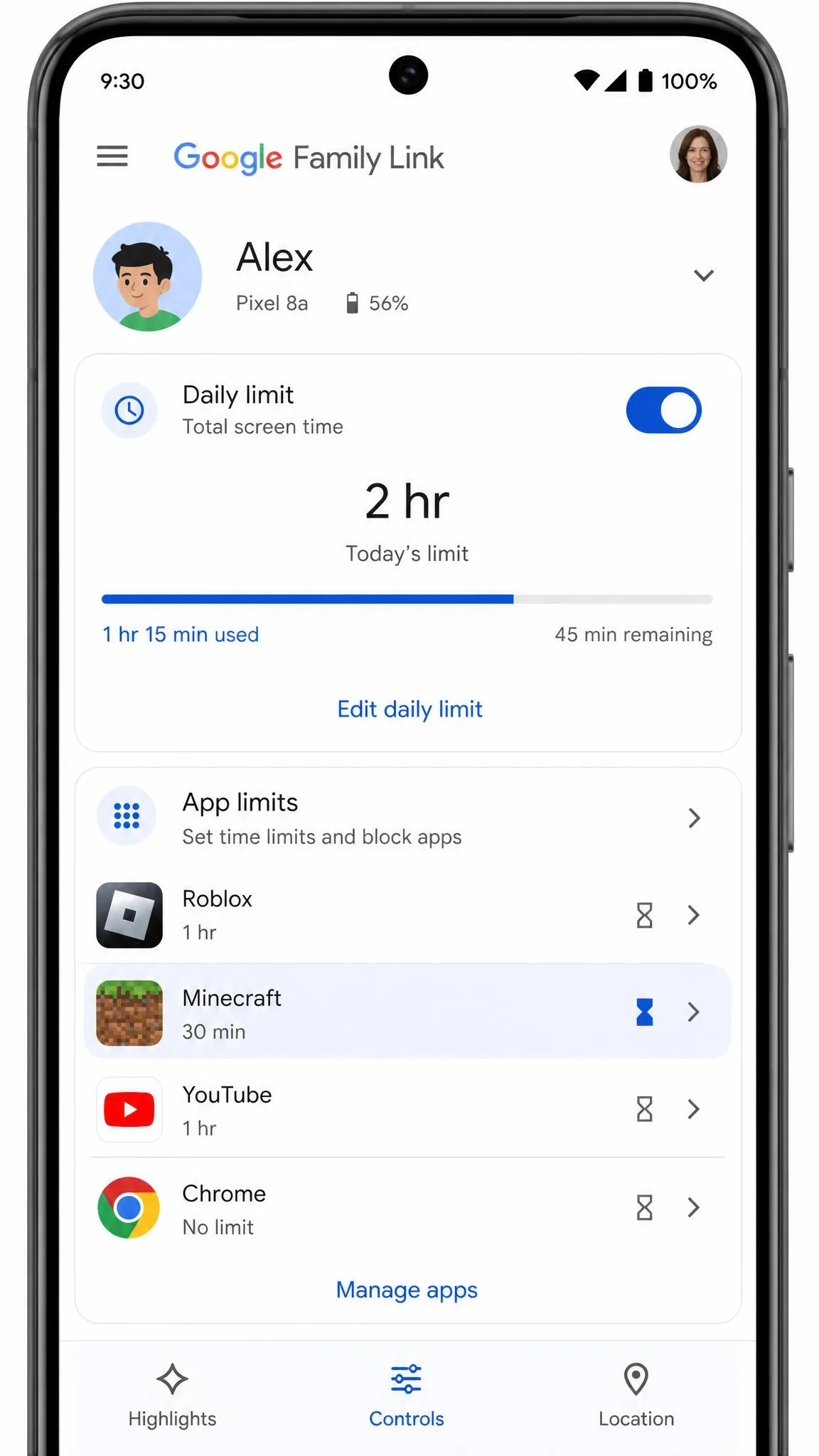
Everything so far handles a single session. This method sets the rules that apply all week. On-device parental controls run locally on your child's phone, with no second device involved, while Google Family Link does the same job plus remote management from your own phone, School Time schedules, location sharing, and coverage across all of your child's devices.
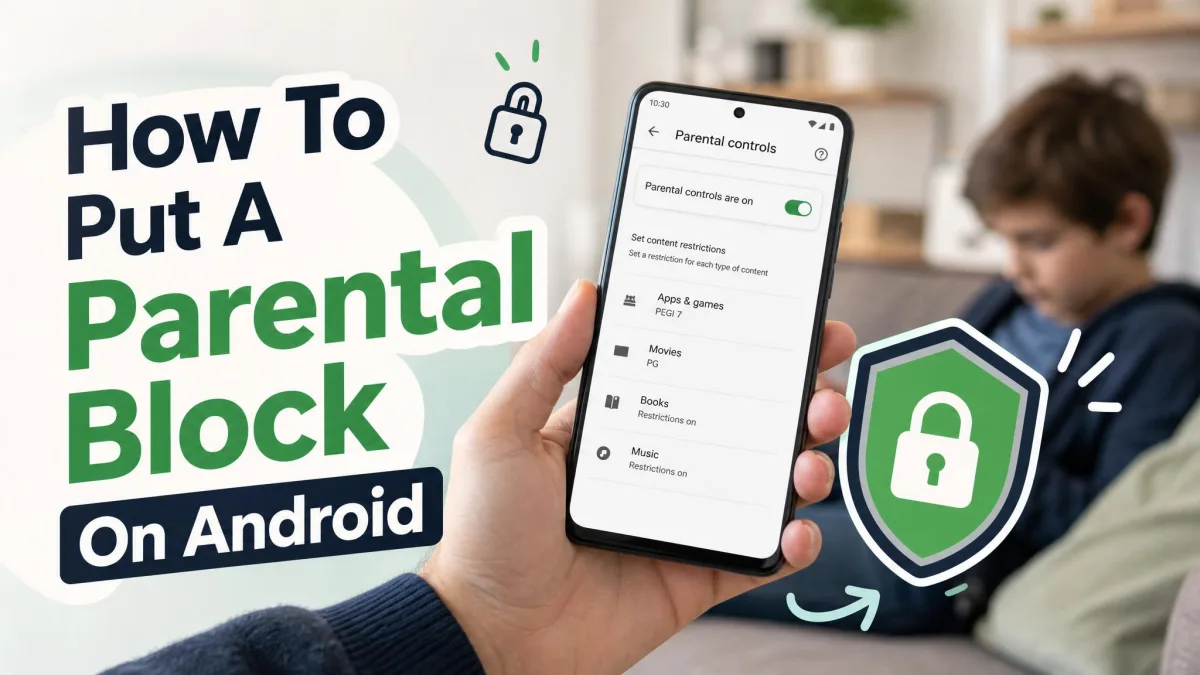
Set a parental controls PIN
- Open the Settings app on your child's phone.
- Tap Parental controls and follow the setup prompts.
- Create a PIN of at least 4 digits when asked.
- Choose a PIN your child has not watched you type on the lock screen.
- Write it down somewhere that is not the phone.
Google's pages currently disagree about which Android version this needs, so the cutoff depends on which build your phone is running. If you see no Parental controls entry, use Family Link instead, which works on Android 7.0 and up for both parent and child devices. It supervises accounts for children under 13, or the applicable age of digital consent in your country, and the parent side needs iOS 16 or later on an iPhone.
Daily app limits and device downtime
Android's parental control settings give you daily usage limits that lock the device when reached, downtime schedules for bedtime and school hours, per-app time limits, and outright app blocking. Family Link adds the same limits plus School Time schedules, all changeable from your phone without picking up your child's device.
Content filters for apps, web, and the Play Store
Web filters block explicit sites and filter search results, and app store filters restrict what your child can install by age rating. Family Link extends filtering to Chrome, Google Play, YouTube, and Search, and adds download approvals so nothing installs without your yes.
Two limits catch people out. App store age filters only apply to newly installed apps, so anything already on the device stays where it is: turn the filter on, then sweep the existing app list by hand.
Web filtering also depends on current app versions. It needs the Google app 16.42 or later, Chrome 140.0.7332.0 or later, and Android System WebView 139 or later. On an out-of-date phone the filter silently does nothing, which is worse than not having it, because you think you are covered.
Set a strong lock screen PIN or password your child can't guess
Every method above eventually falls back on your device PIN. Avoid your child's birthday, the year, 1234, and any pattern that is a straight line or an L shape. Children watch you unlock your phone dozens of times a day and are excellent at remembering finger movements.
To change it, open Settings, tap Security or Security and privacy, tap Screen lock, enter your current code, and choose PIN or Password. Six digits beats four, and a PIN beats a pattern, because patterns leave smudge trails on the glass. Keep face unlock in mind too: if your child's face is enrolled on your phone, the PIN gate you just set up can be walked around without typing anything.
Common mistakes to avoid when locking a kid's screen
Most failures here are setup problems, not Android problems.
Forgetting an exit method
Locking a screen without confirming you can unlock it is the classic error. Practise the unpin gesture before the first real use, and learn the exact unlock method of any third-party app you install. On iPhone the same mistake costs more, since a forgotten Guided Access passcode usually forces a device restart.
Leaving the notification shade reachable
Test the shade rather than assuming. Pin an app and try to pull down from the top of the screen. If it opens, your build allows it, and a child can reach quick settings from there. In that case a touch lock app is the better tool for anything longer than a few minutes.
Emergency calls and when not to lock
Locking the screen also narrows access to system controls, including emergency call shortcuts. These features fit predictable situations with an adult nearby, such as a car journey, a waiting room, or a restaurant table.
Never leave a locked device with a child who might need to reach you or emergency services on it. Screen pinning and touch lock apps both restrict what the phone can do, and that restriction applies in an emergency too.
Locking the screen for kids on iPhone and iPad
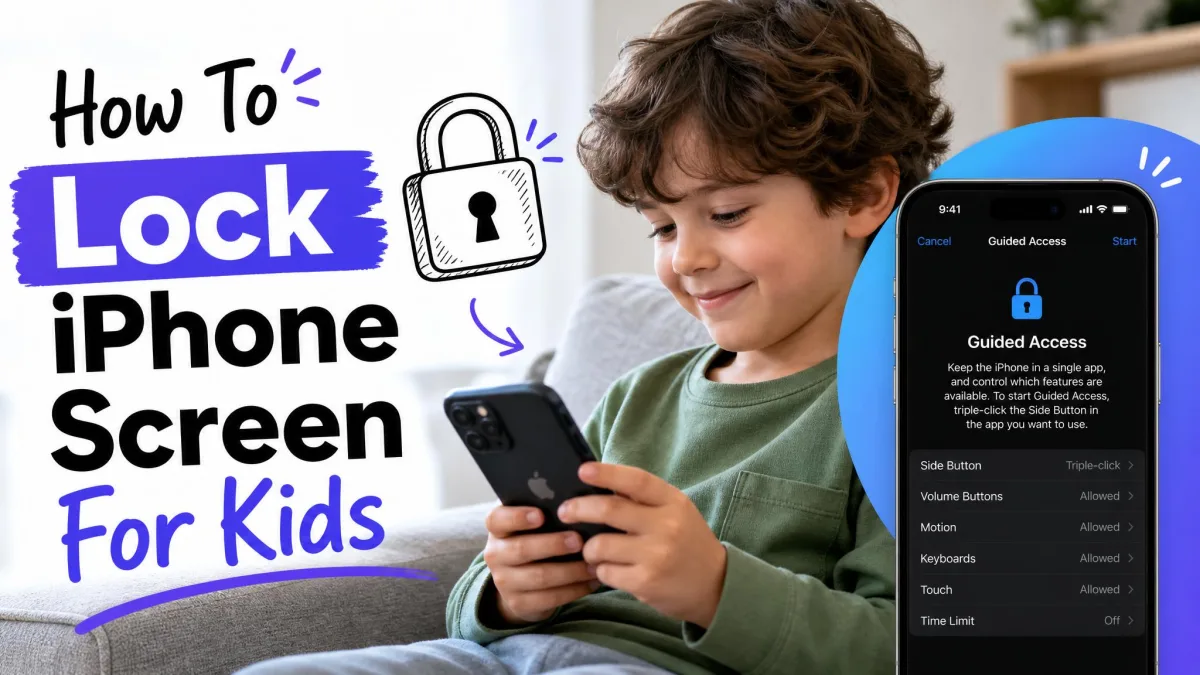
If your household runs both platforms, the Apple equivalent is Guided Access. It locks the device to one app and goes further than Android's pinning, because it can disable touch across the whole screen or in regions you draw, and it can switch off the side button, volume buttons, motion, and the keyboard.
You start and pause a session with a triple-click of the side button on iPhone, the top button on iPad, or the Home button on older devices, and you end one with the Guided Access passcode, Face ID, or Touch ID. A time limit can be set, and it shows a full-screen Time Expired message when it runs out.
Setup friction is higher than on Android, because the passcode has to be set first and recovery is awkward. For the full walkthrough, see our guides on how to lock an iPad screen for kids and how to lock an iPhone screen for kids.
Which method should you use? Quick comparison
| Method | Blocks all touches? | Needs an install? | Free? | PIN to exit? | Best for |
|---|---|---|---|---|---|
| No, only app switching | No, built in | Yes | Yes, if the ask-for-PIN option is on | Handing over the phone for one app | |
| No, in-app taps still work | No, built in | Yes | Yes, if the ask-for-PIN option is on | Samsung households | |
| Yes, full-screen overlay | Yes | Varies, many are ad supported | The app's own unlock method | Video playback with a toddler | |
| No | Yes, the app itself | Yes | A custom 4-digit passcode | Curated video watching | |
| No | Yes, the Family Link app | Yes | Your Google Account | Ongoing, remote screen time rules |
Most families need two of these, not one. Pin an app for the handover moment, and set daily limits for everything else. The built-in features cost nothing to try, and they help most on the days you hand the phone over without planning to.
FAQ
How do I lock my child's screen while they watch a video?
Can I lock the touchscreen so taps do nothing?
Can my child get out of a pinned app?
Is screen pinning the same as parental controls?
Do I need to install an app to lock the screen?
How do I lock just one app on Android?
Can I lock YouTube Kids so my child cannot leave it?
Bottom line
For the moment you hand the phone over, screen pinning is the answer, and it costs nothing but a trip through Settings. Turn on the ask-for-PIN option while you are in there, because that toggle is the difference between a lock and a suggestion.
If your child taps the screen while they watch, add a touch lock app and check its permissions before you trust it. If the problem is how much time the device gets rather than what happens in one session, set daily limits and content filters through Android's built-in parental controls or Family Link. Set both up on a calm afternoon rather than in the moment you need them.