You hand your iPhone to a four-year-old for one cartoon, and ninety seconds later they have swiped out of the app, opened your email, and tapped something in the App Store. Every parent knows the feeling. Apple already built the fix into iOS, and you do not need to download anything.
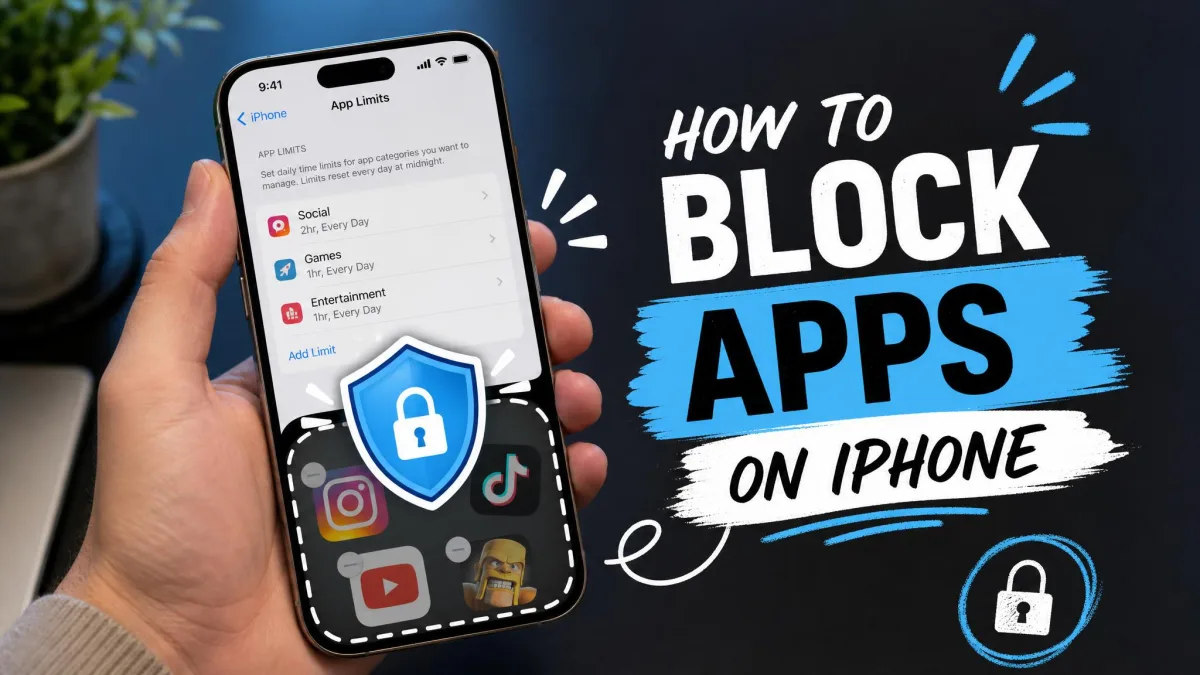
Two tools matter. Guided Access locks the screen to a single app on the phone in your hand. Screen Time is the wider parental controls system for a child's own iPhone. This step-by-step guide covers both, plus how to get out again when something goes wrong.
The quick answer: lock your iPhone to one app in 30 seconds
Open Settings > Accessibility > Guided Access and turn the feature on. Tap Passcode Settings, set a Guided Access passcode, and choose whether Face ID can also end a session. Then open the app your child will use, triple-click the side button, and tap Start.
Setup takes well under a minute once the feature is toggled on. The passcode prompt only appears if you open Passcode Settings deliberately, so it is easy to end up with an unprotected session on your first try.
Why lock the screen before handing an iPhone to a child
Small children treat the screen as one continuous surface. They are not trying to escape the app, they are just tapping, and iOS does what the tap says. That is how you get a deleted photo album, a half-written message sent to your boss, or a purchase you have to ask Apple to refund.
Common Sense Media's 2025 census of media use by kids zero to eight found that children in that range average about 2.5 hours of screen media a day, and 40 percent have a tablet by age 2. Roughly one in four have their own cellphone by age eight, though that figure covers the whole age range rather than a single year.
Locking the screen removes a category of accidents. To shape how much time a child spends on a device they own, our guide to how to limit screen time for kids picks up where this one leaves off.
Guided Access vs Screen Time: which one do you need?
Ask whose phone it is. Guided Access is a temporary, per-session lock on your own device. Screen Time is an ongoing set of rules for a phone your child carries. Most families use both.
| Feature | Guided Access | Screen Time | Third-party app |
|---|---|---|---|
| What it locks | The iPhone to one open app | Which apps, content and hours are allowed | Usually apps, web and location |
| Setup time | Under a minute | 5 to 10 minutes | 10+ minutes plus an account |
| Whose device | The parent's own iPhone | The child's own iPhone | The child's own device |
| Needs a passcode | Yes, its own passcode | Yes, a separate 4-digit code | Yes, an app account |
| Blocks purchases | No | Yes, restrictions and Ask to Buy | Usually |
| Works remotely | No | Yes, through Family Sharing | Yes |
| Cost | Free, built into iOS | Free, built into iOS | Subscription |
| Best for | One sitting, one app | Ongoing daily rules | Cross-platform households |
How to set up Guided Access on iPhone
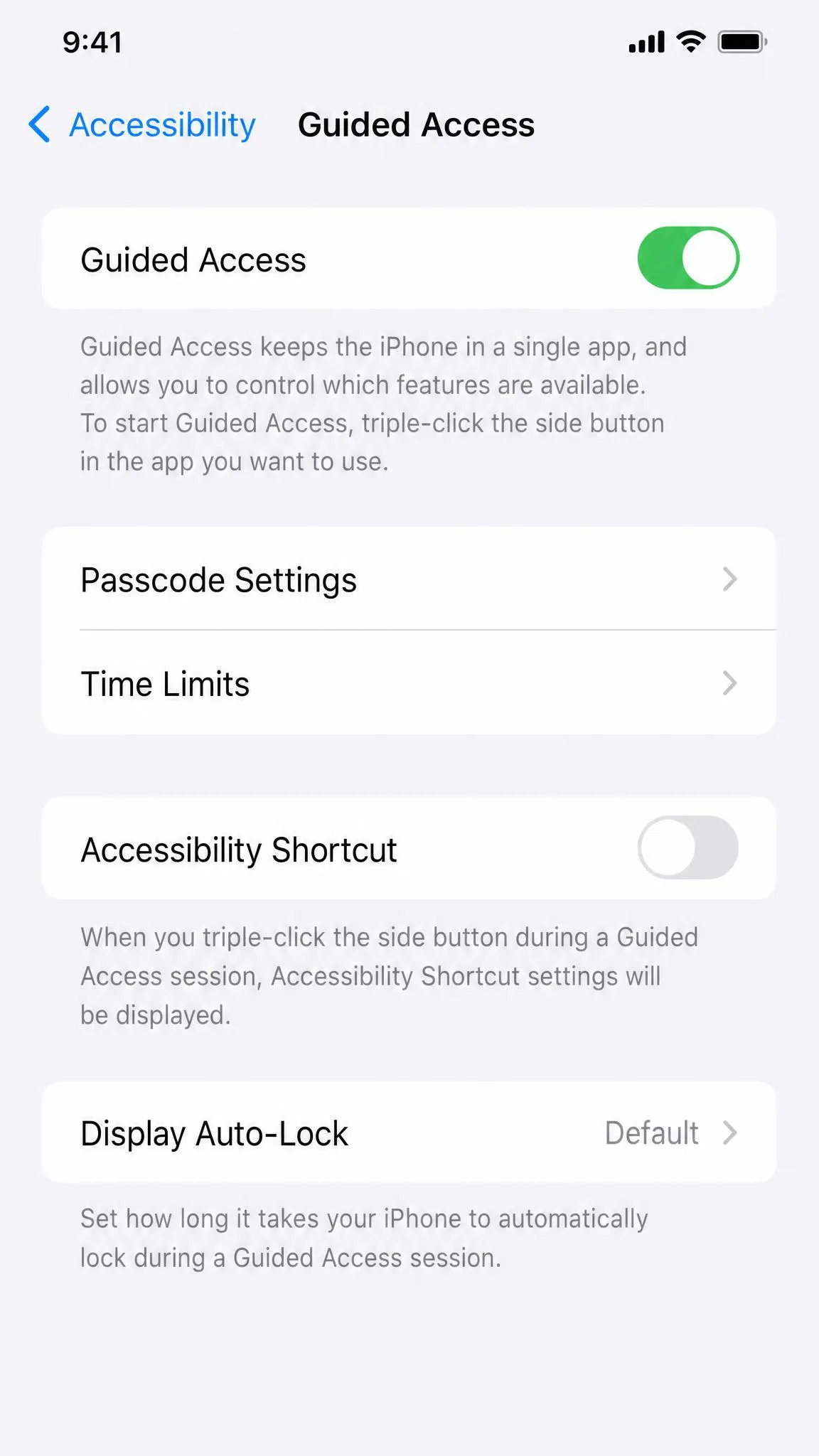
Guided Access lives in Accessibility rather than in a parental-controls menu, which is why parents rarely find it. These steps match Apple's Guided Access instructions, and you only do the first two once.
Step 1: Turn on Guided Access in Accessibility settings
Open Settings > Accessibility, scroll to the bottom of the list, and tap Guided Access under the General heading. Switch the main toggle on. Nothing changes on screen yet, because the feature is available but no session is running.
Step 2: Set a Guided Access passcode (and enable Face ID or Touch ID)
Tap Passcode Settings > Set Guided Access Passcode and enter a six-digit code, then turn on Face ID or Touch ID so you can end a session with your face. Choose a code your child does not already know, because the feature gives you no protection if it matches the one they watch you use every day.
Turn on the Face ID option even if you plan to type the code. It gives you a second way out of a session, which matters on the day you cannot remember which six digits you picked.
Step 3: Open the app your child will use
Launch the app and get it to the exact screen you want them to stay on. If it is a video, start playback before you lock, because Guided Access freezes whatever is on screen at that moment.
Step 4: Triple-click the side button and tap Start
Press the side button 3 times quickly, then tap Start in the top right of the panel that appears. On iPhone 8 and earlier, use the Home button for the same triple-click. On iPhone 15 Pro and Pro Max you can assign Guided Access to the Action button and start it with one press.
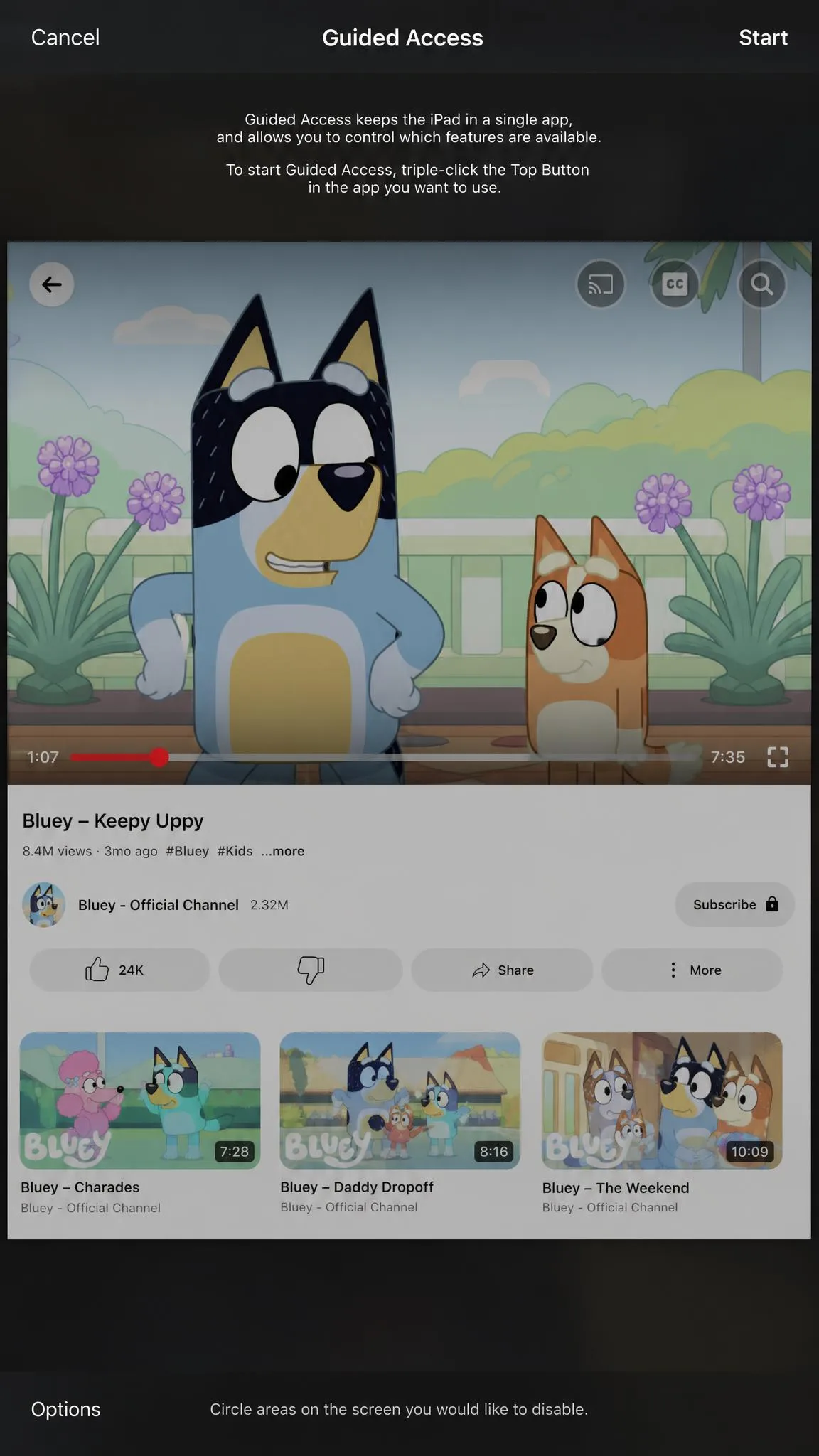
The triple-click uses the Accessibility Shortcut, which runs only one feature at a time. If nothing happens, open Settings > Accessibility > Accessibility Shortcut and make sure Guided Access is selected rather than VoiceOver or Magnifier.
Guided Access options worth changing for kids
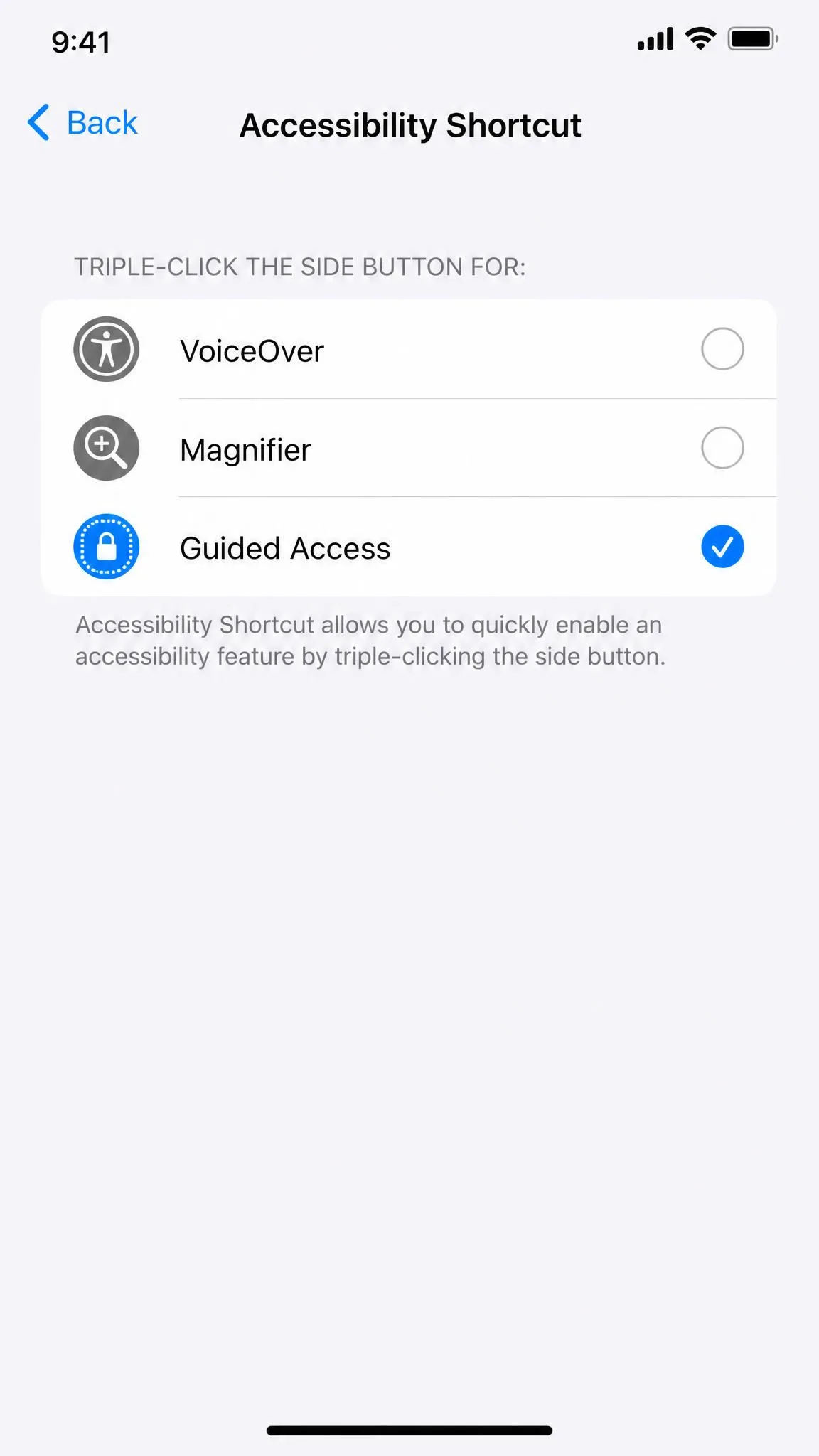
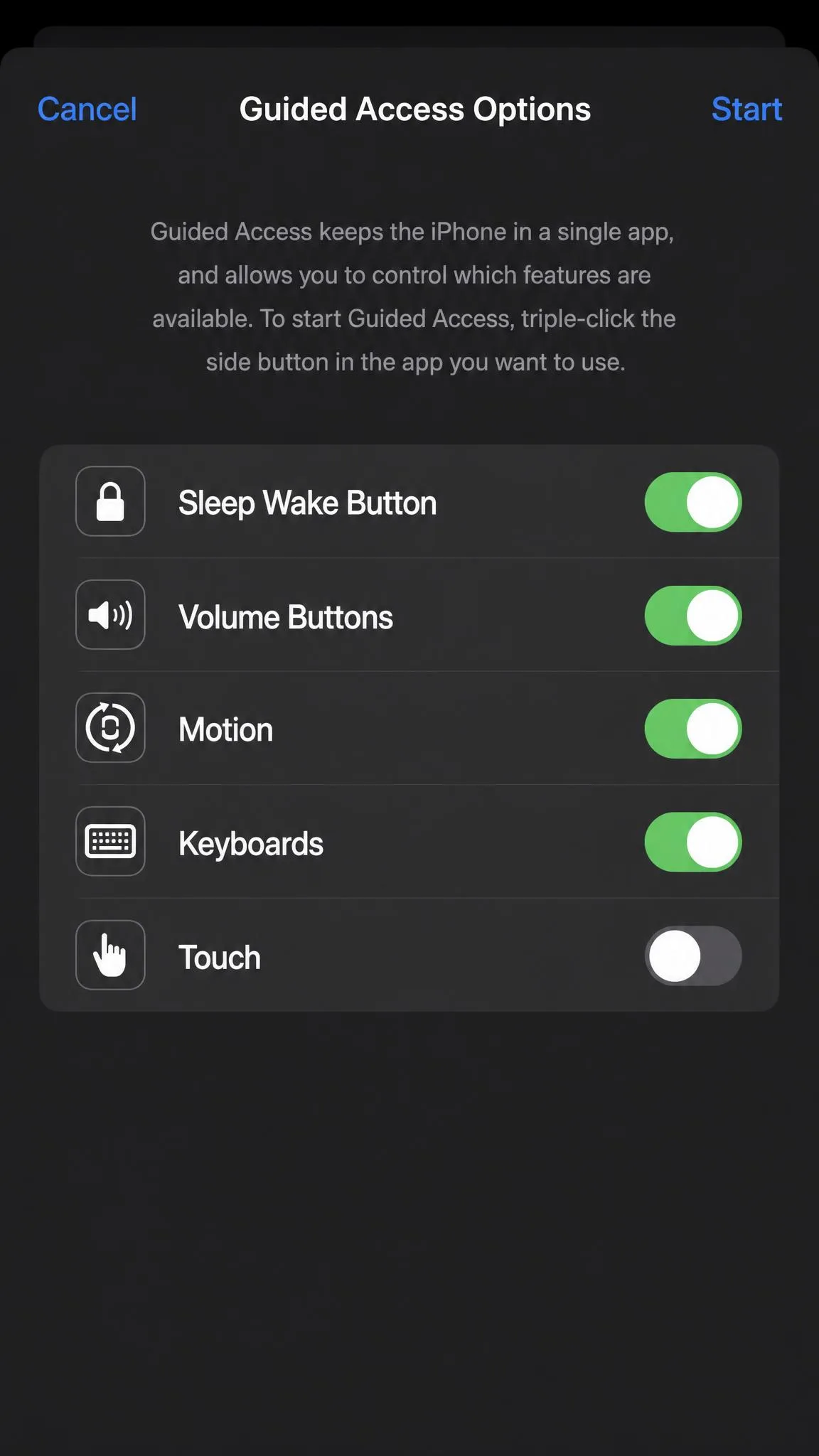
Before you tap Start, tap Options in the bottom left. This panel turns a simple app lock into something genuinely toddler-proof.
Disable touch in specific screen areas
Draw a circle around any part of the screen you want to make untappable, such as a back arrow. This is the fiddliest part of setup: the shape snaps to a rough rectangle and usually needs resizing by its corner handles before it covers a small control.
Turn off the volume buttons, keyboard and motion
The same panel has switches for the Sleep/Wake button, Volume Buttons, Motion, Keyboards and Touch. Turning Motion off stops the screen rotating. Turning Touch off entirely is what actually stops a toddler pausing or skipping a video, because circling only the back button leaves the playback controls tappable.
Set a time limit so the session ends on its own
Tap Time Limit and choose how long the session should run. When the clock runs out, the phone locks out of the app and asks for the passcode, which is a tidier end to screen time than taking the phone out of small hands.
How to lock the screen for videos (YouTube Kids, Netflix, Disney+)
Open YouTube Kids, Netflix or Disney+, start the episode, then triple-click and open Options before you tap Start. For a child old enough to choose the next thing to watch, leave Touch on and circle the back arrow and the profile switcher. For a toddler who should simply watch what is playing, switch Touch off completely and the episode runs to the end.
On our own test iPhone, circling a region took three attempts to cover YouTube's back arrow properly, while switching Touch off worked first time. If you are setting this up in the back of a car, use the Touch toggle.
How to end Guided Access or unlock an iPhone stuck in it
Triple-click the side button again, enter your Guided Access passcode, and tap End in the top left. If you turned on the Face ID option, double-click the side button instead and let the phone look at you.
Face ID is less dependable here than it sounds. It fails whenever a hand or a case covers the camera area, which is exactly what happens when a child holds the phone flat on their lap. Keep the passcode as your fallback.
If you forget the Guided Access passcode, the phone stays stuck in that app until you force restart it. The restart reboots the iPhone out of the session without erasing data. On Face ID models, press and release Volume Up, press and release Volume Down, then hold the side button until the Apple logo appears. The sequence differs by model, so the presses depend on whether your phone has Face ID or a Home button.
How to set up Screen Time parental controls on your child's own iPhone
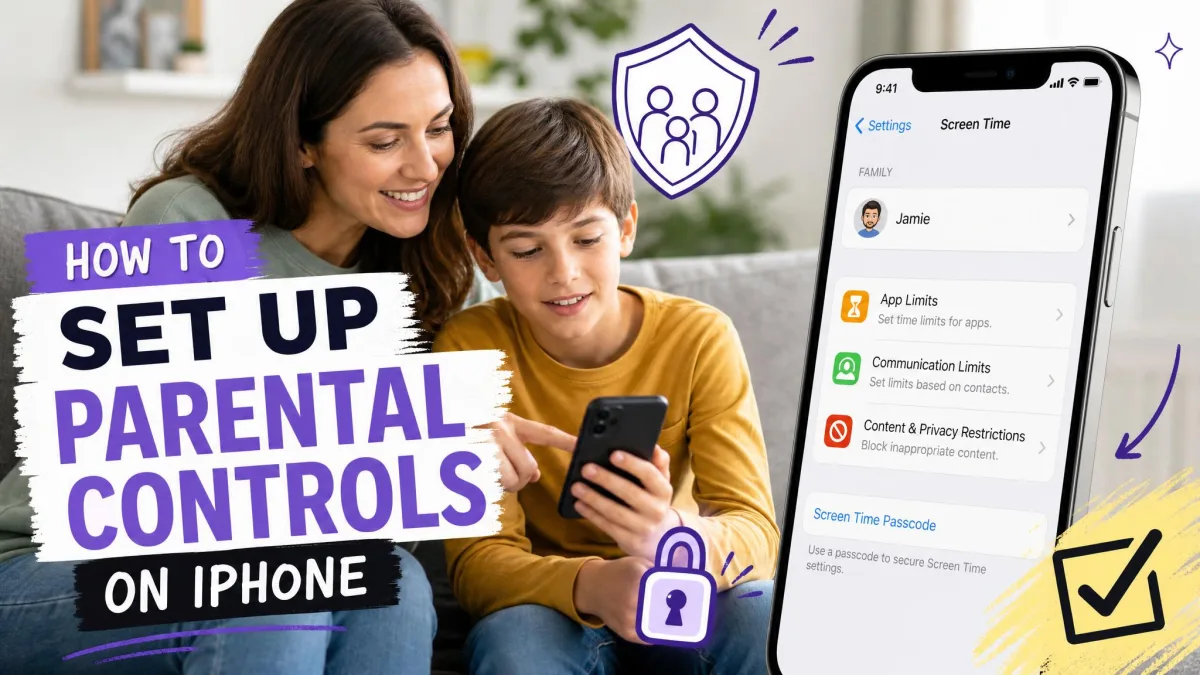
Once a child has an iPhone of their own, per-session locking is not enough. Everything below lives at Settings > Screen Time.
Create a Screen Time passcode and turn on passcode recovery
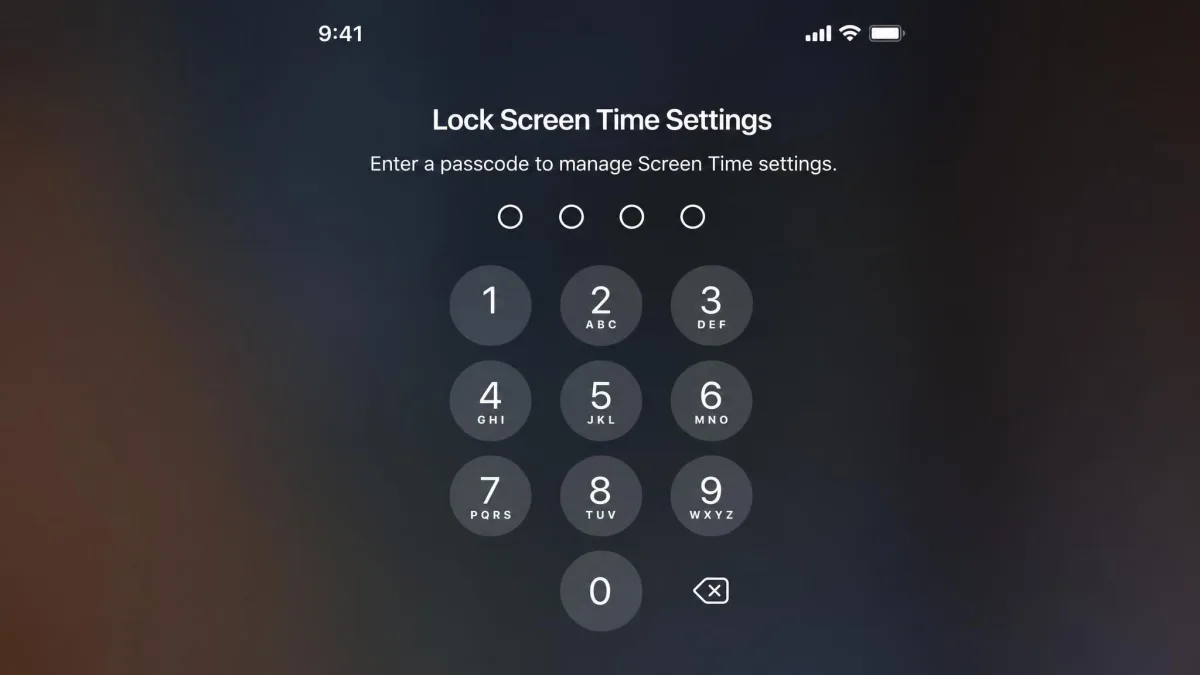
Open Settings > Screen Time > Lock Screen Time Settings and create a 4-digit code different from the device unlock passcode. iOS then asks for an Apple Account, and this is the prompt people skip.
Attaching an account is what enables Screen Time passcode recovery later. Recovery has been available since iOS 13.4, but the Forgot Passcode link only appears if an account was attached when the code was created. Skip it and an erase-and-restore is your only route back in.
Turn on Content & Privacy Restrictions
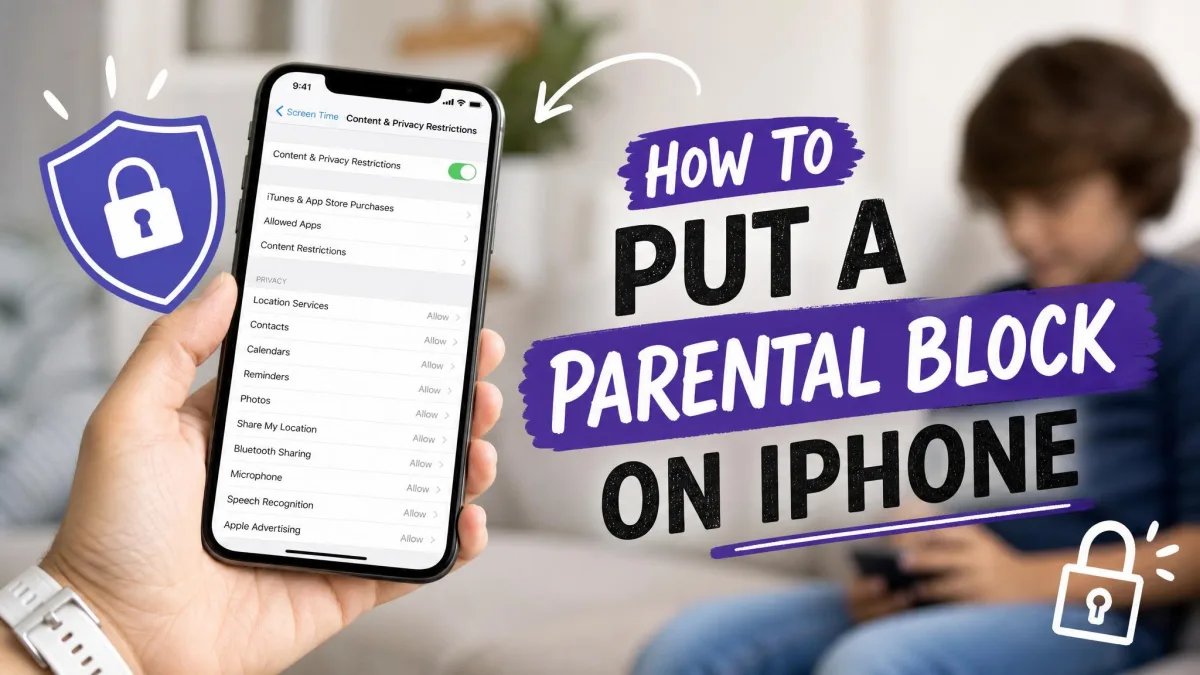
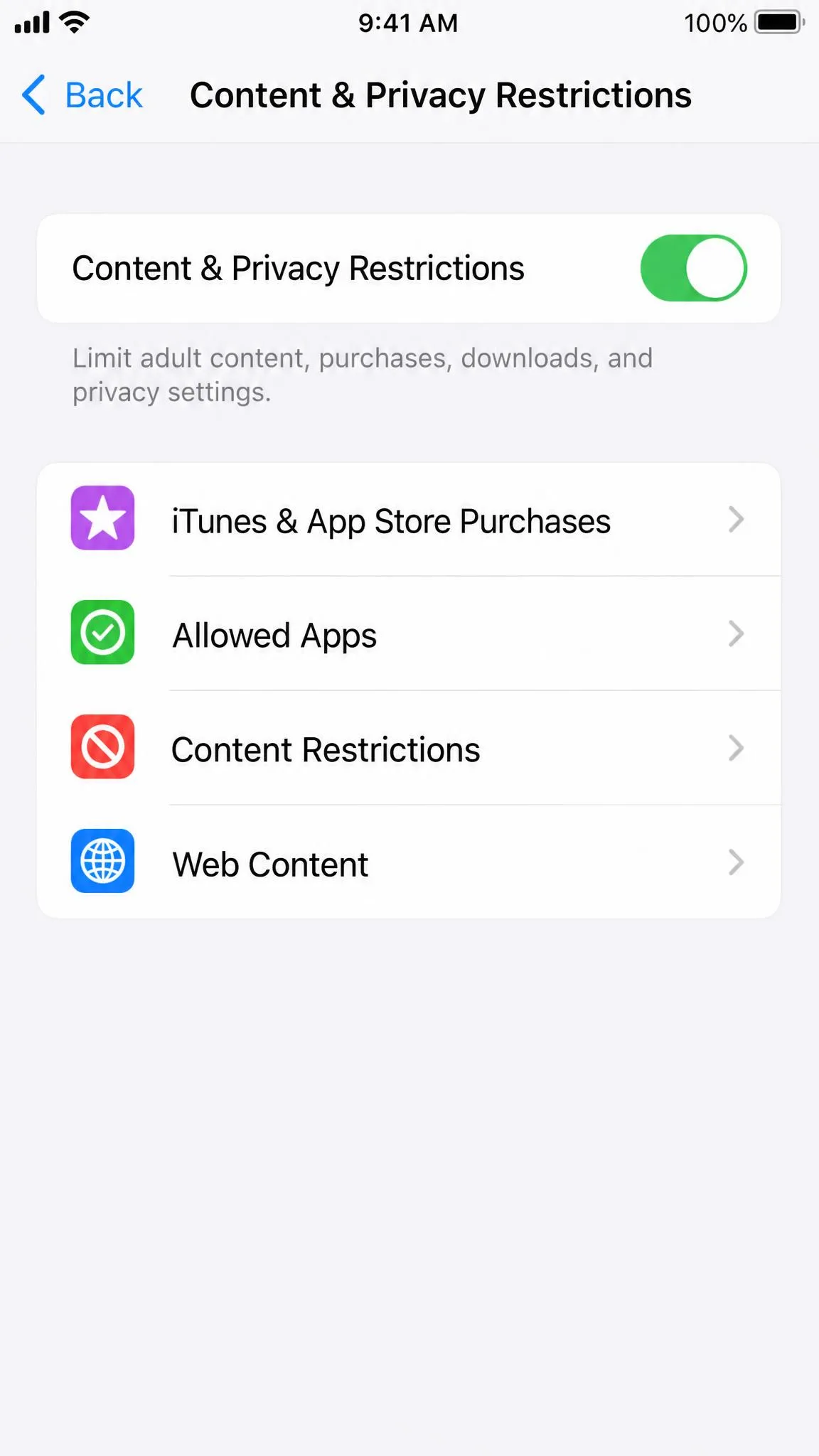
Tap Content & Privacy Restrictions and work down the list. Content Restrictions sets age ratings for apps, music, films and books. Web Content limits adult websites. Under Allowed Apps you can hide Safari, Camera or AirDrop entirely.
Block App Store purchases and in-app purchases
Open Content & Privacy Restrictions > iTunes & App Store Purchases > In-app Purchases and choose Don't Allow, then turn on Ask to Buy in Family Sharing so anything else needs your approval. Ask to Buy is on by default for accounts under 13 in the United States, and children aged 13 to 17 can hold their own Apple Account. The same screen is where you block apps on iPhone you would rather your child did not have.
Set Downtime and App Limits
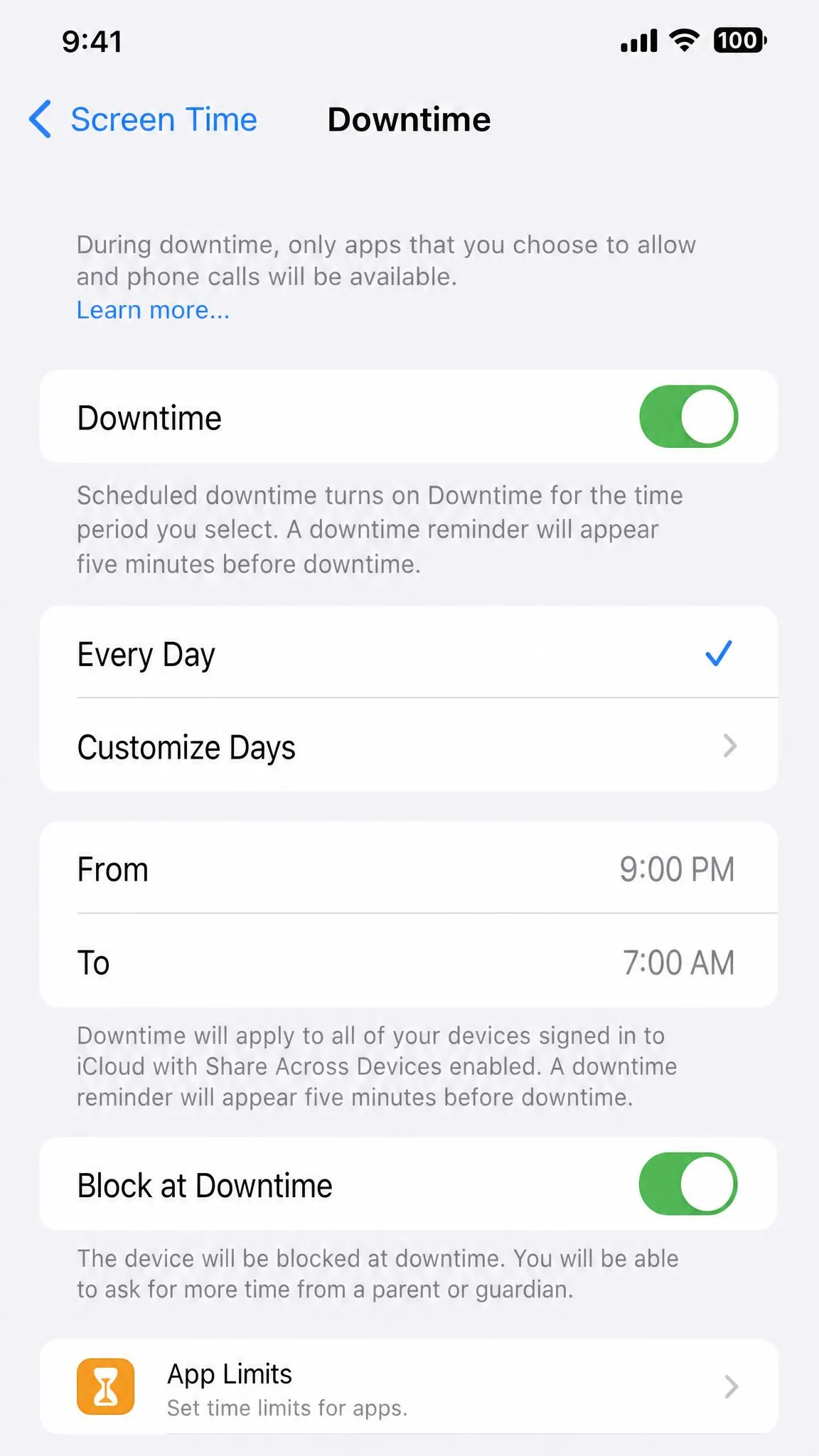
Downtime schedules the hours when only calls and apps you allow will open, and it gives a reminder five minutes before it starts on every device signed in to the account. App Limits set a daily allowance per app or category, as low as 1 minute a day.
Two things catch parents out. Downtime blocks nothing unless Block at Downtime is switched on. And grouping several apps into one App Limit gives them a single shared allowance rather than a separate quota each.
How to lock your child's iPhone remotely with Family Sharing and Find My
Open Settings > Screen Time > [child's name] on your own device to change a child's limits, and reset their Screen Time passcode there rather than on their iPhone. If you have not built the group yet, start by learning how to set up Family Sharing on iPhone.
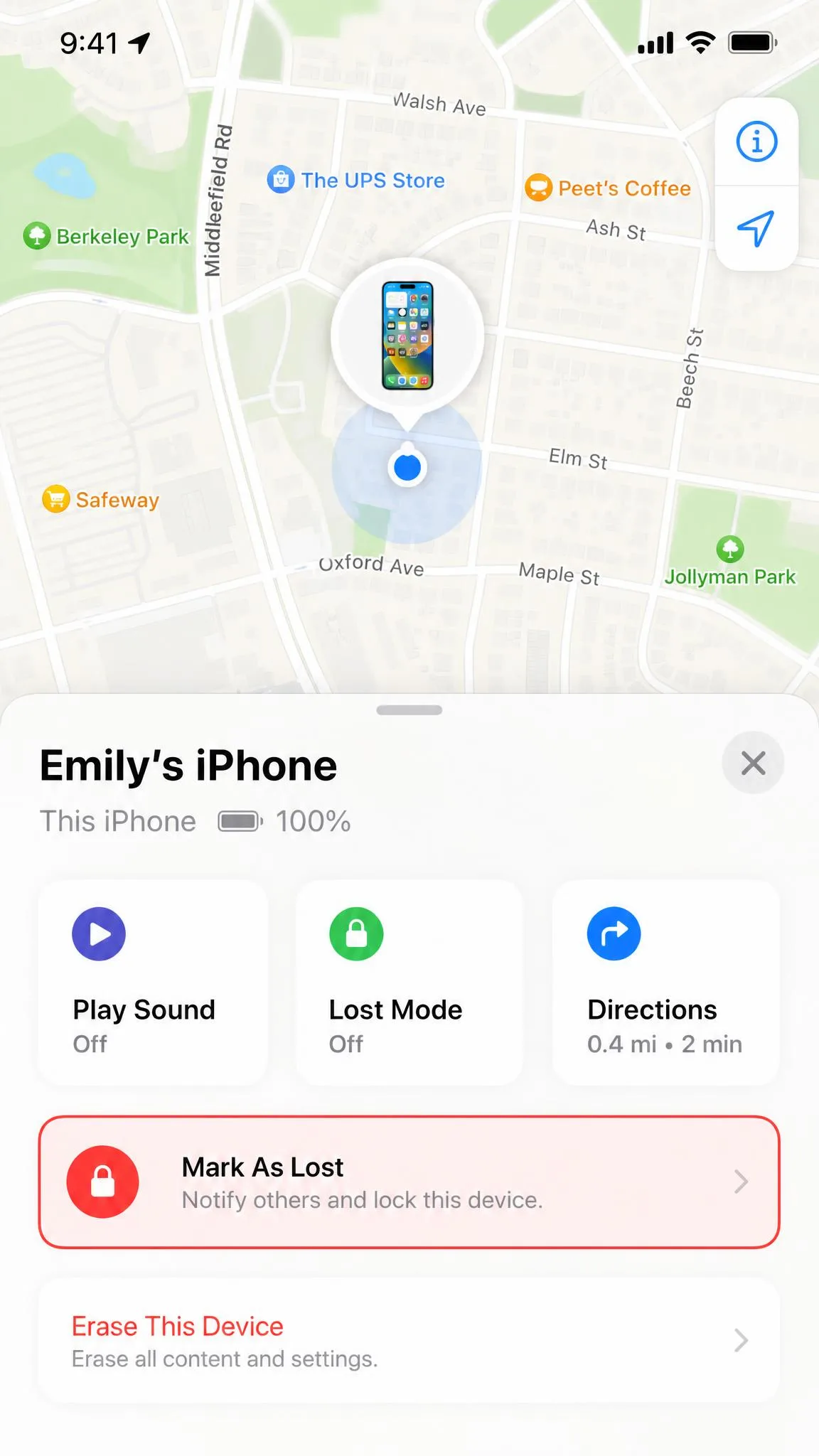
For a genuine remote lock, open Find My or go to iCloud.com/find and mark the device as lost in Find My. Lost Mode locks the iPhone so nobody can reach personal information on it, though marking a family member's device as lost when it has no passcode set requires that person's Apple Account password.
Troubleshooting: when Guided Access won't start, won't end, or the passcode is forgotten
- The triple-click does nothing. Confirm Guided Access is the assigned Accessibility Shortcut. The gesture can also stop responding after several days of uptime, and a restart brings it back until the phone has been running a while again.
- Face ID will not end the session. Uncover the camera area and try again, or fall back to the passcode.
- You forgot the Guided Access passcode. Force restart the phone, which is recoverable without data loss.
- The Screen Time passcode is gone. Use Forgot Passcode if you attached an Apple Account at setup. If you did not, there is no shortcut back.
- Limits vanished after an update. Screen Time restrictions are reported to lapse after major iOS updates, so re-check them once a new version installs.
App Limits also behave differently by account type. On a phone not managed as a child account, an Ignore Limit option appears when a limit expires, and it can be waived for a minute, 15 minutes or the rest of the day without a passcode. A managed child account can tap One More Minute once and then must send you a request, though that option only shows on accounts managed as a child in Family Sharing. It is worth reading how kids bypass parental controls before assuming the rules are holding.
Turning off App & Website Activity silently disables Downtime, App Limits and Always Allowed at the same time. If your rules stop working for no obvious reason, check that switch first.
Do you need a third-party parental control app?
For most families, no. Both Apple tools ship with iOS at no extra cost and cover app locking, time limits, content filtering and purchase blocking. A paid parental control app is worth considering when your household mixes iPhones with Android phones and Windows laptops, or when you want location features beyond what Screen Time and Find My provide.
Parent setup checklist
- Turn on Guided Access at Settings > Accessibility > Guided Access.
- Set a Guided Access passcode your child does not already know.
- Enable the Face ID or Touch ID exit as a backup.
- Turn Touch off for toddlers, or circle the back arrow for older kids.
- Set a Time Limit so sessions end without a negotiation.
- On a child's own iPhone, create a 4-digit Screen Time passcode.
- Attach an Apple Account so passcode recovery works later.
- Set Don't Allow for in-app purchases.
- Schedule Downtime and switch Block at Downtime on.
- Add the child's account to Family Sharing.
Frequently asked questions
Does the iPhone have a kid mode?
How do I exit Guided Access?
What if I forget the Guided Access passcode?
Can I lock the screen so my child can only watch videos?
Can I lock my child's iPhone remotely?
Does Guided Access work on iPad?
Is Screen Time better than Guided Access?
Can I lock more than one app at a time?
Final thoughts
Guided Access is the thirty-second habit worth building, because it turns your phone into a single-purpose device before it leaves your hand. Screen Time rewards a careful first setup, especially attaching an Apple Account so a forgotten passcode never becomes a factory reset. Both are built into iOS, both are free, and together they cover almost everything a family needs.