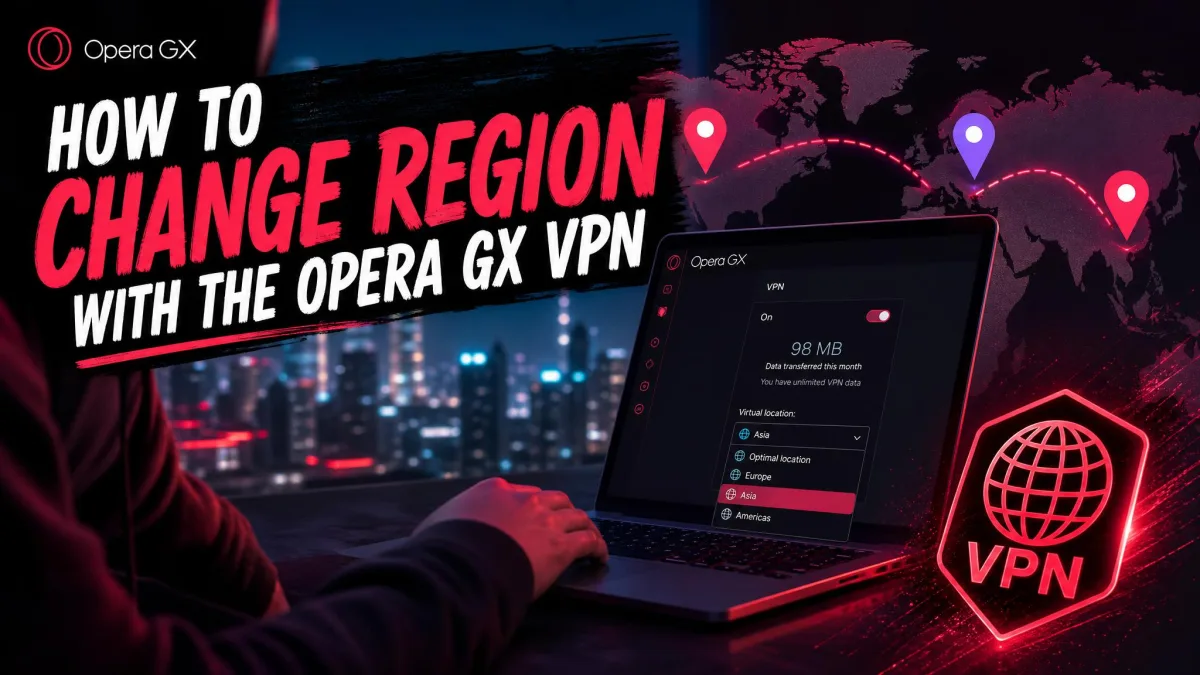
To change your region with the Opera GX VPN, click the VPN badge to the left of the address bar and pick a different region from the pop-up. The fastest correct path is to enable the VPN in Settings first, switch it on at the badge, then select Europe, Asia, or The Americas.
That is the whole task in one sentence, but a few details trip people up. The Settings toggle and the address-bar switch are two separate actions, the free tier offers broad regions instead of specific countries, and streaming sites often ignore the change. We walked through each step on our own test machines so you know what to expect.
What the Opera GX VPN Actually Is (and Its Limits)
The Opera GX VPN is a free, built-in proxy baked into the browser. It needs no account, no subscription, and no separate download, and it runs on Opera's built-in VPN infrastructure with unlimited bandwidth and AES-256 encryption. Opera also states its no-log policy was independently audited by Deloitte.
The catch is scope. This is a browser-only VPN, so it protects traffic inside Opera GX and nothing else. Your games, Discord, Steam, and any other browser keep using your real location. It also has no kill switch, and the free tier limits you to three broad regions rather than individual countries.
The Opera GX VPN is browser-only. It does not hide your IP from apps outside Opera GX, it has no kill switch, and the free tier cannot select a specific country. Treat it as a lightweight browsing tool, not a full-device VPN.
Before You Start: Enable the Built-In VPN
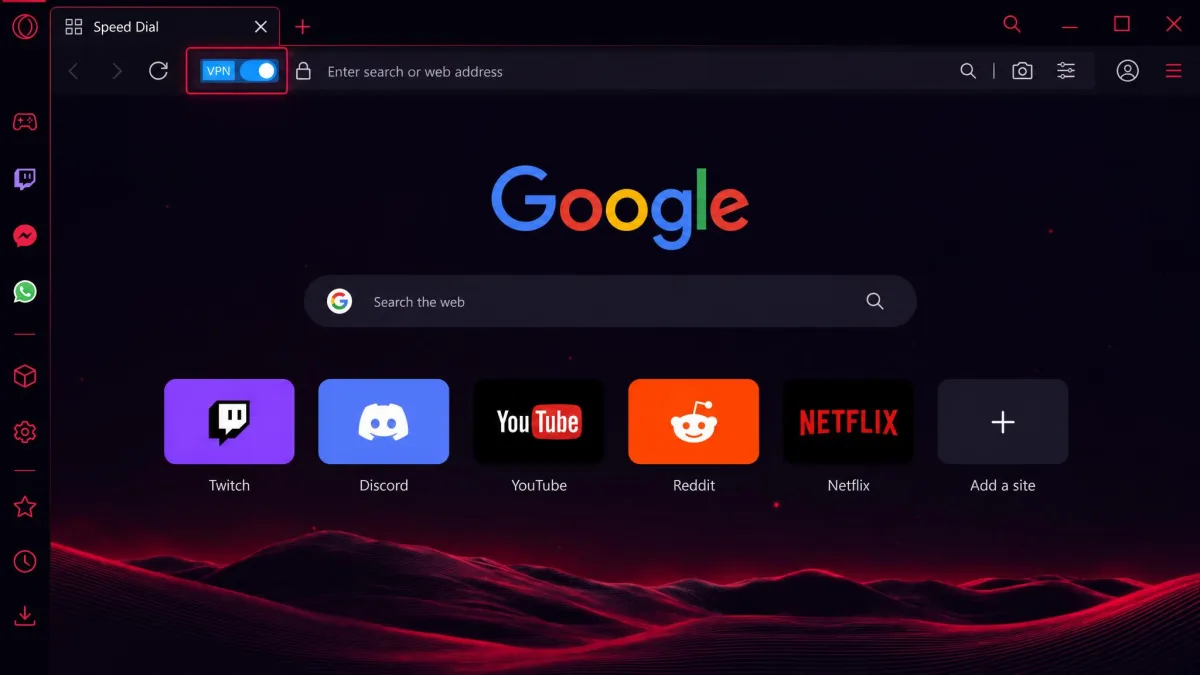
The VPN ships with Opera GX but arrives switched off. You enable it once in Settings, and from then on you control it from the address bar. This relies on geo-blocking workarounds, so the browser routes your page requests through a virtual location.
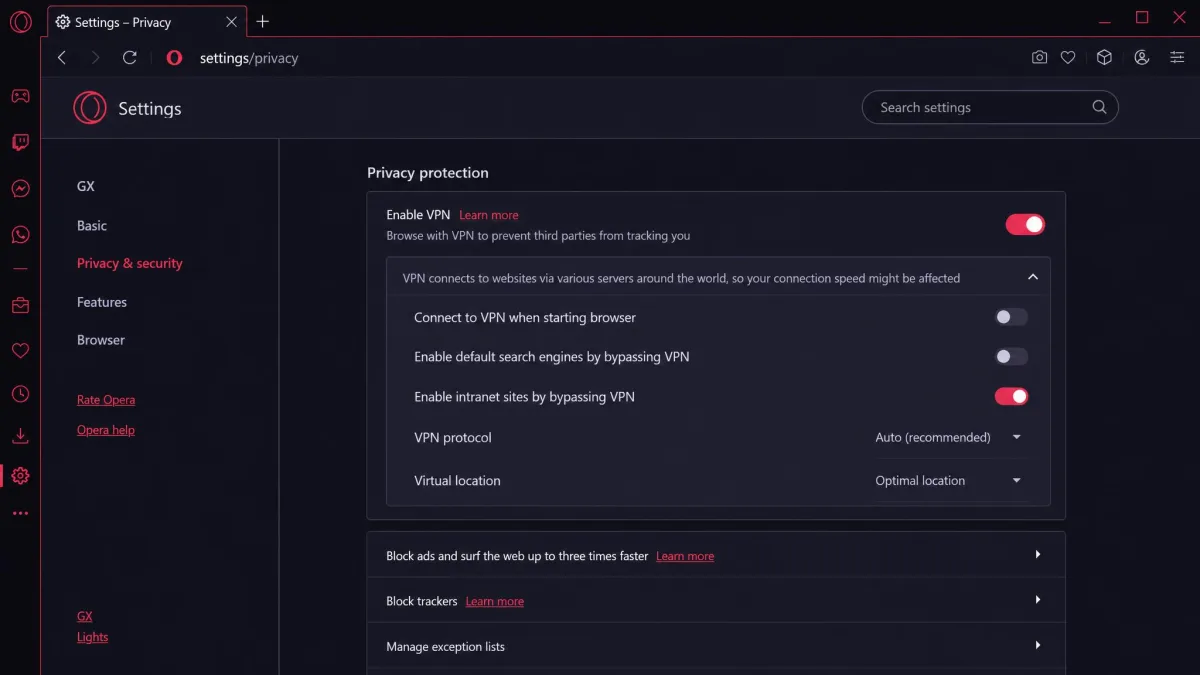
Turning On the VPN in Opera GX Settings
Open the Opera GX menu and go to Settings, then find Advanced, then Privacy & security, and look for the VPN section. On newer layouts, go to Settings, then Features, then VPN instead. Toggle Enable VPN to switch it on.
One thing caught us out in testing, and it catches most people. Flipping the Settings toggle alone leaves the VPN inactive. You still have to switch it on at the badge in the address bar, which is the second half of the setup.
Where to Find the VPN Badge in the Address Bar
After you enable the setting, a VPN badge appears to the left of the combined address-and-search bar. Click that badge to open the pop-up, then toggle the switch to On. The badge turns blue once the connection is live and your browser traffic starts routing through the virtual region.
If you want your searches to reflect your virtual region too, open the VPN settings and turn off "Bypass VPN for default search engines." Left on, it sends search queries from your real location while page browsing still uses the VPN.
How to Change Your Region / Country
Changing your region happens entirely at the badge, not buried in a menu. Once the VPN is on, the region selector lives inside the same pop-up you used to switch it on.
Step-by-Step: Selecting a Virtual Location
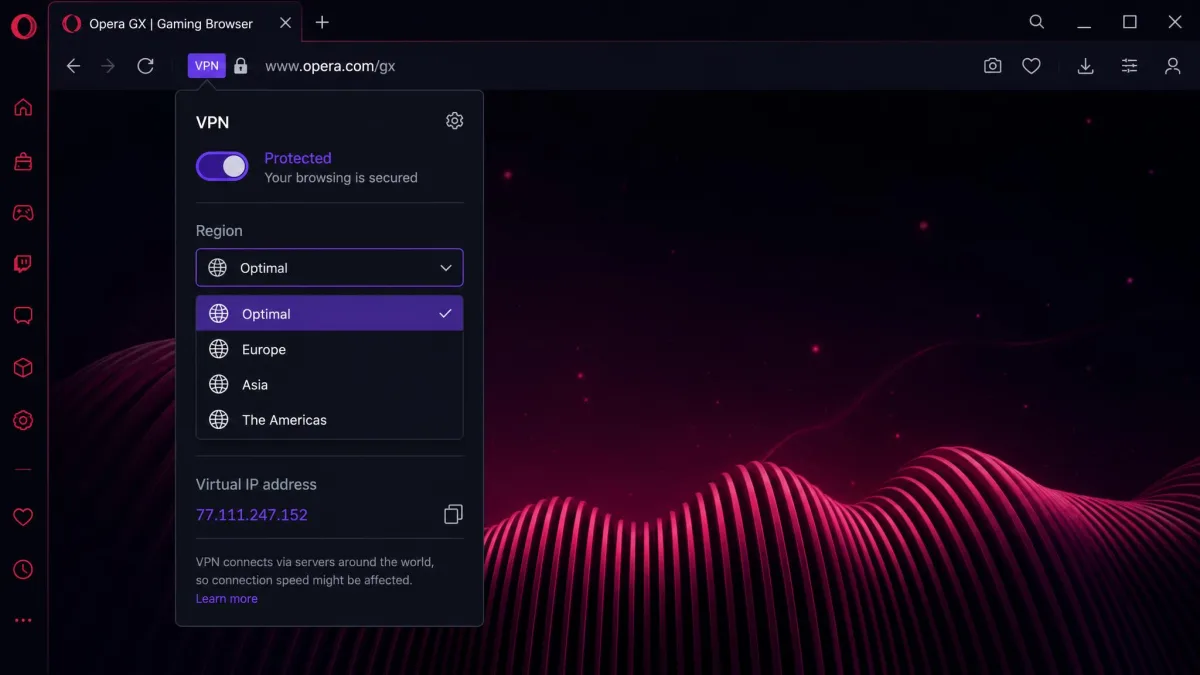
Click the VPN badge to the left of the address field. In the pop-up, find the region selector near the current location name, then pick a different region from the list. The connection re-establishes in a second or two, and the new virtual location applies to the pages you load next.
If you only want the fastest server, leave it on Optimal and let Opera GX choose for you. Switching between regions takes one click each time, so you can move around as often as you like.
Available Regions (Europe, Americas, Asia, Optimal)
On the free tier you get three broad regions: Europe, Asia, and The Americas. There is also an Optimal option that picks the nearest, fastest server automatically. That gives you four entries in the list, but only three are true geographic choices.
What you do not get is a specific country. You cannot tell the free VPN to use Poland, Japan, or the United States on its own. Pinning a single country requires the paid VPN Pro upgrade, which we cover further down.
How to Confirm Your New Region Worked
A region switch is silent, so you should verify it rather than assume it took. The quickest check lives right inside the VPN pop-up, and a second check confirms it independently.
Checking Your Virtual IP Address
Click the VPN badge again and look at the pop-up. It displays the virtual IP address for the current connection, which changes when the region changes. If the IP and region label match what you selected, the switch worked.
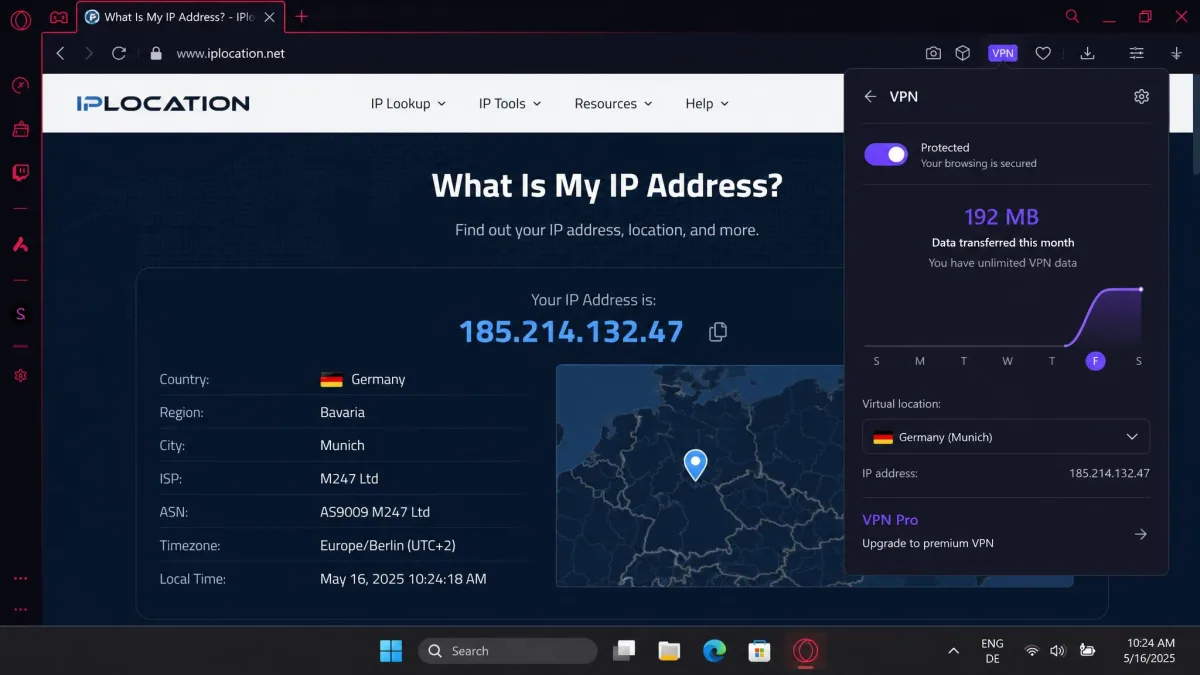
For an independent confirmation, load an IP-lookup site in Opera GX and check the country it reports. Because the VPN routes your DNS and page requests through the virtual region, the lookup should reflect your chosen area, not your real one.
Run the IP-lookup check inside Opera GX, not another browser. The VPN only covers Opera GX, so any other browser will still report your real location and make you think the switch failed.
Troubleshooting Common Problems
Most Opera GX VPN problems come down to three things: the controls not showing up, the region not sticking, or a site seeing your real location anyway. Here is how we work through each.
VPN Badge or Region Selector Missing
If the badge does not appear after you enable the setting, restart Opera GX. In our testing that alone brings it back almost every time. Confirm the VPN is enabled under Settings first, since a disabled toggle hides the badge entirely.
If the badge is present but greyed out, the VPN is enabled but switched off. Click it and toggle it on to reveal the region selector.
Region Won't Change or Keeps Reverting
If a region keeps snapping back, switch to a fixed region instead of Optimal, since Optimal reselects the nearest server on its own. Toggle the VPN off and on at the badge to force a fresh connection, then pick your region again.
A stubborn connection usually clears with a browser restart. If the region still reverts, clear the site's cookies, because a cached location can override what the VPN reports to that page.
Site Still Detects Your Real Location (Streaming/Netflix)
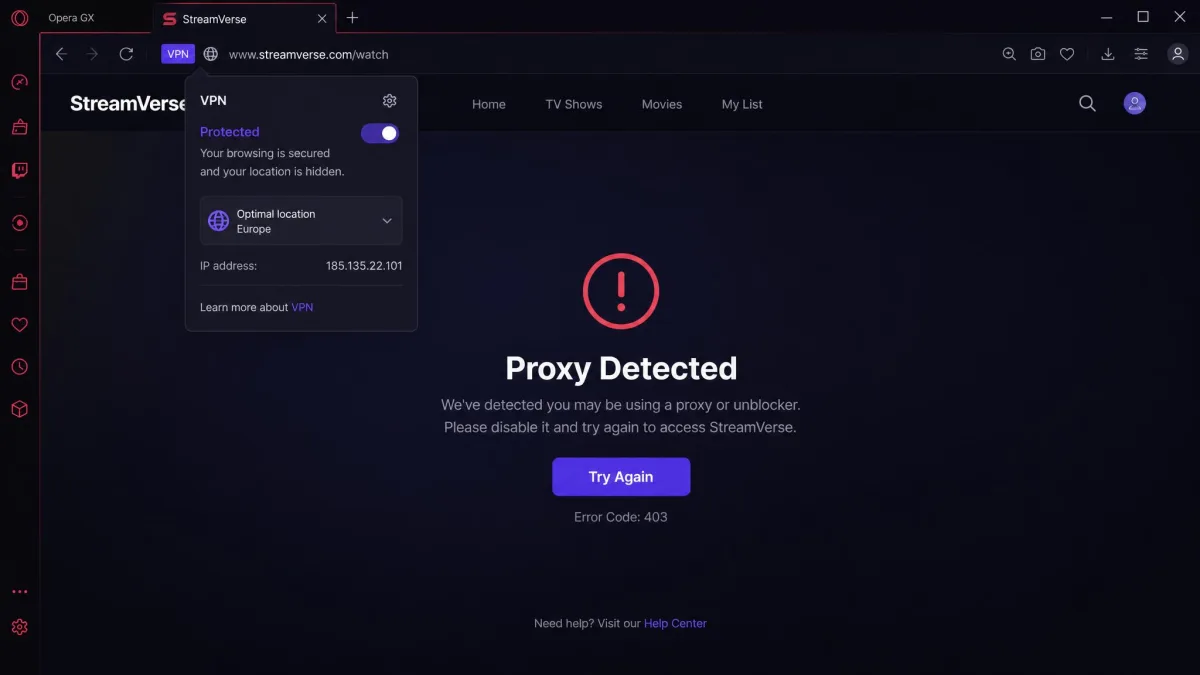
This is the most common complaint, and it is usually not a bug. Streaming services frequently see through the browser VPN, so a region switch does not reliably unlock another country's Netflix catalog. Sports streams and other geo-locked libraries behave the same way.
Two other causes are worth ruling out. The search-bypass setting can leak your real location into search results, so turn it off. And because the free tier offers no specific country, trying to reach one country's library, such as a Polish football stream, will not work no matter which region you pick.
For reliable streaming access to a specific country, the free Opera GX VPN is the wrong tool. It offers regions only, and services routinely block browser VPNs. You will need a dedicated VPN with specific-country servers.
Opera GX VPN vs a Dedicated VPN: When You Need More
The free VPN is fine for casual region switching and basic privacy inside the browser. When you need specific countries, whole-device coverage, or reliable streaming, you have outgrown it. The nearest upgrade is Opera's own VPN Pro, and a standalone VPN is the wider option.
| Feature | Opera GX free VPN | Opera VPN Pro |
|---|---|---|
| Price | Free | $4/mo annual ($8 monthly) |
| Location choice | 3 regions + Optimal | 48 locations, specific countries |
| Coverage scope | Browser-only | Device-wide, 6 devices |
| Specific country | No | Yes |
| Kill switch | No | Yes |
| Free trial | Always free | 30-day |
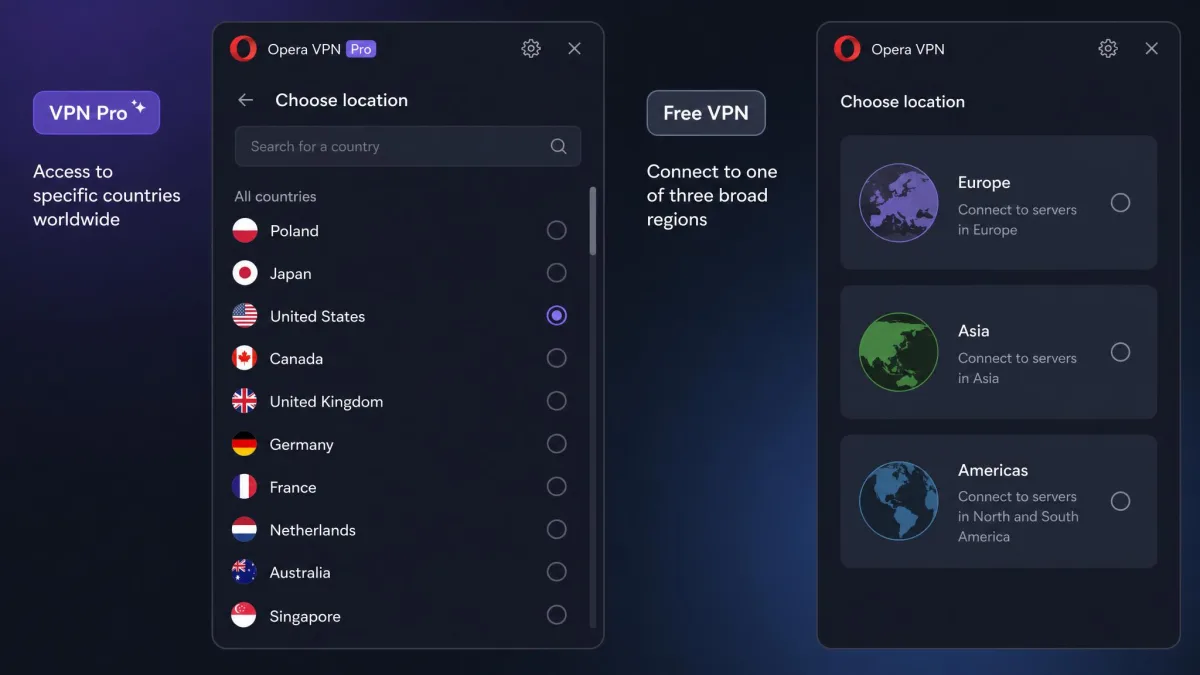
VPN Pro secures the whole system rather than just the browser, supports specific-country selection across 48 locations, and covers up to 6 devices. It runs $8 for a monthly plan or $4 a month on the annual plan, with a 30-day free trial for new users. A full third-party VPN adds features Opera does not, such as split tunneling and a choice of modern protocols like WireGuard or OpenVPN.
Frequently Asked Questions
Can you pick a specific country on Opera GX VPN?
Why is my VPN badge missing?
Does Opera GX VPN work with Netflix?
Is the Opera GX VPN free and safe?
Bottom Line
Changing your region with the Opera GX VPN takes two clicks once it is set up: switch the VPN on at the badge, then pick a region from the pop-up. Enable it under Settings first, verify the switch with the virtual IP shown in the pop-up, and remember it only covers Opera GX itself.
Just keep its limits in mind. Regions, not countries; browser, not device; and no guarantee against streaming blocks. For casual browsing it does the job for free, and when you need more reach or reliability, VPN Pro or a dedicated VPN is the step up.