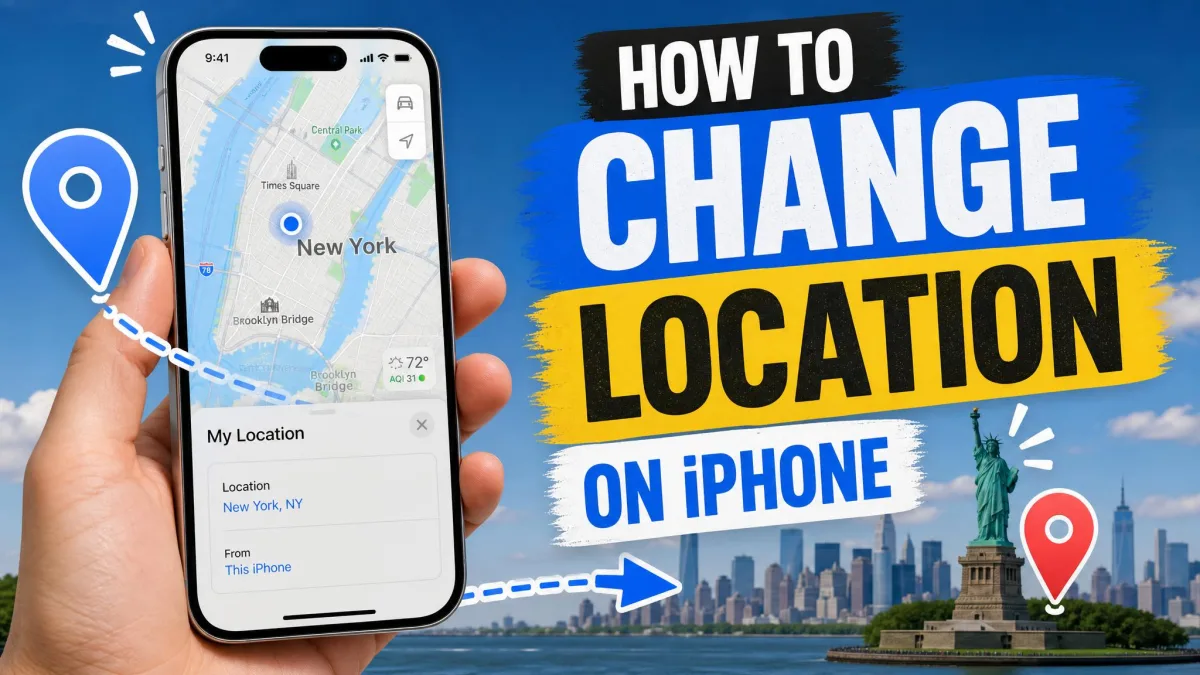
The App Store shows you content from the wrong country. An app you barely use knows your real address to the metre. A friend can see exactly where you are in Find My, and you would rather they saw something vaguer.
Those are three different problems with three different fixes. Your iPhone reports its location in more than one way, so "change location" can mean changing your store region, changing the IP address websites see, or changing the GPS coordinates apps read. One method never covers all three.
Below we walk you through five methods, in order of how safe and supported they are. For each one you get the exact Settings path, what it actually changes, and how to undo it. We also name the two approaches we would tell you to skip.

What "Changing Your Location" Really Means on iPhone
The three different locations your iPhone reports
Your phone hands out three separate signals, and apps choose which one to trust.
Your account region is the country attached to your Apple Account. It decides which App Store catalogue, music and content are available to you.
Your IP address is assigned by your network. Websites and streaming services read this one.
Your GPS location is calculated from satellites plus nearby Wi-Fi and cell data. Maps, Find My, weather and location-based games use it, and iOS guards it far more closely than the other two.
Which methods change which
Changing your Apple Account country changes only the storefront. A VPN changes only the IP address. Location Services does not fake anything, it just controls what each app is allowed to see. Only a desktop spoofing tool or Xcode moves the GPS coordinates, which is what GPS spoofing means in practice, and both need a computer.
Why You Might Want to Change Your iPhone Location
Travel is the most common reason. You move abroad and the local App Store carries the banking, transit and delivery apps you now need.
Geo-restricted content is next. A streaming catalogue or a news site behaves differently depending on the country your connection appears to come from.
Privacy is the third, and it is the one we think most readers actually want. You do not need a fake location so much as a smaller one: fewer apps with constant access, and approximate coordinates for the ones that keep it.
There is also plain troubleshooting. Weather shows the wrong city and you want to know which setting is lying. Start with the method that matches your goal.
Method 1: Change Your Apple ID Country or Region
This is the only method Apple officially supports for changing what your account's location is, and it is the right one if you want a different App Store catalogue. Apple documents the process in its guide to changing your Apple Account country or region.
How to change your region in Settings
We checked these steps on iOS 26.
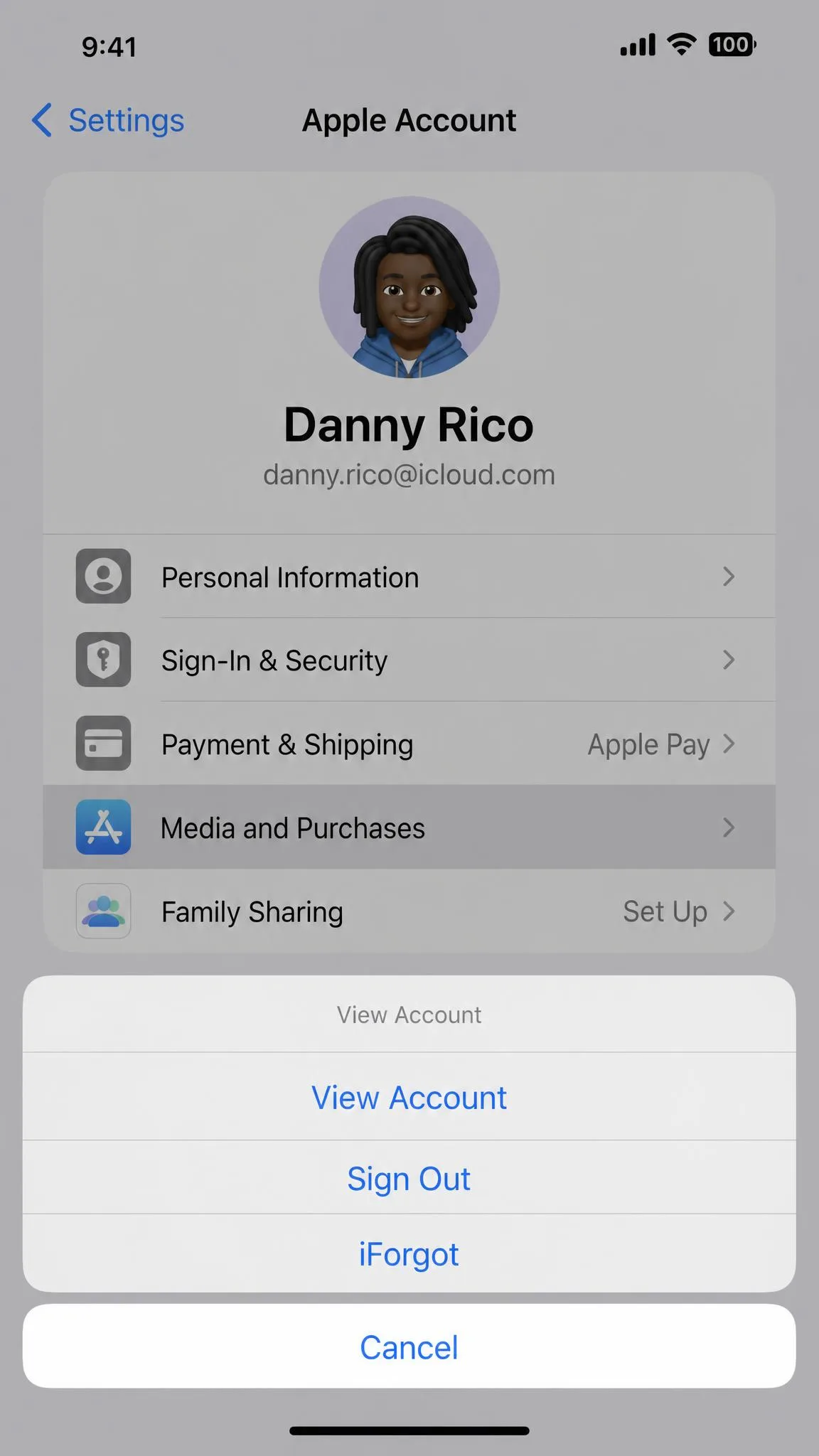
- Open Settings and tap your name at the top.
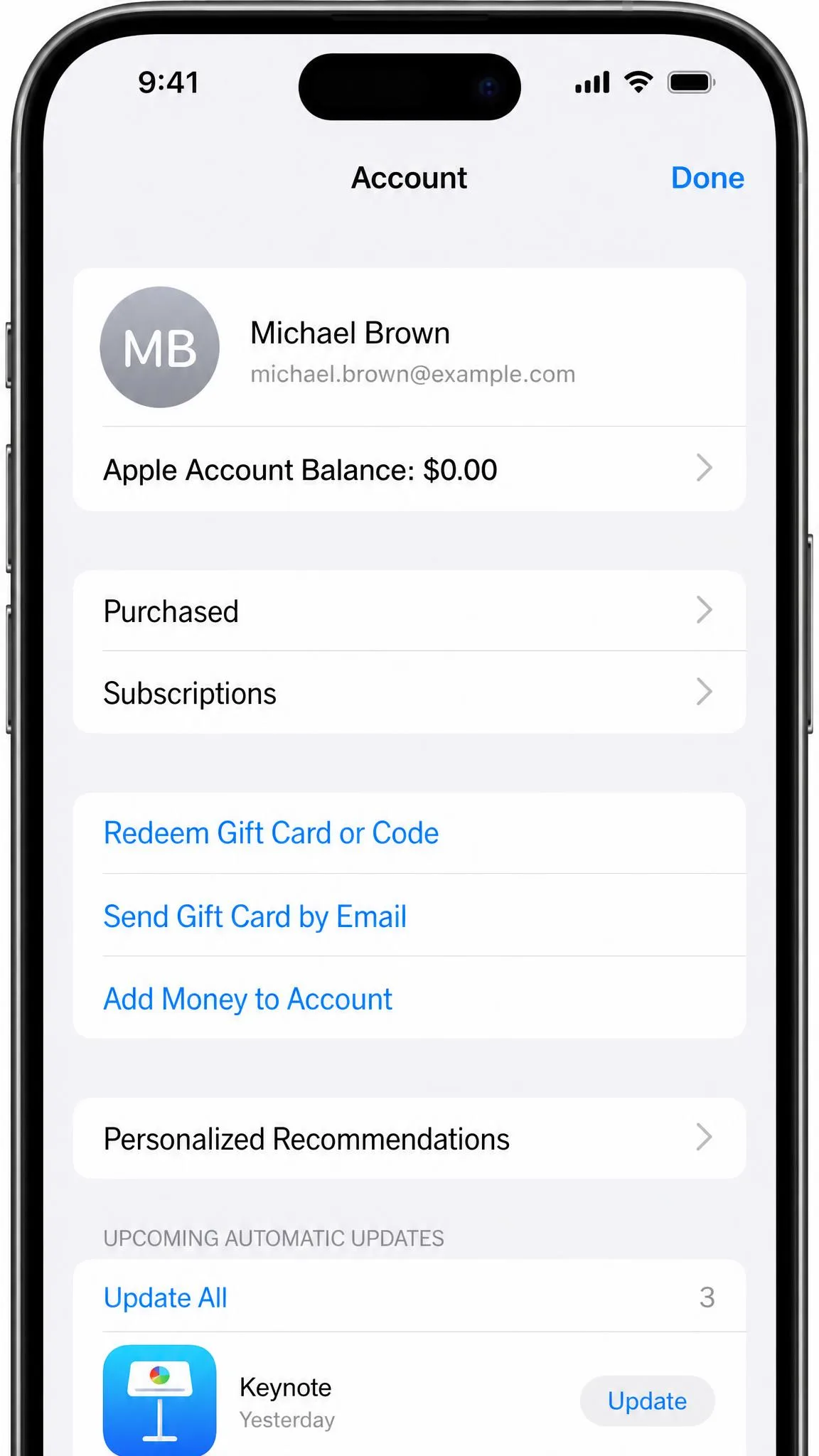
- Tap Media & Purchases, then View Account and sign in if asked.
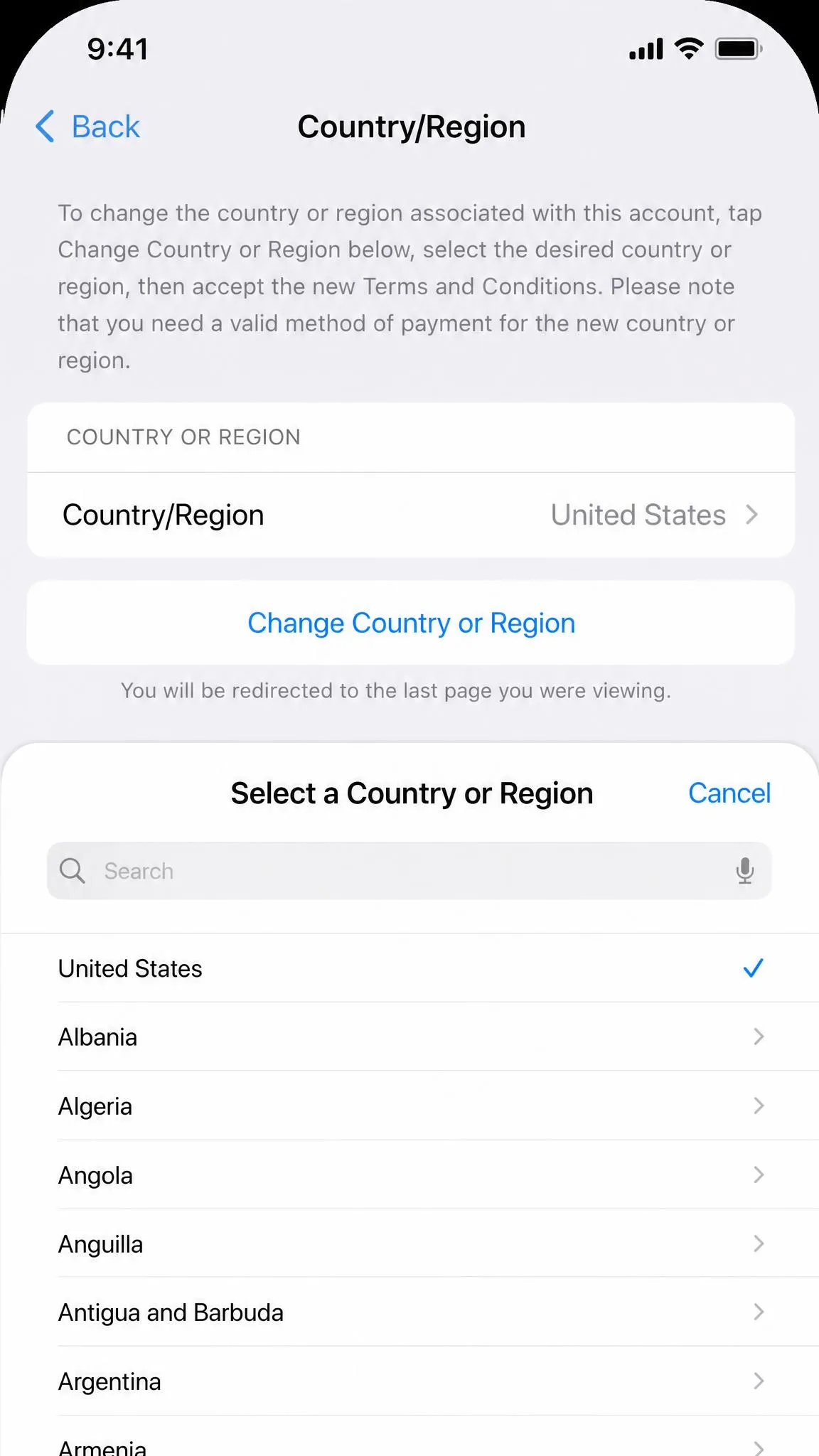
- Tap Country/Region, then Change Country or Region.
- Choose the new country, read the terms and tap Agree.
- Enter a valid payment method and billing address for that country, then tap Next.
You can do the same from the App Store: tap the profile icon, tap your name, tap Country/Region, pick the new region and follow the prompts. You can also manage it from your Apple Account page in a browser.
First, though, Apple requires you to spend any remaining balance, cancel subscriptions that block the change and wait for the period to end, let memberships, pre-orders, film rentals and Season Passes finish, wait for pending store-credit refunds, and hold a payment method valid in the new country. You may also need to leave a Family Sharing group.
How to change your App Store region without a payment method
Some country changes let you select None as the payment method, which is what you want if you are switching temporarily without a local card. It only appears once your balance is at zero and nothing else is blocking the change, and not every country offers it.
That balance is the biggest snag. A leftover few cents greys out Change Country or Region, and an amount that small is usually too little to spend on anything. The fix is to add just enough credit to buy one paid app exactly, or to buy something priced above the balance so the remainder bills to your card. Apple Support can also zero a small residual amount over chat, routed through Apple ID, then iTunes Store & App Store, then Other App Store Topics, then Unable to change country or region. A leftover under $1 or the local equivalent is the kind Apple clears at its discretion after identity verification.
Spend your balance down deliberately before you start. Buy one app or top-up that matches the amount almost exactly, and you skip the support queue entirely.
What happens to your subscriptions, balance, and purchases
Apps not sold in the new storefront drop out of the App Store and out of your Purchased list. That reads like lost purchases, but already-installed apps keep working and the missing ones reappear when you switch back.
Music is less forgiving. An Apple Music library is tied to the country it was built in, and it does not carry over if you restart the subscription elsewhere.
The change can also fail after the balance is cleared, because an active subscription is still blocking it. It goes through once that subscription period has genuinely ended, not on the day you cancel.
Changing your Apple Account region forfeits any remaining store balance and can end subscriptions tied to the old country. Apple Music libraries built in the old region do not follow you.
Method 2: Use a VPN to Change Your IP Location
A VPN routes your traffic through a server elsewhere, so the IP address websites see belongs to that server's country. It is the fastest way to change location for browsing and streaming.
How to set up and connect a VPN on iPhone
This takes a few minutes, and our guide to how to use a VPN on iPhone covers each prompt in more detail.
- Install a reputable VPN app from the App Store (our best VPN for iPhone roundup ranks the tested options) and sign in.
- Allow the VPN configuration when iOS prompts you. This adds a profile under Settings > General > VPN & Device Management.
- Open the app, choose a server in the country you want, and connect.
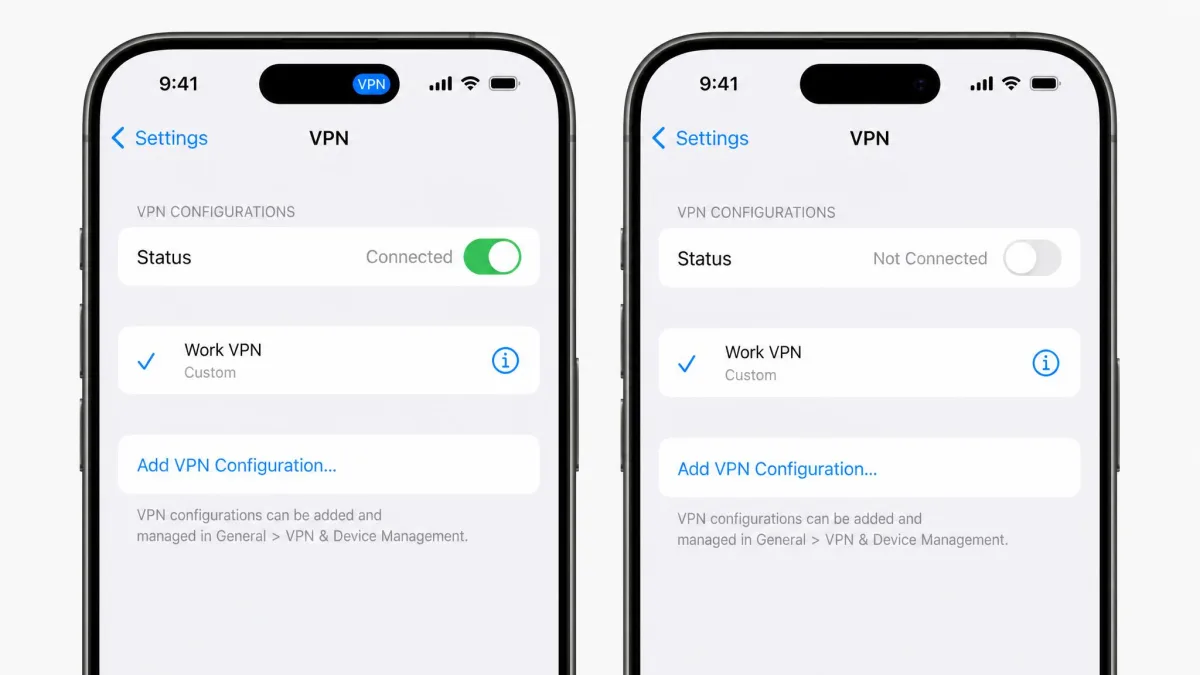
- Check the VPN badge in the status bar to confirm the tunnel is up.
- To stop, disconnect in the app or go to Settings > VPN and switch it off.
Adoption has grown enough that this is now an ordinary consumer purchase, as VPN adoption statistics show.
What a VPN changes, and what it does not
Connect to a server abroad and web and streaming content flips over immediately, while Maps and Find My keep showing your real location. That is not a broken VPN. A VPN changes the IP address and network-level location that websites and IP-dependent apps see, and it does not touch the GPS coordinates reported to Maps, Find My or location-based games.
If you want a different streaming catalogue, a VPN is the answer. If you want to appear elsewhere in a game or a dating app, it is not.
Every Settings path in this guide was walked on an iPhone running iOS 26 before we published it.
Method 3: Adjust or Turn Off Location Services
This method does not fake a location. It changes what your device is willing to share, which is the right tool when your goal is privacy. Apple's reference on how to control the location information you share on iPhone covers the same controls.
Turn off Location Services for your entire iPhone
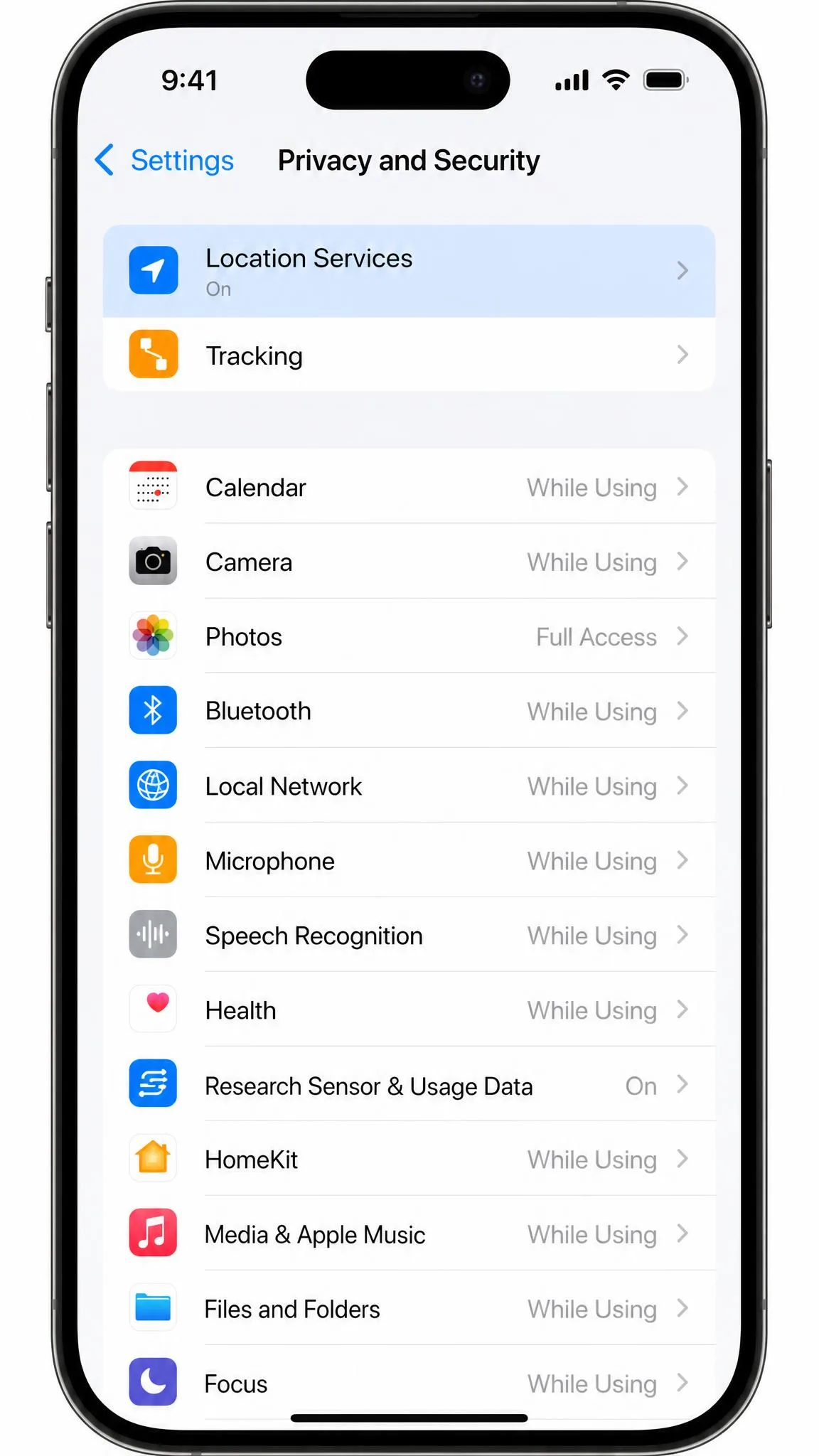
Open Settings > Privacy & Security > Location Services and turn the switch off. Everything that depends on location stops at once: Maps navigation, Find My, weather and location-based reminders included.
We would not leave it that way. Turning the whole system off breaks more than people expect, which is why the per-app Never setting is the usable version of this method.
Change location permissions for a single app
- Open Settings > Privacy & Security > Location Services.
- Scroll to the app you want to change and tap it.
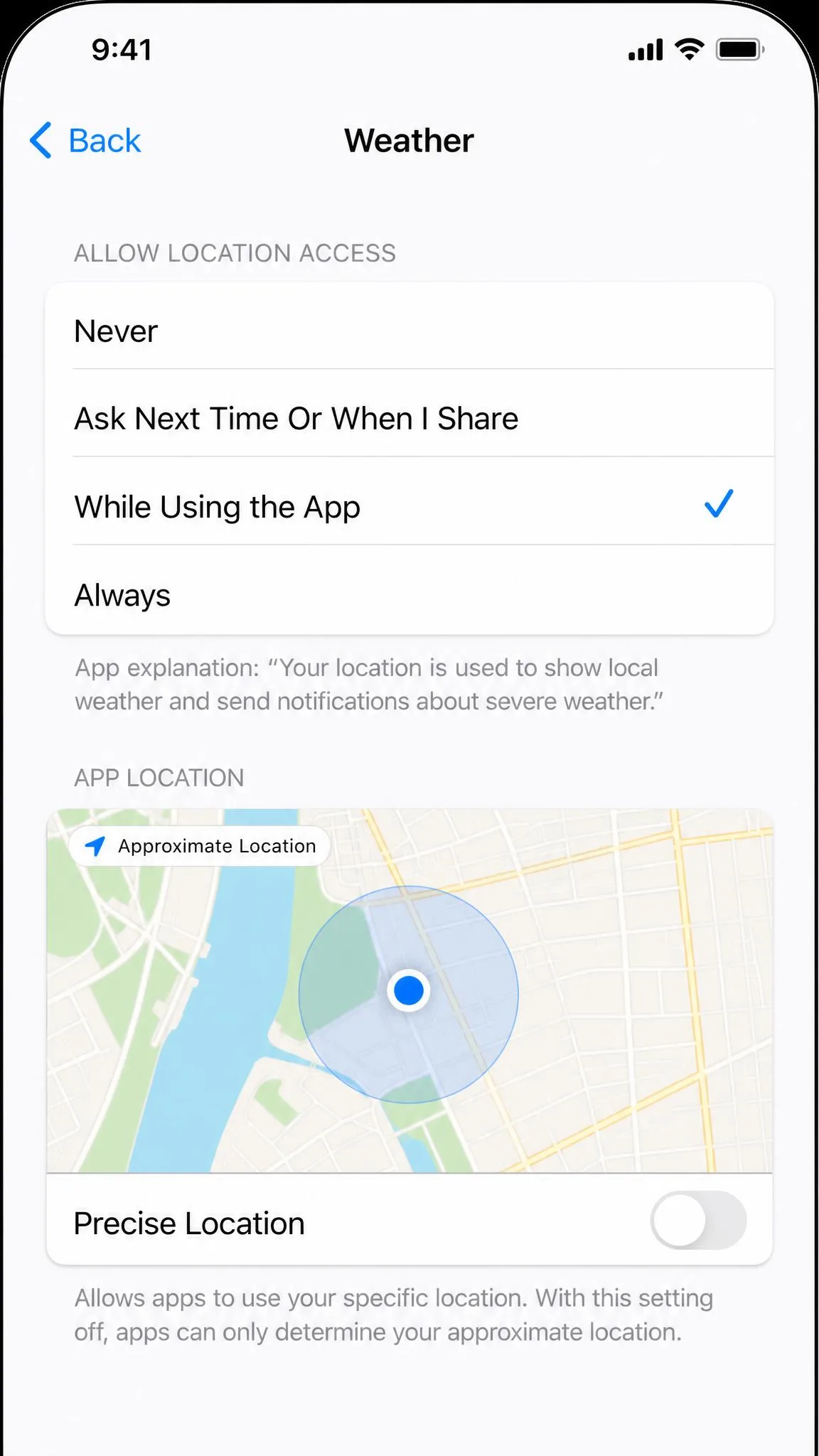
- Choose Ask Next Time Or When I Share, While Using the App, Always or Never.
While Using the App is the sensible default. Never is for the apps that have no business knowing where you are.
Turn off Precise Location
That same per-app screen has a separate Precise Location toggle. Switch it off and the app receives only your approximate area while keeping location access. The app keeps working and simply sees less, so it is a lighter-touch fix than revoking access outright.
These paths apply to iOS 26. On iOS 15 and earlier, Location Services sits under Settings > Privacy rather than Settings > Privacy & Security, but the per-app options are the same.
Method 4: Spoof GPS With a Desktop Location Tool
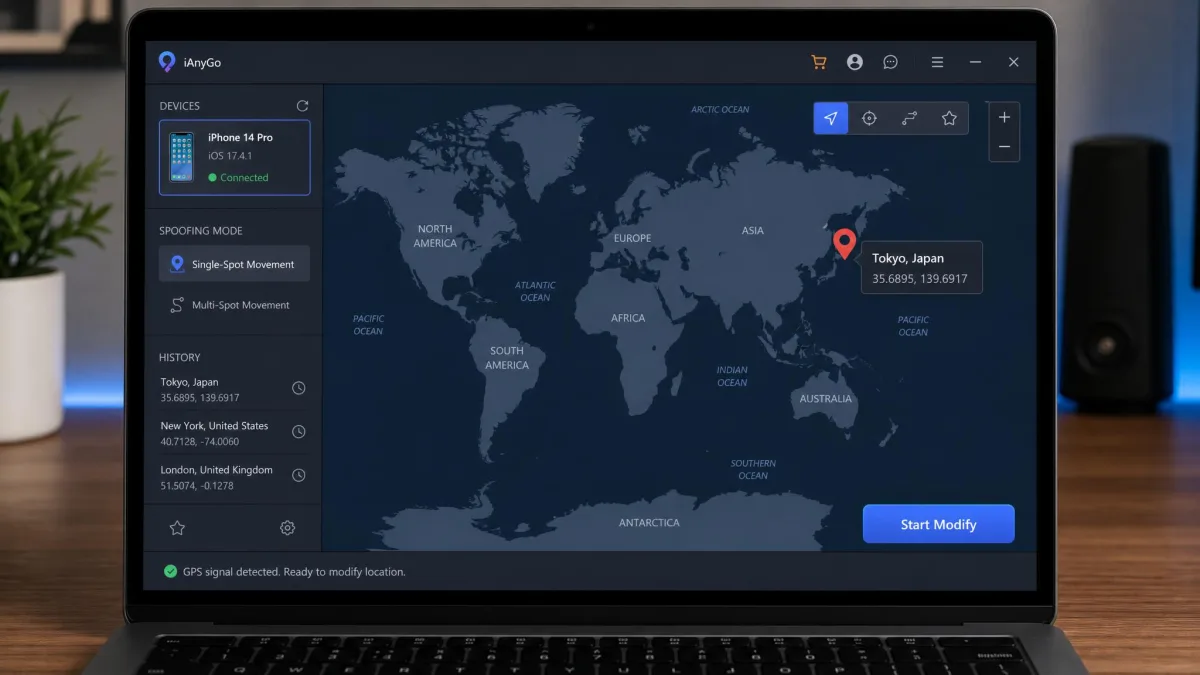
If you need the GPS coordinates to change, you need software running on a computer. We cover this in more depth in our guide to how to spoof your location on iPhone; here is the working summary.
How desktop GPS spoofing tools work
You install a Windows or Mac app, connect the iPhone over USB or Wi-Fi pairing, and the tool feeds a chosen coordinate to the device in place of the real one. The phone stays unlocked and paired for the whole session, and the spoof drops as soon as the connection ends.
Prices are modest and heavily promotional. Tenorshare iAnyGo lists a 1-month licence at $7.12, a 1-year licence at $23.62 and a lifetime licence at $52.77, with a 30-day money-back guarantee. Those tiers move with campaigns.
Free utilities age out quickly. 3uTools' location feature is not compatible with iOS 17 or later, and even paid tools tend to break after each major iOS release until the vendor ships a patch.
Step-by-step: changing your GPS location from a computer
- Install the spoofing tool on your Windows PC or Mac and open it.
- Connect your iPhone with a cable, then unlock it and tap Trust This Computer.
- Choose the tool's single-location or teleport mode.
- Enter an address or drop a pin on the map, then confirm.
- Open Maps on the iPhone to check the new position has taken.
- To undo it, stop the session in the tool and restart the iPhone.
The risks: account flags, app bans, and broken features
Location-based games and banking apps actively look for spoofed coordinates, and account bans and lockouts are a documented outcome rather than a theoretical one. Alongside that sit terms-of-service violations, malware exposure from the shadier download sites, and instability after an iOS update.
GPS spoofing can get app accounts flagged, suspended or permanently banned. Games, dating apps and financial services are the most aggressive about detecting it. Never spoof on an account you cannot afford to lose.
Method 5: Simulate a Location With Xcode (Mac Only)
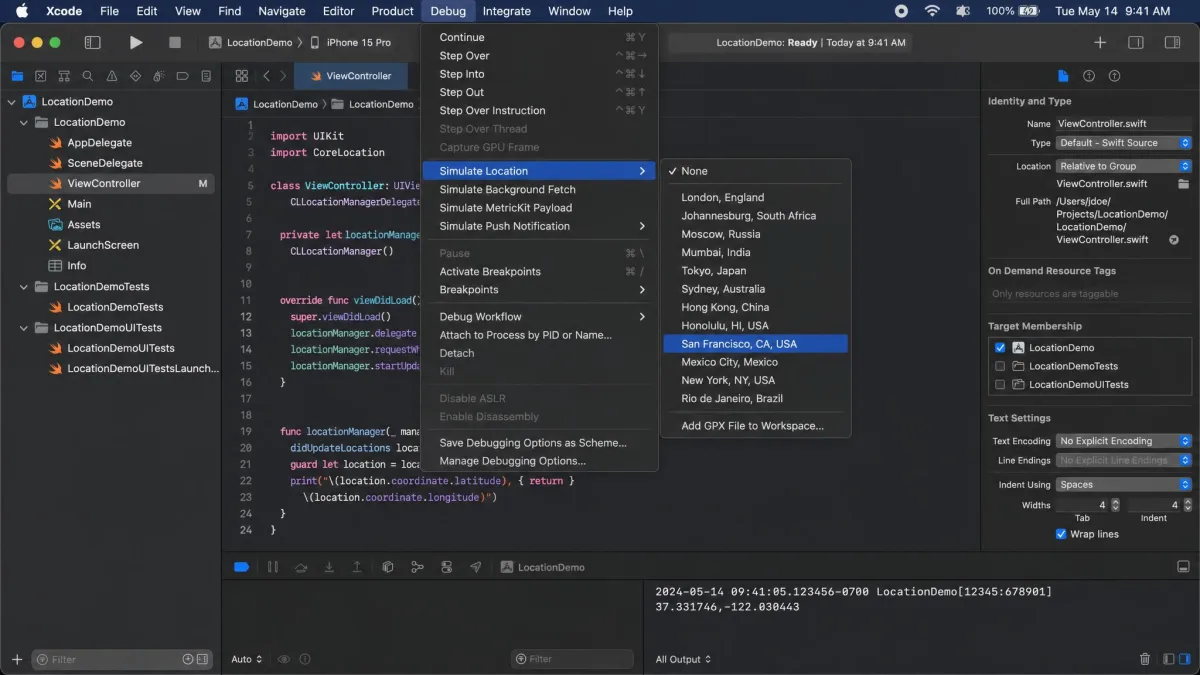
Xcode is Apple's own developer tool, and it can hand a simulated location to a connected iPhone with no third-party software. It is free and legitimate, and aimed at app testing rather than everyday use.
You need a Mac with Xcode, Developer Mode enabled at Settings > Privacy & Security > Developer Mode, an Apple Developer account signed in under Xcode > Settings > Accounts, and the iPhone connected to the Mac. You then set the position through Debug > Simulate Location > Add GPX File to Workspace. A .gpx file with timestamped coordinates can simulate a walking, cycling or driving route.
It is fiddly before it is useful. Developer Mode has to be switched on, a throwaway project has to exist for the debugger to attach to, and provisioning-profile errors are a common stopping point on free developer accounts.
The simulated location holds while the debug session runs. Whether it clears when you unplug depends on how the session ended, so it can persist through a restart if you did not stop it first.
Methods We Do Not Recommend
Jailbreaking and GPS tweaks
Jailbreak tweaks can set a system-wide fake location with no computer attached, which sounds ideal until you count the cost. Jailbreaking removes the security boundaries iOS depends on, and Apple is unusually specific about what follows. Apple's support documentation on unauthorized modification of iOS states that modifying iOS violates the software license agreement, that Apple may deny service for a modified iPhone, and that the modification voids the warranty status, so you are quoted out-of-warranty repair pricing instead. Apple's iPhone User Guide entry on unauthorized modification names iCloud, iMessage, FaceTime, Apple Pay, Visual Voicemail, Weather and Stocks among the services that may be disrupted or stop working, and warns that push notifications can fail so iCloud and Exchange stop syncing. Apple Pay is on that list by name, which means a jailbreak taken purely to move your GPS pin can take contactless payments down with it. Some modifications also damage iOS in ways that cannot be repaired, and the phone can be left permanently inoperable by a later Apple software update.
Jailbreaking voids your warranty, breaks Apple Pay and other secured features, and leaves the device open to malware that a stock iPhone would block. There is no location benefit that justifies it.
Creating a second Apple ID just to switch regions
A second account looks like a clean way to keep two storefronts. In practice you split purchases, subscriptions and iCloud data across two identities that cannot share them, and you sign in and out constantly. Changing the region on your existing account is less work.
How to Change Your Location Back
Every method here reverses, and each one reverses differently.
For your Apple Account region, run the same path again and select the original country. The same prerequisites apply in reverse. Apps that vanished from your Purchased list come back once you are on the old storefront.
For a VPN, disconnect in the app or switch it off under Settings > VPN. Your real IP is restored immediately.
For Location Services, return to Settings > Privacy & Security > Location Services, switch it back on, then restore the per-app permissions you changed.
For a desktop spoofing tool, end the session and restart the iPhone. For Xcode, stop the debug session before you unplug.
Which Method Should You Use?
Match the method to the signal you need to change, and the choice makes itself.
| Method | What it actually changes | Difficulty | Needs a computer? | Risk level |
|---|---|---|---|---|
| Apple ID / App Store region | Store country: app, music and content catalogue | Medium | No | Low, forfeits balance |
| VPN | IP address only, not GPS | Easy | No | Low |
| Location Services | What apps are allowed to see | Easy | No | None |
| Desktop spoofing tool | Reported GPS coordinates | Medium | Yes | High, account flags and bans |
| Xcode | GPS coordinates during a debug session | Hard | Yes (Mac) | Medium, unsupported daily |
If you need a different App Store, change your account region. For geo-restricted content on the web, use a VPN. For privacy, use Location Services and Precise Location, which cost you nothing and break nothing. If an app truly has to believe you are elsewhere, a desktop tool is the only practical route, and you accept the ban risk when you use it. Xcode is worth knowing if you own a Mac.
Keep in mind that the first three reverse in seconds. The last two leave traces on your accounts.
Frequently Asked Questions
Does a VPN change my GPS location on iPhone?
Can I change my iPhone location without a VPN?
Can I fake my iPhone location without jailbreaking?
Why does my iPhone show the wrong location?
Is it legal to change your location on an iPhone?
Can I change my location for specific apps only?
Will changing my App Store region cancel my subscriptions?
How do I change my location in Safari?
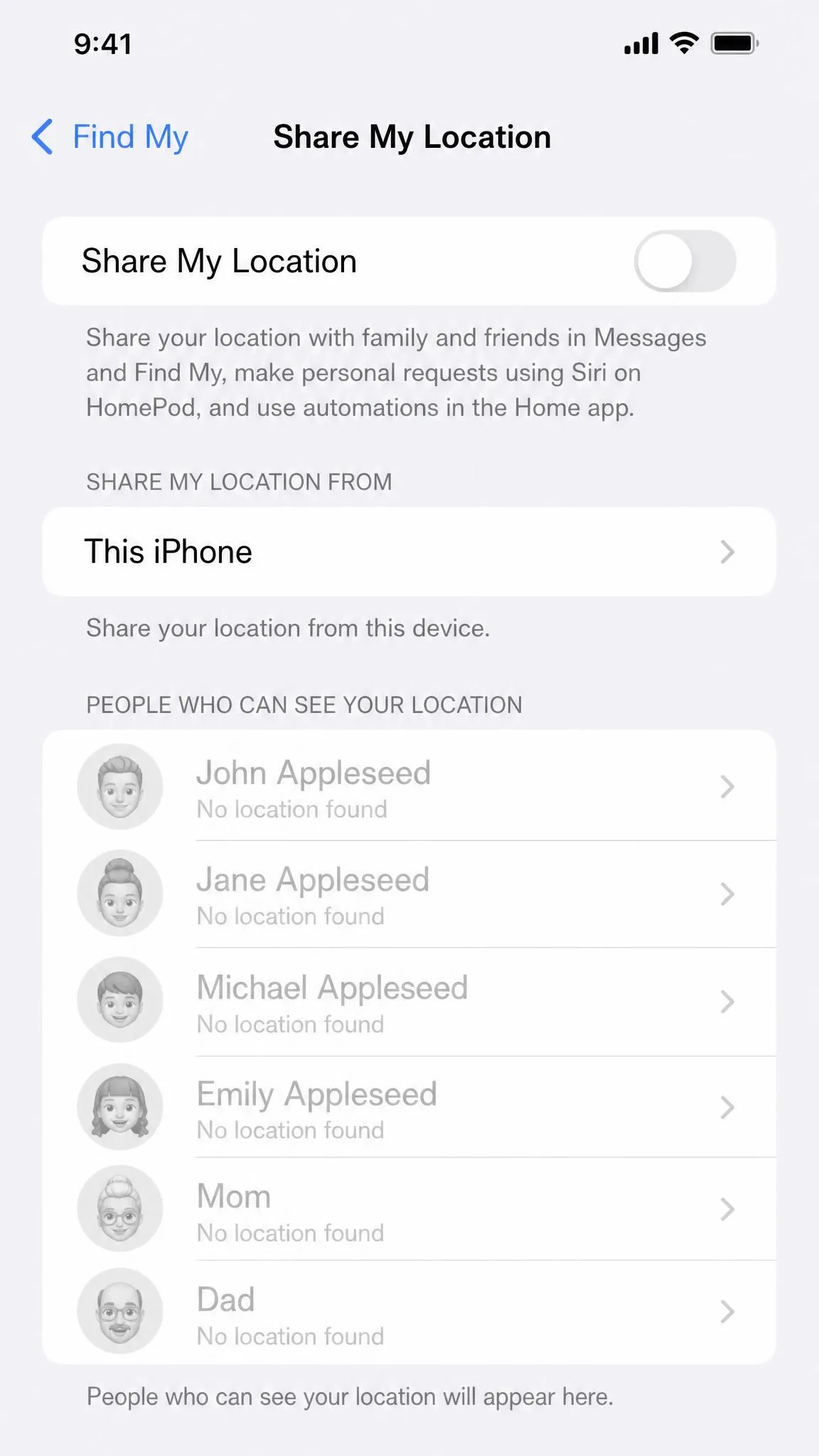
How do I stop my iPhone from sharing my location with other people?
The short version: pick the method that matches the signal you need to change, use the supported ones first, and reverse anything that does not do what you expected.