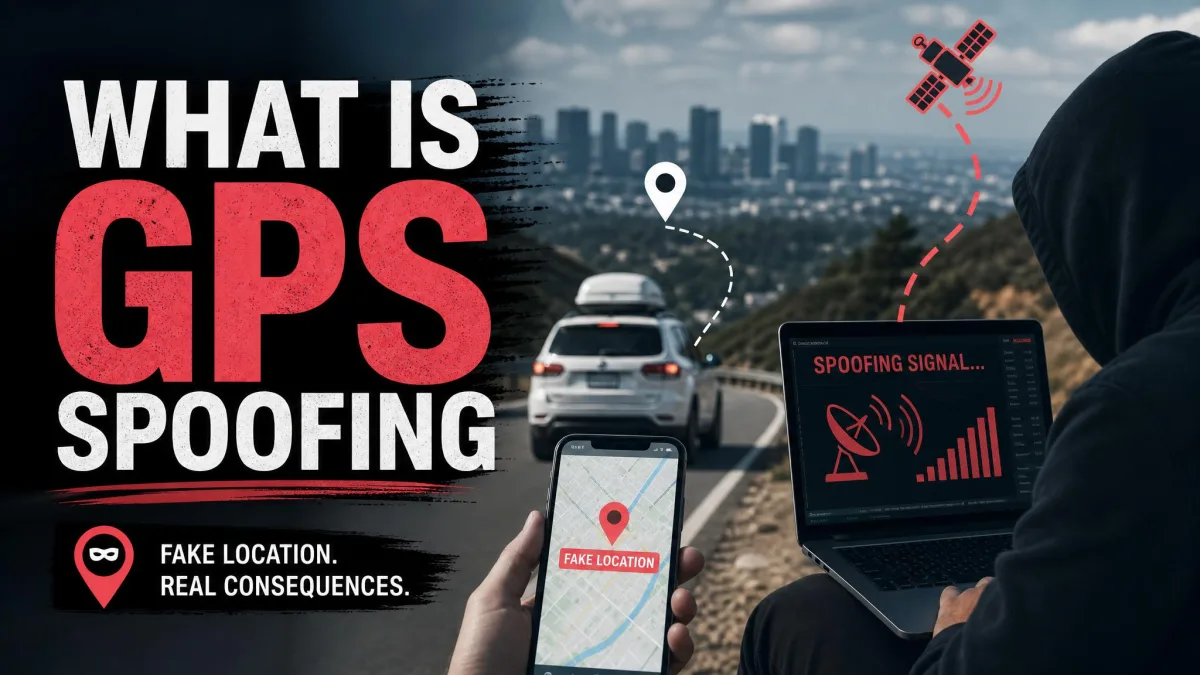
Maybe a streaming app says the show is not available in your country, or the map pin sits three streets from where you are standing. Maybe you just want fewer apps knowing where you sleep. Those are three different problems, and they do not use the same tool.
This guide walks through four methods, from the ones built into your phone to the ones that need an extra app. You will see what each one actually changes, which apps it fools, and how to put everything back.
How Android Knows Where You Are (GPS, Wi-Fi, and IP)
Your phone does not have one location. It has three, worked out in different ways.
GPS is the satellite signal, and it gives apps your position on a map. Outdoors with a clear view of the sky, a phone usually resolves to somewhere in the range of 3 to 10 metres. Indoors that widens to roughly 10 to 20 metres, since satellite visibility, building materials and Wi-Fi density all shift the result.
The second layer is network positioning. Android reads nearby Wi-Fi networks and Bluetooth devices and matches them against a database of known access points, which is how your phone finds you inside a shopping centre. Cell towers feed the same picture.
The third is your IP address. Websites rarely see GPS at all. They see the address your connection arrives from and guess your city from it.
Wi-Fi scanning and Bluetooth scanning keep feeding location data even when you have switched Wi-Fi or Bluetooth off in quick settings. They are separate options, and you have to turn them off separately.
IP Location vs GPS Location: Which One Do You Need to Change?
Work out first whether the app you care about reads your IP address or your GPS location.
Streaming sites, shopping sites, news paywalls and most things you open in a browser go by IP, and a VPN handles those. Maps, ride-hailing apps, fitness trackers and location-based games read GPS coordinates from the device, and a VPN does nothing to them. Connect to a server in Tokyo and Google Maps still shows the street you are on, because the pin never moved.
| Method | What it changes | Which apps are fooled | Effort | Risk |
|---|---|---|---|---|
| Android settings | Which apps read your location, and how precisely | None, it restricts rather than fakes | Low, a few taps in Settings | None |
| VPN | The IP address websites and services see | Websites, streaming and IP-based services | Low, install and connect | Terms-of-service issues with some services |
| Mock GPS app | The GPS coordinates apps read from the device | Maps, games and most GPS-driven apps | Medium, developer options plus an app | Detectable, account bans possible |
| Play Store country | The store catalogue and billing region | Google Play only | Medium, needs a local payment method | Play balance and Play Points lost |
Method 1: Change Your Location in Android Settings
The settings route does not fake anything. It controls who gets your position and how exact it is, which is the right tool if privacy rather than geo-content brought you here. Google's instructions for how to manage your Android device's location settings cover the same menus.
Menu names drift between Android versions and between manufacturer skins. If a path below does not match your phone, open Settings and search for the setting name rather than hunting through menus.
Turn Location On or Off
- Open Settings and tap Location.
- Tap the Use location switch at the top.
- Confirm the prompt if your phone asks.
That switch is the master control. Turning it off is blunt, and it takes Find My Device down with everything else, which people tend to notice only after a phone goes missing. Emergency calls and nearby-device features can still establish a position with location switched off.
Pick the Right Location Mode for Your Android Version
Where the accuracy controls live depends on your build.
- On Android 12 and higher, open Settings, tap Location, tap Location Services, then tap Location Accuracy.
- On Android 11 and lower, open Settings, tap Location, tap Advanced, then tap Location Accuracy. Wi-Fi scanning and Bluetooth scanning sit directly under Settings and Location.
- On Android 9, open Settings, tap Security and Location, then tap Location, with the scanning switches and Emergency Location Service in the Advanced menu.
- On Android 4.4 through 8.1 there was no accuracy toggle. Those versions used a Location Mode menu with High accuracy, Battery saving and Device only.
Change Location Permissions App by App
This setting is worth ten minutes of your time. Android lets you choose which apps can use your device's location one app at a time.
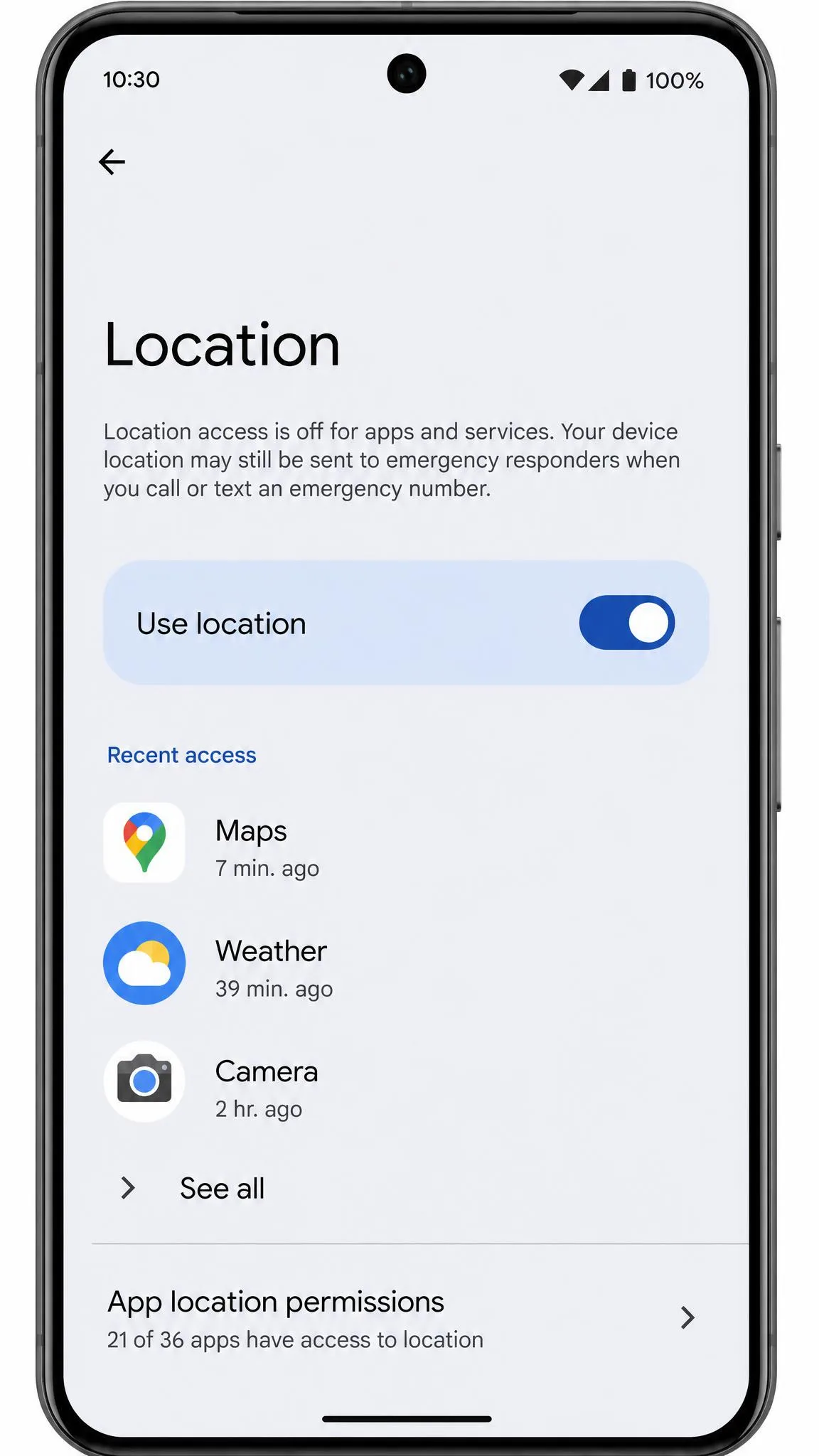
- Open Settings and tap Location.
- Tap App location permissions.
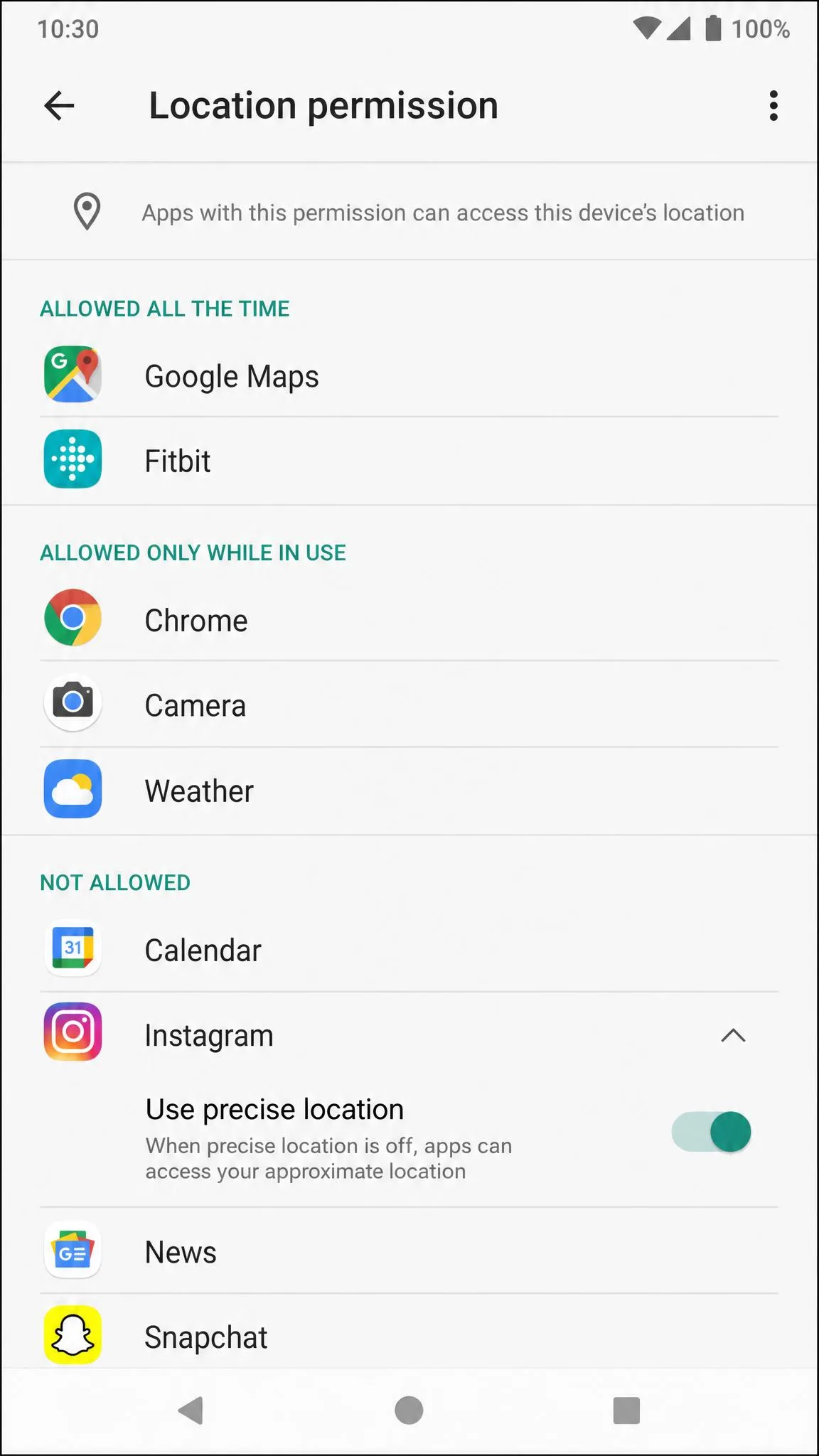
- Tap the app you want to change.
- Choose Allow all the time, Allow only while using the app, Ask every time, or Don't allow.
- Turn off Use precise location if the app only needs a rough area.
That last toggle is the underrated one. From Android 12 and higher you can hand an app approximate location instead, which narrows you to an area of roughly 3 square kilometres rather than a street address. Google describes it that way, and the real spread varies with the surrounding network coverage. A weather app works fine with it.
Stop Apps Tracking You in the Background
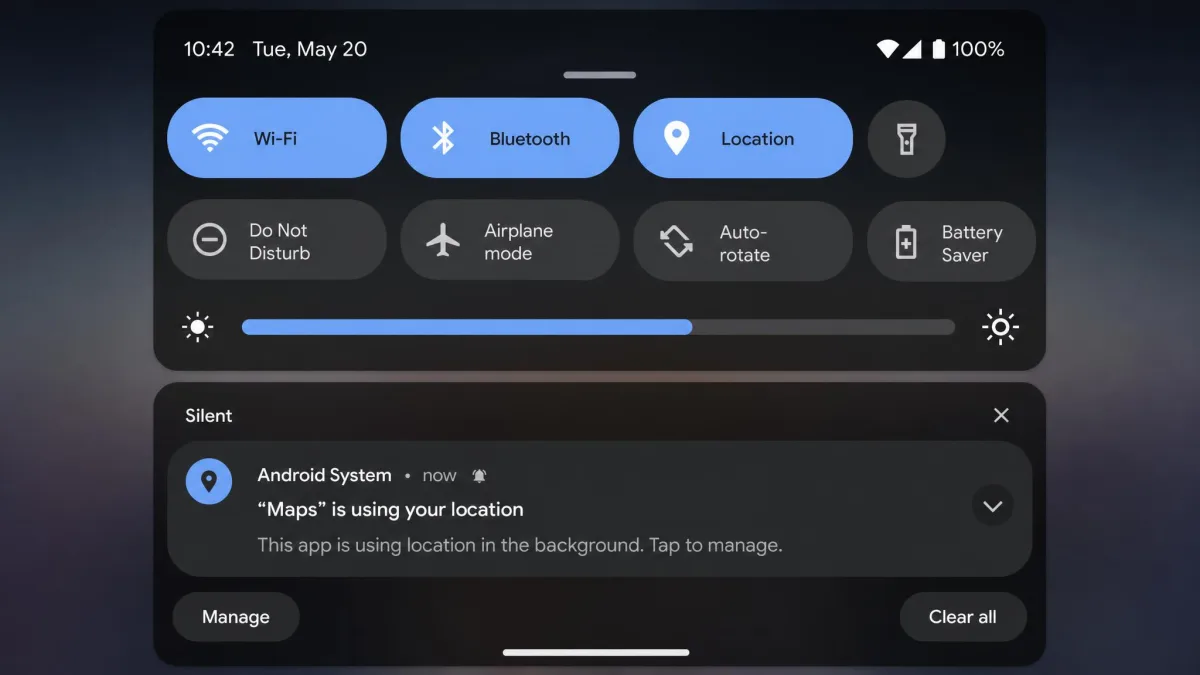
Allow all the time is the permission that keeps working when an app is closed. Walk the list and move anything that is not a navigation, safety or fitness app down to Allow only while using the app. Android flags apps that accessed your location recently at the top of the Location screen, which is a fast way to find the ones worth reviewing. The FTC's guidance on how to protect your privacy on apps pairs well with this if you want to audit the rest of your permissions.
Method 2: Change Your Location With a VPN
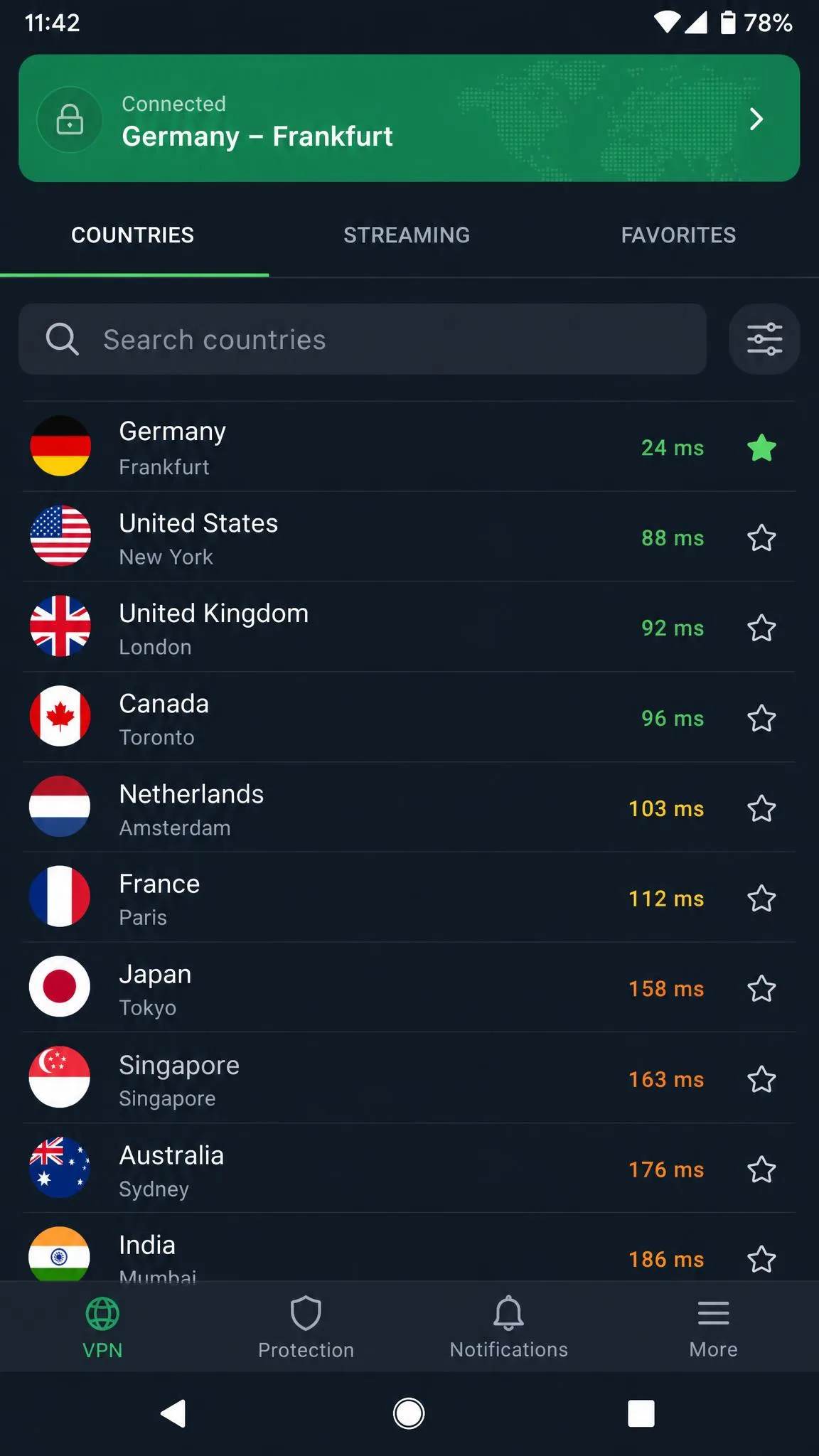
Where the settings method restricts what apps see, a VPN replaces one thing: the IP address websites and online services read. Your traffic is routed through a server elsewhere, and sites see that server's address.
Step by Step: Connect to a Server in Another Country
- Install a VPN app from the Play Store and open it.
- Sign in or create your account.
- Open the server or country list.
- Choose the country you want to appear from.
- Tap Connect and wait for an active connection.
- Load a site that reports your IP location to confirm it took.
Switching from one country to another is quick on a decent app, usually a matter of seconds, though the wait swings with the protocol, the distance to the new server and the strength of your mobile connection. What the wait costs you is the old tunnel: it is torn down, so anything in flight breaks, downloads pause or restart from the beginning and a call on VoIP drops outright. The VPN app itself does not need restarting, but apps you already had open on the previous server usually need reopening before they pick up the new region. Some Android clients also want a clean disconnect before they will move country at all, and switching back and forth quickly leaves the connection unsettled. One convenience worth knowing: the app remembers the last country you picked, so the region you chose is still there the next time you launch it.
Choose a VPN That Actually Hides Your Location
Two things separate a VPN that works here from one that does not. The first is whether you can pick the country at all, because free tiers commonly assign a server automatically and reserve manual country selection for the paid plan. The second is what the app leaks. A service that routes DNS requests outside the tunnel hands your real region back to the site you were trying to fool.
No VPN moves your GPS pin. Connect to a server on the other side of the world and Maps still shows the spot you are standing on, because those coordinates come from the device rather than the network. If a GPS-driven app is the target, use Method 3.
Method 3: Spoof GPS With a Mock Location App
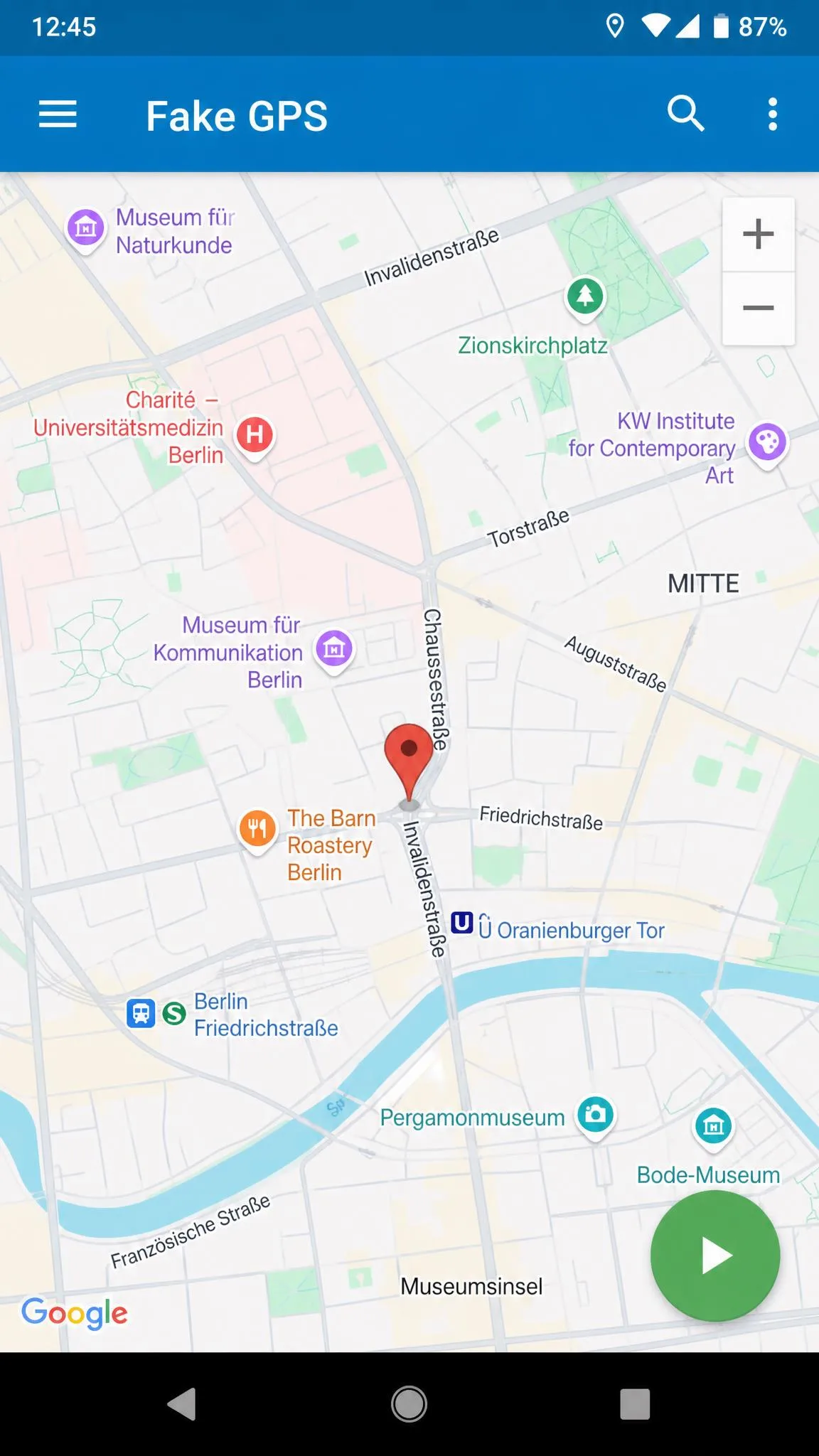
This is the method that changes the coordinates themselves. Android has a developer setting that lets one chosen app supply fake coordinates to the whole system, so Maps, games and most other GPS-driven apps read the position you picked.
Turn On Developer Options and Set a Mock Location App
Developer options are hidden by default from Android 4.2 upward. On Android 4.1 and lower they were on out of the box.
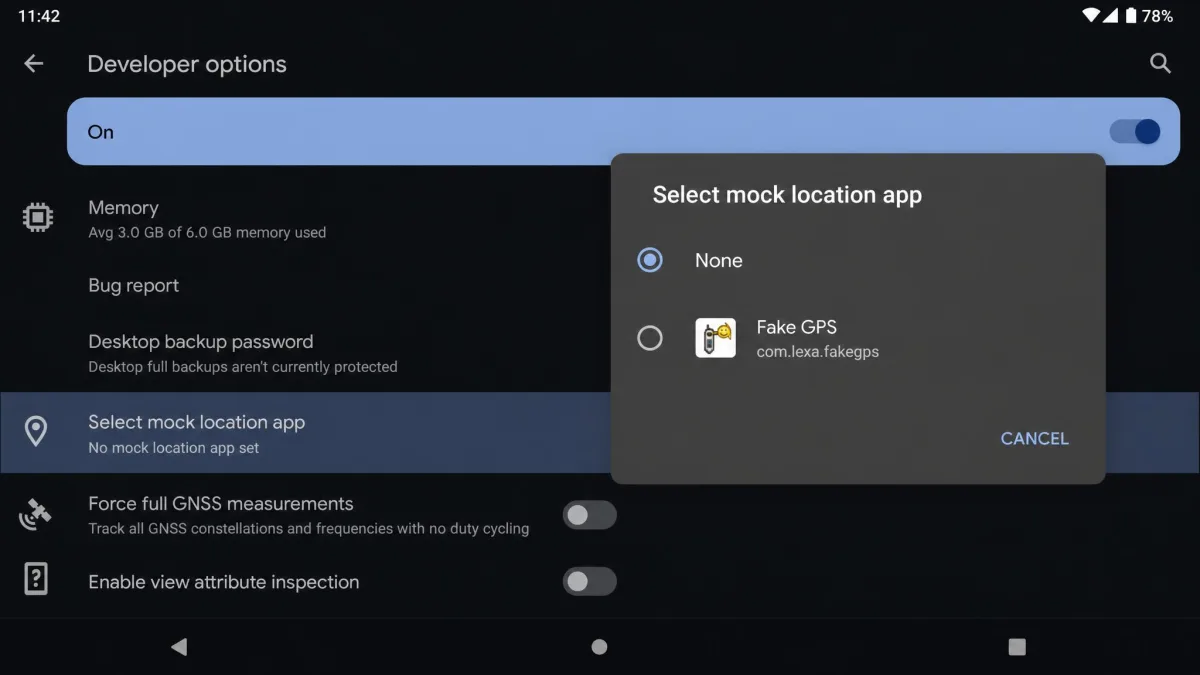
- Open Settings, tap About phone, then tap Build number seven times until the developer message appears.
- Return to Settings. On Android 9 and higher, tap System, tap Advanced, then tap Developer options. On Android 7.1 and lower it is a top-level Settings entry.
- Scroll to Select mock location app.
- Choose your installed fake GPS app.
Step 1 is where most people stall. Samsung Galaxy phones bury Build number one level deeper, under About phone and then Software information, so the seven-tap sequence fails on the first try for anyone following a guide written on a Pixel. Android's documentation on how to set a mock location app describes the same selector.
Step by Step: Set a Fake GPS Location
The best-known option is Fake GPS location by Lexa, which is free to install and needs Android 5.0 or higher. Google Play's community rating sits at about 4.65 out of 5 across roughly 610,000 ratings. Version 2.1.2 is the latest published build, and it has not been updated since 2022, which shows as rough edges on newer Android versions rather than a failure to install.
- Install the app and open it.
- Search for the place you want, or drag the pin to it.
- Tap play to start the mock location.
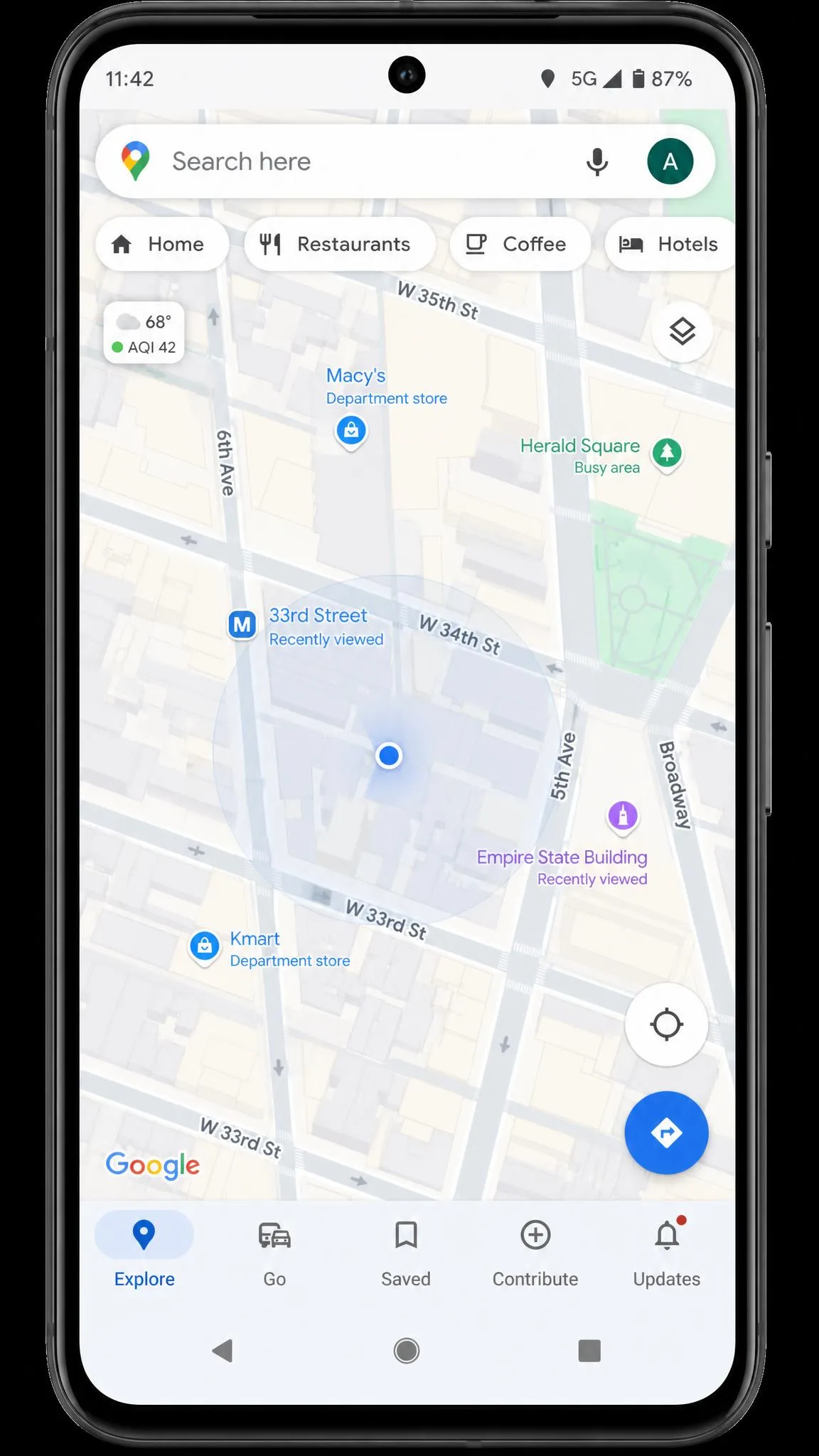
- Open Maps and check the blue dot has moved.
- Tap stop when you are done.
Two things will trip you up. Developer options has to stay on for the whole time the mock app is running, because turning it off silently drops the phone back to its real coordinates. And if the map rubber-bands between the fake pin and your real position, the mock provider is not holding. On rooted devices, coordinates can be mocked without turning on the mock location option, though root brings its own problems.
Be ready for it not to work. The mock location route is inconsistent, and it fails outright on some app and device combinations even when every step is followed exactly.
Method 4: Change Your Google Play Store Country
If an app will not install because it is not offered where you are, the location to change is your Play Store country, not your GPS. Google's guide to how to change your Play Store country sets three requirements: you must be physically in the new country, hold a valid payment method issued there, and not be in a Google Family group.
- Open the Play Store and tap your profile avatar.
- Tap Settings, then General.
- Tap Account and device preferences.
- Tap Country and profiles, then pick the new country.
- Add a payment method from that country and follow the prompts.
The change can take up to 48 hours to show on your profile. Google states you must wait at least 90 days between country changes, including after the country is first set, while several guides still describe the limit as once a year, so the wait can run longer in practice.
A Play country change costs you things. Your existing Google Play balance becomes unusable in the new region, Play Points are forfeited, and some apps, games, books and shows will no longer be available. Existing subscriptions stay tied to the old payment profile. If the country entry is missing from the menu rather than showing an error, a change was made too recently.
More Location Settings Worth Changing
Change Your Home and Work Address in Your Google Account
Your saved home and work addresses are separate from your device location, and they drive a lot of what Google shows you, including commute cards and location-based suggestions. These addresses are private to you and shared across every Google product signed in to that account, so editing them once updates Maps and Search together. On Android, open Settings, tap Google, then your profile, then Manage your Google Account, and go to Personal info, where you will find Home address and Work address. Enter the new address and tap Save. You can also edit them straight from the web at myaccount.google.com/address/home and myaccount.google.com/address/work, and the same two entries show up in Google Maps under the menu item Your places.
Turn Off Wi-Fi and Bluetooth Scanning and Location Accuracy
Improve Location Accuracy lets Android use Wi-Fi, Bluetooth, mobile networks and sensors alongside GPS. Turning it off makes your position less exact, which is the point if privacy is the goal, though navigation gets less reliable too. On Android 12 and higher the option is under Settings, Location, Location Services. On Android 11 and lower it is under Settings, Location, Advanced, with the two scanning switches alongside it.
Risks, Limits, and What Not to Do
Spoofing GPS is not invisible. Android exposes a system flag whenever developer options is supplying coordinates, and any app can read it.
Detection stacks three checks. First is that mock-location flag plus the package signatures of known spoofing apps. Second is movement no human could make, such as a pin crossing a continent between updates. Third is the leak most people miss: your phone keeps reporting the cell tower it is genuinely attached to, so a spoofed pin thousands of miles away contradicts the network side.
Enforcement is real where the app cares. Niantic's transparency reporting puts Pokemon GO enforcement at roughly 30,000 accounts banned per month, though that average swings from wave to wave. Bans apply to the account rather than the device, so reinstalling does nothing, and softer restrictions that suppress rewards usually arrive first.
Everyday apps push back too. Banking, ride-sharing and food-delivery apps often refuse to launch while a mock-location app is active, and the fix is to set the mock provider back to None rather than reinstall. Banking apps may also flag an account for review when your location suddenly jumps countries.
On legality, changing your own device's location is a settings question rather than a legal one, but using it to break a service's terms or to mislead someone else is different. Rules vary by country and by service.
Why People Change Their Location on Android
Most people arrive here for one of four reasons. The first is content, since streaming catalogues, sports coverage and news access differ by region, and location-based services decide what you are offered before you have typed anything. The second is privacy, which means cutting the number of apps holding a precise history of your movements. The third is price, because fares and some subscriptions are quoted differently by market. The fourth is testing a location-based feature.
Knowing which one you want matters, because the method follows from it. Content and pricing are IP problems. Privacy is a settings problem. Games and map-driven apps are GPS problems.
Fix a Wrong or Inaccurate Location
If the pin is simply wrong rather than deliberately faked, rule out a mock location first. Open Developer options, set Select mock location app back to None, then switch Developer options off.
After that, work through the accuracy list.
- Turn Improve Location Accuracy back on.
- Turn Wi-Fi scanning and Bluetooth scanning back on.
- Turn location off and on again in Settings, then reopen the app.
- Step outside, away from a covered car park or a tall building.
- Restart the phone if the blue dot is still stuck.
In Google Maps, the circle around the blue dot is the useful signal, and the smaller that circle is, the more confident Maps is about where you are. Parking garages and tall buildings sitting between your phone and the cell towers push the dot off target, and accuracy degrades indoors, roughly doubling the error radius compared with an open sky. Google's steps to improve location accuracy in Google Maps cover calibration if it persists.
Frequently Asked Questions
Is it legal to change your location on Android?
Can apps tell if I am using a fake GPS location?
Does a VPN change my GPS location?
How do I change my location back to normal?
Do I need to root my phone to spoof location?
The Bottom Line
Pick the method that matches the layer you need to change. For privacy, stay in Settings and tighten your app permissions, because that is the only method here with no downside. For streaming and websites, use a VPN and pay for the tier that lets you choose the country. For maps and games, a mock location app is the only thing that moves the pin, and it is also the only method that can get an account banned.
Whatever you change, note it down so you can undo it. A wrong location is much harder to diagnose a month later, when you have forgotten that Developer options is still on.