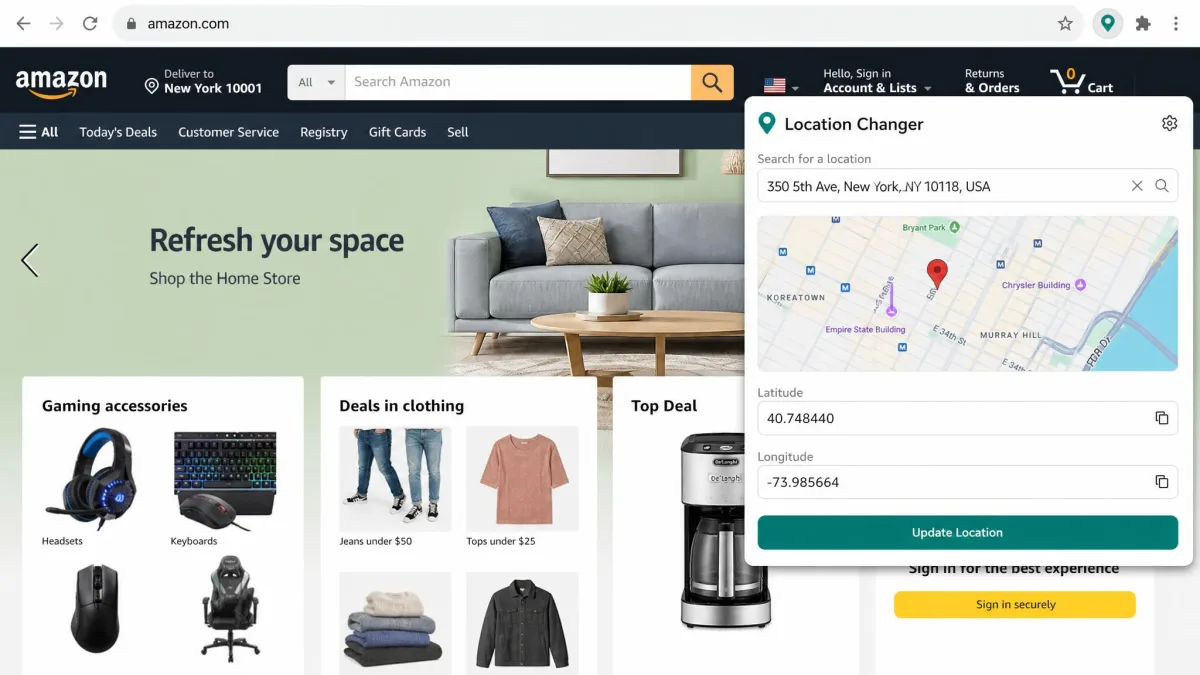
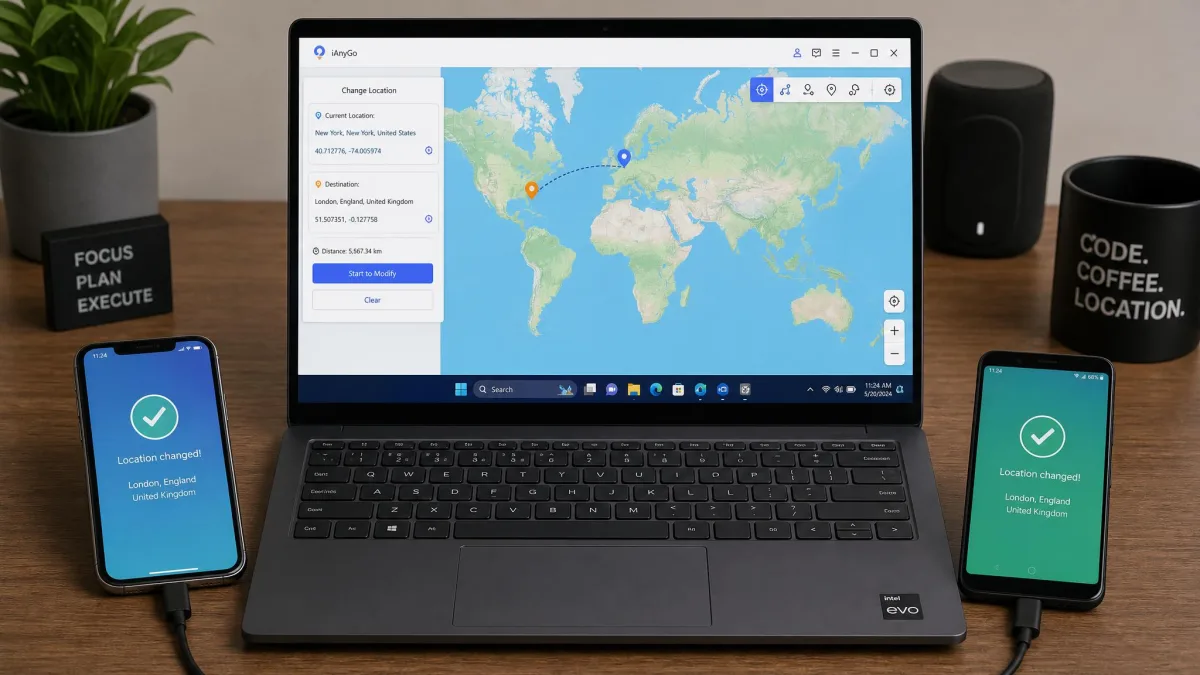
A location changer for PC is a Windows program that tells your phone, or your browser, that you are somewhere you are not. Most run on the desktop and connect to an iPhone or Android handset over USB. You drop a pin on a map, and your reported GPS location changes in one click. This guide covers seven tools, from full route simulators to a free browser extension that only changes what websites see. We ran each of them on Windows with real phones attached, and we paid attention to the parts vendors leave out.
Every tool here was installed on a Windows machine and driven with a phone tethered over USB, because that is the only way these desktop apps work.
How We Picked and Tested These Tools
We started with the location changers that ship a real Windows build. Anything needing a jailbroken iPhone or a rooted Android phone was dropped. Installation was quick on all of them. Enabling Developer Mode on the handset is where most people stall, especially on newer OS releases. We scored setup on how clearly each app walked us through it.
After that we judged how fast a teleport lands, whether route simulation looks plausible, what the free trial unlocks, and how the app copes when something goes wrong. That last point matters most. App updates can break spoofing outright, with the desktop tool throwing errors or silently failing to move the location after a version bump.
The 7 Best Location Changers for PC
1. iMyFone AnyTo: Best Overall Location Changer for PC
iMyFone AnyTo
AnyTo is the tool we kept going back to. A teleport is one map click plus a confirm button, and Multi-Spot mode accepts up to 100 waypoints, so you can trace a believable path across a city. The one thing that repeatedly cost us a session was the cable, since cheap USB leads are a common cause of the app losing the phone mid-run.
Pros
- $30 lifetime licence with a 30-day money-back guarantee
- Teleport, Two-Spot, Multi-Spot and joystick control
- Supports iOS 7.0 and later plus Android 5.0 and later
Cons
- No cooldown timer advertised
- The VIP tier binds only 5 devices
Best for: Anyone who wants one reliable tool for both an iPhone and an Android phone. Skip if: You need a built-in cooldown timer for Pokemon GO.
The shape of a session is what sold us on it. We opened the desktop app with an iPhone tethered, waited out the map load, then clicked a street corner in Tokyo and pressed the confirm button, and the handset's own Maps app showed the new position without any further prompting. Nothing else in the interface had to be touched, and every subsequent jump was the same two actions. The failure we hit twice was not the software at all, because a cheap USB lead let go partway through a run and the app simply lost the phone, which is the single most common cause of a session dying on these tools. A saved location history means picking that Tokyo corner up again afterwards is one click rather than another search.
The monthly plan sits at roughly $9.95. AnyTo's price moves with rotating promotional offers, so the checkout figure can differ. Two-Spot mode is the middle ground between a straight teleport and a full multi-stop route, and it is the mode we used most for a simple there-and-back path.
2. iToolab AnyGo: Best for AR Games and Route Simulation
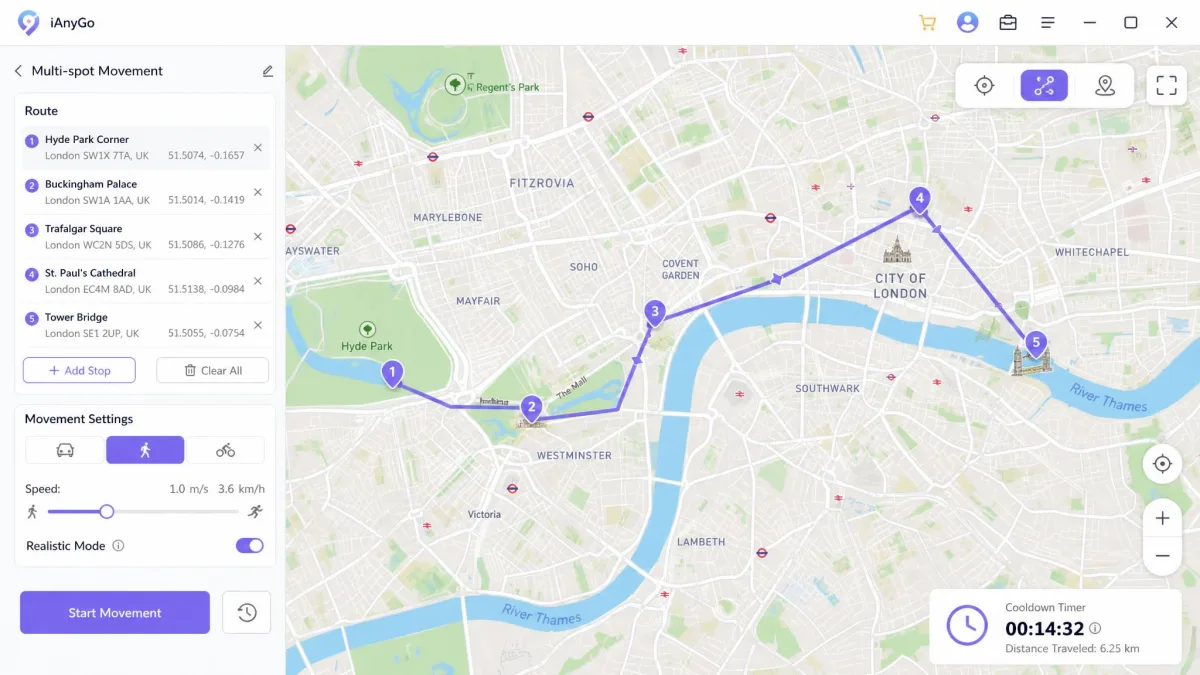
Where AnyTo optimises for a quick teleport, AnyGo optimises for movement. Speeds are adjustable from 3 to 100 km/h, and a cooldown timer is built in.
iToolab AnyGo
AnyGo spoofs up to 15 devices at once, which is why it turns up in group play. Set the speed carefully, because a route set to a car speed can still animate as a walk at an absurd pace, which looks artificial to a game's anti-cheat. Reliability is the weak spot, since iToolab holds a 4.2 out of 5 Trustpilot score and feedback splits between spoofing that works perfectly and locations that never move.
Pros
- One-click teleport, GPX import and multi-stop routes
- Built-in cooldown timer for location-based games
- Supports up to Android 16 and up to iOS 26
Cons
- Pricing differs between iToolab's own pages and its listings
- Support replies and refunds can need chasing
Best for: AR games that need route simulation and a cooldown clock. Skip if: You want a predictable price at checkout.
The speed slider is where we learned to slow down. We laid a multi-stop route across a few kilometres of city, set the speed up towards driving pace, and watched the avatar cover the ground with a walking animation moving at a rate no person could produce. To anything watching for anti-cheat signals, that is the tell, so we dropped back to a genuine walking speed and let the route take the time it should. The wider reliability picture matches that unevenness, because iToolab's Trustpilot record averages 4.2 out of 5 across 44 pages and the recent entries split cleanly between people whose spoofing works perfectly and people whose location never moves at all.
The lifetime price swings with near-permanent discounts. Checkout rarely matches the advertised figure. There is more in our iToolab AnyGo review.
3. Syncios Location Changer: Best for Controlling Several Phones
Syncios takes the multi-device idea further than AnyGo, and costs less to get into.

Syncios Location Changer
It controls up to 10 devices at once and is advertised as working with more than 40 location-aware apps, including Pokemon GO, Instagram, Snapchat, Tinder and Bumble. You get a 360-degree joystick, GPX import and export, a cooldown timer and saved favourite locations. The usual rule applies, since spoofing holds better while the real device stays still and walking around can knock the fake position loose.
Pros
- $24.95 flat, down from a $29.95 list price
- Controls up to 10 devices at once
- Supports up to iOS 26 and Android 16
Cons
- Refund terms are not stated on the product page
- Needs a wired connection for every session
Best for: Families or groups changing the GPS location on several phones. Skip if: You want a documented refund window in writing.
A Syncios teleport is a four-step sequence rather than an instant action. You connect over USB, tap Trust on the iPhone, pick Teleport Mode, click your point on the map, then press Start Modifying, and the new position appears on the handset once that last button is pressed. The original Apple cable and that Trust confirmation are both non-negotiable, so a third-party lead or a dismissed prompt stops the session before the map does anything at all. The joystick can be steered by dragging its outer ring or with the W, A, S and D keys, and keyboard steering gives finer control on a walking-speed route. The 360-degree control is built for continuous directional movement rather than stepped hops, though how natural the motion reads still depends on the app watching it. One habit worth keeping is patience between jumps, because switching locations repeatedly in a single sitting raises detection risk more than the distance of any one teleport does.
4. Dr.Fone Virtual Location: Best for iPhone Users on a Windows PC
Dr.Fone carries the biggest caveat of the seven. Wondershare stopped updating Virtual Location at the end of August 2024. Existing paid users keep the current build until their subscription ends.

Dr.Fone Virtual Location
If you already hold a licence, the app still does the job, with teleport, multi-stop routes, a joystick, GPX support and speed control, all without a jailbreak. Desktop crashes and patchy updates are recurring complaints on the Windows build. We also hit the classic silent failure, where a location change does nothing because Find My is still switched on in the background.
Pros
- Cheapest entry price at $4.97 per month
- Full route, joystick and GPX toolkit
- Covers one PC plus 1 to 5 mobile devices
Cons
- No longer updated as of August 2024
- Only up to a 7-day money-back guarantee
Best for: Existing customers using a licence they already paid for. Skip if: You are buying a location changer new in 2026.
The silent failure is the one that wasted our morning. We set a pin, pressed the button, watched the desktop map redraw itself around the new coordinates, and then found the iPhone still reporting the address it had been sitting at all along, with no error anywhere on screen. The cause was Find My, still running in the background and quietly overriding the spoof, and turning it off made the same teleport land immediately. The other pattern shows up over a longer stretch, because the Windows build crashes to desktop often enough to be a recurring complaint rather than an accident, and an unmaintained product is not going to get that fixed.
See our Dr.Fone review for the wider toolkit, and check Apple's location services documentation before switching iPhone services off.
5. FonesGo Location Changer: Best for Android Without Root
FonesGo is the closest thing here to AnyGo at a lower monthly rate, and it runs on Windows 11, 10, 8 and 7.

FonesGo Location Changer
The Android path is the appeal. You get teleport, 2-spot movement, multi-spot routes, a joystick and speeds up to 100 km/h with no root, which keeps your warranty and your banking apps intact. Setup is the usual sequence, so open Developer options, turn on USB debugging, then confirm the pairing prompt. That prompt is where sessions stall most often, so check how Android determines your location before blaming the app.
Pros
- $9.95 per month, down from $19.95
- Handles up to 15 devices at once
- Free trial download, no root needed
Cons
- No money-back guarantee period is stated
- The zero-ban-risk marketing claim does not hold up
Best for: Android users who want route simulation without touching root. Skip if: You prefer to pay once and own the licence.
FonesGo holds a stable connection through extended sessions, with no crashes and no GPS drift on the connected handset. Multi-Spot mode strings your pinned points into a single sequential route and shows the total distance before the run starts, so an over-long route is visible before you commit to it. The connection side is where the friction lives. On Android the app will not see the phone at all until Developer Options is unlocked by tapping Build number seven times and USB debugging is allowed on the handset prompt, and when a phone goes undetected the usual cause is the USB mode sitting on Charging Only. Switching it to File Transfer from the notification shade restores the connection. FonesGo also throws the occasional bug and does not behave identically on every handset model, and its public feedback is thinner than the bigger brands, so its long-run behaviour is less documented than most.
6. Location Changer for Chrome: Best Browser Extension for Website Geolocation
This one solves a different problem. A browser extension only rewrites what websites read from the geolocation API. Mobile apps and your machine's IP address are untouched by it.
Location Changer Chrome Extension
For testing a store locator, checking regional pricing, or seeing what a site shows visitors elsewhere, this is the quickest route and it costs nothing. You pick a spot on the map, search an address, or type exact coordinates, and everything is processed locally. The listing is a 229 KiB download, updated 27 July 2026, with 788 users and a 5.0 out of 5 rating from 3 ratings on the Chrome Web Store.
Pros
- Free, with no account required
- Tiny install and local-only processing
- Saved favourites and randomisation within a radius
Cons
- Does not change device GPS or your IP address
- A very small ratings sample sits behind that score
Best for: Changing what websites see without installing desktop software. Skip if: You need to spoof a phone app such as Pokemon GO or Tinder.
We checked its boundary with a retailer's store locator, which is the job it is actually built for. With coordinates set to a city several hundred miles from the machine, the page asked for location permission, read the extension's answer, and listed the branches around the fake position instead of the real one. Then we opened the same retailer's mobile app on a phone sitting next to the laptop, and it showed the real neighbourhood, because the extension rewrites the browser geolocation API and nothing else. The machine's IP address is untouched too, so any site that geolocates by network rather than by sensor is unaffected.
Read the Chrome Web Store limited-use policy before installing any geolocation extension. It governs what a developer may do with the data it can access.
7. BlueStacks: Best Emulator-Based Option
BlueStacks reverses the arrangement, since you run the Android app on the PC itself instead of connecting a phone.

BlueStacks
There is no phone, no cable and no Developer Mode step, which removes the three things that break most desktop location changers. You install BlueStacks, add an Android spoofing app such as Location Changer - Fake GPS, and set your position there. Requirements are modest, at a minimum 4GB of RAM with 8GB recommended, 5GB of free disk space, and Windows 7 and above with administrator rights.
Pros
- Free to download and run
- No tethering or USB cable involved
- Keyboard mapping and a full-size display
Cons
- Emulators are easier for games to detect
- Android apps only, not your browser or an iPhone
Best for: Playing an Android location-based game on a big screen. Skip if: Your account matters and detection risk is unacceptable.
Setting this one up was the calmest hour of our testing, and the reason is what is missing from it. On the tethered tools we had already lost time to Developer Mode, which is the step where most people stall on a newer OS release, and to a USB cable that dropped the phone mid-session. Here there was no handset to unlock, no lead to check and no debugging prompt to approve, so installing the emulator and adding an Android spoofing app inside it was the whole job. What you trade for that is exposure, because an emulator is a far easier thing for a game to spot than a real phone reporting a false position.
Location Changer Comparison: Features, Platforms and Price
| Tool | Buy | Best for | Platforms supported | Route simulation | Joystick | Free tier | Price |
|---|---|---|---|---|---|---|---|
|
Check price → | Overall pick | iOS 7.0+ / Android 5.0+ | Yes, 100 waypoints | Yes | Limited trial | $30lifetime |
|
Check price | AR games and routes | Up to iOS 26 / Android 16 | Yes | Yes, 3 to 100 km/h | Trial | About $59.99lifetime |
|
Check price | Multi-device control | Up to iOS 26 / Android 16 | Yes | Yes, 360-degree | Free trial | $24.95 |
|
Check price | Legacy iPhone users | iOS and Android | Yes | Yes | Trial | $4.97monthly |
|
Check price | Android without root | iOS and Android | Yes, 2-spot and multi-spot | Yes | Free trial | $9.95monthly |
 |
Check price | Website geolocation | Browser only | No | No | Free | Free |
|
Check price | Emulator route | Android apps on Windows | Via installed app | Via installed app | Free | Free |
What a Location Changer for PC Actually Does
Understanding the boundary saves money, because these tools change less than the marketing suggests.
GPS Spoofing vs. IP-Based Location Change
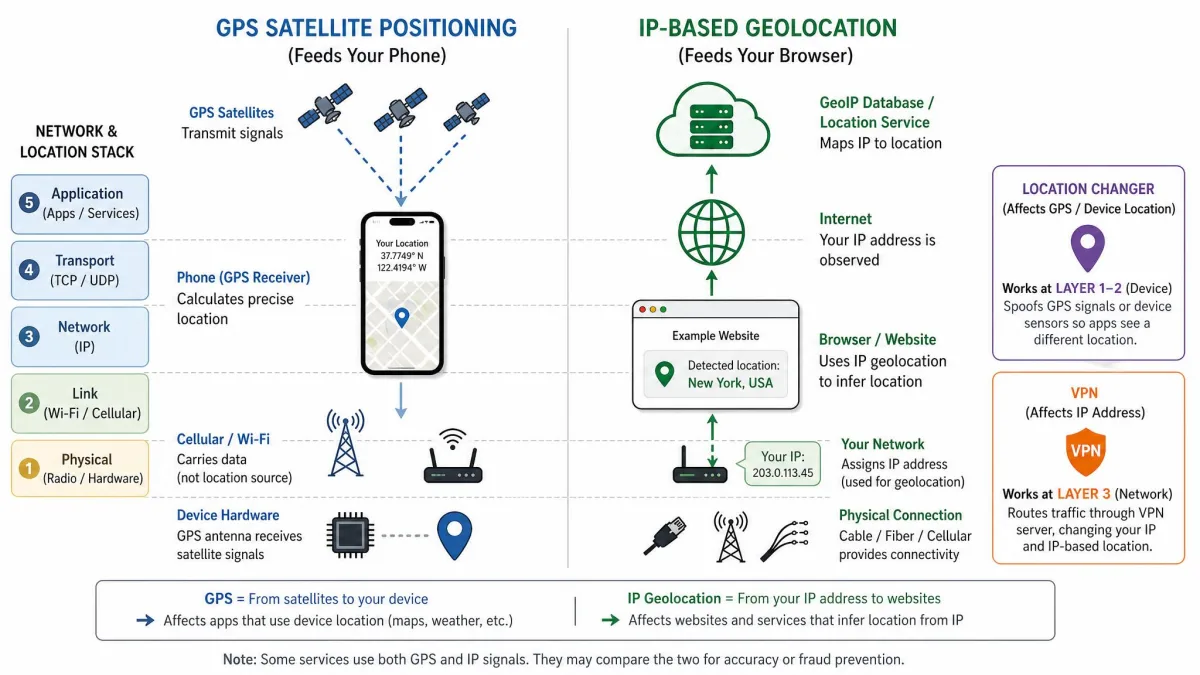
GPS spoofing feeds a false satellite position to a device. That is what the desktop apps above do to a tethered phone. A VPN changes only the IP address your traffic appears to come from. Neither covers the other. An app reading GPS ignores your VPN, and a website that geolocates by IP ignores your spoofed GPS location.
Google Maps, most dating apps and most AR games read GPS first and treat the network position as a cross-check. That is why a location changer and a VPN are often used together rather than as alternatives.
What You Can and Cannot Fake on Windows
You can change the GPS location a connected phone reports, and you can change what websites read from your browser. You cannot change your PC's own IP address with any of these tools. Every desktop tool here also needs the phone tethered to the PC. The computer stays part of the setup for as long as the fake location is live.
How to Change Your Location on a Windows PC, Step by Step
The sequence is the same across every desktop tool here, and following it in order prevents most failures.
Step 1: Install the Location Changer and Connect Your Device
Download the installer from the developer's own site and run it with administrator rights. Connect your phone with a good USB cable and unlock the screen. Tap Trust on an iPhone, or confirm the pairing prompt on Android, where USB debugging has to be on first.
Step 2: Pick Your Destination on the Map
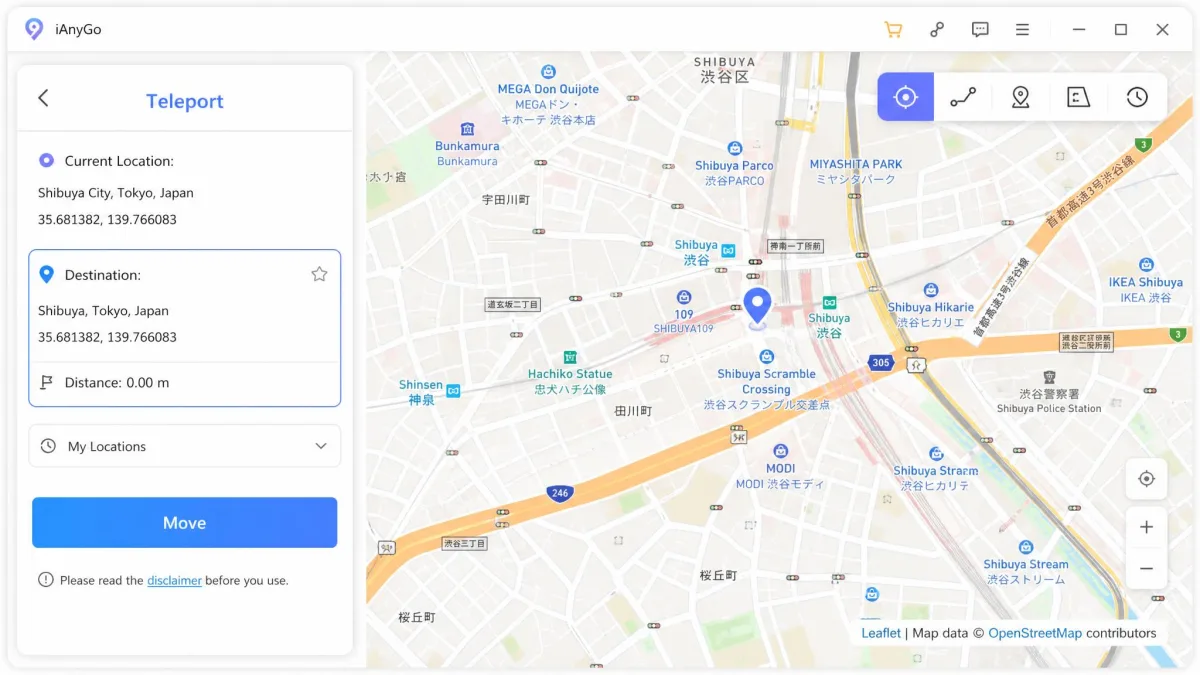
Switch the app to teleport mode, then search for a city or paste exact coordinates. Click the spot on the map and confirm. The new GPS location applies to the phone within a few seconds.
Close any location-based game completely before you change position, then reopen it only after the new location has landed. That single habit is what separates a clean teleport from a failed one.
Step 3: Simulate Movement Along a Route
For movement rather than a jump, switch to two-spot or multi-spot mode and place your waypoints. Set a speed that matches the story you are telling. Two things go wrong here. The map panel sometimes drops a pin in the wrong place, and an implausible speed looks artificial to anti-cheat systems.
Step 4: Reset Your Real Location When You Are Done
Stop the simulation, close the app, and restart the phone. A reboot clears the spoofed position and hands control back to the real GPS radio. A quick look at a maps app confirms it.
Free vs. Paid Location Changers: What You Give Up
The free options are real but narrow. A browser extension is free forever and useful for websites, and BlueStacks costs nothing if you are happy inside an emulator.
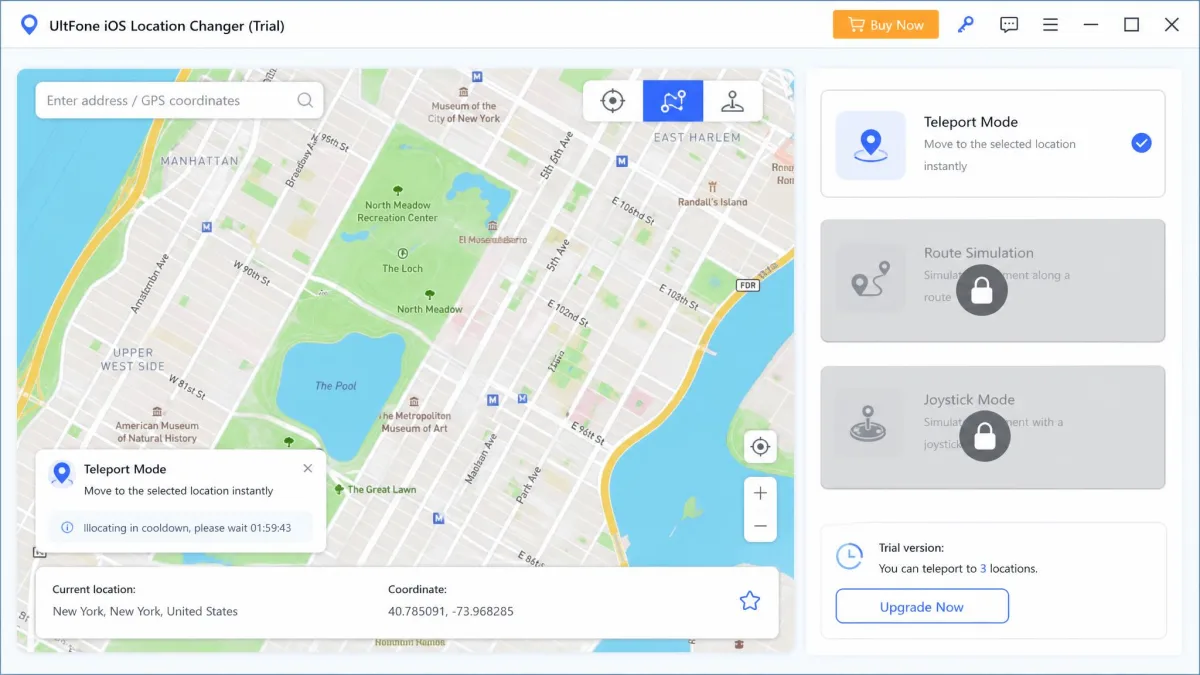
Free trials of the paid apps are a different thing. They unlock the map and the teleport preview, then gate the route, joystick and cooldown features behind the licence. A trial mostly tells you whether the app connects to your phone.
A one-time licence beats a subscription quickly if you only spoof occasionally. The two one-time purchases in the table above both cost less than four months of any monthly plan here.
Is Changing Your Location on PC Safe and Legal?
Changing your own device's reported location is legal in most places, and the software itself is ordinary consumer software. The risk is contractual rather than criminal. Nearly every app you would want to fool prohibits spoofing in its terms.
Spoofing GPS breaks the terms of service of Pokemon GO, Tinder, Snapchat and most other location-aware apps. Accounts get soft-banned, restricted or removed, and no vendor can promise otherwise. Treat any zero-ban-risk marketing claim as marketing.
Account Bans, Cooldown Timers and Detection
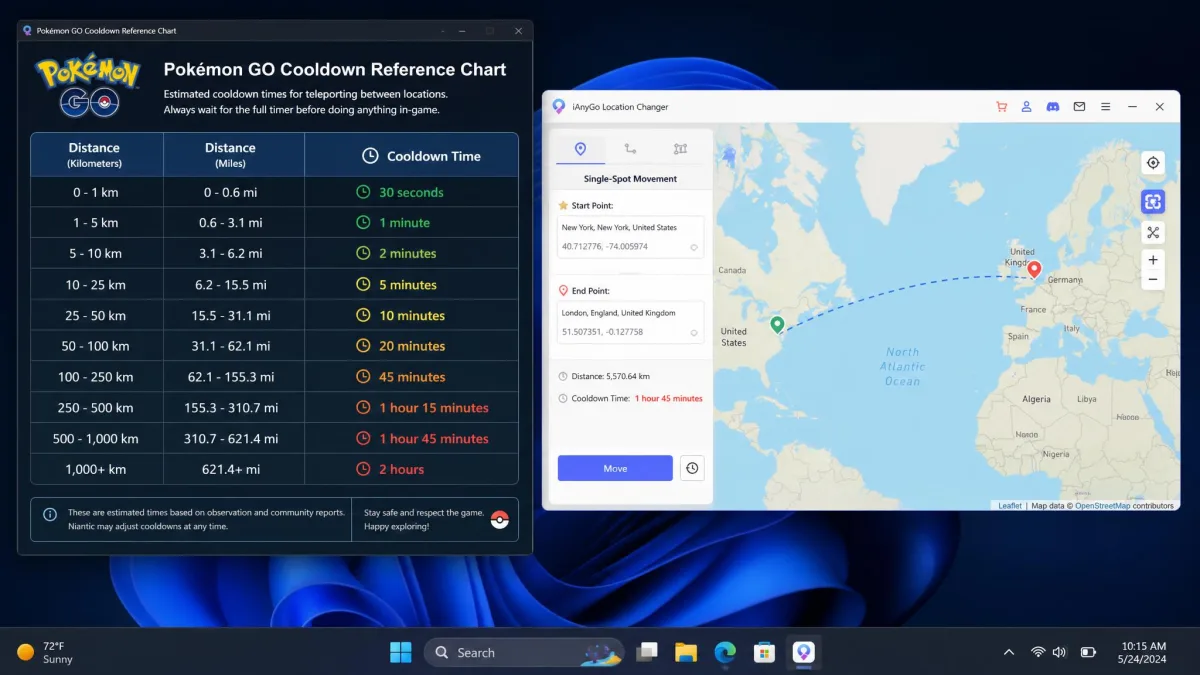
In Pokemon GO, catching, gym battles and feeding berries start the cooldown clock, while teleporting alone, hatching eggs and trading do not. Community charts scale the wait from about 30 seconds for a 1 km jump up to a 2 hour maximum beyond roughly 1,500 km. Those tiers are not published by Niantic. Ignore the timer and you get a soft ban, which makes Pokemon flee and blocks PokeStop spins for up to 12 hours. Error 12 is the other signal, and the most common failure people hit with these tools.
Privacy and Data Handling
A desktop location changer sees your device identifiers and your movement history. The developer behind it matters. Local-only processing, as the Chrome extension advertises, is safest because nothing leaves your machine. For paid apps, check the privacy policy. The FTC guidance on location data is a useful baseline.
How to Choose the Right Location Changer for You
Start with what you need to move, because that decision rules out most of the list on its own. If the target is a phone app, you need a desktop tool and a cable, and you should assume the PC stays in the loop for the whole session. If the target is only a website, the browser extension does the job with nothing installed on the machine and nothing plugged into it.
Then ask how often you will use it. Occasional, one-off spoofing is a case for a one-time licence, since it stops costing you anything after the purchase. Recurring use, especially for AR games where you want route simulation and a cooldown clock running, justifies paying monthly for the tool that has those features rather than the cheapest one that does not.
Buy on licence terms as much as on features, and read the refund column in the comparison table before the feature columns. A documented money-back window is the only protection you have if a tool cannot see your handset at all, and two of these vendors do not publish one. Check the device cap in the same pass, because a household spoofing three phones and a spare tablet runs into that ceiling long before it runs out of features.
The tools that fail are rarely the ones missing a feature. They are the ones that lose the phone mid-session, or that stop being updated while still being sold.