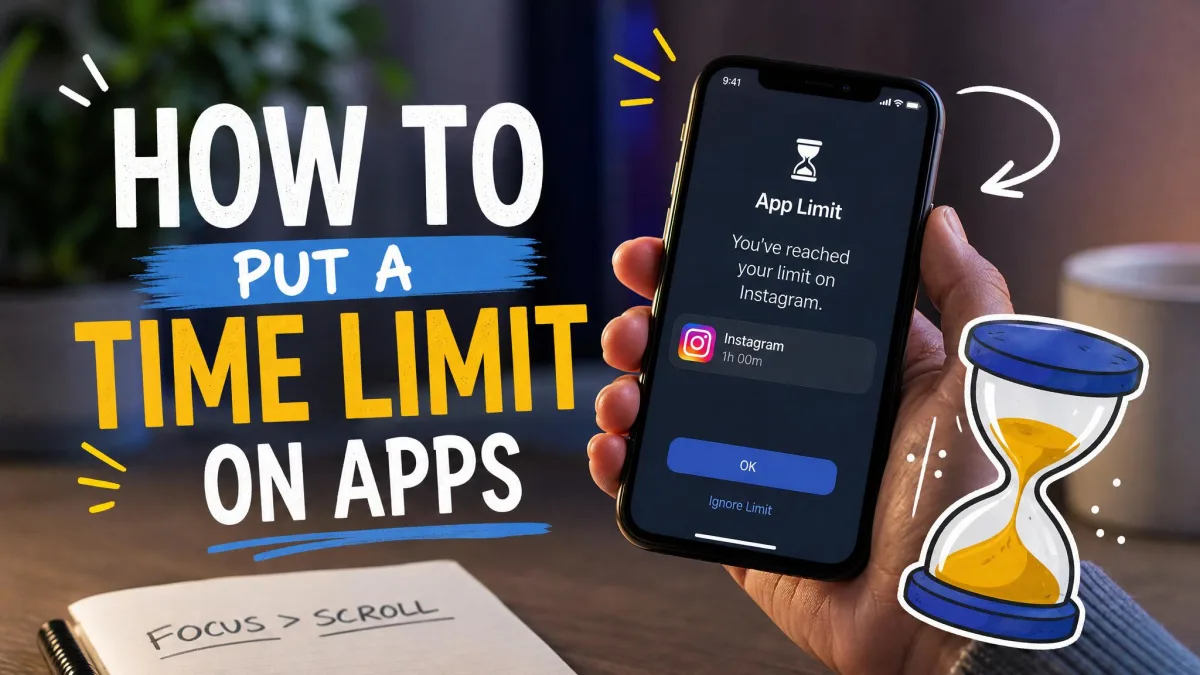
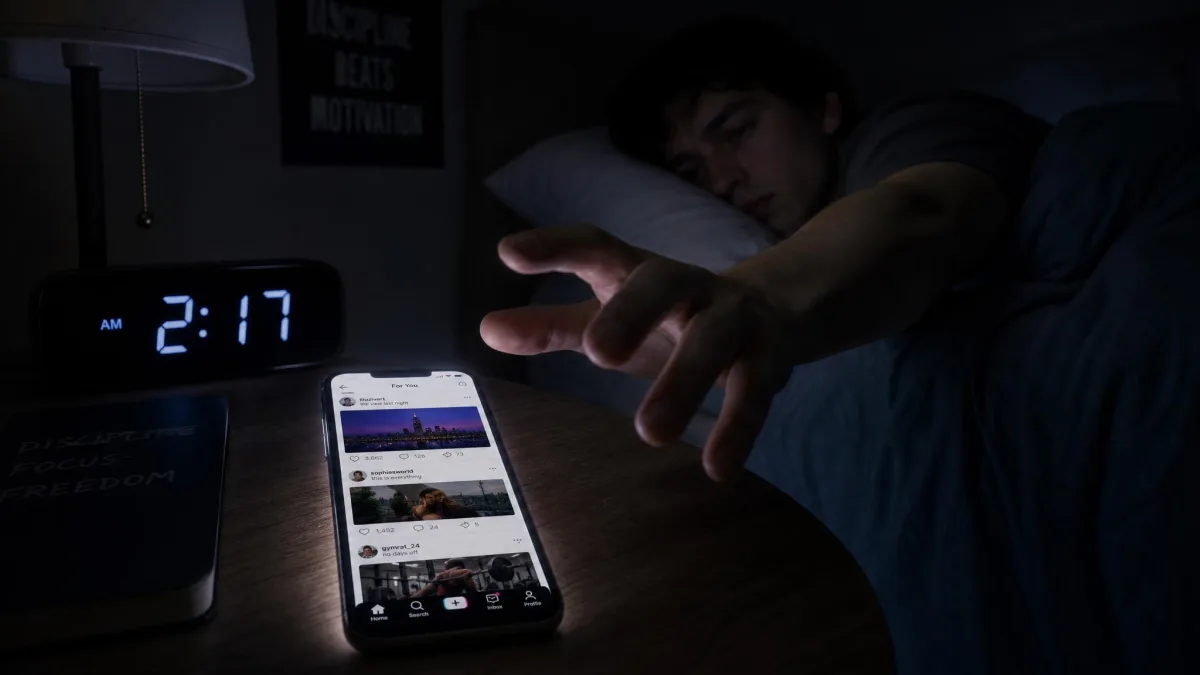
You've tapped Ignore Limit on Screen Time every day this week, and the app you meant to cut back on still wins. That's not a willpower failure. Apple's built-in limiter is a soft one, and soft limiters lose against a habit.
We tested seven app blockers on a real iPhone in 2026 to find which ones add real friction instead of a speed bump you can wave past. We set up schedules, blocked our most-used apps, and tried to talk our way past every lockout we hit.
We ran all seven on the same phone, a recent iPhone running iOS 17 or later, for at least a week each. ScreenZen stayed installed for a full month. Every blocker faced the same blocked set, Instagram, TikTok, and YouTube, on schedules a typical user would set. Bypass attempts followed a predictable playbook. We toggled the Screen Time permission in Settings, deleted and reinstalled the app, and changed the system clock.
The good news is that real blockers do work. One app held against everything we threw at it, one is genuinely free, and one relies on a physical puck you can feel. Here's who each pick suits, what it costs, and how easy it is to cheat.
Why You Need an App Blocker for iPhone in 2026
Social apps are built to keep you inside them, and your attention is the fuel they consume. Psychologists describe attention as a finite cognitive resource, which means every interruption you recover from costs real energy.
A blocker is not a substitute for willpower. It is a tool that puts a speed bump between the impulse and the action. When a pause sits between you and Instagram, you get a moment to ask whether you actually wanted to open it. That moment is the whole trick.
Different habits need different kinds of friction. If you doomscroll until midnight, a scheduled hard block helps. If you reach for your phone on autopilot, a gentle nudge before an app opens may be enough. If you keep talking your way past everything, you may need a passcode held by someone else or a physical barrier.
Quick Comparison: Best App Blockers for iPhone at a Glance
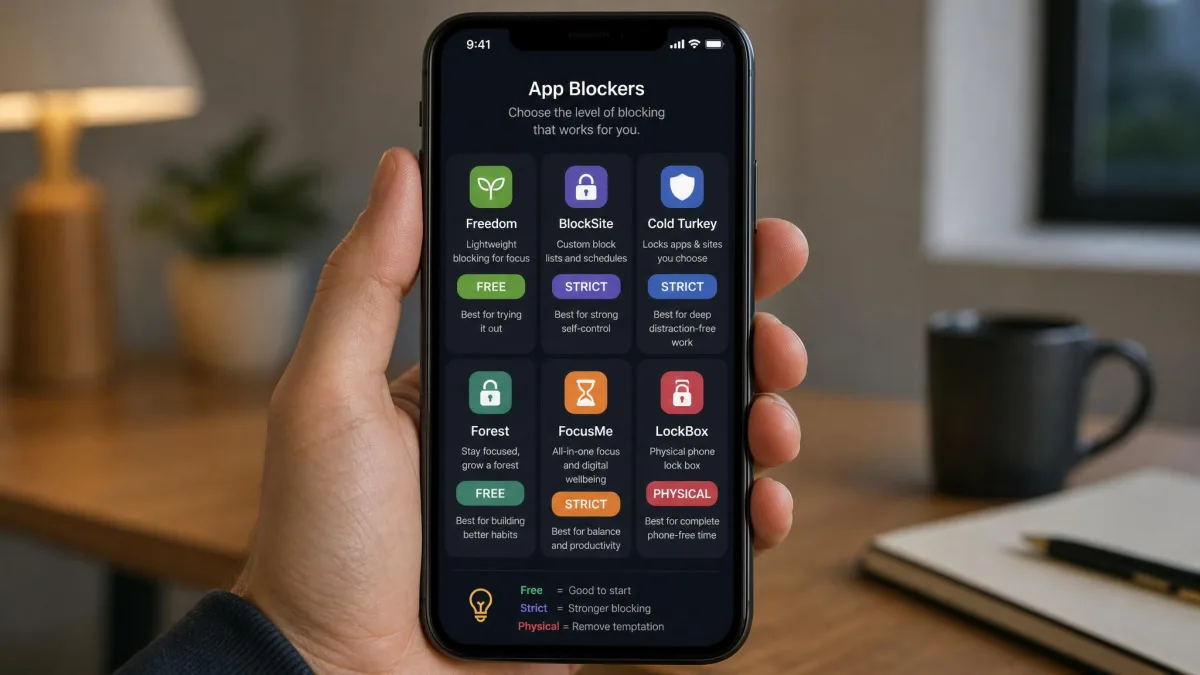
Here is the full field at a glance, including price and how hard each one is to bypass.
| Product | Buy | Price | Blocking method | Bypass difficulty | Best for |
|---|---|---|---|---|---|
 |
Check price → | Free tier, Pro $99.99/yr | Screen Time API + scheduled sessions | High | Scheduled focus sessions |
 |
Check price | Free (1 app), Pro $19.99/yr | Friction pause before open | Low | Gentle friction |
 |
Check price | $0 (donation-supported) | Delay screen + capped opens | Low-Med | |
 |
Check price | Free tier, Premium $39.99/yr | Screen Time + VPN sessions | Med | Cross-platform blocking |
 |
Check price | Free tier, Premium $29.99/yr | Hard schedules + Strict Mode | High | Strict scheduled lockouts |
 |
Check price | $0 (built-in) | App Limits + Downtime | Low | Families & parental controls |
 |
Check price | $59 one-time | Physical NFC tap | Very high | Physical-friction blocking |
What Makes a Real App Blocker (and What Gets Bypassed)
A real app blocker adds friction at the moment you reach for the app. A soft one asks a question you can answer with one tap. Screen Time is the classic soft limiter. When you set a limit for yourself, you are both the rulemaker and the person breaking it, so the rule tends to lose.
Blockers that actually work fall into three groups. The first is friction-first. One Sec and ScreenZen force a pause before an app opens: a breathing screen, a countdown, or a short task. They do not stop you; they slow you down, and for many people that is enough. The catch is that people adapt. Research on soft interventions found that habitual users learn to wait out the delay within two to three weeks, so the friction needs to keep evolving.
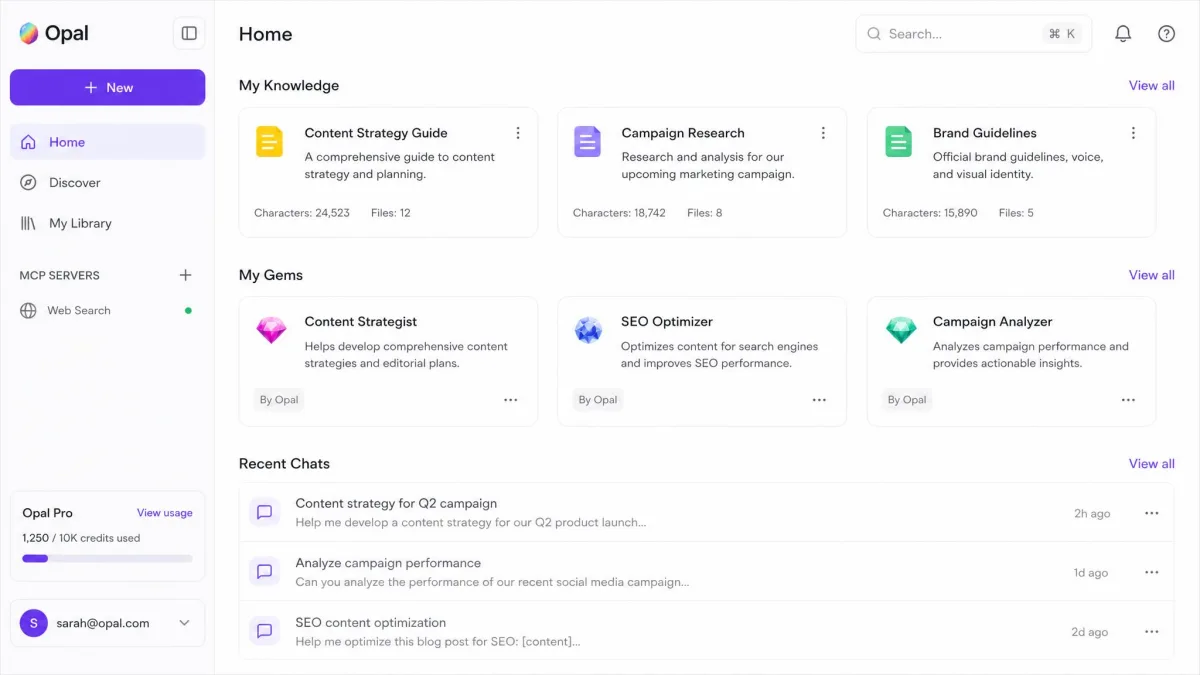
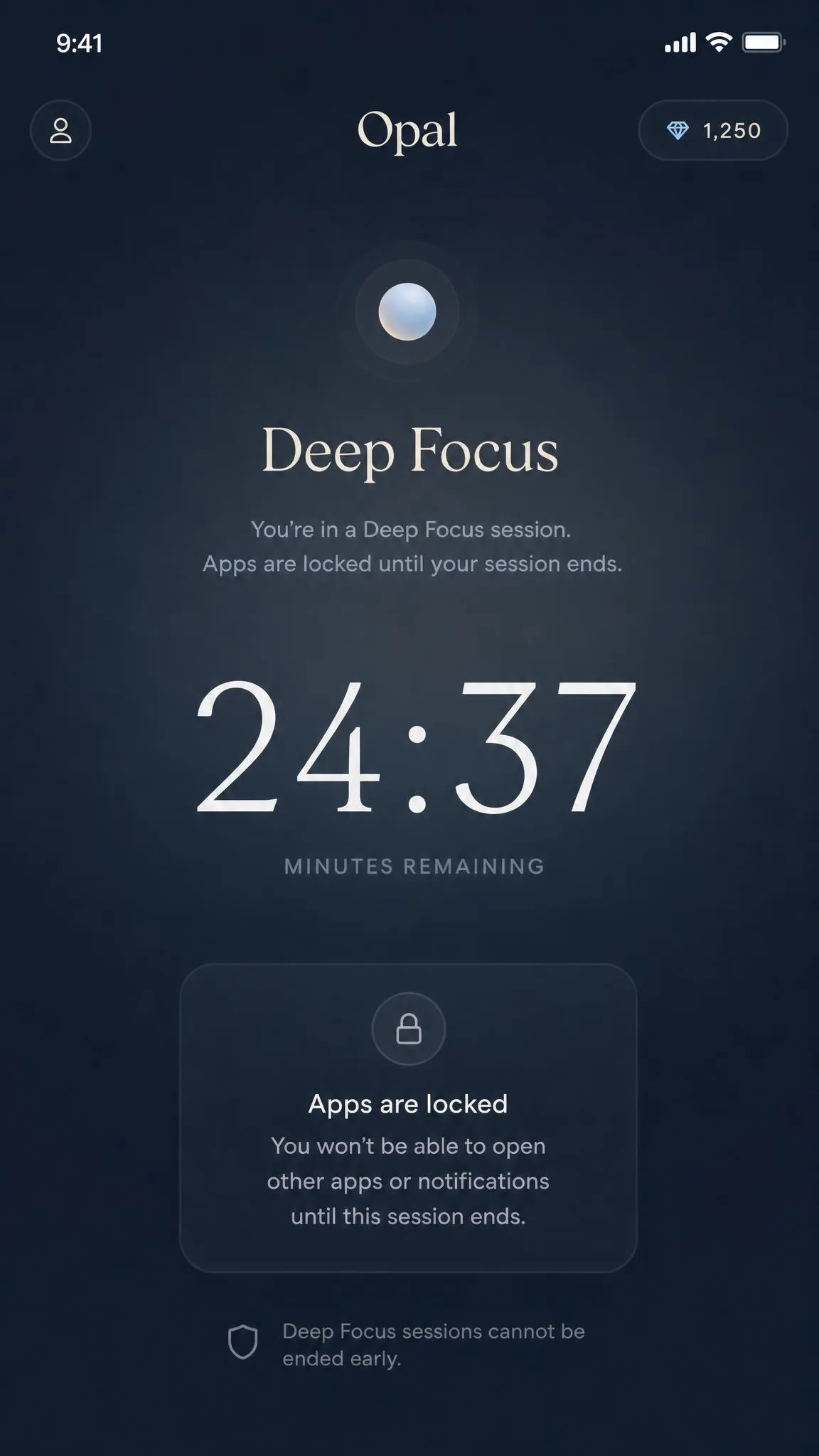
The second group enforces through Apple's Screen Time API. Opal, Freedom, and AppBlock all request permission in iOS Settings and then deliver hard blocks. When the block is strict, you cannot tap through it. Opal's Deep Focus sessions will not end early, and AppBlock's Strict Mode demands a cooldown and a PIN or a plugged-in charger.
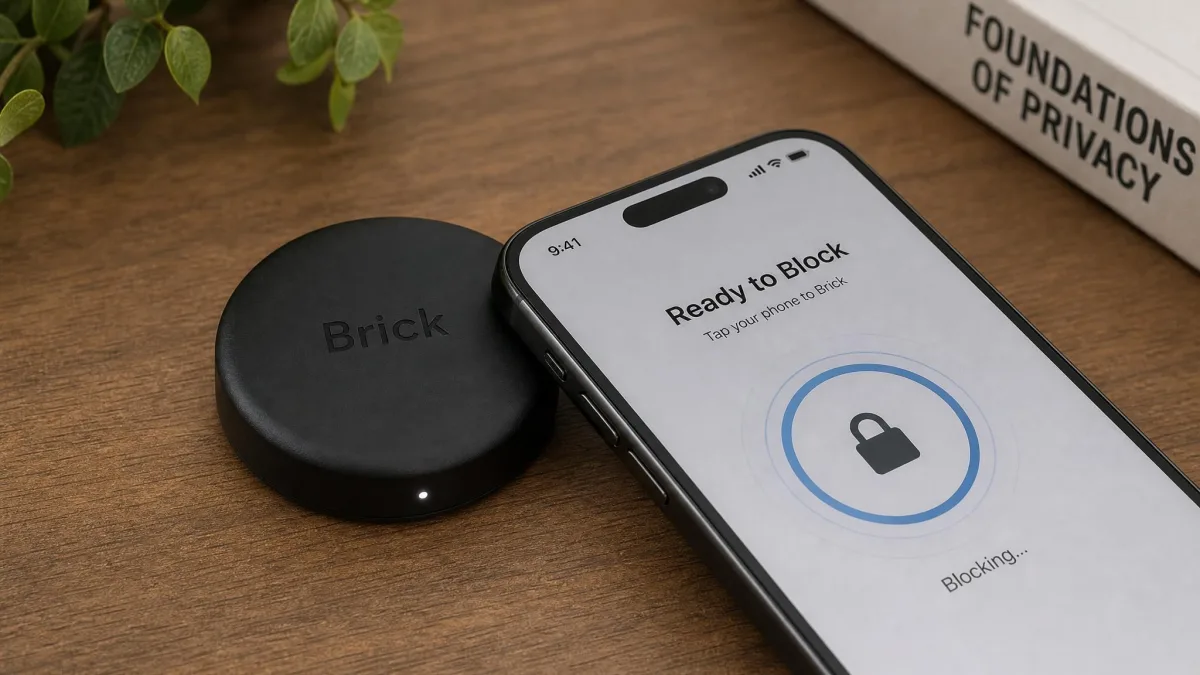
The third group leaves the phone behind. Brick is a physical NFC puck you tap against your iPhone to start a block. It is the hardest thing on this list to argue with, because the same puck is required to end it.
Bypass difficulty is the question that decides everything. We ranked every app below on how long it holds when you genuinely want in.
The 7 Best App Blockers for iPhone in 2026
Here are the seven apps we compared, ranked by how well each one holds a real block.
1. Opal — Best for Scheduled Focus Sessions
Opal
We set a Deep Focus session on our most-used social app and then tried to end it early. The app simply stayed locked until the timer ran out, and that kind of strictness is rare. Getting Opal working means granting access through Apple's Screen Time API in Settings. The vendor's help docs walk through the whole thing.
The trade-offs show up over time. Opal's Screen Time connection can drift, leaving apps blocked outside a set rule. The standard fix resets the connection and wipes your focus history. Support can also be slow when something breaks, which matters when the tool is this strict. It still holds a 4.7 out of 5 on the US App Store from roughly 86,000 ratings. The issues are the exception rather than the rule.
Pros
- Scheduled and Deep Focus sessions genuinely hold
- Free tier blocks one app forever
- Detailed focus reports, streaks, and schedules
Cons
- Pro is expensive at $99.99 a year
- Screen Time connection can drift, and resetting wipes history
- Support responses can be slow
Best for: Scheduled focus sessions and anyone who wants a block they can't tap out of. Skip if: You want a free set-and-forget option; ScreenZen covers that.
2. One Sec — Best for Gentle Friction
One Sec
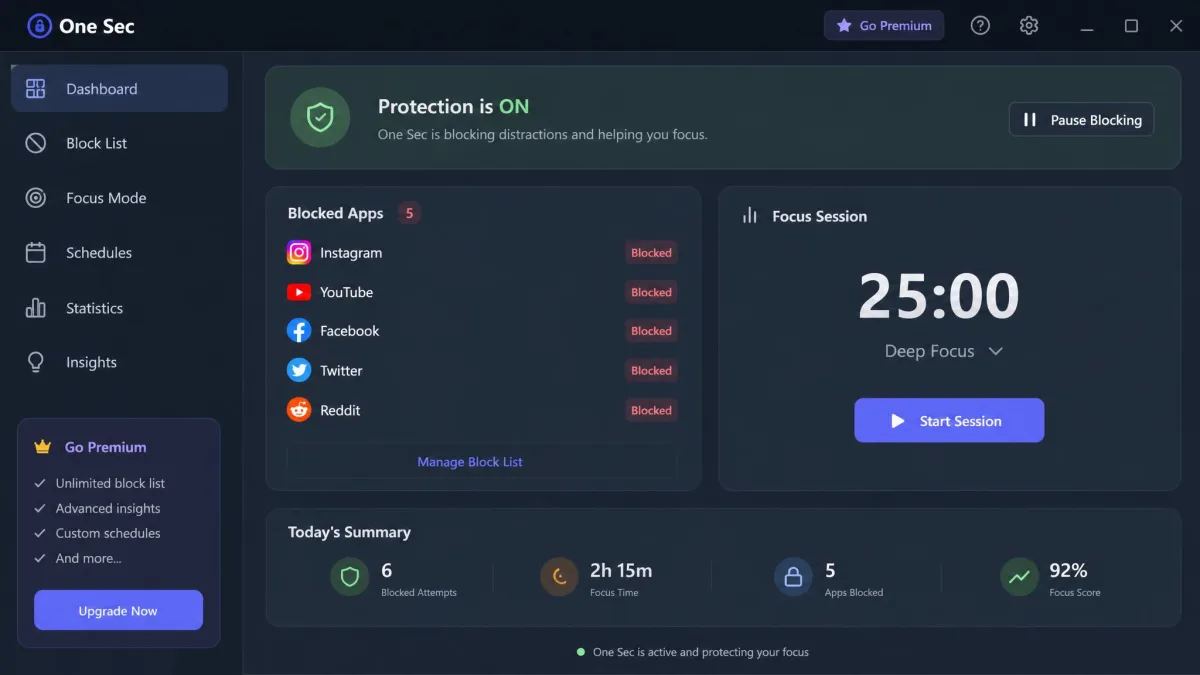
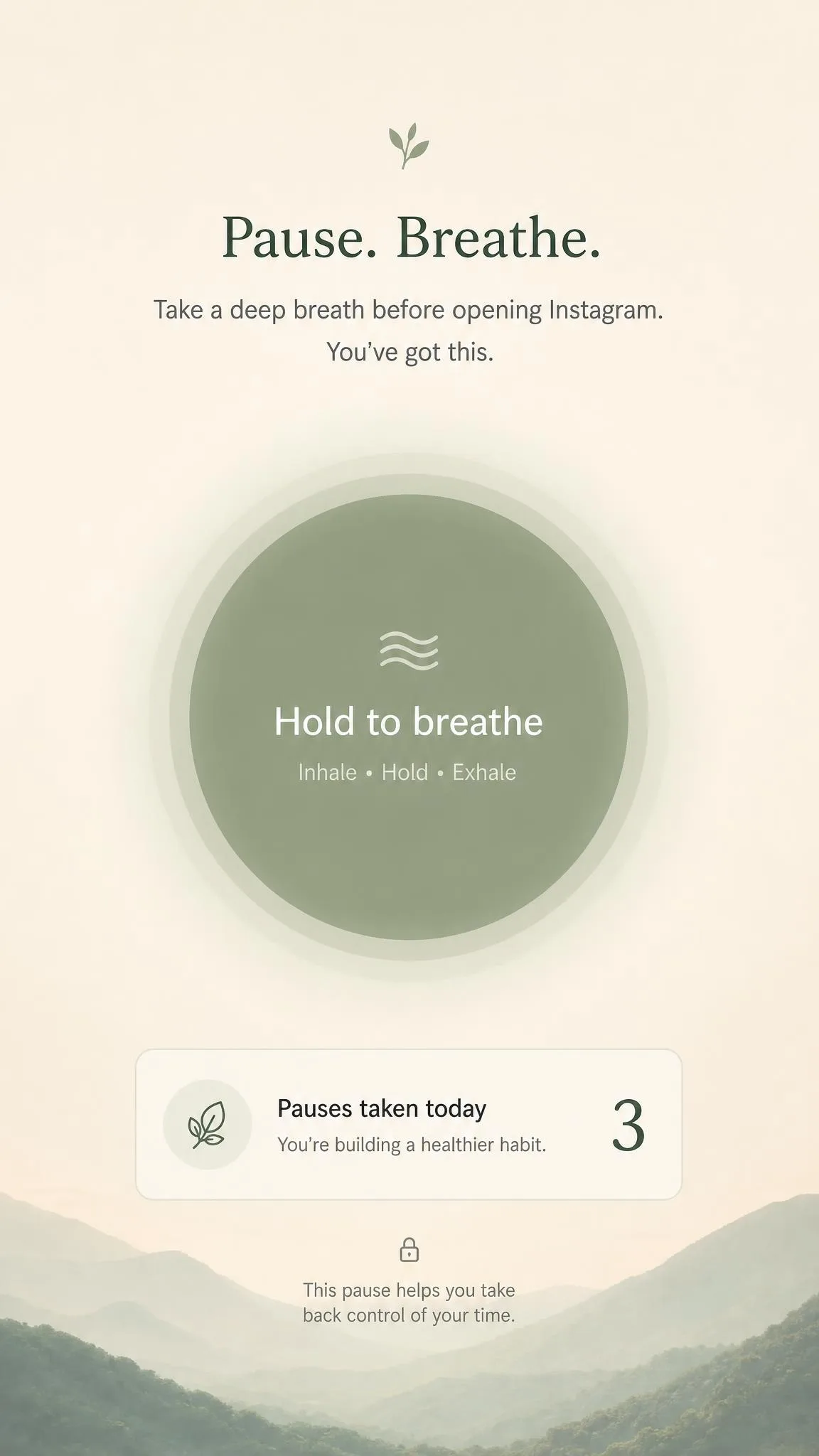
Where Opal locks you out, One Sec slows you down. Before a protected app opens, it forces a breath-and-pause screen, sometimes with a mirror or a short typing task. Peer-reviewed research on the app found that openings dropped by 57% on average. We saw the same effect in our own use.
The friction does wear off. By day three the mirror stopped being a deterrent and started feeling routine. One Sec sets no time limit once you are past the pause. A long scroll can still happen. Leaving a protected app and returning counts as a fresh open, which re-triggers the pause. Setup is the most technical of the group, because each app needs its own Shortcuts automation.
Pros
- Friction backed by peer-reviewed research
- Free tier covers one app with the full intervention
- No locked schedule; it works on impulse
Cons
- No daily limit once you're past the pause
- Most technical setup of the group
- The mirror trick loses its punch quickly
Best for: Gentle friction and breaking automatic opens. Skip if: You need a hard, scheduled block; Opal or AppBlock go harder.
3. ScreenZen — Best Free Option
ScreenZen
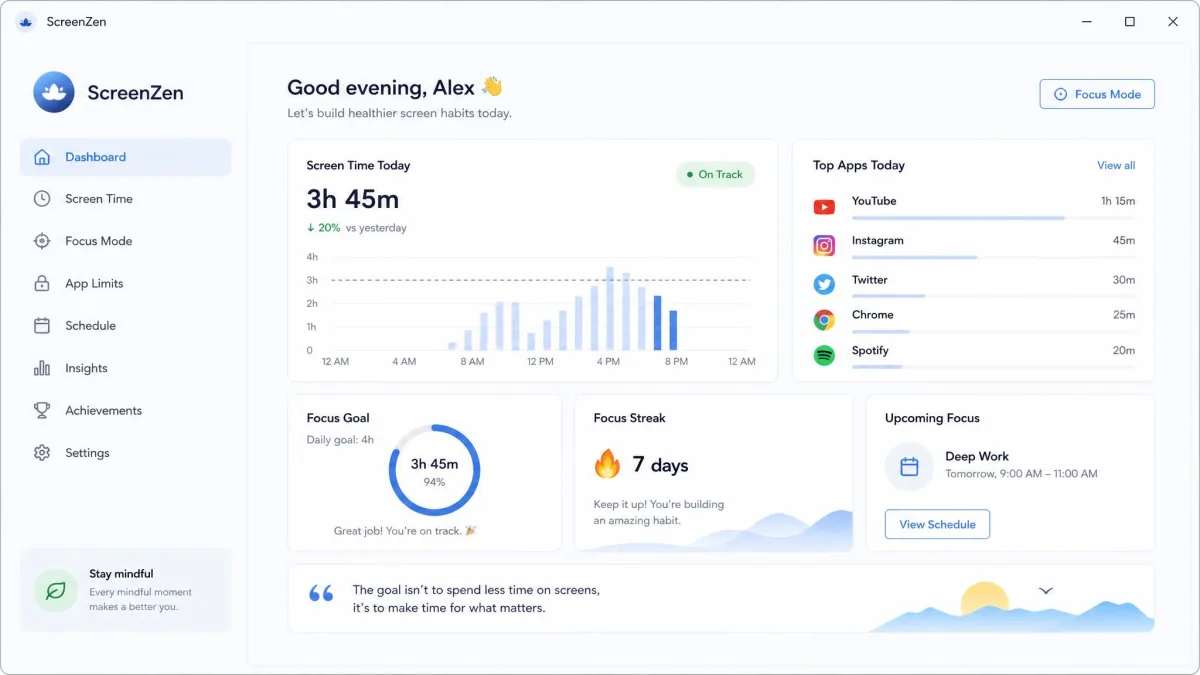
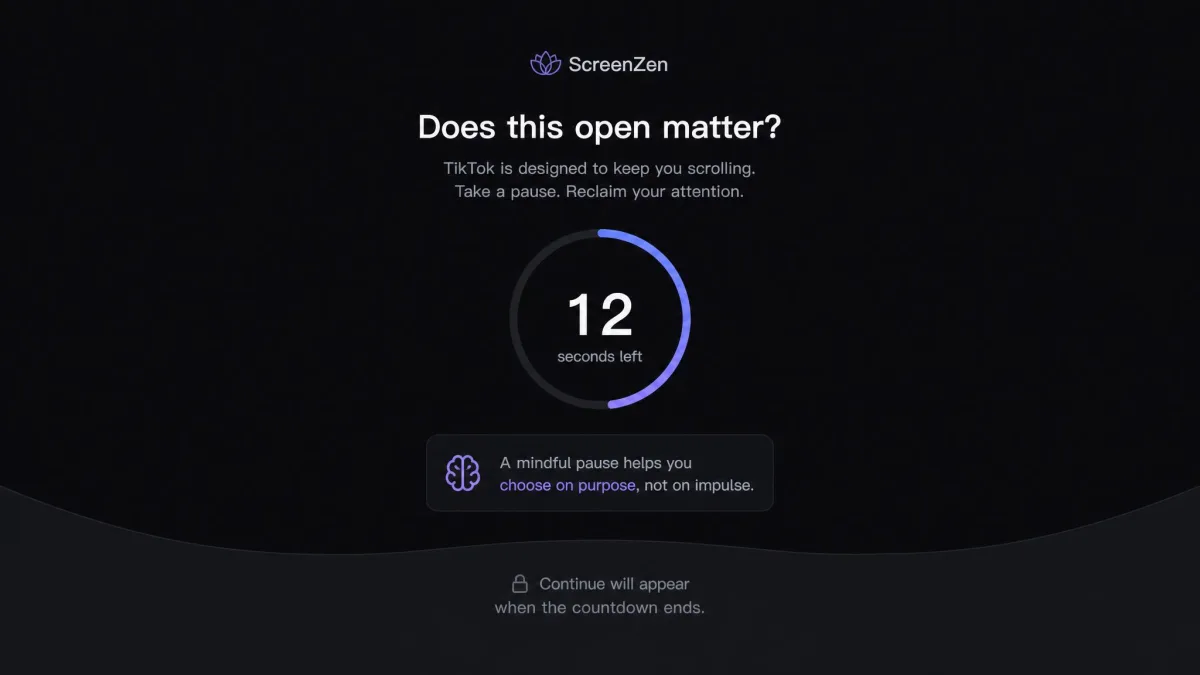
ScreenZen takes the friction idea further and drops the price to zero. It is completely free and donation-supported. Setup asks for four permissions, but the app walks through each one clearly and you only do it once.
We ran ScreenZen on Instagram, TikTok, and YouTube for four weeks. Daily use dropped to about 30 minutes within two weeks. The delay screen gives you a beat to change your mind. Unlock windows make the one-more-scroll loop genuinely inconvenient. A cooldown can block reopening a closed app for 10 to 15 minutes. You can swap the wait for a breathing exercise or a quick math problem.
ScreenZen is a soft gate by design. A patient person can wait out the delay, which is why it suits impulse checking more than a stubborn habit.
Pros
- Completely free, no subscription
- Delay and unlock windows cut automatic opens fast
- Flexible per-app scheduling by day and time
Cons
- Soft gate by design; patient users can wait it out
- Needs four permissions on setup
- Fewer hard-block options than paid tools
Best for: A free way to cut automatic opens and doomscrolling. Skip if: You need a block you can't tap through; Opal or AppBlock go harder.
4. Freedom — Best for Cross-Platform Blocking
Freedom
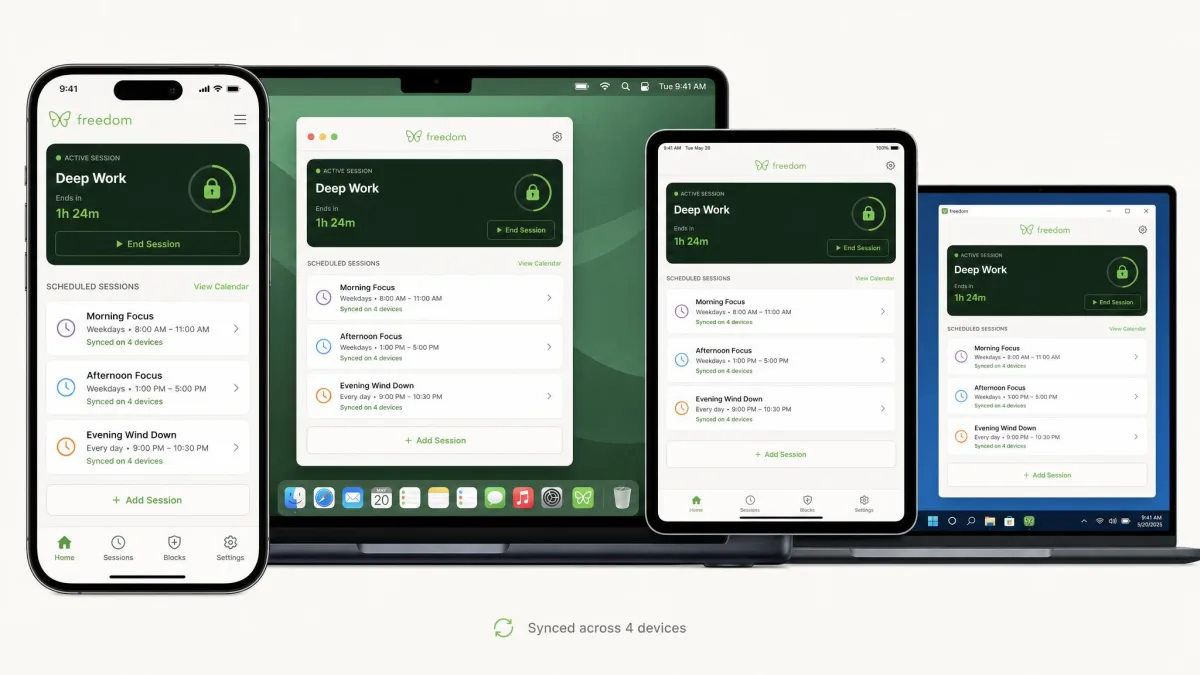
Where the others live on one phone, Freedom is built for the device stack. The same blocklists and schedules sync across iPhone, iPad, Mac, Windows, Android, and Chromebook. You can block an app or a whole website everywhere at once. On iOS it enforces sessions through both Screen Time and a VPN connection. Locked Mode makes an early exit much harder.
We scheduled an afternoon session and closed the Freedom app afterward. The next morning the block never fired. Instagram opened normally while the session should have been live. Turning Background App Refresh on and leaving Low Power Mode off fixed it. The silent failure was easy to miss. Without Locked Mode a running session ends in one tap. The VPN approach drains more battery and can be dodged from Safari's settings.
Pros
- One schedule across iPhone, Mac, Windows, Android, and more
- Blocks apps, websites, or the entire internet
- Locked Mode makes early exits harder
Cons
- iOS sessions can fail silently if the app is force-quit
- VPN-based blocking drains battery and can be dodged in Safari
- Without Locked Mode, a session ends in one tap
Best for: Cross-platform blocking across all your devices. Skip if: Your distraction lives on one phone only; cheaper apps cover that.
5. AppBlock — Best for Strict Scheduled Lockouts
AppBlock
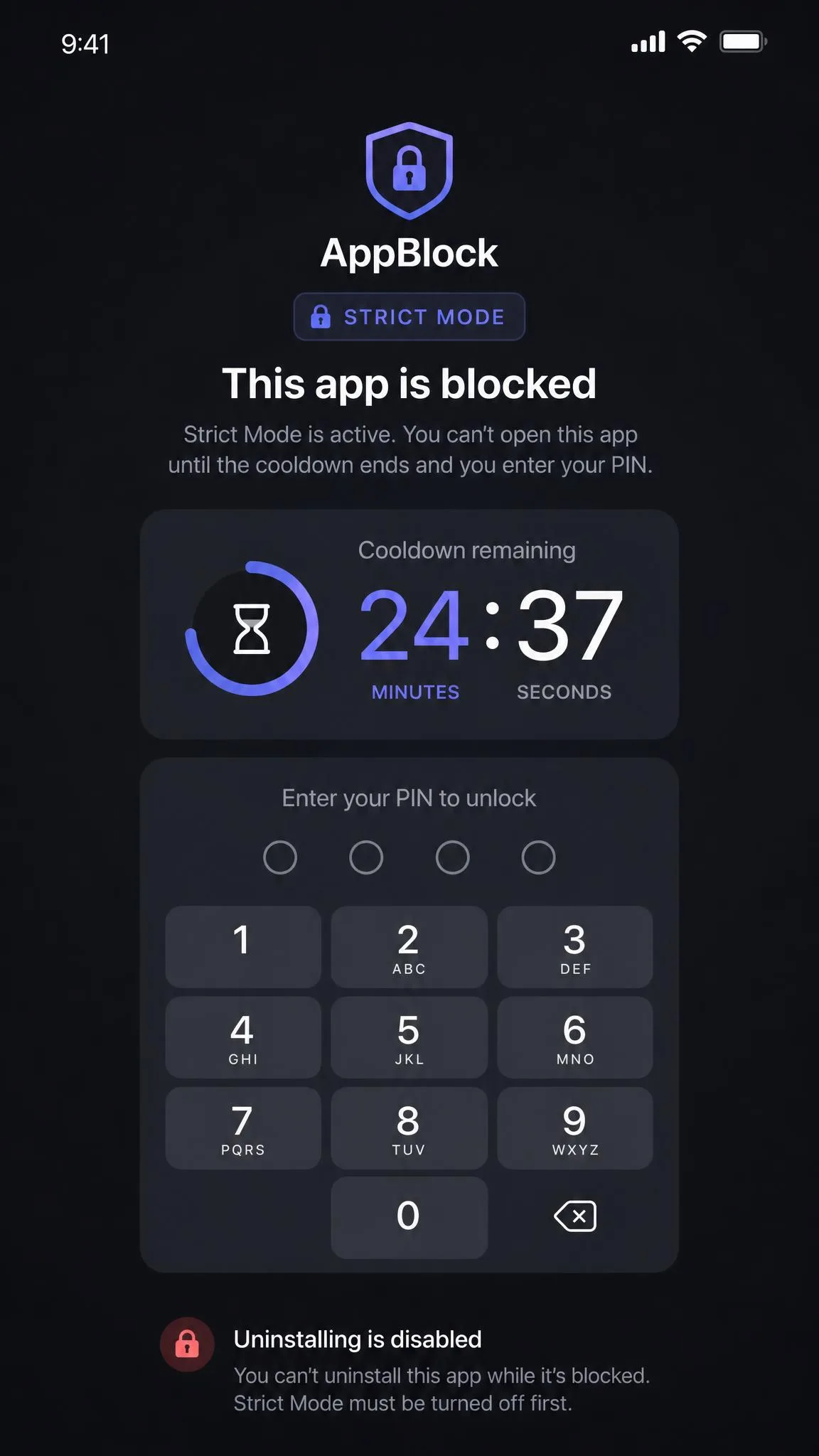
If ScreenZen is the soft gate, AppBlock is the locked door. Its schedules trigger by time, location, or Wi-Fi. A Strict Mode toggle enforces them. We set a morning block on Instagram, then tried to end it at lunch. Strict Mode answered with a cooldown timer and a PIN prompt. It also disabled uninstalling the app to dodge the block. It was the hardest software lockout we tested.
The strictness has a cost. The free tier is tightly capped. You get roughly one blocked day a week, a 30-minute daily usage limit, and only a handful of apps. The paid app has also tripped over its own reliability. Usage-limit bugs and subscription-restore problems surface after reinstalls.
Pros
- Strict Mode is the hardest app-only lockout we tested
- Schedules trigger by time, location, or Wi-Fi
- Partner-email approval option for extra accountability
Cons
- Free tier is very limited
- Some usage-limit and subscription-restore bugs after reinstalls
- A forgotten PIN means a cooldown wait or charger requirement
Best for: Strict scheduled lockouts and deadline focus. Skip if: You want free or friction-first; ScreenZen and One Sec fit better.
6. iOS Screen Time — Best for Families & Parental Controls
iOS Screen Time
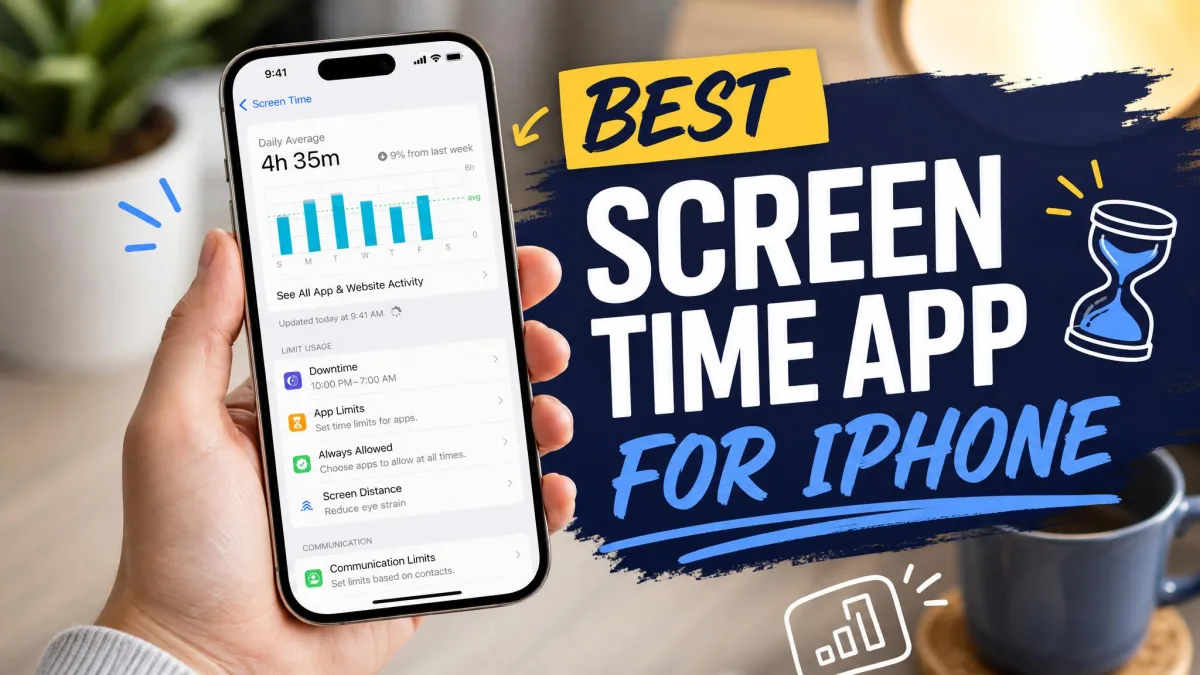
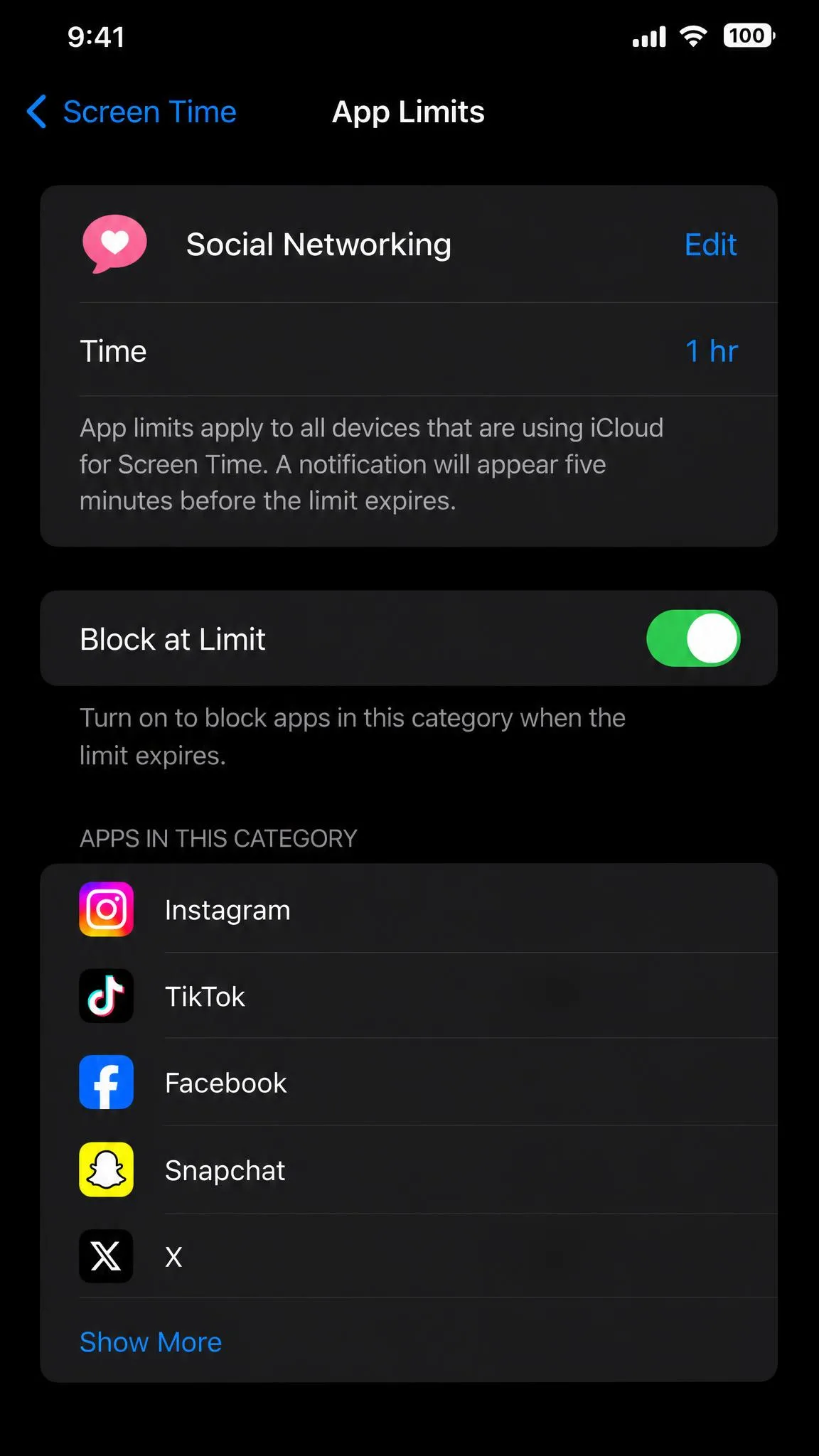
Where AppBlock goes for strictness, Apple's built-in Screen Time goes for reach. It ships free on every iPhone and bundles App Limits, Downtime, and Communication Limits in one place. It has been part of iOS since iOS 12 shipped in 2018. It earns its place on this list when someone else holds the passcode. That is the parental setup. A parent sets limits on a child's phone. The child can ask for more time but cannot silently grant it.
For your own phone it behaves as a soft limiter. We set a one-hour App Limit on TikTok. When the limit hit, we tapped Ignore Limit. The app reopened instantly, with no passcode prompt. Some apps dodge limits entirely until you close and reopen them. A bug since iOS 16 can wipe all limits when you tap One More Minute.
Pros
- Built into iOS, free on every iPhone
- App Limits, Downtime, and Communication Limits in one place
- Genuinely hard when a parent holds the passcode
Cons
- Ignore Limit lets you wave off any limit for the day
- Some apps dodge limits until you close and reopen them
- A known iOS 16-era bug can wipe limits on One More Minute
Best for: Families, parental controls, and a free built-in starting point. Skip if: You're setting your own limits and need a hard block; Opal is stronger.
7. Brick — Best for Physical-Friction Blocking
Brick
Every blocker above lives in software. Brick reaches into the physical world instead. It is a battery-free NFC puck. You tap it against your iPhone to start a block. There is no subscription after the one-time $59 purchase. We tapped the puck before dinner, then reached for Instagram later. The app would not open. There was no PIN screen, no timer, and no ignore button to argue with. We could only wait out the session or fetch the puck from across the house. It was the strongest barrier of anything we tested. Wirecutter and Consumer Reports reached the same conclusion: genuinely effective, but pricey. USA Today's test concluded the asking price was not worth it.
The strength cuts both ways. Brick your phone and leave the puck at home. Blocked apps stay blocked until you get back. Five emergency unbricks are built in. Once they are gone you are fully stuck until the puck returns. A 30-day money-back guarantee softens the risk. Some auto-brick schedules are still buggy, and the tap-to-brick flow feels needlessly cumbersome at first.
Pros
- The strongest barrier of any blocker we tested
- One-time $59 purchase, no subscription
- Five emergency unbricks built in
Cons
- Leave the puck at home and your apps stay blocked
- $59 is a real commitment
- Some auto-brick schedules are buggy
Best for: Physical-friction blocking and anyone who keeps bypassing software blocks. Skip if: You want free or software-only; ScreenZen or Screen Time cost nothing.
The Best Free App Blockers for iPhone (If You Don't Want to Pay)
ScreenZen is our best free pick, and its free tier is the whole product rather than a trial. iOS Screen Time is also free and built in, and it is genuinely effective for families. Every other app has a free tier, but each one is capped.
Opal's free tier blocks one app forever. One Sec's free tier covers one app with the full pause. Freedom's free tier allows sessions under two hours with no scheduling. AppBlock's free tier is the most limited: about one blocked day a week and a 30-minute daily usage cap. If you are only fighting one or two apps, a free tier may be all you need. If you want more control, you will hit a paywall.
One more free option worth a look is Foqos, another tap-to-block app that follows the same friction-first idea.
How to Choose the Right App Blocker for Your iPhone
Once you know what each blocker does, the choice comes down to your habit. If your opens are automatic and low-stakes, a delay screen may be all you need. If you cannot stop once you start, you need a hard block or a physical barrier.
Then check how easy the app is to bypass. Strict Mode, Deep Focus, and a physical puck all raise the cost of cheating. That cost is what keeps a block honest. Next, look at scheduling. Do you need blocks by time, location, or a repeating calendar? Opal and AppBlock are strongest here. Freedom wins when your devices outnumber your phones. Finally, weigh the price. Free tiers cover a lot, and paid plans range from about $20 to $100 a year.
Start with the free options. Set up Screen Time or ScreenZen first, and only pay for a blocker once the free tool has actually lost the fight.
In our testing, the blockers that held up longest were the ones that made the impulse hard to act on, not the ones that made you feel guilty about it.
Our Verdict
Every blocker here earned its place for a different kind of problem. After comparing all seven, here is the bottom line.