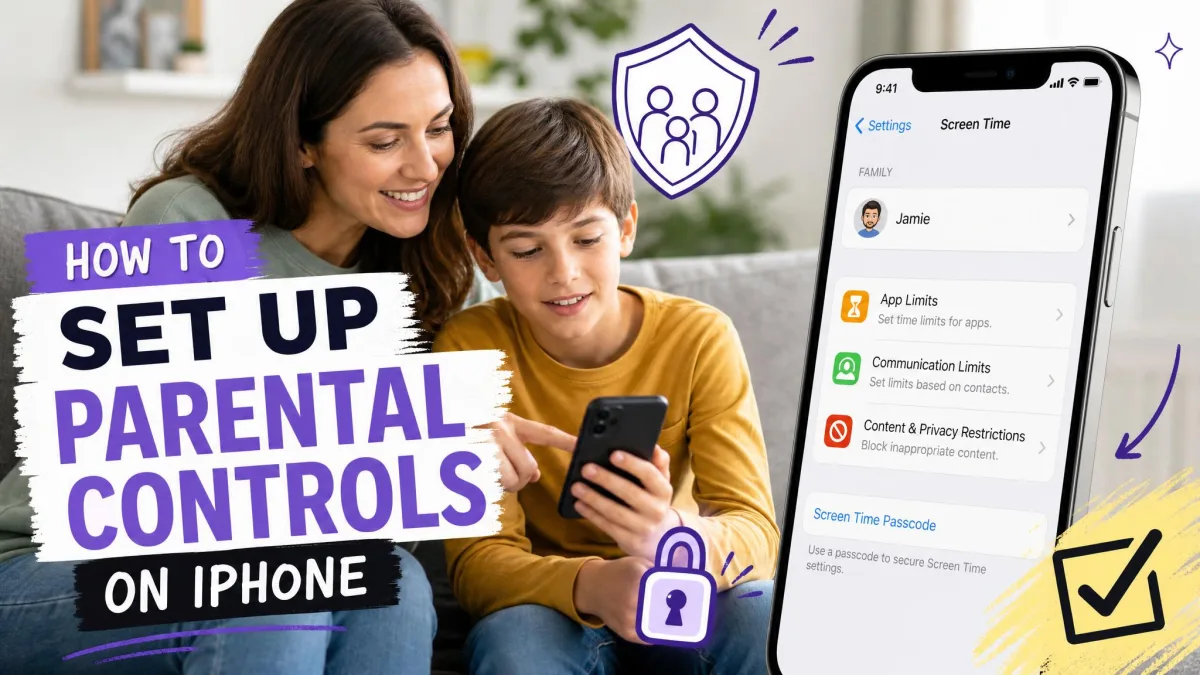
Handing a child an iPhone means handing over the App Store, Safari, and every group chat running on it. Everything you need to lock down is already in Settings, and none of it costs anything. The screens below reflect iOS 26, so on an older release the wording may shift slightly while the path stays the same.
This guide walks the stack in order: Family Sharing and a child Apple Account first, then Screen Time, then each block you layer on top. We set each step up on a test iPhone as we wrote, and where a setting is fussier than it looks, we say so. Apple's own overview sets out the baseline requirements.
What a Parental Block on an iPhone Actually Does
A parental block on an iPhone is not one switch. It is a set of restrictions inside Screen Time, each handling a different job.
- Content & Privacy Restrictions: blocks adult websites, sets age ratings for apps and media, locks privacy settings.
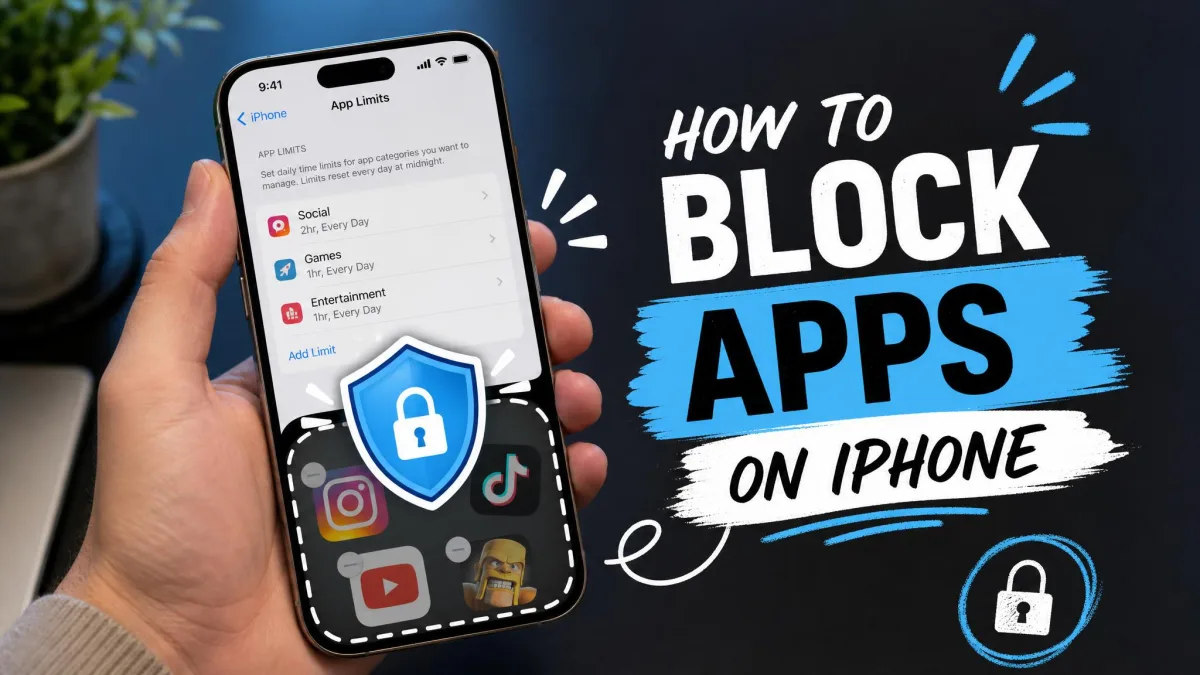
- App Limits: daily caps on one app or a whole category such as games or social.
- Downtime: a schedule when only the apps you choose stay open.
- Communication Limits: who your child can call and message, and when.
- Purchases and Ask to Buy: your approval before anything is bought or downloaded.
What Screen Time can and cannot block
Content filters apply to Apple's own surfaces: the App Store, iTunes, Safari, and Siri. Inside a third-party app such as Netflix, Chrome, or YouTube you can limit how long your child uses it, but not what they see in it.
Screen Time also has no message-content filtering and no location tracking. Those jobs fall to Messages settings and Find My instead.
Before You Start: Family Sharing and a Child Apple Account
Family Sharing is what turns this from walking over to the child's phone every time into remote management from your own.
Setting up Family Sharing
On your iPhone, open Settings, tap your name, then tap Family. Tap Add Member and follow the prompts to add someone to Family Sharing. A Family Sharing group holds up to 6 people in total, the organizer plus five others.
One catch before you commit: parental controls can only be managed from another Apple device. If the parent phone in your house runs Android, you cannot approve app requests or grant time extensions from it.
Why the child needs their own Apple Account
Children under 13 need a Child Account, and Apple turns on web content filters and app restrictions automatically while it is set up. If your child is signed in to your Apple ID, fix that first. You can create an Apple Account for your child from the Family screen in a couple of minutes.
Make sure the birth date is right. It cannot be edited afterwards, so a typo follows the account for years and changes which restrictions apply.
Teens aged 13 to 17 get age-appropriate protections by default, including web content filters and Communication Safety, whatever account type they use. Those defaults are a floor, not a ceiling.
Step 1: Turn On Screen Time on Your Child's iPhone
On the child's iPhone, open Settings and tap Screen Time. Tap Turn On Screen Time, then Continue. When asked whose iPhone it is, choose This is My Child's iPhone.
If the phone is already in your Family Sharing group, do the same from your own device: Settings, then Screen Time, then your child's name under Family.
Set the Screen Time passcode (and why it matters)
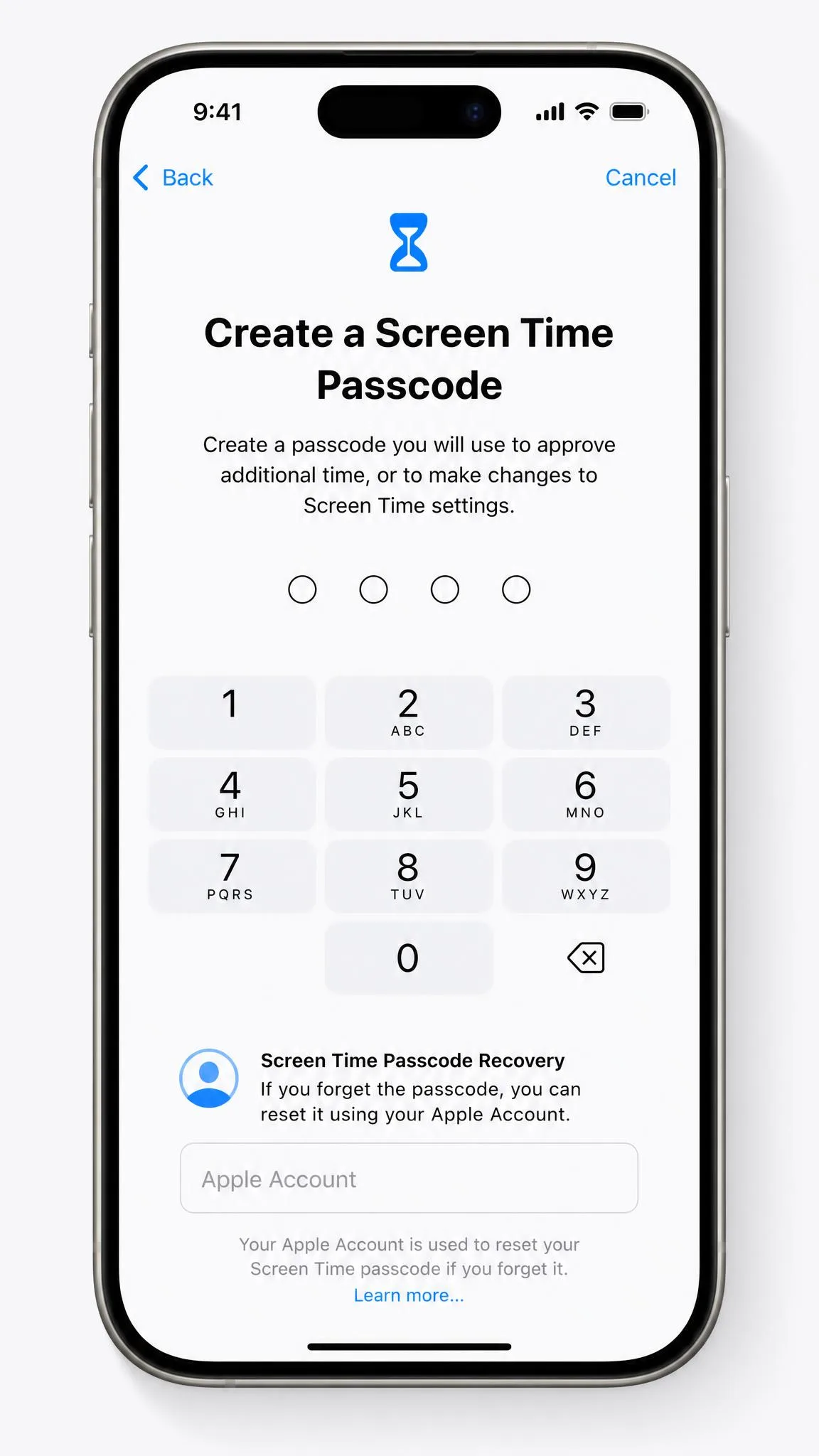
Set a four-digit Screen Time passcode when prompted. This is not the phone's unlock passcode and it must be different, because your child knows the unlock code.
The passcode does more work than it looks like. Several enforcement toggles stay hidden until one is set, so a setup without a passcode quietly ends up with limits that do not limit anything.
Set the Screen Time passcode before you hand the phone over, and pick something your child cannot guess. Not a birthday, not the house number, not the four digits you use everywhere else.
You will also be asked for a recovery Apple Account. Choose one your child has no credentials for. Since iOS 13.4, a Forgot Passcode? option on the Change Screen Time Passcode screen resets Screen Time using that account, which is a lifesaver for you and an open door for a child who knows the login.
Step 2: Turn On Content & Privacy Restrictions
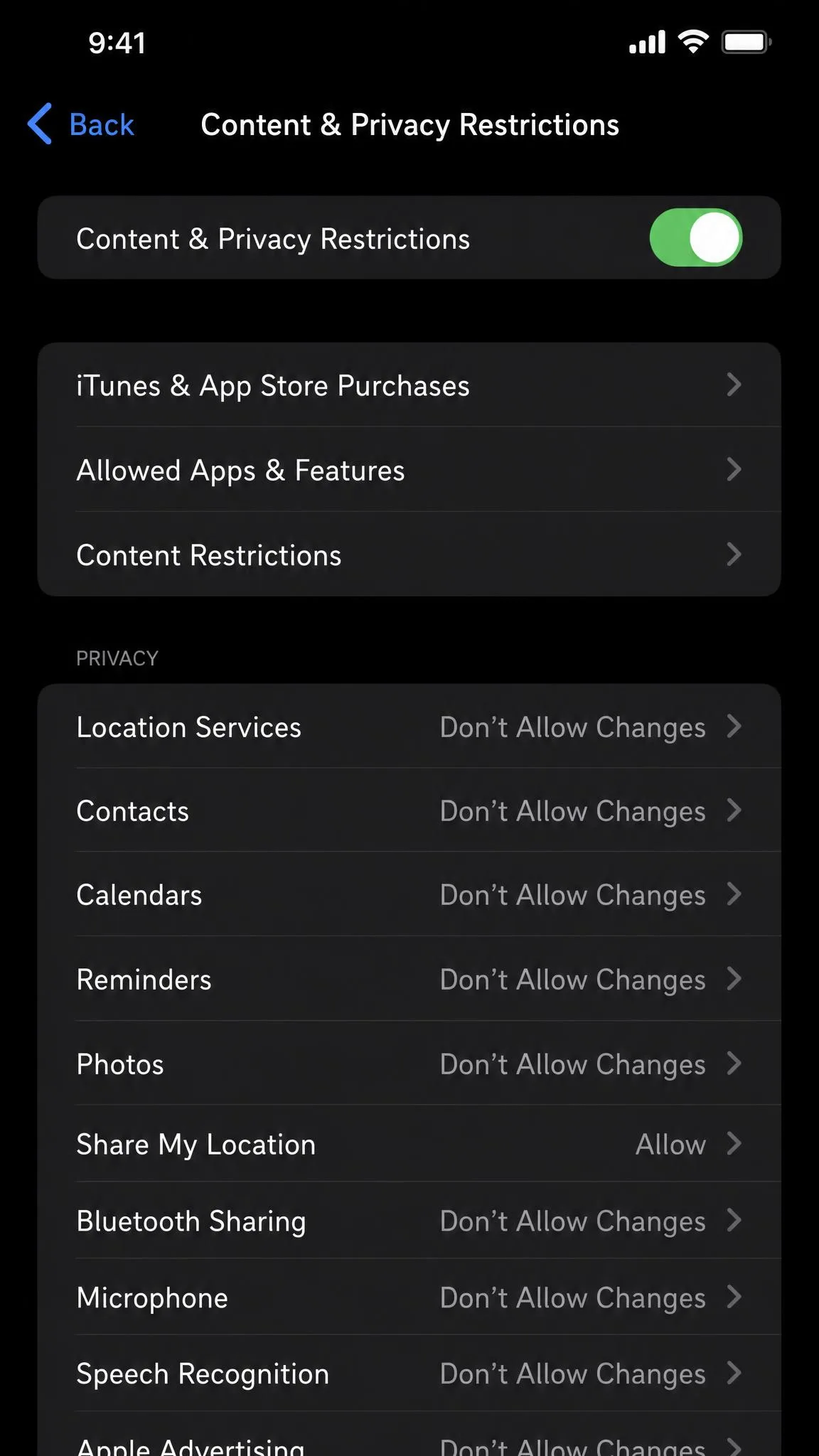
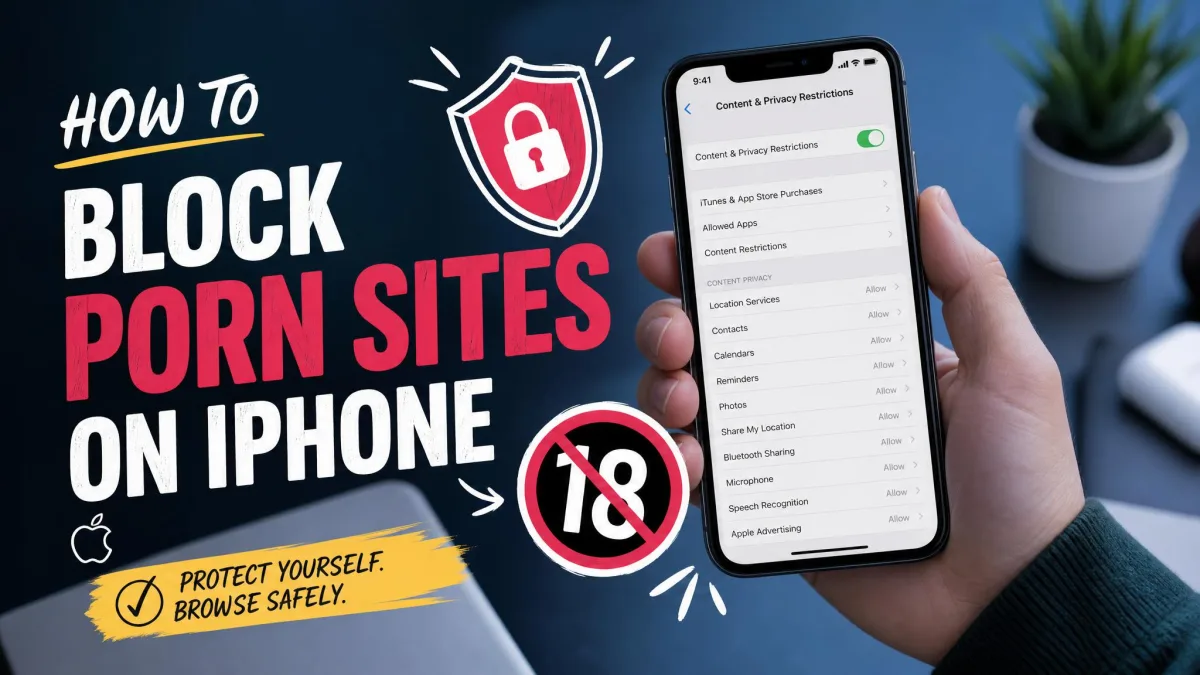
Everything in the next few steps sits behind one switch. Go to Settings, tap Screen Time, tap Content & Privacy Restrictions, and turn the toggle on. Enter your passcode when asked.
The screen that opens is the control panel for the rest of this guide. It holds App Store restrictions, Content Restrictions, and the privacy locks, and none of them do anything while the master toggle is off.
Step 3: Block Adult and Explicit Web Content
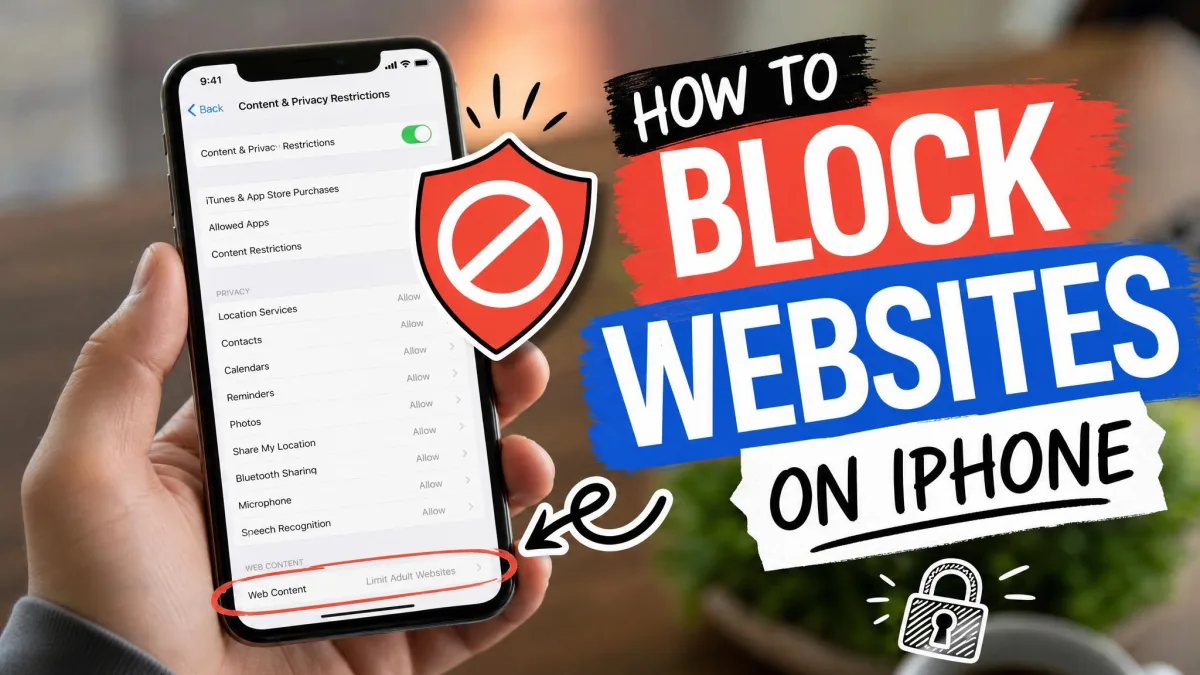
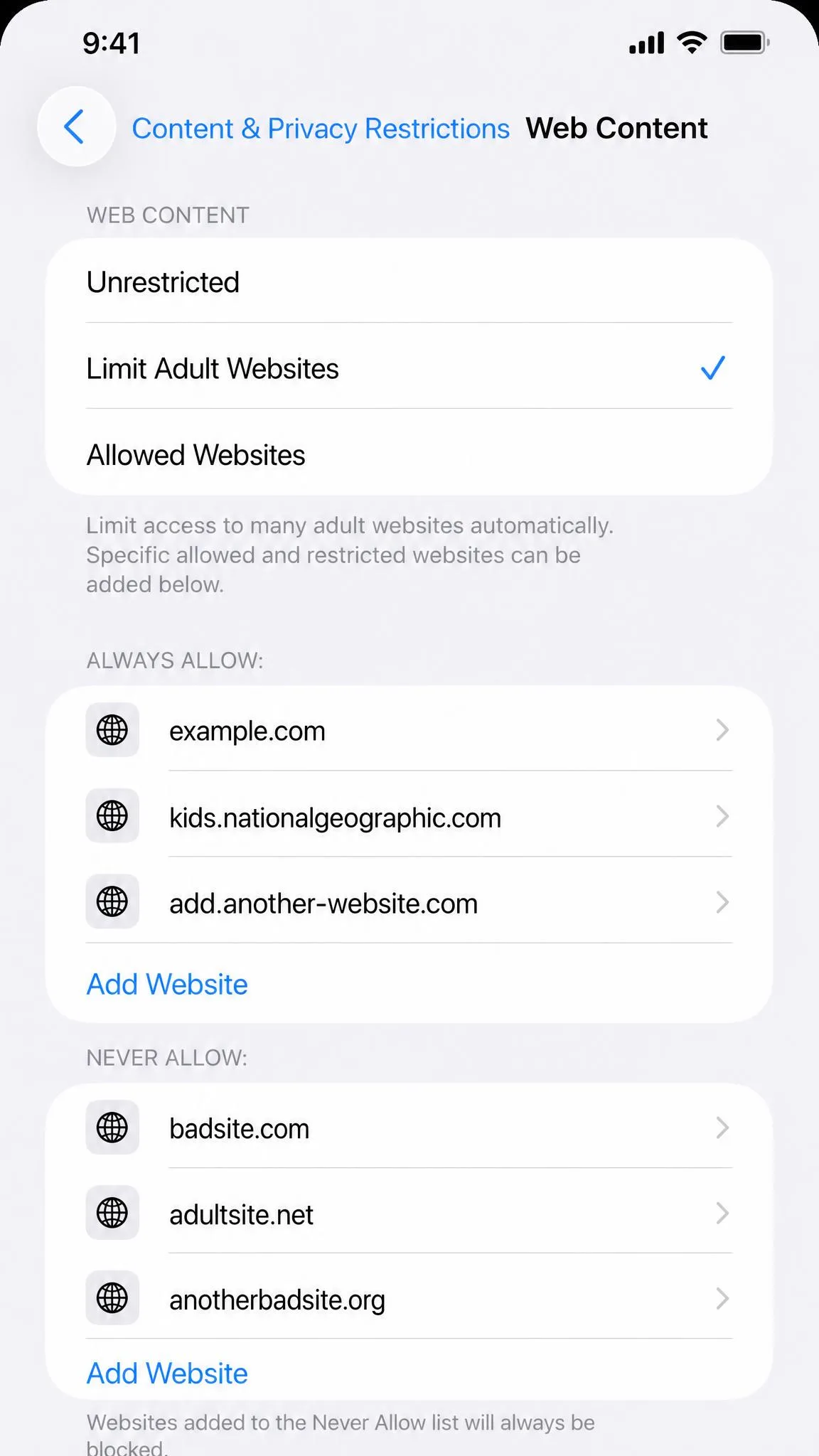
From Content & Privacy Restrictions, tap Content Restrictions, then Web Content. You get three modes: Unrestricted Access, Limit Adult Websites, and Allowed Websites Only.
Limit Adult Websites
Tap Limit Adult Websites and Apple filters known adult sites in Safari automatically. Underneath are two lists you add to by hand: Always Allow, for sites the filter catches by mistake, and Never Allow, for anything you want blocked by name. Tap Add Website and type the address.
This is the setting most parents want and the one we would turn on first.
Allowed Websites Only
Tap Allowed Websites Only and Safari opens nothing except the sites on the list. Apple seeds it with a handful of children's sites and you add the rest. For a young child this is the strongest web block on the iPhone. For a tween with homework it becomes a support ticket every evening.
Block Siri and Intelligence web search
Still under Content Restrictions, scroll to Siri and set Web Search Content to Don't Allow. Set Explicit Language the same way. Without this, a child can ask Siri for something and get an unfiltered result handed straight back.
Spotlight deserves a mention too. Search from the home screen can surface unfiltered internet results even with web content restricted, so treat the filter as one layer rather than a wall.
The web filter only covers Safari. Installing a third-party browser such as Chrome walks straight around Limit Adult Websites, and in-app browsers inside otherwise harmless apps load pages the filter never sees. Block or hide other browsers in Step 5, or the filter has a hole in it.
Step 4: Set Content Ratings for Apps, Music, Movies and Books
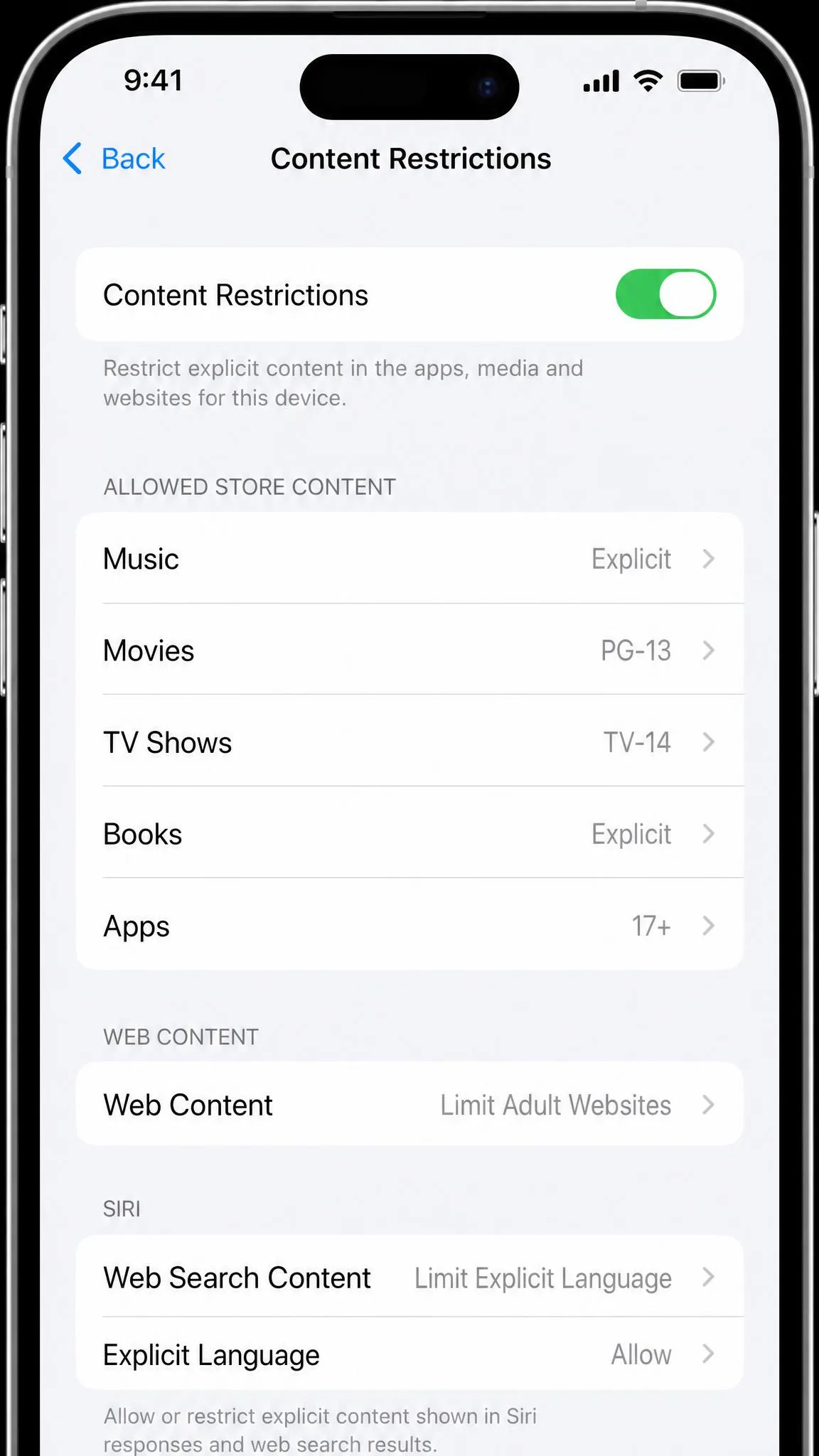
Go back to Content Restrictions and work down the Allowed Store Content list. Each row opens a picker.
- Music, Podcasts, News, Fitness: choose Clean to strip explicit tracks and episodes.
- Music Videos and Music Profiles: set both to Off for younger children.
- Movies and TV Shows: pick the highest rating you are comfortable with.
- Books: set to No Explicit Books.
- Apps: the important one, covered next.
Apple has expanded App Store age ratings to five tiers, adding 13+, 16+ and 18+ alongside the lower ones. That is finer control than the old set, so revisit these pickers even if you set them years ago.
Step 5: Block or Allow Specific Apps
Hide built-in apps like Safari, Camera and FaceTime
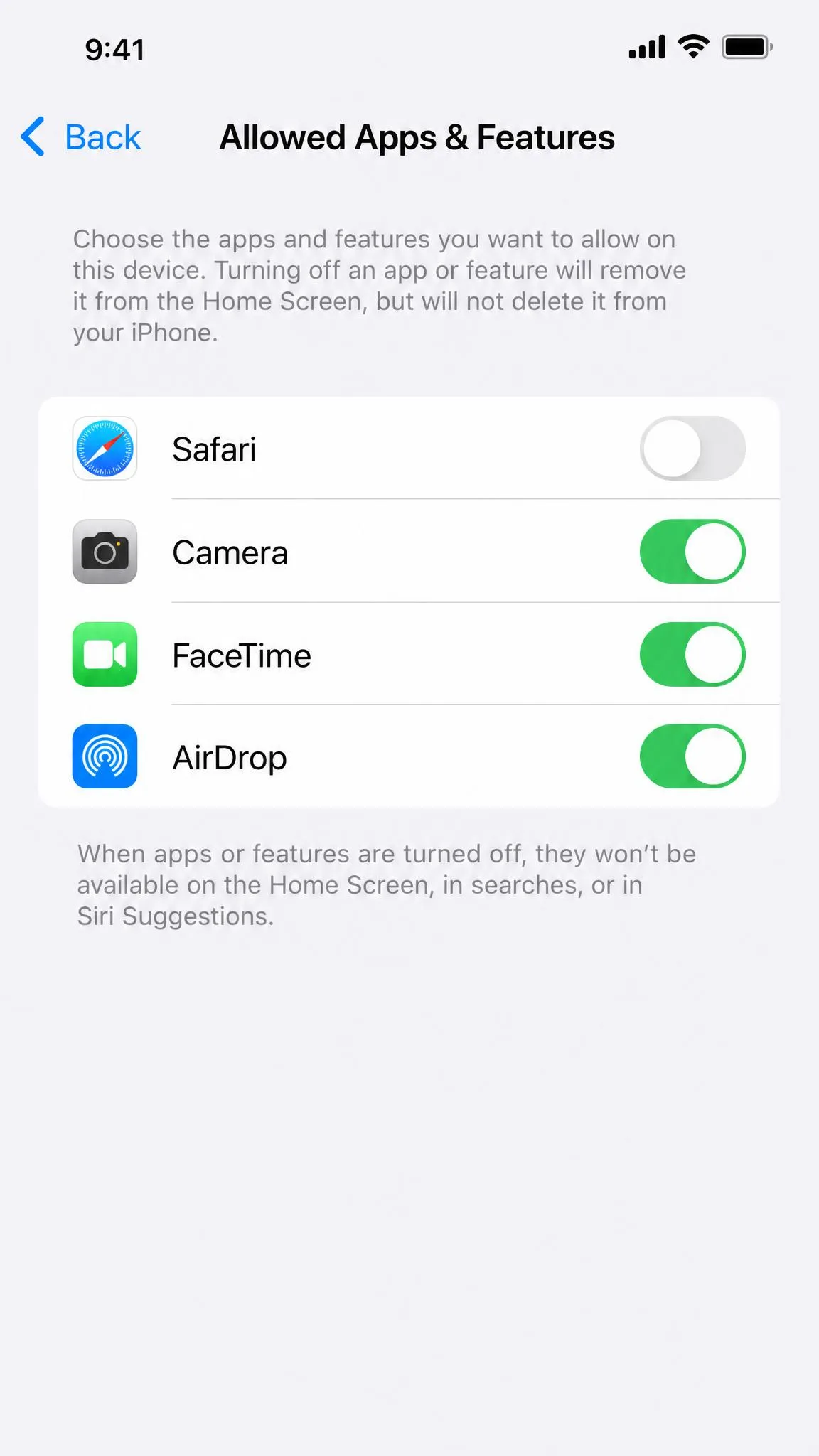
In Content & Privacy Restrictions, tap Allowed Apps & Features and toggle off anything you want gone. Safari, Camera, FaceTime, Mail, AirDrop, and Wallet all live here. A hidden app disappears from the home screen and from search, then comes back with its data intact when you toggle it on again.
Toggling Safari off does nothing if Chrome is still installed, so pair this with an age-rating cap that keeps new browsers off the phone.
Block apps above an age rating
Under Content Restrictions, tap Apps and choose a rating. Anything above it vanishes from the App Store and the home screen. This is blunt by design: Content Restrictions works on age ratings and categories, not on single apps by name, so blocking TikTok or Snapchat specifically is awkward. The workaround is an age cap below the app's rating, or a zero-minute App Limit on that one app.
Step 6: Prevent App Store and iTunes Purchases
Under Content & Privacy Restrictions, tap iTunes & App Store Purchases. Three rows appear: Installing Apps, Deleting Apps, and In-app Purchases. Set each to Don't Allow as needed, then set Require Password to Always Require.
This is not a hypothetical risk. Apple agreed in 2014 to refund at least $32.5 million to parents whose children made unauthorized in-app purchases, settling an FTC complaint over children's in-app purchases.
Turn on Ask to Buy
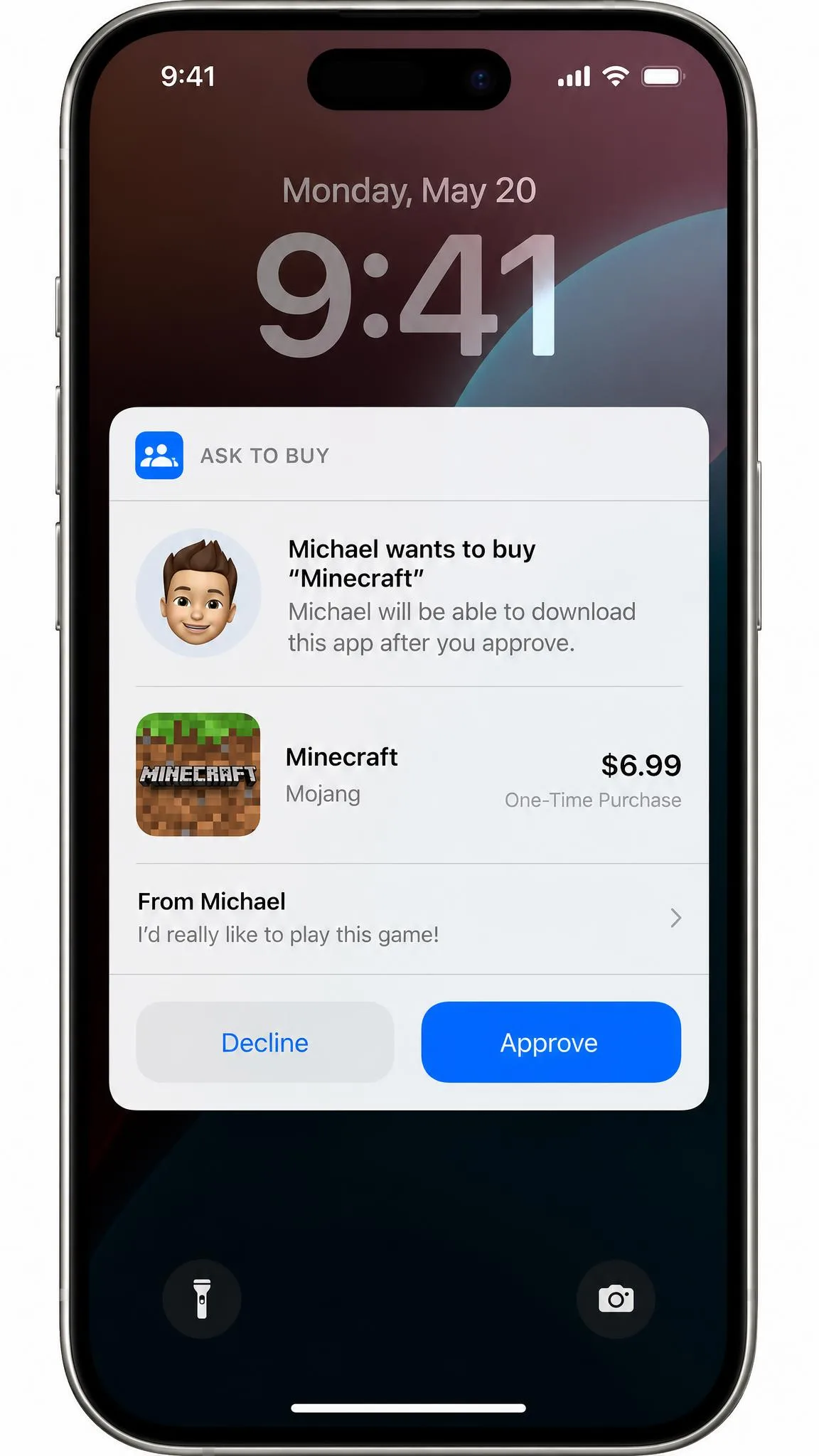
Ask to Buy sends every download to you for approval. On your iPhone, go to Settings, tap your name, tap Family, tap your child's name, then tap Ask to Buy.
It is on by default for family members under 13. In the US the organizer can turn it on for any family member under 18, but for 13-to-17-year-olds you switch it on manually. It also switches off automatically when a family member turns 18 and cannot be turned back on.
Requests cover free downloads as well as paid ones, and the request shows the item and its price on your device. Approving or declining takes one tap.
Block in-app purchases and app deletion
Set In-app Purchases to Don't Allow if your child plays games with currency packs, and set Deleting Apps to Don't Allow so an app cannot be removed to dodge its time limit.
Two gaps to know about. An app deleted from the home screen keeps its cloud icon in the App Store and can be pulled back down without triggering a new Ask to Buy request. And purchase sharing lets a child download anything another family member already bought, with no approval step at all.
Step 7: Set App Limits and Downtime
Time controls are separate from content controls, and they are where most setups quietly fail.
App Limits for individual apps and categories
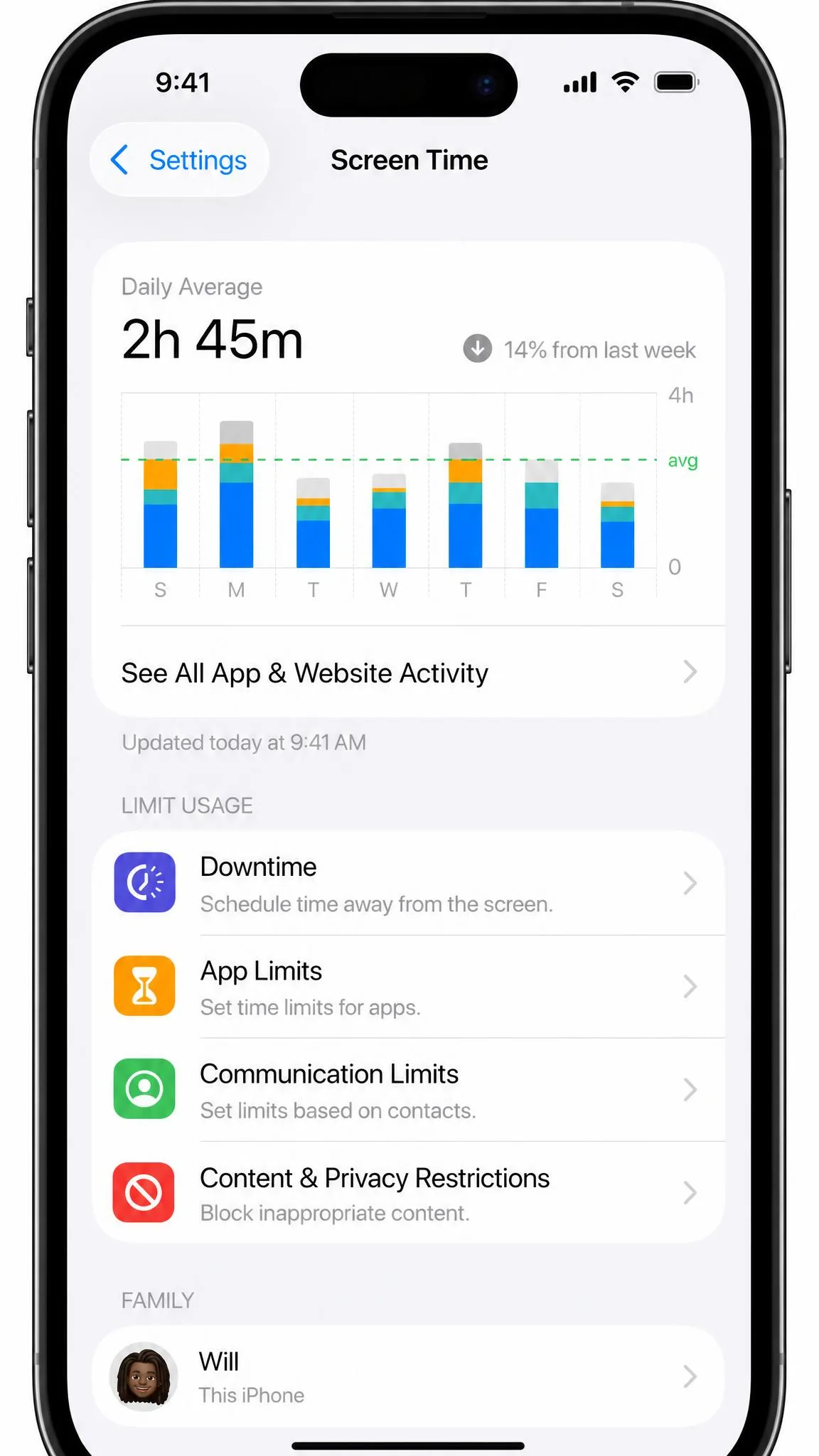
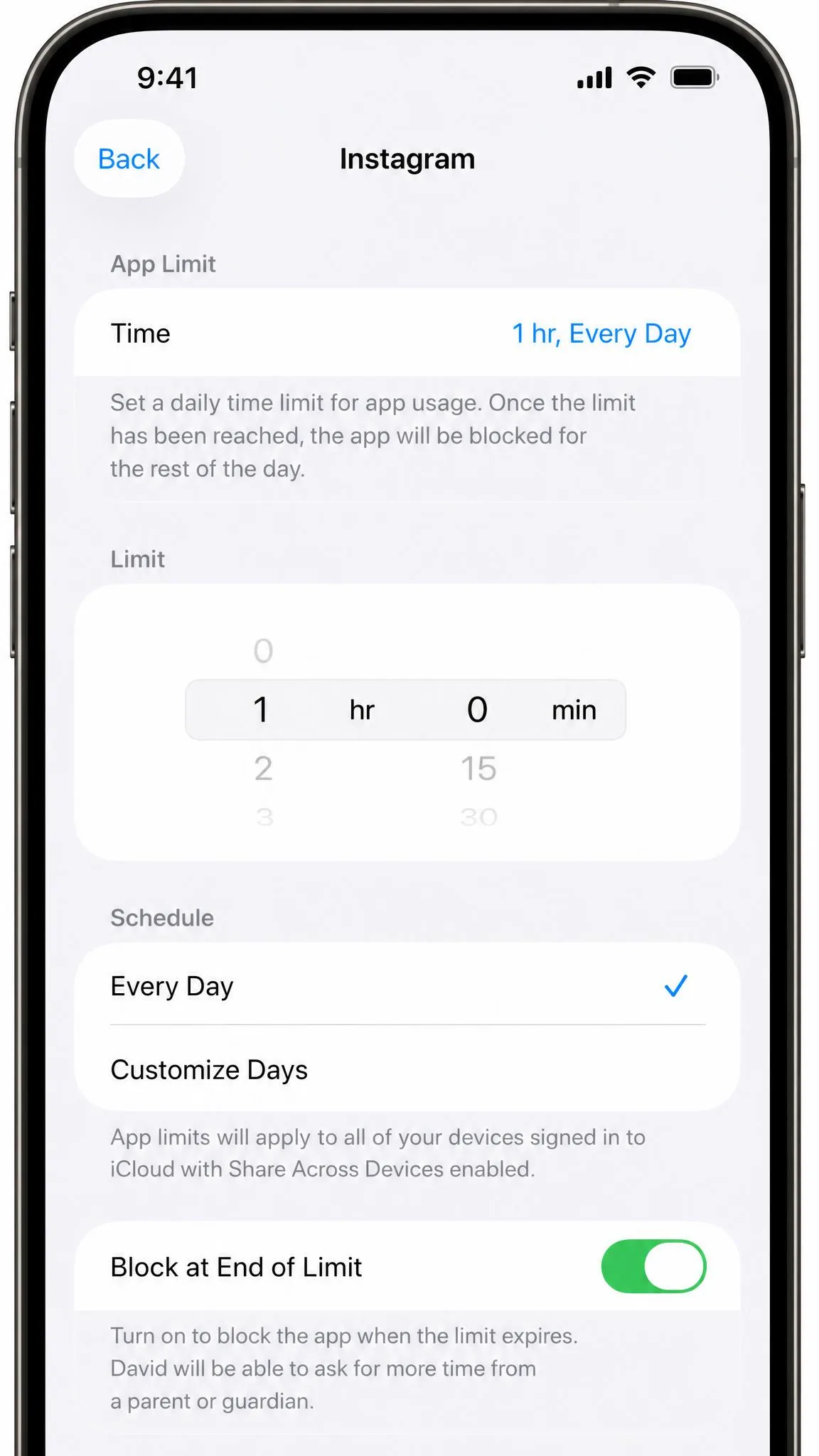
Go to Settings, tap Screen Time, tap App Limits, then Add Limit. Pick a category such as Social or Games, or expand it and tick individual apps. Set the daily amount and tap Add. Tap Customize Days if school nights and weekends should differ.
Now the part that matters most. Scroll to the bottom of the limit and switch on Block at End of Limit. Without it, App Limits look active but never block anything: your child taps Ignore Limit and carries on. That toggle does not appear at all until a Screen Time passcode has been set, which is exactly why limits so often do nothing on a fresh setup.
App Limits reset automatically at midnight, and the reset time cannot be customized.
Downtime schedules for school nights and bedtime
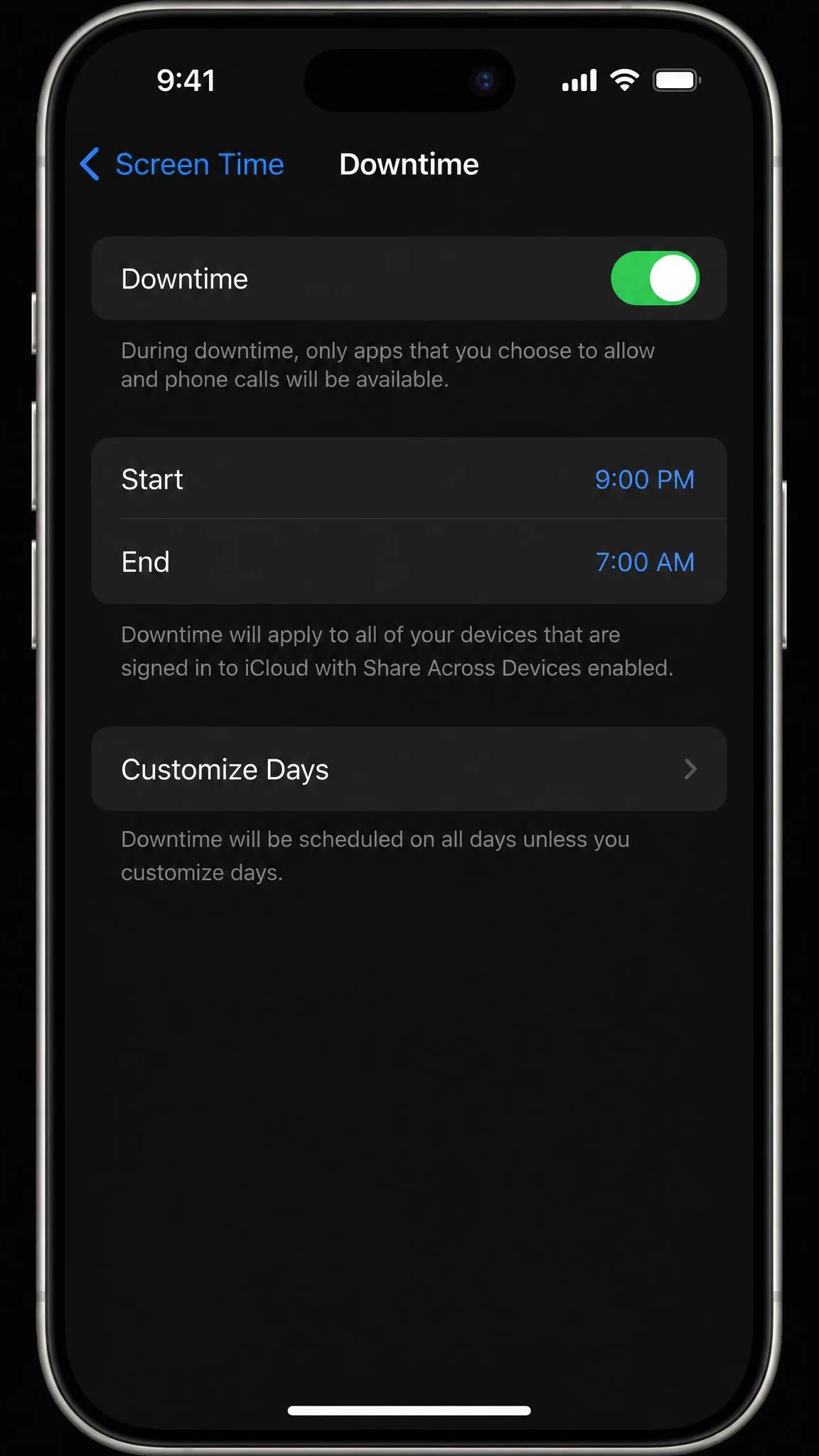
Tap Downtime, turn it on, and choose Every Day or Customize Days, then set the start and end times. During Downtime only phone calls and your Always Allowed apps will open.
Your child gets a 5-minute warning on screen before a Downtime window starts, which cuts down on the "but I was in the middle of something" argument considerably.
Always Allowed apps
Tap Always Allowed and add the apps that should survive both Downtime and category limits. Keep the list short, because anything on it is exempt from your whole schedule. A few Apple system apps, including Settings and Phone, stay usable during Downtime and cannot be blocked at all.
Screen Time on iOS 26 is not perfectly reliable. Limits go missing the next day, downtime schedules disappear, and content restrictions revert. On iOS 26.2 some iPhones show a limit-reached screen while the day's usage is still well under the cap, and tapping One More Minute during Downtime can lock every app for 60 seconds. Check your settings again a week after you set them up.
Step 8: Set Communication Limits and Lock Contacts
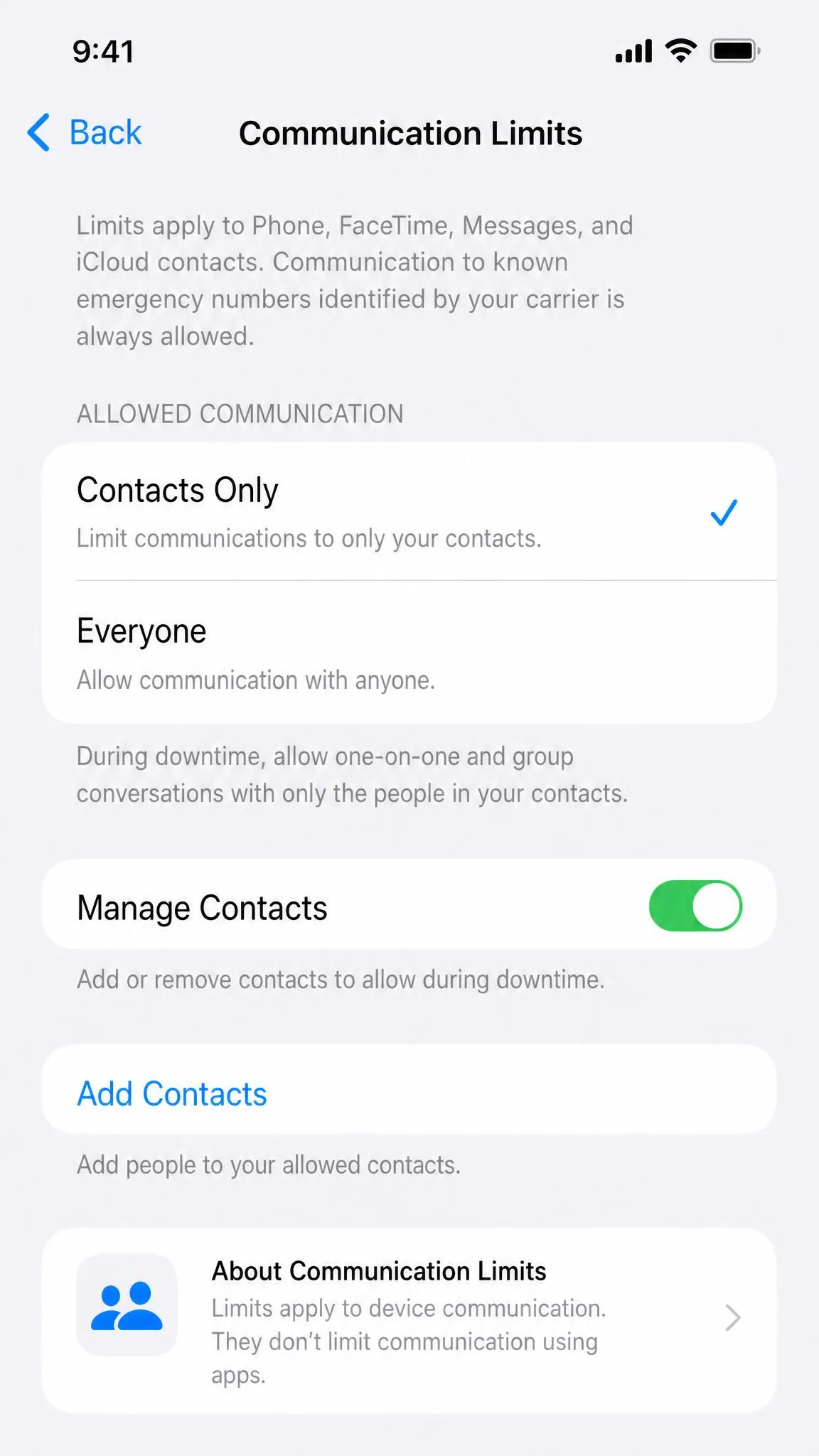
Tap Screen Time, then Communication Limits. You can set who your child talks to during allowed screen time and during Downtime separately. Contacts Only during Downtime is the setting most parents want.
Turn on Manage Contacts underneath so your child cannot add or edit contacts to work around it. Children must request your approval before messaging a new phone number, and you approve with a single tap inside Messages. Emergency numbers stay reachable however you configure this.
While you are here, check Communication Safety in the same menu. It detects nudity in FaceTime video and blurs sensitive images in Shared Albums, for users of all ages. Apple explains the scope in its Communication Safety documentation.
Step 9: Restrict Privacy Settings and Location Sharing
Back in Content & Privacy Restrictions, scroll to the Privacy block, which covers Location Services, Contacts, Photos, and Microphone. For each row you want frozen, tap it and choose Don't Allow Changes.
Under Location Services, keep Share My Location enabled so Find My keeps working, then set the row to Don't Allow Changes. That gives you location on your own phone while stopping your child switching it off quietly.
Apple has also added a Declared Age Range API, which lets apps see a child's age band without the birth date. You choose whether to share it always, per app request, or never.
How to Stop Your Child From Turning the Blocks Off
Every setting above depends on the Screen Time passcode and the recovery account behind it. Protect both and most workarounds stop working.
- Use a Screen Time passcode different from the unlock passcode.
- Set the recovery Apple Account to one your child has no credentials for.
- Set Deleting Apps to Don't Allow so limits cannot be dodged by removing an app.
- Turn on Block at End of Limit for every App Limit you create.
Common loopholes: other browsers, VPNs, time-zone tricks, factory reset
Children find ways around parental controls fast, and there are more of them than the documentation suggests:
- Third-party browsers: Chrome or any other browser ignores the Safari web filter entirely.
- In-app browsers: a link tapped inside a social app opens a browser view the filter never sees.
- VPNs: a VPN paired with a non-Safari browser can route around the filter completely.
- Time-zone changes: shifting the device time zone knocks Downtime out of alignment.
- Factory reset: a full reset clears restrictions altogether.
- Forgot Passcode?: a child who knows the recovery account credentials can reset Screen Time from their own device.
The recovery email is the softest target here. If your child knows the password to the Apple Account you nominated for recovery, every block in this guide can be cleared from their own phone in under a minute, and nothing tells you it happened.
If limits stop biting, the fixes are usually mundane. Confirm the passcode is set, re-check which apps the limit covers, restart the iPhone, update iOS, delete and re-create the limit, or toggle App & Website Activity off and back on.
Recommended Settings by Age: Under 13, Tweens, and Teens
There is no Apple-published recommendation here, so treat this as our starting point rather than a standard.
| Setting | Under 13 | Tween (10-12) | Teen (13-17) |
|---|---|---|---|
| Account type | Child Account, created by you | Child Account | Child Account or their own Apple Account |
| Ask to Buy | On by default | On by default | Off unless you turn it on, allowed up to 18 |
| Web Content | Allowed Websites Only, or Limit Adult Websites | Limit Adult Websites | Limit Adult Websites |
| App age rating cap | 9+ or lower | 12+ | 13+ or 16+ |
| Downtime | Long window, most evenings | School-night schedule | Bedtime window only |
| Communication Limits | Contacts only, approval for new numbers | Contacts only | Wider, with new-number approval |
| Block at End of Limit | On | On | On |
What changes automatically at 13
Less than parents expect. Apple keeps age-appropriate protections in place for 13-to-17-year-olds, including web content filters and Communication Safety, so the floor does not drop away on a birthday. What shifts is the balance of requests: a teen can ask for more, the account becomes eligible to leave the family group, and Ask to Buy has to be switched on deliberately rather than inherited. The genuinely automatic change lands at 18, when Ask to Buy switches off for good.
Where Apple's Parental Blocks Fall Short
Screen Time is free, built in, and good enough for most families. It is not a monitoring tool, and it is fair to say where it stops.
- No visibility inside apps. Screen Time reports show which apps were used and for how long, but nothing about what happened in them.
- Safari-only filtering. The biggest gap, and the reason a third-party browser undoes the web filter.
- No message-content filtering and no location tracking. Those need Messages settings and Find My.
- Reliability wobbles. Parents on Apple's support forums describe limits resetting themselves or proving easy to bypass, with the behavior returning after updates meant to fix it.
- Apple devices only. Approvals and time extensions must come from an Apple device, which strands mixed households.
If those gaps matter in your house, a third-party parental control app can filter the web across every browser and add reporting Screen Time does not offer. Set up Apple's own controls first either way, because a paid app layered over an unconfigured iPhone is money spent on a problem you could have closed for free.

We also have deeper walkthroughs of blocking apps on an iPhone and blocking websites on an iPhone.