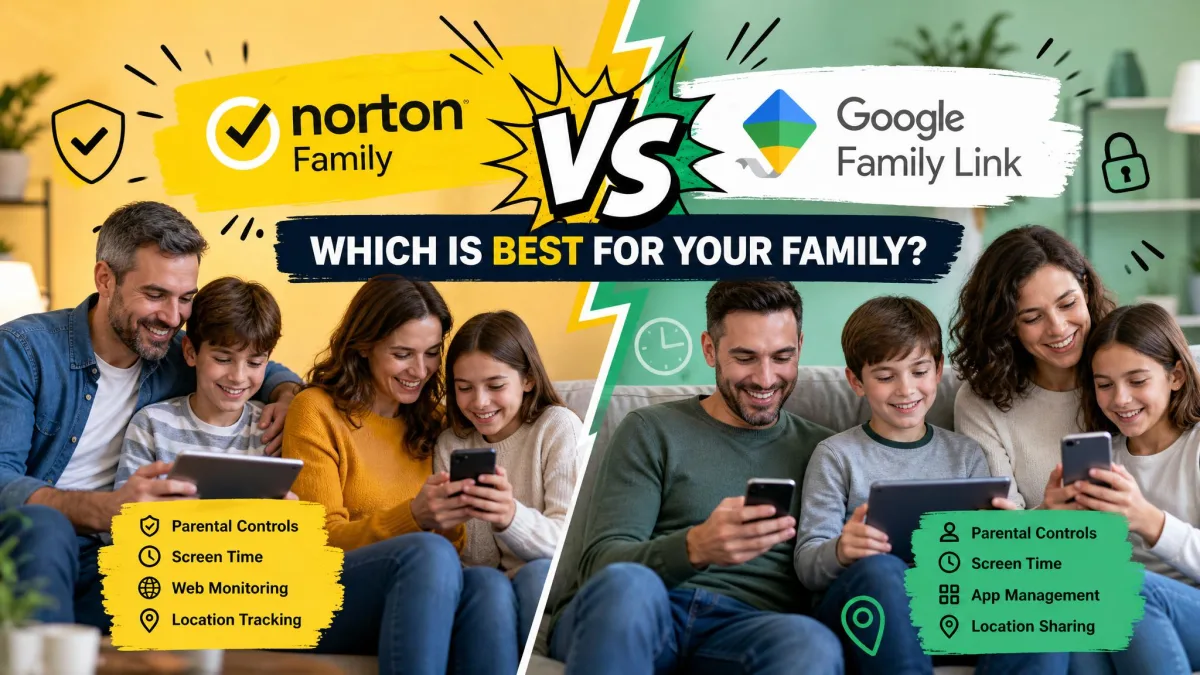
Choosing a parental control app usually comes down to three things: which devices your kids actually use, how much you want to spend, and how much control you need over what they do. Norton Family and Google Family Link sit at opposite ends of that decision. One is a paid, feature-heavy suite from a security company. The other is free, built by Google, and already baked into most Android phones.
We put both through the same real-world checks on family devices, from setup and screen-time limits to location alerts and content filtering. Our goal was simple: figure out which app fits which family, rather than crown a single winner for everyone. We ran the apps side by side on Android phones, a Windows laptop, and an iPhone, watching how each handled the everyday jobs parents care about.
Below you will find the full comparison, feature by feature, plus a clear recommendation for who each app suits best.
Norton Family vs Google Family Link: Side-by-Side Comparison Table
Here is the quick view before we get into the detail. This table covers the features most parents ask about first, so you can spot the big differences at a glance.
| Product | Buy | Price | Content filtering | Screen time |
|---|---|---|---|---|
 |
Check price → | $49.99/yr | 45+ categories, blocks and warns | Daily and hourly limits, no per-app limits |
 |
Get it free → | Free | SafeSearch and site blocking, leaks on modified searches | Daily limits, Downtime, School Time, per-app limits |
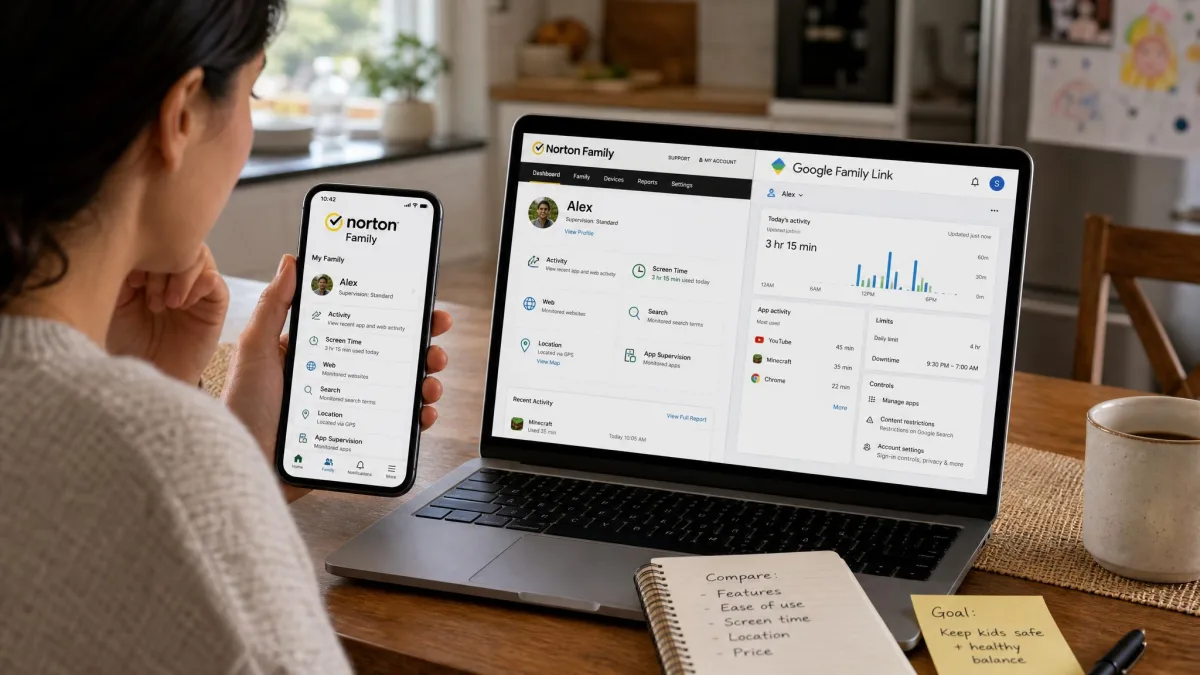
A few rows need more context than a table cell allows, so we break each one down below. The short version: Norton offers a more comprehensive dashboard and content filter, while Family Link offers tighter screen-time tools for free. Platform support is where the two split hardest.
Pricing: Free vs Paid
This is the clearest difference of the two. Google Family Link is free, with no premium tier and no paid upgrade to unlock features. In our testing it stayed genuinely free, with no hidden fees waiting behind a settings screen. If your budget is zero, the decision may already be made for you.
Norton Family costs $49.99 for the first year and covers an unlimited number of child devices on one account. Norton lists renewal at its standard MSRP, and the company notes that renewal prices may be higher than the intro price, so it is worth checking your account before the year is up. There is a 30-day free trial to test it first, a 60-day money-back guarantee on annual plans, and a 14-day refund window on monthly plans.
For that money you get a broader feature set and a more polished dashboard, which we cover throughout this guide. Whether that is worth paying for depends entirely on the features you need and the devices in your house.
You can see the current price and trial details on the Norton Family product page, and Google Family Link is available directly from Google.
Screen Time Management & Limits
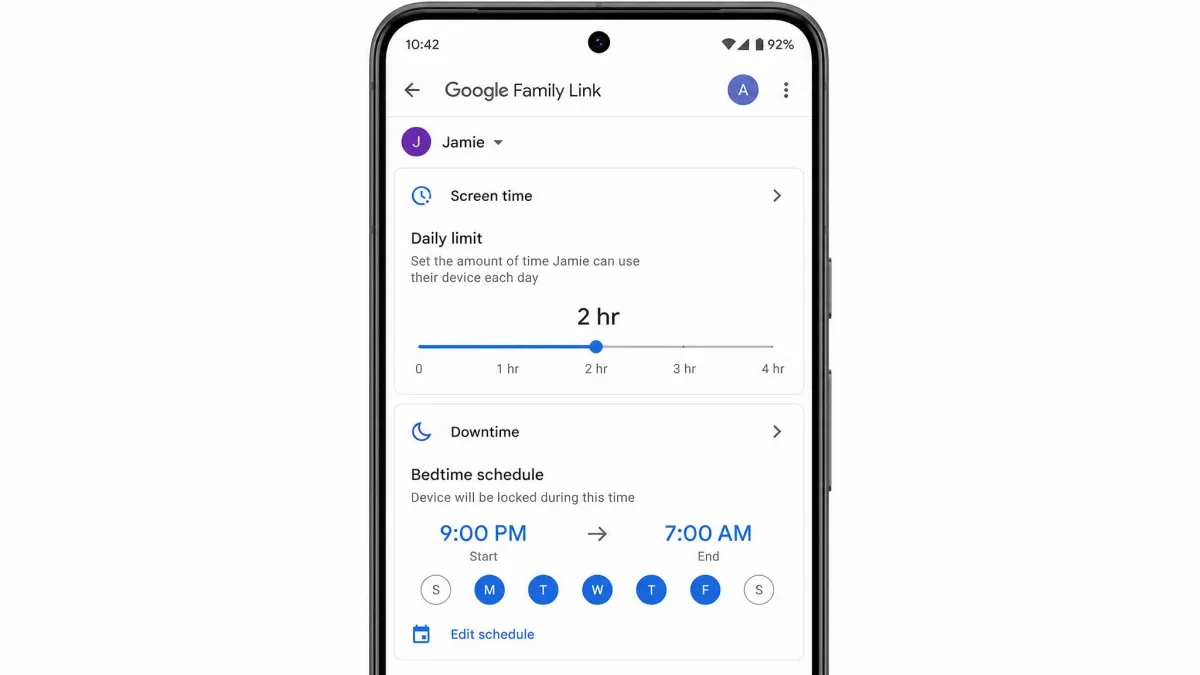
Both apps let you set daily screen-time limits and schedule quiet hours, but Family Link gives you finer control here. It offers daily limits, a Downtime schedule for bedtime, a School Time mode, and per-app time limits so you can cap one game without locking the whole device.
Family Link's enforcement impressed us most. When we set a device to lock at 9 PM, it locked almost the next second once time ran out. Granting bonus time or removing a limit reached the child's device with a slight delay, but the lock itself was immediate.
Norton Family handles daily and hourly limits and includes a School Time mode of its own, but it cannot set per-app time limits. It only blocks apps entirely. For a parent who wants to allow 30 minutes of one app while blocking another, that is a real limitation.
If your main goal is capping time on a single game or app rather than the whole device, Family Link's per-app limits give you control that Norton simply does not offer.
Activity Reporting & Monitoring Dashboard
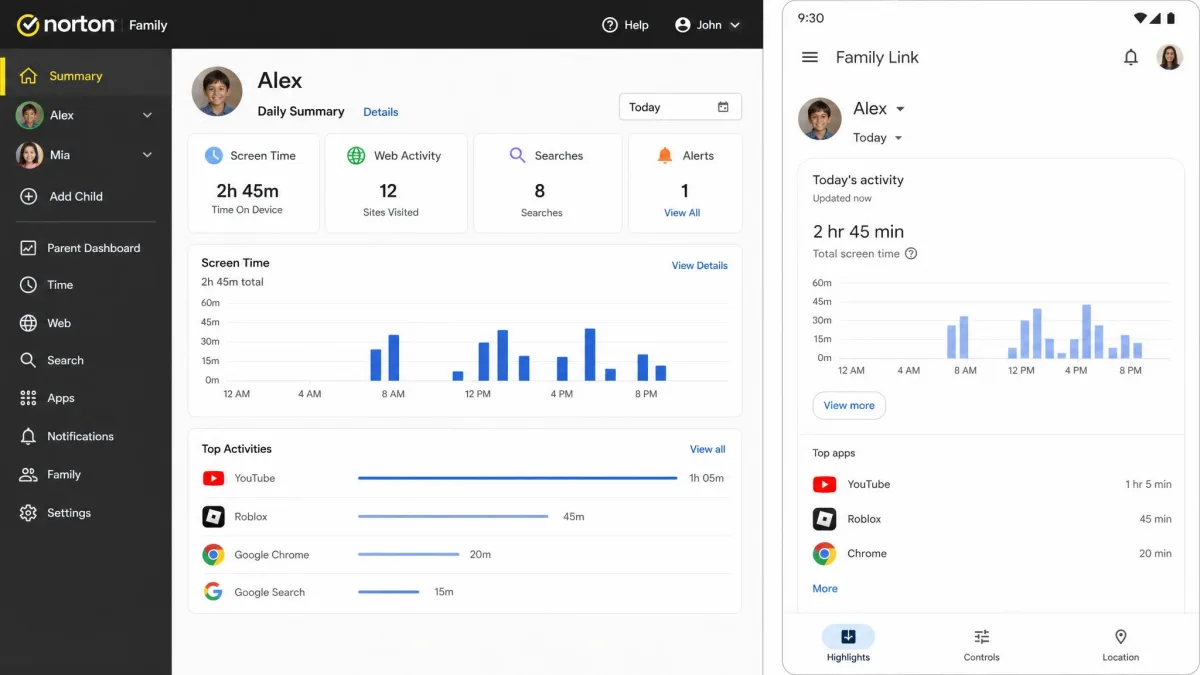
Norton Family's dashboard is the more comprehensive of the two. It pulls together Web Supervision, Search Supervision, Video Supervision for YouTube, app activity, and time usage, then sends weekly and monthly email reports so you get a summary without opening the app. In our testing the dashboard updated quickly and felt a step ahead of many competitors.
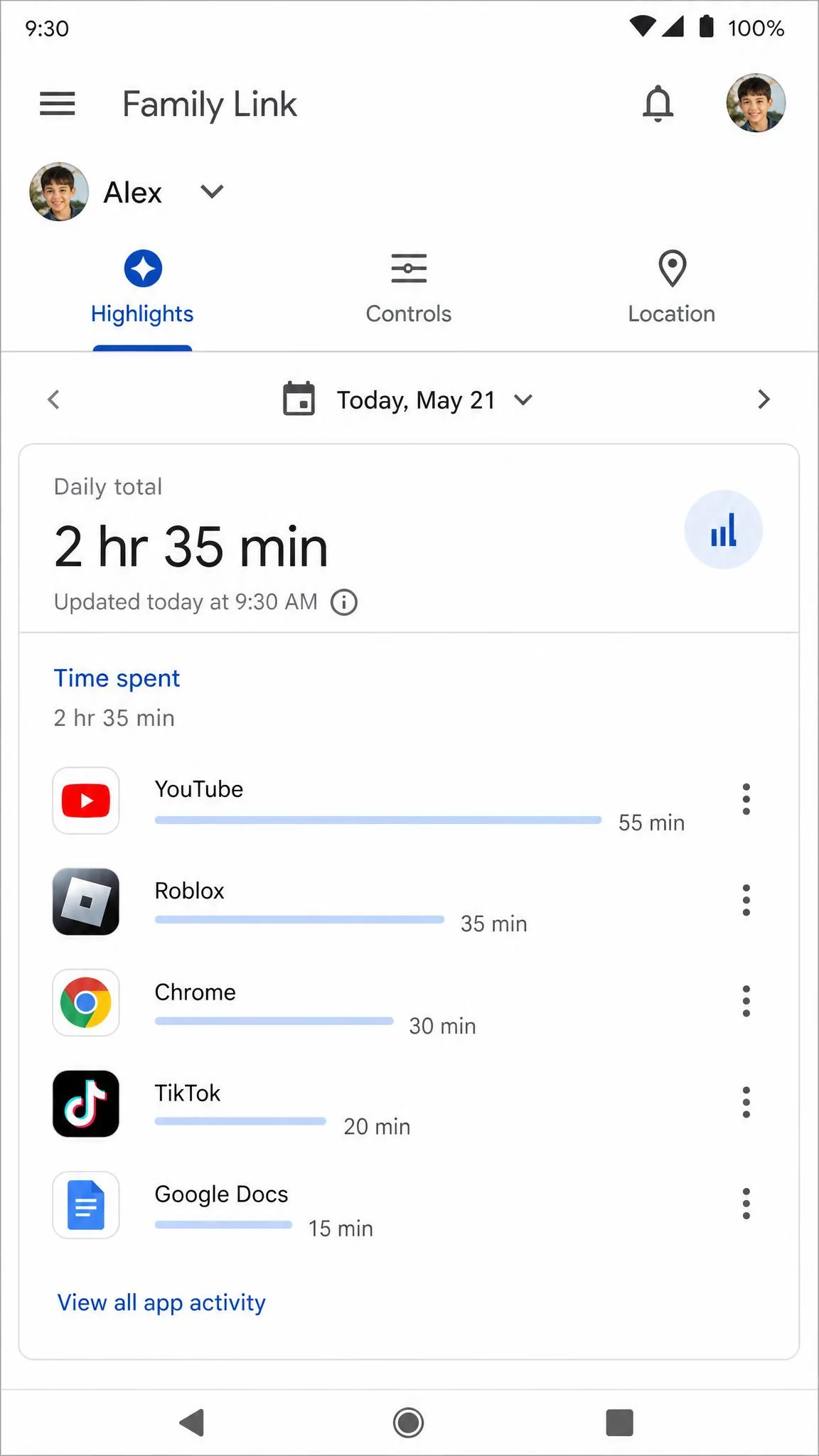
Family Link's reporting is narrower but accurate. Its app-usage reports arrived with almost no delay, and when we ran an 8-minute browsing session it matched the report to the minute. What it does not do is monitor social apps beyond YouTube, so activity inside TikTok or Snapchat stays invisible to you.
Neither app monitors the content of text messages or private chats, which is worth knowing if cyberbullying is your main concern.
Location Tracking & Geofencing
Both apps can show you where your child's device is on a map, and both send arrival and departure alerts. The difference is in history and precision.
Norton Family keeps 30 days of location history and supports geofencing around saved places. When our testers left and returned to a saved location, Norton sent an alert and a matching email. The catch is precision: Norton showed a general area rather than a precise pin, and location tracking pauses while School Time or Instant Lock is active, which is not clearly disclosed. On Android in particular, we found location syncing unreliable.
Family Link shows real-time location on a map with arrival and departure alerts, but it keeps no historical log. You can see where the device is now, not where it was yesterday afternoon.
If you want a record of where a device has been over the past month, Norton's 30-day history is the stronger tool. If you only need to check the current location, Family Link covers that for free.
Content Filtering & Web Filtering
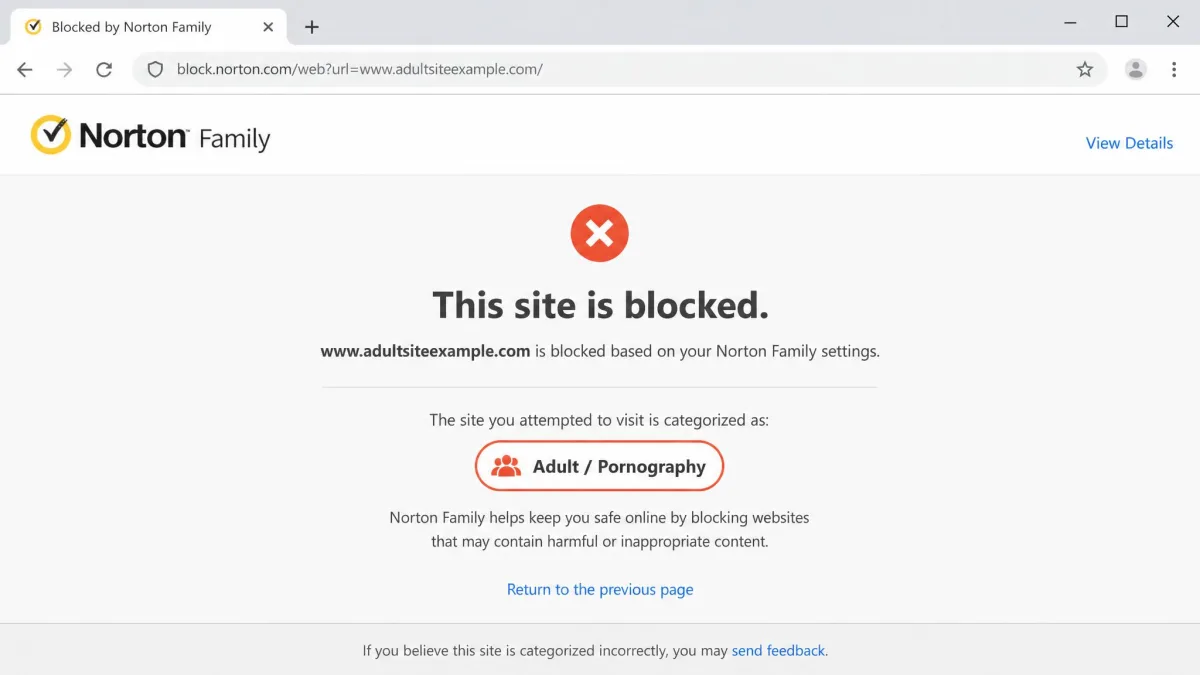
This is where Norton earns much of its price. Its web filter covers 45+ categories, including bullying, sexual content, hate speech, and drug-related sites. In our testing it blocked visits to adult sites and showed a clear warning page in their place.
Family Link relies on SafeSearch plus site blocking, and here we found a real gap. Even with SafeSearch Filter mode turned on, modified search terms still surfaced explicit image and video thumbnails. For younger children, that leak matters.
There is one platform wrinkle with Norton on iOS. Its search and video supervision only work through Norton's own browser. If your child opens Safari or Chrome instead, those protections switch off.
For content filtering on Android and Chromebook, Norton's category-based blocking held up where Family Link's SafeSearch leaked on modified searches.
— From our hands-on testing
App Management & Restrictions
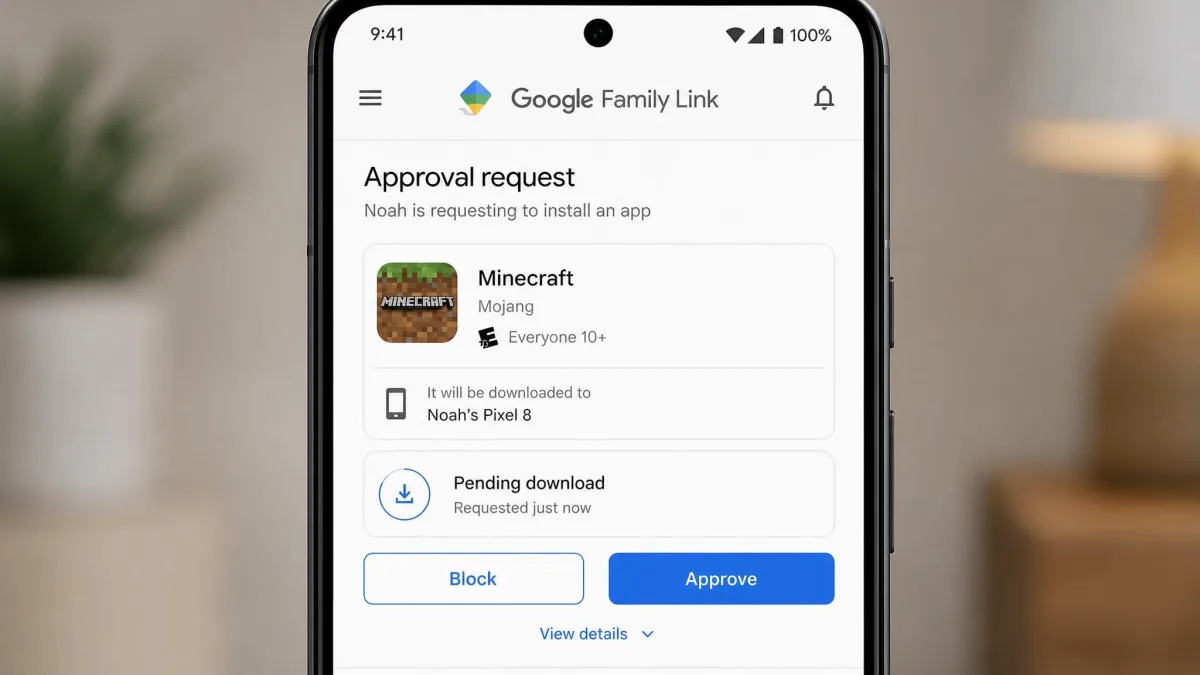
Family Link's app controls are the more flexible of the two. You can approve or block new installs, block existing apps, and set per-app time limits. Its Google Play age restrictions are strong: on a device limited to age-7 apps, an attempted Tinder download failed completely.
Norton Family lets you monitor and block apps, but it treats apps as all-or-nothing. You can block an app, but you cannot allow it for a set number of minutes a day.
One honest caveat on Family Link: it can be bypassed with minimal technical skill. A determined teen can hide restricted apps in a Samsung Secure Folder or remove the supervised account with a factory reset. No parental control app is tamper-proof, but this is a known weak spot.
Device & Platform Support (Android, iOS, Chromebook, Windows)
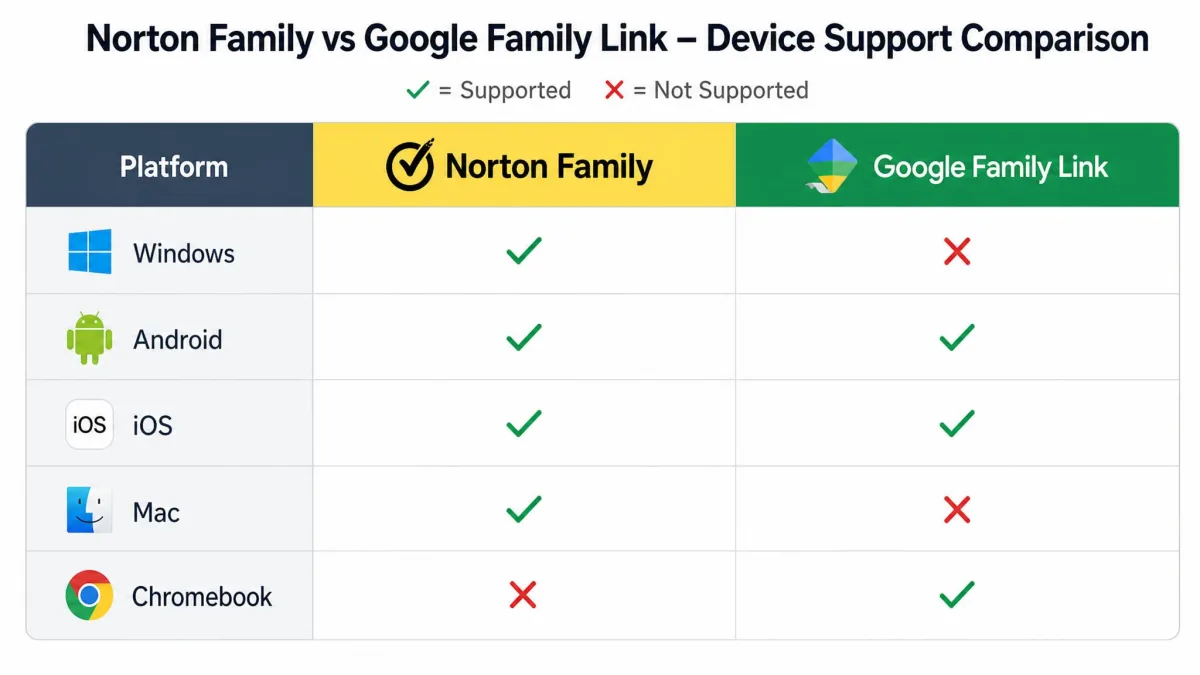
Platform support is the sharpest differentiator between these two apps, and it may decide your choice on its own.
Norton Family supports Windows 7 SP1 and later and Android 8 and later for child devices, plus iOS with the browser limitation noted above. It does not support Mac or Chromebook child devices at all.
Family Link runs on Android and Chromebook child devices, but it has no iOS support for child devices. Parents can still supervise from an iPhone, an Android phone, or a web browser, but the child's device cannot be an iPad or iPhone.
So the split is clean. If your child uses an iPhone, Norton is your option. If your child uses a Chromebook, Family Link is your option. Households with a Windows laptop lean Norton, while Android-and-Chromebook homes lean Family Link.
Setup & Ease of Use
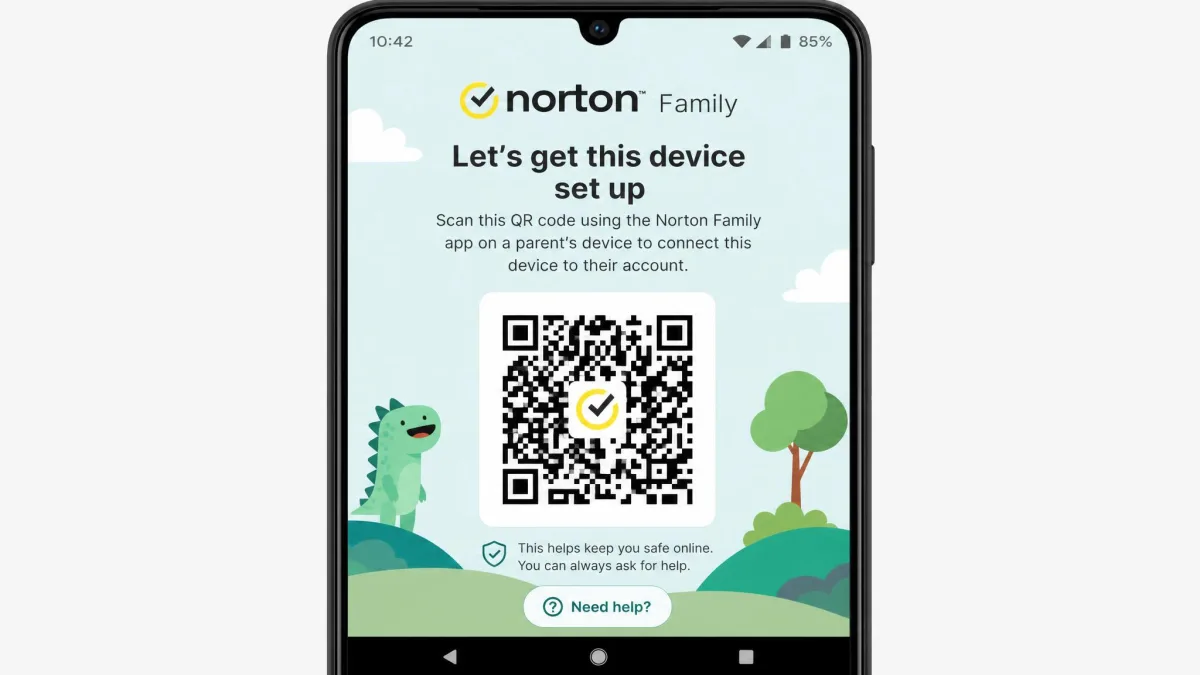
Norton Family setup was straightforward. It uses QR codes to pair a child's device, and the parent dashboard updated quickly once we were running. For a paid suite with this many features, it did not feel heavy to get going.
Family Link is simple to set up too, especially if your family already uses Google accounts, since much of the framework is already on the device. The trade-off is the bypass risk covered above and the fact that, once a child turns 13, Google lets them choose to take over their own account and sharply reduce what you can control.
Pros and Cons
Norton Family: Pros and Cons
Pros
- Comprehensive 45+ category web filter that blocked adult sites cleanly in testing
- Fast, polished dashboard with weekly and monthly email reports
- 30-day location history plus working geofencing alerts
- Supports iOS and Windows child devices, plus a 30-day free trial
Cons
- Paid, at $49.99 for the first year with renewal that may cost more
- No per-app time limits, only full app blocking
- No text or chat monitoring
- iOS search and video supervision only work through Norton's own browser
Google Family Link: Pros and Cons
Pros
- Completely free with no premium tier or hidden fees
- Per-app time limits plus near-instant Downtime enforcement
- Accurate, near real-time activity reports
- Strong Google Play age restrictions that blocked an off-limits download
Cons
- SafeSearch leaked explicit thumbnails on modified search terms
- No monitoring beyond YouTube, so TikTok and Snapchat stay invisible
- Can be bypassed with minimal technical skill
- No iOS child-device support, and control drops sharply once a child turns 13
Which Should You Choose?
Choose Norton Family if
You want the more comprehensive suite and you are willing to pay for it. Norton is the better fit if your child uses an iPhone or a Windows laptop, if strong category-based content filtering is your priority, or if you want a month of location history rather than just a live pin. The polished dashboard and email reports make it easy to stay on top of activity without living in the app.
Choose Google Family Link if
Your budget is the deciding factor, or your kids live on Android phones and Chromebooks. Family Link gives you per-app time limits, quick-enforcing Downtime, and accurate reports without costing a cent. Just go in knowing its content filter can leak and that a tech-savvy teen may find a way around it.
Quick Verdict: Norton Family vs Google Family Link at a Glance
For most paying families with mixed devices, Norton Family is the more complete and reliable tool, and it is our top pick here. Its filtering, dashboard, and location history all do more than the free option. But Google Family Link is the smarter choice for Android-and-Chromebook households on a budget, and its screen-time controls are genuinely excellent.
There is no single winner for every family. The right answer depends on your devices first, your budget second, and how much control you want third.
Frequently Asked Questions
Is Google Family Link free?
Which is better, Norton Family or Google Family Link?
Do these apps work on iPhone and PC?
Can kids bypass these apps?
What is the main difference between them?
Final Verdict
After running both apps through the same everyday checks, our recommendation comes down to what your family actually needs. Norton Family is the stronger all-round tool if you can pay for it, with a comprehensive content filter, a fast dashboard, location history, and support for iPhones and Windows PCs. Its main gaps are the lack of per-app limits and the missing chat monitoring.
Google Family Link is remarkable for a free app. Its per-app limits, quick Downtime enforcement, and accurate reports cover the core job well, and for Android and Chromebook families it is often all you need. The SafeSearch leak and easy bypass are the trade-offs you accept for the price.