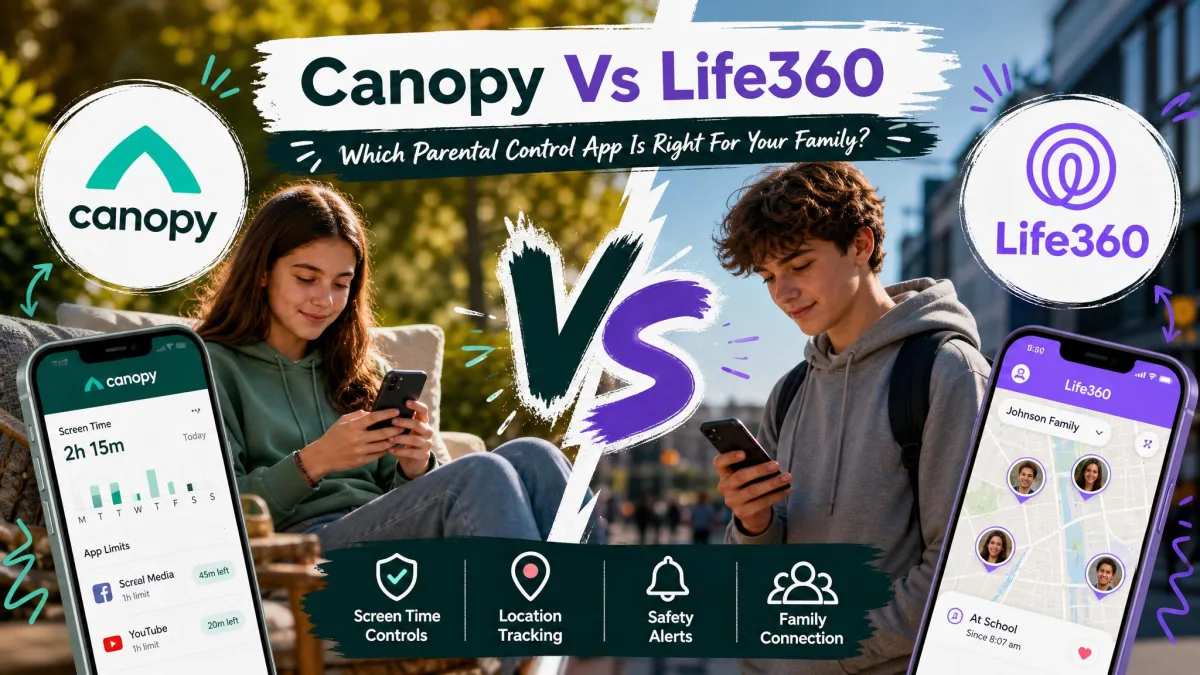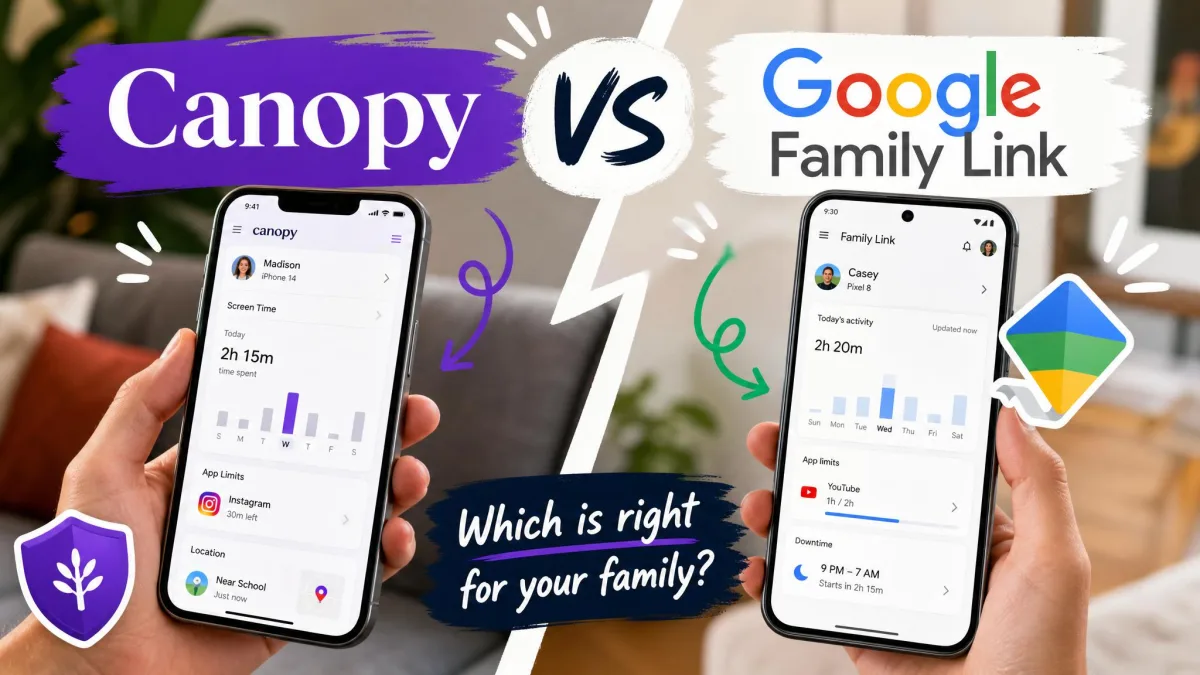
You are trying to decide whether to pay for a parental control app or use the free one Google already gives you, and the two names that keep coming up are Canopy and Google Family Link. Here is the short answer. Family Link wins on screen time, app control and price, because it is free, it is built into Android, and its daily limits and bedtime schedules actually hold. Canopy wins on content, because it strips explicit images and video out of pages in real time and warns you about outbound photos, which Family Link cannot do at all.
Most families do not need both, but some do, and that combination is genuinely workable. We spent this comparison digging into how each app behaves on real family phones rather than how the feature lists read, and the differences turned out to be sharper than the marketing suggests. Below you will find the full breakdown of filtering, limits, location, reports, platforms, setup, price and the ways kids get around each one.

Canopy vs Google Family Link at a Glance
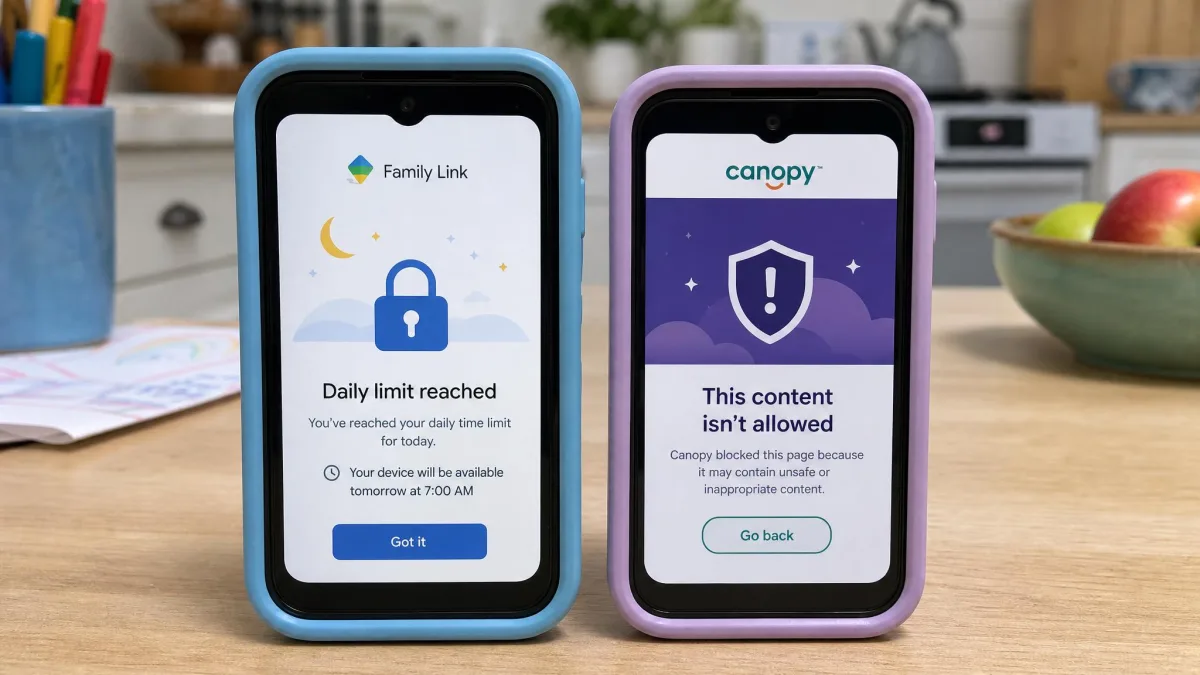
These two apps are not really competing for the same job, which is why the choice feels confusing. Family Link is account-level supervision: Google knows who your child is, so it can control what they install, how long they use it and when the device goes quiet. Canopy is a content filter: it sits in the traffic path and decides, image by image, what your child is allowed to see.
Family Link has been publicly available since 2017 and is free, with no paid tier and no upsell. It supervises unlimited devices in a family group. Canopy is published by Netspark Inc. and is subscription-only, with a 7-day free trial on every plan and a 30-day money-back guarantee if you change your mind.
If your child is roughly 7 to 12 and using an Android phone or a Chromebook, Family Link on its own is a genuinely good answer. Once a teenager starts browsing widely, Family Link thins out, because its filtering stops at SafeSearch and site-level block lists. That is the gap Canopy fills.
How We Compared These Apps
We compared these two apps the way a parent would use them, not the way a spec sheet describes them: what each one actually blocks, what it costs, how long setup takes, what it does to the phone it is installed on, and where each one quietly stops working. Where the two overlap, we asked which does the job more reliably. Where only one has a capability, we asked whether that capability is worth paying for.
Prices, platform requirements and feature lists come from each company's own pages, cross-checked against independent reviews and app store listings. Canopy's pricing varies between the website and the app stores, so we have flagged that rather than quoting one number as gospel. Everything about daily behaviour, from battery drain to sync delays to failed setups, comes from documented hands-on findings rather than vendor claims.
The clearest signal in this comparison was not a feature at all. It was that the free app's weaknesses are all about what it cannot see, while the paid app's weaknesses are all about what it does to the phone. Those are different kinds of compromise, and which one you can live with is really the choice you are making.
Quick Comparison Table
Here is every feature that matters, lined up against both apps. Prices are the entry rate for each, and the Canopy figures are the annual-billing rate from its own pricing page.
| Feature | Canopy | Google Family Link |
|---|---|---|
| Price | From $8.33/month billed annually | Free |
| Free tier | No, 7-day free trial only | Yes, the whole app is free |
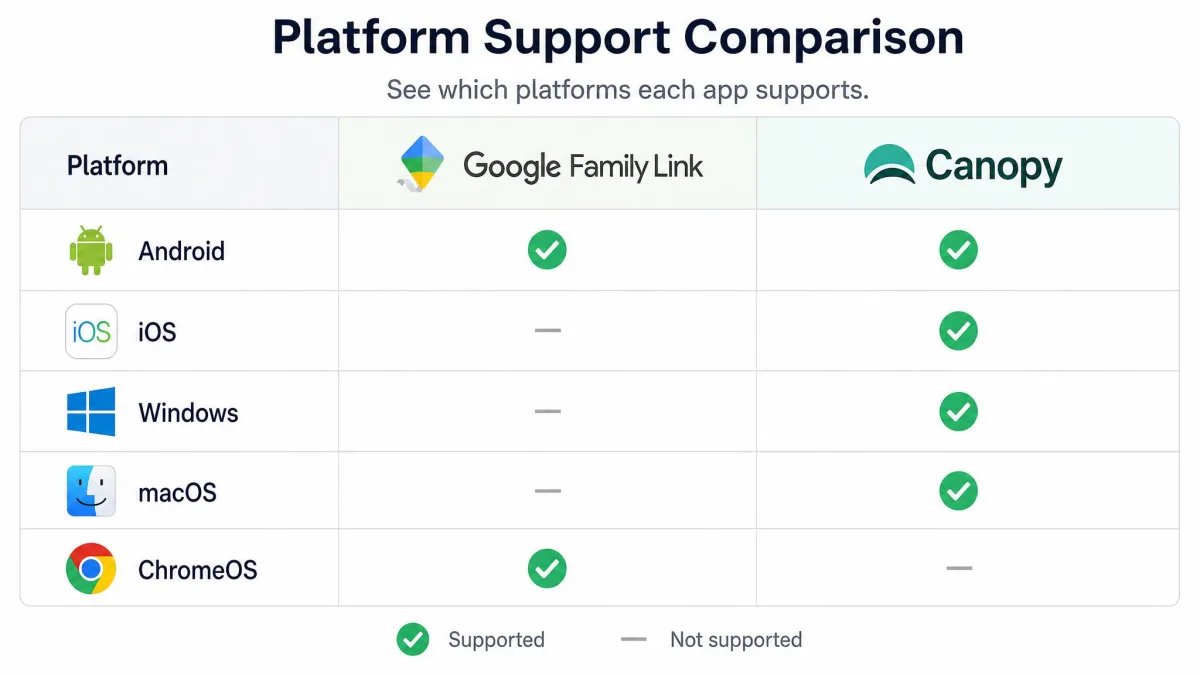
| Platforms supported | Android 9+, iOS 12+, macOS 10.13+, Windows 10+, ChromeOS | Android 6.0+, Chrome OS 71+, Apple child devices not supervised |
| Web/content filtering | AI Smart Filtering in Safari, Chrome and Edge | SafeSearch plus Chrome site allow and block lists |
| Real-time image blocking | Yes | No |
| Sexting prevention | Yes, photo alerts and outbound blocking | No |
| Screen time limits | DownTime scheduling, no per-app limits | Daily limits, per-app budgets, bedtime, remote lock |
| App blocking | Limited | Yes, plus Play Store download approval |
| Location tracking | Yes, GPS | Yes, real-time device location |
| Geofencing | Not confirmed | Not confirmed |
| Activity reports | Alerts and parent dashboard | Activity reports in app and web dashboard |
| Text/social monitoring | No | No |
| Works after age 13 | Yes | Child can move to a supervised teen account at 13 |
| Ease of setup | Android needs an APK sideload and broad permissions | About 15 minutes on Android |
What Is Canopy?
Canopy is a paid online safety app built around one idea: filter the picture, not just the address. Its AI Smart Filtering inspects images and video as a page loads and removes explicit material in real time, so a page that mostly contains ordinary content still opens, minus the parts you do not want your child to see. That is a different model from a category blocklist, which either lets a whole site through or shuts it out.
Around that core it adds sexting prevention with photo alerts, filtering of AI chatbot content, website and app blocking, DownTime scheduling for screen time, GPS location tracking, removal alerts if someone tries to disable or uninstall the app, and VPN blocking to shut down the obvious bypass route. Support runs by phone and chat, and the parent dashboard collects the alerts in one place. Our full Canopy review goes deeper on the dashboard itself.
There are real limits. Canopy does not scan emails, texts, calls, or content inside non-browser apps. It has no filters for on-demand streaming services such as Netflix, Hulu or Amazon Prime, and it does not monitor YouTube watch history. Its filtering also only applies inside Safari, Chrome and Edge, and it blocks privacy-focused browsers such as DuckDuckGo and Brave by default rather than filtering them.
Independent verdicts on Canopy land in a wide band. SafeWise rates it 4 out of 5 and gives it a Kids Safety Award specifically for blocking explicit content, while SafetyDetectives ranks it 18th out of the 27 parental control apps it reviewed for 2026. The App Store community rates it 3.8 out of 5 across roughly 1,300 ratings, and Google Play sits lower at about 3.2. That spread tells you something useful: the filter is excellent, and everything wrapped around it is uneven.
What Is Google Family Link?
Family Link is Google's own supervision system, free since 2017 and tied to the child's Google Account rather than to a piece of software on the phone. You need to be 18 or older and hold a Google Account to set it up, and once you do, the controls follow the child's account onto every supervised Android device and Chromebook they sign in to.
The feature set is broad for something free. You get daily screen time limits and app-level time budgets, bedtime schedules, remote device lock, Play Store download approval, app blocking, SafeSearch enforcement, YouTube content settings, Chrome site restrictions and allow lists, real-time device location, and activity reports. Everything is available in the parent app and at the familylink.google.com web dashboard, across unlimited supervised devices. Our standalone Google Family Link review covers the dashboard in detail.
The gaps are just as clear. There is no text message or social media content monitoring, no page-level web filtering beyond SafeSearch and site blocking, and no proactive alerting of any kind. It scored 8.3 out of 10 in specialist testing as the best free parental control for Android families with under-13s, and that framing is the right one. Family Link is a foundation layer for Android kids roughly aged 7 to 12, and it thins out once a teenager starts using social media.
Content and Web Filtering
This is the category where the two apps are furthest apart, and where the money you spend on Canopy either earns its keep or does not.
Canopy Smart Filtering and Real-Time Image Blocking
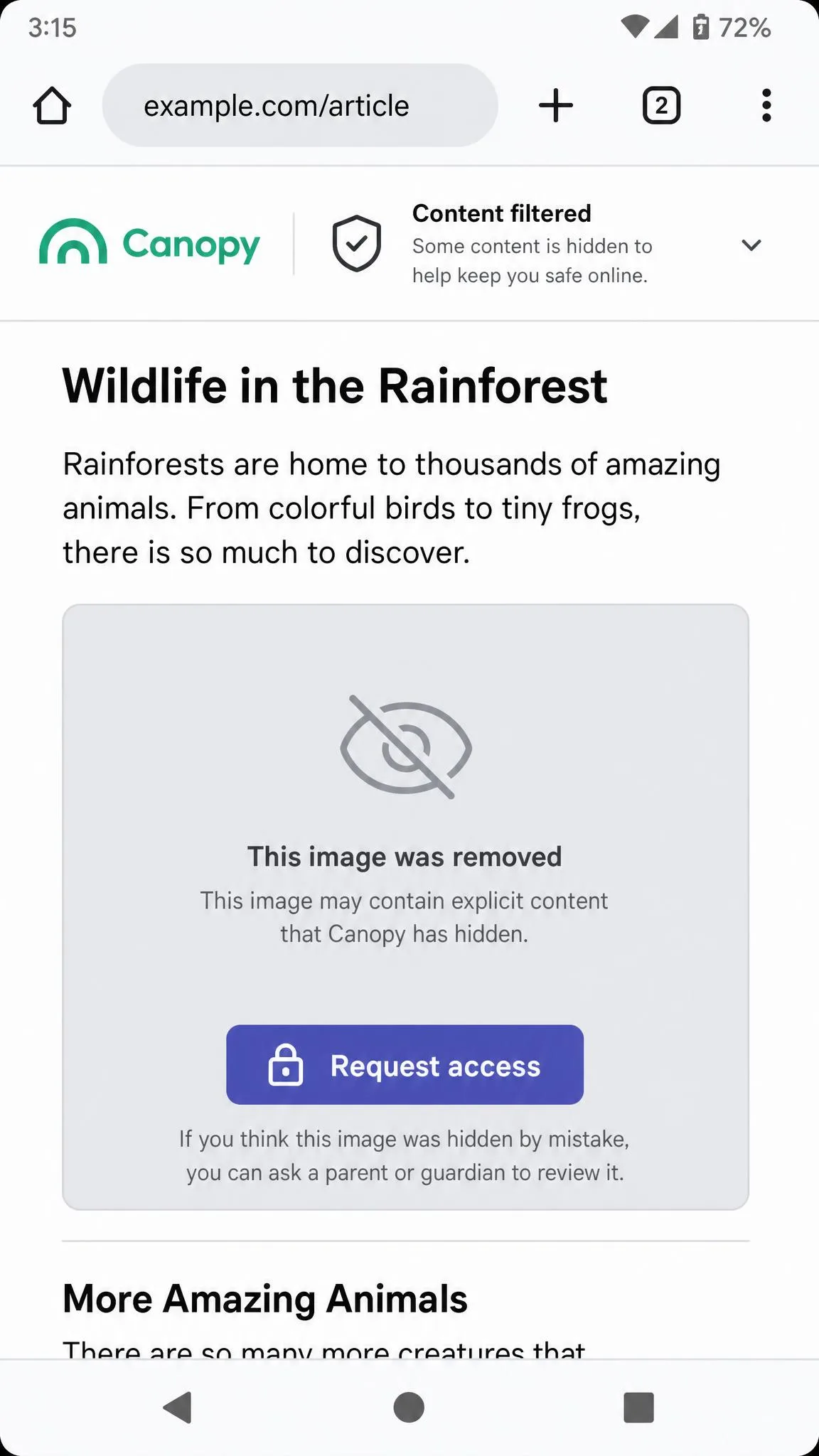
Canopy's filter works at the image level. Rather than deciding whether a domain is safe, it evaluates the pictures and video on the page while the page renders and removes what it judges to be explicit. In controlled testing it correctly categorised 99.8% of content containing nudity or pornography, though that accuracy figure comes from a single test run and the filter still mislabels benign images in everyday browsing.
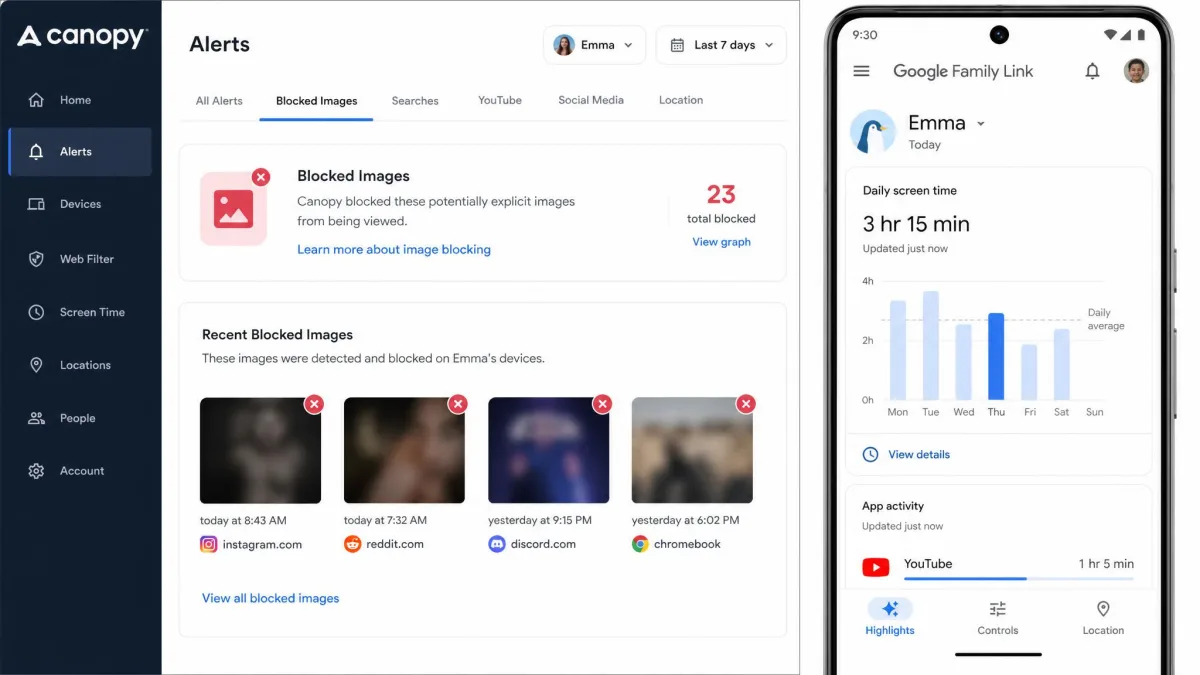
That mislabelling is not a footnote, it is part of daily life with the app. Smart Filtering blurs harmless images often enough that a parent ends up reviewing unblock requests on a regular basis. Canopy handles this reasonably: the child can request permission to view or save a blocked image, and the request lands in the parent dashboard. It is still a recurring small tax on your attention, and the younger the child the less often it fires.
Two other filtering constraints matter. Canopy routes traffic through a VPN in order to inspect it, and it only filters inside Safari, Chrome and Edge, blocking privacy browsers such as Brave and DuckDuckGo outright instead. If your child needs a specific alternative browser for school, that is a problem to check before you subscribe.
Google Family Link SafeSearch and Chrome Filtering
Family Link's filtering stops at SafeSearch enforcement plus site allow and block lists in Chrome, with separate content settings for YouTube. It is coarse by design. You can block a domain and you can force SafeSearch on, but individual pages on an allowed domain still get through, and nothing on those pages is inspected.
For a younger child on a supervised Chromebook doing homework, that is usually enough, because the search layer is where most accidental exposure starts. For a curious teenager, it is thin. There is no image analysis, no video analysis, and no way to allow a site while filtering what is on it.
Filtering Verdict
Canopy wins this outright, and it is not close. If your primary worry is explicit images and video, the free option does not solve your problem and no amount of configuration will make it. Family Link's filtering is a sensible floor; Canopy's is an actual filter.
Family Link tells a child where they may go. Canopy decides what they are allowed to see once they get there. That distinction is the whole comparison.
Screen Time and App Controls
Reverse the polarity and you get this section, where the free app is comfortably better than the paid one.
Canopy Down Time and App Blocking
Canopy includes DownTime scheduling, which lets you set windows where the device goes quiet, and it can block apps and websites. What it does not have is per-app screen time limits, and its app blocking is limited in scope. It does not replace a full screen-time manager, and it is not trying to.
If you buy Canopy expecting to manage how long your child spends in a game, you will be disappointed. The DownTime schedule is a blunt on-off instrument, useful for bedtime and homework hours and not much more.
Google Family Link Daily Limits, Bedtime and App Approval
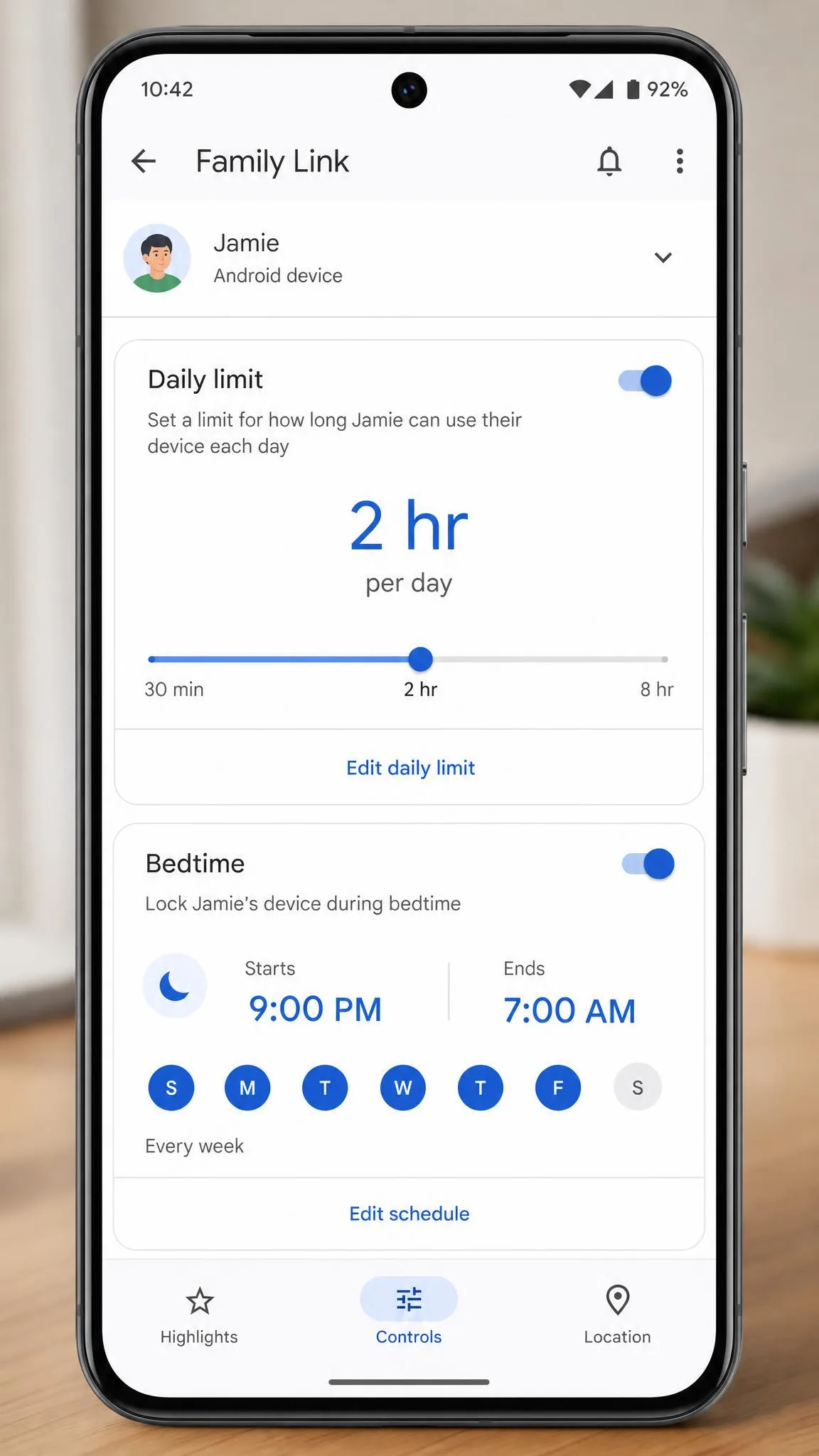
Family Link gives you daily screen time limits, per-app time budgets, bedtime schedules, remote device lock and Play Store download approval, all free, all on unlimited devices. That combination is what most parents actually mean when they say they want parental controls, and Google gives it away.
Two rough edges show up in daily use. New limits and rule changes do not always land instantly, so a change you make at the kitchen table can take a while to sync to your child's phone. App approval is also not airtight in practice: apps occasionally end up installed on a supervised device even with the approval requirement switched on, which is worth spot-checking rather than trusting blind.
The deeper limitation is that Family Link's app control is all or nothing. You can block a social app entirely, but you cannot see or filter anything inside it. There is no middle setting between full access and no access.
Screen Time Verdict
Family Link wins by a wide margin. Canopy's DownTime is a bonus feature attached to a filter, not a competitive screen time system, and no family should buy Canopy for its limits.
Location Tracking and Geofencing
Screen time is a category one app wins outright; location is where the two draw. Both track it, and in normal use both do it well enough. Canopy offers GPS location tracking in its parent dashboard. Family Link shows real-time device location for any supervised Android device, and because it is tied to the account rather than an installed filter, it tends to be the more dependable of the two on Android.
Geofencing is where the marketing gets ahead of the documentation. Neither company's own material confirms named geofence zones with arrival and departure alerts, so if that specific feature is what you are shopping for, treat both as unconfirmed and check before you buy.
One practical caveat applies to Family Link. A child can sometimes disconnect themselves from supervision while they are out, and when that happens both location and screen time reporting stop until supervision is restored. It is not a silent failure, but it is a failure at exactly the moment location matters most.
If location is your single reason for buying, neither of these is the strongest pick, and a dedicated family locator will serve you better than either.
Activity Reports and Monitoring
What Canopy Reports Show
Setting the rules is only half the job, and seeing what happened afterwards is where the two dashboards diverge. Canopy's is alert-driven. It surfaces blocked content, unblock requests, sexting alerts and removal attempts, so what you see is a stream of events rather than a usage summary. When something happens, you hear about it, which is the opposite of how Family Link behaves.
What Family Link Reports Show
Family Link produces activity reports covering app usage by day and week, available in the parent app and the web dashboard. They are clear, readable and easy to act on. The catch is that Family Link gives you no proactive alerts at all, so anything worrying is only found by opening the dashboard and reading it yourself.
What Neither App Can See
Both apps share the same blind spot, and it is a large one. Neither monitors text message content, and neither reads social media messages. Canopy also does not scan emails, calls or content inside non-browser apps, has no filters for Netflix, Hulu or Amazon Prime, and does not track YouTube history. Family Link has no page-level filtering beyond SafeSearch and site blocking.
If reading your child's messages is the requirement, neither of these apps does it, and you should be looking at Bark instead.
Sexting Prevention and Image Protection
Canopy is the only one of the two that addresses this at all. Its sexting prevention watches outbound photos and alerts the parent, and it can block an image before it leaves the device. Combined with the removal alerts that fire when someone tries to disable or uninstall the app, it forms a coherent set of protections around images specifically.
Family Link has nothing in this category. There is no image inspection in either direction and no alerting. For a household whose worry is a teenager sending or receiving explicit photos, this section is the entire argument for paying for Canopy.
Device and Platform Compatibility
Android
Both apps work well here, and Android is where each is at its best. Canopy requires Android 9 or higher. Family Link needs the child device on Android 6.0 or higher, which is a lower bar and matters if you are handing down an older phone. Canopy also performs more smoothly on Android than on iPhone, where its filtering layer is more fragile.
iPhone and iPad
This is decisive. iPhones, iPads and non-Chromebook computers cannot be supervised with Family Link. On a child's Apple device parents can manage only YouTube and Search settings, so app approval, screen time limits and Chrome filtering are simply not enforceable. Apple households fall back on Screen Time, or they pay for something else.
Canopy runs on iOS 12 or higher and does work on a child's iPhone, with a caveat: the filter depends on a VPN profile that a tech-savvy teenager can switch off in Settings. Canopy does send a removal alert when that happens, so you find out, but the protection is not tamper-proof.
The parent-side app for Family Link runs on iPhone and iPad, though Google's own pages disagree about the minimum version. Its setup requirements page and its FAQ quote different iOS minimums, so check on your own handset before assuming it will install.
Chromebook, Windows and Mac
Family Link supervises Chromebooks running Chrome OS 71 or higher, which makes it the obvious choice for a school-issued Chromebook household. It does not supervise Windows or Mac computers.
Canopy covers more desktop ground. It runs on macOS High Sierra 10.13 or higher and on Windows 10 or higher, excluding ARM-based systems, alongside its mobile apps. If the family computer is a shared Windows laptop, Canopy is the only one of the two with anything to offer.
Setup and Installation
Setting Up Google Family Link
Setting up Family Link takes about 15 minutes for a child account and an Android device, which matches what Google's own documentation says. You create or link the child's Google Account, install the app on both phones, sign the child in on their device and step through the permission screens. Google's supervision setup documentation lists the exact requirements, and the Family Link app on Google Play is the install you need on the child's phone.
Nothing about it is difficult. Open the parent app, tap Controls, and work down the list. The defaults are sensible enough that you can leave most of them alone on the first pass.
Setting Up Canopy
Canopy is harder, and you should know that going in. Installing it on a child's Android phone means downloading an APK from outside the Play Store and granting it a long list of permissions, rather than a one-tap Play Store install. It is not complicated in the abstract, but it involves steps most parents have never taken on a phone.
Getting Canopy running is also inconsistent across handsets. Some phones give trouble during setup, and that unevenness is a large part of why the service can feel unpolished next to Google's. Budget more than 15 minutes, and do it on a quiet evening rather than while handing over a birthday present.
Canopy on Android is installed by sideloading an APK and granting broad device permissions, not through the Play Store. If your device policy or your comfort level rules that out, Canopy is not a viable option on that phone.
Can You Run Canopy and Family Link Together?
Yes, and on Android it is the strongest setup in this whole comparison. The phone keeps the child's supervised Google account, which handles screen time limits, bedtime, app approval and location, while Canopy is sideloaded on top and handles image and video filtering. The two do not fight for control, because they operate at different layers.
The sideload step is the sticking point, not the coexistence. Do the Family Link setup first so the account and limits are settled, then install Canopy and work through its permissions. If you only take one recommendation from this article, take that ordering.
Set up Family Link first and confirm the daily limits are syncing, then add Canopy. Doing it in that order means that if something breaks during the Canopy sideload, you already know the free layer is working.
Ease of Use and Parent Dashboard
Family Link is the easier app to live with. The parent app and the web dashboard show the same information, the daily and weekly charts are readable at a glance, and changing a rule takes a few taps. The main annoyance is the sync delay, where a change you make does not appear on the child's device for a while.
Canopy's dashboard is clean and its alerts are clear, but it asks more of you. Because Smart Filtering produces false positives, you will be handling unblock requests as a routine part of the week rather than an occasional event. There are also two performance costs to weigh: Canopy is a noticeable battery drain on the child's phone, at around 22% of daily usage because the filter runs constantly in the background, and because it routes traffic through a VPN, internet speeds can drop and Wi-Fi behaviour gets flaky. Connecting to public Wi-Fi networks often fails while the filter is active, which is the complaint we would expect to hear first from a teenager.
Support is another split. Canopy offers phone and chat support, but the phone line only runs during business hours, so an out-of-hours problem waits until the next working day. Family Link has no support line at all, only help articles, which is what free buys you.
Pricing: Free vs Subscription
Google Family Link Pricing
Ease of use is one thing, and what each app asks of your bank account is another. Family Link is free, with no paid tier, no premium unlock and no device cap on the family group. Everything described in this article is included at no cost. It is the rare free app where the free version is the whole product.
Canopy Pricing and Plans
Canopy's Essential plan is listed at $8.33 per month billed annually for one device, Plus at $9.99 per month for up to three devices, and Premium at $12.50 per month for up to ten. Treat all three as starting points rather than fixed prices: Canopy's rates vary by tier, device count and whether you buy in-app or on the website, so check the current rate before subscribing. The three-device rate in particular differs between annual and month-to-month billing, and the top tier is described both as unlimited and as capped at ten devices depending on where it is listed.
Every plan comes with a 7-day free trial, and there is a 30-day money-back guarantee if you subscribe and change your mind. Between the two, you have a full month to decide whether the filtering is worth the money on your family's devices.
| Plan | Devices | Listed price |
|---|---|---|
| Google Family Link | Unlimited | Free |
| Canopy Essential | 1 device | From $8.33/month billed annually |
| Canopy Plus | Up to 3 devices | From $9.99/month billed annually |
| Canopy Premium | Up to 10 devices | From $12.50/month billed annually |
Which Is Better Value?
Family Link is unbeatable on value because it costs nothing and covers the controls most families want. Canopy is not competing on value, it is competing on a capability nobody free provides. The honest way to frame the spend is this: you are paying roughly the price of one streaming subscription for image-level filtering and sexting alerts, and if those matter in your house, that is a fair trade. If they do not, you are paying for a weaker version of what Google already gave you.
Privacy, Data Handling and Teen Consent
Both apps collect a lot about a child, and both operate under COPPA, the US rule for services directed at under-13s. Family Link keeps that data inside the child's Google Account, which is either reassuring or not depending on how you feel about Google holding it. Canopy processes browsing traffic through its filtering layer in order to inspect images, which is inherent to how the product works.
The part worth talking about with your child is consent. A filter your teenager knows about and broadly accepts holds up far better than one they discover and resent. Canopy's removal alerts and Family Link's supervision notice both mean a determined teen will find out eventually, so telling them first costs you nothing.
The Age 13 Supervision Cut-Off
At 13, or the local age of consent where you live, a supervised child can choose to move to a supervised teen account. Google's position is that supervision otherwise continues until a parent stops it. In practice the outcome depends on whether the teenager accepts continued supervision, and the transition often ends up with the controls effectively lapsing.
Canopy has no equivalent birthday. It keeps working after 13 for as long as the subscription runs and the app stays installed, which is one of the clearer arguments for paying once your child is a teenager.
Plan for your child's 13th birthday before it arrives. Family Link supervision can effectively end at that point if your teen chooses not to continue it, and finding that out on the day is not the conversation you want.
Can Kids Bypass Canopy or Family Link?
Both can be worked around, in different ways. Family Link's weak points are the ones we have already seen: a child can sometimes disconnect themselves from supervision while out, cutting off location and screen time reporting, and apps occasionally slip past the approval requirement. Our guide to how kids bypass Google Family Link walks through the specific methods and what to do about each.
Canopy is harder to remove but not sealed. On iOS the filter depends on a VPN profile a teenager can switch off in Settings, though Canopy sends a removal alert when that happens. It also blocks VPN apps to stop the standard bypass route, and it alerts you when someone tries to disable or uninstall it. Blocking Brave and DuckDuckGo rather than filtering them closes another common route, at the cost of blocking two legitimate browsers.
Neither app survives a determined, technically capable teenager. Both survive a bored one, which is who most of these controls are actually for.
Canopy Pros and Cons
Pros
- Real-time image and video filtering that no free app matches
- Sexting prevention with outbound photo alerts
- Removal alerts and VPN blocking to resist tampering
- Works on iOS, Windows and macOS as well as Android
- 7-day free trial plus a 30-day money-back guarantee
Cons
- Android install requires sideloading an APK with broad permissions
- Frequent false positives mean regular unblock requests to review
- Heavy battery use because the filter runs constantly in the background
- VPN-based filtering slows connections and breaks public Wi-Fi
- No per-app screen time limits and only limited app blocking
Google Family Link Pros and Cons
Pros
- Completely free with no paid tier and unlimited supervised devices
- Best-in-class free screen time limits, per-app budgets and bedtime
- Play Store download approval and remote device lock
- Chromebook supervision on Chrome OS 71 or higher
- Setup takes about 15 minutes and needs no sideloading
Cons
- Cannot supervise a child's iPhone or iPad in any meaningful way
- Filtering stops at SafeSearch and site block lists, with no image analysis
- No proactive alerts, so you only learn things by opening the dashboard
- Rule changes can take a while to sync to the child's device
- Supervision can effectively end when your child turns 13
Which One Should You Choose?
The right answer depends on your child's age and devices more than on any feature score.
Choose Google Family Link If
Your child is roughly 7 to 12, uses Android or a Chromebook, and your main concerns are hours, bedtimes and which apps get installed. Choose it also if budget is the deciding factor, because nothing free comes close, and choose it first regardless, since it costs you nothing to have running underneath.
Choose Canopy If
Explicit images, video or sexting are your actual worry, or your child uses an iPhone where Family Link cannot help. Canopy is also the better option for a teenager past 13, where Family Link's supervision may lapse, and for a household where the family Windows or Mac computer needs covering too.
Consider a Different App If
You need to see message content, monitor social platforms or get proactive alerts about what your child is saying. Neither app does any of that, and no combination of the two will get you there.
Alternatives to Canopy and Google Family Link
Qustodio
Qustodio is the most complete all-rounder of the three. Its Basic plan runs $59.95 per year for up to five devices and its Complete plan $109.95 per year for unlimited devices, and there is a permanent free plan covering 1 device. Basic covers web filtering, app and game blocking, daily time limits, location monitoring and internet pause; Complete adds YouTube monitoring, social media message monitoring, AI alerts, gaming alerts, calls and SMS monitoring and custom routines. It is the closest thing to Canopy plus Family Link in one subscription.
Bark
Bark is the answer to the monitoring gap both apps share. Bark Premium is $14 per month or $99 per year for unlimited devices, and it monitors content across texts, email and more than 30 social platforms, sending AI alerts to parents, alongside screen time scheduling and web filtering. Bark also sells hardware, with the Bark Phone from around $39 per month and Bark Home from around $6 per month, though those hardware plans are billed on lease terms that change with the device and contract. Our Canopy vs Bark comparison covers that head-to-head in full, as does our Kaspersky Safe Kids vs Google Family Link piece for the free-app angle.
Net Nanny
Net Nanny is the traditional filtering choice and the cheapest of the three. Plans start at $39.99 per year, and the single-desktop plan works out at $3.33 per month. You get real-time content filtering with category blocking, screen time management, app blocking, location tracking and alerts, on device-count tiered plans. If you want stronger filtering than Family Link without Canopy's sideload, it is worth a look, and Norton Family covers similar ground for Windows-heavy households.
Final Verdict
Google Family Link wins this comparison for most families, but the win comes with two dates and one device stamped on it. If your child is on an iPhone, Family Link is not a contender at all, and Canopy or Apple's own Screen Time becomes the fallback by default. If your child is close to 13, the supervision you set up today can lapse on that birthday, so configure it with that timeline in mind rather than assuming the arrangement is permanent. For an Android or Chromebook household with a child comfortably under 13, Family Link is the correct starting point and often the only app you need.
Canopy does not lose so much as compete elsewhere. Its real-time image filtering and sexting alerts solve a problem Family Link does not address in any form, and if that problem is the one you have, no free app substitutes. Accept the trade-offs going in: an APK sideload on Android, a meaningful battery cost, a slower connection and a steady trickle of false positives to clear.
The best option, if your child is on Android and you can spend the money, is both apps together. Family Link handles the account, the hours and the app approvals. Canopy handles what appears on the screen. Set up Family Link first, add Canopy second, and use the 7-day trial and the 30-day money-back guarantee to find out whether the filtering earns its place before you keep paying.