Most parents reach this comparison with one practical question in mind. Do you need to know where your kids are, or do you need to manage what they do on their phones? That single distinction decides which of these two apps belongs on your family's devices, because Google Family Link and Life360 solve genuinely different problems.
We set up both apps on real family phones, ran them side by side for daily location and screen-time duties, and watched where each one shined or stumbled. Life360 is a location and driving-safety network built around a shared family map. Google Family Link is a free parental-control tool built around screen time, app approvals, and content filters. Knowing which job you are hiring for is most of the decision.
Here is the short answer before we dig in. Pick Life360 if real-time location, geofence alerts, and crash detection are your priority. Pick Google Family Link if you mainly want to limit screen time, approve apps, and filter content on an Android device, for free.
Quick Verdict (Key Takeaways)
Google Family Link vs Life360 at a Glance (Comparison Table)
The table below sums up how the two apps line up on the features parents ask about most. We have kept each row to what we could confirm and what we saw in daily use.
| Feature | Life360 | Google Family Link |
|---|---|---|
| Location accuracy | Real-time, city-block accuracy, refreshes every few seconds | Built-in but basic, no continuous live tracking |
| Geofencing / alerts | Places alerts (5 free and Silver, unlimited on Gold and up) | Basic location only, limited geofencing |
| Driving / crash detection | Crash Detection plus driver reports, dispatch on Gold and up | None |
| Screen-time limits | None | Daily limits, Downtime, School Time |
| App blocking / content filtering | None | App approval and blocking, content filters |
| SOS / emergency | SOS alerts with countdown, dispatch on Gold and up | None |
| Platform (iOS / Android) | iOS and Android | Android 7 and up (full), iOS 17 parent app (limited child control) |
| Price (free tier plus premium) | Free, Silver $7.99, Gold $14.99, Platinum $24.99 a month | Free |
What Is Life360?
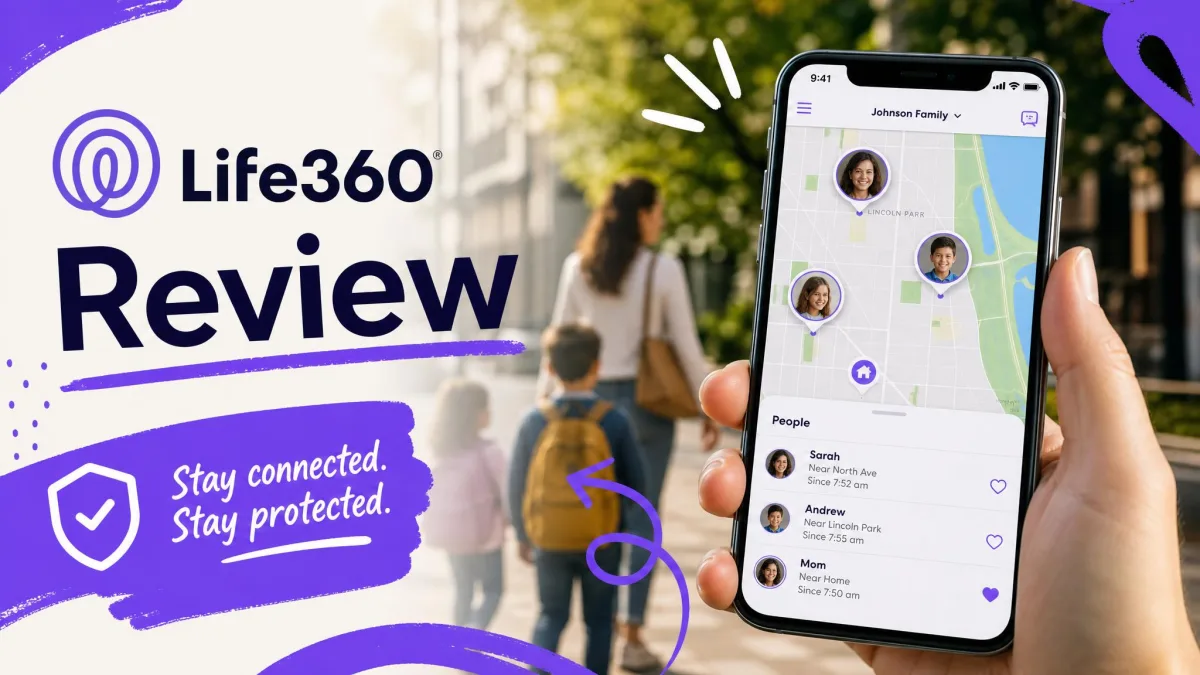
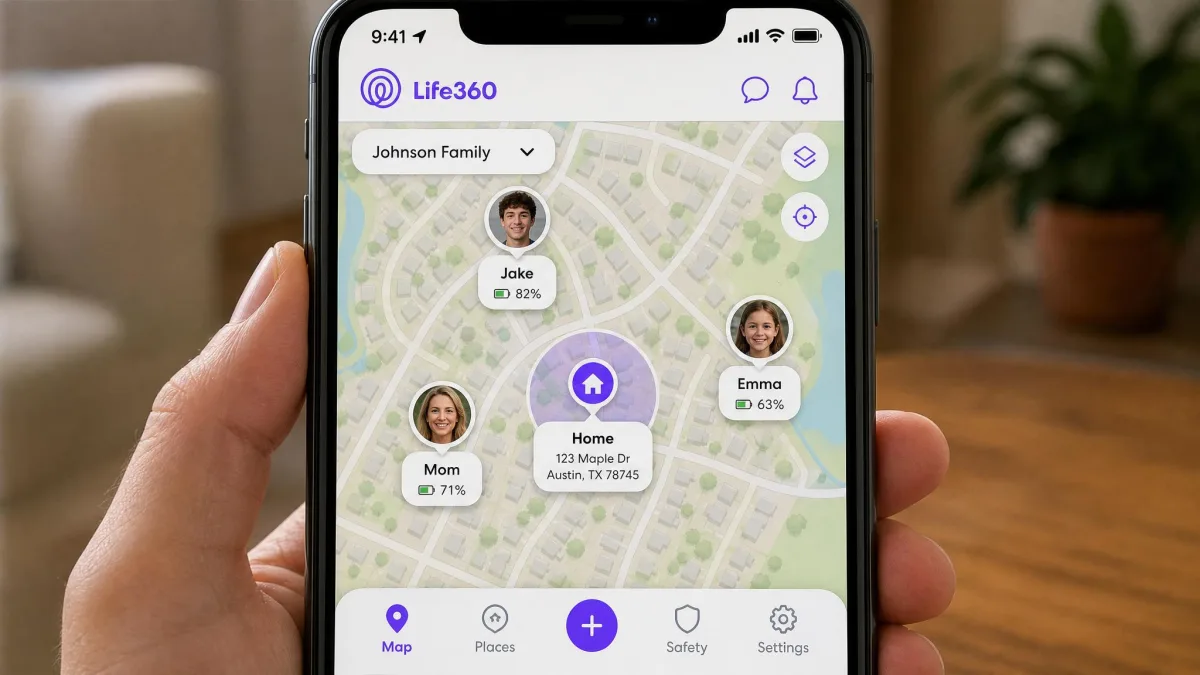
Life360 is a family location-sharing network built around a live map called a Circle. Everyone who joins the Circle shares their real-time location, and the app layers driving reports, place alerts, and emergency features on top of that map. It supports up to 99 members in a Circle, though around 10 is the practical size most families use.
The appeal is straightforward. Instead of texting "where are you?", you open the app and see everyone at once. It leans toward whole-family awareness rather than parent-over-child control, which is why teens and adults often use it too.
Life360 Key Features
The core of Life360 is real-time location sharing with location history and Places, which are geofenced zones that trigger arrival and departure alerts. In our testing, pins usually landed within about a city block and refreshed every few seconds when the phone had a strong signal.
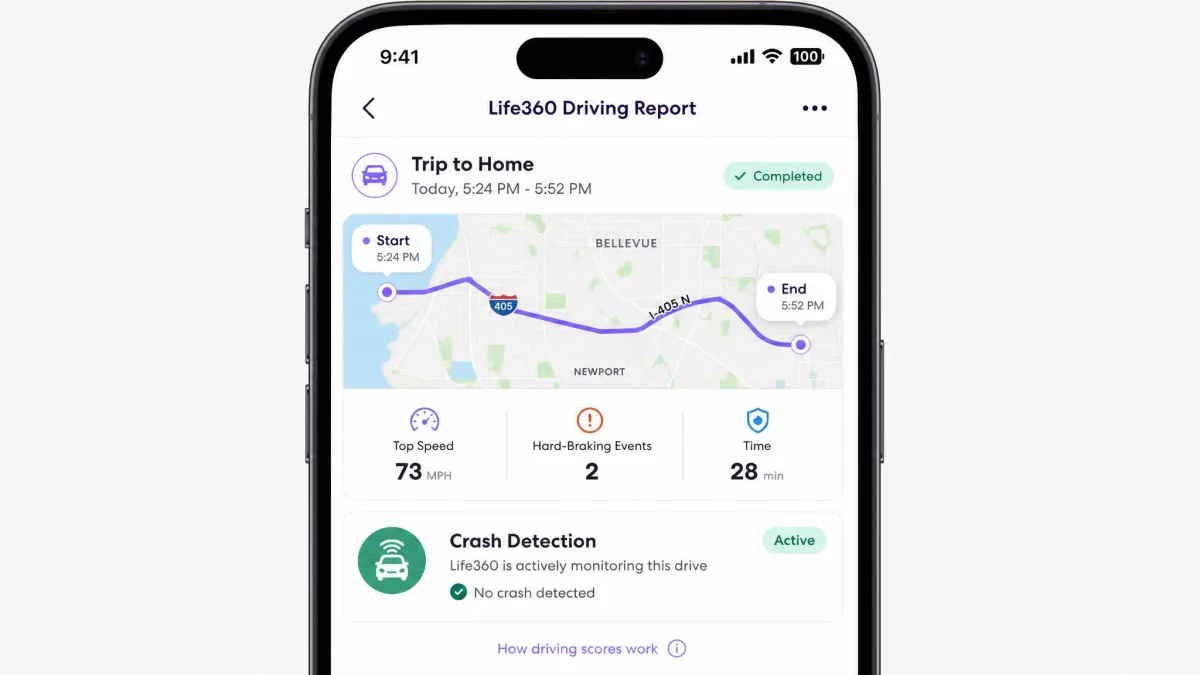
Driving safety is the other pillar. Crash Detection watches for a collision and can alert your Circle, and the app generates driver reports covering speed and hard braking. Life360 also includes SOS alerts. When we fired the SOS, a short countdown ran first to prevent accidental triggers, then the app promptly alerted everyone in the Circle.
Higher tiers add roadside assistance and travel and medical support. What Life360 does not do is manage the phone itself. There is no app blocking, no content filtering, and no screen-time control anywhere in the product.
Life360 Pricing and Plans
Life360 starts free, with basic location sharing at no cost. Premium unlocks longer history, more Places, and the driving and safety extras. Silver runs $7.99 a month or $79.99 a year and includes 7 days of location history plus 5 Places. Gold runs $14.99 a month or $149.99 a year, and Platinum runs $24.99 a month or $249.99 a year, both adding 30 days of history and unlimited Places.
Crash Detection is available across tiers, while emergency dispatch is reserved for Gold and above. The exact split of safety extras like roadside help and towing shifts between plan revisions, so check the current plan page before you commit. Paid memberships come with a 7-day free trial you can cancel anytime.

For the official feature list and setup help, see Life360 and the Life360 support docs.
What Is Google Family Link?
Google Family Link is Google's free parental-control app, first launched publicly in March 2017. It is built around a supervised child Google Account and is designed mainly for children under 13, though it can supervise teen accounts too. Because it hooks directly into the Google ecosystem, it manages the child's Android device from the account level rather than as a bolt-on tracker.
This is control software, not a family map. It is aimed at parents who want oversight of screen time and content, and it assumes a parent-and-child relationship rather than a shared Circle of equals.
Google Family Link Key Features
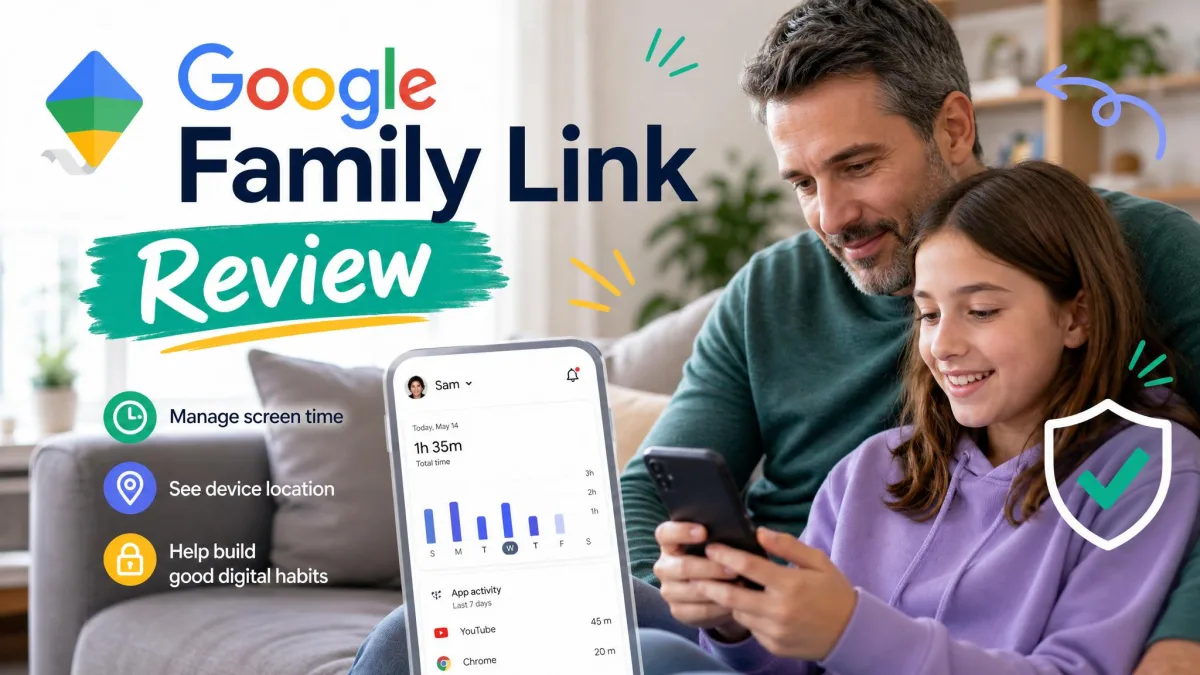
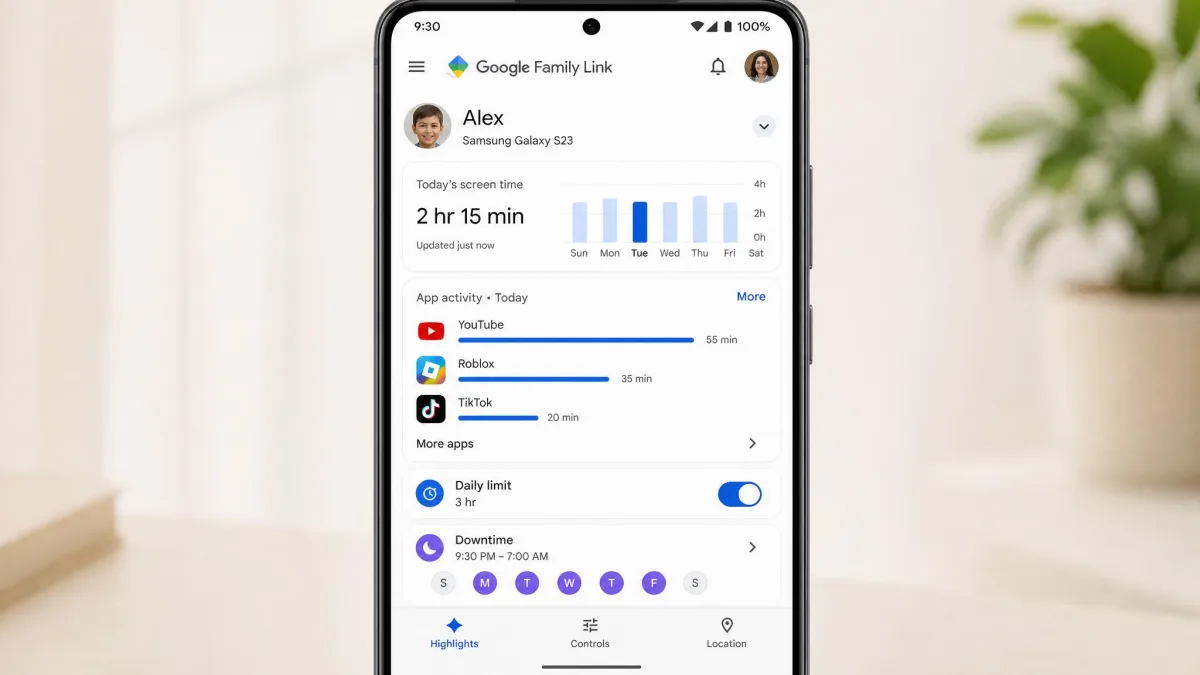
The heart of Family Link is device management. Parents can set daily screen-time limits, schedule Downtime for bedtime, and turn on School Time to restrict the device during class hours. You can approve or block app downloads from the Play Store and apply content filters across Chrome, Search, and YouTube.
Family Link also shows the child's location and delivers activity and app-usage reports, so you can see how the day's time was spent. It is worth being clear about the limits, though. Family Link manages access and time only. It cannot read texts, see chats, or show you what a child watches inside an app.
There is also no crash detection, no SOS, and no driving reports. Location is present but basic, without the continuous live tracking that Life360 is built around.
Google Family Link Pricing and Availability
Here is the simplest part of this whole comparison. Google Family Link is free, with no paid tier at all. Every feature we have described comes at no cost, which makes it one of the easier parental-control tools to justify trying.
Availability is the catch. Family Link works on Android 7 and higher on the child's side, and it is native in Android 10 and up. The parent app runs on iOS 17 and higher, but the full child-side control set only works when the child's device is Android. It is available in 38 countries.
Head-to-Head Comparison
Feature lists only tell you so much. What matters is how each app performs on the specific job you need done, so here is how they compare point by point.
Location Tracking and Real-Time Accuracy
Location is where the gap is widest. Life360 is genuinely built for live tracking, and it shows. In our testing, pins refreshed every few seconds on a strong signal and generally landed within about a city block. That is accurate enough to see a child arrive at a friend's house in near real time.
It is not flawless. Life360 sometimes showed a stale position, once placing a family member at school when they were already home, because the map displays the last update it received rather than a guaranteed live fix. Family Link, by contrast, offers location as a basic feature rather than a live tracker. It can tell you roughly where a device is, but it does not stream continuous movement the way Life360 does.
If minute-by-minute location is the reason you are installing anything, Life360 is the clear pick. Family Link's location is a convenience, not a tracking backbone.
Geofencing and Alerts
Life360's Places feature lets you draw a zone around a location and get an alert when someone arrives or leaves. The free tier and Silver include a handful of Places, and Gold and above make them unlimited. In practice, arrival and departure alerts fired reliably for us once a Place was set up.
Family Link does not offer this kind of geofencing. You can check a device's location on demand, but there is no automatic arrival or departure alert to lean on. For parents who want to know when a kid reaches school or gets home without checking the app, Life360 is the only real option here.
Driving Safety and Crash Detection
This category belongs to Life360 outright, because Family Link has nothing to compete with. Life360's Crash Detection watches for a collision and can alert your Circle, and driver reports summarize speed and hard braking after a trip. Emergency dispatch is available on Gold and above.
For families with new teen drivers, this is often the single feature that justifies a premium subscription. Family Link simply does not address driving at all, so if road safety is your concern, the comparison ends here.
Parental Controls and App Management
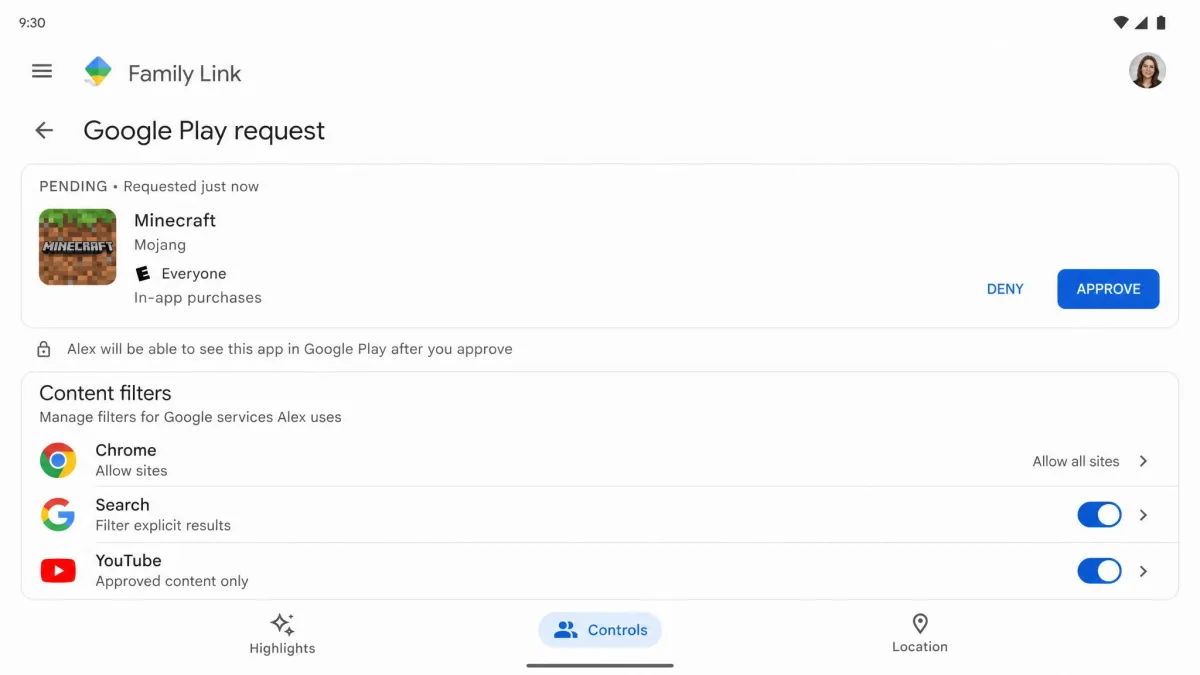
Now the tables turn. Family Link is a real parental-control tool, and Life360 is not. With Family Link, we approved and blocked individual app downloads from the Play Store and applied content filters across Chrome, Search, and YouTube from the parent phone.
Life360 offers none of this. It cannot block an app, filter content, or restrict what a child installs. If your goal is managing the phone rather than finding it, Family Link is the app doing that job, and it does it for free.
Screen Time Limits and Activity Reports
Screen-time management is a Family Link exclusive. Daily limits, a Downtime bedtime schedule, and School Time all live here, along with activity and app-usage reports that show where the day's minutes went. Used together, they give a clear picture of how a device is being used.
It is not perfectly smooth. We found the screen-time limits could be glitchy, with a limit not always applying instantly, and once a device refused to unlock even after we granted extra time from the parent app. Life360 has no equivalent feature at all, so there is nothing to compare on its side.
Family Link's screen-time controls are useful but not bulletproof. Expect the occasional delay when a limit changes, and give it a minute before assuming something is broken.
Privacy and Security
The two apps take different privacy postures because they collect different things. Life360 gathers continuous location data for the whole Circle, which is powerful but also a large, ongoing data footprint to be comfortable with. Family Link is narrower, tied to a supervised Google Account, and focused on device settings rather than a live movement history.
Family Link also manages access and time only. It deliberately cannot read texts, see chats, or show what a child watches inside apps, which some parents will read as a privacy feature and others as a limitation. Ratings tell a mixed story for both apps. App-store scores sit high, around 4.7 out of 5 for Family Link and near 4.8 for Life360, while independent review sites are far harsher. Life360 holds just 1.5 out of 5 on Trustpilot across 304 reviews, with 71% at one star, so where you look changes the picture entirely.
Device and Platform Compatibility (iOS and Android)
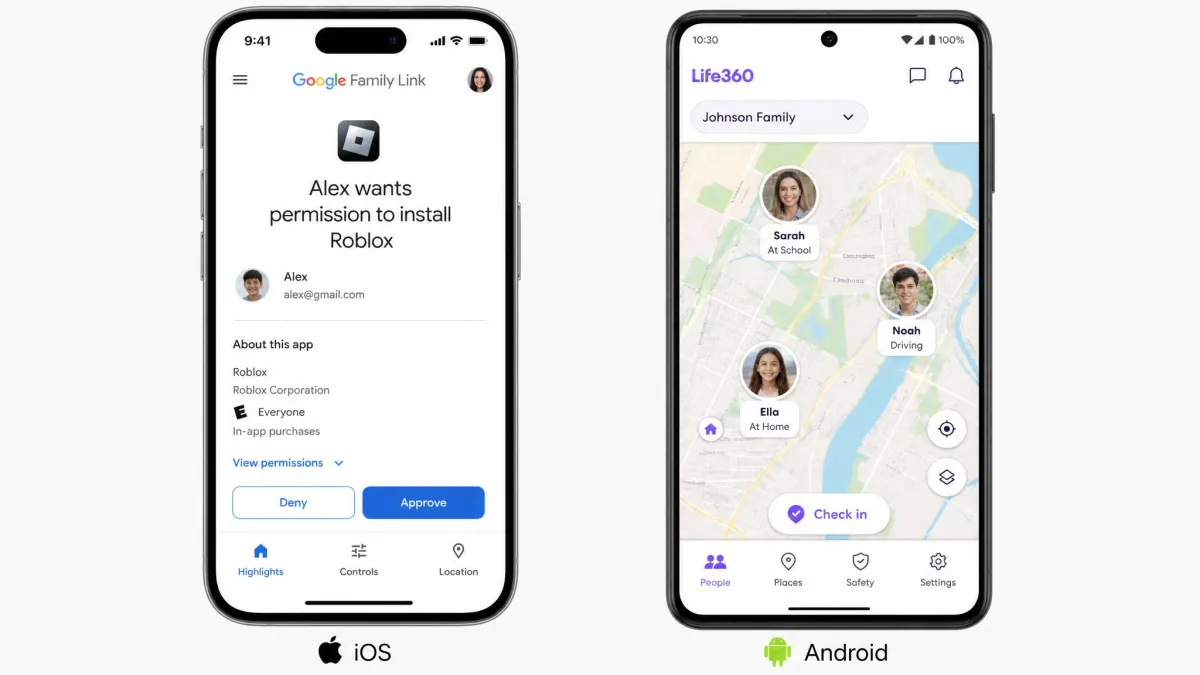
Platform support is a real deciding factor. Life360 runs fully on both iOS and Android, which makes it the safer pick for mixed-device households. Family Link is more conditional. The child-side control set requires Android 7 or higher and is native in Android 10 and up.
The Family Link parent app runs on iOS 17 and higher, but the full control set only works when the child's device is Android. If your child carries an iPhone, Family Link's usefulness drops sharply, and Life360 becomes the more consistent choice across the family.
Ease of Use and Setup
Both apps set up quickly, with a small twist for each. Family Link's setup was straightforward, largely because it is native to the Google ecosystem and needs no third-party permissions to take hold. Creating the supervised account and linking the child device took only a few steps.
Life360 was also quick. A few verification prompts and joining a Circle worked on the first try once we entered the code, though the confirmation email lagged behind by a few minutes. Neither setup will trip up a non-technical parent, so ease of use is close to a tie.
Emergency and SOS Features
Emergency features are a Life360 strength and a Family Link blank. Life360's SOS runs a short countdown first to avoid accidental triggers, then promptly alerts everyone in the Circle when it fires. On Gold and above, emergency dispatch adds a professional response layer.
Family Link has no SOS or emergency alerting of any kind. Its job ends at device management, so if a fast emergency signal to the whole family matters to you, that need points squarely at Life360.
Pricing Compared: Free Plans vs Premium
Cost is where the two apps diverge most cleanly. Family Link is free at every level, full stop. There is no premium tier to weigh, which removes the entire pricing question from your decision.
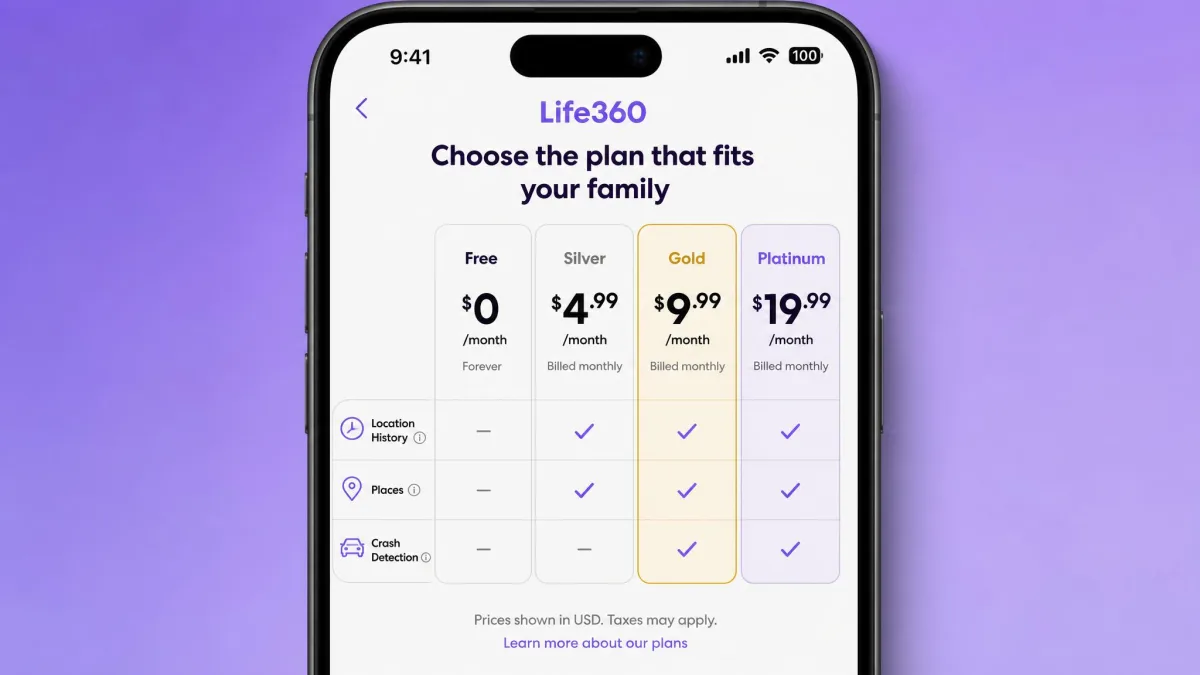
Life360 is free to start, then scales up. Silver is $7.99 a month or $79.99 a year, Gold is $14.99 a month or $149.99 a year, and Platinum is $24.99 a month or $249.99 a year. Premium plans include a 7-day free trial you can cancel anytime.
The honest way to read this is by value, not sticker price. Family Link gives you a complete parental-control tool for nothing. Life360's free tier is useful for basic location, but the features families most want, longer history, unlimited Places, and emergency dispatch, sit behind the paid tiers. You are really deciding whether live location and driving safety are worth a subscription, because control features cost you nothing on the Google side.
Strengths of Life360
Life360's strengths cluster around location and safety. Real-time tracking is the headline, with city-block accuracy and fast refreshes that make the live map genuinely useful. Places alerts, driver reports, Crash Detection, and SOS build a real safety network around that map.
It also works fully on both iOS and Android, which matters for mixed-device families. If your priority is knowing where everyone is and getting help fast when something goes wrong, Life360 is purpose-built for exactly that.
Strengths of Google Family Link
Family Link's strengths are control and cost. It is a complete parental-control tool covering screen-time limits, Downtime, School Time, app approvals, and content filters, and it delivers all of it for free. Activity reports round out a clear view of how a device is being used.
Because it is native to the Google ecosystem, setup is clean and needs no third-party permissions. For a parent who mainly wants to shape a child's Android use rather than track their movements, Family Link is hard to beat on value.
Potential Drawbacks to Consider
Each app has real gaps worth weighing before you commit. Life360's biggest drawbacks are cost and battery. Its best features sit behind a subscription, and the app adds noticeable battery drain, roughly 10 to 20% extra per day on iPhone and up to 15 to 30% on some Android phones, higher with Crash Detection on. On some Android models, aggressive battery management can even force-close the app, leaving gaps in tracking. Support can also be slow, leaning heavily on chatbots that struggle with billing and cancellation.
If tracking reliability is critical, exempt Life360 from your phone's battery optimization settings. On some Android models it can be force-closed in the background, which quietly breaks location updates.
Family Link's drawbacks are about scope and durability. It manages access and time only, so it cannot read texts or see in-app activity. Its screen-time limits can be glitchy, and a tech-savvy child who can reach device settings, safe mode, or a factory reset can disable or remove its oversight, since it lacks hardware-level uninstall protection. And on iPhones, its control set is far more limited than on Android.
Which App Should You Choose? (Use Cases by Family Type)
The right app for your family depends on the problem you are actually solving. Here is how we would match each one to a household.
Choose Life360 if location and safety lead your list. Families with new teen drivers, parents who want geofenced arrival alerts, and mixed iPhone-and-Android households all fit Life360's strengths. It is also the better pick when older kids or adults want to share location as equals rather than be controlled.
Choose Google Family Link if control and budget lead. Parents of younger children on Android who want to cap screen time, approve apps, and filter content will get everything they need for free. It suits households that care more about how a phone is used than where it is.
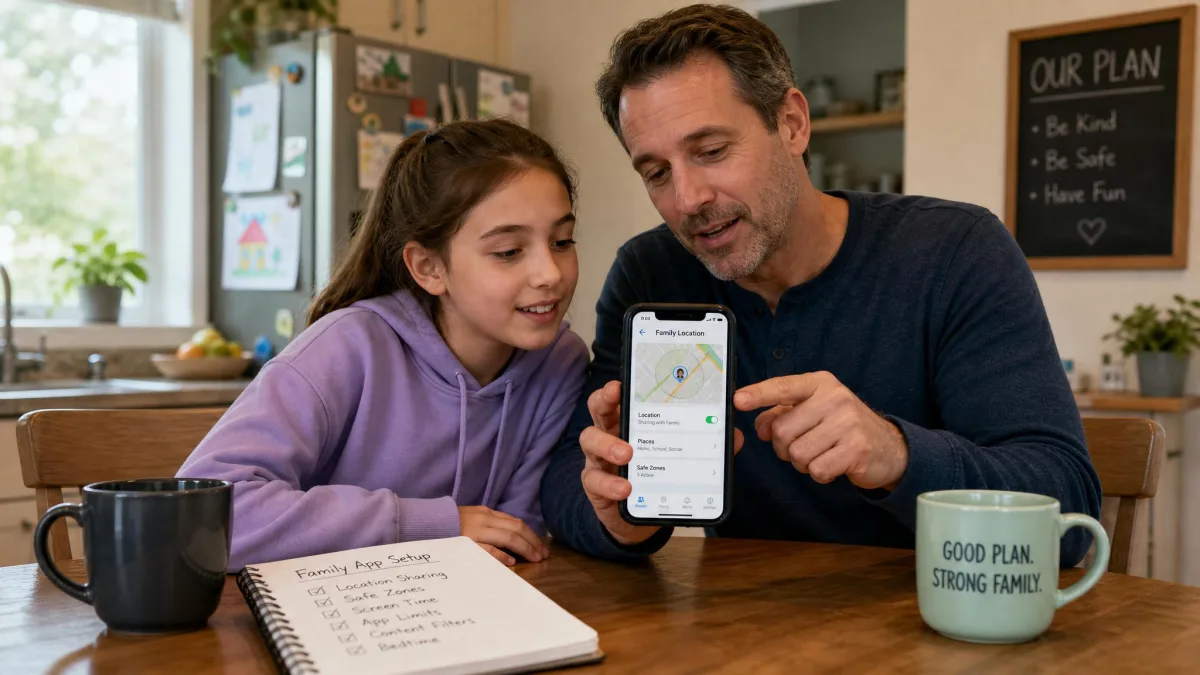
Some families genuinely need both, and that is fine. There is nothing stopping you from running Family Link for screen time and content on an Android device while using Life360 for the family map and driving safety. The two do not conflict, because they manage different layers of the phone.
Conclusion: The Verdict
After running both apps on real family devices, our takeaway is that these products barely compete, they complement. Life360 is the better tracker, and Family Link is the better parental-control tool, and neither meaningfully does the other's job.
If you can only install one, let your top priority decide. Location, geofencing, and driving safety point to Life360. Screen time, app control, and content filtering, especially on Android and especially for free, point to Google Family Link.