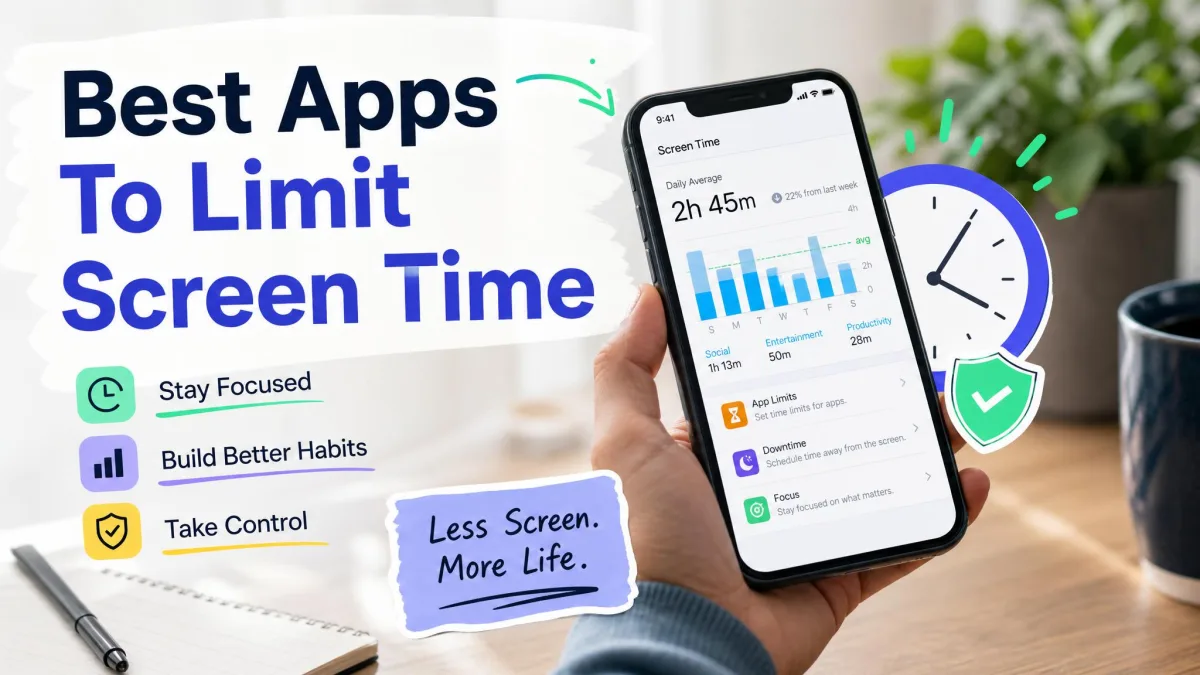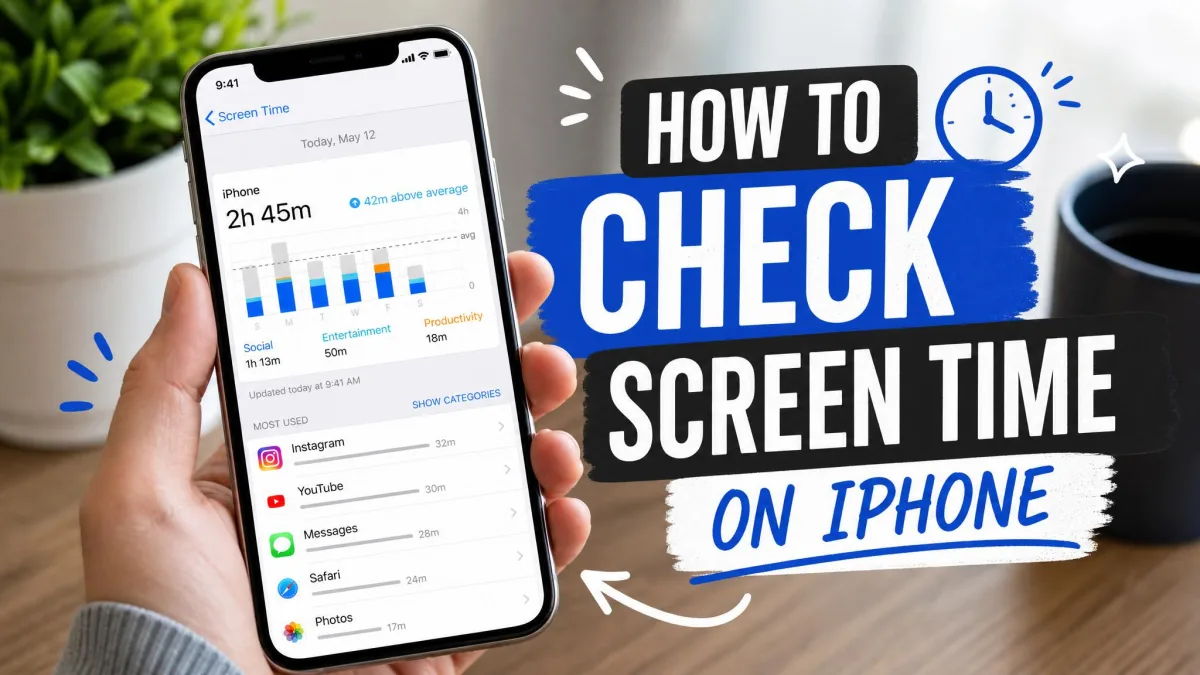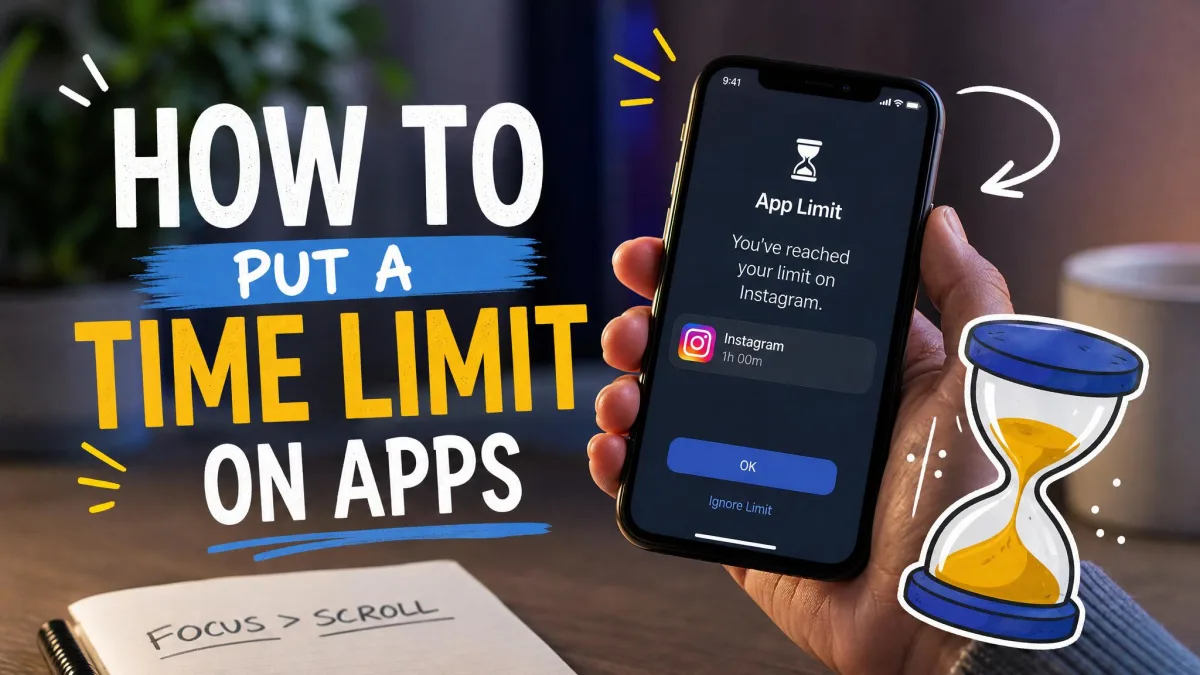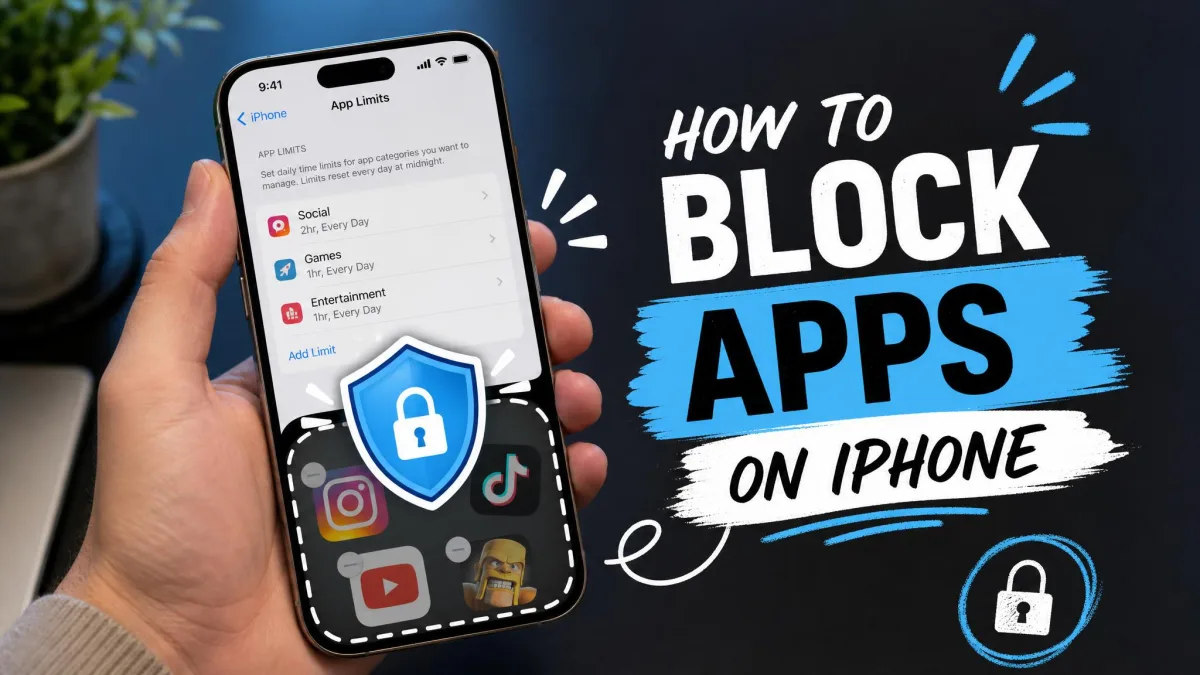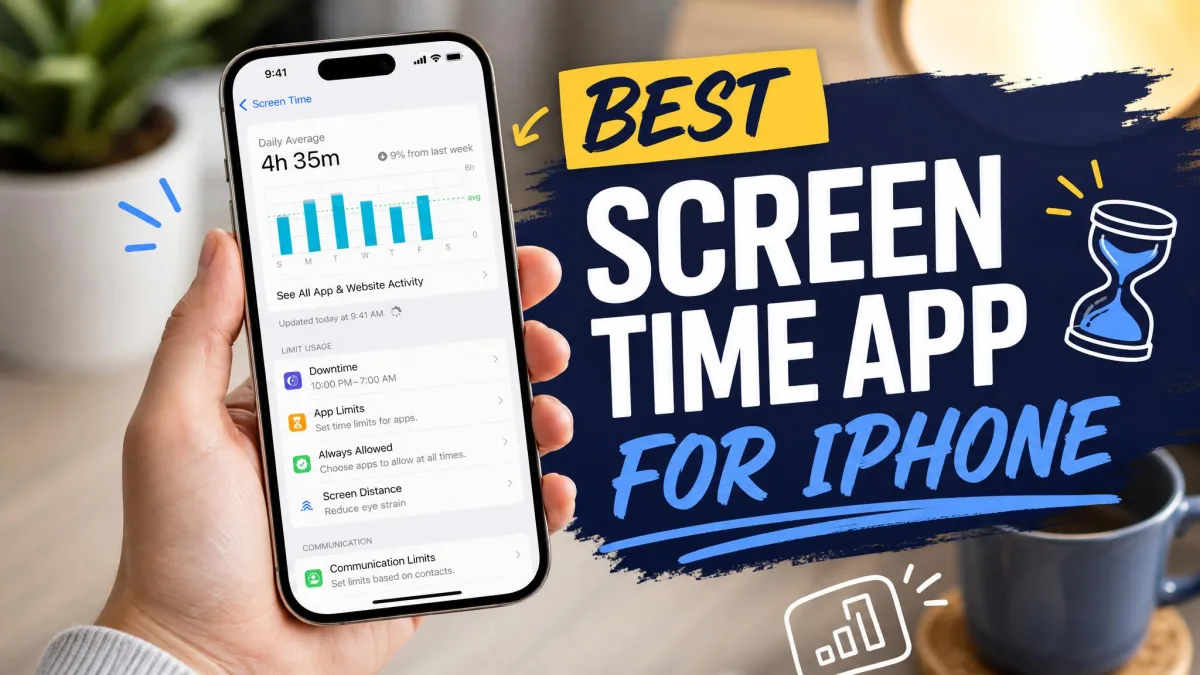
Your iPhone already knows how much time you lose to it. Open Settings, tap Screen Time, and the weekly report shows the number you have been avoiding. You set a limit on the app that eats your evenings, it runs out, and you tap Ignore Limit without a second thought.
We have been there, so we tested eight popular screen time apps on our iPhones. Americans check their phones an average of 96 times a day, so we judged every app on one question: does the number actually go down?
We ran each app for at least a week and most for two, keeping the strongest contenders going a full month. Every app ran on daily-driver iPhones from the current iPhone 17 family running iOS 26.6. Opal needs iOS 18.0 or later, so every test phone stayed on 18.0 or above and the whole field could sit on one operating system.
Each day we set real limits on the apps we actually reach for, meaning Instagram, TikTok, and YouTube, with per-app rules like a ten-second open delay and a thirty-minute daily cap. Then we tried to break every block the way a frustrated user would: one-tap ignores, revoked Screen Time permission in Settings, even a restart to see what reset. We judged each app against the phone's own Screen Time report rather than the app's marketing, and checked back on days 3, 7, 14, and 30 so a block that had quietly stopped holding could not survive as a first-week impression.
Opal is our top pick, Apple's built-in Screen Time is the best free baseline, and ScreenZen is the best free third-party pick.

How we chose
We picked eight apps spanning hard blockers, gentle friction, gamified focus, and parental-control dashboards, then scored each one on how long a limit held, whether the friction kept working past the first week, the range of scheduling and habit tools, value, and privacy. App Store ratings and prices come from the listings we checked while writing.
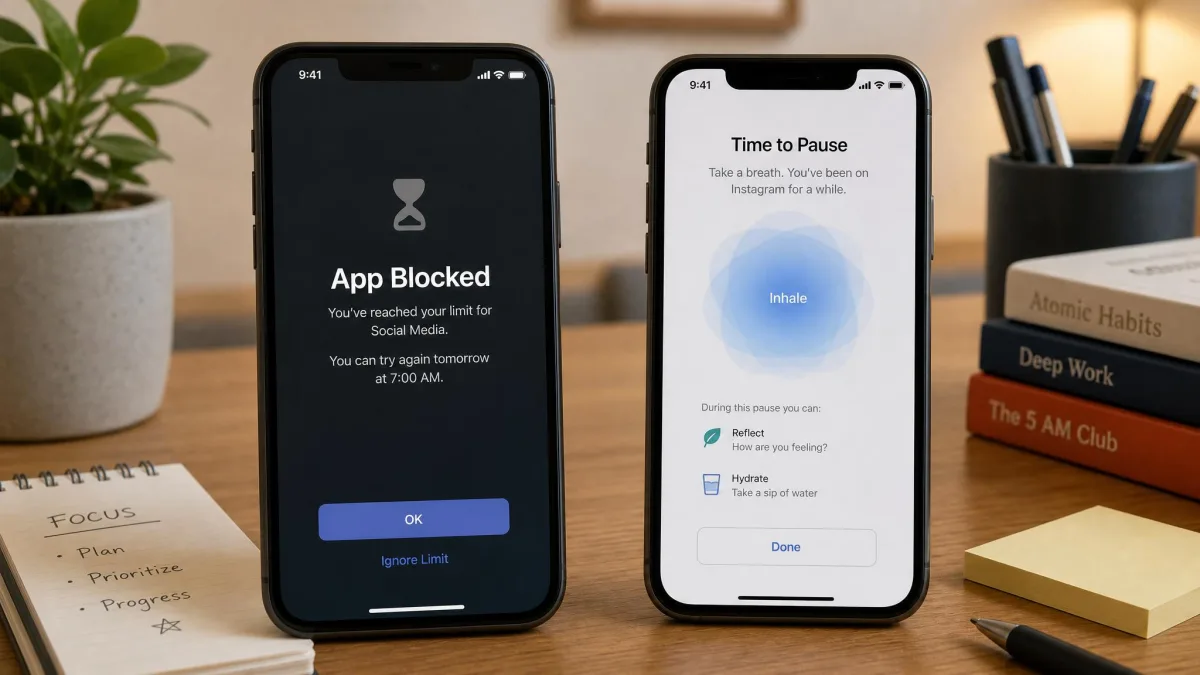
Quick Comparison: 8 Best Screen Time Apps for iPhone at a Glance
Here is the whole field at a glance, with the approach each app takes and the weakness we kept hitting.
| App | Buy | Best For | Price | Approach | Weakness |
|---|---|---|---|---|---|
|
Check price → | Hard-to-bypass blocking | $99.99/yr | Hard blocking + focus coaching | Pricey; easy bypass outside Deep Focus |
 |
Check price | Free family baseline | Free | Native limits + downtime | One-tap ignore; kids bypass it |
 |
Check price | Cutting social media free | Free | Escalating delay before opening | Friction fades in days |
 |
Check price | Cross-device blocking | $39.99/yr | Scheduled blocking across devices | Complex setup; dated mobile UI |
 |
Check price | Gentle, science-backed friction | Free for 1 app; Pro $19.99/yr | Breath-pause before opening | Only guards the moment; Shortcuts-dependent |
 |
Check price | Focus sessions | Free (Plus ~$5.99/mo) | Gamified focus timer | Not a 24/7 blocker |
 |
Check price | Habit building | Free (Plus $29.99/yr) | Scheduled blocks + habit rules | Time-limit tracking can stall |
 |
Check price | Family parental control | from $54.99/yr | Parental dashboard | Weakest on iOS |
1. Opal – Best Overall Screen Time App for iPhone
Overview
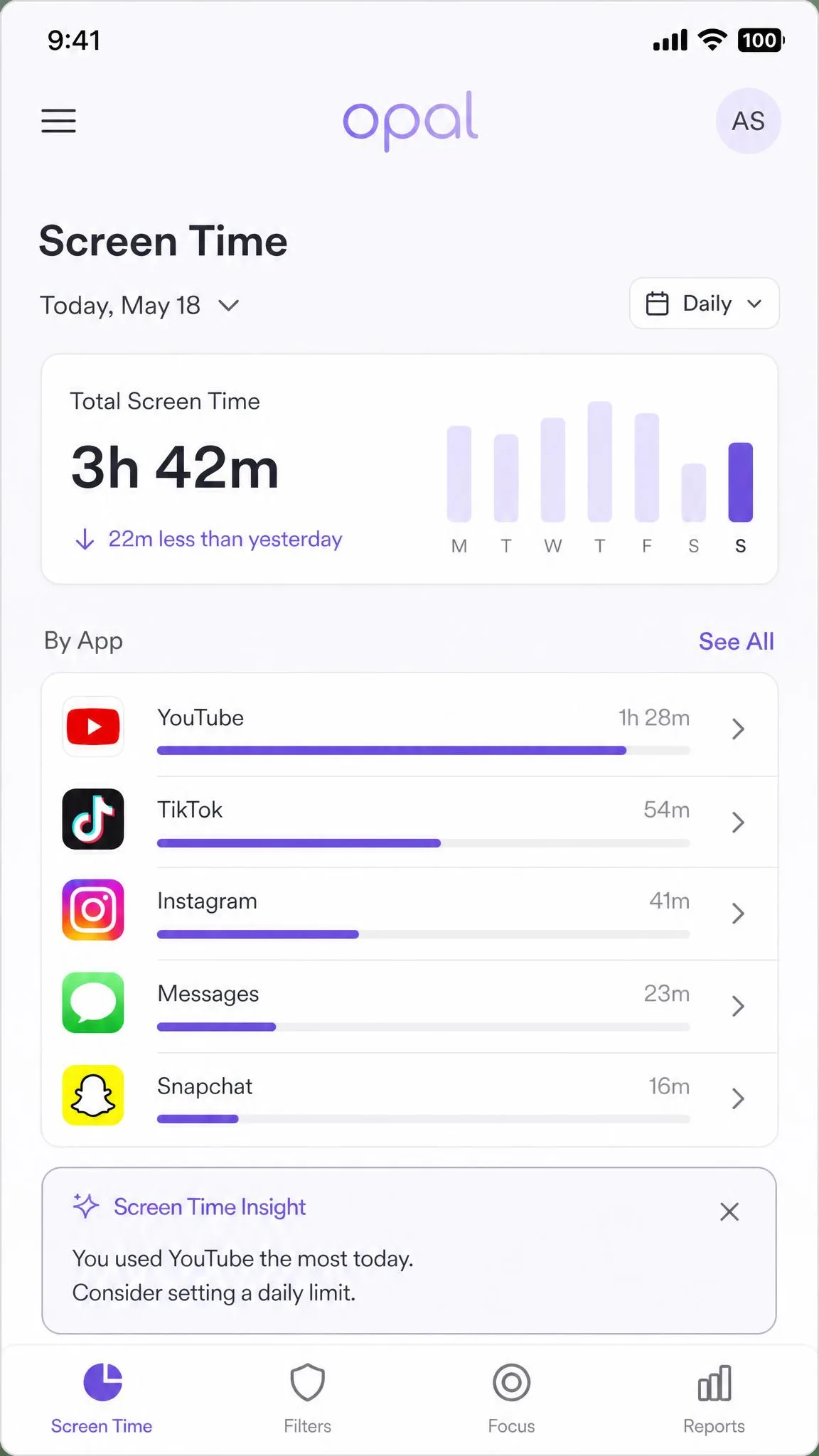
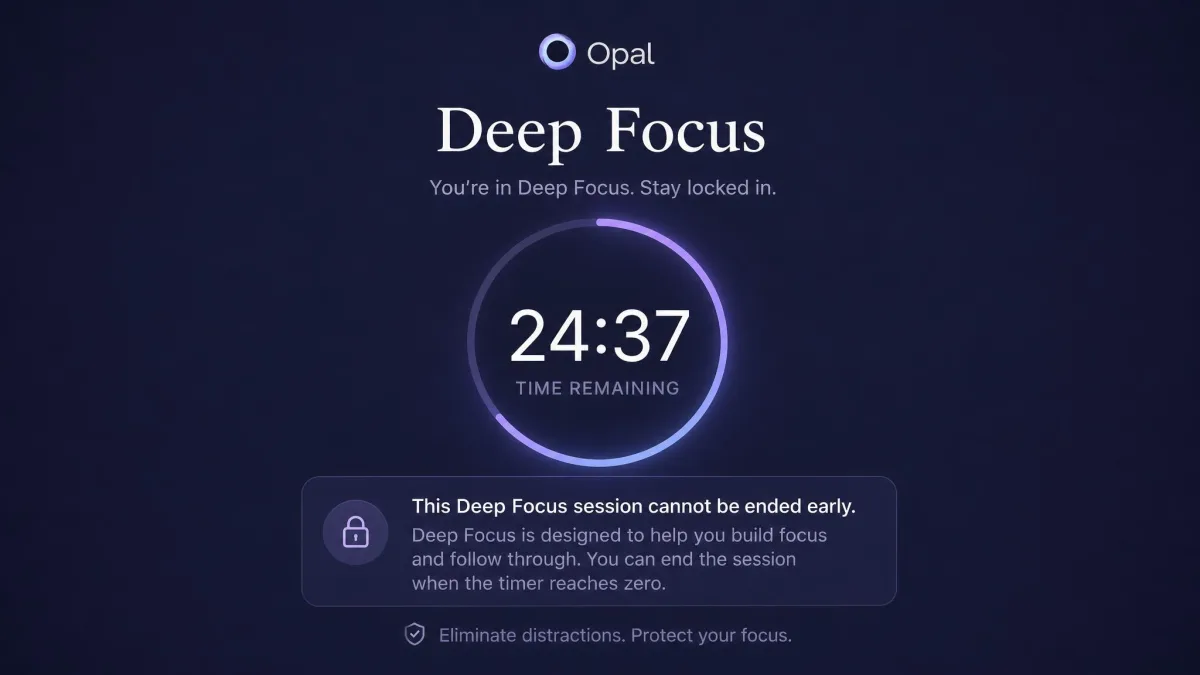
Opal is the app that actually held when we needed it to. We set a Deep Focus block on Instagram and tried to argue our way out of it, and the block refused to end until the session timed out. That is the whole pitch: hard blocking with no soft spot, wrapped in habit coaching. You get scheduled limits, a Focus Score that benchmarks you against friends, and widgets that keep the daily number visible, all processed on-device through Apple's Screen Time API. It is best for people who have tapped past Apple's built-in limits and want a line that holds. Grab Opal from the App Store to try the free tier.
Pros and Cons
Pros
- Deep Focus blocks are genuinely hard to bypass, the toughest of anything we tested
- Scheduled limits, mindful block screens, and a Focus Score in one app
- One app for iPhone, iPad, Mac, and Android
Cons
- $99.99 a year is the priciest plan in this roundup
- Ordinary session blocks are easy to turn off, and Instagram or Facebook sometimes loads mid-block
- The free tier is very limited, and some updates have wiped saved rules
Pricing
Opal is free to download with a limited free tier. Pro costs $19.99 a month or $99.99 a year, with a 7-day free trial. It requires iOS 18.0 or later and holds a 4.7 out of 5 from about 86,000 App Store ratings.
2. Apple Screen Time – Best Built-In Free Baseline
The One-Tap Test
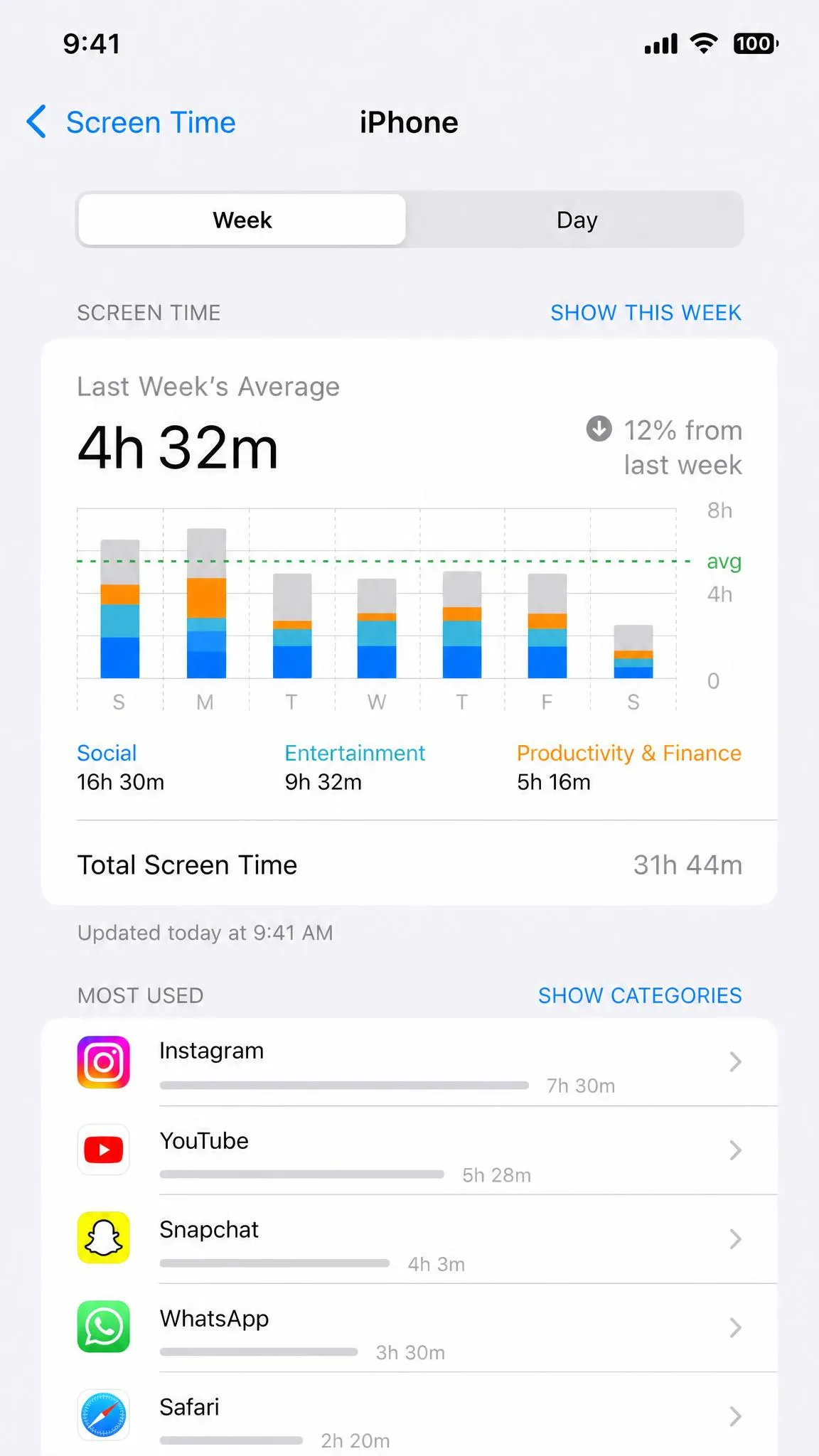
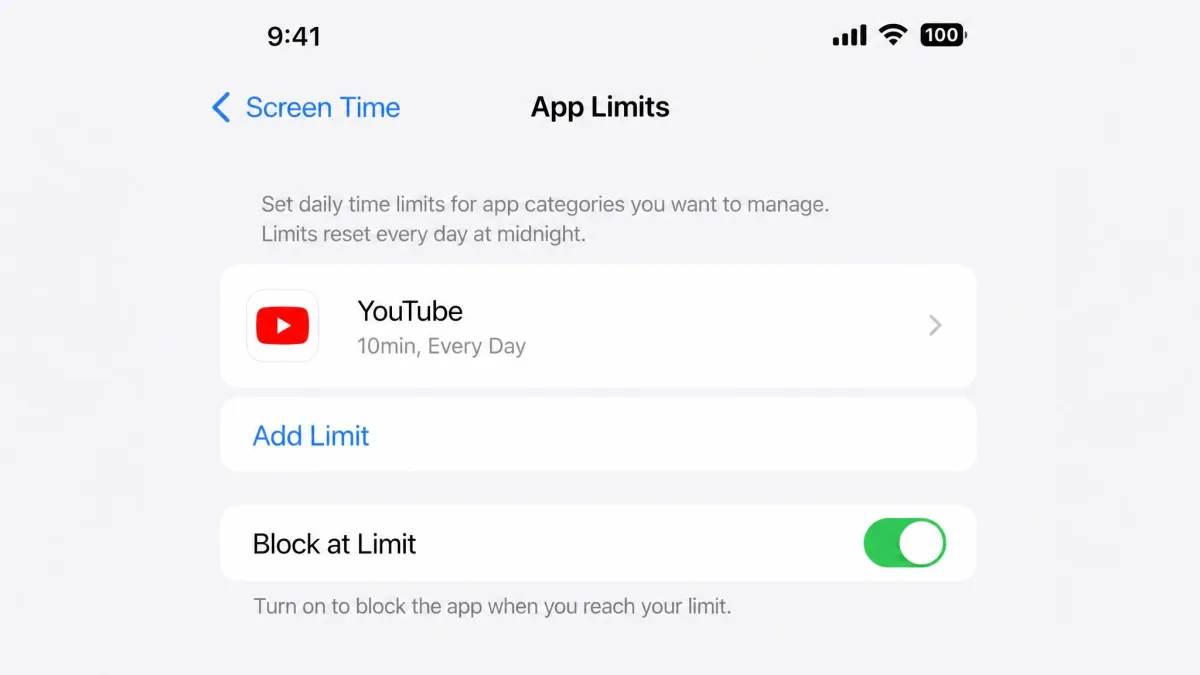
Where Opal adds a paid wall, Apple's built-in Screen Time starts at the best price there is. We set a ten-minute limit on YouTube, and when it hit, one tap on Ignore Limit cleared it for the day. The same one-tap dismissal was there the next day and the day after, so a ten-minute cap quietly stretched toward fifty-plus minutes whenever the reflex won. Hand the passcode to a parent, turn on Block at End of Limit, and the button disappears, which is when Screen Time genuinely holds. It ships free in every iPhone, with App Limits, Downtime, Communication Limits, and Content and Privacy Restrictions in one place, and there is nothing to download or subscribe to. It is best as a free family baseline and a starting point before you spend a cent.
Pros and Cons
Pros
- Free and built into every iPhone
- App Limits, Downtime, and Communication Limits in one place
- Genuinely hard when a parent holds the passcode on a kid's phone
Cons
- One-tap Ignore Limit clears any limit for the day
- Kids learn workarounds, including wiping limits from the parent's device
- Limits can silently stop enforcing after an iOS update
- No friction or habit coaching for adults managing their own usage
3. ScreenZen – Best Free App to Cut Social Media Usage
Overview
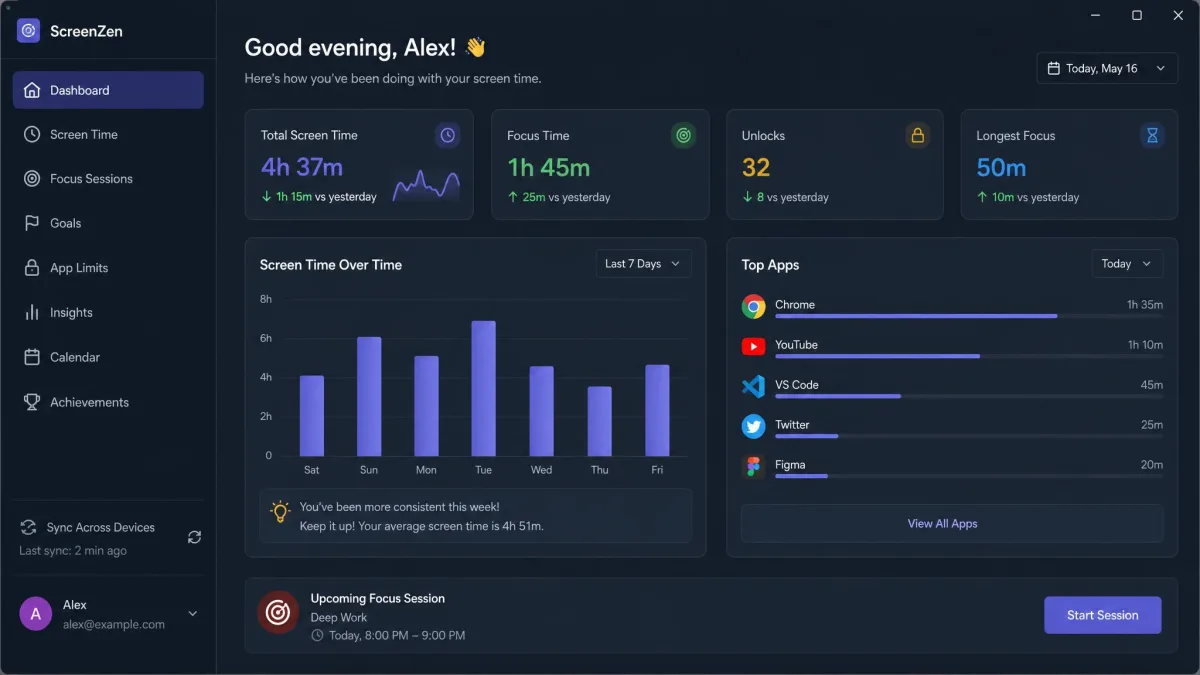
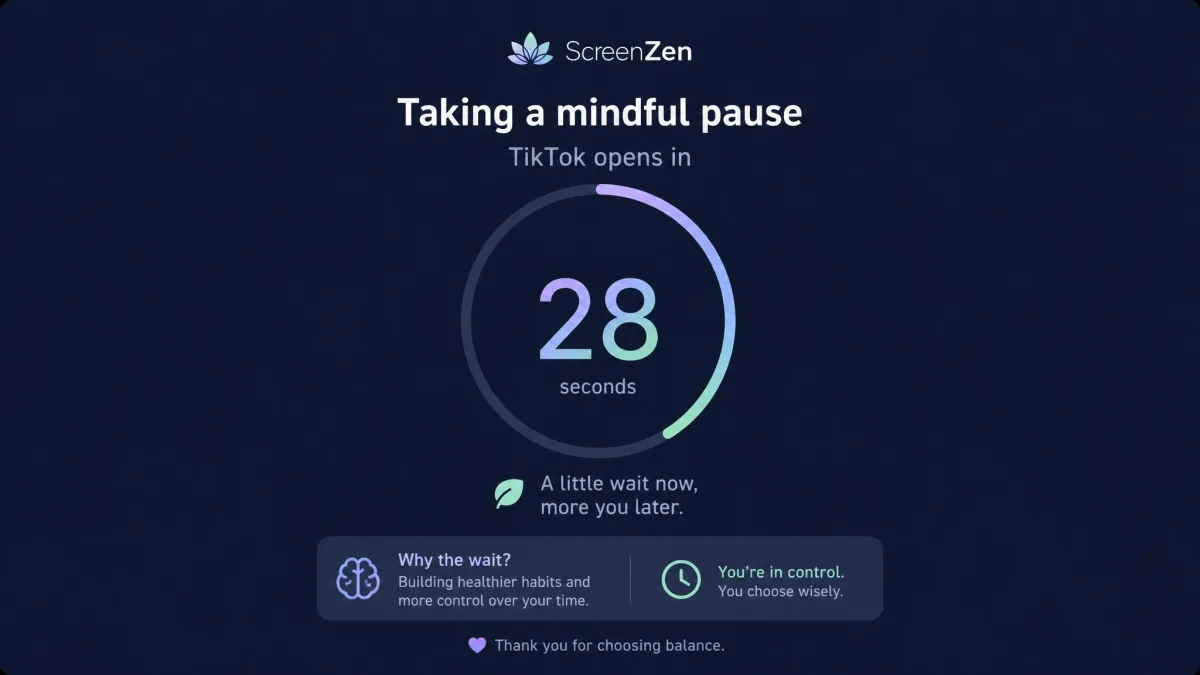
If Apple Screen Time is the free baseline, ScreenZen is the free upgrade. It adds a delay before a distracting app opens, and the wait escalates with each attempt. The first time it made us pause; by day five we were tapping through the countdown on autopilot. ScreenZen earns its place because the price is zero, per-app scheduling is flexible by day and time, and optional strict time blocks add teeth. It is best for cutting social media on a budget.
Pros and Cons
Pros
- Free and donation-supported, with no subscription
- Escalating delay before a distracting app opens
- Flexible per-app scheduling by day and time, plus optional strict blocking
- 4.9 out of 5 from about 47,000 App Store ratings
Cons
- The static countdown becomes invisible to the brain after a few days
- Development is Android-first, so the iOS version lags on features
- Blocking was occasionally inconsistent in our testing
Pricing
ScreenZen is completely free and donation-supported, with no subscription. One-time tips run $5 to $40, and it requires iOS 16.4 or later.
4. Freedom – Best for Cross-Device Blocking
Overview
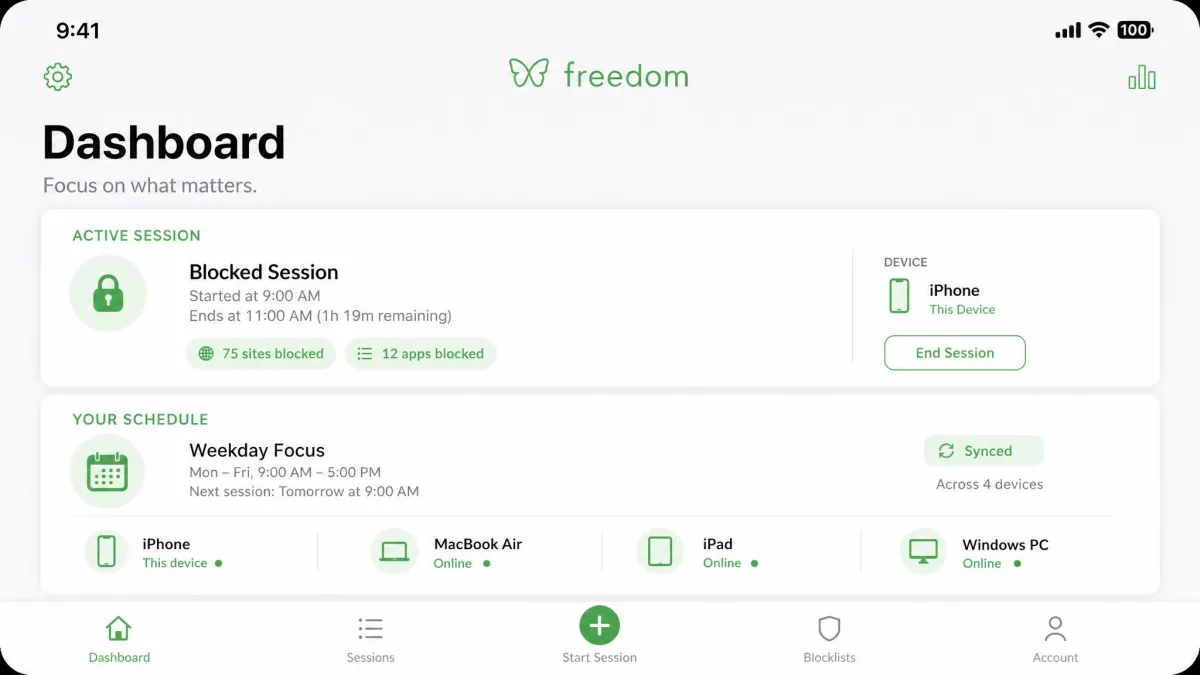
ScreenZen delays you on one device; Freedom reaches across every device you own. We tested its Locked Mode and it is the real deal. Once a session started, we could not cancel it. Building blocklists and schedules took close to ten minutes. Freedom blocks apps, websites, or the entire internet, with the same sessions syncing across iPhone, iPad, Mac, Windows, Android, and Chromebook. It is best for people whose distraction lives on more than one device.
What We Liked and What We Didn't
Pros
- One schedule across iPhone, iPad, Mac, Windows, Android, and Chromebook
- Blocks apps, websites, or the entire internet
- Locked Mode genuinely prevents cancelling a session once it starts
Cons
- Setup is needlessly complex, and starting a session can take ten minutes
- Cross-device sync is occasionally unreliable
- The iOS interface feels dated, and Apple's restrictions limit some features
Pricing
Freedom has a permanent free tier across unlimited devices. Premium costs $39.99 a year (billed as $3.33 a month) or $8.99 monthly, with a 7-day free trial. A Forever license runs $99.50 at 50% off, or $199 on the App Store, depending on where you buy. It holds a 4.4 out of 5 from about 5,700 App Store ratings.
5. One Sec – Best for Gentle, Science-Backed Friction
Overview
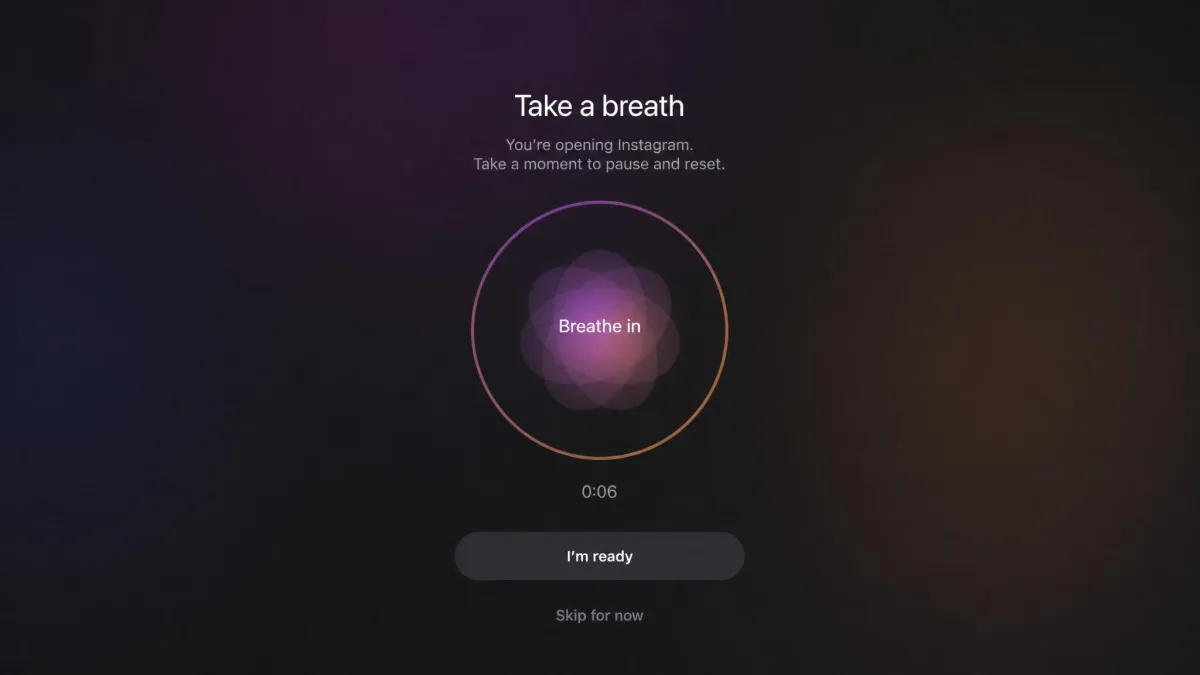
Freedom blocks hard; One Sec takes the opposite approach with a pause. Before a protected app opens, it forces a breath-and-pause screen. The first time it fired, the screen genuinely stopped a reflex open of Instagram. We closed the phone and set it down, which is exactly the move it is designed to buy you. By day three the animation was muscle memory, and on the strongest urges we took the breath and opened the app anyway. One Sec backs its approach with peer-reviewed research from the Max Planck Institute and Heidelberg University that found a 57% average drop in app openings. It is best for breaking automatic opens rather than long scrolling sessions.
Pros and Cons
Pros
- Friction backed by peer-reviewed research, a 57% average drop in app openings
- Free tier covers one app with the full intervention
- On-device processing and interchangeable interventions
Cons
- Only guards the moment of opening, with no help once the app is open
- The same animation becomes muscle memory within days
- Each app needs its own manual Shortcuts automation
Pricing
One Sec is free for one app. Pro costs $2.99 a month, $19.99 a year, or $49.99 one-time, with family plans at $29.99 a year or $69 lifetime. It requires iOS 15.0 or later and holds a 4.8 out of 5 from about 23,000 App Store ratings.
6. Forest – Best Gamified Option for Focus Sessions
The Tree That Withers
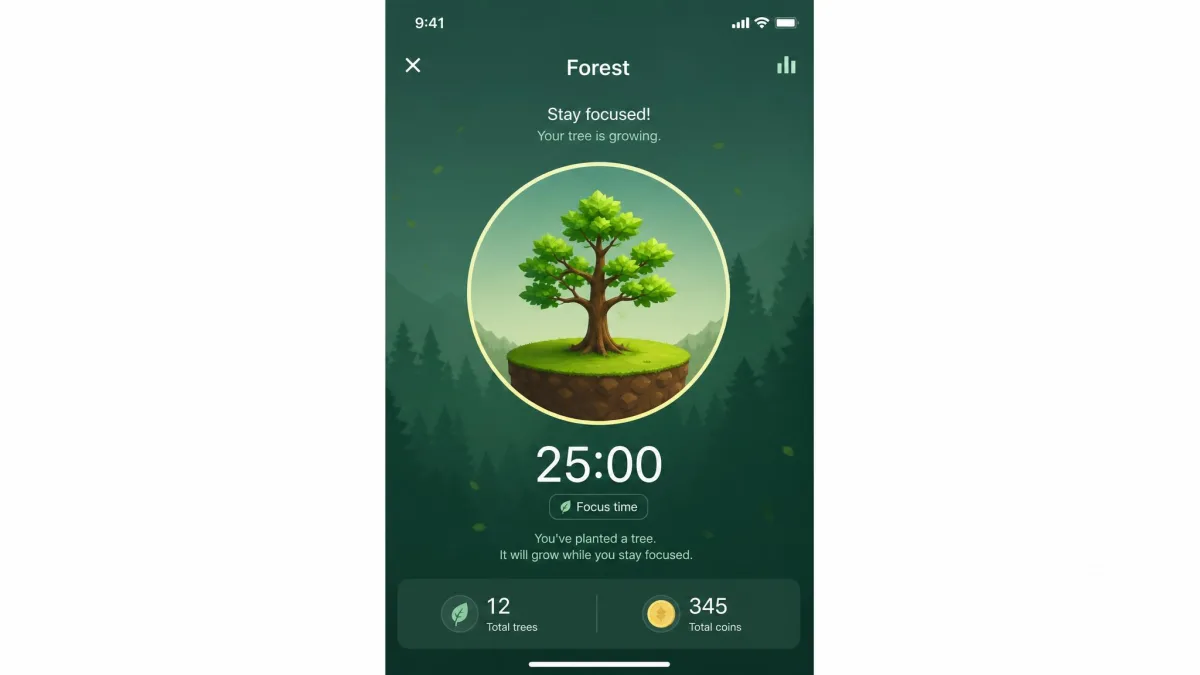
One Sec slows the moment of opening; Forest turns staying off the phone into a game. We planted a tree for a 25-minute session, gave in mid-way and left early, and watched it wither. The dead tree stays in the forest record forever, a permanent gray marker beside the healthy ones we finished. That loss aversion is a stronger reason to finish than any streak counter. Forest grows a virtual tree while you stay off the phone, with real-tree planting through Trees for the Future. The core timer is free with no credit card or expiration, while Forest Plus runs about $5.99 a month or $35.99 a year. It is best for people who want focus sessions wrapped in a game.
Pros and Cons
Pros
- Free core timer with no credit card or expiration
- Loss aversion keeps focus sessions honest
- Real-tree planting, more than 2 million trees via Trees for the Future
- Optional Deep Focus app blocking and group focus rooms
Cons
- A focus timer, not a 24/7 blocker
- A recent iOS update shipped a timer-freeze bug
- The app slows down once it accumulates years of focus history
7. Jomo – Best for Building Healthier Screen Time Habits
Overview
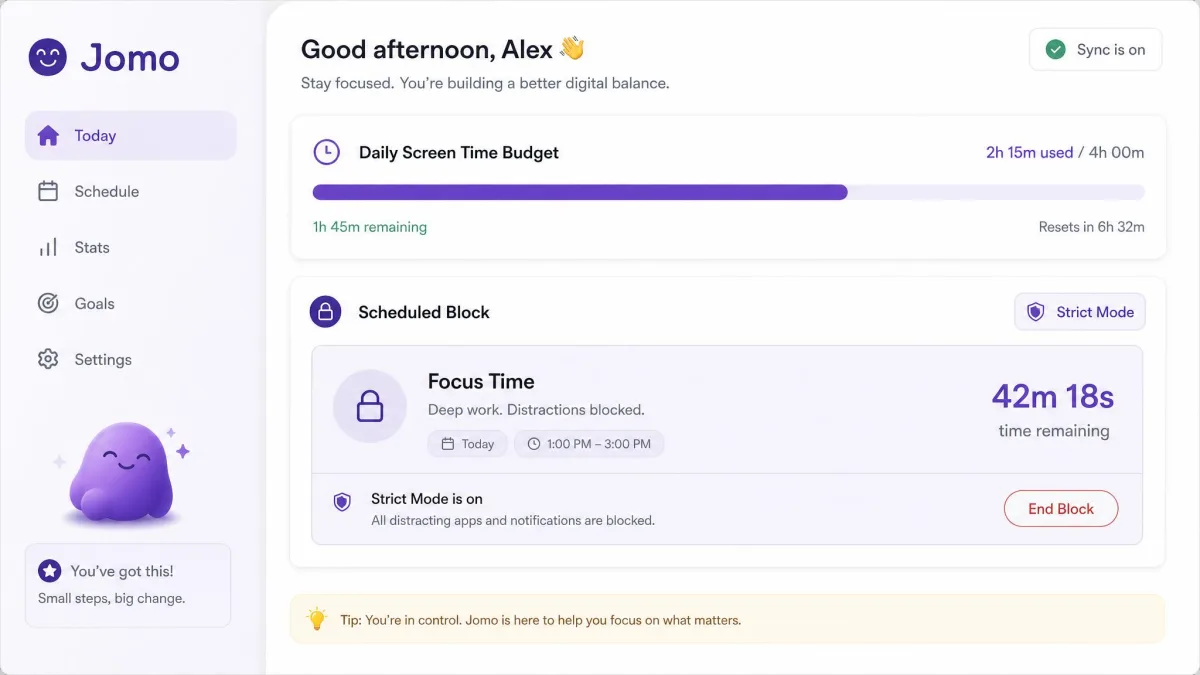
Forest gamifies focus; Jomo gamifies habit building with budgets, scheduled blocks, and accountability. We set a daily Screen Time budget and let Strict Mode run for a week, and the line held when the budget hit. Twice the time-limit counter stalled, counting straight past the cap without blocking anything, and only a phone restart fixed it. After that we treated the budget as best-effort rather than a guarantee. Jomo adds Squads accountability groups, AI unlock challenges, and rules that gate one app behind another. At $29.99 a year it covers most of what Opal's plan offers. It is best for building healthier habits over time.
Pros and Cons
Pros
- Generous free tier, roughly 90% of the app usable
- Scheduled blocks, Screen Time budgets, and Strict Mode
- Squads accountability and AI unlock challenges
Cons
- Time-limit tracking can stall until the phone is restarted
- Easy to bypass by revoking Screen Time permission in Settings
- Cannot granularly block Safari
Pricing
Jomo's free tier includes one session, one limit, and one Screen Time budget. Jomo Plus runs $29.99 a year with a three-day free trial, or $14.99 a year for students, and the $99.99 one-time purchase is shareable with five family members. It requires iOS 16.0 or later.
8. Qustodio – Best Parental Control Option for Family Screen Time
Overview
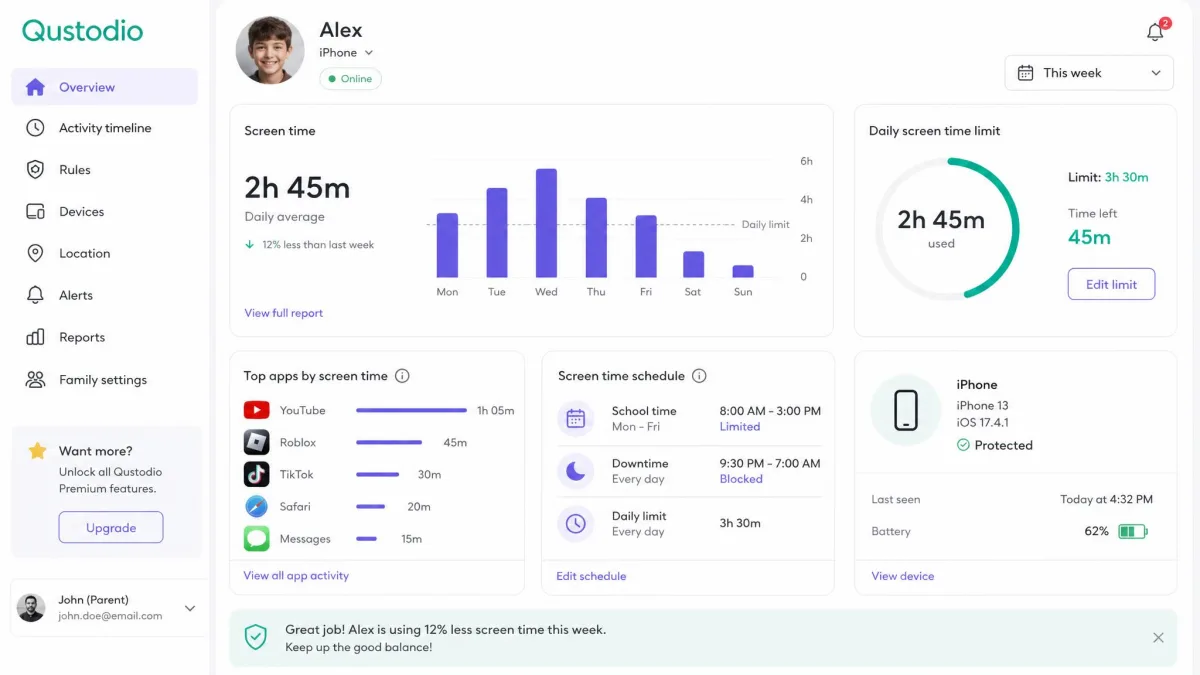
Jomo manages your own habits; Qustodio manages a whole family's. We set it up on a child's iPhone to test the web filtering, which on iOS means installing a VPN profile. The filter missed sites we expected it to flag, and blocking YouTube.com through the web did nothing: the site kept loading even though the monitor logged the visit. On iPhone, that split between monitoring and blocking is the short version of why it ranks last here for real control. Qustodio still brings the fullest family dashboard of the group, with schedule limits, per-app monitoring across about 6,000 iOS apps, location tracking, and co-parenting. It is best for parents who want monitoring on top of limits.
Pros and Cons
Pros
- Full parental dashboard with limits, monitoring, location, and content alerts
- Co-parenting with a second guardian
- About 6,000 supported iOS apps
Cons
- The weakest of the group on iPhone, with no call or text monitoring
- iOS web filtering needs a VPN profile and proved unreliable in testing
- Time blocks only start and end on the hour
Pricing
Qustodio plans start around $54.99 to $59.99 a year depending on device count and where you buy, with a free trial billed through your Apple account. It holds a 4.2 out of 5 from about 8,900 App Store ratings.
How to Choose a Screen Time App for iPhone
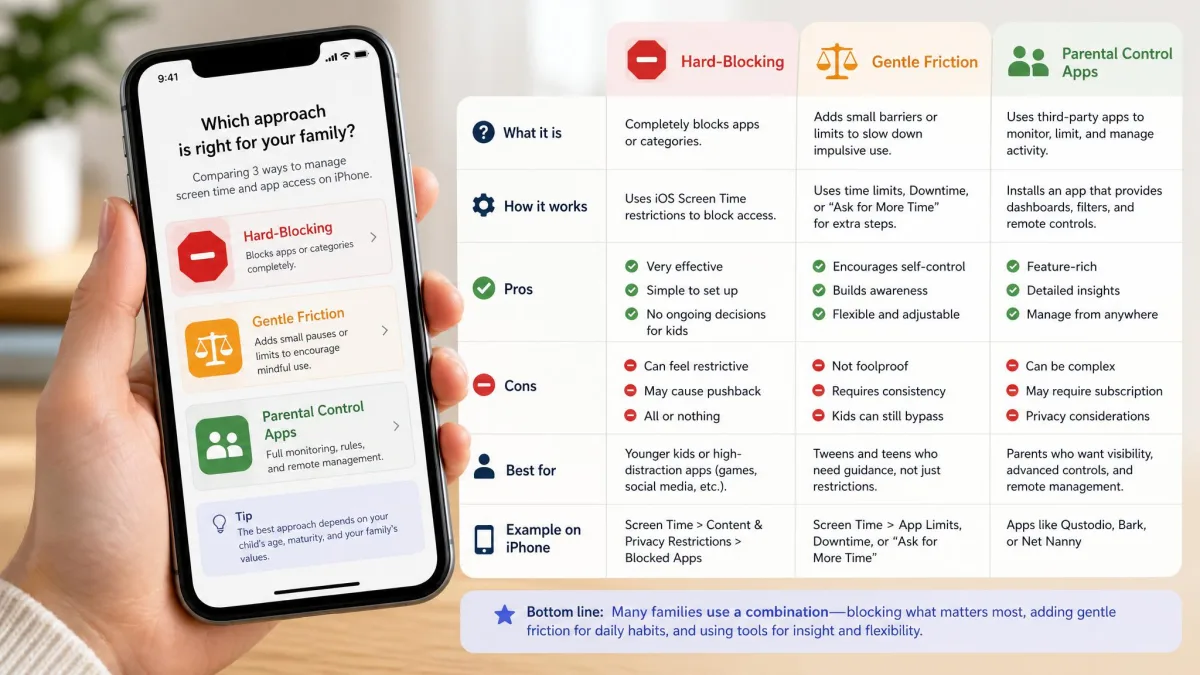
Start by naming your actual problem, because the right app changes with the habit. If you open apps on autopilot, a gentle nudge before they open may be all you need. If you cannot stop once you start, you need a hard block. If you are managing a child's phone, you need passcode-locked limits and monitoring.
What to Look For
Four things decide whether a screen time app will actually work for you.
- Bypass difficulty. How easy is it to tap past the limit? In our testing this decided everything, and one-tap ignores are why Apple's built-in limits lose to a habit.
- Approach. Hard blocking, gentle friction, gamification, and parental dashboards all work, but for different people. Match the approach to the habit you are fighting.
- Cross-device coverage. If your distraction lives on a Mac or a Windows PC too, look for sync like Freedom's.
- Pricing model. Free tiers cover a lot, and paid plans run from $19.99 to $99.99 a year. Watch for annual billing on the trial.
For families, the stakes are concrete. CDC data shows that 50.4% of U.S. teens ages 12 to 17 had four or more hours of daily screen time in 2021 to 2023. About 1 in 4 of those reported anxiety or depression symptoms. That is not a reason to panic; it is a reason to set limits early and make them hold.
In our testing, every gentle pause eventually became routine. The apps that kept cutting our screen time were the ones that made the block harder, not the warning friendlier.
How to Set Up Apple Screen Time
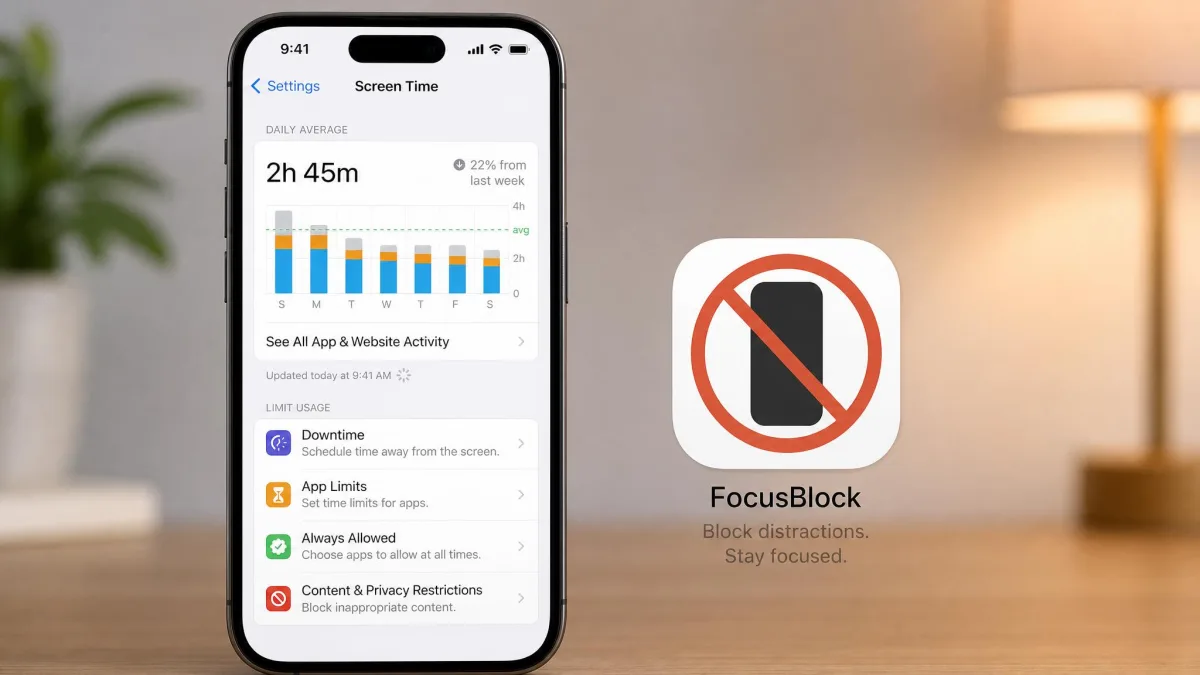
Before you spend anything on a third-party app, try the free setup. Open Settings, tap Screen Time, and tap Turn On Screen Time. If it is your child's phone, choose This Is My Child's iPhone and follow the prompts. Set a Screen Time passcode and keep it to yourself. Tap App Limits, then Add Limit, and pick the categories or apps you want capped. Turn on Block at End of Limit, which appears once a passcode is set. Finally, set Downtime for the hours you want the phone quiet. If Screen Time does not appear in Settings, update to the current iOS first.
Built-In Apple Screen Time vs. Third-Party Apps
Apple's built-in Screen Time is a genuinely good free baseline, and for a child's phone it is often enough on its own. Set a passcode, turn on Block at End of Limit, and limits actually hold. That is why independent testers at Wirecutter rated it the best option for managing kids' phones after testing 14 parental-control products. The gap shows up when you manage your own usage: Screen Time adds no friction, its limits are one tap from being ignored, and limits can silently stop enforcing.
Third-party apps close that gap. They add the friction Screen Time will not, from Opal's Deep Focus blocks to ScreenZen's escalating delays. They also bundle the scores, streaks, and scheduled windows that keep a change from fading. The trade-off is that they all build on Apple's Screen Time API, so none can granularly block Safari, and all can be disabled by revoking permission in Settings. We recommend running both: Screen Time for a child's downtime and limits, plus a blocker for the habit you are breaking yourself.
The numbers add weight. Research published in Preventive Medicine Reports linked more than 7 hours of daily screen time to about double the odds of an anxiety or depression diagnosis in teens. These tools are not about guilt; they are about putting a pause where there was none.
Frequently Asked Questions
Do screen time apps really work?
What is the best screen time app for iPhone?
What is the best free screen time app for iPhone?
Does Apple Screen Time work well enough on its own, or do I need a third-party app?
Can my child bypass screen time controls on their iPhone?
Is it worth paying for a screen time app?
The Bottom Line
A screen time app does not need to be expensive or complicated to change your habits. It does need to be harder to ignore than the impulse it is blocking. Start with the free options, and pay only when the free tool has lost the fight. For most people, Opal is the upgrade worth the price.