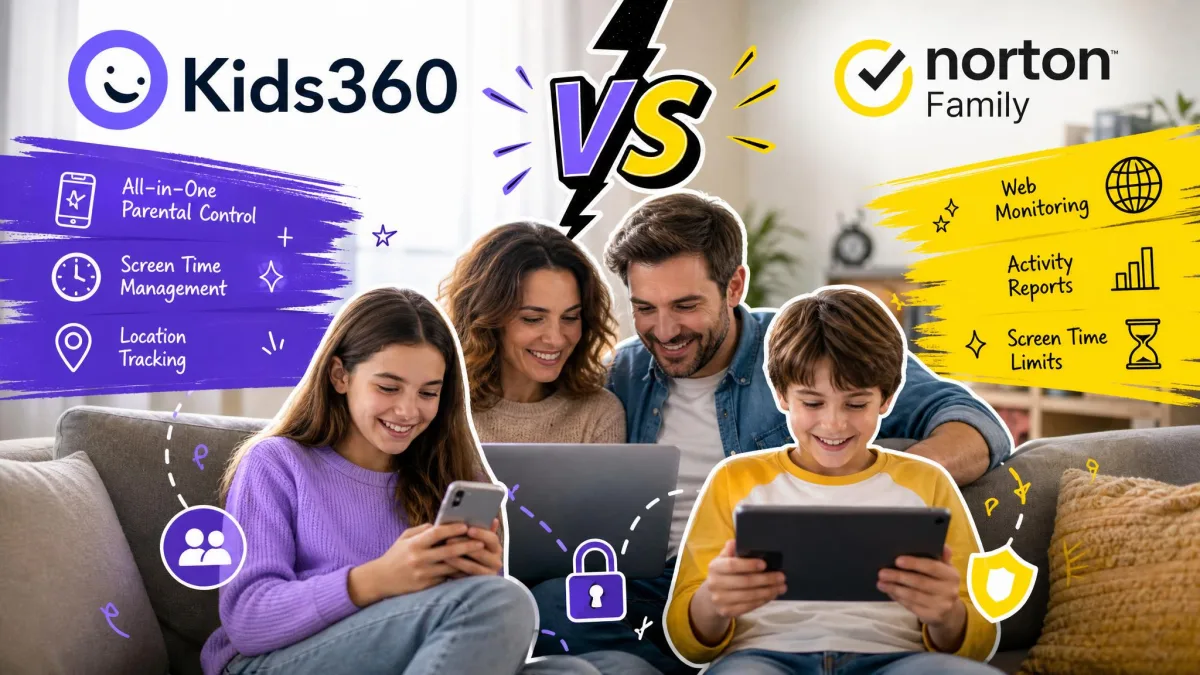
You are choosing between two very different answers to the same problem: how to keep an eye on a child's phone without turning every evening into an argument about it. We set both apps up on family devices, ran them against the same daily routine, and compared what actually landed in the parent dashboard. Norton Family wins this matchup for most households, mainly because its filtering and reporting held up consistently, while Kids360 was the more inconsistent of the two once we got past setup.
That does not make Kids360 pointless. It does things Norton simply cannot, including per-app time limits and a task system that lets a child earn phone time back. The question is whether those extras are worth living with a service that behaved differently from one child profile to the next.
Kids360 vs Norton Family at a Glance
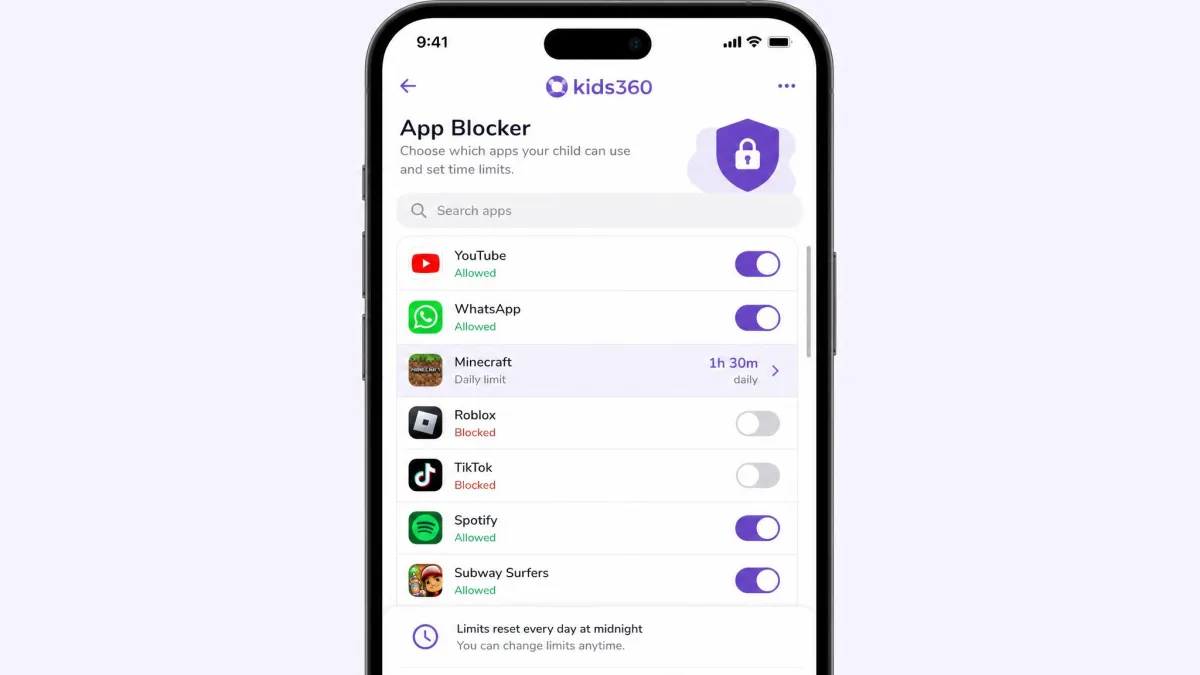
Kids360 is a mobile-only app from MINDCARE LAB LTD, built around screen time control, a one-tap app blocker, GPS location, and a set of tasks and activity challenges that convert effort into extra phone time. It runs on Android and iOS, with no Windows, Mac, or Chromebook client at all.
Norton Family comes from a security company and reads like one. It covers Windows, Android, and iOS with web supervision, time supervision, search supervision, video supervision, app supervision, and location supervision, all of it managed from a web-based parent portal. There is no Mac client and no Chromebook client here either.
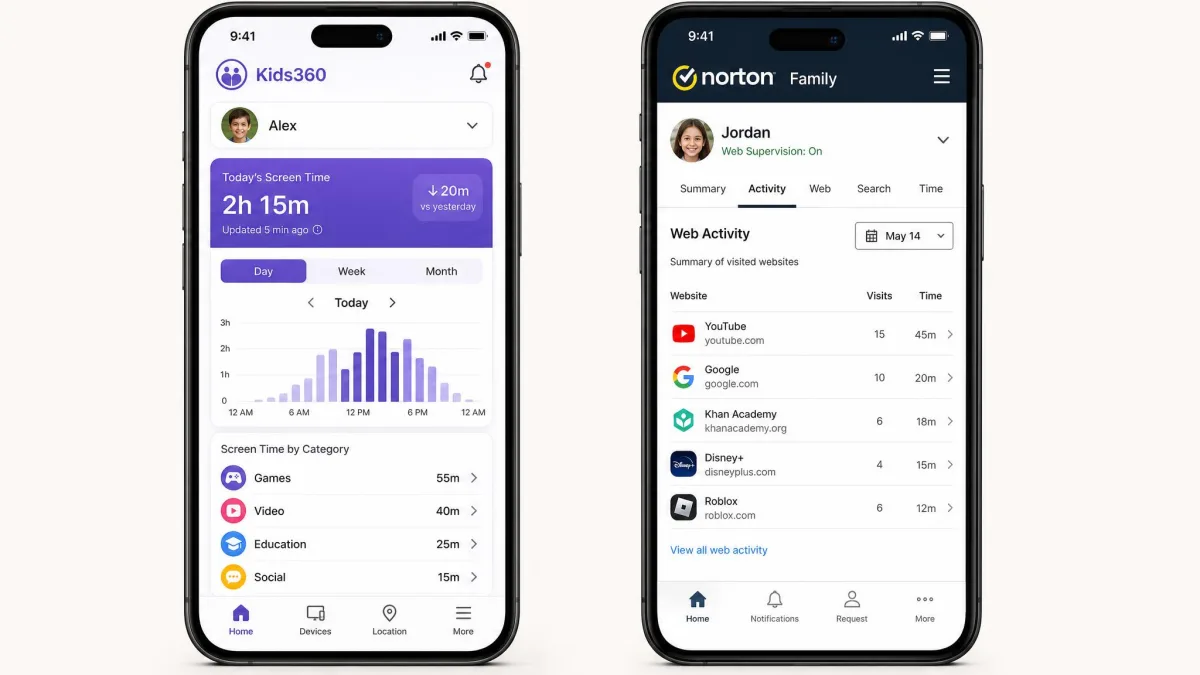
How We Compared These Two Apps
We treated this as a household test rather than a feature audit. Both apps went onto the same pair of child devices, one Android phone and one iPhone, with a parent account running on a separate handset and, for Norton, in a desktop browser. The Kids360 paywall is part of the experience being reviewed: on Android, setup can reach the end of child-device configuration before it asks for payment, so we treated the signup flow as a scored step rather than a preamble to it.
Our scoring covered eight areas: web and content filtering, screen time enforcement, app blocking, location accuracy, monitoring reach, reporting quality, setup friction, and how well each app resisted a child trying to remove it. We also read across the store listings and community feedback, because a parental control app is judged over months rather than a weekend, and the pattern of complaints tells you where a service breaks down at scale.
The single most useful test in this comparison was the boring one: leave both apps running for a normal week, then check whether what the dashboard says matches what the child device actually did.
One set of numbers is worth stating up front, because it shapes everything below. The Kids360 App Store listing sits at 4.6 out of 5 from 8.9K ratings and Google Play has it at 4.7, while Trustpilot's community rates it 3.6 out of 5 across 204 reviews. Norton Family's store listings sit at 3.9 on iOS and 3.3 on Android. Those gaps are not noise, and our own testing lined up with the lower scores more often than the higher ones.
Side-by-Side Feature Comparison
| Product | Buy | Web filtering | Screen time limits | App blocking | Location and geofencing | Messages and social | Search and video | Activity reports | Platforms | Device limit | Price per year | Free trial |
|---|---|---|---|---|---|---|---|---|---|---|---|---|
 |
Check price → | Category blocking with warning pages | Device-level daily limits and schedules | Windows and Android only | Location supervision with 30-day history, no geofence alerts | Not offered | Search terms plus YouTube in a browser | Weekly and monthly reports plus email alerts | Windows, Android, iOS | Up to 15 children across 50 devices (not stated on Norton's product page) | $49.99first year | 30-day trial |
 |
Check price | Adult-content filter | Per-app and per-device limits, sleep and study schedules | One-tap app blocker | GPS location with history | Not offered | Not offered | Real-time usage statistics and remaining-time alerts | Android, iOS | Not published | $49.99to $79.99 | 7-day trial plus a limited free tier |
Read that table and the split is clear. Kids360 goes deeper on controlling the phone itself, and Norton goes wider on knowing what the child did and telling you about it afterwards. Norton does not advertise geofence alerts, so do not buy it expecting arrival and departure notifications, and we found nothing confirming that Kids360 sends them either.
Pricing and Plans Compared
Kids360 pricing
Kids360 is sold entirely through in-app purchase. The US App Store listing shows roughly $9.99 to $12.99 per month and $49.99 to $79.99 per year, and the monthly price sits in a band that shifts with region and with the offer shown at signup. There is also a Family Safety add-on at $7.99. Neither the official site nor the store listings state how many children or devices one subscription covers, and we could find no published refund window or money-back guarantee.
Kids360 subscriptions can renew after a cancellation attempt, producing charges parents did not expect. If you cancel, confirm it in your App Store or Google Play subscription list rather than trusting the in-app confirmation alone.
Norton Family pricing
Norton Family is $49.99 for the first year, which works out at about $4.17 per month, though that per-month figure is a division of the annual price rather than a plan you can actually buy monthly. Norton states plainly that the renewal price may be higher than the first-year price and is subject to change. Annual subscriptions carry a 60-day money-back guarantee, and the trial is a 30-day one with payment details required up front, though trial length varies by promotion and signup route.
Which is better value?
At list price the two land close together for a single year, but the terms are not equivalent. Norton publishes one figure and a 60-day refund window. Kids360 publishes a band, no device cap, and no refund policy we could verify. When the headline prices are this similar, the service that tells you exactly what you are buying is the better purchase, and that is Norton Family.
Supported Platforms and Devices
Platform coverage is where this comparison stops being close. Kids360 is Android and iOS only. If your child does homework on a Windows laptop, Kids360 sees none of it.
Norton Family covers Windows 7 SP1 and later, including 10 and 11 but excluding S Mode, plus Android 8 or later and the current and previous two versions of iOS. Mac is not supported, and there is no Chromebook client, so a household on those devices is left with partial coverage from either service. The Kids360 iOS build requires iOS 17.0 or later and is a 372 MB download, which is a large install for a phone that is already short on space.
Apple's limits on third-party apps are the root cause of the iOS feature gap. iPhone builds of both apps can do less than their Android counterparts, and Norton Family on iOS is noticeably thinner than its Android version, with app monitoring the weakest part.
Web and Content Filtering
Platform reach decides the shortlist, and filtering decides the daily experience. Norton Family's web supervision is the single feature that most justifies the subscription. Blocking works the way you want it to: the child's browser shows a warning page, the attempted search term lands in the parent dashboard, and a real-time alert follows. You choose an age-based restriction level during first configuration and adjust categories from there, and the child can send an access request rather than simply hitting a wall.
Kids360 filtering is a narrower proposition. It blocks adult material and does that job, but there is no category system to tune and no equivalent of Norton's request-and-approve flow. For a young child that may be all you need. For an older one who is going to test the edges, the lack of granularity shows quickly.
Whichever app you choose, pair the filter with the household rules in a family media plan. Filtering that a child understands the reason for is far more durable than filtering that simply appears one day.
Screen Time Limits and Scheduling
Here the advantage flips. Kids360 sets limits per app as well as per device, and adds sleep and study schedules plus a live counter the child can see, with notifications as the remaining time runs down. Being able to cap one game at forty minutes while leaving a reading app open is genuinely useful, and Norton cannot do it.
Norton Family sets a daily total and a schedule for the device as a whole, plus a School Time focus mode and an Instant Lock button that locks the device on demand. It is blunter, but it is predictable.
Predictability turned out to matter more than we expected. Kids360 schedules can misfire, either failing to enforce the limit or leaving the phone blocked around the clock after the block was supposed to be lifted. A control that sometimes locks a child out of their own phone all day is worse than a control that only works at the device level.
App Blocking and App Supervision
The Kids360 one-tap app blocker is the faster tool in daily use. You see the app list, you tap, the app stops opening.
Norton Family calls this app supervision, and it runs on Windows and Android only. On iPhone it is largely absent, which is the clearest example of the platform gap above. If app-level control on iOS is your main requirement, neither service will satisfy you, and Apple's own Screen Time settings are worth turning on alongside whichever you choose.
We also hit a Kids360 behaviour worth naming. Features can work on one child profile and not another inside the same parent account, with no obvious pattern, and some advertised controls were simply absent from the dashboard after setup on iPhone. Permissions on the child device do not always stick either, and need re-granting.
Location Tracking and Geofencing
Both services offer location tracking and neither offers confirmed geofence alerting, so treat this as map-and-history rather than automatic notifications.
Norton Family keeps 30 days of location history on Android and iOS, which is the more useful record of the two. Its weak point is freshness: location is the most criticised part of the service in store feedback, and positions can fail to update when you most want them to.
Kids360 location was the less reliable of the two in practice. Data can lag badly, in some cases showing a position from two days earlier, and the tracking is defeated outright when a child turns off location services on the phone. Neither app should be the thing you rely on in an emergency.
Social Media, Messages, and Search Monitoring
Neither Kids360 nor Norton Family monitors text messages or social media conversations. If that is the capability you are shopping for, stop comparing these two and look at a service built for content monitoring instead.
What Norton does offer is search supervision, which shows the terms a child searched for, and video supervision covering YouTube. The caveat is significant: video supervision only sees YouTube opened in a browser, not videos watched inside the YouTube app, and the app is where almost every child watches. Treat it as a partial view rather than full streaming oversight.
Kids360 offers no search or video supervision at all.
Activity Reports and Alerts
Where Kids360 tells you what is happening right now, Norton Family reporting is built for a parent who wants to review rather than react. Weekly and monthly activity reports summarise sites visited, blocked attempts, search terms, and time used, and email alerts land when a child tries to reach a blocked site. The web portal makes the history easy to read on a proper screen.
Kids360 reports in the present tense instead: real-time usage statistics, remaining-time notifications, and a live picture of what is open now. That framing suits younger children, but the parent app can be slow to refresh, lagging behind the child device rather than updating in step with it, and sync between the parent and child apps can drop out entirely until you close and reopen it.
Setup and Ease of Use
Setting up Kids360
Install the app on the parent phone, create the account, then install the child app and pair the devices. The friction arrives at the end. On Android, setup can reach the end of child-device configuration and only then demand payment, with no clear price warning earlier in the flow, and the free trial is not always presented before that paywall appears.
Setting up Norton Family
Open the Norton Family portal, sign in, then add a child and choose an age-based restriction level. Link the child device with the QR code or activation code, grant the permissions the installer asks for, then adjust House Rules per category. Setup runs quickly, and the age preset means the service is doing something sensible before you have configured anything by hand.
Set both apps up with the child in the room. Explain what the app can and cannot see, then show them the request flow. The Norton dashboard guides conversation more than it locks a device down, and households that already talk openly about staying safe online get the most out of it.
Can Kids Bypass or Delete Either App?
Norton Family holds up well here. The app cannot be removed from the child device without signing in with the parent credentials first, which is enough to stop an older child quietly uninstalling it.
Kids360 uninstall protection cuts both ways. It resists removal from the child phone so firmly that a parent may be unable to take it off either, which turns a security feature into a support problem. Its bigger weakness is simpler: turning off location services defeats the GPS tracking without touching the app at all.
Covert monitoring is a poor foundation for a family. Both apps are designed to be visible on the child device, and that is the right default.
Kids360 Pros and Cons
Pros
- Per-app screen time limits that Norton Family cannot match
- Sleep and study schedules plus a one-tap app blocker
- Tasks and activity challenges let a child earn phone time back
- Real-time usage statistics and remaining-time alerts for the child
- Strong uninstall protection on the child device
Cons
- Android and iOS only, with no Windows client
- Schedules and permissions can misfire or fail to stick
- Location data can lag by days, and is defeated by turning location off
- No published device limit, refund policy, or single list price
- Chat-only support with no phone line, and replies can be generic
Norton Family Pros and Cons
Pros
- Reliable web filtering with warning pages and real-time alerts
- Covers Windows alongside Android and iOS
- Weekly and monthly activity reports plus search supervision
- 30 days of location history and a clear web parent portal
- $49.99 first year with a 60-day money-back guarantee
Cons
- No Mac or Chromebook client
- Screen time limits are device-wide, never per app
- The iOS build is thinner than Android, especially for app monitoring
- Video supervision misses YouTube watched in the app
- Location updates are its most criticised feature
Which One Should You Choose?
Choose Kids360 if...
Your children are young, all their screen time happens on a phone or tablet, and your problem is the amount of time rather than the content. The per-app limits and the earn-back tasks fit that household better than anything Norton offers, and our Kids360 review covers the app on its own terms.
Choose Norton Family if...
You want filtering you can trust, reporting you can read on a laptop, and coverage that includes a Windows machine. That is most families, which is why it takes the win here. Our Norton Family review goes deeper on the parent portal.
Frequently Asked Questions
Is Kids360 or Norton Family better for iPhone?
Is Norton Family free?
Does Kids360 work without the child knowing?
Can a child delete or bypass either app?
What can I use if I need to see my child's messages?
How many devices does each plan cover?
Which one is cheaper over three years?
Final Verdict
There is one household that should overrule our recommendation without hesitation: a phone-only family with a younger child whose entire problem is one app eating the evening. If you can name the app, Kids360 is the only one of the two that can cap it, and no amount of Norton reporting substitutes for that. Everyone else, including most families with a teenager, should start with Norton Family and stay there.
If we were setting this up again from scratch, we would change one thing. Neither service is complete on its own, so we would pair whichever one we bought with the controls already built into the operating system, Apple Screen Time on iPhone or Family Link on Android. The built-in tools reach parts of the device no third-party app can, they cost nothing, and they keep working on the day a subscription lapses or a sync quietly stops. Treat the paid app as the reporting and filtering layer, and the platform tools as the floor beneath it.