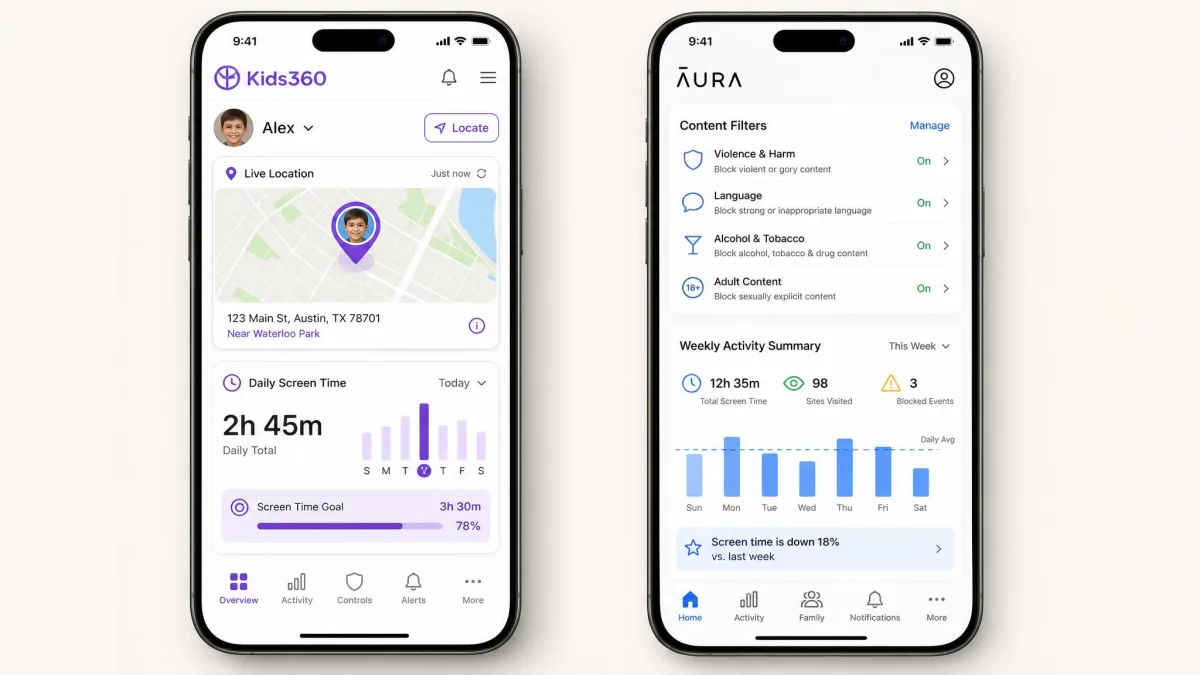
Most parents comparing these two apps are answering one narrow question: do you want to know where your child is, or do you want to control what they can reach online? That decision separates the two products more cleanly than any feature list does, because Kids360 is built around real-time GPS and geofence alerts, while Aura leaves location out entirely and spends its budget on content filtering, gaming safety and identity protection. When we set both up, the difference showed within the first session: Aura enrols a device with QR-code pairing and a child's name and birthday in a few minutes, and its dashboard is legible straight away. The side-by-side table below lays out every row that matters, from price to uninstall protection, so you can check the one feature your family cares about first.
Kids360 vs Aura at a Glance
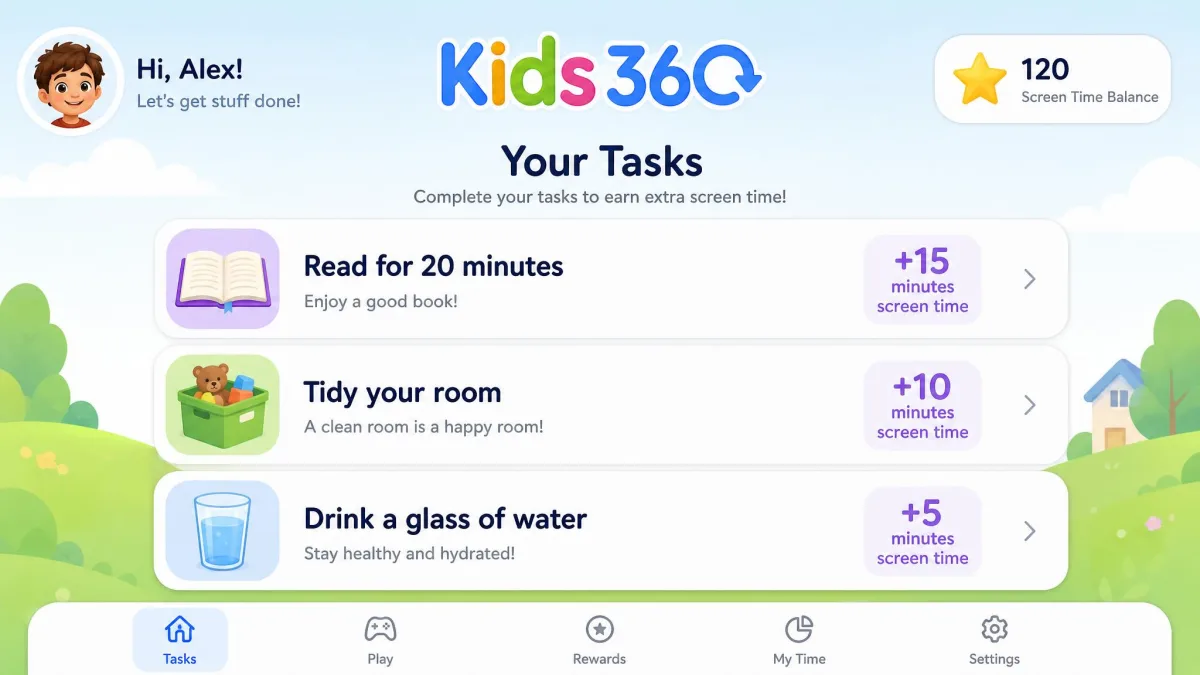
Kids360 is a mobile-first parental control app from the Findmykids family of products, distributed through the App Store, Google Play, AppGallery and the Galaxy Store. It combines screen time limits, app blocking, web filtering and app usage statistics with the things a location-first parent wants: live GPS, geofencing, geofence alerts and a loud-signal ring that makes a muted phone shout. It also runs a task-and-reward loop, where a child earns extra screen time by finishing parent-set or developmental tasks, and that coaching layer is what separates it from a pure monitoring tool.
Aura parental controls come from a broader digital-security company, and it shows. The Kids plan handles content filtering, screen time limits and scheduling, per-app limits, a Pause the Internet button, online history and weekly activity reports, an Online Wellbeing behavioural analysis, and Safe Gaming by Kidas, which monitors in-game voice and text across 200+ PC games on Windows. Step up to the Family plan and you also get identity theft protection with $5M insurance, credit monitoring and lock, antivirus and a VPN for up to 5 adults.
Quick verdict
Aura is our overall pick, and Kids360 earns its place only when live location is what you came for. The rest of this comparison shows the work behind that split.
How We Compared These Apps
Before the table and the feature sections that follow, here is how we arrived at them. We compared these apps the way a parent shops for them: by the job each one is hired to do, not by counting features. We worked through both vendors' documentation and pricing pages, the App Store and Google Play listings and the public review record. We then weighed the categories that decide the purchase. Filtering depth, screen time control, location and message monitoring came first, followed by setup effort, platform parity, uninstall resistance and price. Reliability carried the most weight, because a control that works four days out of five is not a control.
Where the evidence pointed two ways, we kept both readings rather than picking the flattering one. Kids360's location accuracy is the clearest example: on some setups the geolocation is extremely accurate, on others it is stale and approximate, and both appear below because a parent's experience will land somewhere in that range.
Two figures deserve a caveat. Kids360's vendor marketing claims 1M+ parents and a 2.5x reduction in screen time, and those are marketing numbers with no independent audit behind them, so they describe a claim rather than a measured outcome. Aura's 4.1 Trustpilot score covers Aura Digital Security as a whole, not the parental controls product on its own. Its store ratings are lower, at 3.3 on the Apple App Store and 3.8 on Google Play.
Side-by-Side Comparison Table
| Product | Buy | Price (monthly) | Price (annual) | Free plan or trial | Platforms | Screen time limits | App blocking | Web and content filtering | Location and geofencing | Social media monitoring | Text-message monitoring | Activity reports | Alerts | Uninstall protection | Identity theft protection | Devices and children covered | Best for |
|---|---|---|---|---|---|---|---|---|---|---|---|---|---|---|---|---|---|
 |
Check price → | $13 (Kids plan) | $10/mo billed annually; Family $32/mo | 14-day free trial, 60-day money-back guarantee on annual plans | iOS 16 or later, Android 12.0 or later, Windows for Safe Gaming | Yes, plus Pause the Internet and per-app limits for 100+ apps | Yes, deeper on Android than iOS | Yes, across 28 categories | Not offered | Online Wellbeing behavioural analysis, no Snapchat messages | No | Online history, usage and weekly reports | Cyberbullying, predator and uninstall alerts | Weak, alert only, device-admin step required on Android | Family plan only, with $5M insurance | Unlimited children and devices; Family adds 5 adults | Filtering, gaming safety and identity protection |
 |
Check price | In-app purchases from $7.99 | Top tier $79.99 | Free download with in-app purchases; a 7-day free trial is widely reported | iOS 17.0 or later, Android | Yes, plus earn-time tasks | Yes | Yes | Yes, with geofence alerts | Limited | No | App usage statistics | Geofence and loud-signal alerts | Present but inconsistent | No | Not published | Younger kids, location-first parents, habit coaching |
Core Feature Comparison
The table above flattens the differences, so this section unpacks the rows that decide a purchase, grouped the way a parent actually shops: the control you want most goes first, and however good the rest looks, it is a bonus.
Screen time limits and scheduling
Both apps let you set daily limits and schedules, and both can lock a device at bedtime. Aura goes further on granularity, with per-app screen time limits and a Pause the Internet control that cuts access across the household in one tap, which is the single most useful button in either app on a school night. Kids360 answers with something different in spirit: instead of only taking time away, it hands time back. A child who completes a parent-created task or one of the developmental activities earns extra minutes, and in practice that turns a nightly argument into a transaction the child can influence.
Reliability is where Kids360 stumbles. Its schedules can misfire, with locks landing at the wrong moment, and permissions sometimes drop silently and need to be re-granted before the limits work again. That is a serious problem for a control you are meant to set once and forget.
Kids360 does not behave consistently across child profiles on the same account. Some controls apply to one child and quietly fail to apply to another, so check every profile after you create it rather than assuming the settings copied across.
Content filtering and app blocking
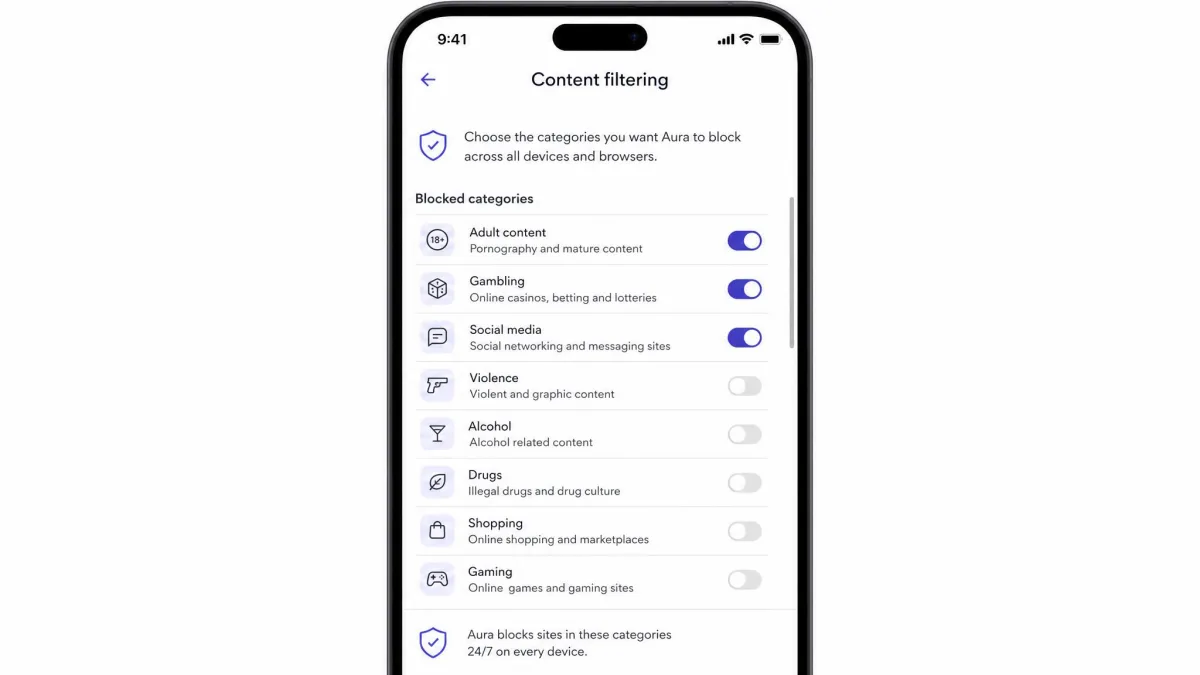
Aura wins this category without much argument. Its filter reaches further than Kids360's, it can block a site or an app outright, and the controls sit where you expect them. The trade-off is that the filter can be over-eager, blocking legitimate pages until you loosen a category or two, so budget an evening of small adjustments to allow the categories your child genuinely needs. App blocking is also noticeably deeper on Android than on iPhone, because Apple restricts what any third-party app can do to another app.
Kids360 blocks apps and filters web content too, but the depth is thinner and the execution is less predictable. Several advertised controls, including time limits and app blocking, can fail to appear at all on certain iPhone models, which is a hard thing to forgive in a paid app.
Location tracking and geofencing
This is the clearest split in the whole comparison. Kids360 offers real-time GPS location tracking, geofencing and geofence alerts, so you get a notification when your child arrives at school or leaves a set area. Aura does not offer location tracking at all, and the sources that claim otherwise give no detail to back it up. If live location is the reason you are shopping, Aura is not a candidate.
That said, Kids360's location feature is also its most-cited weak point. Updates can lag or stall, and the pin sometimes shows an approximate area instead of an exact position. It is not uniformly poor: on some setups the geolocation lands tight enough to be a little unnerving. And on any setup, the GPS stops being useful the moment location services are switched off on the child's device, which an older child will work out quickly.
Social media and message monitoring
Neither app is a message-monitoring tool, and it is worth being blunt about that because a lot of parents arrive here expecting one. Aura has no call or SMS monitoring, no Snapchat message monitoring, and its email monitoring is inconsistent. What it does offer is Online Wellbeing, a behavioural analysis that flags patterns in how a child is using their device, plus cyberbullying and predator alerts drawn from activity rather than message content. Kids360's social coverage is more limited still, focused on which apps get used and for how long rather than what is said inside them.
Activity reports and parent alerts
Aura produces online history, usage reports and weekly activity summaries, and those weekly summaries are genuinely readable rather than a data dump. Kids360 reports app usage statistics, which tells you where the hours went but not much about context. On alerts, the two apps aim at different risks: Kids360 sends geofence and loud-signal notifications, while Aura sends cyberbullying, predator and uninstall alerts.
One caveat on Aura's alerting. Safe Gaming reports arrive weekly rather than in real time, so an incident in a voice chat can sit unseen for days before it reaches you. Treat it as a review tool, not an emergency line.
Extras: identity theft protection, safe gaming, self-development tools
Aura's Family plan bundles identity theft protection, credit monitoring and lock, antivirus and a VPN. If you currently pay for a credit-monitoring service, that bundle changes the value calculation entirely, because you are comparing Aura against two subscriptions rather than one. Safe Gaming by Kidas covers PC games on Windows, which is a useful gap-filler for households with a gaming child, though it does nothing for console or Mac play.
Kids360's extras run the other way, toward habit-building. The developmental tasks, custom parent tasks and exercise-based rewards are aimed at shaping behaviour rather than policing it, and the loud-signal ring and remote lock are the two features parents single out as working reliably.
Aura's Safe Gaming runs on Windows PCs only. It does not cover PlayStation, Xbox, Switch, Mac or mobile games, so check what your child actually plays before you count it as a reason to subscribe.
Pricing and Plans Compared
Kids360 pricing
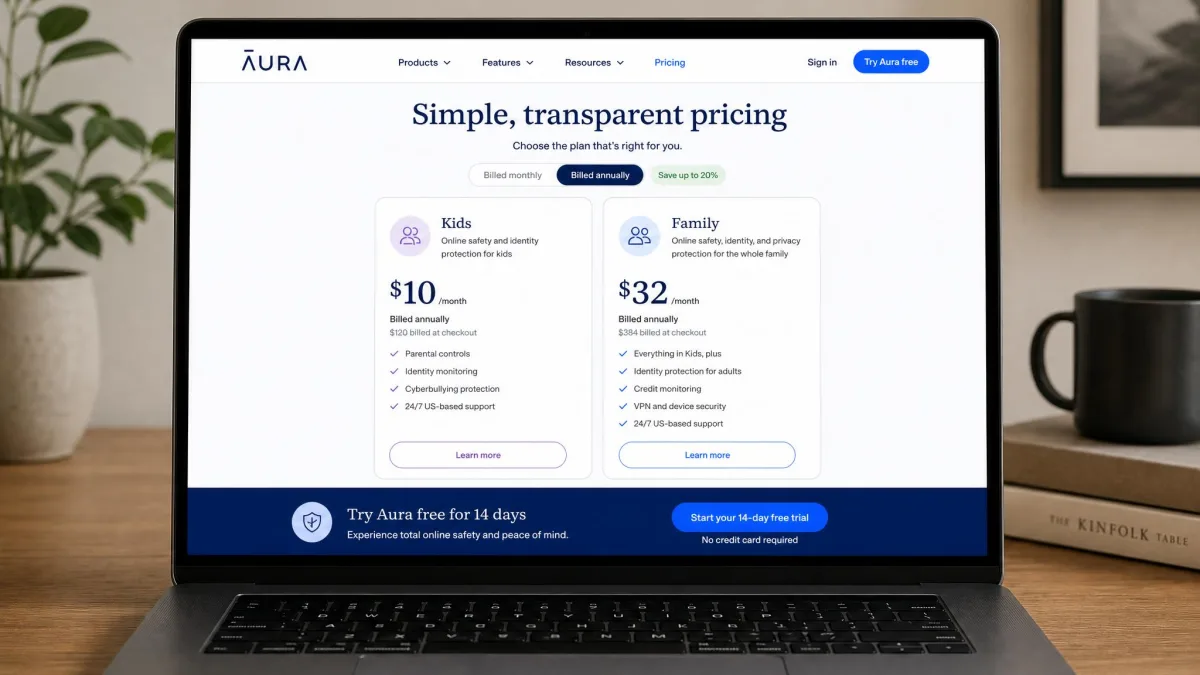
The feature split above only matters once you know what each app costs to keep, and this is where the two products diverge again. Kids360 is a free download with in-app purchases, and the App Store lists those purchases running from $7.99 up to a top tier of $79.99. Beyond that, the picture gets murky. The vendor publishes no US price list, third-party figures disagree with each other, and the headline subscription price varies by country, store and promotion, so the monthly figure a parent sees at checkout can differ from the advertised rate.
Billing is a common friction point. A monthly selection can turn into a full-year charge, and a required payment can surface only after you have finished setting up the child's phone, which is the worst possible moment to discover a price. There is no money-back window at all: the Terms of Use state that no refunds are made for unused subscription time, for any licence or subscription fee, or on account closure, so cancelling only stops the next renewal and access simply runs to the end of the period you already paid for. That makes the app store your only realistic refund route. Cancellation is not self-serve inside the app either, which means emailing support or going through the App Store or Google Play, and account closure takes 5 business days after a confirmed request. Coverage is vaguer than we would like: one parent account connects multiple children and their devices, and the vendor describes the subscription options as flexible enough to cover as many children and devices as a family needs, but no numeric cap is published anywhere, so how many children a plan actually covers is not something you can confirm before subscribing. One more billing detail worth knowing is that each profile gets a single trial period, and a profile left uncancelled at the end of it is charged automatically at the tariff chosen at registration.
Aura pricing
Aura publishes its prices plainly. The Kids plan is $10 per month billed annually or $13 per month billed monthly, and it covers unlimited children and unlimited devices. The Family plan is $32 per month billed annually or $50 per month billed monthly, and it adds five adults plus the full identity and security bundle. Aura also runs frequent promotional rates, so the per-month price at signup often lands below the list price.
Which is better value
On sticker price alone Kids360 looks cheaper, and for a single child on a single phone it probably is. Aura's Kids plan covers a whole household for one flat fee, though, so the more kids you have, the faster the gap closes. A family with three children pays Aura once and pays Kids360 for coverage that is not even published. Neither app is risk-free to buy on impulse, but only one of them lets you change your mind after the money has left your account.
Setup and Installation
Price settles what you pay; setup settles how much of your evening the app costs you, and the two apps ask for very different amounts of it.
Setting up Kids360
Kids360 needs the parent app on your phone and the child app on theirs, plus a stack of permissions on the child device: location, usage access, and on Android an accessibility permission for app blocking. Grant every one of them in a single sitting, because the app's controls do not work reliably when permissions are partial, and those permissions can drop silently later. Expect to revisit the child's phone at least once after the first day.
Setting up Aura
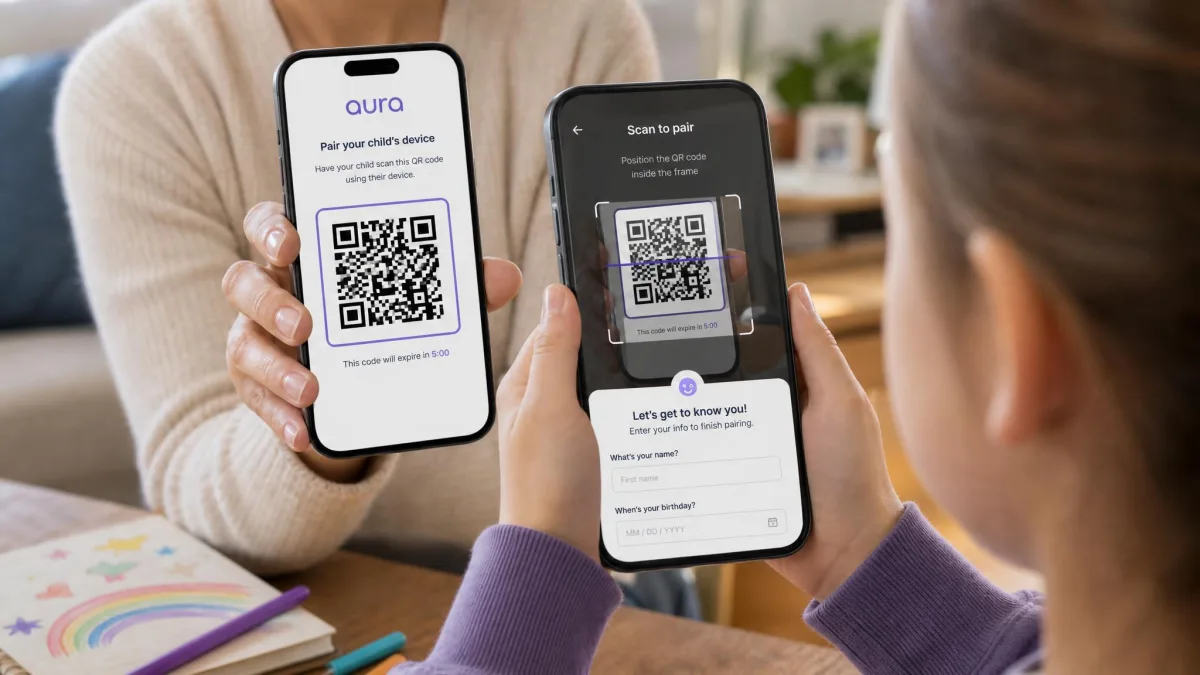
Aura's onboarding is the more beginner-friendly of the two. Open Aura, create the account, add a child name and birthday, then scan the QR code on the child's device to pair it. Aura applies age-based default settings you can adjust afterwards, and the whole process runs about 5 to 10 minutes per device. The dashboard is legible from the first session, so you are not hunting for where screen time or filtering lives.
On Android, do not skip the device administrator step during Aura's setup. Skipping it leaves the app removable without the parent PIN, which quietly undoes the protection you just spent ten minutes configuring.
Which is easier to get running
Aura, comfortably. QR-code pairing and sensible age defaults get a family to a working configuration faster than Kids360's permission checklist, and Aura's defaults are close enough to right that many parents will only tweak a category or two. Kids360 is not hard to install, but it demands more attention afterwards to confirm the controls actually took effect on every child profile.
Platform Support: iOS vs Android
That setup-effort gap narrows or widens depending on the phones in your house, because both apps behave differently across the two platforms. Kids360 requires iOS 17.0 or later on Apple devices and also runs on iPhone, iPad and Android. Aura requires iOS 16 or later and Android 12.0 or later, and adds Windows for Safe Gaming, though it has no desktop parental control app for managing the rest.
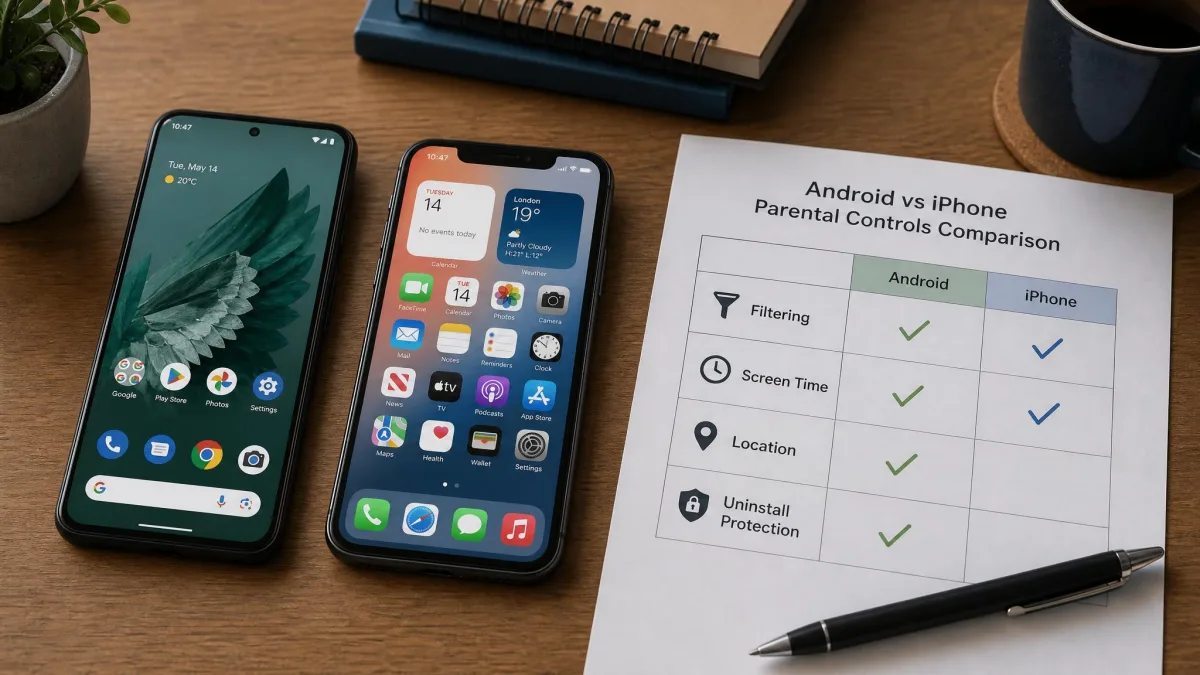
Both apps are stronger on Android than on iPhone, and that is Apple's doing rather than theirs. Aura's per-app controls are noticeably thinner on iPhone because of platform restrictions, and Kids360's advertised controls can fail to show up entirely on some models. If your household is on iPhone, temper your expectations and lean on Apple's own tools as a backstop.
Neither app replaces the built-in controls on the device. Apple Screen Time sits below any third-party app on iPhone, and running it alongside Aura or Kids360 covers gaps that App Store rules leave open.
Free Plans and Free Alternatives
Since neither paid app is risk-free to buy, the obvious question is whether you need to pay at all, and neither one has a genuine free tier that does the job. Kids360 is a free download, but the useful controls sit behind in-app purchases, so the free state is closer to a demo than a plan. Aura has no free tier at all, only the trial.
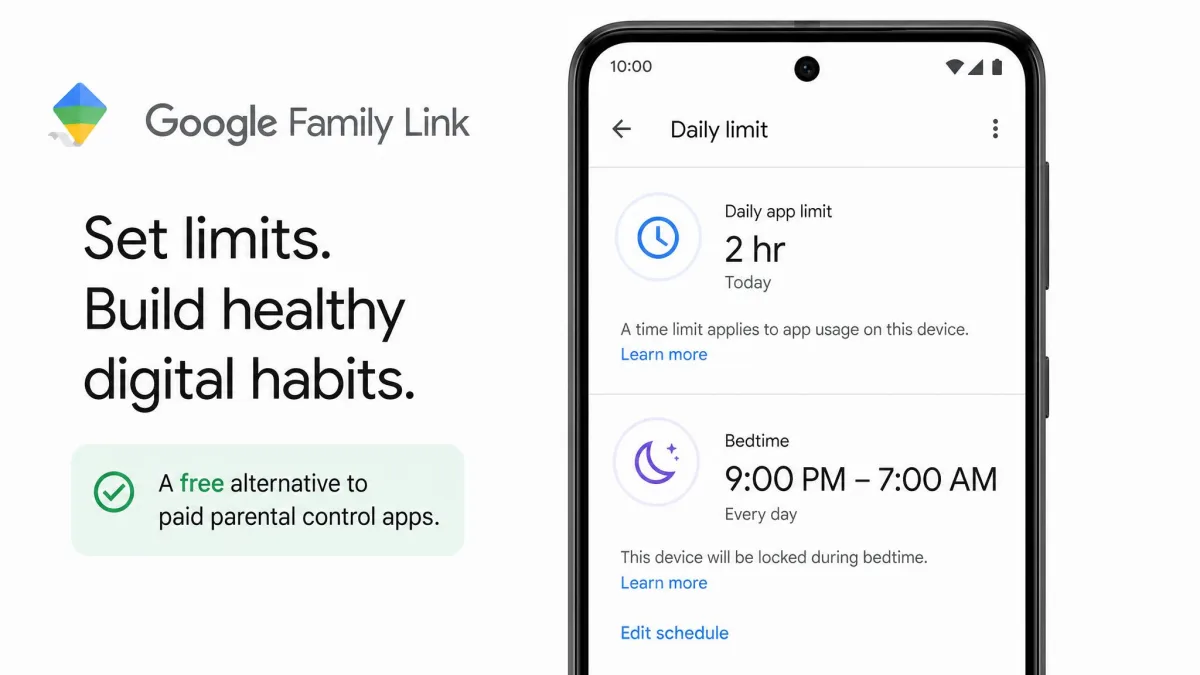
If your budget is zero, the honest answer is to start with what you already own. Google Family Link handles screen time, app approval and device location on Android at no cost, and Apple's built-in controls cover limits and content restrictions on iPhone. Those free tools will not give you Aura's filtering depth or Kids360's geofence alerts, but they do cover the basic controls well enough to help you work out what you are actually missing before you spend anything.
The Child's Experience: Monitoring vs Coaching
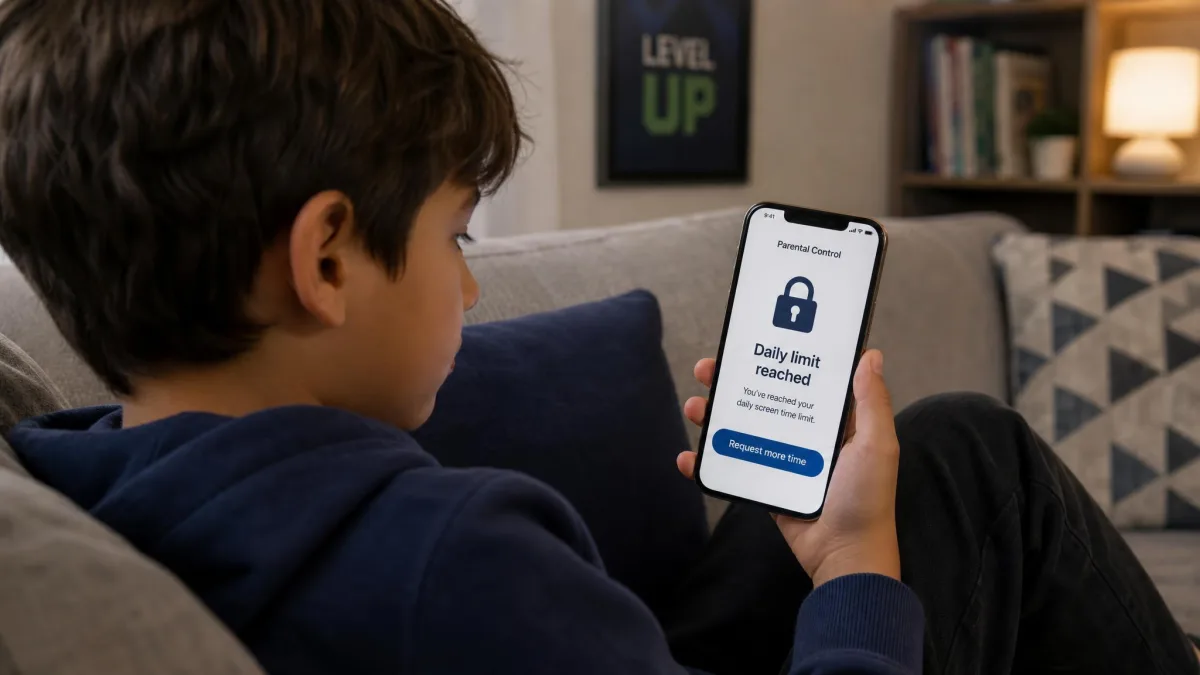
Free or paid, the app has to survive contact with the child, and the two feel different from that side of the screen. Aura is a supervision layer: it filters, it limits, it reports, and the child experiences it as a wall that appears at a boundary. Kids360 asks for participation, because extra screen time is something a child earns, and a child who can influence the rules argues with them less.
Neither approach is automatically right. A younger child usually responds well to the earn-time loop. A teenager is more likely to accept a clearly explained filter than a chore-for-minutes system that feels babyish. Whichever you pick, the conversation you have when you install it does more work than the settings do.
Privacy, Trust, and Whether Kids Can Bypass Either App
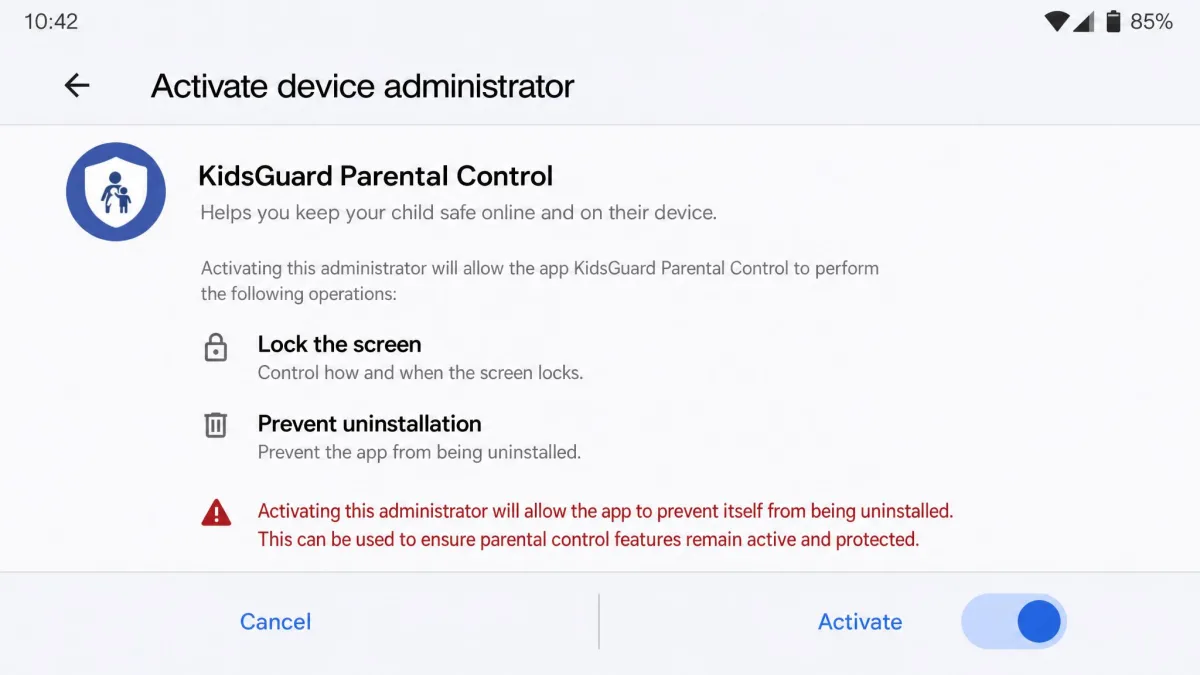
A child who resents the rules will eventually test them, so plan for how kids bypass parental controls rather than being surprised by it. Aura's uninstall protection is weak on Android: a determined child can remove the app, and the parent alert arrives after the fact rather than preventing it. Skip the device administrator step during setup and it is removable without the parent PIN at all.
Kids360 is inconsistent in the other direction. Some parents find children disable it easily, while others cannot remove it from a child's phone even when they want to. Its GPS also stops reporting the moment location services are switched off on the child's device, which is a two-tap bypass an older child will find.
There is a trust dimension too. Pew Research screen-time data shows how early and how heavily children use devices, and no app can protect a child from everything, and covert monitoring of an older child tends to cost you more in the relationship than it buys you in safety. However you set the rules, the app enforces a decision you have already made together. Tell your child what is installed and what it can see.
Kids360 Pros and Cons
With the bypass question settled, here is the balance sheet on each app, starting with Kids360.
Pros
- Real-time location tracking, geofencing and geofence alerts that Aura does not offer at all
- Task-and-reward system lets kids earn extra screen time instead of only losing it
- Loud-signal ring and remote lock are the features parents say work reliably
- Low entry cost, since the app itself is free to download
- Rated 4.6 on the App Store across 8.9K ratings
Cons
- Screen time schedules misfire and permissions can drop silently, needing to be re-granted
- Controls behave inconsistently between child profiles on the same account
- Location updates can lag or stall, showing an approximate area instead of an exact pin
- Billing confusion is common, including a monthly selection turning into a full-year charge
- Support is email-only with no phone line, and replies can take weeks
- Polarised reputation: 3.6 on Trustpilot across 204 reviews, with 41% one-star
Aura Pros and Cons
Aura's balance sheet reads almost as the mirror image.
Pros
- The deepest content filtering of the two, by a clear margin
- Per-app screen time limits, plus a Pause the Internet control for the whole household
- One flat fee covers every child and device in the house
- Safe Gaming monitors in-game voice and text in PC games on Windows
- Family plan adds identity theft protection, credit monitoring, antivirus and VPN
- The only one of the two you can buy without gambling the money
Cons
- No location tracking or geofencing of any kind
- No call, SMS or Snapchat message monitoring, and email monitoring is inconsistent
- Uninstall protection is alert-only and weak on Android
- The content filter can be over-eager, blocking legitimate pages until you loosen categories
- Safe Gaming reports arrive weekly rather than in real time
- Devices do not always stay in sync, and support response speed is uneven
How to Choose Between Kids360 and Aura
Work down this list and stop at the first line that describes your household. Each carries a threshold or a caveat worth knowing before you commit.
- You need to know where your child is. Kids360 is the only option here. Set geofences with a generous radius, because a lagging update on a tight boundary fires false alerts on the daily walk home.
- Your child is under about ten and screen time is the daily fight. The earn-time loop works best when the tasks are things you would ask for anyway, such as reading or tidying, rather than invented chores a child sees through.
- You want to keep kids safe online through filtering. Aura, comfortably, but expect to spend the first evening unblocking legitimate sites your child needs for homework.
- You have three or more children or a lot of devices. Aura's flat household fee stops rising at child number two, while Kids360 publishes no cap at all, so a four-child household cannot price the purchase in advance.
- Your child games on a Windows PC. Aura's Safe Gaming is the only feature in this comparison that touches voice chat, though it will not help with a console or a Mac.
- You already pay for credit monitoring. If that service costs you more than about $20 a month, the Family plan usually absorbs it and lowers your total bill.
- You want message monitoring. Neither app does it. Look elsewhere rather than paying either one and being disappointed.
Whichever you pick, start on the trial or the annual guarantee and put the app through a normal week before you commit. A school night, a weekend and one trip out of the house will tell you more about how it handles your family than any feature list, including this one.
Alternatives Worth Considering
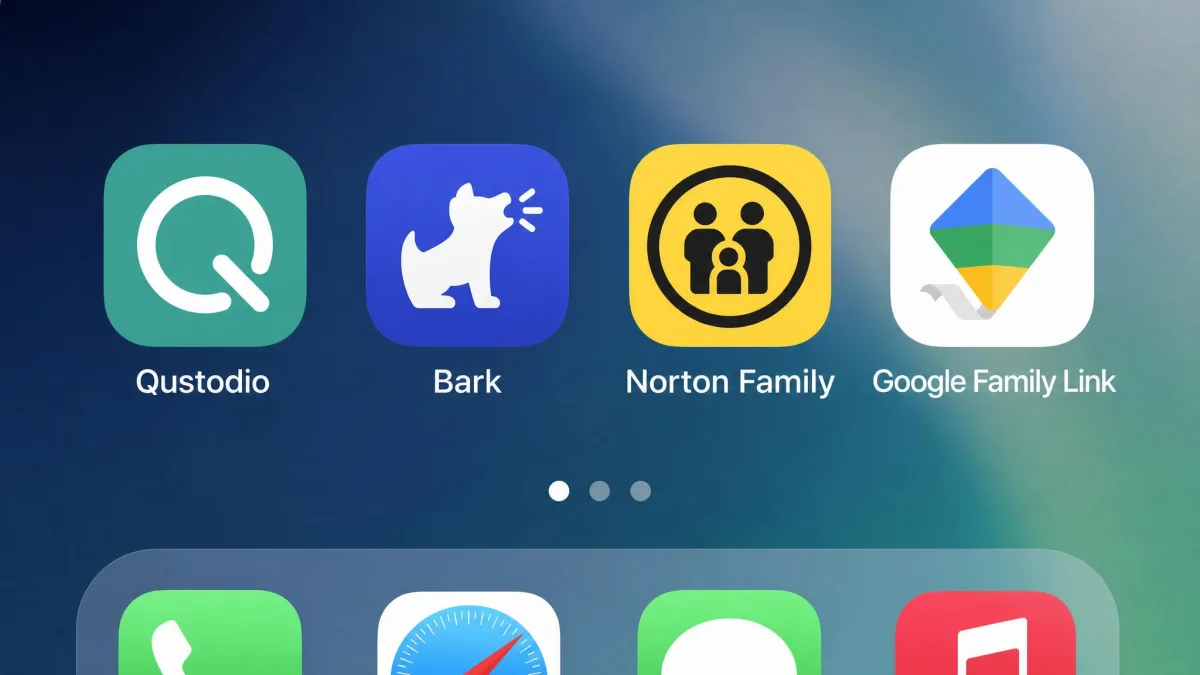
If neither app fits, four others cover the gaps. Qustodio is the closest thing to a do-everything option, pairing solid filtering with location tracking, which is exactly the combination Kids360 and Aura each miss half of. Bark takes the opposite approach, watching for concerning content in texts, email and social accounts and alerting you rather than showing you everything, and it is the pick if message monitoring is what brought you here. Norton Family is strong on web supervision and school-time controls on Windows and Android. Google Family Link costs nothing and covers limits, app approval and device location for Android households.
Wider child online safety guidance is worth a read before you settle on any of them, because the right amount of monitoring depends on your child's age far more than on which app has the longer feature list.
The Verdict: Kids360 or Aura?
If your household genuinely wants both filtering and location, the honest route is Aura plus the location sharing already built into your phones, which costs nothing extra and has proved steadier than Kids360's GPS. Running both apps at once is the expensive alternative, and it is worth the second subscription only if geofence alerts matter enough to pay twice. What would change our recommendation is a fix to Kids360's reliability record: if schedules held and child profiles behaved the same way, its combination of location and earn-time coaching would be the stronger package for families with primary-school children. Until then, the two verdicts below stand.