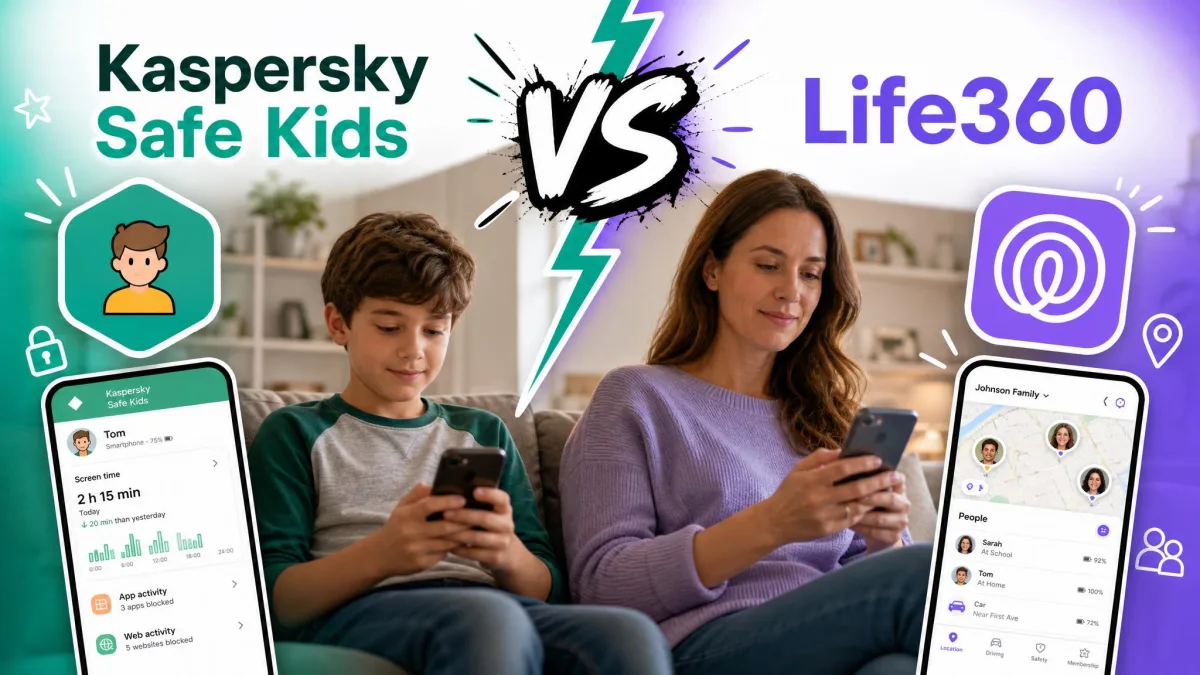
We compared Kaspersky Safe Kids and Life360 across Android, iPhone, Windows and Mac on the six things parents actually buy these apps for: location tracking, geofencing, screen time limits, content filtering, alerts and price. We set up parent accounts on both, paired child devices on each platform, and ran the same checklist through them, because on paper these two apps are far less alike than the search results suggest.
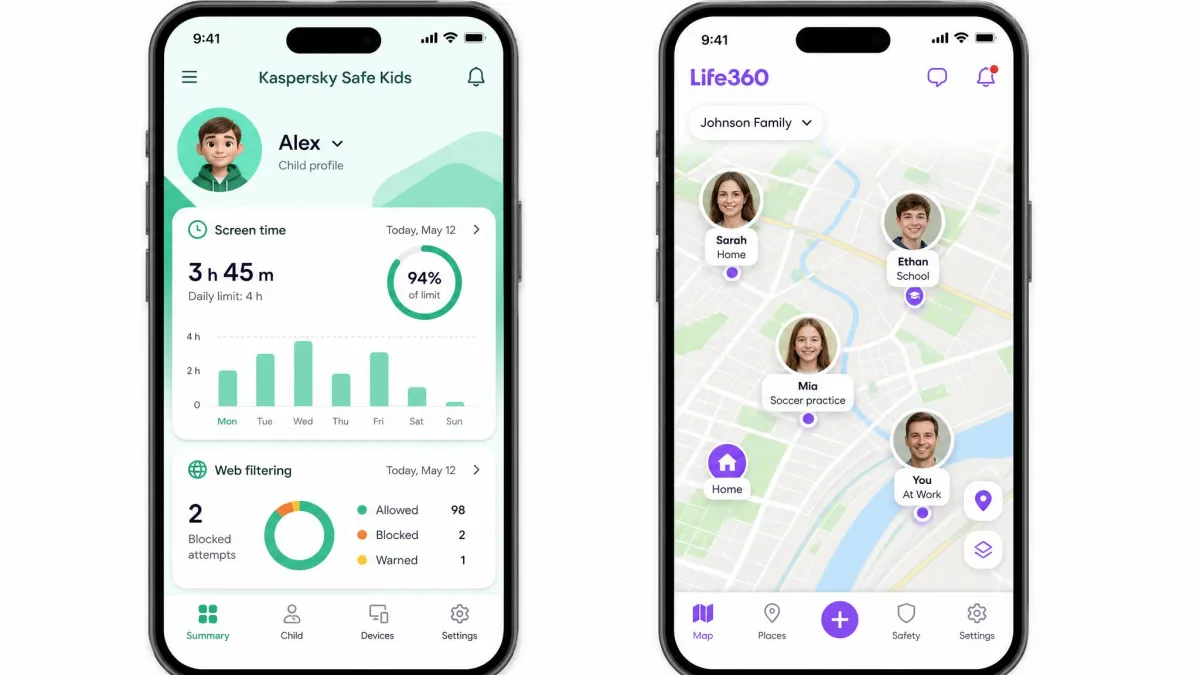
Safe Kids filters the web, blocks apps by age rating and caps daily screen time, and it does most of that on a free plan. Life360 does none of those things, but it tracks a whole family in real time, detects car crashes and reports on how your teenager drives.
Below, we lay out the feature-by-feature differences, the real prices, where each app let us down in day to day use, and which one fits your family.
Kaspersky Safe Kids vs Life360 at a glance
Safe Kids is a full parental control suite from an established security company, built around web filtering, app control and screen time management, with location tracking added as a premium extra. It runs on phones and on desktops, which matters if your child does homework on a laptop.
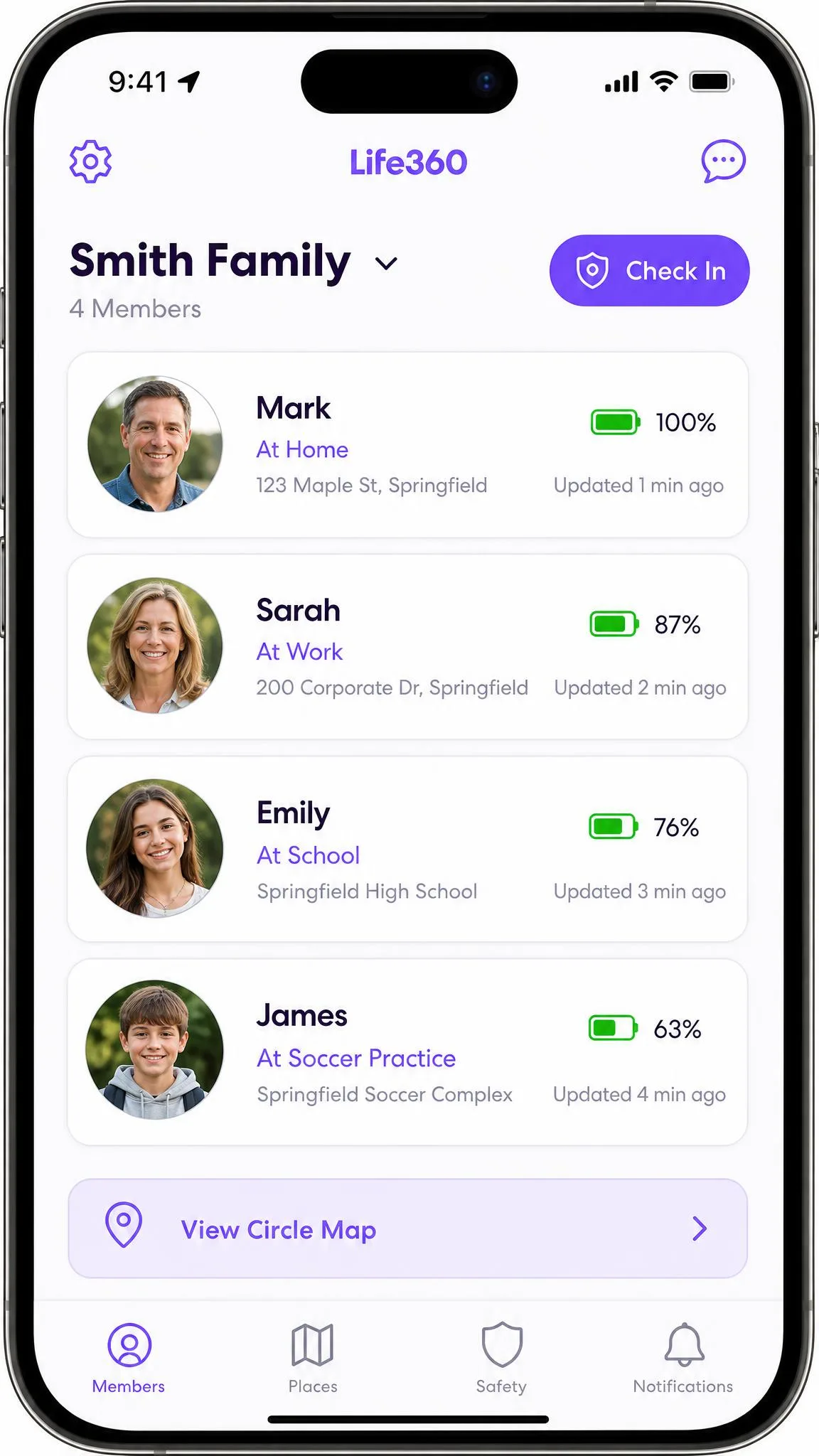
Life360 is a family location network. Everyone joins a Circle, everyone appears on a live map, and the app layers driving reports, crash detection and an SOS button on top of that map. There is no content filtering, no app blocking and no screen time control anywhere in the product.
Quick verdict: which one is right for your family
Life360 earns a rating of 7.6/10 from us. It is excellent at one job and completely absent from the other, and the higher tiers cost more per month than a full parental control suite.
How we compared these apps
We built parent accounts on both services and set up child profiles on Android, iPhone and a Windows laptop, then worked through the same checklist on each: install and pair the child device, set a screen time limit, create a geofence, trigger a blocked page, and watch how quickly alerts arrived.
Running them side by side is not a symmetrical exercise, and that shaped what we could compare. The install alone splits the two on Android, where Life360 comes straight from Google Play and Safe Kids has to be sideloaded or pulled from the Galaxy Store. Screen time events only exist on one side as well, because Safe Kids logs limits and schedule breaches while Life360 has no screen time feature to generate them at all.
Where the two do overlap, on geofences and arrival alerts, the pattern we care about is consistency rather than a tally. Safe Kids geofencing is the weak link in daily use, since an allowed area can disappear from the saved list and no departure alert fires for it afterwards. Life360 Place alerts land promptly in ordinary conditions but can also arrive well after the fact, so timing is not steady from one day to the next. We also kept an eye on battery, because running both apps on one child phone doubles the background location load on top of the shorter full-day battery life Life360's own guidance already tells you to expect.
For filtering, we did not rely on our own spot checks alone. We weighted independent AV-TEST parental control assessments heavily, because a lab can push thousands of URLs through a filter in a way no household can. AV-TEST ran its Safe Kids evaluation between November and December 2025 and published it in May 2026, testing Windows 11, Android 12 and iOS 16.
Side-by-side feature comparison
| Feature | Kaspersky Safe Kids | Life360 |
|---|---|---|
| Starting price / free plan | Free tier with filtering and screen limits; one paid plan | Free tier with live location; Silver from $7.99/mo |
| Real-time location | Yes, premium only | Yes, on every plan including free |
| Geofencing and place alerts | Safe perimeters, premium only | 2 Places free, unlimited on Gold |
| Location history | Not a headline feature | 2 days free, 7 days Silver, 30 days Gold |
| Screen time limits | Yes, included on the free tier | No |
| App blocking | Yes, by age rating and category | No |
| Web content filtering | Yes, by category | No |
| YouTube and search monitoring | Safe search free, search history premium | No |
| Social media monitoring | No | No |
| Crash and driving detection | No | Crash alerts on all plans, driver reports on Gold |
| SOS / emergency assistance | No | SOS free, emergency dispatch on Gold |
| Battery monitoring | Yes, premium alerts | Yes |
| Device limit | 500 devices, 100 child profiles | Up to 99 Circle members |
| Platforms | Android 11 to 16, iOS 18 and 26, Windows 7 SP1 to 11, macOS 11 to 14 | Android and iOS 17.2 or later |
| Desktop support | Yes, Windows and macOS | No |
| Child-side visibility | Child app is visible and consent-based | Visible, and the child can disable sharing |
One row in that table is the one parents misread most often. Safe Kids does track location, but only on the premium plan, so a household that installs the free tier expecting a map will not find one. Life360 puts live location on every plan including the free one, and neither app monitors what your child says in a group chat.
Pricing and plans compared
Kaspersky Safe Kids pricing
Kaspersky keeps this simple. There is a free tier and a single premium plan, with no ladder of upsells to climb, though bundling Safe Kids into Kaspersky Premium changes what you actually pay. The premium price differs by region and by whether you are looking at a first-year promotional rate or a renewal rate, so treat any single figure with care. In the UK the app lists at 20.99 for the first year, and third-party roundups quote anywhere from about $15 to $28 a year elsewhere.
There is a 7-day premium trial, unless an active 30-day trial for another Kaspersky product already applies to your account, and a 30-day money-back guarantee if you change your mind after paying. Kaspersky Premium includes one year of Safe Kids at no extra cost, but that bundled year runs with the Premium subscription term, so the Safe Kids cost returns at renewal.
The free tier is unusually generous. Web content filtering, YouTube safe search, app usage control by age or category, and screen time limits are all available without paying. Premium adds GPS location with safe-perimeter alerts, screen time scheduling, battery notifications, YouTube search history and real-time alerts.
US buyers face a murkier picture. Third-party listings hover around $14.99 a year for the premium plan, with retailers such as Newegg asking $19.99, but the price varies by retailer, region and promotion, and the Commerce prohibition means no current official US storefront price stands behind any of those figures. Renewal is described as close to the first-year rate rather than a steep step-up, though Kaspersky publishes no US renewal schedule, so that cannot be pinned to a dollar amount either.
Life360 pricing
Life360 sells four tiers. The free plan covers live location sharing, 2 days of location history, 2 Places with geofence alerts, the SOS button and crash alerts. Silver costs $7.99 a month and stretches location history to 7 days. Gold costs $14.99 a month and pushes history to 30 days while adding driver reports, emergency dispatch, roadside assistance and unlimited Places. Platinum runs $24.99 a month or $199.99 a year, adding credit monitoring, 50-mile towing and higher reimbursement limits.
Annual Life360 pricing shifts with region and promotion, so the yearly Gold figure is not a single fixed number. You will see about $99.99 a year quoted in some markets and a monthly rate on a one-year commitment in others.
Which offers better value
For a family of four, this is not close. Safe Kids charges one price for the household however many children are on the account, and hands you filtering and screen time on the free plan. Life360's Gold and Platinum tiers cost more per month than full-featured parental control suites that also filter content, and you are paying for a map rather than for controls.
Life360 makes financial sense when the extras are things you would otherwise buy separately, such as roadside assistance or identity theft cover. Read Gold as a family safety bundle rather than as a tracking subscription and the price starts to look reasonable.
Location tracking and geofencing
Life360 location accuracy and Places alerts
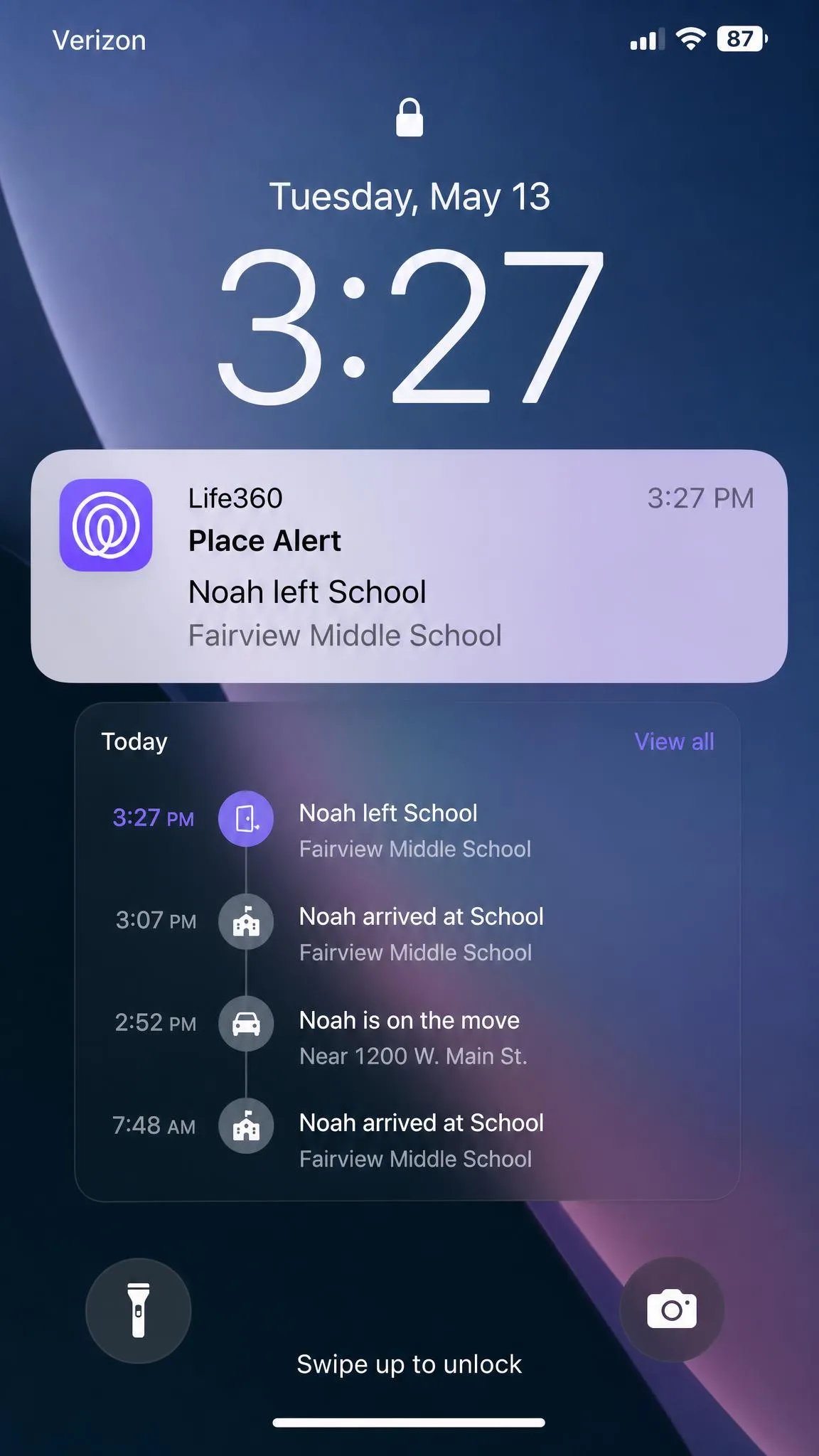
Location is what Life360 is for, and outdoors it holds up. Position stays accurate on the map, and Place alerts for arriving at school or leaving a friend's house land quickly in normal use.
The failures are worth knowing about before you rely on the app. Position drifts indoors, where GPS struggles to pin a phone to the right part of a building, so an alert can fire because a teenager walked to the far side of a shopping centre. The app also registers phantom movement, showing a family member leaving and returning home overnight when nobody moved.
Alert timing is the bigger problem. Place alerts can arrive badly late, and we have seen an evening departure alert land twenty minutes after the child actually left. Missed arrival and departure notifications are frequent enough that we would not treat Life360 as a safety net that never drops anything.
Life360 settings are not password-protected, so a child can switch off location sharing or turn on battery saver without your approval. The app does push an alert to the Circle when a member disables it, along with their last known location, so you will know it happened.
Kaspersky Safe Kids location and safe perimeters
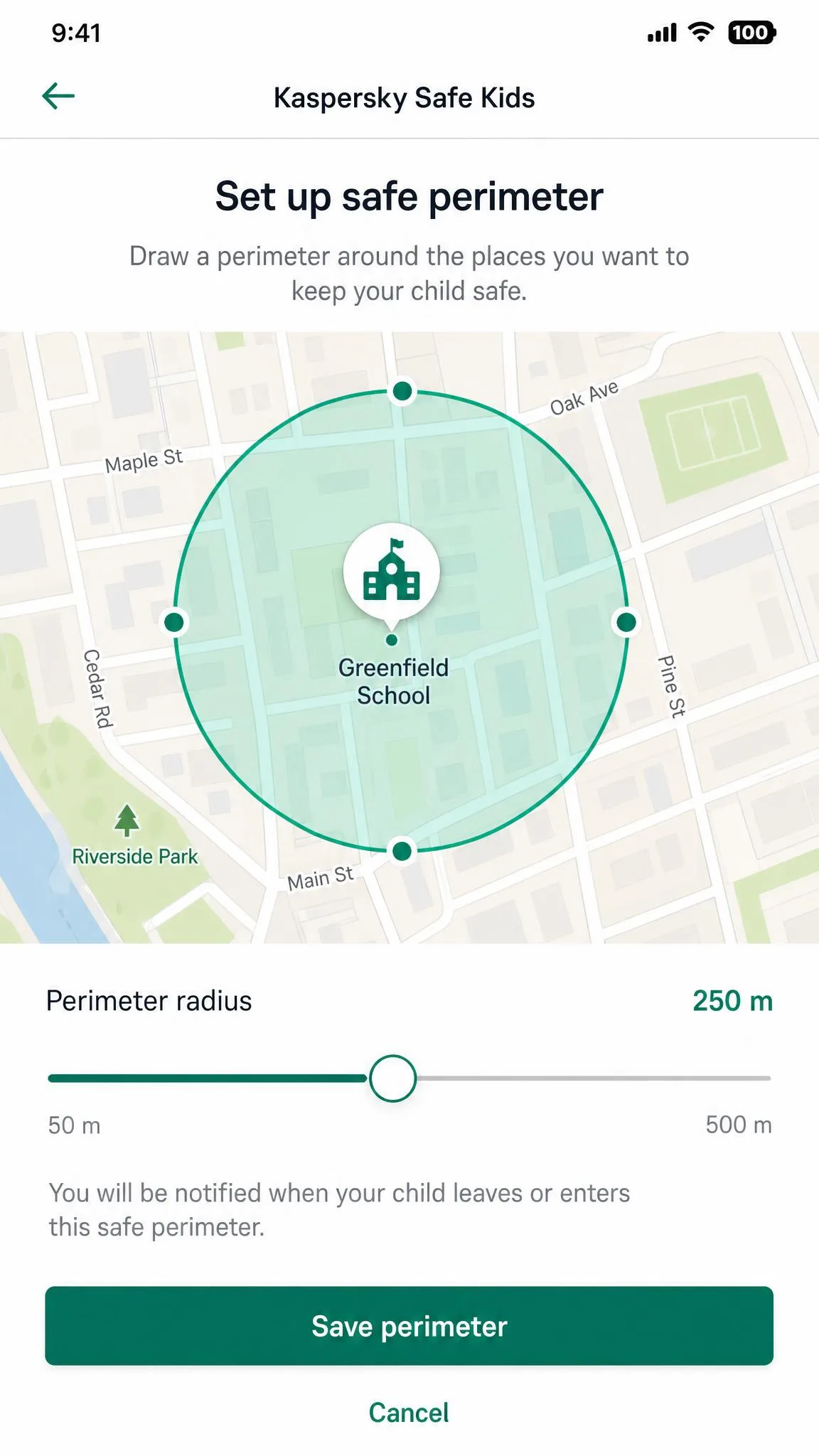
Safe Kids treats location as one feature among many, and it sits behind the premium plan. Real-time location itself holds up day to day, and for simply answering the question of where your child is right now it does the job.
The safe perimeters are the weak point. Saved allowed areas can vanish after you save them, which means no alert fires when the device leaves the zone. That is the most disappointing behaviour we found in the app, because a geofence that silently stops existing is worse than no geofence at all. Set one up, then verify a day later that it is still listed.
Neither vendor publishes a fixed refresh interval, so there is no clean number to compare. In practice both report a new position every few minutes, and Safe Kids lets a parent force a manual refresh when the last fix looks stale. Life360 updates arrive on no guaranteed schedule either: they slow down when the phone is still or the battery is low, and tighten up while a member is on the move, so the real gap swings with signal strength and power state rather than with the tier you pay for.
Screen time limits and scheduling
Kaspersky Safe Kids screen time controls
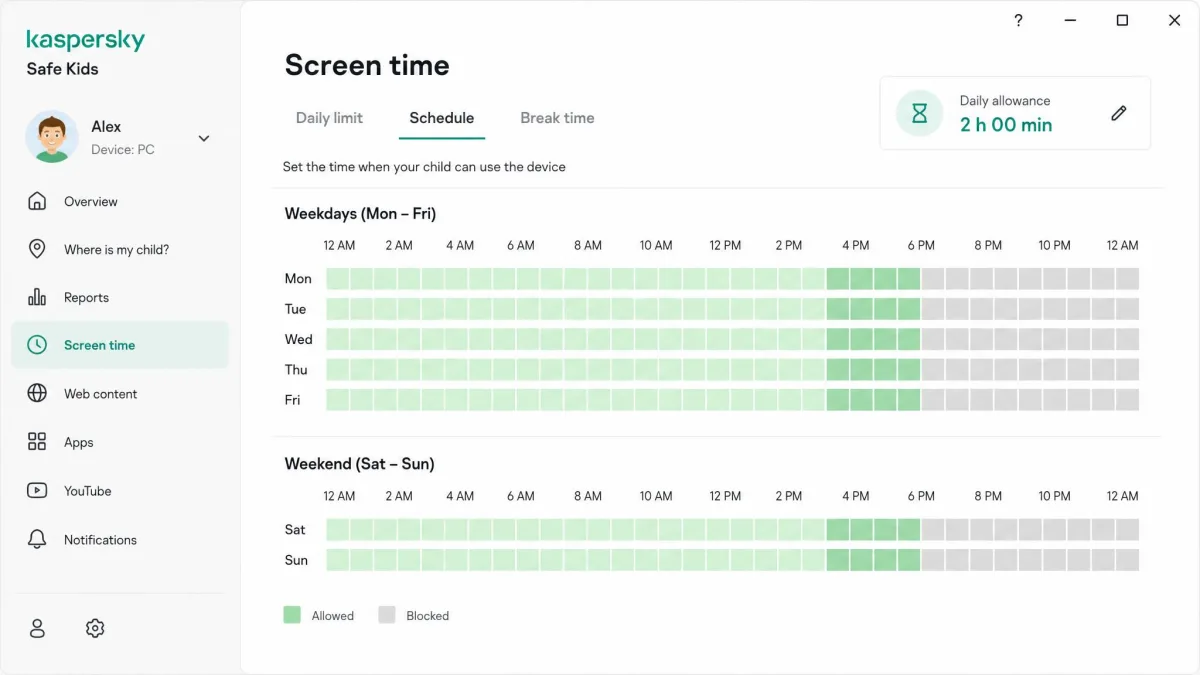
Daily screen time limits are included on the free tier, which is rare. You set a total allowance per day per device, and the child app enforces it. Premium adds scheduling, so you can allow two hours on a school day and more at the weekend, and block the device overnight.
The age presets for 3 to 5, 6 to 12 and 13 to 18 give you a sensible starting configuration in one tap, and you can adjust from there rather than building a policy from scratch. Treat the preset as a first draft, not a verdict.
Life360 screen time controls
Life360 has none. There are no screen time limits, no scheduling and no way to lock a device at bedtime. If you want that on an iPhone alongside Life360, you will be using Apple's built-in Screen Time controls, and on Android you will be reaching for Google Family Link.
Content filtering and app blocking
Web filtering by category
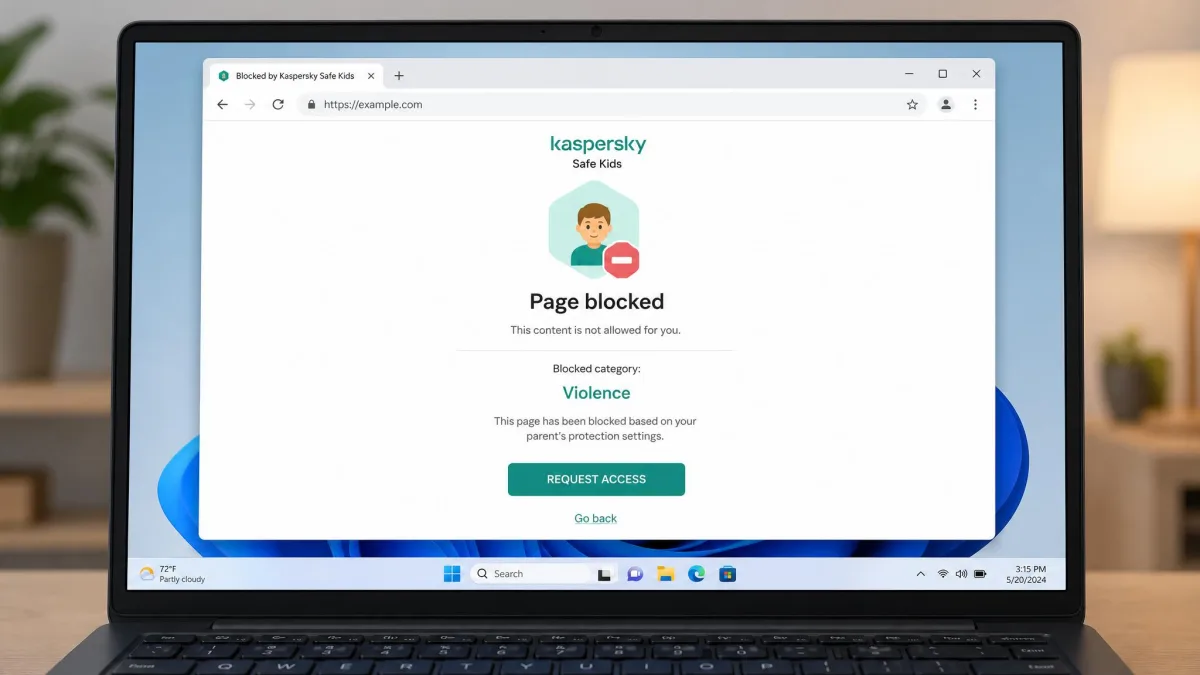
Safe Kids filters by category, and independent testing backs it up. In AV-TEST's parental control evaluation it achieved a 93% overall block rate on Windows and 86% on Android, blocking 98.6% of adult sites on Windows and 96.6% on Android. The trade-off is over-blocking: 8.7% of harmless sites were blocked on Windows and 7.9% on Android, so expect to whitelist a few school resources in the first week.
Life360 offers no web filtering of any kind. A child with Life360 installed has exactly the same internet access they had before.
App blocking and age ratings
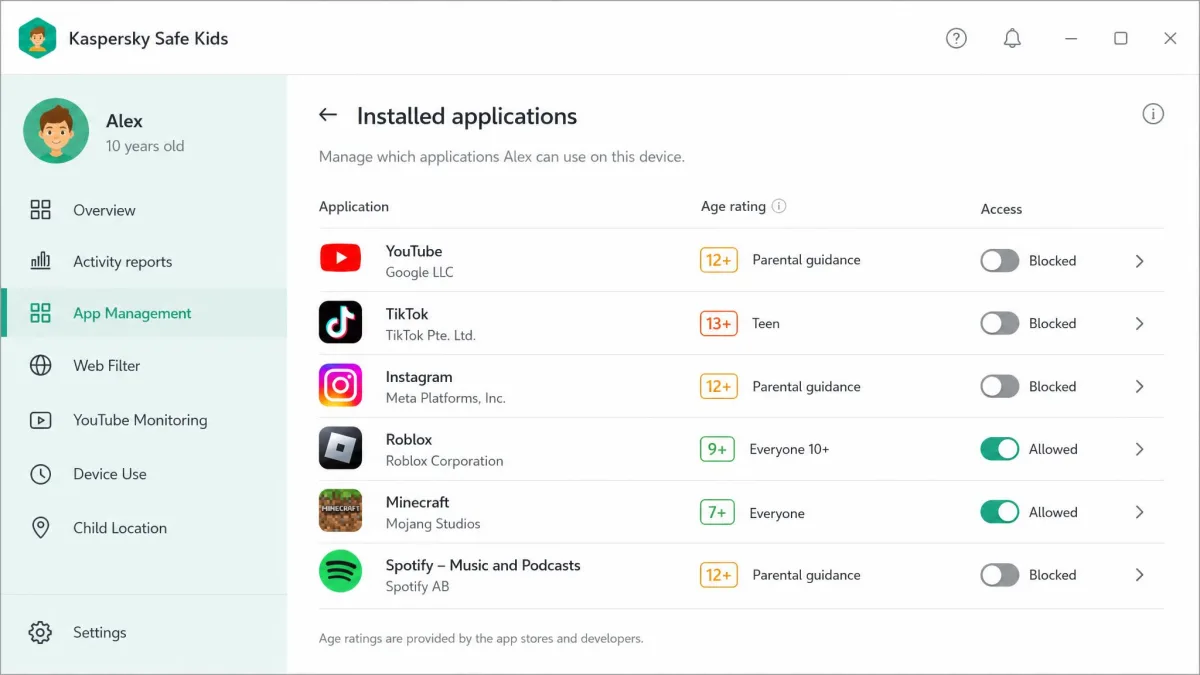
Safe Kids blocks apps by age rating and by category, and this is on the free tier too. Set the profile to the 6 to 12 band and anything rated above it stops opening, without you having to name individual apps. It is the fastest way to make a first phone appropriate for a younger child.
Life360 cannot block a single app. That is not a gap in the product so much as a boundary of it.
Social media and message monitoring
Neither app reads your child's messages. Safe Kids has no social media conversation monitoring, so group chats and direct messages stay invisible, and Life360 never claimed to offer it.
If message monitoring is the reason you are shopping, neither of these is your app, and you should look at how Kaspersky Safe Kids stacks up against Bark, which was built around exactly that job.
Driving safety and crash detection
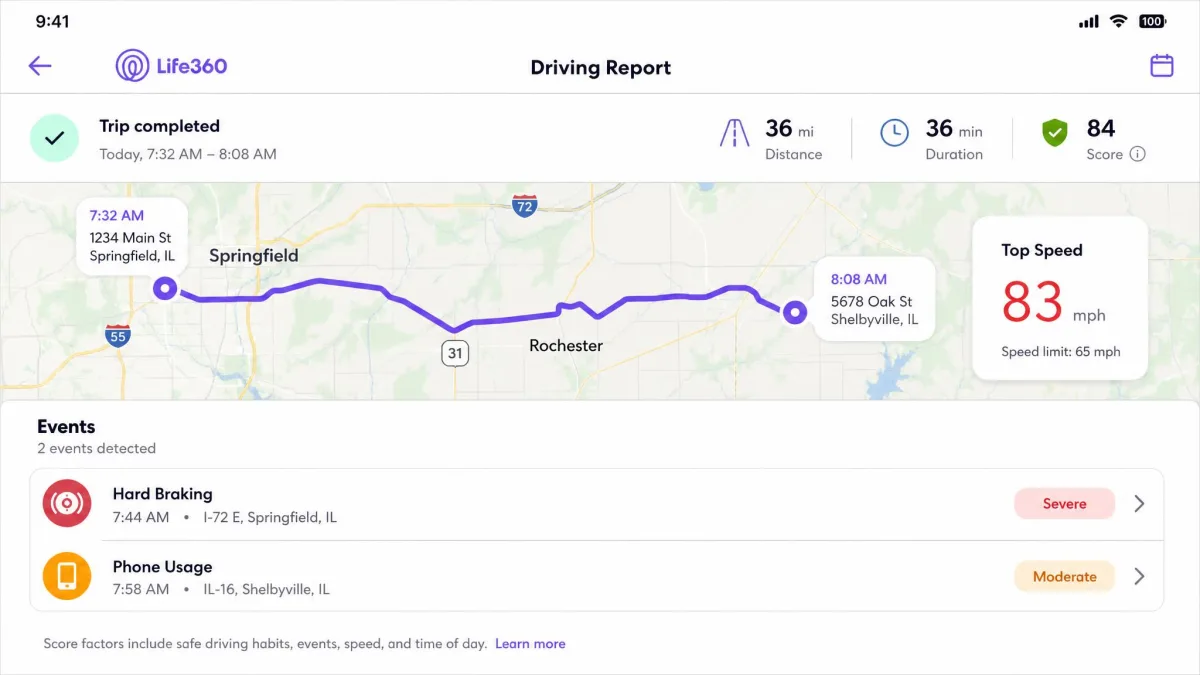
This is Life360's clearest advantage, and for parents of new drivers it can outweigh everything else. Crash alerts to your Circle are included on every plan, including the free one, while emergency dispatch requires Gold or Platinum. Gold also unlocks driver reports covering speed, hard braking and phone handling during a trip.
The driving reports need a sceptical eye. They can log phone-use violations that did not happen, flagging handling while the car was stopped at lights, so treat a single flagged trip as a conversation starter rather than evidence. Crash alerts have also arrived around twenty minutes after a collision, which is a serious caveat for a feature sold on urgency.
Safe Kids has no driving features at all. There is no crash detection, no speed alert and no trip log.
Alerts, notifications and remote management
Safe Kids sends real-time parent alerts on premium, covering blocked site attempts, app usage and battery level, and everything is managed from a single parent dashboard. That dashboard is slow to load when switching between tabs, which turns a quick check into a wait.
Life360's notifications are all location-shaped: arrivals, departures, low battery, crash alerts and SOS activations, delivered to every member of the Circle rather than to a parent account. That shared model is friendly and transparent, and it also means your teenager sees the same alerts you do.
Remote management is where the two diverge again. With Safe Kids you can change a rule from your phone and it applies to the child's device within moments. With Life360 there is nothing on the child's device to manage.
The dashboard delay in Safe Kids is not a deal-breaker, but it does discourage the small daily check-ins that make parental controls useful. Set your rules thoughtfully once rather than planning to tweak them every day.
Platform and device support
Android
Safe Kids supports Android 11 to 16, but getting it installed is the awkward part. The parent and child apps are not listed on the Google Play Store, so an Android install means using the Galaxy Store, Huawei AppGallery or sideloading a Kaspersky APK. Once it is on the device, setup is close to effortless: create the child profile, then scan a QR code from the child's phone.
Life360 installs from Google Play in the usual way and takes only minutes to configure.
iPhone and iPad
Safe Kids supports iOS 18 and iOS 26, and setup here is far more involved, because it requires creating a separate child Apple ID first. The app is also markedly more limited on iOS than on Android, so iOS-only households get less for the same money.
Life360 requires iOS 17.2 or later and behaves identically to its Android build.
Windows and Mac
Safe Kids runs on Windows 7 SP1 through Windows 11 and on macOS 11 to 14, which is the biggest platform advantage in this comparison. Homework happens on laptops, and filtering that stops at the phone is filtering with a hole in it.
Life360 is mobile only. There is no desktop client and no browser-based child device support.
Ease of setup and day-to-day use
Life360 is the easier of the two to get running. You verify a phone number or email, grant location permissions, then share a Circle invite code, and the family is on the map. The one snag we hit is that verification emails during signup sometimes overlap or fail to arrive, which stalls onboarding until you request another.
Safe Kids is quick on Android once you have the installer, thanks to the QR code pairing, and slow on iPhone because of the child Apple ID requirement. Budget an evening for a mixed-platform household rather than ten minutes.
Support differs too. Life360 offers live chat seven days a week from 5am to 7pm PST plus phone support, while Kaspersky support is form-based rather than live, with a limited set of inquiry categories to choose from. When a geofence stops working on a Saturday, that gap is felt.
Privacy, transparency and whether kids can bypass it
Both apps are visible on the child's device, which we prefer. Safe Kids is consent-based and the child app announces itself, and Life360 shows every member exactly who can see them.
Bypassing is easier on Life360. Settings are not password-protected, so a child can disable location sharing or switch on battery saver at will, though the Circle receives an alert with their last known location when they do. Safe Kids is harder to shake off on Android, and on iOS the platform's own restrictions do more of the work than the app does.
Whichever you pick, check how the vendor handles children's data under the Children's Online Privacy Protection Rule, which governs what an app may collect from a child under 13 and what parental consent has to look like. It is also worth talking to older children about why the app is there, since setting up parental controls to keep kids safe online works better as an agreement than as a surveillance measure.
Kaspersky is a Russian company, and that carries practical consequences rather than just reputational ones. The US Commerce Department prohibition on Kaspersky software barred new transactions with US persons from 20 July 2024 and blocked antivirus signature and codebase updates from 29 September 2024. Wirecutter declined to test Safe Kids at all on security grounds. Outside the US the app remains on sale and continues to perform well in independent testing, but US readers should treat availability as the first question rather than the last.
Pros and cons
Kaspersky Safe Kids pros and cons
Pros
- Web filtering, app blocking and screen time limits are all on the free tier
- 93% block rate on Windows and 98.6% of adult sites blocked in AV-TEST's evaluation
- Covers Windows and macOS as well as Android and iOS
- Up to 100 child profiles and 500 devices on one account
- One paid plan, no tier ladder, with a 30-day money-back guarantee
Cons
- Safe perimeters can vanish after saving, so geofence alerts fail silently
- The iOS build is far more limited than the Android one
- No Google Play listing, so Android installs mean sideloading
- Parent dashboard is slow when switching tabs
- Support is form-based with no live chat
Life360 pros and cons
Pros
- Live location for the whole family, free on every plan
- Crash alerts included even on the free tier
- Driving reports covering speed, braking and phone handling on Gold
- Setup takes minutes, with a simple Circle invite code
- Rated 4.8 out of 5 across roughly 3 million App Store ratings
Cons
- No web filtering, app blocking or screen time controls of any kind
- Place alerts can arrive very late or not at all
- Position drifts indoors and can show phantom overnight movement
- Children can switch off location sharing without approval
- Gold and Platinum cost more per month than full parental control suites
Which app should you choose?
Choose Kaspersky Safe Kids if
Your child is under about 13, you want to control what they can reach online and how long they spend there, and at least one of their devices is a Windows or Mac computer. Choose it too if budget is the deciding factor, because the free tier alone does more than most paid competitors. Outside the US, it is the stronger all-round pick.
Choose Life360 if
Your child is an older teenager, the online filtering argument is already settled in your house, and what you actually want is to know where everyone is and whether the drive home went safely. Choose it if you have a new driver, since crash alerts and driving reports have no equivalent in Safe Kids.
Consider using both
Running the two together is entirely workable, and for families with a wide age gap it may be the honest answer. Safe Kids handles filtering, app blocking and screen time on the younger child's tablet, and Life360 keeps the whole family on one map including the teenager who has outgrown content controls.
Watch the combined cost and the combined battery drain. Life360 states you should expect around 10% shorter battery life over a 24-hour period, and it draws noticeably more on long drives, so a phone running both apps needs a charger in the car.
Alternatives worth considering
If neither app fits, the field is wide. Bark focuses on message and social monitoring that both of these skip. Qustodio and Net Nanny sit closer to Safe Kids on filtering and screen time, and we have covered the Qustodio head-to-head and Kaspersky Safe Kids against Net Nanny in detail.
Google's free option is the obvious starting point for an Android household, and Kaspersky Safe Kids compared with Google Family Link shows where the free tool runs out. For a location-first alternative that adds more child-side control, the Kids360 comparison is the closer match to Life360.
Frequently asked questions
Is Kaspersky Safe Kids or Life360 better for younger kids?
Does Life360 keep reporting if the child's phone sits in battery saver all day?
Is Kaspersky Safe Kids safe to use given the company's ownership?
Can you use either app for free?
What happens to a Safe Kids subscription if your household moves to or from the US?
Which app tracks location more accurately?
Do both apps work on iPhone and Android?
Can you run Kaspersky Safe Kids and Life360 together?
Does Kaspersky Safe Kids have driving reports?
For a deeper look at either side of this comparison, see our full Kaspersky Safe Kids review or our full Life360 review. If you are weighing the wider security suite, our Bitdefender vs Kaspersky antivirus comparison covers the ownership question in more depth. Either way, the app that gives you peace of mind is the one matched to the age of the child you are keeping tabs on.