These two apps get shortlisted together constantly, but they do two different jobs. Life360 answers the question "where is my child right now?" Bark answers a different one: "what is my child seeing, sending and searching?"
That distinction decides the whole comparison. Bark is a content monitoring and parental controls app that reads texts, email and social media in the background and alerts you when something looks wrong. Life360 is a family location app built around a live map, geofenced places and driving safety.
If your worry is online safety, group chats and what happens on a screen at 11pm, Bark is the app to buy. If your worry is a teen driver, a walk home from school or a child who is late and not answering, Life360 is the better fit. We spent time in both dashboards on family devices, and this guide covers the features, the plans, how each one installs, and the honest limits of both.
Bark vs Life360 at a Glance
Here is how the two apps line up across the features parents ask about most.
| Product | Bark | Life360 |
|---|---|---|
| Location tracking | Real-time map, location alerts and check-ins | 24/7 real-time GPS, history and geofences |
| Content monitoring | Texts, email, YouTube and 30+ apps, 29 alert categories | None |
| Screen time | Custom schedules for school, bedtime and free time | None |
| Web filtering | Block sites and apps, or 19 categories | None |
| Driving reports | Not a focus | Driving reports, crash detection, SOS |
| Platforms | iOS, Android, Chromebook, Windows, macOS, Fire, consoles | iOS and Android only |
| Free tier | None, 7-day free trial | Free plan, 2 saved places and 2 days of history |
| Price per month | $5 (Jr) or $14 (Premium) | $7.99 Silver, $14.99 Gold, $24.99 Platinum |
The Short Answer: Which App Wins for Your Family
Bark suits the parent whose worry lives on the screen, and Life360 suits the parent whose worry lives on the road. The verdict below sets out why we would spend the money on Bark first in most households.
What Bark Is (and Who It's For)
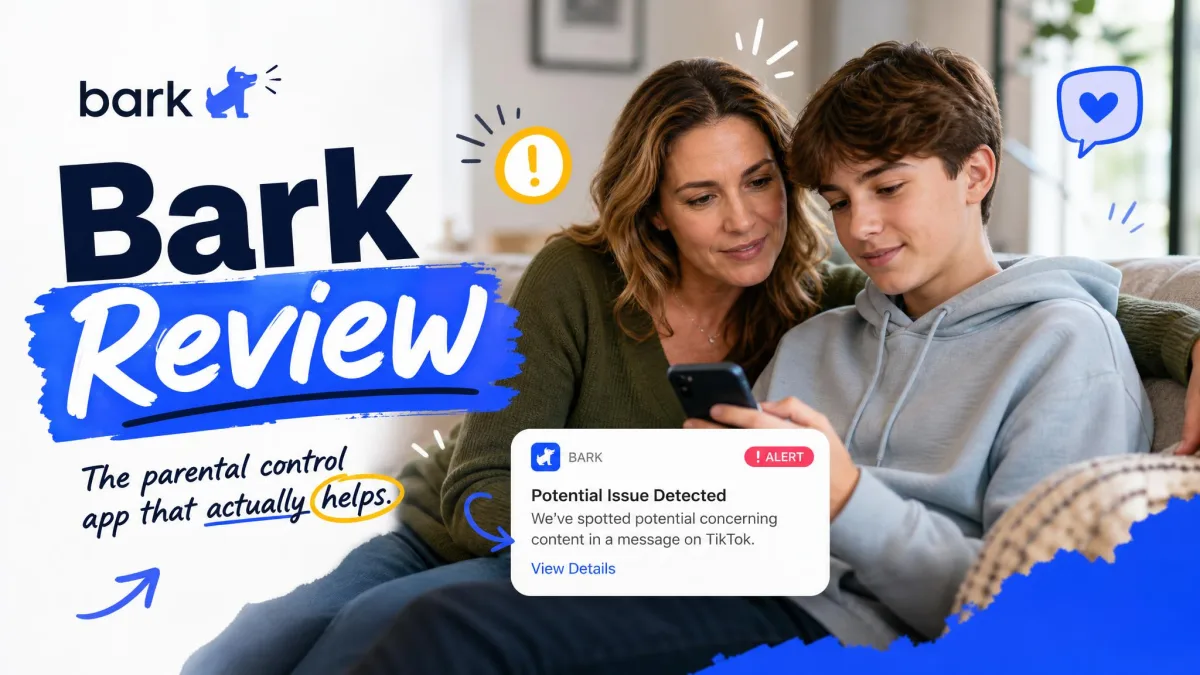
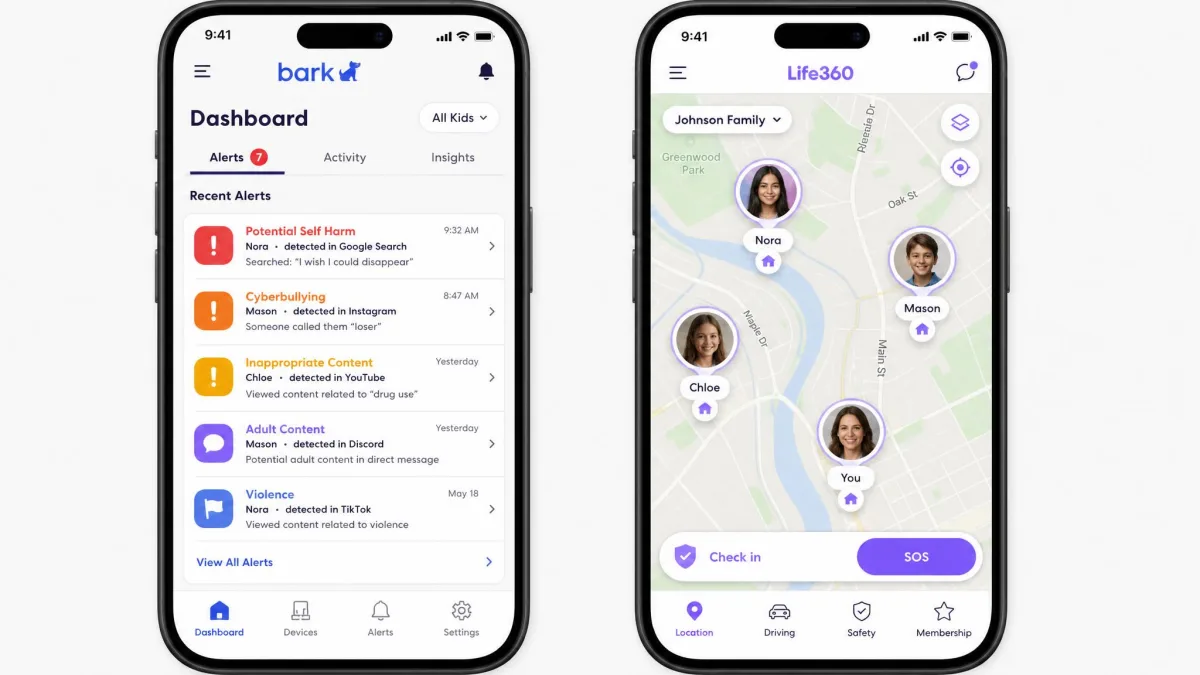
Bark is a monitoring service rather than a tracker. You connect your child's accounts and devices, and Bark reads what flows through them, then messages you only when its system spots something worth your attention. You do not scroll your child's group chats or read their emails; you get an alert with the relevant excerpt.
That design suits parents who want to monitor the activities that matter without watching everything. It is aimed squarely at families with tweens and teens who already have social accounts, school email and a phone they use unsupervised. We go deeper on the alert categories and the dashboard in our full Bark review.
Bark also sells hardware. The Bark Phone is $29 per month for service with the device from $10 per month over 24 months, the Bark Watch is $15 per month plus a $10 per month device payment, and Bark Home is a $79 one-time purchase, or from $6 per month, to cover your whole home network.
Bark: Key Features
- Content monitoring for texts, email, YouTube and 30+ apps, including the major social media platforms
- Alerts across 29 issue categories, including cyberbullying, sexual content, depression and online predators
- Screen time schedules you can set for school, bedtime and free time
- Website and app blocking by name, or by 19 website categories
- A location map with location alerts and manual check-ins
- Unlimited children and devices on one Premium account
- Coverage for Android, iPhone, iPad, iPod, Chromebook, Windows, macOS, Amazon Fire tablets and gaming consoles
Bark: Pros and Cons
Pros
- The only one of the two that monitors what your child actually sends and reads
- Covers laptops, tablets and consoles, not just phones
- Unlimited children and devices on a single plan
- Screen time and website blocking are included rather than sold as an upgrade
- Support answers by email and came back to us faster than Life360's
Cons
- iOS setup needs a desktop computer, which slows the first hour
- Location can go stale and show no current position until a check-in
- No permanently free plan, only a 7-day trial
- The dashboard is dense before you learn it
What Life360 Is (and Who It's For)
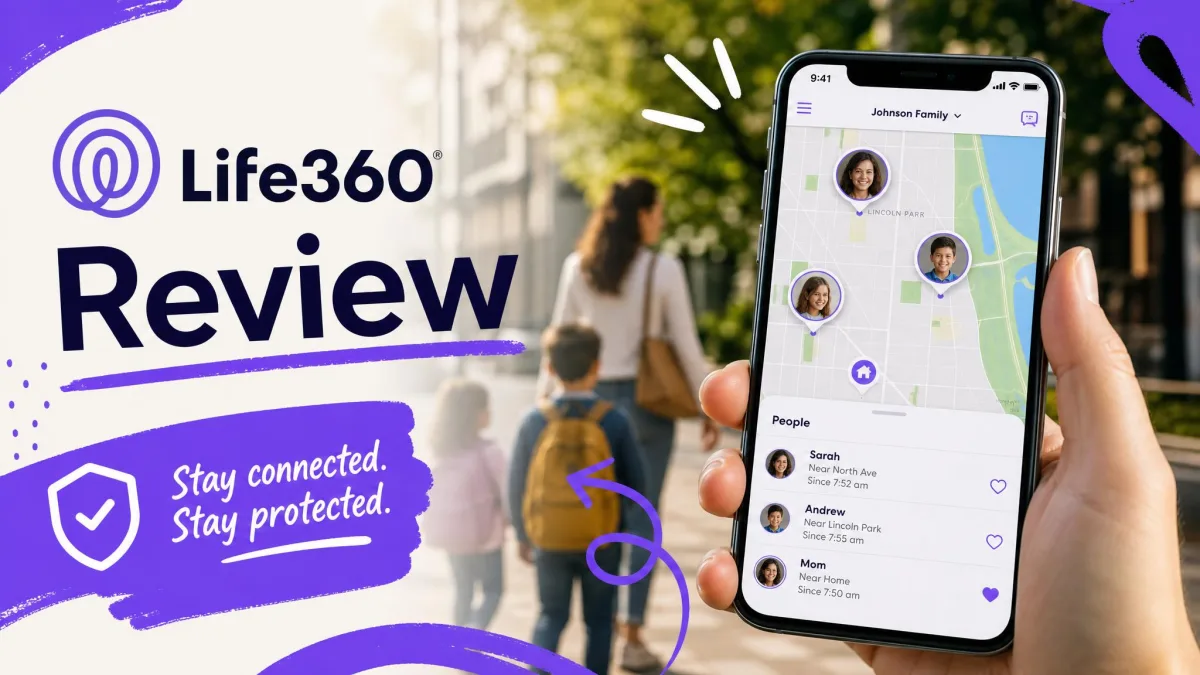
Life360 is a shared family map. It treats family life as a set of places and journeys rather than accounts, so everyone in the circle installs the app and each member's live position appears as a pin you can watch in real time. Around that map it stacks place alerts and location history, then driving reports, crash detection and emergency help on the paid tiers.
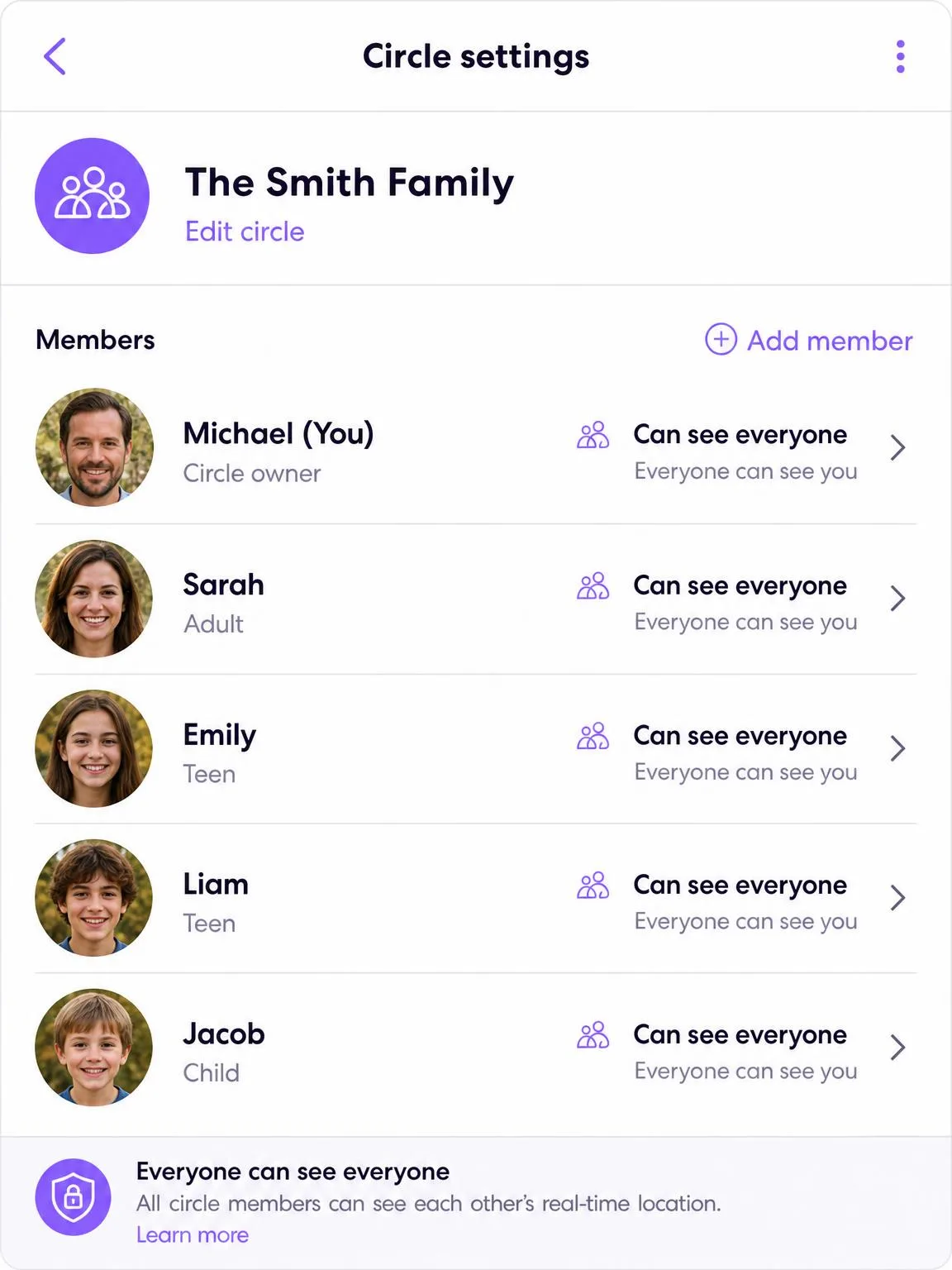
It suits families whose main concern is physical whereabouts: a new driver, a child who walks or buses to school, a college student in a different city, or an ageing parent. It is also the easier app to get an older teen to accept, because it is mutual. Everyone in the circle sees everyone. Our full Life360 review goes further into how the circle and its place alerts behave day to day.
What it does not do is look at content. There is no content monitoring, no screen time controls and no app or website blocking, which is the single most important thing to understand before you buy it as a parental app.
Life360: Key Features
- Real-time location sharing on a continuously updating map
- Place alerts and geofencing for home, school, work and anywhere else you save
- Location history, from 2 days on the free plan up to 30 days on Gold
- Driving reports with speed data, plus phone usage detection while driving
- Automatic crash detection and SOS alerts
- 24/7 emergency dispatch and roadside assistance on paid tiers
- Identity theft protection and stolen funds reimbursement on Platinum
Life360: Pros and Cons
Pros
- The fastest, most reliable live map of the two
- A free plan that is genuinely usable for basic location
- Driving safety features Bark has no answer to
- Installs in about two minutes with no desktop step
- Rated 4.8 out of 5 on the App Store, against 4.2 for Bark
Cons
- No content monitoring, screen time or web filtering of any kind
- Phones only, so tablets, laptops and consoles are invisible to it
- Continuous tracking is noticeably hard on battery
- Useful history and unlimited places sit behind the paid tiers
Location Tracking: Real-Time GPS Compared
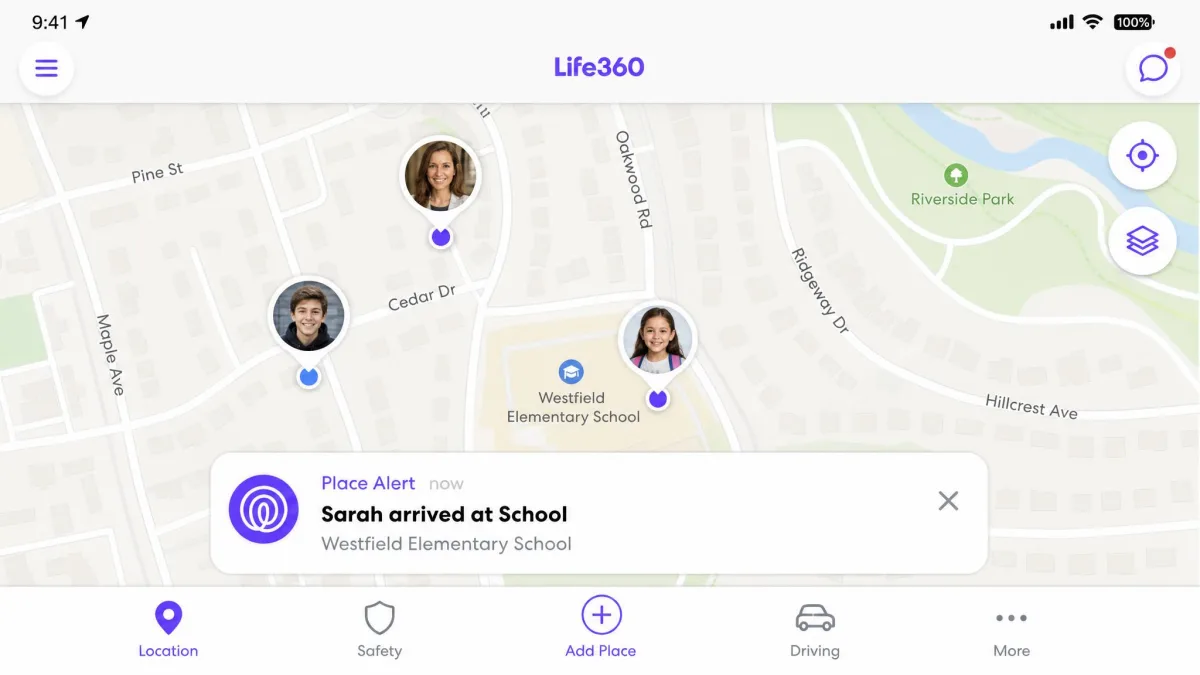
This is Life360's home ground and it shows. The map updates continuously and pins a phone's position without noticeable lag, so when you open the app you are looking at now rather than at a last-known guess. Location history runs 2 days free, 7 days on Silver and 30 days on Gold, which is enough to reconstruct an afternoon.
Bark's location tools are real but secondary. You get a map, location alerts and check-ins, and for a younger child that is often all you need. In our use, though, Bark's location can go stale and leave no current position on the map unless the child completes a manual check-in.
Neither app is flawless here. Life360's geofence arrival and departure alerts can land anywhere from 2 to 20 minutes after the child actually crosses the boundary, so treat a "left school" notification as approximate. Life360 also becomes unreliable in areas with weak cell or data coverage, since it needs a live connection to report a position at all. If location is genuinely the only thing you need, dedicated phone tracker apps are worth weighing before you pay for either of these.
Winner on location: Life360. It is faster, keeps longer history and does not depend on your child remembering to check in.
Content Monitoring: Texts, Email and Social Media Alerts
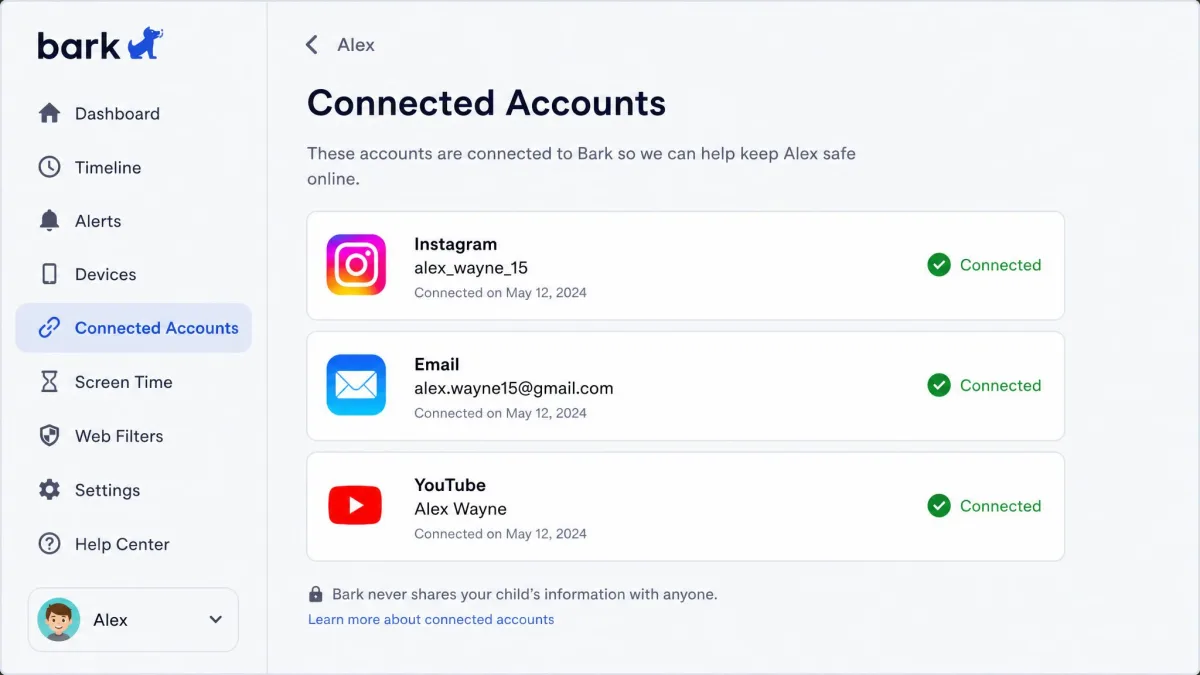
Only one app competes in this section. Bark monitors texts, email, YouTube and 30+ apps and platforms, and flags what it finds across 29 issue categories including cyberbullying, sexual content, depression and online predators. Life360 offers nothing comparable.
The value is in the filtering. Bark does not hand you a transcript, so you are not reading every message your teen sends to a friend. You see the small number of exchanges that tripped a category, with enough context to decide whether it needs a conversation.
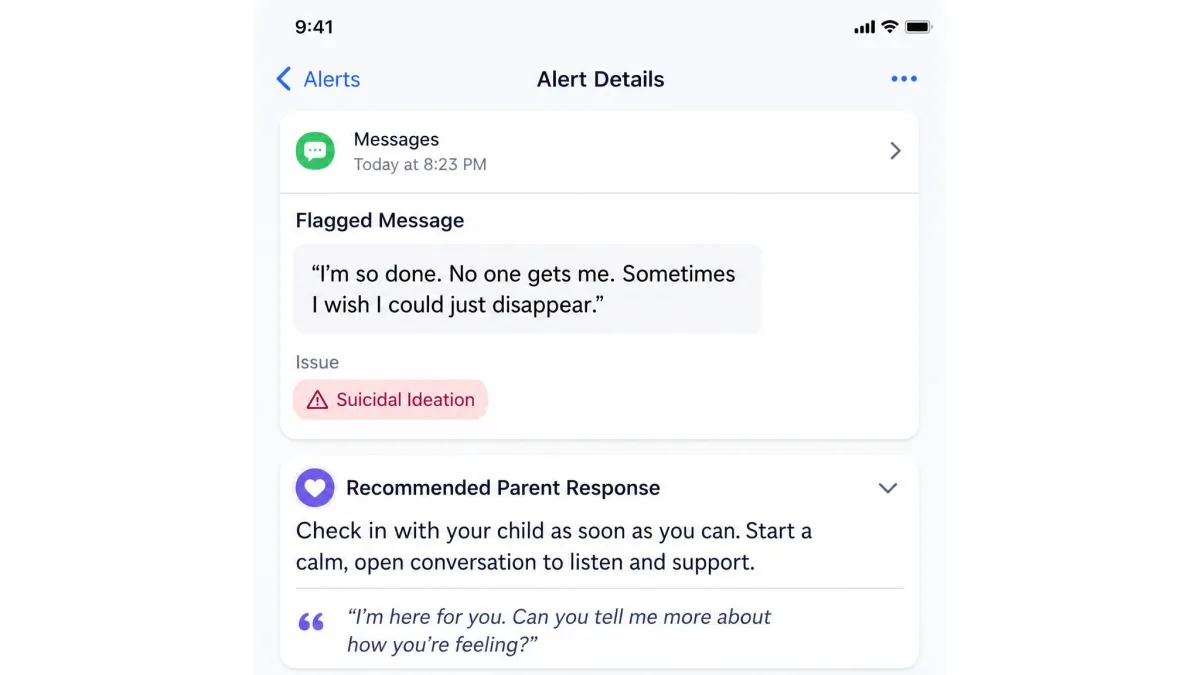
To see how fast that filtering reacts, we pushed deliberately inappropriate content through a connected account on a child's phone and then sat with the parent dashboard open. The alert came through quickly rather than waiting for some overnight batch, and it arrived in the shape the app uses for everything. We got the offending excerpt, the issue category it had been sorted into, and a short suggested way to open the conversation. We kept sending, and the filtering adapted as more messages came through, tightening onto the kind of language we were feeding it. Expect some false alarms in that first week while it learns what normal looks like in your family.
Bark reads accounts and devices you connect, not everything a child can reach. A second account, a friend's phone or a browser your child signs into elsewhere sits outside its view.
Screen Time Management and App Limits
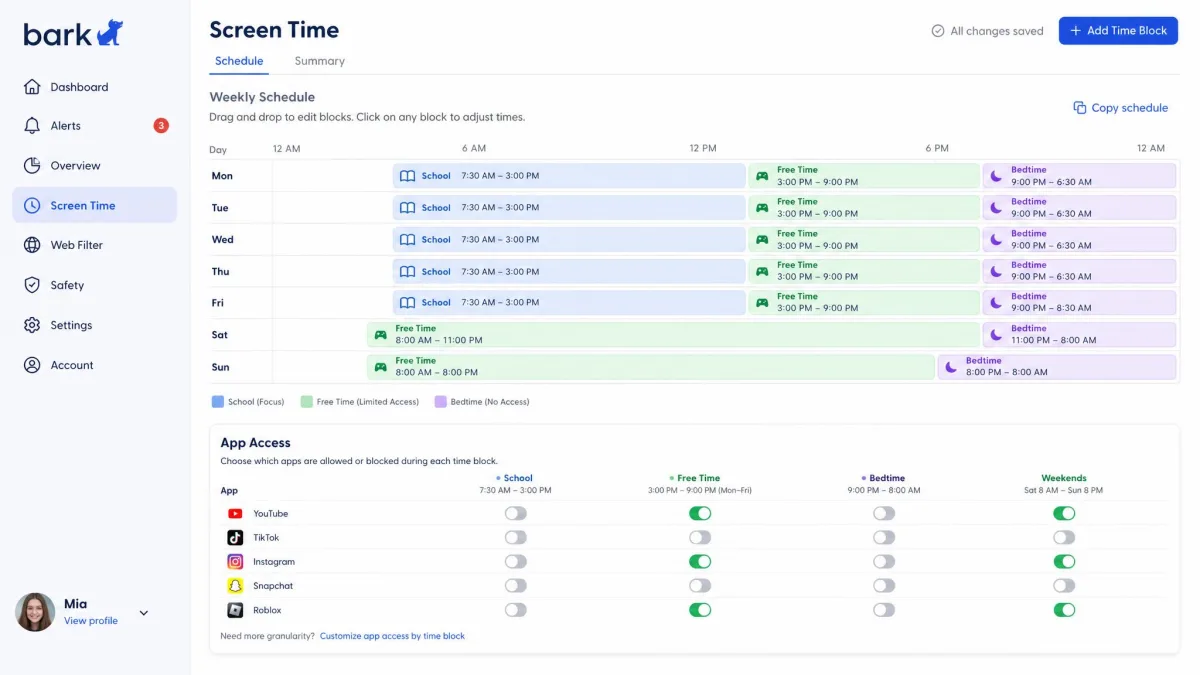
Bark handles this; Life360 does not. You build screen time schedules for the parts of the day that matter, so school hours allow the tools your child needs and block the distractions, bedtime shuts the phone down, and free time opens things back up.
The schedules apply per child, which matters when a nine-year-old and a sixteen-year-old share the same account. You can also pause the internet on a device when you need attention at the dinner table.
If you are trying to manage phone habits rather than track movement, this section on its own settles the choice. Research on teen phone use is a useful backdrop for setting limits that your child will actually accept.
Web Filtering and Blocking Websites
Bark blocks specific sites and apps, or 19 website categories in one switch, which is the fastest way to shut off an entire class of content without maintaining a list. Category blocking is the setting most parents should start with, then add named exceptions as they come up.
Life360 has no web filtering. A child with a Life360 phone can visit any website on it.
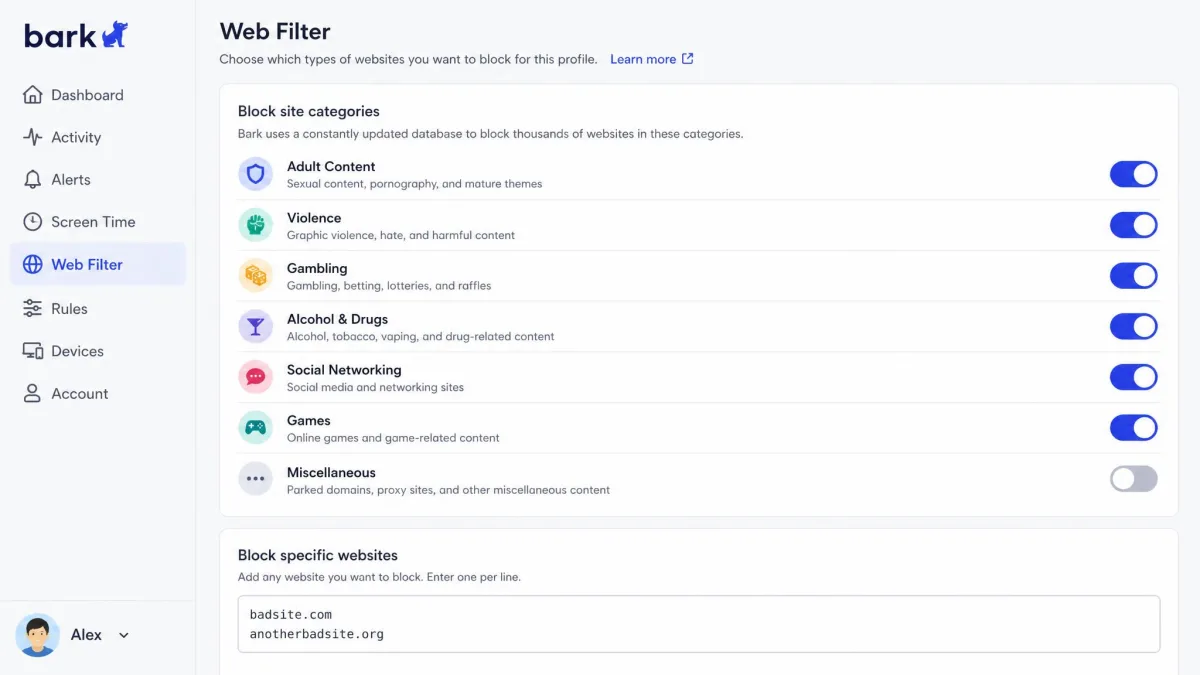
Add Bark Home to the mix and the filtering extends to devices that never run the app, including smart TVs and consoles on your home network. That is the piece that closes the gap when a family has more screens than phones. A parental control router solves the same problem from the other direction, filtering at the source so every device on the network is covered without installing anything.
Winner on filtering and screen time: Bark, uncontested. Life360 does not offer either feature at any price.
Driving Safety and Teen Driver Reports
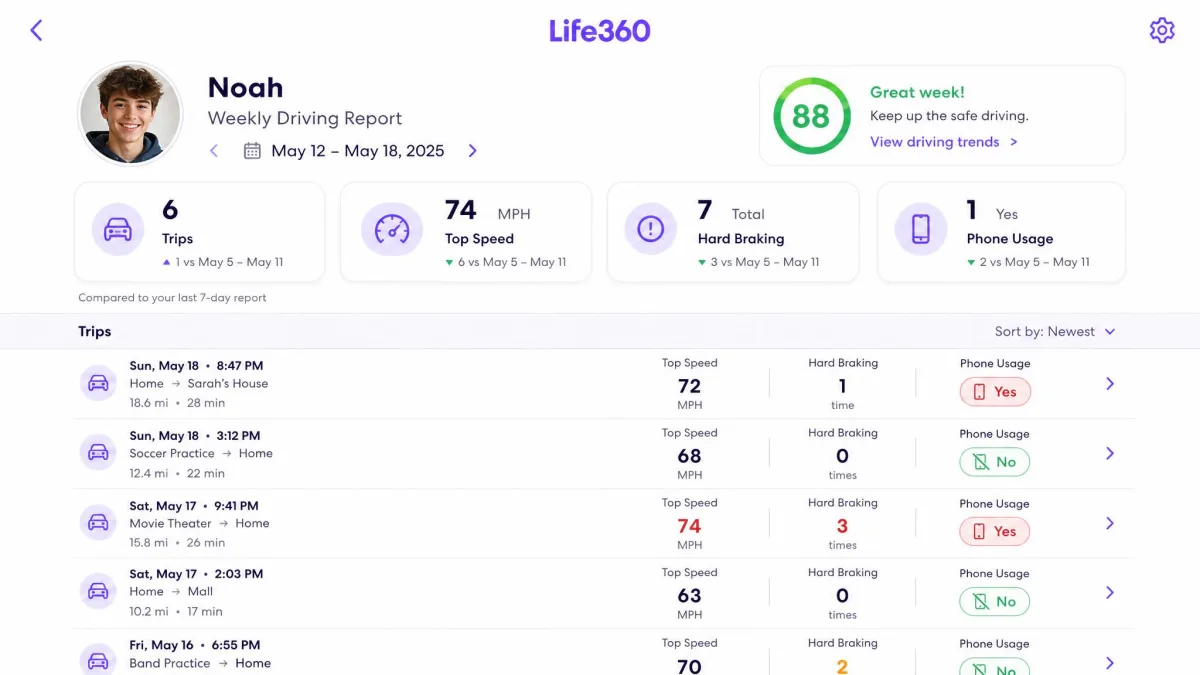
Now the advantage flips. Life360 produces driving reports with speed data and flags phone use behind the wheel. It also detects crashes automatically and can trigger emergency dispatch and roadside assistance. For a family with a new driver, this is the reason to pay.
Watching a single drive play out shows how those pieces fit together. The map held the car's position continuously as it moved, with no lag between what was happening and what the pin showed, so following the journey felt like watching rather than refreshing. The place alert for the destination was the loose link in the chain, landing somewhere between two and twenty minutes after the car actually arrived. Crash detection, by contrast, fired within seconds of an impact, which is exactly the timing you want from a feature you hope never runs. The phone-usage-while-driving detection is the least precise of the set, since it sometimes flags a passenger or a stationary car, so read those reports as a conversation starter rather than evidence.
Battery is the trade. Continuous tracking typically costs roughly 10% to 20% of a day's charge, though that figure swings with the handset, signal strength, how much the phone moves and whether crash detection is switched on. Battery use climbs noticeably on long drives.
Bark does not compete here at all.
Alerts, Notifications and Activity Reports
The two apps interrupt you for completely different reasons. Bark's alerts are content events: a flagged message, a search, a video, tagged with the issue category and a suggested way to respond. They arrive irregularly, and a quiet week is a good week.
Life360's alerts are movement events. Someone arrives, someone leaves, a child's phone battery drops, a crash is detected. They land on a predictable daily rhythm, which is either reassuring or noisy depending on how many places you have saved.
One practical note on volume. Life360's free plan allows only 2 saved places, so most families with several regular destinations will find the free tier's alerts too thin to be useful.
Setup, Ease of Use and Device Compatibility
Life360 is the easier install by a wide margin. It goes on both phones and starts sharing location in about two minutes, with no desktop step and nothing to connect beyond permissions.
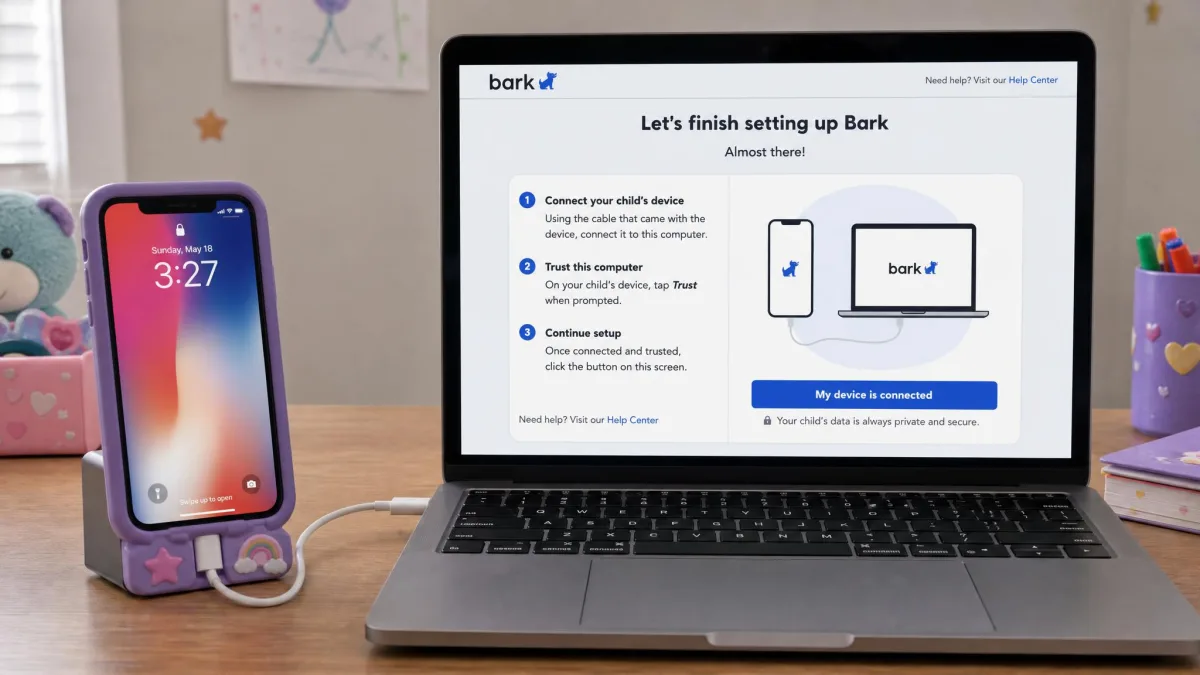
Bark asks for more up front. Setting up a child's iPhone meant finding a desktop computer and a cable, because the iOS install runs through the laptop rather than the handset, and that step was comfortably the slowest part of onboarding. Once the phone was linked we still had accounts to connect one at a time, and the whole sequence lengthens with every extra device you add, so a household with three or four screens repeats that connecting work three or four times over. Budget an evening rather than a coffee break.
The dashboard follows the same pattern. Bark's felt dense at first and became straightforward after a few sessions, while Life360's map is understood at a glance.
Compatibility is where Bark takes it back. Bark runs on Android, iPhone, iPad, iPod, Chromebook, Windows, macOS, Amazon Fire tablets and gaming consoles. Life360 runs on Android and iOS smartphones only. If the device you worry about is a school Chromebook or a console, Life360 cannot help you. Monitoring a child's laptop is its own job, and it needs software that runs on the laptop itself.
Winner on setup: Life360. Winner on device coverage: Bark. Which one matters depends on how many non-phone screens are in your house.
Pricing and Plans Compared
The headline numbers land close together, but what you get for them is not comparable. Bark charges per family; Life360 charges per circle and tiers the location features you actually want.
Bark Pricing
Bark Premium is $14 per month, or $99 per year, and covers unlimited children and unlimited devices with the full feature set. Bark Jr is $5 per month, or $49 per year, and drops content monitoring in favour of screen time, web filtering and location, which suits younger children who do not yet have social accounts.
There is a 7-day free trial, backed by a 30-day money-back guarantee, so you can see real alerts before you commit. Check Bark's current pricing before you buy, since the hardware bundles change more often than the app plans do.

Life360 Pricing
Life360's free plan gives you basic location with 2 saved places and 2 days of location history. Silver is $7.99 per month and raises that to 7 days of history and 5 place alerts. Gold is $14.99 per month or $99.99 per year, with 30 days of history, unlimited place alerts and the driving and emergency features. Platinum is $24.99 per month or $199.99 per year and adds the identity protection package.
Life360's trial runs 7 days with no credit card required. Compare Life360's membership tiers carefully, because the free plan is thinner than most parents expect.

Read at annual prices, Bark Premium at $99 per year for the whole family undercuts Life360 Gold at $99.99 per year while doing considerably more. Life360 only looks cheap at the free and Silver tiers, where the features are thinnest.
Privacy: What Each App Shows Your Child
Both apps are visible to the child, and that is deliberate. Life360 is mutual by design: every member of the circle sees every other member's location, which is why teens tend to accept it. Bark is one-directional, but it is installed openly and your child knows it is there.
Bark's privacy pitch is that it does not show you everything. You see flagged excerpts, not the full contents of a chat, which keeps a teenager's ordinary conversations private while still surfacing the ones that matter.
Neither model is truly covert, and neither should be.
The families who get the most out of either app are the ones who set it up with the child in the room and agree what will and will not be looked at. Installed quietly, both apps tend to get uninstalled quietly.
What Neither App Can Do
Neither app is tamper-proof. An older child can delete the Bark app, opening a window of unmonitored access before a parent notices, and Life360 can be switched off or disabled by the person being tracked without an immediate warning to the circle. It is worth understanding the ways kids get around parental controls before you assume either app is doing its job.
Neither app can see a device it is not on. A friend's phone, a school computer with a personal login, a second account made in five minutes: all of it is outside the fence.
And neither app replaces the conversation. Alerts tell you something happened; they do not tell you why, and the useful part of both products is what you do in the twenty minutes after the notification arrives.
Do not treat either app's location as authoritative in an emergency. Life360 needs a live data connection to report a position, and Bark's map may show nothing at all until your child checks in.
Which App Should You Choose?
The decision comes down to which question keeps you up at night. Both apps are competent; they are just answering different worries.
Choose Bark If...
- Your child has social media, texts or school email you want a second set of eyes on
- You need screen time schedules and website blocking as well as visibility
- The devices you worry about include a Chromebook, a laptop or a console
- You have several children and want one plan to cover all of them
- You want a summary of what happened online rather than a feed you have to read
Choose Life360 If...
- Your main concern is where your family is, in real time
- You have a teen driver and want driving reports and crash detection
- You want the whole household on the same map, adults included
- You need something running in two minutes on two phones
- Your budget is zero to start, and the free tier is enough for now
Should You Use Both?
Plenty of families do, and the pairing makes sense on paper: Bark handles the online side, Life360 handles the map and the car. The practical objection is cost and battery, since running both means two subscriptions and two apps holding location permissions on the same phone.
Our advice is to buy Bark Premium first, live with its location tools for a month, and only add Life360 if the map is the thing you keep wishing were better. For most families it will not be. For families with a new driver, it will be almost immediately.
Bark tells you what your child is dealing with. Life360 tells you where they are dealing with it. Very few families need both answers with the same urgency.