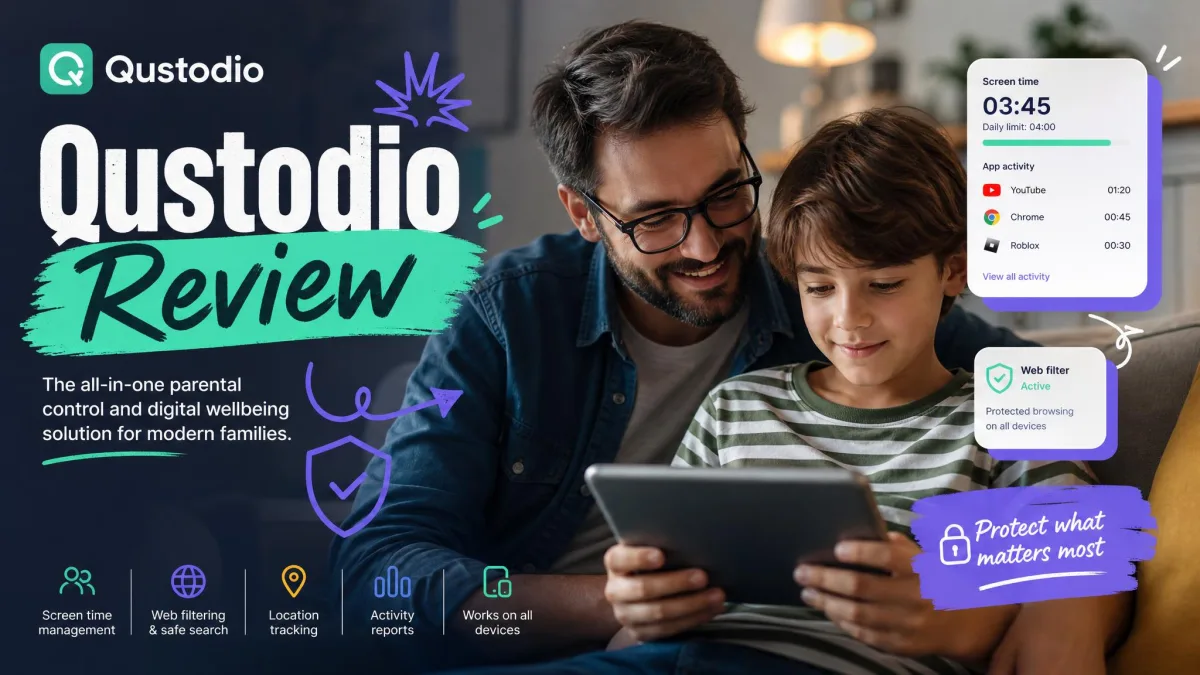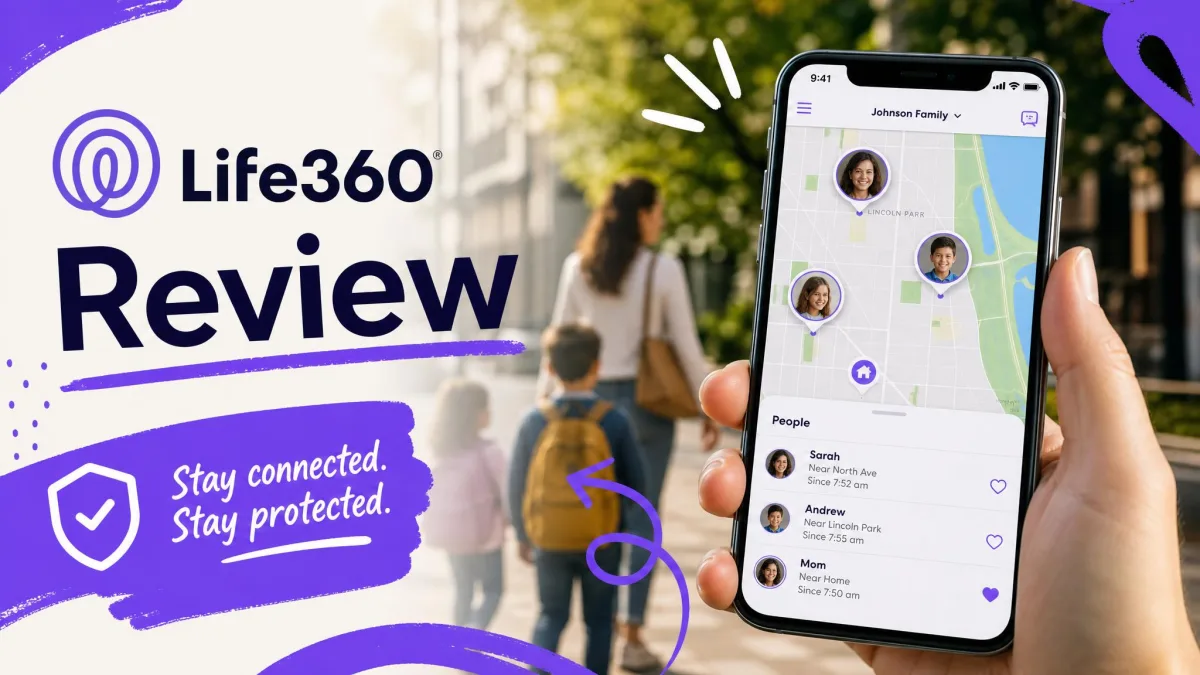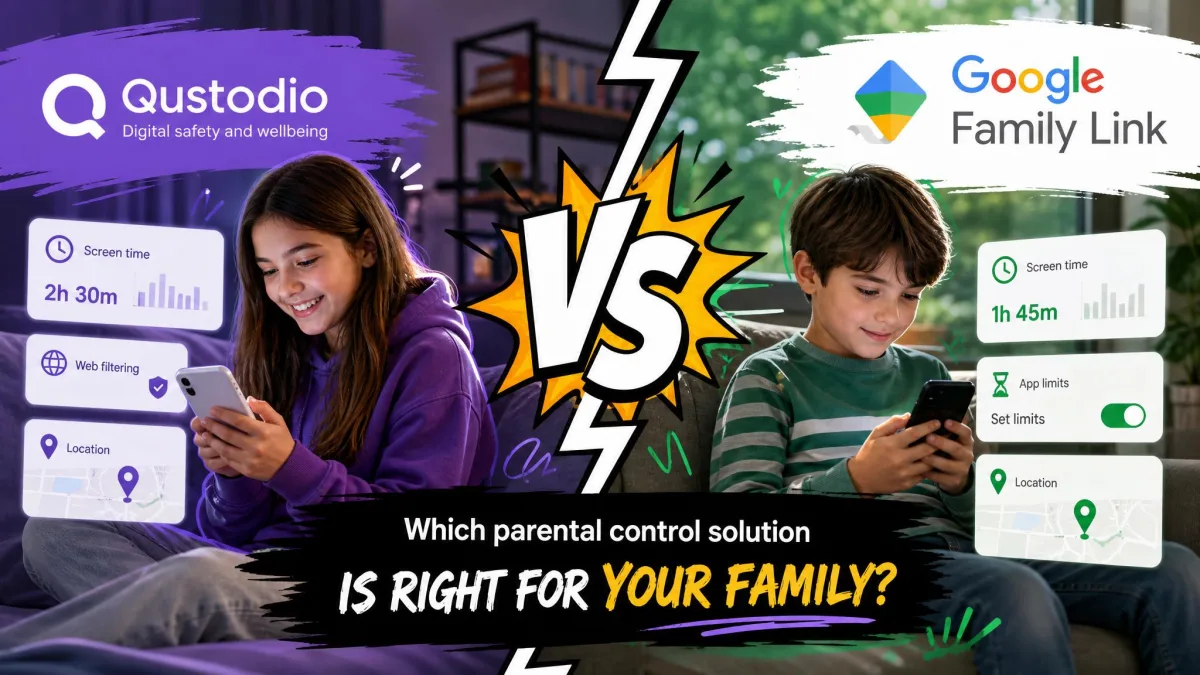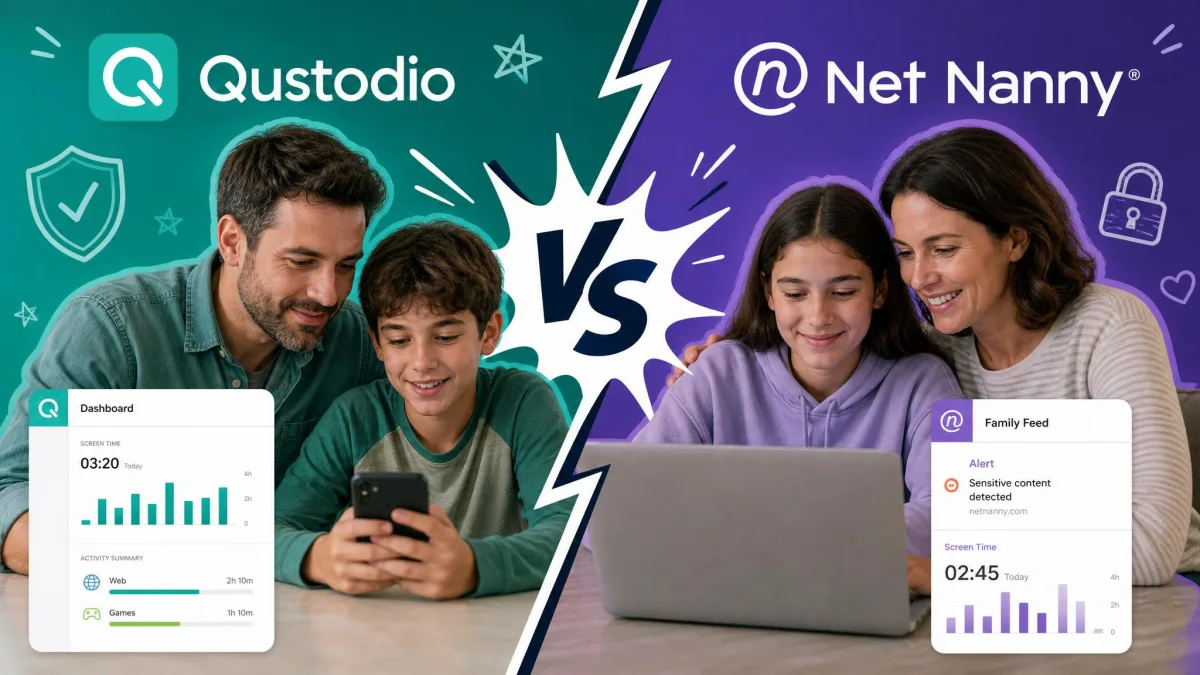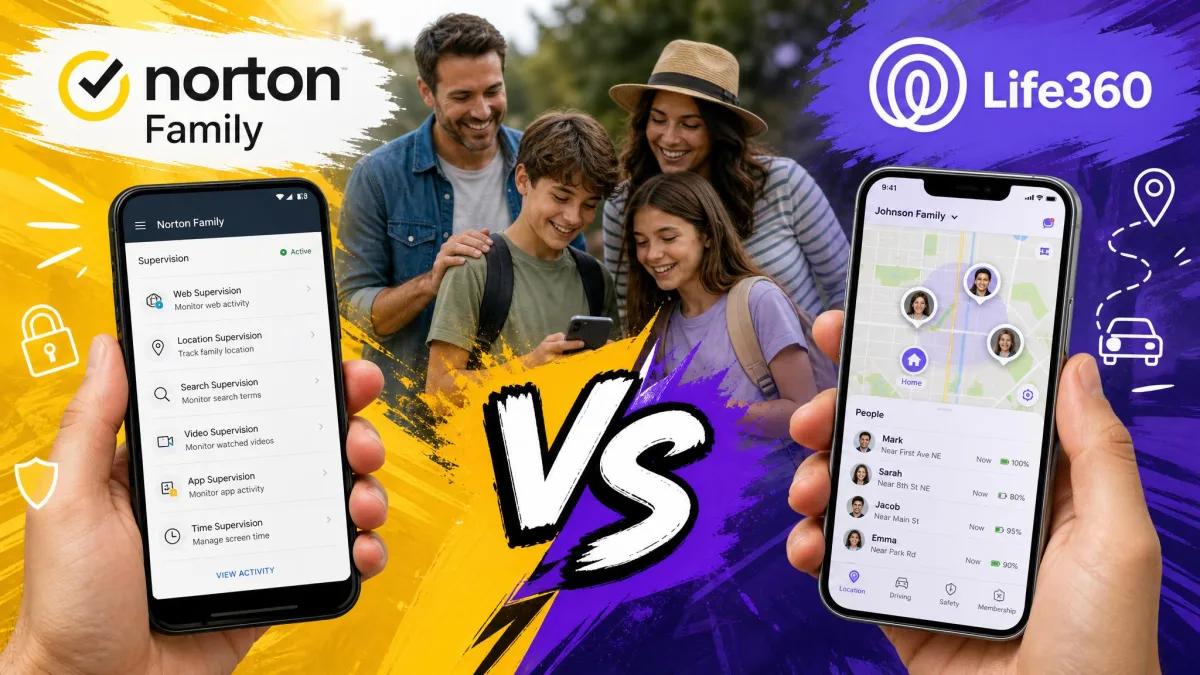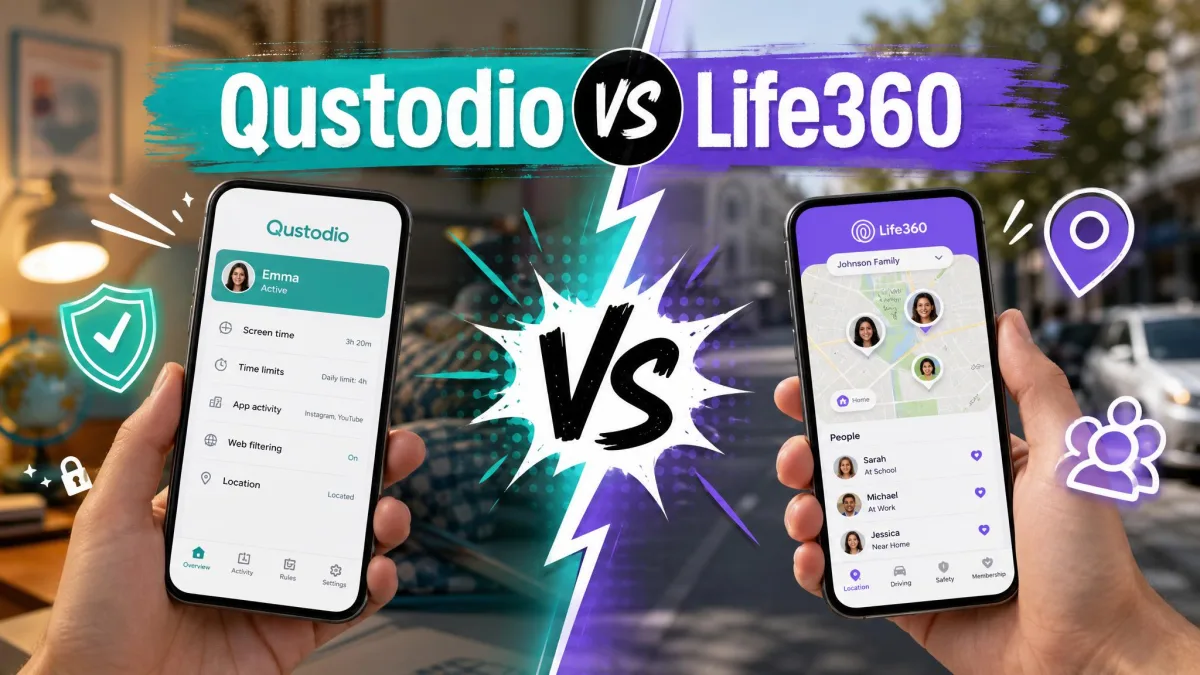
Most parents shopping for a family safety app are really choosing between two very different jobs. Do you want a full parental-control suite that filters the web, caps screen time, and watches which apps your kids open? Or do you want a location-first app that keeps the whole family on one map and flags a risky drive? That is the real split between Qustodio and Life360, and it decides which one belongs on your child's phone.
We set up both apps on real family devices, an Android phone and an iPhone in each case, and lived with them side by side for several weeks. We paid for the tiers ourselves, ran the location tracking against places we already knew, and pushed the screen-time and driving features the way a busy household actually would. What follows is what we found, where each app earns its keep, and where each one let us down.
Neither app is the "best" in a vacuum. The right pick depends on the ages of your kids, the phones in your house, and whether your worry is the internet or the road.
Head-to-Head Comparison Table
Here is the fast version. The table below lines up the features most families care about so you can see, at a glance, where each app is strong and where it simply does not compete.
| Product | Buy | Location | Screen time | Filtering | Driving | Price |
|---|---|---|---|---|---|---|
 |
Check price → | Real-time GPS, geofencing | Daily limits and schedules | Category web filtering | No | From about $60/yr |
 |
Check price | Real-time GPS, Places | No | No | Crash detection, driver reports | From $7.99/mo |
The pattern is clear right away. Qustodio owns the control features, filtering, screen time, and app limits, while Life360 owns location depth and anything to do with the car. There is very little overlap, which is good news: most families will feel the pull toward one side quickly.
Key Differences: Parental Control vs Location Tracking
The single most important thing to understand is that these apps were built to solve different problems. Qustodio is a parental-control platform. Its whole design assumes a parent who wants to shape what a child does online: blocking adult sites, setting a bedtime cutoff, and seeing which apps ate the afternoon.
Life360 started as a family locator and still thinks that way. Its core is a shared live map of everyone in your "circle," backed by driving analysis and emergency features. It does not filter the web or limit screen time at all.
So this is not really a contest of which app is better. It is a question of which problem you are trying to solve.
Qustodio watches what your kids do online. Life360 watches where your family is. Buying the wrong one for your worry is the most common mistake we see.
Who Qustodio Is Best For
Qustodio suits parents of younger children and tweens who are worried about the internet more than the road. If you want web filtering, homework-time screen limits, and a report of which apps and sites your child used, this is the app built for that job. It also stretches across more devices, so it fits families where kids use laptops and tablets, not just a phone.
Who Life360 Is Best For
Life360 fits families with teens, new drivers, and a lot of coming and going. If your main goal is knowing everyone got where they were headed, getting an alert when a teen reaches school or leaves a friend's house, and keeping an eye on how a new driver actually drives, Life360 is the stronger tool. It works well as a two-way family app rather than a one-way monitoring app, which older kids tend to accept more easily.

Location Tracking & Geofencing
Both apps do live location, and in day-to-day use both are good enough to answer the basic question of "where is my kid right now." The difference shows up in the details and in how hard each one leans on your battery.
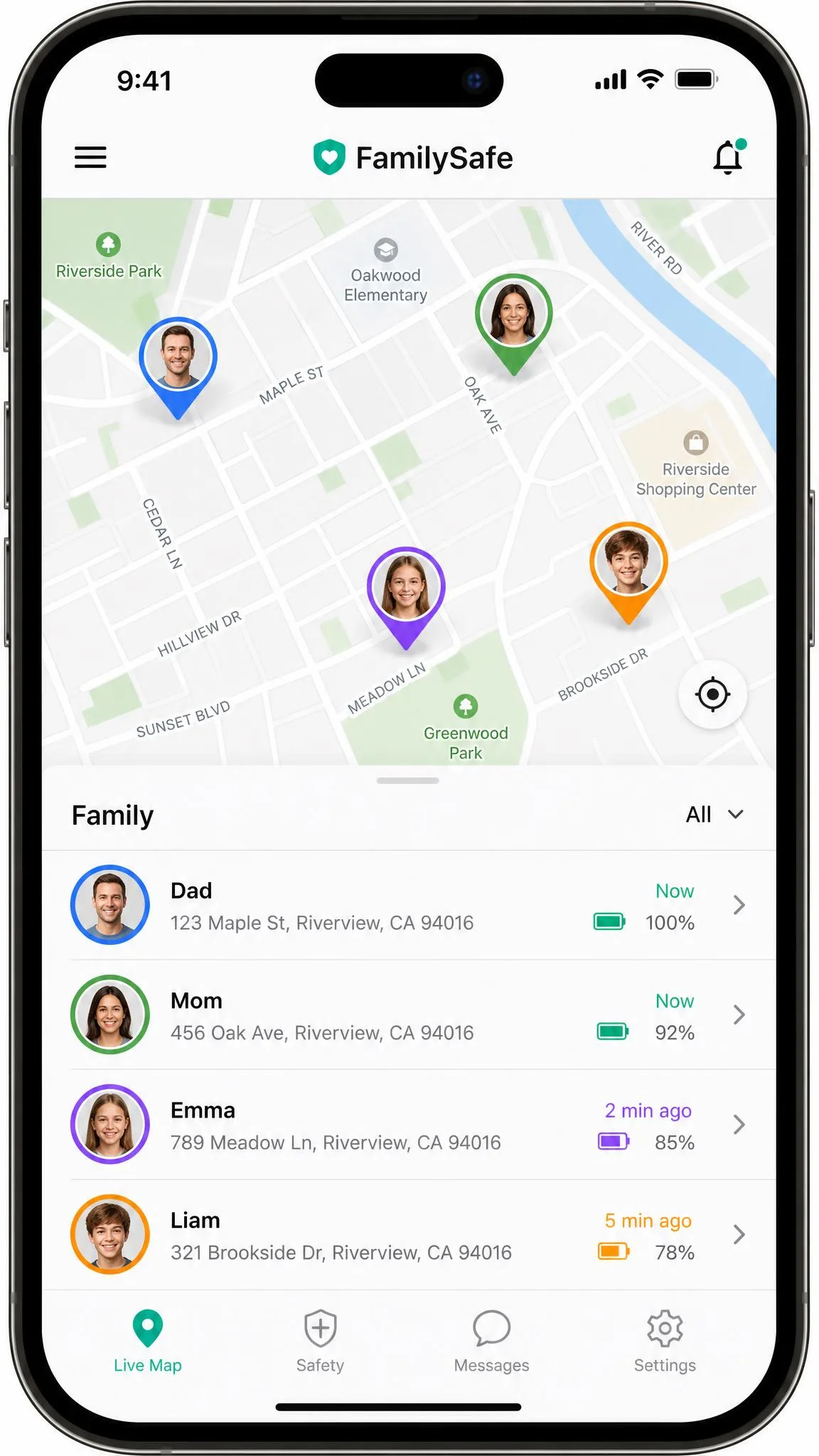
Qustodio Location Features
Qustodio's location tracking is competent and, importantly, sits inside a much bigger control suite. In our testing its geofencing worked reliably: we set zones around home and school and got clean arrival and departure alerts. The map showed the child's address, city, and country, and we could tighten zones down to roughly 200 meters, which was precise enough to tell "at the house" from "down the street."
Location is a supporting act here, not the headline. If tracking is all you need, Qustodio is more app than you are paying for.
Life360 Location & Circles
Life360 treats location as the main event, and it shows. Everyone in the circle appears on one live map, you can create Places (geofences) that fire arrival and departure alerts, and paid tiers add richer location history. This is genuinely nice for coordinating a household.
The trade-offs are real, and we felt them. Continuous background GPS drained noticeably more battery, roughly 10-20% extra per day on our iPhones and more like 15-30% on Android. Accuracy was usually good, within about a city block, but not flawless. On some days we saw it drift, and in heavier cases it misfired badly: errors up to half a mile, phantom trips that never happened, and updates that lagged for hours. On a couple of aggressive-battery Android phones, the app got shut down in the background and left gaps in the map until we whitelisted it.
If you rely on Life360 for a teen's location, dig into your phone's battery-optimization settings and exempt the app. On several Android phones we tested, background limits quietly killed tracking until we did.
Screen Time Management & App Limits
This is a one-sided section, because only one app plays. Qustodio offers daily screen-time limits, time schedules (think "no screens after 9 p.m." or "locked during school"), and per-app time limits plus outright app blocking. Life360 has none of this. It cannot limit screen time or block an app.
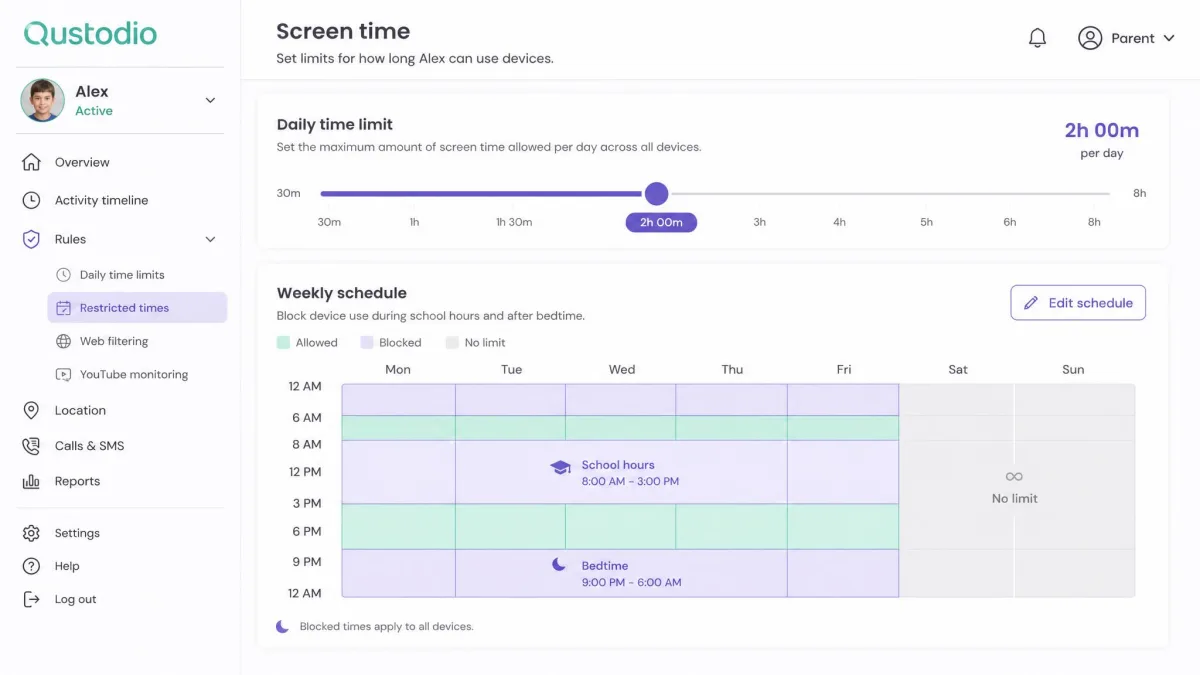
Qustodio's screen-time tools are the reason many parents buy it. In practice they worked, but not perfectly. We hit stretches where counters stuck at zero while a child kept playing, and activity logs that ran a day or more behind. When the limits fired, they did the job; the frustration was trusting that they always fired.
Screen-time enforcement on any parental app depends on the child's OS cooperating. Expect the occasional missed count, and treat the reports as a strong guide rather than a stopwatch.
Content & Web Filtering
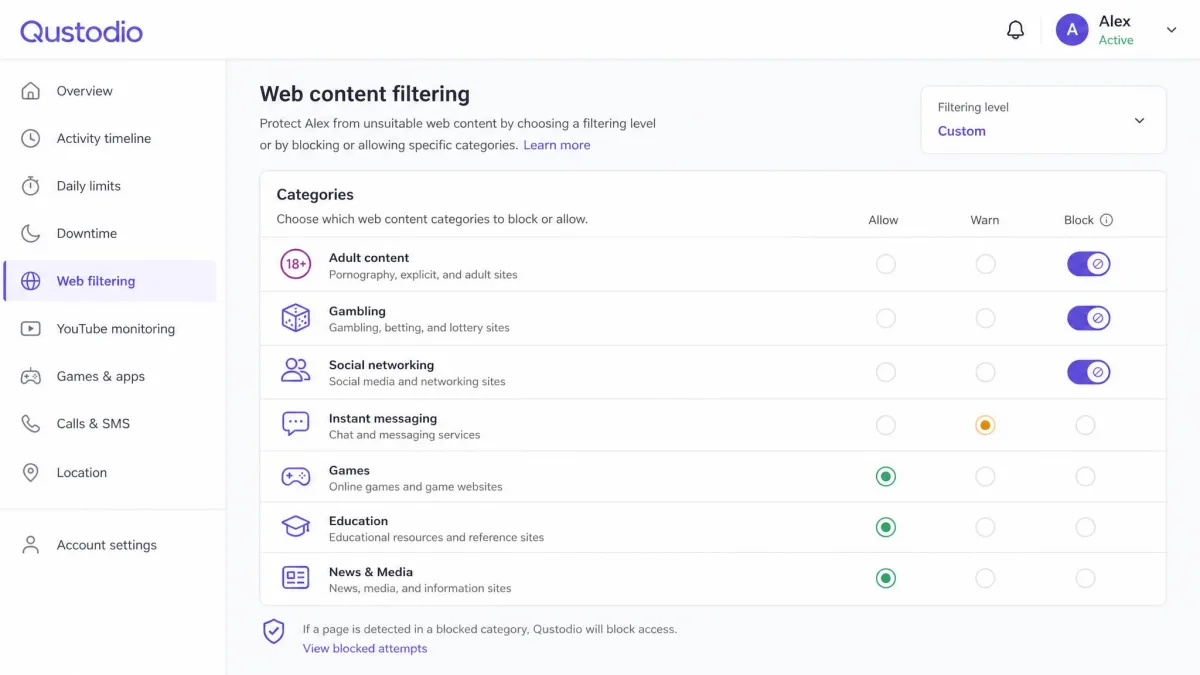
Again, only Qustodio competes. It filters the web by category, so you can block adult content, gambling, and other groups with a toggle rather than a manual blocklist. This is core parental-control territory and the main reason the app exists.
In use, the category filtering was the most dependable part of the suite. It caught the obvious stuff and let us add manual exceptions when it was overzealous. Life360 does not filter web content at all, so if internet safety is your priority, this section alone likely decides it.
Social Media & Message Monitoring
Qustodio offers call and text (SMS) monitoring plus social media and YouTube monitoring. Life360 offers none of this. On paper that is a clean win for Qustodio, but the reality is messier and depends heavily on the phone.
In our testing, the message and social monitoring was the weakest part of Qustodio. The social and YouTube monitoring lacked depth, and message monitoring fired inconsistently across platforms. On iPhones it was worse: because of Apple's platform restrictions, Qustodio drops SMS monitoring, detailed app-usage insight, and granular app blocking entirely. Social media message monitoring simply does not work on iOS.
iPhone families, read this twice. Qustodio charges the same for iOS but quietly loses message monitoring and some app controls to Apple's rules. Do not buy it expecting to read a child's texts on an iPhone.
Driving Safety & Crash Detection (Life360's Edge)
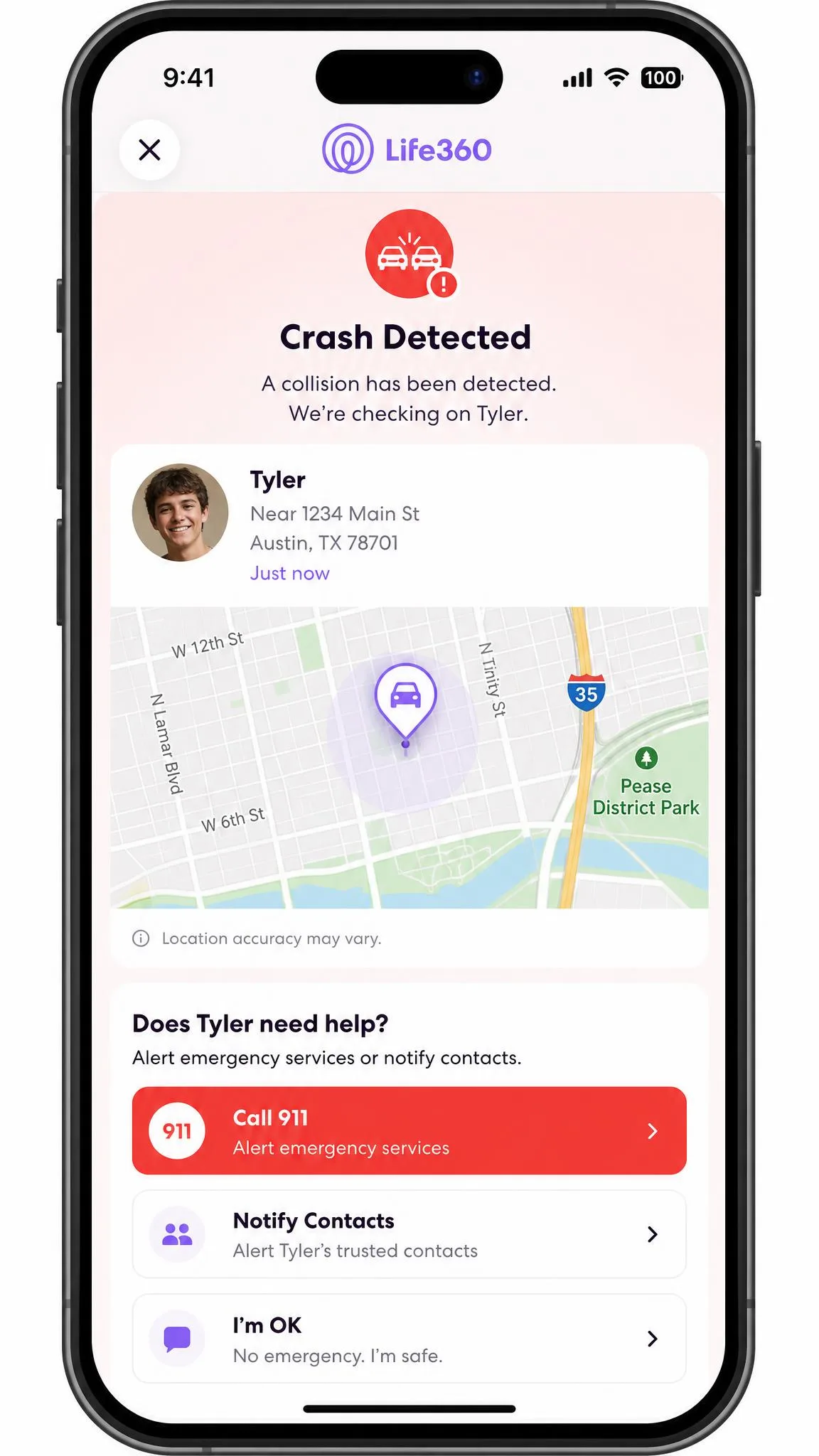
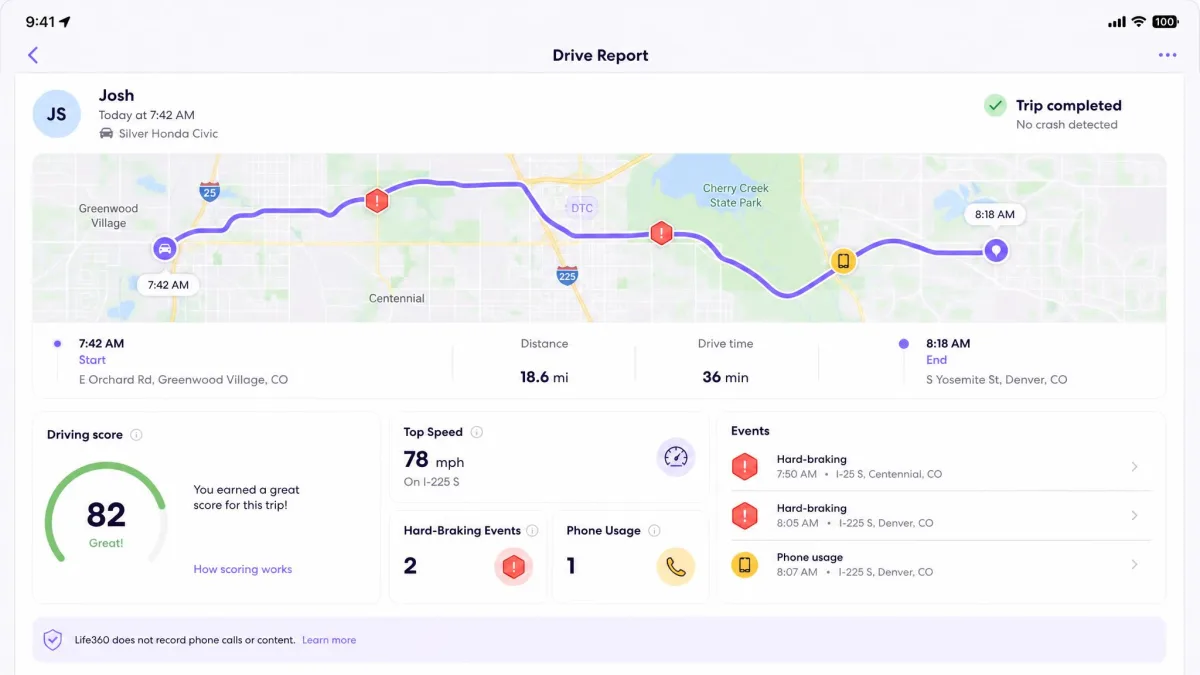
This is Life360's marquee feature and the clearest reason to pick it. Even on the free plan, Life360 includes crash detection and a driving summary. Paid tiers add speed and hard-braking stats and individual driver reports, so you can see how a specific teen actually drove, not just where they went.
Qustodio has nothing here. It does not do crash detection or driving analysis.
For a family with a new driver, this is often the whole decision. Seeing that a teen hit 80 on the highway or slammed the brakes twice on the way home is information Qustodio cannot give you. The driver reports were the feature our test households kept checking without being prompted.
Platform Compatibility & Devices Supported
Device support is a quiet but decisive difference. Qustodio runs on Android, iOS, Windows, Mac, Chromebook, and Kindle. That breadth matters if your kids use laptops and tablets for school, because you can extend the same filtering and time rules across all of them.
Life360 runs on Android and iOS only. That is fine for a location app, since everyone carries a phone, but it means Life360 has no answer for the family laptop or the school Chromebook.
So if your monitoring needs stop at the phone, both apps fit. If they extend to computers, only Qustodio does.
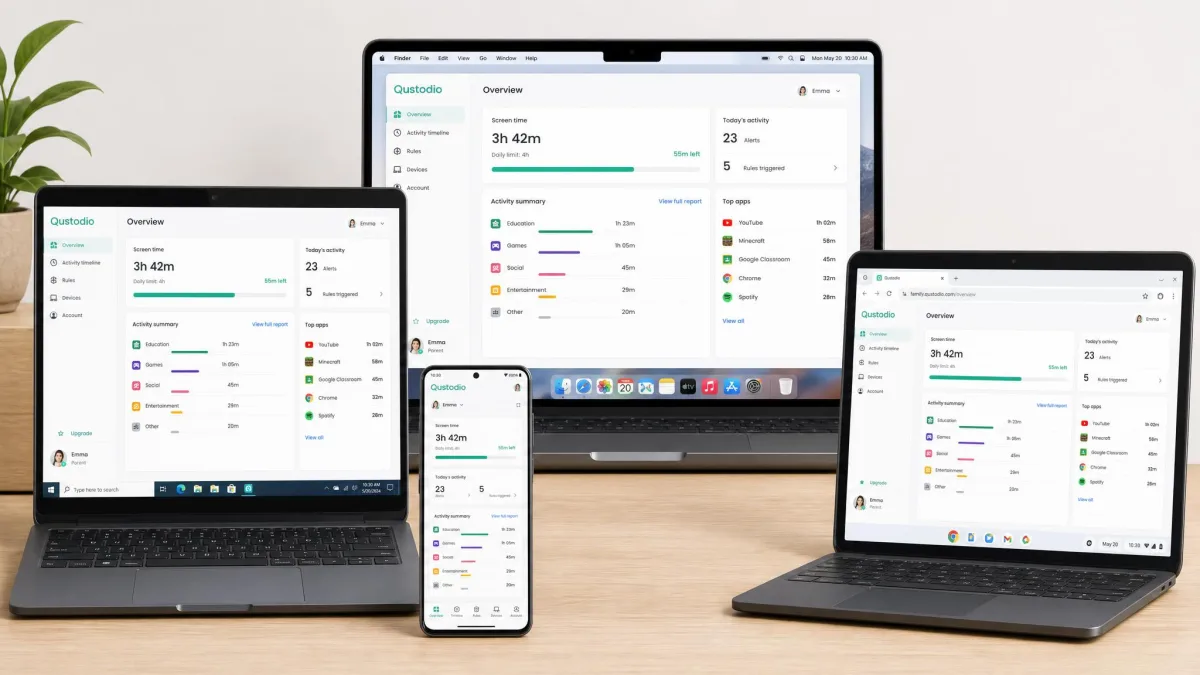
The iOS asterisk is worth repeating: Qustodio supports iPhones, but with reduced features. Broad platform support is not the same as full feature parity on every platform.
Alerts, Notifications & Reports
Both apps push alerts, and both can overdo it. Qustodio's strength is its activity reports: a rundown of sites visited, apps used, searches made, and time spent, delivered by email or in the app. When the logs were current they were genuinely useful; when they ran behind, they undercut the whole point.
Life360's alerts center on movement: arrivals, departures, and drive summaries. They are timely and useful, but they pile up. The volume of notifications got irritating over time, and Life360's billing practices are a recurring sore point too.
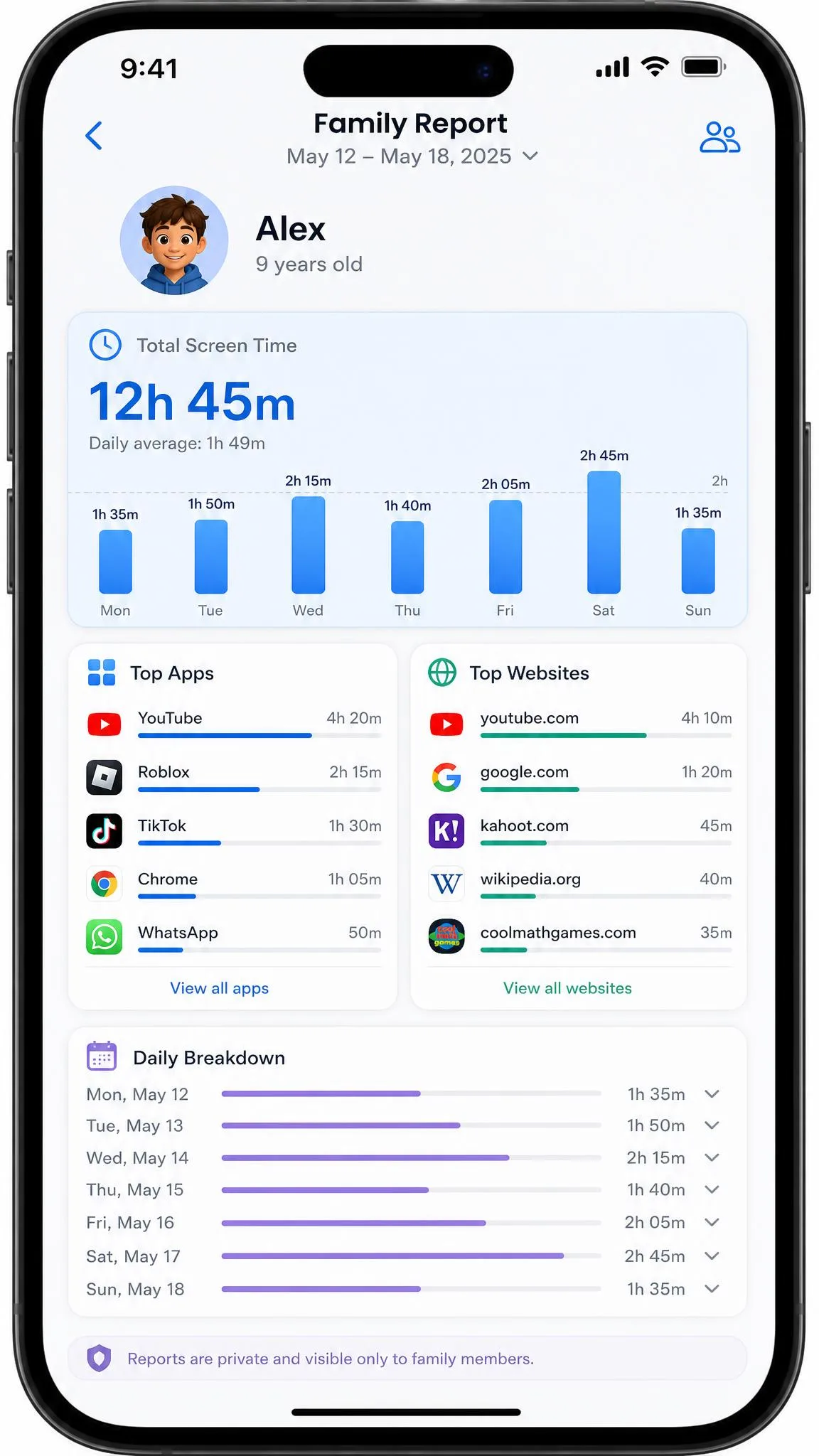
Reports are only as good as they are current. Qustodio's are richer; Life360's are more timely. Neither is something to check obsessively.
Pricing & Plans Compared
Pricing is where the two apps diverge again, because they price different things. Qustodio charges per plan tied to a device count. Life360 charges per circle, covering the whole family group rather than per person.
Qustodio Pricing
Qustodio's paid tiers start with a Basic plan at $59.95/year for up to 5 devices (you will sometimes catch it on promotion nearer $55), and step up to a Complete plan at around $105/year, though listed prices vary by source. Both are billed annually. The Complete tier covers unlimited devices, so it fits a bigger household with lots of phones, tablets, and laptops. There is also a free plan covering 1 device with limited features, a 3-day free trial on paid plans, and a 30-day money-back guarantee.
Life360 Pricing
Life360's paid tiers are clearer. Silver runs $7.99/month or $79.99/year and adds 7 days of location history and 5 Places. Gold runs $14.99/month or $149.99/year with 30 days of history, unlimited Places, roadside assistance, and individual driver reports. Platinum runs $24.99/month or $249.99/year, adding towing, stolen-funds reimbursement, and travel and medical support. Every paid plan covers the entire circle, not one person, which is why a bigger family often finds Life360 the better value.
Free Plan Comparison
Both apps have a free tier, and they are not close in usefulness. Qustodio's free plan covers a single device with limited features, which is really a taster. Life360's free plan is more generous for what it does: 2 Places, 2 days of location history, live location sharing, arrival and departure alerts, SOS, crash detection, and a driving summary.
In our households, Life360's free tier was genuinely usable for basic family tracking, and the 2-day history and 2-Place limit was the most common reason people upgraded, usually alongside wanting driver reports for a new teen driver. Qustodio's free tier, by contrast, mostly served to show you what you were missing.
Ease of Use & Setup
Setup is where Life360 pulls ahead for a nervous first-timer. Its onboarding is a phone-only, share-your-location-and-join-a-circle flow that most families finish in minutes.
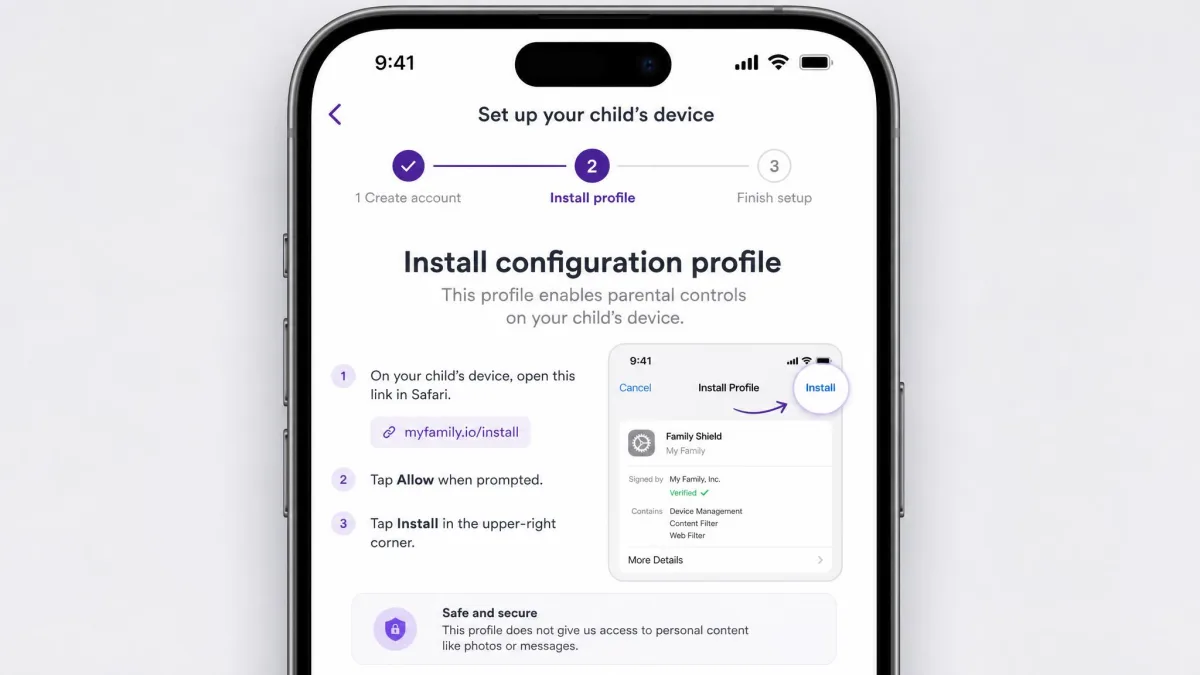
Qustodio asks more of you. Setup requires installing separate parent and child apps, plus an MDM profile on the child's device, which is a multi-step but manageable process. Nothing about it is broken, but it takes patience, and it is the kind of thing that can stall a less technical parent. We also found Qustodio's support slow to respond when we hit snags, and the occasional technical glitch blocked everyday services unexpectedly.
Day to day, both dashboards are clear. Qustodio simply has more to configure because it does more.
Pros and Cons
Here is how each app nets out after weeks of living with it. The pros and cons below reflect what actually mattered in daily use, not just the spec sheet.
Pros
- Deep parental controls: web filtering, screen-time limits, app blocking, and reports
- Broadest device support: Android, iOS, Windows, Mac, Chromebook, and Kindle
- Reliable geofencing with tight, roughly 200-meter zones
- Free trial and a 30-day money-back guarantee to test risk-free
Cons
- Loses key features on iPhones, including message monitoring
- Screen-time counters and activity logs sometimes lag or miss
- Social and message monitoring is shallow and inconsistent
- Multi-step setup and slow support
That is Qustodio. Now Life360.
Pros
- Best-in-class location, live circle map, and geofenced Places
- Crash detection and driver reports, even a driving summary free
- One price covers the whole family circle, not per person
- Easy phone-only setup and a genuinely useful free tier
Cons
- No web filtering, screen-time limits, or app blocking at all
- Heavy battery drain from continuous background GPS
- Location can drift, with reports of phantom trips and delays
- Frequent notifications and recurring billing complaints
Alternatives to Qustodio and Life360
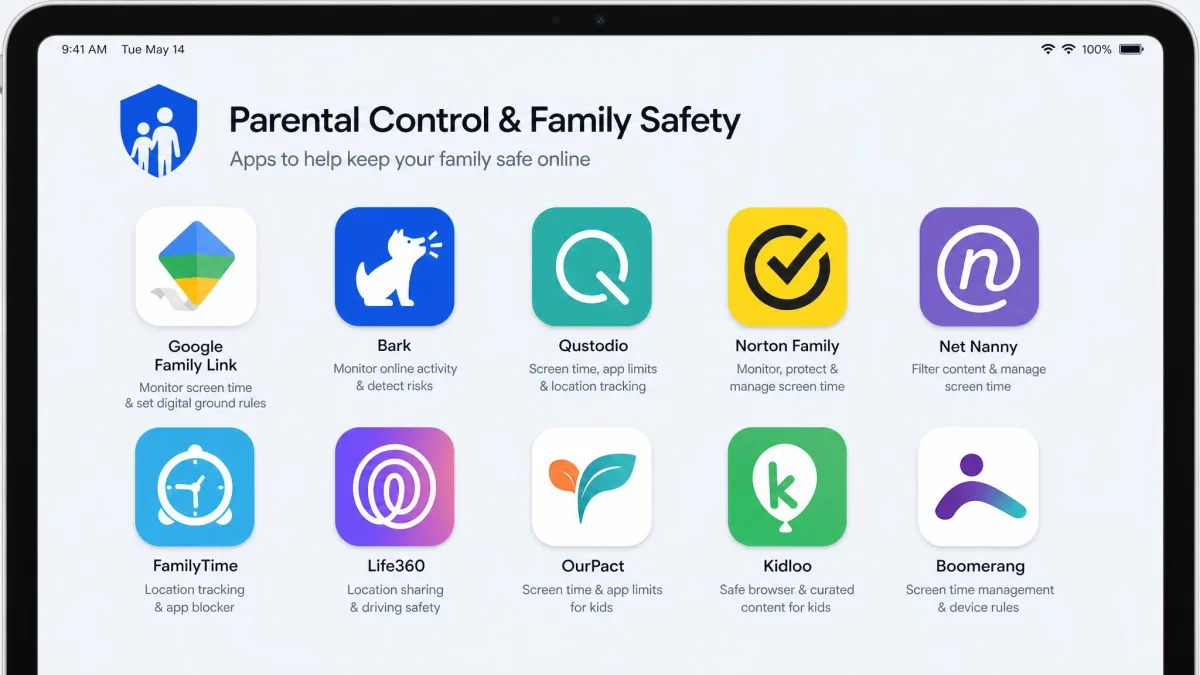
If neither fits, a few other options are worth a look. Google Family Link is free and handles screen-time limits and app approvals well for Android-heavy families, though its web filtering and cross-platform reach are thinner than Qustodio's. Bark leans into social media and message monitoring with alerts rather than raw logs, which some parents of teens prefer.
Qustodio vs Life360 at a Glance (Quick Verdict)
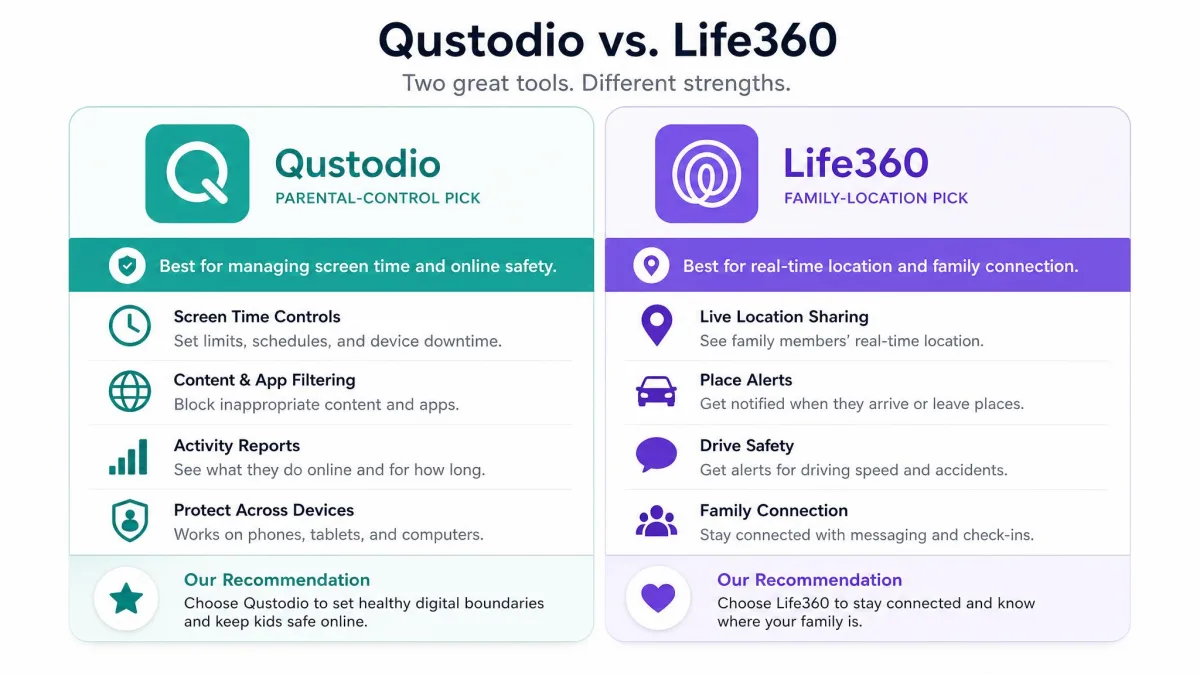
If you have read this far and still want it in one breath: Qustodio is the parental-control app, Life360 is the family-location app. Choose by the problem, not the brand.
Buy Qustodio if your worry is the internet, screen time, and younger kids across several devices. Buy Life360 if your worry is where everyone is and how your teen drives. Some families genuinely want both, and running each for its one job is a legitimate, if pricier, answer.
Which Should You Choose? Final Verdict
There is no single winner here, and any review that crowns one is dodging the question. These apps do different jobs, and the better one is the one that matches your job.
For parents of younger children focused on internet safety, screen-time balance, and content filtering across phones, tablets, and laptops, Qustodio is the pick, with the iPhone caveat firmly in mind. For families with teens and drivers who mainly want reliable location and driving insight, Life360 is the pick, with a battery-and-accuracy caveat firmly in mind.